
Spire.PDF for .NET (290)
In Euclidean plane geometry, a rectangle is any quadrilateral with four right angles. The term "oblong" is occasionally used to refer to a non-square rectangle. A rectangle with vertices ABCD would be denoted as ABCD. It’s simple for people to draw rectangles in paper. While how about drawing rectangles in PDF document? This section will show you the exact answer. This section will introduce a solution to draw rectangles and set the size and position of rectangles in PDF via a .NET PDF component Spire.PDF for .NET with C#, VB.NET.
In Spire.PDF, there are two classes: Spire.Pdf.Graphics.PdfPen and Spire.Pdf.Granphics.PdfBrush. By using the first class, we can set the color and decide the outline of the PDF rectangle. While the second class can quickly help us fill the rectangles with a color we want. Now let us see this method: Spire.Pdf.PdfPageBase.Canvas.DrawRectangle(PdfPen pen, RectangleF rectangle); There are two parameters passed. One is the PdfPen which I referred above. The other represents the location and size of a rectangle. By calling this method, we can draw rectangles and set their size and position very quickly. Now let us view the rectangles as below picture:
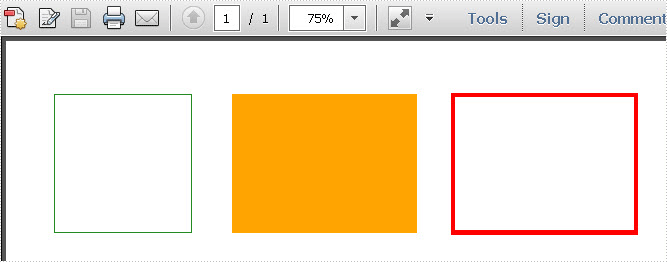
Here we can download Spire.PDF for .NET and install it on system. After adding Spire.Pdf dll, we can draw rectangle in our PDF document as below code:
using System.Drawing;
using Spire.Pdf;
using Spire.Pdf.Graphics;

namespace PDF_rectangles
{
    class Program
    {
        static void Main(string[] args)
        {
            //create a PDF
            PdfDocument pdfDoc = new PdfDocument();
            PdfPageBase page = pdfDoc.Pages.Add();
            //save graphics state
            PdfGraphicsState state = page.Canvas.Save();
            //draw rectangles
            PdfPen pen = new PdfPen(Color.ForestGreen, 0.1f);
            PdfPen pen1 = new PdfPen(Color.Red, 3f);
            PdfBrush brush = new PdfSolidBrush(Color.Orange);
            page.Canvas.DrawRectangle(pen, new Rectangle(new Point(2, 7), new Size(120, 120)));
            page.Canvas.DrawRectangle(pen1, new Rectangle(new Point(350, 7), new Size(160, 120)));
            page.Canvas.DrawRectangle(brush, new RectangleF(new Point(158, 7), new SizeF(160, 120)));
            //restor graphics
            page.Canvas.Restore(state);
            pdfDoc.SaveToFile("Rectangles.pdf");
            System.Diagnostics.Process.Start("Rectangles.pdf");
        }
    }
}
Imports System.Drawing
Imports Spire.Pdf
Imports Spire.Pdf.Graphics

Namespace PDF_rectangles
	Class Program
		Private Shared Sub Main(args As String())
			'create a PDF
			Dim pdfDoc As New PdfDocument()
			Dim page As PdfPageBase = pdfDoc.Pages.Add()
			'save graphics state
			Dim state As PdfGraphicsState = page.Canvas.Save()
			'draw rectangles
			Dim pen As New PdfPen(Color.ForestGreen, 0.1F)
			Dim pen1 As New PdfPen(Color.Red, 3F)
			Dim brush As PdfBrush = New PdfSolidBrush(Color.Orange)
			page.Canvas.DrawRectangle(pen, New Rectangle(New Point(2, 7), New Size(120, 120)))
			page.Canvas.DrawRectangle(pen1, New Rectangle(New Point(350, 7), New Size(160, 120)))
			page.Canvas.DrawRectangle(brush, New RectangleF(New Point(158, 7), New SizeF(160, 120)))
			'restor graphics
			page.Canvas.Restore(state)
			pdfDoc.SaveToFile("Rectangles.pdf")
			System.Diagnostics.Process.Start("Rectangles.pdf")
		End Sub
	End Class
End Namespace
Spire.PDF for .NET is a .NET PDF component that can draw different kinds of shapes in PDF document such as Circles, Arcs. Ellipse and Five-pointed Star.
Everyone knows how to open and save a PDF file. Sometimes you run into the situation that your PDF file has one or more blank pages. You want to get rid of the blank page to make you PDF file look more neat. Many people don't know how to do this.
In the following sections, I will demonstrate how to remove blank page from PDF file in WPF very easily and effortlessly.
Here is the original PDF document:
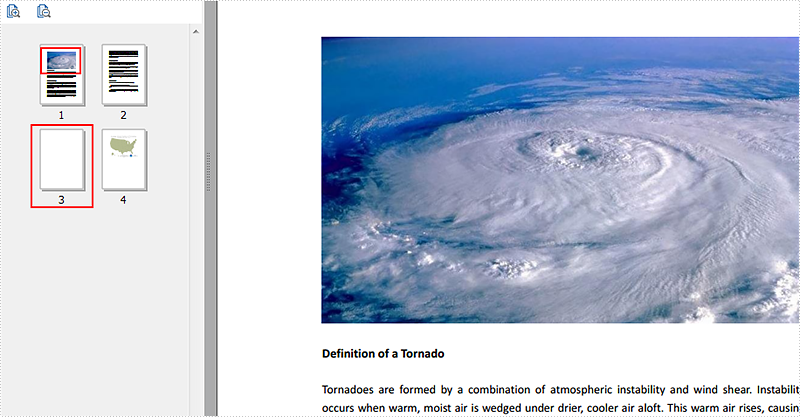
The code snippets are as followed:
Step 1: Initialize a new instance of PdfDocument class and load the PDF document from the file.
PdfDocument document = new PdfDocument();
document.LoadFromFile("Tornado.pdf");
Step 2: Traverse the PDF file and detect the content. If the page is blank, then remove it.
for (int i = 0; i < document.Pages.Count; i++)
{
    PdfPageBase originalPage = document.Pages[i];
    if (originalPage.IsBlank())
    {
       document.Pages.Remove(originalPage);
       i--;
     }
}
Step 3: Save the PDF and launch the file.
document.SaveToFile("Tornadowithoutblankpage.pdf", FileFormat.PDF);
System.Diagnostics.Process.Start("Tornadowithoutblankpage.pdf");
Effective screenshot:
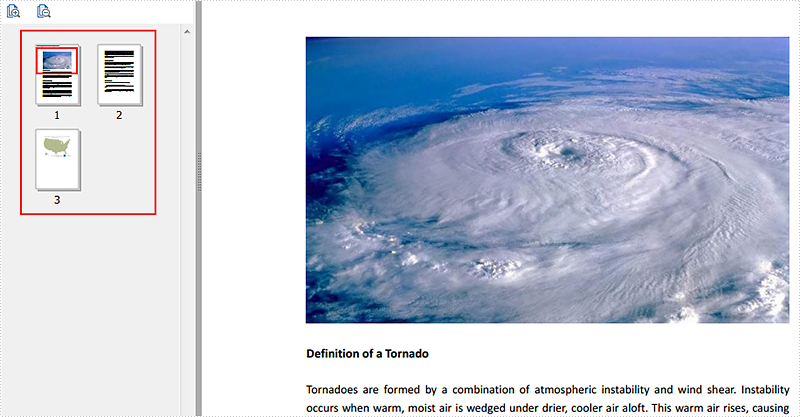
Full Codes:
using System.Windows;
using Spire.Pdf;
using System.Drawing;

namespace Tornadoes
{
    ///
    /// Interaction logic for MainWindow.xaml
    ///
    public partial class MainWindow : Window
    {
        public MainWindow()
        {
            InitializeComponent();
        }

        private void button1_Click(object sender, RoutedEventArgs e)
        {
            PdfDocument document = new PdfDocument();
            document.LoadFromFile("Tornado.pdf");
            for (int i = 0; i < document.Pages.Count; i++)
            {
                PdfPageBase originalPage = document.Pages[i];
                if (originalPage.IsBlank())
                {
                    document.Pages.Remove(originalPage);
                    i--;
                }
            }
            document.SaveToFile("Tornadoeswithtidypage.pdf", FileFormat.PDF);
            System.Diagnostics.Process.Start("Tornadoeswithtidypage.pdf");

        }
    }
}
Imports System.Windows
Imports Spire.Pdf
Imports System.Drawing

Namespace Tornadoes
	'''
	''' Interaction logic for MainWindow.xaml
	'''
	Public Partial Class MainWindow
		Inherits Window
		Public Sub New()
			InitializeComponent()
		End Sub

		Private Sub button1_Click(sender As Object, e As RoutedEventArgs)
			Dim document As New PdfDocument()
			document.LoadFromFile("Tornado.pdf")
			For i As Integer = 0 To document.Pages.Count - 1
				Dim originalPage As PdfPageBase = document.Pages(i)
				If originalPage.IsBlank() Then
					document.Pages.Remove(originalPage)
					i -= 1
				End If
			Next
			document.SaveToFile("Tornadoeswithtidypage.pdf", FileFormat.PDF)
			System.Diagnostics.Process.Start("Tornadoeswithtidypage.pdf")

		End Sub
	End Class
End Namespace
Circles can be defined as the curves traced out by points that move so that its distance from a given point is constant. They are also look as special ellipses in which the two foci are coincident and the eccentricity is “0”. Whatever they are, they are indispensable in PDF document. This section will introduce a solution to draw circles and set their size and position in PDF file via a .NET PDF component Spire.PDF for .NET in C#, VB.NET.
When we draw circles in PDF, we only need to call one method in Spire.PDF: Spire.Pdf.PdfPageBase.Canvas.DrawPie(PdfPen pen, float x, float y, float width, float height, float startAngle, float sweepAngle); Here there are seven parameters in this method. The first one is the class Spire.Pdf.Graphics.PdfPen which can define the color and the outline of the circle. If we change this parameter to be another class Spire.Pdf.Graphics.PdfBrush, we can easily fill the circle with a certain color. The second and third parameters determine the exact distance between the PDF margin and the circle. "float x" decides the distance of left margin with circle, while "float y" means the distance between the top margin with the circle. By setting the fourth and fifth parameters, we can decide the circle width and height. The last two parameters are the start angle and sweep angle when drawing circles. Now please view the circles in PDF as below picture:
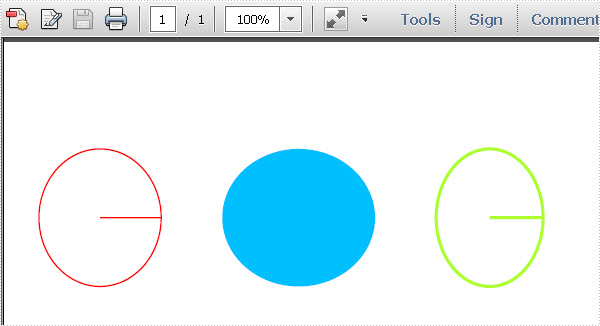
Here we can quickly download Spire.PDF for .NET . After adding Spire.Pdf dll in the download Bin folder, we can draw circles in PDF file via Spire.PDF by below code.
using System.Drawing;
using Spire.Pdf;
using Spire.Pdf.Graphics;

namespace pdf_circles
{
    class Program
    {
        static void Main(string[] args)
        {
            //Create a pdf document.
            PdfDocument doc = new PdfDocument();
            // Create one page
            PdfPageBase page = doc.Pages.Add();
            //save graphics state
            PdfGraphicsState state = page.Canvas.Save();
            PdfPen pen = new PdfPen(Color.Red, 1f);
            PdfPen pen1 = new PdfPen(Color.GreenYellow, 2f);
            PdfBrush brush = new PdfSolidBrush(Color.DeepSkyBlue);
            page.Canvas.DrawPie(pen, 30, 30, 80, 90, 360, 360);
            page.Canvas.DrawPie(brush, 150, 30, 100, 90, 360, 360);
            page.Canvas.DrawPie(pen1,290, 30, 70, 90, 360, 360);
            //restor graphics
            page.Canvas.Restore(state);
            doc.SaveToFile("Circles.pdf");
            System.Diagnostics.Process.Start("Circles.pdf");
        }
    }
}
Imports System.Drawing
Imports Spire.Pdf
Imports Spire.Pdf.Graphics

Namespace pdf_circles
	Class Program
		Private Shared Sub Main(args As String())
			'Create a pdf document.
			Dim doc As New PdfDocument()
			' Create one page
			Dim page As PdfPageBase = doc.Pages.Add()
			'save graphics state
			Dim state As PdfGraphicsState = page.Canvas.Save()
			Dim pen As New PdfPen(Color.Red, 1F)
			Dim pen1 As New PdfPen(Color.GreenYellow, 2F)
			Dim brush As PdfBrush = New PdfSolidBrush(Color.DeepSkyBlue)
			page.Canvas.DrawPie(pen, 30, 30, 80, 90, 360, _
				360)
			page.Canvas.DrawPie(brush, 150, 30, 100, 90, 360, _
				360)
			page.Canvas.DrawPie(pen1, 290, 30, 70, 90, 360, _
				360)
			'restor graphics
			page.Canvas.Restore(state)
			doc.SaveToFile("Circles.pdf")
			System.Diagnostics.Process.Start("Circles.pdf")
		End Sub
	End Class
End Namespace
Spire.PDF for .NET is a PDF component that enables users to draw different kinds of shapes in PDF document in C#, VB.NET.
PDF Split is always needed by programmers and developers. It is very convenient to split a PDF file to multiple files by using online PDF split tools, you can split PDF in a page range as well as only extract a unique page. However, if you want to split a huge PDF document to hundreds of files, you have to try at least dozens of times, which, undoubtedly, takes too much time. Furthermore, when the network goes slowly, an error is likely to occur, sometimes, the file is reported to be damaged or corrupted. While using Spire.PDF for WPF, you can easily split huge PDF document up to hundreds of pages without any worry of the document safety in your WPF application.
By using Spire.PDF, you can achieve the effect as below:
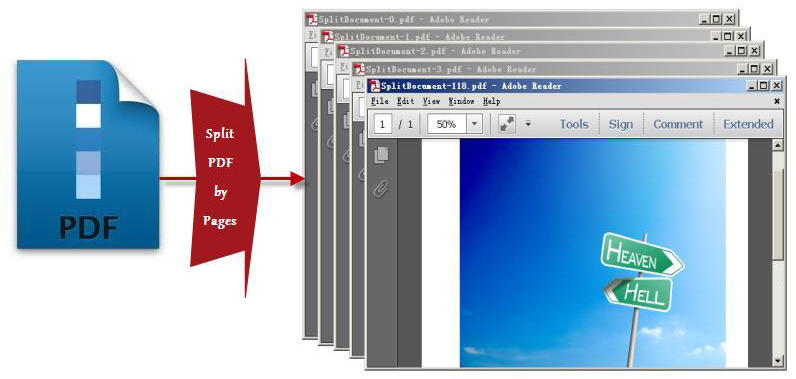
Spire.PDF for WPF, as a WPF PDF component, allows users to create, read, write and manipulate PDF documents without using Adobe Acrobat or any third party component library. As for PDF split task, you can realize it by below methods:
doc.Split(pattern):
When splitting a PDF document to multiple PDF files, each PDF file is made of one page from the original PDF file. Split method works well since it can quickly split your PDF file and there is only one parameter passed to provide a template name of the destination PDF file.
String.Format(pattern, doc.Pages.Count - 1):
"String.Format" method provides great convenience for you to preview an existing file by returning the PDF file name that you want to process. The second parameter String.Format method is used to point out the index item which starts from 0.
The key step of PDF split task only requires four lines of code, before your start your PDF split project, please download Spirel.PDF for WPF first, then you can invoke the key code below to split any PDF you want.
        String pattern = "SplitDocument-{0}.pdf";
        doc.Split(pattern);
        String lastPageFileName= String.Format(pattern, doc.Pages.Count - 1);
        doc.Close();
	Dim pattern As String = "SplitDocument-{0}.pdf"
	doc.Split(pattern)
	Dim lastPageFileName As String = String.Format(pattern, doc.Pages.Count - 1)
	doc.Close()
Obviously, using this WPF PDF component, PDF can be split absolutely according to your requirements. Enjoy fast speed, high quality and free choices to build your application to split PDF right now.

More...
