
Spire.PDF for .NET (290)
Set the font and color for the text on PDF Combo Box field area
2015-11-25 07:33:44 Written by KoohjiWith the help of Spire.PDF, developers can easily add new text to the PDF; create form fields to both the new and existing PDF file. Spire.PDF also owns the ability to set the text formatting for the PDF fields' area. This article will show you how to set the font and color for PDF Combo Box field by the method of PdfComboBoxField.
Note: Before Start, please download the latest version of Spire.PDF and add Spire.PDF.dll in the bin folder as the reference of Visual Studio.
Here comes to the details:
Step 1: Create a new PDF document.
PdfDocument doc = new PdfDocument();
Step 2: Add a new page to the PDF document and set the page size for the page.
PdfPageBase page = doc.Pages.Add(PdfPageSize.A4, new PdfMargins());
Step 3: Draw the text to the PDF page and set the location, font and color for the text.
PdfTrueTypeFont font = new PdfTrueTypeFont(new Font("Arial", 10f, FontStyle.Bold));
RectangleF labelBounds = new RectangleF(20, 20, 40, font.Height);
page.Canvas.DrawString("My label", font, PdfBrushes.Black, labelBounds);
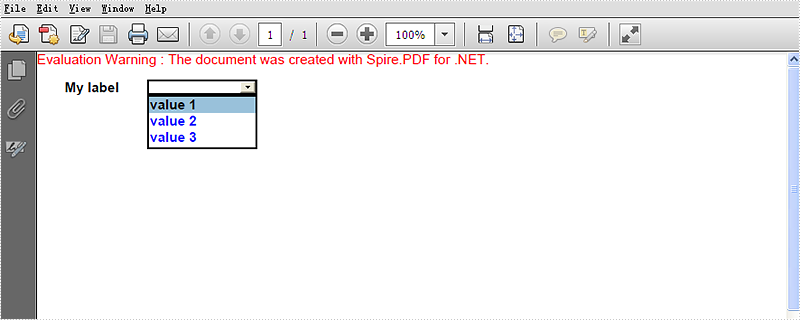
Step 4: Create a Combo Box and add value for it. Use comboBox.Font and comboBox.ForeColor to set the font and color for the text on Combo Box area.
PdfComboBoxField comboBox = new PdfComboBoxField(page, "cmb");
comboBox.Bounds = new RectangleF(80, 20, 80, font.Height);
comboBox.Font = font;
comboBox.ForeColor = Color.Blue;
comboBox.Items.Add(new PdfListFieldItem("value 1", "text 1"));
comboBox.Items.Add(new PdfListFieldItem("value 2", "text 2"));
comboBox.Items.Add(new PdfListFieldItem("value 3", "text 3"));
Step 5: Add the Combo Box to the PDF file.
doc.Form.Fields.Add(comboBox);
Step 6: Save the document to file and launch to preview it.
string file = string.Format("result.pdf", Guid.NewGuid().ToString());
doc.SaveToFile(file);
System.Diagnostics.Process.Start(file);
Effective screenshot after setting the font and color for text on the Combo Box area:
Full codes:
using Spire.Pdf;
using Spire.Pdf.Fields;
using Spire.Pdf.Graphics;
using System;
using System.Drawing;


namespace SetFontColorInComboboxField
{
    class Program
    {
        static void Main(string []args)
        {
            PdfDocument doc = new PdfDocument();

            PdfPageBase page = doc.Pages.Add(PdfPageSize.A4, new PdfMargins());

            PdfTrueTypeFont font = new PdfTrueTypeFont(new Font("Arial", 10f, FontStyle.Bold));
            RectangleF labelBounds = new RectangleF(20, 20, 40, font.Height);
            page.Canvas.DrawString("My label", font, PdfBrushes.Black, labelBounds);

            PdfComboBoxField comboBox = new PdfComboBoxField(page, "cmb");
            comboBox.Bounds = new RectangleF(80, 20, 80, font.Height);
            comboBox.Font = font;
            comboBox.ForeColor = Color.Blue;
            comboBox.Items.Add(new PdfListFieldItem("value 1", "text 1"));
            comboBox.Items.Add(new PdfListFieldItem("value 2", "text 2"));
            comboBox.Items.Add(new PdfListFieldItem("value 3", "text 3"));

            doc.Form.Fields.Add(comboBox);

            string file = string.Format("result.pdf", Guid.NewGuid().ToString());
            doc.SaveToFile(file);
            System.Diagnostics.Process.Start(file);
        }
    }
}
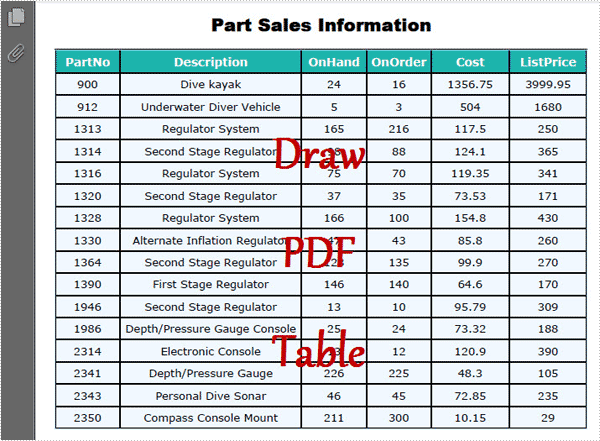
PDF table is one of the best ways to display data information. Using it, all the data can be quickly and clearly read. This section will introduce a solution to draw PDF table via a .NET PDF component in C#, VB.NET.
Using Spire.PDF for .NET (a .NET PDF library for manipulating PDF files), you can draw PDF table through two simple steps. One is to draw all the data by a string array. Another step is to split these string array by string[] Split(params char[] separator); Thus, a PDF table has been drawn. From below picture, you can see the effect of the task:
Here, you can download Spire.PDF for .NET and install it on your system. After adding the Spire.Pdf dll from your Bin folder, you can follow below key code to draw your PDF table in C#, VB.NET.
using Spire.Pdf;
using Spire.Pdf.Graphics;
using Spire.Pdf.Tables;
using System;
using System.Drawing;


namespace DrawPDFTable
{
    class Program
    {
        static void Main(string[] args)
        {
            //Create a pdf document.
            PdfDocument doc = new PdfDocument();
            PdfSection sec = doc.Sections.Add();
            sec.PageSettings.Width = PdfPageSize.A4.Width;
            PdfPageBase page = sec.Pages.Add();
            float y = 10;
            //title
            PdfBrush brush1 = PdfBrushes.Black;
            PdfTrueTypeFont font1 = new PdfTrueTypeFont(new Font("Arial", 16f, FontStyle.Bold));
            PdfStringFormat format1 = new PdfStringFormat(PdfTextAlignment.Center);
            page.Canvas.DrawString("Part Sales Information", font1, brush1, page.Canvas.ClientSize.Width / 2, y, format1);
            y = y + font1.MeasureString("Country List", format1).Height;
            y = y + 5;

            String[] data
         = {
   "PartNo;Description;OnHand;OnOrder;Cost;ListPrice",
   "900;Dive kayak;24;16;1356.75;3999.95",
   "912;Underwater Diver Vehicle;5;3;504;1680",
   "1313;Regulator System;165;216;117.5;250",
   "1314;Second Stage Regulator;98;88;124.1;365",
   "1316;Regulator System;75;70;119.35;341",
   "1320;Second Stage Regulator;37;35;73.53;171",
   "1328;Regulator System;166;100;154.8;430",
   "1330;Alternate Inflation Regulator;47;43;85.8;260",
   "1364;Second Stage Regulator;128;135;99.9;270",
   "1390;First Stage Regulator;146;140;64.6;170",
   "1946;Second Stage Regulator;13;10;95.79;309",
   "1986;Depth/Pressure Gauge Console;25;24;73.32;188",
   "2314;Electronic Console;13;12;120.9;390",
   "2341;Depth/Pressure Gauge;226;225;48.3;105",
   "2343;Personal Dive Sonar;46;45;72.85;235",
   "2350;Compass Console Mount;211;300;10.15;29"
       };
            String[][] dataSource
                = new String[data.Length][];
            for (int i = 0; i < data.Length; i++)
            {
                dataSource[i] = data[i].Split(';');
            }

            PdfTable table = new PdfTable();
            table.Style.CellPadding = 2;
            table.Style.BorderPen = new PdfPen(brush1, 0.75f);
            table.Style.HeaderStyle.StringFormat = new PdfStringFormat(PdfTextAlignment.Center);
            table.Style.HeaderSource = PdfHeaderSource.Rows;
            table.Style.HeaderRowCount = 1;
            table.Style.ShowHeader = true;
            table.Style.HeaderStyle.BackgroundBrush = PdfBrushes.CadetBlue;
            table.DataSource = dataSource;
            foreach (PdfColumn column in table.Columns)
            {
                column.StringFormat = new PdfStringFormat(PdfTextAlignment.Center, PdfVerticalAlignment.Middle);
            }
            table.Draw(page, new PointF(0, y));

            doc.SaveToFile("SimpleTable.pdf");
        }
    }
}
Imports Spire.Pdf
Imports Spire.Pdf.Graphics
Imports Spire.Pdf.Tables
Imports System.Drawing


Namespace DrawPDFTable
	Class Program
		Private Shared Sub Main(args As String())
			'Create a pdf document.
			Dim doc As New PdfDocument()
			Dim sec As PdfSection = doc.Sections.Add()
			sec.PageSettings.Width = PdfPageSize.A4.Width
			Dim page As PdfPageBase = sec.Pages.Add()
			Dim y As Single = 10
			'title
			Dim brush1 As PdfBrush = PdfBrushes.Black
			Dim font1 As New PdfTrueTypeFont(New Font("Arial", 16F, FontStyle.Bold))
			Dim format1 As New PdfStringFormat(PdfTextAlignment.Center)
			page.Canvas.DrawString("Part Sales Information", font1, brush1, page.Canvas.ClientSize.Width / 2, y, format1)
			y = y + font1.MeasureString("Country List", format1).Height
			y = y + 5

			Dim data As [String]() = {"PartNo;Description;OnHand;OnOrder;Cost;ListPrice", "900;Dive kayak;24;16;1356.75;3999.95", "912;Underwater Diver Vehicle;5;3;504;1680", "1313;Regulator System;165;216;117.5;250", "1314;Second Stage Regulator;98;88;124.1;365", "1316;Regulator System;75;70;119.35;341", _
				"1320;Second Stage Regulator;37;35;73.53;171", "1328;Regulator System;166;100;154.8;430", "1330;Alternate Inflation Regulator;47;43;85.8;260", "1364;Second Stage Regulator;128;135;99.9;270", "1390;First Stage Regulator;146;140;64.6;170", "1946;Second Stage Regulator;13;10;95.79;309", _
				"1986;Depth/Pressure Gauge Console;25;24;73.32;188", "2314;Electronic Console;13;12;120.9;390", "2341;Depth/Pressure Gauge;226;225;48.3;105", "2343;Personal Dive Sonar;46;45;72.85;235", "2350;Compass Console Mount;211;300;10.15;29"}
			Dim dataSource As [String]()() = New [String](data.Length - 1)() {}
			For i As Integer = 0 To data.Length - 1
				dataSource(i) = data(i).Split(";"C)
			Next

			Dim table As New PdfTable()
			table.Style.CellPadding = 2
			table.Style.BorderPen = New PdfPen(brush1, 0.75F)
			table.Style.HeaderStyle.StringFormat = New PdfStringFormat(PdfTextAlignment.Center)
			table.Style.HeaderSource = PdfHeaderSource.Rows
			table.Style.HeaderRowCount = 1
			table.Style.ShowHeader = True
			table.Style.HeaderStyle.BackgroundBrush = PdfBrushes.CadetBlue
			table.DataSource = dataSource
			For Each column As PdfColumn In table.Columns
				column.StringFormat = New PdfStringFormat(PdfTextAlignment.Center, PdfVerticalAlignment.Middle)
			Next
			table.Draw(page, New PointF(0, y))

			doc.SaveToFile("SimpleTable.pdf")
		End Sub
	End Class
End Namespace
Spire.PDF for .NET is a professional .NET PDF component which enables you to create, edit and handle PDF files in C#, VB.NET.
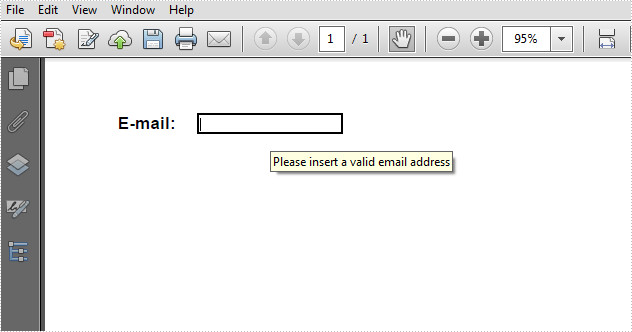
Tooltip is a message box that appears when users hover the pointer over the form field, providing users with instructions about the field, for instance, some extra information that users may find helpful in filling in the form field. This article presents how to add a tooltip to PDF form field using Spire.PDF in C# and VB.NET.
Code Snippet
Step 1: Initialize a new object of PdfDcoument class, add a page to it.
PdfDocument doc = new PdfDocument();
PdfPageBase page = doc.Pages.Add(PdfPageSize.A4, new PdfMargins(0));
Step 2: Add some text and a textbox on the PDF page.
PdfFont font = new PdfFont(PdfFontFamily.Helvetica, 12f,PdfFontStyle.Bold);
PdfBrush brush = PdfBrushes.Black;
float x = 50;
float y = 50;
float tempX = 0;
string text = "E-mail: ";
page.Canvas.DrawString(text, font, brush, x, y);
tempX = font.MeasureString(text).Width + x+15;
PdfTextBoxField textbox = new PdfTextBoxField(page, "TextBox");
textbox.Bounds = new RectangleF(tempX, y, 100, 15);
textbox.BorderWidth = 0.75f;
textbox.BorderStyle = PdfBorderStyle.Solid;
doc.Form.Fields.Add(textbox);
Step 3: The PdfDocument class provides a Fields collection which represents all form fields in the PDF document. You can get the specific field by its index or name, then set the value of ToolTip property to add a tooltip.
doc.Form.Fields["TextBox"].ToolTip = "Please insert a valid email address";
Step 4: Save and launch the file.
doc.SaveToFile("sample.pdf", FileFormat.PDF);
System.Diagnostics.Process.Start("sample.pdf");
Output:
Full Code:
using Spire.Pdf;
using Spire.Pdf.Fields;
using Spire.Pdf.Graphics;
using System.Drawing;


namespace AddTooltip
{
    class Program
    {
        static void Main(string []args)
        {
            PdfDocument doc = new PdfDocument();
            PdfPageBase page = doc.Pages.Add(PdfPageSize.A4, new PdfMargins(0));

            PdfFont font = new PdfFont(PdfFontFamily.Helvetica, 12f, PdfFontStyle.Bold);
            PdfBrush brush = PdfBrushes.Black;
            float x = 50;
            float y = 50;
            float tempX = 0;
            string text = "E-mail: ";
            page.Canvas.DrawString(text, font, brush, x, y);
            tempX = font.MeasureString(text).Width + x + 15;
            PdfTextBoxField textbox = new PdfTextBoxField(page, "TextBox");
            textbox.Bounds = new RectangleF(tempX, y, 100, 15);
            textbox.BorderWidth = 0.75f;
            textbox.BorderStyle = PdfBorderStyle.Solid;
            doc.Form.Fields.Add(textbox);

            doc.Form.Fields["TextBox"].ToolTip = "Please insert a valid email address";

            doc.SaveToFile("sample.pdf", FileFormat.PDF);
            System.Diagnostics.Process.Start("sample.pdf");
        }
    }
}
Imports Spire.Pdf
Imports Spire.Pdf.Fields
Imports Spire.Pdf.Graphics
Imports System.Drawing


Namespace AddTooltip
	Class Program
		Private Shared Sub Main(args As String())
			Dim doc As New PdfDocument()
			Dim page As PdfPageBase = doc.Pages.Add(PdfPageSize.A4, New PdfMargins(0))

			Dim font As New PdfFont(PdfFontFamily.Helvetica, 12F, PdfFontStyle.Bold)
			Dim brush As PdfBrush = PdfBrushes.Black
			Dim x As Single = 50
			Dim y As Single = 50
			Dim tempX As Single = 0
			Dim text As String = "E-mail: "
			page.Canvas.DrawString(text, font, brush, x, y)
			tempX = font.MeasureString(text).Width + x + 15
			Dim textbox As New PdfTextBoxField(page, "TextBox")
			textbox.Bounds = New RectangleF(tempX, y, 100, 15)
			textbox.BorderWidth = 0.75F
			textbox.BorderStyle = PdfBorderStyle.Solid
			doc.Form.Fields.Add(textbox)

			doc.Form.Fields("TextBox").ToolTip = "Please insert a valid email address"

			doc.SaveToFile("sample.pdf", FileFormat.PDF)
			System.Diagnostics.Process.Start("sample.pdf")
		End Sub
	End Class
End Namespace
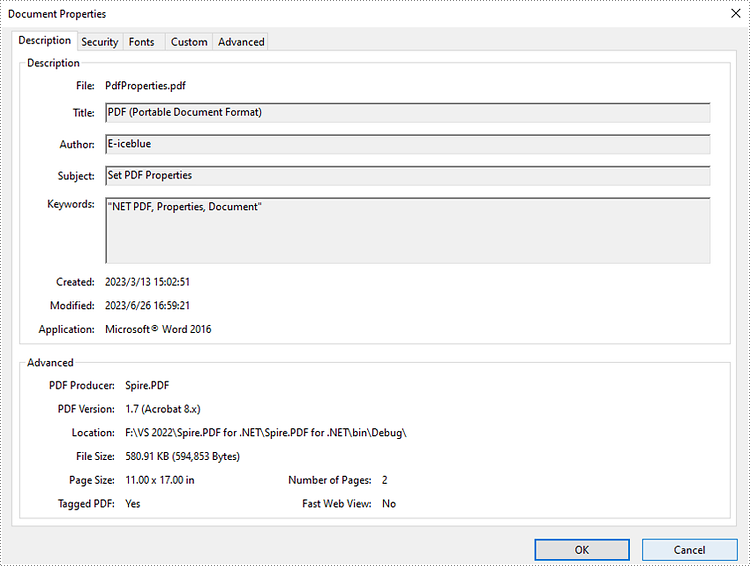
PDF properties are metadata that provide additional information about a PDF file. Typically, these properties include, but are not limited to, the title of the document, the author, keywords, subject and the application that created the document. When there are a large number of PDF files, adding properties is essential as it can make the files easily retrievable. In this article, you will learn how to programmatically set or get PDF properties using Spire.PDF for .NET.
Install Spire.PDF for .NET
To begin with, you need to add the DLL files included in the Spire.PDF for.NET package as references in your .NET project. The DLL files can be either downloaded from this link or installed via NuGet.
PM> Install-Package Spire.PDF
Set the Properties of a PDF File in C# and VB.NET
Basic PDF document properties such as title, author, subject and keywords make it easier for users to search or retrieve specific documents later on. The following are the detailed steps on how to set these properties using Spire.PDF for .NET.
- Create a PdfDocument instance.
- Load a PDF file using PdfDocument.LoadFromFile() method.
- Get PDF properties using PdfDocument.DocumentInformation property, and then set values for specific document properties such as title, subject and author through Title, Subject and Author properties of PdfDocumentInformation class.
- Save the result PDF file using PdfDocument.SaveToFile () method.
- C#
- VB.NET
using Spire.Pdf;

namespace PDFProperties
{
    class Properties
    {
        static void Main(string[] args)
        {
            //Create a PdfDocument instance
            PdfDocument pdf = new PdfDocument();

            //Load a sample PDF document
            pdf.LoadFromFile("input.pdf");

            //Set the title
            pdf.DocumentInformation.Title = "PDF (Portable Document Format)";

            //Set the author
            pdf.DocumentInformation.Author = "E-iceblue";

            //Set the subject
            pdf.DocumentInformation.Subject = "Set PDF Properties";

            //Set the keywords
            pdf.DocumentInformation.Keywords = "NET PDF, Properties, Document";

            //Set the producer name
            pdf.DocumentInformation.Producer = "Spire.PDF";

            //Save the result document
            pdf.SaveToFile("PdfProperties.pdf");
        }
    }
}
Get the Properties of a PDF File in C# and VB.NET
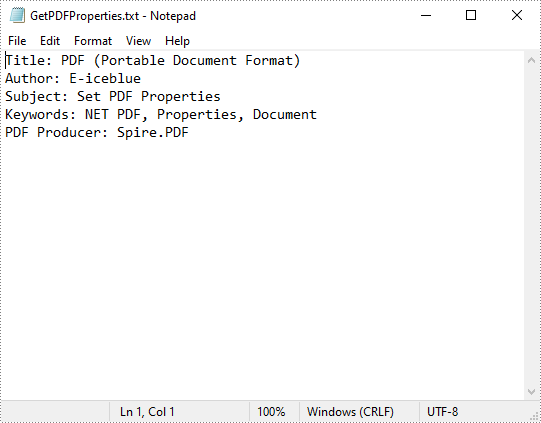
To get specific PDF properties, you can use the corresponding properties under the PdfDocumentInformation class. The following are the detailed steps.
- Create a PdfDocument instance.
- Load a PDF file using PdfDocument.LoadFromFile() method.
- Create a StringBuilder instance.
- Get PDF properties using PdfDocument.DocumentInformation property, and then get specific document properties such as title, author, keyword using properties under PdfDocumentInformation class.
- Append the extracted properties to the StringBuilder instance using StringBuilder.Append() method.
- Write the StringBuilder to a TXT file using File.WriteAllText() method.
- C#
- VB.NET
using Spire.Pdf;
using System.IO;
using System.Text;

namespace GetPdfProperties

{
    class Program
    {
        static void Main(string[] args)
        {
            //Create a PdfDocument instance
            PdfDocument pdf = new PdfDocument();

            //Load a sample PDF document
            pdf.LoadFromFile("PdfProperties.pdf");

            //Create a StringBuilder instance
            StringBuilder content = new StringBuilder();

            //Get the PDF document properties and append them in the StringBuilder
            content.Append("Title: " + pdf.DocumentInformation.Title + "\r\n");
            content.Append("Author: " + pdf.DocumentInformation.Author + "\r\n");
            content.Append("Subject: " + pdf.DocumentInformation.Subject + "\r\n");
            content.Append("Keywords: " + pdf.DocumentInformation.Keywords + "\r\n");
            content.Append("PDF Producer: " + pdf.DocumentInformation.Producer + "\r\n");

            //Write the StringBuilder to a TXT file
            File.WriteAllText("GetPDFProperties.txt", content.ToString());
        }
    }
}
Apply for a Temporary License
If you'd like to remove the evaluation message from the generated documents, or to get rid of the function limitations, please request a 30-day trial license for yourself.
A text box can be formatted to display number, currency, date, time, zip code, phone number, social security number, etc. Adobe Acrobat provides various built-in JavaScripts, such as AFNumber_Keystroke(2, 0, 0, 0, "$", true) and AFNumber_Format(2, 0, 0, 0, "$", true), to format and validate the input of text field. The script with Format suffix is used to format the input, the script with Keystroke suffix is used to validate the input.
However, Spire.PDF has offered corresponding methods to perform formatting and validation on text field. Here is the list of frequently used formats and corresponding methods in Spire.PDF.
| Description | Example | JavaScript | Method |
| Date | 01/31/2008 | AFDate_FormatEx("mm/dd/yyyy"); AFDate_KeystrokeEx("mm/dd/yyyy"); |
GetDateFormatString("mm/dd/yyyy"); GetDateKeystrokeString("mm/dd/yyyy"); |
| Date | 1/31/2008 | AFDate_FormatEx("m/d/yyyy"); AFDate_KeystrokeEx("m/d/yyyy"); |
GetDateFormatString("m/d/yyyy"); GetDateKeystrokeString("m/d/yyyy"); |
| Zip code | 12345 | AFSpecial_Format(0); AFSpecial_Keystroke(0); |
GetSpecialFormatString(0); GetSpecialKeystrokeString(0); |
| Zip+4 | 12345-1234 | AFSpecial_Format(1); AFSpecial_Keystroke(1); |
GetSpecialFormatString(1); GetSpecialKeystrokeString(1); |
| Phone number | (123) 456-7890 | AFSpecial_Format(2); AFSpecial_Keystroke(2); |
GetSpecialFormatString(2); GetSpecialKeystrokeString(2); |
| Money (minus sign if negative) | $12,345.00 -$12,345.00 |
AFNumber_Format(2, 0, 0, 0, "$", true); AFNumber_Keystroke(2, 0, 0, 0, "$", true); |
GetNumberFormatString(2, 0, 0, 0, "$", true); GetNumberKeystrokeString(2, 0, 0, 0, "$", true); |
| Validate | 1.5≤input value≤5.5 | AFRange_Validate(true,1.5,true,5.5) | GetRangeValidateString(true, 1.5, true, 5.5); |
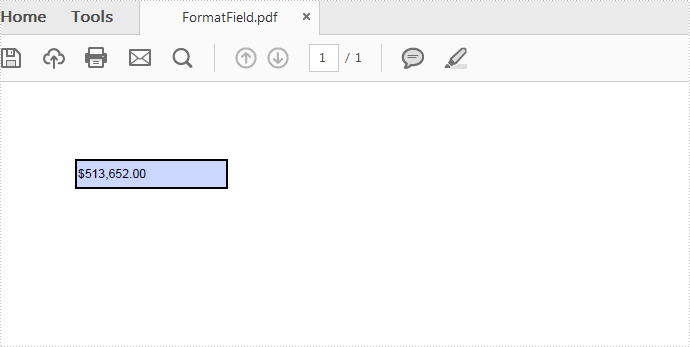
This tutorial demonstrates how to create a text box and display its contents in currency format in C# and VB.NET.
Code Snippets:
Step 1: Create an object of PdfDocument and add a page to it.
PdfDocument pdf = new PdfDocument();
PdfPageBase page = pdf.Pages.Add();
Step 2: Initialize an instance of PdfTextBoxField class and set its position, border width and border style.
PdfTextBoxField textbox = new PdfTextBoxField(page, "Number-TextBox");
textbox.Bounds = new RectangleF(10, 10, 100, 20);
textbox.BorderWidth = 0.75f;
textbox.BorderStyle = PdfBorderStyle.Solid;
Step 3: Set a JavaScript action to be performed when uses type a keystroke into a text field. This action can check the keystroke for validity and reject or modify it.
string js = PdfJavaScript.GetNumberKeystrokeString(2, 0, 0, 0, "$", true);
PdfJavaScriptAction jsAction = new PdfJavaScriptAction(js);
textbox.Actions.KeyPressed = jsAction;
Step 4: Set a JavaScript action to format the value of text field before showing it.
js = PdfJavaScript.GetNumberFormatString(2, 0, 0, 0, "$", true);
jsAction = new PdfJavaScriptAction(js);
textbox.Actions.Format = jsAction;
Step 5: Add the text box to PDF field and save the file.
pdf.Form.Fields.Add(textbox);
pdf.SaveToFile("FormatField.pdf",FileFormat.PDF);
Output:
Full Code:
using Spire.Pdf;
using Spire.Pdf.Actions;
using Spire.Pdf.Fields;
using System.Drawing;

namespace FormatTextboxField
{
    class Program
    {
        static void Main(string []args)
        {
            PdfDocument pdf = new PdfDocument();
            PdfPageBase page = pdf.Pages.Add();
            PdfTextBoxField textbox = new PdfTextBoxField(page, "Number-TextBox");
            textbox.Bounds = new RectangleF(10, 10, 100, 20);
            textbox.BorderWidth = 0.75f;
            textbox.BorderStyle = PdfBorderStyle.Solid;

            string js = PdfJavaScript.GetNumberKeystrokeString(2, 0, 0, 0, "$", true);
            PdfJavaScriptAction jsAction = new PdfJavaScriptAction(js);
            textbox.Actions.KeyPressed = jsAction;

            js = PdfJavaScript.GetNumberFormatString(2, 0, 0, 0, "$", true);
            jsAction = new PdfJavaScriptAction(js);
            textbox.Actions.Format = jsAction;

            pdf.Form.Fields.Add(textbox);
            pdf.SaveToFile("FormatField.pdf", FileFormat.PDF);
        }
    }
}
Imports Spire.Pdf
Imports Spire.Pdf.Actions
Imports Spire.Pdf.Fields
Imports System.Drawing

Namespace FormatTextboxField
	Class Program
		Private Shared Sub Main(args As String())
			Dim pdf As New PdfDocument()
			Dim page As PdfPageBase = pdf.Pages.Add()
			Dim textbox As New PdfTextBoxField(page, "Number-TextBox")
			textbox.Bounds = New RectangleF(10, 10, 100, 20)
			textbox.BorderWidth = 0.75F
			textbox.BorderStyle = PdfBorderStyle.Solid

			Dim js As String = PdfJavaScript.GetNumberKeystrokeString(2, 0, 0, 0, "$", True)
			Dim jsAction As New PdfJavaScriptAction(js)
			textbox.Actions.KeyPressed = jsAction

			js = PdfJavaScript.GetNumberFormatString(2, 0, 0, 0, "$", True)
			jsAction = New PdfJavaScriptAction(js)
			textbox.Actions.Format = jsAction

			pdf.Form.Fields.Add(textbox)
			pdf.SaveToFile("FormatField.pdf", FileFormat.PDF)
		End Sub
	End Class
End Namespace
More...
