
Spire.PDF for .NET (290)

Digital signature is more advanced and more popular to detect forgery and tampering today compared with traditional handwritten signature. Especially in business world, digital signature becomes an effective method to safeguard and authenticate your documents. As long as a digital signature is created and singed, the document has not been tampered and the recipients can view both the document version history and any changes that were made to it. Now, it is time to see how to create a PDF digital signature via a WPF PDF component Spire.PDF for WPF.
Spire.PDF for WPF, as a PDF component, enables you to create PDF digital signature in a simple way which can not only ensure your data information has not been altered since it was sent but also verify the signer's digital identity. The key procedure only requires six lines of code. Please preview the effective screenshot below, and then, view the key code.
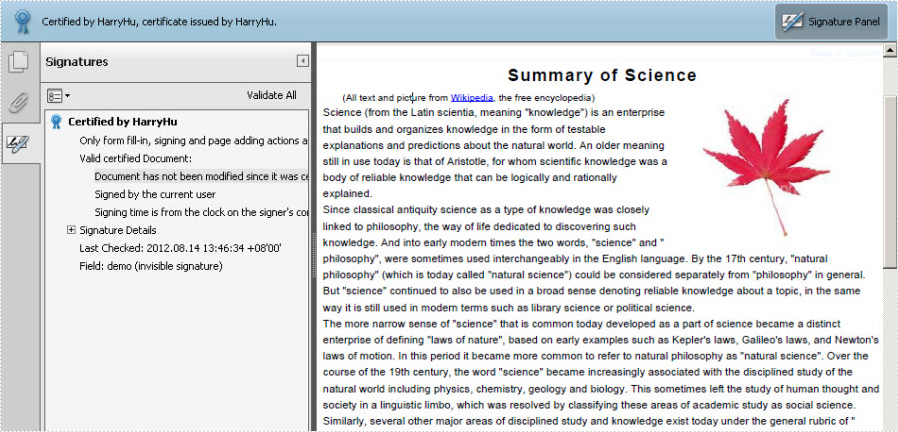
Please feel free to Download Spire.PDF for WPF first before the key code below. In this solution, for constructing one instance of a Spire.Pdf.Sercurity.PdfCertificate class named cert, we reference a certificate file and its file protect password as parameters. Then, cert is applied to create an instance of a PdfSignature class we name it signature. Setting signature “page” parameter allows you to sign the digital signature of any PDF page. And DocumentPermissions, one property of signature, can be set: AllowComments, AllowFormFill and ForbidChanges.
Core Code:
String pfxPath = @"..\Data\Demo.pfx";
PdfCertificate cert = new PdfCertificate(pfxPath, "e-iceblue");
PdfSignature signature = new PdfSignature(doc, page, cert, "demo");
signature.ContactInfo = "Harry Hu";
signature.Certificated = true;
signature.DocumentPermissions = PdfCertificationFlags.AllowFormFill;
Dim pfxPath As String = "..\Data\Demo.pfx"
Dim cert As New PdfCertificate(pfxPath, "e-iceblue")
Dim signature As New PdfSignature(doc, page, cert, "demo")
signature.ContactInfo = "Harry Hu"
signature.Certificated = True
signature.DocumentPermissions = PdfCertificationFlags.AllowFormFill
The sample demonstrates how to overlay one page on another and set transparency mode.

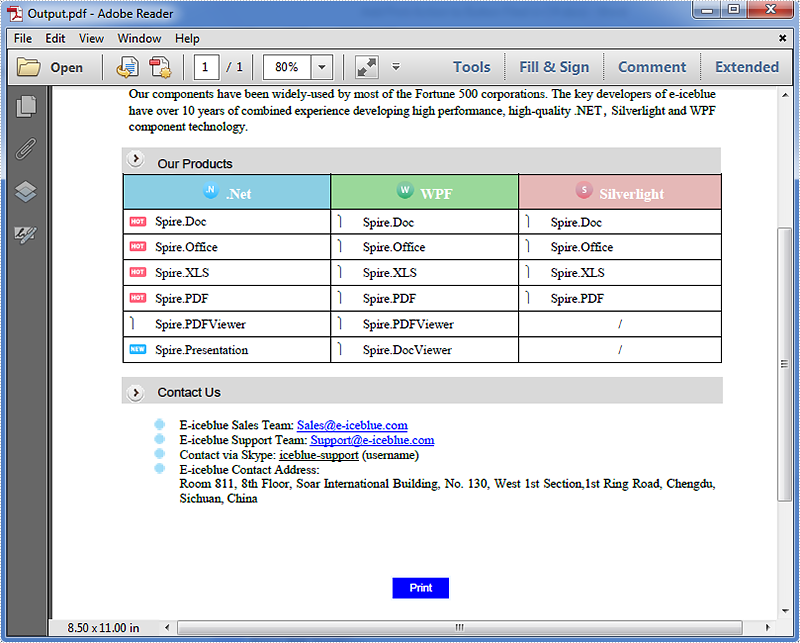
Adding print button to PDF document is possible in Spire.PDF, when the button is clicked, the print dialog will be opened. In this tutorial, I'm going to show you how to add a print button to an existing pdf document using Spire.PDF.
To accomplish the task, first you need to create an instance of the PdfButtonField class. This class also allows you to define the appearance of the button. For instance, you can set text, color of text, background color, border color etc. of the button. Second you need to add the print action to the button by calling the AddPrintAction() method. At last, add the button to the document and save the document to file. The following code example explains the same.
Code snippets:
Step 1: Load the PDF document and enable form creation.
PdfDocument doc = new PdfDocument("Input.pdf");
doc.AllowCreateForm = true;
Step 2: Get the first page.
PdfPageBase page = doc.Pages[0];
Step 3: Create a PdfButtonField instance and set properties for the button.
PdfButtonField button = new PdfButtonField(page, "Print");
button.Bounds = new RectangleF(280, 600, 50, 20);
button.BorderColor = new PdfRGBColor(Color.AliceBlue);
button.BorderStyle = PdfBorderStyle.Solid;
button.ForeColor = new PdfRGBColor(Color.White);
button.BackColor = new PdfRGBColor(Color.Blue);
button.ToolTip = "Print";
button.Font = new PdfFont(PdfFontFamily.Helvetica, 9f);
Step 4: Add print action to the button.
button.AddPrintAction();
Step 5: Add the button to the document.
doc.Form.Fields.Add(button);
Step 6: Save the document.
doc.SaveToFile("Output.pdf");
The resultant document looks as follows:
Full code:
using System.Drawing;
using Spire.Pdf;
using Spire.Pdf.Fields;
using Spire.Pdf.Graphics;

namespace Add_print_button
{
    class Program
    {
        static void Main(string[] args)
        {
            //Load the PDF document
            PdfDocument doc = new PdfDocument("Input.pdf");
            //Enable form creation
            doc.AllowCreateForm = true;
            //Get the first page
            PdfPageBase page = doc.Pages[0];

            //Create a PdfButtonField instance
            PdfButtonField button = new PdfButtonField(page, "Print");
            //Set button properties
            button.Bounds = new RectangleF(280, 600, 50, 20);
            button.BorderColor = new PdfRGBColor(Color.AliceBlue);
            button.BorderStyle = PdfBorderStyle.Solid;
            button.ForeColor = new PdfRGBColor(Color.White);
            button.BackColor = new PdfRGBColor(Color.Blue);
            button.ToolTip = "Print";
            button.Font = new PdfFont(PdfFontFamily.Helvetica, 9f);

            //Add print action to the button
            button.AddPrintAction();

            //Add the button to document
            doc.Form.Fields.Add(button);

            //Save the document
            doc.SaveToFile("Output.pdf");
        }
    }
}
A header can provide useful information about the document's content, such as its title, author, date, and page numbers. This helps readers understand the document's purpose and navigate it more easily. In addition, including a logo or company name in the header reinforces brand identity and helps readers associate the document with a particular organization or business. In this article, you will learn how to add a header to an existing PDF document in C# and VB.NET using Spire.PDF for .NET.
Install Spire.PDF for .NET
To begin with, you need to add the DLL files included in the Spire.PDF for.NET package as references in your .NET project. The DLL files can be either downloaded from this link or installed via NuGet.
PM> Install-Package Spire.PDF
Background Knowledge
When an existing PDF document is manipulated by Spire.PDF for .NET, the origin of the coordinate system is located at the top left corner of the page, with the x-axis extending to the right and the y-axis extending downward. Adding a header to a page means adding content, such as text, images, automatic fields and shapes, to a specified location in the upper blank area of the page.
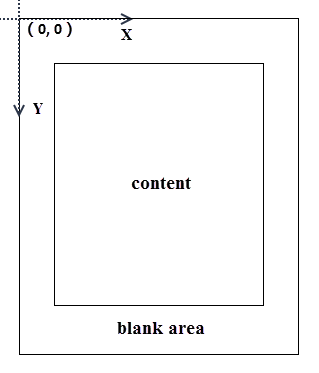
If the blank area is not large enough to accommodate the content you want to add, you can consider increasing the PDF page margins.
Add a Header to an Existing PDF Document in C# and VB.NET
Spire.PDF for .NET allows users to draw text, images and shapes on a PDF page using PdfCanvas.DrawString() method, PdfCanvas.DrawImage() method, PdfCanvas.DrawLine() and other similar methods. To add dynamic information to the header, such as page numbers, sections, dates, you need to resort to automatic fields. Spire.PDF for .NET provides the PdfPageNumberField class, PdfSectionNumberField class, PdfCreationDateField class, etc. to achieve the dynamic addition of these data.
The following are the steps to add a header consisting of text, an image, a date, and a line to a PDF document using Spire.PDF for .NET.
- Create a PdfDocument object.
- Load a PDF document using PdfDocument.LoadFromFile() method.
- Create font, pen and brush objects that will be used to draw text or shapes.
- Draw text on the top blank area of a page using PdfPageBase.Canvas.DrawString() method.
- Draw a line on the top blank area of a page using PdfPageBase.Canvas.DrawLine() method.
- Load an image using PdfImage.FromFile() method.
- Draw the image on the top blank area of a page using PdfPageBase.Canvas.DrawImage() method.
- Create a PdfCreationDateField object that reflects the creation time of the document.
- Draw the creation time on the top blank area of a page using PdfCreationDateField.Draw() method.
- Save the document to another PDF file using PdfDocument.SaveToFile() method.
- C#
- VB.NET
using Spire.Pdf;
using Spire.Pdf.AutomaticFields;
using Spire.Pdf.Graphics;
using System.Drawing;

namespace AddHeaderToExistingPdf
{
    class Program
    {
        static void Main(string[] args)
        {
            //Create a PdfDocument object
            PdfDocument doc = new PdfDocument();

            //Load a PDF file
            doc.LoadFromFile("C:\\Users\\Administrator\\Desktop\\TargetMarket.pdf");

            //Load an image for the header
            PdfImage headerImage = PdfImage.FromFile("C:\\Users\\Administrator\\Desktop\\logo.png");

            //Get image width in pixel
            float width = headerImage.Width;

            //Convert pixel to point
            PdfUnitConvertor unitCvtr = new PdfUnitConvertor();
            float pointWidth = unitCvtr.ConvertUnits(width, PdfGraphicsUnit.Pixel, PdfGraphicsUnit.Point);

            //Specify text for the header
            string headerText = "E-iceblue Tech\nwww.e-iceblue.com";

            //Create a true type font
            PdfTrueTypeFont font = new PdfTrueTypeFont(new Font("Times New Roman", 12f, FontStyle.Bold), true);

            //Create a brush
            PdfBrush brush = PdfBrushes.Purple;

            //Create a pen
            PdfPen pen = new PdfPen(brush, 1.0f);

            //Create a creation date field
            PdfCreationDateField creationDateField = new PdfCreationDateField(font, brush);
            creationDateField.DateFormatString = "yyyy-MM-dd";

            //Create a composite field to combine static string and date field
            PdfCompositeField compositeField = new PdfCompositeField(font, brush, "creation time: {0}", creationDateField);
            compositeField.Location = new Point(55, 48);

            //Loop through the pages in the document
            for (int i = 0; i < doc.Pages.Count; i++)
            {
                //Get specific page
                PdfPageBase page = doc.Pages[i];

                //Draw the image on the top blank area
                page.Canvas.DrawImage(headerImage, page.ActualSize.Width - pointWidth - 55, 20);

                //Draw text on the top blank area
                page.Canvas.DrawString(headerText, font, brush, 55, 20);

                //Draw a line on the top blank area
                page.Canvas.DrawLine(pen, new PointF(55, 70), new PointF(page.ActualSize.Width - 55, 70));

                //Draw the composite field on the top blank area
                compositeField.Draw(page.Canvas);
            }

            //Save to file
            doc.SaveToFile("AddHeader.pdf");
            doc.Dispose();
        }
    }
}

Apply for a Temporary License
If you'd like to remove the evaluation message from the generated documents, or to get rid of the function limitations, please request a 30-day trial license for yourself.
More...
