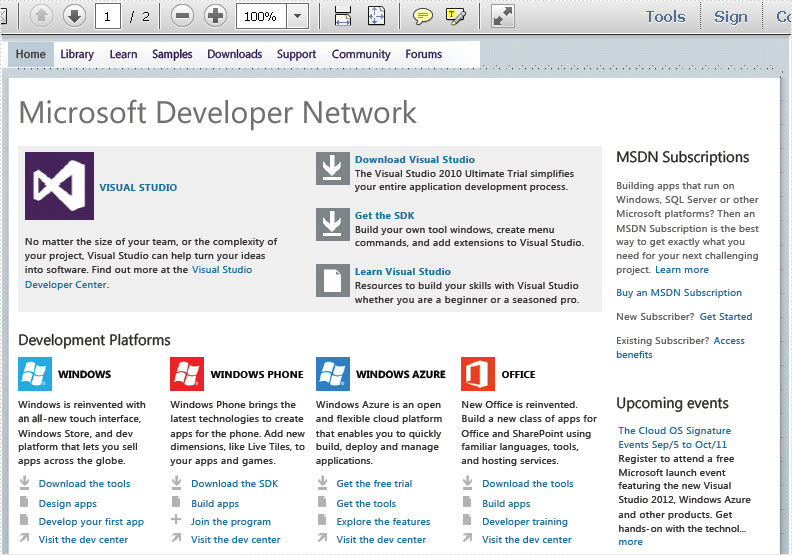
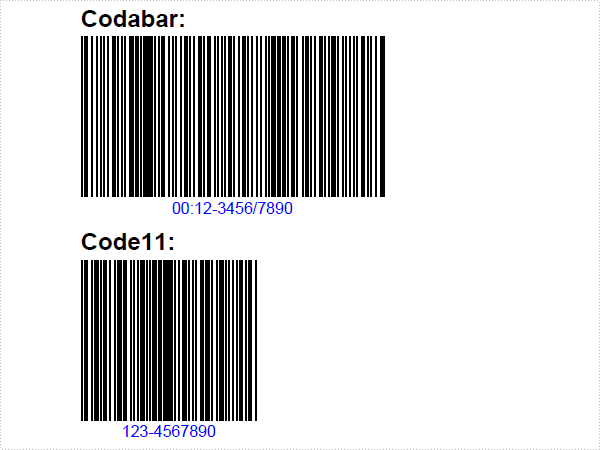
The sample demonstrates how to draw barcode in PDF document.
Download Barcode.pdf
using System.Drawing;
using Spire.Pdf;
using Spire.Pdf.Graphics;
using Spire.Pdf.Barcode;

namespace Barcode
{
    class Program
    {
        static void Main(string[] args)
        {
            //Create a pdf document.
            PdfDocument doc = new PdfDocument();

            //margin
            PdfUnitConvertor unitCvtr = new PdfUnitConvertor();
            PdfMargins margin = new PdfMargins();
            margin.Top = unitCvtr.ConvertUnits(2.54f, PdfGraphicsUnit.Centimeter, PdfGraphicsUnit.Point);
            margin.Bottom = margin.Top;
            margin.Left = unitCvtr.ConvertUnits(3.17f, PdfGraphicsUnit.Centimeter, PdfGraphicsUnit.Point);
            margin.Right = margin.Left;

            PdfSection section = doc.Sections.Add();
            section.PageSettings.Margins = margin;
            section.PageSettings.Size = PdfPageSize.A4;

            // Create one page
            PdfPageBase page = section.Pages.Add();
            float y = 10;

            PdfBrush brush1 = PdfBrushes.Black;
            PdfTrueTypeFont font1 = new PdfTrueTypeFont(new Font("Arial", 12f, FontStyle.Bold), true);
            RectangleF rctg = new RectangleF(new PointF(0, 0), page.Canvas.ClientSize);
            PdfLinearGradientBrush brush2
                = new PdfLinearGradientBrush(rctg, Color.Navy, Color.OrangeRed, PdfLinearGradientMode.Vertical);

            //draw Codabar
            PdfTextWidget text = new PdfTextWidget();
            text.Font = font1;
            text.Text = "Codabar:";
            PdfLayoutResult result = text.Draw(page, 0, y);
            page = result.Page;
            y = result.Bounds.Bottom + 2;

            PdfCodabarBarcode barcode1 = new PdfCodabarBarcode("00:12-3456/7890");
            barcode1.BarcodeToTextGapHeight = 1f;
            barcode1.EnableCheckDigit = true;
            barcode1.ShowCheckDigit = true;
            barcode1.TextDisplayLocation = TextLocation.Bottom;
            barcode1.TextColor = Color.Blue;
            barcode1.Draw(page, new PointF(0, y));
            y = barcode1.Bounds.Bottom + 5;


            //draw Code11Barcode
            text.Text = "Code11:";
            result = text.Draw(page, 0, y);
            page = result.Page;
            y = result.Bounds.Bottom + 2;

            PdfCode11Barcode barcode2 = new PdfCode11Barcode("123-4567890");
            barcode2.BarcodeToTextGapHeight = 1f;
            barcode2.TextDisplayLocation = TextLocation.Bottom;
            barcode2.TextColor = Color.Blue;
            barcode2.Draw(page, new PointF(0, y));
            y = barcode2.Bounds.Bottom + 5;


            //draw Code128-A
            text.Text = "Code128-A:";
            result = text.Draw(page, 0, y);
            page = result.Page;
            y = result.Bounds.Bottom + 2;

            PdfCode128ABarcode barcode3 = new PdfCode128ABarcode("HELLO 00-123");
            barcode3.BarcodeToTextGapHeight = 1f;
            barcode3.TextDisplayLocation = TextLocation.Bottom;
            barcode3.TextColor = Color.Blue;
            barcode3.Draw(page, new PointF(0, y));
            y = barcode3.Bounds.Bottom + 5;


            //draw Code128-B
            text.Text = "Code128-B:";
            result = text.Draw(page, 0, y);
            page = result.Page;
            y = result.Bounds.Bottom + 2;

            PdfCode128BBarcode barcode4 = new PdfCode128BBarcode("Hello 00-123");
            barcode4.BarcodeToTextGapHeight = 1f;
            barcode4.TextDisplayLocation = TextLocation.Bottom;
            barcode4.TextColor = Color.Blue;
            barcode4.Draw(page, new PointF(0, y));
            y = barcode4.Bounds.Bottom + 5;


            //draw Code32
            text.Text = "Code32:";
            result = text.Draw(page, 0, y);
            page = result.Page;
            y = result.Bounds.Bottom + 2;

            PdfCode32Barcode barcode5 = new PdfCode32Barcode("16273849");
            barcode5.BarcodeToTextGapHeight = 1f;
            barcode5.TextDisplayLocation = TextLocation.Bottom;
            barcode5.TextColor = Color.Blue;
            barcode5.Draw(page, new PointF(0, y));
            y = barcode5.Bounds.Bottom + 5;

            page = section.Pages.Add();
            y = 10;


            //draw Code39
            text.Text = "Code39:";
            result = text.Draw(page, 0, y);
            page = result.Page;
            y = result.Bounds.Bottom + 2;

            PdfCode39Barcode barcode6 = new PdfCode39Barcode("16-273849");
            barcode6.BarcodeToTextGapHeight = 1f;
            barcode6.TextDisplayLocation = TextLocation.Bottom;
            barcode6.TextColor = Color.Blue;
            barcode6.Draw(page, new PointF(0, y));
            y = barcode6.Bounds.Bottom + 5;


            //draw Code39-E
            text.Text = "Code39-E:";
            result = text.Draw(page, 0, y);
            page = result.Page;
            y = result.Bounds.Bottom + 2;

            PdfCode39ExtendedBarcode barcode7 = new PdfCode39ExtendedBarcode("16-273849");
            barcode7.BarcodeToTextGapHeight = 1f;
            barcode7.TextDisplayLocation = TextLocation.Bottom;
            barcode7.TextColor = Color.Blue;
            barcode7.Draw(page, new PointF(0, y));
            y = barcode7.Bounds.Bottom + 5;


            //draw Code93
            text.Text = "Code93:";
            result = text.Draw(page, 0, y);
            page = result.Page;
            y = result.Bounds.Bottom + 2;

            PdfCode93Barcode barcode8 = new PdfCode93Barcode("16-273849");
            barcode8.BarcodeToTextGapHeight = 1f;
            barcode8.TextDisplayLocation = TextLocation.Bottom;
            barcode8.TextColor = Color.Blue;
            barcode8.QuietZone.Bottom = 5;
            barcode8.Draw(page, new PointF(0, y));
            y = barcode8.Bounds.Bottom + 5;


            //draw Code93-E
            text.Text = "Code93-E:";
            result = text.Draw(page, 0, y);
            page = result.Page;
            y = result.Bounds.Bottom + 2;

            PdfCode93ExtendedBarcode barcode9 = new PdfCode93ExtendedBarcode("16-273849");
            barcode9.BarcodeToTextGapHeight = 1f;
            barcode9.TextDisplayLocation = TextLocation.Bottom;
            barcode9.TextColor = Color.Blue;
            barcode9.Draw(page, new PointF(0, y));
            y = barcode9.Bounds.Bottom + 5;


            //Save pdf file.
            doc.SaveToFile("Barcode.pdf");
            doc.Close();

            //Launching the Pdf file.
            System.Diagnostics.Process.Start("Barcode.pdf");
        }
    }
}
Imports System.Drawing
Imports Spire.Pdf
Imports Spire.Pdf.Graphics
Imports Spire.Pdf.Barcode

Namespace Barcode
    Friend Class Program
        Shared Sub Main(ByVal args() As String)
            'Create a pdf document.
            Dim doc As New PdfDocument()

            'margin
            Dim unitCvtr As New PdfUnitConvertor()
            Dim margin As New PdfMargins()
            margin.Top = unitCvtr.ConvertUnits(2.54F, PdfGraphicsUnit.Centimeter, PdfGraphicsUnit.Point)
            margin.Bottom = margin.Top
            margin.Left = unitCvtr.ConvertUnits(3.17F, PdfGraphicsUnit.Centimeter, PdfGraphicsUnit.Point)
            margin.Right = margin.Left

            Dim section As PdfSection = doc.Sections.Add()
            section.PageSettings.Margins = margin
            section.PageSettings.Size = PdfPageSize.A4

            ' Create one page
            Dim page As PdfPageBase = section.Pages.Add()
            Dim y As Single = 10

            Dim brush1 As PdfBrush = PdfBrushes.Black
            Dim font1 As New PdfTrueTypeFont(New Font("Arial", 12.0F, FontStyle.Bold), True)
            Dim rctg As New RectangleF(New PointF(0, 0), page.Canvas.ClientSize)
            Dim brush2 As New PdfLinearGradientBrush(rctg, Color.Navy, Color.OrangeRed, PdfLinearGradientMode.Vertical)

            'draw Codabar
            Dim text As New PdfTextWidget()
            text.Font = font1
            text.Text = "Codabar:"
            Dim result As PdfLayoutResult = text.Draw(page, 0, y)
            page = result.Page
            y = result.Bounds.Bottom + 2

            Dim barcode1 As New PdfCodabarBarcode("00:12-3456/7890")
            barcode1.BarcodeToTextGapHeight = 1.0F
            barcode1.EnableCheckDigit = True
            barcode1.ShowCheckDigit = True
            barcode1.TextDisplayLocation = TextLocation.Bottom
            barcode1.TextColor = Color.Blue
            barcode1.Draw(page, New PointF(0, y))
            y = barcode1.Bounds.Bottom + 5


            'draw Code11Barcode
            text.Text = "Code11:"
            result = text.Draw(page, 0, y)
            page = result.Page
            y = result.Bounds.Bottom + 2

            Dim barcode2 As New PdfCode11Barcode("123-4567890")
            barcode2.BarcodeToTextGapHeight = 1.0F
            barcode2.TextDisplayLocation = TextLocation.Bottom
            barcode2.TextColor = Color.Blue
            barcode2.Draw(page, New PointF(0, y))
            y = barcode2.Bounds.Bottom + 5


            'draw Code128-A
            text.Text = "Code128-A:"
            result = text.Draw(page, 0, y)
            page = result.Page
            y = result.Bounds.Bottom + 2

            Dim barcode3 As New PdfCode128ABarcode("HELLO 00-123")
            barcode3.BarcodeToTextGapHeight = 1.0F
            barcode3.TextDisplayLocation = TextLocation.Bottom
            barcode3.TextColor = Color.Blue
            barcode3.Draw(page, New PointF(0, y))
            y = barcode3.Bounds.Bottom + 5


            'draw Code128-B
            text.Text = "Code128-B:"
            result = text.Draw(page, 0, y)
            page = result.Page
            y = result.Bounds.Bottom + 2

            Dim barcode4 As New PdfCode128BBarcode("Hello 00-123")
            barcode4.BarcodeToTextGapHeight = 1.0F
            barcode4.TextDisplayLocation = TextLocation.Bottom
            barcode4.TextColor = Color.Blue
            barcode4.Draw(page, New PointF(0, y))
            y = barcode4.Bounds.Bottom + 5


            'draw Code32
            text.Text = "Code32:"
            result = text.Draw(page, 0, y)
            page = result.Page
            y = result.Bounds.Bottom + 2

            Dim barcode5 As New PdfCode32Barcode("16273849")
            barcode5.BarcodeToTextGapHeight = 1.0F
            barcode5.TextDisplayLocation = TextLocation.Bottom
            barcode5.TextColor = Color.Blue
            barcode5.Draw(page, New PointF(0, y))
            y = barcode5.Bounds.Bottom + 5

            page = section.Pages.Add()
            y = 10


            'draw Code39
            text.Text = "Code39:"
            result = text.Draw(page, 0, y)
            page = result.Page
            y = result.Bounds.Bottom + 2

            Dim barcode6 As New PdfCode39Barcode("16-273849")
            barcode6.BarcodeToTextGapHeight = 1.0F
            barcode6.TextDisplayLocation = TextLocation.Bottom
            barcode6.TextColor = Color.Blue
            barcode6.Draw(page, New PointF(0, y))
            y = barcode6.Bounds.Bottom + 5


            'draw Code39-E
            text.Text = "Code39-E:"
            result = text.Draw(page, 0, y)
            page = result.Page
            y = result.Bounds.Bottom + 2

            Dim barcode7 As New PdfCode39ExtendedBarcode("16-273849")
            barcode7.BarcodeToTextGapHeight = 1.0F
            barcode7.TextDisplayLocation = TextLocation.Bottom
            barcode7.TextColor = Color.Blue
            barcode7.Draw(page, New PointF(0, y))
            y = barcode7.Bounds.Bottom + 5


            'draw Code93
            text.Text = "Code93:"
            result = text.Draw(page, 0, y)
            page = result.Page
            y = result.Bounds.Bottom + 2

            Dim barcode8 As New PdfCode93Barcode("16-273849")
            barcode8.BarcodeToTextGapHeight = 1.0F
            barcode8.TextDisplayLocation = TextLocation.Bottom
            barcode8.TextColor = Color.Blue
            barcode8.QuietZone.Bottom = 5
            barcode8.Draw(page, New PointF(0, y))
            y = barcode8.Bounds.Bottom + 5


            'draw Code93-E
            text.Text = "Code93-E:"
            result = text.Draw(page, 0, y)
            page = result.Page
            y = result.Bounds.Bottom + 2

            Dim barcode9 As New PdfCode93ExtendedBarcode("16-273849")
            barcode9.BarcodeToTextGapHeight = 1.0F
            barcode9.TextDisplayLocation = TextLocation.Bottom
            barcode9.TextColor = Color.Blue
            barcode9.Draw(page, New PointF(0, y))
            y = barcode9.Bounds.Bottom + 5


            'Save pdf file.
            doc.SaveToFile("Barcode.pdf")
            doc.Close()

            'Launching the Pdf file.
            Process.Start("Barcode.pdf")
        End Sub
    End Class
End Namespace