
Spire.PDF for .NET (290)
Colors created without screens or dots are referred to in the industry as spot or solid colors. Spot colors are the preferred method of producing stationery inexpensively, and also the method used where color accuracy is deemed essential, for instance a company logo.
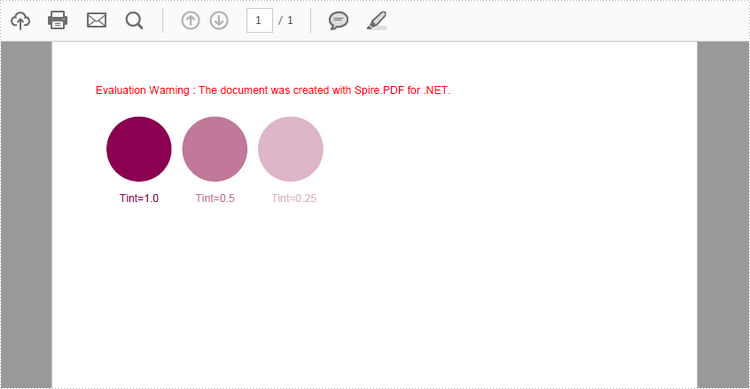
This article presents how to define a spot color based on RGB color spaces, create variations of a spot color with different tint value, and how to apply the spot color to text and graphic objects using Spire.PDF.
Step 1: Create a PdfDcoument object and add a page to it.
PdfDocument pdf = new PdfDocument();
PdfPageBase page = pdf.Pages.Add();
Step 2: Define the spot color "MySpotColor" from the built-in color.
PdfSeparationColorSpace cs = new PdfSeparationColorSpace("MySpotColor", Color.Purple);
Step 3: Set the spot color with a tint value of 1.
PdfSeparationColor color = new PdfSeparationColor(cs, 1f);
Step 4: Apply the spot color while drawing content on the page.
PdfSolidBrush brush = new PdfSolidBrush(color);
page.Canvas.DrawPie(brush, 10, 30, 60, 60, 360, 360);
page.Canvas.DrawString("1.0 tint!", new PdfFont(PdfFontFamily.Helvetica, 10f), brush, new PointF(20,100));
Step 5: Set the spot color with a tint value of 0.5 and apply it to some other content.
color = new PdfSeparationColor(cs, 0.5f);
brush = new PdfSolidBrush(color);
page.Canvas.DrawPie(brush, 80, 30, 60, 60, 360, 360);
page.Canvas.DrawString("Tint=0.5", new PdfFont(PdfFontFamily.Helvetica, 10f), brush, new PointF(92,100));
Step 6: Save the file.
pdf.SaveToFile("SpotColor.pdf");
Output:
Full Code:
using Spire.Pdf;
using Spire.Pdf.ColorSpace;
using Spire.Pdf.Graphics;
using System.Drawing;


namespace SpotColor
{
    class Program
    {
        static void Main(string[] args)
        {
            PdfDocument pdf = new PdfDocument();
            PdfPageBase page = pdf.Pages.Add();

            PdfSeparationColorSpace cs = new PdfSeparationColorSpace("MySpotColor", Color.Purple);
            PdfSeparationColor color = new PdfSeparationColor(cs, 1f);
            PdfSolidBrush brush = new PdfSolidBrush(color);
            page.Canvas.DrawPie(brush, 10, 30, 60, 60, 360, 360);
            page.Canvas.DrawString("Tint=1.0", new PdfFont(PdfFontFamily.Helvetica, 10f), brush, new PointF(22, 100));

            color = new PdfSeparationColor(cs, 0.5f);
            brush = new PdfSolidBrush(color);
            page.Canvas.DrawPie(brush, 80, 30, 60, 60, 360, 360);
            page.Canvas.DrawString("Tint=0.5", new PdfFont(PdfFontFamily.Helvetica, 10f), brush, new PointF(92, 100));

            color = new PdfSeparationColor(cs, 0.25f);
            brush = new PdfSolidBrush(color);
            page.Canvas.DrawPie(brush, 150, 30, 60, 60, 360, 360);
            page.Canvas.DrawString("Tint=0.25", new PdfFont(PdfFontFamily.Helvetica, 10f), brush, new PointF(162, 100));
            pdf.SaveToFile("SpotColor.pdf");
        }
    }
}
Imports Spire.Pdf
Imports Spire.Pdf.ColorSpace
Imports Spire.Pdf.Graphics
Imports System.Drawing


Namespace SpotColor
	Class Program
		Private Shared Sub Main(args As String())
			Dim pdf As New PdfDocument()
			Dim page As PdfPageBase = pdf.Pages.Add()

			Dim cs As New PdfSeparationColorSpace("MySpotColor", Color.Purple)
			Dim color__1 As New PdfSeparationColor(cs, 1F)
			Dim brush As New PdfSolidBrush(color__1)
			page.Canvas.DrawPie(brush, 10, 30, 60, 60, 360, _
				360)
			page.Canvas.DrawString("Tint=1.0", New PdfFont(PdfFontFamily.Helvetica, 10F), brush, New PointF(22, 100))

			color__1 = New PdfSeparationColor(cs, 0.5F)
			brush = New PdfSolidBrush(color__1)
			page.Canvas.DrawPie(brush, 80, 30, 60, 60, 360, _
				360)
			page.Canvas.DrawString("Tint=0.5", New PdfFont(PdfFontFamily.Helvetica, 10F), brush, New PointF(92, 100))

			color__1 = New PdfSeparationColor(cs, 0.25F)
			brush = New PdfSolidBrush(color__1)
			page.Canvas.DrawPie(brush, 150, 30, 60, 60, 360, _
				360)
			page.Canvas.DrawString("Tint=0.25", New PdfFont(PdfFontFamily.Helvetica, 10F), brush, New PointF(162, 100))
			pdf.SaveToFile("SpotColor.pdf")
		End Sub
	End Class
End Namespace
This section will introduce a solution to add two types of hyperlinks in PDF document via a WPF PDF component. One is a hyperlink directly displayed as url address in the PDF file, suppose it is named Hyperlink1; The other is a hyperlink in place of text, you can call it hyperlink2. Both of the two hyperlinks can automatically take you to a webpage, a file or an image when you click them. Before you start, it is very necessary to know some information of this PDF component
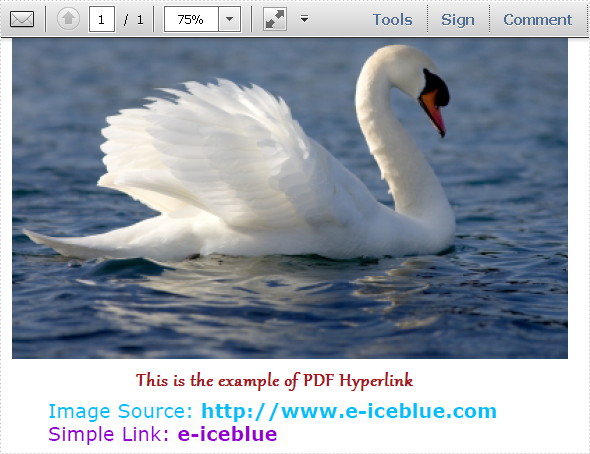
Spire.PDF for WPF enables you to directly generate, read, write and manipulate PDF files in your WPF applications without installing Adobe Acrobat or any third party library. Using Spire.PDF for WPF, you can easily add PDF hyperlink by three key steps. Please Download Spire.PDF for WPF and view the effective screenshot of this task as below picture:
Step 1: Set the link location in PDF page.
After you loading an existing PDF file or creating a new PDF file(a PDF file is imported from system in this step), please set the approximate location of hyperlink in PDF page by calling the Spire.Pdf.PdfPageBase: Canvas.ClientSize.Height.
            PdfDocument doc = new PdfDocument();
            doc.LoadFromFile(@"..\image to pdf.pdf");
            PdfPageBase page = doc.Pages[0];

            PdfUnitConvertor unitCvtr = new PdfUnitConvertor();
            PdfMargins margin = new PdfMargins();
            margin.Top = unitCvtr.ConvertUnits(2.54f, PdfGraphicsUnit.Centimeter, PdfGraphicsUnit.Point);
            margin.Bottom = margin.Top;
            margin.Left = unitCvtr.ConvertUnits(3.17f, PdfGraphicsUnit.Centimeter, PdfGraphicsUnit.Point);
            margin.Right = margin.Left;
            PdfTrueTypeFont font = new PdfTrueTypeFont(new Font("Verdana", 17));
            float space = font.Height * 0.75f;
            float y = page.Canvas.ClientSize.Height*0.6f - margin.Bottom + space;
           Dim doc As New PdfDocument()
	   doc.LoadFromFile("D:\michelle\my file\image to pdf.pdf")
	   Dim page As PdfPageBase = doc.Pages(0)
	   Dim unitCvtr As New PdfUnitConvertor()
	   Dim margin As New PdfMargins()
	   margin.Top = unitCvtr.ConvertUnits(2.54F, PdfGraphicsUnit.Centimeter, PdfGraphicsUnit.Point)
	   margin.Bottom = margin.Top
	   margin.Left = unitCvtr.ConvertUnits(3.17F, PdfGraphicsUnit.Centimeter, PdfGraphicsUnit.Point)
	   margin.Right = margin.Left
	   Dim font As New PdfTrueTypeFont(New Font("Verdana", 17))
	   Dim space As Single = font.Height * 0.75F
	   Dim y As Single = page.Canvas.ClientSize.Height * 0.6F - margin.Bottom + space
Step 2: Add Hyperlink1 in PDF.
In this step, you can draw a string in PDF page by calling Spire.Pdf. PdfPageBase method: PdfPageBase.Canvas.DrawString(string s, PdfFontBase font, PdfBrush brush, float x, float y, PdfStringFormat format) method. As the string format is a url address, a link can be drawn. Also by calculating the string width of label, link and PDF page, both link label location and link location can be set. In this method, link label and link are set in the middle.
            String label = "Image Source: ";
            PdfStringFormat format = new PdfStringFormat();
            format.MeasureTrailingSpaces = true;
            float x1 = font.MeasureString(label, format).Width;
            PdfTrueTypeFont font2 = new PdfTrueTypeFont(new Font("Verdana", 17, System.Drawing.FontStyle.Bold));
            String url1 = "http://www.e-iceblue.com";
            float x2 = font2.MeasureString(url1, format).Width;
            float x =( page.Canvas.ClientSize.Width-x1-x2)/2;
            page.Canvas.DrawString(label, font, PdfBrushes.DeepSkyBlue, x, y, format);
            x += x1;
            page.Canvas.DrawString(url1, font2, PdfBrushes.DeepSkyBlue, x, y);
            y = y + font2.MeasureString(url1).Height;
           Dim label As [String] = "Image Source: "
	   Dim format As New PdfStringFormat()
	   format.MeasureTrailingSpaces = True
	   Dim x1 As Single = font.MeasureString(label, format).Width
	   Dim font2 As New PdfTrueTypeFont(New Font("Verdana", 17, System.Drawing.FontStyle.Bold))
	   Dim url1 As [String] = "http://www.e-iceblue.com"
	   Dim x2 As Single = font2.MeasureString(url1, format).Width
	   Dim x As Single = (page.Canvas.ClientSize.Width - x1 - x2) / 2
	   page.Canvas.DrawString(label, font, PdfBrushes.DeepSkyBlue, x, y, format)
	   x += x1
	   page.Canvas.DrawString(url1, font2, PdfBrushes.DeepSkyBlue, x, y)
	   y = y + font2.MeasureString(url1).Height
Step 3: Add hyperlink 2 in place of text.
Use the method in step2 to draw a link label and add hyperlink2 in place of text by the method Spire.Pdf.Annotations. PdfTextWebLink to set link properties such as text, url and so on. Finally, invoke DrawTextWebLink(PdfCanvas graphics, PointF location) method to draw the PDF hyperlink in place of text.
            label = "Simple Link: ";
            x -= x1;
            page.Canvas.DrawString(label, font, PdfBrushes.DarkViolet, x, y, format);
            float xoffset2 = font.MeasureString(label, format).Width;
            x += xoffset2;
            String text = "e-iceblue";
            PdfTextWebLink link2 = new PdfTextWebLink();
            link2.Text = text;
            link2.Url = url1;
            link2.Font = font2;
            link2.Brush = PdfBrushes.DarkViolet;
            link2.DrawTextWebLink(page.Canvas, new PointF(x, y));
        label = "Simple Link: "
	x -= x1
	page.Canvas.DrawString(label, font, PdfBrushes.DarkViolet, x, y, format)
	Dim xoffset2 As Single = font.MeasureString(label, format).Width
	x += xoffset2
	Dim text As [String] = "e-iceblue"
	Dim link2 As New PdfTextWebLink()
	link2.Text = text
	link2.Url = url1
	link2.Font = font2
	link2.Brush = PdfBrushes.DarkViolet
	link2.DrawTextWebLink(page.Canvas, New PointF(x, y))
Spire.PDF is a PDF document creation component that enables your WPF applications to read, write and manipulate PDF documents without using Adobe Acrobat. Now, the new version added Silverlight platform which makes it more powerful.
PDF pagination not only enables users to add page numbers in PDF file but also can divide PDF document into sections so that some additional information such as PDF file cover, introduction or reference can be added. So PDF pagination provides great convenience for managing large files or organizing books. This section will show you a solution to paginate PDF pages via a .NET PDF component in C#, VB.NET.
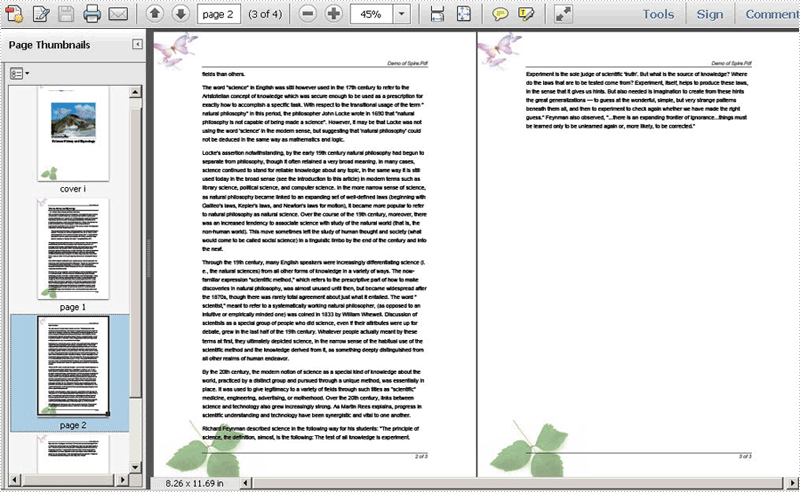
Spire.PDF for .NET, a PDF component for managing PDF files, enables you to paginate PDF pages quickly with C#, VB.NET. Before expounding the main code, I want to show the screenshot of the output PDF file as below:
Here you can download Spire.PDF for .NET and install it on your system. After adding Spire.Pdf dll, let us start to paginate PDF file together.
In the whole solution, there are three main steps to paginate PDF file. One is to draw page number; another is to draw content; the last one is to draw PDF cover so that you can add additional information. Let us see them one by one.
Paginate PDF - Draw PDF Page Number
When drawing page number, page label is also set in below method. By calling this method: DrawString(string s, PdfFontBase font, PdfBrush brush, float x, float y, PdfStringFormat format). You can not only set page label font, color, position and format. Please see detail code below:
            foreach (PdfPageBase page in section.Pages)
            {
                page.Canvas.SetTransparency(0.5f);
                PdfBrush brush = PdfBrushes.Black;
                PdfPen pen = new PdfPen(brush, 0.75f);
                PdfTrueTypeFont font = new PdfTrueTypeFont(new Font("Arial", 9f, FontStyle.Italic), true);
                PdfStringFormat format = new PdfStringFormat(PdfTextAlignment.Right);
                format.MeasureTrailingSpaces = true;
                float space = font.Height * 0.75f;
                float x = margin.Left;
                float width = page.Canvas.ClientSize.Width - margin.Left - margin.Right;
                float y = page.Canvas.ClientSize.Height - margin.Bottom + space;
                page.Canvas.DrawLine(pen, x, y, x + width, y);
                y = y + 1;
                String numberLabel
                    = String.Format("{0} of {1}", startNumber++, pageCount);
                page.Canvas.DrawString(numberLabel, font, brush, x + width, y, format);
                page.Canvas.SetTransparency(1);
            }
         For Each page As PdfPageBase In section.Pages
            page.Canvas.SetTransparency(0.5!)
            Dim brush As PdfBrush = PdfBrushes.Black
            Dim pen As PdfPen = New PdfPen(brush, 0.75!)
            Dim font As PdfTrueTypeFont = New PdfTrueTypeFont(New Font("Arial", 9!, FontStyle.Italic), true)
            Dim format As PdfStringFormat = New PdfStringFormat(PdfTextAlignment.Right)
            format.MeasureTrailingSpaces = true
            Dim space As Single = (font.Height * 0.75!)
            Dim x As Single = margin.Left
            Dim width As Single = (page.Canvas.ClientSize.Width  _
                        - (margin.Left - margin.Right))
            Dim y As Single = ((page.Canvas.ClientSize.Height - margin.Bottom)  _
                        + space)
            page.Canvas.DrawLine(pen, x, y, (x + width), y)
            y = (y + 1)
            Dim numberLabel As String = String.Format("{0} of {1}", startNumber++, pageCount)
            page.Canvas.DrawString(numberLabel, font, brush, (x + width), y, format)
            page.Canvas.SetTransparency(1)
        Next
Paginate PDF - Draw PDF Content
PDF content depends on your own like, so here I avoid coding them in detail.
Paginate PDF - Draw PDF Cover
Cover page is always the best place for adding additional information about this PDF file. In below method, I ignore adding reference content and document title, you can add cover image a class PdfImage in the PDF cover page. Please see code below:
            //cover
            PdfBrush brush3 = PdfBrushes.Black;
            PdfBrush brush4 = new PdfSolidBrush(new PdfRGBColor(0xf9, 0xf9, 0xf9));
            PdfImage image
                = PdfImage.FromFile(@"..\potala palace1.jpg");
            String text = paginate_PDF.Properties.Resources.ImageDescription;
            float r = image.PhysicalDimension.Height / image.Height;
            PdfPen pen = new PdfPen(brush1, r);
            SizeF size = font1.MeasureString(text, image.PhysicalDimension.Width - 2);
            PdfTemplate template
                = new PdfTemplate(image.PhysicalDimension.Width + 4 * r + 4,
                    image.PhysicalDimension.Height + 4 * r + 7 + size.Height);
            template.Graphics.DrawRectangle(pen, brush4, 0, 0, template.Width, template.Height);
        'cover
        Dim brush3 As PdfBrush = PdfBrushes.Black
        Dim brush4 As PdfBrush = New PdfSolidBrush(New PdfRGBColor(249, 249, 249))
        Dim image As PdfImage = PdfImage.FromFile("..\potala palace1.jpg")
        Dim text As String = paginate_PDF.Properties.Resources.ImageDescription
        Dim r As Single = (image.PhysicalDimension.Height / image.Height)
        Dim pen As PdfPen = New PdfPen(brush1, r)
        Dim size As SizeF = font1.MeasureString(text, (image.PhysicalDimension.Width - 2))
        Dim template As PdfTemplate = New PdfTemplate((image.PhysicalDimension.Width  _
                        + ((4 * r)  _
                        + 4)), (image.PhysicalDimension.Height  _
                        + ((4 * r) + (7 + size.Height))))
        template.Graphics.DrawRectangle(pen, brush4, 0, 0, template.Width, template.Height)
Spire.PDF for .NET is a professional PDF component to generate, edit, read, and manipulate PDF documents in your .NET applications with C#, VB.NET.
Watermark is a recognizable text or image that appears under document text. A watermark is useful in the examination of paper because it can be widely used for trademarks, locations and so on. This article aims at introducing how to add PDF text watermark for WPF through a simple WPF PDF API Spire.PDF for WPF. Also it can implement PDF watermark by image.
First we need to complete the preparatory work:
- Download the latest Spire.PDF and install it on your machine.
- Add the Spire.PDF.WPF.dll files as reference.
- Open bin folder and select the three dll files under .NET 4.0.
- Right click property and select properties in its menu.
- Set the target framework as .NET 4.
- Add Spire.PDF as namespace.
Here comes to the explanation of the code.
Step 1: Create an instance of Spire.PDF.Document
PdfDocument doc = new PdfDocument();
Step 2: Load the file base on a specified file path
doc.LoadFromFile(@"..\..\Sample1.pdf");
Step 3: Add the text watermark to the first page
PdfPageBase page = doc.Pages[0];
PdfTilingBrush brush = new PdfTilingBrush(new SizeF(page.Canvas.ClientSize.Width/2, page.Canvas.ClientSize.Height/3));
brush.Graphics.SetTransparency(0.3f);
brush.Graphics.Save();
brush.Graphics.TranslateTransform(brush.Size.Width / 2, brush.Size.Height / 2);
brush.Graphics.RotateTransform(-45);
brush.Graphics.DrawString("Spire.Pdf Demo",new PdfFont(PdfFontFamily.Helvetica, 24), PdfBrushes.Violet, 0, 0,new PdfStringFormat(PdfTextAlignment.Center));
brush.Graphics.Restore();
brush.Graphics.SetTransparency(1);
page.Canvas.DrawRectangle(brush, new RectangleF(new PointF(0, 0), page.Canvas.ClientSize));
Step 4: Save the PDF file
doc.SaveToFile("TextWaterMark.pdf");
Full code:
private void button1_Click(object sender, RoutedEventArgs e)
 {
  PdfDocument doc = new PdfDocument();
  doc.LoadFromFile(@"..\..\Sample1.pdf");
  PdfPageBase page = doc.Pages[0];
  PdfTilingBrush brush = new PdfTilingBrush(new SizeF(page.Canvas.ClientSize.Width/2, page.Canvas.ClientSize.Height/3));
  brush.Graphics.SetTransparency(0.3f);
  brush.Graphics.Save();
  brush.Graphics.TranslateTransform(brush.Size.Width / 2, brush.Size.Height / 2);
  brush.Graphics.RotateTransform(-45);
  brush.Graphics.DrawString("Spire.Pdf Demo",new PdfFont(PdfFontFamily.Helvetica, 24), PdfBrushes.Violet, 0, 0, new PdfStringFormat(PdfTextAlignment.Center));
  brush.Graphics.Restore();
  brush.Graphics.SetTransparency(1);
  page.Canvas.DrawRectangle(brush, new RectangleF(new PointF(0, 0), page.Canvas.ClientSize));
  doc.SaveToFile("TextWaterMark.pdf");
 }
Effect screenshot:

C#/VB.NET: Create, Fill, or Remove Fillable Forms in PDF
2022-06-17 05:46:00 Written by AdministratorThe ability to create fillable PDF forms that end users can fill out (without having to print) can be a real benefit to making your business efficient. With these documents, users can download them, fill them out, save them, and send them back to you. No more printing and scanning. In this article, you will learn how to create, fill, or remove fillable forms in PDF in C# and VB.NET by using Spire.PDF for .NET.
- Create Fillable Form Fields in a PDF Document
- Fill Form Fields in an Existing PDF Document
- Remove a Particular Field or All Fields from an Existing PDF Document
Spire.PDF for .NET offers a series of useful classes under the Spire.Pdf.Fields namespace, allowing programmers to create and edit various types of form fields including text box, check box, combo box, list box, and radio button. The table below lists some of the core classes involved in this tutorial.
| Class | Description |
| PdfForm | Represents interactive form of the PDF document. |
| PdfField | Represents field of the PDF document's interactive form. |
| PdfTextBoxField | Represents text box field in the PDF form. |
| PdfCheckBoxField | Represents check box field in the PDF form. |
| PdfComboBoxField | Represents combo box field in the PDF Form. |
| PdfListBoxField | Represents list box field of the PDF form. |
| PdfListFieldItem | Represents an item of a list field. |
| PdfRadioButtonListField | Represents radio button field in the PDF form. |
| PdfRadioButtonListItem | Represents an item of a radio button list. |
| PdfButtonField | Represents button field in the PDF form. |
| PdfSignatureField | Represents signature field in the PDF form. |
Install Spire.PDF for .NET
To begin with, you need to add the DLL files included in the Spire.PDF for.NET package as references in your .NET project. The DLLs files can be either downloaded from this link or installed via NuGet.
PM> Install-Package Spire.PDF
Create Fillable Form Fields in a PDF Document
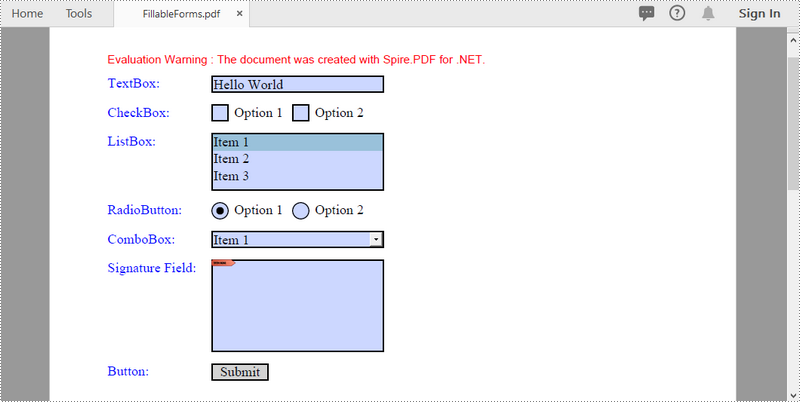
To create a PDF form, initialize an instance of the corresponding field class. Set its size and position in the document through the Bounds property, and then add it to PDF using PdfFormFieldCollection.Add() method. The following are the main steps to create various types of form fields in a PDF document using Spire.PDF for .NET.
- Create a PdfDocument object.
- Add a page using PdfDocuemnt.Pages.Add() method.
- Create a PdfTextBoxField object, set the properties of the field including Bounds, Font and Text, and then add it to the document using PdfFormFieldCollection.Add() method.
- Repeat the step 3 to add check box, combo box, list box, radio button, signature field and button to the document.
- Save the document to a PDF file using PdfDocument.SaveToFile() method.
- C#
- VB.NET
using Spire.Pdf;
using Spire.Pdf.Actions;
using Spire.Pdf.Fields;
using Spire.Pdf.Graphics;
using System.Drawing;

namespace CreateFillableFormsInPdf
{
    class Program
    {
        static void Main(string[] args)
        {
            //Create a PdfDocument object
            PdfDocument doc = new PdfDocument();

            //Add a page
            PdfPageBase page = doc.Pages.Add();

            //Initialize x and y coordinates
            float baseX = 100;
            float baseY = 30;

            //Create two brush objects
            PdfSolidBrush brush1 = new PdfSolidBrush(new PdfRGBColor(Color.Blue));
            PdfSolidBrush brush2 = new PdfSolidBrush(new PdfRGBColor(Color.Black));

            //Create a font
            PdfFont font = new PdfFont(PdfFontFamily.TimesRoman, 12f, PdfFontStyle.Regular);

            //Add a textbox
            page.Canvas.DrawString("TextBox:", font, brush1, new PointF(10, baseY));
            RectangleF tbxBounds = new RectangleF(baseX, baseY, 150, 15);
            PdfTextBoxField textBox = new PdfTextBoxField(page, "textbox");
            textBox.Bounds = tbxBounds;
            textBox.Text = "Hello World";
            textBox.Font = font;
            doc.Form.Fields.Add(textBox);
            baseY += 25;

            //add two checkboxes
            page.Canvas.DrawString("CheckBox:", font, brush1, new PointF(10, baseY));
            RectangleF checkboxBound1 = new RectangleF(baseX, baseY, 15, 15);
            PdfCheckBoxField checkBoxField1 = new PdfCheckBoxField(page, "checkbox1");
            checkBoxField1.Bounds = checkboxBound1;
            checkBoxField1.Checked = false;
            page.Canvas.DrawString("Option 1", font, brush2, new PointF(baseX + 20, baseY));

            RectangleF checkboxBound2 = new RectangleF(baseX + 70, baseY, 15, 15);
            PdfCheckBoxField checkBoxField2 = new PdfCheckBoxField(page, "checkbox2");
            checkBoxField2.Bounds = checkboxBound2;
            checkBoxField2.Checked = false;
            page.Canvas.DrawString("Option 2", font, brush2, new PointF(baseX + 90, baseY));
            doc.Form.Fields.Add(checkBoxField1);
            doc.Form.Fields.Add(checkBoxField2);
            baseY += 25;

            //Add a listbox
            page.Canvas.DrawString("ListBox:", font, brush1, new PointF(10, baseY));
            RectangleF listboxBound = new RectangleF(baseX, baseY, 150, 50);
            PdfListBoxField listBoxField = new PdfListBoxField(page, "listbox");
            listBoxField.Items.Add(new PdfListFieldItem("Item 1", "item1"));
            listBoxField.Items.Add(new PdfListFieldItem("Item 2", "item2"));
            listBoxField.Items.Add(new PdfListFieldItem("Item 3", "item3")); ;
            listBoxField.Bounds = listboxBound;
            listBoxField.Font = font;
            listBoxField.SelectedIndex = 0;
            doc.Form.Fields.Add(listBoxField);
            baseY += 60;

            //Add two radio buttons
            page.Canvas.DrawString("RadioButton:", font, brush1, new PointF(10, baseY));
            PdfRadioButtonListField radioButtonListField = new PdfRadioButtonListField(page, "radio");
            PdfRadioButtonListItem radioItem1 = new PdfRadioButtonListItem("option1");
            RectangleF radioBound1 = new RectangleF(baseX, baseY, 15, 15);
            radioItem1.Bounds = radioBound1;
            page.Canvas.DrawString("Option 1", font, brush2, new PointF(baseX + 20, baseY));

            PdfRadioButtonListItem radioItem2 = new PdfRadioButtonListItem("option2");
            RectangleF radioBound2 = new RectangleF(baseX + 70, baseY, 15, 15);
            radioItem2.Bounds = radioBound2;
            page.Canvas.DrawString("Option 2", font, brush2, new PointF(baseX + 90, baseY));
            radioButtonListField.Items.Add(radioItem1);
            radioButtonListField.Items.Add(radioItem2);
            radioButtonListField.SelectedIndex = 0;
            doc.Form.Fields.Add(radioButtonListField);
            baseY += 25;

            //Add a combobox
            page.Canvas.DrawString("ComboBox:", font, brush1, new PointF(10, baseY));
            RectangleF cmbBounds = new RectangleF(baseX, baseY, 150, 15);
            PdfComboBoxField comboBoxField = new PdfComboBoxField(page, "combobox");
            comboBoxField.Bounds = cmbBounds;
            comboBoxField.Items.Add(new PdfListFieldItem("Item 1", "item1"));
            comboBoxField.Items.Add(new PdfListFieldItem("Item 2", "itme2"));
            comboBoxField.Items.Add(new PdfListFieldItem("Item 3", "item3"));
            comboBoxField.Items.Add(new PdfListFieldItem("Item 4", "item4"));
            comboBoxField.SelectedIndex = 0;
            comboBoxField.Font = font;
            doc.Form.Fields.Add(comboBoxField);
            baseY += 25;

            //Add a signature field
            page.Canvas.DrawString("Signature Field:", font, brush1, new PointF(10, baseY));
            PdfSignatureField sgnField = new PdfSignatureField(page, "sgnField");
            RectangleF sgnBounds = new RectangleF(baseX, baseY, 150, 80);
            sgnField.Bounds = sgnBounds;
            doc.Form.Fields.Add(sgnField);
            baseY += 90;

            //Add a button
            page.Canvas.DrawString("Button:", font, brush1, new PointF(10, baseY));
            RectangleF btnBounds = new RectangleF(baseX, baseY, 50, 15);
            PdfButtonField buttonField = new PdfButtonField(page, "button");
            buttonField.Bounds = btnBounds;
            buttonField.Text = "Submit";
            buttonField.Font = font;
            PdfSubmitAction submitAction = new PdfSubmitAction("https://www.e-iceblue.com/getformvalues.php");
            submitAction.DataFormat = SubmitDataFormat.Html;
            buttonField.Actions.MouseDown = submitAction;
            doc.Form.Fields.Add(buttonField);

            //Save to file
            doc.SaveToFile("FillableForms.pdf", FileFormat.PDF);
        }
    }
}
Fill Form Fields in an Existing PDF Document
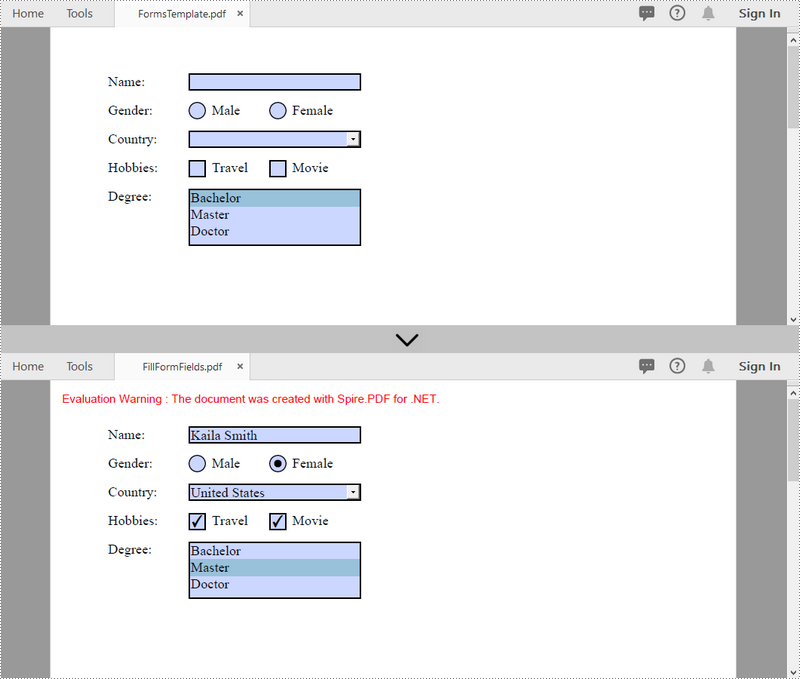
In order to fill out a form, we must first get all the form fields from the PDF document, determine the type of a certain field, and then input a value or select a value from a predefined list. The following are the steps to fill form fields in an existing PDF document using Spire.PDF for .NET.
- Create a PdfDocument object.
- Load a sample PDF document using PdfDocument.LoadFromFile() method.
- Get the form from the document through PdfDocument.Form property.
- Get the form widget collection through PdfFormWidget.FieldsWidget property.
- Loop through the form widget collection to get a specific PdfField.
- Determine if the PdfField is a certain field type such as text box. If yes, set the text of the text box through PdfTextBoxFieldWidget.Text property.
- Repeat the sixth step to fill radio button, check box, combo box, and list box with values.
- Save the document to a PDF file using PdfDocument.SaveToFile() method.
- C#
- VB.NET
using Spire.Pdf;
using Spire.Pdf.Fields;
using Spire.Pdf.Widget;

namespace FillFormFields
{
    class Program
    {
        static void Main(string[] args)
        {
            //Create a PdfDocument object
            PdfDocument doc = new PdfDocument();

            //Load a template containing forms
            doc.LoadFromFile(@"C:\Users\Administrator\Desktop\FormsTemplate.pdf");

            //Get the form from the document
            PdfFormWidget form = (PdfFormWidget)doc.Form;

            //Get the form widget collection
            PdfFormFieldWidgetCollection formWidgetCollection = form.FieldsWidget;

            //Loop through the widgets
            for (int i = 0; i < formWidgetCollection.Count; i++)
            {
                //Get a specific field
                PdfField field = formWidgetCollection[i];

                //Determine if the field is a text box
                if (field is PdfTextBoxFieldWidget)
                {
                    if (field.Name == "name")
                    {
                        //Set the text of text box
                        PdfTextBoxFieldWidget textBoxField = (PdfTextBoxFieldWidget)field;
                        textBoxField.Text = "Kaila Smith";
                    }
                }

                //Determine if the field is a radio button
                if (field is PdfRadioButtonListFieldWidget)
                {
                    if (field.Name == "gender")
                    {
                        //Set the selected index of radio button
                        PdfRadioButtonListFieldWidget radioButtonListField = (PdfRadioButtonListFieldWidget)field;
                        radioButtonListField.SelectedIndex = 1;
                    }
                }

                //Determine if the field is a combo box
                if (field is PdfComboBoxWidgetFieldWidget)
                {
                    if (field.Name == "country")
                    {
                        //Set the selected index of combo box
                        PdfComboBoxWidgetFieldWidget comboBoxField = (PdfComboBoxWidgetFieldWidget)field;
                        int[] index = { 0 };
                        comboBoxField.SelectedIndex = index;
                    }
                }

                //Determine if the field is a check box
                if (field is PdfCheckBoxWidgetFieldWidget)
                {
                    //Set the "Checked" status of check box
                    PdfCheckBoxWidgetFieldWidget checkBoxField = (PdfCheckBoxWidgetFieldWidget)field;
                    switch (checkBoxField.Name)
                    {
                        case "travel":
                            checkBoxField.Checked = true;
                            break;
                        case "movie":
                            checkBoxField.Checked = true;
                            break;
                    }
                }

                //Determine if the field is a list box
                if (field is PdfListBoxWidgetFieldWidget)
                {
                    if (field.Name == "degree")
                    {
                        //Set the selected index of list box
                        PdfListBoxWidgetFieldWidget listBox = (PdfListBoxWidgetFieldWidget)field;
                        int[] index = { 1 };
                        listBox.SelectedIndex = index;
                    }
                }
            }

            //Save to file
            doc.SaveToFile("FillFormFields.pdf", FileFormat.PDF);
        }
    }
}
Remove a Particular Field or All Fields from an Existing PDF Document
A form field in a PDF document can be accessed by its index or name and removed by PdfFieldCollection.Remove() method. The following are the steps to remove a particular field or all fields from an existing PDF document using Sprie.PDF for .NET.
- Create a PdfDocument object.
- Load a PDF document using PdfDocument.LoadFromFile() method.
- Get the form widget collection from the document.
- Loop through the widget collection to get a specific PdfField. Remove the field one by one using PdfFieldCollection.Remove() method.
- To remove a certain form field, get it from the document through PdfFormWidget.FieldsWidget["fieldName"] property and then call the PdfFieldCollectiont.Remove() method.
- Save the document to a PDF file using PdfDocument.SaveToFile() method.
- C#
- VB.NET
using Spire.Pdf;
using Spire.Pdf.Fields;
using Spire.Pdf.Widget;

namespace RemoveFormFields
{
    class Program
    {
        static void Main(string[] args)
        {
            //Create a PdfDocument object
            PdfDocument doc = new PdfDocument();

            //Load a PDF file
            doc.LoadFromFile(@"C:\Users\Administrator\Desktop\FormsTemplate.pdf");

            //Get the form fields from the document
            PdfFormWidget formWidget = doc.Form as PdfFormWidget;

            //Loop through the widgets
            for (int i = formWidget.FieldsWidget.List.Count - 1; i >= 0; i--)
            {
                //Get a specific field
                PdfField field = formWidget.FieldsWidget.List[i] as PdfField;

                //Remove the field
                formWidget.FieldsWidget.Remove(field);
            }

            //Get a specific field by its name
            //PdfField field = formWidget.FieldsWidget["name"];
            //Remove the field
            //formWidget.FieldsWidget.Remove(field);

            //Save to file
            doc.SaveToFile("DeleteAllFields.pdf");
        }
    }
}
Apply for a Temporary License
If you'd like to remove the evaluation message from the generated documents, or to get rid of the function limitations, please request a 30-day trial license for yourself.
More...
