
Spire.PDF for .NET (290)
Text annotation is frequently used in PDF for creating a comment or explaining more about an item. Using Spire.PDF you can create a text mark-up annotation, edit an existing annotation and delete specified or all annotations. This article is aimed to demonstrate how to modify and format an existing text annotation in a PDF document.
Test File:
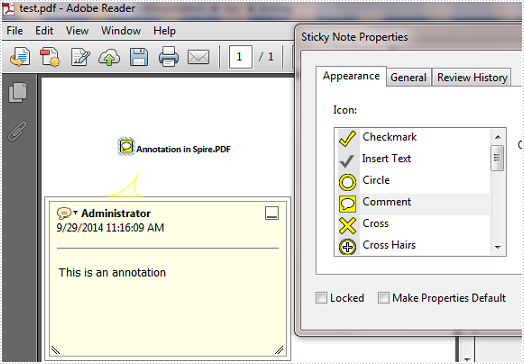
Changes we want to make:
- Modify the annotation text.
- Change the color of the annotation icon.
- Fix the annotation flag including its position, color, and type.
Code Snippet
Step 1: Create a new PDF document and load the test file.
PdfDocument pdf = new PdfDocument("test.pdf");
Step 2: Get the annotation from the document.
PdfAnnotation annotation = pdf.Pages[0].Annotations[0];
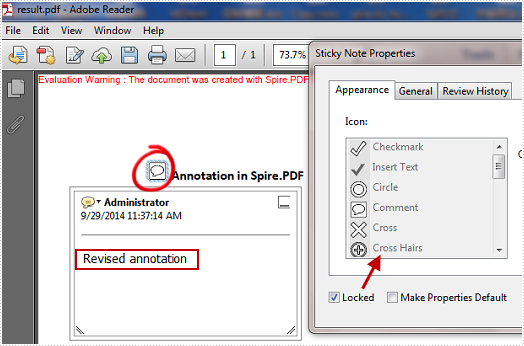
Step 3: Set the text, border, color of the annotation and lock the annotation flag.
annotation.Text = "Revised annotation";
annotation.Border = new PdfAnnotationBorder(0.75f);
annotation.Color = new PdfRGBColor(Color.White);
annotation.Flags = PdfAnnotationFlags.Locked;
Step 4: Save and launch the file.
pdf.SaveToFile("result.pdf");
Process.Start("result.pdf");
Target Effect:
Full Code:
using Spire.Pdf;
using Spire.Pdf.Annotations;
using Spire.Pdf.Graphics;
using System.Diagnostics;
using System.Drawing;

namespace ModifyAndFormatAnnotation
{
    class Program
    {
        static void Main(string[] args)
        {
            PdfDocument pdf = new PdfDocument("test.pdf");
            PdfAnnotation annotation = pdf.Pages[0].Annotations[0];

            annotation.Text = "Revised annotation";
            annotation.Border = new PdfAnnotationBorder(0.75f);
            annotation.Color = new PdfRGBColor(Color.White);
            annotation.Flags = PdfAnnotationFlags.Locked;

            pdf.SaveToFile("result.pdf");
            Process.Start("result.pdf");
        }

    }
}
Imports Spire.Pdf
Imports Spire.Pdf.Annotations
Imports Spire.Pdf.Graphics
Imports System.Diagnostics
Imports System.Drawing

Namespace ModifyAndFormatAnnotation
	Class Program
		Private Shared Sub Main(args As String())
			Dim pdf As New PdfDocument("test.pdf")
			Dim annotation As PdfAnnotation = pdf.Pages(0).Annotations(0)

			annotation.Text = "Revised annotation"
			annotation.Border = New PdfAnnotationBorder(0.75F)
			annotation.Color = New PdfRGBColor(Color.White)
			annotation.Flags = PdfAnnotationFlags.Locked

			pdf.SaveToFile("result.pdf")
			Process.Start("result.pdf")
		End Sub

	End Class
End Namespace
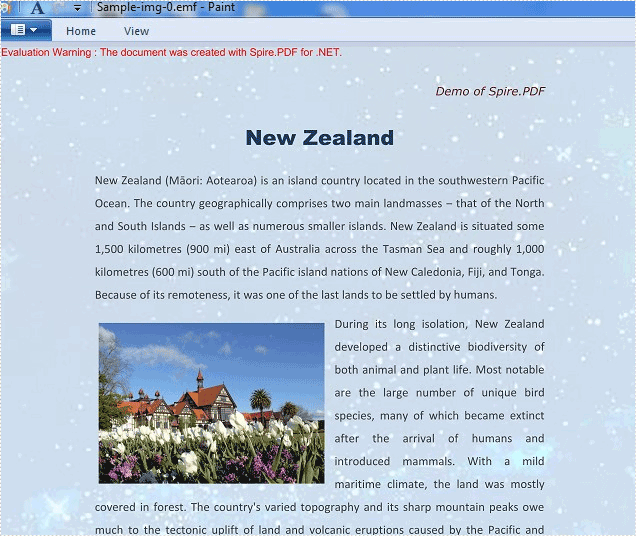
Spire.PDF supports to save the PDF files into different image file formats, such as BMP, JPG, PNG, GIF and TIFF. It also supports to save the PDF files as the Enhanced Metafile (EMF) image file format. This article will demonstrate how to save the PDF file as the EMF image file format in C#. With the help of Spire.PDF, we only need three lines of codes to finish the conversion function.
Note: Before Start, please download the latest version of Spire.PDF and add Spire.Pdf.dll in the bin folder as the reference of Visual Studio.
Here comes to the steps of how to export the PDF file to EMF in C#:
Step 1: Create a new PDF document and load from file.
PdfDocument doc = new PdfDocument();
doc.LoadFromFile("sample.pdf");
Step 2: Call to use the SaveAsImage method to save all the PDF pages as System.Drawing.Imaging.ImageFormat.Emf file format.
for (int i = 0; i < doc.Pages.Count; i++)
{
    String fileName = String.Format("Sample-img-{0}.emf", i);
    using (Image image = doc.SaveAsImage(i, Spire.Pdf.Graphics.PdfImageType.Bitmap, 300, 300))
     {
       image.Save(fileName, System.Drawing.Imaging.ImageFormat.Emf);
     }

}
Effective screenshot:
Full codes:
using Spire.Pdf;
using System;
using System.Drawing;

namespace ConvertPDFtoEMF
{
    class Program
    {
        static void Main(string[] args)
        {
            PdfDocument doc = new PdfDocument();
            doc.LoadFromFile("sample.pdf");

            for (int i = 0; i < doc.Pages.Count; i++)
            {
              using (Image image = doc.SaveAsImage(i, Spire.Pdf.Graphics.PdfImageType.Bitmap, 300, 300))
               {
                 image.Save(fileName, System.Drawing.Imaging.ImageFormat.Emf);
               }

            }
        }
    }
}
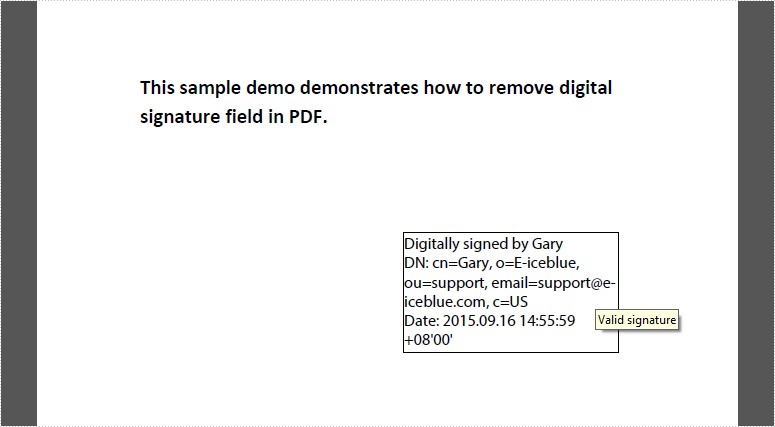
As a comprehensive PDF component, Spire.PDF supports to sign a PDF digitally, embed certificate in PDF as well as delete signatures in existing PDF documents. In this article, you'll learn how to remove all digital signatures from a PDF with C#, VB.NET.
Test File:
Code Snippet:
Step 1: Create a new PdfDocument object and load the test file.
PdfDocument pdf = new PdfDocument("test.pdf");
Step 2: Get loaded form from PDF.
PdfFormWidget widgets = pdf.Form as PdfFormWidget;
Step 3: Get the list of filed collection, and judge if each filed is a signature filed. If yes, remove the signature field using PdfFieldCollection.RemoveAt(int index) method.
for (int i = 0; i < widgets.FieldsWidget.List.Count; i++)
{
    PdfFieldWidget widget = widgets.FieldsWidget.List[i] as PdfFieldWidget;
    if (widget is PdfSignatureFieldWidget)
    {
        widgets.FieldsWidget.RemoveAt(i);
    }
}
Step 4: Save and launch the result file.
pdf.SaveToFile("result.pdf");
System.Diagnostics.Process.Start("result.pdf");
Result:
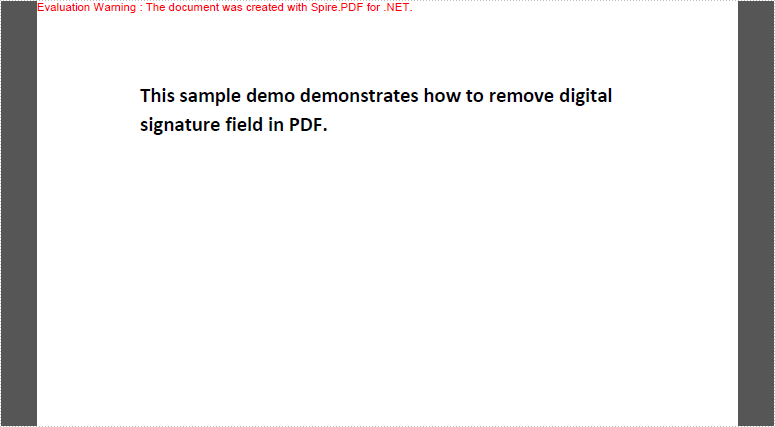
Full Code:
using Spire.Pdf;
using Spire.Pdf.Widget;

namespace RemoveDigitalSignature
{
    class Program
    {
        static void Main(string[] args)
        {
            PdfDocument pdf = new PdfDocument("test.pdf");

            PdfFormWidget widgets = pdf.Form as PdfFormWidget;
            for (int i = 0; i < widgets.FieldsWidget.List.Count; i++)
            {
                PdfFieldWidget widget = widgets.FieldsWidget.List[i] as PdfFieldWidget;
                if (widget is PdfSignatureFieldWidget)
                {
                    widgets.FieldsWidget.RemoveAt(i);
                }
            }

            pdf.SaveToFile("result.pdf");
            System.Diagnostics.Process.Start("result.pdf");
        }
    }
}
Imports Spire.Pdf
Imports Spire.Pdf.Widget

Namespace RemoveDigitalSignature
	Class Program
		Private Shared Sub Main(args As String())
			Dim pdf As New PdfDocument("test.pdf")
Dim widgets As PdfFormWidget = TryCast(pdf.Form, PdfFormWidget)
For i As Integer = 0 To widgets.FieldsWidget.List.Count - 1
	Dim widget As PdfFieldWidget = TryCast(widgets.FieldsWidget.List(i), PdfFieldWidget)
	If TypeOf widget Is PdfSignatureFieldWidget Then

		widgets.FieldsWidget.RemoveAt(i)
	End If
Next

pdf.SaveToFile("result.pdf")
System.Diagnostics.Process.Start("result.pdf")
		End Sub
	End Class
End Namespace
Adding a stamp to a PDF document can enhance its visual appeal and convey important information, such as approval, confidentiality, or urgency. This simple process allows users to mark documents with customized images or text, making it easier to communicate key messages. Whether for professional use or personal projects, stamping PDFs ensures clarity and adds a professional touch.
In this article, you will learn how to add a stamp to a PDF document using C# with Spire.PDF for .NET.
Install Spire.PDF for .NET
To begin with, you need to add the DLL files included in the Spire.PDF for .NET package as references in your .NET project. The DLL files can be either downloaded from this link or installed via NuGet.
PM> Install-Package Spire.PDF
Prerequisite Knowledge
In a PDF, a stamp is an annotation or graphical element that adds supplementary information to a document. Spire.PDF for .NET includes the PdfRubberStampAnnotation class, which represents a rubber stamp. To create the appearance for the rubber stamp, you can use the PdfTemplate class, which serves as a canvas for drawing text, images, shapes, and date/time elements.
Add a Dynamic Stamp to PDF in C#
A dynamic stamp is a customizable annotation added to a PDF document to convey specific statuses, approvals, or other information. Unlike static stamps, dynamic stamps include variables or fields that can be updated in real time, such as the current date, time, username, or other custom data.
Here are the steps to add a dynamic stamp to a PDF using Spire.PDF for .NET:
- Create a PdfDocument object.
- Load a PDF file using PdfDocument.LoadFromFile() method.
- Create a PdfTemplate object with the desired size.
- Draw strings, including dynamic information like date and time, on the template using PdfTemplate.Graphics.DrawString().
- Create a PdfRubberStampAnnotation object and set the template as its appearance.
- Add the stamp to a specific PDF page using PdfPageBase.Annotations.Add() method.
- Save the document to a different PDF file.
- C#
using System.Drawing;
using Spire.Pdf;
using Spire.Pdf.Graphics;
using Spire.Pdf.Annotations;
using Spire.Pdf.Annotations.Appearance;

namespace AddDynamicStamp
{
    class Program
    {
        static void Main(string[] args)
        {
            // Create a PdfDocument object
            PdfDocument doc = new PdfDocument();

            // Load a PDF document
            doc.LoadFromFile("C:\\Users\\Administrator\\Desktop\\input.pdf");

            // Get a specific page
            PdfPageBase page = doc.Pages[1];

            // Create a PdfTemplate object
            PdfTemplate template = new PdfTemplate(220, 50);

            // Create two fonts
            PdfTrueTypeFont font1 = new PdfTrueTypeFont(new Font("Elephant", 16f, FontStyle.Bold),true);
            PdfTrueTypeFont font2 = new PdfTrueTypeFont(new Font("Times New Roman", 10f, FontStyle.Bold),true);

            // Create a solid brush and a gradient brush
            PdfSolidBrush solidBrush = new PdfSolidBrush(Color.Blue);
            RectangleF rectangle1 = new RectangleF(new PointF(0, 0), template.Size);
            PdfLinearGradientBrush linearGradientBrush = new PdfLinearGradientBrush(rectangle1, new PdfRGBColor(Color.White), new PdfRGBColor(Color.Blue), PdfLinearGradientMode.Horizontal);

            // Create a pen
            PdfPen pen = new PdfPen(solidBrush);

            // Create a rounded rectangle path
            int CornerRadius = 10;
            PdfPath path = new PdfPath();
            path.AddArc(template.GetBounds().X, template.GetBounds().Y, CornerRadius, CornerRadius, 180, 90);
            path.AddArc(template.GetBounds().X + template.Width - CornerRadius, template.GetBounds().Y, CornerRadius, CornerRadius, 270, 90);
            path.AddArc(template.GetBounds().X + template.Width - CornerRadius, template.GetBounds().Y + template.Height - CornerRadius, CornerRadius, CornerRadius, 0, 90);
            path.AddArc(template.GetBounds().X, template.GetBounds().Y + template.Height - CornerRadius, CornerRadius, CornerRadius, 90, 90);
            path.AddLine(template.GetBounds().X, template.GetBounds().Y + template.Height - CornerRadius, template.GetBounds().X, template.GetBounds().Y + CornerRadius / 2);

            // Draw path on the template
            template.Graphics.DrawPath(pen, path);
            template.Graphics.DrawPath(linearGradientBrush, path);

            // Draw text on the template
            String string1 = "APPROVED\n";
            String string2 = "By Marketing Manager at " + DateTime.Now.ToString("HH:mm, MMM dd, yyyy");
            template.Graphics.DrawString(string1, font1, solidBrush, new PointF(5, 5));
            template.Graphics.DrawString(string2, font2, solidBrush, new PointF(2, 28));

            // Create a rubber stamp, specifying its size and location
            RectangleF rectangle2 = new RectangleF(55, page.ActualSize.Height - 55 - 70, 240, 55);
            PdfRubberStampAnnotation stamp = new PdfRubberStampAnnotation(rectangle2);

            // Create a PdfAppearance object and apply the template as its normal state
            PdfAppearance apprearance = new PdfAppearance(stamp);
            apprearance.Normal = template;

            // Apply the appearance to stamp
            stamp.Appearance = apprearance;

            // Add the stamp annotation to annotation collection
            page.Annotations.Add(stamp);

            // Save the file
            doc.SaveToFile("DynamicStamp.pdf", FileFormat.PDF);

            // Dispose resources
            doc.Dispose();
        }
    }
}

Add an Image Stamp to PDF in C#
An image stamp in a PDF is a graphical element that is added to a document as an annotation or overlay. This stamp typically consists of an image that can be positioned at a specific location on a PDF page.
Here are the steps to add an image stamp to a PDF using Spire.PDF for .NET:
- Create a PdfDocument object.
- Load a PDF file using PdfDocument.LoadFromFile() method.
- Create a PdfTemplate object with the desired size.
- Draw strings, including dynamic information like date and time, on the template using PdfTemplate.Graphics.DrawString().
- Create a PdfRubberStampAnnotation object and set the template as its appearance.
- Add the stamp to a specific PDF page using PdfPageBase.Annotations.Add() method.
- Save the document to a different PDF file.
- C#
using Spire.Pdf;
using Spire.Pdf.Annotations;
using Spire.Pdf.Annotations.Appearance;
using Spire.Pdf.Graphics;
using System.Drawing;

namespace AddImageStamp
{
    class Program
    {
        static void Main(string[] args)
        {
            // Create a PdfDocument object
            PdfDocument doc = new PdfDocument();

            // Load a PDF document
            doc.LoadFromFile("C:\\Users\\Administrator\\Desktop\\input.pdf");

            // Get a specific page
            PdfPageBase page = doc.Pages[1];

            // Load an image file
            PdfImage image = PdfImage.FromFile("C:\\Users\\Administrator\\Desktop\\confidential.png");

            // Get the width and height of the image
            int width = image.Width;
            int height = image.Height;

            // Create a PdfTemplate object based on the size of the image
            PdfTemplate template = new PdfTemplate(width, height, true);

            // Draw image on the template
            template.Graphics.DrawImage(image, 0, 0, width, height);

            // Create a rubber stamp annotation, specifying its location and position
            RectangleF rect = new RectangleF(page.ActualSize.Width - width - 50, page.ActualSize.Height - height - 50, width, height);
            PdfRubberStampAnnotation stamp = new PdfRubberStampAnnotation(rect);

            // Create a PdfAppearance object
            PdfAppearance pdfAppearance = new PdfAppearance(stamp);

            // Set the template as the normal state of the appearance
            pdfAppearance.Normal = template;

            // Apply the appearance to the stamp
            stamp.Appearance = pdfAppearance;

            // Add the stamp annotation to PDF
            page.Annotations.Add(stamp);

            // Save the file
            doc.SaveToFile("ImageStamp.pdf");

            // Dispose resources
            doc.Dispose();
        }
    }
}

Apply for a Temporary License
If you'd like to remove the evaluation message from the generated documents, or to get rid of the function limitations, please request a 30-day trial license for yourself.

Printing PDF documents in C# can be achieved without Adobe Acrobat. Using Spire.PDF, developers can easily incorporate powerful printing functionalities into their applications. This library provides a smooth, programmatic method to manage everything from simple printing tasks to advanced features such as duplex printing and silent printing. Whether you need to print a single page or an entire multi-page document, Spire.PDF ensures precision and efficiency.
In this article, we’ll explore how to leverage Spire.PDF for .NET to print PDFs directly from your C# applications , customize print settings, and resolve common issues.
Best C# .NET Library for Printing PDF
When it comes to PDF printing in C#, several libraries are available, but Spire.PDF stands out as one of the most robust and developer-friendly options. Spire.PDF offers:
- Comprehensive PDF manipulation capabilities
- Simple yet powerful printing functionality
- No dependency on Adobe Acrobat
- Support for both Windows Forms and Console applications
- Extensive customization options for print settings
The library handles all the low-level complexities of PDF rendering and printer communication, allowing developers to focus on implementing business logic rather than wrestling with printer APIs.
To begin, install the Spire.PDF for .NET library via NuGet Package Manager :
Install-Package Spire.PDF
Alternatively, you can download Spire.PDF directly from our official website and reference the DLLs in your project.
Basic PDF Printing in C#: Directly Print PDF to Default Printer
Now, let's start with the simplest scenario: printing a PDF document to the system's default printer. Spire.PDF makes this incredibly straightforward:
using Spire.Pdf;

namespace PrintWithDefaultPrinter
{
    class Program
    {
        static void Main(string[] args)
        {
            // Create a PdfDocument object
            PdfDocument doc = new PdfDocument();

            // Load a PDF file
            doc.LoadFromFile("C:/Users/Administrator/Desktop/Input.pdf");

            // Print to default printer
            doc.Print();

            // Clean up resources
            doc.Dispose();
        }
    }
}
This basic example demonstrates the core workflow:
- Create a PdfDocument instance.
- Load an existing PDF file.
- Call the Print() method to send the document to the default printer.
- Clean up resources.
The simplicity of this approach makes it ideal for scenarios where you just need to quickly print a document without any special requirements.
Advanced Print Settings in Spire.PDF
While the basic printing method works for simple cases, most real-world applications require more control over the printing process. Spire.PDF provides extensive print customization through its PrintSettings property.
1. Specify Printer Name
Instead of using the default printer, you can target a specific printer by name:
doc.PrintSettings.PrinterName = "Your Printer Name";
2. Set Print Page Range
For large documents, you might want to print only specific pages. Use SelectPageRange() to define a start and end page:
doc.PrintSettings.SelectPageRange(1, 5); // Pages 1 to 5
For non-sequential pages, use SelectSomePages() :
doc.PrintSettings.SelectSomePages(newint[] { 1, 3, 5, 7 });
3. Adjust Number of Copies
Need multiple copies? Set the Copies property to the desired number:
doc.PrintSettings.Copies = 2;
4. Enable Duplex (Double-Sided) Printing
Duplex printing can save paper and is commonly required for professional documents. Check if the printer supports it first:
if (doc.PrintSettings.CanDuplex)
{
    doc.PrintSettings.Duplex = Duplex.Default;
}
5. Black and White (Grayscale) Printing
For documents where color isn't necessary, you can force grayscale printing:
doc.PrintSettings.Color = false;
6. Silent Printing (Hide Dialog Box & Process)
For automated workflows, you often want to print without any user interaction:
doc.PrintSettings.PrintController = new StandardPrintController();
This suppresses all print dialogs, making the process completely silent. Use this carefully, as it removes the user's ability to confirm or adjust settings.
7. Print Different Pages to Different Trays
Advanced printers with multiple paper trays can handle complex document assembly automatically:
// Register event handler for paper settings
doc.PrintSettings.PaperSettings += delegate (object sender, PdfPaperSettingsEventArgs e)
{
    // Use tray 1 for pages 1-10
    if (1 <= e.CurrentPaper && e.CurrentPaper <= 10)
    {
        e.CurrentPaperSource = e.PaperSources[0];
    }
    // Use tray 2 for pages beyond 10
    else
    {
        e.CurrentPaperSource = e.PaperSources[1];
    }
};
This feature allows for professional document production where cover pages, inserts, or chapter dividers can automatically print on different paper stock.
8. Print Multiple Pages Per Sheet
Optimize paper usage by printing multiple PDF pages on a single sheet. The SelectMultiPageLayout() method lets you specify the grid layout (rows × columns) for page arrangement:
doc.PrintSettings.SelectMultiPageLayout(2, 2); // Prints 4 pages per sheet (2 rows × 2 columns)
This setting is ideal for printing booklets, handouts, or draft documents while conserving paper. The pages are automatically scaled to fit the specified layout.
Conclusion
Printing PDFs programmatically in C# doesn't require Adobe Acrobat or complex printer APIs . With Spire.PDF, you can implement everything from simple printing to advanced, professional-grade output with just a few lines of code. The library abstracts away the complexities while providing fine-grained control when needed.
Whether you're building a document management system, a reporting tool, or any application that needs PDF printing capabilities, Spire.PDF offers a comprehensive solution that balances ease of use with powerful features. Start exploring its capabilities today and transform your PDF printing workflows!
FAQs
Q1: How do I print a PDF in C# without Adobe?
Use Spire.PDF’s Print() method to send the document directly to the printer.
Q2: Can I print PDFs to a network printer?
Yes, as long as the printer is properly installed on your system, you can specify it by name just like a local printer.
Q3: How to print a PDF in WPF or WinFroms?
The code snippets provided in this guide work seamlessly in both WPF and WinForms applications. In WPF, consider adding printer selection dialogs for an enhanced user experience.
Q4: How can I improve print quality when printing PDFs programmatically in C#?
You can control print quality by setting the printer resolution using the PrinterResolutionKind property. For high-quality output, use:
doc.PrintSettings.PrinterResolutionKind = PdfPrinterResolutionKind.High;
Spire.PDF supports these resolution options:
- Low (Draft quality)
- Medium (Standard quality)
- High (Best quality)
- Custom (Requires additional DPI settings)
Note: Actual output depends on your printer's capabilities. For photo-quality prints, ensure your printer supports high DPI (e.g., 1200x1200) and use high-quality paper. Combine this with doc.PrintSettings.Color = true for color-critical documents.
Get a Free License
To fully experience the capabilities of Spire.PDF for .NET without any evaluation limitations, you can request a free 30-day trial license.
More...
