
Spire.PDF for .NET (290)
PDF attachments allow users to see more details on a particular point by visiting attachments inside the PDF. Basically, there are two types of attachments in PDF: document level attachment and annotation attachment. Below are the differences between them.
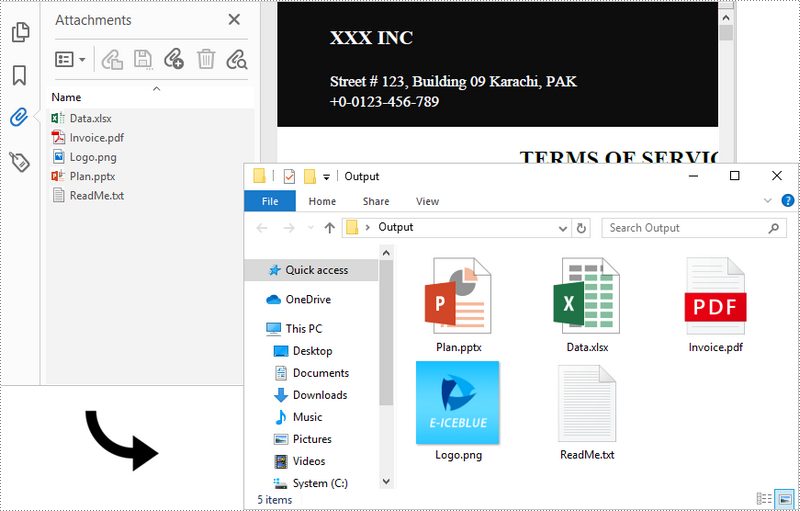
- Document Level Attachment (represented by PdfAttachment class): A file attached to a PDF at the document level won't appear on a page, but only appear in the PDF reader's "Attachments" panel.
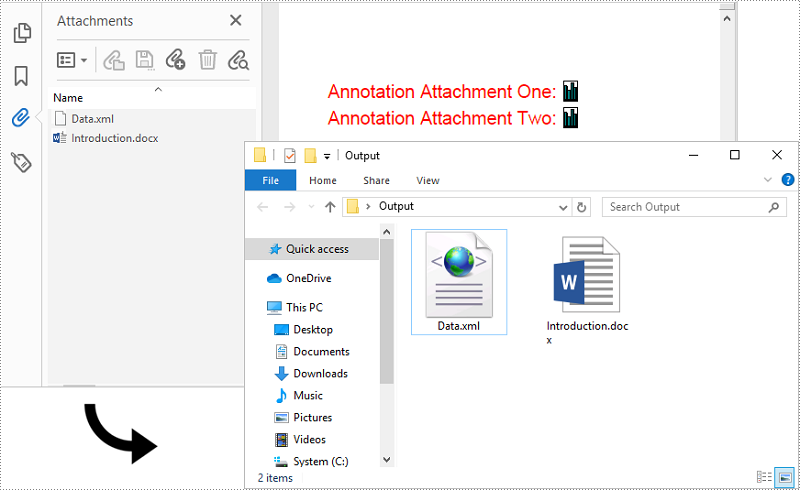
- Annotation Attachment (represented by PdfAttachmentAnnotation class): A file that is attached to a specific position of a page. Annotation attachments are shown as a paper clip icon on the page; reviewers can double-click the icon to open the file.
In this article, you will learn how to extract these two kinds of attachments from a PDF document in C# and VB.NET using Spire.PDF for .NET.
Install Spire.PDF for .NET
To begin with, you need to add the DLL files included in the Spire.PDF for.NET package as references in your .NET project. The DLL files can be either downloaded from this link or installed via NuGet.
PM> Install-Package Spire.PDF
Extract Attachments from PDF in C# and VB.NET
The document level attachments of a PDF document can be obtained through PdfDocument.Attachments property. The following steps illustrate how to extract all document level attachments from a PDF document and save them to a local folder.
- Create a PdfDocument object.
- Load a PDF file using PdfDocument.LoadFromFile() method.
- Get the attachment collection from the document through PdfDocument.Attachments property.
- Get the data of a specific attachment through PdfAttachment.Data property.
- Write the data to a file and save to a specified folder.
- C#
- VB.NET
using Spire.Pdf;
using Spire.Pdf.Attachments;
using System.Net.Mail;

namespace ExtractAttachments
{
    class Program
    {
        static void Main(string[] args)
        {
            //Create a PdfDocument object
            PdfDocument doc = new PdfDocument();

            //Load a PDF file that contains attachments
            doc.LoadFromFile("C:\\Users\\Administrator\\Desktop\\Attachments.pdf");

            //Get the attachment collection of the PDF document
            PdfAttachmentCollection attachments = doc.Attachments;

            //Specific output folder path
            string outputFolder = "C:\\Users\\Administrator\\Desktop\\output\\";

            //Loop through the collection
            for (int i = 0; i < attachments.Count; i++)
            {
	          //Write attachment to a file
                File.WriteAllBytes(outputFolder + attachments[i].FileName, attachments[i].Data);
            }
        }
    }
}
Extract Annotation Attachments from PDF in C# and VB.NET
Annotation attachment is a page-based element. To get annotations from a specific page, use PdfPageBase.AnnotationsWidget property. After that, you’ll need to determine if a specific annotation is an annotation attachment. The follows are the steps to extract annotation attachments from a PDF document and save them to a local folder.
- Create a PdfDocument object.
- Load a PDF file using PdfDocument.LoadFromFile() method.
- Get a specific page from the document through PdfDocument.Pages[] property.
- Get the annotation collection from the page through PdfPageBase.AnnotationsWidget property.
- Determine if a specific annotation is an instance of PdfAttachmentAnnotationWidget. If yes, write the annotation attachment to a file and save it to a specified folder.
- C#
- VB.NET
using Spire.Pdf;
using Spire.Pdf.Annotations;

namespace ExtractAnnotationAttachments
{
    class Program
    {
        static void Main(string[] args)
        {
            //Create a PdfDocument object
            PdfDocument doc = new PdfDocument();

            //Load a PDF file that contains attachments
            doc.LoadFromFile("C:\\Users\\Administrator\\Desktop\\AnnotationAttachments.pdf");

            //Specific output folder path
            string outputFolder = "C:\\Users\\Administrator\\Desktop\\Output\\";

            //Loop through the pages
            for (int i = 0; i < doc.Pages.Count; i++)
            {
                //Get the annotation collection
                PdfAnnotationCollection collection = doc.Pages[i].Annotations;

                //Loop through the annotations
                for (int j = 0; j < collection.Count; j++)
                {
                    //Determine if an annotation is an instance of PdfAttachmentAnnotationWidget
                    if (collection[j] is PdfAttachmentAnnotationWidget)
                    {
                        //Write annotation attachment to a file
                        PdfAttachmentAnnotationWidget attachmentAnnotation = (PdfAttachmentAnnotationWidget)collection[j];
                        String fileName = Path.GetFileName(attachmentAnnotation.FileName);
                        File.WriteAllBytes(outputFolder + fileName, attachmentAnnotation.Data);
                    }
                }
            }
        }
    }
}
Apply for a Temporary License
If you'd like to remove the evaluation message from the generated documents, or to get rid of the function limitations, please request a 30-day trial license for yourself.
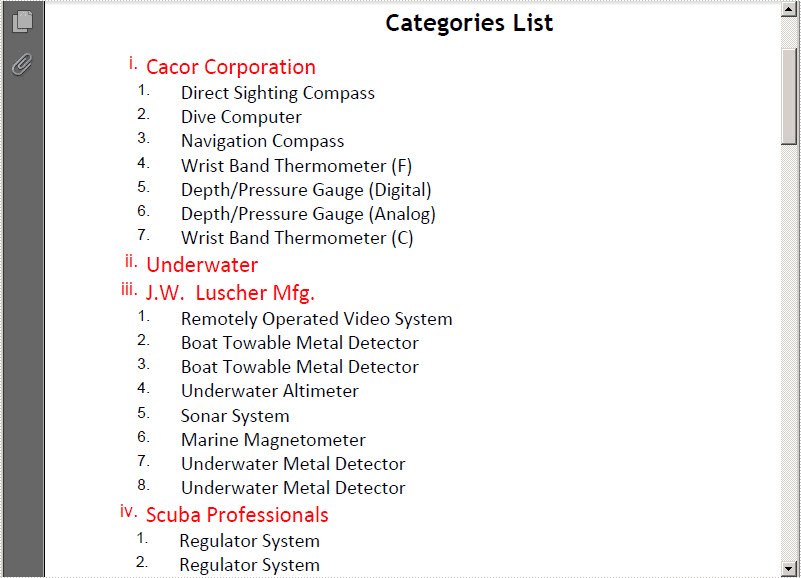
A simple PDF List is always one level list which displays briefly the content items of a PDF file. When the PDF is very huge and complex, people need more details, creating multiple level list in PDF becomes pretty necessary. Here a solution will be introduced to you about how to create multiple level list in PDF via a .NET PDF component Spire.PDF for .NET in C#, VB.NET. First let us see the effect of PDF multiple level list as below picture:
Here we can download Spire.PDF for .NET. After adding Spire.Pdf dll in project, please view below key code to start PDF list task.
In this solution, apart from creating PDF list, we also can set list format, position and layout. This class Graphics.PdfTrueTypeFont which is provided by Spire.PDF enables to set list font and size. From above picture, we can view that the first level list is red. It can be set in this class Spire.Pdf.Graphics.PdfLinearGradientBrush. In order to let users themselves to set PDF list style according to their needs, Spire.Pdf.Lists.PdfOrderedMarker can help us to set label style by this enum Spire.Pdf.PdfNumberStyle. Here there are six styles available: LowerLatin, LowerRoman, None, Numeric, UpperLatin and UpperRoman. In below code, I only show a part of code:
            //Set PDF list label style
            PdfOrderedMarker marker1
                = new PdfOrderedMarker(PdfNumberStyle.LowerRoman, new PdfFont(PdfFontFamily.Helvetica, 12f));
            PdfOrderedMarker marker2
                = new PdfOrderedMarker(PdfNumberStyle.Numeric, new PdfFont(PdfFontFamily.Helvetica, 10f));
'Set PDF list label style
Dim marker1 As New PdfOrderedMarker(PdfNumberStyle.LowerRoman, New PdfFont(PdfFontFamily.Helvetica, 12F))
Dim marker2 As New PdfOrderedMarker(PdfNumberStyle.Numeric, New PdfFont(PdfFontFamily.Helvetica, 10F))
After setting the PDF list format, we can search data in database by System.Data.Oledb.OleDbCommand and then, create multi-level list by two classes in Spire.Pdf: Spire.Pdf.Lists. PdfListItem and Spire.Pdf.Lists. PdfSortedList. The former class represents list item while the later represents the ordered list.
           //Create multi-level list in PDF
            PdfSortedList vendorList = new PdfSortedList(font2);
            vendorList.Indent = 0;
            vendorList.TextIndent = 5;
            vendorList.Brush = brush2;
            vendorList.Marker = marker1;
            using (OleDbConnection conn = new OleDbConnection())
            {
                conn.ConnectionString = @"Provider=Microsoft.Jet.OLEDB.4.0;Data Source=demo.mdb";
                OleDbCommand command = new OleDbCommand();
                command.CommandText
                    = " select VendorNo, VendorName from vendors ";
                command.Connection = conn;
                OleDbCommand command2 = new OleDbCommand();
                command2.CommandText
                    = " select Description from parts where VendorNo = @VendorNo";
                command2.Connection = conn;
                OleDbParameter param = new OleDbParameter("@VendorNo", OleDbType.Double);
                command2.Parameters.Add(param);
                conn.Open();
                OleDbDataReader reader = command.ExecuteReader();
                while (reader.Read())
                {
                    double id = reader.GetDouble(0);
                    PdfListItem item = vendorList.Items.Add(reader.GetString(1));
                    PdfSortedList subList = new PdfSortedList(font3);
                    subList.Marker = marker2;
                    subList.Brush = brush3;
                    item.SubList = subList;
                    subList.TextIndent = 20;
                    command2.Parameters[0].Value = id;
                    using (OleDbDataReader reader2 = command2.ExecuteReader())
                    {
                        while (reader2.Read())
                        {
                            subList.Items.Add(reader2.GetString(0));
                        }
                    }
                    String maxNumberLabel = Convert.ToString(subList.Items.Count);
                    subList.Indent = 30 - font3.MeasureString(maxNumberLabel).Width;
                }
            }
'Create multi-level list in PDF
Dim vendorList As New PdfSortedList(font2)
vendorList.Indent = 0
vendorList.TextIndent = 5
vendorList.Brush = brush2
vendorList.Marker = marker1
Using conn As New OleDbConnection()
	conn.ConnectionString = "Provider=Microsoft.Jet.OLEDB.4.0;Data Source=demo.mdb"
	Dim command As New OleDbCommand()
	command.CommandText = " select VendorNo, VendorName from vendors "
	command.Connection = conn
	Dim command2 As New OleDbCommand()
	command2.CommandText = " select Description from parts where VendorNo = @VendorNo"
	command2.Connection = conn
	Dim param As New OleDbParameter("@VendorNo", OleDbType.[Double])
	command2.Parameters.Add(param)
	conn.Open()
	Dim reader As OleDbDataReader = command.ExecuteReader()
	While reader.Read()
		Dim id As Double = reader.GetDouble(0)
		Dim item As PdfListItem = vendorList.Items.Add(reader.GetString(1))
		Dim subList As New PdfSortedList(font3)
		subList.Marker = marker2
		subList.Brush = brush3
		item.SubList = subList
		subList.TextIndent = 20
		command2.Parameters(0).Value = id
		Using reader2 As OleDbDataReader = command2.ExecuteReader()
			While reader2.Read()
				subList.Items.Add(reader2.GetString(0))
			End While
		End Using
		Dim maxNumberLabel As [String] = Convert.ToString(subList.Items.Count)
		subList.Indent = 30 - font3.MeasureString(maxNumberLabel).Width
	End While
End Using
Finally, if we want to make sure that PDF multi-level list fits the page perfectly, we need to set the PDF text layout. When doing this you can call this method: Spire.Pdf.Graphics.PdfLayoutResult.Draw(PdfPageBase page, PointF location, PdfTextLayout format); there are three parameters passed, one is to draw text in PDF page, another is to set text location, and the last one is to set text layout.
            //Set PDF Layout and position
            PdfTextLayout textLayout = new PdfTextLayout();
            textLayout.Break = PdfLayoutBreakType.FitPage;
            textLayout.Layout = PdfLayoutType.Paginate;
            vendorList.Draw(page, new PointF(0, y), textLayout);
'Set PDF Layout and position
Dim textLayout As New PdfTextLayout()
textLayout.Break = PdfLayoutBreakType.FitPage
textLayout.Layout = PdfLayoutType.Paginate
vendorList.Draw(page, New PointF(0, y), textLayout)
Spire.PDF for .NET is a .NET PDF component that enables you to create, read, edit and handle PDF files in C#, VB.NET.
Table Layout decides how the table displays in PDF page. People always set PDF table layout in order to let the table perfectly fit PDF page according to their own like. In this section, I will introduce a solution to set table layout in PDF via this .NET PDF component Spire.PDF for .NET with C#, VB.NET. First let us view the target PDF file as below picture:
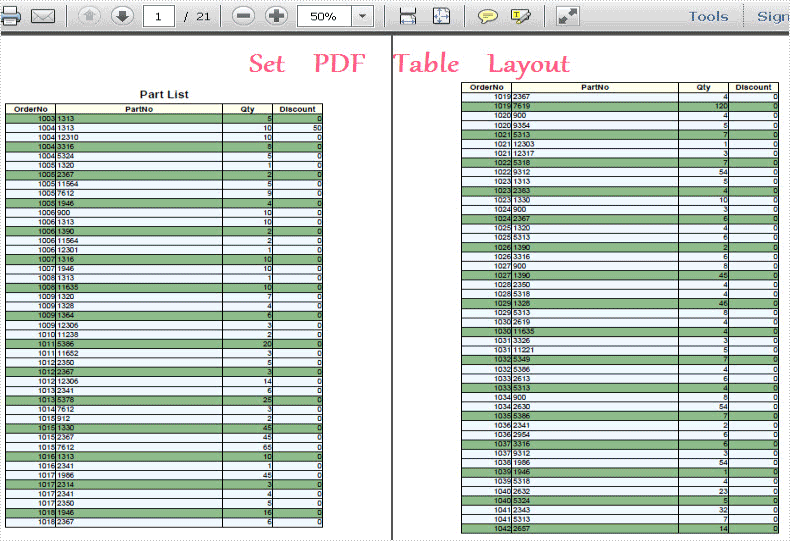
In Spire.PDF for .NET, there is a class called: Spire.Pdf.Tables.PdfTableLayoutFormat. By using this class, we can set table layout type and break type. Here Spire.PDF provided two layout types: Paginate and OnePage and two break type: FitElement and Fit Page. When you set the break type to be FitElement, PDF table will display according to the table length, while for FitPage choice, the table will automatically fit the PDF to every page ignoring table length.
Here let us see this method: PdfLayoutResult.Draw(PdfPageBase page, PointF location, PdfTextLayout format).There are three parameters passed. The first parameter determines the page size and margin. By setting the second parameter, we can set the horizontal and vertical distance between the table and PDF margin. While the last parameter is the table layout we just set. Obviously, we can set table layout by calling this method directly.
Now, you can download Spire.PDF for .NET and start table layout task by below key code:
table.BeginRowLayout += new BeginRowLayoutEventHandler(table_BeginRowLayout);
            PdfTableLayoutFormat tableLayout = new PdfTableLayoutFormat();
            tableLayout.Break = PdfLayoutBreakType.FitElement;
            tableLayout.Layout = PdfLayoutType.Paginate;
            PdfLayoutResult result = table.Draw(page, new PointF(0, y), tableLayout);
            y = result.Bounds.Bottom + 5;
table.BeginRowLayout += New BeginRowLayoutEventHandler(table_BeginRowLayout)
Dim tableLayout As New PdfTableLayoutFormat()
tableLayout.Break = PdfLayoutBreakType.FitElement
tableLayout.Layout = PdfLayoutType.Paginate
Dim result As PdfLayoutResult = table.Draw(page, New PointF(0, y), tableLayout)
y = result.Bounds.Bottom + 5
Spire.PDF for .NET is a PDF api that enables users to create, edit, read and handle PDF files in .NET applications.
PDF booklet is pretty helpful when people print a huge PDF document. It enjoys special popularity among book, newspaper and magazine editors. This section will introduce a very simple way to create PDF booklet via a .NET PDF component in C#, VB.NET.
Spire.PDF for .NET is a .NET PDF library which can manipulate PDF documents without Adobe Acrobat or any third party library. Using this PDF component, you can quickly create PDF booklet in your .NET applications. After setting the PDF page width and height by a class Spire.Pdf.PdfPageSize, you can create your PDF booklet through implementing PdfDocument.CreateBooklet(string fileName, float width, float height, bool doubleSide) directly. Below picture shows the effect of this task:
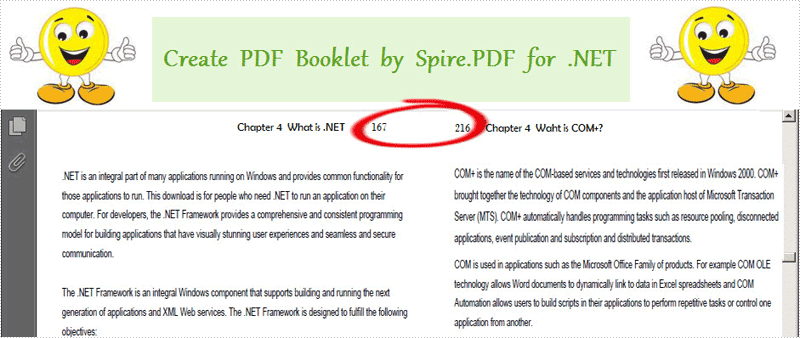
Here you can quickly download Spire.PDF for .NET and install it on your system. After adding Spire.Pdf reference, please see the detail code of PDF booklet below.
Draw PDF Barcode in C#, VB.NET
using System.Drawing;
using Spire.Pdf;

namespace PDF_Booklet
{
    class Program
    {
        static void Main(string[] args)
        {
            //Load a PDF file
            PdfDocument doc = new PdfDocument();
            String srcPdf = @"..\read PDF.pdf";

            //Create PDF booklet
            float width = PdfPageSize.A4.Width * 2;
            float height = PdfPageSize.A4.Height;
            doc.CreateBooklet(srcPdf, width, height, true);

            //Save pdf file.
            doc.SaveToFile("Booklet.pdf");
            doc.Close();
            //Launching the Pdf file.
            System.Diagnostics.Process.Start("Booklet.pdf");
        }
    }
}
Imports System.Drawing
Imports Spire.Pdf

Namespace PDF_Booklet
	Class Program
		Private Shared Sub Main(args As String())
			'Load a PDF file
			Dim doc As New PdfDocument()
			Dim srcPdf As [String] = "..\read PDF.pdf"

			'Create PDF booklet
			Dim width As Single = PdfPageSize.A4.Width * 2
			Dim height As Single = PdfPageSize.A4.Height
			doc.CreateBooklet(srcPdf, width, height, True)

			'Save pdf file.
			doc.SaveToFile("Booklet.pdf")
			doc.Close()
			'Launching the Pdf file.
			System.Diagnostics.Process.Start("Booklet.pdf")
		End Sub
	End Class
End Namespace
Spire.PDF for .NET is a PDF component that enables you to create, read, edit and manipulate PDF files in C#, VB.NET
The PdfBorders class in Spire.PDF mainly contains three properties - DashStyle, Color and Width. By setting the value of these properties, you're able to change the appearance of grid border. In this article, I'll take color as an example to explain how to design gird border with Spire.PDF in C#.
As is shown in the following screenshot, Spire.PDF enables programmers to add color to PDF grid border as well as making the border as invisible.
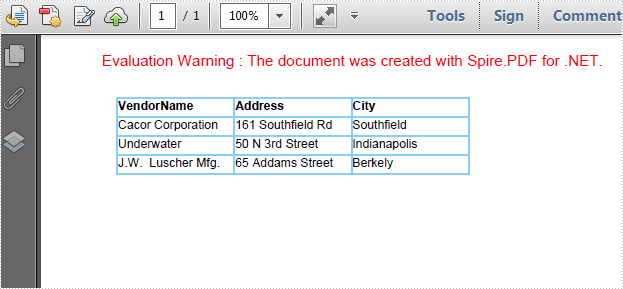
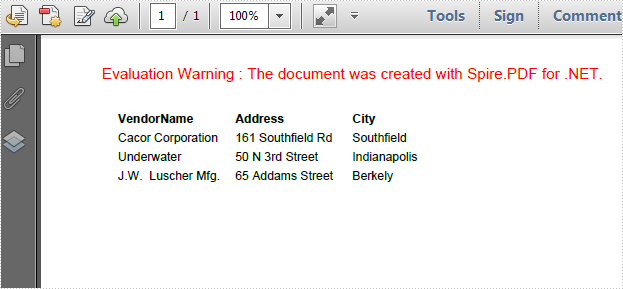
Code Snippets:
Step 1: Create a new PDF document.
PdfDocument document = new PdfDocument();
PdfPageBase page=document.Pages.Add();
Step 2: Create a string array, create a 4 rows x 3 columns grid according to the length of string array. Set column width and row height.
String[] data
    = {
         "VendorName;Address;City",
         "Cacor Corporation;161 Southfield Rd;Southfield",
         "Underwater;50 N 3rd Street;Indianapolis",
         "J.W.  Luscher Mfg.;65 Addams Street;Berkely"
       };
 PdfGrid grid = new PdfGrid();
 for (int r = 0; r < data.Length; r++)
 {
     PdfGridRow row = grid.Rows.Add();
 }
 grid.Columns.Add(3);
 float width = page.Canvas.ClientSize.Width - (grid.Columns.Count + 1);
 grid.Columns[0].Width = width*0.15f;
 grid.Columns[1].Width = width * 0.15f;
 grid.Columns[2].Width = width * 0.15f;
 float height=page.Canvas.ClientSize.Height-(grid.Rows.Count+1);
 grid.Rows[0].Height = 12.5f;
 grid.Rows[1].Height = 12.5f;
 grid.Rows[2].Height = 12.5f;
 grid.Rows[3].Height = 12.5f;
Step 3: Insert data into grid.
for (int r = 0; r < data.Length; r++)
 {
     String[] rowData = data[r].Split(';');
     for (int c = 0; c < rowData.Length; c++)
     {
         grid.Rows[r].Cells[c].Value = rowData[c];
     }
 }
Step 4: Initialize a new instance of PdfBorders and set color property as LightBlue or Transparent. Apply border style to PDF grid.
PdfBorders border = new PdfBorders();
border.All = new PdfPen(Color.LightBlue);

foreach (PdfGridRow pgr in grid.Rows)
{
    foreach (PdfGridCell pgc in pgr.Cells)
    {
        pgc.Style.Borders = border;
    }
}
Step 5: Draw the grid on PDF and save the file.
PdfLayoutResult result = grid.Draw(page, new PointF(10, 30));
document.SaveToFile("result.pdf");
System.Diagnostics.Process.Start("result.pdf");
Entire Code:
using Spire.Pdf;
using Spire.Pdf.Graphics;
using Spire.Pdf.Grid;
using System;
using System.Drawing;


namespace ChangeColorofGridBorder
{
    class Program
    {
        static void Main(string[] args)
        {
            PdfDocument document = new PdfDocument();
            PdfPageBase page = document.Pages.Add();

            String[] data
               = {
        "VendorName;Address;City",
        "Cacor Corporation;161 Southfield Rd;Southfield",
        "Underwater;50 N 3rd Street;Indianapolis",
        "J.W.  Luscher Mfg.;65 Addams Street;Berkely"
      };
            PdfGrid grid = new PdfGrid();
            for (int r = 0; r < data.Length; r++)
            {
                PdfGridRow row = grid.Rows.Add();
            }
            grid.Columns.Add(3);
            float width = page.Canvas.ClientSize.Width - (grid.Columns.Count + 1);
            grid.Columns[0].Width = width * 0.15f;
            grid.Columns[1].Width = width * 0.15f;
            grid.Columns[2].Width = width * 0.15f;
            float height = page.Canvas.ClientSize.Height - (grid.Rows.Count + 1);
            grid.Rows[0].Height = 12.5f;
            grid.Rows[1].Height = 12.5f;
            grid.Rows[2].Height = 12.5f;
            grid.Rows[3].Height = 12.5f;

            //insert data to grid
            for (int r = 0; r < data.Length; r++)
            {
                String[] rowData = data[r].Split(';');
                for (int c = 0; c < rowData.Length; c++)
                {
                    grid.Rows[r].Cells[c].Value = rowData[c];
                }
            }

            grid.Rows[0].Style.Font = new PdfTrueTypeFont(new Font("Arial", 8f, FontStyle.Bold), true);

            //Set borders color to LightBule
            PdfBorders border = new PdfBorders();
            border.All = new PdfPen(Color.LightBlue);

            foreach (PdfGridRow pgr in grid.Rows)
            {
                foreach (PdfGridCell pgc in pgr.Cells)
                {
                    pgc.Style.Borders = border;
                }
            }

            PdfLayoutResult result = grid.Draw(page, new PointF(10, 30));
            document.SaveToFile("result.pdf");
            System.Diagnostics.Process.Start("result.pdf");
        }
    }
}
More...
