
Spire.PDF for .NET (290)
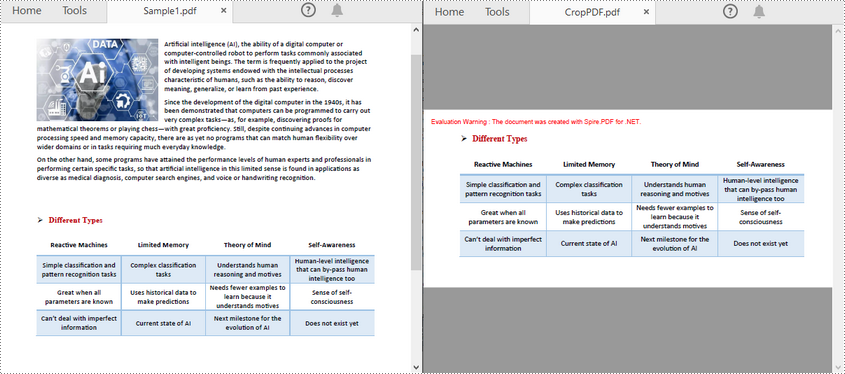
PDF page cropping is particularly useful in scenarios where the original document has excessive margins or borders that are not necessary for the intended use. By cropping pages, you can preserve the designated area for specific use, making the document more efficient for sharing, printing, or digital presentations. In this article, you will learn how to crop pages in PDF in C# using Spire.PDF for .NET.
Install Spire.PDF for .NET
To begin with, you need to add the DLL files included in the Spire.PDF for.NET package as references in your .NET project. The DLL files can be either downloaded from this link or installed via NuGet.
PM> Install-Package Spire.PDF
Crop a PDF Page in C#
Spire.PDF for .NET allows you specify a rectangular area, and then use the PdfPageBase.CropBox property to crop page to the specified area. The following are the detailed steps.
- Create a PdfDocument instance.
- Load a PDF file using PdfDocument.LoadFromFile() method.
- Get a specified page using PdfDocument.Pages[] property.
- Crop the page to the specified area using PdfPageBase.CropBox property.
- Save the result file using PdfDocument.SaveToFile() method.
- C#
using System.Drawing;
using Spire.Pdf;

namespace CropPDFPage
{
    class Program
    {
        static void Main(string[] args)
        {
            //Create a PdfDocument object
            PdfDocument pdf = new PdfDocument();

            //Load a PDF file from disk
            pdf.LoadFromFile("Sample1.pdf");

            //Get the first page
            PdfPageBase page = pdf.Pages[0];

            //Crop the page by the specified area
            page.CropBox = new RectangleF(0, 300, 600, 260);

            //Save the result file
            pdf.SaveToFile("CropPDF.pdf");
            pdf.Close();
        }
    }
}
Crop a PDF Page and Export as an Image in C#
To accomplish this task, you can use the PdfDocument.SaveAsImage(int pageIndex, PdfImageType type) method to convert a cropped PDF page to an image. The following are the detailed steps.
- Create a PdfDocument instance.
- Load a PDF file using PdfDocument.LoadFromFile() method.
- Get a specified page using PdfDocument.Pages[] property.
- Crop the page to the specified area using PdfPageBase.CropBox property.
- Convert the copped page to an image using PdfDocument.SaveAsImage() method.
- Save the image as a PNG, JPG or BMP file using Image.Save(string filename, ImageFormat format) method.
- C#
using System.Drawing;
using System.Drawing.Imaging;
using Spire.Pdf;
using Spire.Pdf.Graphics;

namespace CropPDFPageToImage
{
    class Program
    {
        static void Main(string[] args)
        {
            //Create a PdfDocument object
            PdfDocument pdf = new PdfDocument();

            //Load a PDF file from disk
            pdf.LoadFromFile("Sample1.pdf");

            //Get the first page
            PdfPageBase page = pdf.Pages[0];

            //Crop the page by the specified area
            page.CropBox = new RectangleF(0, 300, 600, 260);

            //Convert the page to an image
            Image image = pdf.SaveAsImage(0, PdfImageType.Bitmap);

            //Save the image as a PNG file
            image.Save("CropPDFSaveAsImage.png", ImageFormat.Png);

            //Save the image as a JPG file
            //image.Save("ToJPG.jpg", ImageFormat.Jpeg);

            //Save the image as a BMP file
            //image.Save("ToBMP.bmp", ImageFormat.Bmp);
        }
    }
}

Apply for a Temporary License
If you'd like to remove the evaluation message from the generated documents, or to get rid of the function limitations, please request a 30-day trial license for yourself.
Grid also offers more flexible resizing behavior than Table and lighter weight then a Table. It derives from the Panel element which is best used inside of forms. This article is mainly talk about how to merge cells in grid via Spire.PDF.
Prerequisite:
- Download Spire.PDF for .NET (or Spire.Office for .NET) and install it on your system.
- Add Spire.PDF.dll as reference in the downloaded Bin folder thought the below path: "..\Spire.PDF\Bin\NET4.0\ Spire.PDF.dll".
- Check the codes as below in C#:
Here are the detail steps:
Step 1: Create a new PDF document and add a new page.
PdfDocument doc = new PdfDocument();
PdfPageBase page = doc.Pages.Add();
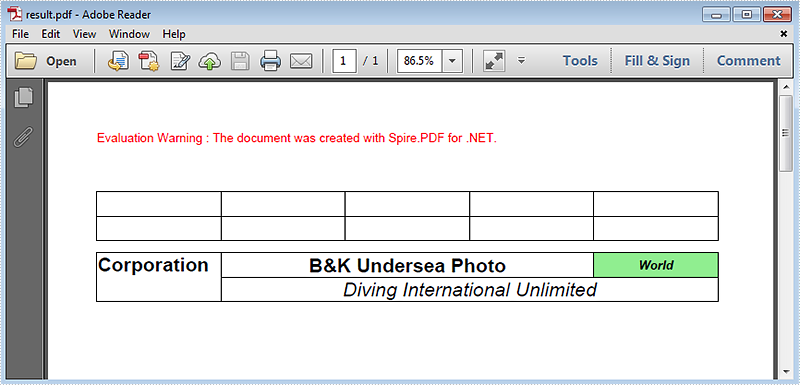
Step 2: Add a new grid with 5 columns and 2 rows, and set height and width.
PdfGrid grid = new PdfGrid();
grid.Columns.Add(5);
float width = page.Canvas.ClientSize.Width - (grid.Columns.Count + 1);
for (int j = 0; j < grid.Columns.Count;j++)
{
  grid.Columns[j].Width = width * 0.20f;
}

 PdfGridRow row0 = grid.Rows.Add();
 PdfGridRow row1 = grid.Rows.Add();
 float height = 20.0f;
 for (int i = 0; i < grid.Rows.Count; i++)
 {
      grid.Rows[i].Height = height;
 }
Step 3: Draw the current grid.
grid.Draw(page, new PointF(0, 50));
Step 4: Set the font of the grid and fill some content in the cells. Use RowSpan and ColumnSpan to merge certain cells vertically and horizontally.
row0.Style.Font = new PdfTrueTypeFont(new Font("Arial", 16f, FontStyle.Bold), true);
row1.Style.Font = new PdfTrueTypeFont(new Font("Arial", 16f, FontStyle.Italic), true);

row0.Cells[0].Value = "Corporation";
row0.Cells[0].RowSpan = 2;

row0.Cells[1].Value = "B&K Undersea Photo";
row0.Cells[1].StringFormat = new PdfStringFormat(PdfTextAlignment.Center, PdfVerticalAlignment.Middle);
row0.Cells[1].ColumnSpan = 3;

row0.Cells[4].Value = "World";
row0.Cells[4].Style.Font = new PdfTrueTypeFont(new Font("Arial", 10f, FontStyle.Bold | FontStyle.Italic), true);
row0.Cells[4].StringFormat = new PdfStringFormat(PdfTextAlignment.Center, PdfVerticalAlignment.Middle);
row0.Cells[4].Style.BackgroundBrush = PdfBrushes.LightGreen;

row1.Cells[1].Value = "Diving International Unlimited";
row1.Cells[1].StringFormat = new PdfStringFormat(PdfTextAlignment.Center, PdfVerticalAlignment.Middle);
row1.Cells[1].ColumnSpan = 4;
Step 5: Draw the new grid and save the file, the review it.
grid.Draw(page, new PointF(0, 100));

doc.SaveToFile("result.pdf");
System.Diagnostics.Process.Start("result.pdf");
Following is the result screenshot:
Full Code:
using Spire.Pdf;
using Spire.Pdf.Graphics;
using Spire.Pdf.Grid;
using System.Drawing;


namespace MergeCells
{
    class Program
    {
        static void Main(string[] args)
        {
            PdfDocument doc = new PdfDocument();
            PdfPageBase page = doc.Pages.Add();

            PdfGrid grid = new PdfGrid();
            grid.Columns.Add(5);
            float width = page.Canvas.ClientSize.Width - (grid.Columns.Count + 1);
            for (int j = 0; j < grid.Columns.Count; j++)
            {
                grid.Columns[j].Width = width * 0.20f;
            }

            PdfGridRow row0 = grid.Rows.Add();
            PdfGridRow row1 = grid.Rows.Add();
            float height = 20.0f;
            for (int i = 0; i < grid.Rows.Count; i++)
            {
                grid.Rows[i].Height = height;
            }

            grid.Draw(page, new PointF(0, 50));

            row0.Style.Font = new PdfTrueTypeFont(new Font("Arial", 16f, FontStyle.Bold), true);
            row1.Style.Font = new PdfTrueTypeFont(new Font("Arial", 16f, FontStyle.Italic), true);

            row0.Cells[0].Value = "Corporation";
            row0.Cells[0].RowSpan = 2;

            row0.Cells[1].Value = "B&K Undersea Photo";
            row0.Cells[1].StringFormat = new PdfStringFormat(PdfTextAlignment.Center, PdfVerticalAlignment.Middle);
            row0.Cells[1].ColumnSpan = 3;

            row0.Cells[4].Value = "World";
            row0.Cells[4].Style.Font = new PdfTrueTypeFont(new Font("Arial", 10f, FontStyle.Bold | FontStyle.Italic), true);
            row0.Cells[4].StringFormat = new PdfStringFormat(PdfTextAlignment.Center, PdfVerticalAlignment.Middle);
            row0.Cells[4].Style.BackgroundBrush = PdfBrushes.LightGreen;

            row1.Cells[1].Value = "Diving International Unlimited";
            row1.Cells[1].StringFormat = new PdfStringFormat(PdfTextAlignment.Center, PdfVerticalAlignment.Middle);
            row1.Cells[1].ColumnSpan = 4;

            grid.Draw(page, new PointF(0, 100));

            doc.SaveToFile("result.pdf");
            System.Diagnostics.Process.Start("result.pdf");
        }
    }
}
To print Word, Excel, PowerPoint, PDF, and other document types, Spire.Printing is used together with the corresponding Spire.Office document libraries—Spire.Doc, Spire.XLS, Spire.Presentation, and Spire.PDF (especially the .NET Standard version)—to load the source files, save them into IPrintDocumentStream, and send them to the printer.
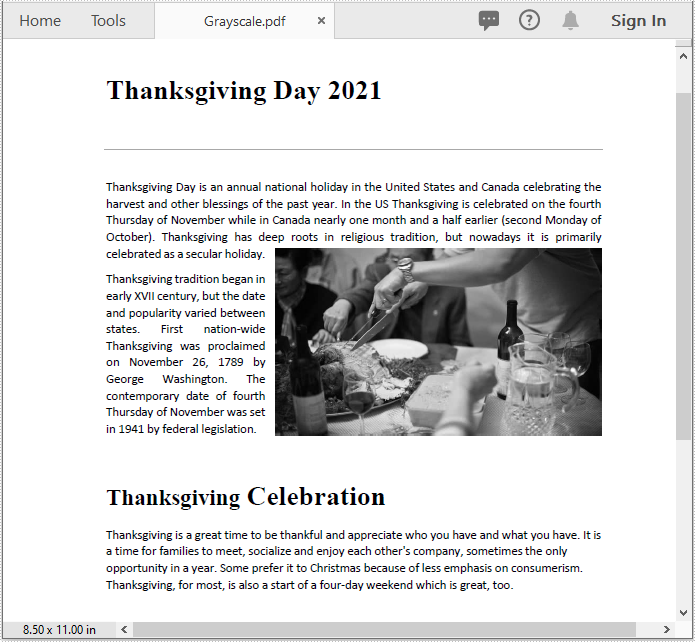
Converting a PDF with color images to grayscale can help you reduce the file size and print the PDF in a more affordable mode without consuming colored ink. In this article, you will learn how to achieve the conversion programmatically in C# and VB.NET using Spire.PDF for .NET.
Install Spire.PDF for .NET
To begin with, you need to add the DLL files included in the Spire.PDF for.NET package as references in your .NET project. The DLLs files can be either downloaded from this link or installed via NuGet.
- Package Manager
PM> Install-Package Spire.PDF
Convert PDF to Grayscale
The following are the steps to convert a color PDF to grayscale:
- Load a PDF file using PdfGrayConverter class.
- Convert the PDF to grayscale using PdfGrayConverter.ToGrayPdf() method.
- C#
- VB.NET
using Spire.Pdf.Conversion;

namespace ConvertPdfToGrayscale
{
    class Program
    {
        static void Main(string[] args)
        {
            //Create a PdfGrayConverter instance and load a PDF file
            PdfGrayConverter converter = new PdfGrayConverter(@"Sample.pdf");
            //Convert the PDF to grayscale
            converter.ToGrayPdf("Grayscale.pdf");
            converter.Dispose();
        }
    }
}
Imports Spire.Pdf.Conversion

Namespace ConvertPdfToGrayscale
    Friend Class Program
        Private Shared Sub Main(ByVal args As String())
            'Create a PdfGrayConverter instance and load a PDF file
            Dim converter As PdfGrayConverter = New PdfGrayConverter("Sample.pdf")
            'Convert the PDF to grayscale
            converter.ToGrayPdf("Grayscale.pdf")
            converter.Dispose()
        End Sub
    End Class
End Namespace
The input PDF:

The output PDF:
Apply for a Temporary License
If you'd like to remove the evaluation message from the generated documents, or to get rid of the function limitations, please request a 30-day trial license for yourself.
Copying PDF pages facilitates better organization of information. By copying pages that contain important sections and then compiling them into a new document, you can bring together relevant content from different sources to create a cohesive resource that is easy to navigate. In this article, you will learn how to copy pages in PDF in C# using Spire.PDF for .NET.
Install Spire.PDF for .NET
To begin with, you need to add the DLL files included in the Spire.PDF for.NET package as references in your .NET project. The DLL files can be either downloaded from this link or installed via NuGet.
PM> Install-Package Spire.PDF
Copy Pages within the Same PDF in C#
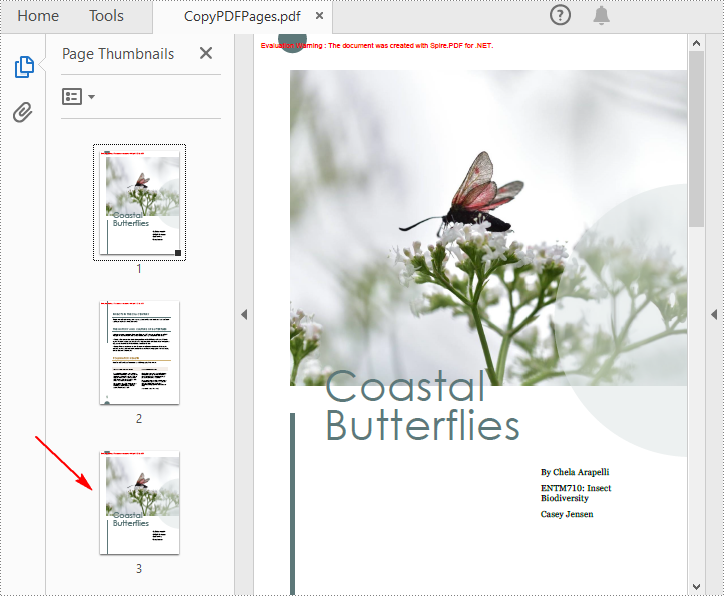
To duplicate PDF pages, you can first create template based on a specified page in PDF, and then draw the template on a newly added page through the PdfPageBase.Canvas.DrawTemplate() method. The following are the detailed steps.
- Create a PdfDocument instance.
- Load a PDF file using PdfDocument.LoadFromFile() method.
- Get a specified page using PdfDocument.Pages[] property.
- Get the size of the page using PdfPageBase.Size property.
- Create a template based on the page using PdfPageBase.CreateTemplate() method.
- Add a new page of the same size at the end using PdfDocument.Pages.Add(SizeF size, PdfMargins margins) method. Or you can insert a new page of the same size at a specified location using PdfDocument.Pages.Insert(int index, SizeF size, PdfMargins margins) method.
- Draw template on the newly added page using PdfPageBase.Canvas.DrawTemplate(PdfTemplate template, PointF location) method.
- Save the result file using PdfDocument.SaveToFile() method.
- C#
using Spire.Pdf;
using Spire.Pdf.Graphics;
using System.Drawing;

namespace DuplicatePage
{
    class Program
    {
        static void Main(string[] args)
        {
            //Create a PdfDocument instance
            PdfDocument pdf = new PdfDocument();

            //Load a PDF file
            pdf.LoadFromFile("Butterflies.pdf");

            //Get the first page
            PdfPageBase page = pdf.Pages[0];

            //Get the size of the page
            SizeF size = page.Size;

            //Create a template based on the page
            PdfTemplate template = page.CreateTemplate();

            //Add a new page the same size as the first page
            page = pdf.Pages.Add(size, new PdfMargins(0));
            //Insert a new page at the specified location
            //page = pdf.Pages.Insert(1, size, new PdfMargins(0));

            //Draw the template on the newly added page
            page.Canvas.DrawTemplate(template, new PointF(0, 0));

            //Save the PDF file
            pdf.SaveToFile("CopyPDFPages.pdf");
        }
    }
}
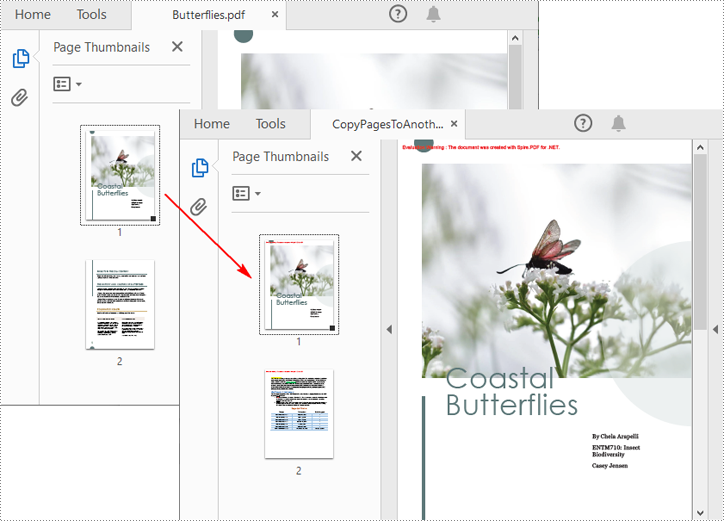
Copy Pages from One PDF to Another in C#
Spire.PDF for .NET also allows you to load two PDF files, create templates based on the pages in one PDF file, and then draw them onto the pages in another PDF file. The following are the detailed steps.
- Create a PdfDocument instance.
- Load two PDF files using PdfDocument.LoadFromFile() method.
- Get a specified page in the first PDF using PdfDocument.Pages[] property.
- Get the size of the page using PdfPageBase.Size property.
- Create a template based on the page using PdfPageBase.CreateTemplate() method.
- Insert a new page of the same size at a specified location in the second PDF using PdfDocument.Pages.Insert(int index, SizeF size, PdfMargins margins) method. Or you can add a new page of the same size at the end of the second PDF using PdfDocument.Pages.Add(SizeF size, PdfMargins margins) method.
- Draw template on the newly added page using PdfPageBase.Canvas.DrawTemplate(PdfTemplate template, PointF location) method.
- Save the result file using PdfDocument.SaveToFile() method.
- C#
using Spire.Pdf;
using Spire.Pdf.Graphics;
using System.Drawing;

namespace CopyPageToAnother
{
    class Program
    {
        static void Main(string[] args)
        {
            //Load the first PDF file
            PdfDocument pdf1 = new PdfDocument();
            pdf1.LoadFromFile("Butterflies.pdf");

            //Load the second PDF file
            PdfDocument pdf2 = new PdfDocument();
            pdf2.LoadFromFile("SamplePDF.pdf");

            //Get the first page in the first PDF file
            PdfPageBase page = pdf1.Pages[0];

            //Get the size of the page
            SizeF size = page.Size;

            //Create a template based on the page
            PdfTemplate template = page.CreateTemplate();

            //Insert a new page at a specified location in the second PDF file
            PdfPageBase newPage = pdf2.Pages.Insert(0, size, new PdfMargins(0));

            //Add a new page at the end of the second PDF file
            //PdfPageBase newPage = pdf2.Pages.Add(size, new PdfMargins(0));

            //Draw the template on the newly added page
            newPage.Canvas.DrawTemplate(template, new PointF(0, 0));

            //Save the result file
            pdf2.SaveToFile("CopyPagesToAnotherPDF.pdf");
        }
    }
}
Apply for a Temporary License
If you'd like to remove the evaluation message from the generated documents, or to get rid of the function limitations, please request a 30-day trial license for yourself.
More...
