
Spire.PDF for .NET (290)
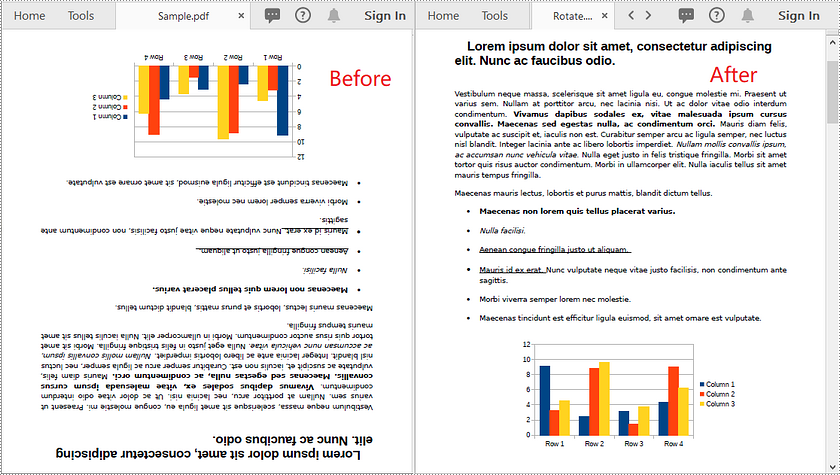
In some cases, you might need to rotate PDF pages. For example, when you receive a PDF document that contains disoriented pages, you may wish to rotate the pages so you can read the document easier. In this article, you will learn how to rotate pages in PDF in C# and VB.NET using Spire.PDF for .NET.
Install Spire.PDF for .NET
To begin with, you need to add the DLL files included in the Spire.PDF for.NET package as references in your .NET project. The DLL files can be either downloaded from this link or installed via NuGet.
PM> Install-Package Spire.PDF
Rotate a Specific Page in PDF using C# and VB.NET
Rotation is based on 90-degree increments. You can rotate a PDF page by 0/90/180/270 degrees. The following are the steps to rotate a PDF page:
- Create an instance of PdfDocument class.
- Load a PDF document using PdfDocument.LoadFromFile() method.
- Get the desired page by its index (zero-based) through PdfDocument.Pages[pageIndex] property.
- Get the original rotation angle of the page through PdfPageBase.Rotation property.
- Increase the original rotation angle by desired degrees.
- Apply the new rotation angle to the page through PdfPageBase.Rotation property.
- Save the result document using PdfDocument.SaveToFile() method.
- C#
- VB.NET
using Spire.Pdf;

namespace RotatePdfPage
{
    class Program
    {
        static void Main(string[] args)
        {
            //Create a PdfDocument instance
            PdfDocument pdf = new PdfDocument();
            //Load a PDF document
            pdf.LoadFromFile("Sample.pdf");

            //Get the first page
            PdfPageBase page = pdf.Pages[0];

            //Get the original rotation angle of the page
            int rotation = (int)page.Rotation;

            //Rotate the page 180 degrees clockwise based on the original rotation angle
            rotation += (int)PdfPageRotateAngle.RotateAngle180;
            page.Rotation = (PdfPageRotateAngle)rotation;

            //Save the result document
            pdf.SaveToFile("Rotate.pdf");
        }
    }
}
Rotate All Pages in PDF using C# and VB.NET
The following are the steps to rotate all pages in a PDF document:
- Create an instance of PdfDocument class.
- Load a PDF document using PdfDocument.LoadFromFile() method.
- Loop through each page in the document.
- Get the original rotation angle of the page through PdfPageBase.Rotation property.
- Increase the original rotation angle by desired degrees.
- Apply the new rotation angle to the page through PdfPageBase.Rotation property.
- Save the result document using PdfDocument.SaveToFile() method.
- C#
- VB.NET
using Spire.Pdf;

namespace RotateAllPdfPages
{
    class Program
    {
        static void Main(string[] args)
        {
            //Create a PdfDocument instance
            PdfDocument pdf = new PdfDocument();
            //Load a PDF document
            pdf.LoadFromFile("Sample.pdf");

            foreach (PdfPageBase page in pdf.Pages)
            {
                //Get the original rotation angle of the page
                int rotation = (int)page.Rotation;
                //Rotate the page 180 degrees clockwise based on the original rotation angle
                rotation += (int)PdfPageRotateAngle.RotateAngle180;
                page.Rotation = (PdfPageRotateAngle)rotation;
            }

            //Save the result document
            pdf.SaveToFile("RotateAll.pdf");
        }
    }
}
Apply for a Temporary License
If you'd like to remove the evaluation message from the generated documents, or to get rid of the function limitations, please request a 30-day trial license for yourself.
Extract Image from PDF and Save it to New PDF File in C#
2013-12-12 07:44:14 Written by AdministratorExtracting image from PDF is not a complex operation, but sometimes we need to save the image to new PDF file. So the article describes the simple c# code to extract image from PDF and save it to new PDF file through a professional PDF .NET library Spire.PDF.
First we need to complete the preparatory work before the procedure:
- Download the Spire.PDF and install it on your machine.
- Add the Spire.PDF.dll files as reference.
- Open bin folder and select the three dll files under .NET 4.0.
- Right click property and select properties in its menu.
- Set the target framework as .NET 4.
- Add Spire.PDF as namespace.
Here is the whole code:
static void Main(string[] args)
        {
            PdfDocument doc = new PdfDocument();
            doc.LoadFromFile(@"..\..\Sample.pdf");
            // Get the first page of the document
            PdfPageBase page = doc.Pages[0];

            // Create an instance of PdfImageHelper to work with images
            PdfImageHelper imageHelper = new PdfImageHelper();

            // Get information about the images on the page
            PdfImageInfo[] imageInfos = imageHelper.GetImagesInfo(page);

            // Extract images from the page
            int index = 0;
            foreach (PdfImageInfo info in imageInfos)
            {
                // Save each image as a PNG file with a unique name
                info.Image.Save(string.Format("Image-{0}.png", index));
                index++;
            }
            PdfImage image2 = PdfImage.FromFile(@"image-0.png");
            PdfDocument doc2 = new PdfDocument();
            PdfPageBase page2 = doc2.Pages.Add();
            float width = image2.Width * 0.75f;
            float height = image2.Height * 0.75f;
            float x = (page.Canvas.ClientSize.Width - width) / 2;
            page.Canvas.DrawImage(image2, x, 60, width, height);
            doc2.SaveToFile(@"..\..\Image.pdf");
        }
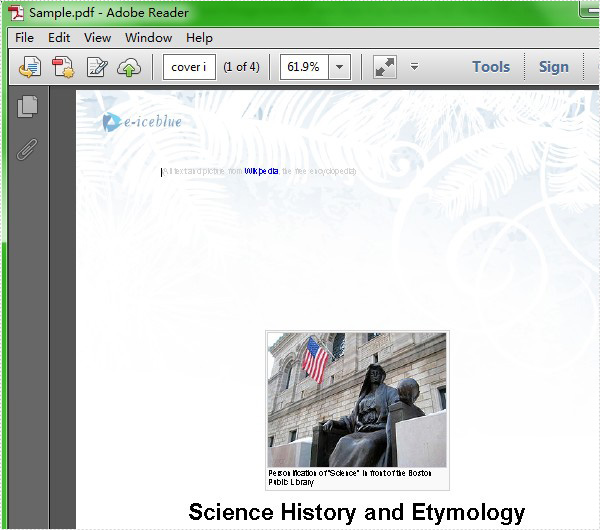
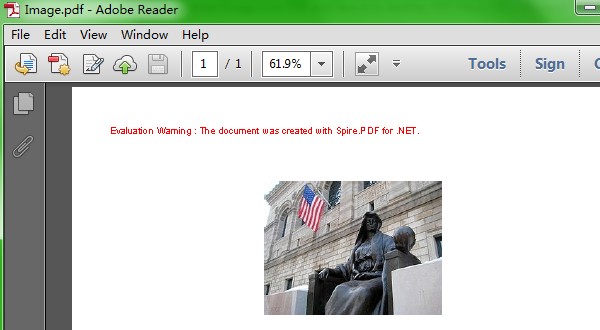
Here comes to the preview of the effect picture:
PDF/A is widely used for long term archiving for PDF format. By using Spire.PDF, you can create PDF/A file directly. This article mainly shows how to set up PDF/A file; it will also demonstrate how to add image and insert hyperlink to image in C#.
Make sure Spire.PDF for .NET (version 2.9.43 or above) has been installed correctly and then add Spire.Pdf.dll as reference in the downloaded Bin folder though the below path: "..\Spire.Pdf\Bin\NET4.0\ Spire.Pdf.dll".
Here comes to the steps:
Step 1: Create a PDF/A document.
// Create a PdfDocument instance
PdfDocument document = new PdfDocument();
PdfPageBase page = document.Pages.Add();
page.Canvas.DrawString("Hello World", new PdfFont(PdfFontFamily.Helvetica, 30f), new PdfSolidBrush(Color.Black), 10, 10);
Step 2: Load an image from file and insert to the PDF.
//insert an image
PdfImage image = PdfImage.FromFile(@"D:\PDF.png");
Step 3: Add a hyper link to the image.
//Add a link to image
PointF location = new PointF(100, 100);
RectangleF linkBounds = new RectangleF(location, new SizeF(image.Width, image.Height));
Spire.Pdf.Annotations.PdfUriAnnotation link = new Spire.Pdf.Annotations.PdfUriAnnotation(linkBounds, "http://www.e-iceblue.com/Introduce/pdf-for-net-introduce.html");
link.Border = new PdfAnnotationBorder(0);
page.Canvas.DrawImage(image, linkBounds);
page.Annotations.Add(link);
Step 4: Save the PDF document.
//Save the document to file in PDF format
String output1 = @"..\..\..\..\..\..\Data\ToPDF.pdf";
document.SaveToFile(output1);

// Create an instance of the PdfStandardsConverter class, passing the input PDF file path as a parameter.
PdfStandardsConverter converter = new PdfStandardsConverter(output1);

// Specify the desired file name for the resulting PDFA-1b compliant PDF.
String output2 = @"..\..\..\..\..\..\Data\ToPDFA.pdf";

// Convert the input PDF file to PDFA-1b format and save it using the specified output file name.
converter.ToPdfA1B(output2);
Effective screenshot:


Optical Character Recognition (OCR) technology has become essential for developers working with scanned documents and image-based PDFs. In this tutorial, you learn how to perform OCR on PDFs in C# to extract text from scanned documents or images within a PDF using the Spire.PDF for .NET and Spire.OCR for .NET libraries. By transferring scanned PDFs into editable and searchable formats, you can significantly improve your document management processes.
Table of Contents :
- Why OCR is Needed for Scanned PDFs?
- Setting Up: Installing Required Libraries
- Performing OCR on Scanned PDFs
- Extracting Text from Images within PDFs
- Wrapping Up
- FAQs
Why OCR is Needed for Scanned PDFs?
Scanned PDFs are essentially image files —they contain pictures of text rather than actual selectable and searchable text content. When you scan a paper document or receive an image-based PDF, the text exists only as pixels , making it impossible to edit, search, or extract. This creates significant limitations for businesses and individuals who need to work with these documents digitally.
OCR technology solves this problem by analyzing the shapes of letters and numbers in scanned images and converting them into machine-readable text. This process transforms static PDFs into usable, searchable, and editable documents—enabling text extraction, keyword searches, and seamless integration with databases and workflow automation tools.
In fields such as legal, healthcare, and education, where large volumes of scanned documents are common, OCR plays a crucial role in document digitization, making important data easily accessible and actionable.
Setting Up: Installing Required Libraries
Before we dive into the code, let's first set up our development environment with the necessary components: Spire.PDF and Spire.OCR . Spire.PDF handles PDF operations, while Spire.OCR performs the actual text recognition.
Step 1. Install Spire.PDF and Spire.OCR via NuGet
To begin, open the NuGet Package Manager in Visual Studio, and search for "Spire.PDF" and "Spire.OCR" to install them in your project. Alternatively, you can use the Package Manager Console :
Install-Package Spire.PDF
Install-Package Spire.OCR
Step 2. Download OCR Models:
Spire.OCR requires pre-trained language models for text recognition. Download the appropriate model files for your operating system (Windows, Linux, or MacOS) and extract them to a directory (e.g., D:\win-x64).
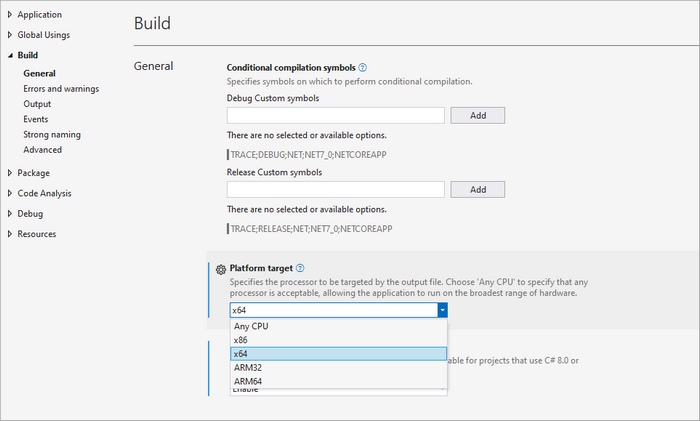
Important Note : Ensure your project targets x64 platform (Project Properties > Build > Platform target) as Spire.OCR only supports 64-bit systems.
Performing OCR on Scanned PDFs in C#
With the necessary libraries installed, we can now perform OCR on scanned PDFs. Below is a sample code snippet demonstrating this process.
using Spire.OCR;
using Spire.Pdf;
using Spire.Pdf.Graphics;
using System.Drawing;

namespace OCRPDF
{
    class Program
    {
        static void Main(string[] args)
        {
            // Create an instance of the OcrScanner class
            OcrScanner scanner = new OcrScanner();

            // Configure the scanner
            ConfigureOptions configureOptions = new ConfigureOptions
            {
                ModelPath = @"D:\win-x64", // Set model path
                Language = "English"        // Set language
            };

            // Apply the configuration options
            scanner.ConfigureDependencies(configureOptions);

            // Load a PDF document
            PdfDocument doc = new PdfDocument();
            doc.LoadFromFile(@"C:\Users\Administrator\Desktop\Input5.pdf");

            // Iterate through all pages
            for (int i = 0; i < doc.Pages.Count; i++)
            {
                // Convert page to image
                Image image = doc.SaveAsImage(i, PdfImageType.Bitmap);

                // Convert the image to a MemoryStream
                using (MemoryStream stream = new MemoryStream())
                {
                    image.Save(stream, System.Drawing.Imaging.ImageFormat.Png);
                    stream.Position = 0; // Reset the stream position

                    // Perform OCR on the image stream
                    scanner.Scan(stream, OCRImageFormat.Png);
                    string pageText = scanner.Text.ToString();

                    // Save extracted text to a separate file
                    string outputTxtPath = Path.Combine(@"C:\Users\Administrator\Desktop\Output", $"Page-{i + 1}.txt");
                    File.WriteAllText(outputTxtPath, pageText);
                }
            }

            // Close the document
            doc.Close();
        }
    }
}
Key Components Explained :
- OcrScanner Class : This class is crucial for performing OCR. It provides methods to configure and execute the scanning operation.
- ConfigureOptions Class : This class is used to set up the OCR scanner's configurations. The ModelPath property specifies the path to the OCR model files, and the Language property allows you to specify the language for text recognition.
- PdfDocument Class : This class represents the PDF document. The LoadFromFile method loads the PDF file that you want to process.
- Image Conversion : Each PDF page is converted to an image using the SaveAsImage method. This is essential because OCR works on image files.
- MemoryStream : The image is saved into a MemoryStream , allowing us to perform OCR without saving the image to disk.
- OCR Processing : The Scan method performs OCR on the image stream. The recognized text can be accessed using the Text property of the OcrScanner instance.
- Output : The extracted text is saved to a text file for each page.
Output :

To extract text from searchable PDFs, refer to this guide: Automate PDF Text Extraction Using C#
Extracting Text from Images within PDFs in C#
In addition to processing entire PDF pages, you can also extract text from images embedded within PDFs. Here’s how:
using Spire.OCR;
using Spire.Pdf;
using Spire.Pdf.Graphics;
using System.Drawing;

namespace OCRPDF
{
    class Program
    {
        static void Main(string[] args)
        {
            // Create an instance of the OcrScanner class
            OcrScanner scanner = new OcrScanner();

            // Configure the scanner
            ConfigureOptions configureOptions = new ConfigureOptions
            {
                ModelPath = @"D:\win-x64", // Set model path
                Language = "English"        // Set language
            };

            // Apply the configuration options
            scanner.ConfigureDependencies(configureOptions);

            // Load a PDF document
            PdfDocument doc = new PdfDocument();
            doc.LoadFromFile(@"C:\Users\Administrator\Desktop\Input5.pdf");

            // Iterate through all pages
            for (int i = 0; i < doc.Pages.Count; i++)
            {
                // Convert page to image
                Image image = doc.SaveAsImage(i, PdfImageType.Bitmap);

                // Convert the image to a MemoryStream
                using (MemoryStream stream = new MemoryStream())
                {
                    image.Save(stream, System.Drawing.Imaging.ImageFormat.Png);
                    stream.Position = 0; // Reset the stream position

                    // Perform OCR on the image stream
                    scanner.Scan(stream, OCRImageFormat.Png);
                    string pageText = scanner.Text.ToString();

                    // Save extracted text to a separate file
                    string outputTxtPath = Path.Combine(@"C:\Users\Administrator\Desktop\Output", $"Page-{i + 1}.txt");
                    File.WriteAllText(outputTxtPath, pageText);
                }
            }

            // Close the document
            doc.Close();
        }
    }
}
Key Components Explained :
- PdfImageHelper Class : This class is essential for extracting images from a PDF page. It provides methods to retrieve image information such as GetImagesInfo , which returns an array of PdfImageInfo objects.
- PdfImageInfo Class : Each PdfImageInfo object contains properties related to an image, including the actual Image object that can be processed further.
- Image Processing : Similar to the previous example, each image is saved to a MemoryStream for OCR processing.
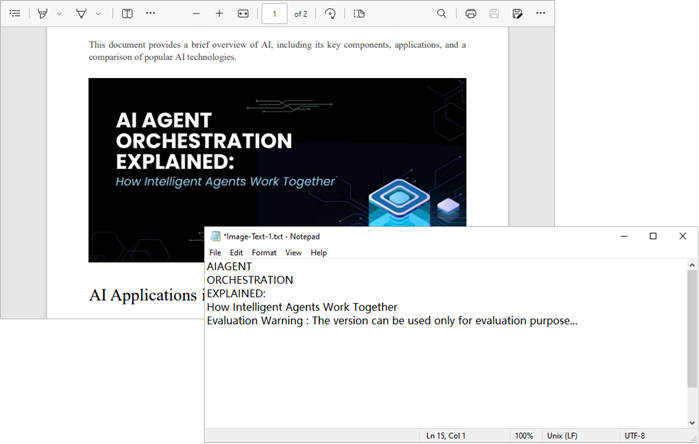
- Output : The extracted text from each image is saved to a separate text file.
Output:
Wrapping Up
By combining Spire.PDF with Spire.OCR , you can seamlessly transform scanned PDFs and image-based documents into fully searchable and editable text. Whether you need to process entire pages or extract text from specific embedded images, the approach is straightforward and flexible.
This OCR integration not only streamlines document digitization but also enhances productivity by enabling search, copy, and automated data extraction. In industries where large volumes of scanned documents are the norm, implementing OCR with C# can significantly improve accessibility, compliance, and information retrieval speed.
FAQs
Q1. Can I perform OCR on non-English PDFs?
Yes, Spire.OCR supports multiple languages. You can set the Language property in ConfigureOptions to the desired language.
Q2. What should I do if the output is garbled or incorrect?
Check the quality of the input PDF images. If the images are blurry or have low contrast, OCR may struggle to recognize text accurately. Consider enhancing the image quality before processing.
Q3. Can I extract text from images embedded within a PDF?
Yes, you can. Use a helper class to extract images from each page and then apply OCR to recognize text.
Q4. Can Spire.OCR handle handwritten text in PDFs?
Spire.OCR is primarily optimized for printed text. Handwriting recognition typically has lower accuracy.
Q5. Do I need to install additional language models for OCR?
Yes, Spire.OCR requires pre-trained language model files. Download and configure the appropriate models for your target language before performing OCR.
Get a Free License
To fully experience the capabilities of Spire.PDF for .NET and Spire.OCR for .NET without any evaluation limitations, you can request a free 30-day trial license.
PDF annotation tools allow you to highlight text, add sticky notes, draw shapes, and insert comments directly on PDF documents. This can be useful for providing feedback, taking notes, marking up designs, and collaborating on documents. Mastering PDF annotation features can streamline workflows and improve productivity when working with PDF files.
In this article, you will learn how to programmatically add various types of annotations to a PDF document using Spire.PDF for .NET in C#.
- Add a Markup Annotation to PDF
- Add a Free Text Annotation to PDF
- Add a Popup Annotation to PDF
- Add a Shape Annotation to PDF
- Add a Web Link Annotation to PDF
- Add a File Link Annotation to PDF
- Add a Document Link Annotation to PDF
Install Spire.PDF for .NET
To begin with, you need to add the DLL files included in the Spire.PDF for.NET package as references in your .NET project. The DLL files can be either downloaded from this link or installed via NuGet.
PM> Install-Package Spire.PDF
Add a Markup Annotation to PDF in C#
Markup annotation in PDF enables users to select and apply a colored background to emphasize or draw attention to specific text within the document.
Spire.PDF provides the PdfTextMarkupAnnotation class to work with this type of annotation. To add a markup annotation to PDF using Spire.PDF in C#, follow these steps.
- Create a PdfDocument object.
- Load a PDF document from the specified file path.
- Get a specific page from the document.
- Find the desired text from the page using the methods provided by the PdfTextFinder class.
- Create a PdfTextMarkupAnnotation object based on the text found.
- Add the annotation to the page using PdfPageBase.Annotations.Add() method.
- Save the document to a different PDF file.
- C#
using Spire.Pdf.Annotations;
using Spire.Pdf;
using Spire.Pdf.Texts;
using System.Drawing;

namespace AddMarkupAnnotation
{
    class Program
    {
        static void Main(string[] args)
        {
            // Create a PdfDocument object
            PdfDocument doc = new PdfDocument();

            // Load a PDF file
            doc.LoadFromFile("C:\\Users\\Administrator\\Desktop\\Terms of service.pdf");

            // Get a specific page
            PdfPageBase page = doc.Pages[0];

            // Create a PdfTextFinder object based on the page
            PdfTextFinder finder = new PdfTextFinder(page);

            // Set the find options
            finder.Options.Parameter = TextFindParameter.WholeWord;
            finder.Options.Parameter = TextFindParameter.IgnoreCase;

            // Find the instances of the specified text
            List<PdfTextFragment> fragments = finder.Find("In order to help make the Site a secure environment" +
                " for the purchase and sale of Marketplace Offerings, all users are required to accept and " +
                "comply with these Terms of Service.");

            // Get the first instance
            PdfTextFragment textFragment = fragments[0];

            // Specify annotation text
            String text = "There is a markup annotation added by Spire.PDF for .NET.";

            // Iterate through the bounds of the found text
            for (int i = 0; i < textFragment.Bounds.Length; i++)
            {
                // Get a specific bound
                RectangleF rect = textFragment.Bounds[i];

                // Create a text markup annotation
                PdfTextMarkupAnnotation annotation = new PdfTextMarkupAnnotation("Administrator", text, rect);

                // Set the markup color
                annotation.TextMarkupColor = Color.Green;

                // Add the annotation to the collection of the annotations
                page.Annotations.Add(annotation);
            }

            // Save result to file
            doc.SaveToFile("AddMarkups.pdf");

            // Dispose resources
            doc.Dispose();
        }
    }
}
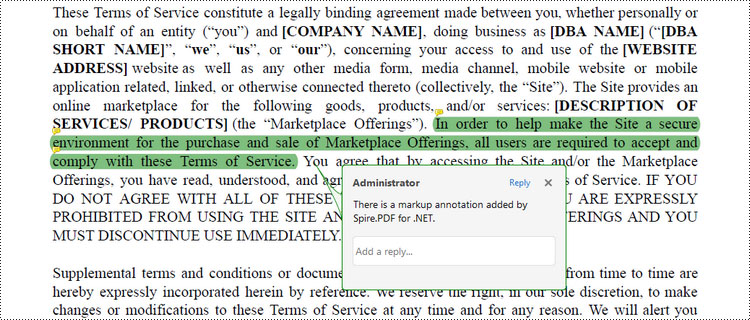
Add a Free Text Annotation to PDF in C#
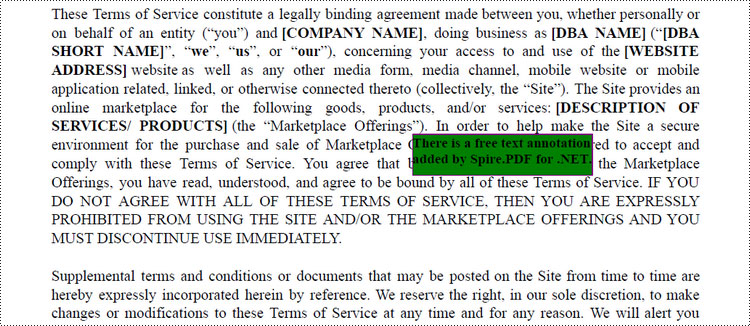
Free Text Annotation in PDF files enables users to add handwritten-like or typed text directly onto the document, similar to taking notes on a printed document.
Spire.PDF provides the PdfFreeTextAnnotation to work with the free text annotations in PDF. Here is how you can use to create one in a PDF document.
- Create a PdfDocument object.
- Load a PDF document from the specified file path.
- Get a specific page from the document.
- Find the desired text from the page using the methods provided by the PdfTextFinder class.
- Specify the x and y coordinates to add annotation.
- Create a PdfFreeTextAnnotation object, and set its properties like text, font, border and color.
- Add the annotation to the page using PdfPageBase.Annotations.Add() method.
- Save the document to a different PDF file.
- C#
using Spire.Pdf.Annotations;
using Spire.Pdf.Texts;
using Spire.Pdf;
using Spire.Pdf.Graphics;
using System.Drawing;

namespace AddFreeTextAnnotation
{
    class Program
    {
        static void Main(string[] args)
        {
            // Create a PdfDocument object
            PdfDocument doc = new PdfDocument();

            // Load a PDF file
            doc.LoadFromFile("C:\\Users\\Administrator\\Desktop\\Terms of service.pdf");

            // Get a specific page
            PdfPageBase page = doc.Pages[0];

            // Create a PdfTextFinder object based on the page
            PdfTextFinder finder = new PdfTextFinder(page);

            // Set the find options
            finder.Options.Parameter = TextFindParameter.WholeWord;
            finder.Options.Parameter = TextFindParameter.IgnoreCase;

            // Find the instances of the specified text
            List<PdfTextFragment> fragments = finder.Find("Marketplace Offerings");

            // Get the first instance
            PdfTextFragment textFragment = fragments[0];

            // Get the text bound
            RectangleF rect = textFragment.Bounds[0];

            // Get the x and y coordinates to add annotation
            float x = rect.Right;
            float y = rect.Bottom;

            // Create a free text annotation
            RectangleF rectangle = new RectangleF(x, y, 130, 30);
            PdfFreeTextAnnotation textAnnotation = new PdfFreeTextAnnotation(rectangle);

            // Set the content of the annotation
            textAnnotation.Text = "There is a free text annotation\radded by Spire.PDF for .NET.";

            // Set other properties of annotation
            PdfFont font = new PdfFont(PdfFontFamily.TimesRoman, 10f, PdfFontStyle.Bold);
            PdfAnnotationBorder border = new PdfAnnotationBorder(1f);
            textAnnotation.Font = font;
            textAnnotation.Border = border;
            textAnnotation.BorderColor = Color.Purple;
            textAnnotation.Color = Color.Green;
            textAnnotation.Opacity = 1.0f;

            // Add the annotation to the collection of the annotations
            page.Annotations.Add(textAnnotation);

            // Save result to file
            doc.SaveToFile("FreeTextAnnotation.pdf");

            // Dispose resources
            doc.Dispose();
        }
    }
}
Add a Popup Annotation to PDF in C#
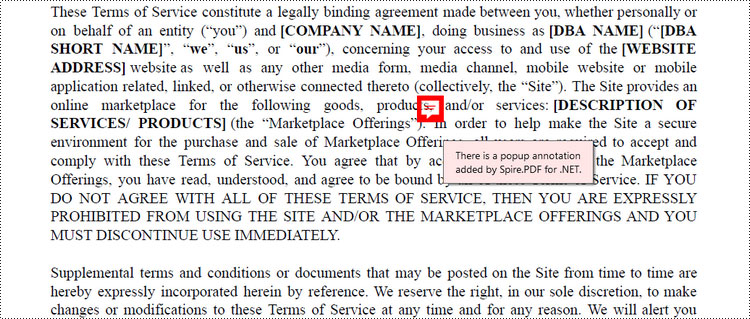
Popup Annotation in PDF files allows users to attach a small label or comment that pops up when clicked, revealing additional information or a short message.
Spire.PDF offers the PdfPopupAnnotation class to work with the popup annotation in PDF. The following are the steps to add a popup annotation to PDF using it.
- Create a PdfDocument object.
- Load a PDF document from the specified file path.
- Get a specific page from the document.
- Find the desired text from the page using the methods provided by the PdfTextFinder class.
- Specify the x and y coordinates to add annotation.
- Create a PdfPopupAnnotation object, and set its properties like text, icon and color.
- Add the annotation to the page using PdfPageBase.Annotations.Add() method.
- Save the document to a different PDF file.
- C#
using Spire.Pdf.Annotations;
using Spire.Pdf.Texts;
using Spire.Pdf;
using System.Drawing;

namespace AddPopupAnnotation
{
    class Program
    {
        static void Main(string[] args)
        {
            // Create a PdfDocument object
            PdfDocument doc = new PdfDocument();

            // Load a PDF file
            doc.LoadFromFile("C:\\Users\\Administrator\\Desktop\\Terms of service.pdf");

            // Get a specific page
            PdfPageBase page = doc.Pages[0];

            // Create a PdfTextFinder object based on the page
            PdfTextFinder finder = new PdfTextFinder(page);

            // Set the find options
            finder.Options.Parameter = TextFindParameter.WholeWord;
            finder.Options.Parameter = TextFindParameter.IgnoreCase;

            // Find the instances of the specified text
            List<PdfTextFragment> fragments = finder.Find("Marketplace Offerings");

            // Get the first instance
            PdfTextFragment textFragment = fragments[0];

            // Get the text bound
            RectangleF textBound = textFragment.Bounds[0];

            // Get the x and y coordinates to add annotation
            float x = textBound.Right + 5;
            float y = textBound.Top - 15;

            // Create a popup annotation
            RectangleF rectangle = new RectangleF(x, y, 30, 30);
            PdfPopupAnnotation popupAnnotation = new PdfPopupAnnotation(rectangle);

            // Set the annotation text
            popupAnnotation.Text = "There is a popup annotation\radded by Spire.PDF for .NET.";

            // Set the icon and color of the annotation
            popupAnnotation.Icon = PdfPopupIcon.Comment;
            popupAnnotation.Color = Color.Red;

            // Add the annotation to the collection of the annotations
            page.Annotations.Add(popupAnnotation);

            // Save result to file
            doc.SaveToFile("PopupAnnotation.pdf");

            // Dispose resources
            doc.Dispose();
        }
    }
}
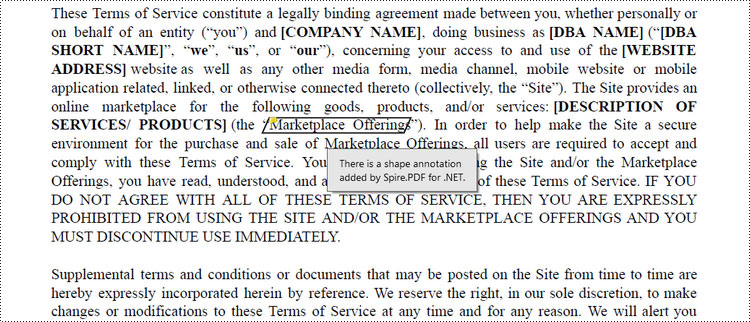
Add a Shape Annotation to PDF in C#
Shape Annotation in PDF refers to the ability to add graphical shapes such as rectangles, circles, lines, or arrows onto a PDF document to highlight or provide additional information.
Spire.PDF offers the PdfPolyLineAnnotation class that allows the user to create a custom shape annotation in a PDF document. Here are the detailed steps.
- Create a PdfDocument object.
- Load a PDF document from the specified file path.
- Get a specific page from the document.
- Find the desired text from the page using the methods provided by the PdfTextFinder class.
- Specify the coordinates to add annotation.
- Create a PdfPloyLineAnnotation object, and set the text of the annotation.
- Add the annotation to the page using PdfPageBase.Annotations.Add() method.
- Save the document to a different PDF file.
- C#
using Spire.Pdf.Annotations;
using Spire.Pdf.Texts;
using Spire.Pdf;
using System.Drawing;

namespace AddShapeAnnotation
{
    class Program
    {
        static void Main(string[] args)
        {
            // Create a PdfDocument object
            PdfDocument doc = new PdfDocument();

            // Load a PDF file
            doc.LoadFromFile("C:\\Users\\Administrator\\Desktop\\Terms of service.pdf");

            // Get a specific page
            PdfPageBase page = doc.Pages[0];

            // Create a PdfTextFinder object based on the page
            PdfTextFinder finder = new PdfTextFinder(page);

            // Set the find options
            finder.Options.Parameter = TextFindParameter.WholeWord;
            finder.Options.Parameter = TextFindParameter.IgnoreCase;

            // Find the instances of the specified text
            List<PdfTextFragment> fragments = finder.Find("Marketplace Offerings");

            // Get the first instance
            PdfTextFragment textFragment = fragments[0];

            // Get the text bound
            RectangleF textBound = textFragment.Bounds[0];

            // Get the coordinates to add annotation
            float left = textBound.Left;
            float top = textBound.Top;
            float right = textBound.Right;
            float bottom = textBound.Bottom;

            // Create a shape nnotation
            PdfPolyLineAnnotation polyLineAnnotation = new PdfPolyLineAnnotation(page, new PointF[] {
                new PointF(left, top), new PointF(right, top), new PointF(right - 5, bottom), new PointF(left - 5, bottom), new PointF(left, top) });

            // Set the annotation text
            polyLineAnnotation.Text = "There is a shape annotation\radded by Spire.PDF for .NET.";

            // Add the annotation to the collection of the annotations
            page.Annotations.Add(polyLineAnnotation);

            // Save result to file
            doc.SaveToFile("ShapeAnnotation.pdf");

            // Dispose resources
            doc.Dispose();
        }
    }
}
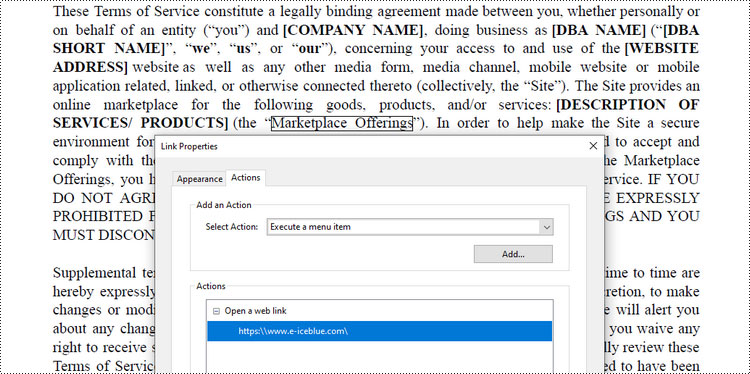
Add a Web Link Annotation to PDF in C#
Web Link Annotation in PDF documents allows users to embed hyperlinks that direct readers to websites when clicked.
Spire.PDF provides the PdfUrlAnnotation class to represent a web link annotation. The following are the steps to add a web link annotation using it.
- Create a PdfDocument object.
- Load a PDF document from the specified file path.
- Get a specific page from the document.
- Find the desired text from the page using the methods provided by the PdfTextFinder class.
- Create a PdfUrlAnnotation object based on the text found.
- Add the annotation to the page using PdfPageBase.Annotations.Add() method.
- Save the document to a different PDF file.
- C#
using Spire.Pdf.Annotations;
using Spire.Pdf.Texts;
using Spire.Pdf;
using System.Drawing;

namespace AddUrlAnnotation
{
    class Program
    {
        static void Main(string[] args)
        {
            // Create a PdfDocument object
            PdfDocument doc = new PdfDocument();

            // Load a PDF file
            doc.LoadFromFile("C:\\Users\\Administrator\\Desktop\\Terms of service.pdf");

            // Get a specific page
            PdfPageBase page = doc.Pages[0];

            // Create a PdfTextFinder object based on the page
            PdfTextFinder finder = new PdfTextFinder(page);

            // Set the find options
            finder.Options.Parameter = TextFindParameter.WholeWord;
            finder.Options.Parameter = TextFindParameter.IgnoreCase;

            // Find the instances of the specified text
            List<PdfTextFragment> fragments = finder.Find("Marketplace Offerings");

            // Get the first instance
            PdfTextFragment textFragment = fragments[0];

            // Get the text bound
            RectangleF textBound = textFragment.Bounds[0];

            // Create a Url annotation
            PdfUriAnnotation urlAnnotation = new PdfUriAnnotation(textBound, "https:\\\\www.e-iceblue.com\\");

            // Add the annotation to the collection of the annotations
            page.Annotations.Add(urlAnnotation);

            // Save result to file
            doc.SaveToFile("UrlAnnotation.pdf");

            // Dispose resources
            doc.Dispose();
        }
    }
}
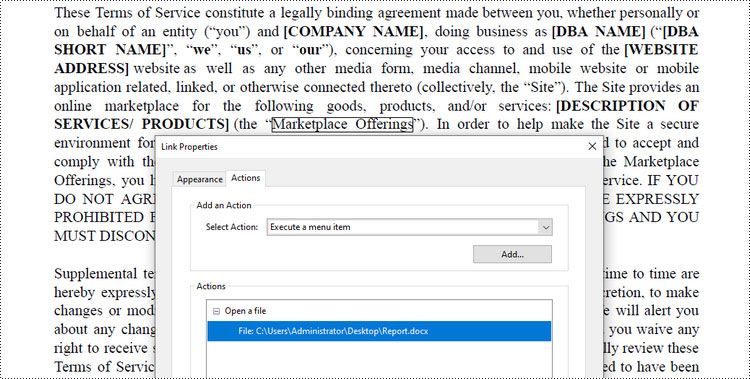
Add a File Link Annotation to PDF in C#
File link annotation in PDF documents refers to interactive links that allow users to navigate to external files directly from the PDF.
Spire.PDF offers the PdfFileLinkAnnotation class to work with the file link annotation. Here are the steps to add a file link annotation to a PDF document using it.
- Create a PdfDocument object.
- Load a PDF document from the specified file path.
- Get a specific page from the document.
- Find the desired text from the page using the methods provided by the PdfTextFinder class.
- Create a PdfFileLinkAnnotation object based on the text found.
- Add the annotation to the page using PdfPageBase.Annotations.Add() method.
- Save the document to a different PDF file.
- C#
using Spire.Pdf.Annotations;
using Spire.Pdf.Texts;
using Spire.Pdf;
using System.Drawing;

namespace AddFileLinkAnnotation
{
    class Program
    {
        static void Main(string[] args)
        {
            // Create a PdfDocument object
            PdfDocument doc = new PdfDocument();

            // Load a PDF file
            doc.LoadFromFile("C:\\Users\\Administrator\\Desktop\\Terms of service.pdf");

            // Get a specific page
            PdfPageBase page = doc.Pages[0];

            // Create a PdfTextFinder object based on the page
            PdfTextFinder finder = new PdfTextFinder(page);

            // Set the find options
            finder.Options.Parameter = TextFindParameter.WholeWord;
            finder.Options.Parameter = TextFindParameter.IgnoreCase;

            // Find the instances of the specified text
            List<PdfTextFragment> fragments = finder.Find("Marketplace Offerings");

            // Get the first instance
            PdfTextFragment textFragment = fragments[0];

            // Get the text bound
            RectangleF textBound = textFragment.Bounds[0];

            // Create a file link annotation
            PdfFileLinkAnnotation fileLinkAnnotation = new PdfFileLinkAnnotation(textBound, "C:\\Users\\Administrator\\Desktop\\Report.docx");

            // Add the annotation to the collection of the annotations
            page.Annotations.Add(fileLinkAnnotation);

            // Save result to file
            doc.SaveToFile("FileLinkAnnotation.pdf");

            // Dispose resources
            doc.Dispose();
        }
    }
}
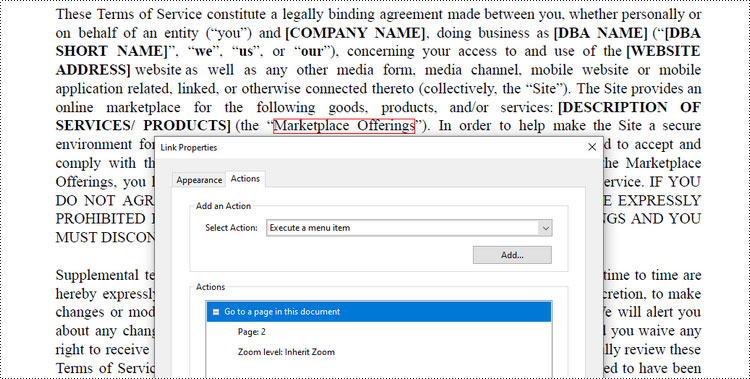
Add a Document Link Annotation to PDF in C#
Document link annotation in PDF files refers to hyperlinks that allow users to navigate between different pages or sections within the same PDF document.
Spire.PDF offers the PdfDocumentLinkAnnotation class to work with the document link annotation. Here are the steps to add a document link annotation to a PDF document using it.
- Create a PdfDocument object.
- Load a PDF document from the specified file path.
- Get a specific page from the document.
- Find the desired text from the page using the methods provided by the PdfTextFinder class.
- Create a PdfDocumentLinkAnnotation object based on the text found.
- Add the annotation to the page using PdfPageBase.Annotations.Add() method.
- Save the document to a different PDF file.
- C#
using Spire.Pdf.Annotations;
using Spire.Pdf.Texts;
using Spire.Pdf;
using Spire.Pdf.General;
using System.Drawing;

namespace AddDocumentLinkAnnotation
{
    class Program
    {
        static void Main(string[] args)
        {
            // Create a PdfDocument object
            PdfDocument doc = new PdfDocument();

            // Load a PDF file
            doc.LoadFromFile("C:\\Users\\Administrator\\Desktop\\Terms of service.pdf");

            // Get a specific page
            PdfPageBase page = doc.Pages[0];

            // Create a PdfTextFinder object based on the page
            PdfTextFinder finder = new PdfTextFinder(page);

            // Set the find options
            finder.Options.Parameter = TextFindParameter.WholeWord;
            finder.Options.Parameter = TextFindParameter.IgnoreCase;

            // Find the instances of the specified text
            List<PdfTextFragment> fragments = finder.Find("Marketplace Offerings");

            // Get the first instance
            PdfTextFragment textFragment = fragments[0];

            // Get the text bound
            RectangleF textBound = textFragment.Bounds[0];

            // Create a document link annotation
            PdfDocumentLinkAnnotation documentLinkAnnotation = new PdfDocumentLinkAnnotation(textBound);

            // Set the destination of the annotation
            documentLinkAnnotation.Destination = new PdfDestination(doc.Pages[1]);

            // Add the annotation to the collection of the annotations
            page.Annotations.Add(documentLinkAnnotation);

            // Save result to file
            doc.SaveToFile("DocumentLinkAnnotation.pdf");

            // Dispose resources
            doc.Dispose();
        }
    }
}
Apply for a Temporary License
If you'd like to remove the evaluation message from the generated documents, or to get rid of the function limitations, please request a 30-day trial license for yourself.
More...
