
Spire.PDF for .NET (290)
HTML is widely used to present content in web browsers, but preserving its exact layout when sharing or printing can be challenging. PDF, by contrast, is a universally accepted format that reliably maintains document layout across various devices and operating systems. Converting HTML to PDF is particularly useful in web development, especially when creating printable versions of web pages or generating reports from web data.
Spire.PDF for .NET now supports a streamlined method to convert HTML to PDF in C# using the ChromeHtmlConverter class. This tutorial provides step-by-step guidance on performing this conversion effectively.
- Convert HTML to PDF with ChromeHtmlConverter in C#
- Generate Output Logs During HTML to PDF Conversion in C#
Install Spire.PDF for .NET
To begin with, you need to add the DLL files included in the Spire.PDF for.NET package as references in your .NET project. The DLLs files can be either downloaded from this link or installed via NuGet.
PM> Install-Package Spire.PDF
Install Google Chrome
This method requires Google Chrome to perform the conversion. If Chrome is not already installed, you can download it from this link and install it.
Convert HTML to PDF using ChromeHtmlConverter in C#
You can utilize the ChromeHtmlConverter.ConvertToPdf() method to convert an HTML file to a PDF using the Chrome plugin. This method accepts 3 parameters, including the input HTML file path, output PDF file path, and ConvertOptions which allows customization of conversion settings like conversion timeout, PDF paper size and page margins. The detailed steps are as follows.
- Create an instance of the ChromeHtmlConverter class and provide the path to the Chrome plugin (chrome.exe) as a parameter in the class constructor.
- Create an instance of the ConvertOptions class.
- Customize the conversion settings, such as the conversion timeout, the paper size and page margins of the converted PDF through the properties of the ConvertOptions class.
- Convert an HTML file to PDF using the ChromeHtmlConverter.ConvertToPdf() method.
- C#
using Spire.Additions.Chrome;

namespace ConvertHtmlToPdfUsingChrome
{
    internal class Program
    {
        static void Main(string[] args)
        {
            //Specify the input URL and output PDF file path
            string inputUrl = @"https://www.e-iceblue.com/Tutorials/Spire.PDF/Spire.PDF-Program-Guide/C-/VB.NET-Convert-Image-to-PDF.html";
            string outputFile = @"HtmlToPDF.pdf";

            //Specify the path to the Chrome plugin
            string chromeLocation = @"C:\Program Files\Google\Chrome\Application\chrome.exe";

            //Create an instance of the ChromeHtmlConverter class
            ChromeHtmlConverter converter = new ChromeHtmlConverter(chromeLocation);

            // Create an instance of the ConvertOptions class
            ConvertOptions options = new ConvertOptions();
            //Set conversion timeout
            options.Timeout = 10 * 3000;
            //Set paper size and page margins of the converted PDF
            options.PageSettings = new PageSettings()
            {
                PaperWidth = 8.27,
                PaperHeight = 11.69,
                MarginTop = 0,
                MarginLeft = 0,
                MarginRight = 0,
                MarginBottom = 0

            };

            //Convert the URL to PDF
            converter.ConvertToPdf(inputUrl, outputFile, options);
        }
    }
}
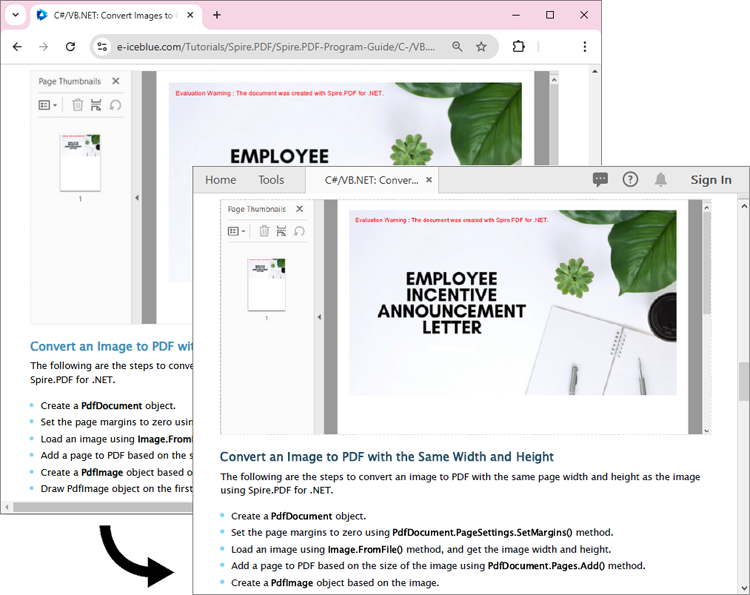
The converted PDF file maintains the same appearance as if the HTML file were printed to PDF directly through the Chrome browser:
Generate Output Logs During HTML to PDF Conversion in C#
Spire.PDF for .NET enables you to generate output logs during HTML to PDF conversion using the Logger class. The detailed steps are as follows.
- Create an instance of the ChromeHtmlConverter class and provide the path to the Chrome plugin (chrome.exe) as a parameter in the class constructor.
- Enable Logging by creating a Logger object and assigning it to the ChromeHtmlConverter.Logger property.
- Create an instance of the ConvertOptions class.
- Customize the conversion settings, such as the conversion timeout, the paper size and page margins of the converted PDF through the properties of the ConvertOptions class.
- Convert an HTML file to PDF using the ChromeHtmlConverter.ConvertToPdf() method.
- C#
using Spire.Additions.Chrome;

namespace ConvertHtmlToPdfUsingChrome
{
    internal class Program
    {
        static void Main(string[] args)
        {
            //Specify the input URL and output PDF file path
            string inputUrl = @"https://www.e-iceblue.com/Tutorials/Spire.PDF/Spire.PDF-Program-Guide/C-/VB.NET-Convert-Image-to-PDF.html";
            string outputFile = @"HtmlToPDF.pdf";

            // Specify the log file path
            string logFilePath = @"Logs.txt";

            //Specify the path to the Chrome plugin
            string chromeLocation = @"C:\Program Files\Google\Chrome\Application\chrome.exe";

            //Create an instance of the ChromeHtmlConverter class
            ChromeHtmlConverter converter = new ChromeHtmlConverter(chromeLocation);
            //Enable logging
            converter.Logger = new Logger(logFilePath);

            //Create an instance of the ConvertOptions class
            ConvertOptions options = new ConvertOptions();
            //Set conversion timeout
            options.Timeout = 10 * 3000;
            //Set paper size and page margins of the converted PDF
            options.PageSettings = new PageSettings()
            {
                PaperWidth = 8.27,
                PaperHeight = 11.69,
                MarginTop = 0,
                MarginLeft = 0,
                MarginRight = 0,
                MarginBottom = 0

            };

            //Convert the URL to PDF
            converter.ConvertToPdf(inputUrl, outputFile, options);
        }
    }
}
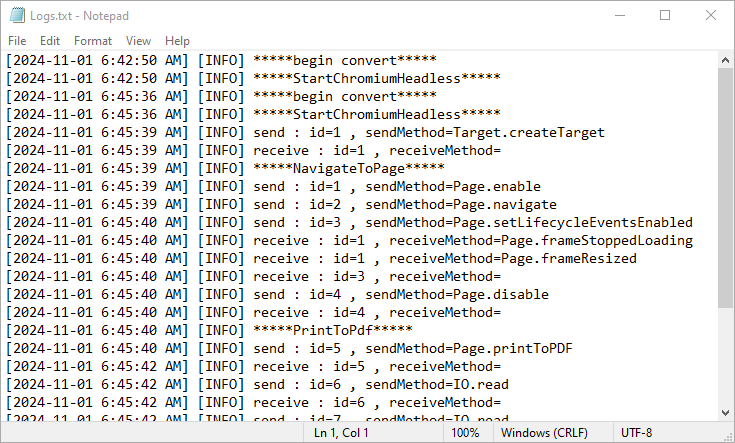
Here is the screenshot of the output log file:
Apply for a Temporary License
If you'd like to remove the evaluation message from the generated documents, or to get rid of the function limitations, please request a 30-day trial license for yourself.
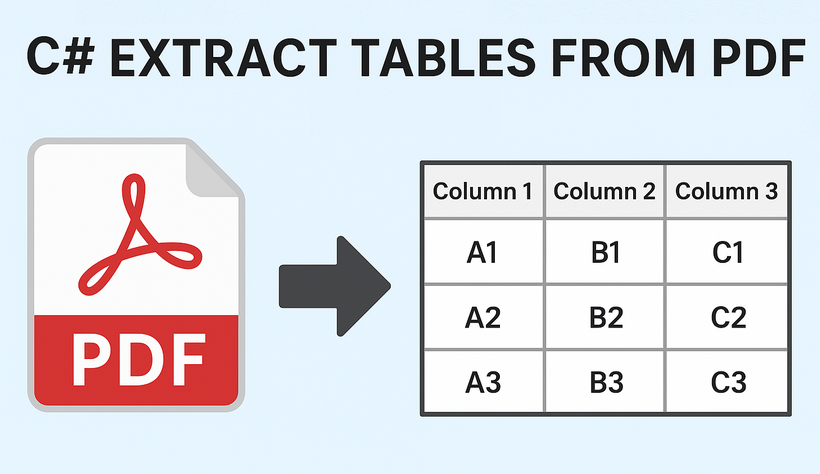 Extracting tables from PDF files is a common requirement in data processing, reporting, and automation tasks. PDFs are widely used for sharing structured data, but extracting tables programmatically can be challenging due to their complex layout. Fortunately, with the right tools, this process becomes straightforward. In this guide, we’ll explore how to extract tables from PDF in C# using the Spire.PDF for .NET library, and export the results to TXT and CSV formats for easy reuse.
Table of Contents:
- Prerequisites for Reading PDF Tables in C#
- Understanding PDF Table Structure
- How to Extract Tables from PDF in C#
- Extract PDF Tables to a Text File in C#
- Export PDF Tables to CSV in C#
- Conclusion
- FAQs
Prerequisites for Reading PDF Tables in C#
Spire.PDF for .NET is a powerful library for processing PDF files in C# and VB.NET. It supports a wide range of PDF operations, including table extraction, text extraction, image extraction, and more.
The easiest way to add the Spire.PDF library is via NuGet Package Manager.
1. Open Visual Studio and create a new C# project. (Here we create a Console App)
2. In Visual Studio, right-click your project > Manage NuGet Packages.
3. Search for “Spire.PDF” and install the latest version.
Understanding PDF Table Structure
Before coding, let’s clarify how PDFs store tables. Unlike Excel (which explicitly defines rows/columns), PDFs use:
- Text Blocks: Individual text elements positioned with coordinates.
- Borders/Lines: Visual cues (horizontal/vertical lines) that humans interpret as table edges.
- Spacing: Consistent gaps between text blocks to indicate cells.
The Spire.PDF library infers table structure by analyzing these visual cues, matching text blocks to rows/columns based on proximity and alignment.
How to Extract Tables from PDF in C#
If you need a quick way to preview table data (e.g., debugging or verifying extraction), printing it to the console is a great starting point.
Key methods to extract data from a PDF table:
- PdfDocument: Represents a PDF file.
- LoadFromFile: Loads the PDF file for processing.
- PdfTableExtractor: Analyzes the PDF to detect tables using visual cues (borders, spacing).
- ExtractTable(pageIndex): Returns an array of PdfTable objects for the specified page.
- GetRowCount()/GetColumnCount(): Retrieve the dimensions of each table.
- GetText(rowIndex, columnIndex): Extracts text from the cell at the specified row and column.
using Spire.Pdf;
using Spire.Pdf.Utilities;

namespace ExtractPdfTable
{
    class Program
    {
        static void Main(string[] args)
        {
            // Create a PdfDocument object
            PdfDocument pdf = new PdfDocument();

            // Load a PDF file
            pdf.LoadFromFile("invoice.pdf");

            // Initialize an instance of PdfTableExtractor class
            PdfTableExtractor extractor = new PdfTableExtractor(pdf);


            // Loop through the pages
            for (int pageIndex = 0; pageIndex < pdf.Pages.Count; pageIndex++)
            {
                // Extract tables from a specific page
                PdfTable[] tableList = extractor.ExtractTable(pageIndex);

                // Determine if the table list is null
                if (tableList != null && tableList.Length > 0)
                {
                    int tableNumber = 1;
                    // Loop through the table in the list
                    foreach (PdfTable table in tableList)
                    {
                        Console.WriteLine($"\nTable {tableNumber} on Page {pageIndex + 1}:");
                        Console.WriteLine("-----------------------------------");

                        // Get row number and column number of a certain table
                        int row = table.GetRowCount();
                        int column = table.GetColumnCount();

                        // Loop through rows and columns
                        for (int i = 0; i < row; i++)
                        {
                            for (int j = 0; j < column; j++)
                            {
                                // Get text from the specific cell
                                string text = table.GetText(i, j);

                                // Print cell text to console with a separator
                                Console.Write($"{text}\t");
                            }
                            // New line after each row
                            Console.WriteLine();
                        }
                        tableNumber++;
                    }
                }
            }

            // Close the document
            pdf.Close();
        }
    }
}
When to Use This Method
- Quick debugging or validation of extracted data.
- Small datasets where you don’t need persistent storage.
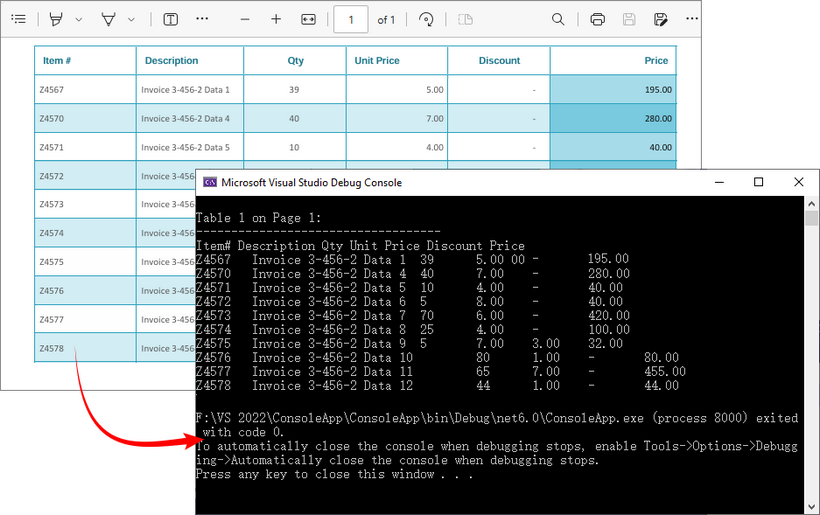
Output: Retrieve PDF table data and output to the console
Extract PDF Tables to a Text File in C#
For lightweight, human-readable storage, saving tables to a text file is ideal. This method uses StringBuilder to efficiently compile table data, preserving row breaks for readability.
Key features of extracting PDF tables and exporting to TXT:
- Efficiency: StringBuilder minimizes memory overhead compared to string concatenation.
- Persistent Storage: Saves data to a text file for later review or sharing.
- Row Preservation: Uses \r\n to maintain row structure, making the text file easy to scan.
using Spire.Pdf;
using Spire.Pdf.Utilities;
using System.Text;

namespace ExtractTableToTxt
{
    class Program
    {
        static void Main(string[] args)
        {
            // Create a PdfDocument object
            PdfDocument pdf = new PdfDocument();

            // Load a PDF file
            pdf.LoadFromFile("invoice.pdf");

            // Create a StringBuilder object
            StringBuilder builder = new StringBuilder();

            // Initialize an instance of PdfTableExtractor class
            PdfTableExtractor extractor = new PdfTableExtractor(pdf);

            // Declare a PdfTable array
            PdfTable[] tableList = null;

            // Loop through the pages
            for (int pageIndex = 0; pageIndex < pdf.Pages.Count; pageIndex++)
            {
                // Extract tables from a specific page
                tableList = extractor.ExtractTable(pageIndex);

                // Determine if the table list is null
                if (tableList != null && tableList.Length > 0)
                {
                    // Loop through the table in the list
                    foreach (PdfTable table in tableList)
                    {
                        // Get row number and column number of a certain table
                        int row = table.GetRowCount();
                        int column = table.GetColumnCount();

                        // Loop through the rows and columns
                        for (int i = 0; i < row; i++)
                        {
                            for (int j = 0; j < column; j++)
                            {
                                // Get text from the specific cell
                                string text = table.GetText(i, j);

                                // Add text to the string builder
                                builder.Append(text + " ");
                            }
                            builder.Append("\r\n");
                        }
                    }
                }
            }

            // Write to a .txt file
            File.WriteAllText("ExtractPDFTable.txt", builder.ToString());
        }
    }
}
When to Use This Method
- Archiving table data in a lightweight, universally accessible format.
- Sharing with teams that need to scan data without spreadsheet tools.
- Using as input for basic scripts (e.g., PowerShell) to extract specific values.
Output: Extract PDF table data and save to a text file.

Pro Tip: For VB.NET demos, convert the above code using our C# ⇆ VB.NET Converter.
Export PDF Tables to CSV in C#
CSV (Comma-Separated Values) is the industry standard for tabular data, compatible with Excel, Google Sheets, and databases. This method formats the extracted tables into a valid CSV file by quoting cells and handling special characters.
Key features of extracting tables from PDF to CSV:
- StreamWriter: Writes data incrementally to the CSV file, reducing memory usage for large PDFs.
- Quoted Cells: Cells are wrapped in double quotes (" ") to avoid misinterpreting commas within text as column separators.
- UTF-8 Encoding: Supports special characters in cell text.
- Spreadsheet Ready: Directly opens in Excel, Google Sheets, or spreadsheet tools for analysis.
using Spire.Pdf;
using Spire.Pdf.Utilities;
using System.Text;

namespace ExtractTableToCsv
{
    class Program
    {
        static void Main(string[] args)
        {
            // Create a PdfDocument object
            PdfDocument pdf = new PdfDocument();

            // Load a PDF file
            pdf.LoadFromFile("invoice.pdf");

            // Create a StreamWriter object for efficient CSV writing
            using (StreamWriter csvWriter = new StreamWriter("PDFtable.csv", false, Encoding.UTF8))
            {
                // Create a PdfTableExtractor object
                PdfTableExtractor extractor = new PdfTableExtractor(pdf);

                // Loop through the pages
                for (int pageIndex = 0; pageIndex < pdf.Pages.Count; pageIndex++)
                {
                    // Extract tables from a specific page
                    PdfTable[] tableList = extractor.ExtractTable(pageIndex);

                    // Determine if the table list is null
                    if (tableList != null && tableList.Length > 0)
                    {
                        // Loop through the table in the list
                        foreach (PdfTable table in tableList)
                        {
                            // Get row number and column number of a certain table
                            int row = table.GetRowCount();
                            int column = table.GetColumnCount();

                            // Loop through the rows
                            for (int i = 0; i < row; i++)
                            {
                                // Creates a list to store data
                                List<string> rowData = new List<string>();
                                // Loop through the columns
                                for (int j = 0; j < column; j++)
                                {
                                    // Retrieve text from table cells
                                    string cellText = table.GetText(i, j).Replace("\"", "\"\"");
                                    // Add the cell text to the list and wrap in double quotes
                                    rowData.Add($"\"{cellText}\"");
                                }
                                // Join cells with commas and write to CSV
                                csvWriter.WriteLine(string.Join(",", rowData));
                            }
                        }
                    }
                }
            }
        }
    }
}
When to Use This Method
- Data analysis (import into Excel for calculations).
- Migrating PDF tables to databases (e.g., SQL Server, PostgreSQL, MySQL).
- Collaborating with teams that rely on spreadsheets.
Output: Parse PDF table data and export to a CSV file.
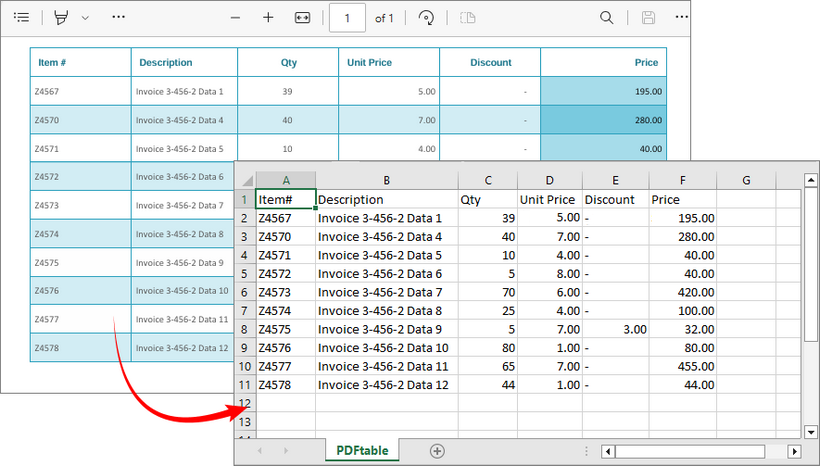
Recommendation: Integrate with Spire.XLS for .NET to extract tables from PDF to Excel directly.
Conclusion
This guide has outlined three efficient methods for extracting tables from PDFs in C#. By leveraging the Spire.PDF for .NET library, you can automate the PDF table extraction process and export results to console, TXT, or CSV for further analysis. Whether you’re building a data pipeline, report generator, or business tool, these approaches streamline workflows, save time, and minimize human error.
Refer to the online documentation and obtain a free trial license here to explore more advanced PDF operations.
FAQs
Q1: Why use Spire.PDF for .NET to extract tables?
A: Spire.PDF provides a dedicated PdfTableExtractor class that detects tables based on visual cues (borders, spacing, and text alignment), simplifying the process of parsing structured data from PDFs.
Q2: Can Spire.PDF extract tables from scanned (image-based) PDFs?
A: No. The .NET PDF library works only with text-based PDFs (where text is selectable). For scanned PDFs, use Spire.OCR to extract text before parsing tables.
Q3: Can I extract tables from multiple PDFs at once?
A: Yes. To batch-process multiple PDFs, use Directory.GetFiles() to list all PDF files in a folder, then loop through each file and run the extraction logic. For example:
string[] pdfFiles = Directory.GetFiles(@"C:\Invoices\", "*.pdf");
foreach (string file in pdfFiles)
{
// Run extraction code for each file
}
Q4: How can I improve performance when extracting tables from large PDFs?
A: For large PDFs (100+ pages), optimize performance by:
- Processing pages in batches instead of loading the entire PDF at once.
- Disposing of unused PdfTable or PdfDocument objects with the using statements to free memory.
- Skipping pages with no tables early (
using if (tableList == null || tableList.Length == 0)).
.NET PDF to JPG Converter: Convert PDF Pages to Images in C#
2025-09-10 03:20:19 Written by Administrator
Working with PDF documents is a common requirement in modern applications. Whether you are building a document management system , an ASP.NET web service , or a desktop viewer application , there are times when you need to display a PDF page as an image. Instead of embedding the full PDF viewer, you can convert PDF pages to JPG images and use them wherever images are supported.
In this guide, we will walk through a step-by-step tutorial on how to convert PDF files to JPG images using Spire.PDF for .NET. We’ll cover the basics of converting a single page, handling multiple pages, adjusting resolution and quality, saving images to streams, and even batch converting entire folders of PDFs.
By the end, you’ll have a clear understanding of how to implement PDF-to-image conversion in your .NET projects.
Table of Contents:
- Install .NET PDF-to-JPG Converter Library
- Core Method: SaveAsImage
- Steps to Convert PDF to JPG in C# .NET
- Convert a Single Page to JPG
- Convert Multiple Pages (All or Range)
- Advanced Conversion Options
- Troubleshooting & Best Practices
- Conclusion
- FAQs
Install .NET PDF-to-JPG Converter Library
To perform the conversion, we’ll use Spire.PDF for .NET , a library designed for developers who need full control over PDFs in C#. It supports reading, editing, and converting PDFs without requiring Adobe Acrobat or any third-party dependencies.
Installation via NuGet
You can install Spire.PDF directly into your project using NuGet Package Manager Console:
Install-Package Spire.PDF
Alternatively, open NuGet Package Manager in Visual Studio, search for Spire.PDF , and click Install.
Licensing Note
Spire.PDF offers a free version with limitations, allowing conversion of only the first few pages. For production use, a commercial license unlocks the full feature set.
Core Method: SaveAsImage
The heart of PDF-to-image conversion in Spire.PDF lies in the SaveAsImage() method provided by the PdfDocument class.
Here’s what you need to know:
-
Syntax (overload 1):
-
Image SaveAsImage(int pageIndex, PdfImageType imageType);
- pageIndex: The zero-based index of the PDF page you want to convert.
- imageType: The type of image to generate, typically PdfImageType.Bitmap.
-
Syntax (overload 2 with resolution):
-
Image SaveAsImage(int pageIndex, PdfImageType imageType, int dpiX, int dpiY);
- dpiX, dpiY: Horizontal and vertical resolution (dots per inch).
Higher DPI = better quality but larger file size.
Supported PdfImageType Values
- Bitmap → returns a raw image.
- Metafile → returns a vector image (less common for JPG export).
Most developers use Bitmap when exporting to JPG.
Steps to Convert PDF to JPG in C# .NET
- Import the Spire.Pdf and System.Drawing namespaces.
- Create a new PdfDocument instance.
- Load the PDF file from the specified path.
- Use SaveAsImage() to convert one or more pages into images.
- Save the generated image(s) in JPG format.
Convert a Single Page to JPG
Here’s a simple workflow to convert a single PDF page to a JPG image:
using Spire.Pdf.Graphics;
using Spire.Pdf;
using System.Drawing.Imaging;
using System.Drawing;

namespace ConvertSpecificPageToPng
{
    class Program
    {
        static void Main(string[] args)
        {
            // Create a PdfDocument object
            PdfDocument doc = new PdfDocument();

            // Load a sample PDF document
            doc.LoadFromFile("C:\\Users\\Administrator\\Desktop\\sample.pdf");

            // Convert a specific page to a bitmap image
            Image image = doc.SaveAsImage(0, PdfImageType.Bitmap);

            // Save the image as a JPG file
            image.Save("ToJPG.jpg", ImageFormat.Jpeg);

            // Disposes resources
            doc.Dispose();
        }
    }
}
Output:

Spire.PDF supports converting PDF to various other image formats like PNG, BMP, SVG, and TIFF. For more details, refer to the documentation: Convert PDF to Image in C#.
Convert Multiple Pages (All or Range)
Convert All Pages
The following loop iterates over all pages, converts each one into an image, and saves it to disk with page numbers in the filename.
for (int i = 0; i < doc.Pages.Count; i++)
{
    Image image = doc.SaveAsImage(i, PdfImageType.Bitmap);
    string fileName = string.Format("Output\\ToJPG-{0}.jpg", i);
    image.Save(fileName, ImageFormat.Jpeg);
}
Convert a Range of Pages
To convert a specific range of pages (e.g., pages 2 to 4), modify the for loop as follows:
for (int i = 1; i <= 3; i++)
{
    Image image = doc.SaveAsImage(i, PdfImageType.Bitmap);
    string fileName = string.Format("Output\\ToJPG-{0}.jpg", i);
    image.Save(fileName, ImageFormat.Jpeg);
}
Advanced Conversion Options
Set Image Resolution/Quality
By default, the output resolution might be too low for printing or detailed analysis. You can set DPI explicitly:
Image image = doc.SaveAsImage(0, PdfImageType.Bitmap, 300, 300);
image.Save("ToJPG.jpg", ImageFormat.Jpeg);
Tips:
- 72 DPI : Default, screen quality.
- 150 DPI : Good for previews and web.
- 300 DPI : High quality, suitable for printing.
Higher DPI results in sharper images but also increases memory and file size.
Save the Converted Images as Stream
Instead of writing directly to disk, you can store the output in memory streams. This is useful in:
- ASP.NET applications returning images to browsers.
- Web APIs sending images as HTTP responses.
- Database storage for binary blobs.
using (MemoryStream ms = new MemoryStream())
{
    pdf.SaveAsImage(0, PdfImageType.Bitmap, 300, 300).Save(ms, ImageFormat.Jpeg);
    byte[] imageBytes = ms.ToArray();
}
Here, the JPG image is stored as a byte array , ready for further processing.
Batch Conversion (Multiple PDFs)
In scenarios where you need to process multiple PDF documents at once, you can apply batch conversion as shown below:
string[] files = Directory.GetFiles("InputPDFs", "*.pdf");
foreach (string file in files)
{
    PdfDocument doc = new PdfDocument();
    doc.LoadFromFile(file);
    for (int i = 0; i < doc.Pages.Count; i++)
    {
        Image image = doc.SaveAsImage(i, PdfImageType.Bitmap);
        string fileName = Path.GetFileNameWithoutExtension(file);
        image.Save($"Output\\{fileName}-Page{i + 1}.jpg", ImageFormat.Jpeg);
    }
    doc.Dispose();
}
Troubleshooting & Best Practices
Working with PDF-to-image conversion in .NET can come with challenges. Here’s how to address them:
- Large PDFs consume memory
- Use lower DPI (e.g., 150 instead of 300).
- Process in chunks rather than loading everything at once.
- Images are blurry or low quality
- Increase DPI.
- Consider using PNG instead of JPG for sharp diagrams or text.
- File paths cause errors
- Always check that the output directory exists.
- Use Path.Combine() for cross-platform paths.
- Handling password-protected PDFs
- Provide the password when loading:
doc.LoadFromFile("secure.pdf", "password123");
- Dispose objects
- Always call Dispose() on PdfDocument and Image objects to release memory.
Conclusion
Converting PDF to JPG in .NET is straightforward with Spire.PDF for .NET . The library provides the SaveAsImage() method, allowing you to convert a single page or an entire document with just a few lines of code. With options for custom resolution, stream handling, and batch conversion , you can adapt the workflow to desktop apps, web services, or cloud platforms.
By following best practices like managing memory and adjusting resolution, you can ensure efficient, high-quality output that fits your project’s requirements.
If you’re exploring more advanced document processing, Spire also offers libraries for Word, Excel, and PowerPoint, enabling a complete .NET document solution.
FAQs
Q1. Can I convert PDFs to formats other than JPG?
Yes. Spire.PDF supports PNG, BMP, SVG, and other common formats.
Q2. What DPI should I use?
- 72 DPI for thumbnails.
- 150 DPI for web previews.
- 300 DPI for print quality.
Q3. Does Spire.PDF support encrypted PDFs?
Yes, but you need to provide the correct password when loading the file.
Q4. Can I integrate this in ASP.NET?
Yes. You can save images to memory streams and return them as HTTP responses.
Q5. Can I convert images back to PDF?
Yes. You can load JPG, PNG, or BMP files and insert them into PDF pages, effectively converting images back into a PDF.
Get a Free License
To fully experience the capabilities of Spire.PDF for .NET without any evaluation limitations, you can request a free 30-day trial license.

PDF is one of the most popular formats for distributing, archiving, and presenting digital documents. However, when PDFs include high-resolution images, scanned pages, or embedded fonts, their file sizes can grow considerably. Large PDF files can slow down upload and download speeds, take up unnecessary storage space, and even cause issues with email attachments and website performance.
This complete guide shows you how to compress PDF documents in C# using the Spire.PDF for .NET library. It covers multiple compression strategies—image compression, font optimization, and content compression—with practical, ready-to-use C# code examples to help you streamline PDF size effectively in your .NET applications.
Table of Contents
- Why Compress PDF Files
- Install the Library for PDF Compression in .NET
- How to Optimize PDF File Size in C# (Methods and Code Examples)
- Conclusion
- FAQs
Why Compress PDF Files?
Compressing PDF files can bring significant benefits, especially in professional and enterprise environments:
- Faster upload and download speeds
- Reduced storage consumption
- Easier email sharing with smaller attachments
- Improved performance in web-based PDF viewers
- Better experience on mobile and low-bandwidth environments
Whether you're working with reports, invoices, or scanned documents, PDF compression ensures efficient document handling and delivery.
Install the Library for PDF Compression in .NET
Spire.PDF for .NET is a robust and developer-friendly library that enables developers to create, edit, convert, and compress PDF documents without relying on Adobe Acrobat. It supports various compression options to minimize PDF file sizes effectively.
Installation Steps
You can easily install Spire.PDF for .NET via NuGet using one of the following methods:
Option 1: Using NuGet Package Manager
- Open your project in Visual Studio.
- Right-click on the project → Manage NuGet Packages.
- Search for Spire.PDF.
- Click Install.
Option 2: Using the Package Manager Console
Install-Package Spire.PDF
Once installed, you can start using the built-in compression APIs to optimize PDF file size.
How to Optimize PDF File Size in C# (Methods and Code Examples)
Spire.PDF provides multiple techniques to reduce PDF size. In this section, you'll learn how to implement three key methods: compressing images, optimizing fonts, and compressing overall document content.
Method 1. Compressing Images
High-resolution images embedded in PDF files often consume the most space. Spire.PDF offers flexible image compression options that allow you to reduce file size by compressing either all images or individual images in the document.
Example 1: Compress All Images with PdfCompressor
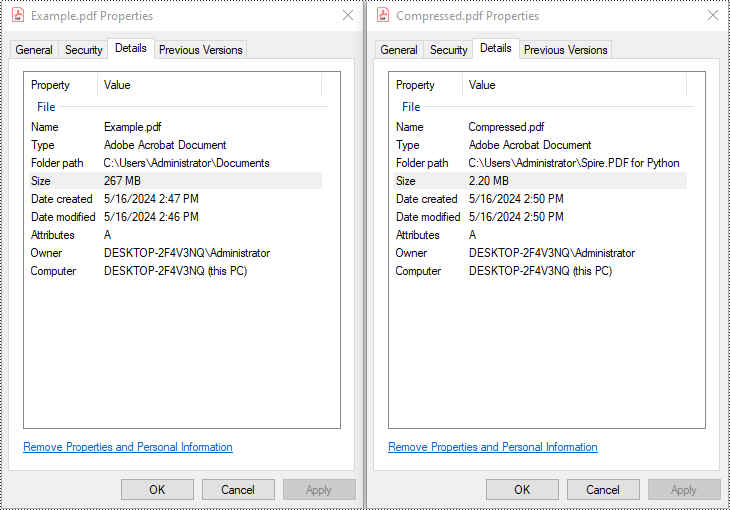
You can compress the images in a PDF document by creating a PdfCompressor object, enabling CompressImage and ResizeImages properties, and setting the ImageQuality to a predefined level such as Low, Medium, or High.
using Spire.Pdf.Conversion.Compression;

namespace CompressImages
{
    class Program
    {
        static void Main(string[] args)
        {
            // Create a PdfCompressor object and load the PDF file
            PdfCompressor compressor = new PdfCompressor("C:\\Users\\Administrator\\Documents\\Example.pdf");

            // Get the image compression options
            ImageCompressionOptions imageCompression = compressor.Options.ImageCompressionOptions;

            // Enable Image resizing
            imageCompression.ResizeImages = true;

            // Enable image compression
            imageCompression.CompressImage = true;

            // Set the image quality to Medium (available options: Low, Medium, High)
            imageCompression.ImageQuality = ImageQuality.Medium;


            // Compress the PDF file according to the compression options and save it to a new file
            compressor.CompressToFile("Compressed.pdf");
        }
    }
}
Example 2: Compress Images Individually Using TryCompressImage()
If you need more precise control over image compression, you can use the PdfImageHelper class to access the images on each page and compress them individually using the TryCompressImage() method.
using Spire.Pdf;
using Spire.Pdf.Utilities;

namespace CompressImagesIndividually
{
    internal class Program
    {
        static void Main(string[] args)
        {
            // Create a PdfDocument object
            PdfDocument pdf = new PdfDocument();
            // Load the PDF file
            pdf.LoadFromFile("C:\\Users\\Administrator\\Documents\\Example.pdf");

            // Disable the incremental update
            pdf.FileInfo.IncrementalUpdate = false;

            // Create an instance of PdfImageHelper to work with images
            PdfImageHelper imageHelper = new PdfImageHelper();

            // Iterate through each page in the document
            foreach (PdfPageBase page in pdf.Pages)
            {
                // Retrieve information about the images on the page
                foreach (PdfImageInfo info in imageHelper.GetImagesInfo(page))
                {
                    // Attempt to compress the image
                    info.TryCompressImage();
                }
            }

            // Save the updated file
            pdf.SaveToFile("Compressed.pdf");
            pdf.Close();
        }
    }
}
Method 2. Optimize Fonts
Fonts embedded in a PDF file can contribute significantly to its size, especially when multiple fonts or large font sets are used. You can compress or unembed fonts that aren't essential for document rendering through the TextCompressionOptions property.
using Spire.Pdf.Conversion.Compression;

namespace OptimizeFonts
{
    internal class Program
    {
        static void Main(string[] args)
        {
            // Create a PdfCompressor object and load the PDF file
            PdfCompressor compressor = new PdfCompressor("C:\\Users\\Administrator\\Documents\\Example.pdf");

            // Get the text compression options
            TextCompressionOptions textCompression = compressor.Options.TextCompressionOptions;

            // Compress the fonts
            textCompression.CompressFonts = true;

            // Unembed the fonts
            // textCompression.UnembedFonts = true;

            // Compress the PDF file according to the compression options and save it to a new file
            compressor.CompressToFile("CompressFonts.pdf");
        }
    }
}
Method 3. Optimizing Document Content
Beyond images and fonts, overall document content can be optimized by setting the CompressionLevel property of the document to PdfCompressionLevel.Best.
using Spire.Pdf;
using Spire.Pdf.Conversion.Compression;

namespace OptimizeDocumentContent
{
    internal class Program
    {
        static void Main(string[] args)
        {
            // Create a PdfDocument object
            PdfDocument pdf = new PdfDocument();
            // Load the PDF file
            pdf.LoadFromFile("C:\\Users\\Administrator\\Documents\\Example.pdf");

            // Disable the incremental update
            pdf.FileInfo.IncrementalUpdate = false;

            // Set the compression level to best
            pdf.CompressionLevel = PdfCompressionLevel.Best;

            // Save the updated file
            pdf.SaveToFile("OptimizeDocumentContent.pdf");
            pdf.Close();
        }
    }
}
Conclusion
Compressing PDF files in C# using Spire.PDF for .NET is straightforward, efficient, and highly customizable. Whether your goal is to reduce file size for web uploads, email attachments, or storage management, this library offers flexible solutions such as:
- Compressing images
- Optimizing fonts
- Minimizing document content
By applying one or a combination of these techniques, you can significantly reduce PDF file sizes while preserving readability and document structure—making your files easier to share, store, and distribute.
FAQs
Q1: Is it possible to compress PDF files in bulk?
A1: Yes. You can loop through multiple PDF files in a directory and apply compression using the same logic programmatically.
Q2: Can I compress a PDF and then convert it to PDF/A or other formats?
A2: Absolutely. You can compress the PDF first, then convert it to PDF/A, ensuring long-term archival with optimized size.
Q3: Can I preserve hyperlinks, bookmarks, and metadata during compression?
A3: Yes. Compression will not remove document structure like links, bookmarks, or metadata. Spire.PDF preserves document integrity.
Q4: Does Spire.PDF support other PDF operations besides compression?
A4: Yes. Besides compression, Spire.PDF offers a wide range of PDF features, such as:
- Merging/Splitting PDFs
- Extracting text, images and tables
- Adding watermarks
- Digitally signing and encrypting PDFs
For detailed tutorials and sample projects, you can visit the Spire.PDF tutorial page and explore the GitHub demo repository to see practical code examples.
Get a Free License
To fully experience the capabilities of Spire.PDF for .NET without any evaluation limitations, you can request a free 30-day trial license.
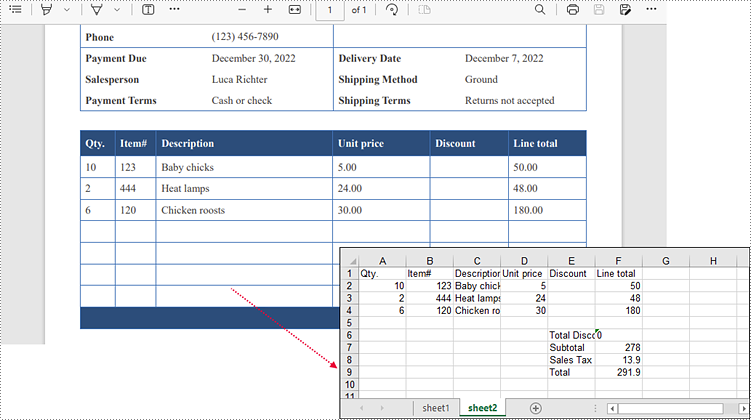
Extracting tables from PDFs and converting them into Excel format offers numerous advantages, such as enabling data manipulation, analysis, and visualization in a more versatile and familiar environment. This task is particularly valuable for researchers, analysts, and professionals dealing with large amounts of tabular data. In this article, you will learn how to extract tables from PDF to Excel in C# and VB.NET using Spire.Office for .NET.
Install Spire.Office for .NET
To begin with, you need to add the Spire.Pdf.dll and the Spire.Xls.dll included in the Spire.Office for.NET package as references in your .NET project. Spire.PDF is responsible for extracting data from PDF tables, and Spire.XLS is responsible for creating an Excel document based on the data obtained from PDF.
The DLL files can be either downloaded from this link or installed via NuGet.
PM> Install-Package Spire.Office
Extract Tables from PDF to Excel in C#, VB.NET
Spire.PDF for .NET offers the PdfTableExtractor.ExtractTable(int pageIndex) method to extract tables from a specific page of a searchable PDF document. The text of a specific cell can be accessed using PdfTable.GetText(int rowIndex, int columnIndex) method. This value can be then written to a worksheet through Worksheet.Range[int row, int column].Value property offered by Spire.XLS for .NET. The following are the detailed steps.
- Create an instance of PdfDocument class.
- Load the sample PDF document using PdfDocument.LoadFromFile() method.
- Extract tables from a specific page using PdfTableExtractor.ExtractTable() method.
- Get text of a certain table cell using PdfTable.GetText() method.
- Create a Workbook object.
- Write the cell data obtained from PDF into a worksheet through Worksheet.Range.Value property.
- Save the workbook to an Excel file using Workbook.SaveTofile() method.
The following code example extracts all tables from a PDF document and writes each of them into an individual worksheet within a workbook.
- C#
- VB.NET
using Spire.Pdf;
using Spire.Pdf.Utilities;
using Spire.Xls;

namespace ExtractTablesToExcel
{
    class Program
    {
        static void Main(string[] args)
        {
            //Create a PdfDocument object
            PdfDocument doc = new PdfDocument();

            //Load the sample PDF file
            doc.LoadFromFile(@"C:\Users\Administrator\Desktop\table.pdf");

            //Create a Workbook object
            Workbook workbook = new Workbook();

            //Clear default worksheets
            workbook.Worksheets.Clear();

            //Initialize an instance of PdfTableExtractor class
            PdfTableExtractor extractor = new PdfTableExtractor(doc);

            //Declare a PdfTable array
            PdfTable[] tableList = null;

            int sheetNumber = 1;

            //Loop through the pages
            for (int pageIndex = 0; pageIndex < doc.Pages.Count; pageIndex++)
            {
                //Extract tables from a specific page
                tableList = extractor.ExtractTable(pageIndex);

                //Determine if the table list is null
                if (tableList != null && tableList.Length > 0)
                {
                    //Loop through the table in the list
                    foreach (PdfTable table in tableList)
                    {
                        //Add a worksheet
                        Worksheet sheet = workbook.Worksheets.Add(String.Format("sheet{0}", sheetNumber));

                        //Get row number and column number of a certain table
                        int row = table.GetRowCount();
                        int column = table.GetColumnCount();

                        //Loop though the row and colunm
                        for (int i = 0; i < row; i++)
                        {
                            for (int j = 0; j < column; j++)
                            {
                                //Get text from the specific cell
                                string text = table.GetText(i, j);

                                //Write text to a specified cell
                                sheet.Range[i + 1, j + 1].Value = text;
                            }

                        }
                        sheetNumber++;
                    }
                }
            }

            //Save to file
            workbook.SaveToFile("ToExcel.xlsx", ExcelVersion.Version2013);
        }
    }
}
Apply for a Temporary License
If you'd like to remove the evaluation message from the generated documents, or to get rid of the function limitations, please request a 30-day trial license for yourself.
More...
