
Spire.PDF for .NET (290)
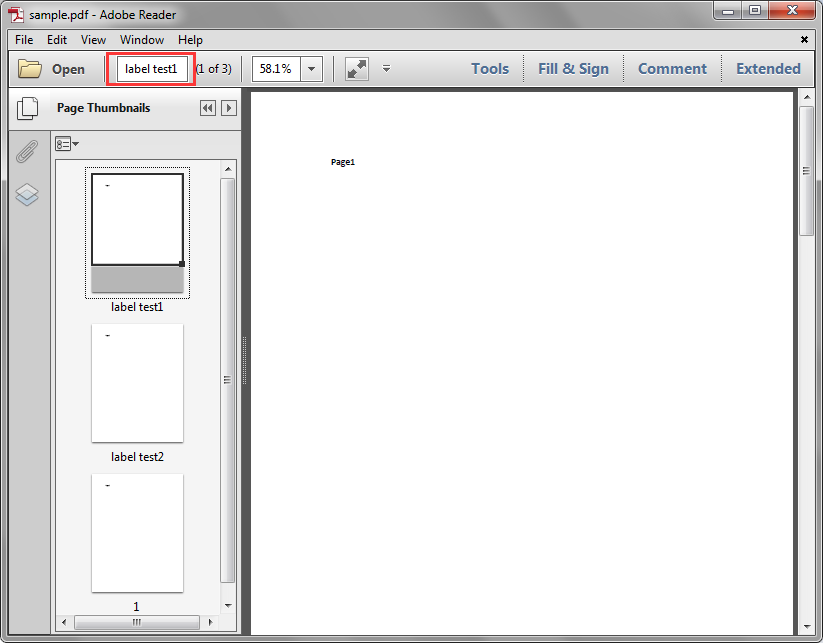
Page labels are used to identify each page visually on the screen or in print. This article demonstrates how to get the PDF page labels using Spire.PDF.
Below is the screenshot of the sample PDF document:
Detail steps:
Step 1: Create a PdfDocument instance and load the sample.pdf file.
PdfDocument pdf = new PdfDocument();
pdf.LoadFromFile("sample.pdf");
Step 2: Get the labels of the pages in the PDF file.
StringBuilder sb = new StringBuilder();
for (int i = 0; i < pdf.Pages.Count; i++)
{
    sb.AppendLine(pdf.Pages[i].PageLabel);
}
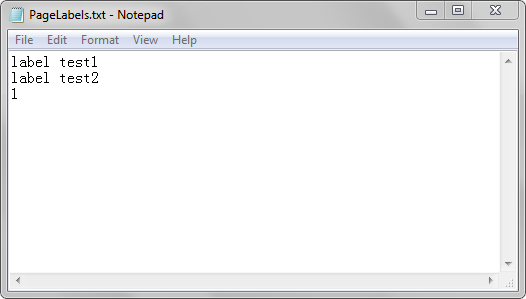
Step 3: Save to a .txt file.
File.WriteAllText("PageLabels.txt", sb.ToString());
Output:
Full code:
using System.IO;
using System.Text;
using Spire.Pdf;

namespace Get_PDF_Page_Labels
{
    class Program
    {
        static void Main(string[] args)
        {
            //Create a PdfDocument instance
            PdfDocument pdf = new PdfDocument();
            //Load the PDF file
            pdf.LoadFromFile("sample.pdf");

            //Create a StringBuilder instance
            StringBuilder sb = new StringBuilder();
            //Get the lables of the pages in the PDF file
            for (int i = 0; i < pdf.Pages.Count; i++)
            {
                sb.AppendLine(pdf.Pages[i].PageLabel);
            }

            //Save to a .txt file
            File.WriteAllText("PageLabels.txt", sb.ToString());
        }
    }
}
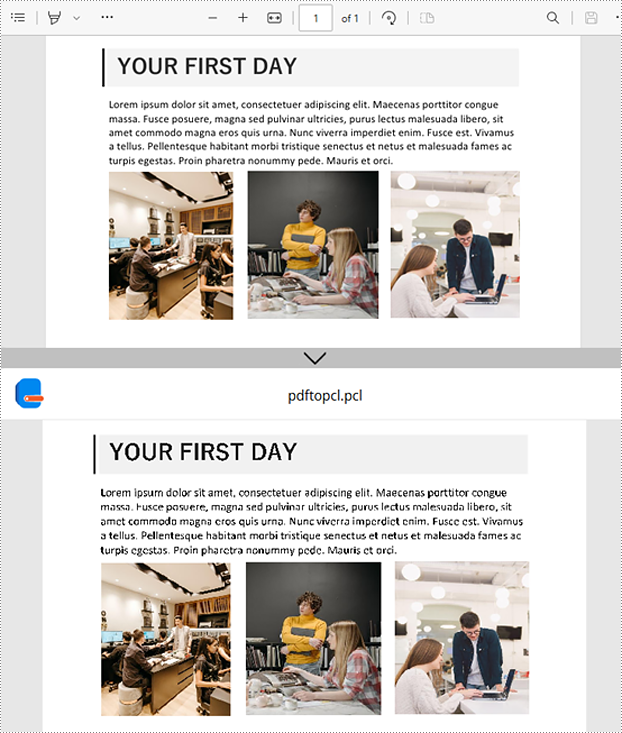
Converting a PDF to PCL (Printer Command Language) in C# can be an essential task for developers working with printing solutions. PCL is a well-established page description language used by many laser printers, and converting documents into this format allows for more efficient and accurate printing.
In this article, we will explore the process of converting PDFs to PCL format in C# using Spire.PDF for .NET, including batch conversion for processing multiple files efficiently.
- • Install Spire.PDF for .NET
- • How to Convert PDF to PCL in C#
- • Batch Conversion of PDF to PCL using C#
Install Spire.PDF for .NET
To get started, you’ll need to install the Spire.PDF for .NET library in your project. The easiest way to do this is via NuGet.
- 1.Open “NuGet Package Manager” in Visual Studio.
- 2.Search for “Spire.PDF” and install the package.
Alternatively, you can run the following command in the Package Manager Console:
PM> Install-Package Spire.PDF
How to Convert PDF to PCL in C#
Once the Spire.PDF library is installed, you're ready to start converting PDF documents into PCL. The classes and methods used for conversion are explained below:
- PdfDocument: This class represents the PDF document you're working with.
- LoadFromFile(): This method loads the PDF file into the PdfDocument object.
- SaveToFile(): This method saves the loaded PDF document in the specified format (PCL in this case).
Code Example:
- C#
using Spire.Pdf;

namespace PDFtoPCL
{
    class Program
    {
        static void Main(string[] args)
        {
            // Create a PdfDocument instance
            PdfDocument pdf = new PdfDocument();

            // Load a PDF file
            pdf.LoadFromFile("Input1.pdf");

            // Save to PCL format
            pdf.SaveToFile("PdfToPcl.pcl", FileFormat.PCL);
            pdf.Close();

        }
    }
}
Batch Conversion of PDF to PCL using C#
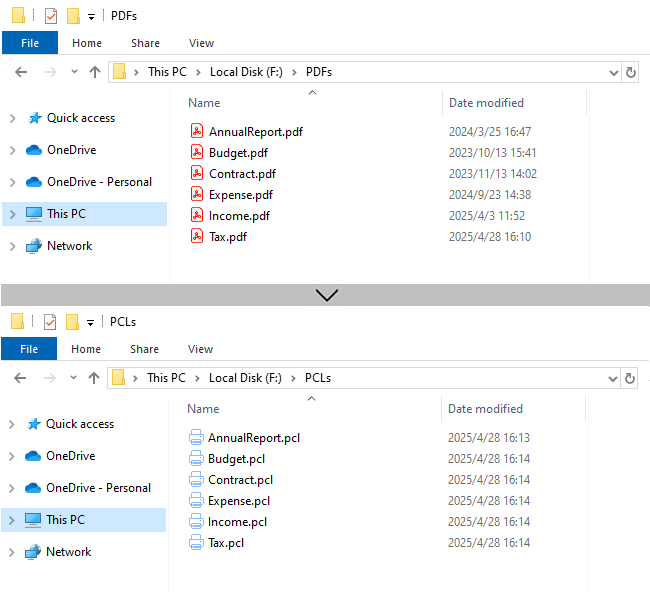
If you need to convert a large number of PDF files in a folder, you can perform batch conversion by following the below steps and code:
- 1. Get all PDF files in a specified folder using the Directory.GetFiles() method.
- 2. Use foreach loop to iterate over each PDF file.
- 3. Load each PDF file into the PdfDocument object.
- 4. Generate the output PCL file path, and then convert the PDF to PCL.
Code Example:
- C#
using Spire.Pdf;
using System.IO;

namespace PDFtoPCL
{
    class Program
    {
        static void Main(string[] args)
        {

            string pdfFolder = @"F:\PDFs\";
            string pclFolder = @"F:\PCLs\";

            // Get all PDF files in a folder
            string[] pdfFiles = Directory.GetFiles(pdfFolder, "*.pdf");

            // Iterate through each PDF file
            foreach (string pdfFile in pdfFiles)
            {
                // Load the PDF file into the PdfDocument object
                PdfDocument pdf = new PdfDocument();
                pdf.LoadFromFile(pdfFile);

                // Define the file path and file name of the output PCL file
                string outputFile = Path.Combine(pclFolder, Path.GetFileNameWithoutExtension(pdfFile) + ".pcl");

                // Save PDF as PCL file
                pdf.SaveToFile(outputFile, FileFormat.PCL);
                pdf.Close();
            }
        }
    }
}
Conclusion
With Spire.PDF for .NET, converting PDFs to PCL in C# becomes straightforward, whether you're handling individual files or bulk operations. Its robust API makes it an excellent choice for automating printing workflows or integrating conversion features into applications.
Get a Free License
To fully experience the capabilities of Spire.PDF for .NET without any evaluation limitations, you can request a free 30-day trial license.
With Spire.PDF for .NET, developers can set page size for PDF in C#. This article will demonstrates how to get the PDF page size using Spire.PDF.
Detail steps:
Step 1: Create a PdfDocument instance and load the sample.pdf file.
PdfDocument doc = new PdfDocument();
doc.LoadFromFile("Sample.pdf");
Step 2: Get the width and height of the first page in the PDF file.
PdfPageBase page = doc.Pages[0];
float pointWidth = page.Size.Width;
float pointHeight = page.Size.Height;
Step 3: Convert the size with other measurement unit, such as in Inch, Centimeter, Unit or Pixel.
//Create PdfUnitConvertor to convert the unit
PdfUnitConvertor unitCvtr = new PdfUnitConvertor();

//Convert the size with "pixel"
float pixelWidth = unitCvtr.ConvertUnits(pointWidth, PdfGraphicsUnit.Point, PdfGraphicsUnit.Pixel);
float pixelHeight = unitCvtr.ConvertUnits(pointHeight, PdfGraphicsUnit.Point, PdfGraphicsUnit.Pixel);

//Convert the size with "inch"
float inchWidth = unitCvtr.ConvertUnits(pointWidth, PdfGraphicsUnit.Point, PdfGraphicsUnit.Inch);
float inchHeight = unitCvtr.ConvertUnits(pointHeight, PdfGraphicsUnit.Point, PdfGraphicsUnit.Inch);

//Convert the size with "centimeter"
float centimeterWidth = unitCvtr.ConvertUnits(pointWidth, PdfGraphicsUnit.Point, PdfGraphicsUnit.Centimeter);
float centimeterHeight = unitCvtr.ConvertUnits(pointHeight, PdfGraphicsUnit.Point, PdfGraphicsUnit.Centimeter);
Step 4: Save to a .txt file.
//Create StringBuilder to save
StringBuilder content = new StringBuilder();
//Add pointSize string to StringBuilder
content.AppendLine("The page size of the file is (width: " + pointWidth + "pt, height: " + pointHeight + "pt).");
content.AppendLine("The page size of the file is (width: " + pixelWidth + "pixel, height: " + pixelHeight + "pixel).");
content.AppendLine("The page size of the file is (width: " + inchWidth + "inch, height: " + inchHeight + "inch).");
content.AppendLine("The page size of the file is (width: " + centimeterWidth + "cm, height: " + centimeterHeight + "cm.)");

String output = "GetPageSize_out.txt";
//Save them to a txt file
File.WriteAllText(output, content.ToString());
Output:
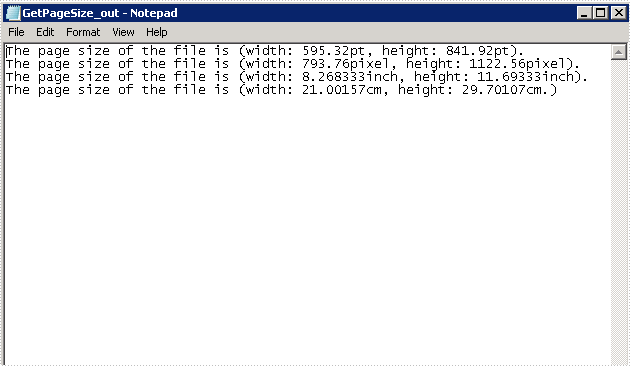
Full code:
using Spire.Pdf;
using Spire.Pdf.Actions;
using Spire.Pdf.General;
using Spire.Pdf.Graphics;
using System;
using System.Collections.Generic;
using System.ComponentModel;
using System.Data;
using System.Drawing;
using System.IO;
using System.Linq;
using System.Text;
using System.Threading.Tasks;

namespace GetPDFPageSize
{
    class Program
    {
        static void Main(string[] args)
        {

            PdfDocument doc = new PdfDocument();
            doc.LoadFromFile("Sample.pdf");

            //Get the first page of the loaded PDF file
            PdfPageBase page = doc.Pages[0];
            //Get the width of page based on "point"
            float pointWidth = page.Size.Width;
            //Get the height of page
            float pointHeight = page.Size.Height;

            //Create PdfUnitConvertor to convert the unit
            PdfUnitConvertor unitCvtr = new PdfUnitConvertor();

            //Convert the size with "pixel"
            float pixelWidth = unitCvtr.ConvertUnits(pointWidth, PdfGraphicsUnit.Point, PdfGraphicsUnit.Pixel);
            float pixelHeight = unitCvtr.ConvertUnits(pointHeight, PdfGraphicsUnit.Point, PdfGraphicsUnit.Pixel);

            //Convert the size with "inch"
            float inchWidth = unitCvtr.ConvertUnits(pointWidth, PdfGraphicsUnit.Point, PdfGraphicsUnit.Inch);
            float inchHeight = unitCvtr.ConvertUnits(pointHeight, PdfGraphicsUnit.Point, PdfGraphicsUnit.Inch);

            //Convert the size with "centimeter"
            float centimeterWidth = unitCvtr.ConvertUnits(pointWidth, PdfGraphicsUnit.Point, PdfGraphicsUnit.Centimeter);
            float centimeterHeight = unitCvtr.ConvertUnits(pointHeight, PdfGraphicsUnit.Point, PdfGraphicsUnit.Centimeter);

            //Create StringBuilder to save
            StringBuilder content = new StringBuilder();

            //Add pointSize string to StringBuilder
            content.AppendLine("The page size of the file is (width: " + pointWidth + "pt, height: " + pointHeight + "pt).");
            content.AppendLine("The page size of the file is (width: " + pixelWidth + "pixel, height: " + pixelHeight + "pixel).");
            content.AppendLine("The page size of the file is (width: " + inchWidth + "inch, height: " + inchHeight + "inch).");
            content.AppendLine("The page size of the file is (width: " + centimeterWidth + "cm, height: " + centimeterHeight + "cm.)");

            String output = "GetPageSize_out.txt";

            //Save them to a txt file
            File.WriteAllText(output, content.ToString());

        }
    }
}
Spire.PDF supports to print a PDF in greyscale. This article is going to show you how to use Spire.PDF to accomplish this function.
Below is the example PDF file we used for demonstration:
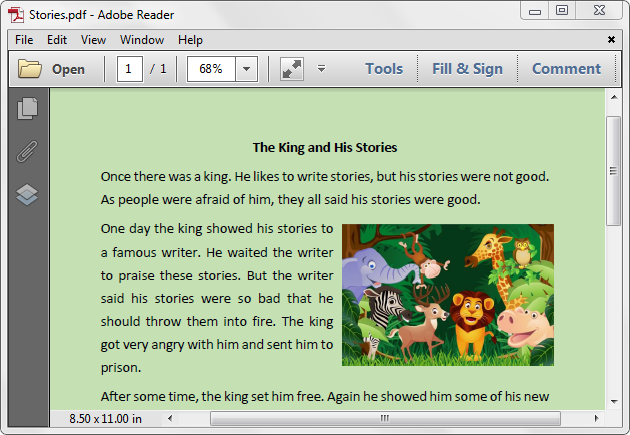
Detail steps:
Step 1: Create a PdfDocument instance and load the PDF file.
PdfDocument pdf = new PdfDocument();
pdf.LoadFromFile(@"Stories.pdf");
Step 2: Set the PdfPrintSettings.Color property to false.
pdf.PrintSettings.Color = false;
Step 3: Print the document.
pdf.Print();
Screenshot after printing to xps:
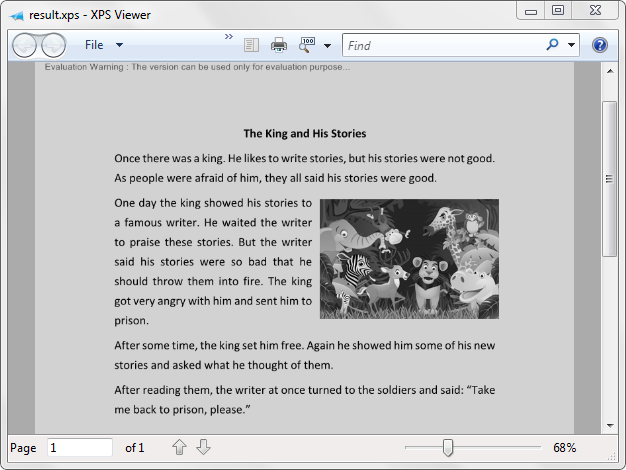
Full code:
using Spire.Pdf;

namespace Print_PDF_in_Black_and_White
{
    class Program
    {
        static void Main(string[] args)
        {
            PdfDocument pdf = new PdfDocument();
            pdf.LoadFromFile(@"Stories.pdf");
            pdf.PrintSettings.Color = false;
            pdf.Print();
        }
    }
}
PostScript was developed by Adobe Systems in the 1980s as a way of turning digital graphics or text files into a fixed format ready for printing. With the passage time, although the PostScript (PS) file format is no longer as popular as it once was, now it is still supported by most printers. In this article, you will learn how to how to programmatically convert a PDF file to a PostScript (PS) file using Spire.PDF for .NET.
Install Spire.PDF for .NET
To begin with, you need to add the DLL files included in the Spire.PDF for.NET package as references in your .NET project. The DLL files can be either downloaded from this link or installed via NuGet.
PM> Install-Package Spire.PDF
Convert PDF to PostScript in C# and VB.NET
Converting PDF to PS can improve the quality of the printed output. With Spire.PDF for .NET, you can complete the conversion with only three lines of code. The following are the detailed steps.
- Create a PdfDocument instance.
- Load a sample PDF file using PdfDocument.LoadFromFile() method.
- Save the PDF file as a PS file using PdfDocument.SaveToFile(string filename, FileFormat.POSTSCRIPT) method.
- C#
- VB.NET
using Spire.Pdf;

namespace PDFtoPS
{
    class Program
    {
        static void Main(string[] args)
        {
            //Create a PdfDocument instance
            PdfDocument document = new PdfDocument();

            //Load a sample PDF file
            document.LoadFromFile("Test.pdf");

            //Save the PDF file as a PS file
            document.SaveToFile("toPostScript.ps", FileFormat.POSTSCRIPT);
        }
    }
}
Apply for a Temporary License
If you'd like to remove the evaluation message from the generated documents, or to get rid of the function limitations, please request a 30-day trial license for yourself.
More...
