Order numbers, tracking numbers, and asset IDs are easy to mistype when someone enters them by hand. Printing them as barcodes on the document lets a scanner read them in one pass and brings the error rate down. Getting a barcode onto a PDF from a web app used to mean generating a barcode image on the server and compositing it back into the document, which sends the file on a round trip.
Spire.PDF for JavaScript creates, modifies, and saves PDF documents in the browser through WebAssembly. Barcodes are drawn straight onto the page by 1D barcode objects such as PdfCode128BBarcode and PdfCode39Barcode, and files are read and written through a virtual file system (VFS), so the document never has to be uploaded to a server.
This article covers two features:
For installation and project configuration, refer to Integrating Spire.PDF for JavaScript in a React Project. The following examples assume Spire.PDF is installed and the WebAssembly module has been initialized.
Supported barcode types
The ten 1D barcode classes all derive from PdfBarcode; they differ in the characters they accept and in how densely they encode, so use the table below to pick one:
| Class | Symbology | Characters supported |
|---|---|---|
PdfCodabarBarcode |
Codabar | Digits and - $ : / . + |
PdfCode11Barcode |
Code 11 | Digits and - |
PdfCode32Barcode |
Code 32 | Digits, common in pharmaceutical codes |
PdfCode39Barcode |
Code 39 | Digits, uppercase letters, space and - . $ / + % |
PdfCode39ExtendedBarcode |
Code 39 Extended | Full ASCII, represented by multi-character combinations |
PdfCode93Barcode |
Code 93 | Same character set as Code 39, higher density |
PdfCode93ExtendedBarcode |
Code 93 Extended | Full ASCII |
PdfCode128ABarcode |
Code 128A | Digits, uppercase letters, symbols and control characters |
PdfCode128BBarcode |
Code 128B | Digits, upper- and lowercase letters and symbols |
PdfCode128CBarcode |
Code 128C | Digits in pairs, the highest density |
function App() {
  const drawBarcodeTypes = async () => {
    // Get the Spire.PDF WASM module
    const pdfModule = window.wasmModule?.spirepdf;

    // Check that the module is ready
    if (!pdfModule) {
      alert('Spire.PDF is not ready yet');
      return;
    }

    // Load the font file into the VFS for the type name above each barcode
    await window.spire.FetchFileToVFS('ARIAL.TTF', '/Library/Fonts/', `${process.env.PUBLIC_URL}/font/`);

    // Create the PDF document and add a page
    const doc = new pdfModule.PdfDocument();
    const page = doc.Pages.Add();

    // Font, color, and alignment for the type names; green sets them apart from the black bars
    const labelFont = new pdfModule.PdfTrueTypeFont({ fontFile: '/Library/Fonts/ARIAL.TTF', size: 12 });
    const labelBrush = new pdfModule.PdfSolidBrush({ pdfRGBColor: new pdfModule.PdfRGBColor({ color: pdfModule.Color.get_Green() }) });
    const labelFormat = new pdfModule.PdfStringFormat({ alignment: pdfModule.PdfTextAlignment.Left });

    // The data to encode, the barcode class to use for each, and the type name shown above it
    const items = [
      { Barcode: pdfModule.PdfCodabarBarcode, label: 'Codabar', text: '00:12-3456/7890' },
      { Barcode: pdfModule.PdfCode11Barcode, label: 'Code 11', text: '123-4567890' },
      { Barcode: pdfModule.PdfCode32Barcode, label: 'Code 32', text: '16273849' },
      { Barcode: pdfModule.PdfCode39Barcode, label: 'Code 39', text: 'ORDER-2026-0007' },
      { Barcode: pdfModule.PdfCode39ExtendedBarcode, label: 'Code 39 Extended', text: 'Order 2026-0007' },
      { Barcode: pdfModule.PdfCode93Barcode, label: 'Code 93', text: 'ORDER-2026-0007' },
      { Barcode: pdfModule.PdfCode93ExtendedBarcode, label: 'Code 93 Extended', text: 'Order 2026-0007' },
      { Barcode: pdfModule.PdfCode128ABarcode, label: 'Code 128A', text: 'INVOICE 2026' },
      { Barcode: pdfModule.PdfCode128BBarcode, label: 'Code 128B', text: 'Order-2026-0001' },
      { Barcode: pdfModule.PdfCode128CBarcode, label: 'Code 128C', text: '20260001' },
    ];

    // Draw from the top of the page, one below the other
    let y = 20;
    for (const item of items) {
      // Label the barcode above it with the symbology it uses
      page.Canvas.DrawString({ s: `${item.label}:`, font: labelFont, brush: labelBrush, x: 20, y: y, format: labelFormat });

      // Create the barcode object from the text to encode
      const barcode = new item.Barcode({ text: item.text });

      // Show the readable text below the barcode
      barcode.TextDisplayLocation = pdfModule.TextLocation.Bottom;

      // Narrow the bars so all ten barcodes fit on one page
      barcode.BarHeight = 25;

      // Draw below the type name; this coordinate is the top-left corner of the barcode
      barcode.Draw({ page: page, location: new pdfModule.PointF(20, y + labelFont.Size + 4) });

      // Use the bottom edge of the area actually occupied to place the next one
      y = barcode.Bounds.Bottom + 10;
    }

    // Save the document
    const outputFileName = 'BarcodeTypes_result.pdf';
    doc.SaveToFile(outputFileName);
    doc.Close();

    // Read the generated file from the VFS and trigger the download
    const fileArray = window.dotnetRuntime.Module.FS.readFile(outputFileName);
    const blob = new Blob([fileArray], { type: 'application/pdf' });
    const url = URL.createObjectURL(blob);
    const a = document.createElement('a');
    a.href = url;
    a.download = outputFileName;
    a.click();
    URL.revokeObjectURL(url);
  };

  return (
    <div style={{ textAlign: 'center', height: '300px' }}>
      <h1>Drawing Multiple Barcode Types</h1>
      <button onClick={drawBarcodeTypes}>
        Draw Barcodes
      </button>
    </div>
  );
}

export default App;
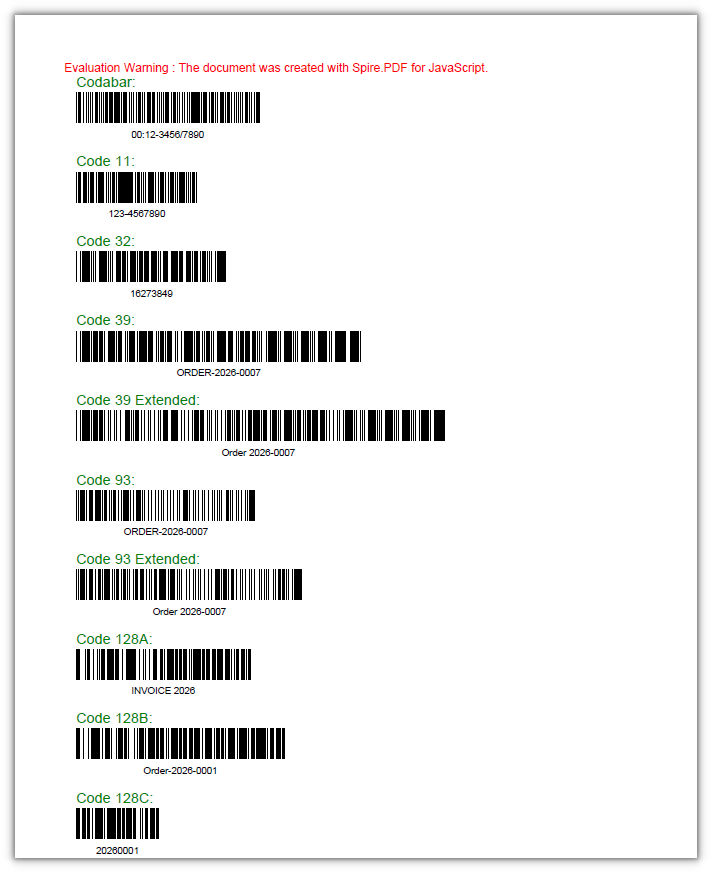
Ten barcode types on one page, each labeled above with its symbology and below with the readable text
Customizing the barcode appearance
The default look is black bars on white with the text underneath, and each part of it can be overridden, from the colors and the bar height to the quiet zone and the label font. BarColor and TextColor color the bars and the text separately, BackColor fills the area behind the barcode, BarHeight, NarrowBarWidth, and BarcodeToTextGapHeight control the dimensions, and QuietZone is the blank space the barcode needs around it.
function App() {
  const customizeBarcode = async () => {
    // Get the Spire.PDF WASM module
    const pdfModule = window.wasmModule?.spirepdf;

    // Check that the module is ready
    if (!pdfModule) {
      alert('Spire.PDF is not ready yet');
      return;
    }

    // Load the font file into the VFS for the barcode label
    await window.spire.FetchFileToVFS('ARIAL.TTF', '/Library/Fonts/', `${process.env.PUBLIC_URL}/font/`);

    // Create the PDF document and add a page
    const doc = new pdfModule.PdfDocument();
    const page = doc.Pages.Add();

    // The first barcode keeps the default look, for comparison
    const plain = new pdfModule.PdfCode39Barcode({ text: 'ORDER-2026-0007' });
    plain.TextDisplayLocation = pdfModule.TextLocation.Bottom;
    plain.Draw({ page: page, location: new pdfModule.PointF(20, 20) });

    // The second one has each property set explicitly
    const barcode = new pdfModule.PdfCode39Barcode({ text: 'ORDER-2026-0007' });
    barcode.TextDisplayLocation = pdfModule.TextLocation.Bottom;

    // Set the bars, the text, and the background separately
    barcode.BarColor = new pdfModule.PdfRGBColor({ color: pdfModule.Color.FromArgb(0, 60, 160) });
    barcode.TextColor = new pdfModule.PdfRGBColor({ color: pdfModule.Color.FromArgb(200, 0, 0) });
    barcode.BackColor = new pdfModule.PdfRGBColor({ color: pdfModule.Color.FromArgb(255, 255, 0) });

    // Bar height, narrow bar width, and the gap between the bars and the text
    barcode.BarHeight = 45;
    barcode.NarrowBarWidth = 1.6;
    barcode.BarcodeToTextGapHeight = 4;

    // Center the text and leave 5 points of blank space on each side
    barcode.TextAlignment = pdfModule.PdfBarcodeTextAlignment.Center;
    barcode.QuietZone.Top = 5;
    barcode.QuietZone.Bottom = 5;
    barcode.QuietZone.Left = 5;
    barcode.QuietZone.Right = 5;

    // Switch the label to 12-point Arial
    barcode.Font = new pdfModule.PdfTrueTypeFont({ fontFile: '/Library/Fonts/ARIAL.TTF', size: 12 });

    // Place it below the first barcode
    barcode.Draw({ page: page, location: new pdfModule.PointF(20, plain.Bounds.Bottom + 30) });

    // Save the document
    const outputFileName = 'CustomBarcodeStyle_result.pdf';
    doc.SaveToFile(outputFileName);
    doc.Close();

    // Read the generated file from the VFS and trigger the download
    const fileArray = window.dotnetRuntime.Module.FS.readFile(outputFileName);
    const blob = new Blob([fileArray], { type: 'application/pdf' });
    const url = URL.createObjectURL(blob);
    const a = document.createElement('a');
    a.href = url;
    a.download = outputFileName;
    a.click();
    URL.revokeObjectURL(url);
  };

  return (
    <div style={{ textAlign: 'center', height: '300px' }}>
      <h1>Customizing the Barcode Style</h1>
      <button onClick={customizeBarcode}>
        Apply Styling
      </button>
    </div>
  );
}

export default App;
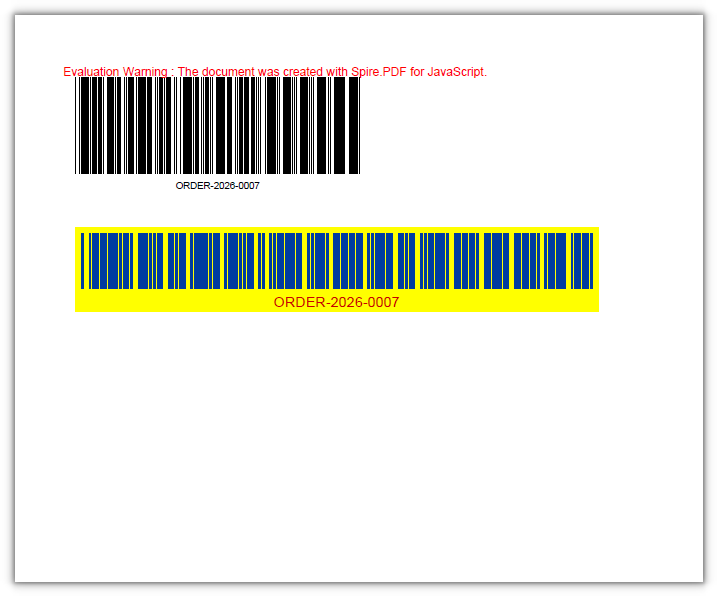
The lower barcode uses different bar colors, bar height, quiet zone, and label font
FAQ
PdfRGBColor reports "Ambiguous call" when it is constructed
Cause: the constructor of PdfRGBColor only accepts a Color object. Passing the three RGB components directly, as in new pdfModule.PdfRGBColor(0, 60, 160) or { r: 0, g: 60, b: 160 }, matches several overloads and throws Ambiguous call: arguments (object) match multiple overloads.
Solution: build a Color with Color.FromArgb first, then hand it to PdfRGBColor:
// Correct: produce a Color object first
barcode.BarColor = new pdfModule.PdfRGBColor({ color: pdfModule.Color.FromArgb(0, 60, 160) });

// A predefined color works too
barcode.TextColor = new pdfModule.PdfRGBColor({ color: pdfModule.Color.get_Blue() });
The same data produces barcodes of different lengths
Cause: symbologies encode at different densities, so the same text comes out shorter with Code128 than with Code39, and shorter still with Code128C. Raising NarrowBarWidth widens the whole barcode as well.
Solution: when the layout has to be fixed, use the Draw overload that takes a RectangleF to confine the barcode to an area, or adjust NarrowBarWidth across the board:
// However long the data is, the barcode stays inside the same rectangle
barcode.Draw({ page: page, rect: new pdfModule.RectangleF(20, 20, 250, 80) });
Can I add a QR code to a PDF
Cause: the 1D barcode classes Spire.PDF for JavaScript ships are PdfCodabarBarcode, PdfCode39Barcode, PdfCode128BBarcode, and the like. There is no QR code class, so a name such as PdfQRCodeBarcode evaluates to undefined.
Solution: generate the QR code as an image in the front end, then draw it into the page with PdfImage.FromStream and page.Canvas.DrawImage, leaving positioning and scaling to the canvas:
// qrBytes holds the PNG bytes of a QR code generated in the front end
const image = pdfModule.PdfImage.FromStream(new pdfModule.Stream(qrBytes));
page.Canvas.DrawImage({ image: image, x: 20, y: 20, width: 100, height: 100 });
Get a Free License
If you want to remove the evaluation message from the resulting documents, or to get rid of the feature limitations, please contact our sales team to obtain a temporary license valid for 30 days.
