Adding annotations to a PDF, pulling data out of a region, or drawing a border around an image all start with knowing where the target element sits on the page. A PDF has no ready-made coordinate table: text is a series of drawing instructions, images are objects in the page resources, and the position information is scattered across their own matrices and rectangles. In the past you either wrote your own parser to pull those numbers out, or sent the file back to a server to handle.
Spire.PDF for JavaScript loads and parses PDF documents in the browser with WebAssembly and reads and writes files through a virtual file system (VFS), with no backend involved.
This article covers two core features:
For installation and project setup, see How to Integrate Spire.PDF for JavaScript in a React Project. The examples below assume Spire.PDF is installed and the WebAssembly module is initialized.
Coordinate system
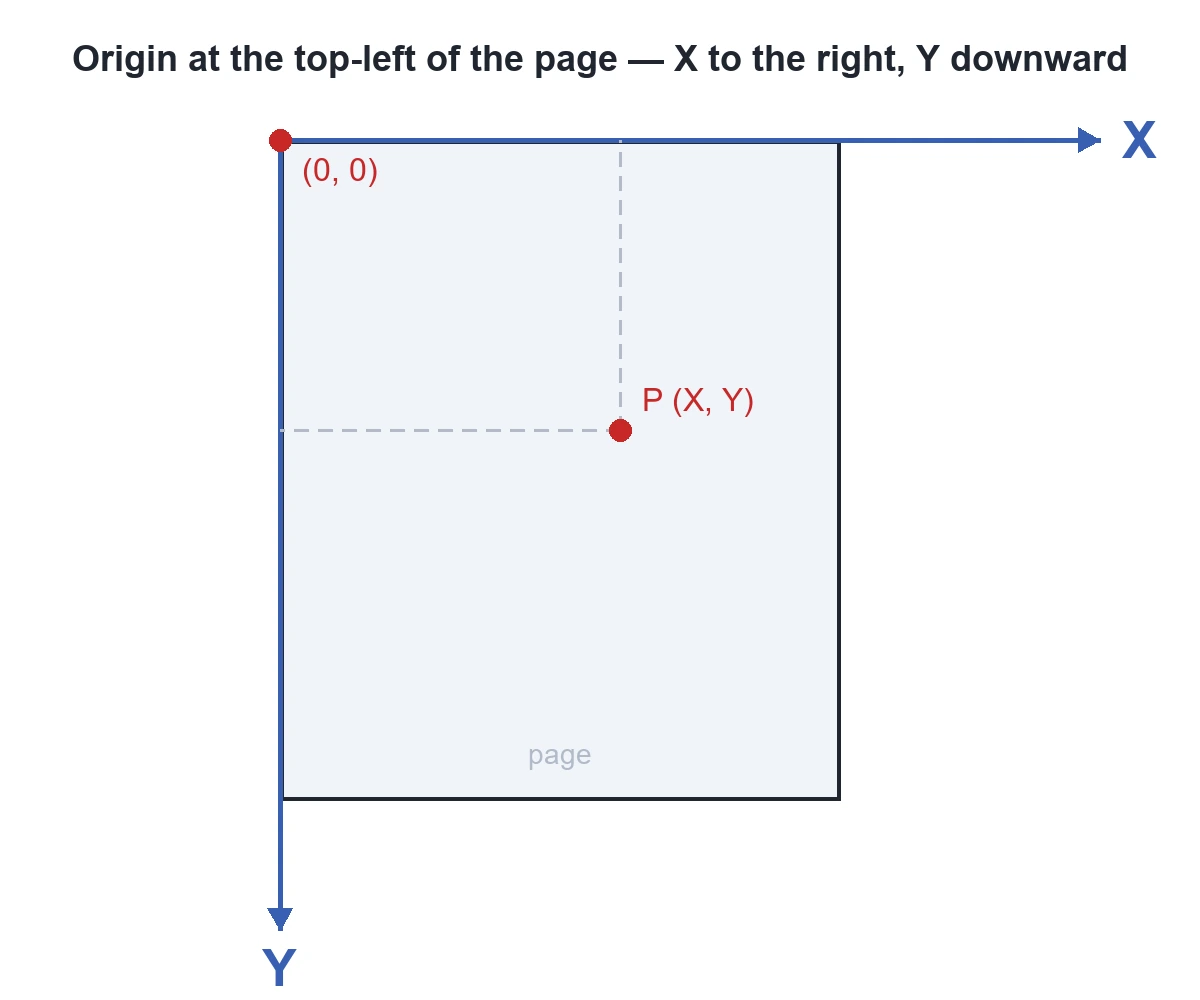
When Spire.PDF works with an existing PDF document, the origin of the coordinate system is at the top-left corner of the page. The X axis extends horizontally to the right from the origin, and the Y axis extends vertically downward from the origin (as shown below). Values are in points (1 point = 1/72 inch), and both Positions and Bounds in the two features below report coordinates in this system.
Get the coordinates of specified text
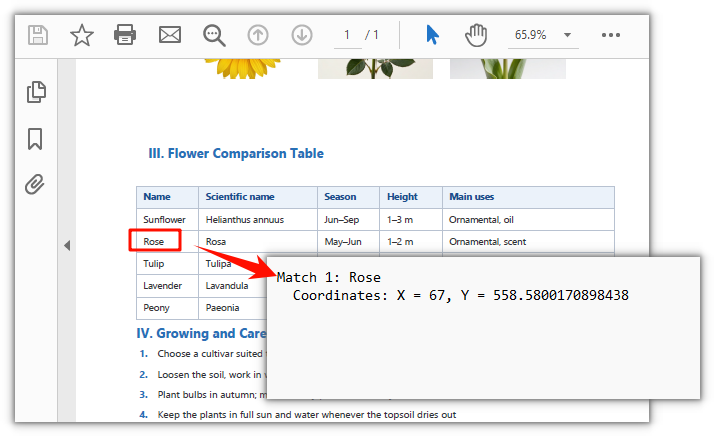
Spire.PDF for JavaScript provides PdfTextFinder to look up text on a page by content, and every match reports the coordinates of where it lands. The search works one page at a time, so a multi-page document has to be processed page by page.
function App() {
  const getTextCoordinates = async () => {
    // Get the Spire.PDF WASM module
    const pdfModule = window.wasmModule?.spirepdf;

    // Check whether the module is ready
    if (!pdfModule) {
      alert('Spire.PDF is not ready yet');
      return;
    }

    // Load the PDF file to process into the VFS
    const inputFileName = 'Flowers.pdf';
    await window.spire.FetchFileToVFS(inputFileName, "", `${process.env.PUBLIC_URL}/data/`);

    // Create a PdfDocument object and load the PDF document
    let doc = new pdfModule.PdfDocument();
    doc.LoadFromFile(inputFileName);

    // Get page 1
    let page = doc.Pages.get_Item(0);

    // Create a text finder and search for the given text, ignoring case
    let finder = new pdfModule.PdfTextFinder(page);
    finder.Options.Parameter = pdfModule.TextFindParameter.IgnoreCase;
    let results = finder.Find('Rose');

    // Collect the coordinates of each match
    let report = '';
    for (let i = 0; i < results.length; i++) {
      let find = results.get(i);
      let position = find.Positions[0];

      report += 'Match ' + (i + 1) + ': ' + find.Text + '\n';
      report += '  Coordinates: X = ' + position.X + ', Y = ' + position.Y + '\n';
    }

    // Write the report into the VFS
    const outputFileName = 'TextCoordinates.txt';
    window.dotnetRuntime.Module.FS.writeFile(outputFileName, new TextEncoder().encode(report));
    doc.Close();

    // Read the generated file back from the VFS and trigger a download
    const fileArray = window.dotnetRuntime.Module.FS.readFile(outputFileName);
    const blob = new Blob([fileArray], { type: 'text/plain' });
    const url = URL.createObjectURL(blob);
    const a = document.createElement('a');
    a.href = url;
    a.download = outputFileName;
    a.click();
    URL.revokeObjectURL(url);
  };

  return (
    <div style={{ textAlign: 'center', height: '300px' }}>
      <h1>Get Text Coordinates</h1>
      <button onClick={getTextCoordinates}>
        Get
      </button>
    </div>
  );
}

export default App;
Coordinates of the matched text
Get the coordinates of images on a page
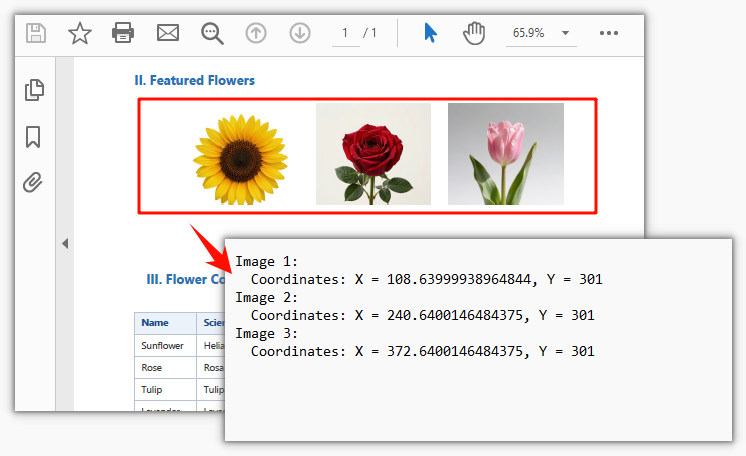
Spire.PDF for JavaScript also provides PdfImageHelper to read the position of every image on a page. Images are already registered in the page resources, so the Bounds you get back gives the top-left coordinates directly. This also works one page at a time.
function App() {
  const getImageCoordinates = async () => {
    // Get the Spire.PDF WASM module
    const pdfModule = window.wasmModule?.spirepdf;

    // Check whether the module is ready
    if (!pdfModule) {
      alert('Spire.PDF is not ready yet');
      return;
    }

    // Load the PDF file to process into the VFS
    const inputFileName = 'Flowers.pdf';
    await window.spire.FetchFileToVFS(inputFileName, "", `${process.env.PUBLIC_URL}/data/`);

    // Create a PdfDocument object and load the PDF document
    let doc = new pdfModule.PdfDocument();
    doc.LoadFromFile(inputFileName);

    // Get page 1
    let page = doc.Pages.get_Item(0);

    // Create an image helper and get the image info of this page
    let helper = new pdfModule.PdfImageHelper();
    let images = helper.GetImagesInfo(page);

    // Collect the coordinates of each image
    let report = '';
    for (let i = 0; i < images.length; i++) {
      let bounds = images[i].Bounds;

      report += 'Image ' + (i + 1) + ':' + '\n';
      report += '  Coordinates: X = ' + bounds.X + ', Y = ' + bounds.Y + '\n';
    }

    // Write the report into the VFS
    const outputFileName = 'ImageCoordinates.txt';
    window.dotnetRuntime.Module.FS.writeFile(outputFileName, new TextEncoder().encode(report));
    doc.Close();

    // Read the generated file back from the VFS and trigger a download
    const fileArray = window.dotnetRuntime.Module.FS.readFile(outputFileName);
    const blob = new Blob([fileArray], { type: 'text/plain' });
    const url = URL.createObjectURL(blob);
    const a = document.createElement('a');
    a.href = url;
    a.download = outputFileName;
    a.click();
    URL.revokeObjectURL(url);
  };

  return (
    <div style={{ textAlign: 'center', height: '300px' }}>
      <h1>Get Image Coordinates</h1>
      <button onClick={getImageCoordinates}>
        Get
      </button>
    </div>
  );
}

export default App;
Coordinates of the three flower images on the page
FAQ
A different letter case stops it from matching
Cause: The matching behavior of Find() is determined by Options.Parameter. The default value TextFindParameter.None searches by substring and is case-sensitive, so Rose and rose are treated as two different things.
Fix: Switch to the value you need. TextFindParameter is a flags enum, so values can be combined with bitwise OR:
// Ignore case
finder.Options.Parameter = pdfModule.TextFindParameter.IgnoreCase;

// Match whole words only, ignoring case
finder.Options.Parameter = pdfModule.TextFindParameter.WholeWord | pdfModule.TextFindParameter.IgnoreCase;

// Search with a regular expression: match Rosa or Tulipa in one pass
finder.Options.Parameter = pdfModule.TextFindParameter.Regex;
let results = finder.Find('Rosa|Tulipa');
The coordinates don't match what the PDF reader shows
Cause: Positions and Bounds use the page coordinate system described above; inside a PDF file (/MediaBox, content streams) the origin is at the bottom-left with Y increasing upward, so the two conventions differ by a full page height and a direct comparison will be off by the whole page.
Fix: Work with the top-left origin consistently. To convert to pixels, multiply by dpi / 72 — the factor is 1.333 at 96 dpi. The values you get are floating-point numbers, so round to two decimals before comparing if you need an exact match.
The image info doesn't include the shapes I can see on the page
Cause: GetImagesInfo returns the bitmap objects in the page resources. Lines, table borders, and color blocks drawn with vector instructions are not images; conversely, a full-page scan is a single image covering the page, and the text inside it cannot be searched.
Fix: Start by using the X and Y from Bounds to confirm where each image actually sits on the page. Lines and shapes drawn with vector instructions are not returned by GetImagesInfo, and text inside a scanned page cannot be found either — to locate those, use text extraction (PdfTextExtractor) or bring in OCR separately.
Get a Free License
If you want to remove the evaluation message from the result documents or get past the feature limits, contact sales for a 30-day temporary license.
