Once a table has been turned into a PDF, the data is sealed up together with the layout. Send the same document to ten people and what comes back is ten separately filled-in PDFs; to move the contents of one onto a different template, the only way is to copy it off the screen one field at a time. The form fields themselves do have names and the values do hang off those names, but as soon as you leave a reader, that structure can no longer be pulled back out.
This article uses Spire.PDF for JavaScript to export the values in a form's fields to a data file, then import that data file back into a blank form. ExportData and ImportData both support Xml, Fdf, and XFdf — the three are nothing more than a difference of DataFormat enum values, called in exactly the same way, differing only in the structure of the file written out. The code below runs the whole flow with XML, with the FDF and XFDF versions listed alongside in comments; uncomment to switch. Spire.PDF for JavaScript reads and writes documents in the browser on top of WebAssembly, so the whole process happens locally, going through a virtual file system (VFS) to read and write files, with no backend involved.
This article covers two core features:
For installation and project configuration, see Integrate Spire.PDF for JavaScript in a React Project. The examples below assume Spire.PDF is installed and the WebAssembly module is initialized.
Export PDF Form Data
PdfFormWidget.ExportData writes the values in a form's fields out to a single data file, with the format given by the second parameter, DataFormat. The three formats hold the same set of field values; they differ in file structure:
| Data format | File structure |
|---|---|
DataFormat.Xml |
Adobe form data XML — the field name is the element name, the value is the element content |
DataFormat.Fdf |
Forms Data Format (FDF) — a text structure starting with %FDF-, where /T holds the field name and /V the value |
DataFormat.XFdf |
XFDF, standard XML — one <field name="…"> per field, with the value inside <value> |
The third parameter is the form name; for an unnamed AcroForm, pass an empty string.
function App() {
  const exportFormData = async () => {
    // Get the Spire.PDF WASM module
    const pdfModule = window.wasmModule?.spirepdf;

    // Check that the module is ready
    if (!pdfModule) {
      alert('Spire.PDF is not ready yet');
      return;
    }

    // Load the PDF file to be exported into the VFS
    const inputFileName = 'CustomerInformationForm.pdf';
    await window.spire.FetchFileToVFS(inputFileName, "", `${process.env.PUBLIC_URL}/data/`);

    // Create a PdfDocument object and load the PDF document
    const doc = new pdfModule.PdfDocument();
    doc.LoadFromFile(inputFileName);

    // Build a PdfFormWidget from the document's form handle to reach the data export API
    const formWidget = new pdfModule.PdfFormWidget(doc.Form.H);

    // This demo exports XML
    const dataFiles = [
      { fileName: 'FormData.xml', format: pdfModule.DataFormat.Xml },
      // { fileName: 'FormData.fdf', format: pdfModule.DataFormat.Fdf },
      // { fileName: 'FormData.xfdf', format: pdfModule.DataFormat.XFdf },
    ];

    for (const item of dataFiles) {
      // The third parameter is the form name; pass an empty string for an unnamed form
      formWidget.ExportData(item.fileName, item.format, '');
    }
    doc.Close();

    // Read the generated file from the VFS and trigger the download
    for (const item of dataFiles) {
      const fileArray = window.dotnetRuntime.Module.FS.readFile(item.fileName);
      const blob = new Blob([fileArray], { type: 'application/octet-stream' });
      const url = URL.createObjectURL(blob);
      const a = document.createElement('a');
      a.href = url;
      a.download = item.fileName;
      a.click();
      URL.revokeObjectURL(url);
    }
  };

  return (
    <div style={{ textAlign: 'center', height: '300px' }}>
      <h1>Export Form Data</h1>
      <button onClick={exportFormData}>
        Export
      </button>
    </div>
  );
}

export default App;
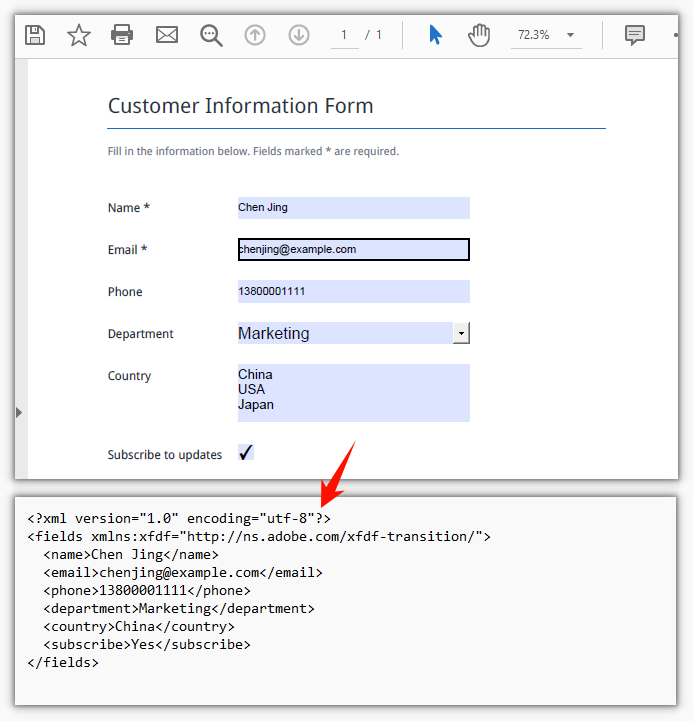
The exported XML form data file:
Import PDF Form Data
PdfFormWidget.ImportData reads a data file and writes the values back into the form fields by field name; the second parameter, DataFormat, only determines how the file is parsed and has nothing to do with the file extension — the same for all three formats.
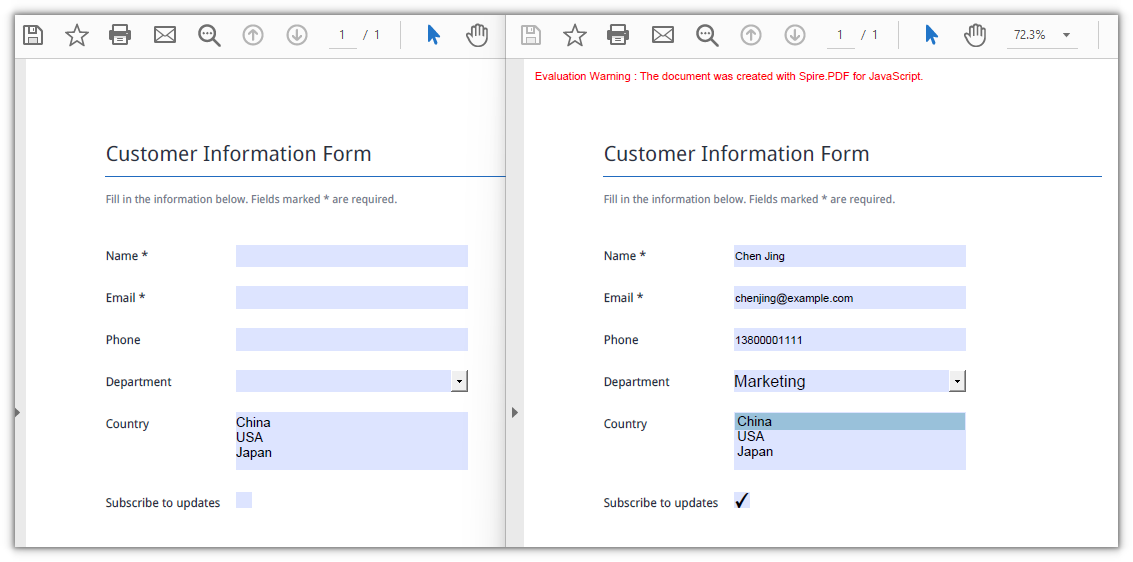
What gets imported is the blank form. The template goes out empty, and once the data files come back the values are filled in one by one — with a lot of fields there is no need to key everything in a second time.
function App() {
  const importFormData = async () => {
    // Get the Spire.PDF WASM module
    const pdfModule = window.wasmModule?.spirepdf;

    // Check that the module is ready
    if (!pdfModule) {
      alert('Spire.PDF is not ready yet');
      return;
    }

    // Load the blank form to be filled into the VFS
    const inputFileName = 'BlankCustomerInformationForm.pdf';
    await window.spire.FetchFileToVFS(inputFileName, "", `${process.env.PUBLIC_URL}/data/`);

    // This demo refills from the XML data file
    const dataFiles = [
      { fileName: 'FormData.xml', format: pdfModule.DataFormat.Xml, outputFileName: 'ImportedXMLData.pdf' },
      // { fileName: 'FormData.fdf', format: pdfModule.DataFormat.Fdf, outputFileName: 'ImportedFDFData.pdf' },
      // { fileName: 'FormData.xfdf', format: pdfModule.DataFormat.XFdf, outputFileName: 'ImportedXFDFData.pdf' },
    ];

    for (const item of dataFiles) {
      // The data file also has to be loaded into the VFS first
      await window.spire.FetchFileToVFS(item.fileName, "", `${process.env.PUBLIC_URL}/data/`);

      const doc = new pdfModule.PdfDocument();
      doc.LoadFromFile(inputFileName);

      // Read the data file and write the values back into the fields by name
      const formWidget = new pdfModule.PdfFormWidget(doc.Form.H);
      formWidget.ImportData(item.fileName, item.format);

      doc.SaveToFile(item.outputFileName);
      doc.Close();

      // Read the generated file from the VFS and trigger the download
      const fileArray = window.dotnetRuntime.Module.FS.readFile(item.outputFileName);
      const blob = new Blob([fileArray], { type: 'application/pdf' });
      const url = URL.createObjectURL(blob);
      const a = document.createElement('a');
      a.href = url;
      a.download = item.outputFileName;
      a.click();
      URL.revokeObjectURL(url);
    }
  };

  return (
    <div style={{ textAlign: 'center', height: '300px' }}>
      <h1>Import Form Data</h1>
      <button onClick={importFormData}>
        Import
      </button>
    </div>
  );
}

export default App;
The form after the XML data has been imported:
FAQ
Some fields are still empty after import
Cause: Import matches by field name, so the names in the data file have to be exactly the same as the field names in the form, case and spaces included. A field that doesn't match is skipped outright — no error and no return value saying so; only the fields that do match get a value.
Solution: Walk the field collection first and print out the real names, then check the data file against them:
const fields = formWidget.FieldsWidget;
for (let i = 0; i < fields.Count; i++) {
  console.log(fields.get_Item({ index: i }).Name);
}
Which of the three data formats should you choose
Cause: All three hold the same field values; the difference is structure and tool support. Fdf is the smallest, starts with %FDF-, and suits passing data between form programs only; XFdf and Xml are both XML, so they can be opened and read directly and diffed with text tools, which makes them safer for moving between tools; Xml puts the field name right in the element name, the most straightforward structure of the three.
Solution: Use Fdf for round trips inside a program; use XFdf when the file goes into version control, needs a human eye, or has to talk to another system; use Xml when all you need is a readable list of field names and values.
Import throws Xml_MessageWithErrorPosition or "not a valid FDF file"
Cause: ImportData parses the file as whatever format the second parameter names, and never looks at the extension. When the content doesn't match the format, it fails at the first step: XML reports Xml_MessageWithErrorPosition, Xml_InvalidRootData, and a non-FDF file reports The source is not a valid FDF file because it does not start with "%FDF-".
Solution: Pass the DataFormat that matches the file's real format, and use the original exported data file rather than another format after re-saving it.
Get a Free License
If you want to remove the evaluation message from the result document, or to get rid of the feature limitations, contact sales for a temporary license valid for 30 days.
