Adding text to a PDF usually sits at the end of a generation pipeline: document numbers, review comments, annotations, or a line of pale text laid over a chart. Typing it in by hand is fine for a few pages, but once the text has to follow the data — a number that changes per copy, a note angled into the page corner, pale text sitting on top of a chart — manual layout stops keeping up.
This article shows how to use Spire.PDF for JavaScript to draw text on PDF pages, including text filled with a gradient, text laid out inside a rectangle, and text that is rotated, transformed, or semi-transparent. It runs on WebAssembly to create and save PDF documents directly in the browser, doing all the work locally and reading and writing files through a virtual file system (VFS) with no backend involved.
This article covers four core features:
For installation and project configuration, see Integrate Spire.PDF for JavaScript into a React Project. The examples below assume Spire.PDF is installed and the WebAssembly module is initialized.
Draw Text with a Color Gradient
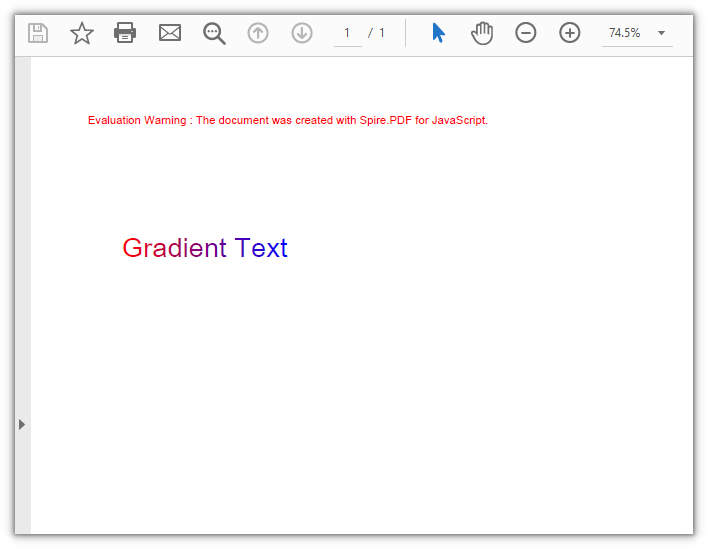
The color of text comes from the brush passed to DrawString. Swap in a gradient brush — PdfLinearGradientBrush — and the glyphs transition from one color to another along a given direction: mode sets the direction, and the rect on the brush bounds where the gradient starts and ends.
function App() {
  const drawGradientText = async () => {
    // Get the Spire.PDF WASM module
    const pdfModule = window.wasmModule?.spirepdf;

    // Check whether the module is ready
    if (!pdfModule) {
      alert('Spire.PDF is not ready yet');
      return;
    }

    // Load the font into the VFS
    await window.spire.FetchFileToVFS('ARIAL UNICODE MS.TTF', '/Library/Fonts/', `${process.env.PUBLIC_URL}/font/`);

    // Create a PDF document and add a blank page
    const doc = new pdfModule.PdfDocument();
    const page = doc.Pages.Add();

    const font = new pdfModule.PdfTrueTypeFont({ fontFile: '/Library/Fonts/ARIAL UNICODE MS.TTF', size: 24 });
    const text = 'Gradient Text';

    // Measure this line of text so the gradient spans exactly its width
    const textWidth = font.MeasureString({ text: text }).Width;

    // Horizontal gradient: from red to blue
    const gradient = new pdfModule.PdfLinearGradientBrush({
      rect: new pdfModule.RectangleF({ x: 40, y: 90, width: textWidth, height: 40 }),
      color1: new pdfModule.PdfRGBColor({ color: pdfModule.Color.get_Red() }),
      color2: new pdfModule.PdfRGBColor({ color: pdfModule.Color.get_Blue() }),
      mode: pdfModule.PdfLinearGradientMode.Horizontal,
    });

    // Align the text anchor with the left edge of the gradient rectangle so both colors sweep the whole line
    page.Canvas.DrawString({ s: text, font: font, brush: gradient, x: 40, y: 110 });

    // Define the output file name and save the document
    const outputFileName = 'GradientText.pdf';
    doc.SaveToFile(outputFileName);
    doc.Close();

    // Read the generated file from the VFS and trigger a download
    const fileArray = window.dotnetRuntime.Module.FS.readFile(outputFileName);
    const blob = new Blob([fileArray], { type: 'application/pdf' });
    const url = URL.createObjectURL(blob);
    const a = document.createElement('a');
    a.href = url;
    a.download = outputFileName;
    a.click();
    URL.revokeObjectURL(url);
  };

  return (
    <div style={{ textAlign: 'center', height: '300px' }}>
      <h1>Draw Text with a Color Gradient</h1>
      <button onClick={drawGradientText}>
        Draw
      </button>
    </div>
  );
}

export default App;
When the gradient rectangle matches the text width, red to blue sweeps across the entire line:
Draw Text Laid Out Inside a Rectangle
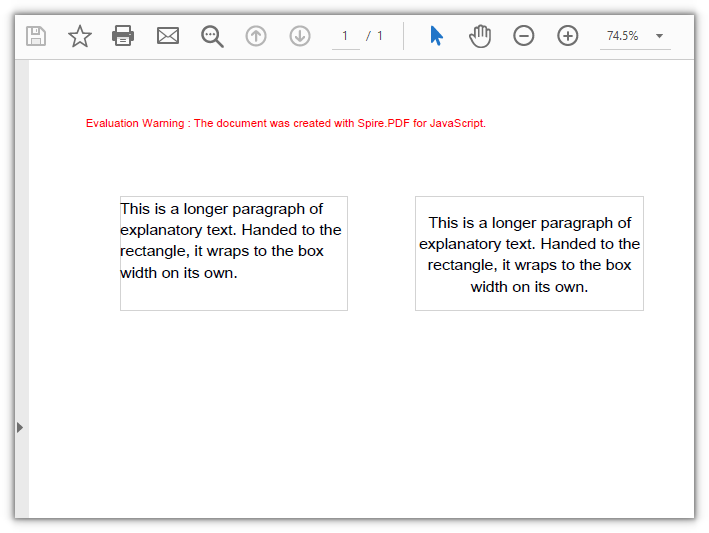
DrawString takes either a pair of coordinates or a layout rectangle, layoutRectangle. With a rectangle, the text wraps to the width of the box on its own, so you don't have to work out where each line breaks. Combined with alignment and lineAlignment from PdfStringFormat, you get more control over how the text is aligned.
function App() {
  const drawTextInRectangle = async () => {
    // Get the Spire.PDF WASM module
    const pdfModule = window.wasmModule?.spirepdf;

    // Check whether the module is ready
    if (!pdfModule) {
      alert('Spire.PDF is not ready yet');
      return;
    }

    // Load the font into the VFS for the page text
    await window.spire.FetchFileToVFS('ARIAL UNICODE MS.TTF', '/Library/Fonts/', `${process.env.PUBLIC_URL}/font/`);

    // Create a PDF document and add a blank page
    const doc = new pdfModule.PdfDocument();
    const page = doc.Pages.Add();

    const font = new pdfModule.PdfTrueTypeFont({ fontFile: '/Library/Fonts/ARIAL UNICODE MS.TTF', size: 14 });
    const brush = new pdfModule.PdfSolidBrush({ pdfRGBColor: new pdfModule.PdfRGBColor({ color: pdfModule.Color.get_Black() }) });
    const borderPen = new pdfModule.PdfPen({ pdfRGBColor: new pdfModule.PdfRGBColor({ color: pdfModule.Color.get_LightGray() }), width: 1 });

    const text = 'This is a longer paragraph of explanatory text. Handed to the rectangle, it wraps to the box width on its own.';

    // Left box: left-aligned wrapping by default, text starts at the top-left corner of the box
    const leftBox = new pdfModule.RectangleF({ x: 40, y: 80, width: 200, height: 100 });
    page.Canvas.DrawRectangle({ pen: borderPen, rectangle: leftBox });
    page.Canvas.DrawString({ s: text, font: font, brush: brush, layoutRectangle: leftBox });

    // Right box: the same text, centered horizontally and vertically inside the box
    const rightBox = new pdfModule.RectangleF({ x: 300, y: 80, width: 200, height: 100 });
    page.Canvas.DrawRectangle({ pen: borderPen, rectangle: rightBox });
    const center = new pdfModule.PdfStringFormat({
      alignment: pdfModule.PdfTextAlignment.Center,
      lineAlignment: pdfModule.PdfVerticalAlignment.Middle,
    });
    page.Canvas.DrawString({ s: text, font: font, brush: brush, layoutRectangle: rightBox, format: center });

    // Define the output file name and save the document
    const outputFileName = 'TextInRectangle.pdf';
    doc.SaveToFile(outputFileName);
    doc.Close();

    // Read the generated file from the VFS and trigger a download
    const fileArray = window.dotnetRuntime.Module.FS.readFile(outputFileName);
    const blob = new Blob([fileArray], { type: 'application/pdf' });
    const url = URL.createObjectURL(blob);
    const a = document.createElement('a');
    a.href = url;
    a.download = outputFileName;
    a.click();
    URL.revokeObjectURL(url);
  };

  return (
    <div style={{ textAlign: 'center', height: '300px' }}>
      <h1>Draw Text Laid Out Inside a Rectangle</h1>
      <button onClick={drawTextInRectangle}>
        Draw
      </button>
    </div>
  );
}

export default App;
The same paragraph wraps inside a 200-point-wide box, while the right box adds horizontal and vertical centering:
Draw Rotated and Transformed Text
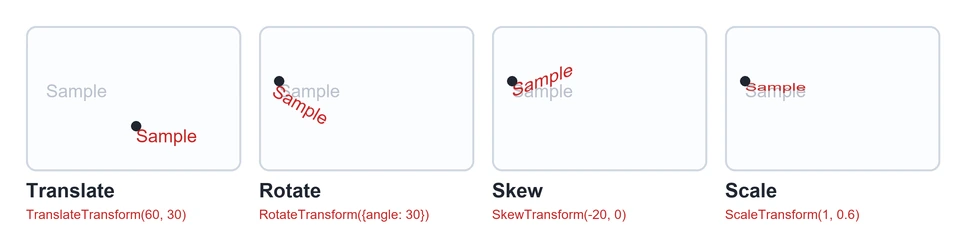
Rotation and deformation of text come from the canvas rather than from font parameters: you turn the canvas first, then draw on it. Four methods cover the common cases:
| API | Effect | Parameters and units |
|---|---|---|
TranslateTransform(dx, dy) |
Moves the canvas origin to the target position | Offset in points |
RotateTransform({ angle }) |
Rotates around the canvas origin | Angle; a positive value is clockwise on this canvas |
SkewTransform(angleX, angleY) |
Skews the axes so text runs along a slanted line | Skew angle; with (-20, 0) the right end of the line lifts |
ScaleTransform(scaleX, scaleY) |
Scales the canvas by a factor | Scale factors for both axes; (1, 0.6) compresses vertically to 0.6 |
The four transforms applied to the same sample line of text (gray is before the transform, red is after, and the dot marks the anchor point):
function App() {
  const drawTransformedText = async () => {
    // Get the Spire.PDF WASM module
    const pdfModule = window.wasmModule?.spirepdf;

    // Check whether the module is ready
    if (!pdfModule) {
      alert('Spire.PDF is not ready yet');
      return;
    }

    // Load the font into the VFS for the page text
    await window.spire.FetchFileToVFS('ARIAL UNICODE MS.TTF', '/Library/Fonts/', `${process.env.PUBLIC_URL}/font/`);

    // Create a PDF document and add a blank page
    const doc = new pdfModule.PdfDocument();
    const page = doc.Pages.Add();

    const font = new pdfModule.PdfTrueTypeFont({ fontFile: '/Library/Fonts/ARIAL UNICODE MS.TTF', size: 16 });
    const brush = new pdfModule.PdfSolidBrush({ pdfRGBColor: new pdfModule.PdfRGBColor({ color: pdfModule.Color.get_SteelBlue() }) });

    // Translation: move only the origin to the anchor point, shifting the text as a whole
    let state = page.Canvas.Save();
    page.Canvas.TranslateTransform(60, 110);
    page.Canvas.DrawString({ s: 'Translated text', font: font, brush: brush, x: 0, y: 0 });
    page.Canvas.Restore({ state: state });

    // Rotation: move the origin to the anchor point, then rotate 30°
    state = page.Canvas.Save();
    page.Canvas.TranslateTransform(120, 210);
    page.Canvas.RotateTransform({ angle: 30 });
    page.Canvas.DrawString({ s: 'Rotated 30° text', font: font, brush: brush, x: 0, y: 0 });
    page.Canvas.Restore({ state: state });

    // Skew: horizontal shear of -20°, lifting the right end of the line
    state = page.Canvas.Save();
    page.Canvas.TranslateTransform(60, 430);
    page.Canvas.SkewTransform(-20, 0);
    page.Canvas.DrawString({ s: 'Horizontally skewed text', font: font, brush: brush, x: 0, y: 0 });
    page.Canvas.Restore({ state: state });

    // Transform: compress vertically to 0.6, squashing the glyphs
    state = page.Canvas.Save();
    page.Canvas.TranslateTransform(60, 560);
    page.Canvas.ScaleTransform(1, 0.6);
    page.Canvas.DrawString({ s: 'Vertically compressed text', font: font, brush: brush, x: 0, y: 0 });
    page.Canvas.Restore({ state: state });

    // Define the output file name and save the document
    const outputFileName = 'TransformText.pdf';
    doc.SaveToFile(outputFileName);
    doc.Close();

    // Read the generated file from the VFS and trigger a download
    const fileArray = window.dotnetRuntime.Module.FS.readFile(outputFileName);
    const blob = new Blob([fileArray], { type: 'application/pdf' });
    const url = URL.createObjectURL(blob);
    const a = document.createElement('a');
    a.href = url;
    a.download = outputFileName;
    a.click();
    URL.revokeObjectURL(url);
  };

  return (
    <div style={{ textAlign: 'center', height: '300px' }}>
      <h1>Draw Rotated and Transformed Text</h1>
      <button onClick={drawTransformedText}>
        Transform
      </button>
    </div>
  );
}

export default App;
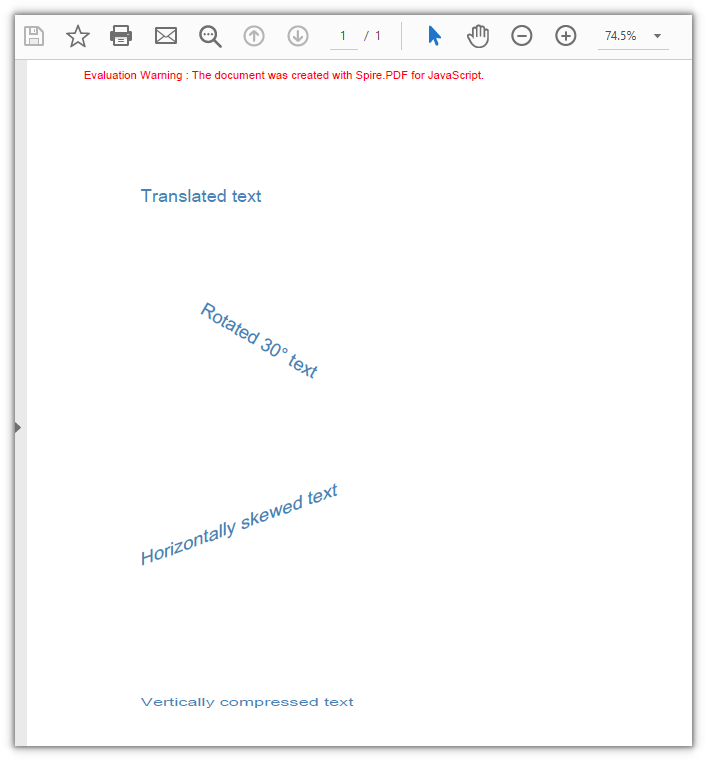
Text drawn with four canvas transforms: translation, rotation, horizontal skew, and vertical compression:
Draw Semi-Transparent Text
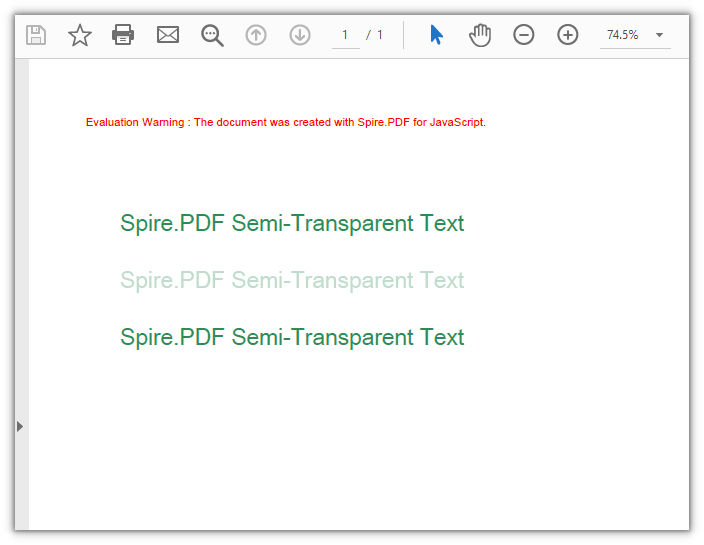
SetTransparency is set on the canvas: alphaBrush and alphaPen control how transparent the fill and the stroke are, taking a decimal between 0 and 1 (0 fully transparent, 1 opaque), and blendMode decides how the text composites with what lies underneath. It takes effect for everything drawn from the moment it is set, so wrap it in Save and Restore — otherwise the content that follows fades as well.
function App() {
  const drawTransparentText = async () => {
    // Get the Spire.PDF WASM module
    const pdfModule = window.wasmModule?.spirepdf;

    // Check whether the module is ready
    if (!pdfModule) {
      alert('Spire.PDF is not ready yet');
      return;
    }

    // Load the font into the VFS for the page text
    await window.spire.FetchFileToVFS('ARIAL UNICODE MS.TTF', '/Library/Fonts/', `${process.env.PUBLIC_URL}/font/`);

    // Create a PDF document and add a blank page
    const doc = new pdfModule.PdfDocument();
    const page = doc.Pages.Add();

    const font = new pdfModule.PdfTrueTypeFont({ fontFile: '/Library/Fonts/ARIAL UNICODE MS.TTF', size: 20 });
    const brush = new pdfModule.PdfSolidBrush({ pdfRGBColor: new pdfModule.PdfRGBColor({ color: pdfModule.Color.get_SeaGreen() }) });
    const text = 'Spire.PDF Semi-Transparent Text';

    // First line: opaque, as a reference
    page.Canvas.DrawString({ s: text, font: font, brush: brush, x: 40, y: 90 });

    // Turn on transparency: both the fill and the stroke alpha are set to 0.3
    const state = page.Canvas.Save();
    page.Canvas.SetTransparency({ alphaPen: 0.3, alphaBrush: 0.3, blendMode: pdfModule.PdfBlendMode.Normal });
    page.Canvas.DrawString({ s: text, font: font, brush: brush, x: 40, y: 140 });

    // Restore the canvas state so drawing outside this block goes back to opaque
    page.Canvas.Restore({ state: state });
    page.Canvas.DrawString({ s: text, font: font, brush: brush, x: 40, y: 190 });

    // Define the output file name and save the document
    const outputFileName = 'TransparentText.pdf';
    doc.SaveToFile(outputFileName);
    doc.Close();

    // Read the generated file from the VFS and trigger a download
    const fileArray = window.dotnetRuntime.Module.FS.readFile(outputFileName);
    const blob = new Blob([fileArray], { type: 'application/pdf' });
    const url = URL.createObjectURL(blob);
    const a = document.createElement('a');
    a.href = url;
    a.download = outputFileName;
    a.click();
    URL.revokeObjectURL(url);
  };

  return (
    <div style={{ textAlign: 'center', height: '300px' }}>
      <h1>Draw Semi-Transparent Text</h1>
      <button onClick={drawTransparentText}>
        Draw
      </button>
    </div>
  );
}

export default App;
The same line drawn three times: opaque, at alpha 0.3, and opaque again after Restore:
FAQ
Text lands outside the page, or its vertical position is reversed
Cause: The canvas origin sits at the top-left corner of the page (inset by the page margins), the y axis points down, and the unit is the point. The anchor marks the top-left corner of the line, not the text baseline. Working from the assumption that the origin is at the bottom-left with the y axis pointing up puts the text on the opposite side, or even outside the drawable area — the sample page is A4 with 40-point top and bottom margins, leaving a usable height of 762 points, and a line drawn below roughly y = 740 points is clipped.
Solution: Lay the text out from the top-left corner with y increasing downwards. To measure from the bottom of the page instead, subtract from the usable height:
// Height of the drawable area (762 points for A4 with 40-point margins)
const height = page.Canvas.ClientSize.Height;

// Draw 100 points above the bottom of the drawable area
page.Canvas.DrawString({ s: 'Text near the bottom of the page', font: font, brush: brush, x: 40, y: height - 100 });
Gradient text shows only a single color, or the transition is incomplete
Cause: The rect on a PdfLinearGradientBrush bounds where the gradient starts and ends, in absolute canvas coordinates, independent of the text anchor. When the rectangle does not cover the whole line, the text only lands on one segment of the gradient, which looks like a flat color. In a test with the rectangle starting at x = 0 and the text anchored at x = 40, the left edge of the text was already a third of the way through the gradient, and the red-to-blue transition was no longer complete.
Solution: Use MeasureString to get the text width, then make the rectangle the same width as the text and align its start with the anchor point, so the gradient sweeps across the whole line:
// Use the text width as the width of the gradient rectangle
const textWidth = font.MeasureString({ text: text }).Width;

const gradient = new pdfModule.PdfLinearGradientBrush({
  rect: new pdfModule.RectangleF({ x: 40, y: 90, width: textWidth, height: 40 }),
  color1: new pdfModule.PdfRGBColor({ color: pdfModule.Color.get_Red() }),
  color2: new pdfModule.PdfRGBColor({ color: pdfModule.Color.get_Blue() }),
  mode: pdfModule.PdfLinearGradientMode.Horizontal,
});

// Align the anchor with the left edge of the rectangle
page.Canvas.DrawString({ s: text, font: font, brush: gradient, x: 40, y: 110 });
Get a Free License
If you want to remove the evaluation message from the resulting documents, or lift the feature limits, contact sales for a temporary license valid for 30 days.
