A contract or a report of a few dozen pages lands on your desk, and you need to confirm where a certain clause or amount appears and how many times. Going through it page by page by eye is easy to get wrong. Marking the hits is the least effort, but find-and-highlight in a desktop application is hard to fit into a web workflow, and screenshotting every page to annotate it is not realistic either.
Spire.PDF for JavaScript loads, processes and saves PDF documents in the browser on WebAssembly, so finding and highlighting happen entirely locally, reading and writing files through a virtual file system (VFS) with no backend involved. This article uses PdfTextFinder to implement three ways of finding and highlighting: the whole document, a given area, and a regular expression.
This article covers three core features:
- Find and Highlight All Matches
- Find and Highlight Within an Area
- Find and Highlight by Regular Expression
For installation and project configuration, see Integrate Spire.PDF for JavaScript into a React Project. The examples below assume Spire.PDF is installed and the WebAssembly module is initialized.
Find and Highlight All Matches
PdfTextFinder locates given text in the text layer of a page. It works page by page: build one finder for each page of the document and you can find every match across the whole file at once. Each hit is highlighted by calling HighLight(), which is yellow by default; pass a color when different keywords have to be told apart.
function App() {
  const findAndHighlightAll = async () => {
    // Get the Spire.PDF WASM module
    const pdfModule = window.wasmModule?.spirepdf;

    // Check whether the module is ready
    if (!pdfModule) {
      alert('Spire.PDF is not ready yet');
      return;
    }

    // Load the PDF file to be processed into the VFS
    const inputFileName = 'Flowers.pdf';
    await window.spire.FetchFileToVFS(inputFileName, "", `${process.env.PUBLIC_URL}/data/`);

    // Create a PdfDocument object and load the PDF document
    let doc = new pdfModule.PdfDocument();
    doc.LoadFromFile(inputFileName);

    // Search page by page and highlight every hit
    for (let i = 0; i < doc.Pages.Count; i++) {
      const finder = new pdfModule.PdfTextFinder(doc.Pages.get_Item(i));
      finder.Options.Parameter = pdfModule.TextFindParameter.IgnoreCase;
      const finds = finder.Find('Ornamental');
      for (let j = 0; j < finds.length; j++) {
        finds.get(j).HighLight();
      }
    }

    // Save the document
    const outputFileName = 'FindAndHighlight.pdf';
    doc.SaveToFile(outputFileName);
    doc.Close();

    // Read the generated file from the VFS and trigger the download
    const fileArray = window.dotnetRuntime.Module.FS.readFile(outputFileName);
    const blob = new Blob([fileArray], { type: 'application/pdf' });
    const url = URL.createObjectURL(blob);
    const a = document.createElement('a');
    a.href = url;
    a.download = outputFileName;
    a.click();
    URL.revokeObjectURL(url);
  };

  return (
    <div style={{ textAlign: 'center', height: '300px' }}>
      <h1>Find and Highlight All Matches</h1>
      <button onClick={findAndHighlightAll}>
        Find and Highlight
      </button>
    </div>
  );
}

export default App;
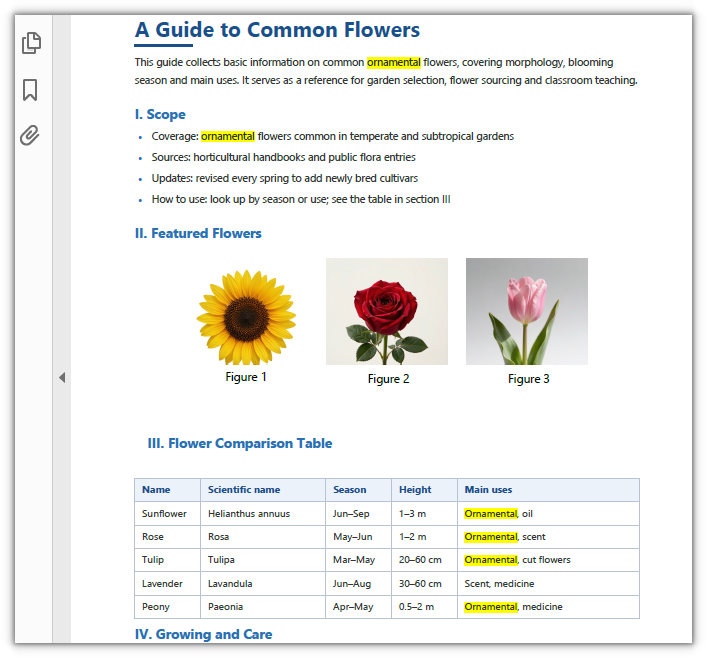
Every Ornamental in the document is highlighted:
Find and Highlight Within an Area
Text that reads the same on a page is often only partly worth marking. PdfTextFinder also provides Options.Area, which narrows the search to a rectangle; matches that fall outside it are not returned, and therefore not highlighted. The rectangle is described in page coordinates, with the origin at the top-left corner of the page and units in points.
function App() {
  const findAndHighlightInArea = async () => {
    // Get the Spire.PDF WASM module
    const pdfModule = window.wasmModule?.spirepdf;

    // Check whether the module is ready
    if (!pdfModule) {
      alert('Spire.PDF is not ready yet');
      return;
    }

    // Load the PDF file to be processed into the VFS
    const inputFileName = 'Flowers.pdf';
    await window.spire.FetchFileToVFS(inputFileName, "", `${process.env.PUBLIC_URL}/data/`);

    // Create a PdfDocument object and load the PDF document
    let doc = new pdfModule.PdfDocument();
    doc.LoadFromFile(inputFileName);

    // Set the search range: page coordinates, origin at the top-left, units in points
    const area = new pdfModule.RectangleF({ x: 60, y: 488, width: 420, height: 160 });

    const finder = new pdfModule.PdfTextFinder(doc.Pages.get_Item(0));
    finder.Options.Parameter = pdfModule.TextFindParameter.IgnoreCase;
    finder.Options.Area = area;

    // Only matches that fall inside the rectangle are returned
    const finds = finder.Find('Ornamental');
    for (let j = 0; j < finds.length; j++) {
      finds.get(j).HighLight();
    }

    // Save the document
    const outputFileName = 'HighlightInArea.pdf';
    doc.SaveToFile(outputFileName);
    doc.Close();

    // Read the generated file from the VFS and trigger the download
    const fileArray = window.dotnetRuntime.Module.FS.readFile(outputFileName);
    const blob = new Blob([fileArray], { type: 'application/pdf' });
    const url = URL.createObjectURL(blob);
    const a = document.createElement('a');
    a.href = url;
    a.download = outputFileName;
    a.click();
    URL.revokeObjectURL(url);
  };

  return (
    <div style={{ textAlign: 'center', height: '300px' }}>
      <h1>Find and Highlight Within an Area</h1>
      <button onClick={findAndHighlightInArea}>
        Find and Highlight
      </button>
    </div>
  );
}

export default App;
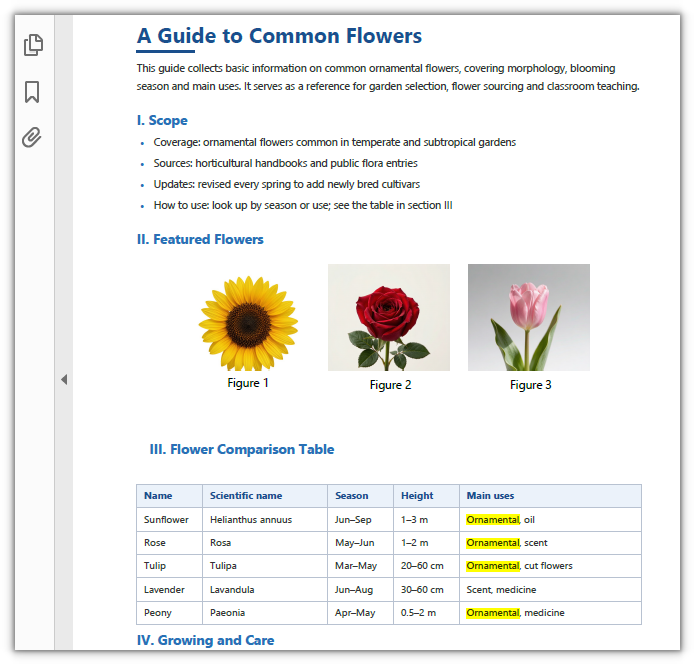
Only the Ornamental inside the comparison table is highlighted; the body text and the list stay as they are:
Find and Highlight by Regular Expression
The target is not necessarily a fixed set of characters. Options.Parameter decides the matching rule; set it to Regex and the argument to Find() becomes a regular expression, so targets that share a shape but differ in content can be circled in one pattern. The default value matches by substring, which is what the previous two sections do, and the same enumeration also offers IgnoreCase and WholeWord.
function App() {
  const findAndHighlightByRegex = async () => {
    // Get the Spire.PDF WASM module
    const pdfModule = window.wasmModule?.spirepdf;

    // Check whether the module is ready
    if (!pdfModule) {
      alert('Spire.PDF is not ready yet');
      return;
    }

    // Load the PDF file to be processed into the VFS
    const inputFileName = 'Flowers.pdf';
    await window.spire.FetchFileToVFS(inputFileName, "", `${process.env.PUBLIC_URL}/data/`);

    // Create a PdfDocument object and load the PDF document
    let doc = new pdfModule.PdfDocument();
    doc.LoadFromFile(inputFileName);

    // Match page by page with a regular expression and highlight every hit
    for (let i = 0; i < doc.Pages.Count; i++) {
      const finder = new pdfModule.PdfTextFinder(doc.Pages.get_Item(i));
      finder.Options.Parameter = pdfModule.TextFindParameter.Regex;
      const finds = finder.Find('Figure\\s*\\d');
      for (let j = 0; j < finds.length; j++) {
        finds.get(j).HighLight({ color: pdfModule.Color.get_Orange() });
      }
    }

    // Save the document
    const outputFileName = 'HighlightByRegex.pdf';
    doc.SaveToFile(outputFileName);
    doc.Close();

    // Read the generated file from the VFS and trigger the download
    const fileArray = window.dotnetRuntime.Module.FS.readFile(outputFileName);
    const blob = new Blob([fileArray], { type: 'application/pdf' });
    const url = URL.createObjectURL(blob);
    const a = document.createElement('a');
    a.href = url;
    a.download = outputFileName;
    a.click();
    URL.revokeObjectURL(url);
  };

  return (
    <div style={{ textAlign: 'center', height: '300px' }}>
      <h1>Find and Highlight by Regular Expression</h1>
      <button onClick={findAndHighlightByRegex}>
        Find and Highlight
      </button>
    </div>
  );
}

export default App;
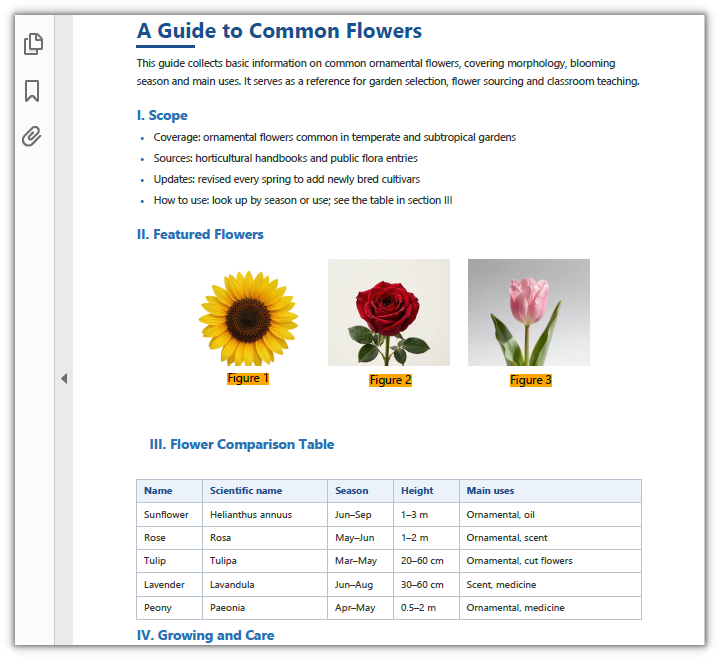
The three figure captions are matched by the pattern and highlighted in orange:
FAQ
The highlight works, but it is missing from the reader's comments panel
Cause: HighLight() writes into the page content, not into PDF annotations. The highlight block is written to the page's content stream when the document is saved, so the file grows by roughly 2 KB, and no annotation object is added to the output — reading it back with PyMuPDF gives an empty set from page.annots().
Fix: Treat the highlight as page graphics. It displays the same way as an annotation; it simply has no annotation identity, so it cannot be selected, deleted or recolored one by one in the reader. When highlights have to be managed as annotations, record the hit positions before saving and keep that list on the application side.
The search area is set, but nothing is highlighted
Cause: Options.Area uses page coordinates (origin at the top-left corner of the page, units in points). If the rectangle is too small or mispositioned, every match falls outside it. It also takes effect on the current page only — in a multi-page document, apply the same rectangle to the finder of the page you want.
Fix: Measure the target region in whole-page coordinates first, then narrow it down. In the sample below the comparison table falls within x≈60–480 and y≈488–648, so RectangleF({ x: 60, y: 488, width: 420, height: 160 }) frames it exactly, and the body text and list outside the rectangle are not matched:
// Search the current page only, and match inside this rectangle only
const finder = new pdfModule.PdfTextFinder(doc.Pages.get_Item(0));
finder.Options.Area = new pdfModule.RectangleF({ x: 60, y: 488, width: 420, height: 160 });
When the coordinates are uncertain, run the search once without Area and read the actual position from each hit's finds.get(i).Bounds[0] to work back to the rectangle.
The same regex matches a Chinese document but fails on a Japanese one
Cause: A regular expression matches the actual characters in the PDF text layer, not meanings. The dash that separates the ranges is not the same across the three samples: Chinese and English use – (U+2013), while Japanese uses the full-width tilde ~ (U+FF5E), so a pattern with only one of them hits only one kind of document.
Fix: Put the dashes in a character class so that both spellings work at once:
// Number ranges: 6–9 / 1–3 m / 6~9月 all match
finder.Options.Parameter = pdfModule.TextFindParameter.Regex;
const finds = finder.Find('[0-9]+\\s*[–-~]\\s*[0-9]+');
Get a Free License
If you want to remove the evaluation message from the result document, or get past the feature limits, contact sales for a 30-day temporary license.
