ET is WPS Office's workbook format, and its files carry the .et extension. When workbooks are exchanged between office suites, format compatibility decides whether a file can be opened directly. Spire.XLS for JavaScript converts between Excel and ET both ways in the browser on WebAssembly, keeping the formulas, the merged areas and the number formats of the workbook, and handling input and output files through a virtual file system (VFS) with no backend service.
This article covers two core feature points:
For installation and project setup, see Integrating Spire.XLS for JavaScript in a React Project. The examples below assume Spire.XLS is installed and the WebAssembly module has been initialised.
Convert Excel to ET
Saving an Excel workbook as ET makes the workbook open directly in WPS. The conversion changes only the format the file is saved in: the content of the workbook is unchanged, the target format is named by a fileFormat argument on the way out, and the formulas, the merged areas and the number formats of the cells are all kept. The steps are:
- Load the font and the test data file into the VFS.
- Load the Excel workbook with
workbook.LoadFromFile. - Save the workbook with
workbook.SaveToFile, namingxlsModule.FileFormat.ETas thefileFormat. - Dispose of the workbook with
workbook.Disposeto free resources.
The complete code example below shows how to convert an Excel workbook to ET in React:
function App() {
  const excelToEt = async () => {
    // get the Spire.XLS WASM module
    const xlsModule = window.wasmModule?.spirexls;

    // check that the module is ready
    if (!xlsModule) {
      alert('Spire.Xls is not ready yet');
      return;
    }

    // load the font and the test data file into the VFS
    await window.spire.FetchFileToVFS('ARIAL.TTF', '/Library/Fonts/', `${process.env.PUBLIC_URL}/font/`);
    const inputFileName = 'ProductList.xlsx';
    await window.spire.FetchFileToVFS(inputFileName, '', `${process.env.PUBLIC_URL}data/`);

    // load the workbook
    const workbook = new xlsModule.Workbook();
    workbook.LoadFromFile({ fileName: inputFileName });

    // save as ET; the format is named by fileFormat
    const outputFileName = 'ExcelToEt.et';
    workbook.SaveToFile({ fileName: outputFileName, fileFormat: xlsModule.FileFormat.ET });

    // dispose of the workbook to free resources
    workbook.Dispose();

    // read the result file from the VFS and start the download
    const fileArray = window.dotnetRuntime.Module.FS.readFile(outputFileName);
    const blob = new Blob([fileArray], { type: 'application/vnd.wps-office.et' });
    const url = URL.createObjectURL(blob);
    const a = document.createElement('a');
    a.href = url;
    a.download = outputFileName;
    a.click();
    URL.revokeObjectURL(url);
  };

  return (
    <div style={{ textAlign: 'center', height: '300px' }}>
      <h1>Convert Between Excel and ET in React</h1>
      <button id="excel-to-et" onClick={excelToEt}>Convert Excel to ET</button>
    </div>
  );
}

export default App;
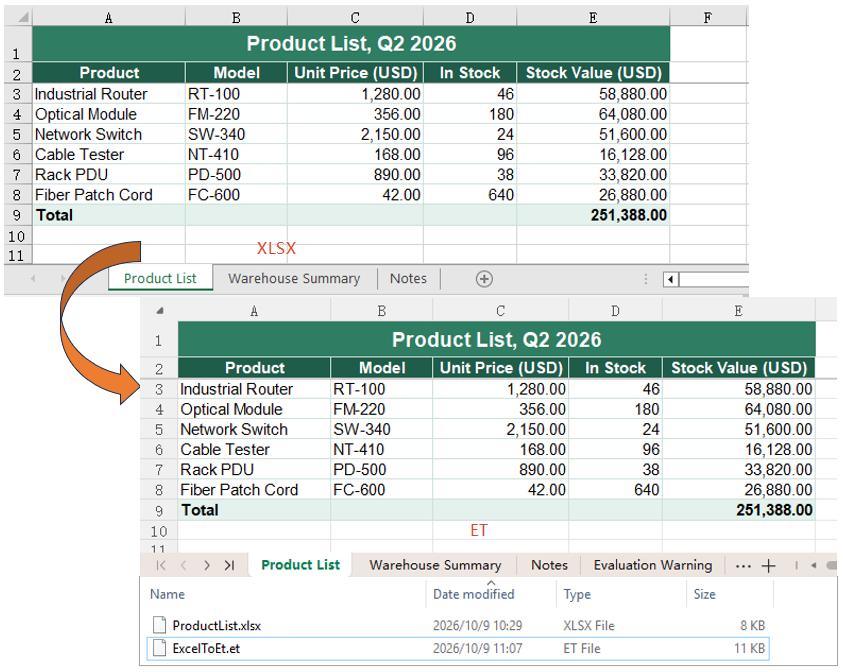
After running, the effect of converting an Excel workbook to an ET file:
Convert ET to Excel
Converting an ET file to Excel is the same operation in the other direction. ET and Excel hold the same workbook content and differ only in the file format, so loading the ET and writing it out as an Excel version is all it takes. The steps are:
- Load the font and the test data file into the VFS.
- Load the ET file with
workbook.LoadFromFile. - Save it as an Excel workbook with
workbook.SaveToFile, namingxlsModule.FileFormat.Version2010as thefileFormat. - Dispose of the workbook with
workbook.Disposeto free resources.
The complete code example below shows how to convert an ET file back to Excel in React:
function App() {
  const etToExcel = async () => {
    // get the Spire.XLS WASM module
    const xlsModule = window.wasmModule?.spirexls;

    // check that the module is ready
    if (!xlsModule) {
      alert('Spire.Xls is not ready yet');
      return;
    }

    // load the font and the test data file into the VFS
    await window.spire.FetchFileToVFS('ARIAL.TTF', '/Library/Fonts/', `${process.env.PUBLIC_URL}/font/`);
    const inputFileName = 'ProductList.et';
    await window.spire.FetchFileToVFS(inputFileName, '', `${process.env.PUBLIC_URL}data/`);

    // load the workbook
    const workbook = new xlsModule.Workbook();
    workbook.LoadFromFile({ fileName: inputFileName });

    // save as Excel, again naming the version through fileFormat
    const outputFileName = 'EtToExcel.xlsx';
    workbook.SaveToFile({ fileName: outputFileName, fileFormat: xlsModule.FileFormat.Version2010 });

    // dispose of the workbook to free resources
    workbook.Dispose();

    // read the result file from the VFS and start the download
    const fileArray = window.dotnetRuntime.Module.FS.readFile(outputFileName);
    const blob = new Blob([fileArray], { type: 'application/vnd.openxmlformats-officedocument.spreadsheetml.sheet' });
    const url = URL.createObjectURL(blob);
    const a = document.createElement('a');
    a.href = url;
    a.download = outputFileName;
    a.click();
    URL.revokeObjectURL(url);
  };

  return (
    <div style={{ textAlign: 'center', height: '300px' }}>
      <h1>Convert Between Excel and ET in React</h1>
      <button id="et-to-excel" onClick={etToExcel}>Convert ET to Excel</button>
    </div>
  );
}

export default App;
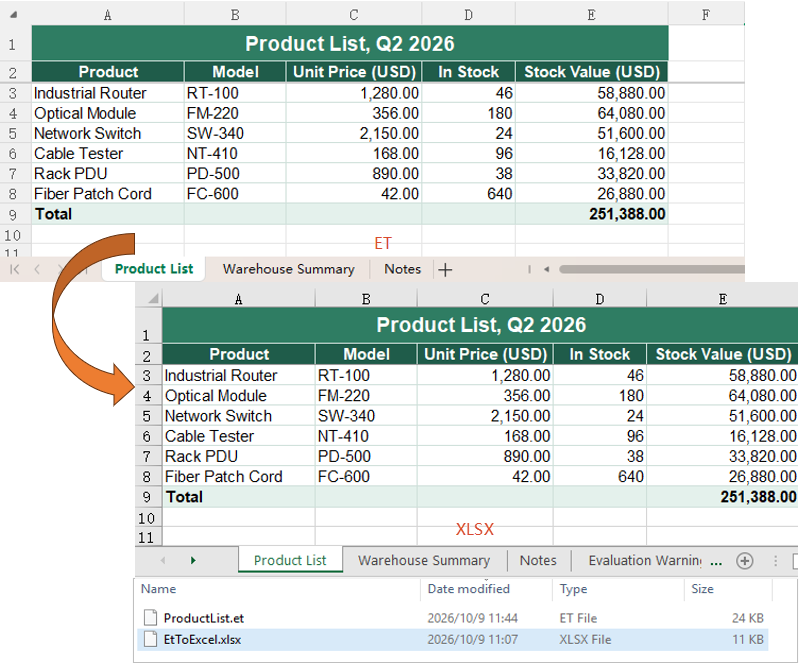
After running, the effect of converting an ET file back to an Excel workbook:
FAQ
Can a file be saved as ET by naming it .et and leaving fileFormat out?
Cause: fileFormat is an optional argument of SaveToFile. When it is not passed, the format is taken from the extension of the output file name, so a name the library recognises determines the format.
Solution: Leaving it out works. Saving a .xlsx with workbook.SaveToFile({ fileName: 'ProductList.et' }) writes an ET file all the same. Writing fileFormat out is still the clearer of the two, and it keeps the output from landing in some other format when the name carries no extension or the wrong one.
Do the formulas in the workbook turn into fixed values after converting to ET?
Cause: ET and Excel carry the same workbook object, and the conversion only changes the format; nothing goes near the contents of the cells.
Solution: The formulas are kept as they are. In this example, reading the ET file that was written back in, the amount cell still has HasFormula set to true, its Formula is still =C3*D3, and FormulaNumberValue gives 58880 as the result; the merged area is still five columns wide, and the #,##0.00 number format is still in place. Formulas, formatting and layout survive the conversion in both directions.
Get a Free License
Spire.XLS for JavaScript offers a 30-day full-featured free trial license with no functional limitations. Apply here to evaluate before purchasing.
