In daily work, we often need to hide some worksheets to simplify the interface display or protect sensitive data, and we can unhide them when necessary. In addition, when converting a workbook to HTML, you may also need to control whether hidden worksheets appear in the conversion result. Spire.XLS for JavaScript performs these operations directly in the browser based on WebAssembly, managing input and output files through the virtual file system (VFS), without any backend service support.
This article covers three core feature points:
- Hide a Worksheet
- Show a Hidden Worksheet
- Control Whether to Include Hidden Worksheets When Converting to HTML
For installation and project configuration, please refer to How to Integrate Spire.XLS for JavaScript in a React Project. The following examples assume that Spire.XLS is installed and the WebAssembly module has been initialized.
Hide a Worksheet
Hiding a worksheet is often used to simplify the display of a workbook or protect internal data. With Spire.XLS for JavaScript, you can hide a specified worksheet by setting the Visibility property of the worksheet object to WorksheetVisibility.Hidden.
function App() {
  const hideSheet = async () => {
    // Get the Spire.XLS WASM module
    const xlsModule = window.wasmModule?.spirexls;

    // Check if the module is ready
    if (!xlsModule) {
      alert('Spire.Xls is not ready yet');
      return;
    }

    // Load the font and Excel file into VFS
    await window.spire.FetchFileToVFS('ARIAL.TTF', '/Library/Fonts/', `${process.env.PUBLIC_URL}/font/`);
    const inputFileName = 'HideOrShowWorksheet.xlsx';
    await window.spire.FetchFileToVFS(inputFileName, '', `${process.env.PUBLIC_URL}data/`);

    // Load the workbook
    const workbook = new xlsModule.Workbook();
    workbook.LoadFromFile({ fileName: inputFileName });

    // Get the worksheet named "Sheet1" and hide it
    let sheet1 = workbook.Worksheets.get("Sheet1");
    sheet1.Visibility = xlsModule.WorksheetVisibility.Hidden;

    // Save the workbook
    const outputFileName = "HideWorksheet_output.xlsx";
    workbook.SaveToFile({ fileName: outputFileName });

    // Dispose of the workbook object to release resources
    workbook.Dispose();

    // Read the converted file from VFS and trigger the download
    const fileArray = window.dotnetRuntime.Module.FS.readFile(outputFileName);
    const blob = new Blob([fileArray], { type: "application/vnd.openxmlformats-officedocument.spreadsheetml.sheet" });
    const url = URL.createObjectURL(blob);
    const a = document.createElement('a');
    a.href = url;
    a.download = outputFileName;
    a.click();
    URL.revokeObjectURL(url);
  };

  return (
    <div style={{ textAlign: 'center', height: '300px' }}>
      <h1>Hide Worksheet</h1>
      <button onClick={hideSheet}>
        Start
      </button>
    </div>
  );
}

export default App;
Original document (Sheet2 is already hidden) 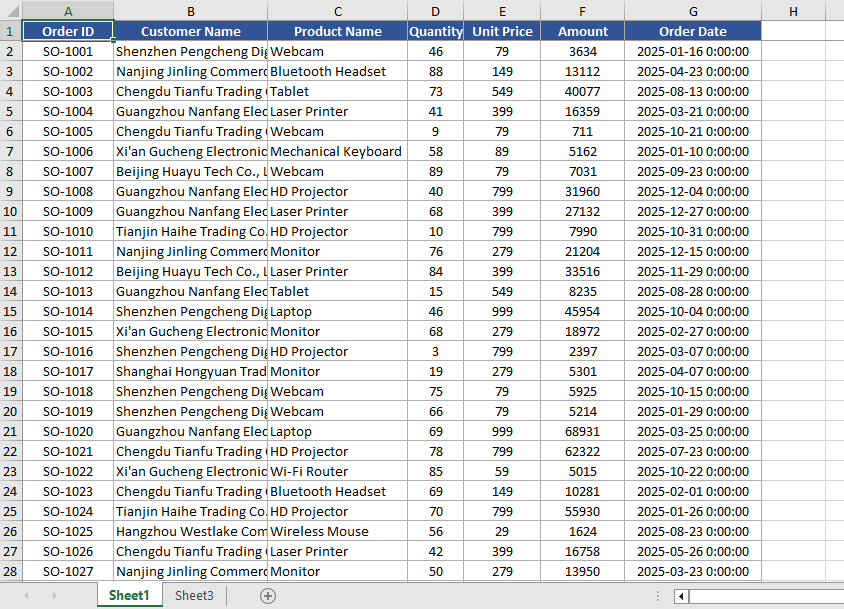 Hide Sheet1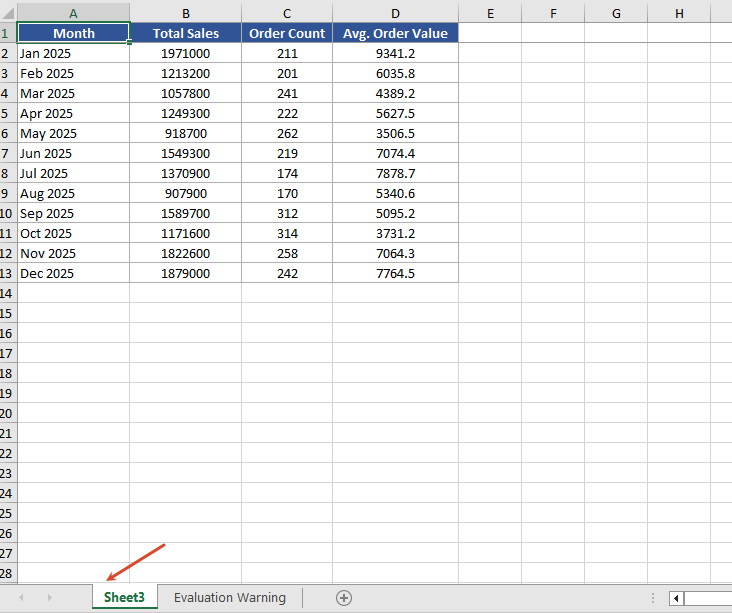
Show a Hidden Worksheet
When you need to view or edit a hidden worksheet again, you can show it again by setting the Visibility property to WorksheetVisibility.Visible.
function App() {
  const showSheet = async () => {
    // Get the Spire.XLS WASM module
    const xlsModule = window.wasmModule?.spirexls;

    // Check if the module is ready
    if (!xlsModule) {
      alert('Spire.Xls is not ready yet');
      return;
    }

    // Load the font and Excel file into VFS
    await window.spire.FetchFileToVFS('ARIAL.TTF', '/Library/Fonts/', `${process.env.PUBLIC_URL}/font/`);
    const inputFileName = 'HideOrShowWorksheet.xlsx';
    await window.spire.FetchFileToVFS(inputFileName, '', `${process.env.PUBLIC_URL}data/`);

    // Load the workbook
    const workbook = new xlsModule.Workbook();
    workbook.LoadFromFile({ fileName: inputFileName });

    // Get the second worksheet and set it as visible
    let sheet2 = workbook.Worksheets.get(1);
    sheet2.Visibility = xlsModule.WorksheetVisibility.Visible;

    // Save the workbook
    const outputFileName = "ShowWorksheet_output.xlsx";
    workbook.SaveToFile({ fileName: outputFileName });

    // Dispose of the workbook object to release resources
    workbook.Dispose();

    // Read the converted file from VFS and trigger the download
    const fileArray = window.dotnetRuntime.Module.FS.readFile(outputFileName);
    const blob = new Blob([fileArray], { type: "application/vnd.openxmlformats-officedocument.spreadsheetml.sheet" });
    const url = URL.createObjectURL(blob);
    const a = document.createElement('a');
    a.href = url;
    a.download = outputFileName;
    a.click();
    URL.revokeObjectURL(url);
  };

  return (
    <div style={{ textAlign: 'center', height: '300px' }}>
      <h1>Show Worksheet</h1>
      <button onClick={showSheet}>
        Start
      </button>
    </div>
  );
}

export default App;
Unhide Sheet2 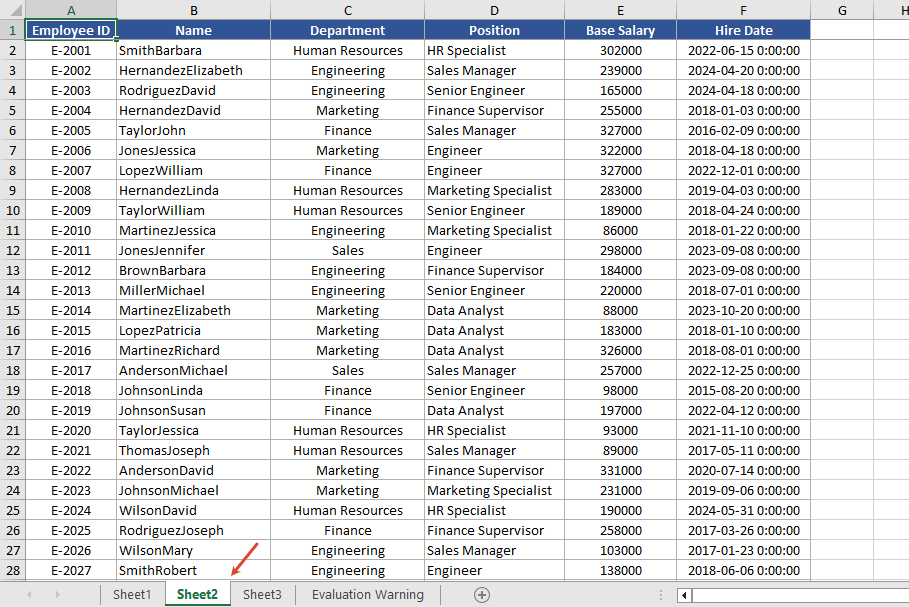
Control Whether to Include Hidden Worksheets When Converting to HTML
When converting to HTML, you can use the skipHideSheet parameter of the SaveToHtml method to control whether hidden worksheets are included in the conversion result. When set to false, the generated HTML includes hidden worksheets; when set to true, hidden worksheets are skipped and only visible worksheets remain in the HTML.
function App() {
  const saveToHtml = async () => {
    // Get the Spire.XLS WASM module
    const xlsModule = window.wasmModule?.spirexls;

    // Check if the module is ready
    if (!xlsModule) {
      alert('Spire.Xls is not ready yet');
      return;
    }

    // Load the font and Excel file into VFS
    await window.spire.FetchFileToVFS('ARIAL.TTF', '/Library/Fonts/', `${process.env.PUBLIC_URL}/font/`);
    const inputFileName = 'HideOrShowWorksheet.xlsx';
    await window.spire.FetchFileToVFS(inputFileName, '', `${process.env.PUBLIC_URL}data/`);

    // Load the workbook
    const workbook = new xlsModule.Workbook();
    workbook.LoadFromFile({ fileName: inputFileName });

    // Hide the worksheet named "Sheet1"
    let sheet1 = workbook.Worksheets.get("Sheet1");
    sheet1.Visibility = xlsModule.WorksheetVisibility.Hidden;

    // Set the output HTML file name
    const result = "result.html";

    // false --- Save HTML with hidden worksheets
    // true --- Save HTML without hidden worksheets
    workbook.SaveToHtml({
      fileName: result,
      skipHideSheet: false
    });

    // Dispose of the workbook object to release resources
    workbook.Dispose();

    // Read the converted file from VFS and trigger the download
    const fileArray = window.dotnetRuntime.Module.FS.readFile(result);
    const blob = new Blob([fileArray], { type: 'text/html' });
    const url = URL.createObjectURL(blob);
    const a = document.createElement('a');
    a.href = url;
    a.download = result;
    a.click();
    URL.revokeObjectURL(url);
  };

  return (
    <div style={{ textAlign: 'center', height: '300px' }}>
      <h1>Convert Workbook to HTML</h1>
      <button onClick={saveToHtml}>
        Start
      </button>
    </div>
  );
}

export default App;
After conversion 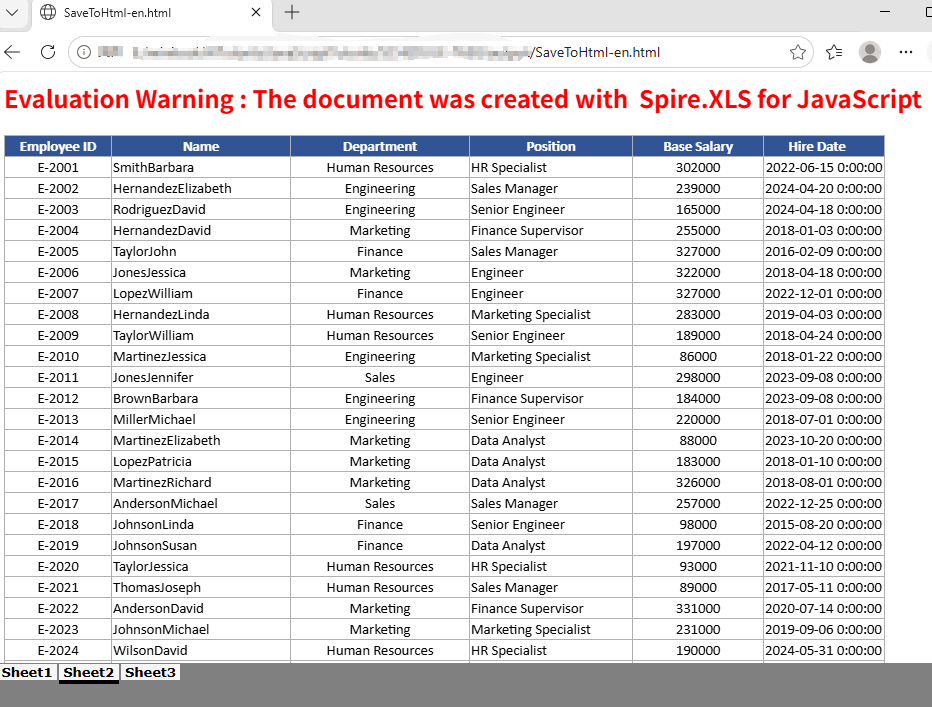
FAQ
The HTML conversion result contains extra worksheets
Cause: The original Excel document has multiple hidden worksheets. When the skipHideSheet parameter of SaveToHtml is set to false, all hidden worksheets appear in the conversion result.
Solution: You can use the following code to iterate through and check the hidden state of all sheets in the Excel file.
    const sheetCount = workbook.Worksheets.Count;
    for (let i = 0; i < sheetCount; i++) {
        let sheet = workbook.Worksheets.get(i);
        const visibility = sheet.Visibility;
    }
Get a Free License
If you want to remove the evaluation message in the generated documents or get rid of functional limitations, please contact us to get a temporary license valid for 30 days.
