Before a presentation, the aspect ratio of a PPT often needs to be unified — some meeting screens are 4:3 standard while some projectors are 16:9 widescreen. This requires bidirectional layout conversion, and during the conversion the font sizes and image positions must be adjusted automatically so the content displays correctly with no text overflow or misplaced images. This article shows how to use the Spire.Agent.Office PowerPoint AI capability to batch-convert PowerPoint presentations between the 4:3 standard ratio and the 16:9 widescreen ratio.
Comparison with the Traditional SDK API
| Traditional Spire.Office for .NET API | Spire.Agent.Office Processing | |
|---|---|---|
| Driving approach | Hard-coded API calls | 1 natural-language instruction |
| Requirement changes | Requirement changes require modifying the code and redeploying | When requirements change, just modify the instruction text without recompiling the code |
For product installation and SpireToken configuration, please refer to Integrating Spire.Agent.Office in a .NET Project. The examples below assume Spire.Agent.Office is already installed and SpireToken is configured.
Convert 4:3 Standard to 16:9 Widescreen
The content structure, theme, and color scheme of every slide remain unchanged; font sizes and image positions are automatically adapted to the widescreen canvas, and multi-page PPTs are converted in one pass.
using Spire.Agent.Office.AI;
using Spire.Agent.Office.Extensions;
using Spire.Presentation;

// PowerPoint AI processing configuration
string inputPath = @"ratio_43.pptx";
string savePath = @"output.pptx";
// SpireToken Key
string key = "**************************";
string instruction = "Read the input PowerPoint presentation and batch-convert it from 4:3 standard aspect ratio to 16:9 widescreen";
AIResult result = ExecuteDemoPpt(instruction, inputPath, savePath, key);

// Execute PowerPoint document AI processing
static AIResult ExecuteDemoPpt(string instruction, string inputPath, string savePath, string key)
{
    // Create an AIOptions configuration object
    AIOptions options = new AIOptions();
    options.SpireToken = key;

    // Use the Presentation object to process the PowerPoint document
    using (Presentation ppt = new Presentation())
    {
        // Load the PPT from the file
        if (!string.IsNullOrEmpty(inputPath) && File.Exists(inputPath))
        {
            ppt.LoadFromFile(inputPath);
        }
        // Create an AI document processor
        AIDocumentProcessor processor = ppt.AI(options);

        // Execute the AI instruction
        return processor.ExecuteInstruction(ppt, instruction, savePath);
    }
}
Original 4:3 standard PPT 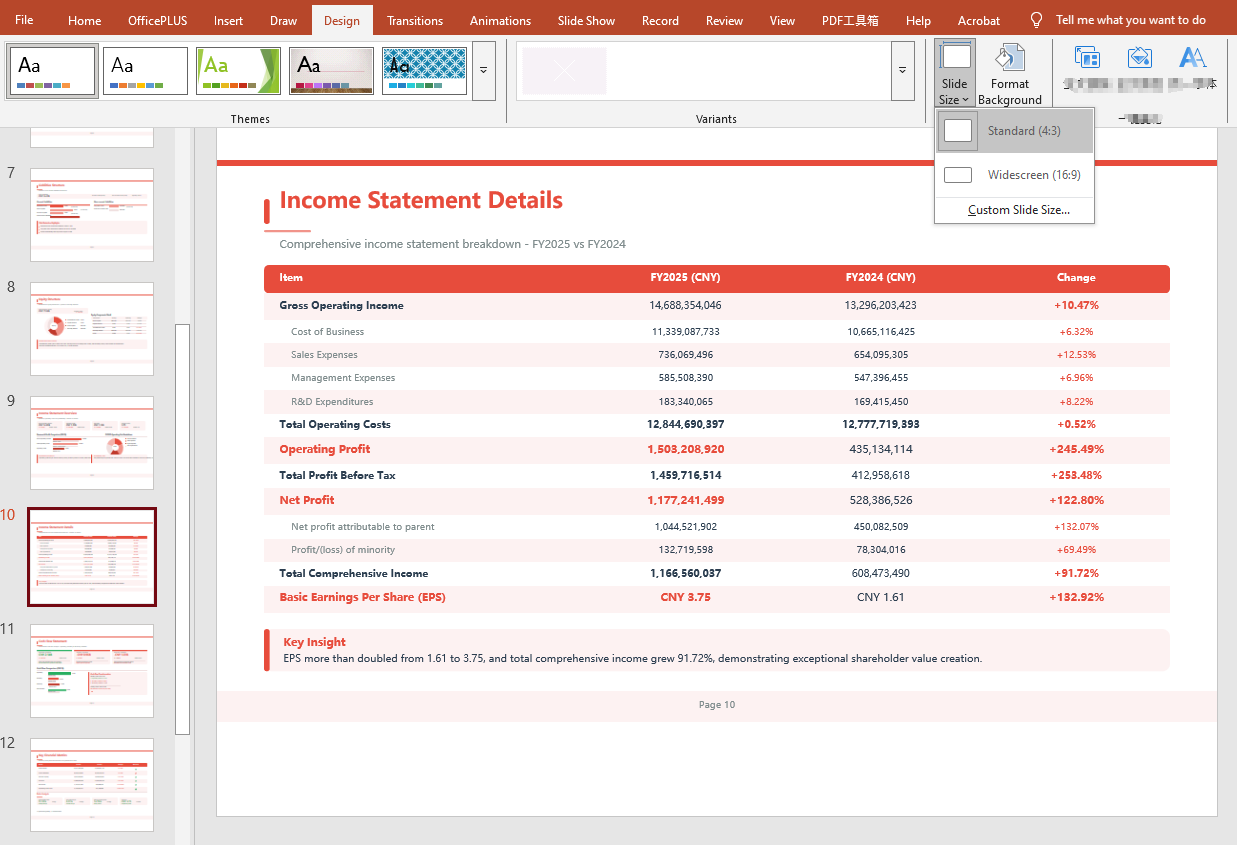 Converted 16:9 widescreen PPT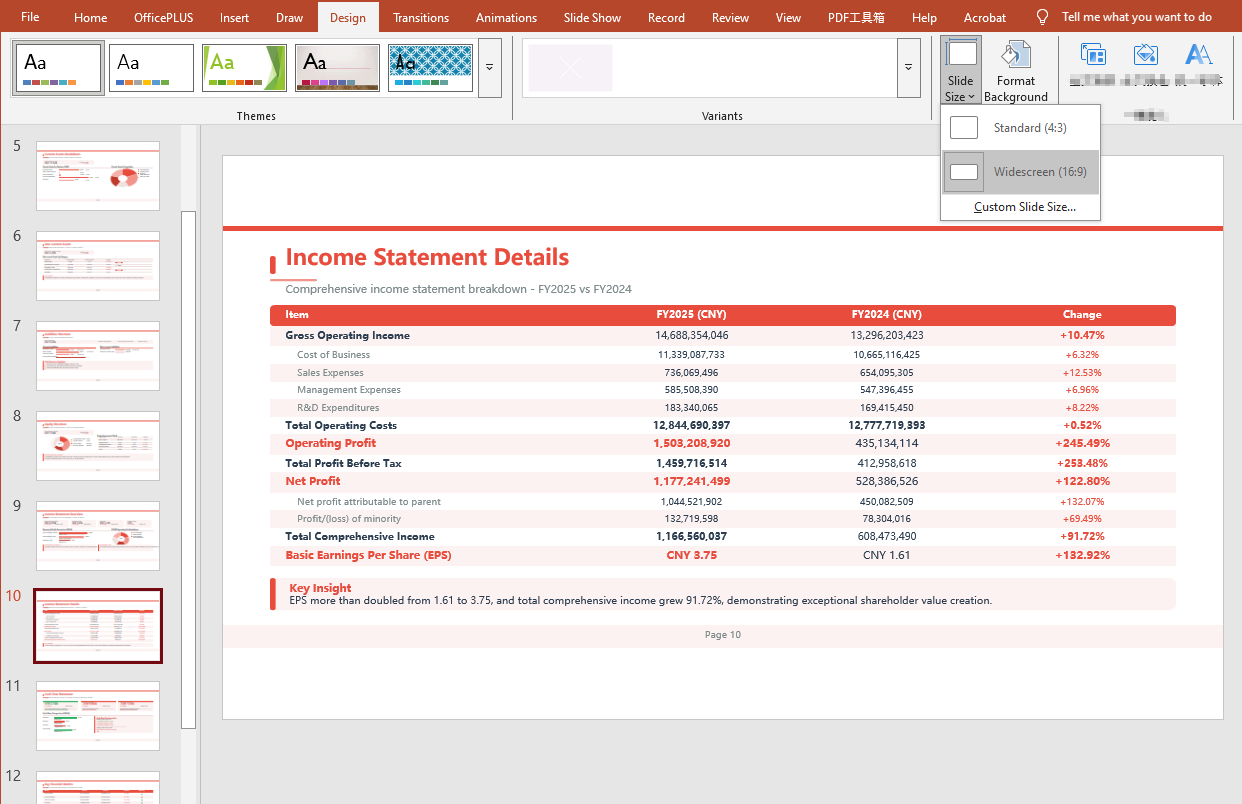
Convert 16:9 Widescreen to 4:3 Standard
using Spire.Agent.Office.AI;
using Spire.Agent.Office.Extensions;
using Spire.Presentation;

// PowerPoint AI processing configuration
string inputPath = @"ratio_169.pptx";
string savePath = @"output.pptx";
// SpireToken Key
string key = "**************************";
string instruction ="Read the input PowerPoint presentation and batch-convert it from 16:9 widescreen aspect ratio to 4:3 standard";

// Call the PowerPoint document processing function
AIResult result = ExecuteDemoPpt(instruction, inputPath, savePath, key);

// Execute PowerPoint document AI processing (the same helper function as above)
static AIResult ExecuteDemoPpt(string instruction, string inputPath, string savePath, string key)
{
    AIOptions options = new AIOptions();
    options.SpireToken = key;

    using (Presentation ppt = new Presentation())
    {
        if (!string.IsNullOrEmpty(inputPath) && File.Exists(inputPath))
        {
            ppt.LoadFromFile(inputPath);
        }
        AIDocumentProcessor processor = ppt.AI(options);
        return processor.ExecuteInstruction(ppt, instruction, savePath);
    }
}
Original 16:9 widescreen PPT 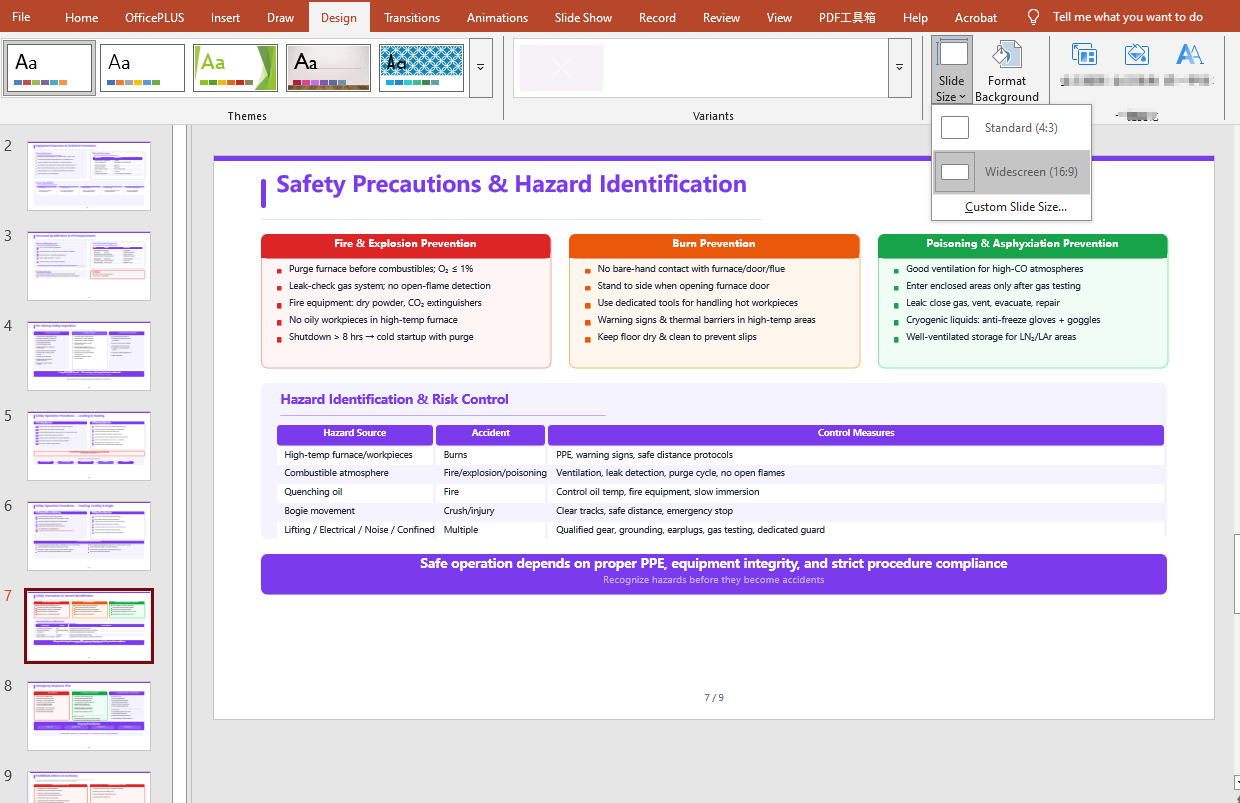 Converted 4:3 standard PPT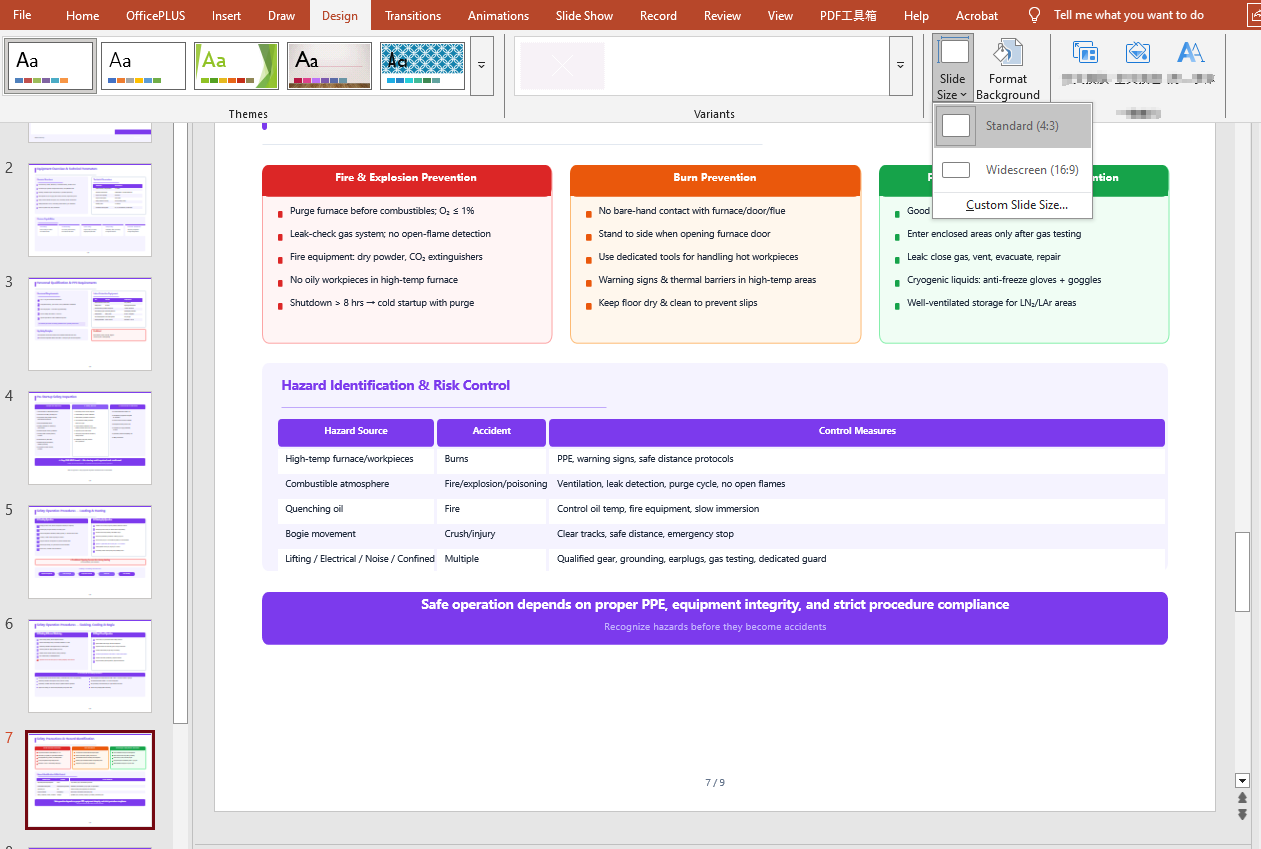
FAQ
Result document pages are missing
Cause: If the original document has many pages, the AI analysis can take a relatively long time. The default timeout setting of AIOptions.TimeoutMs is 5 minutes; if it is exceeded, the AI analysis is interrupted.
Solution: Set a sufficiently large AIOptions.TimeoutMs, for example:
 AIOptions options = new AIOptions();
    options.TimeoutMs = 1000000;
Get a SpireToken Key
- Contact sales@e-iceblue.com or visit https://www.e-iceblue.com/TemLicense.html to get a trial/commercial API key
Configure it in code:
AIOptions options = new AIOptions();
options.SpireToken = key;
