In corporate training, online courses and academic sharing, turning a course document into an "illustrated, voice-narrated" explainer video normally requires a whole toolchain of presentation, image processing, audio synthesis and video encoding. With the AI capability of Spire.Agent.Office, you only need to upload course documents in Word, PDF, Excel, Markdown or other formats and describe the goal in plain language to get a complete narrated video.
Compared with the traditional SDK API
| Traditional Spire.Office for .NET API | Spire.Agent.Office | |
|---|---|---|
| Driving model | Parse the course document, lay out slides page by page to build a Presentation, then use the API and ffmpeg to convert the Presentation to MP4 | Describe the goal in natural language and the AI understands and orchestrates the execution path |
| Amount of code | A large amount of code is required, and speech narration cannot be added | A simple natural-language instruction |
| Multi-format parsing | Separate parsing logic must be written for each format (Word/PDF/Excel/Markdown) | The AI detects the document format and reads the content automatically |
| Changing requirements | Adjust theme, page count, language or narration style → change code → compile → redeploy | Change the instruction and it takes effect immediately |
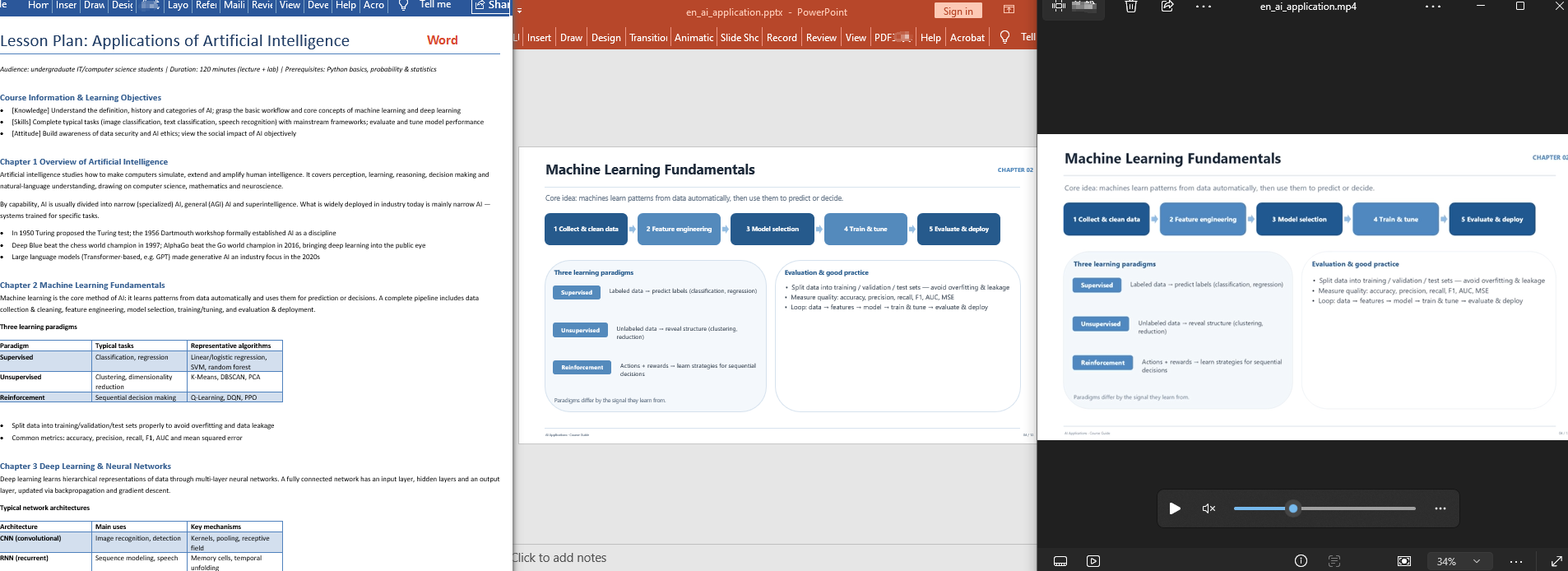
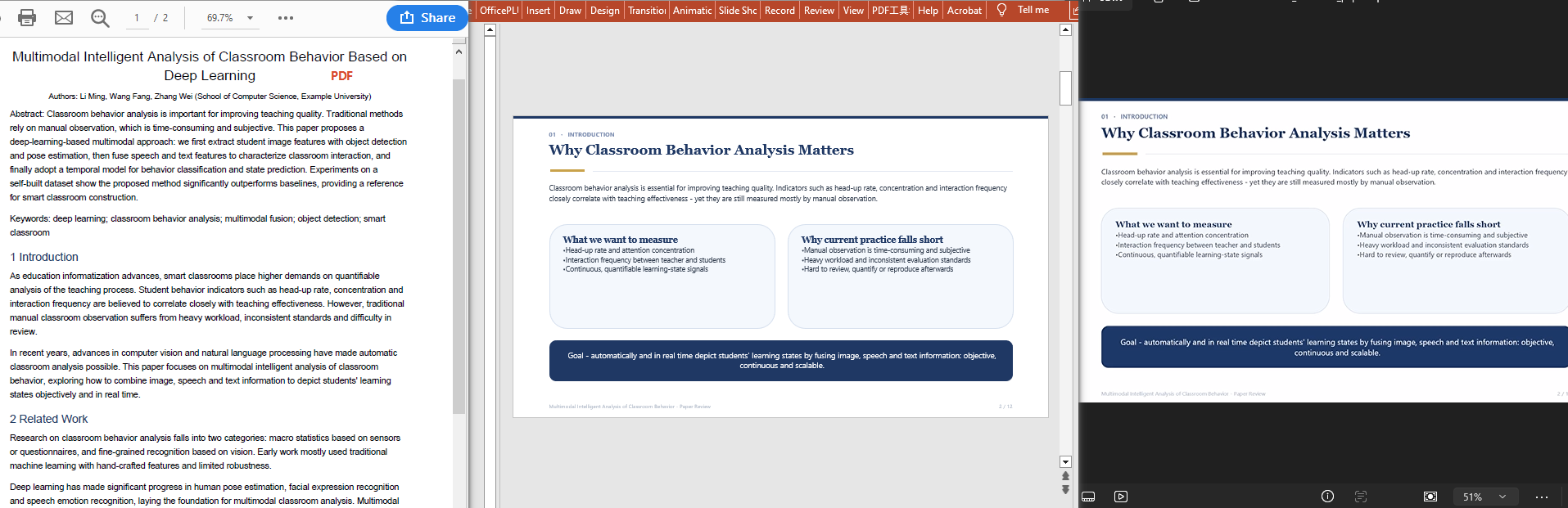
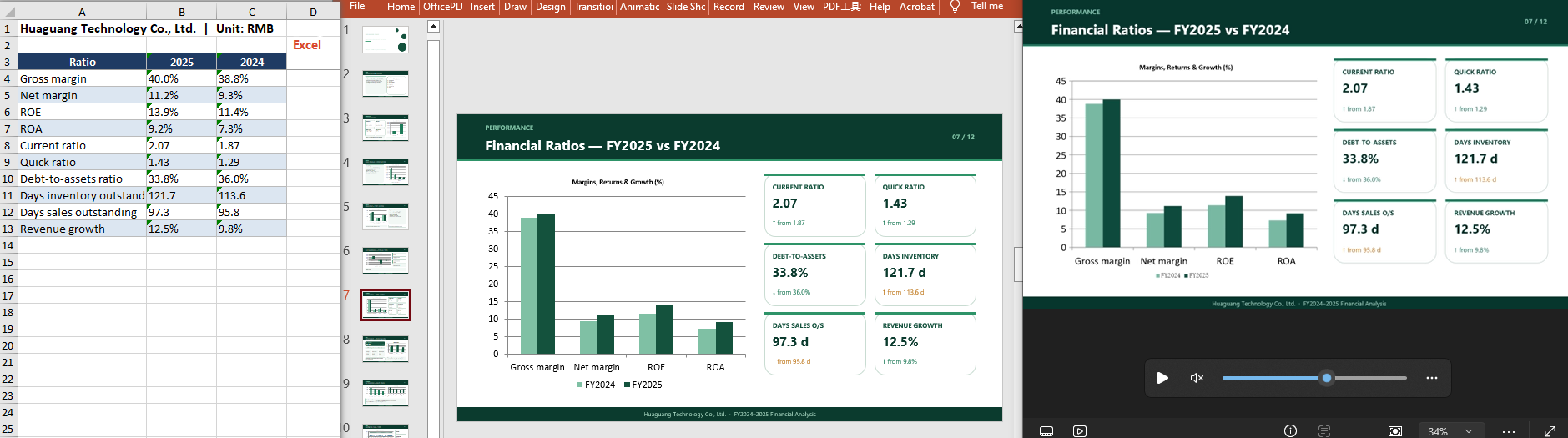
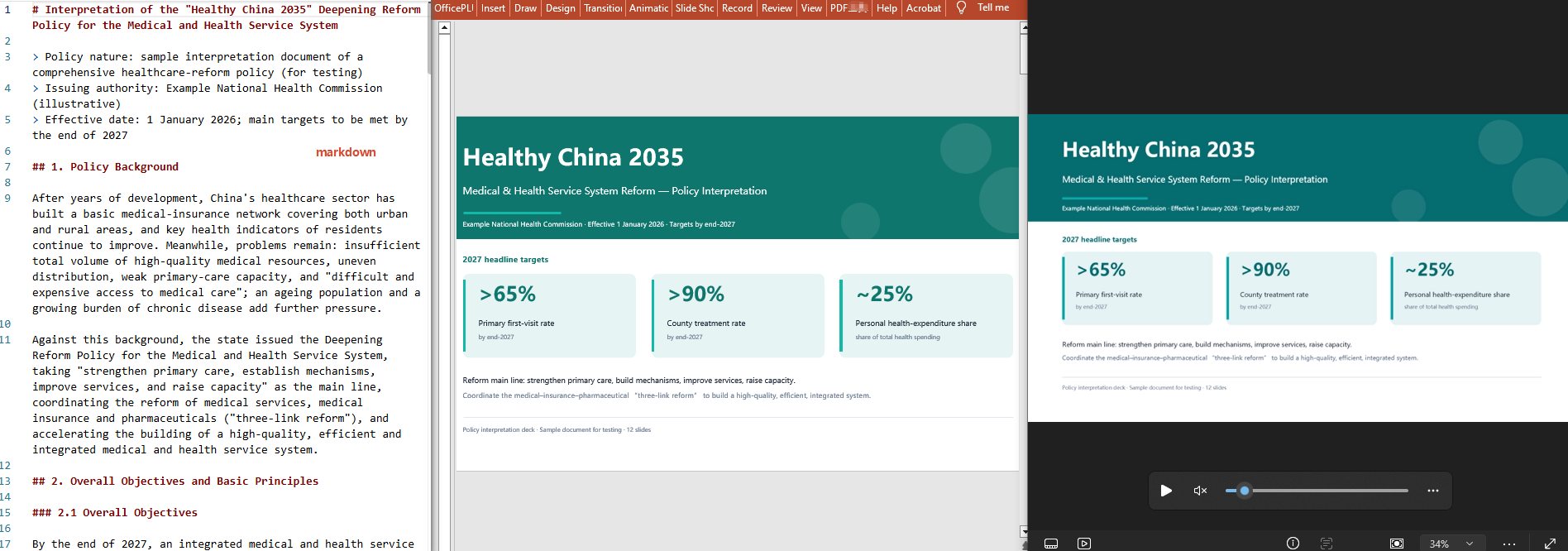
From course document to narrated video:
For product installation and SpireToken configuration, please refer to Integrating Spire.Agent.Office in a .NET Project. The examples below assume Spire.Agent.Office is installed and SpireToken is configured.
Step 1: From a course document to a Presentation
Use Spire.Agent.Office to distill the core points and generate a well-designed Presentation automatically.
using Spire.Agent.Office.AI;
using Spire.Agent.Office.Extensions;
using Spire.Presentation;

// Load course documents in Word, PDF, Excel and Markdown (4 formats)
List<string> inputPaths = new List<string>
{
    @"AI-application-course.docx",
    @"research-paper.pdf",
    @"financial-analysis.xlsx",
    @"health-policy.md"
};

string outputDirectory = @"E:\output\";
string key = "**************************";
// Distill the key points of the course document and generate a teaching Presentation.
string instruction =
    "Treat the attached tutorial documents as the processing target : distill the core points of the AI-application tutorial, covering the basics, typical application areas, implementation steps, real cases, and outlook. Theme: use a calm professional gray-blue as the theme color (clean, minimalist, modern AI-tech feel). 1. ensure high-quality layout and typography 2. include appropriate illustrative charts/figures 3. keep a clean, minimalist style 4. generate 12 slides; ";

// Generate a Presentation from each of the Word, PDF, Excel and Markdown course documents in turn
foreach (string inputPath in inputPaths)
{
    if (!System.IO.File.Exists(inputPath)) continue;

    string savePath = System.IO.Path.Combine(outputDirectory,
        $"{System.IO.Path.GetFileNameWithoutExtension(inputPath)}.pptx");

    GeneratePPT(inputPath, instruction, savePath, key);
}

// AI-powered PPT generation
static PPTGenerationResult GeneratePPT(string input, string instruction, string savePath, string key)
{
    //AIOptions options
    AIOptions options = new AIOptions();
    //Set the SpireToken
    options.SpireToken = key;
    //Set the timeout
    options.TimeoutMs = 1000000;
    //If the document content is long, you can customize the token circuit breaker; the default fuse is 3,000,000
    options.TokenCircuitBreakerLimit = 5000000;
    using (Presentation ppt = new Presentation())
    {
        AIDocumentProcessor processor = ppt.AI(options);
        return processor.GeneratePresentation(input, instruction, savePath);
    }
}
Step 2: From a Presentation to a video
Based on the Presentation generated in step 1, a single instruction that asks for "voice narration" automatically produces an MP4 explainer video with spoken commentary.
using Spire.Agent.Office.AI;
using Spire.Agent.Office.Extensions;
using Spire.Presentation;

// Define the paths of the 4 PPT source files generated in the previous step
List<string> inputPaths = new List<string>
{
    @"AI-application-course.pptx",
    @"research-paper.pptx",
    @"financial-analysis.pptx",
    @"health-policy.pptx"
};

string outputDirectory = @"E:\output\";
string key = "**************************";
string instruction = "Create an MP4 explainer video of this presentation with synchronized voice narration in English.";

// Loop over each PPT to generate a video
foreach (string inputPath in inputPaths)
{
    if (!File.Exists(inputPath)) continue;

    string savePath = Path.Combine(outputDirectory,
        $"{Path.GetFileNameWithoutExtension(inputPath)}.mp4");

    ExecuteDemoPPT(instruction, inputPath, savePath, key, null);
}

// Execute the PPT document AI processing (generate a video with voice narration)
static AIResult ExecuteDemoPPT(string instruction, string inputPath, string savePath, string key, string[] attachmentPaths)
{
    //AIOptions options
    AIOptions options = new AIOptions();
    //Set the SpireToken
    options.SpireToken = key;
    //Set the timeout
    options.TimeoutMs = 1000000;
    //Set the token circuit breaker
    options.TokenCircuitBreakerLimit = 5000000;
    using (Presentation ppt = new Presentation())
    {
        if (!string.IsNullOrEmpty(inputPath) && File.Exists(inputPath))
        {
            ppt.LoadFromFile(inputPath);
        }
        AIDocumentProcessor processor = ppt.AI(options);
        return processor.ExecuteInstruction(ppt, instruction, savePath, attachmentPaths);
    }
}
Word document ----> Presentation ----> narrated .mp4 video
 Pdf document ----> Presentation ----> narrated .mp4 video
 Excel document ----> Presentation ----> narrated .mp4 video
 Markdown document ----> Presentation ----> narrated .mp4 video
FAQ
The generated PPT's page count does not match the course content
Cause: when the course document is large, the AI's choices when distilling and paginating can differ from expectations.
Solution: state the page count explicitly in the instruction, for example "generate 9 slides, one teaching segment per slide".
The result failed to generate
Cause: the source document contains a lot of data, so the analysis consumes a large number of tokens and exceeds the default token fuse limit.
Solution: configure TokenCircuitBreakerLimit yourself, as shown below:
AIOptions options = new AIOptions();
options.TokenCircuitBreakerLimit = 5000000;
Can multi-format course documents (Word/PDF/Excel/Markdown) all be converted?
Cause: each format is parsed differently, so users are not sure what works.
Solution: Spire.Agent.Office detects the format of the attached document and reads its content automatically; simply pass in the file of the corresponding format and state its origin in the instruction.
Get your SpireToken Key
- Contact sales@e-iceblue.com or visit https://www.e-iceblue.com/TemLicense.html to obtain a trial/commercial API key
Configure it in code:
AIOptions options = new AIOptions();
options.SpireToken = key;
