Contract delivery usually calls for PDF, archiving may call for DOCX, and some pages also need to export HTML or TXT. Spire.OfficeJS converts the document currently in the editor into these formats and hands it to the browser for download. This article uses Word as an example to explain how to convert and download documents with Spire.OfficeJS:
Document conversion and download process
The download takes four steps:
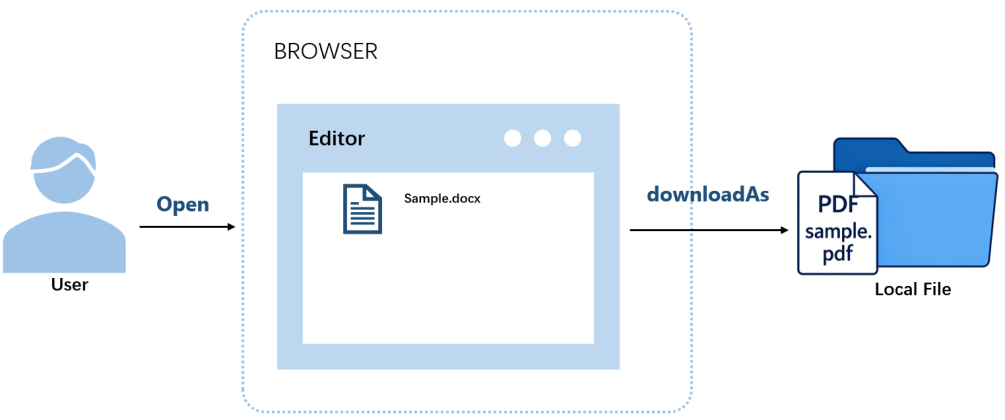
- The user opens a document in the editor.
- The user clicks the convert-and-download button on the page, which calls
docEditor.downloadAs()with the target format. - The editor converts the current document to the target format.
- The browser downloads the document locally.
Using downloadAs
The editor provides the downloadAs() method to convert the current document to a specified format and hand it to the browser for download. You can call it once the editor is initialized; the conversion runs in the browser, and the result is a local copy.
Example configuration (converting to PDF):
var onDownloadAs = function () {
  docEditor.downloadAs({ format: 'pdf'});
};
format takes the target format's file extension and is case-insensitive.
Complete code:
<!DOCTYPE html>
<html lang="en">
<head>
  <meta charset="UTF-8">
  <title>Spire.OfficeJS Convert File - downloadAs</title>
  <style>
    html, body { height: 100%; margin: 0; }
    body { display: flex; flex-direction: column; }
    #editor { flex: 1; min-height: 0; }
    #editor iframe { width: 100%; height: 100%; border: 0; }
  </style>
</head>
<body>
  <button type="button" id="download" onclick="onDownloadAs()" disabled>Download PDF</button>
  <div id="editor"></div>
  <script src="http://LocalExample:3000/web/editors/spireapi/SpireCloudEditor.js"></script>
  <script>
    var SERVER = 'http://LocalExample:3000';
    var downloadButton = document.getElementById('download');

    var config = {
      fileAttrs: {
        fileInfo: { name: 'sample.docx', ext: 'docx' },
        sourceUrl: SERVER + '/samples/sample.docx'
      },
      user: { id: 'uid-1', name: 'Jonn' },
      editorAttrs: {
        editorMode: 'edit',
        editorType: 'document',
        viewLanguage: 'en',
        canDownload: true,
        useWebAssemblyDoc: true,
        serverless: { useServerless: true, baseUrl: SERVER },
        events: {
          onStart: function () {
            downloadButton.disabled = false;
          }
        }
      }
    };

    var docEditor = new SpireCloudEditor.OpenApi('editor', config);

    function onDownloadAs() {
      docEditor.downloadAs({ format: 'pdf' });
    }
  </script>
</body>
</html>
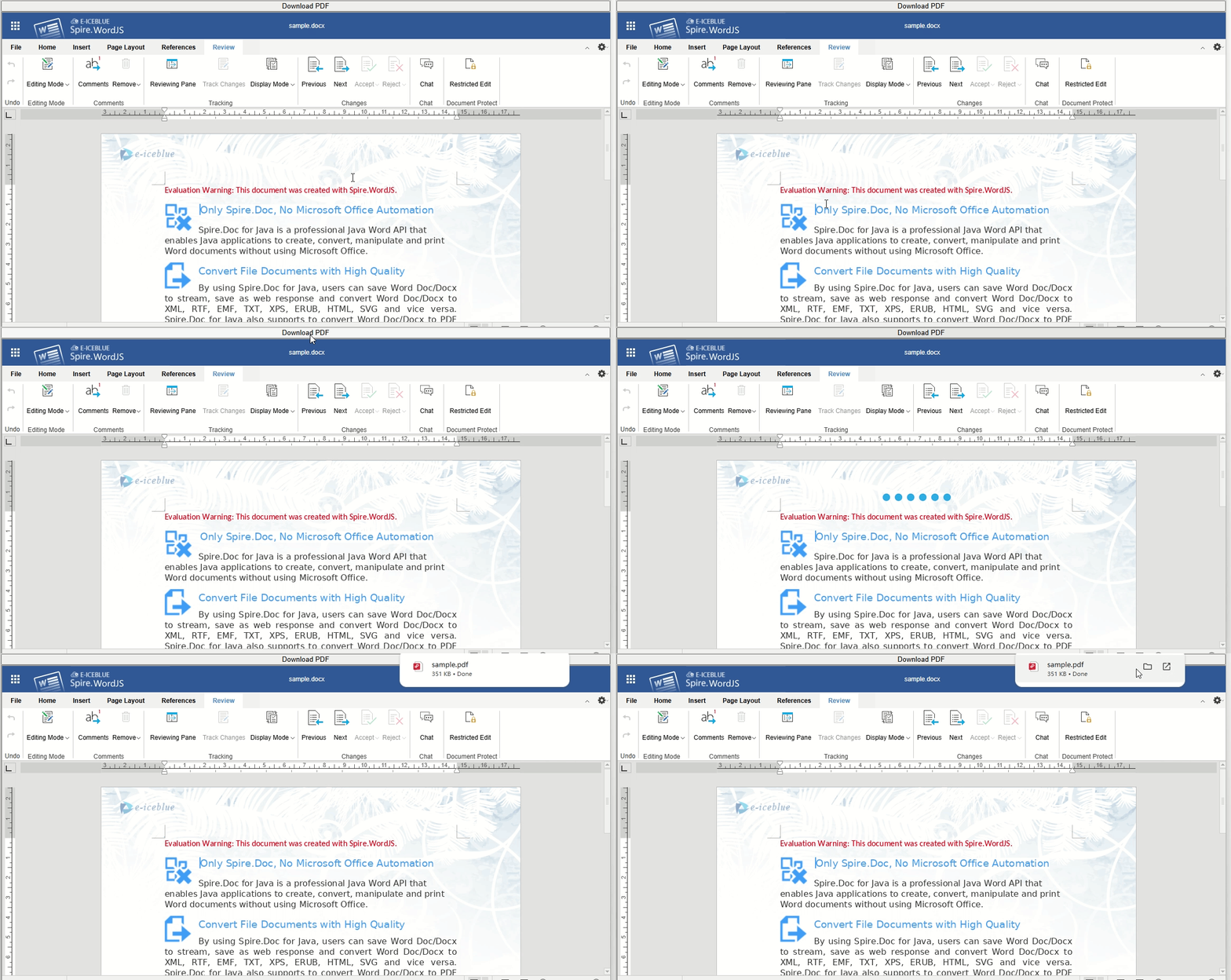
After selecting a document and clicking the download button, the editor converts it and the browser downloads the resulting PDF:
Supported formats
The formats you can convert to depend on the editor that opened the document. Word, Excel, and Presentation load on different pages and support different target formats, so pick the format for the editor that matches the document. The target formats supported by each editor are listed below:
| Editor | Supported formats |
|---|---|
| Spire.WordJS | DOCX, PDF, PDFA, ODT, DOTX, OTT, RTF, HTML, TXT |
| Spire.ExcelJS | XLSX, XLTX, PDF, PDFA, CSV, ODS, OTS |
| Spire.PresentationJS | PPTX, PDF, ODP, POTX, OTP |
FAQ
Does downloading modify the original document or trigger save callbacks
Cause: Downloading does not call callbackUrl or onSave, and it does not write back to sourceUrl; it only generates the document in the browser and downloads it.
Solution: No extra handling is needed. The download is a local copy; neither the original document nor the one in your business system is modified.
format is set, but the downloaded document's format does not change
Cause: If format is unrecognized, the document editor falls back to the document's original format.
Solution: Use the target formats listed for the matching editor in the supported formats table. For example, with sample.docx as the original and format: 'bogus', the downloaded document is still sample.docx.
Can multiple documents be converted at once
Cause: downloadAs() converts only the document currently open in the editor, and one call produces one document in the target format.
Solution: To convert multiple documents, open each document in turn and call downloadAs() for each one, for example by opening the next document after each conversion on the business page.
