The comments feature in Spire.OfficeJS lets readers leave feedback on a specific passage without changing the body text. Comments are independent of revisions: they can be replied to, resolved, or removed without accepting or rejecting a revision. Using Word as an example, this article describes the comment operations that Spire.OfficeJS provides, and explains how to enable, restrict, or hide them as needed.
Comment Capabilities at a Glance
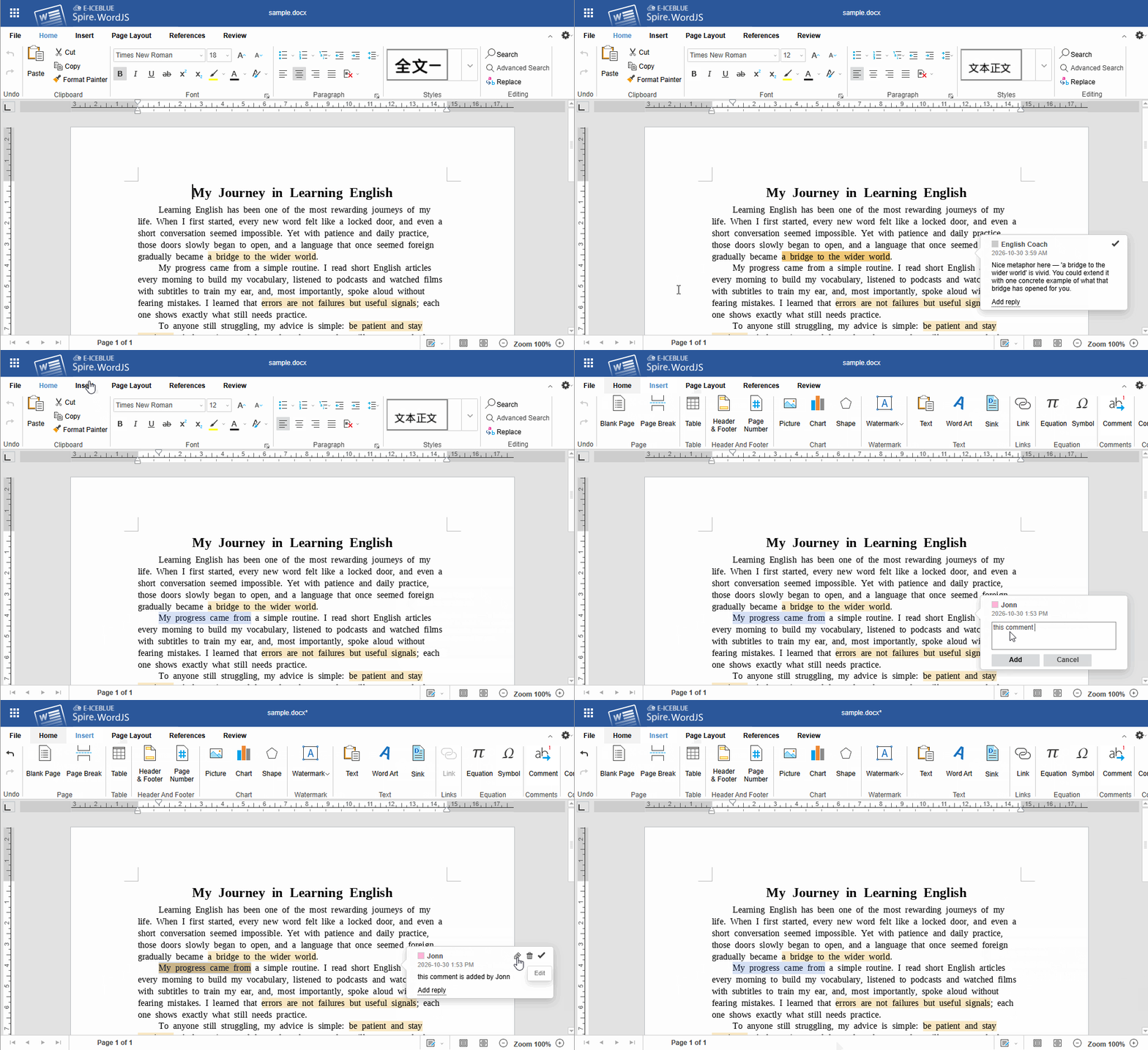
Comment entry points are available on the Insert and Review tabs, and in the floating button that appears after you select text. The comments pane lists every comment in the document in one place and provides centralized management.
| Capability | UI Location | Description |
|---|---|---|
| Add comment | Insert → Comment; floating button after selecting text | Adds a comment to the selected text |
| Reply to comment | Comment bubble or comments pane | Appends a reply under an existing comment, forming a thread |
| Resolve comment | Comment bubble or comments pane | Marks a handled comment as "Resolved"; the comment stays in the document |
| Reopen comment | Comment bubble | Restores a resolved comment to the unresolved state |
| Edit comment | Comment bubble | Changes the comment text; with commentAuthorOnly enabled, users can only edit their own comments |
| Remove comments | Review → Remove Comments | Removes the current, all, "my" comments |
| Show all comments | Review → Show All Comments | Opens the comments pane to review and manage comments in one place |
| Restrict Editing → Comment | Review → Restrict Editing | Protects the document and allows only comments to be inserted |
The "Remove Comments" drop-down menu provides four options: Remove Current Comments, Remove All Comments (regardless of author), Remove My Comments (only those created by the current user), and Remove My Current Comments. Removing a comment deletes only the comment itself. It does not modify the body text or affect other comments anchored at the same location.
Configure Comment Capabilities
Commenting is switched on or off by canComment in editorAttrs. The pane state on open and the author's editing scope are controlled by the switches under user.customization.public.common.
Expand the Comments Pane on Open
openAllComments controls whether the comments pane expands automatically when a document opens; the default is false. Setting it to true is equivalent to clicking "Show All Comments" right after the document opens, which suits review workflows centered on comments.
user: {
  customization: {
    public: {
      common: {
        openAllComments: true // expands the comments pane when the document opens
      }
    }
  }
}

Only Authors Can Edit Their Comments
With commentAuthorOnly enabled, users can edit or delete only the comments and replies they created themselves. Comments from other authors can still be viewed, replied to, or resolved, which suits scenarios that need to preserve the original comment record.
user: {
  customization: {
    public: {
      common: {
        commentAuthorOnly: true // only the author can edit their own comments
      }
    }
  }
}
Disable Comments
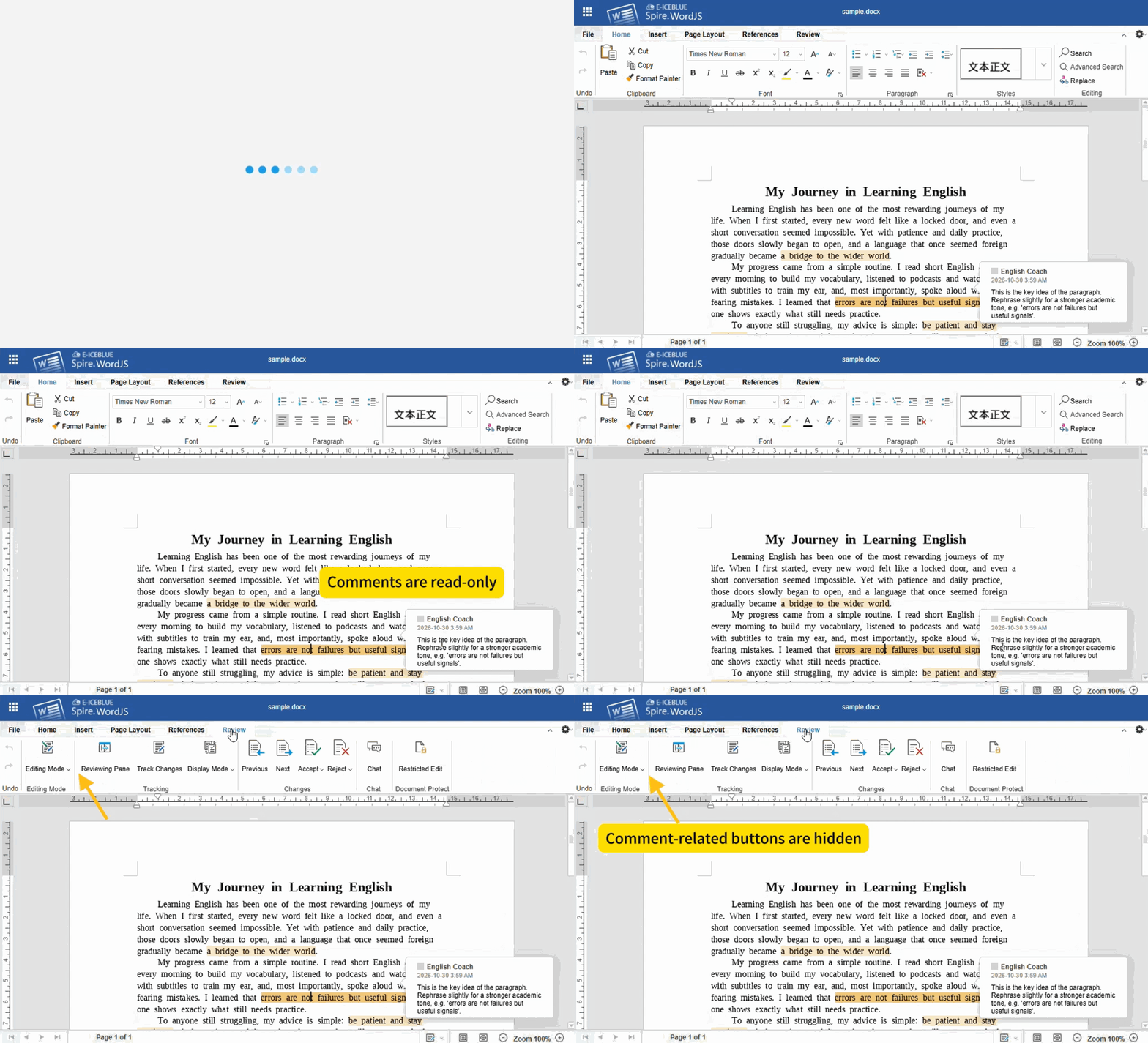
canComment controls whether commenting is allowed; the default is true. When set to false, the comment button group on the Review tab is hidden. Existing comments in the document remain visible but are read-only. Body editing is unaffected.
editorAttrs: {
  canComment: false
}
Note
canComment affects comments only; it does not change body editing or track changes. If the entire document must be read-only, use editorMode: 'view'.
Control Comment-Related Buttons
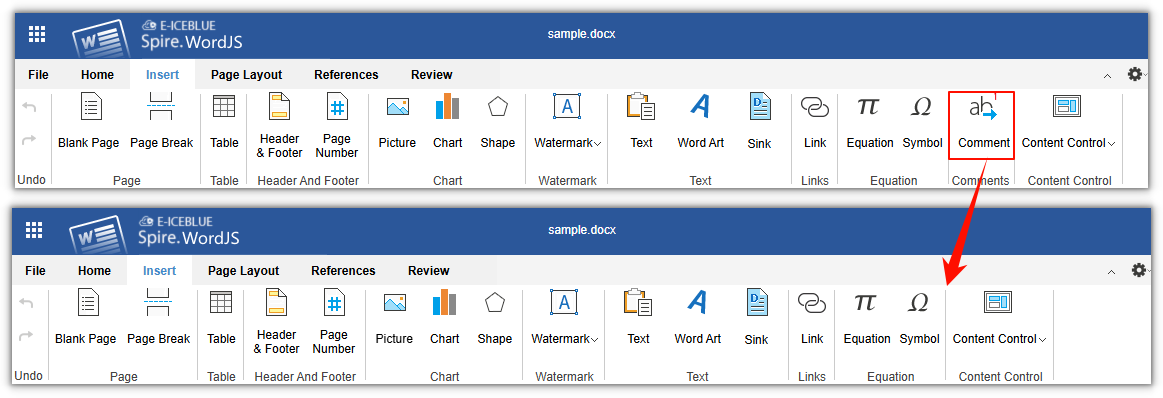
canComment only switches the commenting capability as a whole. If you want to hide only some buttons (for example, remove the "New Comment" entry while keeping viewing and navigation), configure user.customization.public.common.btnPermissions.docBtnPermissions. Removed buttons and their corresponding shortcuts are disabled as well:
user: {
  customization: {
    public: {
      common: {
        btnPermissions: {
          docBtnPermissions: [
            { modular: 'Toolbar', subModule: ['btnInsertComments'] }
          ]
        }
      }
    }
  }
}
For more about button permission configuration, see the documentation on customizing the toolbar menu.
FAQ
The New Comment button is unavailable or grayed out
Common causes:
- No text is selected. A comment must be anchored to selected content.
- The cursor is inside a chart, shape, or a content control that does not support comments (such as a check box, picture, or drop-down list).
Comment authors appear as "Guest" or are all identical
Comment authors come from user.name in the current session, and the user identity comes from user.id. Pass a unique, stable id and the correct display name for each user. If no display name is provided, the author appears as "Guest"; if several users share a fixed account, all their comments show the same author.
