When a user finishes editing, where the document goes and how it is stored is usually up to the business system. Saving in Spire.OfficeJS leaves that control with you: the editor only generates the current document in the browser, and you can either send it to a backend endpoint or handle it in the page. Whether it overwrites the original document, creates a new version, or saves a copy can follow your own rules. The examples below use Word to show how to save documents with Spire.OfficeJS:
Document saving process
The save takes five steps. "Business page" in the figure refers to the page that hosts the editor; the term is used throughout below.
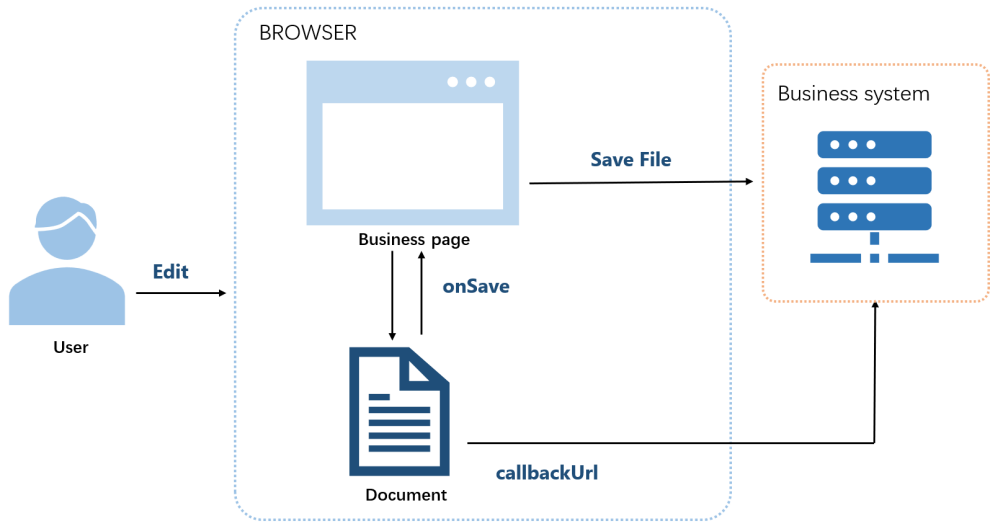
- The user edits the document.
- The user saves.
- The editor generates the current document.
- With
callbackUrl, the document is sent to that address; withonSave, the business page receives it. - The editor shows "Saved successfully".
Before you save
Saving requires the following configuration:
user.canSaveset totrue(the default).editorAttrs.editorModeset toedit.
Both examples below include these settings. Replace LocalExample with the actual deployment address.
Ways to save a document
Spire.OfficeJS supports two ways to save a document: use callbackUrl when the document should be saved by your backend, and use onSave when the page should handle the save result itself. The steps for each option are described below.
Save a document with callbackUrl
Use this when your backend saves the document. With callbackUrl configured, the editor sends the current document to that address on save, and the endpoint receives and stores it.
- Create an
.htmlpage to open the document. - Configure the save endpoint in
config.fileAttrs.callbackUrl. - Open the page, edit the document, and save. The editor shows "Saved successfully" once the endpoint returns success.
Example configuration:
var config = {
  fileAttrs: {
    fileInfo:
    { name: 'sample.docx',
      ext: 'docx',
      primary: '001'
    },
    sourceUrl: 'http://LocalExample:3000/samples/sample.docx',
    callbackUrl: 'http://LocalExample:3001/saveWebAssembly'
  },
  user:
  { id: 'uid-1',
    name: 'Jonn',
    canSave: true
  },
  editorAttrs: {
    editorMode: 'edit',
    editorType: 'document',
    viewLanguage: 'en',
    useWebAssemblyDoc: true,
    canForcesave: true,
    serverless: {
      useServerless: true,
      baseUrl: 'http://LocalExample:3000'
    },
  }
};

new SpireCloudEditor.OpenApi('editor', config);
Save a document with onSave
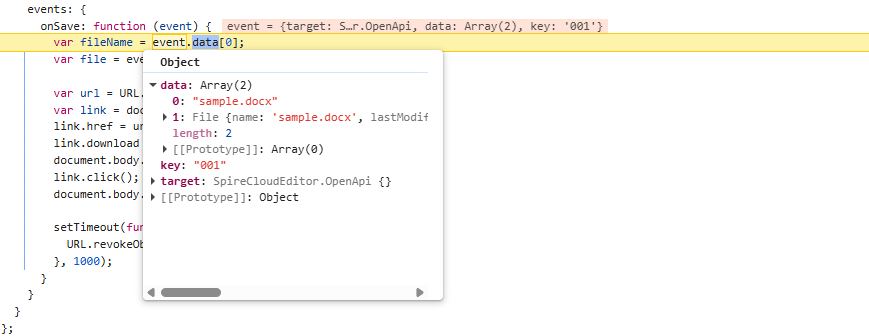
Use this when you have no save endpoint, or you want the page to handle the save result itself. On save, the editor calls onSave and passes the result in event.data:
event.data[0]is the file name, a string such assample.docx.event.data[1]is the current document content, a standard browserFileobject you can download or upload directly.
What you do with these two items is up to the page: download locally, upload to a backend, rename the document, or just show a message. The editor only generates the save result and calls the callback.
Example configuration (do not set callbackUrl in fileAttrs, or set it to empty):
var config = {
  fileAttrs: {
    fileInfo:
    { name: 'sample.docx',
      ext: 'docx',
      primary: '001' },
    sourceUrl: 'http://LocalExample:3000/samples/sample.docx'
  },
  user:
  { id: 'uid-1',
    name: 'Jonn',
    canSave: true
  },
  editorAttrs: {
    editorMode: 'edit',
    editorType: 'document',
    viewLanguage: 'en',
    useWebAssemblyDoc: true,
    serverless: {
      useServerless: true,
      baseUrl: 'http://LocalExample:3000'
    },
    events: {
      onSave: function (event) {
        var fileName = event.data[0]; // file name (FileName), e.g. sample.docx
        var file = event.data[1];     // file object (File), the current document
        var key = event.key;          // document key, equal to fileInfo.primary, e.g. 001

        // The handling below is entirely up to the page.
        // Example: download locally
        var url = URL.createObjectURL(file);
        var link = document.createElement('a');
        link.href = url;
        link.download = fileName;
        document.body.appendChild(link);
        link.click();
        document.body.removeChild(link);
        setTimeout(function () {
          URL.revokeObjectURL(url);
        }, 1000);
      },
      onDocumentStateChange: function (event) {
        console.log(event.data ? 'Unsaved' : 'Saved');
      }
    }
  }
};

new SpireCloudEditor.OpenApi('editor', config);
This is what event.data looks like at an onSave :
FAQ
Will saving overwrite the original document automatically
Cause: Spire.OfficeJS does not write the edits back to sourceUrl automatically. Saving only generates the current document and hands it to your business system.
Solution: Handle it in the callbackUrl endpoint or the onSave callback: whether to overwrite the original document, create a new version, or save a copy is up to your business system.
Both callbackUrl and onSave are configured, but onSave does not run
Cause: When both are configured, callbackUrl takes precedence and onSave does not run; with neither, the editor offers no save function.
Solution: Keep only one save outlet. If the page should handle the document itself, remove fileAttrs.callbackUrl or set it to empty.
