How to Change PowerPoint Slide Backgrounds — 5 Methods
Table of Contents
- Method 1. Change Background Using “Format Background”
- Method 2. Use a Custom Background Image
- Method 3. Apply Background to All Slides via Slide Master
- Method 4. Change Background with VBA Macro
- Method 5. Change Background Programmatically with Python
- Comparison Table: Which Method Should You Choose?
- Summary
- FAQs About Changing Background of Slides

PowerPoint is widely used for delivering ideas, reports, and marketing content. A slide’s background does more than decorate — it sets the tone, improves readability, and reinforces branding. Choosing the right background can make any presentation more professional and visually appealing.
Slide backgrounds can be customized manually using built-in tools like solid colors, gradients, patterns, or images. For advanced users, automation with VBA or Python (Spire.Presentation) helps save time on multiple slides or presentations. This article covers five practical methods for changing slide backgrounds, from manual edits to programmatic solutions.
Method Overview
- Method 1. Change Background Using “Format Background”
- Method 2. Use a Custom Background Image
- Method 3. Apply Background to All Slides via Slide Master
- Method 4. Change Background with VBA Macro
- Method 5. Change Background Programmatically with Python
Method 1. Change Background Using “Format Background”
One of the easiest ways to change a slide’s background is through PowerPoint’s Format Background feature. It offers several fill options — Solid, Gradient, Picture or Texture, and Pattern — all accessible from a single pane.
How to do it:
- Open your PowerPoint presentation.
- Select the slide you want to modify.
- Go to the Design tab in the ribbon.
- Click Format Background on the far right.
- Choose your preferred fill type:
- Solid Fill: Pick a single color for a clean and professional look.
- Gradient Fill: Blend two or more colors smoothly for a dynamic effect.
- Picture or Texture Fill: Apply an image or one of PowerPoint’s built-in textures.
- Pattern Fill: Use repeating designs like stripes or dots for subtle backgrounds.
- Click Apply to All to use the same background on every slide, or leave it unchecked to apply only to the current slide.
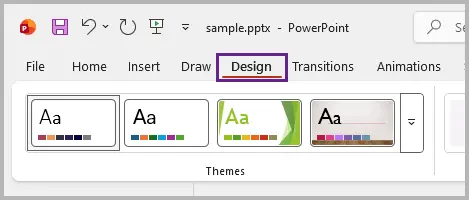

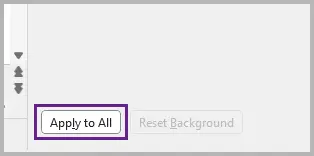
Tips:
- Choose colors that contrast well with your text and visuals. For readability, use light backgrounds with dark text or vice versa.
- Use the Format Painter to copy a background style from one slide to another quickly.
When to use it:
This method is ideal for most users who want a consistent, professional background without any effort. It’s quick, intuitive, and integrates seamlessly with PowerPoint’s built-in themes.
Method 2. Use a Custom Background Image
While Format Background supports picture fills, manually inserting an image gives you extra creative control. Use this approach when you need to position, crop, layer, or partially cover the slide with visuals — for example, placing a hero image, offsetting a photo behind text, or composing multiple images and shapes.
Quick guide:
- Go to Insert → Pictures → This Device (or online source).
- Choose and insert your image.
- Resize or crop it to fit your design.
- Right-click the image → Send to Back so that text and objects appear on top.
- Adjust transparency if needed to prevent the background from overwhelming the slide content.
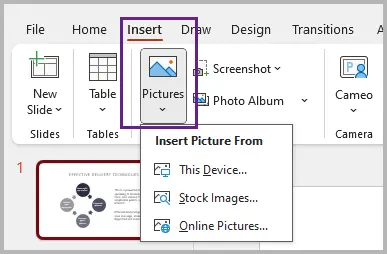
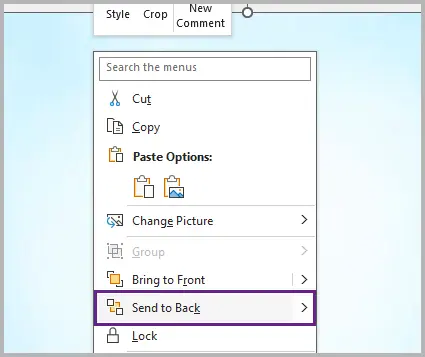
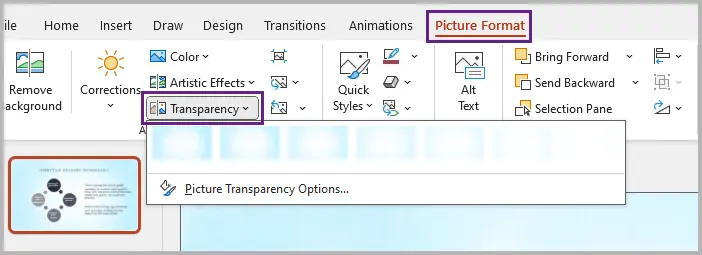
Tips:
- Use this method for standout slides, such as cover pages or transitions, where you want a distinct image separate from the rest of the deck.
- Keep file sizes small — compress large images to prevent slow presentation loading.
When to use it:
Choose this approach when you need precise placement, a unique composition, or layered visual effects beyond what Format Background provides.
Method 3. Apply Background to All Slides via Slide Master
If you want to apply a background consistently across every slide — including future ones you’ll add — the Slide Master is the best solution. This method ensures your presentation maintains uniform branding and saves time when editing large decks.
Step-by-step:
- Go to View → Slide Master .
- Select the topmost master slide in the left panel.
- Click Background Styles → Format Background and choose your desired background (color, gradient, picture, or pattern).
- Close the Slide Master view to return to the normal slide editor.

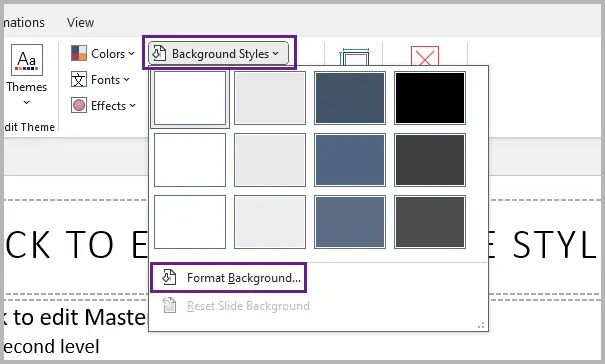
Tips:
- Create multiple Slide Master layouts, each with a different background, to visually separate presentation sections.
- Lock key elements (logos, background shapes) in the master to prevent accidental edits.
When to use it:
Use the Slide Master when creating templates, corporate presentations, or educational decks that require a consistent background across all slides and layouts.
Method 4. Change Background with VBA Macro
For power users comfortable with scripting, VBA (Visual Basic for Applications) provides a way to automate background changes directly within PowerPoint. It’s useful when you need to update multiple slides or presentations quickly with the same settings.
Example VBA script:
Sub SetSlideBackgroundColor()
    Dim sld As Slide
    For Each sld In ActivePresentation.Slides
        sld.FollowMasterBackground = False
        sld.Background.Fill.ForeColor.RGB = RGB(100, 149, 237) 'Sky blue
    Next sld
End Sub
Here's how to do it:
- Press Alt + F11 to open the VBA editor in PowerPoint.
- Right-click on the project name, and select Insert → Module .
- Copy and paste the provided VBA code into the module.
- Press F5 to execute the macro, which will change the background of all slides.
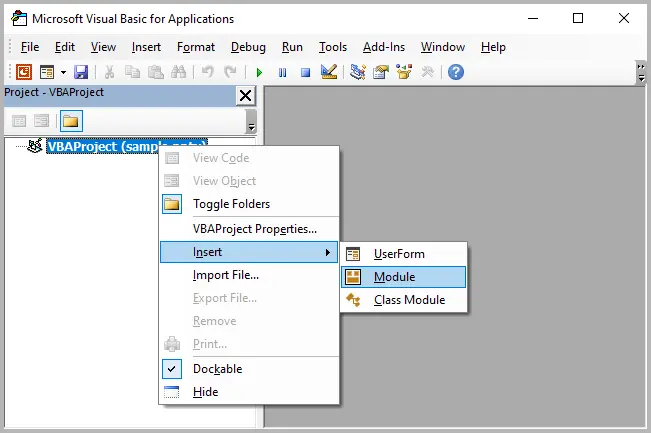
When to use it:
VBA is best for users who already work inside PowerPoint and need fast, repeatable automation — for example, corporate template updates or bulk formatting tasks.
Method 5. Change Background Programmatically with Python
For developers or analysts who want to generate presentations dynamically, Spire.Presentation for Python provides a powerful way to manipulate PowerPoint files, including changing slide backgrounds, without opening PowerPoint.
Installation:
pip install spire.presentation
Here is an example of how to apply a solid background color to all slides, using Spire.Presentation for Python:
from spire.presentation import *

# Create a Presentation object
presentation = Presentation()
# Load the PowerPoint file
presentation.LoadFromFile("Input.pptx")

# Loop through all slides
for slide in presentation.Slides:
    # Access and customize background
    background = slide.SlideBackground
    background.Type = BackgroundType.Custom
    background.Fill.FillType = FillFormatType.Solid
    background.Fill.SolidColor.Color = Color.get_LightYellow()

# Save the modified presentation
presentation.SaveToFile("AllSlidesBackground.pptx", FileFormat.Pptx2013)
presentation.Dispose()
Core steps explained:
- Loads an existing PowerPoint file.
- Iterates through all slides.
- Sets a custom solid color as the background.
- Saves the modified presentation.
Read Further: Set Background Color or Picture for PowerPoint Slides in Python
Output:

Why use Spire.Presentation:
- Works across platforms (Windows, macOS, Linux).
- Allows bulk automation (apply backgrounds to hundreds of slides).
- Can integrate with data sources (Excel, XML, databases) for dynamic slide creation.
Comparison Table: Which Method Should You Choose?
| Method | Skill Level | Best For | Scope | Flexibility |
|---|---|---|---|---|
| Format Background | Beginner | Quick, per-slide edits | Single or all slides | Moderate – offers multiple fill options |
| Custom Background Image | Beginner–Intermediate | Creative designs and unique layouts | Per-slide | High – allows cropping, layering, and effects |
| Slide Master | Intermediate | Consistent design for entire decks or templates | All slides (current & future) | High – controls layout and theme together |
| VBA Macro | Intermediate–Advanced | Bulk updates within PowerPoint | All slides or multiple presentations | Medium – limited by PowerPoint’s VBA environment |
| Python (Spire.Presentation) | Advanced | Automation, batch generation, or integration with data pipelines | Multiple slides or files | Very High – full programmatic control |
Summary
Changing the background of a PowerPoint slide can be simple or highly automated, depending on your needs. For everyday users , PowerPoint’s Format Background , custom images , and Slide Master provide flexible options for both single slides and entire presentations. For advanced users or developers , automation via VBA or Python (Spire.Presentation) makes it easy to apply backgrounds programmatically, saving time and ensuring consistency across large or multiple presentations.
By understanding these methods, you can choose the right approach for your workflow — whether it’s a quick manual tweak for one slide, a branded corporate template, or fully automated background updates for hundreds of slides.
FAQs About Changing Background of Slides
Q1. How can I reset the background of a slide?
Use Format Background → Reset Background to revert the slide to the theme’s default style.
Q2. Can I apply different backgrounds to different slides?
Yes, either manually via Format Background or by creating multiple layouts in the Slide Master.
Q3. What image resolution is best for slide backgrounds?
Use at least 1920×1080 pixels for full HD slides. Higher resolution is recommended for large screens or projectors.
Q4. Can I use Python to apply gradient or picture backgrounds?
Yes, Spire.Presentation for Python supports solid colors, gradients, and picture fills programmatically.
Q5. Is VBA safer than Python for automation?
VBA runs inside PowerPoint and is easier for non-developers but only works on Windows. Python is cross-platform and more flexible for large-scale automation.
See Also
How to Attach Files to a Word Document (5 Effective Ways)
Table of Contents

In many business or academic settings, a Word document is more than just text — it often serves as a hub for related materials like reports, spreadsheets, charts, or reference PDFs. Instead of sending multiple files separately, attach them directly to your Word document to keep everything organized in one place.
This is particularly useful when preparing project reports, proposals, or technical documentation that requires supporting data. In this guide, you’ll learn five practical ways to attach a file to a Word document, ranging from simple manual approaches to automated methods using Python.
Method Overview:
- Method 1: Insert a File as an Embedded Object
- Method 2: Insert a File as a Linked Object
- Method 3: Add a File as a Hyperlink
- Method 4: Drag and Drop to Attach a File Quickly
- Method 5: Attach Files Programmatically with Python
Method 1: Insert a File as an Embedded Object
If you want the attached file to become a permanent and self-contained part of your Word document, embedding it as an object is the most reliable approach. This method stores the entire file inside the Word document itself, allowing you to share one single file that includes all related materials. It’s ideal when you need the document to remain fully functional even without access to external resources.
Steps:
- Open your Word document.
- Go to the Insert tab.
- Click Object in the Text group.
- Select Create from File .
- Click Browse , select the file, and confirm.
- (Optional) Check Display as icon for a tidy layout.
- Click OK.
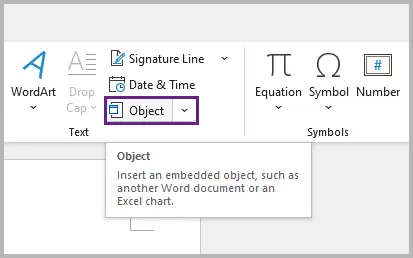
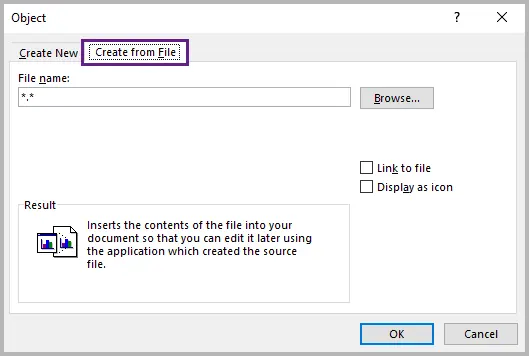
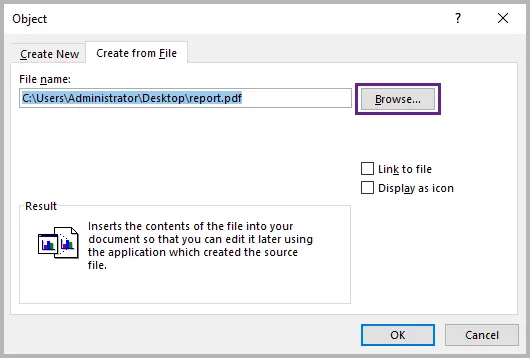
Your chosen file (e.g., PDF, Excel, or image) now becomes part of the document. You can double-click the inserted icon to open it at any time.
Pros:
- The attached file travels with the document.
- Works completely offline.
Cons:
- Increases file size.
- Doesn’t update automatically if the source changes.
Best for: finalized reports, archives, and official submissions.
Method 2: Insert a File as a Linked Object
When you want your Word document to stay lightweight while reflecting updates from an external source, inserting the file as a linked object is the smarter choice. Instead of embedding a copy, Word maintains a live link to the original file — so any changes made to the source are automatically reflected in your document. This is perfect for dynamic data, such as financial sheets or charts that evolve over time.
Steps:
- Follow the same steps as in Method 1.
- Before confirming, check Link to file .
- Click OK .
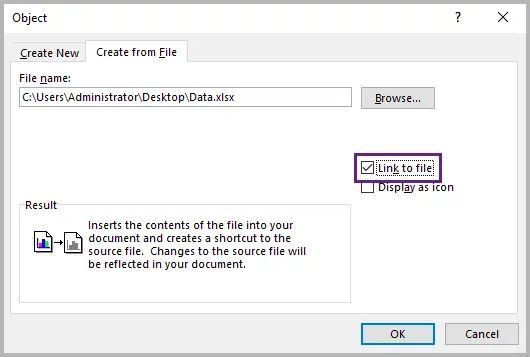
You’ll see a file icon or preview in your Word document, but the content is stored externally.
Pros:
- Keeps your Word document lightweight.
- Automatically updates when the original file changes.
- Works offline if the linked file is stored locally.
Cons:
- The link breaks if the source file is moved, renamed, or deleted.
- Requires access to the linked file’s path or drive (e.g., local or network).
Best for: collaborative projects or documents that rely on frequently updated data.
Method 3: Add a File as a Hyperlink
If you only need to reference a file rather than include its contents, adding a hyperlink offers a clean and efficient solution. This method simply points readers to the file’s location — whether on your local drive, a shared server, or a cloud service like OneDrive or SharePoint — without embedding or linking the actual file. It’s lightweight, quick, and ideal for distributed teams.
Steps:
- Highlight the text or image where you want to add the link.
- Right-click on the selected text or image, and choose Link from the prompted menu.
- Select your file or paste the full path/URL.
- Click OK .
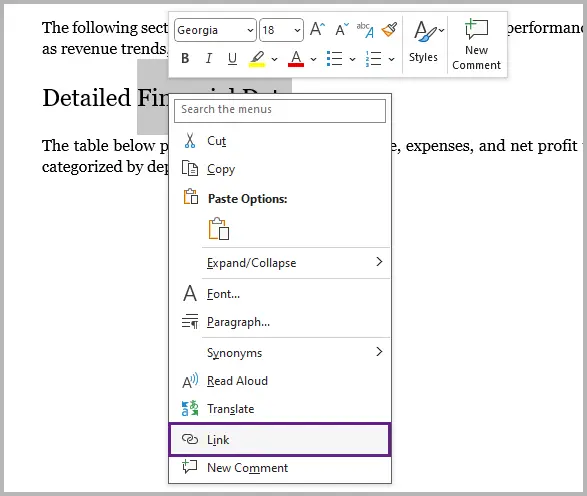
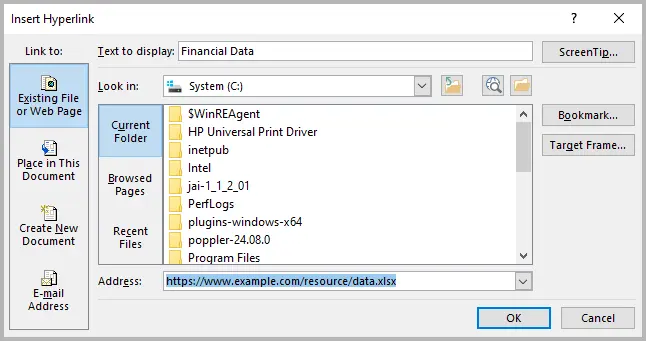
When clicked, the link opens the file directly in its associated program.
Pros:
- Doesn’t increase document size.
- Easy to edit or update the link target.
- Works offline if linked to a local file path.
Cons:
- Requires access to the file or network location.
- Cloud-based links (e.g., OneDrive or SharePoint) need an internet connection.
Best for: online collaboration, shared drives, or linking to local resources.
Method 4: Drag and Drop to Attach a File Quickly
When you need to attach a file on the fly without going through menus, the drag-and-drop method is the fastest and most intuitive approach. Simply drag a file from your desktop or file explorer directly into your open Word window — and Word will handle the rest.
Depending on the file type:
- Images are inserted inline automatically.
- Other file types (e.g., PDFs, Excel sheets) are displayed as icons that open with a double-click.
This method works best for quick edits or informal documents where convenience is key.
Pros:
- Incredibly fast and easy.
- Works for most common file formats.
Cons:
- Larger resulting file size.
- Less control over how the attachment appears or behaves.
Best for: quick one-time inserts or when you need to drop in a few files during editing.
Method 5: Attach Files Programmatically with Python
For advanced users and developers, automating file attachments using Python can save time and ensure consistency — especially when generating large numbers of documents or assembling reports programmatically. By using Spire.Doc for Python, you can embed external files as OLE objects directly into Word without manual steps.
This is ideal for automated workflows, such as generating weekly reports, attaching PDFs or charts, or bundling supporting documents dynamically.
Here’s an example of how to embed a PDF file into a Word document:
from spire.doc import *
from spire.doc.common import *

# Create a Document object
doc = Document()

# Load a Word document
doc.LoadFromFile("C:\\Users\\Administrator\\Desktop\\input.docx")

# Get the first section
section = doc.Sections.get_Item(0)

# Add a paragraph to the section
para = section.AddParagraph()

# Load an image which will be used as the icon of the OLE object
picture = DocPicture(doc)
picture.LoadImage("C:\\Users\\Administrator\\Desktop\\PDF-Icon.png")
picture.Width = 60
picture.Height = 60

# Append an OLE object (a PDF file) to the paragraph
object = para.AppendOleObject("C:\\Users\\Administrator\\Desktop\\report.pdf", picture, OleObjectType.AdobeAcrobatDocument)

# Display the object as icon
object.DisplayAsIcon = True

# Add a caption under the icon
object.OlePicture.AddCaption("Attachment", CaptionNumberingFormat.Number, CaptionPosition.BelowItem)
doc.IsUpdateFields = True

# Save the document
doc.SaveToFile("AttachFile.docx", FileFormat.Docx2013)
doc.Close()
You can replace the file path and OLE object type for other formats such as Excel sheets, images, or Word documents. Refer to this guide for detailed instructions on inserting or extracting OLE objects in Word using Python.
Output:

In addition to embedding files in a Word document, Spire.Doc allows you to attach files as linked objects using the AppendOleObject(String, DocPicture, OleLinkType) method, or create hyperlinks from text or images that redirect to external files.
Why use automation?
- Perfect for batch processing or report generation.
- Integrates smoothly with data-driven systems.
- Ensures repeatable, error-free results.
Best for: professionals or teams that manage document generation at scale.
Comparison Table: Which Method Should You Use?
| Method | Embedded | Linked | File Size | Works Offline | Best For |
|---|---|---|---|---|---|
| Object (Embed) | √ | x | Large | √ | Archiving, sharing full copies |
| Object (Link) | x | √ | Small | √ (if file is local) / x (if file is online) | Dynamic or updatable references |
| Hyperlink | x | √ | Small | √ (local path) / x (online path) | Linking to shared or cloud files |
| Drag & Drop | √ | x | Large | √ | Quick one-off inserts |
| Python Automation | √ | √ | Flexible | √ | Automated workflows and batch processing |
Conclusion
Attaching files to a Word document is a simple yet powerful way to keep related materials organized and accessible. The method you choose depends on your needs: embedding a file in Word ensures everything stays in one document, linking files in Word keeps documents lightweight and automatically updated, and adding hyperlinks makes sharing online resources effortless.
For quick edits, drag-and-drop attachments offer speed and convenience, while automating file attachments with Python provides efficiency at scale. Whether you’re compiling a single report or managing automated document generation, selecting the right way to attach files to Word helps you balance portability, accessibility, and performance for a more streamlined workflow.
FAQs
Q1. What types of files can I attach to a Word document?
You can attach almost any file type, including PDFs, Excel spreadsheets, images, and even other Word files. Some file types may require specific software to open.
Q2. Can I attach multiple files at once?
Yes. You can embed or link multiple files in one document. For bulk operations, using automation (like Python) is more efficient.
Q3. Why can’t I open the attached file in Word?
If the attachment was linked rather than embedded, Word needs access to the original file’s location. Check if it has been moved or renamed.
Q4. How to attach a PDF file inside a Word document?
Go to Insert → Object → Create from File → Browse , select your PDF, and click OK . Check Display as icon if you want it shown as an icon instead of inline content.
Q5. How to attach Excel file in Word document?
In Word, choose Insert → Object → Create from File → Browse , select the Excel file, and click OK . To keep it updated automatically, check Link to file before inserting.
See Also
How to Split Excel Sheets into Multiple Files (3 Ways)
Table of Contents
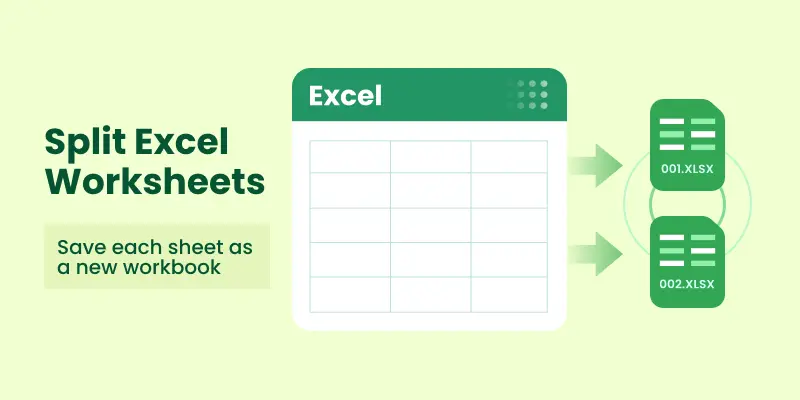
Excel is one of the most powerful tools for organizing and analyzing structured data — from financial models to department reports. However, as a workbook grows to include multiple worksheets for different teams or purposes, it can become difficult to manage, share, or extract specific information. In such cases, it’s often more practical to split a workbook by worksheets , turning each sheet into its own file for easier distribution and collaboration.
For example, you might want to send the Sales worksheet to the sales team, the HR worksheet to the HR department, and the Finance worksheet to your accountant. The simplest way to achieve this is to split Excel sheets into separate files , so each recipient receives only the data relevant to them. In this article, we’ll explore three effective methods: a quick manual process, a VBA solution for Excel users, and a Python-based approach ideal for automation.
Methods Overview:
- Quick Manual Trick: Copy Sheets into New Workbooks
- Automate in Excel: VBA Macro to Split Sheets
- Automate with Python: Save Each Worksheet as a File
Why Split Excel Sheets into Separate Files?
There are several practical reasons why splitting a workbook into multiple files is helpful:
- Selective Sharing : Not every stakeholder needs access to all the data. Splitting sheets lets you distribute relevant files only.
- Improved Performance : Large workbooks with many sheets can become slow to open and process. Splitting them into smaller files improves performance.
- Better Organization : Separate files can make project management and reporting more structured.
- Automation and Reporting : Splitting is often part of automated workflows where different reports are generated for different departments.
- Version Control : Smaller files are easier to track and maintain in version control systems compared to one giant workbook.
Whether you’re an everyday Excel user or a developer building automated reporting pipelines, splitting sheets is a task worth mastering.
Quick Manual Trick: Copy Sheets into New Workbooks
If you only need to split a few sheets and don’t mind a bit of clicking, Excel’s built-in interface provides a straightforward way to do this.
How it works:
- Open your workbook using MS Excel.
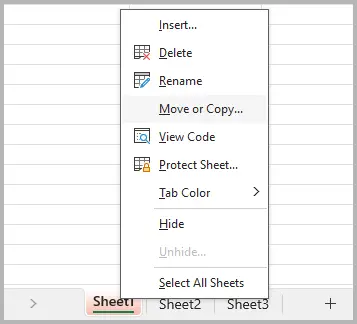
- Right-click on the sheet tab you want to separate and select Move or Copy... .
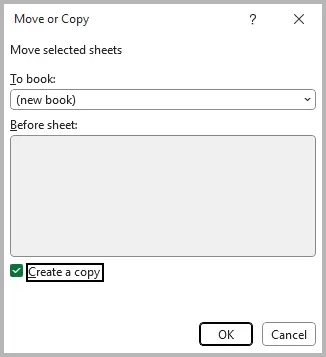
- In the To book: dropdown, select (new book) . Check the Create a copy box, then click OK .
- Repeat this process for every sheet you want to split into an individual file.
Pros:
- Requires no coding skills.
- Built directly into Excel — no installation needed.
- Simple and reliable for one-time tasks.
Cons:
- Time-consuming if you need to split many sheets.
- Prone to errors (forgetting to save or rename files properly).
- No automation — you must repeat the steps manually every time.
Best for:
- Users who rarely need to split sheets.
- Quick, one-off tasks where only a couple of sheets need separation.
Automate in Excel: VBA Macro to Split Sheets
For more frequent use, Excel’s built-in VBA (Visual Basic for Applications) editor provides a way to automate splitting. With a small macro, Excel can loop through every worksheet and save it as a new workbook — saving hours of manual work.
How it works:
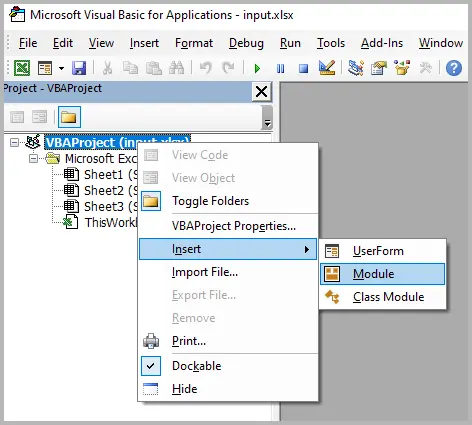
- Open Excel and press Alt + F11 to open the VBA editor.
- Go to Insert > Module .
- Paste the following code into the module window:
- Press F5 (or go to Run > Run Sub/UserForm) to execute the macro.
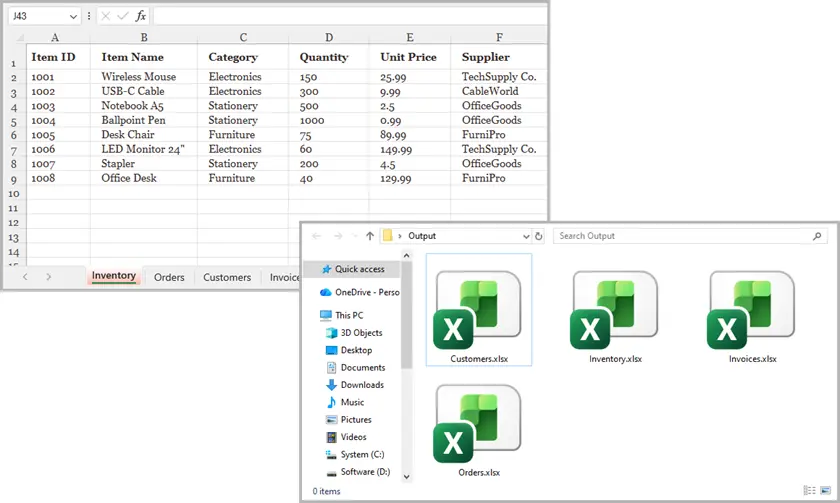
- Excel will create separate files for each worksheet in the same folder as your original workbook.
Sub SplitSheetsIntoWorkbooks()
    Dim ws As Worksheet
    Dim newWorkbook As Workbook
    Dim originalWorkbook As Workbook

    Set originalWorkbook = ThisWorkbook
    Application.ScreenUpdating = False

    For Each ws In originalWorkbook.Worksheets
        ws.Copy
        Set newWorkbook = ActiveWorkbook
        newWorkbook.SaveAs Filename:=originalWorkbook.Path & "\" & ws.Name & ".xlsx"
        newWorkbook.Close SaveChanges:=False
Next ws

MsgBox "All sheets have been saved as separate files!"
End Sub
Pros:
- Fully automated— one click and every sheet is exported.
- Built into Excel — no extra software needed.
- Saves significant time compared to the manual approach.
Cons:
- Requires enabling macros, which some organizations restrict for security reasons.
- VBA is somewhat outdated, and debugging errors can be frustrating for beginners.
- Limited flexibility (e.g., handling very large workbooks or custom export rules requires editing the macro).
Best for:
- Intermediate to advanced Excel users.
- Scenarios where you frequently need to split sheets in workbooks.
Automate with Python: Save Each Worksheet as a File
If you’re a developer or need maximum flexibility, Python provides a modern approach. Using libraries like Spire.XLS for Python, you can process Excel files programmatically and split sheets in bulk. This is ideal for workflows involving large files, multiple workbooks, or integration with other systems.
How it works:
- Install Python (if you don’t already have it).
- Install the Spire.XLS for Python library:
- Use a script like the following:
pip install spire.xls
from spire.xls import *
from spire.xls.common import *

# Create an object of the Workbook class
workbook = Workbook()

# Load an Excel file
workbook.LoadFromFile("Sample.xlsx")

# Specify the folder path for the generated Excel files
folderPath = "C:\\Users\\Administrator\\Desktop\\Output\\"

# Iterate through all worksheets in the Excel file
for worksheet in workbook.Worksheets:

    # For each worksheet, create a new Workbook object
    newWorkbook = Workbook()
    # Remove the worksheets from the new workbook
    newWorkbook.Worksheets.Clear()

    # Copy the worksheet from the Excel file to the new workbook
    newWorkbook.Worksheets.AddCopy(worksheet)

    # Save the new workbook to the specified folder
    newWorkbook.SaveToFile(folderPath + worksheet.Name + ".xlsx", FileFormat.Version2016)

workbook.Dispose()
Here is the full guide on how to split Excel by sheets, rows, and columns in Python.
Output:
Pros:
- Highly flexible — you can extend the script to filter sheets, split by row/column, or export to CSV/PDF.
- Perfect for batch processing and large-scale automation.
- Integrates with other systems and workflows.
Cons:
- Requires some coding knowledge.- Initial setup (Python + libraries) takes longer than VBA.
Best for:
- Developers automating data pipelines.
- Businesses with large, repetitive splitting tasks.
- Advanced users who need more control than VBA offers.
Summary: Which Method Should You Choose?
Splitting Excel sheets into individual files is a common challenge, but the right method depends on your context:
- Quick Manual Trick : Perfect if you only need to separate a couple of sheets once in a while. It’s easy and doesn’t require any coding.
- VBA Macro : The go-to method for power Excel users. Once set up, it can save hours of manual work, especially if you frequently split workbooks.
- Python Script : The best option for developers or anyone building automated workflows. It provides full control, scalability, and the ability to extend the solution to fit complex business needs.
At the end of the day, the method you choose comes down to how often you need to split sheets and how comfortable you are with automation . Occasional users can rely on Excel’s interface, while professionals benefit more from VBA or Python automation.
See Also
Чтение файлов Excel в C# без установки Excel
Чтение файла Excel на C# — распространённая задача для отчётов, импорта данных и автоматизации. С помощью Free Spire.XLS for .NET, бесплатной версии для сообщества, вы можете загрузить книгу Excel и прочитать её данные без установки Microsoft Excel на компьютер и без использования Interop. В этой статье показано, как читать ячейки, листы и строки, экспортировать лист в DataTable и обрабатывать результаты формул.
Быстрый старт: чтение файла Excel на C#
Установите Free Spire.XLS for .NET из NuGet. Выполните эту команду в терминале:
dotnet add package FreeSpire.XLS
Или выполните эту команду в консоли диспетчера пакетов NuGet:
Install-Package FreeSpire.XLS
Вы также можете скачать Free Spire.XLS for .NET и подключить DLL вручную или найти пакет на NuGet.
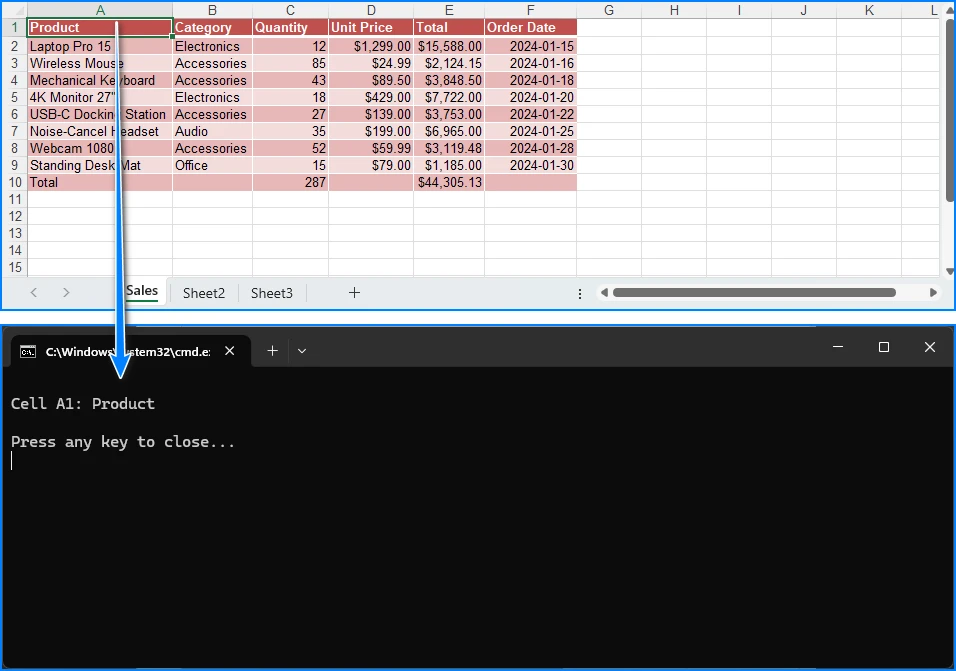
В следующем примере загружается файл Excel, получается первый лист и выводится значение ячейки A1. Замените input.xlsx на полный путь к вашему файлу или убедитесь, что файл находится в текущем рабочем каталоге программы.
using System;
using Spire.Xls;

class Program
{
    static void Main()
    {
        Workbook workbook = new Workbook();

        try
        {
            // Load an existing Excel file
            workbook.LoadFromFile("input.xlsx");

            // Get the first worksheet
            Worksheet sheet = workbook.Worksheets[0];

            // Read the value of cell A1 (row 1, column 1)
            string value = sheet.Range[1, 1].Value;

            Console.WriteLine("Cell A1: " + value);
        }
        finally
        {
            workbook.Dispose();
        }
    }
}
Workbook.LoadFromFile() считывает файл в память. Worksheets[0] возвращает первый лист, а Range[1, 1].Value возвращает текстовое значение ячейки в первой строке и первом столбце. Блок finally освобождает ресурсы книги, когда вы закончите.
Чтение конкретной ячейки или листа
В следующих примерах предполагается, что workbook уже загружен с помощью LoadFromFile(). Они показывают, как получить доступ к листу по индексу или имени.
Файл Excel может содержать несколько листов. Вы можете получить лист по его позиции или имени:
// By index (zero-based): the first sheet is 0, the second is 1
Worksheet first = workbook.Worksheets[0];

// By name
Worksheet sales = workbook.Worksheets["Sales"];
Вы также можете прочитать ячейку по номерам строки и столбца или по её адресу в Excel:
// By row and column numbers (one-based): row 2, column 3
string byIndex = sales.Range[2, 3].Value;

// By Excel address
string byAddress = sales.Range["C2"].Value;
Обратите внимание на две разные точки отсчёта. Коллекция листов использует индексацию с нуля, поэтому первый лист — Worksheets[0]. Номера строк и столбцов ячеек используют индексацию с единицы, поэтому Range[1, 1] — это ячейка A1.
Чтобы прочитать блок ячеек, передайте адрес диапазона и пройдите по нему циклом:
CellRange range = sales.Range["A1:C3"];

foreach (CellRange cell in range.CellList)
{
    Console.WriteLine({BODY_CONTENT}quot;{cell.RangeAddress}: {cell.Value}");
}
Чтение данных Excel строка за строкой в C#
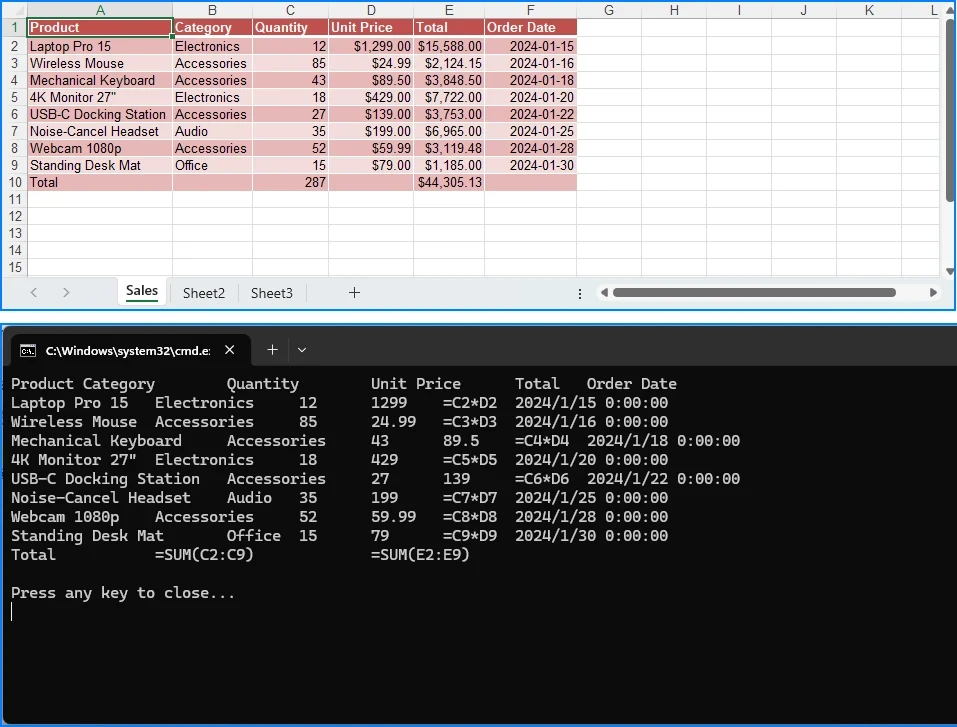
Чтобы прочитать все данные на листе, пройдите по строкам во внешнем цикле и по столбцам во внутреннем цикле. Добавляйте разрыв строки после каждой строки, чтобы вывод в консоли сохранял структуру листа:
using System;
using Spire.Xls;

class Program
{
    static void Main()
    {
        Workbook workbook = new Workbook();

        try
        {
            workbook.LoadFromFile("input.xlsx");
            Worksheet sheet = workbook.Worksheets[0];

            for (int row = 1; row <= sheet.LastDataRow; row++)
            {
                for (int col = 1; col <= sheet.LastDataColumn; col++)
                {
                    Console.Write({BODY_CONTENT}quot;{sheet.Range[row, col].Value}\t");
                }

                Console.WriteLine();
            }
        }
        finally
        {
            workbook.Dispose();
        }
    }
}
Циклы выполняются от строки 1 и столбца 1 до LastDataRow и LastDataColumn, которые возвращают последнюю строку и столбец, содержащие данные. Это позволяет не включать отформатированные, но пустые ячейки, которые охватили бы LastRow и LastColumn. Если ваш лист имеет необычную структуру, проверьте фактический диапазон в тестовом файле перед обработкой вывода.
Для листа, содержащего приведённые ниже примерные данные:
| Товар | Категория | Цена |
|---|---|---|
| Клавиатура | Аксессуары | 25 |
| Монитор | Дисплеи | 180 |
консоль показывает каждую строку листа на отдельной строке, а значения ячеек разделены табуляцией:
Product    Category    Price
Keyboard   Accessories 25
Monitor    Displays    180
Чтение данных Excel в DataTable
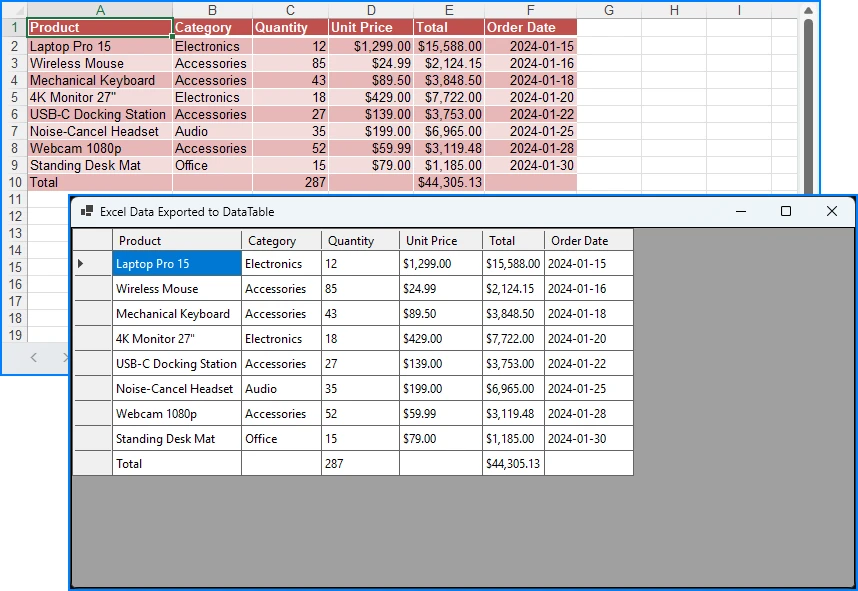
Если вы хотите обрабатывать данные листа с помощью ADO.NET, привязать их к элементу управления или вставить в базу данных, экспортируйте лист в DataTable с помощью ExportDataTable():
using System;
using System.Data;
using Spire.Xls;

class Program
{
    static void Main()
    {
        Workbook workbook = new Workbook();

        try
        {
            workbook.LoadFromFile("input.xlsx");

            // Recalculate formulas before exporting computed values
            workbook.CalculateAllValue();

            Worksheet sheet = workbook.Worksheets[0];

            DataTable dataTable = sheet.ExportDataTable(
                sheet.AllocatedRange,
                true,   // exportColumnNames
                true    // computedFormulaValue
            );

            // Print each row to verify the exported data
            foreach (DataRow row in dataTable.Rows)
            {
                Console.WriteLine(string.Join("\t", row.ItemArray));
            }
        }
        finally
        {
            workbook.Dispose();
        }
    }
}
Эта перегрузка принимает три параметра:
- range: диапазон ячеек для экспорта.
sheet.AllocatedRangeвозвращает используемый диапазон листа. В зависимости от форматирования книги и настроек используемого диапазона он может включать пустые ячейки. Если вам нужен только определённый регион данных, используйте явный диапазон и проверьте его границы. - exportColumnNames: если
true, первая строка диапазона становится названиями столбцовDataTable. Еслиfalse, первая строка экспортируется как обычные данные. - computedFormulaValue: если
true, экспортер использует вычисленные значения формул вместо текста формул. Еслиfalse, ячейки с формулами экспортируются как текст формул. Если ваши данные содержат формулы, проверьте экспортированные значения в собственном тестовом файле — возможно, перед экспортом потребуется запустить вычисление формул, чтобы результаты заполнились правильно.
Чтобы показать результат в приложении Windows Forms, назначьте таблицу DataGridView:
dataGridView1.DataSource = dataTable;
Проверьте названия столбцов и типы данных экспортированной таблицы, сверившись с вашим файлом Excel, прежде чем полагаться на них в дальнейшей обработке. Дополнительные возможности, например экспорт определённого диапазона, см. в подробном руководстве по преобразованию Excel в DataTable в C#.
Чтение результатов формул и обработка значений ячеек
Фрагменты в этом разделе предполагают, что sheet ссылается на лист из загруженной книги, как в предыдущих примерах.
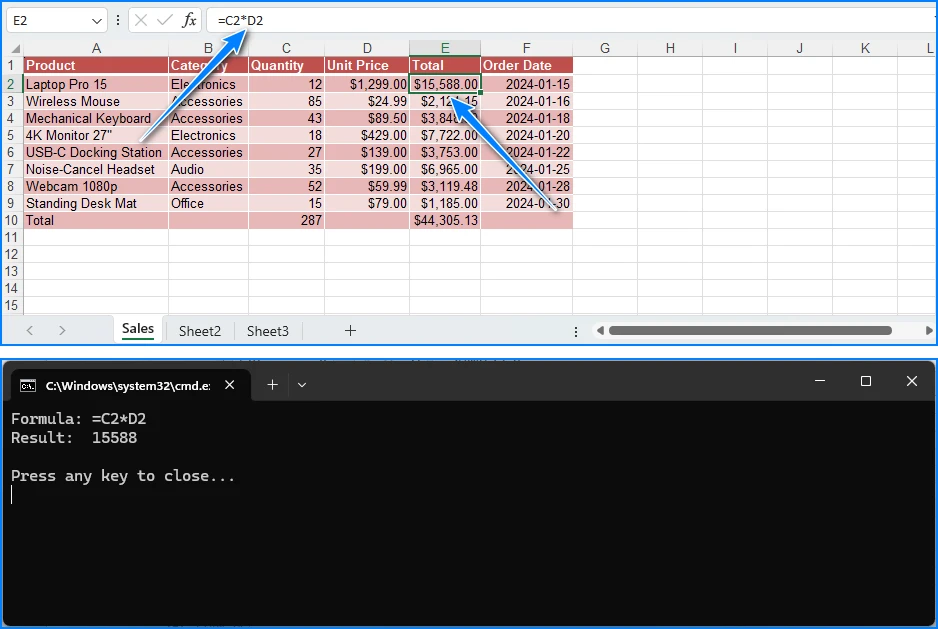
Ячейка, содержащая формулу, имеет две вещи, которые вы можете захотеть прочитать: саму формулу и результат, который она выдаёт. Используйте HasFormula, чтобы проверить, содержит ли ячейка формулу, Formula, чтобы получить текст формулы, и FormulaValue, чтобы получить вычисленный результат. Если вам нужны актуальные результаты формул, вызовите workbook.CalculateAllValue() после загрузки книги и перед чтением FormulaValue.
CellRange cell = sheet.Range["D2"];

if (cell.HasFormula)
{
    Console.WriteLine("Formula: " + cell.Formula);
    Console.WriteLine("Result: " + cell.FormulaValue);
}
else
{
    Console.WriteLine("Value: " + cell.Value);
}
Подробнее о работе с формулами см. в разделе Добавление и чтение формул и функций в Excel.
Ячейки с разными типами содержимого можно прочитать через типизированные свойства:
CellRange priceCell = sheet.Range["C2"];
CellRange dateCell = sheet.Range["E2"];

double price = priceCell.NumberValue;       // numeric value
DateTime date = dateCell.DateTimeValue;     // date value
string text = sheet.Range["A2"].Text;       // text as displayed
Excel хранит числа и даты иначе, чем обычный текст, поэтому выбирайте свойство, соответствующее типу данных в ячейке.
Чтение числовых форматов и отображаемых значений
Для ячеек с числовыми форматами — процентами, валютой, датами — сохранённое значение, код формата и отформатированный текст могут различаться. Ячейка, в которой хранится 0.15 с процентным форматом, отображается как 15%. Используйте Value для необработанного значения, NumberFormat для кода формата и NumberText для текста в том виде, в каком он отображается в Excel:
| Свойство | Что возвращает |
|---|---|
Value |
Необработанное значение ячейки |
NumberFormat |
Код числового формата (например, 0.00%) |
NumberText |
Текст после применения формата (например, 15%) |
CellRange cell = sheet.Range["C2"];

Console.WriteLine("Value: " + cell.Value);
Console.WriteLine("Number format: " + cell.NumberFormat);
Console.WriteLine("Formatted text: " + cell.NumberText);
Выбирайте свойство, соответствующее потребностям вашей последующей логики: числовое значение для вычислений или отформатированный текст для отображения. Подробнее о числовых форматах см. в разделе Установка числового формата в Excel.
Перед чтением ячейки можно проверить, пуста ли она:
if (string.IsNullOrEmpty(sheet.Range["B5"].Value))
{
    Console.WriteLine("B5 is empty.");
}
Часто задаваемые вопросы
Можно ли читать файлы Excel на C# без установки Microsoft Excel?
Да. Free Spire.XLS читает файлы Excel напрямую и не требует Microsoft Excel или Interop на компьютере или сервере, где выполняется ваш код.
Как читать результаты формул вместо самих формул?
Для одной ячейки проверьте CellRange.HasFormula и прочитайте CellRange.FormulaValue. Чтобы прочитать весь лист, вызовите ExportDataTable() с computedFormulaValue, установленным в true. См. Чтение результатов формул и обработка значений ячеек.
Можно ли читать защищённые паролем файлы Excel?
Да. Установите пароль для открытия перед загрузкой файла:
Workbook workbook = new Workbook();
workbook.OpenPassword = "your-password";
workbook.LoadFromFile("protected.xlsx");
Какие форматы файлов Excel поддерживает Free Spire.XLS?
Free Spire.XLS поддерживает форматы .xls, .xlsx и .xlsm.
Каковы ограничения бесплатной версии?
Free Spire.XLS for .NET — это версия для сообщества для индивидуальных разработчиков и небольших проектов. При работе с форматом .xls каждая книга ограничена 5 листами и 200 строками на лист. Загрузка и сохранение файлов .xlsx не подпадают под эти ограничения. Для большей ёмкости или расширенных возможностей доступна Spire.XLS for .NET в качестве коммерческой версии.
Если вам нужна большая ёмкость или расширенные возможности, Spire.XLS for .NET — это коммерческая версия; вы можете запросить бесплатную 30-дневную пробную лицензию, чтобы оценить её.
См. также
엑셀 설치 없이 C#에서 엑셀 파일 읽기
C#에서 Excel 파일을 읽는 것은 보고서, 데이터 가져오기, 자동화에서 흔한 작업입니다. Free Spire.XLS for .NET은 무료 커뮤니티 에디션으로, 컴퓨터에 Microsoft Excel을 설치하지 않고 Interop을 사용하지 않고도 Excel 통합 문서를 로드하고 데이터를 읽을 수 있습니다. 이 문서에서는 셀, 워크시트, 행을 읽고, 워크시트를 DataTable로 내보내고, 수식 결과를 처리하는 방법을 보여 줍니다.
빠른 시작: C#에서 Excel 파일 읽기
NuGet에서 Free Spire.XLS for .NET을 설치합니다. 터미널에서 다음 명령을 실행합니다:
dotnet add package FreeSpire.XLS
또는 NuGet 패키지 관리자 콘솔에서 다음 명령을 실행합니다:
Install-Package FreeSpire.XLS
또한 Free Spire.XLS for .NET을 다운로드하여 DLL을 수동으로 참조하거나 NuGet에서 패키지를 찾을 수 있습니다.
다음 예제에서는 Excel 파일을 로드하고 첫 번째 워크시트를 가져온 다음 셀 A1의 값을 출력합니다. input.xlsx를 파일의 전체 경로로 바꾸거나 파일이 프로그램의 현재 작업 디렉터리에 있는지 확인하세요.
using System;
using Spire.Xls;

class Program
{
    static void Main()
    {
        Workbook workbook = new Workbook();

        try
        {
            // Load an existing Excel file
            workbook.LoadFromFile("input.xlsx");

            // Get the first worksheet
            Worksheet sheet = workbook.Worksheets[0];

            // Read the value of cell A1 (row 1, column 1)
            string value = sheet.Range[1, 1].Value;

            Console.WriteLine("Cell A1: " + value);
        }
        finally
        {
            workbook.Dispose();
        }
    }
}
Workbook.LoadFromFile()는 파일을 메모리로 읽어 들입니다. Worksheets[0]은 첫 번째 워크시트를 반환하고, Range[1, 1].Value는 첫 번째 행과 첫 번째 열에 있는 셀의 텍스트 값을 반환합니다. finally 블록은 작업이 끝나면 통합 문서의 리소스를 해제합니다.
특정 셀 또는 워크시트 읽기
다음 예제에서는 workbook이 이미 LoadFromFile()로 로드되었다고 가정합니다. 인덱스 또는 이름으로 워크시트에 액세스하는 방법을 보여 줍니다.
Excel 파일에는 여러 워크시트가 포함될 수 있습니다. 위치나 이름으로 워크시트를 가져올 수 있습니다:
// By index (zero-based): the first sheet is 0, the second is 1
Worksheet first = workbook.Worksheets[0];

// By name
Worksheet sales = workbook.Worksheets["Sales"];
행 및 열 번호나 Excel 주소로 셀을 읽을 수도 있습니다:
// By row and column numbers (one-based): row 2, column 3
string byIndex = sales.Range[2, 3].Value;

// By Excel address
string byAddress = sales.Range["C2"].Value;
두 가지 시작점이 다르다는 점에 유의하세요. 워크시트 컬렉션은 0부터 시작하므로 첫 번째 워크시트는 Worksheets[0]입니다. 셀 행 및 열 번호는 1부터 시작하므로 Range[1, 1]은 셀 A1입니다.
셀 블록을 읽으려면 범위 주소를 전달하고 반복합니다:
CellRange range = sales.Range["A1:C3"];

foreach (CellRange cell in range.CellList)
{
    Console.WriteLine({BODY_CONTENT}quot;{cell.RangeAddress}: {cell.Value}");
}
C#에서 Excel 데이터를 행별로 읽기
워크시트의 모든 데이터를 읽으려면 외부 루프로 행을 반복하고 내부 루프로 열을 반복합니다. 각 행 뒤에 줄 바꿈을 작성하여 콘솔 출력이 워크시트의 구조를 유지하도록 합니다:
using System;
using Spire.Xls;

class Program
{
    static void Main()
    {
        Workbook workbook = new Workbook();

        try
        {
            workbook.LoadFromFile("input.xlsx");
            Worksheet sheet = workbook.Worksheets[0];

            for (int row = 1; row <= sheet.LastDataRow; row++)
            {
                for (int col = 1; col <= sheet.LastDataColumn; col++)
                {
                    Console.Write({BODY_CONTENT}quot;{sheet.Range[row, col].Value}\t");
                }

                Console.WriteLine();
            }
        }
        finally
        {
            workbook.Dispose();
        }
    }
}
루프는 행 1과 열 1에서 LastDataRow 및 LastDataColumn까지 실행되며, 이들은 데이터가 포함된 마지막 행과 열을 반환합니다. 이렇게 하면 LastRow 및 LastColumn이 포함할 수 있는 서식이 지정되었지만 비어 있는 셀을 포함하지 않습니다. 워크시트의 레이아웃이 일반적이지 않은 경우 출력을 처리하기 전에 테스트 파일에서 실제 범위를 확인하세요.
아래 샘플 데이터를 포함하는 워크시트의 경우:
| 제품 | 범주 | 가격 |
|---|---|---|
| 키보드 | 액세서리 | 25 |
| 모니터 | 디스플레이 | 180 |
콘솔은 각 워크시트 행을 자체 줄에 표시하며, 셀 값은 탭으로 구분됩니다:
Product    Category    Price
Keyboard   Accessories 25
Monitor    Displays    180
Excel 데이터를 DataTable로 읽기
ADO.NET으로 워크시트 데이터를 처리하거나, 컨트롤에 바인딩하거나, 데이터베이스에 삽입하려면 ExportDataTable()을 사용하여 워크시트를 DataTable로 내보냅니다:
using System;
using System.Data;
using Spire.Xls;

class Program
{
    static void Main()
    {
        Workbook workbook = new Workbook();

        try
        {
            workbook.LoadFromFile("input.xlsx");

            // Recalculate formulas before exporting computed values
            workbook.CalculateAllValue();

            Worksheet sheet = workbook.Worksheets[0];

            DataTable dataTable = sheet.ExportDataTable(
                sheet.AllocatedRange,
                true,   // exportColumnNames
                true    // computedFormulaValue
            );

            // Print each row to verify the exported data
            foreach (DataRow row in dataTable.Rows)
            {
                Console.WriteLine(string.Join("\t", row.ItemArray));
            }
        }
        finally
        {
            workbook.Dispose();
        }
    }
}
이 오버로드는 세 개의 매개 변수를 사용합니다:
- range: 내보낼 셀 범위입니다.
sheet.AllocatedRange는 워크시트의 사용된 범위를 반환합니다. 통합 문서의 서식 및 사용된 범위 설정에 따라 빈 셀이 포함될 수 있습니다. 특정 데이터 영역만 필요한 경우 명시적 범위를 사용하고 해당 경계를 확인하세요. - exportColumnNames:
true이면 범위의 첫 번째 행이DataTable의 열 이름이 됩니다.false이면 첫 번째 행이 일반 데이터로 내보내집니다. - computedFormulaValue:
true이면 내보내기에서 수식 텍스트 대신 계산된 수식 값을 사용합니다.false이면 수식 셀이 수식 텍스트로 내보내집니다. 데이터에 수식이 포함된 경우 자체 테스트 파일에서 내보낸 값을 확인하세요. 결과가 올바르게 채워지려면 내보내기 전에 수식 계산을 트리거해야 할 수 있습니다.
Windows Forms 애플리케이션에서 결과를 표시하려면 테이블을 DataGridView에 할당합니다:
dataGridView1.DataSource = dataTable;
나중에 처리할 때 의존하기 전에 내보낸 테이블의 열 이름과 데이터 형식을 자체 Excel 파일과 비교하여 확인하세요. 특정 범위 내보내기와 같은 더 많은 옵션은 C#에서 Excel을 DataTable로 변환에 대한 자세한 자습서를 참조하세요.
수식 결과 읽기 및 셀 값 처리
이 섹션의 코드 조각은 이전 예제에서처럼 sheet가 로드된 통합 문서의 워크시트를 참조한다고 가정합니다.
수식을 포함하는 셀에는 읽고 싶을 수 있는 두 가지가 있습니다: 수식 자체와 수식이 생성하는 결과입니다. HasFormula를 사용하여 셀에 수식이 포함되어 있는지 확인하고, Formula로 수식 텍스트를 가져오고, FormulaValue로 계산된 결과를 가져옵니다. 최신 수식 결과가 필요하면 통합 문서를 로드한 후 FormulaValue를 읽기 전에 workbook.CalculateAllValue()를 호출합니다.
CellRange cell = sheet.Range["D2"];

if (cell.HasFormula)
{
    Console.WriteLine("Formula: " + cell.Formula);
    Console.WriteLine("Result: " + cell.FormulaValue);
}
else
{
    Console.WriteLine("Value: " + cell.Value);
}
수식 작업에 대한 자세한 내용은 Excel에서 수식 및 함수 추가 또는 읽기를 참조하세요.
콘텐츠 형식이 다른 셀은 형식화된 속성을 통해 읽을 수 있습니다:
CellRange priceCell = sheet.Range["C2"];
CellRange dateCell = sheet.Range["E2"];

double price = priceCell.NumberValue;       // numeric value
DateTime date = dateCell.DateTimeValue;     // date value
string text = sheet.Range["A2"].Text;       // text as displayed
Excel은 숫자와 날짜를 일반 텍스트와 다른 방식으로 저장하므로 셀의 데이터 형식과 일치하는 속성을 선택하세요.
숫자 서식 및 표시 값 읽기
숫자 서식(백분율, 통화, 날짜)이 있는 셀의 경우 저장된 값, 서식 코드, 서식이 지정된 텍스트가 모두 다를 수 있습니다. 백분율 서식으로 0.15를 저장하는 셀은 15%로 표시됩니다. 원시 값에는 Value를, 서식 코드에는 NumberFormat을, Excel에 표시되는 텍스트에는 NumberText를 사용합니다:
| 속성 | 반환하는 값 |
|---|---|
Value |
원시 셀 값 |
NumberFormat |
숫자 서식 코드(예: 0.00%) |
NumberText |
서식을 적용한 후의 텍스트(예: 15%) |
CellRange cell = sheet.Range["C2"];

Console.WriteLine("Value: " + cell.Value);
Console.WriteLine("Number format: " + cell.NumberFormat);
Console.WriteLine("Formatted text: " + cell.NumberText);
다운스트림 로직에 필요한 것과 일치하는 속성을 선택하세요: 계산에는 숫자 값을, 표시에는 서식이 지정된 텍스트를 사용합니다. 숫자 서식에 대한 자세한 내용은 Excel에서 숫자 서식 설정을 참조하세요.
셀을 읽기 전에 비어 있는지 확인할 수 있습니다:
if (string.IsNullOrEmpty(sheet.Range["B5"].Value))
{
    Console.WriteLine("B5 is empty.");
}
자주 묻는 질문
Microsoft Excel을 설치하지 않고 C#에서 Excel 파일을 읽을 수 있나요?
예. Free Spire.XLS는 Excel 파일을 직접 읽으며 코드를 실행하는 컴퓨터나 서버에 Microsoft Excel 또는 Interop이 필요하지 않습니다.
수식 대신 수식 결과를 어떻게 읽나요?
단일 셀의 경우 CellRange.HasFormula를 확인하고 CellRange.FormulaValue를 읽습니다. 전체 워크시트를 읽으려면 computedFormulaValue를 true로 설정하고 ExportDataTable()을 호출합니다. 수식 결과 읽기 및 셀 값 처리를 참조하세요.
암호로 보호된 Excel 파일을 읽을 수 있나요?
예. 파일을 로드하기 전에 열기 암호를 설정합니다:
Workbook workbook = new Workbook();
workbook.OpenPassword = "your-password";
workbook.LoadFromFile("protected.xlsx");
Free Spire.XLS는 어떤 Excel 파일 형식을 지원하나요?
Free Spire.XLS는 .xls, .xlsx, .xlsm 형식을 지원합니다.
무료 에디션의 제한 사항은 무엇인가요?
Free Spire.XLS for .NET은 개인 개발자와 소규모 프로젝트를 위한 커뮤니티 에디션입니다. .xls 형식으로 작업할 때 각 통합 문서는 5개 워크시트와 시트당 200개 행으로 제한됩니다. .xlsx 파일 로드 및 저장은 이러한 제한이 적용되지 않습니다. 더 높은 용량이나 고급 기능이 필요하면 Spire.XLS for .NET을 상용 에디션으로 사용할 수 있습니다.
더 높은 용량이나 고급 기능이 필요하면 Spire.XLS for .NET이 상용 에디션입니다. 무료 30일 평가판 라이선스를 요청하여 평가할 수 있습니다.
참고 항목
Lire des fichiers Excel en C# sans installer Excel
Table des matières
La lecture d'un fichier Excel en C# est une tâche courante pour les rapports, les importations de données et l'automatisation. Avec Free Spire.XLS for .NET, une édition communautaire gratuite, vous pouvez charger un classeur Excel et lire ses données sans installer Microsoft Excel sur la machine et sans utiliser Interop. Cet article montre comment lire des cellules, des feuilles de calcul et des lignes, exporter une feuille de calcul vers un DataTable et gérer les résultats de formules.
Démarrage rapide : lire un fichier Excel en C#
Installez Free Spire.XLS for .NET depuis NuGet. Exécutez cette commande dans un terminal :
dotnet add package FreeSpire.XLS
Ou exécutez cette commande dans la console du gestionnaire de packages NuGet :
Install-Package FreeSpire.XLS
Vous pouvez également télécharger Free Spire.XLS for .NET et référencer la DLL manuellement, ou trouver le package sur NuGet.
L'exemple suivant charge un fichier Excel, obtient la première feuille de calcul et affiche la valeur de la cellule A1. Remplacez input.xlsx par le chemin complet de votre fichier, ou assurez-vous que le fichier se trouve dans le répertoire de travail actuel du programme.
using System;
using Spire.Xls;

class Program
{
    static void Main()
    {
        Workbook workbook = new Workbook();

        try
        {
            // Load an existing Excel file
            workbook.LoadFromFile("input.xlsx");

            // Get the first worksheet
            Worksheet sheet = workbook.Worksheets[0];

            // Read the value of cell A1 (row 1, column 1)
            string value = sheet.Range[1, 1].Value;

            Console.WriteLine("Cell A1: " + value);
        }
        finally
        {
            workbook.Dispose();
        }
    }
}
Workbook.LoadFromFile() lit le fichier en mémoire. Worksheets[0] renvoie la première feuille de calcul, et Range[1, 1].Value renvoie la valeur texte de la cellule située dans la première ligne et la première colonne. Le bloc finally libère les ressources du classeur lorsque vous avez terminé.
Lire une cellule ou une feuille de calcul spécifique
Les exemples suivants supposent que workbook a déjà été chargé avec LoadFromFile(). Ils montrent comment accéder à une feuille de calcul par index ou par nom.
Un fichier Excel peut contenir plusieurs feuilles de calcul. Vous pouvez obtenir une feuille de calcul par sa position ou par son nom :
// By index (zero-based): the first sheet is 0, the second is 1
Worksheet first = workbook.Worksheets[0];

// By name
Worksheet sales = workbook.Worksheets["Sales"];
Vous pouvez également lire une cellule par ses numéros de ligne et de colonne, ou par son adresse Excel :
// By row and column numbers (one-based): row 2, column 3
string byIndex = sales.Range[2, 3].Value;

// By Excel address
string byAddress = sales.Range["C2"].Value;
Notez les deux points de départ différents. La collection de feuilles de calcul est basée sur zéro, donc la première feuille de calcul est Worksheets[0]. Les numéros de ligne et de colonne des cellules sont basés sur un, donc Range[1, 1] correspond à la cellule A1.
Pour lire un bloc de cellules, passez une adresse de plage et parcourez-la :
CellRange range = sales.Range["A1:C3"];

foreach (CellRange cell in range.CellList)
{
    Console.WriteLine({BODY_CONTENT}quot;{cell.RangeAddress}: {cell.Value}");
}
Lire les données Excel ligne par ligne en C#
Pour lire toutes les données d'une feuille de calcul, parcourez les lignes avec une boucle externe et les colonnes avec une boucle interne. Écrivez un saut de ligne après chaque ligne afin que la sortie de la console conserve la structure de la feuille de calcul :
using System;
using Spire.Xls;

class Program
{
    static void Main()
    {
        Workbook workbook = new Workbook();

        try
        {
            workbook.LoadFromFile("input.xlsx");
            Worksheet sheet = workbook.Worksheets[0];

            for (int row = 1; row <= sheet.LastDataRow; row++)
            {
                for (int col = 1; col <= sheet.LastDataColumn; col++)
                {
                    Console.Write({BODY_CONTENT}quot;{sheet.Range[row, col].Value}\t");
                }

                Console.WriteLine();
            }
        }
        finally
        {
            workbook.Dispose();
        }
    }
}
Les boucles vont de la ligne 1 et de la colonne 1 jusqu'à LastDataRow et LastDataColumn, qui renvoient la dernière ligne et la dernière colonne contenant des données. Cela évite d'inclure des cellules mises en forme mais vides que LastRow et LastColumn couvriraient. Si votre feuille de calcul a une disposition inhabituelle, vérifiez la plage réelle sur votre fichier de test avant de traiter la sortie.
Pour une feuille de calcul contenant les données d'exemple ci-dessous :
| Produit | Catégorie | Prix |
|---|---|---|
| Clavier | Accessoires | 25 |
| Écran | Affichages | 180 |
la console affiche chaque ligne de la feuille de calcul sur sa propre ligne, avec les valeurs des cellules séparées par des tabulations :
Product    Category    Price
Keyboard   Accessories 25
Monitor    Displays    180
Lire les données Excel dans un DataTable
Si vous souhaitez traiter les données d'une feuille de calcul avec ADO.NET, les lier à un contrôle ou les insérer dans une base de données, exportez la feuille de calcul vers un DataTable avec ExportDataTable() :
using System;
using System.Data;
using Spire.Xls;

class Program
{
    static void Main()
    {
        Workbook workbook = new Workbook();

        try
        {
            workbook.LoadFromFile("input.xlsx");

            // Recalculate formulas before exporting computed values
            workbook.CalculateAllValue();

            Worksheet sheet = workbook.Worksheets[0];

            DataTable dataTable = sheet.ExportDataTable(
                sheet.AllocatedRange,
                true,   // exportColumnNames
                true    // computedFormulaValue
            );

            // Print each row to verify the exported data
            foreach (DataRow row in dataTable.Rows)
            {
                Console.WriteLine(string.Join("\t", row.ItemArray));
            }
        }
        finally
        {
            workbook.Dispose();
        }
    }
}
Cette surcharge prend trois paramètres :
- range : la plage de cellules à exporter.
sheet.AllocatedRangerenvoie la plage utilisée de la feuille de calcul. Selon la mise en forme et les paramètres de plage utilisée du classeur, elle peut inclure des cellules vides. Si vous n'avez besoin que d'une région de données spécifique, utilisez une plage explicite et vérifiez ses limites. - exportColumnNames : lorsqu'il vaut
true, la première ligne de la plage devient les noms de colonnes duDataTable. Lorsqu'il vautfalse, la première ligne est exportée comme des données ordinaires. - computedFormulaValue : lorsqu'il vaut
true, l'exportateur utilise les valeurs de formule calculées au lieu du texte de la formule. Lorsqu'il vautfalse, les cellules de formule sont exportées sous forme de texte de formule. Si vos données contiennent des formules, vérifiez les valeurs exportées sur votre propre fichier de test — le calcul des formules peut devoir être déclenché avant l'exportation pour que les résultats soient correctement renseignés.
Pour afficher le résultat dans une application Windows Forms, affectez la table à un DataGridView :
dataGridView1.DataSource = dataTable;
Vérifiez les noms de colonnes et les types de données de la table exportée par rapport à votre propre fichier Excel avant de vous y fier dans un traitement ultérieur. Pour plus d'options, comme l'exportation d'une plage spécifique, consultez le tutoriel détaillé sur la conversion d'Excel en DataTable en C#.
Lire les résultats de formules et gérer les valeurs des cellules
Les extraits de code de cette section supposent que sheet fait référence à une feuille de calcul d'un classeur chargé, comme dans les exemples précédents.
Une cellule qui contient une formule offre deux éléments que vous pouvez vouloir lire : la formule elle-même et le résultat qu'elle produit. Utilisez HasFormula pour vérifier si une cellule contient une formule, Formula pour obtenir le texte de la formule, et FormulaValue pour obtenir le résultat calculé. Si vous avez besoin de résultats de formule à jour, appelez workbook.CalculateAllValue() après avoir chargé le classeur et avant de lire FormulaValue.
CellRange cell = sheet.Range["D2"];

if (cell.HasFormula)
{
    Console.WriteLine("Formula: " + cell.Formula);
    Console.WriteLine("Result: " + cell.FormulaValue);
}
else
{
    Console.WriteLine("Value: " + cell.Value);
}
Pour en savoir plus sur l'utilisation des formules, consultez Ajouter ou lire des formules et des fonctions dans Excel.
Les cellules dont les types de contenu diffèrent peuvent être lues via des propriétés typées :
CellRange priceCell = sheet.Range["C2"];
CellRange dateCell = sheet.Range["E2"];

double price = priceCell.NumberValue;       // numeric value
DateTime date = dateCell.DateTimeValue;     // date value
string text = sheet.Range["A2"].Text;       // text as displayed
Excel stocke les nombres et les dates de manière différente du texte brut, alors choisissez la propriété qui correspond au type de données de la cellule.
Lire les formats de nombre et les valeurs affichées
Pour les cellules dotées de formats de nombre — pourcentages, devises, dates — la valeur stockée, le code de format et le texte formaté peuvent tous différer. Une cellule qui stocke 0.15 avec un format pourcentage s'affiche comme 15%. Utilisez Value pour la valeur brute, NumberFormat pour le code de format, et NumberText pour le texte tel qu'il apparaît dans Excel :
| Propriété | Ce qu'elle renvoie |
|---|---|
Value |
La valeur brute de la cellule |
NumberFormat |
Le code de format de nombre (par ex., 0.00%) |
NumberText |
Le texte après application du format (par ex., 15%) |
CellRange cell = sheet.Range["C2"];

Console.WriteLine("Value: " + cell.Value);
Console.WriteLine("Number format: " + cell.NumberFormat);
Console.WriteLine("Formatted text: " + cell.NumberText);
Choisissez la propriété qui correspond à ce dont votre logique en aval a besoin : la valeur numérique pour les calculs, ou le texte formaté pour l'affichage. Pour en savoir plus sur les formats de nombre, consultez Définir le format de nombre dans Excel.
Avant de lire une cellule, vous pouvez vérifier si elle est vide :
if (string.IsNullOrEmpty(sheet.Range["B5"].Value))
{
    Console.WriteLine("B5 is empty.");
}
Questions fréquentes
Puis-je lire des fichiers Excel en C# sans installer Microsoft Excel ?
Oui. Free Spire.XLS lit directement les fichiers Excel et ne nécessite ni Microsoft Excel ni Interop sur l'ordinateur ou le serveur qui exécute votre code.
Comment lire les résultats de formules plutôt que les formules ?
Pour une seule cellule, vérifiez CellRange.HasFormula et lisez CellRange.FormulaValue. Pour lire une feuille de calcul entière, appelez ExportDataTable() avec computedFormulaValue défini sur true. Voir Lire les résultats de formules et gérer les valeurs des cellules.
Puis-je lire des fichiers Excel protégés par mot de passe ?
Oui. Définissez le mot de passe d'ouverture avant de charger le fichier :
Workbook workbook = new Workbook();
workbook.OpenPassword = "your-password";
workbook.LoadFromFile("protected.xlsx");
Quels formats de fichier Excel Free Spire.XLS prend-il en charge ?
Free Spire.XLS prend en charge les formats .xls, .xlsx et .xlsm.
Quelles sont les limitations de l'édition gratuite ?
Free Spire.XLS for .NET est une édition communautaire destinée aux développeurs individuels et aux petits projets. Lorsque vous travaillez avec le format .xls, chaque classeur est limité à 5 feuilles de calcul et à 200 lignes par feuille. Le chargement et l'enregistrement de fichiers .xlsx ne sont pas soumis à ces limites. Pour une capacité supérieure ou des fonctionnalités avancées, Spire.XLS for .NET est disponible en édition commerciale.
Si vous avez besoin d'une capacité supérieure ou de fonctionnalités avancées, Spire.XLS for .NET est l'édition commerciale — vous pouvez demander une licence d'essai gratuite de 30 jours pour l'évaluer.