Конвертировать RTF в Word: 3 простых способа (онлайн, Word, Python)

Конвертация RTF в Word необходима для улучшения совместимости с современными текстовыми процессорами и использования расширенных возможностей форматирования Word. Хотя файлы RTF обычно используются для базового форматирования текста, документы Word предлагают дополнительные функции, такие как шаблоны, лучшие инструменты форматирования и профессиональный дизайн документов. В этом руководстве мы покажем вам три простых способа конвертации RTF в Word: с помощью Microsoft Word, бесплатных онлайн-инструментов и автоматизации с использованием Python, подходящих как для начинающих, так и для опытных пользователей.
Что вы узнаете
- Зачем конвертировать RTF в Word?
- Как конвертировать RTF в Word?
- Лучшие практики и советы, чтобы избежать проблем с форматированием при конвертации RTF в Word
Зачем конвертировать RTF в Word?
Конвертация RTF в Word может улучшить ваш рабочий процесс, упростив управление и редактирование документа. Ниже приведены некоторые ключевые причины, по которым вы можете захотеть преобразовать файл RTF в документ Word:
- Расширенное форматирование и стили: Word предлагает более сложные инструменты форматирования, включая расширенные стили текста, колонтитулы, номера страниц и оглавление, которые не полностью поддерживаются в RTF.
- Совместная работа: Документы Word чаще используются в средах для совместной работы, где несколько человек редактируют документ одновременно.
- Безопасность и совместимость: Файлы Word совместимы с различными приложениями и платформами и предлагают более надежные варианты защиты и шифрования документов.
- Расширенные функции: Файлы Word позволяют добавлять такие функции, как комментарии, отслеживание изменений и многое другое, что упрощает управление документами.
Как конвертировать RTF в Word?
Теперь, когда мы знаем причины для конвертации RTF в Word, давайте посмотрим, как это сделать. Мы рассмотрим три метода: использование Microsoft Word, бесплатные онлайн-инструменты и автоматизацию с помощью Python.
Конвертация RTF в Word с помощью Microsoft Word
Microsoft Word — один из наиболее широко используемых инструментов для работы с документами Word. Он также предоставляет простой и надежный способ открывать и сохранять файлы RTF как документы Word.
Шаги по конвертации RTF в Word с помощью Microsoft Word:
-
Откройте Microsoft Word: Запустите Microsoft Word на своем компьютере.
-
Откройте файл RTF: Перейдите в Файл > Открыть, затем выберите файл RTF, который хотите конвертировать. Word автоматически откроет файл RTF.
-
Сохранить как документ Word: Когда файл RTF открыт, перейдите в Файл > Сохранить как. В раскрывающемся меню Тип файла выберите Документ Word (*.docx) или Документ Word 97-2003 (*.doc).

-
Выберите место сохранения: Выберите место, где вы хотите сохранить документ Word, и нажмите Сохранить. Ваш файл RTF теперь преобразован в документ Word.
Плюсы:
- Быстро и просто: Процесс быстрый и легкий.
- Полный контроль над форматированием: Вы можете вручную настраивать внешний вид документа по мере необходимости.
- Не требуются сторонние инструменты: Используется Microsoft Word, который является широко используемым инструментом.
Минусы:
- Не идеально для пакетной конвертации: Ручное преобразование неэффективно для нескольких файлов.
- Требуется Microsoft Word: У вас должен быть установлен Microsoft Word в вашей системе.
Конвертация RTF в Word с помощью бесплатных онлайн-инструментов
Если у вас нет Microsoft Word или вы предпочитаете быстрое решение без программного обеспечения, онлайн-инструменты, такие как Zamzar и convertio, являются отличным выбором. Просто загрузите свой файл RTF, выберите формат Word и скачайте преобразованный документ. Этот подход быстрый, бесплатный и доступен с любого устройства с подключением к Интернету.
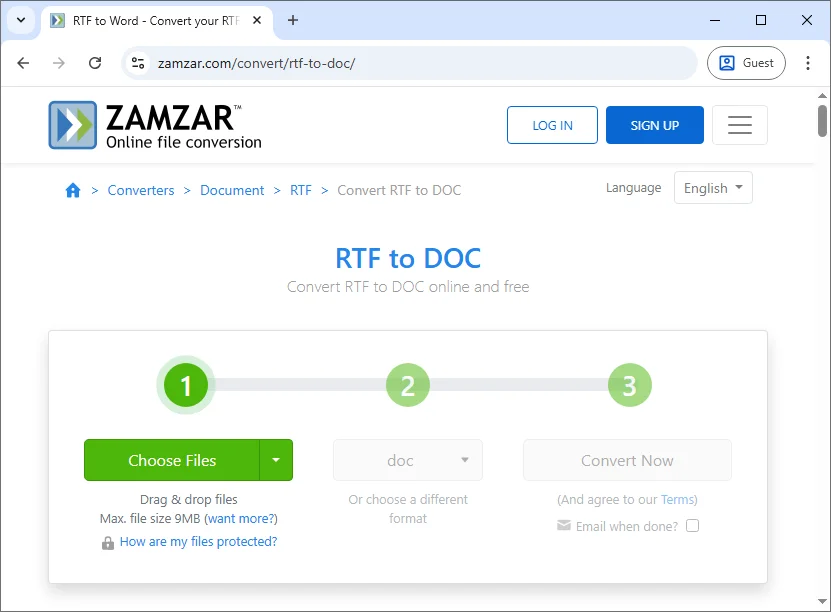
Шаги по бесплатной онлайн-конвертации RTF в Word (на примере Zamzar):
- Перейдите в Zamzar: Посетите бесплатный онлайн-конвертер RTF в Word от Zamzar.
- Загрузите свой файл RTF: Нажмите кнопку Выбрать файлы, чтобы загрузить файл RTF с вашего компьютера, или перетащите файл в указанную область.
- Выберите формат вывода: Выберите doc или docx в качестве формата вывода.
- Конвертировать файл: Нажмите кнопку Конвертировать сейчас. Инструмент обработает файл и создаст преобразованный документ Word.
- Скачайте файл Word: После завершения преобразования загрузите преобразованный документ Word.
Плюсы:
- Не требуется установка: Доступно с любого устройства с доступом в Интернет.
- Бесплатно и просто в использовании: Идеально подходит для быстрых, одноразовых преобразований.
- Поддерживает несколько форматов: Многие онлайн-инструменты поддерживают различные типы файлов помимо RTF в Word.
Минусы:
- Проблемы конфиденциальности: Загрузка файлов на сторонние веб-сайты может привести к раскрытию конфиденциальных данных.
- Ограничения по размеру файла: Некоторые инструменты устанавливают ограничения на размер файла для бесплатных преобразований.
- Зависимость от подключения к Интернету: Требуется стабильное подключение к Интернету для доступа и использования инструмента.
Пакетная конвертация RTF в Word с помощью автоматизации Python
Для пользователей, которым необходимо часто выполнять пакетное преобразование RTF в Word или которые предпочитают автоматизацию для нескольких файлов, Python предоставляет эффективное и масштабируемое решение. Используя библиотеки, такие как Spire.Doc for Python, вы можете легко конвертировать файлы RTF в документы Word без необходимости установки Microsoft Word.
Ключевые особенности
- Создание и редактирование документов: Легко создавайте, редактируйте и управляйте документами Word прямо из Python.
- Конвертация между форматами: Беспрепятственно конвертируйте между различными форматами документов, включая RTF в DOCX, DOC в PDF и другие.
- Сохранение структуры документа: Сохраняйте целостность форматирования документа, включая стили текста, таблицы, абзацы и колонтитулы.
- Расширенные параметры форматирования: Применяйте пользовательское форматирование к тексту, таблицам и абзацам, например, настраивая поля, стили шрифтов и выравнивание.
- Пакетная конвертация: Автоматизируйте преобразование нескольких файлов RTF в Word за одну операцию для эффективной массовой обработки.
Используя Spire.Doc for Python, вы можете автоматизировать преобразование RTF в Word, обеспечивая согласованные результаты для больших наборов файлов и устраняя ручное вмешательство.

Шаги по конвертации RTF в Word с помощью Python:
-
Установите необходимую библиотеку Python:
Установите библиотеку Spire.Doc из PyPI с помощью pip:
pip install spire-doc -
Добавьте скрипт Python для конвертации RTF в Word:
После установки библиотеки добавьте следующий код для преобразования файла RTF в документ Word на Python:
from spire.doc import * # Create a Document object document = Document() # Load the RTF file document.LoadFromFile("Test.rtf") # Option 1: Save as .docx (Word 2016 format) document.SaveToFile("Test_output.docx", FileFormat.Docx2016) # Option 2: Save as .doc (Word 97-2003 format) # document.SaveToFile("Test_output.doc", FileFormat.Doc) # Close the document document.Close() -
Запустите скрипт:
Скрипт загрузит файл RTF в объект Document Spire.Doc и сохранит его в документ Word DOCX или DOC.
Если вы хотите выполнить пакетное преобразование нескольких файлов RTF в папке в документы Word, вы можете изменить код следующим образом:
from spire.doc import *
import os

# Path to the folder containing the RTF files
input_folder = "path_to_rtf_folder"
output_folder = "path_to_output_folder"

# Loop through all files in the folder
for filename in os.listdir(input_folder):
    if filename.endswith(".rtf"):
        # Create a Document object
        document = Document()

        # Load the RTF file
        rtf_path = os.path.join(input_folder, filename)
        document.LoadFromFile(rtf_path)

        # Define the output file path (same name, but with .docx extension)
        output_path = os.path.join(output_folder, f"{os.path.splitext(filename)[0]}.docx")

        # Save as .docx (Word 2016 format)
        document.SaveToFile(output_path, FileFormat.Docx2016)

        # Optionally, save as .doc (Word 97-2003 format)
        # document.SaveToFile(output_path.replace(".docx", ".doc"), FileFormat.Doc)

        # Close the document
        document.Close()

print("Conversion completed for all RTF files.")
Плюсы:
- Идеально для пакетной обработки: Легко конвертируйте несколько файлов RTF одновременно.
- Не требуется Microsoft Word: Преобразование полностью выполняется с помощью Python, без необходимости в Microsoft Word.
- Настраиваемый: Добавляйте такие функции, как обработка ошибок, ведение журнала или манипуляции с документом перед сохранением.
Минусы:
- Требуются знания Python: Не подходит для пользователей без опыта программирования.
- Требуется настройка: Вам необходимо установить Python, необходимую библиотеку и управлять средой.
Для получения более подробной информации ознакомьтесь с полным официальным руководством: Python: Конвертация Word в RTF и наоборот.
Лучшие практики и советы, чтобы избежать проблем с форматированием при конвертации RTF в Word
При преобразовании файлов RTF в Word соблюдение некоторых рекомендаций поможет вам обеспечить качество и точность преобразования:
- Проверяйте форматирование: Всегда просматривайте преобразованный документ Word на наличие ошибок форматирования. Файлы RTF иногда теряют исходное форматирование во время преобразования.
- Пакетная конвертация: Если вам нужно преобразовать много файлов RTF, рассмотрите возможность использования автоматизации Python или инструментов пакетной обработки для экономии времени.
- Сохраняйте резервные копии: Храните резервные копии исходных файлов RTF, особенно если вы используете онлайн-инструмент или автоматизированный скрипт, чтобы предотвратить потерю данных.
- Проверяйте совместимость: Убедитесь, что преобразованный файл Word совместим с используемой вами версией Microsoft Word.
Советы по предотвращению проблем с форматированием
-
Проверяйте изображения и таблицы: Эти элементы склонны к повреждению во время преобразования.
-
Используйте распространенные шрифты: Придерживайтесь веб-безопасных шрифтов, таких как Arial или Times New Roman.
-
Используйте Microsoft Word для сложных файлов: Встроенный конвертер Word лучше справляется со сложным форматированием, чем онлайн-инструменты.
Заключение
Конвертация RTF в Word — это простой, но важный шаг для улучшения форматирования и совместимости документов. Независимо от того, предпочитаете ли вы надежность Microsoft Word, удобство онлайн-инструментов для быстрых преобразований или эффективность автоматизации Python для массовых задач, найдется решение для любых потребностей.
Выберите метод, который наилучшим образом соответствует вашим требованиям, и начните преобразовывать ваши файлы RTF в профессиональные документы Word уже сегодня!
Часто задаваемые вопросы: Конвертация RTF в Word
В1: Могу ли я конвертировать RTF в Word без Microsoft Word?
О1: Да, онлайн-инструменты и библиотеки Python позволяют конвертировать RTF в Word без необходимости установки Microsoft Word.
В2: Влияет ли конвертация RTF в Word на форматирование документа?
О2: Иногда преобразование RTF в Word может вызывать незначительные проблемы с форматированием. Всегда проверяйте преобразованный документ и при необходимости корректируйте форматирование.
В3: Могу ли я автоматизировать преобразование RTF в Word для нескольких файлов?
О3: Да, Python и библиотека Spire.Doc for Python позволяют автоматизировать процесс и конвертировать множество файлов RTF в Word одновременно, что делает его эффективным для задач массового преобразования.
Смотрите также
Come eliminare le righe vuote in Excel: 5 metodi semplici
Indice dei contenuti
- Metodo 1: Utilizzo di Filtra ed elimina (il più intuitivo)
- Metodo 2: Utilizzo di "Vai a speciale" (il più veloce per grandi set di dati)
- Metodo 3: Utilizzo di Power Query (non distruttivo e riutilizzabile)
- Metodo 4: Utilizzo di una macro VBA (automatizzato per utenti esperti)
- Metodo 5: Utilizzo dell'automazione Python (per sviluppatori ed elaborazione batch)
Le righe vuote sono più di un piccolo fastidio in Excel; interrompono l'analisi dei dati, rompono le tabelle pivot e creano fogli di calcolo non professionali e difficili da navigare. Che tu stia pulendo dati importati, organizzando report o preparando fogli di calcolo per la collaborazione, rimuovere le righe vuote in Excel è un'abilità essenziale.
Questa guida fornisce cinque metodi affidabili per eliminare le righe vuote in Excel, adatti a tutti i livelli di abilità e scenari, dalle rapide correzioni manuali alle soluzioni completamente automatizzate.
- Metodo 1: Utilizzo di Filtra ed elimina (il più intuitivo)
- Metodo 2: Utilizzo di "Vai a speciale" (il più veloce per grandi set di dati)
- Metodo 3: Utilizzo di Power Query (non distruttivo e riutilizzabile)
- Metodo 4: Utilizzo di una macro VBA (automatizzato per utenti esperti)
- Metodo 5: Utilizzo dell'automazione Python (per sviluppatori ed elaborazione batch)
Perché dovresti eliminare le righe vuote in Excel
L'eliminazione delle righe vuote in Excel è fondamentale per:
- Analisi accurata dei dati: funzioni come SOMMA, MEDIA e CERCA.VERT possono fornire risultati errati se includono celle vuote nel loro intervallo.
- Tabelle pivot funzionali: le tabelle pivot spesso contano le righe vuote come elementi di dati, ingombrando i report e falsando le tue intuizioni.
- Visualizzazione pulita dei dati: grafici e diagrammi includeranno spazi vuoti dove esistono righe vuote, rendendoli difficili da leggere e interpretare.
- Professionalità e leggibilità: un set di dati compatto e contiguo è più facile da navigare e con cui lavorare.
Metodo 1: Utilizzo di Filtra ed elimina (il più intuitivo)
Il metodo Filtro funziona per tutte le versioni di Excel ed è ideale per set di dati con righe miste vuote/non vuote:
- Seleziona il tuo intervallo di dati (includi le intestazioni se applicabile).
- Vai alla scheda Dati → Fai clic sul pulsante Filtro (icona a forma di imbuto).
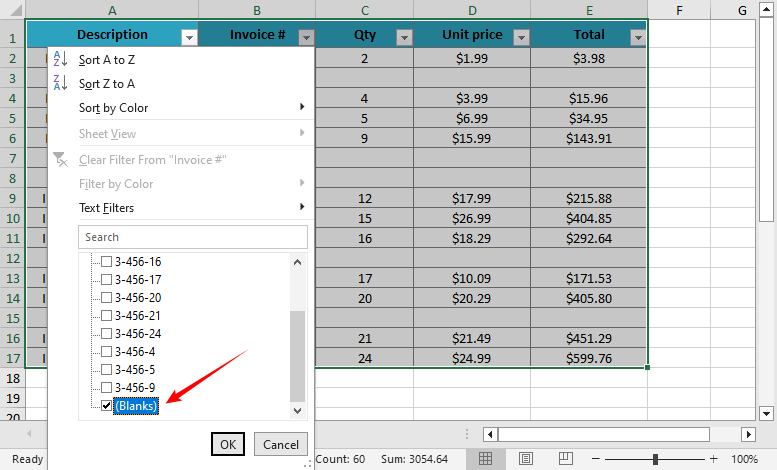
- Fai clic sulla freccia a discesa su qualsiasi intestazione di colonna → Deseleziona "Seleziona tutto" → Seleziona Vuote.
- Excel nasconderà le righe non vuote, quindi selezionerà tutte le righe vuote visibili.
- Fai clic con il pulsante destro del mouse → Elimina riga → Conferma.
- Fai di nuovo clic sul pulsante Filtro per ripristinare la visibilità.
- ✔ Pro: Semplice e sicuro; funziona per la maggior parte dei set di dati.
- ✘ Contro: Manuale; non gestisce le righe con dati parziali.
Ideale per: pulizia rapida e una tantum di righe completamente vuote.
Metodo 2: Utilizzo di "Vai a speciale" (il più veloce per grandi set di dati)
Questo metodo con scorciatoia da tastiera è uno dei preferiti dagli utenti esperti. Salta la selezione manuale e individua le righe vuote in pochi secondi:
- Seleziona il tuo intervallo di dati (o premi Ctrl+A/⌘+A per selezionare l'intero foglio).
- Premi Ctrl+G (Windows) o ⌘+G (Mac) per aprire la finestra di dialogo Vai a.
- Fai clic su Speciale → Seleziona Vuote → Fai clic su OK.
- Verranno selezionate tutte le celle vuote nel tuo intervallo.
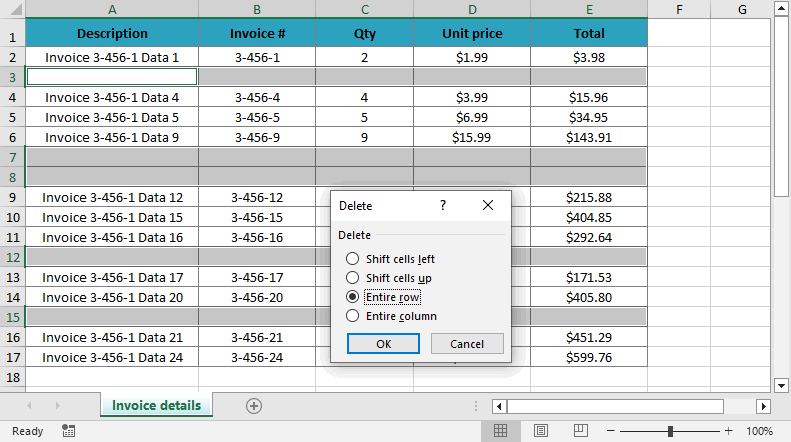
- Fai clic con il pulsante destro del mouse su una cella selezionata → Elimina → Scegli Riga intera → Fai clic su OK.

- ✔ Pro: 10 volte più veloce del filtro; funziona per 1000+ righe.
- ✘ Contro: Rischioso; può eliminare righe con dati parziali.
Ideale per: pulire rapidamente grandi set di dati in cui si è sicuri che le celle vuote indichino righe completamente inutili.
Metodo 3: Utilizzo di Power Query (non distruttivo e riutilizzabile)
Power Query (Recupera e trasforma dati) è la scelta migliore per le attività di pulizia dei dati ripetute. Conserva i dati originali e automatizza gli aggiornamenti.
- Seleziona il tuo intervallo di dati → Vai alla scheda Dati → Fai clic su Da tabella/intervallo.
- Excel convertirà i tuoi dati in una tabella (conferma con "La mia tabella ha intestazioni" se applicabile).
- Nell'editor di Power Query: seleziona tutte le colonne (tieni premuto Ctrl/⌘ e fai clic sulle intestazioni delle colonne).
- Vai alla scheda Home → Fai clic su Rimuovi righe → Seleziona Rimuovi righe vuote.
- Fai clic su Chiudi e carica (in alto a sinistra) per esportare i dati puliti in un nuovo foglio di lavoro.

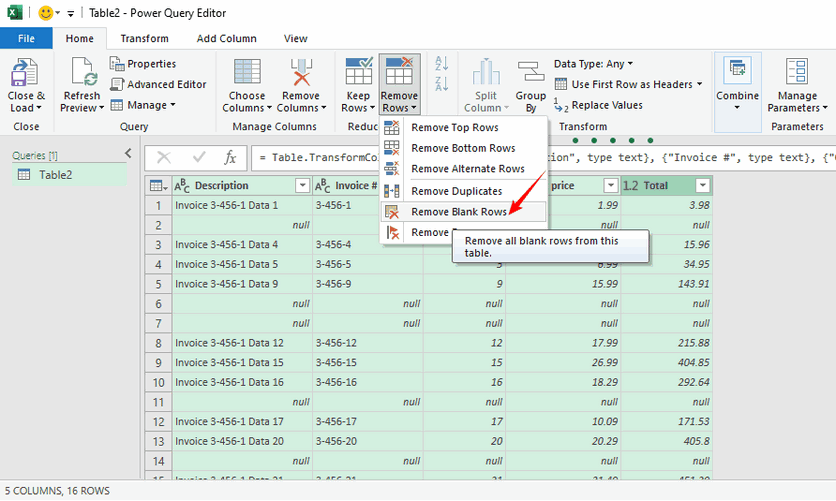
- ✔ Pro: Non distruttivo; riutilizzabile (aggiorna con nuovi dati); gestisce in modo efficiente grandi set di dati.
- ✘ Contro: Non disponibile in Excel 2013 o versioni precedenti.
Ideale per: attività di pulizia dei dati ricorrenti, grandi set di dati e creazione di un processo ripetibile.
Potrebbe piacerti anche: Come rimuovere le righe duplicate da Excel - 6 semplici modi
Metodo 4: Utilizzo di una macro VBA (automatizzato per utenti esperti)
Per un'automazione completa all'interno di Excel, una macro VBA può eliminare le righe vuote con un solo clic.
- Premi Alt+F11 (Windows) o ⌘+F11 (Mac) per aprire l'editor VBA.
- Fai clic con il pulsante destro del mouse sulla cartella di lavoro → Inserisci → Modulo.
- Copia e incolla il seguente codice nel modulo:
- Premi F5 per eseguire la macro. Salva sempre un backup della cartella di lavoro prima di eseguire le macro, poiché l'azione non può essere annullata.
Sub DeleteFullyBlankRows()
Dim ws As Worksheet
Dim lastRow As Long, i As Long
Set ws = ActiveSheet ' Cambia in ThisWorkbook.Sheets("Sheet1") per un foglio specifico
lastRow = ws.Cells.Find("*", SearchOrder:=xlByRows, SearchDirection:=xlPrevious).Row
Application.ScreenUpdating = False ' Accelera la macro
For i = lastRow To 1 Step -1
If WorksheetFunction.CountA(ws.Rows(i)) = 0 Then
ws.Rows(i).Delete
End If
Next i
Application.ScreenUpdating = True
MsgBox "Righe vuote eliminate!", vbInformation
End Sub
Questo codice controlla ogni cella di una riga per assicurarsi che sia vuota (evita di eliminare righe con dati parziali)
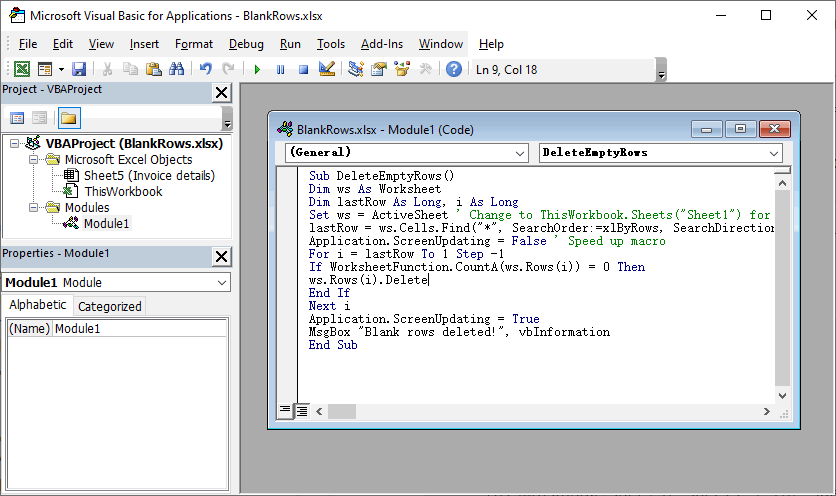
- ✔ Pro: Automatizzato; gestisce scenari complessi; personalizzabile.
- ✘ Contro: Richiede una conoscenza di base di VBA; nessuna funzione di annullamento (eseguire prima il backup).
Ideale per: utenti esperti che necessitano di automatizzare il processo per un uso regolare.
Metodo 5: Utilizzo dell'automazione Python (per sviluppatori ed elaborazione batch)
Per sviluppatori, ingegneri dei dati o chiunque abbia bisogno di integrare la pulizia di Excel in uno script o un'applicazione automatizzata, l'utilizzo di Python è un'opzione potente. La libreria Spire.XLS for Python fornisce una solida API per elaborare i file di Excel, inclusa la rimozione di righe vuote, la copia di righe/colonne, l'applicazione della formattazione condizionale e l'aggiunta di tabelle pivot, ecc.
- Innanzitutto, installa la libreria tramite pip:
- Scrivi il codice Python per eliminare le righe vuote in Excel:
pip install Spire.XLS
from spire.xls import *
from spire.xls.common import *

# Crea un oggetto Workbook
workbook = Workbook()
# Carica un file Excel
workbook.LoadFromFile("Input1.xlsx")

# Ottieni il primo foglio di lavoro
sheet = workbook.Worksheets[0]

# Trova ed elimina le righe vuote dal foglio di lavoro
for i in range(sheet.Rows.Length - 1, -1, -1):
    if sheet.Rows[i].IsBlank:
        sheet.DeleteRow(i + 1)

# Salva il file dei risultati
workbook.SaveToFile("DeleteBlankRows.xlsx", ExcelVersion.Version2016)
workbook.Dispose()
Questo script carica un file Excel, rileva le righe vuote tramite la proprietà IsBlank e quindi le elimina con il metodo DeleteRows().
(Facoltativo) Se è necessario eliminare anche le colonne vuote, fare riferimento a:
# Elimina le colonne vuote dal foglio di lavoro
for j in range(sheet.Columns.Length - 1, -1, -1):
    if sheet.Columns[j].IsBlank:
        sheet.DeleteColumn(j + 1)
- ✔ Pro: Automatizza l'elaborazione batch; si integra con i flussi di lavoro Python; altamente scalabile.
- ✘ Contro: Richiede una conoscenza di base di Python.
Ideale per: automatizzare la pulizia di più file Excel, integrare in una pipeline di elaborazione dati o applicazioni lato server in cui Microsoft Excel non è installato.
Considerazioni finali
Rimuovere le righe vuote in Excel è un'abilità fondamentale per una gestione pulita dei dati. Dal semplice metodo Filtro alla potente automazione di Python, esiste una soluzione per ogni utente e scenario. Ricorda sempre di eseguire il backup dei dati prima di provare un nuovo metodo, in particolare quelli che coinvolgono VBA o Vai a speciale. Per le attività ricorrenti, investire tempo nell'apprendimento di Power Query o nella scrittura di uno script ti farà risparmiare innumerevoli ore a lungo termine.
Per ulteriori suggerimenti su Excel, consulta le nostre guide su elenchi a discesa e formattazione condizionale.
Domande frequenti sull'eliminazione delle righe vuote di Excel
D1: Qual è la differenza tra righe "veramente vuote" e "quasi vuote"?
- Righe veramente vuote: non contengono dati, formule o caratteri nascosti in nessuna cella.
- Righe quasi vuote: contengono spazi, spazi unificatori (ASCII 160) o formule che restituiscono stringhe vuote
Metodi come Power Query e VBA (con logica specifica) sono migliori nell'identificare e gestire queste righe "quasi vuote".
D2: Come eliminare le righe vuote in Fogli Google?
Il processo è simile:
- Seleziona il tuo intervallo di dati.
- Fai clic su Dati > Crea un filtro.
- Fai clic sull'icona del filtro in una colonna e deseleziona "Seleziona tutto", quindi seleziona "Vuote".
- Seleziona le righe vuote visibili, fai clic con il pulsante destro del mouse e scegli Elimina righe.
- Disattiva il filtro.
D3: Come posso eliminare automaticamente le righe vuote quando vengono aggiunti nuovi dati?
Per attività ricorrenti (ad es. importazioni giornaliere di dati), utilizzare:
- Power Query: imposta una query su "Rimuovi righe vuote" (Metodo 3) → Fai clic su Aggiorna tutto ogni volta che vengono aggiunti nuovi dati per aggiornare il foglio pulito.
- Macro VBA: assegna la macro DeleteFullyBlankRows (Metodo 4) a un pulsante nel tuo foglio: fai clic per eseguire l'eliminazione automaticamente.
D4: Quando dovrei usare Python invece di VBA?
Scegli Python quando:
- Stai elaborando file su un computer senza Excel installato (ad es. un server).
- È necessario elaborare in batch centinaia di file Excel automaticamente.
Scegli VBA quando:
- L'intero flusso di lavoro si svolge all'interno di Excel.
- Hai bisogno di una soluzione semplice con un solo clic all'interno dell'applicazione Excel.
Vedi anche
Como excluir linhas em branco no Excel: 5 métodos fáceis
Índice
- Método 1: Usando Filtro e Exclusão (Mais Amigável)
- Método 2: Usando "Ir para Especial" (Mais Rápido para Grandes Conjuntos de Dados)
- Método 3: Usando Power Query (Não Destrutivo e Reutilizável)
- Método 4: Usando Macro VBA (Automatizado para Usuários Avançados)
- Método 5: Usando Automação com Python (Para Desenvolvedores e Processamento em Lote)
Linhas em branco são mais do que um pequeno incômodo no Excel; elas atrapalham a análise de dados, quebram Tabelas Dinâmicas e criam planilhas não profissionais e difíceis de navegar. Seja para limpar dados importados, organizar relatórios ou preparar planilhas para colaboração, remover linhas em branco no Excel é uma habilidade essencial.
Este guia fornece cinco métodos confiáveis para excluir linhas em branco no Excel, adequados para todos os níveis de habilidade e cenários, desde correções manuais rápidas até soluções totalmente automatizadas.
- Método 1: Usando Filtro e Exclusão (Mais Amigável)
- Método 2: Usando "Ir para Especial" (Mais Rápido para Grandes Conjuntos de Dados)
- Método 3: Usando Power Query (Não Destrutivo e Reutilizável)
- Método 4: Usando Macro VBA (Automatizado para Usuários Avançados)
- Método 5: Usando Automação com Python (Para Desenvolvedores e Processamento em Lote)
Por Que Você Deve Eliminar Linhas Vazias no Excel
Excluir linhas vazias no Excel é crucial para:
- Análise de Dados Precisa: Funções como SOMA, MÉDIA e PROCV podem fornecer resultados incorretos se incluírem células em branco em seu intervalo.
- Tabelas Dinâmicas Funcionais: As Tabelas Dinâmicas frequentemente contam linhas em branco como itens de dados, poluindo seus relatórios e distorcendo suas percepções.
- Visualização de Dados Limpa: Gráficos e diagramas incluirão espaços vazios onde existirem linhas em branco, tornando-os difíceis de ler e interpretar.
- Profissionalismo e Legibilidade: Um conjunto de dados compacto e contíguo é mais fácil de navegar e trabalhar.
Método 1: Usando Filtro e Exclusão (Mais Amigável)
O método de Filtro funciona para todas as versões do Excel e é ideal para conjuntos de dados com linhas mistas em branco/não em branco:
- Selecione seu intervalo de dados (inclua cabeçalhos, se aplicável).
- Vá para a guia Dados → Clique no botão Filtro (ícone de funil).
- Clique na seta suspensa em qualquer cabeçalho de coluna → Desmarque "Selecionar Tudo" → Marque Vazias.
- O Excel ocultará as linhas não em branco e, em seguida, selecionará todas as linhas em branco visíveis.
- Clique com o botão direito → Excluir Linha → Confirme.
- Clique no botão Filtro novamente para restaurar a visibilidade.
- ✔ Prós: Simples e seguro; funciona para a maioria dos conjuntos de dados.
- ✘ Contras: Manual; não lida com linhas com dados parciais.
Ideal para: Limpeza rápida e única de linhas totalmente vazias.
Método 2: Usando "Ir para Especial" (Mais Rápido para Grandes Conjuntos de Dados)
Este método de atalho de teclado é um favorito dos usuários avançados. Ele pula a seleção manual e visa as linhas em branco em segundos:
- Selecione seu intervalo de dados (ou pressione Ctrl+A/⌘+A para selecionar a planilha inteira).
- Pressione Ctrl+G (Windows) ou ⌘+G (Mac) para abrir a caixa de diálogo Ir Para.
- Clique em Especial → Selecione Em branco → Clique em OK.
- Todas as células em branco no seu intervalo serão selecionadas.
- Clique com o botão direito em qualquer célula selecionada → Excluir → Escolha Linha Inteira → Clique em OK.
- ✔ Prós: 10x mais rápido que a filtragem; funciona para mais de 1000 linhas.
- ✘ Contras: Arriscado; pode excluir linhas com dados parciais.
Ideal para: Limpar rapidamente grandes conjuntos de dados onde você tem certeza de que as células em branco indicam linhas totalmente inúteis.
Método 3: Usando Power Query (Não Destrutivo e Reutilizável)
O Power Query (Obter e Transformar Dados) é a melhor escolha para tarefas repetidas de limpeza de dados. Ele preserva seus dados originais e automatiza as atualizações.
- Selecione seu intervalo de dados → Vá para a guia Dados → Clique em Da Tabela/Intervalo.
- O Excel converterá seus dados em uma tabela (confirme com "Minha tabela tem cabeçalhos", se aplicável).
- No Editor do Power Query: Selecione todas as colunas (segure Ctrl/⌘ e clique nos cabeçalhos das colunas).
- Vá para a guia Página Inicial → Clique em Remover Linhas → Selecione Remover Linhas em Branco.
- Clique em Fechar e Carregar (canto superior esquerdo) para exportar os dados limpos para uma nova planilha.
- ✔ Prós: Não destrutivo; reutilizável (atualize com novos dados); lida com grandes conjuntos de dados de forma eficiente.
- ✘ Contras: Não disponível no Excel 2013 ou anterior.
Ideal para: Tarefas recorrentes de limpeza de dados, grandes conjuntos de dados e criação de um processo repetível.
Você também pode gostar: Como Remover Linhas Duplicadas do Excel - 6 Maneiras Fáceis
Método 4: Usando Macro VBA (Automatizado para Usuários Avançados)
Para automação máxima no Excel, uma macro VBA pode excluir linhas em branco com um único clique.
- Pressione Alt+F11 (Windows) ou ⌘+F11 (Mac) para abrir o Editor do VBA.
- Clique com o botão direito na sua pasta de trabalho → Inserir → Módulo.
- Copie e cole o seguinte código no módulo:
- Pressione F5 para executar a macro. Sempre salve um backup da sua pasta de trabalho antes de executar macros, pois a ação não pode ser desfeita.
Sub DeleteFullyBlankRows()
Dim ws As Worksheet
Dim lastRow As Long, i As Long
Set ws = ActiveSheet ' Change to ThisWorkbook.Sheets("Sheet1") for specific sheet
lastRow = ws.Cells.Find("*", SearchOrder:=xlByRows, SearchDirection:=xlPrevious).Row
Application.ScreenUpdating = False ' Speed up macro
For i = lastRow To 1 Step -1
If WorksheetFunction.CountA(ws.Rows(i)) = 0 Then
ws.Rows(i).Delete
End If
Next i
Application.ScreenUpdating = True
MsgBox "Blank rows deleted!", vbInformation
End Sub
Este código verifica cada célula em uma linha para garantir que esteja em branco (evita a exclusão de linhas com dados parciais)
- ✔ Prós: Automatizado; lida com cenários complexos; personalizável.
- ✘ Contras: Requer conhecimento básico de VBA; sem desfazer (faça backup primeiro).
Ideal para: Usuários avançados que precisam automatizar o processo para uso regular.
Método 5: Usando Automação com Python (Para Desenvolvedores e Processamento em Lote)
Para desenvolvedores, engenheiros de dados ou qualquer pessoa que precise integrar a limpeza do Excel em um script ou aplicativo automatizado, usar Python é uma opção poderosa. A biblioteca Spire.XLS for Python fornece uma API robusta para processar arquivos do Excel, incluindo a remoção de linhas em branco, copiar linhas/colunas, aplicar formatação condicional e adicionar tabelas dinâmicas, etc.
- Primeiro, instale a biblioteca via pip:
- Escreva o código Python para excluir linhas em branco no Excel:
pip install Spire.XLS
from spire.xls import *
from spire.xls.common import *

# Create a Workbook object
workbook = Workbook()
# Load an Excel file
workbook.LoadFromFile("Input1.xlsx")

# Get the first worksheet
sheet = workbook.Worksheets[0]

# Find and delete blank rows from the worksheet
for i in range(sheet.Rows.Length - 1, -1, -1):
    if sheet.Rows[i].IsBlank:
        sheet.DeleteRow(i + 1)

# Save the result file
workbook.SaveToFile("DeleteBlankRows.xlsx", ExcelVersion.Version2016)
workbook.Dispose()
Este script carrega um arquivo Excel, detecta linhas vazias através da propriedade IsBlank e, em seguida, as exclui com o método DeleteRows().
(Opcional) Se você precisar excluir colunas em branco também, consulte:
# Delete blank columns from the worksheet
for j in range(sheet.Columns.Length - 1, -1, -1):
    if sheet.Columns[j].IsBlank:
        sheet.DeleteColumn(j + 1)
- ✔ Prós: Automatiza o processamento em lote; integra-se com fluxos de trabalho Python; altamente escalável.
- ✘ Contras: Requer conhecimento básico de Python.
Ideal para: Automatizar a limpeza de vários arquivos do Excel, integrar em um pipeline de processamento de dados ou aplicativos do lado do servidor onde o Microsoft Excel não está instalado.
Considerações Finais
Remover linhas em branco no Excel é uma habilidade fundamental para o gerenciamento de dados limpos. Do método de Filtro direto à poderosa automação do Python, existe uma solução para cada usuário e cenário. Lembre-se sempre de fazer backup de seus dados antes de tentar um novo método, especialmente aqueles que envolvem VBA ou Ir para Especial. Para tarefas recorrentes, investir tempo para aprender o Power Query ou escrever um script economizará inúmeras horas a longo prazo.
Para mais dicas de Excel, confira nossos guias sobre listas suspensas e formatação condicional.
Perguntas Frequentes sobre a Exclusão de Linhas em Branco no Excel
P1: Qual é a diferença entre linhas "verdadeiramente em branco" e "quase em branco"?
- Linhas verdadeiramente em branco: Não contêm dados, fórmulas ou caracteres ocultos em nenhuma célula.
- Linhas quase em branco: Contêm espaços, espaços não separáveis (ASCII 160) ou fórmulas que retornam strings vazias
Métodos como Power Query e VBA (com lógica específica) são melhores para identificar e lidar com essas linhas "quase em branco".
P2: Como excluir linhas em branco no Google Sheets?
O processo é semelhante:
- Selecione seu intervalo de dados.
- Clique em Dados > Criar um filtro.
- Clique no ícone do filtro em uma coluna, desmarque "Selecionar tudo" e marque "Em branco."
- Selecione as linhas em branco visíveis, clique com o botão direito e escolha Excluir linhas.
- Desative o filtro.
P3: Como eu excluo automaticamente linhas em branco quando novos dados são adicionados?
Para tarefas recorrentes (por exemplo, importações diárias de dados), use:
- Power Query: Configure uma consulta para "Remover Linhas em Branco" (Método 3) → Clique em Atualizar Tudo sempre que novos dados forem adicionados para atualizar a planilha limpa.
- Macro VBA: Atribua a macro DeleteFullyBlankRows (Método 4) a um botão em sua planilha—clique nele para executar a exclusão automaticamente.
P4: Quando devo usar Python em vez de VBA?
Escolha Python quando:
- Você está processando arquivos em um computador sem o Excel instalado (por exemplo, um servidor).
- Você precisa processar em lote centenas de arquivos do Excel automaticamente.
Escolha VBA quando:
- Todo o fluxo de trabalho acontece no Excel.
- Você precisa de uma solução simples de um clique dentro do aplicativo Excel.
Veja Também
Excel에서 빈 행을 삭제하는 5가지 쉬운 방법
빈 행은 Excel에서 사소한 성가심 이상입니다. 데이터 분석을 방해하고 피벗 테이블을 깨뜨리며 전문가답지 않고 탐색하기 어려운 스프레드시트를 만듭니다. 가져온 데이터를 정리하든, 보고서를 구성하든, 공동 작업을 위해 스프레드시트를 준비하든, Excel에서 빈 줄을 제거하는 것은 필수적인 기술입니다.
이 가이드는 빠른 수동 수정에서 완전 자동화된 솔루션에 이르기까지 모든 기술 수준과 시나리오에 적합한 Excel에서 빈 행을 삭제하는 다섯 가지 신뢰할 수 있는 방법을 제공합니다.
- 방법 1: 필터 및 삭제 사용 (가장 사용자 친화적)
- 방법 2: "특수 이동" 사용 (대용량 데이터 세트에 가장 빠름)
- 방법 3: 파워 쿼리 사용 (비파괴적 및 재사용 가능)
- 방법 4: VBA 매크로 사용 (고급 사용자를 위한 자동화)
- 방법 5: Python 자동화 사용 (개발자 및 일괄 처리용)
Excel에서 빈 행을 제거해야 하는 이유
Excel에서 빈 줄을 삭제하는 것은 다음에 중요합니다.
- 정확한 데이터 분석: SUM, AVERAGE 및 VLOOKUP과 같은 함수는 범위에 빈 셀이 포함된 경우 잘못된 결과를 제공할 수 있습니다.
- 기능적 피벗 테이블: 피벗 테이블은 종종 빈 행을 데이터 항목으로 계산하여 보고서를 복잡하게 만들고 통찰력을 왜곡합니다.
- 깨끗한 데이터 시각화: 차트와 그래프에는 빈 행이 있는 빈 공간이 포함되어 읽고 해석하기 어렵습니다.
- 전문성 및 가독성: 빽빽하고 연속적인 데이터 세트는 탐색하고 작업하기가 더 쉽습니다.
방법 1: 필터 및 삭제 사용 (가장 사용자 친화적)
필터 방법은 모든 Excel 버전에서 작동하며 비어 있지 않은 행과 비어 있는 행이 혼합된 데이터 세트에 이상적입니다.
- 데이터 범위를 선택합니다(해당하는 경우 머리글 포함).
- 데이터 탭으로 이동 → 필터 버튼(깔때기 아이콘)을 클릭합니다.
- 열 머리글의 드롭다운 화살표를 클릭 → "모두 선택" 선택 취소 → 공백을 선택합니다.
- Excel은 비어 있지 않은 행을 숨긴 다음 보이는 모든 빈 행을 선택합니다.
- 마우스 오른쪽 버튼 클릭 → 행 삭제 → 확인.
- 필터 버튼을 다시 클릭하여 가시성을 복원합니다.
- ✔ 장점: 간단하고 안전하며 대부분의 데이터 세트에서 작동합니다.
- ✖ 단점: 수동이며 부분 데이터가 있는 행을 처리하지 않습니다.
적합 대상: 전체 빈 행의 빠른 일회성 정리.
방법 2: "특수 이동" 사용 (대용량 데이터 세트에 가장 빠름)
이 키보드 단축키 방법은 고급 사용자가 가장 좋아하는 방법입니다. 수동 선택을 건너뛰고 몇 초 만에 빈 행을 대상으로 합니다.
- 데이터 범위를 선택합니다(또는 Ctrl+A/⌘+A를 눌러 전체 시트를 선택).
- Ctrl+G(Windows) 또는 ⌘+G(Mac)를 눌러 이동 대화 상자를 엽니다.
- 특수 클릭 → 공백 선택 → 확인 클릭.
- 범위의 모든 빈 셀이 선택됩니다.
- 선택한 셀을 마우스 오른쪽 버튼으로 클릭 → 삭제 → 전체 행 선택 → 확인 클릭.
- ✔ 장점: 필터링보다 10배 빠르며 1000개 이상의 행에서 작동합니다.
- ✖ 단점: 위험하며 부분 데이터가 있는 행을 삭제할 수 있습니다.
적합 대상: 빈 셀이 완전히 쓸모없는 행임을 확신하는 대용량 데이터 세트를 빠르게 정리합니다.
방법 3: 파워 쿼리 사용 (비파괴적 및 재사용 가능)
파워 쿼리(데이터 가져오기 및 변환)는 반복적인 데이터 정리 작업에 가장 적합한 선택입니다. 원본 데이터를 보존하고 업데이트를 자동화합니다.
- 데이터 범위를 선택 → 데이터 탭으로 이동 → 테이블/범위에서를 클릭합니다.
- Excel은 데이터를 테이블로 변환합니다(해당하는 경우 "내 테이블에 머리글 있음"으로 확인).
- 파워 쿼리 편집기에서: 모든 열을 선택합니다(Ctrl/⌘를 누르고 열 머리글을 클릭).
- 홈 탭으로 이동 → 행 제거 클릭 → 빈 행 제거 선택.
- 닫기 및 로드(왼쪽 상단)를 클릭하여 정리된 데이터를 새 워크시트로 내보냅니다.
- ✔ 장점: 비파괴적, 재사용 가능(새 데이터로 새로 고침), 대용량 데이터 세트를 효율적으로 처리합니다.
- ✖ 단점: Excel 2013 또는 이전 버전에서는 사용할 수 없습니다.
적합 대상: 반복적인 데이터 정리 작업, 대용량 데이터 세트 및 반복 가능한 프로세스 생성.
관심 있을 만한 다른 글: Excel에서 중복 행을 제거하는 6가지 쉬운 방법
방법 4: VBA 매크로 사용 (고급 사용자를 위한 자동화)
Excel 내에서 궁극적인 자동화를 위해 VBA 매크로는 한 번의 클릭으로 빈 행을 삭제할 수 있습니다.
- Alt+F11(Windows) 또는 ⌘+F11(Mac)을 눌러 VBA 편집기를 엽니다.
- 통합 문서를 마우스 오른쪽 버튼으로 클릭 → 삽입 → 모듈.
- 다음 코드를 복사하여 모듈에 붙여넣습니다.
- F5 키를 눌러 매크로를 실행합니다. 매크로를 실행하기 전에 항상 통합 문서의 백업을 저장하십시오. 작업은 취소할 수 없습니다.
Sub DeleteFullyBlankRows()
Dim ws As Worksheet
Dim lastRow As Long, i As Long
Set ws = ActiveSheet ' Change to ThisWorkbook.Sheets("Sheet1") for specific sheet
lastRow = ws.Cells.Find("*", SearchOrder:=xlByRows, SearchDirection:=xlPrevious).Row
Application.ScreenUpdating = False ' Speed up macro
For i = lastRow To 1 Step -1
If WorksheetFunction.CountA(ws.Rows(i)) = 0 Then
ws.Rows(i).Delete
End If
Next i
Application.ScreenUpdating = True
MsgBox "Blank rows deleted!", vbInformation
End Sub
이 코드는 행의 모든 셀을 확인하여 비어 있는지 확인합니다(부분 데이터가 있는 행 삭제 방지)
- ✔ 장점: 자동화, 복잡한 시나리오 처리, 사용자 정의 가능.
- ✖ 단점: 기본 VBA 지식이 필요하며 실행 취소가 없습니다(먼저 백업).
적합 대상: 정기적인 사용을 위해 프로세스를 자동화해야 하는 고급 사용자.
방법 5: Python 자동화 사용 (개발자 및 일괄 처리용)
개발자, 데이터 엔지니어 또는 Excel 정리를 자동화된 스크립트나 애플리케이션에 통합해야 하는 모든 사람에게 Python을 사용하는 것은 강력한 옵션입니다. Spire.XLS for Python 라이브러리는 빈 행 제거, 행/열 복사, 조건부 서식 적용, 피벗 테이블 추가 등을 포함하여 Excel 파일을 처리하기 위한 강력한 API를 제공합니다.
- 먼저 pip를 통해 라이브러리를 설치합니다.
- Excel에서 빈 행을 삭제하는 Python 코드를 작성합니다.
pip install Spire.XLS
from spire.xls import *
from spire.xls.common import *

# Create a Workbook object
workbook = Workbook()
# Load an Excel file
workbook.LoadFromFile("Input1.xlsx")

# Get the first worksheet
sheet = workbook.Worksheets[0]

# Find and delete blank rows from the worksheet
for i in range(sheet.Rows.Length - 1, -1, -1):
    if sheet.Rows[i].IsBlank:
        sheet.DeleteRow(i + 1)

# Save the result file
workbook.SaveToFile("DeleteBlankRows.xlsx", ExcelVersion.Version2016)
workbook.Dispose()
이 스크립트는 Excel 파일을 로드하고 IsBlank 속성을 통해 빈 행을 감지한 다음 DeleteRows() 메서드로 삭제합니다.
(선택 사항) 빈 열도 삭제해야 하는 경우 다음을 참조하십시오.
# Delete blank columns from the worksheet
for j in range(sheet.Columns.Length - 1, -1, -1):
    if sheet.Columns[j].IsBlank:
        sheet.DeleteColumn(j + 1)
- ✔ 장점: 일괄 처리를 자동화하고 Python 워크플로와 통합되며 확장성이 뛰어납니다.
- ✖ 단점: 기본 Python 지식이 필요합니다.
적합 대상: 여러 Excel 파일 정리 자동화, 데이터 처리 파이프라인에 통합 또는 Microsoft Excel이 설치되지 않은 서버 측 애플리케이션.
마지막 생각들
Excel에서 빈 행을 제거하는 것은 깨끗한 데이터 관리를 위한 기본 기술입니다. 간단한 필터 방법부터 강력한 Python 자동화에 이르기까지 모든 사용자와 시나리오에 대한 솔루션이 있습니다. 특히 VBA 또는 특수 이동과 관련된 새 방법을 시도하기 전에 항상 데이터를 백업하는 것을 잊지 마십시오. 반복적인 작업의 경우 파워 쿼리를 배우거나 스크립트를 작성하는 데 시간을 투자하면 장기적으로 수많은 시간을 절약할 수 있습니다.
더 많은 Excel 팁을 보려면 드롭다운 목록 및 조건부 서식에 대한 가이드를 확인하십시오.
Excel 빈 행 삭제에 대한 FAQ
Q1: "진짜 빈" 행과 "거의 빈" 행의 차이점은 무엇입니까?
- 진짜 빈 행: 모든 셀에 데이터, 수식 또는 숨겨진 문자가 포함되어 있지 않습니다.
- 거의 빈 행: 공백, 줄 바꿈 없는 공백(ASCII 160) 또는 빈 문자열을 반환하는 수식이 포함되어 있습니다.
파워 쿼리 및 VBA(특정 논리 포함)와 같은 방법은 이러한 "거의 빈" 행을 식별하고 처리하는 데 더 좋습니다.
Q2: Google Sheets에서 빈 행을 삭제하는 방법은 무엇입니까?
프로세스는 비슷합니다.
- 데이터 범위를 선택합니다.
- 데이터 > 필터 만들기를 클릭합니다.
- 열의 필터 아이콘을 클릭하고 "모두 선택"을 선택 취소한 다음 "공백"을 선택합니다.
- 보이는 빈 행을 선택하고 마우스 오른쪽 버튼을 클릭한 다음 행 삭제를 선택합니다.
- 필터를 끕니다.
Q3: 새 데이터가 추가될 때 빈 행을 자동으로 삭제하려면 어떻게 해야 합니까?
반복적인 작업(예: 일일 데이터 가져오기)의 경우 다음을 사용합니다.
- 파워 쿼리: "빈 행 제거"(방법 3) 쿼리를 설정 → 새 데이터가 추가될 때마다 모두 새로 고침을 클릭하여 정리된 시트를 업데이트합니다.
- VBA 매크로: DeleteFullyBlankRows 매크로(방법 4)를 시트의 버튼에 할당하고 클릭하여 자동으로 삭제를 실행합니다.
Q4: 언제 VBA 대신 Python을 사용해야 합니까?
다음을 수행할 때 Python을 선택합니다.
- Excel이 설치되지 않은 컴퓨터(예: 서버)에서 파일을 처리하고 있습니다.
- 수백 개의 Excel 파일을 자동으로 일괄 처리해야 합니다.
다음을 수행할 때 VBA를 선택합니다.
- 전체 워크플로가 Excel 내에서 발생합니다.
- Excel 애플리케이션 내에서 간단한 원클릭 솔루션이 필요합니다.
참고 항목
Comment supprimer les lignes vides dans Excel : 5 méthodes faciles
Table des matières
- Méthode 1 : Utiliser Filtrer & Supprimer (la plus conviviale)
- Méthode 2 : Utiliser "Atteindre (Spécial)" (la plus rapide pour les grands ensembles de données)
- Méthode 3 : Utiliser Power Query (non destructif et réutilisable)
- Méthode 4 : Utiliser une macro VBA (automatisée pour les utilisateurs avancés)
- Méthode 5 : Utiliser l'automatisation Python (pour les développeurs et le traitement par lots)
Les lignes vides sont plus qu'un simple désagrément dans Excel ; elles perturbent l'analyse des données, cassent les tableaux croisés dynamiques et créent des feuilles de calcul non professionnelles et difficiles à parcourir. Que vous nettoyiez des données importées, organisiez des rapports ou prépariez des feuilles de calcul pour la collaboration, supprimer les lignes vides dans Excel est une compétence essentielle.
Ce guide propose cinq méthodes fiables pour supprimer les lignes vides dans Excel, adaptées à tous les niveaux de compétence et à tous les scénarios, des corrections manuelles rapides aux solutions entièrement automatisées.
- Méthode 1 : Utiliser Filtrer & Supprimer (la plus conviviale)
- Méthode 2 : Utiliser "Atteindre (Spécial)" (la plus rapide pour les grands ensembles de données)
- Méthode 3 : Utiliser Power Query (non destructif et réutilisable)
- Méthode 4 : Utiliser une macro VBA (automatisée pour les utilisateurs avancés)
- Méthode 5 : Utiliser l'automatisation Python (pour les développeurs et le traitement par lots)
Pourquoi vous devriez éliminer les lignes vides dans Excel
La suppression des lignes vides dans Excel est cruciale pour :
- Analyse précise des données : Des fonctions comme SOMME, MOYENNE et RECHERCHEV peuvent donner des résultats incorrects si elles incluent des cellules vides dans leur plage.
- Tableaux croisés dynamiques fonctionnels : Les tableaux croisés dynamiques comptent souvent les lignes vides comme des éléments de données, ce qui encombre vos rapports et fausse vos informations.
- Visualisation claire des données : Les diagrammes et les graphiques incluront des espaces vides là où des lignes vides existent, ce qui les rend difficiles à lire et à interpréter.
- Professionnalisme et lisibilité : Un ensemble de données compact et contigu est plus facile à parcourir et à utiliser.
Méthode 1 : Utiliser Filtrer & Supprimer (la plus conviviale)
La méthode Filtrer fonctionne pour toutes les versions d'Excel et est idéale pour les ensembles de données avec des lignes vides/non vides mélangées :
- Sélectionnez votre plage de données (incluez les en-têtes le cas échéant).
- Allez dans l'onglet Données → Cliquez sur le bouton Filtrer (icône en forme d'entonnoir).
- Cliquez sur la flèche déroulante de n'importe quel en-tête de colonne → Décochez "Sélectionner tout" → Cochez Vides.
- Excel masquera les lignes non vides, puis sélectionnera toutes les lignes vides visibles.
- Clic droit → Supprimer la ligne → Confirmer.
- Cliquez à nouveau sur le bouton Filtrer pour restaurer la visibilité.
- ✔ Avantages : Simple et sûr ; fonctionne pour la plupart des ensembles de données.
- ✘ Inconvénients : Manuel ; ne gère pas les lignes avec des données partielles.
Idéal pour : Le nettoyage rapide et ponctuel de lignes entièrement vides.
Méthode 2 : Utiliser "Atteindre (Spécial)" (la plus rapide pour les grands ensembles de données)
Cette méthode de raccourci clavier est la préférée des utilisateurs expérimentés. Elle évite la sélection manuelle et cible les lignes vides en quelques secondes :
- Sélectionnez votre plage de données (ou appuyez sur Ctrl+A/⌘+A pour sélectionner la feuille entière).
- Appuyez sur Ctrl+G (Windows) ou ⌘+G (Mac) pour ouvrir la boîte de dialogue Atteindre.
- Cliquez sur Spécial → Sélectionnez Vides → Cliquez sur OK.
- Toutes les cellules vides de votre plage seront sélectionnées.
- Faites un clic droit sur n'importe quelle cellule sélectionnée → Supprimer → Choisissez Ligne entière → Cliquez sur OK.
- ✔ Avantages : 10 fois plus rapide que le filtrage ; fonctionne pour plus de 1000 lignes.
- ✘ Inconvénients : Risqué ; peut supprimer des lignes avec des données partielles.
Idéal pour : Nettoyer rapidement de grands ensembles de données où vous êtes sûr que les cellules vides indiquent des lignes entièrement inutiles.
Méthode 3 : Utiliser Power Query (non destructif et réutilisable)
Power Query (Obtenir et transformer des données) est le meilleur choix pour les tâches de nettoyage de données répétées. Il préserve vos données d'origine et automatise les mises à jour.
- Sélectionnez votre plage de données → Allez dans l'onglet Données → Cliquez sur À partir d'un tableau/d'une plage.
- Excel convertira vos données en tableau (confirmez avec "Mon tableau a des en-têtes" le cas échéant).
- Dans l'éditeur Power Query : sélectionnez toutes les colonnes (maintenez Ctrl/⌘ et cliquez sur les en-têtes de colonne).
- Allez dans l'onglet Accueil → Cliquez sur Supprimer les lignes → Sélectionnez Supprimer les lignes vides.
- Cliquez sur Fermer et charger (en haut à gauche) pour exporter les données nettoyées vers une nouvelle feuille de calcul.
- ✔ Avantages : Non destructif ; réutilisable (actualiser avec de nouvelles données) ; gère efficacement les grands ensembles de données.
- ✘ Inconvénients : Non disponible dans Excel 2013 ou version antérieure.
Idéal pour : Les tâches de nettoyage de données récurrentes, les grands ensembles de données et la création d'un processus reproductible.
Vous aimerez peut-être aussi : Comment supprimer les lignes en double d'Excel - 6 façons simples
Méthode 4 : Utiliser une macro VBA (automatisée pour les utilisateurs avancés)
Pour une automatisation ultime dans Excel, une macro VBA peut supprimer les lignes vides en un seul clic.
- Appuyez sur Alt+F11 (Windows) ou ⌘+F11 (Mac) pour ouvrir l'éditeur VBA.
- Faites un clic droit sur votre classeur → Insertion → Module.
- Copiez et collez le code suivant dans le module :
- Appuyez sur F5 pour exécuter la macro. Enregistrez toujours une sauvegarde de votre classeur avant d'exécuter des macros, car l'action ne peut pas être annulée.
Sub DeleteFullyBlankRows()
Dim ws As Worksheet
Dim lastRow As Long, i As Long
Set ws = ActiveSheet ' Change to ThisWorkbook.Sheets("Sheet1") for specific sheet
lastRow = ws.Cells.Find("*", SearchOrder:=xlByRows, SearchDirection:=xlPrevious).Row
Application.ScreenUpdating = False ' Speed up macro
For i = lastRow To 1 Step -1
If WorksheetFunction.CountA(ws.Rows(i)) = 0 Then
ws.Rows(i).Delete
End If
Next i
Application.ScreenUpdating = True
MsgBox "Blank rows deleted!", vbInformation
End Sub
Ce code vérifie chaque cellule d'une ligne pour s'assurer qu'elle est vide (évite de supprimer des lignes avec des données partielles)
- ✔ Avantages : Automatisé ; gère des scénarios complexes ; personnalisable.
- ✘ Inconvénients : Nécessite des connaissances de base en VBA ; pas d'annulation (sauvegardez d'abord).
Idéal pour : Les utilisateurs avancés qui ont besoin d'automatiser le processus pour une utilisation régulière.
Méthode 5 : Utiliser l'automatisation Python (pour les développeurs et le traitement par lots)
Pour les développeurs, les ingénieurs de données ou toute personne ayant besoin d'intégrer le nettoyage d'Excel dans un script ou une application automatisé, l'utilisation de Python est une option puissante. La bibliothèque Spire.XLS for Python fournit une API robuste pour traiter les fichiers Excel, y compris la suppression des lignes vides, la copie de lignes/colonnes, l'application d'une mise en forme conditionnelle et l'ajout de tableaux croisés dynamiques, etc.
- Tout d'abord, installez la bibliothèque via pip :
- Écrivez le code Python pour supprimer les lignes vides dans Excel :
pip install Spire.XLS
from spire.xls import *
from spire.xls.common import *

# Create a Workbook object
workbook = Workbook()
# Load an Excel file
workbook.LoadFromFile("Input1.xlsx")

# Get the first worksheet
sheet = workbook.Worksheets[0]

# Find and delete blank rows from the worksheet
for i in range(sheet.Rows.Length - 1, -1, -1):
    if sheet.Rows[i].IsBlank:
        sheet.DeleteRow(i + 1)

# Save the result file
workbook.SaveToFile("DeleteBlankRows.xlsx", ExcelVersion.Version2016)
workbook.Dispose()
Ce script charge un fichier Excel, détecte les lignes vides via la propriété IsBlank, puis les supprime with la méthode DeleteRows().
(Facultatif) Si vous avez également besoin de supprimer les colonnes vides, reportez-vous à :
# Delete blank columns from the worksheet
for j in range(sheet.Columns.Length - 1, -1, -1):
    if sheet.Columns[j].IsBlank:
        sheet.DeleteColumn(j + 1)
- ✔ Avantages : Automatise le traitement par lots ; s'intègre aux flux de travail Python ; hautement évolutif.
- ✘ Inconvénients : Nécessite des connaissances de base en Python.
Idéal pour : Automatiser le nettoyage de plusieurs fichiers Excel, l'intégrer dans un pipeline de traitement de données ou des applications côté serveur where Microsoft Excel n'est pas installé.
Réflexions finales
La suppression des lignes vides dans Excel est une compétence fondamentale pour une gestion propre des données. De la méthode simple de filtrage à l'automatisation puissante de Python, il existe une solution pour chaque utilisateur et chaque scénario. N'oubliez jamais de sauvegarder vos données avant d'essayer une nouvelle méthode, en particulier celles impliquant VBA ou Atteindre (Spécial). Pour les tâches récurrentes, investir du temps dans l'apprentissage de Power Query ou l'écriture d'un script vous fera gagner d'innombrables heures à long terme.
Pour plus de conseils sur Excel, consultez nos guides sur les listes déroulantes et la mise en forme conditionnelle.
FAQ sur la suppression des lignes vides d'Excel
Q1 : Quelle est la différence entre les lignes "vraiment vides" et "presque vides" ?
- Lignes vraiment vides : ne contiennent aucune donnée, formule ou caractère masqué dans aucune cellule.
- Lignes presque vides : contiennent des espaces, des espaces insécables (ASCII 160) ou des formules renvoyant des chaînes vides
Des méthodes comme Power Query et VBA (avec une logique spécifique) sont meilleures pour identifier et gérer ces lignes "presque vides".
Q2 : Comment supprimer les lignes vides dans Google Sheets ?
Le processus est similaire :
- Sélectionnez votre plage de données.
- Cliquez sur Données > Créer un filtre.
- Cliquez sur l'icône de filtre dans une colonne, décochez "Sélectionner tout", puis cochez "Vides".
- Sélectionnez les lignes vides visibles, faites un clic droit et choisissez Supprimer les lignes.
- Désactivez le filtre.
Q3 : Comment supprimer automatically les lignes vides lorsque de nouvelles données sont ajoutées ?
Pour les tâches récurrentes (par exemple, les importations quotidiennes de données), utilisez :
- Power Query : configurez une requête pour "Supprimer les lignes vides" (méthode 3) → Cliquez sur Actualiser tout chaque fois que de nouvelles données sont ajoutées pour mettre à jour la feuille nettoyée.
- Macro VBA : affectez la macro DeleteFullyBlankRows (méthode 4) à un bouton de votre feuille—cliquez dessus pour exécuter la suppression automatiquement.
Q4 : Quand devrais-je utiliser Python plutôt que VBA ?
Choisissez Python lorsque :
- Vous traitez des fichiers sur un ordinateur sans Excel installé (par exemple, un serveur).
- Vous devez traiter par lots des centaines de fichiers Excel automatically.
Choisissez VBA lorsque :
- L'ensemble du flux de travail se déroule dans Excel.
- Vous avez besoin d'une solution simple en un clic dans l'application Excel.
Voir également
- Comment ajuster automatiquement la largeur des colonnes dans Excel (5 façons)
- Comment diviser des feuilles Excel en plusieurs fichiers (3 façons)
- Comment supprimer les formules dans Excel tout en conservant les données
- Insérer des lignes et des colonnes dans Excel en Python
- Masquer ou afficher des lignes et des colonnes dans Excel en Python
Cómo eliminar filas en blanco en Excel: 5 métodos fáciles
Tabla de Contenidos
- Método 1: Usar Filtro y Eliminar (El más fácil de usar)
- Método 2: Usar "Ir a Especial" (El más rápido para grandes conjuntos de datos)
- Método 3: Usar Power Query (No destructivo y reutilizable)
- Método 4: Usar Macro de VBA (Automatizado para usuarios avanzados)
- Método 5: Usar Automatización con Python (Para desarrolladores y procesamiento por lotes)
Las filas en blanco son más que una molestia menor en Excel; interrumpen el análisis de datos, rompen las Tablas Dinámicas y crean hojas de cálculo poco profesionales y difíciles de navegar. Ya sea que esté limpiando datos importados, organizando informes o preparando hojas de cálculo para la colaboración, eliminar las líneas en blanco en Excel es una habilidad esencial.
Esta guía proporciona cinco métodos confiables para eliminar filas en blanco en Excel, adecuados para todos los niveles de habilidad y escenarios, desde soluciones manuales rápidas hasta soluciones totalmente automatizadas.
- Método 1: Usar Filtro y Eliminar (El más fácil de usar)
- Método 2: Usar "Ir a Especial" (El más rápido para grandes conjuntos de datos)
- Método 3: Usar Power Query (No destructivo y reutilizable)
- Método 4: Usar Macro de VBA (Automatizado para usuarios avanzados)
- Método 5: Usar Automatización con Python (Para desarrolladores y procesamiento por lotes)
Por qué debería eliminar las filas vacías en Excel
Eliminar líneas vacías en Excel es crucial para:
- Análisis de datos preciso: Funciones como SUMA, PROMEDIO, y BUSCARV pueden ofrecer resultados incorrectos si incluyen celdas en blanco en su rango.
- Tablas dinámicas funcionales: Las tablas dinámicas a menudo contarán las filas en blanco como elementos de datos, saturando sus informes y sesgando sus conocimientos.
- Visualización de datos limpia: Los cuadros y gráficos incluirán espacios vacíos donde existan filas en blanco, lo que dificultará su lectura e interpretación.
- Profesionalismo y legibilidad: Un conjunto de datos compacto y contiguo es más fácil de navegar y trabajar.
Método 1: Usar Filtro y Eliminar (El más fácil de usar)
El método de Filtro funciona para todas las versiones de Excel y es ideal para conjuntos de datos con filas mixtas en blanco y no en blanco:
- Seleccione su rango de datos (incluya encabezados si corresponde).
- Vaya a la pestaña Datos → Haga clic en el botón Filtro (icono de embudo).
- Haga clic en la flecha desplegable en cualquier encabezado de columna → Desmarque "Seleccionar todo" → Marque En blanco.
- Excel ocultará las filas no en blanco y luego seleccionará todas las filas en blanco visibles.
- Haga clic derecho → Eliminar fila → Confirmar.
- Haga clic de nuevo en el botón Filtro para restaurar la visibilidad.
- ✔ Pros: Simple y seguro; funciona para la mayoría de los conjuntos de datos.
- ✘ Contras: Manual; no maneja filas con datos parciales.
Ideal para: Limpieza rápida y única de filas completamente vacías.
Método 2: Usar "Ir a Especial" (El más rápido para grandes conjuntos de datos)
Este método de atajo de teclado es el favorito de los usuarios avanzados. Omite la selección manual y apunta a las filas en blanco en segundos:
- Seleccione su rango de datos (o presione Ctrl+A/⌘+A para seleccionar toda la hoja).
- Presione Ctrl+G (Windows) o ⌘+G (Mac) para abrir el cuadro de diálogo Ir a.
- Haga clic en Especial → Seleccione Celdas en blanco → Haga clic en Aceptar.
- Se seleccionarán todas las celdas en blanco de su rango.
- Haga clic con el botón derecho en cualquier celda seleccionada → Eliminar → Elija Toda la fila → Haga clic en Aceptar.
- ✔ Pros: 10 veces más rápido que filtrar; funciona para más de 1000 filas.
- ✘ Contras: Arriesgado; puede eliminar filas con datos parciales.
Ideal para: Limpiar rápidamente grandes conjuntos de datos donde está seguro de que las celdas en blanco indican filas completamente inútiles.
Método 3: Usar Power Query (No destructivo y reutilizable)
Power Query (Obtener y transformar datos) es la mejor opción para tareas repetidas de limpieza de datos. Conserva sus datos originales y automatiza las actualizaciones.
- Seleccione su rango de datos → Vaya a la pestaña Datos → Haga clic en Desde una tabla/rango.
- Excel convertirá sus datos en una tabla (confirme con "Mi tabla tiene encabezados" si corresponde).
- En el Editor de Power Query: Seleccione todas las columnas (mantenga presionada la tecla Ctrl/⌘ y haga clic en los encabezados de las columnas).
- Vaya a la pestaña Inicio → Haga clic en Quitar filas → Seleccione Quitar filas en blanco.
- Haga clic en Cerrar y cargar (arriba a la izquierda) para exportar los datos limpios a una nueva hoja de cálculo.
- ✔ Pros: No destructivo; reutilizable (actualizar con nuevos datos); maneja grandes conjuntos de datos de manera eficiente.
- ✘ Contras: No disponible en Excel 2013 o anterior.
Ideal para: Tareas recurrentes de limpieza de datos, grandes conjuntos de datos y la creación de un proceso repetible.
También te puede interesar: Cómo eliminar filas duplicadas de Excel - 6 formas fáciles
Método 4: Usar Macro de VBA (Automatizado para usuarios avanzados)
Para la máxima automatización dentro de Excel, una macro de VBA puede eliminar filas en blanco con un solo clic.
- Presione Alt+F11 (Windows) o ⌘+F11 (Mac) para abrir el Editor de VBA.
- Haga clic con el botón derecho en su libro → Insertar → Módulo.
- Copie y pegue el siguiente código en el módulo:
- Presione F5 para ejecutar la macro. Siempre guarde una copia de seguridad de su libro de trabajo antes de ejecutar macros, ya que la acción no se puede deshacer.
Sub DeleteFullyBlankRows()
Dim ws As Worksheet
Dim lastRow As Long, i As Long
Set ws = ActiveSheet ' Change to ThisWorkbook.Sheets("Sheet1") for specific sheet
lastRow = ws.Cells.Find("*", SearchOrder:=xlByRows, SearchDirection:=xlPrevious).Row
Application.ScreenUpdating = False ' Speed up macro
For i = lastRow To 1 Step -1
If WorksheetFunction.CountA(ws.Rows(i)) = 0 Then
ws.Rows(i).Delete
End If
Next i
Application.ScreenUpdating = True
MsgBox "Blank rows deleted!", vbInformation
End Sub
Este código comprueba cada celda de una fila para asegurarse de que está en blanco (evita eliminar filas con datos parciales)
- ✔ Pros: Automatizado; maneja escenarios complejos; personalizable.
- ✘ Contras: Requiere conocimientos básicos de VBA; no hay deshacer (haga una copia de seguridad primero).
Ideal para: Usuarios avanzados que necesitan automatizar el proceso para un uso regular.
Método 5: Usar Automatización con Python (Para desarrolladores y procesamiento por lotes)
Para desarrolladores, ingenieros de datos o cualquier persona que necesite integrar la limpieza de Excel en un script o aplicación automatizada, usar Python es una opción poderosa. La Spire.XLS for Python biblioteca proporciona una API robusta para procesar archivos de Excel, incluida la eliminación de filas en blanco, copiar filas/columnas, aplicar formato condicional y agregar tablas dinámicas etc.
- Primero, instale la biblioteca a través de pip:
- Escriba el código de Python para eliminar las filas en blanco en Excel:
pip install Spire.XLS
from spire.xls import *
from spire.xls.common import *

# Create a Workbook object
workbook = Workbook()
# Load an Excel file
workbook.LoadFromFile("Input1.xlsx")

# Get the first worksheet
sheet = workbook.Worksheets[0]

# Find and delete blank rows from the worksheet
for i in range(sheet.Rows.Length - 1, -1, -1):
    if sheet.Rows[i].IsBlank:
        sheet.DeleteRow(i + 1)

# Save the result file
workbook.SaveToFile("DeleteBlankRows.xlsx", ExcelVersion.Version2016)
workbook.Dispose()
Este script carga un archivo de Excel, detecta filas vacías a través de la propiedad IsBlank y luego las elimina con el método DeleteRows().
(Opcional) Si también necesita eliminar columnas en blanco, consulte:
# Delete blank columns from the worksheet
for j in range(sheet.Columns.Length - 1, -1, -1):
    if sheet.Columns[j].IsBlank:
        sheet.DeleteColumn(j + 1)
- ✔ Pros: Automatiza el procesamiento por lotes; se integra con los flujos de trabajo de Python; altamente escalable.
- ✘ Contras: Requiere conocimientos básicos de Python.
Ideal para: Automatizar la limpieza de múltiples archivos de Excel, integrarlo en una canalización de procesamiento de datos o en aplicaciones del lado del servidor donde Microsoft Excel no está instalado.
Conclusiones
Eliminar filas en blanco en Excel es una habilidad fundamental para una gestión de datos limpia. Desde el sencillo método de Filtro hasta la potente automatización de Python, existe una solución para cada usuario y escenario. Siempre recuerde hacer una copia de seguridad de sus datos antes de probar un nuevo método, especialmente aquellos que involucran VBA o Ir a Especial. Para tareas recurrentes, invertir tiempo en aprender Power Query o escribir un script le ahorrará innumerables horas a largo plazo.
Para obtener más consejos de Excel, consulte nuestras guías sobre listas desplegables y formato condicional.
Preguntas frecuentes sobre la eliminación de filas en blanco de Excel
P1: ¿Cuál es la diferencia entre las filas "realmente en blanco" y las "casi en blanco"?
- Filas realmente en blanco: No contienen datos, fórmulas ni caracteres ocultos en ninguna celda.
- Filas casi en blanco: Contienen espacios, espacios de no separación (ASCII 160) o fórmulas que devuelven cadenas vacías
Métodos como Power Query y VBA (con lógica específica) son mejores para identificar y manejar estas filas "casi en blanco".
P2: ¿Cómo eliminar filas en blanco en Google Sheets?
El proceso es similar:
- Seleccione su rango de datos.
- Haga clic en Datos > Crear un filtro.
- Haga clic en el icono de filtro en una columna, desmarque "Seleccionar todo" y luego marque "En blanco."
- Seleccione las filas en blanco visibles, haga clic con el botón derecho y elija Eliminar filas.
- Desactive el filtro.
P3: ¿Cómo elimino automáticamente las filas en blanco cuando se agregan nuevos datos?
Para tareas recurrentes (por ejemplo, importaciones diarias de datos), utilice:
- Power Query: Configure una consulta para "Quitar filas en blanco" (Método 3) → Haga clic en Actualizar todo cada vez que se agreguen nuevos datos para actualizar la hoja limpia.
- Macro de VBA: Asigne la macro DeleteFullyBlankRows (Método 4) a un botón en su hoja; haga clic en él para ejecutar la eliminación automáticamente.
P4: ¿Cuándo debo usar Python en lugar de VBA?
Elija Python cuando:
- Está procesando archivos en una computadora sin Excel instalado (por ejemplo, un servidor).
- Necesita procesar por lotes cientos de archivos de Excel automáticamente.
Elija VBA cuando:
- Todo el flujo de trabajo ocurre dentro de Excel.
- Necesita una solución simple de un solo clic dentro de la aplicación de Excel.
Ver también
Wie man leere Zeilen in Excel löscht: 5 einfache Methoden
Inhaltsverzeichnis
- Methode 1: Verwenden von Filter & Löschen (Benutzerfreundlichste)
- Methode 2: Verwenden von "Gehe zu Spezial" (Schnellste für große Datensätze)
- Methode 3: Verwenden von Power Query (Nicht-destruktiv & Wiederverwendbar)
- Methode 4: Verwenden eines VBA-Makros (Automatisiert für fortgeschrittene Benutzer)
- Methode 5: Verwenden von Python-Automatisierung (Für Entwickler & Stapelverarbeitung)
Leere Zeilen sind mehr als nur ein kleines Ärgernis in Excel; sie stören die Datenanalyse, beschädigen PivotTables und führen zu unprofessionellen, schwer zu navigierenden Tabellenkalkulationen. Ob Sie importierte Daten bereinigen, Berichte organisieren oder Tabellenkalkulationen für die Zusammenarbeit vorbereiten, das Entfernen leerer Zeilen in Excel ist eine wesentliche Fähigkeit.
Dieser Leitfaden bietet fünf zuverlässige Methoden zum Löschen leerer Zeilen in Excel, die für alle Kenntnisstufen und Szenarien geeignet sind, von schnellen manuellen Korrekturen bis hin zu vollständig automatisierten Lösungen.
- Methode 1: Verwenden von Filter & Löschen (Benutzerfreundlichste)
- Methode 2: Verwenden von "Gehe zu Spezial" (Schnellste für große Datensätze)
- Methode 3: Verwenden von Power Query (Nicht-destruktiv & Wiederverwendbar)
- Methode 4: Verwenden eines VBA-Makros (Automatisiert für fortgeschrittene Benutzer)
- Methode 5: Verwenden von Python-Automatisierung (Für Entwickler & Stapelverarbeitung)
Warum Sie leere Zeilen in Excel eliminieren sollten
Das Löschen leerer Zeilen in Excel ist entscheidend für:
- Genaue Datenanalyse: Funktionen wie SUMME, MITTELWERT und SVERWEIS können falsche Ergebnisse liefern, wenn sie leere Zellen in ihrem Bereich einschließen.
- Funktionale PivotTables: PivotTables zählen leere Zeilen oft als Datenelemente, was Ihre Berichte unübersichtlich macht und Ihre Erkenntnisse verzerrt.
- Saubere Datenvisualisierung: Diagramme und Grafiken enthalten leere Stellen, an denen leere Zeilen vorhanden sind, was sie schwer lesbar und interpretierbar macht.
- Professionalität & Lesbarkeit: Ein kompakter, zusammenhängender Datensatz ist einfacher zu navigieren und zu bearbeiten.
Methode 1: Verwenden von Filter & Löschen (Benutzerfreundlichste)
Die Filter-Methode funktioniert für alle Excel-Versionen und ist ideal für Datensätze mit gemischten leeren/nicht-leeren Zeilen:
- Wählen Sie Ihren Datenbereich aus (einschließlich Kopfzeilen, falls zutreffend).
- Gehen Sie zum Tab Daten → Klicken Sie auf die Schaltfläche Filter (Trichter-Symbol).
- Klicken Sie auf den Dropdown-Pfeil in einer beliebigen Spaltenüberschrift → Deaktivieren Sie "Alles auswählen" → Aktivieren Sie Leere.
- Excel blendet nicht-leere Zeilen aus und wählt dann alle sichtbaren leeren Zeilen aus.
- Rechtsklick → Zeile löschen → Bestätigen.
- Klicken Sie erneut auf die Schaltfläche Filter, um die Sichtbarkeit wiederherzustellen.
- ✔ Vorteile: Einfach und sicher; funktioniert für die meisten Datensätze.
- ✘ Nachteile: Manuell; behandelt keine Zeilen mit Teildaten.
Am besten geeignet für: Schnelle, einmalige Bereinigung von vollständig leeren Zeilen.
Methode 2: Verwenden von "Gehe zu Spezial" (Schnellste für große Datensätze)
Diese Tastenkombinationsmethode ist ein Favorit von Power-Usern. Sie überspringt die manuelle Auswahl und zielt in Sekunden auf leere Zeilen ab:
- Wählen Sie Ihren Datenbereich aus (oder drücken Sie Strg+A/⌘+A, um das gesamte Blatt auszuwählen).
- Drücken Sie Strg+G (Windows) oder ⌘+G (Mac), um das Dialogfeld Gehe zu zu öffnen.
- Klicken Sie auf Spezial → Wählen Sie Leere → Klicken Sie auf OK.
- Alle leeren Zellen in Ihrem Bereich werden ausgewählt.
- Rechtsklicken Sie auf eine beliebige ausgewählte Zelle → Löschen → Wählen Sie Ganze Zeile → Klicken Sie auf OK.
- ✔ Vorteile: 10x schneller als Filtern; funktioniert für 1000+ Zeilen.
- ✘ Nachteile: Riskant; kann Zeilen mit Teildaten löschen.
Am besten geeignet für: Schnelles Bereinigen großer Datensätze, bei denen Sie sicher sind, dass die leeren Zellen vollständig nutzlose Zeilen anzeigen.
Methode 3: Verwenden von Power Query (Nicht-destruktiv & Wiederverwendbar)
Power Query (Daten abrufen und transformieren) ist die beste Wahl für wiederholte Datenbereinigungsaufgaben. Es bewahrt Ihre Originaldaten und automatisiert Aktualisierungen.
- Wählen Sie Ihren Datenbereich aus → Gehen Sie zum Tab Daten → Klicken Sie auf Aus Tabelle/Bereich.
- Excel konvertiert Ihre Daten in eine Tabelle (bestätigen Sie mit "Meine Tabelle hat Überschriften", falls zutreffend).
- Im Power Query-Editor: Wählen Sie alle Spalten aus (halten Sie Strg/⌘ gedrückt und klicken Sie auf die Spaltenüberschriften).
- Gehen Sie zum Tab Start → Klicken Sie auf Zeilen entfernen → Wählen Sie Leere Zeilen entfernen.
- Klicken Sie auf Schließen & Laden (oben links), um die bereinigten Daten in ein neues Arbeitsblatt zu exportieren.
- ✔ Vorteile: Nicht-destruktiv; wiederverwendbar (mit neuen Daten aktualisieren); behandelt große Datensätze effizient.
- ✘ Nachteile: Nicht in Excel 2013 oder früher verfügbar.
Am besten geeignet für: Wiederkehrende Datenbereinigungsaufgaben, große Datensätze und die Erstellung eines wiederholbaren Prozesses.
Das könnte Ihnen auch gefallen: Wie man doppelte Zeilen aus Excel entfernt - 6 einfache Wege
Methode 4: Verwenden eines VBA-Makros (Automatisiert für fortgeschrittene Benutzer)
Für die ultimative Automatisierung in Excel kann ein VBA-Makro leere Zeilen mit einem einzigen Klick löschen.
- Drücken Sie Alt+F11 (Windows) oder ⌘+F11 (Mac), um den VBA-Editor zu öffnen.
- Rechtsklicken Sie auf Ihre Arbeitsmappe → Einfügen → Modul.
- Kopieren Sie den folgenden Code und fügen Sie ihn in das Modul ein:
- Drücken Sie F5, um das Makro auszuführen. Speichern Sie immer eine Sicherungskopie Ihrer Arbeitsmappe, bevor Sie Makros ausführen, da die Aktion nicht rückgängig gemacht werden kann.
Sub DeleteFullyBlankRows()
Dim ws As Worksheet
Dim lastRow As Long, i As Long
Set ws = ActiveSheet ' Change to ThisWorkbook.Sheets("Sheet1") for specific sheet
lastRow = ws.Cells.Find("*", SearchOrder:=xlByRows, SearchDirection:=xlPrevious).Row
Application.ScreenUpdating = False ' Speed up macro
For i = lastRow To 1 Step -1
If WorksheetFunction.CountA(ws.Rows(i)) = 0 Then
ws.Rows(i).Delete
End If
Next i
Application.ScreenUpdating = True
MsgBox "Leere Zeilen gelöscht!", vbInformation
End Sub
Dieser Code überprüft jede Zelle in einer Zeile, um sicherzustellen, dass sie leer ist (vermeidet das Löschen von Zeilen mit Teildaten)
- ✔ Vorteile: Automatisiert; behandelt komplexe Szenarien; anpassbar.
- ✘ Nachteile: Erfordert grundlegende VBA-Kenntnisse; kein Rückgängigmachen (zuerst sichern).
Am besten geeignet für: Fortgeschrittene Benutzer, die den Prozess für den regelmäßigen Gebrauch automatisieren müssen.
Methode 5: Verwenden von Python-Automatisierung (Für Entwickler & Stapelverarbeitung)
Für Entwickler, Dateningenieure oder jeden, der die Excel-Bereinigung in ein automatisiertes Skript oder eine Anwendung integrieren muss, ist die Verwendung von Python eine leistungsstarke Option. Die Spire.XLS for Python-Bibliothek bietet eine robuste API zur Verarbeitung von Excel-Dateien, einschließlich des Entfernens leerer Zeilen, des Kopierens von Zeilen/Spalten, der Anwendung bedingter Formatierung und des Hinzufügens von Pivot-Tabellen usw.
- Installieren Sie zuerst die Bibliothek über pip:
- Schreiben Sie den Python-Code, um leere Zeilen in Excel zu löschen:
pip install Spire.XLS
from spire.xls import *
from spire.xls.common import *

# Create a Workbook object
workbook = Workbook()
# Load an Excel file
workbook.LoadFromFile("Input1.xlsx")

# Get the first worksheet
sheet = workbook.Worksheets[0]

# Find and delete blank rows from the worksheet
for i in range(sheet.Rows.Length - 1, -1, -1):
    if sheet.Rows[i].IsBlank:
        sheet.DeleteRow(i + 1)

# Save the result file
workbook.SaveToFile("DeleteBlankRows.xlsx", ExcelVersion.Version2016)
workbook.Dispose()
Dieses Skript lädt eine Excel-Datei, erkennt leere Zeilen über die IsBlank-Eigenschaft und löscht sie dann mit der DeleteRows()-Methode.
(Optional) Wenn Sie auch leere Spalten löschen müssen, siehe:
# Delete blank columns from the worksheet
for j in range(sheet.Columns.Length - 1, -1, -1):
    if sheet.Columns[j].IsBlank:
        sheet.DeleteColumn(j + 1)
- ✔ Vorteile: Automatisiert die Stapelverarbeitung; integriert sich in Python-Workflows; hoch skalierbar.
- ✘ Nachteile: Erfordert grundlegende Python-Kenntnisse.
Am besten geeignet für: Die Automatisierung der Bereinigung mehrerer Excel-Dateien, die Integration in eine Datenverarbeitungspipeline oder serverseitige Anwendungen, auf denen Microsoft Excel nicht installiert ist.
Abschließende Gedanken
Das Entfernen leerer Zeilen in Excel ist eine grundlegende Fähigkeit für sauberes Datenmanagement. Von der unkomplizierten Filter-Methode bis zur leistungsstarken Automatisierung mit Python gibt es für jeden Benutzer und jedes Szenario eine Lösung. Denken Sie immer daran, Ihre Daten zu sichern, bevor Sie eine neue Methode ausprobieren, insbesondere solche, die VBA oder Go To Special beinhalten. Bei wiederkehrenden Aufgaben sparen Sie langfristig unzählige Stunden, wenn Sie Zeit in das Erlernen von Power Query oder das Schreiben eines Skripts investieren.
Weitere Excel-Tipps, finden Sie in unseren Anleitungen zu Dropdown-Listen und bedingter Formatierung.
FAQs zum Löschen leerer Excel-Zeilen
F1: Was ist der Unterschied zwischen "wirklich leeren" und "fast leeren" Zeilen?
- Wirklich leere Zeilen: Enthalten keine Daten, Formeln oder versteckten Zeichen in jeder Zelle.
- Fast leere Zeilen: Enthalten Leerzeichen, geschützte Leerzeichen (ASCII 160) oder Formeln, die leere Zeichenfolgen zurückgeben
Methoden wie Power Query und VBA (mit spezifischer Logik) sind besser geeignet, um diese "fast leeren" Zeilen zu identifizieren und zu behandeln.
F2: Wie löscht man leere Zeilen in Google Sheets?
Der Prozess ist ähnlich:
- Wählen Sie Ihren Datenbereich aus.
- Klicken Sie auf Daten > Filter erstellen.
- Klicken Sie auf das Filtersymbol in einer Spalte, deaktivieren Sie "Alles auswählen" und aktivieren Sie dann "Leere".
- Wählen Sie die sichtbaren leeren Zeilen aus, klicken Sie mit der rechten Maustaste und wählen Sie Zeilen löschen.
- Schalten Sie den Filter aus.
F3: Wie lösche ich automatisch leere Zeilen, wenn neue Daten hinzugefügt werden?
Für wiederkehrende Aufgaben (z. B. tägliche Datenimporte) verwenden Sie:
- Power Query: Richten Sie eine Abfrage zum "Entfernen leerer Zeilen" ein (Methode 3) → Klicken Sie auf Alle aktualisieren, wenn neue Daten hinzugefügt werden, um das bereinigte Blatt zu aktualisieren.
- VBA-Makro: Weisen Sie das Makro DeleteFullyBlankRows (Methode 4) einer Schaltfläche in Ihrem Blatt zu – klicken Sie darauf, um das Löschen automatisch auszuführen.
F4: Wann sollte ich Python anstelle von VBA verwenden?
Wählen Sie Python, wenn:
- Sie Dateien auf einem Computer ohne installiertes Excel verarbeiten (z. B. auf einem Server).
- Sie Hunderte von Excel-Dateien automatisch stapelweise verarbeiten müssen.
Wählen Sie VBA, wenn:
- Der gesamte Arbeitsablauf innerhalb von Excel stattfindet.
- Sie eine einfache Ein-Klick-Lösung innerhalb der Excel-Anwendung benötigen.
Siehe auch
Как удалить пустые строки в Excel: 5 простых способов
Содержание
- Метод 1: Использование фильтра и удаления (самый удобный)
- Метод 2: Использование "Перейти к специальному" (самый быстрый для больших наборов данных)
- Метод 3: Использование Power Query (неразрушающий и многоразовый)
- Метод 4: Использование макроса VBA (автоматизировано для опытных пользователей)
- Метод 5: Использование автоматизации на Python (для разработчиков и пакетной обработки)
Пустые строки — это больше, чем просто небольшое неудобство в Excel; они нарушают анализ данных, ломают сводные таблицы и создают непрофессиональные, сложные для навигации электронные таблицы. Независимо от того, очищаете ли вы импортированные данные, организуете отчеты или готовите электронные таблицы для совместной работы, удаление пустых строк в Excel — это важный навык.
В этом руководстве представлены пять надежных методов удаления пустых строк в Excel, подходящих для всех уровней квалификации и сценариев, от быстрых ручных исправлений до полностью автоматизированных решений.
- Метод 1: Использование фильтра и удаления (самый удобный)
- Метод 2: Использование "Перейти к специальному" (самый быстрый для больших наборов данных)
- Метод 3: Использование Power Query (неразрушающий и многоразовый)
- Метод 4: Использование макроса VBA (автоматизировано для опытных пользователей)
- Метод 5: Использование автоматизации на Python (для разработчиков и пакетной обработки)
Почему следует удалять пустые строки в Excel
Удаление пустых строк в Excel имеет решающее значение для:
- Точный анализ данных: Функции, такие как SUM, AVERAGE и VLOOKUP, могут давать неверные результаты, если в их диапазоне есть пустые ячейки.
- Функциональные сводные таблицы: Сводные таблицы часто считают пустые строки элементами данных, загромождая ваши отчеты и искажая ваши выводы.
- Чистая визуализация данных: Диаграммы и графики будут содержать пустые места там, где есть пустые строки, что затрудняет их чтение и интерпретацию.
- Профессионализм и читабельность: Плотный, непрерывный набор данных проще для навигации и работы.
Метод 1: Использование фильтра и удаления (самый удобный)
Метод Фильтр работает для всех версий Excel и идеально подходит для наборов данных со смешанными пустыми/непустыми строками:
- Выберите диапазон данных (включите заголовки, если применимо).
- Перейдите на вкладку Данные → Нажмите кнопку Фильтр (значок воронки).
- Нажмите на стрелку выпадающего списка в любом заголовке столбца → Снимите флажок "Выбрать все" → Установите флажок Пустые.
- Excel скроет непустые строки, а затем выделит все видимые пустые строки.
- Щелкните правой кнопкой мыши → Удалить строку → Подтвердите.
- Снова нажмите кнопку Фильтр, чтобы восстановить видимость.
- ✔ Плюсы: Просто и безопасно; работает для большинства наборов данных.
- ✘ Минусы: Вручную; не обрабатывает строки с частичными данными.
Лучше всего подходит для: Быстрой, одноразовой очистки полностью пустых строк.
Метод 2: Использование "Перейти к специальному" (самый быстрый для больших наборов данных)
Этот метод с использованием сочетания клавиш является фаворитом опытных пользователей. Он пропускает ручное выделение и находит пустые строки за секунды:
- Выберите диапазон данных (или нажмите Ctrl+A/⌘+A, чтобы выделить весь лист).
- Нажмите Ctrl+G (Windows) или ⌘+G (Mac), чтобы открыть диалоговое окно Перейти.
- Нажмите Специальный → Выберите Пустые → Нажмите OK.
- Все пустые ячейки в вашем диапазоне будут выделены.
- Щелкните правой кнопкой мыши по любой выделенной ячейке → Удалить → Выберите Всю строку → Нажмите OK.
- ✔ Плюсы: В 10 раз быстрее, чем фильтрация; работает для 1000+ строк.
- ✘ Минусы: Рискованно; может удалить строки с частичными данными.
Лучше всего подходит для: Быстрой очистки больших наборов данных, где вы уверены, что пустые ячейки указывают на полностью бесполезные строки.
Метод 3: Использование Power Query (неразрушающий и многоразовый)
Power Query (Получить и преобразовать данные) — лучший выбор для повторяющихся задач по очистке данных. Он сохраняет ваши исходные данные и автоматизирует обновления.
- Выберите диапазон данных → Перейдите на вкладку Данные → Нажмите Из таблицы/диапазона.
- Excel преобразует ваши данные в таблицу (подтвердите, выбрав "Моя таблица имеет заголовки", если применимо).
- В редакторе Power Query: Выделите все столбцы (удерживайте Ctrl/⌘ и щелкните по заголовкам столбцов).
- Перейдите на вкладку Главная → Нажмите Удалить строки → Выберите Удалить пустые строки.
- Нажмите Закрыть и загрузить (вверху слева), чтобы экспортировать очищенные данные на новый лист.
- ✔ Плюсы: Неразрушающий; многоразовый (обновляется с новыми данными); эффективно обрабатывает большие наборы данных.
- ✘ Минусы: Недоступно в Excel 2013 или более ранних версиях.
Лучше всего подходит для: Повторяющихся задач по очистке данных, больших наборов данных и создания повторяемого процесса.
Вам также может понравиться: Как удалить дублирующиеся строки из Excel - 6 простых способов
Метод 4: Использование макроса VBA (автоматизировано для опытных пользователей)
Для полной автоматизации в Excel макрос VBA может удалять пустые строки одним щелчком мыши.
- Нажмите Alt+F11 (Windows) или ⌘+F11 (Mac), чтобы открыть редактор VBA.
- Щелкните правой кнопкой мыши по своей книге → Вставить → Модуль.
- Скопируйте и вставьте следующий код в модуль:
- Нажмите F5, чтобы запустить макрос. Всегда сохраняйте резервную копию своей книги перед запуском макросов, так как это действие нельзя отменить.
Sub DeleteFullyBlankRows()
Dim ws As Worksheet
Dim lastRow As Long, i As Long
Set ws = ActiveSheet ' Измените на ThisWorkbook.Sheets("Sheet1") для конкретного листа
lastRow = ws.Cells.Find("*", SearchOrder:=xlByRows, SearchDirection:=xlPrevious).Row
Application.ScreenUpdating = False ' Ускорить макрос
For i = lastRow To 1 Step -1
If WorksheetFunction.CountA(ws.Rows(i)) = 0 Then
ws.Rows(i).Delete
End If
Next i
Application.ScreenUpdating = True
MsgBox "Пустые строки удалены!", vbInformation
End Sub
Этот код проверяет каждую ячейку в строке, чтобы убедиться, что она пуста (избегает удаления строк с частичными данными)
- ✔ Плюсы: Автоматизировано; обрабатывает сложные сценарии; настраиваемый.
- ✘ Минусы: Требуются базовые знания VBA; нет отмены (сначала сделайте резервную копию).
Лучше всего подходит для: Опытных пользователей, которым необходимо автоматизировать процесс для регулярного использования.
Метод 5: Использование автоматизации на Python (для разработчиков и пакетной обработки)
Для разработчиков, инженеров данных или всех, кому необходимо интегрировать очистку Excel в автоматизированный скрипт или приложение, использование Python является мощным вариантом. Библиотека Spire.XLS for Python предоставляет надежный API для обработки файлов Excel, включая удаление пустых строк, копирование строк/столбцов, применение условного форматирования и добавление сводных таблиц и т. д.
- Сначала установите библиотеку через pip:
- Напишите код Python для удаления пустых строк в Excel:
pip install Spire.XLS
from spire.xls import *
from spire.xls.common import *

# Создайте объект Workbook
workbook = Workbook()
# Загрузите файл Excel
workbook.LoadFromFile("Input1.xlsx")

# Получите первый лист
sheet = workbook.Worksheets[0]

# Найдите и удалите пустые строки с листа
for i in range(sheet.Rows.Length - 1, -1, -1):
    if sheet.Rows[i].IsBlank:
        sheet.DeleteRow(i + 1)

# Сохраните файл результата
workbook.SaveToFile("DeleteBlankRows.xlsx", ExcelVersion.Version2016)
workbook.Dispose()
Этот скрипт загружает файл Excel, обнаруживает пустые строки с помощью свойства IsBlank, а затем удаляет их с помощью метода DeleteRows().
(Необязательно) Если вам также нужно удалить пустые столбцы, обратитесь к:
# Удалите пустые столбцы с листа
for j in range(sheet.Columns.Length - 1, -1, -1):
    if sheet.Columns[j].IsBlank:
        sheet.DeleteColumn(j + 1)
- ✔ Плюсы: Автоматизирует пакетную обработку; интегрируется с рабочими процессами Python; высокая масштабируемость.
- ✘ Минусы: Требуются базовые знания Python.
Лучше всего подходит для: Автоматизации очистки нескольких файлов Excel, интеграции в конвейер обработки данных или серверных приложений, где Microsoft Excel не установлен.
Заключительные мысли
Удаление пустых строк в Excel — это основополагающий навык для чистого управления данными. От простого метода фильтрации до мощной автоматизации с помощью Python — для каждого пользователя и сценария найдется решение. Всегда помните о резервном копировании данных перед тем, как пробовать новый метод, особенно те, которые включают VBA или "Перейти к специальному". Для повторяющихся задач вложение времени в изучение Power Query или написание скрипта сэкономит вам бесчисленные часы в долгосрочной перспективе.
Для получения дополнительных советов по Excel ознакомьтесь с нашими руководствами по выпадающим спискам и условному форматированию.
Часто задаваемые вопросы об удалении пустых строк в Excel
В1: В чем разница между "действительно пустыми" и "почти пустыми" строками?
- Действительно пустые строки: не содержат данных, формул или скрытых символов ни в одной ячейке.
- Почти пустые строки: содержат пробелы, неразрывные пробелы (ASCII 160) или формулы, возвращающие пустые строки
Методы, такие как Power Query и VBA (с определенной логикой), лучше справляются с идентификацией и обработкой этих "почти пустых" строк.
В2: Как удалить пустые строки в Google Таблицах?
Процесс аналогичен:
- Выберите диапазон данных.
- Нажмите Данные > Создать фильтр.
- Нажмите на значок фильтра в столбце, снимите флажок "Выбрать все", а затем установите флажок "Пустые".
- Выделите видимые пустые строки, щелкните правой кнопкой мыши и выберите Удалить строки.
- Отключите фильтр.
В3: Как автоматически удалять пустые строки при добавлении новых данных?
Для повторяющихся задач (например, ежедневного импорта данных) используйте:
- Power Query: Настройте запрос на "Удаление пустых строк" (Метод 3) → Нажимайте Обновить все при каждом добавлении новых данных для обновления очищенного листа.
- Макрос VBA: Назначьте макрос DeleteFullyBlankRows (Метод 4) кнопке на вашем листе — нажмите ее, чтобы запустить удаление автоматически.
В4: Когда следует использовать Python вместо VBA?
Выбирайте Python, когда:
- Вы обрабатываете файлы на компьютере без установленного Excel (например, на сервере).
- Вам необходимо автоматически обрабатывать сотни файлов Excel.
Выбирайте VBA, когда:
- Весь рабочий процесс происходит в Excel.
- Вам нужно простое решение в один клик внутри приложения Excel.
Смотрите также
How to Delete Blank Rows in Excel: 5 Easy Methods
Table of Contents
Blank rows are more than a minor annoyance in Excel; they disrupt data analysis, break PivotTables, and create unprofessional, hard-to-navigate spreadsheets. Whether you’re cleaning imported data, organizing reports, or preparing spreadsheets for collaboration, removing blank lines in Excel is an essential skill.
This guide provides five reliable methods to delete blank rows in Excel, suitable for all skill levels and scenarios, from quick manual fixes to fully automated solutions.
- Method 1: Using Filter & Delete (Most User-Friendly)
- Method 2: Using "Go To Special" (Fastest for Large Datasets)
- Method 3: Using Power Query (Non-Destructive & Reusable)
- Method 4: Using VBA Macro (Automated for Advanced Users)
- Method 5: Using Python Automation (For Developers & Batch Processing)
Why You Should Eliminate Empty Rows in Excel
Deleting empty lines in Excel is crucial for:
- Accurate Data Analysis: Functions like SUM, AVERAGE, and VLOOKUP can deliver incorrect results if they include blank cells in their range.
- Functional PivotTables: PivotTables will often count blank rows as data items, cluttering your reports and skewing your insights.
- Clean Data Visualization: Charts and graphs will include empty spaces where blank rows exist, making them difficult to read and interpret.
- Professionalism & Readability: A tight, contiguous dataset is easier to navigate and work with.
Method 1: Using Filter & Delete (Most User-Friendly)
The Filter method works for all Excel versions and is ideal for datasets with mixed blank/non-blank rows:
- Select your data range (include headers if applicable).
- Go to the Data tab → Click the Filter button (funnel icon).
- Click the dropdown arrow on any column header → Uncheck "Select All" → Check Blanks.
- Excel will hide non-blank rows, and then select all visible blank rows.
- Right-click → Delete Row → Confirm.
- Click the Filter button again to restore visibility.
- ✔ Pros: Simple and safe; works for most datasets.
- ✘ Cons: Manual; doesn't handle rows with partial data.
Best For: Quick, one-time cleanup of full empty rows.
Method 2: Using "Go To Special" (Fastest for Large Datasets)
This keyboard shortcut method is a power user favorite. It skips manual selection and targets blank rows in seconds:
- Select your data range (or press Ctrl+A/⌘+A to select the entire sheet).
- Press Ctrl+G (Windows) or ⌘+G (Mac) to open the Go To dialog.
- Click Special → Select Blanks → Click OK.
- All blank cells in your range will be selected.
- Right-click any selected cell → Delete → Choose Entire Row → Click OK.
- ✔ Pros: 10x faster than filtering; works for 1000+ rows.
- ✘ Cons: Risky; can delete rows with partial data.
Best For: Quickly cleaning large datasets where you are sure the blank cells indicate entirely useless rows.
Method 3: Using Power Query (Non-Destructive & Reusable)
Power Query (Get & Transform Data) is the best choice for repeated data cleaning tasks. It preserves your original data and automates updates.
- Select your data range → Go to the Data tab → Click From Table/Range.
- Excel will convert your data to a table (confirm with "My table has headers" if applicable).
- In the Power Query Editor: Select all columns (hold Ctrl/⌘ and click column headers).
- Go to the Home tab → Click Remove Rows → Select Remove Blank Rows.
- Click Close & Load (top-left) to export the cleaned data to a new worksheet.
- ✔ Pros: Non-destructive; reusable (refresh with new data); handles large datasets efficiently.
- ✘ Cons: Not available in Excel 2013 or earlier.
Best For: Recurring data cleaning tasks, large datasets, and creating a repeatable process.
You may also like: How to Remove Duplicate Rows from Excel - 6 Easy Ways
Method 4: Using VBA Macro (Automated for Advanced Users)
For ultimate automation within Excel, a VBA macro can delete blank rows with a single click.
- Press Alt+F11 (Windows) or ⌘+F11 (Mac) to open the VBA Editor.
- Right-click your workbook → Insert → Module.
- Copy and paste the following code into the module:
- Press F5 to run the macro. Always save a backup of your workbook before running macros, as the action cannot be undone.
Sub DeleteFullyBlankRows()
Dim ws As Worksheet
Dim lastRow As Long, i As Long
Set ws = ActiveSheet ' Change to ThisWorkbook.Sheets("Sheet1") for specific sheet
lastRow = ws.Cells.Find("*", SearchOrder:=xlByRows, SearchDirection:=xlPrevious).Row
Application.ScreenUpdating = False ' Speed up macro
For i = lastRow To 1 Step -1
If WorksheetFunction.CountA(ws.Rows(i)) = 0 Then
ws.Rows(i).Delete
End If
Next i
Application.ScreenUpdating = True
MsgBox "Blank rows deleted!", vbInformation
End Sub
This code checks every cell in a row to ensure it’s blank (avoids deleting rows with partial data)
- ✔ Pros: Automated; handles complex scenarios; customizable.
- ✘ Cons: Requires basic VBA knowledge; no undo (backup first).
Best For: Advanced users who need to automate the process for regular use.
Method 5: Using Python Automation (For Developers & Batch Processing)
For developers, data engineers, or anyone who needs to integrate Excel cleaning into an automated script or application, using Python is a powerful option. The Spire.XLS for Python library provides a robust API to process Excel files, including removing blank rows, copying rows/columns, applying conditional formatting, and adding pivot tables etc.
- First, install the library via pip:
- Write the Python code to delete blank rows in Excel:
pip install Spire.XLS
from spire.xls import *
from spire.xls.common import *

# Create a Workbook object
workbook = Workbook()
# Load an Excel file
workbook.LoadFromFile("Input1.xlsx")

# Get the first worksheet
sheet = workbook.Worksheets[0]

# Find and delete blank rows from the worksheet
for i in range(sheet.Rows.Length - 1, -1, -1):
    if sheet.Rows[i].IsBlank:
        sheet.DeleteRow(i + 1)

# Save the result file
workbook.SaveToFile("DeleteBlankRows.xlsx", ExcelVersion.Version2016)
workbook.Dispose()
This script loads an Excel file, detects empty rows via the IsBlank property, and then deletes them with the DeleteRows() method.
(Optional) If you need to delete blank columns as well, refer to:
# Delete blank columns from the worksheet
for j in range(sheet.Columns.Length - 1, -1, -1):
    if sheet.Columns[j].IsBlank:
        sheet.DeleteColumn(j + 1)
- ✔ Pros: Automates batch processing; integrates with Python workflows; highly scalable.
- ✘ Cons: Requires basic Python knowledge.
Best For: Automating the cleaning of multiple Excel files, integrating into a data processing pipeline, or server-side applications where Microsoft Excel is not installed.
Final Thoughts
Removing blank rows in Excel is a foundational skill for clean data management. From the straightforward Filter method to the powerful automation of Python, there is a solution for every user and scenario. Always remember to back up your data before trying a new method, especially those involving VBA or Go To Special. For recurring tasks, investing time in learning Power Query or writing a script will save you countless hours in the long run.
For more Excel tips, check out our guides on drop-down lists and conditional formatting.
FAQs about Deleting Excel Blank Rows
Q1: What's the difference between "truly blank" and "almost blank" rows?
- Truly blank rows: Contain no data, formulas, or hidden characters in any cell.
- Almost blank rows: Contain spaces, non-breaking spaces (ASCII 160), or formulas returning empty strings
Methods like Power Query and VBA (with specific logic) are better at identifying and handling these "almost blank" rows.
Q2: How to delete blank rows in Google Sheets?
The process is similar:
- Select your data range.
- Click Data > Create a filter.
- Click the filter icon in a column, and uncheck "Select all," then check "Blanks."
- Select the visible blank rows, right-click, and choose Delete rows.
- Turn off the filter.
Q3: How do I automatically delete blank rows when new data is added?
For recurring tasks (e.g., daily data imports), use:
- Power Query: Set up a query to "Remove Blank Rows" (Method 3) → Click Refresh All whenever new data is added to update the cleaned sheet.
- VBA Macro: Assign the DeleteFullyBlankRows macro (Method 4) to a button in your sheet—click it to run the deletion automatically.
Q4: When should I use Python over VBA?
Choose Python when:
- You are processing files on a computer without Excel installed (e.g., a server).
- You need to batch process hundreds of Excel files automatically.
Choose VBA when:
- The entire workflow happens within Excel.
- You need a simple, one-click solution inside the Excel application.
See Also
Convert CSV to List in Python: Quick & Simple Guide
CSV (Comma-Separated Values) is a universal file format for storing tabular data, while lists are Python’s fundamental data structure for easy data manipulation. Converting CSV to lists in Python enables seamless data processing, analysis, and integration with other workflows. While Python’s built-in csv module works for basic cases, Spire.XLS for Python simplifies handling structured CSV data with its intuitive spreadsheet-like interface.
This article will guide you through how to use Python to read CSV into lists (and lists of dictionaries), covering basic to advanced scenarios with practical code examples.
Table of Contents:
- Why Choose Spire.XLS for CSV to List Conversion?
- Basic Conversion: CSV to Python List
- Advanced: Convert CSV to List of Dictionaries
- Handle Special Scenarios
- Conclusion
- Frequently Asked Questions
Why Choose Spire.XLS for CSV to List Conversion?
Spire.XLS is a powerful library designed for spreadsheet processing, and it excels at CSV handling for several reasons:
- Simplified Indexing: Uses intuitive 1-based row/column indexing (matching spreadsheet logic).
- Flexible Delimiters: Easily specify custom separators (commas, tabs, semicolons, etc.).
- Structured Access: Treats CSV data as a worksheet, making row/column traversal straightforward.
- Robust Data Handling: Automatically parses numbers, dates, and strings without extra code.
Installation
Before starting, install Spire.XLS for Python using pip:
pip install Spire.XLS
This command installs the latest stable version, enabling immediate use in your projects.
Basic Conversion: CSV to Python List
If your CSV file has no headers (pure data rows), Spire.XLS can directly read rows and convert them to a list of lists (each sublist represents a CSV row).
Step-by-Step Process:
- Import the Spire.XLS module.
- Create a Workbook object and load the CSV file.
- Access the first worksheet (Spire.XLS parses CSV into a worksheet).
- Traverse rows and cells, extracting values into a Python list.
CSV to List Python Code Example:
from spire.xls import *
from spire.xls.common import *

# Initialize Workbook and load CSV
workbook = Workbook()
workbook.LoadFromFile("Employee.csv",",")

# Get the first worksheet
sheet = workbook.Worksheets[0]

# Convert sheet data to a list of lists
data_list = []
for i in range(sheet.Rows.Length):
    row = []
    for j in range(sheet.Columns.Length):
        cell_value = sheet.Range[i + 1, j + 1].Value
        row.append(cell_value)
    data_list.append(row)

# Display the result
for row in data_list:
    print(row)

# Dispose resources
workbook.Dispose()
Output:
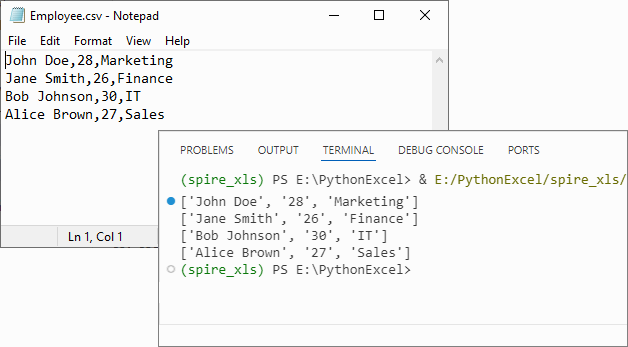
If you need to convert the list back to CSV, refer to: Python List to CSV: 1D/2D/Dicts – Easy Tutorial
Advanced: Convert CSV to List of Dictionaries
For CSV files with headers (e.g., name,age,city), converting to a list of dictionaries (where keys are headers and values are row data) is more intuitive for data manipulation.
CSV to Dictionary Python Code Example:
from spire.xls import *

# Initialize Workbook and load CSV
workbook = Workbook()
workbook.LoadFromFile("Customer_Data.csv", ",")

# Get the first worksheet
sheet = workbook.Worksheets[0]

# Extract headers (first row)
headers = []
for j in range(sheet.Columns.Length):
    headers.append(sheet.Range[1, j + 1].Value)

# Convert data rows to list of dictionaries
dict_list = []
for i in range(1, sheet.Rows.Length):  # Skip header row
    row_dict = {}
    for j in range(sheet.Columns.Length):
        key = headers[j]
        value = sheet.Range[i + 1, j + 1].Value
        row_dict[key] = value
    dict_list.append(row_dict)

# Output the result
for record in dict_list:
    print(record)

workbook.Dispose()
Explanation
- Load the CSV: Use LoadFromFile() method of Workbook class.
- Extracting Headers: Pull the first row of the worksheet to use as dictionary keys.
- Map Rows to Dictionaries: For each data row (skipping the header row), create a dictionary where keys are headers and values are cell contents.
Output:
Handle Special Scenarios
CSV with Custom Delimiters (e.g., Tabs, Semicolons)
To process CSV files with delimiters other than commas (e.g., tab-separated TSV files), specify the delimiter in LoadFromFile:
# Load a tab-separated file
workbook.LoadFromFile("data.tsv", "\t")

# Load a semicolon-separated file
workbook.LoadFromFile("data_eu.csv", ";")
Clean Empty Values
Empty cells in the CSV are preserved as empty strings ('') in the list. To replace empty strings with a custom value (e.g., "N/A"), modify the cell value extraction:
cell_value = sheet.Range[i + 1, j + 1].Value or "N/A"
Conclusion
Converting CSV to lists in Python using Spire.XLS is efficient, flexible, and beginner-friendly. Whether you need a list of lists for raw data or a list of dictionaries for structured analysis, this library handles parsing, indexing, and resource management efficiently. By following the examples above, you can integrate this conversion into data pipelines, analysis scripts, or applications with minimal effort.
For more advanced features (e.g., CSV to Excel conversion, batch processing), you can visit the Spire.XLS for Python documentation.
Frequently Asked Questions
Q1: Is Spire.XLS suitable for large CSV files?
A: Spire.XLS handles large files efficiently, but for very large datasets (millions of rows), consider processing in chunks or using specialized big data tools. For typical business datasets, it performs excellently.
Q2: How does this compare to using pandas for CSV to list conversion?
A: Spire.XLS offers more control over the parsing process and doesn't require additional data science dependencies. While pandas is great for analysis, Spire.XLS is ideal when you need precise control over CSV parsing or are working in environments without pandas.
Q3: How do I handle CSV files with headers when converting to lists?
A: For headers, use the dictionary conversion method. Extract the first row as headers, then map subsequent rows to dictionaries where keys are header values. This preserves column meaning and enables easy data access by column name.
Q4: How do I convert only specific columns from my CSV to a list?
A: Modify the inner loop to target specific columns:
# Convert only columns 1 and 3 (index 0 and 2)
target_columns = [0, 2]
for i in range(sheet.Rows.Length):
    row = []
    for j in target_columns:
        cell_value = sheet.Range[i + 1, j + 1].Value
        row.append(cell_value)
    data_list.append(row)