Erstellen Sie Word-Dokumente aus Vorlagen mit Python
Inhaltsverzeichnis
- Python-Bibliothek zum Erstellen von Word-Dokumenten aus Vorlagen
- Erstellen Sie Word-Dokumente aus Vorlagen, indem Sie Platzhaltertext ersetzen
- Erstellen Sie Word-Dokumente aus Vorlagen, indem Sie Lesezeichen ersetzen
- Erstellen Sie Word-Dokumente aus Vorlagen, indem Sie einen Serienbrief durchführen
- Holen Sie sich eine kostenlose Lizenz
- Abschluss
- Siehe auch
Mit Pip installieren
pip install Spire.Doc
verwandte Links
Vorlagen bieten eine vorgefertigte Struktur und ein vorgefertigtes Layout, wodurch Sie Zeit und Aufwand bei der Erstellung von Dokumenten von Grund auf sparen. Anstatt das Dokumentlayout, die Formatierungsstile und die Abschnittsorganisation zu entwerfen, können Sie einfach eine Vorlage auswählen, die Ihren Anforderungen entspricht, und mit dem Hinzufügen Ihrer Inhalte beginnen. Dies ist besonders nützlich, wenn Sie mehrere Dokumente mit einem einheitlichen Erscheinungsbild erstellen müssen. In diesem Blog erfahren Sie, wie das geht Erstellen Sie Word-Dokumente aus Vorlagen mit Python.
Wir werden drei verschiedene Ansätze zur Generierung von Word-Dokumenten aus Vorlagen diskutieren:
- Erstellen Sie Word-Dokumente aus Vorlagen, indem Sie Platzhaltertext in Python ersetzen
- Erstellen Sie Word-Dokumente aus Vorlagen, indem Sie Lesezeichen in Python ersetzen
- Erstellen Sie Word-Dokumente aus Vorlagen, indem Sie einen Seriendruck in Python durchführen
Python-Bibliothek zum Erstellen von Word-Dokumenten aus Vorlagen
Zunächst müssen wir das erforderliche Python-Modul installieren, das die Erstellung von Word-Dokumenten aus Vorlagen unterstützt. In diesem Blogbeitrag verwenden wir die Bibliothek Spire.Doc for Python.
Spire.Doc for Python bietet umfassende Funktionen zum Erstellen, Lesen, Bearbeiten und Konvertieren von Word-Dateien in Python-Anwendungen. Es bietet nahtlose Unterstützung für verschiedene Word-Formate, darunter Doc, Docx, Docm, Dot, Dotx, Dotm und mehr. Darüber hinaus ermöglicht es die hochwertige Konvertierung von Word-Dokumenten in verschiedene Formate, z. B. Word in PDF, Word in RTF, Word in HTML, Word in Text, und Word in Image.
Um Spire.Doc for Python zu installieren, können Sie den folgenden pip-Befehl ausführen:
pip install Spire.Doc
Detaillierte Installationsanweisungen finden Sie in dieser Dokumentation: So installieren Sie Spire.Doc for Python in VS Code..
Erstellen Sie Word-Dokumente aus Vorlagen, indem Sie Platzhaltertext in Python ersetzen
„Platzhaltertext“ bezeichnet temporären Text, der einfach durch den gewünschten Inhalt ersetzt werden kann. Um ein Word-Dokument aus einer Vorlage durch Ersetzen von Platzhaltertext zu erstellen, müssen Sie eine Vorlage vorbereiten, die vordefinierten Platzhaltertext enthält. Diese Vorlage kann manuell mit der Microsoft Word-Anwendung erstellt werden oder programmgesteuert generiert mit Spire.Doc for Python.
Hier sind die Schritte zum Erstellen eines Word-Dokuments aus einer Vorlage durch Ersetzen von Platzhaltertext mit Spire.Doc for Python:
- Erstellen Sie eine Document-Instanz und laden Sie dann eine Word-Vorlage mit der Methode Document.LoadFromFile().
- Definieren Sie ein Wörterbuch, das Platzhaltertext dem entsprechenden Ersetzungstext zuordnet, um Ersetzungen im Dokument durchzuführen.
- Gehen Sie das Wörterbuch durc
- Ersetzen Sie den Platzhaltertext im Dokument mit der Document.Replace()-Methode durch den entsprechenden Ersatztext.
- Speichern Sie das resultierende Dokument mit der Methode Document.SaveToFile().
Hier ist ein Codebeispiel, das ein Word-Dokument aus einer Vorlage erstellt, indem Platzhaltertext mit Spire.Doc for Python ersetzt wird:
- Python
from spire.doc import *
from spire.doc.common import *

# Specify the input and output file paths
inputFile = "Placeholder_Template.docx"
outputFile = "CreateDocumentByReplacingPlaceholderText.docx"

# Create a Document object
document = Document()
# Load a Word template with placeholder text
document.LoadFromFile(inputFile)

# Create a dictionary to store the placeholder text and its corresponding replacement text
# Each key represents a placeholder, while the corresponding value represents the replacement text
text_replacements = {
    "{name}": "John Smith",
    "{email}": "johnsmith@example.com",
    "{telephone}": "(123) 456-7890",
    "{address}": "123 Main Street, A City, B State",
    "{education}": "B.S. in Computer Science \nXYZ University \n2010 - 2014",
    "{experience}": "Software Engineer \nABC Company \n2015 - Present",
    "{skills}": "Programming (Python, Java, C++) \nProject Management \nProblem Solving",
    "{projects}": "Developed a mobile app for XYZ Company, resulting in a 20% increase in user engagement. \nLed a team of 5 developers to successfully deliver a complex software project on time and within budget.",
    "{certifications}": "Project Management Professional (PMP) \nMicrosoft Certified: Azure Developer Associate",
    "{languages}": "English (Fluent) \nSpanish (Intermediate)",
    "{interests}": "Traveling, Photography, Reading"
}

# Loop through the dictionary
for placeholder_text, replacement_text in text_replacements.items():
    # Replace the placeholder text in the document with the replacement text
    document.Replace(placeholder_text, replacement_text, False, False)

# Save the resulting document
document.SaveToFile(outputFile, FileFormat.Docx2016)
document.Close()
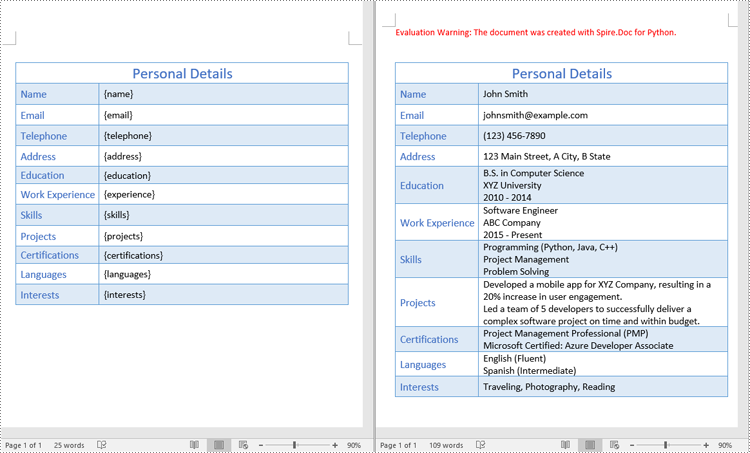
Tipps: In diesem Beispiel wurde erläutert, wie Sie Platzhaltertext in einer Word-Vorlage durch neuen Text ersetzen. Es ist erwähnenswert, dass Spire.Doc für Python das Ersetzen von Text in verschiedenen Szenarien unterstützt, darunter das Ersetzen von Text durch Bilder, das Ersetzen von Text durch Tabellen, das Ersetzen von Text mithilfe von Regex und mehr. Weitere Details finden Sie in dieser Dokumentation: Python: Text in Word suchen und ersetzen.
Erstellen Sie Word-Dokumente aus Vorlagen, indem Sie Lesezeichen in Python ersetzen
Lesezeichen in einem Word-Dokument dienen als Referenzpunkte, die es Ihnen ermöglichen, Inhalte an bestimmten Stellen im Dokument präzise einzufügen oder zu ersetzen. Um ein Word-Dokument aus einer Vorlage durch Ersetzen von Lesezeichen zu erstellen, müssen Sie eine Vorlage vorbereiten, die vordefinierte Lesezeichen enthält. Diese Vorlage kann manuell mit der Microsoft Word-Anwendung erstellt werden oder programmgesteuert generiert mit Spire.Doc for Python.
Hier sind die Schritte zum Erstellen eines Word-Dokuments aus einer Vorlage durch Ersetzen von Lesezeichen mit Spire.Doc for Python:
- Erstellen Sie eine Document-Instanz und laden Sie ein Word-Dokument mit der Methode Document.LoadFromFile().
- Definieren Sie ein Wörterbuch, das Lesezeichennamen dem entsprechenden Ersetzungstext zuordnet, um Ersetzungen im Dokument durchzuführen.
- Gehen Sie das Wörterbuch durch.
- Erstellen Sie eine BookmarksNavigator-Instanz und navigieren Sie mit der Methode BookmarkNavigator.MoveToBookmark() anhand seines Namens zum jeweiligen Lesezeichen.
- Ersetzen Sie den Inhalt des Lesezeichens durch den entsprechenden Ersatztext mithilfe der Methode BookmarkNavigator.ReplaceBookmarkContent().
- Speichern Sie das resultierende Dokument mit der Methode Document.SaveToFile().
Hier ist ein Codebeispiel, das ein Word-Dokument aus einer Vorlage erstellt, indem Lesezeichen mithilfe von Spire.Doc for Python ersetzt werden:
- Python
from spire.doc import *
from spire.doc.common import *

# Create a Document object
document = Document()
# Load a Word template with bookmarks
document.LoadFromFile("Template_Bookmark.docx")

# Create a dictionary to store the bookmark names and their corresponding replacement text
# Each key represents a bookmark name, while the corresponding value represents the replacement text
bookmark_replacements = {
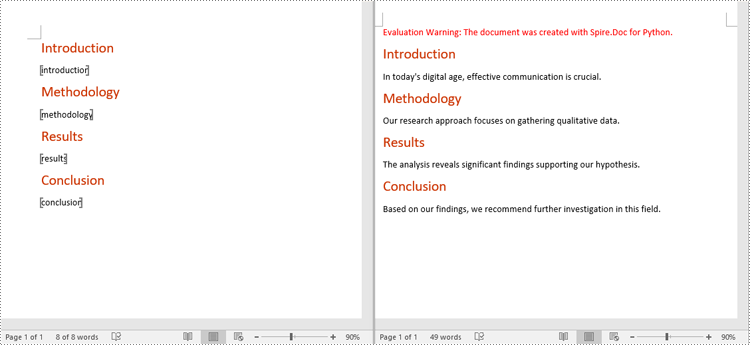
    "introduction": "In today's digital age, effective communication is crucial.",
    "methodology": "Our research approach focuses on gathering qualitative data.",
    "results": "The analysis reveals significant findings supporting our hypothesis.",
    "conclusion": "Based on our findings, we recommend further investigation in this field."
}

# Loop through the dictionary
for bookmark_name, replacement_text in bookmark_replacements.items():
    # Replace the content of the bookmarks in the document with the corresponding replacement text
    bookmarkNavigator = BookmarksNavigator(document)
    bookmarkNavigator.MoveToBookmark(bookmark_name)
    bookmarkNavigator.ReplaceBookmarkContent(replacement_text, True)
    # Remove the bookmarks from the document
    document.Bookmarks.Remove(bookmarkNavigator.CurrentBookmark)

# Save the resulting document
document.SaveToFile("CreateDocumentByReplacingBookmark.docx", FileFormat.Docx2016)
document.Close()
Erstellen Sie Word-Dokumente aus Vorlagen, indem Sie einen Seriendruck in Python durchführen
Seriendruck ist eine leistungsstarke Funktion in Microsoft Word, mit der Sie benutzerdefinierte Dokumente aus einer Vorlage erstellen können, indem Sie diese mit einer Datenquelle zusammenführen. Um ein Word-Dokument aus einer Vorlage durch einen Serienbrief zu erstellen, müssen Sie eine Vorlage vorbereiten, die vordefinierte Serienbrieffelder enthält. Diese Vorlage kann manuell mit der Microsoft Word-Anwendung erstellt oder programmgesteuert mit Spire.Doc for Python mithilfe des folgenden Codes generiert werden:
- Python
from spire.doc import *
from spire.doc.common import *

# Create a Document object
document = Document()
# Add a section
section = document.AddSection()
# Set page margins
section.PageSetup.Margins.All = 72.0

# Add a paragraph
paragraph = section.AddParagraph()
# Add text to the paragraph
paragraph.AppendText("Customer Name: ")

# Add a paragraph
paragraph = section.AddParagraph()
# Add a merge field to the paragraph
paragraph.AppendField("Recipient Name", FieldType.FieldMergeField)

# Save the resulting document
document.SaveToFile("Template.docx", FileFormat.Docx2013)
document.Close()
Hier sind die Schritte zum Erstellen eines Word-Dokuments aus einer Vorlage durch Durchführen eines Seriendrucks mit Spire.Doc for Python:
- Erstellen Sie eine Document-Instanz und laden Sie dann eine Word-Vorlage mit der Methode Document.LoadFromFile().
- Definieren Sie eine Liste mit Zusammenführungsfeldnamen.
- Definieren Sie eine Liste von Zusammenführungsfeldwerten.
- Führen Sie einen Serienbrief mit den angegebenen Feldnamen und Feldwerten mithilfe der Methode Document.MailMerge.Execute() durch.
- Speichern Sie das resultierende Dokument mit der Methode Document.SaveToFile().
Hier ist ein Codebeispiel, das ein Word-Dokument aus einer Vorlage erstellt, indem es einen Serienbrief mit Spire.Doc for Python durchführt:
- Python
from spire.doc import *
from spire.doc.common import *

# Create a Document object
document = Document()
# Load a Word template with merge fields
document.LoadFromFile("Template_MergeFields.docx")

# Define a list of field names
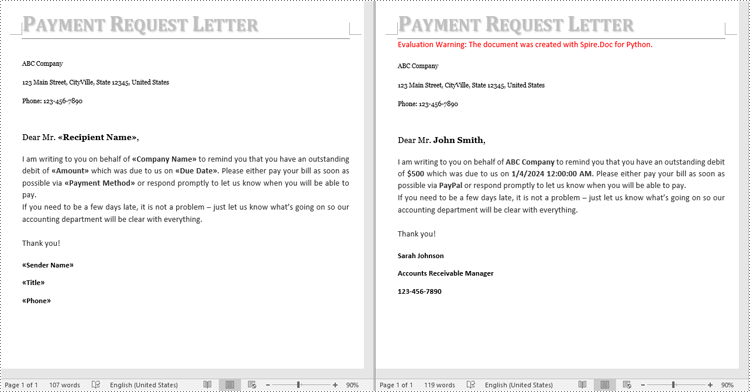
filedNames = ["Recipient Name", "Company Name", "Amount", "Due Date", "Payment Method", "Sender Name", "Title", "Phone"]

# Define a list of field values
filedValues = ["John Smith",  "ABC Company", "$500", DateTime.get_Now().Date.ToString(), "PayPal", "Sarah Johnson", "Accounts Receivable Manager", "123-456-7890"]

# Perform a mail merge operation using the specified field names and field values
document.MailMerge.Execute(filedNames, filedValues)

# Save the resulting document
document.SaveToFile("CreateDocumentByMailMerge.docx", FileFormat.Docx2016)
document.Close()
Holen Sie sich eine kostenlose Lizenz
Um die Funktionen von Spire.Doc for Python ohne jegliche Evaluierungseinschränkungen voll auszuschöpfen, können Sie eine Anfrage stellen eine kostenlose 30-Tage-Testlizenz.
Abschluss
In diesem Blog wurde gezeigt, wie Sie mit Python und Spire.Doc for Python auf drei verschiedene Arten Word-Dokumente aus Vorlagen erstellen können. Zusätzlich zum Erstellen von Word-Dokumenten bietet Spire.Doc for Python zahlreiche Funktionen zum Bearbeiten von Word-Dokumenten. Sie können die Dokumentation überprüfen für mehr Informationen. Wenn Sie Fragen haben, können Sie diese gerne in unserem Forum posten oder per E-Mail an unser Support-Team senden.
Cree documentos de Word a partir de plantillas con Python
Tabla de contenido
- Biblioteca Python para crear documentos de Word a partir de plantillas
- Cree documentos de Word a partir de plantillas reemplazando el texto del marcador de posición
- Cree documentos de Word a partir de plantillas reemplazando marcadores
- Cree documentos de Word a partir de plantillas realizando una combinación de correspondencia
- Obtenga una licencia gratuita
- Conclusión
- Ver también
Instalar con Pip
pip install Spire.Doc
enlaces relacionados
Las plantillas proporcionan una estructura y un diseño listos para usar, lo que le ahorra tiempo y esfuerzo al crear documentos desde cero. En lugar de diseñar el diseño del documento, los estilos de formato y la organización de las secciones, simplemente puede elegir una plantilla que cumpla con sus requisitos y comenzar a agregar su contenido. Esto es particularmente útil cuando necesita crear varios documentos con una apariencia consistente. En este blog, exploraremos cómo crear documentos de Word a partir de plantillas usando Python.
Analizaremos tres enfoques diferentes para generar documentos de Word a partir de plantillas:
- Cree documentos de Word a partir de plantillas reemplazando el texto del marcador de posición en Python
- Cree documentos de Word a partir de plantillas reemplazando marcadores en Python
- Cree documentos de Word a partir de plantillas realizando una combinación de correspondencia en Python
Biblioteca Python para crear documentos de Word a partir de plantillas
Para empezar, necesitamos instalar el módulo Python necesario que admita la generación de documentos de Word a partir de plantillas. En esta publicación de blog, usaremos la biblioteca Spire.Doc for Python .
Spire.Doc for Python ofrece un conjunto completo de funciones para crear, leer, editar y convertir archivos de Word dentro de aplicaciones Python. Proporciona compatibilidad perfecta con varios formatos de Word, incluidos Doc, Docx, Docm, Dot, Dotx, Dotm y más. Además, permite la conversión de alta calidad de documentos de Word a diferentes formatos, como Word a PDF, Word a RTF, Word a HTML, Word a texto, y Word a imagen.
Para instalar Spire.Doc for Python, puede ejecutar el siguiente comando pip:
pip install Spire.Doc
Para obtener instrucciones de instalación detalladas, consulte esta documentación: Cómo instalar Spire.Doc for Python en VS Code.
Cree documentos de Word a partir de plantillas reemplazando el texto del marcador de posición en Python
"Texto de marcador de posición" se refiere a texto temporal que se puede reemplazar fácilmente con el contenido deseado. Para crear un documento de Word a partir de una plantilla reemplazando el texto del marcador de posición, debe preparar una plantilla que incluya texto del marcador de posición predefinido. Esta plantilla se puede crear manualmente usando la aplicación Microsoft Word o generado programáticamente con Spire.Doc for Python.
Estos son los pasos para crear un documento de Word a partir de una plantilla reemplazando el texto del marcador de posición usando Spire.Doc for Python:
- Cree una instancia de documento y luego cargue una plantilla de Word usando el método Document.LoadFromFile().
- Defina un diccionario que asigne el texto del marcador de posición a su texto de reemplazo correspondiente para realizar reemplazos en el documento.
- Recorre el diccionario.
- Reemplace el texto del marcador de posición en el documento con el texto de reemplazo correspondiente usando el método Document.Replace().
- Guarde el documento resultante utilizando el método Document.SaveToFile().
A continuación se muestra un ejemplo de código que crea un documento de Word a partir de una plantilla reemplazando el texto del marcador de posición usando Spire.Doc for Python:
- Python
from spire.doc import *
from spire.doc.common import *

# Specify the input and output file paths
inputFile = "Placeholder_Template.docx"
outputFile = "CreateDocumentByReplacingPlaceholderText.docx"

# Create a Document object
document = Document()
# Load a Word template with placeholder text
document.LoadFromFile(inputFile)

# Create a dictionary to store the placeholder text and its corresponding replacement text
# Each key represents a placeholder, while the corresponding value represents the replacement text
text_replacements = {
    "{name}": "John Smith",
    "{email}": "johnsmith@example.com",
    "{telephone}": "(123) 456-7890",
    "{address}": "123 Main Street, A City, B State",
    "{education}": "B.S. in Computer Science \nXYZ University \n2010 - 2014",
    "{experience}": "Software Engineer \nABC Company \n2015 - Present",
    "{skills}": "Programming (Python, Java, C++) \nProject Management \nProblem Solving",
    "{projects}": "Developed a mobile app for XYZ Company, resulting in a 20% increase in user engagement. \nLed a team of 5 developers to successfully deliver a complex software project on time and within budget.",
    "{certifications}": "Project Management Professional (PMP) \nMicrosoft Certified: Azure Developer Associate",
    "{languages}": "English (Fluent) \nSpanish (Intermediate)",
    "{interests}": "Traveling, Photography, Reading"
}

# Loop through the dictionary
for placeholder_text, replacement_text in text_replacements.items():
    # Replace the placeholder text in the document with the replacement text
    document.Replace(placeholder_text, replacement_text, False, False)

# Save the resulting document
document.SaveToFile(outputFile, FileFormat.Docx2016)
document.Close()
Consejos: este ejemplo explica cómo reemplazar el texto del marcador de posición en una plantilla de Word con texto nuevo. Vale la pena señalar que Spire.Doc para Python admite el reemplazo de texto en varios escenarios, incluido el reemplazo de texto con imágenes, el reemplazo de texto con tablas, el reemplazo de texto usando expresiones regulares y más. Puede encontrar más detalles en esta documentación: Python: buscar y reemplazar texto en Word.
Cree documentos de Word a partir de plantillas reemplazando marcadores en Python
Los marcadores en un documento de Word sirven como puntos de referencia que le permiten insertar o reemplazar contenido con precisión en ubicaciones específicas dentro del documento. Para crear un documento de Word a partir de una plantilla reemplazando marcadores, debe preparar una plantilla que contenga marcadores predefinidos. Esta plantilla se puede crear manualmente usando la aplicación Microsoft Word o generado programáticamente con Spire.Doc for Python.
Estos son los pasos para crear un documento de Word a partir de una plantilla reemplazando marcadores usando Spire.Doc for Python:
- Cree una instancia de documento y cargue un documento de Word utilizando el método Document.LoadFromFile().
- Defina un diccionario que asigne nombres de marcadores a su texto de reemplazo correspondiente para realizar reemplazos en el documento.
- Recorre el diccionario.
- Cree una instancia de BookmarksNavigator y navegue hasta el marcador específico por su nombre utilizando el método BookmarkNavigator.MoveToBookmark().
- Reemplace el contenido del marcador con el texto de reemplazo correspondiente utilizando el método BookmarkNavigator.ReplaceBookmarkContent().
- Guarde el documento resultante utilizando el método Document.SaveToFile().
A continuación se muestra un ejemplo de código que crea un documento de Word a partir de una plantilla reemplazando marcadores usando Spire.Doc for Python:
- Python
from spire.doc import *
from spire.doc.common import *

# Create a Document object
document = Document()
# Load a Word template with bookmarks
document.LoadFromFile("Template_Bookmark.docx")

# Create a dictionary to store the bookmark names and their corresponding replacement text
# Each key represents a bookmark name, while the corresponding value represents the replacement text
bookmark_replacements = {
    "introduction": "In today's digital age, effective communication is crucial.",
    "methodology": "Our research approach focuses on gathering qualitative data.",
    "results": "The analysis reveals significant findings supporting our hypothesis.",
    "conclusion": "Based on our findings, we recommend further investigation in this field."
}

# Loop through the dictionary
for bookmark_name, replacement_text in bookmark_replacements.items():
    # Replace the content of the bookmarks in the document with the corresponding replacement text
    bookmarkNavigator = BookmarksNavigator(document)
    bookmarkNavigator.MoveToBookmark(bookmark_name)
    bookmarkNavigator.ReplaceBookmarkContent(replacement_text, True)
    # Remove the bookmarks from the document
    document.Bookmarks.Remove(bookmarkNavigator.CurrentBookmark)

# Save the resulting document
document.SaveToFile("CreateDocumentByReplacingBookmark.docx", FileFormat.Docx2016)
document.Close()
Cree documentos de Word a partir de plantillas realizando una combinación de correspondencia en Python
La combinación de correspondencia es una característica poderosa de Microsoft Word que le permite crear documentos personalizados a partir de una plantilla combinándola con una fuente de datos. Para crear un documento de Word a partir de una plantilla mediante la combinación de correspondencia, debe preparar una plantilla que incluya campos de combinación predefinidos. Esta plantilla se puede crear manualmente usando la aplicación Microsoft Word o generarse mediante programación con Spire.Doc for Python usando el siguiente código:
- Python
from spire.doc import *
from spire.doc.common import *

# Create a Document object
document = Document()
# Add a section
section = document.AddSection()
# Set page margins
section.PageSetup.Margins.All = 72.0

# Add a paragraph
paragraph = section.AddParagraph()
# Add text to the paragraph
paragraph.AppendText("Customer Name: ")

# Add a paragraph
paragraph = section.AddParagraph()
# Add a merge field to the paragraph
paragraph.AppendField("Recipient Name", FieldType.FieldMergeField)

# Save the resulting document
document.SaveToFile("Template.docx", FileFormat.Docx2013)
document.Close()
Estos son los pasos para crear un documento de Word a partir de una plantilla mediante la combinación de correspondencia usando Spire.Doc for Python:
- Cree una instancia de documento y luego cargue una plantilla de Word usando el método Document.LoadFromFile().
- Defina una lista de nombres de campos de combinación.
- Defina una lista de valores de campos de combinación.
- Realice una combinación de correspondencia utilizando los nombres de campo y los valores de campo especificados utilizando el método Document.MailMerge.Execute().
- Guarde el documento resultante utilizando el método Document.SaveToFile().
A continuación se muestra un ejemplo de código que crea un documento de Word a partir de una plantilla mediante la combinación de correspondencia utilizando Spire.Doc for Python:
- Python
from spire.doc import *
from spire.doc.common import *

# Create a Document object
document = Document()
# Load a Word template with merge fields
document.LoadFromFile("Template_MergeFields.docx")

# Define a list of field names
filedNames = ["Recipient Name", "Company Name", "Amount", "Due Date", "Payment Method", "Sender Name", "Title", "Phone"]

# Define a list of field values
filedValues = ["John Smith",  "ABC Company", "$500", DateTime.get_Now().Date.ToString(), "PayPal", "Sarah Johnson", "Accounts Receivable Manager", "123-456-7890"]

# Perform a mail merge operation using the specified field names and field values
document.MailMerge.Execute(filedNames, filedValues)

# Save the resulting document
document.SaveToFile("CreateDocumentByMailMerge.docx", FileFormat.Docx2016)
document.Close()
Obtenga una licencia gratuita
Para experimentar plenamente las capacidades de Spire.Doc for Python sin limitaciones de evaluación, puede solicitar una licencia de prueba gratuita de 30 días..
Conclusión
Este blog demostró cómo crear documentos de Word a partir de plantillas de 3 maneras diferentes usando Python y Spire.Doc for Python. Además de crear documentos de Word, Spire.Doc for Python proporciona numerosas funciones para manipular documentos de Word, puede consultar su documentación para más información. Si tiene alguna pregunta, no dude en publicarla en nuestro foro o enviarlos a nuestro equipo de soporte a través de correo electrónico.
Python을 사용하여 템플릿에서 Word 문서 만들기
목차
핍으로 설치
pip install Spire.Doc
관련된 링크들
템플릿은 미리 만들어진 구조와 레이아웃을 제공하므로 처음부터 문서를 만드는 데 드는 시간과 노력을 절약할 수 있습니다. 문서 레이아웃, 서식 스타일, 섹션 구성을 디자인하는 대신 요구 사항에 맞는 템플릿을 선택하고 콘텐츠를 추가하기만 하면 됩니다. 이는 일관된 모양과 느낌으로 여러 문서를 만들어야 할 때 특히 유용합니다. 이번 블로그에서는 Python을 사용하여 템플릿에서 Word 문서 만들기.
템플릿에서 Word 문서를 생성하는 세 가지 접근 방식에 대해 설명합니다.
- Python에서 자리 표시자 텍스트를 대체하여 템플릿에서 Word 문서 만들기
- Python에서 책갈피를 교체하여 템플릿에서 Word 문서 만들기
- Python에서 메일 병합을 수행하여 템플릿에서 Word 문서 만들기
템플릿에서 Word 문서를 생성하는 Python 라이브러리
먼저 템플릿에서 Word 문서 생성을 지원하는 필수 Python 모듈을 설치해야 합니다. 이번 블로그 포스팅에서는 Spire.Doc for Python 도서관.
Spire.Doc for Python Python 애플리케이션 내에서 Word 파일을 생성, 읽기, 편집 및 변환하기 위한 포괄적인 기능 세트를 제공합니다. Doc, Docx, Docm, Dot, Dotx, Dotm 등을 포함한 다양한 Word 형식을 완벽하게 지원합니다. 또한 Word 문서를 Word에서 PDF로, Word에서 RTF로,, Word에서 HTML로, Word에서 텍스트로, Word에서 이미지 로와 같은 다양한 형식으로 고품질 변환할 수 있습니다..
Spire.Doc for Python를 설치하려면 다음 pip 명령을 실행할 수 있습니다.
pip install Spire.Doc
자세한 설치 지침은 다음 설명서를 참조하세요. VS Code에서 Spire.Doc for Python를 설치하는 방법.
Python에서 자리 표시자 텍스트를 대체하여 템플릿에서 Word 문서 만들기
"자리표시자 텍스트"는 원하는 내용으로 쉽게 대체할 수 있는 임시 텍스트를 의미합니다. 자리 표시자 텍스트를 바꿔 템플릿에서 Word 문서를 만들려면 미리 정의된 자리 표시자 텍스트가 포함된 템플릿을 준비해야 합니다. 이 템플릿은 Microsoft Word 응용 프로그램을 사용하여 수동으로 만들거나 프로그래밍 방식으로 생성됨 Spire.Doc for Python 사용합니다.
Spire.Doc for Python 사용하여 자리 표시자 텍스트를 대체하여 템플릿에서 Word 문서를 만드는 단계는 다음과 같습니다.
- Document 인스턴스를 생성한 다음 Document.LoadFromFile() 메서드를 사용하여 Word 템플릿을 로드합니다.
- 문서에서 바꾸기를 수행하기 위해 자리 표시자 텍스트를 해당 대체 텍스트에 매핑하는 사전을 정의합니다.
- 사전을 반복합니다.
- Document.Replace() 메서드를 사용하여 문서의 자리 표시자 텍스트를 해당 대체 텍스트로 바꿉니다.
- Document.SaveToFile() 메서드를 사용하여 결과 문서를 저장합니다.
다음은 Spire.Doc for Python을 사용하여 자리 표시자 텍스트를 바꿔 템플릿에서 Word 문서를 만드는 코드 예제입니다.
- Python
from spire.doc import *
from spire.doc.common import *

# Specify the input and output file paths
inputFile = "Placeholder_Template.docx"
outputFile = "CreateDocumentByReplacingPlaceholderText.docx"

# Create a Document object
document = Document()
# Load a Word template with placeholder text
document.LoadFromFile(inputFile)

# Create a dictionary to store the placeholder text and its corresponding replacement text
# Each key represents a placeholder, while the corresponding value represents the replacement text
text_replacements = {
    "{name}": "John Smith",
    "{email}": "johnsmith@example.com",
    "{telephone}": "(123) 456-7890",
    "{address}": "123 Main Street, A City, B State",
    "{education}": "B.S. in Computer Science \nXYZ University \n2010 - 2014",
    "{experience}": "Software Engineer \nABC Company \n2015 - Present",
    "{skills}": "Programming (Python, Java, C++) \nProject Management \nProblem Solving",
    "{projects}": "Developed a mobile app for XYZ Company, resulting in a 20% increase in user engagement. \nLed a team of 5 developers to successfully deliver a complex software project on time and within budget.",
    "{certifications}": "Project Management Professional (PMP) \nMicrosoft Certified: Azure Developer Associate",
    "{languages}": "English (Fluent) \nSpanish (Intermediate)",
    "{interests}": "Traveling, Photography, Reading"
}

# Loop through the dictionary
for placeholder_text, replacement_text in text_replacements.items():
    # Replace the placeholder text in the document with the replacement text
    document.Replace(placeholder_text, replacement_text, False, False)

# Save the resulting document
document.SaveToFile(outputFile, FileFormat.Docx2016)
document.Close()
팁: 이 예에서는 Word 템플릿의 자리 표시자 텍스트를 새 텍스트로 바꾸는 방법을 설명했습니다. Python용 Spire.Doc은 텍스트를 이미지로 바꾸기, 텍스트를 테이블로 바꾸기, 정규식을 사용하여 텍스트 바꾸기 등 다양한 시나리오에서 텍스트 바꾸기를 지원한다는 점은 주목할 가치가 있습니다. 이 문서에서 자세한 내용을 확인할 수 있습니다. Python: Word에서 텍스트 찾기 및 바꾸기.
Python에서 책갈피를 교체하여 템플릿에서 Word 문서 만들기
Word 문서의 책갈피는 문서 내의 특정 위치에 콘텐츠를 정확하게 삽입하거나 바꿀 수 있는 참조 지점 역할을 합니다. 책갈피를 교체하여 템플릿에서 Word 문서를 만들려면 미리 정의된 책갈피가 포함된 템플릿을 준비해야 합니다. 이 템플릿은 Microsoft Word 응용 프로그램을 사용하여 수동으로 만들거나 프로그래밍 방식으로 생성됨 Spire.Doc for Python 사용합니다.
Spire.Doc for Python을 사용하여 책갈피를 교체하여 템플릿에서 Word 문서를 만드는 단계는 다음과 같습니다.
- Document 인스턴스를 만들고 Document.LoadFromFile() 메서드를 사용하여 Word 문서를 로드합니다.
- 문서에서 바꾸기를 수행하기 위해 책갈피 이름을 해당 대체 텍스트에 매핑하는 사전을 정의합니다.
- 사전을 반복합니다.
- BookmarksNavigator 인스턴스를 생성하고 BookmarkNavigator.MoveToBookmark() 메서드를 사용하여 이름으로 특정 책갈피를 탐색합니다.
- BookmarkNavigator.ReplaceBookmarkContent() 메서드를 사용하여 북마크 내용을 해당 대체 텍스트로 바꿉니다.
- Document.SaveToFile() 메서드를 사용하여 결과 문서를 저장합니다.
다음은 Spire.Doc for Python을 사용하여 책갈피를 바꿔 템플릿에서 Word 문서를 만드는 코드 예제입니다.
- Python
from spire.doc import *
from spire.doc.common import *

# Create a Document object
document = Document()
# Load a Word template with bookmarks
document.LoadFromFile("Template_Bookmark.docx")

# Create a dictionary to store the bookmark names and their corresponding replacement text
# Each key represents a bookmark name, while the corresponding value represents the replacement text
bookmark_replacements = {
    "introduction": "In today's digital age, effective communication is crucial.",
    "methodology": "Our research approach focuses on gathering qualitative data.",
    "results": "The analysis reveals significant findings supporting our hypothesis.",
    "conclusion": "Based on our findings, we recommend further investigation in this field."
}

# Loop through the dictionary
for bookmark_name, replacement_text in bookmark_replacements.items():
    # Replace the content of the bookmarks in the document with the corresponding replacement text
    bookmarkNavigator = BookmarksNavigator(document)
    bookmarkNavigator.MoveToBookmark(bookmark_name)
    bookmarkNavigator.ReplaceBookmarkContent(replacement_text, True)
    # Remove the bookmarks from the document
    document.Bookmarks.Remove(bookmarkNavigator.CurrentBookmark)

# Save the resulting document
document.SaveToFile("CreateDocumentByReplacingBookmark.docx", FileFormat.Docx2016)
document.Close()
Python에서 메일 병합을 수행하여 템플릿에서 Word 문서 만들기
편지 병합은 템플릿을 데이터 소스와 병합하여 템플릿에서 사용자 정의 문서를 만들 수 있는 Microsoft Word의 강력한 기능입니다. 메일 병합을 수행하여 템플릿에서 Word 문서를 만들려면 미리 정의된 병합 필드가 포함된 템플릿을 준비해야 합니다. 이 템플릿은 Microsoft Word 애플리케이션을 사용하여 수동으로 생성하거나 다음 코드를 사용하여 Spire.Doc for Python로 프로그래밍 방식으로 생성할 수 있습니다.
- Python
from spire.doc import *
from spire.doc.common import *

# Create a Document object
document = Document()
# Add a section
section = document.AddSection()
# Set page margins
section.PageSetup.Margins.All = 72.0

# Add a paragraph
paragraph = section.AddParagraph()
# Add text to the paragraph
paragraph.AppendText("Customer Name: ")

# Add a paragraph
paragraph = section.AddParagraph()
# Add a merge field to the paragraph
paragraph.AppendField("Recipient Name", FieldType.FieldMergeField)

# Save the resulting document
document.SaveToFile("Template.docx", FileFormat.Docx2013)
document.Close()
Spire.Doc for Python을 사용하여 메일 병합을 수행하여 템플릿에서 Word 문서를 만드는 단계는 다음과 같습니다.
- Document 인스턴스를 생성한 다음 Document.LoadFromFile() 메서드를 사용하여 Word 템플릿을 로드합니다.
- 병합 필드 이름 목록을 정의합니다.
- 병합 필드 값 목록을 정의합니다.
- Document.MailMerge.Execute() 메서드를 사용하여 지정된 필드 이름과 필드 값을 사용하여 메일 병합을 수행합니다.
- Document.SaveToFile() 메서드를 사용하여 결과 문서를 저장합니다.
다음은 Spire.Doc for Python을 사용하여 메일 병합을 수행하여 템플릿에서 Word 문서를 만드는 코드 예제입니다.
- Python
from spire.doc import *
from spire.doc.common import *

# Create a Document object
document = Document()
# Load a Word template with merge fields
document.LoadFromFile("Template_MergeFields.docx")

# Define a list of field names
filedNames = ["Recipient Name", "Company Name", "Amount", "Due Date", "Payment Method", "Sender Name", "Title", "Phone"]

# Define a list of field values
filedValues = ["John Smith",  "ABC Company", "$500", DateTime.get_Now().Date.ToString(), "PayPal", "Sarah Johnson", "Accounts Receivable Manager", "123-456-7890"]

# Perform a mail merge operation using the specified field names and field values
document.MailMerge.Execute(filedNames, filedValues)

# Save the resulting document
document.SaveToFile("CreateDocumentByMailMerge.docx", FileFormat.Docx2016)
document.Close()
무료 라이센스 받기
평가 제한 없이 Spire.Doc for Python의 기능을 완전히 경험하려면 다음을 요청할 수 있습니다 30일 무료 평가판 라이센스.
결론
이 블로그에서는 Python 및 Spire.Doc for Python를 사용하여 3가지 방법으로 템플릿에서 Word 문서를 만드는 방법을 보여주었습니다. Word 문서를 생성하는 것 외에도 Spire.Doc for Python은 Word 문서를 조작하기 위한 다양한 기능을 제공합니다 선적 서류 비치 자세한 내용은. 질문이 있으시면 언제든지 저희 사이트에 게시해 주시기 바랍니다 법정 또는 다음을 통해 지원팀에 보내세요 이메일.
Crea documenti Word da modelli con Python
Sommario
Installa con Pip
pip install Spire.Doc
Link correlati
I modelli forniscono una struttura e un layout già pronti, consentendoti di risparmiare tempo e fatica nella creazione di documenti da zero. Invece di progettare il layout del documento, gli stili di formattazione e l'organizzazione delle sezioni, puoi semplicemente scegliere un modello che soddisfi le tue esigenze e iniziare ad aggiungere i tuoi contenuti. Ciò è particolarmente utile quando è necessario creare più documenti con un aspetto coerente. In questo blog esploreremo come creare documenti Word da modelli utilizzando Python.
Discuteremo tre diversi approcci per generare documenti Word da modelli:
- Crea documenti Word da modelli sostituendo il testo segnaposto in Python
- Crea documenti Word da modelli sostituendo i segnalibri in Python
- Crea documenti Word da modelli eseguendo la stampa unione in Python
Libreria Python per creare documenti Word da modelli
Per cominciare, dobbiamo installare il modulo Python necessario che supporti la generazione di documenti Word da modelli. In questo post del blog utilizzeremo la libreria Spire.Doc for Python .
Spire.Doc for Python offre un set completo di funzionalità per creare, leggere, modificare e convertire file Word all'interno delle applicazioni Python. Fornisce supporto continuo per vari formati Word tra cui Doc, Docx, Docm, Dot, Dotx, Dotm e altri. Inoltre, consente la conversione di alta qualità di documenti Word in diversi formati, come Word in PDF, Word in RTF, Word in HTML, Word in testo e Word in immagine.
Per installare Spire.Doc for Python, puoi eseguire il seguente comando pip:
pip install Spire.Doc
Per istruzioni dettagliate sull'installazione, fare riferimento a questa documentazione: Come installare Spire.Doc for Python in VS Code.
Crea documenti Word da modelli sostituendo il testo segnaposto in Python
Il "testo segnaposto" si riferisce al testo temporaneo che può essere facilmente sostituito con il contenuto desiderato. Per creare un documento Word da un modello sostituendo il testo segnaposto, è necessario preparare un modello che includa testo segnaposto predefinito. Questo modello può essere creato manualmente utilizzando l'applicazione Microsoft Word o generato a livello di codice con Spire.Doc for Python.
Ecco i passaggi per creare un documento Word da un modello sostituendo il testo segnaposto utilizzando Spire.Doc for Python:
- Crea un'istanza di Document e quindi carica un modello di Word utilizzando il metodo Document.LoadFromFile().
- Definire un dizionario che associ il testo segnaposto al testo sostitutivo corrispondente per eseguire sostituzioni nel documento.
- Fai un giro nel dizionario.
- Sostituisci il testo segnaposto nel documento con il testo sostitutivo corrispondente utilizzando il metodo Document.Replace().
- Salva il documento risultante utilizzando il metodo Document.SaveToFile().
Ecco un esempio di codice che crea un documento Word da un modello sostituendo il testo segnaposto utilizzando Spire.Doc per Python:
- Python
from spire.doc import *
from spire.doc.common import *

# Specify the input and output file paths
inputFile = "Placeholder_Template.docx"
outputFile = "CreateDocumentByReplacingPlaceholderText.docx"

# Create a Document object
document = Document()
# Load a Word template with placeholder text
document.LoadFromFile(inputFile)

# Create a dictionary to store the placeholder text and its corresponding replacement text
# Each key represents a placeholder, while the corresponding value represents the replacement text
text_replacements = {
    "{name}": "John Smith",
    "{email}": "johnsmith@example.com",
    "{telephone}": "(123) 456-7890",
    "{address}": "123 Main Street, A City, B State",
    "{education}": "B.S. in Computer Science \nXYZ University \n2010 - 2014",
    "{experience}": "Software Engineer \nABC Company \n2015 - Present",
    "{skills}": "Programming (Python, Java, C++) \nProject Management \nProblem Solving",
    "{projects}": "Developed a mobile app for XYZ Company, resulting in a 20% increase in user engagement. \nLed a team of 5 developers to successfully deliver a complex software project on time and within budget.",
    "{certifications}": "Project Management Professional (PMP) \nMicrosoft Certified: Azure Developer Associate",
    "{languages}": "English (Fluent) \nSpanish (Intermediate)",
    "{interests}": "Traveling, Photography, Reading"
}

# Loop through the dictionary
for placeholder_text, replacement_text in text_replacements.items():
    # Replace the placeholder text in the document with the replacement text
    document.Replace(placeholder_text, replacement_text, False, False)

# Save the resulting document
document.SaveToFile(outputFile, FileFormat.Docx2016)
document.Close()
Suggerimenti: questo esempio spiega come sostituire il testo segnaposto in un modello di Word con un nuovo testo. Vale la pena notare che Spire.Doc per Python supporta la sostituzione del testo in vari scenari, inclusa la sostituzione del testo con immagini, la sostituzione del testo con tabelle, la sostituzione del testo utilizzando regex e altro ancora. Puoi trovare maggiori dettagli in questa documentazione: Python: trova e sostituisci testo in Word.
Crea documenti Word da modelli sostituendo i segnalibri in Python
I segnalibri in un documento di Word fungono da punti di riferimento che consentono di inserire o sostituire con precisione il contenuto in posizioni specifiche all'interno del documento. Per creare un documento Word da un modello sostituendo i segnalibri, è necessario preparare un modello che contenga segnalibri predefiniti. Questo modello può essere creato manualmente utilizzando l'applicazione Microsoft Word o generato a livello di codice con Spire.Doc for Python.
Ecco i passaggi per creare un documento Word da un modello sostituendo i segnalibri utilizzando Spire.Doc for Python:
- Crea un'istanza Document e carica un documento Word utilizzando il metodo Document.LoadFromFile().
- Definire un dizionario che associ i nomi dei segnalibri al testo sostitutivo corrispondente per eseguire sostituzioni nel documento.
- Fai un giro nel dizionario.
- Crea un'istanza di BookmarksNavigator e vai al segnalibro specifico in base al suo nome utilizzando il metodo BookmarkNavigator.MoveToBookmark().
- Sostituisci il contenuto del segnalibro con il testo sostitutivo corrispondente utilizzando il metodo BookmarkNavigator.ReplaceBookmarkContent().
- Salva il documento risultante utilizzando il metodo Document.SaveToFile().
Ecco un esempio di codice che crea un documento Word da un modello sostituendo i segnalibri utilizzando Spire.Doc for Python:
- Python
from spire.doc import *
from spire.doc.common import *

# Create a Document object
document = Document()
# Load a Word template with bookmarks
document.LoadFromFile("Template_Bookmark.docx")

# Create a dictionary to store the bookmark names and their corresponding replacement text
# Each key represents a bookmark name, while the corresponding value represents the replacement text
bookmark_replacements = {
    "introduction": "In today's digital age, effective communication is crucial.",
    "methodology": "Our research approach focuses on gathering qualitative data.",
    "results": "The analysis reveals significant findings supporting our hypothesis.",
    "conclusion": "Based on our findings, we recommend further investigation in this field."
}

# Loop through the dictionary
for bookmark_name, replacement_text in bookmark_replacements.items():
    # Replace the content of the bookmarks in the document with the corresponding replacement text
    bookmarkNavigator = BookmarksNavigator(document)
    bookmarkNavigator.MoveToBookmark(bookmark_name)
    bookmarkNavigator.ReplaceBookmarkContent(replacement_text, True)
    # Remove the bookmarks from the document
    document.Bookmarks.Remove(bookmarkNavigator.CurrentBookmark)

# Save the resulting document
document.SaveToFile("CreateDocumentByReplacingBookmark.docx", FileFormat.Docx2016)
document.Close()
Crea documenti Word da modelli eseguendo la stampa unione in Python
La stampa unione è una potente funzionalità di Microsoft Word che ti consente di creare documenti personalizzati da un modello unendolo a un'origine dati. Per creare un documento Word da un modello eseguendo la stampa unione, è necessario preparare un modello che includa campi unione predefiniti. Questo modello può essere creato manualmente utilizzando l'applicazione Microsoft Word o generato a livello di codice con Spire.Doc for Python utilizzando il seguente codice:
- Python
from spire.doc import *
from spire.doc.common import *

# Create a Document object
document = Document()
# Add a section
section = document.AddSection()
# Set page margins
section.PageSetup.Margins.All = 72.0

# Add a paragraph
paragraph = section.AddParagraph()
# Add text to the paragraph
paragraph.AppendText("Customer Name: ")

# Add a paragraph
paragraph = section.AddParagraph()
# Add a merge field to the paragraph
paragraph.AppendField("Recipient Name", FieldType.FieldMergeField)

# Save the resulting document
document.SaveToFile("Template.docx", FileFormat.Docx2013)
document.Close()
Ecco i passaggi per creare un documento Word da un modello eseguendo la stampa unione utilizzando Spire.Doc for Python:
- Crea un'istanza di Document e quindi carica un modello di Word utilizzando il metodo Document.LoadFromFile().
- Definire un elenco di nomi di campi di unione.
- Definire un elenco di valori dei campi di unione.
- Eseguire una stampa unione utilizzando i nomi dei campi e i valori dei campi specificati utilizzando il metodo Document.MailMerge.Execute().
- Salva il documento risultante utilizzando il metodo Document.SaveToFile().
Ecco un esempio di codice che crea un documento Word da un modello eseguendo la stampa unione utilizzando Spire.Doc for Python:
- Python
from spire.doc import *
from spire.doc.common import *

# Create a Document object
document = Document()
# Load a Word template with merge fields
document.LoadFromFile("Template_MergeFields.docx")

# Define a list of field names
filedNames = ["Recipient Name", "Company Name", "Amount", "Due Date", "Payment Method", "Sender Name", "Title", "Phone"]

# Define a list of field values
filedValues = ["John Smith",  "ABC Company", "$500", DateTime.get_Now().Date.ToString(), "PayPal", "Sarah Johnson", "Accounts Receivable Manager", "123-456-7890"]

# Perform a mail merge operation using the specified field names and field values
document.MailMerge.Execute(filedNames, filedValues)

# Save the resulting document
document.SaveToFile("CreateDocumentByMailMerge.docx", FileFormat.Docx2016)
document.Close()
Ottieni una licenza gratuita
Per sperimentare appieno le funzionalità di Spire.Doc for Python senza limitazioni di valutazione, puoi richiedere una licenza di prova gratuita di 30 giorni.
Conclusione
Questo blog ha dimostrato come creare documenti Word da modelli in 3 modi diversi utilizzando Python e Spire.Doc for Python. Oltre a creare documenti Word, Spire.Doc for Python fornisce numerose funzionalità per la manipolazione di documenti Word, puoi verificarne documentazione per maggiori informazioni. Se riscontri domande, non esitare a pubblicarle sul nostro Forum o inviarli al nostro team di supporto tramite e-mail.
Créer des documents Word à partir de modèles avec Python
Table des matières
- Bibliothèque Python pour créer des documents Word à partir de modèles
- Créer des documents Word à partir de modèles en remplaçant le texte d'espace réservé
- Créez des documents Word à partir de modèles en remplaçant les signets
- Créez des documents Word à partir de modèles en effectuant un publipostage
- Obtenez une licence gratuite
- Conclusion
- Voir également
Installer avec Pip
pip install Spire.Doc
Liens connexes
Les modèles fournissent une structure et une mise en page prêtes à l'emploi, vous permettant d'économiser du temps et des efforts lors de la création de documents à partir de zéro. Au lieu de concevoir la mise en page du document, les styles de formatage et l'organisation des sections, vous pouvez simplement choisir un modèle qui répond à vos besoins et commencer à ajouter votre contenu. Ceci est particulièrement utile lorsque vous devez créer plusieurs documents avec une apparence cohérente. Dans ce blog, nous explorerons comment créer des documents Word à partir de modèles en utilisant Python.
Nous discuterons de trois approches différentes pour générer des documents Word à partir de modèles :
- Créez des documents Word à partir de modèles en remplaçant le texte d'espace réservé en Python
- Créez des documents Word à partir de modèles en remplaçant les signets en Python
- Créez des documents Word à partir de modèles en effectuant un publipostage en Python
Bibliothèque Python pour créer des documents Word à partir de modèles
Pour commencer, nous devons installer le module Python nécessaire qui prend en charge la génération de documents Word à partir de modèles. Dans cet article de blog, nous utiliserons la bibliothèque Spire.Doc for Python.
Spire.Doc for Python offre un ensemble complet de fonctionnalités pour créer, lire, éditer et convertir des fichiers Word dans les applications Python. Il offre une prise en charge transparente de divers formats Word, notamment Doc, Docx, Docm, Dot, Dotx, Dotm, etc. De plus, il permet une conversion de haute qualité de documents Word vers différents formats, tels que Word en PDF, Word en RTF, Word en HTML, Word en Text et Word to Image.
Pour installer Spire.Doc for Python, vous pouvez exécuter la commande pip suivante :
pip install Spire.Doc
Pour des instructions d'installation détaillées, veuillez vous référer à cette documentation : Comment installer Spire.Doc for Python dans VS Code.
Créez des documents Word à partir de modèles en remplaçant le texte d'espace réservé en Python
Le « texte d'espace réservé » fait référence à un texte temporaire qui peut être facilement remplacé par le contenu souhaité. Pour créer un document Word à partir d'un modèle en remplaçant le texte d'espace réservé, vous devez préparer un modèle comprenant un texte d'espace réservé prédéfini. Ce modèle peut être créé manuellement à l'aide de l'application Microsoft Word ou généré par programme avec Spire.Doc for Python.
Voici les étapes pour créer un document Word à partir d'un modèle en remplaçant le texte d'espace réservé à l'aide de Spire.Doc for Python:
- Créez une instance de document, puis chargez un modèle Word à l'aide de la méthode Document.LoadFromFile().
- Définissez un dictionnaire qui mappe le texte d'espace réservé au texte de remplacement correspondant pour effectuer des remplacements dans le document.
- Parcourez le dictionnaire.
- Remplacez le texte d'espace réservé dans le document par le texte de remplacement correspondant à l'aide de la méthode Document.Replace().
- Enregistrez le document résultant à l'aide de la méthode Document.SaveToFile().
Voici un exemple de code qui crée un document Word à partir d'un modèle en remplaçant le texte d'espace réservé à l'aide de Spire.Doc for Python:
- Python
from spire.doc import *
from spire.doc.common import *

# Specify the input and output file paths
inputFile = "Placeholder_Template.docx"
outputFile = "CreateDocumentByReplacingPlaceholderText.docx"

# Create a Document object
document = Document()
# Load a Word template with placeholder text
document.LoadFromFile(inputFile)

# Create a dictionary to store the placeholder text and its corresponding replacement text
# Each key represents a placeholder, while the corresponding value represents the replacement text
text_replacements = {
    "{name}": "John Smith",
    "{email}": "johnsmith@example.com",
    "{telephone}": "(123) 456-7890",
    "{address}": "123 Main Street, A City, B State",
    "{education}": "B.S. in Computer Science \nXYZ University \n2010 - 2014",
    "{experience}": "Software Engineer \nABC Company \n2015 - Present",
    "{skills}": "Programming (Python, Java, C++) \nProject Management \nProblem Solving",
    "{projects}": "Developed a mobile app for XYZ Company, resulting in a 20% increase in user engagement. \nLed a team of 5 developers to successfully deliver a complex software project on time and within budget.",
    "{certifications}": "Project Management Professional (PMP) \nMicrosoft Certified: Azure Developer Associate",
    "{languages}": "English (Fluent) \nSpanish (Intermediate)",
    "{interests}": "Traveling, Photography, Reading"
}

# Loop through the dictionary
for placeholder_text, replacement_text in text_replacements.items():
    # Replace the placeholder text in the document with the replacement text
    document.Replace(placeholder_text, replacement_text, False, False)

# Save the resulting document
document.SaveToFile(outputFile, FileFormat.Docx2016)
document.Close()
Conseils: Cet exemple explique comment remplacer le texte d'espace réservé dans un modèle Word par un nouveau texte. Il convient de noter que Spire.Doc pour Python prend en charge le remplacement de texte dans divers scénarios, notamment le remplacement de texte par des images, le remplacement de texte par des tableaux, le remplacement de texte à l'aide d'expressions régulières, etc. Vous pouvez trouver plus de détails dans cette documentation : Python : rechercher et remplacer du texte dans Word.
Créez des documents Word à partir de modèles en remplaçant les signets en Python
Les signets dans un document Word servent de points de référence qui vous permettent d'insérer ou de remplacer avec précision du contenu à des emplacements spécifiques du document. Pour créer un document Word à partir d'un modèle en remplaçant les signets, vous devez préparer un modèle contenant des signets prédéfinis. Ce modèle peut être créé manuellement à l'aide de l'application Microsoft Word ou généré par programme avec Spire.Doc for Python.
Voici les étapes pour créer un document Word à partir d'un modèle en remplaçant les signets à l'aide de Spire.Doc for Python:
- Créez une instance de document et chargez un document Word à l'aide de la méthode Document.LoadFromFile().
- Définissez un dictionnaire qui mappe les noms de signets au texte de remplacement correspondant pour effectuer des remplacements dans le document.
- Parcourez le dictionnaire.
- Créez une instance de BookmarksNavigator et accédez au signet spécifique par son nom à l'aide de la méthode BookmarkNavigator.MoveToBookmark().
- Remplacez le contenu du signet par le texte de remplacement correspondant à l'aide de la méthode BookmarkNavigator.ReplaceBookmarkContent().
- Enregistrez le document résultant à l'aide de la méthode Document.SaveToFile().
Voici un exemple de code qui crée un document Word à partir d'un modèle en remplaçant les signets à l'aide de Spire.Doc for Python :
- Python
from spire.doc import *
from spire.doc.common import *

# Create a Document object
document = Document()
# Load a Word template with bookmarks
document.LoadFromFile("Template_Bookmark.docx")

# Create a dictionary to store the bookmark names and their corresponding replacement text
# Each key represents a bookmark name, while the corresponding value represents the replacement text
bookmark_replacements = {
    "introduction": "In today's digital age, effective communication is crucial.",
    "methodology": "Our research approach focuses on gathering qualitative data.",
    "results": "The analysis reveals significant findings supporting our hypothesis.",
    "conclusion": "Based on our findings, we recommend further investigation in this field."
}

# Loop through the dictionary
for bookmark_name, replacement_text in bookmark_replacements.items():
    # Replace the content of the bookmarks in the document with the corresponding replacement text
    bookmarkNavigator = BookmarksNavigator(document)
    bookmarkNavigator.MoveToBookmark(bookmark_name)
    bookmarkNavigator.ReplaceBookmarkContent(replacement_text, True)
    # Remove the bookmarks from the document
    document.Bookmarks.Remove(bookmarkNavigator.CurrentBookmark)

# Save the resulting document
document.SaveToFile("CreateDocumentByReplacingBookmark.docx", FileFormat.Docx2016)
document.Close()
Créez des documents Word à partir de modèles en effectuant un publipostage en Python
Le publipostage est une fonctionnalité puissante de Microsoft Word qui vous permet de créer des documents personnalisés à partir d'un modèle en le fusionnant avec une source de données. Pour créer un document Word à partir d'un modèle en effectuant un publipostage, vous devez préparer un modèle comprenant des champs de fusion prédéfinis. Ce modèle peut être créé manuellement à l'aide de l'application Microsoft Word ou généré par programme avec Spire.Doc pour Python à l'aide du code suivant :
- Python
from spire.doc import *
from spire.doc.common import *

# Create a Document object
document = Document()
# Add a section
section = document.AddSection()
# Set page margins
section.PageSetup.Margins.All = 72.0

# Add a paragraph
paragraph = section.AddParagraph()
# Add text to the paragraph
paragraph.AppendText("Customer Name: ")

# Add a paragraph
paragraph = section.AddParagraph()
# Add a merge field to the paragraph
paragraph.AppendField("Recipient Name", FieldType.FieldMergeField)

# Save the resulting document
document.SaveToFile("Template.docx", FileFormat.Docx2013)
document.Close()
Voici les étapes pour créer un document Word à partir d'un modèle en effectuant un publipostage à l'aide de Spire.Doc for Python:
- Créez une instance de document, puis chargez un modèle Word à l'aide de la méthode Document.LoadFromFile().
- Définissez une liste de noms de champs de fusion.
- Définissez une liste de valeurs de champs de fusion.
- Effectuez un publipostage en utilisant les noms de champs et les valeurs de champs spécifiés à l'aide de la méthode Document.MailMerge.Execute().
- Enregistrez le document résultant à l'aide de la méthode Document.SaveToFile().
Voici un exemple de code qui crée un document Word à partir d'un modèle en effectuant un publipostage à l'aide de Spire.Doc for Python :
- Python
from spire.doc import *
from spire.doc.common import *

# Create a Document object
document = Document()
# Load a Word template with merge fields
document.LoadFromFile("Template_MergeFields.docx")

# Define a list of field names
filedNames = ["Recipient Name", "Company Name", "Amount", "Due Date", "Payment Method", "Sender Name", "Title", "Phone"]

# Define a list of field values
filedValues = ["John Smith",  "ABC Company", "$500", DateTime.get_Now().Date.ToString(), "PayPal", "Sarah Johnson", "Accounts Receivable Manager", "123-456-7890"]

# Perform a mail merge operation using the specified field names and field values
document.MailMerge.Execute(filedNames, filedValues)

# Save the resulting document
document.SaveToFile("CreateDocumentByMailMerge.docx", FileFormat.Docx2016)
document.Close()
Obtenez une licence gratuite
Pour profiter pleinement des capacités de Spire.Doc for Python sans aucune limitation d'évaluation, vous pouvez demander une licence d'essai gratuite de 30 jours.
Conclusion
Ce blog a montré comment créer des documents Word à partir de modèles de 3 manières différentes en utilisant Python et Spire.Doc for Python. En plus de créer des documents Word, Spire.Doc for Python fournit de nombreuses fonctionnalités pour manipuler des documents Word, vous pouvez consulter sa documentation pour plus d'informations. Si vous rencontrez des questions, n'hésitez pas à les publier sur notre forum ou envoyez-les à notre équipe d'assistance via e-mail.
Converter imagem em PDF com Python
Índice
Instalar com Pip
pip install Spire.PDF
Links Relacionados
Converter uma imagem em PDF é uma maneira conveniente e eficiente de transformar um arquivo visual em um formato portátil e de leitura universal. Esteja você trabalhando com um documento digitalizado, uma foto ou uma imagem digital, convertê-lo para PDF oferece vários benefícios. Mantém a qualidade original da imagem e garante compatibilidade entre diversos dispositivos e sistemas operacionais. Além disso, a conversão de imagens para PDF permite fácil compartilhamento, impressão e arquivamento, tornando-a uma solução versátil para diversos fins profissionais, educacionais e pessoais. Este artigo fornece vários exemplos que mostram como converta imagens em PDF usando Python.
- Converta uma imagem em um documento PDF em Python
- Converta várias imagens em um documento PDF em python
- Crie um PDF a partir de várias imagens personalizando as margens da página em Python
- Crie um PDF com várias imagens por página em Python
API de conversão de PDF para Python
Se você deseja transformar arquivos de imagem em formato PDF em um aplicativo Python, Spire.PDF for Python pode ajudar com isso. Ele permite que você crie um documento PDF com configurações de página personalizadas (tamanho e margens), adicione uma ou mais imagens a cada página e salve o documento final como um arquivo PDF. Vários formatos de imagem são suportados, incluindo imagens PNG, JPEG, BMP e GIF.
Além da conversão de imagens para PDF, esta biblioteca suporta a conversão de PDF para Word, PDF para Excel, PDF para HTML, PDF para PDF/A com alta qualidade e precisão. Como uma biblioteca Python PDF avançada, ela também fornece uma API avançada para que os desenvolvedores personalizem as opções de conversão para atender a uma variedade de requisitos de conversão.
Você pode instalá-lo executando o seguinte comando pip.
pip install Spire.PDF
Etapas para converter uma imagem em PDF em Python
- Inicialize a classe PdfDocument.
- Carregue um arquivo de imagem do caminho usando o método FromFile.
- Adicione uma página com o tamanho especificado ao documento.
- Desenhe a imagem na página no local especificado usando o método DrawImage.
- Salve o documento em um arquivo PDF usando o método SaveToFile.
Converta uma imagem em um documento PDF em Python
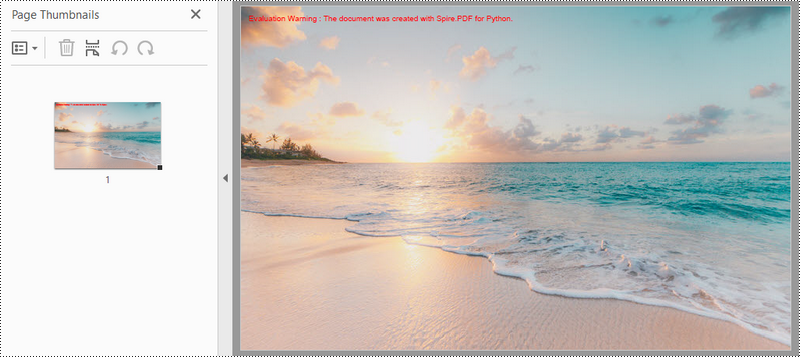
Este exemplo de código converte um arquivo de imagem em um documento PDF usando a biblioteca Spire.PDF for Python criando um documento em branco, adicionando uma página com as mesmas dimensões da imagem e desenhando a imagem na página.
- Python
from spire.pdf.common import *
from spire.pdf import *

# Create a PdfDocument object
doc = PdfDocument()

# Set the page margins to 0
doc.PageSettings.SetMargins(0.0)

# Load a particular image
image = PdfImage.FromFile("C:\\Users\\Administrator\\Desktop\\Images\\img-1.jpg")

# Get the image width and height
width = image.PhysicalDimension.Width
height = image.PhysicalDimension.Height

# Add a page that has the same size as the image
page = doc.Pages.Add(SizeF(width, height))

# Draw image at (0, 0) of the page
page.Canvas.DrawImage(image, 0.0, 0.0, width, height)

# Save to file
doc.SaveToFile("output/ImageToPdf.pdf")
doc.Dispose()
Converta várias imagens em um documento PDF em python
Este exemplo ilustra como converter uma coleção de imagens em um documento PDF usando Spire.PDF for Python. O trecho de código a seguir lê imagens de uma pasta especificada, cria um documento PDF, adiciona cada imagem a uma página separada no PDF e salva o arquivo PDF resultante.
- Python
from spire.pdf.common import *
from spire.pdf import *
import os

# Create a PdfDocument object
doc = PdfDocument()

# Set the page margins to 0
doc.PageSettings.SetMargins(0.0)

# Get the folder where the images are stored
path = "C:\\Users\\Administrator\\Desktop\\Images\\"
files = os.listdir(path)

# Iterate through the files in the folder
for root, dirs, files in os.walk(path):
    for file in files:

        # Load a particular image
        image = PdfImage.FromFile(os.path.join(root, file))

        # Get the image width and height
        width = image.PhysicalDimension.Width
        height = image.PhysicalDimension.Height

        # Add a page that has the same size as the image
        page = doc.Pages.Add(SizeF(width, height))

        # Draw image at (0, 0) of the page
        page.Canvas.DrawImage(image, 0.0, 0.0, width, height)

# Save to file
doc.SaveToFile('output/ImagesToPdf.pdf')
doc.Dispose()
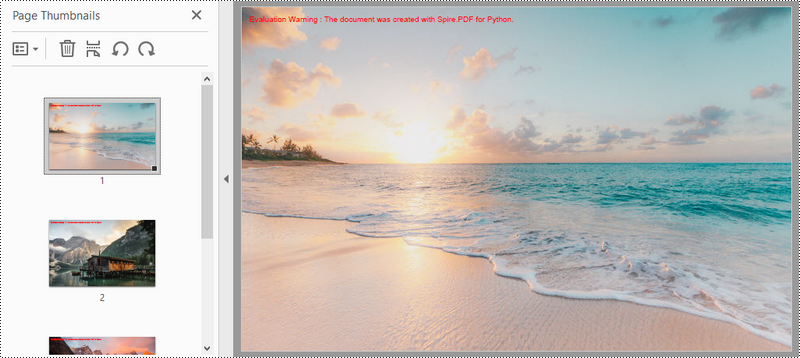
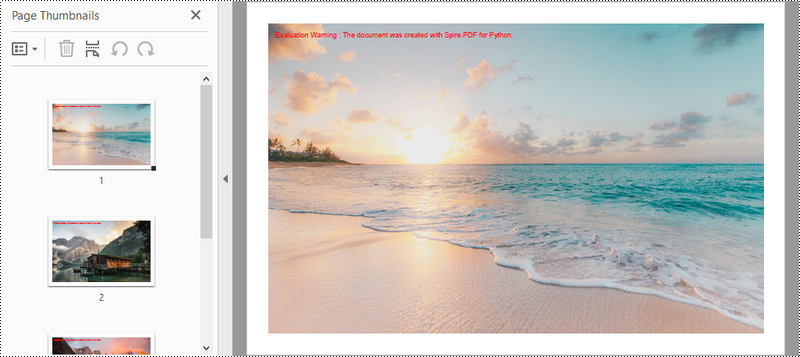
Crie um PDF a partir de várias imagens personalizando as margens da página em Python
Este exemplo de código cria um documento PDF e o preenche com imagens de uma pasta especificada, ajusta as margens da página e salva o documento resultante em um arquivo.
- Python
from spire.pdf.common import *
from spire.pdf import *
import os

# Create a PdfDocument object
doc = PdfDocument()

# Set the left, top, right, bottom page margin
doc.PageSettings.SetMargins(30.0, 30.0, 30.0, 30.0)

# Get the folder where the images are stored
path = "C:\\Users\\Administrator\\Desktop\\Images\\"
files = os.listdir(path)

# Iterate through the files in the folder
for root, dirs, files in os.walk(path):
    for file in files:

        # Load a particular image
        image = PdfImage.FromFile(os.path.join(root, file))

        # Get the image width and height
        width = image.PhysicalDimension.Width
        height = image.PhysicalDimension.Height

        # Specify page size
        size = SizeF(width + doc.PageSettings.Margins.Left + doc.PageSettings.Margins.Right, height + doc.PageSettings.Margins.Top+ doc.PageSettings.Margins.Bottom)

        # Add a page with the specified size
        page = doc.Pages.Add(size)

        # Draw image on the page at (0, 0)
        page.Canvas.DrawImage(image, 0.0, 0.0, width, height)

# Save to file
doc.SaveToFile('output/CustomizeMargins.pdf')
doc.Dispose()
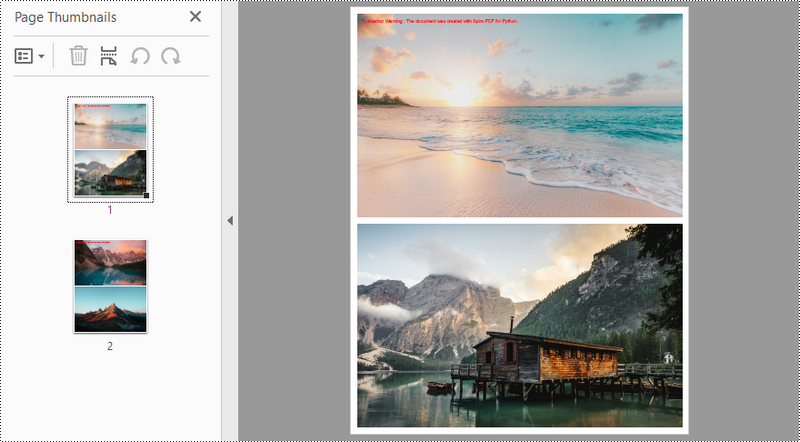
Crie um PDF com várias imagens por página em Python
Este código demonstra como usar a biblioteca Spire.PDF em Python para criar um documento PDF com duas imagens por página. As imagens neste exemplo são do mesmo tamanho. Se o tamanho da imagem não for consistente, será necessário ajustar o código para obter o resultado desejado.
- Python
from spire.pdf.common import *
from spire.pdf import *
import os

# Create a PdfDocument object
doc = PdfDocument()

# Set the left, top, right, bottom page margins
doc.PageSettings.SetMargins(15.0, 15.0, 15.0, 15.0)

# Get the folder where the images are stored
path = "C:\\Users\\Administrator\\Desktop\\Images\\"
files = os.listdir(path)

# Iterate through the files in the folder
for root, dirs, files in os.walk(path):

    for i in range(len(files)):

        # Load a particular image
        image = PdfImage.FromFile(os.path.join(root, files[i]))

        # Get the image width and height
        width = image.PhysicalDimension.Width
        height = image.PhysicalDimension.Height

        # Specify page size
        size = SizeF(width + doc.PageSettings.Margins.Left + doc.PageSettings.Margins.Right, height*2 + doc.PageSettings.Margins.Top+ doc.PageSettings.Margins.Bottom + 15.0)

        if i % 2 == 0:

            # Add a page with the specified size
            page = doc.Pages.Add(size)

            # Draw first image on the page at (0, 0)
            page.Canvas.DrawImage(image, 0.0, 0.0, width, height)
        else :

            # Draw second image on the page at (0, height + 15)
            page.Canvas.DrawImage(image, 0.0, height + 15.0, width, height)

# Save to file
doc.SaveToFile('output/SeveralImagesPerPage.pdf')
doc.Dispose()
Conclusão
Nesta postagem do blog, exploramos como usar Spire.PDF for python para criar documentos PDF a partir de imagens, contendo uma ou mais imagens por página. Além disso, demonstramos como personalizar o tamanho da página PDF e as margens ao redor das imagens. Para mais tutoriais, confira nossa documentação online. Se você tiver alguma dúvida, não hesite em nos contatar por e-mail ou no fórum.
Преобразование изображения в PDF с помощью Python
Оглавление
- API конвертера PDF для Python
- Действия по преобразованию изображения в PDF
- Преобразование изображения в PDF-документ
- Преобразование нескольких изображений в документ PDF
- Создание PDF-файла из нескольких изображений. Настройка полей страницы.
- Создайте PDF-файл с несколькими изображениями на странице
- Заключение
- Смотрите также
Установить с помощью Пипа
pip install Spire.PDF
Ссылки по теме
Преобразование изображения в PDF — это удобный и эффективный способ преобразования визуального файла в портативный, универсально читаемый формат. Независимо от того, работаете ли вы с отсканированным документом, фотографией или цифровым изображением, преобразование его в PDF дает множество преимуществ. Он сохраняет исходное качество изображения и гарантирует совместимость с различными устройствами и операционными системами. Кроме того, преобразование изображений в PDF позволяет легко обмениваться ими, распечатывать и архивировать их, что делает его универсальным решением для различных профессиональных, образовательных и личных целей. В этой статье представлено несколько примеров, показывающих, как конвертировать изображения в PDF с помощью Python.
- Преобразование изображения в PDF-документ в Python
- Преобразование нескольких изображений в PDF-документ в Python
- Создание PDF-файла из нескольких изображений Настройка полей страницы в Python
- Создайте PDF-файл с несколькими изображениями на странице в Python
API конвертера PDF для Python
Если вы хотите преобразовать файлы изображений в формат PDF в приложении Python, Spire.PDF for Python может помочь в этом. Он позволяет вам создать PDF-документ с настраиваемыми настройками страницы (размер и поля), добавить одно или несколько изображений на каждую страницу и сохранить окончательный документ в виде PDF-файла. Поддерживаются различные формы изображений, включая изображения PNG, JPEG, BMP и GIF.
Помимо преобразования изображений в PDF, эта библиотека поддерживает преобразование PDF в Word, PDF в Excel, PDF в HTML, PDF в PDF/A с высоким качеством и точностью. Являясь расширенной PDF-библиотекой Python, она также предоставляет разработчикам богатый API-интерфейс, позволяющий настраивать параметры преобразования в соответствии с различными требованиями преобразования.
Вы можете установить его, выполнив следующую команду pip.
pip install Spire.PDF
Действия по преобразованию изображения в PDF в Python
- Инициализируйте класс PdfDocument.
- Загрузите файл изображения по указанному пути, используя метод FromFile.
- Добавьте в документ страницу указанного размера.
- Нарисуйте изображение на странице в указанном месте, используя метод DrawImage.
- Сохраните документ в PDF-файл, используя метод SaveToFile.
Преобразование изображения в PDF-документ в Python
В этом примере кода файл изображения преобразуется в документ PDF с помощью библиотеки Spire.PDF for Python путем создания пустого документа, добавления страницы с теми же размерами, что и изображение, и рисования изображения на странице.
- Python
from spire.pdf.common import *
from spire.pdf import *

# Create a PdfDocument object
doc = PdfDocument()

# Set the page margins to 0
doc.PageSettings.SetMargins(0.0)

# Load a particular image
image = PdfImage.FromFile("C:\\Users\\Administrator\\Desktop\\Images\\img-1.jpg")

# Get the image width and height
width = image.PhysicalDimension.Width
height = image.PhysicalDimension.Height

# Add a page that has the same size as the image
page = doc.Pages.Add(SizeF(width, height))

# Draw image at (0, 0) of the page
page.Canvas.DrawImage(image, 0.0, 0.0, width, height)

# Save to file
doc.SaveToFile("output/ImageToPdf.pdf")
doc.Dispose()
Преобразование нескольких изображений в PDF-документ в Python
В этом примере показано, как преобразовать коллекцию изображений в документ PDF с помощью Spire.PDF for Python. Следующий фрагмент кода считывает изображения из указанной папки, создает документ PDF, добавляет каждое изображение на отдельную страницу в PDF-файле и сохраняет полученный PDF-файл.
- Python
from spire.pdf.common import *
from spire.pdf import *
import os

# Create a PdfDocument object
doc = PdfDocument()

# Set the page margins to 0
doc.PageSettings.SetMargins(0.0)

# Get the folder where the images are stored
path = "C:\\Users\\Administrator\\Desktop\\Images\\"
files = os.listdir(path)

# Iterate through the files in the folder
for root, dirs, files in os.walk(path):
    for file in files:

        # Load a particular image
        image = PdfImage.FromFile(os.path.join(root, file))

        # Get the image width and height
        width = image.PhysicalDimension.Width
        height = image.PhysicalDimension.Height

        # Add a page that has the same size as the image
        page = doc.Pages.Add(SizeF(width, height))

        # Draw image at (0, 0) of the page
        page.Canvas.DrawImage(image, 0.0, 0.0, width, height)

# Save to file
doc.SaveToFile('output/ImagesToPdf.pdf')
doc.Dispose()
Создание PDF-файла из нескольких изображений Настройка полей страницы в Python
В этом примере кода создается документ PDF, заполняется изображениями из указанной папки, настраиваются поля страницы и сохраняется полученный документ в файл.
- Python
from spire.pdf.common import *
from spire.pdf import *
import os

# Create a PdfDocument object
doc = PdfDocument()

# Set the left, top, right, bottom page margin
doc.PageSettings.SetMargins(30.0, 30.0, 30.0, 30.0)

# Get the folder where the images are stored
path = "C:\\Users\\Administrator\\Desktop\\Images\\"
files = os.listdir(path)

# Iterate through the files in the folder
for root, dirs, files in os.walk(path):
    for file in files:

        # Load a particular image
        image = PdfImage.FromFile(os.path.join(root, file))

        # Get the image width and height
        width = image.PhysicalDimension.Width
        height = image.PhysicalDimension.Height

        # Specify page size
        size = SizeF(width + doc.PageSettings.Margins.Left + doc.PageSettings.Margins.Right, height + doc.PageSettings.Margins.Top+ doc.PageSettings.Margins.Bottom)

        # Add a page with the specified size
        page = doc.Pages.Add(size)

        # Draw image on the page at (0, 0)
        page.Canvas.DrawImage(image, 0.0, 0.0, width, height)

# Save to file
doc.SaveToFile('output/CustomizeMargins.pdf')
doc.Dispose()
Создайте PDF-файл с несколькими изображениями на странице в Python
Этот код демонстрирует, как использовать библиотеку Spire.PDF в Python для создания PDF-документа с двумя изображениями на странице. Изображения в этом примере имеют одинаковый размер. Если размер вашего изображения не одинаков, вам необходимо настроить код для достижения желаемого результата.
- Python
from spire.pdf.common import *
from spire.pdf import *
import os

# Create a PdfDocument object
doc = PdfDocument()

# Set the left, top, right, bottom page margins
doc.PageSettings.SetMargins(15.0, 15.0, 15.0, 15.0)

# Get the folder where the images are stored
path = "C:\\Users\\Administrator\\Desktop\\Images\\"
files = os.listdir(path)

# Iterate through the files in the folder
for root, dirs, files in os.walk(path):

    for i in range(len(files)):

        # Load a particular image
        image = PdfImage.FromFile(os.path.join(root, files[i]))

        # Get the image width and height
        width = image.PhysicalDimension.Width
        height = image.PhysicalDimension.Height

        # Specify page size
        size = SizeF(width + doc.PageSettings.Margins.Left + doc.PageSettings.Margins.Right, height*2 + doc.PageSettings.Margins.Top+ doc.PageSettings.Margins.Bottom + 15.0)

        if i % 2 == 0:

            # Add a page with the specified size
            page = doc.Pages.Add(size)

            # Draw first image on the page at (0, 0)
            page.Canvas.DrawImage(image, 0.0, 0.0, width, height)
        else :

            # Draw second image on the page at (0, height + 15)
            page.Canvas.DrawImage(image, 0.0, height + 15.0, width, height)

# Save to file
doc.SaveToFile('output/SeveralImagesPerPage.pdf')
doc.Dispose()
Заключение
В этой записи блога мы рассмотрели, как использовать Spire.PDF for python для создания PDF-документов из изображений, содержащих одно или несколько изображений на странице. Кроме того, мы продемонстрировали, как настроить размер страницы PDF и поля вокруг изображений. Дополнительные руководства можно найти в нашей онлайн-документации. Если у вас есть какие-либо вопросы, не стесняйтесь обращаться к нам по электронной почте или на форуме.
Konvertieren Sie Bilder mit Python in PDF
Inhaltsverzeichnis
- PDF-Konverter-API für Python
- Schritte zum Konvertieren eines Bildes in PDF
- Konvertieren Sie ein Bild in ein PDF-Dokument
- Konvertieren Sie mehrere Bilder in ein PDF-Dokument
- Erstellen Sie ein PDF aus mehreren Bildern und passen Sie die Seitenränder an
- Erstellen Sie ein PDF mit mehreren Bildern pro Seite
- Abschluss
- Siehe auch
Mit Pip installieren
pip install Spire.PDF
verwandte Links
Das Konvertieren eines Bildes in PDF ist eine bequeme und effiziente Möglichkeit, eine visuelle Datei in ein tragbares, allgemein lesbares Format umzuwandeln. Unabhängig davon, ob Sie mit einem gescannten Dokument, einem Foto oder einem digitalen Bild arbeiten, bietet die Konvertierung in PDF zahlreiche Vorteile. Es behält die Originalqualität des Bildes bei und gewährleistet die Kompatibilität mit verschiedenen Geräten und Betriebssystemen. Darüber hinaus ermöglicht die Konvertierung von Bildern in PDF ein einfaches Teilen, Drucken und Archivieren, was es zu einer vielseitigen Lösung für verschiedene berufliche, pädagogische und persönliche Zwecke macht. Dieser Artikel enthält mehrere Beispiele, die Ihnen zeigen, wie das geht Konvertieren Sie Bilder mit Python in PDF.
- Konvertieren Sie ein Bild in ein PDF-Dokument in Python
- Konvertieren Sie mehrere Bilder in ein PDF-Dokument in Python
- Erstellen Sie eine PDF-Datei aus mehreren Bildern und passen Sie die Seitenränder in Python an
- Erstellen Sie in Python ein PDF mit mehreren Bildern pro Seite
PDF-Konverter-API für Python
Wenn Sie Bilddateien in einer Python-Anwendung in das PDF-Format umwandeln möchten, kannSpire.PDF for Python dabei helfen. Sie können damit ein PDF-Dokument mit benutzerdefinierten Seiteneinstellungen (Größe und Ränder) erstellen, jeder einzelnen Seite ein oder mehrere Bilder hinzufügen und das endgültige Dokument als PDF-Datei speichern. Es werden verschiedene Bildformate unterstützt, darunter PNG-, JPEG-, BMP- und GIF-Bilder.
Zusätzlich zur Konvertierung von Bildern in PDF unterstützt diese Bibliothek die Konvertierung von PDF in Word, PDF in Excel, PDF in HTML, und PDF in PDF/A mit hoher Qualität und Präzision. Als erweiterte Python-PDF-Bibliothek bietet sie außerdem eine umfangreiche API für Entwickler, mit der sie die Konvertierungsoptionen anpassen können, um eine Vielzahl von Konvertierungsanforderungen zu erfüllen.
Sie können es installieren, indem Sie den folgenden pip-Befehl ausführen.
pip install Spire.PDF
Schritte zum Konvertieren eines Bilds in PDF in Python
- Initialisieren Sie die PdfDocument-Klasse.
- Laden Sie eine Bilddatei aus dem Pfad mit der FromFile-Methode.
- Fügen Sie dem Dokument eine Seite mit der angegebenen Größe hinzu.
- Zeichnen Sie das Bild mit der DrawImage-Methode an der angegebenen Stelle auf die Seite.
- Speichern Sie das Dokument mit der SaveToFile-Methode in einer PDF-Datei.
Konvertieren Sie ein Bild in ein PDF-Dokument in Python
Dieses Codebeispiel konvertiert eine Bilddatei mithilfe der Bibliothek Spire.PDF for Python in ein PDF-Dokument, indem ein leeres Dokument erstellt, eine Seite mit den gleichen Abmessungen wie das Bild hinzugefügt und das Bild auf die Seite gezeichnet wird.
- Python
from spire.pdf.common import *
from spire.pdf import *

# Create a PdfDocument object
doc = PdfDocument()

# Set the page margins to 0
doc.PageSettings.SetMargins(0.0)

# Load a particular image
image = PdfImage.FromFile("C:\\Users\\Administrator\\Desktop\\Images\\img-1.jpg")

# Get the image width and height
width = image.PhysicalDimension.Width
height = image.PhysicalDimension.Height

# Add a page that has the same size as the image
page = doc.Pages.Add(SizeF(width, height))

# Draw image at (0, 0) of the page
page.Canvas.DrawImage(image, 0.0, 0.0, width, height)

# Save to file
doc.SaveToFile("output/ImageToPdf.pdf")
doc.Dispose()
Konvertieren Sie mehrere Bilder in ein PDF-Dokument in Python
Dieses Beispiel veranschaulicht, wie Sie mit Spire.PDF for Python eine Sammlung von Bildern in ein PDF-Dokument konvertieren. Der folgende Codeausschnitt liest Bilder aus einem angegebenen Ordner, erstellt ein PDF-Dokument, fügt jedes Bild einer separaten Seite im PDF hinzu und speichert die resultierende PDF-Datei.
- Python
from spire.pdf.common import *
from spire.pdf import *
import os

# Create a PdfDocument object
doc = PdfDocument()

# Set the page margins to 0
doc.PageSettings.SetMargins(0.0)

# Get the folder where the images are stored
path = "C:\\Users\\Administrator\\Desktop\\Images\\"
files = os.listdir(path)

# Iterate through the files in the folder
for root, dirs, files in os.walk(path):
    for file in files:

        # Load a particular image
        image = PdfImage.FromFile(os.path.join(root, file))

        # Get the image width and height
        width = image.PhysicalDimension.Width
        height = image.PhysicalDimension.Height

        # Add a page that has the same size as the image
        page = doc.Pages.Add(SizeF(width, height))

        # Draw image at (0, 0) of the page
        page.Canvas.DrawImage(image, 0.0, 0.0, width, height)

# Save to file
doc.SaveToFile('output/ImagesToPdf.pdf')
doc.Dispose()
Erstellen Sie eine PDF-Datei aus mehreren Bildern und passen Sie die Seitenränder in Python an
Dieses Codebeispiel erstellt ein PDF-Dokument und füllt es mit Bildern aus einem angegebenen Ordner, passt die Seitenränder an und speichert das resultierende Dokument in einer Datei.
- Python
from spire.pdf.common import *
from spire.pdf import *
import os

# Create a PdfDocument object
doc = PdfDocument()

# Set the left, top, right, bottom page margin
doc.PageSettings.SetMargins(30.0, 30.0, 30.0, 30.0)

# Get the folder where the images are stored
path = "C:\\Users\\Administrator\\Desktop\\Images\\"
files = os.listdir(path)

# Iterate through the files in the folder
for root, dirs, files in os.walk(path):
    for file in files:

        # Load a particular image
        image = PdfImage.FromFile(os.path.join(root, file))

        # Get the image width and height
        width = image.PhysicalDimension.Width
        height = image.PhysicalDimension.Height

        # Specify page size
        size = SizeF(width + doc.PageSettings.Margins.Left + doc.PageSettings.Margins.Right, height + doc.PageSettings.Margins.Top+ doc.PageSettings.Margins.Bottom)

        # Add a page with the specified size
        page = doc.Pages.Add(size)

        # Draw image on the page at (0, 0)
        page.Canvas.DrawImage(image, 0.0, 0.0, width, height)

# Save to file
doc.SaveToFile('output/CustomizeMargins.pdf')
doc.Dispose()
Erstellen Sie in Python ein PDF mit mehreren Bildern pro Seite
Dieser Code zeigt, wie Sie mit der Spire.PDF-Bibliothek in Python ein PDF-Dokument mit zwei Bildern pro Seite erstellen. Die Bilder in diesem Beispiel haben die gleiche Größe. Wenn Ihre Bildgröße nicht konsistent ist, müssen Sie den Code anpassen, um das gewünschte Ergebnis zu erzielen.
- Python
from spire.pdf.common import *
from spire.pdf import *
import os

# Create a PdfDocument object
doc = PdfDocument()

# Set the left, top, right, bottom page margins
doc.PageSettings.SetMargins(15.0, 15.0, 15.0, 15.0)

# Get the folder where the images are stored
path = "C:\\Users\\Administrator\\Desktop\\Images\\"
files = os.listdir(path)

# Iterate through the files in the folder
for root, dirs, files in os.walk(path):

    for i in range(len(files)):

        # Load a particular image
        image = PdfImage.FromFile(os.path.join(root, files[i]))

        # Get the image width and height
        width = image.PhysicalDimension.Width
        height = image.PhysicalDimension.Height

        # Specify page size
        size = SizeF(width + doc.PageSettings.Margins.Left + doc.PageSettings.Margins.Right, height*2 + doc.PageSettings.Margins.Top+ doc.PageSettings.Margins.Bottom + 15.0)

        if i % 2 == 0:

            # Add a page with the specified size
            page = doc.Pages.Add(size)

            # Draw first image on the page at (0, 0)
            page.Canvas.DrawImage(image, 0.0, 0.0, width, height)
        else :

            # Draw second image on the page at (0, height + 15)
            page.Canvas.DrawImage(image, 0.0, height + 15.0, width, height)

# Save to file
doc.SaveToFile('output/SeveralImagesPerPage.pdf')
doc.Dispose()
Abschluss
In diesem Blogbeitrag haben wir untersucht, wie Sie mit Spire.PDF for python PDF-Dokumente aus Bildern erstellen können, die ein oder mehrere Bilder pro Seite enthalten. Darüber hinaus haben wir gezeigt, wie Sie die PDF-Seitengröße und die Ränder um die Bilder anpassen können. Weitere Tutorials finden Sie in unserer Online-Dokumentation. Wenn Sie Fragen haben, können Sie uns gerne per E-Mail oder im Forum kontaktieren.
Convertir imagen a PDF con Python
Tabla de contenido
- API de conversión de PDF para Python
- Pasos para convertir una imagen a PDF
- Convertir una imagen a un documento PDF
- Convertir varias imágenes a un documento PDF
- Cree un PDF a partir de varias imágenes personalizando los márgenes de la página
- Cree un PDF con varias imágenes por página
- Conclusión
- Ver también
Instalar con Pip
pip install Spire.PDF
enlaces relacionados
Convertir una imagen a PDF es una forma cómoda y eficaz de transformar un archivo visual en un formato portátil y de lectura universal. Ya sea que esté trabajando con un documento escaneado, una fotografía o una imagen digital, convertirlo a PDF ofrece numerosos beneficios. Mantiene la calidad original de la imagen y garantiza la compatibilidad entre diversos dispositivos y sistemas operativos. Además, convertir imágenes a PDF permite compartirlas, imprimirlas y archivarlas fácilmente, lo que la convierte en una solución versátil para diversos fines profesionales, educativos y personales. Este artículo proporciona varios ejemplos que le muestran cómo convertir imágenes a PDF usando Python.
- Convertir una imagen en un documento PDF en Python
- Convierta varias imágenes a un documento PDF en Python
- Cree un PDF a partir de varias imágenes personalizando los márgenes de página en Python
- Cree un PDF con varias imágenes por página en Python
API de conversión de PDF para Python
Si desea convertir archivos de imagen a formato PDF en una aplicación Python, Spire.PDF for Python puede ayudarle con esto. Le permite crear un documento PDF con configuraciones de página personalizadas (tamaño y márgenes), agregar una o más imágenes a cada página y guardar el documento final como un archivo PDF. Se admiten varios formatos de imágenes que incluyen imágenes PNG, JPEG, BMP y GIF.
Además de la conversión de imágenes a PDF, esta biblioteca admite la conversión de PDF a Word, PDF a Excel, PDF a HTML, PDF a PDF/A con alta calidad y precisión. Como biblioteca PDF de Python avanzada, también proporciona una API enriquecida para que los desarrolladores personalicen las opciones de conversión para cumplir con una variedad de requisitos de conversión.
Puede instalarlo ejecutando el siguiente comando pip.
pip install Spire.PDF
Pasos para convertir una imagen a PDF en Python
- Inicialice la clase PdfDocument.
- Cargue un archivo de imagen desde la ruta usando el método FromFile.
- Agregue una página con el tamaño especificado al documento.
- Dibuja la imagen en la página en la ubicación especificada usando el método DrawImage.
- Guarde el documento en un archivo PDF utilizando el método SaveToFile.
Convertir una imagen en un documento PDF en Python
Este ejemplo de código convierte un archivo de imagen en un documento PDF usando la biblioteca Spire.PDF for Python creando un documento en blanco, agregando una página con las mismas dimensiones que la imagen y dibujando la imagen en la página.
- Python
from spire.pdf.common import *
from spire.pdf import *

# Create a PdfDocument object
doc = PdfDocument()

# Set the page margins to 0
doc.PageSettings.SetMargins(0.0)

# Load a particular image
image = PdfImage.FromFile("C:\\Users\\Administrator\\Desktop\\Images\\img-1.jpg")

# Get the image width and height
width = image.PhysicalDimension.Width
height = image.PhysicalDimension.Height

# Add a page that has the same size as the image
page = doc.Pages.Add(SizeF(width, height))

# Draw image at (0, 0) of the page
page.Canvas.DrawImage(image, 0.0, 0.0, width, height)

# Save to file
doc.SaveToFile("output/ImageToPdf.pdf")
doc.Dispose()
Convierta varias imágenes a un documento PDF en Python
Este ejemplo ilustra cómo convertir una colección de imágenes en un documento PDF usando Spire.PDF for Python. El siguiente fragmento de código lee imágenes de una carpeta específica, crea un documento PDF, agrega cada imagen a una página separada en el PDF y guarda el archivo PDF resultante.
- Python
from spire.pdf.common import *
from spire.pdf import *
import os

# Create a PdfDocument object
doc = PdfDocument()

# Set the page margins to 0
doc.PageSettings.SetMargins(0.0)

# Get the folder where the images are stored
path = "C:\\Users\\Administrator\\Desktop\\Images\\"
files = os.listdir(path)

# Iterate through the files in the folder
for root, dirs, files in os.walk(path):
    for file in files:

        # Load a particular image
        image = PdfImage.FromFile(os.path.join(root, file))

        # Get the image width and height
        width = image.PhysicalDimension.Width
        height = image.PhysicalDimension.Height

        # Add a page that has the same size as the image
        page = doc.Pages.Add(SizeF(width, height))

        # Draw image at (0, 0) of the page
        page.Canvas.DrawImage(image, 0.0, 0.0, width, height)

# Save to file
doc.SaveToFile('output/ImagesToPdf.pdf')
doc.Dispose()
Cree un PDF a partir de varias imágenes personalizando los márgenes de página en Python
Este ejemplo de código crea un documento PDF y lo completa con imágenes de una carpeta específica, ajusta los márgenes de la página y guarda el documento resultante en un archivo.
- Python
from spire.pdf.common import *
from spire.pdf import *
import os

# Create a PdfDocument object
doc = PdfDocument()

# Set the left, top, right, bottom page margin
doc.PageSettings.SetMargins(30.0, 30.0, 30.0, 30.0)

# Get the folder where the images are stored
path = "C:\\Users\\Administrator\\Desktop\\Images\\"
files = os.listdir(path)

# Iterate through the files in the folder
for root, dirs, files in os.walk(path):
    for file in files:

        # Load a particular image
        image = PdfImage.FromFile(os.path.join(root, file))

        # Get the image width and height
        width = image.PhysicalDimension.Width
        height = image.PhysicalDimension.Height

        # Specify page size
        size = SizeF(width + doc.PageSettings.Margins.Left + doc.PageSettings.Margins.Right, height + doc.PageSettings.Margins.Top+ doc.PageSettings.Margins.Bottom)

        # Add a page with the specified size
        page = doc.Pages.Add(size)

        # Draw image on the page at (0, 0)
        page.Canvas.DrawImage(image, 0.0, 0.0, width, height)

# Save to file
doc.SaveToFile('output/CustomizeMargins.pdf')
doc.Dispose()
Cree un PDF con varias imágenes por página en Python
Este código demuestra cómo utilizar la biblioteca Spire.PDF en Python para crear un documento PDF con dos imágenes por página. Las imágenes en este ejemplo tienen el mismo tamaño; si el tamaño de su imagen no es consistente, entonces deberá ajustar el código para lograr el resultado deseado.
- Python
from spire.pdf.common import *
from spire.pdf import *
import os

# Create a PdfDocument object
doc = PdfDocument()

# Set the left, top, right, bottom page margins
doc.PageSettings.SetMargins(15.0, 15.0, 15.0, 15.0)

# Get the folder where the images are stored
path = "C:\\Users\\Administrator\\Desktop\\Images\\"
files = os.listdir(path)

# Iterate through the files in the folder
for root, dirs, files in os.walk(path):

    for i in range(len(files)):

        # Load a particular image
        image = PdfImage.FromFile(os.path.join(root, files[i]))

        # Get the image width and height
        width = image.PhysicalDimension.Width
        height = image.PhysicalDimension.Height

        # Specify page size
        size = SizeF(width + doc.PageSettings.Margins.Left + doc.PageSettings.Margins.Right, height*2 + doc.PageSettings.Margins.Top+ doc.PageSettings.Margins.Bottom + 15.0)

        if i % 2 == 0:

            # Add a page with the specified size
            page = doc.Pages.Add(size)

            # Draw first image on the page at (0, 0)
            page.Canvas.DrawImage(image, 0.0, 0.0, width, height)
        else :

            # Draw second image on the page at (0, height + 15)
            page.Canvas.DrawImage(image, 0.0, height + 15.0, width, height)

# Save to file
doc.SaveToFile('output/SeveralImagesPerPage.pdf')
doc.Dispose()
Conclusión
En esta publicación de blog, exploramos cómo usar Spire.PDF for Python para crear documentos PDF a partir de imágenes, que contienen una o más imágenes por página. Además, demostramos cómo personalizar el tamaño de la página PDF y los márgenes alrededor de las imágenes. Para obtener más tutoriales, consulte nuestra documentación en línea. Si tiene alguna pregunta, no dude en contactarnos por correo electrónico o en el foro.
Python을 사용하여 이미지를 PDF로 변환
목차
핍으로 설치
pip install Spire.PDF
관련된 링크들
이미지를 PDF로 변환하는 것은 시각적 파일을 휴대 가능하고 보편적으로 읽을 수 있는 형식으로 변환하는 편리하고 효율적인 방법입니다. 스캔한 문서, 사진 또는 디지털 이미지로 작업하는 경우 PDF로 변환하면 다양한 이점을 얻을 수 있습니다. 이미지의 원본 품질을 유지하고 다양한 장치 및 운영 체제에서의 호환성을 보장합니다. 또한 이미지를 PDF로 변환하면 공유, 인쇄, 보관이 쉬워 다양한 전문적, 교육적, 개인적 목적을 위한 다용도 솔루션이 됩니다. 이 문서에서는 다음 방법을 보여주는 몇 가지 예를 제공합니다 Python을 사용하여 이미지를 PDF로 변환합니다.
- Python에서 이미지를 PDF 문서로 변환
- Python에서 여러 이미지를 PDF 문서로 변환
- Python에서 페이지 여백 사용자 정의하기 여러 이미지에서 PDF 만들기
- Python에서 페이지당 여러 이미지가 포함된 PDF 만들기
Python용 PDF 변환기 API
Python 애플리케이션에서 이미지 파일을 PDF 형식으로 변환하려는 경우 Spire.PDF for Python가 도움이 될 수 있습니다. 사용자 정의 페이지 설정(크기 및 여백)을 사용하여 PDF 문서를 만들고, 모든 단일 페이지에 하나 이상의 이미지를 추가하고, 최종 문서를 PDF 파일로 저장할 수 있습니다. PNG, JPEG, BMP, GIF 이미지를 포함한 다양한 이미지 형식이 지원됩니다.
이미지를 PDF로 변환하는 것 외에도 이 라이브러리는 높은 품질과 정밀도로 PDF를 Word로, PDF를 Excel로, PDF를 HTML로, PDF를 PDF/A로 변환하는 것을 지원합니다. 고급 Python PDF 라이브러리인 이 라이브러리는 개발자가 다양한 변환 요구 사항을 충족하도록 변환 옵션을 사용자 정의할 수 있는 풍부한 API도 제공합니다.
다음 pip 명령을 실행하여 설치할 수 있습니다.
pip install Spire.PDF
Python에서 이미지를 PDF로 변환하는 단계
- PdfDocument 클래스를 초기화합니다.
- FromFile 메서드를 사용하여 경로에서 이미지 파일을 로드합니다.
- 문서에 지정된 크기의 페이지를 추가합니다.
- DrawImage 메서드를 사용하여 페이지의 지정된 위치에 이미지를 그립니다.
- SaveToFile 메서드를 사용하여 문서를 PDF 파일로 저장합니다.
Python에서 이미지를 PDF 문서로 변환
이 코드 예제는 빈 문서를 만들고, 이미지와 동일한 크기의 페이지를 추가하고, 페이지에 이미지를 그리는 방식으로 Spire.PDF for Python 라이브러리를 사용하여 이미지 파일을 PDF 문서로 변환합니다.
- Python
from spire.pdf.common import *
from spire.pdf import *

# Create a PdfDocument object
doc = PdfDocument()

# Set the page margins to 0
doc.PageSettings.SetMargins(0.0)

# Load a particular image
image = PdfImage.FromFile("C:\\Users\\Administrator\\Desktop\\Images\\img-1.jpg")

# Get the image width and height
width = image.PhysicalDimension.Width
height = image.PhysicalDimension.Height

# Add a page that has the same size as the image
page = doc.Pages.Add(SizeF(width, height))

# Draw image at (0, 0) of the page
page.Canvas.DrawImage(image, 0.0, 0.0, width, height)

# Save to file
doc.SaveToFile("output/ImageToPdf.pdf")
doc.Dispose()
Python에서 여러 이미지를 PDF 문서로 변환
이 예에서는 Spire.PDF for Python를 사용하여 이미지 모음을 PDF 문서로 변환하는 방법을 보여줍니다. 다음 코드 조각은 지정된 폴더에서 이미지를 읽고, PDF 문서를 만들고, 각 이미지를 PDF의 별도 페이지에 추가하고, 결과 PDF 파일을 저장합니다.
- Python
from spire.pdf.common import *
from spire.pdf import *
import os

# Create a PdfDocument object
doc = PdfDocument()

# Set the page margins to 0
doc.PageSettings.SetMargins(0.0)

# Get the folder where the images are stored
path = "C:\\Users\\Administrator\\Desktop\\Images\\"
files = os.listdir(path)

# Iterate through the files in the folder
for root, dirs, files in os.walk(path):
    for file in files:

        # Load a particular image
        image = PdfImage.FromFile(os.path.join(root, file))

        # Get the image width and height
        width = image.PhysicalDimension.Width
        height = image.PhysicalDimension.Height

        # Add a page that has the same size as the image
        page = doc.Pages.Add(SizeF(width, height))

        # Draw image at (0, 0) of the page
        page.Canvas.DrawImage(image, 0.0, 0.0, width, height)

# Save to file
doc.SaveToFile('output/ImagesToPdf.pdf')
doc.Dispose()
Python에서 페이지 여백 사용자 정의하기 여러 이미지에서 PDF 만들기
이 코드 예제는 PDF 문서를 생성하고 이를 지정된 폴더의 이미지로 채우고 페이지 여백을 조정한 후 결과 문서를 파일에 저장합니다.
- Python
from spire.pdf.common import *
from spire.pdf import *
import os

# Create a PdfDocument object
doc = PdfDocument()

# Set the left, top, right, bottom page margin
doc.PageSettings.SetMargins(30.0, 30.0, 30.0, 30.0)

# Get the folder where the images are stored
path = "C:\\Users\\Administrator\\Desktop\\Images\\"
files = os.listdir(path)

# Iterate through the files in the folder
for root, dirs, files in os.walk(path):
    for file in files:

        # Load a particular image
        image = PdfImage.FromFile(os.path.join(root, file))

        # Get the image width and height
        width = image.PhysicalDimension.Width
        height = image.PhysicalDimension.Height

        # Specify page size
        size = SizeF(width + doc.PageSettings.Margins.Left + doc.PageSettings.Margins.Right, height + doc.PageSettings.Margins.Top+ doc.PageSettings.Margins.Bottom)

        # Add a page with the specified size
        page = doc.Pages.Add(size)

        # Draw image on the page at (0, 0)
        page.Canvas.DrawImage(image, 0.0, 0.0, width, height)

# Save to file
doc.SaveToFile('output/CustomizeMargins.pdf')
doc.Dispose()
Python에서 페이지당 여러 이미지가 포함된 PDF 만들기
이 코드는 Python에서 Spire.PDF 라이브러리를 사용하여 페이지당 두 개의 이미지가 포함된 PDF 문서를 만드는 방법을 보여줍니다. 이 예의 이미지는 크기가 동일합니다. 이미지 크기가 일정하지 않은 경우 원하는 결과를 얻으려면 코드를 조정해야 합니다.
- Python
from spire.pdf.common import *
from spire.pdf import *
import os

# Create a PdfDocument object
doc = PdfDocument()

# Set the left, top, right, bottom page margins
doc.PageSettings.SetMargins(15.0, 15.0, 15.0, 15.0)

# Get the folder where the images are stored
path = "C:\\Users\\Administrator\\Desktop\\Images\\"
files = os.listdir(path)

# Iterate through the files in the folder
for root, dirs, files in os.walk(path):

    for i in range(len(files)):

        # Load a particular image
        image = PdfImage.FromFile(os.path.join(root, files[i]))

        # Get the image width and height
        width = image.PhysicalDimension.Width
        height = image.PhysicalDimension.Height

        # Specify page size
        size = SizeF(width + doc.PageSettings.Margins.Left + doc.PageSettings.Margins.Right, height*2 + doc.PageSettings.Margins.Top+ doc.PageSettings.Margins.Bottom + 15.0)

        if i % 2 == 0:

            # Add a page with the specified size
            page = doc.Pages.Add(size)

            # Draw first image on the page at (0, 0)
            page.Canvas.DrawImage(image, 0.0, 0.0, width, height)
        else :

            # Draw second image on the page at (0, height + 15)
            page.Canvas.DrawImage(image, 0.0, height + 15.0, width, height)

# Save to file
doc.SaveToFile('output/SeveralImagesPerPage.pdf')
doc.Dispose()
결론
이 블로그 게시물에서는 Spire.PDF for python를 사용하여 페이지당 하나 이상의 이미지가 포함된 이미지에서 PDF 문서를 만드는 방법을 살펴보았습니다. 또한 PDF 페이지 크기와 이미지 주변 여백을 사용자 정의하는 방법을 시연했습니다. 더 많은 튜토리얼을 보려면 다음을 확인하세요 온라인 문서. 질문이 있으시면 언제든지 문의해 주세요 이메일 아니면 법정.