Come sbloccare un PDF (con o senza password)
Sebbene la protezione con password aiuti a mantenere sicuri i file PDF, inserire la password ogni volta può rallentare il flusso di lavoro. Per i documenti non riservati, la rimozione delle restrizioni facilita l'accesso e l'estrazione delle informazioni necessarie. Questo articolo introduce tre modi per sbloccare un PDF, che si conosca o meno la password.
- Sbloccare un PDF con Adobe Acrobat Pro DC
- Sbloccare un documento PDF utilizzando il codice
- Sbloccare un PDF senza password online
- La conclusione
- Domande frequenti
Come sbloccare un PDF con Adobe Acrobat Pro DC
Quando si tratta di rendere un PDF non protetto, la maggior parte delle persone pensa immediatamente ad Adobe Acrobat Pro DC. Il software include una funzione integrata che consente agli utenti di sbloccare un PDF con una password e rimuoverne le restrizioni in pochi clic. Se hai già installato Adobe Acrobat Pro DC, ecco come trasformare un PDF protetto in uno non protetto per un accesso e una condivisione più facili.
Passaggi per sbloccare un PDF con Adobe Acrobat Pro DC
- Apri il file PDF protetto in Adobe Acrobat Pro DC.
- Inserisci la password per accedere al documento.
- Vai al menu in alto e seleziona File > Proprietà.
- Nella scheda Sicurezza, scegli Nessuna sicurezza dal menu a discesa "Metodo di sicurezza".
- Fai clic su OK e poi su Salva il PDF per applicare le modifiche.
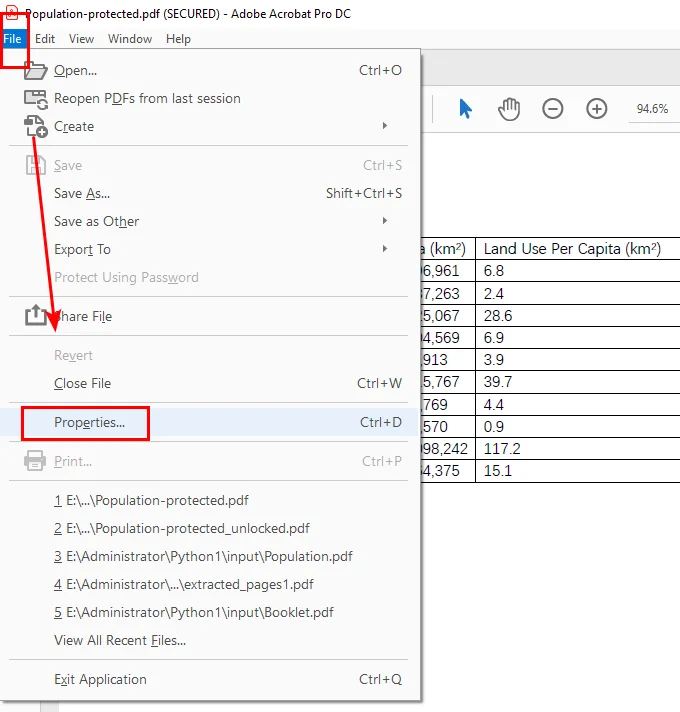
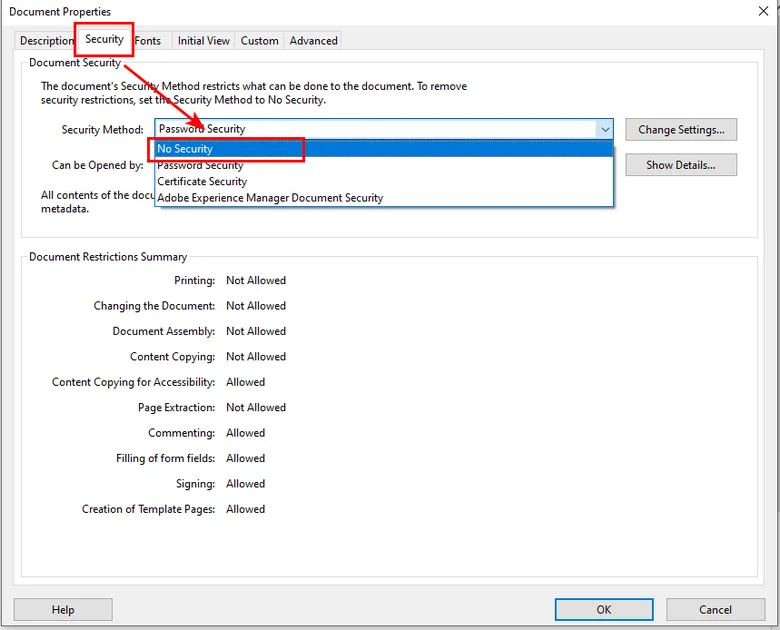
Dopo questi passaggi, il tuo file diventa non protetto, permettendoti di aprirlo, modificarlo e condividerlo liberamente senza inserire una password ogni volta.
Come sbloccare gratuitamente un documento PDF con il codice
Se stai cercando un modo gratuito ed efficiente per sbloccare un documento PDF, Free Spire.PDF for Python è un'ottima alternativa ad Adobe Acrobat. A differenza di Acrobat, che richiede un abbonamento a pagamento, Free Spire.PDF ti consente di rimuovere la protezione con password direttamente tramite codice, ideale per gli utenti che preferiscono l'automazione o che devono elaborare più file contemporaneamente.

In questa parte, ti guideremo su come utilizzare la libreria Python gratuita per aprire un file crittografato con una password nota, rimuoverne le restrizioni e salvarlo come versione non protetta. È incluso anche un chiaro esempio Python passo-passo per aiutarti a iniziare rapidamente.
Passaggi per sbloccare un file PDF utilizzando Free Spire.PDF
- Installa Free Spire.PDF per Python
Puoi installare la libreria tramite pip:
pip install Spire.PDF.Free
In alternativa, puoi scaricare il pacchetto dal sito Web ufficiale e installarlo manualmente.
- Importa i moduli richiesti
Importa le classi necessarie dal pacchetto spire.pdf.
- Crea un oggetto PdfDocument
Inizializza un'istanza PdfDocument per iniziare a lavorare con il file PDF.
- Carica il PDF protetto
Utilizza il metodo PdfDocument.LoadFromFile() e fornisci la password di apertura corretta per caricare il documento protetto.
- Rimuovi la protezione con password
Chiama il metodo PdfDocument.Security.Encrypt() e imposta entrambe le password su stringhe vuote. Ciò rimuoverà tutte le restrizioni e renderà il PDF completamente accessibile.
- Salva il PDF non protetto
Utilizza il metodo PdfDocument.SaveToFile() per salvare il PDF sbloccato in un nuovo file.
Ecco l'esempio di codice completo che mostra come sbloccare un PDF protetto sia con una password di apertura che con una password di autorizzazione.
from spire.pdf import *

# Create a PdfDocument object
doc = PdfDocument()

# Load a password protected PDF file
doc.LoadFromFile("/input/Population-protected.pdf", "password")

# Set the open password and permission password as empty
doc.Security.Encrypt(str(), str(), PdfPermissionsFlags.Default, PdfEncryptionKeySize.Key128Bit, "permissionpassword")

# Save the unsecured PDF file
doc.SaveToFile("/output/Unsecured.pdf", FileFormat.PDF)

doc.Close()
Dopo aver eseguito questo codice, avrai pieno accesso al PDF: la conversione, la stampa e la modifica dei PDF non saranno più limitate.
Come sbloccare un PDF senza password online
Oltre alle due opzioni precedenti, se preferisci un approccio più semplice e diretto, puoi anche provare gli strumenti di sblocco online. Questi strumenti funzionano nel tuo browser purché tu abbia accesso a Internet. Cerca semplicemente parole chiave come "come sbloccare un file PDF", "sbloccare PDF" o "rimuovere password PDF" e troverai molte opzioni.
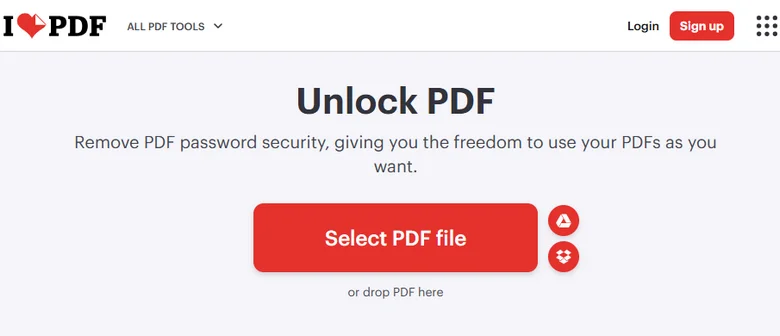
In questo tutorial, prenderemo iLovePDF come esempio per mostrare come rendere un file PDF non protetto online.
Passaggi per sbloccare un documento PDF utilizzando strumenti online
- Vai su iLovePDF Sblocca PDF.
- Fai clic su Seleziona file PDF e carica il tuo PDF protetto.
- Premi Sblocca PDF e attendi il completamento del processo. Il file sbloccato verrà scaricato automaticamente sul tuo dispositivo.
Sebbene gli strumenti online siano molto convenienti - alcuni possono persino sbloccare un PDF protetto senza password - la loro sicurezza non può essere sempre garantita. Se il tuo documento contiene ancora informazioni riservate, è più sicuro utilizzare Adobe Acrobat o Free Spire.PDF for Python invece di caricarlo su piattaforme online.
La conclusione
In breve, Adobe Acrobat è ideale per operazioni offline veloci, Free Spire.PDF for Python è adatto agli utenti che preferiscono sbloccare un PDF tramite l'automazione del codice, while online tools are perfect for occasional use without any setup. Scegli l'opzione che meglio si adatta alle tue esigenze e al tuo flusso di lavoro.
Domande frequenti sullo sblocco di un PDF
1. Come posso sbloccare un PDF senza conoscere la password?
Puoi provare strumenti online come iLovePDF ma il loro successo dipende dal livello di crittografia del file. Per i documenti riservati, evita di utilizzare i servizi online per motivi di sicurezza.
2. Qual è il modo migliore per sbloccare un PDF gratuitamente?
Free Spire.PDF for Python ti consente di sbloccare completamente un PDF tramite codice, senza abbonamento o passaggi manuali richiesti.
3. Come rimuovo la protezione dalla copia da un PDF?
Free Spire.PDF for Python può rimuovere contemporaneamente sia le password di apertura che le restrizioni sulle autorizzazioni, consentendoti di copiare, modificare e stampare liberamente il file.
4. Come rimuovo la protezione con password utilizzando Adobe Acrobat?
Apri il PDF in Adobe Acrobat Pro DC, inserisci la password, vai su File > Proprietà > Sicurezza, scegli "Nessuna sicurezza" e salva il file.
LEGGI ANCHE
Como desproteger um PDF (com ou sem senha)
Embora a proteção por senha ajude a manter os arquivos PDF seguros, digitar a senha toda vez pode retardar seu fluxo de trabalho. Para documentos não confidenciais, remover as restrições facilita o acesso e a extração das informações de que você precisa. Este artigo apresenta três maneiras de desproteger um PDF — quer você saiba ou não a senha.
- Desproteger um PDF com o Adobe Acrobat Pro DC
- Desproteger um Documento PDF Usando Código
- Desproteger um PDF sem Senha Online
- A Conclusão
- Perguntas Frequentes
Como Desproteger um PDF com o Adobe Acrobat Pro DC
Quando se trata de tornar um PDF não seguro, a maioria das pessoas pensa imediatamente no Adobe Acrobat Pro DC. O software inclui um recurso integrado que permite aos usuários desproteger um PDF com uma senha e remover suas restrições em apenas alguns cliques. Se você já tem o Adobe Acrobat Pro DC instalado, veja como transformar um PDF protegido em um não protegido para facilitar o acesso e o compartilhamento.
Passos para Desproteger um PDF com o Adobe Acrobat Pro DC
- Abra o arquivo PDF protegido no Adobe Acrobat Pro DC.
- Digite a senha para acessar o documento.
- Vá para o menu superior e selecione Arquivo > Propriedades.
- Na guia Segurança, escolha Nenhuma Segurança no menu suspenso “Método de Segurança”.
- Clique em OK e depois em Salvar o PDF para aplicar as alterações.
Após esses passos, seu arquivo se torna não seguro, permitindo que você o abra, edite e compartilhe livremente sem precisar digitar uma senha a cada vez.
Como Desproteger um Documento PDF Gratuitamente com Código
Se você está procurando uma maneira gratuita e eficiente de desproteger um documento PDF, o Free Spire.PDF for Python é uma ótima alternativa ao Adobe Acrobat. Ao contrário do Acrobat, que exige uma assinatura paga, o Free Spire.PDF permite remover a proteção por senha diretamente através do código — ideal para usuários que preferem automação ou precisam processar vários arquivos de uma vez.
Nesta parte, vamos guiá-lo sobre como usar a biblioteca Python gratuita para abrir um arquivo criptografado com uma senha conhecida, remover suas restrições e salvá-lo como uma versão não protegida. Um exemplo claro e passo a passo em Python também está incluído para ajudá-lo a começar rapidamente.
Passos para desproteger um arquivo PDF usando o Free Spire.PDF
- Instale o Free Spire.PDF for Python
Você pode instalar a biblioteca via pip:
pip install Spire.PDF.Free
Alternativamente, você pode baixar o pacote do site oficial e instalá-lo manualmente.
- Importe os Módulos Necessários
Importe as classes necessárias do pacote spire.pdf.
- Crie um Objeto PdfDocument
Inicialize uma instância de PdfDocument para começar a trabalhar com o arquivo PDF.
- Carregue o PDF Protegido
Use o método PdfDocument.LoadFromFile() e forneça a senha de abertura correta para carregar o documento protegido.
- Remova a Proteção por Senha
Chame o método PdfDocument.Security.Encrypt() e defina ambas as senhas como strings vazias. Isso removerá todas as restrições e tornará o PDF totalmente acessível.
- Salve o PDF Não Protegido
Use o método PdfDocument.SaveToFile() para salvar o PDF desbloqueado em um novo arquivo.
Aqui está o exemplo de código completo que mostra como desproteger um PDF protegido com uma senha de abertura e uma senha de permissão.
from spire.pdf import *

# Crie um objeto PdfDocument
doc = PdfDocument()

# Carregue um arquivo PDF protegido por senha
doc.LoadFromFile("/input/Population-protected.pdf", "password")

# Defina a senha de abertura e a senha de permissão como vazias
doc.Security.Encrypt(str(), str(), PdfPermissionsFlags.Default, PdfEncryptionKeySize.Key128Bit, "permissionpassword")

# Salve o arquivo PDF não protegido
doc.SaveToFile("/output/Unsecured.pdf", FileFormat.PDF)

doc.Close()
Depois de executar este código, você terá acesso total ao PDF — converter, imprimir e editar PDFs não estarão mais restritos.
Como Desproteger um PDF sem Senha Online
Além das duas opções acima, se você preferir uma abordagem mais simples e direta, também pode experimentar ferramentas de desbloqueio online. Essas ferramentas funcionam no seu navegador, desde que você tenha acesso à internet. Basta pesquisar por palavras-chave como “como desproteger um arquivo PDF”, “desproteger PDF” ou “remover senha de PDF”, e você encontrará muitas opções.
Neste tutorial, usaremos o iLovePDF como exemplo para mostrar como tornar um arquivo PDF não seguro online.
Passos para desproteger um documento PDF usando ferramentas online
- Acesse o iLovePDF Unlock PDF.
- Clique em Selecionar arquivo PDF e carregue seu PDF protegido.
- Clique em Desbloquear PDF e aguarde a conclusão do processo. O arquivo desbloqueado será baixado automaticamente para o seu dispositivo.
Embora as ferramentas online sejam muito convenientes — algumas podem até desproteger um PDF protegido sem senha — a segurança delas nem sempre pode ser garantida. Se o seu documento ainda contiver informações confidenciais, é mais seguro usar o Adobe Acrobat ou o Free Spire.PDF for Python em vez de enviá-lo para plataformas online.
A Conclusão
Resumindo, o Adobe Acrobat é ideal para operações offline rápidas, o Free Spire.PDF for Python atende a usuários que preferem desproteger um PDF por meio de automação de código, enquanto as ferramentas online são perfeitas para uso ocasional sem qualquer configuração. Escolha a opção que melhor se adapta às suas necessidades e fluxo de trabalho.
Perguntas Frequentes sobre Como Desproteger um PDF
1. Como posso desproteger um PDF sem saber a senha?
Você pode tentar ferramentas online como o iLovePDF, mas o sucesso delas depende do nível de criptografia do arquivo. Para documentos confidenciais, evite usar serviços online por motivos de segurança.
2. Qual é a melhor maneira de desproteger um PDF gratuitamente?
O Free Spire.PDF for Python permite que você desproteja um PDF completamente por meio de código — sem necessidade de assinatura ou etapas manuais.
3. Como removo a proteção contra cópia de um PDF?
O Free Spire.PDF for Python pode remover senhas de abertura e restrições de permissão de uma só vez, permitindo que você copie, edite e imprima o arquivo livremente.
4. Como removo a proteção por senha usando o Adobe Acrobat?
Abra o PDF no Adobe Acrobat Pro DC, digite a senha, vá para Arquivo > Propriedades > Segurança, escolha “Nenhuma Segurança” e salve o arquivo.
LEIA TAMBÉM
PDF 보안을 해제하는 방법 (비밀번호가 있거나 없는 경우)
암호 보호는 PDF 파일을 안전하게 유지하는 데 도움이 되지만, 매번 암호를 입력하면 작업 흐름이 느려질 수 있습니다. 기밀이 아닌 문서의 경우 제한을 제거하면 필요한 정보에 더 쉽게 액세스하고 추출할 수 있습니다. 이 문서에서는 암호를 알고 있는지 여부에 관계없이 PDF의 보안을 해제하는 세 가지 방법을 소개합니다.
Adobe Acrobat Pro DC로 PDF 보안 해제하는 방법
PDF를 보안 해제하는 것에 대해 이야기할 때 대부분의 사람들은 즉시 Adobe Acrobat Pro DC를 떠올립니다. 이 소프트웨어에는 사용자가 암호로 PDF의 보안을 해제하고 몇 번의 클릭만으로 제한을 제거할 수 있는 기본 제공 기능이 포함되어 있습니다. 이미 Adobe Acrobat Pro DC가 설치되어 있다면, 보안된 PDF를 보안 해제된 PDF로 변환하여 더 쉽게 액세스하고 공유하는 방법은 다음과 같습니다.
Adobe Acrobat Pro DC로 PDF 보안을 해제하는 단계
- Adobe Acrobat Pro DC에서 보안된 PDF 파일을 엽니다.
- 문서에 액세스하려면 암호를 입력하십시오.
- 상단 메뉴로 이동하여 File > Properties를 선택합니다.
- Security 탭의 “Security Method” 드롭다운에서 No Security를 선택합니다.
- OK를 클릭한 다음 Save를 클릭하여 변경 사항을 적용합니다.
이러한 단계를 거치면 파일의 보안이 해제되어 매번 암호를 입력하지 않고도 자유롭게 열고, 편집하고, 공유할 수 있습니다.
코드를 사용하여 무료로 PDF 문서 보안을 해제하는 방법
PDF 문서의 보안을 무료로 효율적으로 해제할 방법을 찾고 있다면 Free Spire.PDF for Python은 Adobe Acrobat의 훌륭한 대안입니다. 유료 구독이 필요한 Acrobat과 달리 Free Spire.PDF를 사용하면 코드를 통해 직접 암호 보호를 제거할 수 있어 자동화를 선호하거나 한 번에 여러 파일을 처리해야 하는 사용자에게 이상적입니다.
이 부분에서는 무료 Python 라이브러리를 사용하여 알려진 암호로 암호화된 파일을 열고, 제한을 제거하고, 보안되지 않은 버전으로 저장하는 방법을 안내합니다. 빠르게 시작하는 데 도움이 되도록 명확하고 단계별 Python 예제도 포함되어 있습니다.
Free Spire.PDF를 사용하여 PDF 파일 보안을 해제하는 단계
- Free Spire.PDF for Python 설치
pip를 통해 라이브러리를 설치할 수 있습니다.
pip install Spire.PDF.Free
또는 공식 웹사이트에서 패키지를 다운로드하여 수동으로 설치할 수도 있습니다.
- 필요한 모듈 가져오기
spire.pdf 패키지에서 필요한 클래스를 가져옵니다.
- PdfDocument 객체 생성
PDF 파일 작업을 시작하려면 PdfDocument 인스턴스를 초기화합니다.
- 보안된 PDF 로드
PdfDocument.LoadFromFile() 메서드를 사용하고 올바른 열기 암호를 제공하여 보호된 문서를 로드합니다.
- 암호 보호 제거
PdfDocument.Security.Encrypt() 메서드를 호출하고 두 암호를 모두 빈 문자열로 설정합니다. 이렇게 하면 모든 제한이 제거되고 PDF에 완전히 액세스할 수 있게 됩니다.
- 보안 해제된 PDF 저장
PdfDocument.SaveToFile() 메서드를 사용하여 잠금 해제된 PDF를 새 파일에 저장합니다.
다음은 열기 암호와 권한 암호로 모두 보호된 PDF의 보안을 해제하는 방법을 보여주는 전체 코드 예제입니다.
from spire.pdf import *

# Create a PdfDocument object
doc = PdfDocument()

# Load a password protected PDF file
doc.LoadFromFile("/input/Population-protected.pdf", "password")

# Set the open password and permission password as empty
doc.Security.Encrypt(str(), str(), PdfPermissionsFlags.Default, PdfEncryptionKeySize.Key128Bit, "permissionpassword")

# Save the unsecured PDF file
doc.SaveToFile("/output/Unsecured.pdf", FileFormat.PDF)

doc.Close()
이 코드를 실행하면 PDF에 대한 전체 액세스 권한을 갖게 되며, PDF 변환, 인쇄 및 편집이 더 이상 제한되지 않습니다.
온라인에서 암호 없이 PDF 보안을 해제하는 방법
위의 두 가지 옵션 외에도 더 간단하고 직접적인 접근 방식을 선호한다면 온라인 잠금 해제 도구를 사용해 볼 수도 있습니다. 이러한 도구는 인터넷에 액세스할 수 있는 한 브라우저에서 작동합니다. "PDF 파일 보안 해제 방법", "PDF 보호 해제" 또는 "PDF 암호 제거"와 같은 키워드를 검색하기만 하면 다양한 옵션을 찾을 수 있습니다.
이 튜토리얼에서는 iLovePDF를 예로 들어 온라인에서 PDF 파일을 보안 해제하는 방법을 보여줍니다.
온라인 도구를 사용하여 PDF 문서 보안을 해제하는 단계
- iLovePDF 잠금 해제 PDF로 이동합니다.
- PDF 파일 선택을 클릭하고 보안된 PDF를 업로드합니다.
- PDF 잠금 해제를 누르고 프로세스가 완료될 때까지 기다립니다. 잠금 해제된 파일은 장치에 자동으로 다운로드됩니다.
온라인 도구는 매우 편리하지만(일부는 암호 없이 보안된 PDF의 보안을 해제할 수도 있음) 보안이 항상 보장되는 것은 아닙니다. 문서에 여전히 기밀 정보가 포함되어 있는 경우 온라인 플랫폼에 업로드하는 대신 Adobe Acrobat 또는 Free Spire.PDF for Python을 사용하는 것이 더 안전합니다.
결론
요약하자면, Adobe Acrobat은 빠른 오프라인 작업에 이상적이며, Free Spire.PDF for Python은 코드 자동화를 통해 PDF 보안을 해제하려는 사용자에게 적합하며, 온라인 도구는 설정 없이 가끔 사용하기에 적합합니다. 필요와 작업 흐름에 가장 적합한 옵션을 선택하십시오.
PDF 보안 해제에 대한 자주 묻는 질문
1. 암호를 모르고 PDF 보안을 해제하려면 어떻게 해야 하나요?
iLovePDF와 같은 온라인 도구를 사용해 볼 수 있지만 성공 여부는 파일의 암호화 수준에 따라 다릅니다. 기밀 문서의 경우 보안상의 이유로 온라인 서비스 사용을 피하십시오.
2. 무료로 PDF 보안을 해제하는 가장 좋은 방법은 무엇인가요?
Free Spire.PDF for Python을 사용하면 구독이나 수동 단계 없이 코드를 통해 PDF 보안을 완전히 해제할 수 있습니다.
3. PDF에서 복사 방지를 제거하려면 어떻게 해야 하나요?
Free Spire.PDF for Python은 열기 암호와 권한 제한을 한 번에 제거하여 파일을 자유롭게 복사, 편집 및 인쇄할 수 있도록 합니다.
4. Adobe Acrobat을 사용하여 암호 보호를 제거하려면 어떻게 해야 하나요?
Adobe Acrobat Pro DC에서 PDF를 열고 암호를 입력한 다음 File > Properties > Security로 이동하여 “No Security,”를 선택하고 파일을 저장합니다.
함께 읽기
Comment déverrouiller un PDF (avec ou sans mot de passe)
Bien que la protection par mot de passe aide à sécuriser les fichiers PDF, la saisie du mot de passe à chaque fois peut ralentir votre flux de travail. Pour les documents non confidentiels, la suppression des restrictions facilite l'accès et l'extraction des informations dont vous avez besoin. Cet article présente trois façons de déverrouiller un PDF, que vous connaissiez ou non le mot de passe.
- Déverrouiller un PDF avec Adobe Acrobat Pro DC
- Déverrouiller un document PDF en utilisant du code
- Déverrouiller un PDF sans mot de passe en ligne
- La conclusion
- FAQ
Comment déverrouiller un PDF avec Adobe Acrobat Pro DC
Lorsqu'il s'agit de rendre un PDF non sécurisé, la plupart des gens pensent immédiatement à Adobe Acrobat Pro DC. Le logiciel comprend une fonctionnalité intégrée qui permet aux utilisateurs de déverrouiller un PDF avec un mot de passe et de supprimer ses restrictions en quelques clics. Si vous avez déjà installé Adobe Acrobat Pro DC, voici comment transformer un PDF sécurisé en un PDF non sécurisé pour un accès et un partage plus faciles.
Étapes pour déverrouiller un PDF avec Adobe Acrobat Pro DC
- Ouvrez le fichier PDF sécurisé dans Adobe Acrobat Pro DC.
- Saisissez le mot de passe pour accéder au document.
- Allez dans le menu supérieur et sélectionnez Fichier > Propriétés.
- Dans l'onglet Sécurité, choisissez Aucune sécurité dans le menu déroulant « Méthode de sécurité ».
- Cliquez sur OK, puis sur Enregistrer le PDF pour appliquer les modifications.
Après ces étapes, votre fichier n'est plus sécurisé, ce qui vous permet de l'ouvrir, de le modifier et de le partager librement sans avoir à saisir de mot de passe à chaque fois.
Comment déverrouiller gratuitement un document PDF avec du code
Si vous recherchez un moyen gratuit et efficace de déverrouiller un document PDF, Free Spire.PDF for Python est une excellente alternative à Adobe Acrobat. Contrairement à Acrobat, qui nécessite un abonnement payant, Free Spire.PDF vous permet de supprimer la protection par mot de passe directement via le code, ce qui est idéal pour les utilisateurs qui préfèrent l'automatisation ou qui ont besoin de traiter plusieurs fichiers à la fois.
Dans cette partie, nous vous expliquerons comment utiliser la bibliothèque Python gratuite pour ouvrir un fichier chiffré avec un mot de passe connu, supprimer ses restrictions et l'enregistrer en tant que version non sécurisée. Un exemple Python clair et étape par étape est également inclus pour vous aider à démarrer rapidement.
Étapes pour déverrouiller un fichier PDF à l'aide de Free Spire.PDF
- Installer Free Spire.PDF for Python
Vous pouvez installer la bibliothèque via pip :
pip install Spire.PDF.Free
Vous pouvez également télécharger le package depuis le site officiel et l'installer manuellement.
- Importer les modules requis
Importez les classes nécessaires à partir du package spire.pdf.
- Créer un objet PdfDocument
Initialisez une instance de PdfDocument pour commencer à travailler avec le fichier PDF.
- Charger le PDF sécurisé
Utilisez la méthode PdfDocument.LoadFromFile() et fournissez le mot de passe d'ouverture correct pour charger le document protégé.
- Supprimer la protection par mot de passe
Appelez la méthode PdfDocument.Security.Encrypt() et définissez les deux mots de passe sur des chaînes vides. Cela supprimera toutes les restrictions et rendra le PDF entièrement accessible.
- Enregistrer le PDF non sécurisé
Utilisez la méthode PdfDocument.SaveToFile() pour enregistrer le PDF déverrouillé dans un nouveau fichier.
Voici l'exemple de code complet qui montre comment déverrouiller un PDF protégé à la fois par un mot de passe d'ouverture et un mot de passe d'autorisation.
from spire.pdf import *

# Créer un objet PdfDocument
doc = PdfDocument()

# Charger un fichier PDF protégé par mot de passe
doc.LoadFromFile("/input/Population-protected.pdf", "password")

# Définir le mot de passe d'ouverture et le mot de passe d'autorisation comme vides
doc.Security.Encrypt(str(), str(), PdfPermissionsFlags.Default, PdfEncryptionKeySize.Key128Bit, "permissionpassword")

# Enregistrer le fichier PDF non sécurisé
doc.SaveToFile("/output/Unsecured.pdf", FileFormat.PDF)

doc.Close()
Après avoir exécuté ce code, vous aurez un accès complet au PDF — la conversion, l'impression et la modification des PDF ne sont plus restreintes.
Comment déverrouiller un PDF sans mot de passe en ligne
Outre les deux options ci-dessus, si vous préférez une approche plus simple et plus directe, vous pouvez également essayer les outils de déverrouillage en ligne. Ces outils fonctionnent dans votre navigateur tant que vous avez accès à Internet. Recherchez simplement des mots-clés comme « comment déverrouiller un fichier PDF », « déprotéger un PDF » ou « supprimer le mot de passe d'un PDF », et vous trouverez de nombreuses options.
Dans ce tutoriel, nous prendrons iLovePDF comme exemple pour montrer comment rendre un fichier PDF non sécurisé en ligne.
Étapes pour déverrouiller un document PDF à l'aide d'outils en ligne
- Allez sur iLovePDF Unlock PDF.
- Cliquez sur Sélectionner un fichier PDF et téléchargez votre PDF sécurisé.
- Cliquez sur Déverrouiller le PDF et attendez la fin du processus. Le fichier déverrouillé sera automatiquement téléchargé sur votre appareil.
Bien que les outils en ligne soient très pratiques — certains peuvent même déverrouiller un PDF sécurisé sans mot de passe — leur sécurité ne peut pas toujours être garantie. Si votre document contient toujours des informations confidentielles, il est plus sûr d'utiliser Adobe Acrobat ou Free Spire.PDF for Python au lieu de le télécharger sur des plateformes en ligne.
La conclusion
En bref, Adobe Acrobat est idéal pour les opérations hors ligne rapides, Free Spire.PDF for Python convient aux utilisateurs qui préfèrent déverrouiller un PDF par automatisation de code, tandis que les outils en ligne sont parfaits pour une utilisation occasionnelle sans aucune configuration. Choisissez l'option qui correspond le mieux à vos besoins et à votre flux de travail.
FAQ sur le déverrouillage d'un PDF
1. Comment puis-je déverrouiller un PDF sans connaître le mot de passe ?
Vous pouvez essayer des outils en ligne comme iLovePDF, mais leur succès dépend du niveau de chiffrement du fichier. Pour les documents confidentiels, évitez d'utiliser les services en ligne pour des raisons de sécurité.
2. Quelle est la meilleure façon de déverrouiller gratuitement un PDF ?
Free Spire.PDF for Python vous permet de déverrouiller complètement un PDF via le code — aucun abonnement ni aucune étape manuelle n'est requis.
3. Comment supprimer la protection contre la copie d'un PDF ?
Free Spire.PDF for Python peut supprimer à la fois les mots de passe d'ouverture et les restrictions d'autorisation, vous permettant de copier, de modifier et d'imprimer le fichier librement.
4. Comment supprimer la protection par mot de passe à l'aide d'Adobe Acrobat ?
Ouvrez le PDF dans Adobe Acrobat Pro DC, saisissez le mot de passe, allez dans Fichier > Propriétés > Sécurité, choisissez « Aucune sécurité » et enregistrez le fichier.
LIRE AUSSI
Cómo desproteger un PDF (con o sin contraseña)
Tabla de Contenidos
Si bien la protección con contraseña ayuda a mantener seguros los archivos PDF, introducir la contraseña cada vez puede ralentizar su flujo de trabajo. Para documentos no confidenciales, eliminar las restricciones facilita el acceso y la extracción de la información que necesita. Este artículo presenta tres formas de desproteger un PDF, ya sea que conozca o no la contraseña.
- Desproteger un PDF con Adobe Acrobat Pro DC
- Desproteger un Documento PDF Usando Código
- Desproteger un PDF sin Contraseña en Línea
- La Conclusión
- Preguntas Frecuentes
Cómo Desproteger un PDF con Adobe Acrobat Pro DC
Cuando se trata de desproteger un PDF, la mayoría de la gente piensa inmediatamente en Adobe Acrobat Pro DC. El software incluye una función integrada que permite a los usuarios desproteger un PDF con una contraseña y eliminar sus restricciones en solo unos pocos clics. Si ya tiene instalado Adobe Acrobat Pro DC, aquí le mostramos cómo convertir un PDF protegido en uno no protegido para un acceso y uso compartido más fáciles.
Pasos para Desproteger un PDF con Adobe Acrobat Pro DC
- Abra el archivo PDF protegido en Adobe Acrobat Pro DC.
- Introduzca la contraseña para acceder al documento.
- Vaya al menú superior y seleccione Archivo > Propiedades.
- En la pestaña Seguridad, elija Sin Seguridad en el menú desplegable "Método de Seguridad".
- Haga clic en Aceptar y luego en Guardar el PDF para aplicar los cambios.
Después de estos pasos, su archivo queda desprotegido, lo que le permite abrirlo, editarlo y compartirlo libremente sin necesidad de introducir una contraseña cada vez.
Cómo Desproteger un Documento PDF Gratis con Código
Si está buscando una forma gratuita y eficiente de desproteger un documento PDF, Free Spire.PDF for Python es una excelente alternativa a Adobe Acrobat. A diferencia de Acrobat, que requiere una suscripción de pago, Free Spire.PDF le permite eliminar la protección con contraseña directamente a través de código, ideal para usuarios que prefieren la automatización o necesitan procesar múltiples archivos a la vez.
En esta parte, le guiaremos sobre cómo usar la biblioteca gratuita de Python para abrir un archivo cifrado con una contraseña conocida, eliminar sus restricciones y guardarlo como una versión no protegida. También se incluye un ejemplo claro y paso a paso de Python para ayudarle a comenzar rápidamente.
Pasos para desproteger un archivo PDF usando Free Spire.PDF
- Instalar Free Spire.PDF for Python
Puede instalar la biblioteca a través de pip:
pip install Spire.PDF.Free
Alternativamente, puede descargar el paquete desde el sitio web oficial e instalarlo manualmente.
- Importar los Módulos Requeridos
Importe las clases necesarias del paquete spire.pdf.
- Crear un Objeto PdfDocument
Inicialice una instancia de PdfDocument para comenzar a trabajar con el archivo PDF.
- Cargar el PDF Protegido
Use el método PdfDocument.LoadFromFile() y proporcione la contraseña de apertura correcta para cargar el documento protegido.
- Eliminar la Protección con Contraseña
Llame al método PdfDocument.Security.Encrypt() y establezca ambas contraseñas como cadenas vacías. Esto eliminará todas las restricciones y hará que el PDF sea totalmente accesible.
- Guardar el PDF Desprotegido
Use el método PdfDocument.SaveToFile() para guardar el PDF desbloqueado en un nuevo archivo.
Aquí está el ejemplo de código completo que muestra cómo desproteger un PDF protegido tanto con una contraseña de apertura como con una contraseña de permisos.
from spire.pdf import *

# Crear un objeto PdfDocument
doc = PdfDocument()

# Cargar un archivo PDF protegido con contraseña
doc.LoadFromFile("/input/Population-protected.pdf", "password")

# Establecer la contraseña de apertura y la contraseña de permisos como vacías
doc.Security.Encrypt(str(), str(), PdfPermissionsFlags.Default, PdfEncryptionKeySize.Key128Bit, "permissionpassword")

# Guardar el archivo PDF desprotegido
doc.SaveToFile("/output/Unsecured.pdf", FileFormat.PDF)

doc.Close()
Después de ejecutar este código, tendrá acceso completo al PDF: la conversión, la impresión y la edición de PDF ya no estarán restringidas.
Cómo Desproteger un PDF sin Contraseña en Línea
Además de las dos opciones anteriores, si prefiere un enfoque más simple y directo, también puede probar herramientas de desbloqueo en línea. Estas herramientas funcionan en su navegador siempre que tenga acceso a Internet. Simplemente busque palabras clave como "cómo desproteger un archivo PDF", "desproteger PDF" o "eliminar contraseña de PDF", y encontrará muchas opciones.
En este tutorial, tomaremos iLovePDF como ejemplo para mostrar cómo desproteger un archivo PDF en línea.
Pasos para desproteger un documento PDF usando herramientas en línea
- Vaya a Desbloquear PDF de iLovePDF.
- Haga clic en Seleccionar archivo PDF y cargue su PDF protegido.
- Presione Desbloquear PDF y espere a que finalice el proceso. El archivo desbloqueado se descargará automáticamente en su dispositivo.
Aunque las herramientas en línea son muy convenientes (algunas incluso pueden desproteger un PDF protegido sin contraseña), su seguridad no siempre puede garantizarse. Si su documento todavía contiene información confidencial, es más seguro usar Adobe Acrobat o Free Spire.PDF for Python en lugar de subirlo a plataformas en línea.
La Conclusión
En resumen, Adobe Acrobat es ideal para operaciones rápidas sin conexión, Free Spire.PDF for Python se adapta a los usuarios que prefieren desproteger un PDF mediante la automatización de código, mientras que las herramientas en línea son perfectas para un uso ocasional sin ninguna configuración. Elija la opción que mejor se adapte a sus necesidades y flujo de trabajo.
Preguntas Frecuentes sobre Cómo Desproteger un PDF
1. ¿Cómo puedo desproteger un PDF sin saber la contraseña?
Puede probar herramientas en línea como iLovePDF, pero su éxito depende del nivel de cifrado del archivo. Para documentos confidenciales, evite usar servicios en línea por razones de seguridad.
2. ¿Cuál es la mejor manera de desproteger un PDF de forma gratuita?
Free Spire.PDF for Python le permite desproteger un PDF completamente a través de código, sin necesidad de suscripción ni pasos manuales.
3. ¿Cómo elimino la protección contra copia de un PDF?
Free Spire.PDF for Python puede eliminar tanto las contraseñas de apertura como las restricciones de permisos a la vez, lo que le permite copiar, editar e imprimir el archivo libremente.
4. ¿Cómo elimino la protección con contraseña usando Adobe Acrobat?
Abra el PDF en Adobe Acrobat Pro DC, introduzca la contraseña, vaya a Archivo > Propiedades > Seguridad, elija "Sin Seguridad" y guarde el archivo.
LEA TAMBIÉN
Wie man den Schutz einer PDF-Datei aufhebt (mit oder ohne Passwort)
Obwohl der Passwortschutz dazu beiträgt, PDF-Dateien sicher zu halten, kann die wiederholte Eingabe des Passworts Ihren Arbeitsablauf verlangsamen. Bei nicht vertraulichen Dokumenten erleichtert das Entfernen von Einschränkungen den Zugriff und die Extraktion der benötigten Informationen. Dieser Artikel stellt drei Möglichkeiten vor, eine PDF zu entsichern – unabhängig davon, ob Sie das Passwort kennen oder nicht.
- Eine PDF mit Adobe Acrobat Pro DC entsichern
- Ein PDF-Dokument mittels Code entsichern
- Eine PDF ohne Passwort online entsichern
- Fazit
- Häufig gestellte Fragen
Wie man eine PDF mit Adobe Acrobat Pro DC entsichert
Wenn es darum geht, eine PDF ungesichert zu machen, denken die meisten Leute sofort an Adobe Acrobat Pro DC. Die Software verfügt über eine integrierte Funktion, mit der Benutzer eine PDF mit einem Passwort entsichern und deren Einschränkungen mit nur wenigen Klicks aufheben können. Wenn Sie Adobe Acrobat Pro DC bereits installiert haben, erfahren Sie hier, wie Sie eine gesicherte PDF in eine ungesicherte umwandeln, um den Zugriff und die Freigabe zu erleichtern.
Schritte zum Entsichern einer PDF mit Adobe Acrobat Pro DC
- Öffnen Sie die gesicherte PDF-Datei in Adobe Acrobat Pro DC.
- Geben Sie das Passwort ein, um auf das Dokument zuzugreifen.
- Gehen Sie zum oberen Menü und wählen Sie Datei > Eigenschaften.
- Wählen Sie im Sicherheit Tab, die Option Keine Sicherheit aus dem „Sicherheitsmethode“ Dropdown.
- Klicken Sie auf OK und dann Speichern Sie die PDF, um die Änderungen zu übernehmen.
Nach diesen Schritten ist Ihre Datei ungesichert, sodass Sie sie jederzeit frei öffnen, bearbeiten und teilen können, ohne jedes Mal ein Passwort eingeben zu müssen.
Wie man ein PDF-Dokument kostenlos mit Code entsichert
Wenn Sie nach einer kostenlosen und effizienten Möglichkeit suchen, ein PDF-Dokument zu entsichern, ist Free Spire.PDF for Python eine großartige Alternative zu Adobe Acrobat. Im Gegensatz zu Acrobat, das ein kostenpflichtiges Abonnement erfordert, können Sie mit Free Spire.PDF den Passwortschutz direkt per Code entfernen – ideal für Benutzer, die Automatisierung bevorzugen oder mehrere Dateien gleichzeitig verarbeiten müssen.
In diesem Teil führen wir Sie durch die Verwendung der kostenlosen Python-Bibliothek, um eine verschlüsselte Datei mit einem bekannten Passwort zu öffnen, deren Einschränkungen zu entfernen und sie als ungesicherte Version zu speichern. Ein klares, schrittweises Python-Beispiel ist ebenfalls enthalten, um Ihnen den schnellen Einstieg zu erleichtern.
Schritte zum Entsichern einer PDF-Datei mit Free Spire.PDF
- Installieren Sie Free Spire.PDF for Python
Sie können die Bibliothek über pip installieren:
pip install Spire.PDF.Free
Alternativ können Sie das Paket von der offiziellen Website herunterladen und manuell installieren.
- Importieren der erforderlichen Module
Importieren Sie die erforderlichen Klassen aus dem spire.pdf-Paket.
- Erstellen eines PdfDocument-Objekts
Initialisieren Sie eine PdfDocument-Instanz, um mit der PDF-Datei zu arbeiten.
- Laden der gesicherten PDF
Verwenden Sie die PdfDocument.LoadFromFile()-Methode und geben Sie das korrekte Öffnungspasswort an, um das geschützte Dokument zu laden.
- Entfernen des Passwortschutzes
Rufen Sie die PdfDocument.Security.Encrypt()-Methode auf und setzen Sie beide Passwörter auf leere Zeichenfolgen. Dadurch werden alle Einschränkungen entfernt und die PDF vollständig zugänglich gemacht.
- Speichern der ungesicherten PDF
Verwenden Sie die PdfDocument.SaveToFile()-Methode, um die entsperrte PDF in einer neuen Datei zu speichern.
Hier ist das vollständige Codebeispiel, das zeigt, wie man eine PDF entsichert, die sowohl mit einem Öffnungspasswort als auch mit einem Berechtigungspasswort geschützt ist.
from spire.pdf import *

# Erstellen Sie ein PdfDocument-Objekt
doc = PdfDocument()

# Laden Sie eine passwortgeschützte PDF-Datei
doc.LoadFromFile("/input/Population-protected.pdf", "password")

# Setzen Sie das Öffnungspasswort und das Berechtigungspasswort auf leer
doc.Security.Encrypt(str(), str(), PdfPermissionsFlags.Default, PdfEncryptionKeySize.Key128Bit, "permissionpassword")

# Speichern Sie die ungesicherte PDF-Datei
doc.SaveToFile("/output/Unsecured.pdf", FileFormat.PDF)

doc.Close()
Nachdem Sie diesen Code ausgeführt haben, haben Sie vollen Zugriff auf die PDF – das Konvertieren, Drucken und Bearbeiten von PDFs ist nicht mehr eingeschränkt.
Wie man eine PDF ohne Passwort online entsichert
Neben den beiden oben genannten Optionen können Sie, wenn Sie einen einfacheren, direkteren Ansatz bevorzugen, auch Online-Entsperrungstools ausprobieren. Diese Tools funktionieren in Ihrem Browser, solange Sie Internetzugang haben. Suchen Sie einfach nach Schlüsselwörtern wie „PDF-Datei entsichern“, „PDF-Schutz aufheben“ oder „PDF-Passwort entfernen“, und Sie werden viele Optionen finden.
In diesem Tutorial nehmen wir iLovePDF als Beispiel, um zu zeigen, wie man eine PDF-Datei online ungesichert macht.
Schritte zum Entsichern eines PDF-Dokuments mit Online-Tools
- Gehen Sie zu iLovePDF PDF entsperren.
- Klicken Sie auf PDF-Datei auswählen und laden Sie Ihre gesicherte PDF hoch.
- Klicken Sie auf PDF entsperren und warten Sie, bis der Vorgang abgeschlossen ist. Die entsperrte Datei wird automatisch auf Ihr Gerät heruntergeladen.
Obwohl Online-Tools sehr praktisch sind – einige können sogar eine gesicherte PDF ohne Passwort entsichern – kann ihre Sicherheit nicht immer garantiert werden. Wenn Ihr Dokument weiterhin vertrauliche Informationen enthält, ist es sicherer, Adobe Acrobat oder Free Spire.PDF for Python zu verwenden, anstatt es auf Online-Plattformen hochzuladen.
Fazit
Kurz gesagt, Adobe Acrobat ist ideal für schnelle Offline-Operationen, Free Spire.PDF for Python eignet sich für Benutzer, die es vorziehen, eine PDF durch Code-Automatisierung zu entsichern, während Online-Tools perfekt für den gelegentlichen Gebrauch ohne jegliche Einrichtung sind. Wählen Sie die Option, die am besten zu Ihren Bedürfnissen und Ihrem Arbeitsablauf passt.
Häufig gestellte Fragen zum Entsichern einer PDF
1. Wie kann ich eine PDF entsichern, ohne das Passwort zu kennen?
Sie können Online-Tools wie iLovePDF ausprobieren, aber ihr Erfolg hängt vom Verschlüsselungsgrad der Datei ab. Bei vertraulichen Dokumenten sollten Sie aus Sicherheitsgründen auf die Nutzung von Online-Diensten verzichten.
2. Was ist der beste Weg, eine PDF kostenlos zu entsichern?
Mit Free Spire.PDF for Python können Sie eine PDF vollständig per Code entsichern – kein Abonnement oder manuelle Schritte erforderlich.
3. Wie entferne ich den Kopierschutz aus einer PDF?
Free Spire.PDF for Python kann sowohl Öffnungspasswörter als auch Berechtigungseinschränkungen auf einmal entfernen, sodass Sie die Datei frei kopieren, bearbeiten und drucken können.
4. Wie entferne ich den Passwortschutz mit Adobe Acrobat?
Öffnen Sie die PDF in Adobe Acrobat Pro DC, geben Sie das Passwort ein, gehen Sie zu Datei > Eigenschaften > Sicherheit, wählen Sie „Keine Sicherheit“ und speichern Sie die Datei.
LESEN SIE AUCH
Как снять защиту с PDF (с паролем или без него)
Хотя защита паролем помогает обезопасить PDF-файлы, постоянный ввод пароля может замедлить ваш рабочий процесс. Для неконфиденциальных документов снятие ограничений упрощает доступ и извлечение необходимой информации. В этой статье представлены три способа снять защиту с PDF — независимо от того, знаете вы пароль или нет.
- Снять защиту с PDF с помощью Adobe Acrobat Pro DC
- Снять защиту с PDF-документа с помощью кода
- Снять защиту с PDF без пароля онлайн
- Заключение
- Часто задаваемые вопросы
Как снять защиту с PDF с помощью Adobe Acrobat Pro DC
Когда речь заходит о снятии защиты с PDF, большинство людей сразу вспоминают Adobe Acrobat Pro DC. В программе есть встроенная функция, которая позволяет пользователям снять защиту с PDF с помощью пароля и убрать его ограничения всего за несколько кликов. Если у вас уже установлен Adobe Acrobat Pro DC, вот как превратить защищенный PDF в незащищенный для более легкого доступа и обмена.
Шаги по снятию защиты с PDF с помощью Adobe Acrobat Pro DC
- Откройте защищенный PDF-файл в Adobe Acrobat Pro DC.
- Введите пароль для доступа к документу.
- Перейдите в верхнее меню и выберите Файл > Свойства.
- На вкладке Безопасность выберите Без защиты из выпадающего списка «Метод защиты».
- Нажмите OK, а затем Сохранить PDF, чтобы применить изменения.
После этих шагов ваш файл станет незащищенным, что позволит вам свободно открывать, редактировать и делиться им без необходимости каждый раз вводить пароль.
Как бесплатно снять защиту с PDF-документа с помощью кода
Если вы ищете бесплатный и эффективный способ снять защиту с PDF-документа, Free Spire.PDF for Python — отличная альтернатива Adobe Acrobat. В отличие от Acrobat, который требует платной подписки, Free Spire.PDF позволяет снимать защиту паролем непосредственно через код — идеально для пользователей, предпочитающих автоматизацию или нуждающихся в обработке нескольких файлов одновременно.
В этой части мы расскажем вам, как использовать бесплатную библиотеку Python для открытия зашифрованного файла с известным паролем, снятия его ограничений и сохранения в виде незащищенной версии. Также прилагается понятный пошаговый пример на Python, чтобы помочь вам быстро начать работу.
Шаги по снятию защиты с PDF-файла с помощью Free Spire.PDF
- Установите Free Spire.PDF for Python
Вы можете установить библиотеку через pip:
pip install Spire.PDF.Free
Кроме того, вы можете скачать пакет с официального сайта и установить его вручную.
- Импортируйте необходимые модули
Импортируйте необходимые классы из пакета spire.pdf.
- Создайте объект PdfDocument
Инициализируйте экземпляр PdfDocument, чтобы начать работу с PDF-файлом.
- Загрузите защищенный PDF
Используйте метод PdfDocument.LoadFromFile() и укажите правильный пароль для открытия, чтобы загрузить защищенный документ.
- Снимите защиту паролем
Вызовите метод PdfDocument.Security.Encrypt() и установите оба пароля в пустые строки. Это снимет все ограничения и сделает PDF полностью доступным.
- Сохраните незащищенный PDF
Используйте метод PdfDocument.SaveToFile(), чтобы сохранить разблокированный PDF в новый файл.
Вот полный пример кода, который показывает, как снять защиту с PDF, защищенного как паролем на открытие, так и паролем на разрешения.
from spire.pdf import *

# Create a PdfDocument object
doc = PdfDocument()

# Load a password protected PDF file
doc.LoadFromFile("/input/Population-protected.pdf", "password")

# Set the open password and permission password as empty
doc.Security.Encrypt(str(), str(), PdfPermissionsFlags.Default, PdfEncryptionKeySize.Key128Bit, "permissionpassword")

# Save the unsecured PDF file
doc.SaveToFile("/output/Unsecured.pdf", FileFormat.PDF)

doc.Close()
После выполнения этого кода у вас будет полный доступ к PDF — конвертация, печать и редактирование PDF больше не будут ограничены.
Как снять защиту с PDF без пароля онлайн
Помимо двух вышеуказанных вариантов, если вы предпочитаете более простой и прямой подход, вы также можете попробовать онлайн-инструменты для разблокировки. Эти инструменты работают в вашем браузере, если у вас есть доступ в Интернет. Просто введите в поиске ключевые слова, такие как «как снять защиту с PDF-файла», «снять защиту с PDF» или «удалить пароль PDF», и вы найдете множество вариантов.
В этом руководстве мы возьмем iLovePDF в качестве примера, чтобы показать, как сделать PDF-файл незащищенным онлайн.
Шаги по снятию защиты с PDF-документа с помощью онлайн-инструментов
- Перейдите на iLovePDF Unlock PDF.
- Нажмите Выбрать PDF-файл и загрузите ваш защищенный PDF.
- Нажмите Разблокировать PDF и дождитесь окончания процесса. Разблокированный файл будет автоматически загружен на ваше устройство.
Хотя онлайн-инструменты очень удобны — некоторые даже могут снять защиту с защищенного PDF без пароля — их безопасность не всегда может быть гарантирована. Если ваш документ все еще содержит конфиденциальную информацию, безопаснее использовать Adobe Acrobat или Free Spire.PDF for Python вместо загрузки на онлайн-платформы.
Заключение
Короче говоря, Adobe Acrobat идеально подходит для быстрых офлайн-операций, Free Spire.PDF for Python подходит пользователям, которые предпочитают снимать защиту с PDF с помощью автоматизации кода, а онлайн-инструменты идеально подходят для редкого использования без какой-либо настройки. Выберите вариант, который наилучшим образом соответствует вашим потребностям и рабочему процессу.
Часто задаваемые вопросы о снятии защиты с PDF
1. Как я могу снять защиту с PDF, не зная пароля?
Вы можете попробовать онлайн-инструменты, такие как iLovePDF, но их успех зависит от уровня шифрования файла. Для конфиденциальных документов избегайте использования онлайн-сервисов из соображений безопасности.
2. Какой лучший способ бесплатно снять защиту с PDF?
Free Spire.PDF for Python позволяет полностью снять защиту с PDF с помощью кода — не требуется ни подписки, ни ручных действий.
3. Как мне убрать защиту от копирования с PDF?
Free Spire.PDF for Python может одновременно удалить как пароли на открытие, так и ограничения на разрешения, позволяя вам свободно копировать, редактировать и печатать файл.
4. Как мне убрать защиту паролем с помощью Adobe Acrobat?
Откройте PDF в Adobe Acrobat Pro DC, введите пароль, перейдите в Файл > Свойства > Безопасность, выберите «Без защиты» и сохраните файл.
ЧИТАЙТЕ ТАКЖЕ
Come rimuovere le righe duplicate da Excel – 6 metodi semplici
La rimozione di righe duplicate da Excel può essere un'attività impegnativa, soprattutto quando si ha a che fare con grandi set di dati. Che si tratti di pulire un elenco di contatti, analizzare i dati di vendita o organizzare i risultati di una ricerca, la rimozione dei duplicati è fondamentale per migliorare la qualità dei dati e garantire un'analisi accurata.
In questa guida, ti mostreremo 6 semplici metodi per rimuovere le righe duplicate da Excel. Dall'utilizzo dello strumento integrato Rimuovi duplicati di Excel per soluzioni rapide allo sfruttamento di tecniche avanzate come Power Query e l'automazione C#, imparerai come ottimizzare il tuo flusso di lavoro e mantenere i tuoi dati puliti e organizzati.
Cosa imparerai
- Perché rimuovere le righe duplicate da Excel?
- Come rimuovere le righe duplicate da Excel?
- Rimuovi righe duplicate utilizzando lo strumento Rimuovi duplicati
- Rimuovi righe duplicate utilizzando il filtro avanzato
- Trova e rimuovi duplicati in Excel utilizzando una colonna di supporto per la formattazione condizionale
- Rimuovi dati duplicati in Excel utilizzando Power Query
- Elimina i duplicati con la funzione UNICI in Excel 365
- Automatizza la rimozione di righe duplicate in Excel utilizzando C#
- Quale metodo scegliere per rimuovere le righe duplicate in Excel
- Procedure consigliate per la rimozione di duplicati in Excel
Perché rimuovere le righe duplicate da Excel?
Prima di addentrarci nei metodi, discutiamo innanzitutto del perché è essenziale rimuovere le righe duplicate da Excel:
- Precisione dei dati: garantisce che i calcoli, come somme e medie, siano accurati e affidabili.
- Reporting pulito: genera tabelle pivot, grafici e dashboard precisi senza il rischio di doppi conteggi.
- Professionalità: fornisci dati puliti e privi di errori al tuo team o ai tuoi clienti, aumentando la tua credibilità.
- Efficienza: riduci le dimensioni del file e migliora le prestazioni del foglio di calcolo per un caricamento e un'elaborazione più rapidi.
Come rimuovere le righe duplicate da Excel?
Quando si tratta di rimuovere righe duplicate in Excel, esistono diversi metodi che è possibile utilizzare a seconda delle proprie esigenze specifiche. In questa sezione, esploreremo 6 modi per ripulire i dati duplicati in Excel, ciascuno su misura per situazioni diverse:
- Utilizzo dello strumento Rimuovi duplicati
- Utilizzo del filtro avanzato
- Utilizzo di una colonna di supporto per la formattazione condizionale
- Utilizzo di Power Query
- Utilizzo della funzione UNICI in Excel 365
- Automazione del processo con C#
Analizziamo ogni metodo in modo che tu possa scegliere facilmente l'opzione migliore per rimuovere i duplicati da Excel in modo rapido ed efficiente.
Rimuovi righe duplicate utilizzando lo strumento Rimuovi duplicati
La funzione Rimuovi duplicati di Excel è il modo più rapido e semplice per ripulire i dati. Questo strumento consente di rimuovere i duplicati in base a intere righe o a colonne specifiche.
Ideale per: pulizia rapida e una tantum di un intero set di dati.
Istruzioni passo passo:
Passaggio 1: Seleziona i tuoi dati
Fai clic su una cella qualsiasi all'interno del tuo set di dati. Excel rileverà e selezionerà automaticamente l'intero intervallo di dati contigui. Se desideri rimuovere i duplicati da un intervallo specifico, seleziona manualmente tale intervallo prima di procedere.
Passaggio 2: Vai allo strumento Rimuovi duplicati
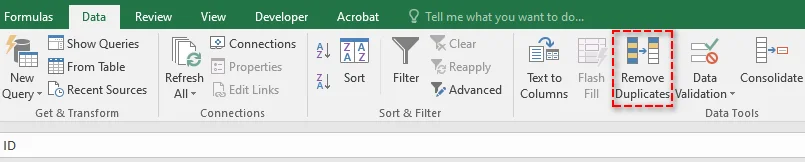
Vai alla scheda Dati sulla barra multifunzione e fai clic sul pulsante Rimuovi duplicati, che si trova nel gruppo Strumenti dati.
Passaggio 3: Scegli le tue colonne
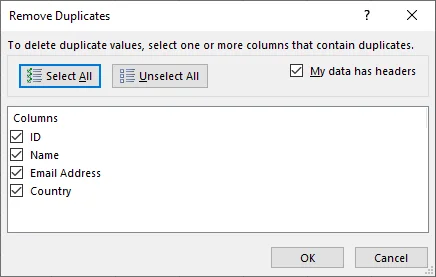
Dopo aver fatto clic sul pulsante Rimuovi duplicati, verrà visualizzata una finestra di dialogo:
- Se i dati hanno intestazioni, assicurati che la casella di controllo I miei dati hanno intestazioni sia selezionata. Ciò consente a Excel di trattare la prima riga come intestazioni, non come dati.
- Per impostazione predefinita, Excel seleziona tutte le colonne per il controllo dei duplicati. Se desideri trovare duplicati solo in colonne specifiche (ad es. "Indirizzo e-mail"), deseleziona le colonne che non ti servono.
Passaggio 4: Esegui e conferma
Fai clic su OK. Excel elaborerà i dati e visualizzerà un messaggio che mostra quanti valori duplicati sono stati trovati e rimossi e quanti valori univoci rimangono.

Potrebbe piacerti anche: Rimuovi la convalida dei dati in Excel: mantieni i dati, cancella le restrizioni
Rimuovi righe duplicate utilizzando il filtro avanzato
Il metodo Filtro avanzato fornisce un maggiore controllo sui dati. A differenza dello strumento Rimuovi duplicati, non elimina automaticamente i duplicati, ma estrae un elenco di record univoci in una nuova posizione. Questo approccio è ideale se si desidera rivedere l'elenco univoco prima di apportare modifiche ai dati originali.
Ideale per: quando si desidera mantenere intatti i dati originali e rivedere i risultati prima di apportare eliminazioni.
Istruzioni passo passo:
Passaggio 1: Seleziona i tuoi dati
Fai clic su una cella qualsiasi all'interno del tuo intervallo di dati.
Passaggio 2: Apri il filtro avanzato
Vai alla scheda Dati e fai clic sul pulsante Avanzate, che si trova nel gruppo Ordina e filtra.

Passaggio 3: Configura il filtro
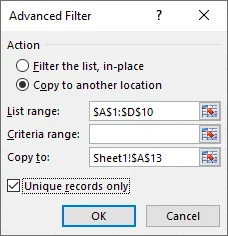
Nella finestra pop-up:
- Seleziona il pulsante Copia in un'altra posizione.
- L'intervallo Elenco dovrebbe essere già popolato con il tuo intervallo di dati.
- Lascia vuoto l'intervallo Criteri.
- Fai clic nella casella Copia in, quindi seleziona una cella in cui desideri copiare l'elenco univoco (ad es. $A$13).
- Fondamentalmente, seleziona la casella per "Solo record univoci".
Passaggio 4: Esegui e conferma
Fai clic su OK. Excel copierà tutte le righe univoche dal tuo intervallo di dati originale nella nuova posizione specificata. Ora puoi confrontare questo elenco univoco con i tuoi dati originali.
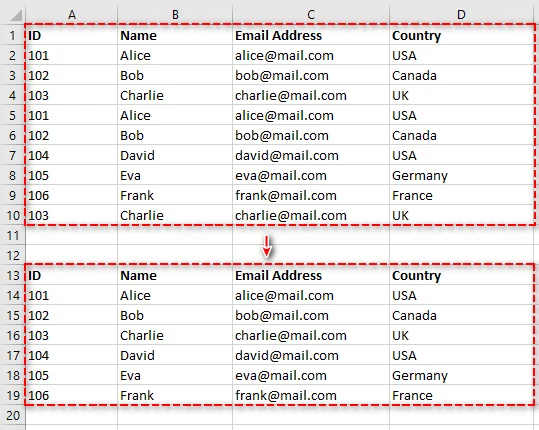
Trova e rimuovi duplicati in Excel utilizzando una colonna di supporto per la formattazione condizionale
Se preferisci non eliminare nulla immediatamente ma desideri invece identificare ed evidenziare i duplicati per la revisione manuale, questo metodo è perfetto. Ti consente di contrassegnare i duplicati con una formula, quindi filtrarli ed eliminarli secondo necessità.
Ideale per: rivedere attentamente e rimuovere manualmente i duplicati senza eliminarli definitivamente subito.
Istruzioni passo passo:
Passaggio 1: Aggiungi una colonna di supporto
Inserisci una nuova colonna a destra dei tuoi dati e assegnale un'intestazione descrittiva come "È duplicato?". Questa colonna verrà utilizzata per contrassegnare le voci duplicate per una facile identificazione.
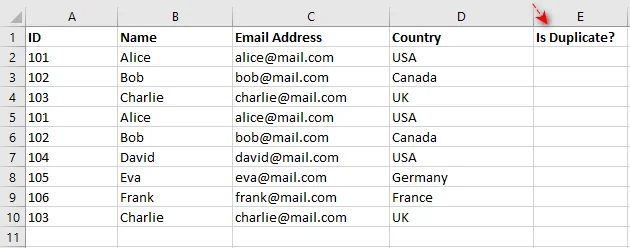
Passaggio 2: Inserisci la formula
Nella prima cella della nuova colonna, inserisci la seguente formula. Assicurati di regolare gli intervalli per adattarli ai tuoi dati:
=CONTA.PIÙ.SE($A$2:$A2; A2; $B$2:$B2; B2; $C$2:$C2; C2; $D$2:$D2; D2) > 1
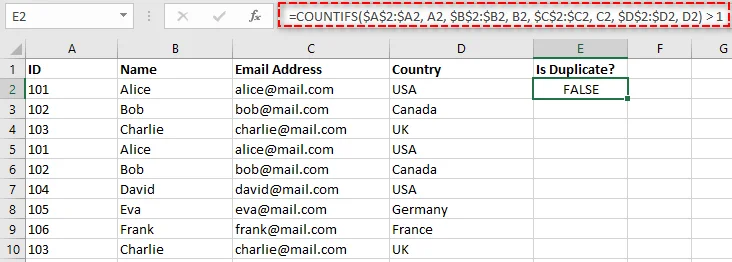
Questa è una formula di "conteggio progressivo" che controlla quante volte la combinazione di valori della riga corrente (dalle colonne A, B, C e D) è apparsa finora. Se il conteggio è maggiore di 1, restituirà VERO, indicando un duplicato.
Nota: un'alternativa più moderna è la funzione UNICI in Excel 365, ma questo metodo CONTA.PIÙ.SE funziona in tutte le versioni di Excel.
Passaggio 3: Copia la formula verso il basso
Per applicare la formula al resto delle righe, fai doppio clic sul quadratino di riempimento (il piccolo quadrato in basso a destra della cella). Questo copierà la formula lungo l'intera colonna, contrassegnando tutti i duplicati.

Passaggio 4: Filtra ed elimina
-
Applica un filtro ai tuoi dati selezionando la riga di intestazione e facendo clic su Dati > Filtro.
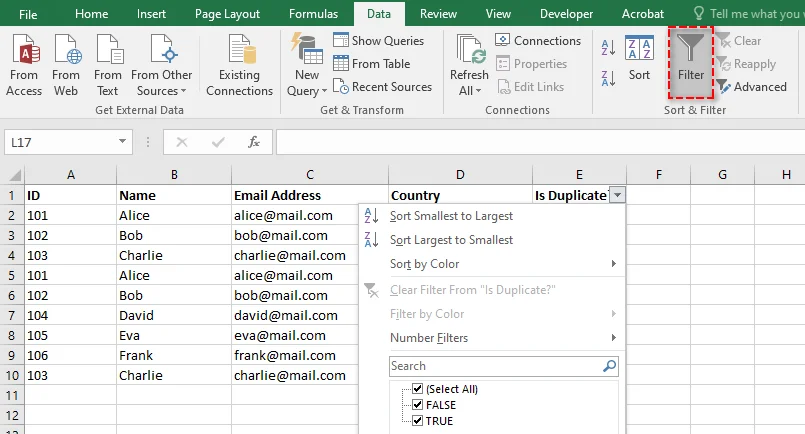
-
Filtra la colonna "È duplicato?" per mostrare solo i valori VERO. Questo visualizzerà tutte le righe duplicate (mantenendo la prima istanza).
-
Seleziona tutte le righe visibili, fai clic con il pulsante destro del mouse e scegli Elimina riga per rimuovere i duplicati.
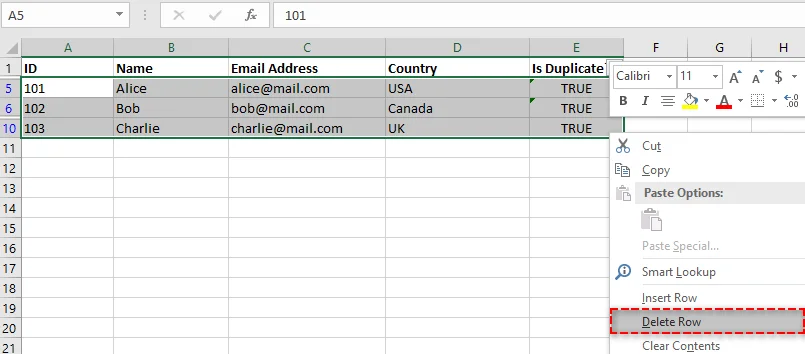
-
Cancella il filtro per visualizzare il tuo elenco di dati pulito e univoco.
Rimuovi dati duplicati in Excel utilizzando Power Query
Per coloro che lavorano regolarmente con i dati, Power Query (noto anche come Recupera e trasforma) è una svolta. È un processo non distruttivo e completamente reversibile, che consente di pulire i dati senza alterare permanentemente l'originale. Inoltre, Power Query può essere aggiornato con un solo clic se i dati di origine cambiano, rendendolo ideale per la gestione continua dei dati.
Ideale per: pulire i dati aggiornati regolarmente e creare un processo di pulizia dei dati ripetibile.
Istruzioni passo passo:
Passaggio 1: Carica i tuoi dati in Power Query
-
Seleziona il tuo intervallo di dati.
-
Vai alla scheda Dati e fai clic su Da tabella nel gruppo Recupera e trasforma.

-
Nella finestra di dialogo, assicurati che la casella La mia tabella ha intestazioni sia selezionata, quindi fai clic su OK. Si aprirà la finestra dell'Editor di Power Query, dove potrai pulire e trasformare i tuoi dati.
Passaggio 2: Rimuovi i duplicati
Nell'Editor di Power Query, puoi rimuovere i duplicati in base alle colonne selezionate:
-
Seleziona le colonne su cui basare il controllo dei duplicati. Tieni premuto Ctrl per selezionare più colonne.
-
Fai clic con il pulsante destro del mouse su una delle intestazioni di colonna selezionate e scegli Rimuovi duplicati dal menu di scelta rapida.
- Suggerimento: per rimuovere i duplicati in base all'intera riga, seleziona tutte le colonne prima di fare clic su Rimuovi duplicati.
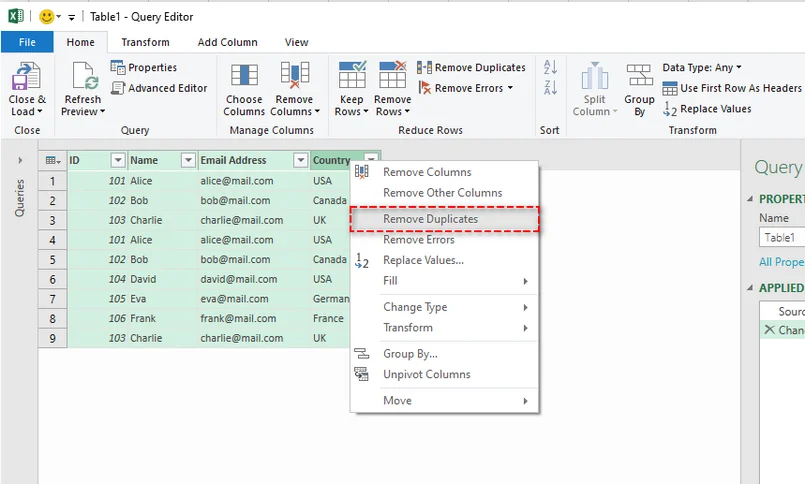
Passaggio 3: Chiudi e carica
Una volta rimossi i duplicati, fai clic su Chiudi e carica dalla scheda Home. Power Query creerà un nuovo foglio di lavoro con i tuoi dati puliti e privi di duplicati.
Elimina i duplicati con la funzione UNICI in Excel 365
Se hai Microsoft 365, hai accesso alle rivoluzionarie funzioni di matrice dinamica. La funzione UNICI è il modo più semplice per estrarre un elenco di valori univoci in Excel senza alterare i dati originali.
Ideale per: estrarre istantaneamente un elenco univoco che si aggiorna dinamicamente.
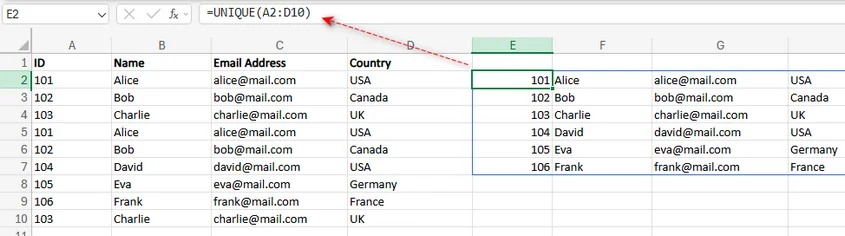
Istruzioni passo passo:
Passaggio 1: Seleziona una singola cella
Fai clic su una cella vuota in cui desideri che appaia l'elenco univoco. Questo sarà il punto di partenza in cui i valori univoci si "riverseranno".
Passaggio 2: Inserisci la formula UNICI
Nella cella selezionata, inserisci la seguente formula:
=UNICI(A2:D10)
Si presume che i dati si trovino nell'intervallo A2:D10. Modifica l'intervallo in base al tuo set di dati.
Passaggio 3: Premi Invio
Una volta inserita la formula, premi semplicemente Invio. Excel riverserà automaticamente l'intero elenco di righe univoche nelle celle sottostanti. Questo nuovo elenco è dinamico. Se modifichi i dati nell'intervallo originale, l'elenco univoco si aggiornerà automaticamente.
Per maggiori dettagli sulla funzione UNICI, consulta la documentazione ufficiale di Microsoft: funzione UNICI.
Automatizza la rimozione di righe duplicate in Excel utilizzando C#
Se lavori con file Excel di grandi dimensioni e devi automatizzare la rimozione di righe duplicate in Excel, l'utilizzo di C# con una libreria come Spire.XLS per .NET può semplificare il processo. Questo strumento ti consente di creare, leggere e manipolare file Excel a livello di codice, senza bisogno che Excel sia installato sul tuo sistema.
Con Spire.XLS, puoi rimuovere facilmente le righe duplicate dai file Excel utilizzando solo poche righe di codice C#, risparmiando tempo e migliorando il flusso di lavoro di gestione dei dati.
Ideale per: sviluppatori o chiunque desideri automatizzare la pulizia dei dati, in particolare per set di dati di grandi dimensioni.
Istruzioni passo passo:
Passaggio 1: Installa Spire.XLS tramite NuGet
Per iniziare, devi scaricare la libreria o installarla da NuGet eseguendo il seguente comando nella console di Gestione pacchetti NuGet:
PM> Install-Package Spire.XLS
Questo aggiungerà la libreria Spire.XLS al tuo progetto, consentendoti di manipolare i file Excel a livello di codice.
Passaggio 2: Utilizzare il metodo RemoveDuplicates
Nella tua applicazione C#, utilizza il metodo RemoveDuplicates fornito da Spire.XLS per automatizzare la rimozione di righe duplicate. Ecco un semplice frammento di codice per rimuovere le righe duplicate da Excel in C#:
using Spire.Xls;

namespace RemoveDuplicateRows
{
    internal class Program
    {
        static void Main(string[] args)
        {
            // Apri il file Excel
            Workbook workbook = new Workbook();
            workbook.LoadFromFile("input.xlsx");

            // Ottieni il foglio di lavoro desiderato
            Worksheet sheet = workbook.Worksheets[0];

            // Rimuovi i duplicati dall'intervallo di celle specificato (se desideri rimuovere tutti i duplicati nel foglio di lavoro, non impostare i parametri)
            sheet.RemoveDuplicates(2, 1, 10, 4);

            // Salva il file modificato
            workbook.SaveToFile("RemoveDuplicates.xlsx", ExcelVersion.Version2016);
            workbook.Dispose();
        }
    }
}
Questo codice rimuoverà le righe duplicate nell'intervallo di celle specificato e salverà la cartella di lavoro pulita in un nuovo file.

Quale metodo scegliere per rimuovere le righe duplicate in Excel?
Ora che hai familiarità con le varie tecniche per rimuovere le righe duplicate da Excel, è importante capire quale metodo si adatta meglio alle tue esigenze specifiche. La tabella seguente confronta ogni metodo in termini di caso d'uso ideale, vantaggi e potenziali svantaggi, aiutandoti a prendere una decisione informata in base alle tue esigenze.
| Metodo | Ideale per | Pro | Contro |
|---|---|---|---|
| Rimuovi duplicati | Pulizia rapida e una tantum. | Veloce, integrato, semplice. | Distruttivo (nessun annullamento). |
| Filtro avanzato | Revisione degli elenchi univoci prima dell'eliminazione. | Non distruttivo, dà controllo. | Leggermente più passaggi. |
| Colonna di supporto | Revisione manuale e criteri complessi. | Altamente flessibile, visivo. | Richiede la conoscenza delle formule. |
| Power Query | Ripetizione del processo su dati aggiornati. | Riutilizzabile, potente, non distruttivo. | Curva di apprendimento più ripida. |
| Funzione UNICI | Estrazione dinamica (Excel 365). | Formula istantanea, dinamica, semplice. | Non elimina i dati di origine. |
| Automazione C# | Automazione di attività ripetitive. | Completamente automatizzato, altamente personalizzabile, si integra con altri processi. | Richiede conoscenze di programmazione, complessità di configurazione. |
Procedure consigliate per la rimozione di duplicati in Excel
Sebbene la scelta del metodo giusto per rimuovere i duplicati sia fondamentale, seguire le procedure consigliate può migliorare ulteriormente l'accuratezza e l'efficienza del processo di pulizia dei dati. Ecco alcuni suggerimenti essenziali da tenere a mente quando si rimuovono dati duplicati dai file di Excel.
-
Esegui il backup dei tuoi dati
Crea sempre un backup dei tuoi dati prima di rimuovere i duplicati per evitare la perdita accidentale di informazioni importanti.
-
Fai attenzione ai duplicati nascosti
A volte i duplicati non sono immediatamente visibili a causa di spazi extra o della distinzione tra maiuscole e minuscole. Utilizza la funzione ANNULLA.SPAZI per rimuovere gli spazi indesiderati e normalizza le maiuscole con le funzioni MINUSC o MAIUSC.
-
Rimuovi duplicati da colonne specifiche
Se i duplicati sono rilevanti solo per determinate colonne (come gli indirizzi e-mail), seleziona solo quelle colonne quando rimuovi i duplicati anziché controllare l'intera riga.
-
Rivedi i dati prima di eliminarli
Se utilizzi metodi non distruttivi (come Filtro avanzato o Power Query), rivedi i risultati prima di eliminarli per assicurarti che non vadano persi dati preziosi.
-
Testa i metodi su un piccolo set di dati
Testa sempre il metodo scelto su un piccolo set di dati per assicurarti che funzioni come previsto prima di applicarlo all'intero set di dati.
Conclusione
Indipendentemente dalle dimensioni del tuo set di dati, la rimozione delle righe duplicate da Excel è un passaggio cruciale per mantenere dati puliti e accurati. Che tu stia utilizzando gli strumenti integrati di Excel, sfruttando Power Query for per la trasformazione avanzata dei dati, applicando la funzione dinamica UNICI in Excel 365 o automatizzando il processo con C# utilizzando Spire.XLS, questi metodi possono aiutarti a rimuovere in modo efficiente le righe duplicate da Excel e a ottimizzare la gestione dei dati.
Inizia a pulire i tuoi dati oggi stesso con queste potenti tecniche e porta la tua produttività di Excel a un livello superiore!
Domande frequenti: rimuovere le righe duplicate da Excel
D1. Qual è il modo più semplice per rimuovere le righe duplicate da Excel?
R1: Il modo più semplice per rimuovere le righe duplicate da Excel è utilizzare lo strumento integrato Rimuovi duplicati. Seleziona semplicemente il tuo intervallo di dati ed Excel rimuoverà i duplicati in pochi clic.
D2. Come posso rimuovere i duplicati senza modificare i dati originali?
R2: Utilizza Power Query o il filtro avanzato per estrarre record univoci in una nuova posizione, mantenendo intatti i dati originali.
D3. In che modo la funzione UNICI in Excel 365 aiuta a rimuovere i duplicati?
R3: La funzione UNICI in Excel 365 rimuove dinamicamente i duplicati estraendo valori univoci e si aggiorna automaticamente quando i dati cambiano.
D4. Posso automatizzare la rimozione dei duplicati in Excel utilizzando C#?
R4: Sì, puoi automatizzare il processo utilizzando Spire.XLS per .NET. Solo poche righe di codice C# possono aiutarti a rimuovere i duplicati a livello di codice, risparmiando tempo su set di dati di grandi dimensioni.
D5. Devo eseguire il backup dei miei dati prima di rimuovere i duplicati?
R5: Sì, esegui sempre il backup dei tuoi dati prima di rimuovere i duplicati, soprattutto quando utilizzi lo strumento Rimuovi duplicati per evitare perdite accidentali.
Vedi anche
Como remover linhas duplicadas do Excel – 6 maneiras fáceis
Remover linhas duplicadas do Excel pode ser uma tarefa desafiadora, especialmente ao lidar com grandes conjuntos de dados. Seja limpando uma lista de contatos, analisando dados de vendas ou organizando resultados de pesquisa, remover duplicatas é crucial para melhorar a qualidade dos dados e garantir uma análise precisa.
Neste guia, mostraremos 6 métodos simples para remover linhas duplicadas do Excel. Desde o uso da ferramenta interna do Excel, Remover Duplicatas, para correções rápidas, até o aproveitamento de técnicas avançadas como o Power Query e a automação com C#, você aprenderá como otimizar seu fluxo de trabalho e manter seus dados limpos e organizados.
O Que Você Aprenderá
- Por que Remover Linhas Duplicadas do Excel?
- Como Remover Linhas Duplicadas do Excel?
- Remover Linhas Duplicadas Usando a Ferramenta Remover Duplicatas
- Remover Linhas Duplicadas Usando o Filtro Avançado
- Encontrar e Remover Duplicatas no Excel Usando uma Coluna Auxiliar de Formatação Condicional
- Remover Dados Duplicados no Excel Usando o Power Query
- Eliminar Duplicatas com a Função UNIQUE no Excel 365
- Automatizar a Remoção de Linhas Duplicadas no Excel Usando C#
- Qual Método Você Deve Escolher para Remover Linhas Duplicadas no Excel
- Melhores Práticas para Remover Duplicatas no Excel
Por que Remover Linhas Duplicadas do Excel?
Antes de mergulharmos nos métodos, vamos primeiro discutir por que a remoção de linhas duplicadas do Excel é essencial:
- Precisão dos Dados: Garanta que cálculos, como somas e médias, sejam precisos e confiáveis.
- Relatórios Limpos: Gere tabelas dinâmicas, gráficos e painéis precisos sem o risco de contagem dupla.
- Profissionalismo: Entregue dados limpos e sem erros para sua equipe ou clientes, aumentando sua credibilidade.
- Eficiência: Reduza o tamanho do arquivo e melhore o desempenho da planilha para um carregamento e processamento mais rápidos.
Como Remover Linhas Duplicadas do Excel?
Quando se trata de remover linhas duplicadas no Excel, existem vários métodos que você pode usar, dependendo de suas necessidades específicas. Nesta seção, exploraremos 6 maneiras de limpar dados duplicados no Excel, cada uma adaptada para diferentes situações:
- Usando a ferramenta Remover Duplicatas
- Usando o Filtro Avançado
- Usando uma coluna auxiliar de Formatação Condicional
- Usando o Power Query
- Usando a função UNIQUE no Excel 365
- Automatizando o processo com C#
Vamos percorrer cada método para que você possa escolher facilmente a melhor opção para remover duplicatas do Excel de forma rápida e eficiente.
Remover Linhas Duplicadas Usando a Ferramenta Remover Duplicatas
O recurso Remover Duplicatas do Excel é a maneira mais rápida e simples de limpar seus dados. Esta ferramenta permite remover duplicatas com base em linhas inteiras ou colunas específicas.
Ideal para: Limpeza rápida e única de um conjunto de dados inteiro.
Instruções Passo a Passo:
Passo 1: Selecione Seus Dados
Clique em qualquer célula dentro do seu conjunto de dados. O Excel detectará e selecionará automaticamente todo o intervalo de dados contíguo. Se desejar remover duplicatas de um intervalo específico, selecione manualmente esse intervalo antes de prosseguir.
Passo 2: Navegue até a Ferramenta Remover Duplicatas
Vá para a guia Dados na faixa de opções e clique no botão Remover Duplicatas, que está localizado no grupo Ferramentas de Dados.
Passo 3: Escolha Suas Colunas
Após clicar no botão Remover Duplicatas, uma caixa de diálogo aparecerá:
- Se seus dados tiverem cabeçalhos, certifique-se de que a caixa de seleção Meus dados têm cabeçalhos esteja marcada. Isso permite que o Excel trate a primeira linha como cabeçalhos, não como dados.
- Por padrão, o Excel seleciona todas as colunas para verificação de duplicatas. Se você deseja encontrar duplicatas apenas em colunas específicas (por exemplo, "Endereço de E-mail"), desmarque as colunas que não precisa.
Passo 4: Execute e Confirme
Clique em OK. O Excel processará os dados e exibirá uma mensagem mostrando quantos valores duplicados foram encontrados e removidos, e quantos valores únicos permanecem.
Você também pode gostar: Remover Validação de Dados no Excel: Manter Dados, Limpar Restrições
Remover Linhas Duplicadas Usando o Filtro Avançado
O método de Filtro Avançado oferece mais controle sobre seus dados. Ao contrário da ferramenta Remover Duplicatas, ele não exclui duplicatas automaticamente, mas extrai uma lista de registros únicos para um novo local. Essa abordagem é ideal se você deseja revisar a lista única antes de fazer qualquer alteração nos dados originais.
Ideal para: Quando você deseja manter os dados originais intactos e revisar os resultados antes de fazer qualquer exclusão.
Instruções Passo a Passo:
Passo 1: Selecione Seus Dados
Clique em qualquer célula dentro do seu intervalo de dados.
Passo 2: Abra o Filtro Avançado
Vá para a guia Dados e clique no botão Avançado, que está localizado no grupo Classificar e Filtrar.
Passo 3: Configure o Filtro
Na janela pop-up:
- Selecione o botão Copiar para outro local.
- O Intervalo da lista já deve estar preenchido com o seu intervalo de dados.
- Deixe o Intervalo de critérios em branco.
- Clique na caixa Copiar para e, em seguida, selecione uma célula para onde deseja que a lista única seja copiada (por exemplo, $A$13).
- Crucialmente, marque a caixa para "Somente registros exclusivos".
Passo 4: Execute e Confirme
Clique em OK. O Excel copiará todas as linhas únicas do seu intervalo de dados original para o novo local que você especificou. Agora você pode comparar esta lista única com seus dados originais.
Encontrar e Remover Duplicatas no Excel Usando uma Coluna Auxiliar de Formatação Condicional
Se você prefere não excluir nada imediatamente, mas sim identificar e destacar duplicatas para revisão manual, este método é perfeito. Ele permite marcar duplicatas com uma fórmula e, em seguida, filtrar e excluí-las conforme necessário.
Ideal para: Revisar cuidadosamente e remover manualmente duplicatas sem exclusão permanente imediata.
Instruções Passo a Passo:
Passo 1: Adicione uma Coluna Auxiliar
Insira uma nova coluna à direita dos seus dados e dê a ela um cabeçalho descritivo como "É Duplicata?". Esta coluna será usada para marcar entradas duplicadas para fácil identificação.
Passo 2: Insira a Fórmula
Na primeira célula da nova coluna, insira a seguinte fórmula. Certifique-se de ajustar os intervalos para se adequarem aos seus dados:
=CONT.SES($A$2:$A2; A2; $B$2:$B2; B2; $C$2:$C2; C2; $D$2:$D2; D2) > 1
Esta é uma fórmula de "contagem contínua" que verifica quantas vezes a combinação de valores da linha atual (das colunas A, B, C e D) já apareceu. Se a contagem for maior que 1, ela retornará VERDADEIRO, indicando uma duplicata.
Nota: Uma alternativa mais moderna é a função UNIQUE no Excel 365, mas este método CONT.SES funciona em todas as versões do Excel.
Passo 3: Copie a Fórmula para Baixo
Para aplicar a fórmula ao restante das linhas, clique duas vezes na alça de preenchimento (o pequeno quadrado no canto inferior direito da célula). Isso copiará a fórmula por toda a coluna, marcando todas as duplicatas.
Passo 4: Filtre e Exclua
-
Aplique um filtro aos seus dados selecionando a linha do cabeçalho e clicando em Dados > Filtro.
-
Filtre a coluna "É Duplicata?" para mostrar apenas os valores VERDADEIRO. Isso exibirá todas as linhas duplicadas (mantendo a primeira ocorrência).
-
Selecione todas as linhas visíveis, clique com o botão direito e escolha Excluir Linha para remover as duplicatas.
-
Limpe o filtro para visualizar sua lista de dados limpa e única.
Remover Dados Duplicados no Excel Usando o Power Query
Para aqueles que trabalham com dados regularmente, o Power Query (também conhecido como Obter e Transformar) é um divisor de águas. É um processo não destrutivo e totalmente reversível, permitindo que você limpe os dados sem alterar permanentemente o original. Além disso, o Power Query pode ser atualizado com um único clique se os dados de origem mudarem, tornando-o ideal para o gerenciamento contínuo de dados.
Ideal para: Limpar dados atualizados regularmente e criar um processo de limpeza de dados repetível.
Instruções Passo a Passo:
Passo 1: Carregue Seus Dados no Power Query
-
Selecione seu intervalo de dados.
-
Vá para a guia Dados e clique em Da Tabela/Intervalo no grupo Obter e Transformar Dados.
-
Na caixa de diálogo, certifique-se de que a caixa Minha tabela tem cabeçalhos esteja marcada e clique em OK. Isso abrirá a janela do Editor do Power Query, onde você pode limpar e transformar seus dados.
Passo 2: Remova as Duplicatas
No Editor do Power Query, você pode remover duplicatas com base nas colunas selecionadas:
-
Selecione as colunas nas quais deseja basear a verificação de duplicatas. Segure Ctrl para selecionar várias colunas.
-
Clique com o botão direito em um dos cabeçalhos de coluna selecionados e escolha Remover Duplicatas no menu de contexto.
- Dica: Para remover duplicatas com base na linha inteira, selecione todas as colunas antes de clicar em Remover Duplicatas.
Passo 3: Fechar e Carregar
Depois que suas duplicatas forem removidas, clique em Fechar e Carregar na guia Página Inicial. O Power Query criará uma nova planilha com seus dados limpos e sem duplicatas.
Eliminar Duplicatas com a Função UNIQUE no Excel 365
Se você tem o Microsoft 365, tem acesso às revolucionárias funções de matriz dinâmica. A função UNIQUE é a maneira mais simples de extrair uma lista de valores únicos no Excel sem alterar os dados originais.
Ideal para: Extrair instantaneamente uma lista única que se atualiza dinamicamente.
Instruções Passo a Passo:
Passo 1: Selecione uma Única Célula
Clique em uma célula vazia onde você deseja que a lista única apareça. Este será o ponto de partida onde os valores únicos "se espalharão".
Passo 2: Insira a Fórmula UNIQUE
Na célula selecionada, insira a seguinte fórmula:
=UNIQUE(A2:D10)
Isso pressupõe que seus dados estão no intervalo A2:D10. Modifique o intervalo de acordo com seu conjunto de dados.
Passo 3: Pressione Enter
Depois de inserir a fórmula, simplesmente pressione Enter. O Excel irá automaticamente "derramar" a lista inteira de linhas únicas nas células abaixo. Esta nova lista é dinâmica. Se você alterar os dados em seu intervalo original, a lista única será atualizada automaticamente.
Para mais detalhes sobre a Função UNIQUE, consulte a documentação oficial da Microsoft: função UNIQUE.
Automatizar a Remoção de Linhas Duplicadas no Excel Usando C#
Se você está trabalhando com arquivos grandes do Excel e precisa automatizar a remoção de linhas duplicadas no Excel, usar C# com uma biblioteca como Spire.XLS for .NET pode simplificar o processo. Esta ferramenta permite que você crie, leia e manipule arquivos do Excel programaticamente, sem a necessidade do Excel instalado em seu sistema.
Com o Spire.XLS, você pode remover facilmente linhas duplicadas de arquivos do Excel usando apenas algumas linhas de código C#, economizando tempo e melhorando seu fluxo de trabalho de gerenciamento de dados.
Ideal para: Desenvolvedores ou qualquer pessoa que queira automatizar a limpeza de dados, especialmente para grandes conjuntos de dados.
Instruções Passo a Passo:
Passo 1: Instale o Spire.XLS via NuGet
Para começar, você precisa baixar a biblioteca ou instalá-la a partir do NuGet executando o seguinte comando no Console do Gerenciador de Pacotes NuGet:
PM> Install-Package Spire.XLS
Isso adicionará a biblioteca Spire.XLS ao seu projeto, permitindo que você manipule arquivos do Excel programaticamente.
Passo 2: Use o Método RemoveDuplicates
Em sua aplicação C#, use o método RemoveDuplicates fornecido pelo Spire.XLS para automatizar a remoção de linhas duplicadas. Aqui está um trecho de código simples para remover linhas duplicadas do Excel em C#:
using Spire.Xls;

namespace RemoveDuplicateRows
{
    internal class Program
    {
        static void Main(string[] args)
        {
            // Abra o arquivo Excel
            Workbook workbook = new Workbook();
            workbook.LoadFromFile("input.xlsx");

            // Obtenha a planilha desejada
            Worksheet sheet = workbook.Worksheets[0];

            // Remova duplicatas do intervalo de células especificado (se você quiser remover todas as duplicatas na planilha, não defina os parâmetros)
            sheet.RemoveDuplicates(2, 1, 10, 4);

            // Salve o arquivo modificado
            workbook.SaveToFile("RemoveDuplicates.xlsx", ExcelVersion.Version2016);
            workbook.Dispose();
        }
    }
}
Este código removerá linhas duplicadas no intervalo de células especificado e salvará a pasta de trabalho limpa em um novo arquivo.
Qual Método Você Deve Escolher para Remover Linhas Duplicadas no Excel?
Agora que você está familiarizado com várias técnicas para remover linhas duplicadas do Excel, é importante entender qual método melhor se adapta às suas necessidades específicas. A tabela a seguir compara cada método em termos de seu caso de uso ideal, vantagens e possíveis desvantagens, ajudando você a tomar uma decisão informada com base em seus requisitos.
| Método | Ideal Para | Prós | Contras |
|---|---|---|---|
| Remover Duplicatas | Limpeza rápida e única. | Rápido, integrado, simples. | Destrutivo (sem desfazer). |
| Filtro Avançado | Revisar listas únicas antes de excluir. | Não destrutivo, dá controle. | Um pouco mais de passos. |
| Coluna Auxiliar | Revisão manual e critérios complexos. | Altamente flexível, visual. | Requer conhecimento de fórmulas. |
| Power Query | Repetir o processo em dados atualizados. | Reutilizável, poderoso, não destrutivo. | Curva de aprendizado mais íngreme. |
| Função UNIQUE | Extração dinâmica (Excel 365). | Instantâneo, dinâmico, fórmula simples. | Não exclui os dados de origem. |
| Automação com C# | Automatizar tarefas repetitivas. | Totalmente automatizado, altamente personalizável, integra-se com outros processos. | Requer conhecimento de programação, complexidade na configuração. |
Melhores Práticas para Remover Duplicatas no Excel
Embora escolher o método certo para remover duplicatas seja crucial, seguir as melhores práticas pode aprimorar ainda mais a precisão e a eficiência do seu processo de limpeza de dados. Aqui estão algumas dicas essenciais a serem lembradas ao remover dados duplicados de seus arquivos do Excel.
-
Faça Backup dos Seus Dados
Sempre crie um backup dos seus dados antes de remover duplicatas para evitar a perda acidental de informações importantes.
-
Esteja Ciente de Duplicatas Ocultas
Às vezes, as duplicatas não são imediatamente visíveis devido a espaços extras ou sensibilidade a maiúsculas e minúsculas. Use a função ARRUMAR para remover espaços indesejados e normalize o texto com as funções MINÚSCULA ou MAIÚSCULA.
-
Remova Duplicatas de Colunas Específicas
Se as duplicatas forem relevantes apenas para certas colunas (como endereços de e-mail), selecione apenas essas colunas ao remover duplicatas, em vez de verificar a linha inteira.
-
Revise os Dados Antes de Excluir
Se você estiver usando métodos não destrutivos (como Filtro Avançado ou Power Query), revise os resultados antes de excluir para garantir que nenhum dado valioso seja perdido.
-
Teste os Métodos em um Pequeno Conjunto de Dados
Sempre teste o método escolhido em um pequeno conjunto de dados para garantir que ele funcione como esperado antes de aplicá-lo a todo o conjunto de dados.
Conclusão
Não importa o tamanho do seu conjunto de dados, remover linhas duplicadas do Excel é um passo crucial para manter dados limpos e precisos. Seja usando as ferramentas integradas do Excel, aproveitando o Power Query para transformação avançada de dados, aplicando a função dinâmica UNIQUE no Excel 365 ou automatizando o processo com C# usando o Spire.XLS, esses métodos podem ajudá-lo a remover eficientemente linhas duplicadas do Excel e otimizar seu gerenciamento de dados.
Comece a limpar seus dados hoje com essas técnicas poderosas e leve sua produtividade no Excel para o próximo nível!
FAQs: Remover Linhas Duplicadas do Excel
P1. Qual é a maneira mais fácil de remover linhas duplicadas do Excel?
R1: A maneira mais fácil de remover linhas duplicadas do Excel é usando a ferramenta integrada Remover Duplicatas. Basta selecionar seu intervalo de dados e o Excel removerá as duplicatas em poucos cliques.
P2. Como posso remover duplicatas sem alterar os dados originais?
R2: Use o Power Query ou o Filtro Avançado para extrair registros únicos para um novo local, mantendo os dados originais intactos.
P3. Como a função UNIQUE no Excel 365 ajuda a remover duplicatas?
R3: A função UNIQUE no Excel 365 remove duplicatas dinamicamente, extraindo valores únicos, e se atualiza automaticamente quando os dados mudam.
P4. Posso automatizar a remoção de duplicatas no Excel usando C#?
R4: Sim, você pode automatizar o processo usando o Spire.XLS for .NET. Apenas algumas linhas de código C# podem ajudá-lo a remover duplicatas programaticamente, economizando tempo em grandes conjuntos de dados.
P5. Devo fazer backup dos meus dados antes de remover duplicatas?
R5: Sim, sempre faça backup dos seus dados antes de remover duplicatas, especialmente ao usar a ferramenta Remover Duplicatas, para evitar perdas acidentais.
Veja Também
Excel에서 중복 행을 제거하는 6가지 쉬운 방법
Excel에서 중복 행을 제거하는 것은 특히 대용량 데이터 세트를 다룰 때 어려운 작업이 될 수 있습니다. 연락처 목록을 정리하든, 판매 데이터를 분석하든, 연구 결과를 정리하든, 중복을 제거하는 것은 데이터 품질을 개선하고 정확한 분석을 보장하는 데 중요합니다.
이 가이드에서는 Excel에서 중복 행을 제거하는 6가지 간단한 방법을 보여드립니다. 빠른 수정을 위한 Excel의 기본 제공 중복 제거 도구 사용부터 파워 쿼리 및 C# 자동화와 같은 고급 기술 활용에 이르기까지 워크플로를 간소화하고 데이터를 깨끗하고 체계적으로 유지하는 방법을 배우게 됩니다.
학습 내용
- Excel에서 중복 행을 제거해야 하는 이유
- Excel에서 중복 행을 제거하는 방법
- Excel에서 중복 행을 제거하기 위해 어떤 방법을 선택해야 할까요?
- Excel에서 중복을 제거하기 위한 모범 사례
Excel에서 중복 행을 제거해야 하는 이유
방법에 대해 알아보기 전에 먼저 Excel에서 중복 행을 제거하는 것이 왜 필수적인지 논의해 보겠습니다.
- 데이터 정확성: 합계 및 평균과 같은 계산이 정확하고 신뢰할 수 있도록 보장합니다.
- 깨끗한 보고: 이중 계산의 위험 없이 정확한 피벗 테이블, 차트 및 대시보드를 생성합니다.
- 전문성: 팀이나 고객에게 깨끗하고 오류 없는 데이터를 제공하여 신뢰도를 높입니다.
- 효율성: 파일 크기를 줄이고 스프레드시트 성능을 개선하여 더 빠른 로딩 및 처리를 지원합니다.
Excel에서 중복 행을 제거하는 방법
Excel에서 중복 행을 제거하는 데에는 특정 요구에 따라 사용할 수 있는 여러 가지 방법이 있습니다. 이 섹션에서는 각기 다른 상황에 맞춰진 Excel에서 중복 데이터를 정리하는 6가지 방법을 살펴보겠습니다.
- 중복 제거 도구 사용
- 고급 필터 사용
- 조건부 서식 도우미 열 사용
- 파워 쿼리 사용
- Excel 365의 UNIQUE 함수 사용
- C#으로 프로세스 자동화
각 방법을 단계별로 살펴보고 Excel에서 중복을 빠르고 효율적으로 제거하기 위한 최상의 옵션을 쉽게 선택할 수 있도록 하겠습니다.
중복 제거 도구를 사용하여 중복 행 제거
Excel의 중복 제거 기능은 데이터를 정리하는 가장 빠르고 간단한 방법입니다. 이 도구를 사용하면 전체 행 또는 특정 열을 기준으로 중복을 제거할 수 있습니다.
적합한 경우: 전체 데이터 세트의 빠른 일회성 정리.
단계별 지침:
1단계: 데이터 선택
데이터 세트 내의 아무 셀이나 클릭하십시오. Excel이 자동으로 전체 연속 데이터 범위를 감지하고 선택합니다. 특정 범위에서 중복을 제거하려면 진행하기 전에 해당 범위를 수동으로 선택하십시오.
2단계: 중복 제거 도구로 이동
리본의 데이터 탭으로 이동하여 데이터 도구 그룹에 있는 중복 제거 버튼을 클릭합니다.
3단계: 열 선택
중복 제거 버튼을 클릭하면 대화 상자가 나타납니다.
- 데이터에 머리글이 있는 경우 내 데이터에 머리글 있음 확인란이 선택되어 있는지 확인하십시오. 이렇게 하면 Excel이 첫 번째 행을 데이터가 아닌 머리글로 처리할 수 있습니다.
- 기본적으로 Excel은 중복 검사를 위해 모든 열을 선택합니다. 특정 열(예: "이메일 주소")에서만 중복을 찾으려면 필요 없는 열의 선택을 취소하십시오.
4단계: 실행 및 확인
확인을 클릭합니다. Excel이 데이터를 처리하고 몇 개의 중복 값이 발견 및 제거되었는지, 그리고 몇 개의 고유 값이 남았는지 보여주는 메시지를 표시합니다.
관심 있을 만한 글: Excel에서 데이터 유효성 검사 제거: 데이터 유지, 제한 해제
고급 필터를 사용하여 중복 행 제거
고급 필터 방법은 데이터에 대한 더 많은 제어를 제공합니다. 중복 제거 도구와 달리 중복을 자동으로 삭제하는 대신 고유한 레코드 목록을 새 위치로 추출합니다. 이 접근 방식은 원본 데이터를 변경하기 전에 고유 목록을 검토하려는 경우에 이상적입니다.
적합한 경우: 원본 데이터를 그대로 유지하고 삭제하기 전에 결과를 검토하고 싶을 때.
단계별 지침:
1단계: 데이터 선택
데이터 범위 내의 아무 셀이나 클릭하십시오.
2단계: 고급 필터 열기
데이터 탭으로 이동하여 정렬 및 필터 그룹에 있는 고급 버튼을 클릭합니다.
3단계: 필터 구성
팝업 창에서:
- 다른 위치에 복사 버튼을 선택합니다.
- 목록 범위는 이미 데이터 범위로 채워져 있어야 합니다.
- 조건 범위는 비워 둡니다.
- 복사 위치 상자를 클릭한 다음 고유 목록을 복사할 셀(예: $A$13)을 선택합니다.
- 중요하게, "고유한 레코드만" 확인란을 선택합니다.
4단계: 실행 및 확인
확인을 클릭합니다. Excel이 원본 데이터 범위의 모든 고유 행을 지정한 새 위치로 복사합니다. 이제 이 고유 목록을 원본 데이터와 비교할 수 있습니다.
조건부 서식 도우미 열을 사용하여 Excel에서 중복 찾기 및 제거
즉시 아무것도 삭제하지 않고 수동 검토를 위해 중복을 식별하고 강조 표시하려는 경우 이 방법이 완벽합니다. 수식으로 중복을 표시한 다음 필요에 따라 필터링하고 삭제할 수 있습니다.
적합한 경우: 즉시 영구적으로 삭제하지 않고 중복을 신중하게 검토하고 수동으로 제거하는 경우.
단계별 지침:
1단계: 도우미 열 추가
데이터 오른쪽에 새 열을 삽입하고 "중복 여부?"와 같은 설명적인 머리글을 지정합니다. 이 열은 쉬운 식별을 위해 중복 항목을 표시하는 데 사용됩니다.
2단계: 수식 입력
새 열의 첫 번째 셀에 다음 수식을 입력합니다. 데이터에 맞게 범위를 조정해야 합니다.
=COUNTIFS($A$2:$A2, A2, $B$2:$B2, B2, $C$2:$C2, C2, $D$2:$D2, D2) > 1
이것은 현재 행의 값 조합(A, B, C 및 D 열에서)이 지금까지 몇 번 나타났는지 확인하는 "누적 개수" 수식입니다. 개수가 1보다 크면 TRUE를 반환하여 중복임을 나타냅니다.
참고: 더 현대적인 대안은 Excel 365의 UNIQUE 함수이지만, 이 COUNTIFS 방법은 모든 버전의 Excel에서 작동합니다.
3단계: 수식을 아래로 복사
수식을 나머지 행에 적용하려면 채우기 핸들(셀의 오른쪽 하단에 있는 작은 사각형)을 두 번 클릭합니다. 이렇게 하면 수식이 전체 열에 복사되어 모든 중복이 표시됩니다.
4단계: 필터링 및 삭제
-
머리글 행을 선택하고 데이터 > 필터를 클릭하여 데이터에 필터를 적용합니다.
-
"중복 여부?" 열을 필터링하여 TRUE 값만 표시합니다. 이렇게 하면 모든 중복 행이 표시됩니다(첫 번째 인스턴스는 유지).
-
표시되는 모든 행을 선택하고 마우스 오른쪽 버튼을 클릭한 다음 행 삭제를 선택하여 중복을 제거합니다.
-
필터를 지워 깨끗하고 고유한 데이터 목록을 봅니다.
파워 쿼리를 사용하여 Excel에서 중복 데이터 제거
정기적으로 데이터를 다루는 사람들에게 파워 쿼리(Get & Transform이라고도 함)는 게임 체인저입니다. 원본을 영구적으로 변경하지 않고 데이터를 정리할 수 있는 비파괴적이고 완전히 되돌릴 수 있는 프로세스입니다. 또한 소스 데이터가 변경되면 한 번의 클릭으로 파워 쿼리를 새로 고칠 수 있어 지속적인 데이터 관리에 이상적입니다.
적합한 경우: 정기적으로 업데이트되는 데이터를 정리하고 반복 가능한 데이터 정리 프로세스를 만드는 경우.
단계별 지침:
1단계: 파워 쿼리로 데이터 로드
-
데이터 범위를 선택합니다.
-
데이터 탭으로 이동하여 Get & Transform 그룹에서 테이블에서를 클릭합니다.
-
대화 상자에서 내 테이블에 머리글 있음 상자가 선택되어 있는지 확인한 다음 확인을 클릭합니다. 이렇게 하면 데이터를 정리하고 변환할 수 있는 파워 쿼리 편집기 창이 열립니다.
2단계: 중복 제거
파워 쿼리 편집기에서 선택한 열을 기준으로 중복을 제거할 수 있습니다.
-
중복 검사의 기준이 될 열을 선택합니다. 여러 열을 선택하려면 Ctrl 키를 누릅니다.
-
선택한 열 머리글 중 하나를 마우스 오른쪽 버튼으로 클릭하고 상황에 맞는 메뉴에서 중복 제거를 선택합니다.
- 팁: 전체 행을 기준으로 중복을 제거하려면 중복 제거를 클릭하기 전에 모든 열을 선택하십시오.
3단계: 닫기 및 로드
중복이 제거되면 홈 탭에서 닫기 및 로드를 클릭합니다. 파워 쿼리가 정리되고 중복 없는 데이터가 포함된 새 워크시트를 만듭니다.
Excel 365의 UNIQUE 함수로 중복 제거
Microsoft 365가 있는 경우 혁신적인 동적 배열 함수에 액세스할 수 있습니다. UNIQUE 함수는 원본 데이터를 변경하지 않고 Excel에서 고유한 값 목록을 추출하는 가장 간단한 방법입니다.
적합한 경우: 동적으로 업데이트되는 고유 목록을 즉시 추출하는 경우.
단계별 지침:
1단계: 단일 셀 선택
고유 목록이 나타날 빈 셀을 클릭합니다. 이것은 고유 값이 "넘쳐" 들어갈 시작점이 됩니다.
2단계: UNIQUE 수식 입력
선택한 셀에 다음 수식을 입력합니다.
=UNIQUE(A2:D10)
이것은 데이터가 A2:D10 범위에 있다고 가정합니다. 데이터 세트에 따라 범위를 수정하십시오.
3단계: Enter 키 누르기
수식을 입력했으면 Enter 키를 누르기만 하면 됩니다. Excel이 자동으로 고유한 행의 전체 목록을 아래 셀로 넘쳐 흐르게 합니다. 이 새 목록은 동적입니다. 원본 범위의 데이터를 변경하면 고유 목록이 자동으로 업데이트됩니다.
UNIQUE 함수에 대한 자세한 내용은 공식 Microsoft 설명서를 참조하십시오: UNIQUE 함수.
C#을 사용하여 Excel에서 중복 행 제거 자동화
대용량 Excel 파일로 작업하고 Excel에서 중복 행 제거를 자동화해야 하는 경우 Spire.XLS for .NET과 같은 라이브러리와 함께 C#을 사용하면 프로세스를 단순화할 수 있습니다. 이 도구를 사용하면 시스템에 Excel을 설치할 필요 없이 프로그래밍 방식으로 Excel 파일을 생성, 읽기 및 조작할 수 있습니다.
Spire.XLS를 사용하면 단 몇 줄의 C# 코드로 Excel 파일에서 중복 행을 쉽게 제거하여 시간을 절약하고 데이터 관리 워크플로를 개선할 수 있습니다.
적합한 경우: 특히 대용량 데이터 세트에 대해 데이터 정리를 자동화하려는 개발자 또는 모든 사람.
단계별 지침:
1단계: NuGet을 통해 Spire.XLS 설치
시작하려면 라이브러리를 다운로드하거나 NuGet 패키지 관리자 콘솔에서 다음 명령을 실행하여 NuGet에서 설치해야 합니다.
PM> Install-Package Spire.XLS
이렇게 하면 프로젝트에 Spire.XLS 라이브러리가 추가되어 프로그래밍 방식으로 Excel 파일을 조작할 수 있습니다.
2단계: RemoveDuplicates 메서드 사용
C# 애플리케이션에서 Spire.XLS에서 제공하는 RemoveDuplicates 메서드를 사용하여 중복 행 제거를 자동화합니다. 다음은 C#에서 Excel의 중복 행을 제거하는 간단한 코드 조각입니다.
using Spire.Xls;

namespace RemoveDuplicateRows
{
    internal class Program
    {
        static void Main(string[] args)
        {
            // Open the Excel file
            Workbook workbook = new Workbook();
            workbook.LoadFromFile("input.xlsx");

            // Get the desired worksheet
            Worksheet sheet = workbook.Worksheets[0];

            // Remove duplicates from the specified cell range (if you want to remove all duplicates in the worksheet, do not set the parameters)
            sheet.RemoveDuplicates(2, 1, 10, 4);

            // Save the modified file
            workbook.SaveToFile("RemoveDuplicates.xlsx", ExcelVersion.Version2016);
            workbook.Dispose();
        }
    }
}
이 코드는 지정된 셀 범위에서 중복 행을 제거하고 정리된 통합 문서를 새 파일에 저장합니다.
Excel에서 중복 행을 제거하기 위해 어떤 방법을 선택해야 할까요?
이제 Excel에서 중복 행을 제거하는 다양한 기술에 익숙해졌으므로 특정 요구에 가장 적합한 방법을 이해하는 것이 중요합니다. 다음 표는 각 방법의 이상적인 사용 사례, 장점 및 잠재적인 단점 측면에서 비교하여 요구 사항에 따라 정보에 입각한 결정을 내리는 데 도움이 됩니다.
| 방법 | 적합한 경우 | 장점 | 단점 |
|---|---|---|---|
| 중복 제거 | 빠른 일회성 정리. | 빠르고, 내장되어 있으며, 간단함. | 파괴적(실행 취소 없음). |
| 고급 필터 | 삭제하기 전에 고유 목록 검토. | 비파괴적, 제어 가능. | 약간 더 많은 단계. |
| 도우미 열 | 수동 검토 및 복잡한 기준. | 매우 유연하고 시각적임. | 수식 지식 필요. |
| 파워 쿼리 | 업데이트된 데이터에 대해 프로세스 반복. | 재사용 가능, 강력함, 비파괴적. | 가파른 학습 곡선. |
| UNIQUE 함수 | 동적 추출(Excel 365). | 즉각적, 동적, 간단한 수식. | 소스 데이터를 삭제하지 않음. |
| C# 자동화 | 반복 작업 자동화. | 완전 자동화, 고도로 사용자 정의 가능, 다른 프로세스와 통합. | 프로그래밍 지식, 설정 복잡성 필요. |
Excel에서 중복을 제거하기 위한 모범 사례
중복을 제거하는 올바른 방법을 선택하는 것이 중요하지만, 모범 사례를 따르면 데이터 정리 프로세스의 정확성과 효율성을 더욱 향상시킬 수 있습니다. Excel 파일에서 중복 데이터를 제거할 때 명심해야 할 몇 가지 필수 팁은 다음과 같습니다.
-
데이터 백업
중요한 정보의 우발적인 손실을 방지하기 위해 중복을 제거하기 전에 항상 데이터 백업을 만드십시오.
-
숨겨진 중복에 유의
때로는 추가 공백이나 대소문자 구분으로 인해 중복이 즉시 보이지 않을 수 있습니다. TRIM 함수를 사용하여 원치 않는 공백을 제거하고 LOWER 또는 UPPER 함수로 대소문자를 정규화하십시오.
-
특정 열에서 중복 제거
중복이 특정 열(예: 이메일 주소)에만 관련된 경우 전체 행을 확인하는 대신 중복을 제거할 때 해당 열만 선택하십시오.
-
삭제하기 전에 데이터 검토
비파괴적인 방법(예: 고급 필터 또는 파워 쿼리)을 사용하는 경우 삭제하기 전에 결과를 검토하여 귀중한 데이터가 손실되지 않도록 하십시오.
-
작은 데이터 세트에서 방법 테스트
전체 데이터 세트에 적용하기 전에 선택한 방법이 예상대로 작동하는지 확인하기 위해 항상 작은 데이터 세트에서 테스트하십시오.
결론
데이터 세트의 크기에 관계없이 Excel에서 중복 행을 제거하는 것은 깨끗하고 정확한 데이터를 유지하는 데 중요한 단계입니다. Excel의 기본 제공 도구를 사용하든, 고급 데이터 변환을 위해 파워 쿼리를 활용하든, Excel 365에서 동적 UNIQUE 함수를 적용하든, Spire.XLS를 사용하여 C#으로 프로세스를 자동화하든, 이러한 방법은 Excel에서 중복 행을 효율적으로 제거하고 데이터 관리를 최적화하는 데 도움이 될 수 있습니다.
오늘 이 강력한 기술로 데이터 정리를 시작하고 Excel 생산성을 한 단계 끌어올리십시오!
자주 묻는 질문: Excel에서 중복 행 제거
Q1. Excel에서 중복 행을 제거하는 가장 쉬운 방법은 무엇입니까?
A1: Excel에서 중복 행을 제거하는 가장 쉬운 방법은 기본 제공 중복 제거 도구를 사용하는 것입니다. 데이터 범위를 선택하기만 하면 Excel이 몇 번의 클릭으로 중복을 제거합니다.
Q2. 원본 데이터를 변경하지 않고 중복을 제거하려면 어떻게 해야 합니까?
A2: 파워 쿼리 또는 고급 필터를 사용하여 고유한 레코드를 새 위치로 추출하여 원본 데이터를 그대로 유지합니다.
Q3. Excel 365의 UNIQUE 함수는 중복 제거에 어떻게 도움이 됩니까?
A3: Excel 365의 UNIQUE 함수는 고유한 값을 추출하여 동적으로 중복을 제거하며 데이터가 변경되면 자동으로 업데이트됩니다.
Q4. C#을 사용하여 Excel에서 중복 제거를 자동화할 수 있습니까?
A4: 예, Spire.XLS for .NET을 사용하여 프로세스를 자동화할 수 있습니다. 단 몇 줄의 C# 코드로 프로그래밍 방식으로 중복을 제거하여 대용량 데이터 세트에서 시간을 절약할 수 있습니다.
Q5. 중복을 제거하기 전에 데이터를 백업해야 합니까?
A5: 예, 특히 우발적인 손실을 방지하기 위해 중복 제거 도구를 사용할 때는 중복을 제거하기 전에 항상 데이터를 백업하십시오.