Преобразование PPT или PPTX в изображения с помощью Python и онлайн-инструментов
Оглавление
- Почему стоит преобразовывать слайды PowerPoint в изображения
- Установка библиотеки для преобразования PPT в изображения для Python
- Преобразование PPT в PNG, JPG, BMP (растровые изображения) на Python
- Преобразование PPT в SVG (масштабируемая векторная графика) на Python
- Экспорт фигур в виде изображений на Python
- Бесплатное онлайн-преобразование PowerPoint в изображения (без кода)
- Заключение
- Часто задаваемые вопросы
Установка с помощью pip
pip install spire.presentation.free
Похожие ссылки
PowerPoint — популярный формат для создания и проведения презентаций. Однако это не всегда лучший выбор, когда вы хотите поделиться слайдами на веб-сайтах, в мобильных приложениях или в печатных документах. Преобразование слайдов PowerPoint в стандартные форматы изображений, такие как JPG, PNG, BMP и SVG, упрощает их интеграцию, распространение и архивирование.
В этой статье представлено исчерпывающее руководство о том, как преобразовывать PowerPoint PPT или PPTX в изображения (JPG, PNG, BMP, SVG) с использованием кода на Python и бесплатных онлайн-инструментов для конвертации.
Оглавление
- Почему стоит преобразовывать слайды PowerPoint в изображения
- Установка библиотеки для преобразования PPT в изображения для Python
- Преобразование PPT в PNG, JPG, BMP (растровые изображения) на Python
- Преобразование PPT в SVG (масштабируемая векторная графика) на Python
- Экспорт фигур в виде изображений на Python
- Бесплатное онлайн-преобразование PowerPoint в изображения (без кода)
- Заключение
- Часто задаваемые вопросы
Почему стоит преобразовывать слайды PowerPoint в изображения?
Преобразование слайдов в изображения дает несколько преимуществ как для технических, так и для общих случаев использования:
- Универсальная совместимость: Изображения можно просматривать на любом устройстве без установленного PowerPoint.
- Простое встраивание: Идеально подходит для веб-сайтов, мобильных приложений, социальных сетей и документации.
- Защита контента: Предотвращает несанкционированное редактирование путем распространения нередактируемого контента.
- Лучше для печати: Вывод изображений с высоким разрешением улучшает качество печати.
- Архивирование и резервное копирование: Хранение слайдов в виде изображений обеспечивает долгосрочную доступность.
Установка библиотеки для преобразования PPT в изображения для Python
Для преобразования PowerPoint в форматы изображений на Python установите Free Spire.Presentation for Python, бесплатную и многофункциональную библиотеку для обработки презентаций, которая поддерживает высококачественный экспорт как в растровые, так и в векторные форматы изображений.
Установка
Перед началом установите библиотеку с помощью следующей команды pip:
pip install spire.presentation.free
После установки вы можете импортировать ее в свой проект и начать преобразовывать слайды всего несколькими строками кода.
Преобразование PPT в PNG, JPG, BMP (растровые изображения) на Python
Растровые изображения, такие как PNG, JPG и BMP, состоят из пикселей, что делает их подходящими для цифрового обмена и печати. Free Spire.Presentation предлагает два метода экспорта слайдов в виде растровых изображений: сохранение исходного размера или указание пользовательских размеров.
Сохранение слайдов в изображения исходного размера
Этот пример демонстрирует, как преобразовать каждый слайд в презентации PowerPoint в изображение PNG с сохранением исходных размеров.
- Python
from FreeSpire.Presentation import *

# Загрузка презентации PowerPoint
ppt = Presentation()
ppt.LoadFromFile("Sample.pptx")

# Цикл по каждому слайду и экспорт его в виде изображения PNG исходного размера
# При необходимости вы можете изменить расширение изображения на .jpg или .bmp
for i in range(ppt.Slides.Count):
    image = ppt.Slides[i].SaveAsImage()
    image.Save(f"RasterImages/ToImage_{i}.png")

ppt.Dispose()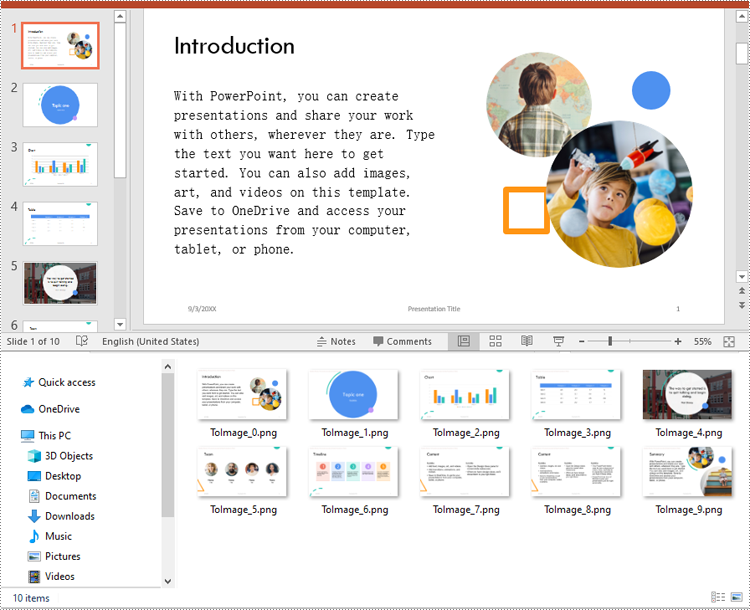
Настройка размера выходного изображения
В некоторых случаях, например, при создании миниатюр для предварительного просмотра или подготовке экспорта с высоким разрешением для печати, может потребоваться настроить ширину и высоту выходного изображения. Вот как это сделать:
- Python
from FreeSpire.Presentation import *

# Загрузка презентации PowerPoint
ppt = Presentation()
ppt.LoadFromFile("Sample.pptx")

# Цикл по каждому слайду и экспорт его в виде изображения PNG с пользовательскими размерами 700 x 400
for i in range(ppt.Slides.Count):
    image = ppt.Slides[i].SaveAsImageByWH(700, 400)
    image.Save(f"RasterImages/ToImage_{i}.png")

ppt.Dispose()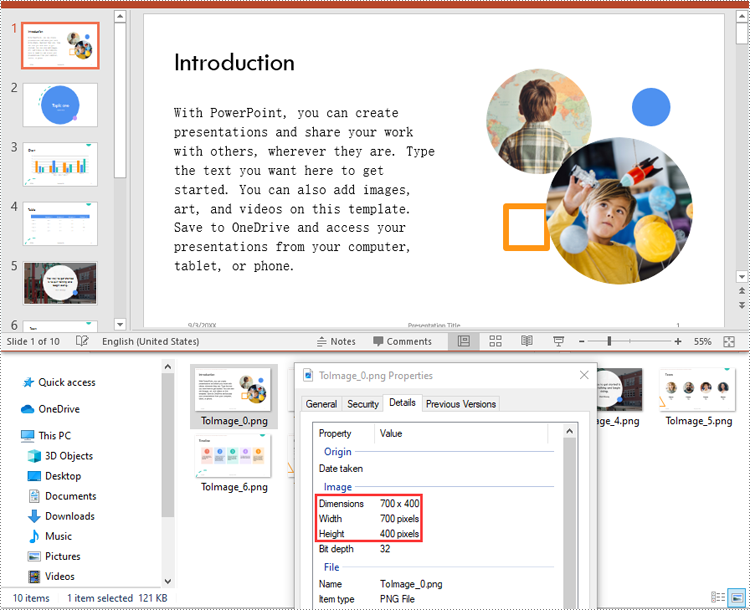
Преобразование PowerPoint в SVG (масштабируемая векторная графика) на Python
В отличие от растровых изображений, SVG (масштабируемая векторная графика) сохраняет бесконечную масштабируемость и четкость, что делает его идеальным форматом для адаптивного дизайна, технических диаграмм и печати любого размера.
Сохранение слайдов в формате SVG
Приведенный ниже код демонстрирует, как преобразовать каждый слайд в отдельный SVG-файл. Выходные файлы будут содержать масштабируемые векторные представления содержимого слайда, включая текст, фигуры, изображения и многое другое.
- Python
from FreeSpire.Presentation import *

# Загрузка презентации PowerPoint
ppt = Presentation()
ppt.LoadFromFile("Sample.pptx")

# Цикл по каждому слайду и экспорт его в виде изображения SVG
for i in range(ppt.Slides.Count):
    image = ppt.Slides[i].SaveToSVG()
    image.Save(f"VectorImages/ToSVG_{i}.svg")

ppt.Dispose()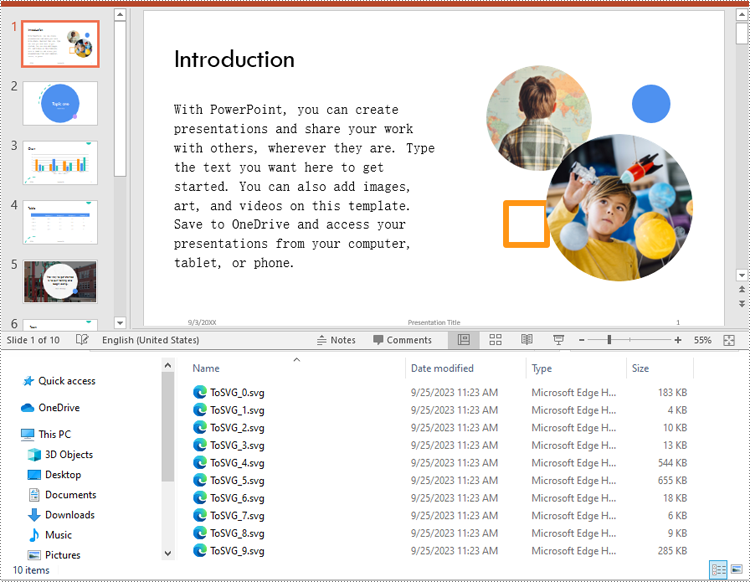
Включение заметок докладчика в вывод SVG
Некоторые презентации включают заметки докладчика, которые предоставляют контекст или инструкции во время выступления. Если эти заметки имеют отношение к вашему экспорту изображений, вы можете настроить вывод SVG так, чтобы они были включены, добавив следующий код перед преобразованием:
- Python
# Включите свойство IsNoteRetained, чтобы сохранить заметки при преобразовании презентации в файлы SVG
ppt.IsNoteRetained = True
Экспорт фигур в виде изображений на Python
Вы также можете извлекать отдельные фигуры из слайдов и сохранять их в виде изображений. Это особенно полезно для отдельного экспорта диаграмм, логотипов или аннотированной графики.
- Python
from spire.presentation import *

# Загрузка презентации PowerPoint
ppt = Presentation()
ppt.LoadFromFile("Sample.pptx")

# Получение 3-го слайда
slide = ppt.Slides[3]

# Цикл по каждой фигуре на слайде и экспорт ее в виде изображения
for i in range(slide.Shapes.Count):
    image = slide.Shapes.SaveAsImage(i, 96, 96)
    image.Save(f"Shapes/ShapeToImage{i}.png")

ppt.Dispose()
Для получения подробных инструкций по преобразованию фигур в изображения, пожалуйста, обратитесь к нашему руководству: Python: Сохранение фигур в виде файлов изображений в презентациях PowerPoint.
Бесплатное онлайн-преобразование PowerPoint в изображения (без кода)
Для пользователей, которые предпочитают не устанавливать библиотеки и не писать код, онлайн-инструменты для конвертации предлагают быстрый и удобный способ преобразования слайдов PowerPoint в форматы изображений. Одним из самых надежных вариантов является Cloudxdocs, бесплатный веб-сервис для конвертации файлов, поддерживающий несколько форматов вывода.
Использование Cloudxdocs для преобразования PPT или PPTX в изображения
Cloudxdocs предоставляет удобный интерфейс для преобразования широкого спектра форматов файлов, таких как Word, Excel, PDF и презентации PowerPoint, в различные форматы изображений всего за несколько шагов. Не требуется создание учетной записи или установка программного обеспечения.
Основные преимущества:
- Поддерживает файлы PPT и PPTX
- Быстрое онлайн-преобразование с возможностью загрузки результатов
- Работает в любом браузере (Windows, macOS, Linux, мобильные устройства)
- Не требуется установка Microsoft PowerPoint или Python
Как использовать:
- Перейдите к конвертеру PPT в изображения от Cloudxdocs.

- Нажмите «+» и загрузите свой файл PowerPoint, чтобы начать преобразование.
- После завершения загрузите преобразованные файлы изображений.
Совет: Онлайн-инструменты лучше всего подходят для быстрых, одноразовых преобразований. Для пакетной обработки или настройки размера используйте метод на основе кода Python.
Заключение
Преобразование слайдов и фигур PowerPoint в форматы изображений расширяет универсальность вашего контента презентаций. Независимо от того, разрабатываете ли вы веб-приложение, готовите материалы для печати или просто хотите поделиться слайдами в более доступном формате, эта статья предлагает два эффективных подхода:
- Используйте Free Spire.Presentation for Python для программного экспорта слайдов в форматы JPG, PNG, BMP или SVG с высококачественным выводом и возможностями настройки размера.
- Попробуйте Cloudxdocs, бесплатный онлайн-конвертер, для быстрых и беспроблемных преобразований — установка или кодирование не требуются.
Оба метода помогут вам перепрофилировать контент PowerPoint за пределами исходного формата, упрощая его интеграцию, распространение и сохранение на разных платформах.
Часто задаваемые вопросы
В1: Как мне преобразовать файл PPTX в PNG с помощью Python?
О1: Вы можете использовать библиотеку Free Spire.Presentation для загрузки файла PPTX и экспорта каждого слайда в изображение PNG с помощью метода SaveAsImage(). Он поддерживает вывод растровых изображений высокого качества.
В2: Могу ли я преобразовывать слайды PowerPoint в форматы JPG и BMP на Python?
О2: Да. Вы можете легко сохранить каждый слайд как файл JPG или BMP, изменив формат изображения при сохранении выходного изображения.
В3: Могу ли я извлекать и сохранять отдельные фигуры со слайда в виде изображений?
О3: Безусловно. Вы можете извлекать определенные фигуры и сохранять их независимо в виде PNG или других форматов изображений. См. наше руководство по экспорту фигур для получения подробной информации.
В4: Могу ли я настраивать размер выходного изображения при преобразовании слайда?
О4: Да. Метод SaveAsImageByWH(width, height) позволяет определить пользовательские размеры для выходного изображения в пикселях, что полезно для миниатюр или макетов печати.
В5: Требуется ли для преобразования установка Microsoft PowerPoint?
О5: Нет. Free Spire.Presentation — это автономная библиотека, и она не зависит от Microsoft Office или PowerPoint для выполнения преобразования.
В6: Есть ли способ преобразовать PowerPoint в изображения без кодирования?
О6: Да. Вы можете использовать Cloudxdocs, бесплатный онлайн-инструмент, который преобразует файлы PPT или PPTX в изображения прямо в вашем браузере — установка программного обеспечения не требуется.
PPT- oder PPTX-Dateien mit Python und Online-Tools in Bilder umwandeln
Inhaltsverzeichnis
- Warum Sie PowerPoint-Folien in Bilder konvertieren sollten
- Installation der PPT-zu-Bild-Bibliothek für Python
- PPT in PNG, JPG, BMP (Rasterbilder) in Python konvertieren
- PPT in SVG (Skalierbare Vektorgrafiken) in Python konvertieren
- Formen als Bilder in Python exportieren
- PowerPoint online kostenlos in Bilder konvertieren (ohne Code)
- Fazit
- Häufig gestellte Fragen
Installation mit pip
pip install spire.presentation.free
Verwandte Links
PowerPoint ist ein beliebtes Format zum Erstellen und Halten von Präsentationen. Es ist jedoch не immer die beste Wahl, wenn Sie Folien auf Websites, in mobilen Apps oder in gedruckten Dokumenten teilen möchten. Das Konvertieren von PowerPoint-Folien in Standardbildformate wie JPG, PNG, BMP und SVG erleichtert deren Integration, Verteilung und Archivierung.
Dieser Artikel bietet eine umfassende Anleitung, wie man PowerPoint PPT oder PPTX mit Python-Code in Bilder (JPG, PNG, BMP, SVG) konvertiert und kostenlose Online-Konvertierungstools verwendet.
Inhaltsverzeichnis
- Warum Sie PowerPoint-Folien in Bilder konvertieren sollten
- Installation der PPT-zu-Bild-Bibliothek für Python
- PPT in PNG, JPG, BMP (Rasterbilder) in Python konvertieren
- PPT in SVG (Skalierbare Vektorgrafiken) in Python konvertieren
- Formen als Bilder in Python exportieren
- PowerPoint online kostenlos in Bilder konvertieren (ohne Code)
- Fazit
- Häufig gestellte Fragen
Warum Sie PowerPoint-Folien in Bilder konvertieren sollten?
Das Konvertieren von Folien in Bilder bietet mehrere Vorteile für technische und allgemeine Anwendungsfälle:
- Universelle Kompatibilität: Bilder können auf jedem Gerät ohne installiertes PowerPoint angezeigt werden.
- Einfache Einbettung: Ideal für Websites, mobile Apps, soziale Medien und Dokumentationen.
- Inhaltsschutz: Verhindert unbefugte Bearbeitung durch die Verteilung von nicht bearbeitbarem Inhalt.
- Besser für den Druck: Eine hochauflösende Bildausgabe verbessert die Druckqualität.
- Archivierung & Backup: Das Speichern von Folien als Bilder gewährleistet langfristige Zugänglichkeit.
Installation der PPT-zu-Bild-Bibliothek für Python
Um PowerPoint in Bildformate in Python zu konvertieren, installieren Sie Free Spire.Presentation for Python, eine kostenlose und funktionsreiche Bibliothek zur Verarbeitung von Präsentationen, die qualitativ hochwertige Exporte in Raster- und Vektorbildformate unterstützt.
Installation
Bevor Sie beginnen, installieren Sie die Bibliothek mit dem folgenden pip-Befehl:
pip install spire.presentation.free
Nach der Installation können Sie sie in Ihr Projekt importieren und mit nur wenigen Codezeilen mit der Konvertierung von Folien beginnen.
PPT in PNG, JPG, BMP (Rasterbilder) in Python konvertieren
Rasterbilder wie PNG, JPG und BMP bestehen aus Pixeln und eignen sich daher für die digitale Weitergabe und den Druck. Free Spire.Presentation bietet zwei Methoden zum Exportieren von Folien als Rasterbilder: Beibehaltung der Originalgröße oder Angabe benutzerdefinierter Abmessungen.
Folien als Bilder in Originalgröße speichern
Dieses Beispiel zeigt, wie jede Folie in einer PowerPoint-Präsentation in ein PNG-Bild konvertiert wird, wobei die ursprünglichen Abmessungen beibehalten werden.
- Python
from FreeSpire.Presentation import *

# Laden einer PowerPoint-Präsentation
ppt = Presentation()
ppt.LoadFromFile("Sample.pptx")

# Durchlaufen jeder Folie und Exportieren als PNG-Bild in Originalgröße
# Sie können die Bild-Erweiterung bei Bedarf auf .jpg oder .bmp ändern
for i in range(ppt.Slides.Count):
    image = ppt.Slides[i].SaveAsImage()
    image.Save(f"RasterImages/ToImage_{i}.png")

ppt.Dispose()
Die Größe des Ausgabebildes anpassen
In einigen Anwendungsfällen, wie z. B. beim Erstellen von Miniaturansichten oder bei der Vorbereitung hochauflösender Exporte für den Druck, müssen Sie möglicherweise die Breite und Höhe des Ausgabebildes anpassen. So geht's:
- Python
from FreeSpire.Presentation import *

# Laden einer PowerPoint-Präsentation
ppt = Presentation()
ppt.LoadFromFile("Sample.pptx")

# Durchlaufen jeder Folie und Exportieren als PNG-Bild mit einer benutzerdefinierten Abmessung von 700 x 400
for i in range(ppt.Slides.Count):
    image = ppt.Slides[i].SaveAsImageByWH(700, 400)
    image.Save(f"RasterImages/ToImage_{i}.png")

ppt.Dispose()
PowerPoint in SVG (Skalierbare Vektorgrafiken) in Python konvertieren
Im Gegensatz zu Rasterbildern behält SVG (Scalable Vector Graphics) unendliche Skalierbarkeit und Klarheit bei, was es zum idealen Format für responsive Designs, technische Diagramme und den Druck in jeder Größe macht.
Folien als SVG speichern
Der folgende Code zeigt, wie jede Folie in eine eigenständige SVG-Datei konvertiert wird. Die Ausgabedateien enthalten skalierbare Vektordarstellungen des Folieninhalts, einschließlich Text, Formen, Bildern und mehr.
- Python
from FreeSpire.Presentation import *

# Laden einer PowerPoint-Präsentation
ppt = Presentation()
ppt.LoadFromFile("Sample.pptx")

# Durchlaufen jeder Folie und Exportieren als SVG-Bild
for i in range(ppt.Slides.Count):
    image = ppt.Slides[i].SaveToSVG()
    image.Save(f"VectorImages/ToSVG_{i}.svg")

ppt.Dispose()
Sprechernotizen in die SVG-Ausgabe einbeziehen
Einige Präsentationen enthalten Sprechernotizen, die während eines Vortrags Kontext oder Anweisungen liefern. Wenn diese Notizen für Ihren Bildexport relevant sind, können Sie die SVG-Ausgabe so konfigurieren, dass sie diese enthält, indem Sie vor der Konvertierung den folgenden Code hinzufügen:
- Python
# Aktivieren Sie die Eigenschaft IsNoteRetained, um Notizen beim Konvertieren der Präsentation in SVG-Dateien beizubehalten
ppt.IsNoteRetained = True
Formen als Bilder in Python exportieren
Sie können auch einzelne Formen aus Folien extrahieren und als Bilder speichern. Dies ist besonders nützlich, um Diagramme, Logos oder kommentierte Grafiken separat zu exportieren.
- Python
from spire.presentation import *

# Laden einer PowerPoint-Präsentation
ppt = Presentation()
ppt.LoadFromFile("Sample.pptx")

# Die 3. Folie abrufen
slide = ppt.Slides[3]

# Jede Form auf der Folie durchlaufen und als Bild exportieren
for i in range(slide.Shapes.Count):
    image = slide.Shapes.SaveAsImage(i, 96, 96)
    image.Save(f"Shapes/ShapeToImage{i}.png")

ppt.Dispose()
Für eine detaillierte Anleitung zur Konvertierung von Formen in Bilder lesen Sie bitte unser Tutorial: Python: Formen als Bilddateien in PowerPoint-Präsentationen speichern.
PowerPoint online kostenlos in Bilder konvertieren (ohne Code)
Für Benutzer, die es vorziehen, keine Bibliotheken zu installieren oder Code zu schreiben, bieten Online-Konvertierungstools eine schnelle und bequeme Möglichkeit, PowerPoint-Folien in Bildformate zu konvertieren. Eine der zuverlässigsten Optionen ist Cloudxdocs, ein kostenloser webbasierter Dateikonvertierungsdienst, der mehrere Ausgabeformate unterstützt.
Verwenden Sie Cloudxdocs, um PPT oder PPTX in Bilder zu konvertieren
Cloudxdocs bietet eine benutzerfreundliche Oberfläche, um eine breite Palette von Dateiformaten wie Word, Excel, PDF und PowerPoint-Präsentationen in nur wenigen Schritten in verschiedene Bildformate zu konvertieren. Es ist kein Konto oder eine Softwareinstallation erforderlich.
Wichtige Vorteile:
- Unterstützt PPT- und PPTX-Dateien
- Schnelle Online-Konvertierung mit herunterladbaren Ergebnissen
- Funktioniert in jedem Browser (Windows, macOS, Linux, mobil)
- Keine Notwendigkeit, Microsoft PowerPoint oder Python zu installieren
Wie zu verwenden:
- Gehen Sie zum PPT-zu-Bild-Konverter von Cloudxdocs.
- Klicken Sie auf „+“ und laden Sie Ihre PowerPoint-Datei hoch, um die Konvertierung zu starten.
- Nach Abschluss laden Sie Ihre konvertierten Bilddateien herunter.
Tipp: Online-Tools eignen sich am besten für schnelle, einmalige Konvertierungen. Für die Stapelverarbeitung oder benutzerdefinierte Größen verwenden Sie die auf Python-Code basierende Methode.
Fazit
Das Konvertieren von PowerPoint-Folien und -Formen in Bildformate erweitert die Vielseitigkeit Ihrer Präsentationsinhalte. Egal, ob Sie eine Webanwendung entwickeln, Materialien für den Druck vorbereiten oder einfach nur Folien in einem zugänglicheren Format teilen möchten, dieser Artikel bietet zwei effektive Ansätze:
- Verwenden Sie Free Spire.Presentation for Python, um Folien programmatisch in die Formate JPG, PNG, BMP oder SVG mit qualitativ hochwertiger Ausgabe und Optionen zur Größenanpassung zu exportieren.
- Probieren Sie Cloudxdocs, einen kostenlosen Online-Konverter, für schnelle und problemlose Konvertierungen aus – keine Installation oder Programmierung erforderlich.
Beide Methoden helfen Ihnen, PowerPoint-Inhalte über die Grenzen des ursprünglichen Formats hinaus wiederzuverwenden – was die Integration, Verteilung und Erhaltung auf verschiedenen Plattformen erleichtert.
Häufig gestellte Fragen
F1: Wie konvertiere ich eine PPTX-Datei mit Python in PNG?
A1: Sie können die Bibliothek Free Spire.Presentation verwenden, um die PPTX-Datei zu laden und jede Folie mit der Methode SaveAsImage() in ein PNG-Bild zu exportieren. Sie unterstützt die Ausgabe von hochwertigen Rasterbildern.
F2: Kann ich PowerPoint-Folien in Python in die Formate JPG und BMP konvertieren?
A2: Ja. Sie können jede Folie einfach als JPG- oder BMP-Datei speichern, indem Sie das Bildformat beim Speichern des Ausgabebildes ändern.
F3: Kann ich einzelne Formen aus einer Folie extrahieren und als Bilder speichern?
A3: Absolut. Sie können bestimmte Formen extrahieren und sie unabhängig als PNG oder andere Bildformate speichern. Weitere Informationen finden Sie in unserer Anleitung zum Exportieren von Formen.
F4: Kann ich die Größe des Ausgabebildes beim Konvertieren einer Folie anpassen?
A4: Ja. Mit der Methode SaveAsImageByWH(width, height) können Sie benutzerdefinierte Abmessungen für das Ausgabebild in Pixeln definieren, was für Miniaturansichten oder Drucklayouts nützlich ist.
F5: Erfordert die Konvertierung die Installation von Microsoft PowerPoint?
A5: Nein. Free Spire.Presentation ist eine eigenständige Bibliothek und hängt nicht von Microsoft Office oder PowerPoint ab, um die Konvertierung durchzuführen.
F6: Gibt es eine Möglichkeit, PowerPoint ohne Programmierung in Bilder zu konvertieren?
A6: Ja. Sie können Cloudxdocs verwenden, ein kostenloses Online-Tool, das PPT- oder PPTX-Dateien direkt in Ihrem Browser in Bilder konvertiert – keine Softwareinstallation erforderlich.
Convertir archivos PPT o PPTX en imágenes con Python y herramientas en línea
Tabla de contenidos
- Por qué debería convertir diapositivas de PowerPoint a imágenes
- Instalar la biblioteca de PPT a imagen para Python
- Convertir PPT a PNG, JPG, BMP (imágenes de mapa de bits) en Python
- Convertir PPT a SVG (gráficos vectoriales escalables) en Python
- Exportar formas como imágenes en Python
- Convertir PowerPoint a imágenes en línea gratis (sin código)
- Conclusión
- Preguntas frecuentes
Instalar con pip
pip install spire.presentation.free
Enlaces relacionados
PowerPoint es un formato popular para crear y realizar presentaciones. Sin embargo, no siempre es la mejor opción cuando desea compartir diapositivas en sitios web, aplicaciones móviles o documentos impresos. Convertir diapositivas de PowerPoint a formatos de imagen estándar como JPG, PNG, BMP y SVG facilita su integración, distribución y archivo.
Este artículo proporciona una guía completa sobre cómo convertir PowerPoint PPT o PPTX a imágenes (JPG, PNG, BMP, SVG) usando código Python y herramientas de conversión en línea gratuitas.
Tabla de contenidos
- Por qué debería convertir diapositivas de PowerPoint a imágenes
- Instalar la biblioteca de PPT a imagen para Python
- Convertir PPT a PNG, JPG, BMP (imágenes de mapa de bits) en Python
- Convertir PPT a SVG (gráficos vectoriales escalables) en Python
- Exportar formas como imágenes en Python
- Convertir PowerPoint a imágenes en línea gratis (sin código)
- Conclusión
- Preguntas frecuentes
¿Por qué debería convertir diapositivas de PowerPoint a imágenes?
Convertir diapositivas a imágenes ofrece varios beneficios tanto para casos de uso técnico como general:
- Compatibilidad universal: Las imágenes se pueden ver en cualquier dispositivo sin tener PowerPoint instalado.
- Fácil inserción: Ideal para sitios web, aplicaciones móviles, redes sociales y documentación.
- Protección del contenido: Evita la edición no autorizada al distribuir contenido no editable.
- Mejor para imprimir: La salida de imágenes de alta resolución mejora la fidelidad de la impresión.
- Archivado y copia de seguridad: Almacenar diapositivas como imágenes garantiza la accesibilidad a largo plazo.
Instalar la biblioteca de PPT a imagen para Python
Para convertir PowerPoint a formatos de imagen en Python, instale Free Spire.Presentation for Python, una biblioteca gratuita y rica en funciones para el procesamiento de presentaciones que admite exportaciones de alta fidelidad a formatos de imagen tanto de mapa de bits como vectoriales.
Instalación
Antes de comenzar, instale la biblioteca usando el siguiente comando pip:
pip install spire.presentation.free
Una vez instalada, puede importarla a su proyecto y comenzar a convertir diapositivas con solo unas pocas líneas de código.
Convertir PPT a PNG, JPG, BMP (imágenes de mapa de bits) en Python
Las imágenes de mapa de bits como PNG, JPG y BMP se componen de píxeles, lo que las hace adecuadas para compartir digitalmente e imprimir. Free Spire.Presentation ofrece dos métodos para exportar diapositivas como imágenes de mapa de bits: conservar el tamaño original o especificar dimensiones personalizadas.
Guardar diapositivas como imágenes con el tamaño original
Este ejemplo demuestra cómo convertir cada diapositiva de una presentación de PowerPoint a una imagen PNG conservando las dimensiones originales.
- Python
from FreeSpire.Presentation import *

# Cargar una presentación de PowerPoint
ppt = Presentation()
ppt.LoadFromFile("Sample.pptx")

# Recorrer cada diapositiva y exportarla como una imagen PNG en el tamaño original
# Puede cambiar la extensión de la imagen a .jpg o .bmp según sea necesario
for i in range(ppt.Slides.Count):
    image = ppt.Slides[i].SaveAsImage()
    image.Save(f"RasterImages/ToImage_{i}.png")

ppt.Dispose()
Personalizar el tamaño de la imagen de salida
En algunos casos de uso, como la generación de vistas previas en miniatura o la preparación de exportaciones de alta resolución para impresión, es posible que necesite personalizar el ancho y el alto de la imagen de salida. A continuación se muestra cómo lograrlo:
- Python
from FreeSpire.Presentation import *

# Cargar una presentación de PowerPoint
ppt = Presentation()
ppt.LoadFromFile("Sample.pptx")

# Recorrer cada diapositiva y exportarla como una imagen PNG con una dimensión personalizada de 700 x 400
for i in range(ppt.Slides.Count):
    image = ppt.Slides[i].SaveAsImageByWH(700, 400)
    image.Save(f"RasterImages/ToImage_{i}.png")

ppt.Dispose()
Convertir PowerPoint a SVG (gráficos vectoriales escalables) en Python
A diferencia de las imágenes de mapa de bits, SVG (Gráficos Vectoriales Escalables) conserva una escalabilidad y claridad infinitas, lo que lo convierte en el formato ideal para diseños receptivos, diagramas técnicos e impresión en cualquier tamaño.
Guardar diapositivas como SVG
El siguiente código demuestra cómo convertir cada diapositiva en un archivo SVG independiente. Los archivos de salida contendrán representaciones vectoriales escalables del contenido de la diapositiva, incluidos texto, formas, imágenes y más.
- Python
from FreeSpire.Presentation import *

# Cargar una presentación de PowerPoint
ppt = Presentation()
ppt.LoadFromFile("Sample.pptx")

# Recorrer cada diapositiva y exportarla como una imagen SVG
for i in range(ppt.Slides.Count):
    image = ppt.Slides[i].SaveToSVG()
    image.Save(f"VectorImages/ToSVG_{i}.svg")

ppt.Dispose()
Incluir notas del orador en la salida SVG
Algunas presentaciones incluyen notas del orador que proporcionan contexto o instrucciones durante una charla. Si estas notas son relevantes para su exportación de imágenes, puede configurar la salida SVG para incluirlas agregando el siguiente código antes de la conversión:
- Python
# Habilite la propiedad IsNoteRetained para conservar las notas al convertir la presentación a archivos SVG
ppt.IsNoteRetained = True
Exportar formas como imágenes en Python
También puede extraer formas individuales de las diapositivas y guardarlas como imágenes. Esto es especialmente útil para exportar diagramas, logotipos o gráficos anotados por separado.
- Python
from spire.presentation import *

# Cargar una presentación de PowerPoint
ppt = Presentation()
ppt.LoadFromFile("Sample.pptx")

# Obtener la 3ª diapositiva
slide = ppt.Slides[3]

# Recorrer cada forma en la diapositiva y exportarla como una imagen
for i in range(slide.Shapes.Count):
    image = slide.Shapes.SaveAsImage(i, 96, 96)
    image.Save(f"Shapes/ShapeToImage{i}.png")

ppt.Dispose()
Para obtener una guía detallada sobre la conversión de formas a imágenes, consulte nuestro tutorial: Python: Guardar formas como archivos de imagen en presentaciones de PowerPoint.
Convertir PowerPoint a imágenes en línea gratis (sin código)
Para los usuarios que prefieren no instalar bibliotecas ni escribir código, las herramientas de conversión en línea ofrecen una forma rápida y conveniente de convertir diapositivas de PowerPoint a formatos de imagen. Una de las opciones más fiables es Cloudxdocs, un servicio gratuito de conversión de archivos basado en la web que admite múltiples formatos de salida.
Use Cloudxdocs para convertir PPT o PPTX a imagen
Cloudxdocs proporciona una interfaz fácil de usar para convertir una amplia gama de formatos de archivo, como Word, Excel, PDF y presentaciones de PowerPoint, a varios formatos de imagen en solo unos pocos pasos. No se requiere cuenta ni instalación de software.
Beneficios clave:
- Admite archivos PPT y PPTX
- Conversión rápida en línea con resultados descargables
- Funciona en cualquier navegador (Windows, macOS, Linux, móvil)
- No es necesario instalar Microsoft PowerPoint o Python
Cómo usar:
- Haga clic en "+" y cargue su archivo de PowerPoint para iniciar la conversión.
- Una vez finalizado, descargue sus archivos de imagen convertidos.
Consejo: Las herramientas en línea son mejores para conversiones rápidas y únicas. Para el procesamiento por lotes o tamaños personalizados, use el método basado en código Python.
Conclusión
Convertir diapositivas y formas de PowerPoint a formatos de imagen amplía la versatilidad del contenido de su presentación. Ya sea que esté desarrollando una aplicación web, preparando materiales para imprimir o simplemente buscando compartir diapositivas en un formato más accesible, este artículo proporciona dos enfoques efectivos:
- Use Free Spire.Presentation for Python para exportar diapositivas programáticamente a formatos JPG, PNG, BMP o SVG con salida de alta calidad y opciones de tamaño personalizado.
- Pruebe Cloudxdocs, un convertidor en línea gratuito, para conversiones rápidas y sin problemas, sin necesidad de instalación ni codificación.
Ambos métodos le ayudan a reutilizar el contenido de PowerPoint más allá de los límites del formato original, lo que facilita su integración, distribución y preservación en todas las plataformas.
Preguntas frecuentes
P1: ¿Cómo convierto un archivo PPTX a PNG usando Python?
R1: Puede usar la biblioteca Free Spire.Presentation para cargar el archivo PPTX y exportar cada diapositiva a una imagen PNG usando el método SaveAsImage(). Admite la salida de imágenes de mapa de bits de alta calidad.
P2: ¿Puedo convertir diapositivas de PowerPoint a formatos JPG y BMP en Python?
R2: Sí. Puede guardar fácilmente cada diapositiva como un archivo JPG o BMP cambiando el formato de la imagen al guardar la imagen de salida.
P3: ¿Puedo extraer y guardar formas individuales de una diapositiva como imágenes?
R3: Absolutamente. Puede extraer formas específicas y guardarlas de forma independiente como PNG u otros formatos de imagen. Consulte nuestra guía para exportar formas para obtener más detalles.
P4: ¿Puedo personalizar el tamaño de la imagen de salida al convertir una diapositiva?
R4: Sí. El método SaveAsImageByWH(ancho, alto) le permite definir dimensiones personalizadas para la imagen de salida en píxeles, lo que es útil para miniaturas o diseños de impresión.
P5: ¿La conversión requiere que Microsoft PowerPoint esté instalado?
R5: No. Free Spire.Presentation es una biblioteca independiente y no depende de Microsoft Office o PowerPoint para realizar la conversión.
P6: ¿Hay alguna forma de convertir PowerPoint a imágenes sin programar?
R6: Sí. Puede usar Cloudxdocs, una herramienta en línea gratuita que convierte archivos PPT o PPTX a imágenes directamente en su navegador, sin necesidad de instalar software.
Python과 온라인 도구로 PPT 또는 PPTX를 이미지로 변환하기
목차
pip로 설치
pip install spire.presentation.free
관련 링크
PowerPoint는 프레젠테이션을 만들고 전달하는 데 널리 사용되는 형식입니다. 그러나 웹사이트, 모바일 앱 또는 인쇄된 문서에서 슬라이드를 공유하려는 경우 항상 최선의 선택은 아닙니다. PowerPoint 슬라이드를 JPG, PNG, BMP, SVG와 같은 표준 이미지 형식으로 변환하면 통합, 배포 및 보관이 더 쉬워집니다.
이 기사에서는 Python 코드와 무료 온라인 변환 도구를 사용하여 PowerPoint PPT 또는 PPTX를 이미지(JPG, PNG, BMP, SVG)로 변환하는 방법에 대한 포괄적인 가이드를 제공합니다.
목차
- PowerPoint 슬라이드를 이미지로 변환해야 하는 이유
- Python용 PPT-이미지 변환 라이브러리 설치
- Python에서 PPT를 PNG, JPG, BMP(래스터 이미지)로 변환
- Python에서 PPT를 SVG(확장 가능한 벡터 그래픽)로 변환
- Python에서 도형을 이미지로 내보내기
- 온라인에서 무료로 PowerPoint를 이미지로 변환(코드 없음)
- 결론
- 자주 묻는 질문
PowerPoint 슬라이드를 이미지로 변환해야 하는 이유는 무엇입니까?
슬라이드를 이미지로 변환하면 기술적 및 일반적인 사용 사례 모두에 여러 가지 이점을 제공합니다.
- 보편적 호환성: PowerPoint가 설치되지 않은 모든 장치에서 이미지를 볼 수 있습니다.
- 손쉬운 삽입: 웹사이트, 모바일 앱, 소셜 미디어 및 문서에 이상적입니다.
- 콘텐츠 보호: 편집 불가능한 콘텐츠를 배포하여 무단 편집을 방지합니다.
- 인쇄에 더 적합: 고해상도 이미지 출력으로 인쇄 품질이 향상됩니다.
- 보관 및 백업: 슬라이드를 이미지로 저장하면 장기적인 접근성이 보장됩니다.
Python용 PPT-이미지 변환 라이브러리 설치
Python에서 PowerPoint를 이미지 형식으로 변환하려면 래스터 및 벡터 이미지 형식 모두에 대한 고품질 내보내기를 지원하는 무료이며 기능이 풍부한 프레젠테이션 처리 라이브러리인 Free Spire.Presentation for Python을 설치하십시오.
설치
시작하기 전에 다음 pip 명령을 사용하여 라이브러리를 설치하십시오.
pip install spire.presentation.free
설치가 완료되면 프로젝트로 가져와 몇 줄의 코드만으로 슬라이드 변환을 시작할 수 있습니다.
Python에서 PPT를 PNG, JPG, BMP(래스터 이미지)로 변환
PNG, JPG 및 BMP와 같은 래스터 이미지는 픽셀로 구성되어 있어 디지털 공유 및 인쇄에 적합합니다. Free Spire.Presentation은 슬라이드를 래스터 이미지로 내보내는 두 가지 방법을 제공합니다. 원본 크기를 유지하거나 사용자 지정 크기를 지정하는 것입니다.
슬라이드를 원본 크기의 이미지로 저장
이 예는 PowerPoint 프레젠테이션의 각 슬라이드를 원본 크기를 유지하면서 PNG 이미지로 변환하는 방법을 보여줍니다.
- Python
from FreeSpire.Presentation import *

# PowerPoint 프레젠테이션 로드
ppt = Presentation()
ppt.LoadFromFile("Sample.pptx")

# 각 슬라이드를 반복하고 원본 크기로 PNG 이미지로 내보내기
# 필요에 따라 이미지 확장자를 .jpg 또는 .bmp로 변경할 수 있습니다.
for i in range(ppt.Slides.Count):
    image = ppt.Slides[i].SaveAsImage()
    image.Save(f"RasterImages/ToImage_{i}.png")

ppt.Dispose()
출력 이미지 크기 사용자 지정
썸네일 미리보기를 생성하거나 인쇄용 고해상도 내보내기를 준비하는 등 일부 사용 사례에서는 출력 이미지의 너비와 높이를 사용자 지정해야 할 수 있습니다. 이를 달성하는 방법은 다음과 같습니다.
- Python
from FreeSpire.Presentation import *

# PowerPoint 프레젠테이션 로드
ppt = Presentation()
ppt.LoadFromFile("Sample.pptx")

# 각 슬라이드를 반복하고 사용자 지정 크기 700 x 400의 PNG 이미지로 내보내기
for i in range(ppt.Slides.Count):
    image = ppt.Slides[i].SaveAsImageByWH(700, 400)
    image.Save(f"RasterImages/ToImage_{i}.png")

ppt.Dispose()
Python에서 PowerPoint를 SVG(확장 가능한 벡터 그래픽)로 변환
래스터 이미지와 달리 SVG(확장 가능한 벡터 그래픽)는 무한한 확장성과 선명도를 유지하므로 반응형 디자인, 기술 다이어그램 및 모든 크기의 인쇄에 이상적인 형식입니다.
슬라이드를 SVG로 저장
아래 코드는 각 슬라이드를 독립 실행형 SVG 파일로 변환하는 방법을 보여줍니다. 출력 파일에는 텍스트, 도형, 이미지 등을 포함한 슬라이드 콘텐츠의 확장 가능한 벡터 표현이 포함됩니다.
- Python
from FreeSpire.Presentation import *

# PowerPoint 프레젠테이션 로드
ppt = Presentation()
ppt.LoadFromFile("Sample.pptx")

# 각 슬라이드를 반복하고 SVG 이미지로 내보내기
for i in range(ppt.Slides.Count):
    image = ppt.Slides[i].SaveToSVG()
    image.Save(f"VectorImages/ToSVG_{i}.svg")

ppt.Dispose()
SVG 출력에 발표자 노트 포함
일부 프레젠테이션에는 발표 중에 컨텍스트나 지침을 제공하는 발표자 노트가 포함됩니다. 이러한 노트가 이미지 내보내기와 관련이 있는 경우 변환 전에 다음 코드를 추가하여 SVG 출력에 포함하도록 구성할 수 있습니다.
- Python
# 프레젠테이션을 SVG 파일로 변환할 때 노트를 유지하도록 IsNoteRetained 속성 활성화
ppt.IsNoteRetained = True
Python에서 도형을 이미지로 내보내기
슬라이드에서 개별 도형을 추출하여 이미지로 저장할 수도 있습니다. 이는 다이어그램, 로고 또는 주석이 달린 그래픽을 별도로 내보내는 데 특히 유용합니다.
- Python
from spire.presentation import *

# PowerPoint 프레젠테이션 로드
ppt = Presentation()
ppt.LoadFromFile("Sample.pptx")

# 3번째 슬라이드 가져오기
slide = ppt.Slides[3]

# 슬라이드의 각 도형을 반복하고 이미지로 내보내기
for i in range(slide.Shapes.Count):
    image = slide.Shapes.SaveAsImage(i, 96, 96)
    image.Save(f"Shapes/ShapeToImage{i}.png")

ppt.Dispose()
도형-이미지 변환에 대한 자세한 지침은 다음 튜토리얼을 참조하십시오. Python: PowerPoint 프레젠테이션에서 도형을 이미지 파일로 저장.
온라인에서 무료로 PowerPoint를 이미지로 변환(코드 없음)
라이브러리를 설치하거나 코드를 작성하는 것을 선호하지 않는 사용자를 위해 온라인 변환 도구는 PowerPoint 슬라이드를 이미지 형식으로 변환하는 빠르고 편리한 방법을 제공합니다. 가장 신뢰할 수 있는 옵션 중 하나는 여러 출력 형식을 지원하는 무료 웹 기반 파일 변환 서비스인 Cloudxdocs입니다.
Cloudxdocs를 사용하여 PPT 또는 PPTX를 이미지로 변환
Cloudxdocs는 Word, Excel, PDF 및 PowerPoint 프레젠테이션과 같은 다양한 파일 형식을 몇 단계 만에 다양한 이미지 형식으로 변환하는 사용자 친화적인 인터페이스를 제공합니다. 계정이나 소프트웨어 설치가 필요하지 않습니다.
주요 이점:
- PPT 및 PPTX 파일 지원
- 다운로드 가능한 결과와 함께 빠른 온라인 변환
- 모든 브라우저(Windows, macOS, Linux, 모바일)에서 작동
- Microsoft PowerPoint 또는 Python 설치 필요 없음
사용 방법:
- Cloudxdocs의 PPT-이미지 변환기로 이동합니다.
- "+"를 클릭하고 PowerPoint 파일을 업로드하여 변환을 시작합니다.
- 완료되면 변환된 이미지 파일을 다운로드합니다.
팁: 온라인 도구는 빠르고 일회성 변환에 가장 적합합니다. 일괄 처리 또는 사용자 지정 크기 조정을 위해서는 Python 코드 기반 방법을 사용하십시오.
결론
PowerPoint 슬라이드와 도형을 이미지 형식으로 변환하면 프레젠테이션 콘텐츠의 다양성이 확장됩니다. 웹 애플리케이션을 개발하든, 인쇄용 자료를 준비하든, 아니면 단순히 더 접근하기 쉬운 형식으로 슬라이드를 공유하려는 경우 이 기사에서는 두 가지 효과적인 접근 방식을 제공합니다.
- Free Spire.Presentation for Python을 사용하여 고품질 출력과 사용자 지정 크기 조정 옵션으로 슬라이드를 JPG, PNG, BMP 또는 SVG 형식으로 프로그래밍 방식으로 내보냅니다.
- 빠르고 번거롭지 않은 변환을 위해 설치나 코딩이 필요 없는 무료 온라인 변환기인 Cloudxdocs를 사용해 보십시오.
두 방법 모두 원본 형식의 한계를 넘어 PowerPoint 콘텐츠를 재사용하는 데 도움이 되므로 여러 플랫폼에서 통합, 배포 및 보존하기가 더 쉬워집니다.
자주 묻는 질문
Q1: Python을 사용하여 PPTX 파일을 PNG로 어떻게 변환하나요?
A1: Free Spire.Presentation 라이브러리를 사용하여 PPTX 파일을 로드하고 SaveAsImage() 메서드를 사용하여 각 슬라이드를 PNG 이미지로 내보낼 수 있습니다. 고품질 래스터 이미지 출력을 지원합니다.
Q2: Python에서 PowerPoint 슬라이드를 JPG 및 BMP 형식으로 변환할 수 있나요?
A2: 예. 출력 이미지를 저장할 때 이미지 형식을 변경하여 각 슬라이드를 JPG 또는 BMP 파일로 쉽게 저장할 수 있습니다.
Q3: 슬라이드에서 개별 도형을 추출하여 이미지로 저장할 수 있나요?
A3: 물론입니다. 특정 도형을 추출하여 PNG 또는 다른 이미지 형식으로 독립적으로 저장할 수 있습니다. 자세한 내용은 도형 내보내기 가이드를 참조하십시오.
Q4: 슬라이드를 변환할 때 출력 이미지의 크기를 사용자 지정할 수 있나요?
A4: 예. SaveAsImageByWH(너비, 높이) 메서드를 사용하면 썸네일이나 인쇄 레이아웃에 유용한 픽셀 단위로 출력 이미지의 사용자 지정 크기를 정의할 수 있습니다.
Q5: 변환에 Microsoft PowerPoint가 설치되어 있어야 하나요?
A5: 아니요. Free Spire.Presentation은 독립 실행형 라이브러리이며 변환을 수행하기 위해 Microsoft Office 또는 PowerPoint에 의존하지 않습니다.
Q6: 코딩 없이 PowerPoint를 이미지로 변환하는 방법이 있나요?
A6: 예. 브라우저에서 직접 PPT 또는 PPTX 파일을 이미지로 변환하는 무료 온라인 도구인 Cloudxdocs를 사용할 수 있습니다. 소프트웨어 설치가 필요 없습니다.
Convertire PPT o PPTX in immagini con Python e strumenti online
Indice
- Perché dovresti convertire le diapositive di PowerPoint in immagini
- Installare la libreria da PPT a immagine per Python
- Convertire PPT in PNG, JPG, BMP (immagini raster) in Python
- Convertire PPT in SVG (grafica vettoriale scalabile) in Python
- Esportare forme come immagini in Python
- Convertire PowerPoint in immagini online gratuitamente (senza codice)
- Conclusione
- Domande frequenti
Installa con pip
pip install spire.presentation.free
Link correlati
PowerPoint è un formato popolare per creare e presentare presentazioni. Tuttavia, non è sempre la scelta migliore quando si desidera condividere diapositive su siti web, app mobili o documenti stampati. La conversione delle diapositive di PowerPoint in formati di immagine standard come JPG, PNG, BMP e SVG ne facilita l'integrazione, la distribuzione e l'archiviazione.
Questo articolo fornisce una guida completa su come convertire PowerPoint PPT o PPTX in immagini (JPG, PNG, BMP, SVG) utilizzando il codice Python e strumenti di conversione online gratuiti.
Indice
- Perché dovresti convertire le diapositive di PowerPoint in immagini
- Installare la libreria da PPT a immagine per Python
- Convertire PPT in PNG, JPG, BMP (immagini raster) in Python
- Convertire PPT in SVG (grafica vettoriale scalabile) in Python
- Esportare forme come immagini in Python
- Convertire PowerPoint in immagini online gratuitamente (senza codice)
- Conclusione
- Domande frequenti
Perché dovresti convertire le diapositive di PowerPoint in immagini?
La conversione delle diapositive in immagini offre diversi vantaggi sia per casi d'uso tecnici che generali:
- Compatibilità universale: Le immagini possono essere visualizzate su qualsiasi dispositivo senza che sia installato PowerPoint.
- Facile incorporamento: Ideale per siti web, app mobili, social media e documentazione.
- Protezione dei contenuti: Impedisce la modifica non autorizzata distribuendo contenuti non modificabili.
- Migliore per la stampa: L'output di immagini ad alta risoluzione migliora la fedeltà di stampa.
- Archiviazione e backup: L'archiviazione delle diapositive come immagini garantisce l'accessibilità a lungo termine.
Installare la libreria da PPT a immagine per Python
Per convertire PowerPoint in formati di immagine in Python, installa Free Spire.Presentation for Python, una libreria gratuita e ricca di funzionalità per l'elaborazione di presentazioni che supporta esportazioni ad alta fedeltà sia in formati di immagine raster che vettoriali.
Installazione
Prima di iniziare, installa la libreria utilizzando il seguente comando pip:
pip install spire.presentation.free
Una volta installata, puoi importarla nel tuo progetto e iniziare a convertire le diapositive con poche righe di codice.
Convertire PPT in PNG, JPG, BMP (immagini raster) in Python
Le immagini raster come PNG, JPG e BMP sono composte da pixel, il che le rende adatte alla condivisione digitale e alla stampa. Free Spire.Presentation offre due metodi per esportare le diapositive come immagini raster: preservando le dimensioni originali o specificando dimensioni personalizzate.
Salvare le diapositive come immagini a dimensione originale
Questo esempio dimostra come convertire ogni diapositiva di una presentazione di PowerPoint in un'immagine PNG preservando le dimensioni originali.
- Python
from FreeSpire.Presentation import *

# Caricare una presentazione di PowerPoint
ppt = Presentation()
ppt.LoadFromFile("Sample.pptx")

# Scorrere ogni diapositiva ed esportarla come immagine PNG a dimensione originale
# È possibile modificare l'estensione dell'immagine in .jpg o .bmp secondo necessità
for i in range(ppt.Slides.Count):
    image = ppt.Slides[i].SaveAsImage()
    image.Save(f"RasterImages/ToImage_{i}.png")

ppt.Dispose()
Personalizzare le dimensioni dell'immagine di output
In alcuni casi d'uso, come la generazione di anteprime in miniatura o la preparazione di esportazioni ad alta risoluzione per la stampa, potrebbe essere necessario personalizzare la larghezza e l'altezza dell'immagine di output. Ecco come ottenere questo risultato:
- Python
from FreeSpire.Presentation import *

# Caricare una presentazione di PowerPoint
ppt = Presentation()
ppt.LoadFromFile("Sample.pptx")

# Scorrere ogni diapositiva ed esportarla come immagine PNG con dimensioni personalizzate 700 x 400
for i in range(ppt.Slides.Count):
    image = ppt.Slides[i].SaveAsImageByWH(700, 400)
    image.Save(f"RasterImages/ToImage_{i}.png")

ppt.Dispose()
Convertire PowerPoint in SVG (grafica vettoriale scalabile) in Python
A differenza delle immagini raster, SVG (Scalable Vector Graphics) preserva una scalabilità e una chiarezza infinite, rendendolo il formato ideale per design reattivi, diagrammi tecnici e stampa di qualsiasi dimensione.
Salvare le diapositive come SVG
Il codice seguente mostra come convertire ogni diapositiva in un file SVG autonomo. I file di output conterranno rappresentazioni vettoriali scalabili del contenuto della diapositiva, inclusi testo, forme, immagini e altro ancora.
- Python
from FreeSpire.Presentation import *

# Caricare una presentazione di PowerPoint
ppt = Presentation()
ppt.LoadFromFile("Sample.pptx")

# Scorrere ogni diapositiva ed esportarla come immagine SVG
for i in range(ppt.Slides.Count):
    image = ppt.Slides[i].SaveToSVG()
    image.Save(f"VectorImages/ToSVG_{i}.svg")

ppt.Dispose()
Includere le note del relatore nell'output SVG
Alcune presentazioni includono note del relatore che forniscono contesto o istruzioni durante un discorso. Se queste note sono pertinenti per l'esportazione dell'immagine, è possibile configurare l'output SVG per includerle aggiungendo il seguente codice prima della conversione:
- Python
# Abilita la proprietà IsNoteRetained per conservare le note durante la conversione della presentazione in file SVG
ppt.IsNoteRetained = True
Esportare forme come immagini in Python
È anche possibile estrarre singole forme dalle diapositive e salvarle come immagini. Ciò è particolarmente utile per esportare separatamente diagrammi, loghi o grafici con annotazioni.
- Python
from spire.presentation import *

# Caricare una presentazione di PowerPoint
ppt = Presentation()
ppt.LoadFromFile("Sample.pptx")

# Ottenere la 3a diapositiva
slide = ppt.Slides[3]

# Scorrere ogni forma sulla diapositiva ed esportarla come immagine
for i in range(slide.Shapes.Count):
    image = slide.Shapes.SaveAsImage(i, 96, 96)
    image.Save(f"Shapes/ShapeToImage{i}.png")

ppt.Dispose()
Per una guida dettagliata sulla conversione di forme in immagini, fare riferimento al nostro tutorial: Python: Salvare forme come file di immagine nelle presentazioni di PowerPoint.
Convertire PowerPoint in immagini online gratuitamente (senza codice)
Per gli utenti che preferiscono non installare librerie o scrivere codice, gli strumenti di conversione online offrono un modo rapido e conveniente per convertire le diapositive di PowerPoint in formati di immagine. Una delle opzioni più affidabili è Cloudxdocs, un servizio di conversione di file gratuito basato sul web che supporta più formati di output.
Utilizzare Cloudxdocs per convertire PPT o PPTX in immagine
Cloudxdocs fornisce un'interfaccia intuitiva per convertire un'ampia gamma di formati di file, come Word, Excel, PDF e presentazioni di PowerPoint, in vari formati di immagine in pochi passaggi. Non è richiesta alcuna registrazione o installazione di software.
Vantaggi principali:
- Supporta file PPT e PPTX
- Conversione online veloce con risultati scaricabili
- Funziona su qualsiasi browser (Windows, macOS, Linux, mobile)
- Non è necessario installare Microsoft PowerPoint o Python
Come si usa:
Convertir des fichiers PPT ou PPTX en images avec Python et des outils en ligne
Table des matières
- Pourquoi devriez-vous convertir des diapositives PowerPoint en images
- Installer la bibliothèque de conversion PPT en image pour Python
- Convertir PPT en PNG, JPG, BMP (images matricielles) en Python
- Convertir PPT en SVG (graphiques vectoriels évolutifs) en Python
- Exporter des formes en tant qu'images en Python
- Convertir PowerPoint en images en ligne gratuitement (sans code)
- Conclusion
- FAQ
Installer avec pip
pip install spire.presentation.free
Liens connexes
PowerPoint est un format populaire pour créer et présenter des exposés. Cependant, ce n'est pas toujours le meilleur choix lorsque vous souhaitez partager des diapositives sur des sites web, des applications mobiles ou des documents imprimés. La conversion de diapositives PowerPoint en formats d'image standard tels que JPG, PNG, BMP et SVG facilite leur intégration, leur distribution et leur archivage.
Cet article fournit un guide complet sur la manière de convertir des fichiers PowerPoint PPT ou PPTX en images (JPG, PNG, BMP, SVG) à l'aide de code Python et d'outils de conversion en ligne gratuits.
Table des matières
- Pourquoi devriez-vous convertir des diapositives PowerPoint en images
- Installer la bibliothèque de conversion PPT en image pour Python
- Convertir PPT en PNG, JPG, BMP (images matricielles) en Python
- Convertir PPT en SVG (graphiques vectoriels évolutifs) en Python
- Exporter des formes en tant qu'images en Python
- Convertir PowerPoint en images en ligne gratuitement (sans code)
- Conclusion
- FAQ
Pourquoi devriez-vous convertir des diapositives PowerPoint en images ?
La conversion de diapositives en images offre plusieurs avantages pour les cas d'utilisation techniques et généraux :
- Compatibilité universelle : Les images peuvent être visualisées sur n'importe quel appareil sans que PowerPoint soit installé.
- Intégration facile : Idéal pour les sites web, les applications mobiles, les médias sociaux et la documentation.
- Protection du contenu : Empêche la modification non autorisée en distribuant du contenu non modifiable.
- Meilleur pour l'impression : La sortie d'images en haute résolution améliore la fidélité d'impression.
- Archivage et sauvegarde : Le stockage des diapositives sous forme d'images garantit une accessibilité à long terme.
Installer la bibliothèque de conversion PPT en image pour Python
Pour convertir PowerPoint en formats d'image en Python, installez Free Spire.Presentation for Python, une bibliothèque de traitement de présentations gratuite et riche en fonctionnalités qui prend en charge les exportations haute fidélité vers les formats d'image matriciels et vectoriels.
Installation
Avant de commencer, installez la bibliothèque à l'aide de la commande pip suivante :
pip install spire.presentation.free
Une fois installée, vous pouvez l'importer dans votre projet et commencer à convertir des diapositives avec seulement quelques lignes de code.
Convertir PPT en PNG, JPG, BMP (images matricielles) en Python
Les images matricielles comme PNG, JPG et BMP sont composées de pixels, ce qui les rend adaptées au partage numérique et à l'impression. Free Spire.Presentation propose deux méthodes pour exporter des diapositives en tant qu'images matricielles : préserver la taille d'origine ou spécifier des dimensions personnalisées.
Enregistrer les diapositives en images à la taille originale
Cet exemple montre comment convertir chaque diapositive d'une présentation PowerPoint en une image PNG tout en préservant les dimensions d'origine.
- Python
from FreeSpire.Presentation import *

# Charger une présentation PowerPoint
ppt = Presentation()
ppt.LoadFromFile("Sample.pptx")

# Parcourir chaque diapositive et l'exporter en tant qu'image PNG à la taille originale
# Vous pouvez changer l'extension de l'image en .jpg ou .bmp si nécessaire
for i in range(ppt.Slides.Count):
    image = ppt.Slides[i].SaveAsImage()
    image.Save(f"RasterImages/ToImage_{i}.png")

ppt.Dispose()
Personnaliser la taille de l'image de sortie
Dans certains cas d'utilisation, tels que la génération d'aperçus miniatures ou la préparation d'exportations haute résolution pour l'impression, vous devrez peut-être personnaliser la largeur et la hauteur de l'image de sortie. Voici comment y parvenir :
- Python
from FreeSpire.Presentation import *

# Charger une présentation PowerPoint
ppt = Presentation()
ppt.LoadFromFile("Sample.pptx")

# Parcourir chaque diapositive et l'exporter en tant qu'image PNG avec une dimension personnalisée de 700 x 400
for i in range(ppt.Slides.Count):
    image = ppt.Slides[i].SaveAsImageByWH(700, 400)
    image.Save(f"RasterImages/ToImage_{i}.png")

ppt.Dispose()
Convertir PowerPoint en SVG (graphiques vectoriels évolutifs) en Python
Contrairement aux images matricielles, le SVG (Scalable Vector Graphics) préserve une évolutivité et une clarté infinies, ce qui en fait le format idéal pour les designs réactifs, les schémas techniques et l'impression à n'importe quelle taille.
Enregistrer les diapositives en tant que SVG
Le code ci-dessous montre comment convertir chaque diapositive en un fichier SVG autonome. Les fichiers de sortie contiendront des représentations vectorielles évolutives du contenu de la diapositive, y compris le texte, les formes, les images, etc.
- Python
from FreeSpire.Presentation import *

# Charger une présentation PowerPoint
ppt = Presentation()
ppt.LoadFromFile("Sample.pptx")

# Parcourir chaque diapositive et l'exporter en tant qu'image SVG
for i in range(ppt.Slides.Count):
    image = ppt.Slides[i].SaveToSVG()
    image.Save(f"VectorImages/ToSVG_{i}.svg")

ppt.Dispose()
Inclure les notes du présentateur dans la sortie SVG
Certaines présentations incluent des notes du présentateur qui fournissent un contexte ou des instructions pendant un exposé. Si ces notes sont pertinentes pour votre exportation d'images, vous pouvez configurer la sortie SVG pour les inclure en ajoutant le code suivant avant la conversion :
- Python
# Activer la propriété IsNoteRetained pour conserver les notes lors de la conversion de la présentation en fichiers SVG
ppt.IsNoteRetained = True
Exporter des formes en tant qu'images en Python
Vous pouvez également extraire des formes individuelles des diapositives et les enregistrer en tant qu'images. Ceci est particulièrement utile pour exporter séparément des diagrammes, des logos ou des graphiques annotés.
- Python
from spire.presentation import *

# Charger une présentation PowerPoint
ppt = Presentation()
ppt.LoadFromFile("Sample.pptx")

# Obtenir la 3ème diapositive
slide = ppt.Slides[3]

# Parcourir chaque forme sur la diapositive et l'exporter en tant qu'image
for i in range(slide.Shapes.Count):
    image = slide.Shapes.SaveAsImage(i, 96, 96)
    image.Save(f"Shapes/ShapeToImage{i}.png")

ppt.Dispose()
Pour des instructions détaillées sur la conversion des formes en images, veuillez consulter notre tutoriel : Python : Enregistrer des formes en tant que fichiers image dans les présentations PowerPoint.
Convertir PowerPoint en images en ligne gratuitement (sans code)
Pour les utilisateurs qui préfèrent ne pas installer de bibliothèques ni écrire de code, les outils de conversion en ligne offrent un moyen rapide et pratique de convertir des diapositives PowerPoint en formats d'image. L'une des options les plus fiables est Cloudxdocs, un service de conversion de fichiers gratuit basé sur le Web qui prend en charge plusieurs formats de sortie.
Utiliser Cloudxdocs pour convertir PPT ou PPTX en image
Cloudxdocs fournit une interface conviviale pour convertir une large gamme de formats de fichiers, tels que Word, Excel, PDF et les présentations PowerPoint, en divers formats d'image en quelques étapes seulement. Aucun compte ni installation de logiciel n'est requis.
Principaux avantages :
- Prend en charge les fichiers PPT et PPTX
- Conversion en ligne rapide avec des résultats téléchargeables
- Fonctionne sur n'importe quel navigateur (Windows, macOS, Linux, mobile)
- Pas besoin d'installer Microsoft PowerPoint ou Python
Comment utiliser :
- Allez sur le Convertisseur PPT en Image de Cloudxdocs.
- Cliquez sur « + » et téléchargez votre fichier PowerPoint pour démarrer la conversion.
- Une fois terminé, téléchargez vos fichiers image convertis.
Astuce : Les outils en ligne sont les meilleurs pour les conversions rapides et uniques. Pour le traitement par lots ou le dimensionnement personnalisé, utilisez la méthode basée sur le code Python.
Conclusion
La conversion de diapositives et de formes PowerPoint en formats d'image élargit la polyvalence du contenu de votre présentation. Que vous développiez une application web, prépariez des matériaux pour l'impression ou cherchiez simplement à partager des diapositives dans un format plus accessible, cet article propose deux approches efficaces :
- Utilisez Free Spire.Presentation for Python pour exporter par programme des diapositives aux formats JPG, PNG, BMP ou SVG avec une sortie de haute qualité et des options de dimensionnement personnalisées.
- Essayez Cloudxdocs, un convertisseur en ligne gratuit, pour des conversions rapides et sans tracas — aucune installation ou codage requis.
Les deux méthodes vous aident à réutiliser le contenu PowerPoint au-delà des limites du format d'origine, ce qui facilite son intégration, sa distribution et sa préservation sur toutes les plateformes.
FAQ
Q1 : Comment puis-je convertir un fichier PPTX en PNG en utilisant Python ?
R1 : Vous pouvez utiliser la bibliothèque Free Spire.Presentation pour charger le fichier PPTX et exporter chaque diapositive vers une image PNG à l'aide de la méthode SaveAsImage(). Elle prend en charge une sortie d'image matricielle de haute qualité.
Q2 : Puis-je convertir des diapositives PowerPoint aux formats JPG et BMP en Python ?
R2 : Oui. Vous pouvez facilement enregistrer chaque diapositive en tant que fichier JPG ou BMP en modifiant le format de l'image lors de l'enregistrement de l'image de sortie.
Q3 : Puis-je extraire et enregistrer des formes individuelles d'une diapositive en tant qu'images ?
R3 : Absolument. Vous pouvez extraire des formes spécifiques et les enregistrer indépendamment en tant que PNG ou autres formats d'image. Consultez notre guide sur l'exportation de formes pour plus de détails.
Q4 : Puis-je personnaliser la taille de l'image de sortie lors de la conversion d'une diapositive ?
R4 : Oui. La méthode SaveAsImageByWH(largeur, hauteur) vous permet de définir des dimensions personnalisées pour l'image de sortie en pixels, ce qui est utile pour les miniatures ou les mises en page d'impression.
Q5 : La conversion nécessite-t-elle l'installation de Microsoft PowerPoint ?
R5 : Non. Free Spire.Presentation est une bibliothèque autonome et ne dépend pas de Microsoft Office ou de PowerPoint pour effectuer la conversion.
Q6 : Existe-t-il un moyen de convertir PowerPoint en images sans coder ?
R6 : Oui. Vous pouvez utiliser Cloudxdocs, un outil en ligne gratuit qui convertit les fichiers PPT ou PPTX en images directement dans votre navigateur — aucune installation de logiciel n'est nécessaire.
Spire.PDF 11.6.18 enhances PDF to image conversion accuracy
We're pleased to announce the release of Spire.PDF 11.6.18. This version improves the accuracy and consistency of converting PDF files to images by fixing issues related to rendering and transparency. More details are listed below.
Here is a list of changes made in this release
| Category | ID | Description |
| Bug | SPIREPDF-6918 SPIREPDF-6919 |
Fixed the issue of incorrect rendering when converting PDF to images. |
| Bug | SPIREPDF-7117 | Fixed the inconsistency in transparency when converting PDF to images. |
Salvar gráficos do Excel como imagens (JPG/PNG) – Manualmente, com VBA e C#
Índice
Instalar via NuGet
PM> Install-Package Spire.XLS
Links Relacionados
Os gráficos do Excel são excelentes ferramentas para apresentar dados de forma clara e eficaz. No entanto, quando você precisa usá-los fora do Excel — como em apresentações, relatórios ou sites — torna-se necessário salvar os gráficos do Excel como imagens. Exportar um gráfico para formatos como JPG, PNG ou BMP facilita o compartilhamento, a reutilização e a incorporação em várias plataformas. Quer esteja a preparar relatórios de negócios, a publicar visualizações de dados online ou a construir apresentações de slides, converter gráficos do Excel em ficheiros de imagem garante uma melhor compatibilidade e controlo da apresentação.
Neste guia, você aprenderá três maneiras eficazes de converter gráficos do Excel para formatos de imagem como JPG ou PNG:
- Salvar um Gráfico no Excel como Imagem (Método Manual)
- Converter Gráfico do Excel em Imagem em C# com Spire.XLS
- Salvar Gráfico do Excel como Imagem via Macro VBA
- Comparação: Métodos Manual vs C# vs VBA
- Perguntas Frequentes
Se você está procurando fazer uma exportação rápida e única ou processar relatórios em lote com código, este artigo o ajudará a escolher a melhor abordagem.
Salvar um Gráfico no Excel como Imagem (Método Manual)
O método mais simples para salvar um gráfico no Excel como imagem é fazê-lo manualmente:
-
Abra o arquivo do Excel no Microsoft Excel e selecione o gráfico em sua planilha do Excel.
-
Clique com o botão direito e escolha "Salvar como Imagem...".

- Escolha o formato do arquivo (PNG, JPG, BMP) e o local de salvamento.

Imagem do Gráfico Exportado:
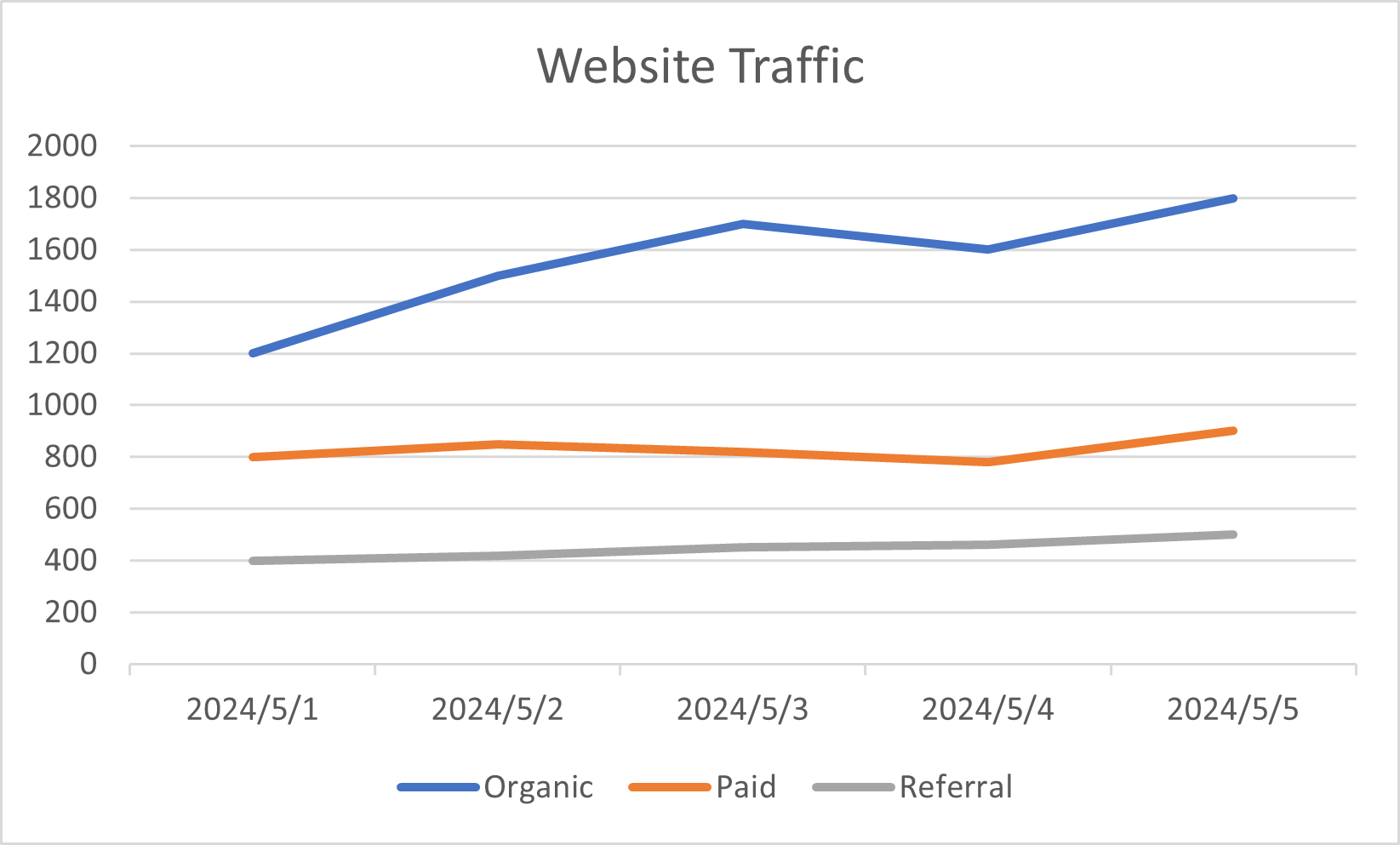
Este método é perfeito para transformar rapidamente um gráfico em uma imagem para e-mails ou documentos. Funciona em todas as versões modernas do Excel e suporta vários formatos de saída — tornando-o ideal quando você quer salvar um gráfico do Excel como imagem sem escrever nenhum código.
Você também pode gostar: Converter Planilhas do Excel para Imagens Online
Converter Gráfico do Excel em Imagem em C# com Spire.XLS
Se você precisar automatizar a exportação de gráficos do Excel para imagens, especialmente em sistemas empresariais ou de relatórios, usar C# com Spire.XLS for .NET é a solução mais escalável.
Instalar o Spire.XLS for .NET
Instalar via NuGet:
PM> Install-Package Spire.XLS
Ou use o Free Spire.XLS for .NET para tarefas menores:
PM> Install-Package FreeSpire.XLS
Exemplo de Código C#: Salvar Gráfico do Excel em JPG
using Spire.Xls;
using System.Drawing;

Workbook workbook = new Workbook();
workbook.LoadFromFile("Sample.xlsx");

foreach (Worksheet sheet in workbook.Worksheets)
{
    foreach (Chart chart in sheet.Charts)
    {
        Bitmap chartImage = chart.SaveToImage();
        chartImage.Save($"output/{sheet.Name} - {chart.ChartTitle}.jpg");
    }
}
workbook.Dispose();
Resultado:
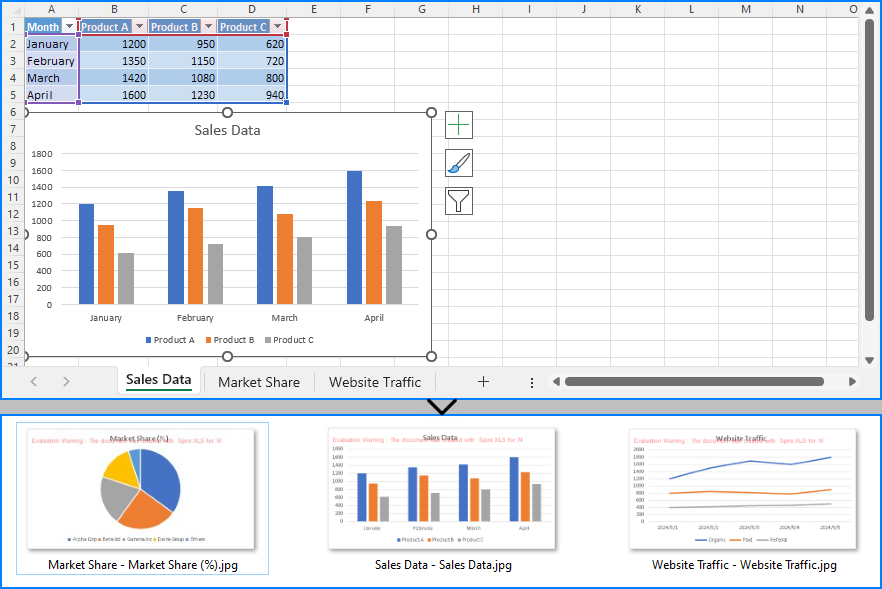
Este método suporta JPG, PNG, BMP e mais. Você pode controlar a saída simplesmente mudando a extensão do arquivo no método Save() — o Bitmap inferirá automaticamente o formato da imagem com base nela.
Salvar Gráfico do Excel como Imagem via Macro VBA
Se você está trabalhando dentro do Excel e quer uma abordagem semiautomatizada, pode usar o VBA para exportar gráficos como imagens.
Como Inserir Código VBA no Excel
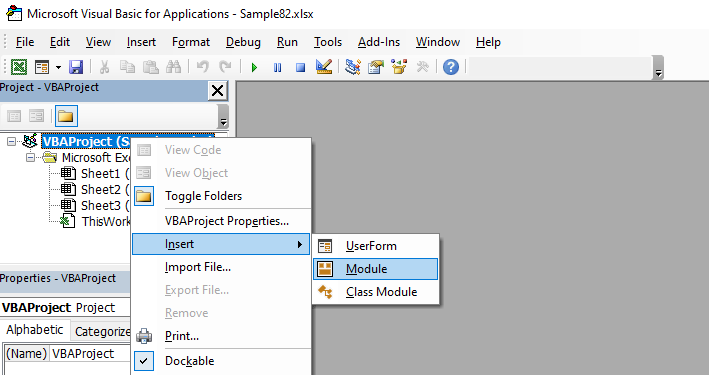
- Pressione
Alt + F11para abrir o editor Visual Basic for Applications. - No painel esquerdo, clique com o botão direito em VBAProject (SeuNomeDePastaDeTrabalho.xlsm) e escolha Inserir > Módulo.
- Cole o código da macro abaixo no módulo.
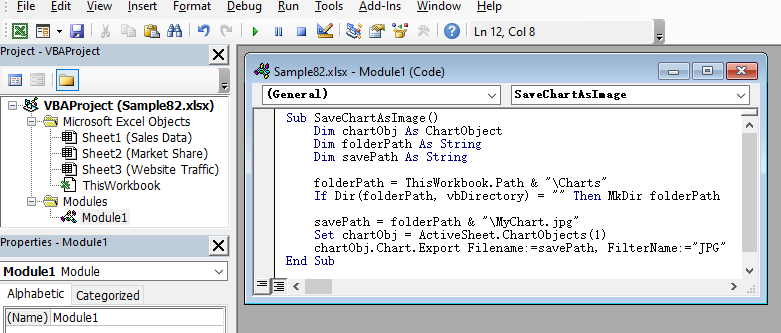
- Salve o arquivo como Pasta de Trabalho Habilitada para Macro do Excel (.xlsm).
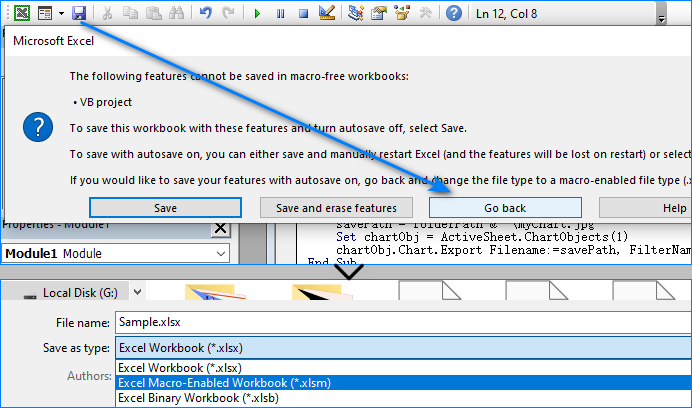
- Pressione
F5no editor Visual Basic for Applications para executar, ou vincule-o a um botão usando os Controles de Formulário do Excel.

Exemplo de Código de Macro VBA
Sub SaveChartAsImage()
    Dim chartObj As ChartObject
    Dim folderPath As String
    Dim savePath As String

    folderPath = ThisWorkbook.Path & "\Charts"
    If Dir(folderPath, vbDirectory) = "" Then MkDir folderPath

    savePath = folderPath & "\MyChart.jpg"
    Set chartObj = ActiveSheet.ChartObjects(1)
    chartObj.Chart.Export Filename:=savePath, FilterName:="JPG"
End Sub
Imagem do Gráfico Exportado:

Esta macro é ideal para usuários que trabalham frequentemente no Excel e precisam exportar gráficos com o mínimo de esforço.
Comparação: Métodos Manual vs C# vs VBA
| Método | Melhor Para | Suporte de Formato | Nível de Automação |
| Manual | Exportações rápidas e únicas | PNG, JPG, BMP | ❌ Nenhum |
| C# + Spire.XLS | Lote, relatórios, uso empresarial | JPG, PNG, BMP, etc | ✅ Completo |
| Macro VBA | Tarefas repetitivas na interface do Excel | JPG, PNG | ⚠️ Limitado |
Qual Você Deve Escolher?
- Use o salvamento manual para necessidades ocasionais de imagem.
- Use o VBA se você trabalha muito dentro do Excel e prefere botões de macro.
- Use C# e Spire.XLS se você quer controle total, automação e saída de alta qualidade.
Conclusão
Salvar gráficos do Excel como imagens é uma necessidade comum em cenários de negócios, relatórios e visualização de dados. Este artigo apresentou:
- Como salvar um gráfico do Excel como imagem manualmente
- Como salvar um gráfico do Excel como imagem em C# usando o Spire.XLS
- Como usar o Excel VBA para exportar um gráfico como imagem
Com esses métodos, você pode escolher a abordagem que melhor se adapta ao seu fluxo de trabalho e conjunto de habilidades técnicas.
Perguntas Frequentes
Como eu salvo um gráfico no Excel como imagem manualmente?
Clique com o botão direito no gráfico, selecione "Salvar como Imagem..." e escolha um formato de imagem como PNG ou JPG.
Como eu salvo um gráfico do Excel como imagem usando código?
Use o Spire.XLS com C# e chame chart.SaveToImage() para exportar para formatos de imagem como JPG ou PNG.
Confira o tutorial do Spire.XLS for .NET para aprender mais sobre técnicas de C# para trabalhar com gráficos do Excel.
Posso automatizar o salvamento de gráficos do Excel?
Sim. Use C# для automação completa ou macros VBA dentro do Excel para fluxos de trabalho semiautomatizados.
O Bitmap em C# suporta JPG e PNG?
Sim. O método Bitmap.Save() detecta o formato com base na extensão do arquivo, suportando formatos como JPG, PNG, BMP e mais.
Veja Também
Excel-Diagramme als Bilder speichern (JPG/PNG) – Manuell, mit VBA und C#
Inhaltsverzeichnis
Installation über NuGet
PM> Install-Package Spire.XLS
Verwandte Links
Excel-Diagramme sind hervorragende Werkzeuge, um Daten klar und effektiv darzustellen. Wenn Sie sie jedoch außerhalb von Excel verwenden müssen – beispielsweise in Präsentationen, Berichten oder auf Websites –, wird es notwendig, Excel-Diagramme als Bilder zu speichern. Das Exportieren eines Diagramms in Formate wie JPG, PNG oder BMP erleichtert das Teilen, Wiederverwenden und Einbetten auf verschiedenen Plattformen. Ob Sie Geschäftsberichte vorbereiten, Datenvisualisierungen online veröffentlichen oder Präsentationen erstellen, das Konvertieren von Excel-Diagrammen in Bilddateien sorgt für eine bessere Kompatibilität und Präsentationskontrolle.
In dieser Anleitung lernen Sie drei effektive Möglichkeiten kennen, Excel-Diagramme in Bildformate wie JPG oder PNG zu konvertieren:
- Ein Diagramm in Excel als Bild speichern (Manuelle Methode)
- Excel-Diagramm in Bild konvertieren in C# mit Spire.XLS
- Excel-Diagramm als Bild über VBA-Makro speichern
- Vergleich: Manuelle vs. C# vs. VBA-Methoden
- Häufig gestellte Fragen
Egal, ob Sie einen schnellen einmaligen Export durchführen oder Berichte per Code stapelweise verarbeiten möchten, dieser Artikel hilft Ihnen bei der Auswahl des besten Ansatzes.
Ein Diagramm in Excel als Bild speichern (Manuelle Methode)
Die einfachste Methode, ein Diagramm in Excel als Bild zu speichern, ist die manuelle Vorgehensweise:
-
Öffnen Sie die Excel-Datei in Microsoft Excel und wählen Sie das Diagramm in Ihrem Excel-Arbeitsblatt aus.
-
Klicken Sie mit der rechten Maustaste und wählen Sie „Als Bild speichern...“.
- Wählen Sie das Dateiformat (PNG, JPG, BMP) und den Speicherort.
Exportiertes Diagrammbild:
Diese Methode ist perfekt, um ein Diagramm schnell in ein Bild für E-Mails oder Dokumente umzuwandeln. Sie funktioniert in allen modernen Excel-Versionen und unterstützt verschiedene Ausgabeformate – ideal, wenn Sie ein Excel-Diagramm als Bild speichern möchten, ohne Code zu schreiben.
Das könnte Ihnen auch gefallen: Excel-Arbeitsblätter online in Bilder konvertieren
Excel-Diagramm in Bild konvertieren in C# mit Spire.XLS
Wenn Sie den Export von Excel-Diagrammen in Bilder automatisieren müssen, insbesondere in Unternehmens- oder Berichtssystemen, ist die Verwendung von C# mit Spire.XLS for .NET die skalierbarste Lösung.
Spire.XLS for .NET installieren
Installation über NuGet:
PM> Install-Package Spire.XLS
Oder verwenden Sie Free Spire.XLS for .NET für kleinere Aufgaben:
PM> Install-Package FreeSpire.XLS
C#-Beispielcode: Excel-Diagramm als JPG speichern
using Spire.Xls;
using System.Drawing;

Workbook workbook = new Workbook();
workbook.LoadFromFile("Sample.xlsx");

foreach (Worksheet sheet in workbook.Worksheets)
{
    foreach (Chart chart in sheet.Charts)
    {
        Bitmap chartImage = chart.SaveToImage();
        chartImage.Save($"output/{sheet.Name} - {chart.ChartTitle}.jpg");
    }
}
workbook.Dispose();
Ergebnis:
Diese Methode unterstützt JPG, PNG, BMP und mehr. Sie können die Ausgabe steuern, indem Sie einfach die Dateierweiterung in der Save()-Methode ändern — Bitmap leitet das Bildformat automatisch daraus ab.
Excel-Diagramm als Bild über VBA-Makro speichern
Wenn Sie in Excel arbeiten und einen teilautomatisierten Ansatz wünschen, können Sie VBA verwenden, um Diagramme als Bilder zu exportieren.
Wie man VBA-Code in Excel einfügt
- Drücken Sie
Alt + F11, um den Editor Visual Basic for Applications zu öffnen. - Klicken Sie im linken Bereich mit der rechten Maustaste auf VBAProject (IhrArbeitsmappenname.xlsm) und wählen Sie Einfügen > Modul.
- Fügen Sie den unten stehenden Makrocode in das Modul ein.
- Speichern Sie die Datei als Excel-Arbeitsmappe mit Makros (.xlsm).
- Drücken Sie
F5im Editor Visual Basic for Applications zum Ausführen oder verknüpfen Sie es über die Formularsteuerelemente von Excel mit einer Schaltfläche.
VBA-Makro-Codebeispiel
Sub SaveChartAsImage()
    Dim chartObj As ChartObject
    Dim folderPath As String
    Dim savePath As String

    folderPath = ThisWorkbook.Path & "\Charts"
    If Dir(folderPath, vbDirectory) = "" Then MkDir folderPath

    savePath = folderPath & "\MyChart.jpg"
    Set chartObj = ActiveSheet.ChartObjects(1)
    chartObj.Chart.Export Filename:=savePath, FilterName:="JPG"
End Sub
Exportiertes Diagrammbild:
Dieses Makro ist ideal für Benutzer, die häufig in Excel arbeiten und Diagramme mit minimalem Aufwand exportieren müssen.
Vergleich: Manuelle vs. C# vs. VBA-Methoden
| Methode | Am besten geeignet für | Formatunterstützung | Automatisierungsgrad |
| Manuell | Schnelle einmalige Exporte | PNG, JPG, BMP | ❌ Keine |
| C# + Spire.XLS | Stapelverarbeitung, Berichterstattung, Unternehmensnutzung | JPG, PNG, BMP, usw. | ✅ Vollständig |
| VBA-Makro | Wiederkehrende Aufgaben in der Excel-Benutzeroberfläche | JPG, PNG | ⚠️ Begrenzt |
Welche sollten Sie wählen?
- Verwenden Sie manuelles Speichern für gelegentliche Bildanforderungen.
- Verwenden Sie VBA, wenn Sie intensiv in Excel arbeiten und Makro-Schaltflächen bevorzugen.
- Verwenden Sie C# und Spire.XLS, wenn Sie volle Kontrolle, Automatisierung und eine qualitativ hochwertige Ausgabe wünschen.
Fazit
Das Speichern von Excel-Diagrammen als Bilder ist eine häufige Anforderung in Geschäfts-, Berichts- und Datenvisualisierungsszenarien. Dieser Artikel stellte vor:
- Wie man Excel-Diagramme manuell als Bild speichert
- Wie man Excel-Diagramme in C# als Bild speichert mit Spire.XLS
- Wie man Excel VBA verwendet, um ein Diagramm als Bild zu exportieren
Mit diesen Methoden können Sie den Ansatz wählen, der am besten zu Ihrem Arbeitsablauf und Ihren technischen Fähigkeiten passt.
Häufig gestellte Fragen
Wie speichere ich ein Diagramm in Excel manuell als Bild?
Klicken Sie mit der rechten Maustaste auf das Diagramm, wählen Sie „Als Bild speichern...“ und wählen Sie ein Bildformat wie PNG oder JPG.
Wie speichere ich ein Excel-Diagramm per Code als Bild?
Verwenden Sie Spire.XLS mit C# und rufen Sie chart.SaveToImage() auf, um in Bildformate wie JPG oder PNG zu exportieren.
Schauen Sie sich das Spire.XLS for .NET Tutorial an, um mehr über C#-Techniken zur Arbeit mit Excel-Diagrammen zu erfahren.
Kann ich das Speichern von Diagrammen aus Excel automatisieren?
Ja. Verwenden Sie entweder C# für die vollständige Automatisierung oder VBA-Makros in Excel für teilautomatisierte Arbeitsabläufe.
Unterstützt Bitmap in C# JPG und PNG?
Ja. Die Methode Bitmap.Save() erkennt das Format anhand der Dateierweiterung und unterstützt Formate wie JPG, PNG, BMP und mehr.
Siehe auch
Guardar gráficos de Excel como imágenes (JPG/PNG) – Manual, con VBA y C#
Tabla de contenidos
Instalar a través de NuGet
PM> Install-Package Spire.XLS
Enlaces relacionados
Los gráficos de Excel son excelentes herramientas para presentar datos de manera clara y efectiva. Sin embargo, cuando necesita usarlos fuera de Excel, como en presentaciones, informes o sitios web, es necesario guardar los gráficos de Excel como imágenes. Exportar un gráfico a formatos como JPG, PNG o BMP facilita su uso compartido, reutilización e inserción en diversas plataformas. Ya sea que esté preparando informes comerciales, publicando visualizaciones de datos en línea o creando presentaciones, convertir los gráficos de Excel en archivos de imagen garantiza una mejor compatibilidad y control de la presentación.
En esta guía, aprenderá tres formas efectivas de convertir gráficos de Excel a formatos de imagen como JPG o PNG:
- Guardar un gráfico de Excel como imagen (Método manual)
- Convertir gráfico de Excel a imagen en C# con Spire.XLS
- Guardar gráfico de Excel como imagen mediante macro de VBA
- Comparación: Métodos manual vs C# vs VBA
- Preguntas frecuentes
Ya sea que desee realizar una exportación rápida y única o procesar informes por lotes con código, este artículo le ayudará a elegir el mejor enfoque.
Guardar un gráfico de Excel como imagen (Método manual)
El método más simple para guardar un gráfico de Excel como imagen es hacerlo manualmente:
-
Abra el archivo de Excel en Microsoft Excel y seleccione el gráfico en su hoja de cálculo de Excel.
-
Haga clic con el botón derecho y elija "Guardar como imagen...".
- Elija el formato de archivo (PNG, JPG, BMP) и la ubicación para guardar.
Imagen del gráfico exportado:
Este método es perfecto para convertir rápidamente un gráfico en una imagen para correos electrónicos o documentos. Funciona en todas las versiones modernas de Excel y admite varios formatos de salida, lo que lo hace ideal cuando desea guardar un gráfico de Excel como imagen sin escribir ningún código.
También le puede interesar: Convertir hojas de cálculo de Excel a imágenes en línea
Convertir gráfico de Excel a imagen en C# con Spire.XLS
Si necesita automatizar la exportación de gráficos de Excel a imágenes, especialmente en sistemas empresariales o de informes, usar C# con Spire.XLS for .NET es la solución más escalable.
Instalar Spire.XLS for .NET
Instalar a través de NuGet:
PM> Install-Package Spire.XLS
O use Free Spire.XLS for .NET para tareas más pequeñas:
PM> Install-Package FreeSpire.XLS
Ejemplo de código C#: Guardar gráfico de Excel en JPG
using Spire.Xls;
using System.Drawing;

Workbook workbook = new Workbook();
workbook.LoadFromFile("Sample.xlsx");

foreach (Worksheet sheet in workbook.Worksheets)
{
    foreach (Chart chart in sheet.Charts)
    {
        Bitmap chartImage = chart.SaveToImage();
        chartImage.Save($"output/{sheet.Name} - {chart.ChartTitle}.jpg");
    }
}
workbook.Dispose();
Resultado:
Este método admite JPG, PNG, BMP y más. Puede controlar la salida simplemente cambiando la extensión del archivo en el método Save(): Bitmap inferirá automáticamente el formato de la imagen basándose en ella.
Guardar gráfico de Excel como imagen mediante macro de VBA
Si está trabajando dentro de Excel y desea un enfoque semiautomatizado, puede usar VBA para exportar gráficos como imágenes.
Cómo insertar código VBA en Excel
- Presione
Alt + F11para abrir el editor de Visual Basic for Applications. - En el panel izquierdo, haga clic con el botón derecho en VBAProject (SuNombreDeLibro.xlsm) y elija Insertar > Módulo.
- Pegue el siguiente código de macro en el módulo.
- Guarde el archivo como Libro de Excel habilitado para macros (.xlsm).
- Presione
F5en el editor de Visual Basic for Applications para ejecutar, o vincúlelo a un botón usando los Controles de formulario de Excel.
Ejemplo de código de macro VBA
Sub SaveChartAsImage()
    Dim chartObj As ChartObject
    Dim folderPath As String
    Dim savePath As String

    folderPath = ThisWorkbook.Path & "\Charts"
    If Dir(folderPath, vbDirectory) = "" Then MkDir folderPath

    savePath = folderPath & "\MyChart.jpg"
    Set chartObj = ActiveSheet.ChartObjects(1)
    chartObj.Chart.Export Filename:=savePath, FilterName:="JPG"
End Sub
Imagen del gráfico exportado:
Esta macro es ideal para usuarios que trabajan frecuentemente en Excel y necesitan exportar gráficos con un mínimo esfuerzo.
Comparación: Métodos manual vs C# vs VBA
| Método | Ideal para | Soporte de formato | Nivel de automatización |
| Manual | Exportaciones rápidas y únicas | PNG, JPG, BMP | ❌ Ninguno |
| C# + Spire.XLS | Lotes, informes, uso empresarial | JPG, PNG, BMP, etc. | ✅ Completo |
| Macro de VBA | Tareas repetitivas en la interfaz de Excel | JPG, PNG | ⚠️ Limitado |
¿Cuál debería elegir?
- Use el guardado manual para necesidades ocasionales de imágenes.
- Use VBA si trabaja mucho dentro de Excel y prefiere los botones de macro.
- Use C# y Spire.XLS si desea un control total, automatización y una salida de alta calidad.
Conclusión
Guardar gráficos de Excel como imágenes es una necesidad común en escenarios de negocios, informes y visualización de datos. Este artículo introdujo:
- Cómo guardar un gráfico de Excel como imagen manualmente
- Cómo guardar un gráfico de Excel como imagen en C# usando Spire.XLS
- Cómo usar Excel VBA para exportar un gráfico como imagen
Con estos métodos, puede elegir el enfoque que mejor se adapte a su flujo de trabajo y habilidades técnicas.
Preguntas frecuentes
¿Cómo guardo un gráfico de Excel como imagen manualmente?
Haga clic con el botón derecho en el gráfico, seleccione "Guardar como imagen..." y elija un formato de imagen como PNG o JPG.
¿Cómo guardo un gráfico de Excel como imagen usando código?
Use Spire.XLS con C# y llame a chart.SaveToImage() para exportar a formatos de imagen como JPG o PNG.
Consulte el tutorial de Spire.XLS for .NET para obtener más información sobre las técnicas de C# para trabajar con gráficos de Excel.
¿Puedo automatizar el guardado de gráficos desde Excel?
Sí. Use C# para una automatización completa o macros de VBA dentro de Excel para flujos de trabajo semiautomatizados.
¿Bitmap en C# admite JPG y PNG?
Sí. El método Bitmap.Save() detecta el formato basándose en la extensión del archivo, admitiendo formatos como JPG, PNG, BMP y más.