How to Convert CSV to Excel (XLSX) in Python – Single & Batch Guide
While working with CSV files is common in data processing, Excel (XLSX) often provides more advantages when it comes to data sharing, visualization, and large-scale analysis. In this guide, you’ll learn how to convert CSV to Excel in Python, including both single file and batch conversion methods. Whether you're automating reports or preparing data for further analysis, this guide will help you handle the conversion efficiently.

- Why Convert CSV to Excel
- Install Required Python Libraries
- Convert Single CSV to Excel
- Batch Convert CSV to XLSX
- FAQs
Why Convert CSV to Excel?
While CSV files are widely used for data storage and exchange due to their simplicity, they come with several limitations—especially when it comes to formatting, presentation, and usability. Converting CSV to Excel can bring several advantages:
Benefits of Converting CSV to Excel
- Better formatting support: Excel allows rich formatting options like fonts, colors, borders, and cell merging, making your data easier to read and present.
- Multiple worksheets: Unlike CSV files that support only a single sheet, Excel files can store multiple worksheets in one file, which is better for large datasets.
- Built-in formulas and charts: You can apply Excel formulas, pivot tables, and charts to analyze and visualize your data.
- Improved compatibility for business users: Excel is the preferred tool for many non-technical users, making it easier to share and collaborate on data.
Limitations of CSV Files
- No styling or formatting (plain text only)
- Single-sheet structure only
- Encoding issues (e.g., with non-English characters)
- Not ideal for large datasets or advanced reporting If your workflow involves reporting, data analysis, or sharing data with others, converting CSV to Excel is often a more practical and flexible choice.
Install Required Python Libraries
This guide demonstrates how to effortlessly convert CSV to Excel using Spire.XLS for Python. Spire.XLS is a powerful and professional Python Excel library that allows you to read, edit, and convert Excel files (both .xlsx and .xls) without relying on Microsoft Excel. Installing this CSV to Excel converter on your device is simple — just run the following command:
pip install Spire.XLS
Alternatively, you can download the Spire.XLS package manually for custom installation.
How to Convert CSV to Excel in Python: Single File
Now let’s get to the main part — how to convert a single CSV file to Excel using Python. With the help of Spire.XLS, this task becomes incredibly simple. All it takes is three easy steps: create a new workbook, load the CSV file, and save it as an Excel (.xlsx) file. Below is a detailed walkthrough along with a complete code example — let’s take a look!
Steps to convert a single CSV to Excel in Python:
- Create a Workbook instance.
- Load a sample CSV file using Workbook.LoadFromFile() method.
- Save the CSV file as Excel through Workbook.SaveToFile() method.
Below is the Python code to convert a CSV file to Excel. It also ignores parsing errors and automatically adjusts the column widths for better readability.
from spire.xls import *
from spire.xls.common import *

# Create a workbook
workbook = Workbook()

# Load a csv file
workbook.LoadFromFile("/sample csv.csv", ",", 1, 1)

# Set ignore error options
sheet = workbook.Worksheets[0]
sheet.Range["D2:E19"].IgnoreErrorOptions = IgnoreErrorType.NumberAsText
sheet.AllocatedRange.AutoFitColumns()

# Save the document and launch it
workbook.SaveToFile("/CSVToExcel1.xlsx", ExcelVersion.Version2013)
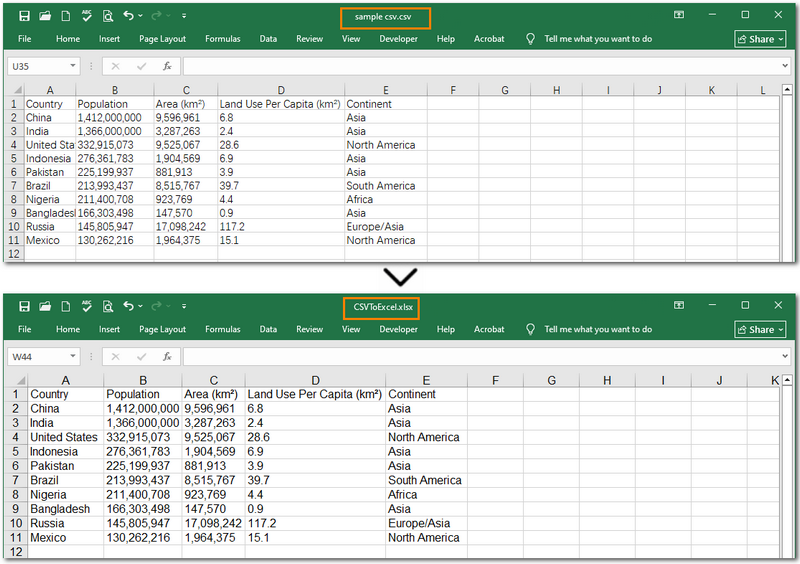
Warm Note: If you're only working with small files or doing some light testing, you can also use the free Spire.XLS. It's a great option for getting started quickly.
How to Batch Convert CSV to XLSX in Python
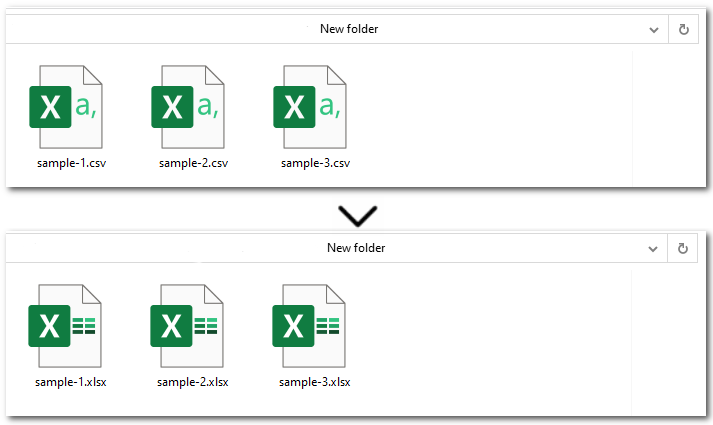
Another common scenario is when you need to convert multiple CSV files to Excel. Instead of manually replacing the file path and name for each one, there's a much more efficient approach. Simply place all the CSV files in the same folder, then use Python to loop through each file and convert them to Excel using the Workbook.SaveToFile() method. Let’s walk through the detailed steps below!
Steps to batch convert CSVs to Excel files in Python:
- Specify the file paths of input and output folders.
- Loop through all CSV files in the input folder.
- Create an object of Workbook class.
- Load each CSV file from the input folder with Workbook.LoadFromFile() method.
- Save the current CSV as an Excel file through Workbook.SaveToFile() method.
Here's the Python code to batch convert CSV to Excel (.XLSX):
import os
from spire.xls import *

input_folder = r"E:input\New folder"
output_folder = r"output\New folder"

# Loop through each CSV file
for csv_file in os.listdir(input_folder):
    if csv_file.endswith(".csv"):
        input_path = os.path.join(input_folder, csv_file)
        output_name = os.path.splitext(csv_file)[0] + ".xlsx"
        output_path = os.path.join(output_folder, output_name)

        # Create a Workbook instance and load CSV files
        workbook = Workbook()
        workbook.LoadFromFile(input_path, ",", 1, 1)

        # Save each CSV file as an Excel file
        workbook.SaveToFile(output_path, ExcelVersion.Version2013)
The Conclusion
This guide showed you how to convert CSV to Excel in Python with step-by-step instructions and complete code examples. Whether you're working with a single CSV file or multiple files, Spire.XLS makes the process simple, fast, and hassle-free. Need help with more advanced scenarios or other Excel-related tasks? Feel free to contact us anytime!
FAQs about Converting CSV to Excel
Q1: How to convert CSV to Excel in Python without pandas?
A: You can use libraries like Spire.XLS, openpyxl, or xlsxwriter to convert CSV files without relying on pandas. These tools provide simple APIs to load .csv files and export them as xlsx—no Microsoft Excel installation required.
Q2: What is the easiest way to convert multiple CSV files to Excel in Python?
A: Just place all CSV files in one folder, then loop through them in Python and convert each using Workbook.SaveToFile(). This approach is ideal for batch processing. Alternatively, online converters can be a quick fix for occasional use.
Q3: How to auto-adjust column width when converting CSV to Excel in Python?
A: After loading the CSV, call worksheet.autoFitColumns() in Spire.XLS to automatically resize columns based on content before saving the Excel file.
Spire.Presentation for Java 10.6.0 fixes the issue where the height of the shape decreased after adding blank paragraphs
We are excited to announce the release of Spire.Presentation for Java 10.6.0. The issue where the height of the shape decreased after adding blank paragraphs is fixed in the new version. More details are listed below.
Here is a list of changes made in this release
| Category | ID | Description |
| Bug | SPIREPPT-2860 | Fixes the issue where the height of the shape decreased after adding blank paragraphs. |
Spire.PDFViewer 8.1.3 fixes an issue
We are delighted to announce the release of Spire.PDFViewer 8.1.3. This version fixes the issue that the control threw “NullReferenceException” after setting the “Anchor” property. More details are listed below.
Here is a list of changes made in this release
| Category | ID | Description |
| Bug | SPIREPDFVIEWER-606 | Fixes the issue that the control threw “NullReferenceException” after setting the “Anchor” property. |
Save Excel Charts as Images (JPG/PNG) – Manual, VBA & C#
Table of Contents
Install with NuGet
PM> Install-Package Spire.XLS
Related Links
Excel charts are excellent tools for presenting data clearly and effectively. However, when you need to use them outside of Excel — such as in presentations, reports, or websites — it becomes necessary to save Excel charts as images. Exporting a chart to formats like JPG, PNG, or BMP makes it easier to share, reuse, and embed across various platforms. Whether you're preparing business reports, publishing data visualizations online, or building slide decks, converting Excel charts into image files ensures better compatibility and presentation control.
In this guide, you’ll learn three effective ways to convert Excel charts to image formats like JPG or PNG:
- Save a Chart in Excel as an Image (Manual Method)
- Convert Excel Chart to Image in C# with Spire.XLS
- Save Excel Chart as Image via VBA Macro
- Comparison: Manual vs C# vs VBA Methods
- Frequently Asked Questions
Whether you're looking to do a quick one-off export or batch-process reports with code, this article will help you pick the best approach.
Save a Chart in Excel as an Image (Manual Method)
The simplest method to save chart in Excel as image is to do it manually:
-
Open the Excel file in Microsoft Excel and select the chart in your Excel worksheet.
-
Right-click and choose "Save as Picture...".

- Choose the file format (PNG, JPG, BMP) and save location.

Exported Chart Image:
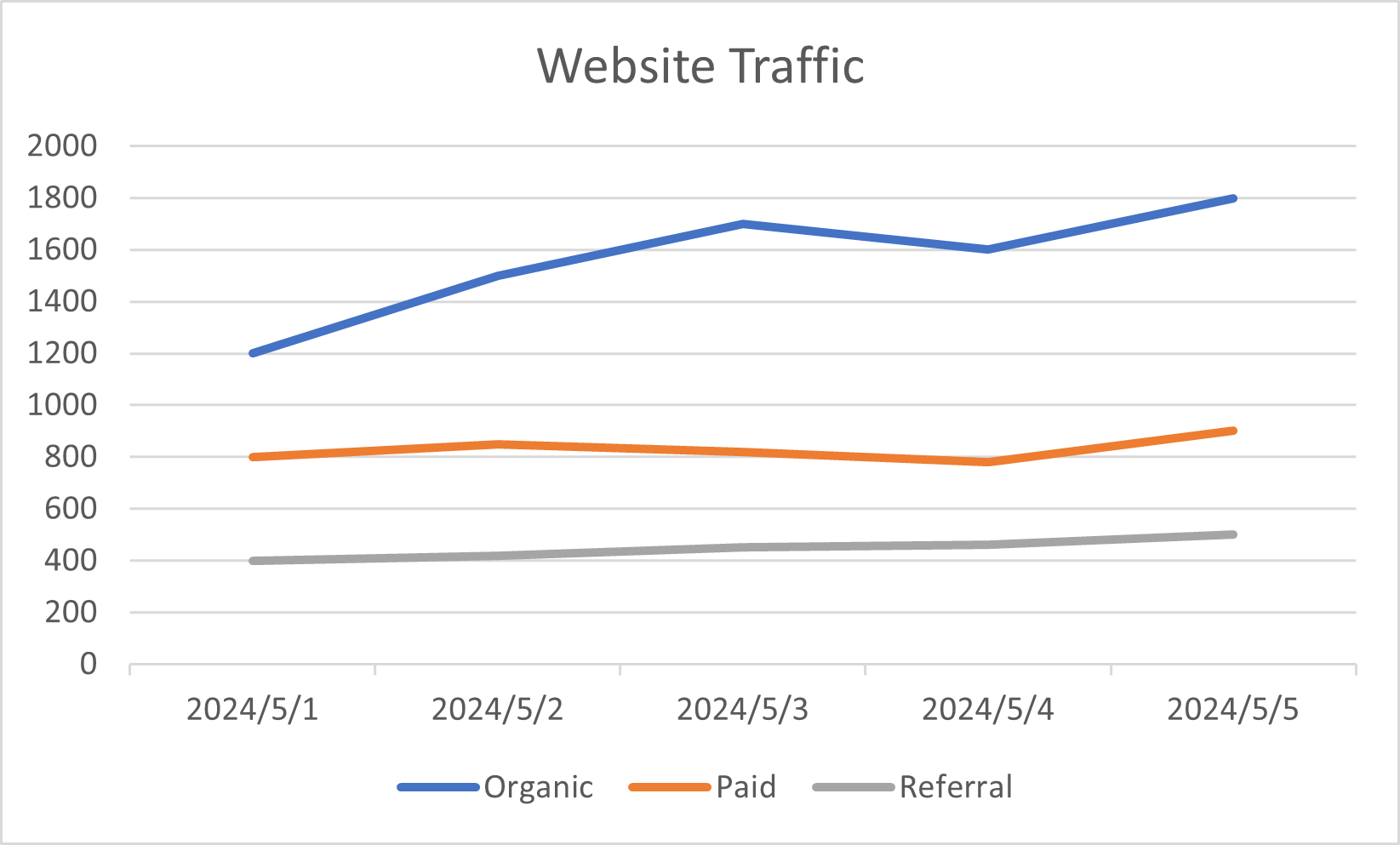
This method is perfect for quickly turning a chart into a picture for emails or documents. It works in all modern Excel versions and supports various output formats — making it ideal when you want to save an Excel graph as an image without writing any code.
You may also like: Convert Excel Worksheets to Images Online
Convert Excel Chart to Image in C# with Spire.XLS
If you need to automate the export of Excel charts to images, especially in enterprise or reporting systems, using C# with Spire.XLS for .NET is the most scalable solution.
Install Spire.XLS for .NET
Install via NuGet:
PM> Install-Package Spire.XLS
Or use Free Spire.XLS for .NET for smaller tasks:
PM> Install-Package FreeSpire.XLS
C# Sample Code: Save Excel Chart to JPG
using Spire.Xls;
using System.Drawing;

Workbook workbook = new Workbook();
workbook.LoadFromFile("Sample.xlsx");

foreach (Worksheet sheet in workbook.Worksheets)
{
    foreach (Chart chart in sheet.Charts)
    {
        Bitmap chartImage = chart.SaveToImage();
        chartImage.Save($"output/{sheet.Name} - {chart.ChartTitle}.jpg");
    }
}
workbook.Dispose();
Result:
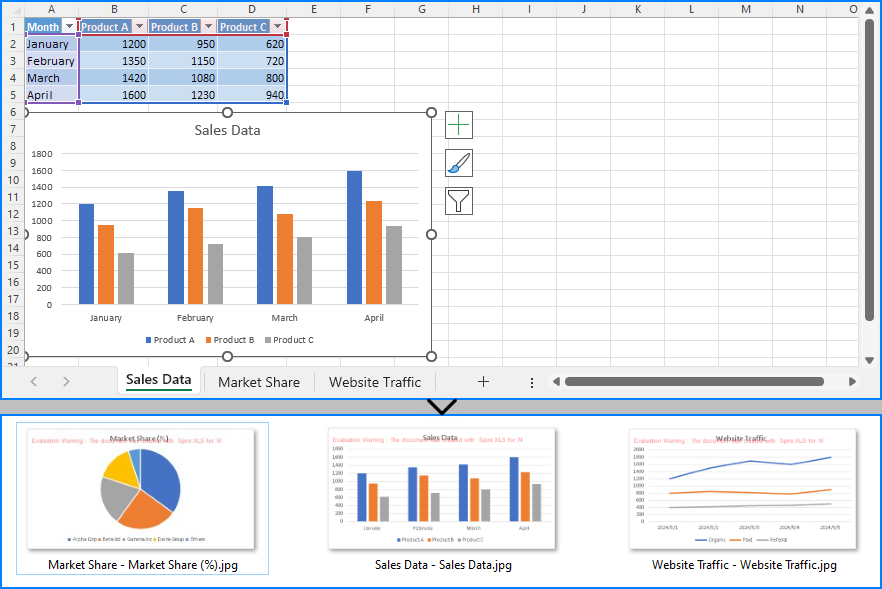
This method supports JPG, PNG, BMP, and more. You can control the output by simply changing the file extension in the Save() method — Bitmap will automatically infer the image format based on it.
Save Excel Chart as Image via VBA Macro
If you're working within Excel and want a semi-automated approach, you can use VBA to export charts as images.
How to Insert VBA Code into Excel
- Press
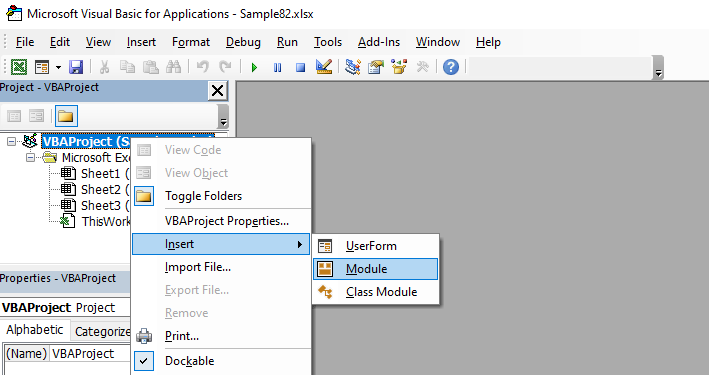
Alt + F11to open the Visual Basic for Applications editor. - In the left panel, right-click on VBAProject (YourWorkbookName.xlsm) and choose Insert > Module.
- Paste the macro code below into the module.
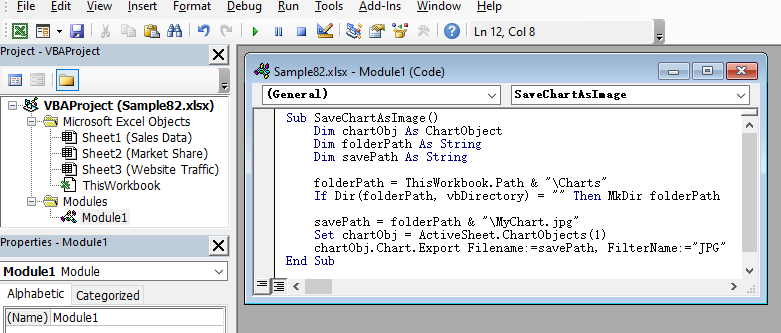
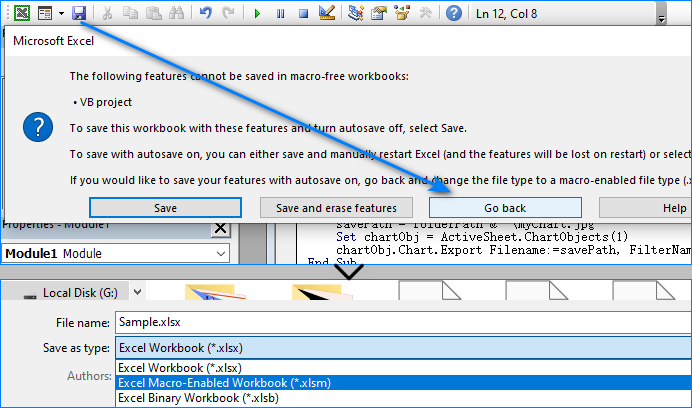
- Save the file as Excel Macro-Enabled Workbook (.xlsm).
- Press
F5in the the Visual Basic for Applications editor to run, or link it to a button using Excel’s Form Controls.

VBA Macro Code Example
Sub SaveChartAsImage()
    Dim chartObj As ChartObject
    Dim folderPath As String
    Dim savePath As String

    folderPath = ThisWorkbook.Path & "\Charts"
    If Dir(folderPath, vbDirectory) = "" Then MkDir folderPath

    savePath = folderPath & "\MyChart.jpg"
    Set chartObj = ActiveSheet.ChartObjects(1)
    chartObj.Chart.Export Filename:=savePath, FilterName:="JPG"
End Sub
Exported Chart Image:

This macro is ideal for users who frequently work in Excel and need to export charts with minimal effort.
Comparison: Manual vs C# vs VBA Methods
| Method | Best For | Format Support | Automation Level |
| Manual | Quick one-time exports | PNG, JPG, BMP | ❌ None |
| C# + Spire.XLS | Batch, reporting, enterprise use | JPG, PNG, BMP, etc | ✅ Full |
| VBA Macro | Repetitive tasks in Excel UI | JPG, PNG | ⚠️ Limited |
Which Should You Choose?
- Use manual saving for occasional image needs.
- Use VBA if you work heavily inside Excel and prefer macro buttons.
- Use C# and Spire.XLS if you want full control, automation, and high-quality output.
Conclusion
Saving Excel charts as images is a common need across business, reporting, and data visualization scenarios. This article introduced:
- How to save Excel chart as image manually
- How to save Excel chart as image in C# using Spire.XLS
- How to use Excel VBA to export chart as image
With these methods, you can choose the approach that best fits your workflow and technical skillset.
FAQs
How do I save a chart in Excel as an image manually?
Right-click on the chart, select "Save as Picture...", and choose an image format like PNG or JPG.
How do I save Excel chart as image using code?
Use Spire.XLS with C# and call chart.SaveToImage() to export to image formats like JPG or PNG.
Check out the Spire.XLS for .NET tutorial to learn more about C# techniques for working with Excel charts.
Can I automate saving charts from Excel?
Yes. Use either C# for full automation or VBA macros within Excel for semi-automated workflows.
Does Bitmap in C# support JPG and PNG?
Yes. The Bitmap.Save() method detects the format based on the file extension, supporting formats like JPG, PNG, BMP, and more.
See Also
Crie arquivos PDF com Python
Índice
Instalar com Pip
pip install Spire.PDF
Links Relacionados
PDF (Portable Document Format) é um formato de arquivo popular amplamente utilizado para gerar documentos jurídicos, contratos, relatórios, faturas, manuais, e-books e muito mais. Fornece um formato versátil e confiável para compartilhar, armazenar e apresentar documentos eletrônicos de maneira consistente, independente de qualquer software, hardware ou sistema operacional.
Dadas estas vantagens, a geração automatizada de documentos PDF está se tornando cada vez mais importante em vários campos. Para automatizar o processo de criação de PDF em Python, você pode escrever scripts que geram PDFs com base em requisitos específicos ou dados de entrada. Este artigo fornecerá exemplos detalhados para demonstrar como usar Python para criar arquivos PDF programaticamente.
- Como criar PDF usando Python
- Python para criar arquivos PDF do zero
- Python para gerar PDF a partir de arquivo de texto
- Python para criar um PDF com várias colunas
Biblioteca geradora de PDF em Python
Para gerar PDF usando Python, precisaremos usar a biblioteca Spire.PDF for Python. É uma biblioteca Python poderosa que fornece recursos de geração e processamento de PDF. Com ele, podemos usar python para criar PDFs do zero e adicionar vários elementos PDF às páginas PDF.
Para instalar a biblioteca do gerador de PDF Python, basta usar o seguinte comando pip para instalar a partir do PyPI:
pip install Spire.PDF
Conhecimento prévio
Antes de começar, vamos aprender algumas informações básicas sobre como criar um arquivo PDF usando a biblioteca Spire.PDF for Python.
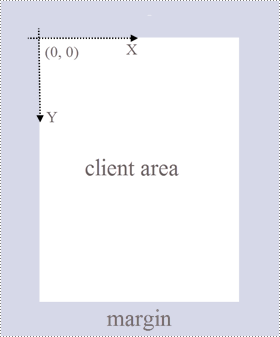
Página PDF: Uma página no Spire.PDF for Python é representada pela classe PdfPageBase, que consiste em uma área do cliente e margens ao redor. A área de conteúdo serve para os usuários escreverem vários conteúdos, e as margens geralmente são bordas em branco.
Sistema de Coordenadas: Conforme mostrado na figura abaixo, a origem do sistema de coordenadas na página está localizada no canto superior esquerdo da área do cliente, com o eixo x estendendo-se horizontalmente para a direita e o eixo y estendendo-se verticalmente para baixo. Todos os elementos adicionados à área do cliente são baseados nas coordenadas X e Y especificadas.
Classes e métodos: a tabela a seguir lista algumas das principais classes e métodos usados para criar PDFs em Python.
| Membro | Descrição |
| Classe PDFDocument | Representa um modelo de documento PDF. |
| Classe PDFPageBase | Representa uma página em um documento PDF. |
| Classe PDFSolidBrush | Representa um pincel que preenche qualquer objeto com uma cor sólida. |
| Classe PDFTrueTypeFont | Representa uma fonte True Type. |
| Classe PDFStringFormat | Representa informações de formato de texto, como alinhamento, espaçamento de caracteres e recuo. |
| Classe PDFTextWidget | Representa a área de texto com capacidade de abranger várias páginas. |
| Classe PDFTextLayout | Representa as informações de layout de texto. |
| Método PdfDocument.Pages.Add() | Adiciona uma página a um documento PDF. |
| Método PdfPageBase.Canvas.DrawString() | Desenha uma string no local especificado em uma página com fonte e objetos de pincel especificados. |
| Método PdfPageBase.Canvas.DrawImage() | Desenha uma imagem em um local especificado em uma página. |
| Método PdfTextWidget.Draw() | Desenha o widget de texto no local especificado em uma página. |
| Método PdfDocument.SaveToFile() | Salva o documento em um arquivo PDF. |
Como criar PDF usando Python
A seguir estão as etapas principais para criar arquivos PDF em Python:
- Instale Spire.PDF for Python.
- Importe módulos.
- Crie um documento PDF por meio da classe PdfDocument.
- Adicione uma página ao PDF usando o método PdfDocument.Pages.Add() e retorne um objeto da classe PdfPageBase.
- Crie o pincel e a fonte do PDF desejados.
- Desenhe uma string de texto ou widget de texto em uma coordenada especificada na página PDF usando o método PdfPageBase.Canvas.DrawString() ou PdfTextWidget.Draw().
- Salve o documento PDF usando o método PdfDocument.SaveToFile().
Python para criar arquivos PDF do zero
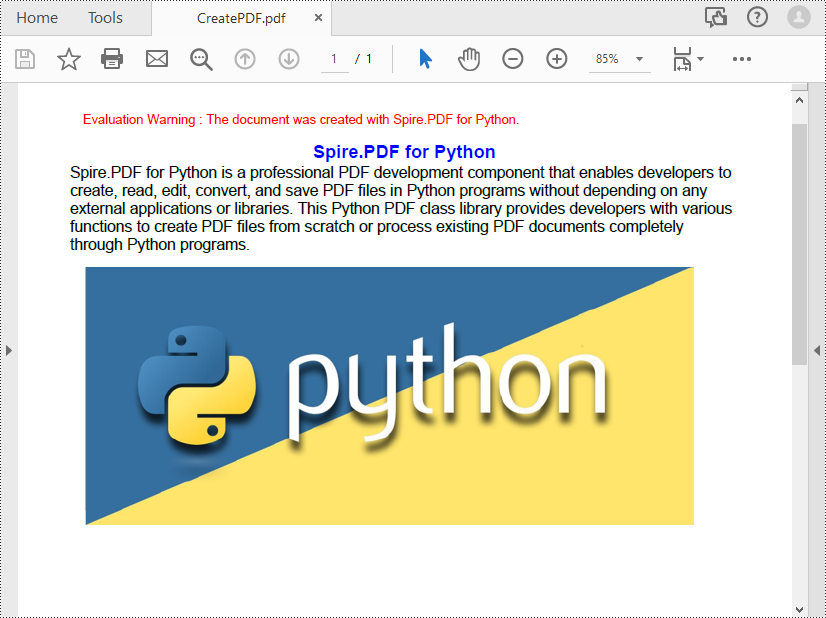
O exemplo de código a seguir demonstra como usar Python para criar um arquivo PDF e inserir texto e imagens. Com o Spire.PDF for Python, você também pode inserir outros elementos PDF, como listas, hiperlinks, formulários e carimbos.
- Python
from spire.pdf.common import *
from spire.pdf import *

# Create a pdf document
pdf = PdfDocument()

# Add a page to the PDF
page = pdf.Pages.Add()

# Specify title text and paragraph content
titleText = "Spire.PDF for Python"
paraText = "Spire.PDF for Python is a professional PDF development component that enables developers to create, read, edit, convert, and save PDF files in Python programs without depending on any external applications or libraries. This Python PDF class library provides developers with various functions to create PDF files from scratch or process existing PDF documents completely through Python programs."

# Create solid brushes
titleBrush = PdfSolidBrush(PdfRGBColor(Color.get_Blue()))
paraBrush = PdfSolidBrush(PdfRGBColor(Color.get_Black()))

# Create fonts
titleFont = PdfFont(PdfFontFamily.Helvetica, 14.0, PdfFontStyle.Bold)
paraFont = PdfTrueTypeFont("Arial", 12.0, PdfFontStyle.Regular, True)

# Set the text alignment
textAlignment = PdfStringFormat(PdfTextAlignment.Center, PdfVerticalAlignment.Middle)

# Draw title on the page
page.Canvas.DrawString(titleText, titleFont, titleBrush, page.Canvas.ClientSize.Width / 2, 40.0, textAlignment)

# Create a PdfTextWidget object to hold the paragraph content
textWidget = PdfTextWidget(paraText, paraFont, paraBrush)

# Create a rectangle where the paragraph content will be placed
rect = RectangleF(PointF(0.0, 50.0), page.Canvas.ClientSize)

# Set the text layout
textLayout = PdfTextLayout()
textLayout.Layout = PdfLayoutType.Paginate

# Draw the widget on the page
textWidget.Draw(page, rect, textLayout)

# Load an image
image = PdfImage.FromFile("Python.png")

# Draw the image at a specified location on the page
page.Canvas.DrawImage(image, 12.0, 130.0)

#Save the PDF document
pdf.SaveToFile("CreatePDF.pdf")
pdf.Close()
Python para gerar PDF a partir de arquivo de texto
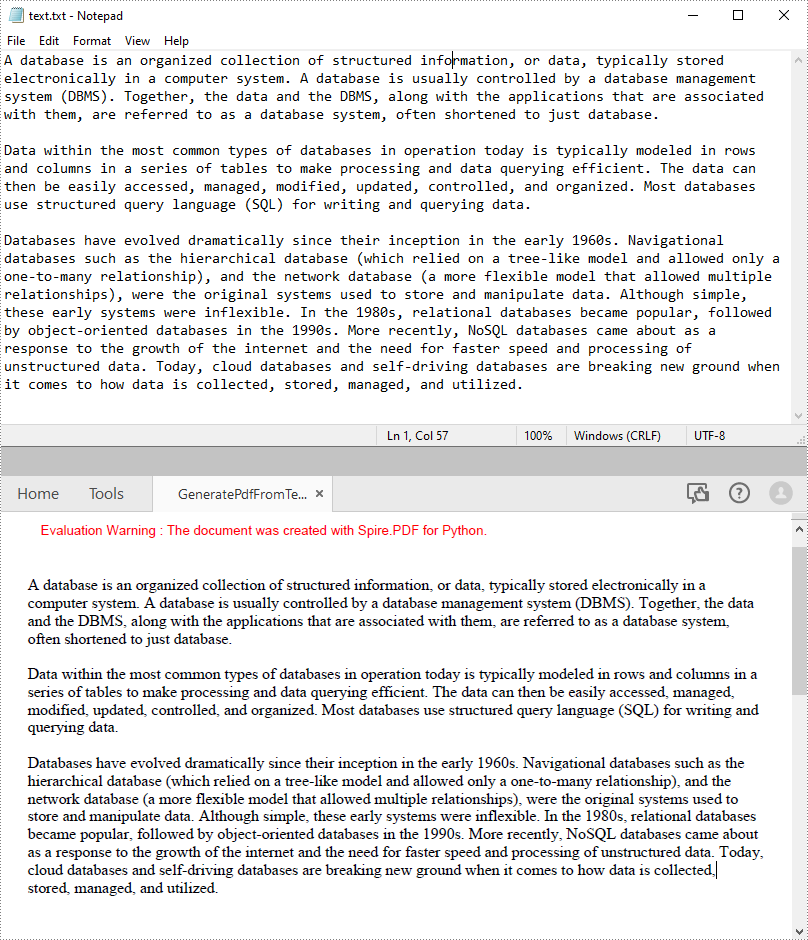
O exemplo de código a seguir mostra o processo de leitura de texto de um arquivo .txt e desenhá-lo em um local especificado em uma página PDF.
- Python
from spire.pdf.common import *
from spire.pdf import *

def ReadFromTxt(fname: str) -> str:
    with open(fname, 'r') as f:
        text = f.read()
    return text

# Create a pdf document
pdf = PdfDocument()

# Add a page to the PDF
page = pdf.Pages.Add(PdfPageSize.A4(), PdfMargins(20.0, 20.0))

# Create a PdfFont and brush
font = PdfFont(PdfFontFamily.TimesRoman, 12.0)
brush = PdfBrushes.get_Black()

# Get content from a .txt file
text = ReadFromTxt("text.txt")

# Create a PdfTextWidget object to hold the text content
textWidget = PdfTextWidget(text, font, brush)

# Create a rectangle where the text content will be placed
rect = RectangleF(PointF(0.0, 50.0), page.Canvas.ClientSize)

# Set the text layout
textLayout = PdfTextLayout()
textLayout.Layout = PdfLayoutType.Paginate

# Draw the widget on the page
textWidget.Draw(page, rect, textLayout)

# Save the generated PDF file
pdf.SaveToFile("GeneratePdfFromText.pdf", FileFormat.PDF)
pdf.Close()
Python para criar um PDF com várias colunas
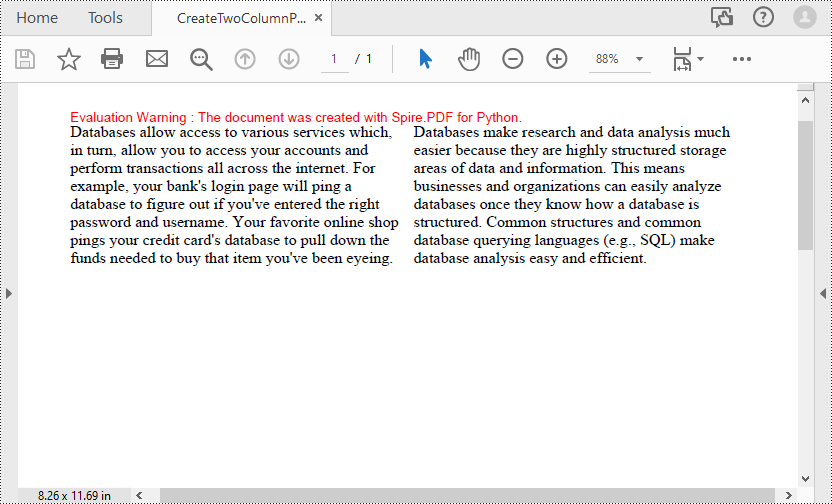
PDFs com várias colunas são comumente usados em revistas ou jornais. O exemplo de código a seguir mostra o processo de criação de um PDF de duas colunas desenhando texto em duas áreas retangulares separadas em uma página PDF.
- Python
from spire.pdf.common import *
from spire.pdf import *

# Creates a PDF document
pdf = PdfDocument()

# Add a page to the PDF
page = pdf.Pages.Add()

# Define paragraph text
s1 = "Databases allow access to various services which, in turn, allow you to access your accounts and perform transactions all across the internet. " + "For example, your bank's login page will ping a database to figure out if you've entered the right password and username. " + "Your favorite online shop pings your credit card's database to pull down the funds needed to buy that item you've been eyeing."
s2 = "Databases make research and data analysis much easier because they are highly structured storage areas of data and information. " + "This means businesses and organizations can easily analyze databases once they know how a database is structured. " + "Common structures and common database querying languages (e.g., SQL) make database analysis easy and efficient."

# Get width and height of page
pageWidth = page.GetClientSize().Width
pageHeight = page.GetClientSize().Height

# Create a PDF font and brush
font = PdfFont(PdfFontFamily.TimesRoman, 12.0)
brush = PdfBrushes.get_Black()

# Set the text alignment
format = PdfStringFormat(PdfTextAlignment.Left)

# Draws text at a specified location on the page
page.Canvas.DrawString(s1, font, brush, RectangleF(10.0, 20.0, pageWidth / 2 - 8, pageHeight), format)
page.Canvas.DrawString(s2, font, brush, RectangleF(pageWidth / 2 + 8, 20.0, pageWidth / 2 - 8, pageHeight), format)

# Save the PDF document
pdf.SaveToFile("CreateTwoColumnPDF.pdf")
pdf.Close()
Licença gratuita para criação de PDF em Python
Você pode obtenha uma licença temporária gratuita do Spire.PDF for Python para gerar documentos PDF sem marcas d'água e limitações.
Conclusão
Esta postagem do blog forneceu um guia passo a passo sobre como criar arquivos PDF com base no sistema de coordenadas definido na biblioteca Spire.PDF for Python. Nos exemplos de código, você pode aprender sobre o processo e métodos de inserção de texto, imagens em PDFs e conversão de arquivos TXT em PDFs. Se quiser explorar outros recursos de processamento e conversão de PDF da biblioteca Python PDF, você pode verificar sua documentação online.
Para qualquer problema durante o uso, entre em contato com nossa equipe de suporte técnico por e-mail ou fórum.
Создание PDF-файлов с помощью Python
Оглавление
Установить с помощью Пипа
pip install Spire.PDF
Ссылки по теме
PDF (Portable Document Format) — популярный формат файлов, широко используемый для создания юридических документов, контрактов, отчетов, счетов-фактур, руководств, электронных книг и многого другого. Он обеспечивает универсальный и надежный формат для единообразного обмена, хранения и представления электронных документов, независимо от какого-либо программного обеспечения, оборудования или операционных систем.
Учитывая эти преимущества, автоматизированное создание PDF-документов становится все более важным в различных областях. Чтобы автоматизировать процесс создания PDF-файлов на Python, вы можете написать сценарии, генерирующие PDF-файлы на основе определенных требований или входных данных. В этой статье будут приведены подробные примеры, демонстрирующие, как использовать Python для создания PDF-файлов программно.
- Как создать PDF с помощью Python
- Python для создания PDF-файлов с нуля
- Python для создания PDF из текстового файла
- Python для создания многоколоночного PDF-файла
Библиотека PDF-генератора Python
Чтобы создать PDF-файл с помощью Python, нам понадобится библиотека Spire.PDF for Python. Это мощная библиотека Python, обеспечивающая возможности создания и обработки PDF-файлов. С его помощью мы можем использовать Python для создания PDF-файлов с нуля и добавления различных элементов PDF на страницы PDF.
Чтобы установить библиотеку генератора PDF Python, просто используйте следующую команду pip для установки из PyPI:
pip install Spire.PDF
Жизненный опыт
Прежде чем мы начнем, давайте изучим некоторые сведения о создании PDF-файла с использованием библиотеки Spire.PDF for Python.
Страница PDF: страница в Spire.PDF for Python представлена классом PdfPageBase, который состоит из клиентской области и полей вокруг. Область содержимого предназначена для того, чтобы пользователи могли писать различное содержимое, а поля обычно представляют собой пустые края.
Система координат: Как показано на рисунке ниже, начало системы координат на странице расположено в верхнем левом углу клиентской области, при этом ось X проходит горизонтально вправо, а ось Y — вертикально вниз. Все элементы, добавляемые в клиентскую область, основаны на указанных координатах X и Y.
Классы и методы: В следующей таблице перечислены некоторые основные классы и методы, используемые для создания PDF-файлов в Python.
| Член | Описание |
| Класс PDFDocument | Представляет модель документа PDF. |
| Класс PDFPageBase | Представляет страницу в PDF-документе. |
| Класс PdfSolidBrush | Представляет кисть, которая закрашивает любой объект сплошным цветом. |
| Класс PdfTrueTypeFont | Представляет шрифт истинного типа. |
| Класс PdfStringFormat | Представляет информацию о текстовом формате, такую как выравнивание, интервал между символами и отступ. |
| Класс PdfTextWidget | Представляет текстовую область, способную занимать несколько страниц. |
| Класс PdfTextLayout | Представляет информацию о макете текста. |
| Метод PDFDocument.Pages.Add() | Добавляет страницу в PDF-документ. |
| Метод PdfPageBase.Canvas.DrawString() | Рисует строку в указанном месте на странице с указанными объектами шрифта и кисти. |
| Метод PdfPageBase.Canvas.DrawImage() | Рисует изображение в указанном месте на странице. |
| Метод PdfTextWidget.Draw() | Рисует текстовый виджет в указанном месте на странице. |
| Метод PDFDocument.SaveToFile() | Сохраняет документ в PDF-файл. |
Как создать PDF с помощью Python
Ниже приведены основные шаги по созданию PDF-файлов в Python:
- Установите Spire.PDF for Python.
- Импортируйте модули.
- Создайте PDF-документ с помощью класса PdfDocument.
- Добавьте страницу в PDF с помощью метода PdfDocument.Pages.Add() и верните объект класса PdfPageBase.
- Создайте нужную кисть и шрифт PDF.
- Нарисуйте текстовую строку или текстовый виджет по заданной координате на странице PDF с помощью метода PdfPageBase.Canvas.DrawString() или PdfTextWidget.Draw().
- Сохраните PDF-документ с помощью метода PdfDocument.SaveToFile().
Python для создания PDF-файлов с нуля
В следующем примере кода показано, как использовать Python для создания файла PDF и вставки текста и изображений. С помощью Spire.PDF for Python вы также можете вставлять другие элементы PDF, например списки, гиперссылки, формы и штампы.
- Python
from spire.pdf.common import *
from spire.pdf import *

# Create a pdf document
pdf = PdfDocument()

# Add a page to the PDF
page = pdf.Pages.Add()

# Specify title text and paragraph content
titleText = "Spire.PDF for Python"
paraText = "Spire.PDF for Python is a professional PDF development component that enables developers to create, read, edit, convert, and save PDF files in Python programs without depending on any external applications or libraries. This Python PDF class library provides developers with various functions to create PDF files from scratch or process existing PDF documents completely through Python programs."

# Create solid brushes
titleBrush = PdfSolidBrush(PdfRGBColor(Color.get_Blue()))
paraBrush = PdfSolidBrush(PdfRGBColor(Color.get_Black()))

# Create fonts
titleFont = PdfFont(PdfFontFamily.Helvetica, 14.0, PdfFontStyle.Bold)
paraFont = PdfTrueTypeFont("Arial", 12.0, PdfFontStyle.Regular, True)

# Set the text alignment
textAlignment = PdfStringFormat(PdfTextAlignment.Center, PdfVerticalAlignment.Middle)

# Draw title on the page
page.Canvas.DrawString(titleText, titleFont, titleBrush, page.Canvas.ClientSize.Width / 2, 40.0, textAlignment)

# Create a PdfTextWidget object to hold the paragraph content
textWidget = PdfTextWidget(paraText, paraFont, paraBrush)

# Create a rectangle where the paragraph content will be placed
rect = RectangleF(PointF(0.0, 50.0), page.Canvas.ClientSize)

# Set the text layout
textLayout = PdfTextLayout()
textLayout.Layout = PdfLayoutType.Paginate

# Draw the widget on the page
textWidget.Draw(page, rect, textLayout)

# Load an image
image = PdfImage.FromFile("Python.png")

# Draw the image at a specified location on the page
page.Canvas.DrawImage(image, 12.0, 130.0)

#Save the PDF document
pdf.SaveToFile("CreatePDF.pdf")
pdf.Close()
Python для создания PDF из текстового файла
В следующем примере кода показан процесс чтения текста из файла .txt и его рисования в указанном месте на странице PDF.
- Python
from spire.pdf.common import *
from spire.pdf import *

def ReadFromTxt(fname: str) -> str:
    with open(fname, 'r') as f:
        text = f.read()
    return text

# Create a pdf document
pdf = PdfDocument()

# Add a page to the PDF
page = pdf.Pages.Add(PdfPageSize.A4(), PdfMargins(20.0, 20.0))

# Create a PdfFont and brush
font = PdfFont(PdfFontFamily.TimesRoman, 12.0)
brush = PdfBrushes.get_Black()

# Get content from a .txt file
text = ReadFromTxt("text.txt")

# Create a PdfTextWidget object to hold the text content
textWidget = PdfTextWidget(text, font, brush)

# Create a rectangle where the text content will be placed
rect = RectangleF(PointF(0.0, 50.0), page.Canvas.ClientSize)

# Set the text layout
textLayout = PdfTextLayout()
textLayout.Layout = PdfLayoutType.Paginate

# Draw the widget on the page
textWidget.Draw(page, rect, textLayout)

# Save the generated PDF file
pdf.SaveToFile("GeneratePdfFromText.pdf", FileFormat.PDF)
pdf.Close()
Python для создания многоколоночного PDF-файла
Многоколоночный PDF-файл обычно используется в журналах и газетах. В следующем примере кода показан процесс создания PDF-файла с двумя столбцами путем рисования текста в двух отдельных прямоугольных областях на странице PDF.
- Python
from spire.pdf.common import *
from spire.pdf import *

# Creates a PDF document
pdf = PdfDocument()

# Add a page to the PDF
page = pdf.Pages.Add()

# Define paragraph text
s1 = "Databases allow access to various services which, in turn, allow you to access your accounts and perform transactions all across the internet. " + "For example, your bank's login page will ping a database to figure out if you've entered the right password and username. " + "Your favorite online shop pings your credit card's database to pull down the funds needed to buy that item you've been eyeing."
s2 = "Databases make research and data analysis much easier because they are highly structured storage areas of data and information. " + "This means businesses and organizations can easily analyze databases once they know how a database is structured. " + "Common structures and common database querying languages (e.g., SQL) make database analysis easy and efficient."

# Get width and height of page
pageWidth = page.GetClientSize().Width
pageHeight = page.GetClientSize().Height

# Create a PDF font and brush
font = PdfFont(PdfFontFamily.TimesRoman, 12.0)
brush = PdfBrushes.get_Black()

# Set the text alignment
format = PdfStringFormat(PdfTextAlignment.Left)

# Draws text at a specified location on the page
page.Canvas.DrawString(s1, font, brush, RectangleF(10.0, 20.0, pageWidth / 2 - 8, pageHeight), format)
page.Canvas.DrawString(s2, font, brush, RectangleF(pageWidth / 2 + 8, 20.0, pageWidth / 2 - 8, pageHeight), format)

# Save the PDF document
pdf.SaveToFile("CreateTwoColumnPDF.pdf")
pdf.Close()
Бесплатная лицензия для создания PDF-файлов на Python
Ты можешь получить бесплатную временную лицензию Spire.PDF for Python для создания PDF-документов без водяных знаков и ограничений.
Заключение
В этой записи блога представлено пошаговое руководство по созданию файлов PDF на основе системы координат, определенной в библиотеке Spire.PDF for Python. В примерах кода вы можете узнать о процессе и методах вставки текста, изображений в PDF-файлы и преобразования файлов TXT в PDF-файлы. Если вы хотите изучить другие функции обработки и преобразования PDF-файлов библиотеки Python PDF, вы можете ознакомиться с ее онлайн-документация.
По любым вопросам во время использования обращайтесь в нашу службу технической поддержки по электронной почте или на форуме.
Erstellen Sie PDF-Dateien mit Python
Inhaltsverzeichnis
- Python PDF Generator-Bibliothek
- Hintergrundwissen
- So erstellen Sie PDFs mit Python
- Python zum Erstellen von PDF-Dateien von Grund auf
- Python zum Generieren von PDF aus einer Textdatei
- Python zum Erstellen eines mehrspaltigen PDF
- Kostenlose Lizenz zum Erstellen von PDFs in Python
- Abschluss
- Siehe auch
Mit Pip installieren
pip install Spire.PDF
verwandte Links
PDF (Portable Document Format) ist ein beliebtes Dateiformat, das häufig zum Erstellen von Rechtsdokumenten, Verträgen, Berichten, Rechnungen, Handbüchern, E-Books und mehr verwendet wird. Es bietet ein vielseitiges und zuverlässiges Format zum einheitlichen Teilen, Speichern und Präsentieren elektronischer Dokumente, unabhängig von Software, Hardware oder Betriebssystemen.
Aufgrund dieser Vorteile gewinnt die automatisierte Generierung von PDF-Dokumenten in verschiedenen Bereichen zunehmend an Bedeutung. Um den PDF-Erstellungsprozess in Python zu automatisieren, können Sie Skripte schreiben, die PDFs basierend auf bestimmten Anforderungen oder Eingabedaten generieren. Dieser Artikel enthält detaillierte Beispiele, um die Verwendung zu veranschaulichen Python zum Erstellen von PDF-Dateien programmatisch.
- So erstellen Sie PDFs mit Python
- Python zum Erstellen von PDF-Dateien von Grund auf
- Python zum Generieren von PDF aus einer Textdatei
- Python zum Erstellen eines mehrspaltigen PDF
Python PDF Generator-Bibliothek
Um PDFs mit Python zu generieren, müssen wir die Spire.PDF for Python-Bibliothek verwenden. Es handelt sich um eine leistungsstarke Python-Bibliothek, die Funktionen zur PDF-Generierung und -Verarbeitung bietet. Damit können wir mit Python PDFs von Grund auf erstellen und verschiedene PDF-Elemente zu PDF-Seiten hinzufügen.
Um die Python-PDF-Generator-Bibliothek zu installieren, verwenden Sie einfach den folgenden pip-Befehl zur Installation von PyPI:
pip install Spire.PDF
Hintergrundwissen
Bevor wir beginnen, lernen wir einige Hintergrundinformationen zum Erstellen einer PDF-Datei mit der Bibliothek Spire.PDF for Python kennen.
PDF-Seite: Eine Seite in Spire.PDF for Python wird durch die Klasse PdfPageBase dargestellt, die aus einem Clientbereich und Rändern rundherum besteht. Der Inhaltsbereich dient dem Benutzer zum Schreiben verschiedener Inhalte, und die Ränder sind normalerweise leere Kanten.
Koordinatensystem: Wie in der Abbildung unten dargestellt, befindet sich der Ursprung des Koordinatensystems auf der Seite in der oberen linken Ecke des Clientbereichs, wobei die x-Achse horizontal nach rechts und die y-Achse vertikal nach unten verläuft. Alle zum Clientbereich hinzugefügten Elemente basieren auf den angegebenen X- und Y-Koordinaten.
Klassen und Methoden: Die folgende Tabelle listet einige der Kernklassen und Methoden auf, die zum Erstellen von PDFs in Python verwendet werden.
| Mitglied | Beschreibung |
| PDFDocument-Klasse | Stellt ein PDF-Dokumentmodell dar. |
| PDFPageBase-Klasse | Stellt eine Seite in einem PDF-Dokument dar. |
| PdfSolidBrush-Klasse | Stellt einen Pinsel dar, der jedes Objekt mit einer Volltonfarbe füllt. |
| PdfTrueTypeFont-Klasse | Stellt eine True-Type-Schriftart dar. |
| PdfStringFormat-Klasse | Stellt Informationen zum Textformat dar, z. B. Ausrichtung, Zeichenabstand und Einzug. |
| PDFTextWidget-Klasse | Stellt den Textbereich dar, der sich über mehrere Seiten erstrecken kann. |
| PDFTextLayout-Klasse | Stellt die Textlayoutinformationen dar. |
| PdfDocument.Pages.Add()-Methode | Fügt eine Seite zu einem PDF-Dokument hinzu. |
| PdfPageBase.Canvas.DrawString()-Methode | Zeichnet eine Zeichenfolge an der angegebenen Stelle auf einer Seite mit angegebenen Schriftart- und Pinselobjekten. |
| PdfPageBase.Canvas.DrawImage()-Methode | Zeichnet ein Bild an einer angegebenen Stelle auf einer Seite. |
| PDFTextWidget.Draw()-Methode | Zeichnet das Text-Widget an der angegebenen Stelle auf einer Seite. |
| PdfDocument.SaveToFile()-Methode | Speichert das Dokument in einer PDF-Datei. |
So erstellen Sie PDFs mit Python
Im Folgenden sind die Hauptschritte zum Erstellen von PDF-Dateien in Python aufgeführt:
- Installieren Sie Spire.PDF for Python.
- Module importieren.
- Erstellen Sie ein PDF-Dokument über die PdfDocument-Klasse.
- Fügen Sie mit der Methode PdfDocument.Pages.Add() eine Seite zum PDF hinzu und geben Sie ein Objekt der Klasse PdfPageBase zurück.
- Erstellen Sie den gewünschten PDF-Pinsel und die gewünschte Schriftart.
- Zeichnen Sie eine Textzeichenfolge oder ein Text-Widget an einer angegebenen Koordinate auf der PDF-Seite mit der Methode PdfPageBase.Canvas.DrawString() oder PdfTextWidget.Draw().
- Speichern Sie das PDF-Dokument mit der Methode PdfDocument.SaveToFile().
Python zum Erstellen von PDF-Dateien von Grund auf
Das folgende Codebeispiel zeigt, wie Sie mit Python eine PDF-Datei erstellen und Text und Bilder einfügen. Mit Spire.PDF for Python können Sie auch andere PDF-Elemente einfügen, z Listen, Hyperlinks, Formulare und Stempel.
- Python
from spire.pdf.common import *
from spire.pdf import *

# Create a pdf document
pdf = PdfDocument()

# Add a page to the PDF
page = pdf.Pages.Add()

# Specify title text and paragraph content
titleText = "Spire.PDF for Python"
paraText = "Spire.PDF for Python is a professional PDF development component that enables developers to create, read, edit, convert, and save PDF files in Python programs without depending on any external applications or libraries. This Python PDF class library provides developers with various functions to create PDF files from scratch or process existing PDF documents completely through Python programs."

# Create solid brushes
titleBrush = PdfSolidBrush(PdfRGBColor(Color.get_Blue()))
paraBrush = PdfSolidBrush(PdfRGBColor(Color.get_Black()))

# Create fonts
titleFont = PdfFont(PdfFontFamily.Helvetica, 14.0, PdfFontStyle.Bold)
paraFont = PdfTrueTypeFont("Arial", 12.0, PdfFontStyle.Regular, True)

# Set the text alignment
textAlignment = PdfStringFormat(PdfTextAlignment.Center, PdfVerticalAlignment.Middle)

# Draw title on the page
page.Canvas.DrawString(titleText, titleFont, titleBrush, page.Canvas.ClientSize.Width / 2, 40.0, textAlignment)

# Create a PdfTextWidget object to hold the paragraph content
textWidget = PdfTextWidget(paraText, paraFont, paraBrush)

# Create a rectangle where the paragraph content will be placed
rect = RectangleF(PointF(0.0, 50.0), page.Canvas.ClientSize)

# Set the text layout
textLayout = PdfTextLayout()
textLayout.Layout = PdfLayoutType.Paginate

# Draw the widget on the page
textWidget.Draw(page, rect, textLayout)

# Load an image
image = PdfImage.FromFile("Python.png")

# Draw the image at a specified location on the page
page.Canvas.DrawImage(image, 12.0, 130.0)

#Save the PDF document
pdf.SaveToFile("CreatePDF.pdf")
pdf.Close()
Python zum Generieren von PDF aus einer Textdatei
Das folgende Codebeispiel zeigt den Prozess des Lesens von Text aus einer TXT-Datei und dessen Zeichnen an einer bestimmten Stelle auf einer PDF-Seite.
- Python
from spire.pdf.common import *
from spire.pdf import *

def ReadFromTxt(fname: str) -> str:
    with open(fname, 'r') as f:
        text = f.read()
    return text

# Create a pdf document
pdf = PdfDocument()

# Add a page to the PDF
page = pdf.Pages.Add(PdfPageSize.A4(), PdfMargins(20.0, 20.0))

# Create a PdfFont and brush
font = PdfFont(PdfFontFamily.TimesRoman, 12.0)
brush = PdfBrushes.get_Black()

# Get content from a .txt file
text = ReadFromTxt("text.txt")

# Create a PdfTextWidget object to hold the text content
textWidget = PdfTextWidget(text, font, brush)

# Create a rectangle where the text content will be placed
rect = RectangleF(PointF(0.0, 50.0), page.Canvas.ClientSize)

# Set the text layout
textLayout = PdfTextLayout()
textLayout.Layout = PdfLayoutType.Paginate

# Draw the widget on the page
textWidget.Draw(page, rect, textLayout)

# Save the generated PDF file
pdf.SaveToFile("GeneratePdfFromText.pdf", FileFormat.PDF)
pdf.Close()
Python zum Erstellen eines mehrspaltigen PDF
Mehrspaltige PDFs werden häufig in Zeitschriften oder Zeitungen verwendet. Das folgende Codebeispiel zeigt den Prozess der Erstellung einer zweispaltigen PDF-Datei durch Zeichnen von Text in zwei separaten rechteckigen Bereichen auf einer PDF-Seite.
- Python
from spire.pdf.common import *
from spire.pdf import *

# Creates a PDF document
pdf = PdfDocument()

# Add a page to the PDF
page = pdf.Pages.Add()

# Define paragraph text
s1 = "Databases allow access to various services which, in turn, allow you to access your accounts and perform transactions all across the internet. " + "For example, your bank's login page will ping a database to figure out if you've entered the right password and username. " + "Your favorite online shop pings your credit card's database to pull down the funds needed to buy that item you've been eyeing."
s2 = "Databases make research and data analysis much easier because they are highly structured storage areas of data and information. " + "This means businesses and organizations can easily analyze databases once they know how a database is structured. " + "Common structures and common database querying languages (e.g., SQL) make database analysis easy and efficient."

# Get width and height of page
pageWidth = page.GetClientSize().Width
pageHeight = page.GetClientSize().Height

# Create a PDF font and brush
font = PdfFont(PdfFontFamily.TimesRoman, 12.0)
brush = PdfBrushes.get_Black()

# Set the text alignment
format = PdfStringFormat(PdfTextAlignment.Left)

# Draws text at a specified location on the page
page.Canvas.DrawString(s1, font, brush, RectangleF(10.0, 20.0, pageWidth / 2 - 8, pageHeight), format)
page.Canvas.DrawString(s2, font, brush, RectangleF(pageWidth / 2 + 8, 20.0, pageWidth / 2 - 8, pageHeight), format)

# Save the PDF document
pdf.SaveToFile("CreateTwoColumnPDF.pdf")
pdf.Close()
Kostenlose Lizenz zum Erstellen von PDFs in Python
Du kannst Holen Sie sich eine kostenlose temporäre Lizenz von Spire.PDF for Python zum Generieren von PDF-Dokumenten ohne Wasserzeichen und Einschränkungen.
Abschluss
In diesem Blogbeitrag finden Sie eine Schritt-für-Schritt-Anleitung zum Erstellen von PDF-Dateien basierend auf dem in der Spire.PDF for Python-Bibliothek definierten Koordinatensystem. In den Codebeispielen erfahren Sie mehr über den Prozess und die Methoden zum Einfügen von Text und Bildern in PDFs und zum Konvertieren von TXT-Dateien in PDFs. Wenn Sie andere PDF-Verarbeitungs- und Konvertierungsfunktionen der Python PDF-Bibliothek erkunden möchten, können Sie sich diese ansehen Online-Dokumentation.
Bei Problemen während der Nutzung wenden Sie sich bitte per E-Mail oder Forum an unser technisches Support-Team. E-Mail oder Forum.
Crear archivos PDF con Python
Tabla de contenido
Instalar con Pip
pip install Spire.PDF
enlaces relacionados
PDF (Formato de documento portátil) es un formato de archivo popular ampliamente utilizado para generar documentos legales, contratos, informes, facturas, manuales, libros electrónicos y más. Proporciona un formato versátil y confiable para compartir, almacenar y presentar documentos electrónicos de manera consistente, independientemente de cualquier software, hardware o sistema operativo.
Dadas estas ventajas, la generación automatizada de documentos PDF está adquiriendo cada vez más importancia en diversos campos. Para automatizar el proceso de creación de PDF en Python, puede escribir scripts que generen archivos PDF en función de requisitos específicos o datos de entrada. Este artículo proporcionará ejemplos detallados para demostrar cómo utilizar Python para crear archivos PDF programáticamente.
- Cómo crear PDF usando Python
- Python para crear archivos PDF desde cero
- Python para generar PDF a partir de un archivo de texto
- Python para crear un PDF de varias columnas
Biblioteca generadora de PDF de Python
Para generar PDF usando Python, necesitaremos usar la biblioteca Spire.PDF for Python. Es una potente biblioteca de Python que proporciona capacidades de generación y procesamiento de PDF. Con él, podemos usar Python para crear archivos PDF desde cero y agregar varios elementos PDF a las páginas PDF.
Para instalar la biblioteca del generador de PDF de Python, simplemente use el siguiente comando pip para instalar desde PyPI:
pip install Spire.PDF
Conocimiento de fondo
Antes de comenzar, aprendamos algunos antecedentes sobre cómo crear un archivo PDF usando la biblioteca Spire.PDF for Python.
Página PDF: una página en Spire.PDF for Python está representada por la clase PdfPageBase, que consta de un área de cliente y márgenes alrededor. El área de contenido es para que los usuarios escriban diversos contenidos y los márgenes suelen ser bordes en blanco.
Sistema de coordenadas: como se muestra en la figura siguiente, el origen del sistema de coordenadas en la página se encuentra en la esquina superior izquierda del área del cliente, con el eje x extendiéndose horizontalmente hacia la derecha y el eje y extendiéndose verticalmente hacia abajo. Todos los elementos agregados al área del cliente se basan en las coordenadas X e Y especificadas.
Clases y métodos: la siguiente tabla enumera algunas de las clases y métodos principales utilizados para crear archivos PDF en Python.
| Miembro | Descripción |
| Clase de documento Pdf | Representa un modelo de documento PDF. |
| Clase PdfPageBase | Representa una página en un documento PDF. |
| Clase PdfSolidBrush | Representa un pincel que rellena cualquier objeto con un color sólido. |
| Clase PdfTrueTypeFont | Representa una fuente de tipo verdadero. |
| Clase PdfStringFormat | Representa información de formato de texto, como alineación, espaciado entre caracteres y sangría. |
| Clase PdfTextWidget | Representa el área de texto con capacidad de abarcar varias páginas. |
| Clase PdfTextLayout | Representa la información de diseño del texto. |
| Método PdfDocument.Pages.Add() | Agrega una página a un documento PDF. |
| Método PdfPageBase.Canvas.DrawString() | Dibuja una cadena en la ubicación especificada en una página con fuentes y objetos de pincel especificados. |
| Método PdfPageBase.Canvas.DrawImage() | Dibuja una imagen en una ubicación específica de una página. |
| Método PdfTextWidget.Draw() | Dibuja el widget de texto en la ubicación especificada en una página. |
| Método PdfDocument.SaveToFile() | Guarda el documento en un archivo PDF. |
Cómo crear PDF usando Python
Los siguientes son los pasos principales para crear archivos PDF en Python:
- Instale Spire.PDF for Python.
- Importar módulos.
- Cree un documento PDF a través de la clase PdfDocument.
- Agregue una página al PDF usando el método PdfDocument.Pages.Add() y devuelva un objeto de la clase PdfPageBase.
- Cree el pincel y la fuente PDF que desee.
- Dibuje una cadena de texto o un widget de texto en una coordenada especificada en la página PDF utilizando el método PdfPageBase.Canvas.DrawString() o PdfTextWidget.Draw().
- Guarde el documento PDF utilizando el método PdfDocument.SaveToFile().
Python para crear archivos PDF desde cero
El siguiente ejemplo de código demuestra cómo usar Python para crear un archivo PDF e insertar texto e imágenes. Con Spire.PDF for Python, también puedes insertar otros elementos PDF como listas, hipervínculos, formularios y sellos.
- Python
from spire.pdf.common import *
from spire.pdf import *

# Create a pdf document
pdf = PdfDocument()

# Add a page to the PDF
page = pdf.Pages.Add()

# Specify title text and paragraph content
titleText = "Spire.PDF for Python"
paraText = "Spire.PDF for Python is a professional PDF development component that enables developers to create, read, edit, convert, and save PDF files in Python programs without depending on any external applications or libraries. This Python PDF class library provides developers with various functions to create PDF files from scratch or process existing PDF documents completely through Python programs."

# Create solid brushes
titleBrush = PdfSolidBrush(PdfRGBColor(Color.get_Blue()))
paraBrush = PdfSolidBrush(PdfRGBColor(Color.get_Black()))

# Create fonts
titleFont = PdfFont(PdfFontFamily.Helvetica, 14.0, PdfFontStyle.Bold)
paraFont = PdfTrueTypeFont("Arial", 12.0, PdfFontStyle.Regular, True)

# Set the text alignment
textAlignment = PdfStringFormat(PdfTextAlignment.Center, PdfVerticalAlignment.Middle)

# Draw title on the page
page.Canvas.DrawString(titleText, titleFont, titleBrush, page.Canvas.ClientSize.Width / 2, 40.0, textAlignment)

# Create a PdfTextWidget object to hold the paragraph content
textWidget = PdfTextWidget(paraText, paraFont, paraBrush)

# Create a rectangle where the paragraph content will be placed
rect = RectangleF(PointF(0.0, 50.0), page.Canvas.ClientSize)

# Set the text layout
textLayout = PdfTextLayout()
textLayout.Layout = PdfLayoutType.Paginate

# Draw the widget on the page
textWidget.Draw(page, rect, textLayout)

# Load an image
image = PdfImage.FromFile("Python.png")

# Draw the image at a specified location on the page
page.Canvas.DrawImage(image, 12.0, 130.0)

#Save the PDF document
pdf.SaveToFile("CreatePDF.pdf")
pdf.Close()
Python para generar PDF a partir de un archivo de texto
El siguiente ejemplo de código muestra el proceso de leer texto de un archivo .txt y dibujarlo en una ubicación específica en una página PDF.
- Python
from spire.pdf.common import *
from spire.pdf import *

def ReadFromTxt(fname: str) -> str:
    with open(fname, 'r') as f:
        text = f.read()
    return text

# Create a pdf document
pdf = PdfDocument()

# Add a page to the PDF
page = pdf.Pages.Add(PdfPageSize.A4(), PdfMargins(20.0, 20.0))

# Create a PdfFont and brush
font = PdfFont(PdfFontFamily.TimesRoman, 12.0)
brush = PdfBrushes.get_Black()

# Get content from a .txt file
text = ReadFromTxt("text.txt")

# Create a PdfTextWidget object to hold the text content
textWidget = PdfTextWidget(text, font, brush)

# Create a rectangle where the text content will be placed
rect = RectangleF(PointF(0.0, 50.0), page.Canvas.ClientSize)

# Set the text layout
textLayout = PdfTextLayout()
textLayout.Layout = PdfLayoutType.Paginate

# Draw the widget on the page
textWidget.Draw(page, rect, textLayout)

# Save the generated PDF file
pdf.SaveToFile("GeneratePdfFromText.pdf", FileFormat.PDF)
pdf.Close()
Python para crear un PDF de varias columnas
Los PDF de varias columnas se utilizan habitualmente en revistas o periódicos. El siguiente ejemplo de código muestra el proceso de creación de un PDF de dos columnas dibujando texto en dos áreas rectangulares separadas en una página PDF.
- Python
from spire.pdf.common import *
from spire.pdf import *

# Creates a PDF document
pdf = PdfDocument()

# Add a page to the PDF
page = pdf.Pages.Add()

# Define paragraph text
s1 = "Databases allow access to various services which, in turn, allow you to access your accounts and perform transactions all across the internet. " + "For example, your bank's login page will ping a database to figure out if you've entered the right password and username. " + "Your favorite online shop pings your credit card's database to pull down the funds needed to buy that item you've been eyeing."
s2 = "Databases make research and data analysis much easier because they are highly structured storage areas of data and information. " + "This means businesses and organizations can easily analyze databases once they know how a database is structured. " + "Common structures and common database querying languages (e.g., SQL) make database analysis easy and efficient."

# Get width and height of page
pageWidth = page.GetClientSize().Width
pageHeight = page.GetClientSize().Height

# Create a PDF font and brush
font = PdfFont(PdfFontFamily.TimesRoman, 12.0)
brush = PdfBrushes.get_Black()

# Set the text alignment
format = PdfStringFormat(PdfTextAlignment.Left)

# Draws text at a specified location on the page
page.Canvas.DrawString(s1, font, brush, RectangleF(10.0, 20.0, pageWidth / 2 - 8, pageHeight), format)
page.Canvas.DrawString(s2, font, brush, RectangleF(pageWidth / 2 + 8, 20.0, pageWidth / 2 - 8, pageHeight), format)

# Save the PDF document
pdf.SaveToFile("CreateTwoColumnPDF.pdf")
pdf.Close()
Licencia gratuita para crear PDF en Python
Puede obtenga una licencia temporal gratuita de Spire.PDF for Python para generar documentos PDF sin marcas de agua ni limitaciones.
Conclusión
Esta publicación de blog proporciona una guía paso a paso sobre cómo crear archivos PDF basados en el sistema de coordenadas definido en la biblioteca Spire.PDF for Python. En los ejemplos de código, puede obtener información sobre el proceso y los métodos para insertar texto e imágenes en archivos PDF y convertir archivos TXT a PDF. Si desea explorar otras funciones de conversión y procesamiento de PDF de la biblioteca PDF de Python, puede consultar su documentación en línea.
Para cualquier problema durante el uso, comuníquese con nuestro equipo de soporte técnico por correo electrónico o foro.
Python으로 PDF 파일 만들기
목차
핍으로 설치
pip install Spire.PDF
관련된 링크들
PDF(Portable Document Format)는 법률 문서, 계약서, 보고서, 송장, 매뉴얼, 전자책 등을 생성하는 데 널리 사용되는 파일 형식입니다. 이는 모든 소프트웨어, 하드웨어 또는 운영 체제에 관계없이 일관된 방식으로 전자 문서를 공유, 저장 및 표시할 수 있는 다양하고 안정적인 형식을 제공합니다.
이러한 장점을 고려할 때 PDF 문서의 자동화된 생성은 다양한 분야에서 점점 더 중요해지고 있습니다. Python에서 PDF 생성 프로세스를 자동화하려면 특정 요구 사항이나 입력 데이터를 기반으로 PDF를 생성하는 스크립트를 작성할 수 있습니다. 이 문서에서는 사용 방법을 보여주는 자세한 예제를 제공합니다 PDF 파일을 생성하는 Python 프로그래밍 방식으로.
- Python을 사용하여 PDF를 만드는 방법
- Python을 사용하여 처음부터 PDF 파일 만들기
- 텍스트 파일에서 PDF를 생성하는 Python
- 다중 열 PDF를 만드는 Python
Python PDF 생성기 라이브러리
Python을 사용하여 PDF를 생성하려면 Spire.PDF for Python 라이브러리를 사용해야 합니다. PDF 생성 및 처리 기능을 제공하는 강력한 Python 라이브러리입니다. 이를 통해 Python을 사용하여 처음부터 PDF를 만들고 PDF 페이지에 다양한 PDF 요소를 추가할 수 있습니다.
Python PDF 생성기 라이브러리를 설치하려면 다음 pip 명령을 사용하여 PyPI에서 설치하면 됩니다.
pip install Spire.PDF
배경 지식
시작하기 전에 라이브러리 Spire.PDF for Python를 사용하여 PDF 파일을 만드는 방법에 대한 몇 가지 배경 지식을 살펴보겠습니다.
PDF 페이지: Spire.PDF for Python의 페이지는 클라이언트 영역과 주변 여백으로 구성된 PdfPageBase 클래스로 표시됩니다. 컨텐츠 영역은 사용자가 다양한 컨텐츠를 작성하기 위한 영역으로, 여백은 대개 빈 가장자리입니다.
좌표계: 아래 그림과 같이 페이지의 좌표계 원점은 클라이언트 영역의 왼쪽 상단에 위치하며, x축은 오른쪽으로 수평으로 확장되고 y축은 수직으로 아래로 확장됩니다. 클라이언트 영역에 추가된 모든 요소는 지정된 X 및 Y 좌표를 기반으로 합니다.
클래스 및 메서드: 다음 표에는 Python에서 PDF를 만드는 데 사용되는 일부 핵심 클래스 및 메서드가 나열되어 있습니다.
| 회원 | 설명 |
| PdfDocument 클래스 | PDF 문서 모델을 나타냅니다. |
| PdfPageBase 클래스 | PDF 문서의 페이지를 나타냅니다. |
| PdfSolidBrush 클래스 | 모든 개체를 단색으로 채우는 브러시를 나타냅니다. |
| PdfTrueTypeFont 클래스 | 트루타입 글꼴을 나타냅니다. |
| PdfStringFormat 클래스 | 정렬, 문자 간격, 들여쓰기 등의 텍스트 형식 정보를 나타냅니다. |
| PdfTextWidget 클래스 | 여러 페이지에 걸쳐 표시할 수 있는 텍스트 영역을 나타냅니다. |
| PdfTextLayout 클래스 | 텍스트 레이아웃 정보를 나타냅니다. |
| PdfDocument.Pages.Add() 메서드 | PDF 문서에 페이지를 추가합니다. |
| PdfPageBase.Canvas.DrawString() 메서드 | 지정된 글꼴 및 브러시 개체를 사용하여 페이지의 지정된 위치에 문자열을 그립니다. |
| PdfPageBase.Canvas.DrawImage() 메서드 | 페이지의 지정된 위치에 이미지를 그립니다. |
| PdfTextWidget.Draw() 메서드 | 페이지의 지정된 위치에 텍스트 위젯을 그립니다. |
| PdfDocument.SaveToFile() 메서드 | 문서를 PDF 파일로 저장합니다. |
Python을 사용하여 PDF를 만드는 방법
다음은 Python에서 PDF 파일을 생성하는 주요 단계입니다.
- Spire.PDF for Python 설치합니다..
- 모듈을 가져옵니다.
- PdfDocument 클래스를 통해 PDF 문서를 만듭니다.
- PdfDocument.Pages.Add() 메서드를 사용하여 PDF에 페이지를 추가하고 PdfPageBase 클래스의 개체를 반환합니다.
- 원하는 PDF 브러시와 글꼴을 만듭니다.
- PdfPageBase.Canvas.DrawString() 또는 PdfTextWidget.Draw() 메서드를 사용하여 PDF 페이지의 지정된 좌표에 텍스트 문자열이나 텍스트 위젯을 그립니다.
- PdfDocument.SaveToFile() 메서드를 사용하여 PDF 문서를 저장합니다.
Python을 사용하여 처음부터 PDF 파일 만들기
다음 코드 예제에서는 Python을 사용하여 PDF 파일을 만들고 텍스트와 이미지를 삽입하는 방법을 보여줍니다. Spire.PDF for Python를 사용하면 다음과 같은 다른 PDF 요소를 삽입할 수도 있습니다 목록, 하이퍼링크, 양식 및 스탬프.
- Python
from spire.pdf.common import *
from spire.pdf import *

# Create a pdf document
pdf = PdfDocument()

# Add a page to the PDF
page = pdf.Pages.Add()

# Specify title text and paragraph content
titleText = "Spire.PDF for Python"
paraText = "Spire.PDF for Python is a professional PDF development component that enables developers to create, read, edit, convert, and save PDF files in Python programs without depending on any external applications or libraries. This Python PDF class library provides developers with various functions to create PDF files from scratch or process existing PDF documents completely through Python programs."

# Create solid brushes
titleBrush = PdfSolidBrush(PdfRGBColor(Color.get_Blue()))
paraBrush = PdfSolidBrush(PdfRGBColor(Color.get_Black()))

# Create fonts
titleFont = PdfFont(PdfFontFamily.Helvetica, 14.0, PdfFontStyle.Bold)
paraFont = PdfTrueTypeFont("Arial", 12.0, PdfFontStyle.Regular, True)

# Set the text alignment
textAlignment = PdfStringFormat(PdfTextAlignment.Center, PdfVerticalAlignment.Middle)

# Draw title on the page
page.Canvas.DrawString(titleText, titleFont, titleBrush, page.Canvas.ClientSize.Width / 2, 40.0, textAlignment)

# Create a PdfTextWidget object to hold the paragraph content
textWidget = PdfTextWidget(paraText, paraFont, paraBrush)

# Create a rectangle where the paragraph content will be placed
rect = RectangleF(PointF(0.0, 50.0), page.Canvas.ClientSize)

# Set the text layout
textLayout = PdfTextLayout()
textLayout.Layout = PdfLayoutType.Paginate

# Draw the widget on the page
textWidget.Draw(page, rect, textLayout)

# Load an image
image = PdfImage.FromFile("Python.png")

# Draw the image at a specified location on the page
page.Canvas.DrawImage(image, 12.0, 130.0)

#Save the PDF document
pdf.SaveToFile("CreatePDF.pdf")
pdf.Close()
텍스트 파일에서 PDF를 생성하는 Python
다음 코드 예제에서는 .txt 파일에서 텍스트를 읽고 PDF 페이지의 지정된 위치에 그리는 프로세스를 보여줍니다.
- Python
from spire.pdf.common import *
from spire.pdf import *

def ReadFromTxt(fname: str) -> str:
    with open(fname, 'r') as f:
        text = f.read()
    return text

# Create a pdf document
pdf = PdfDocument()

# Add a page to the PDF
page = pdf.Pages.Add(PdfPageSize.A4(), PdfMargins(20.0, 20.0))

# Create a PdfFont and brush
font = PdfFont(PdfFontFamily.TimesRoman, 12.0)
brush = PdfBrushes.get_Black()

# Get content from a .txt file
text = ReadFromTxt("text.txt")

# Create a PdfTextWidget object to hold the text content
textWidget = PdfTextWidget(text, font, brush)

# Create a rectangle where the text content will be placed
rect = RectangleF(PointF(0.0, 50.0), page.Canvas.ClientSize)

# Set the text layout
textLayout = PdfTextLayout()
textLayout.Layout = PdfLayoutType.Paginate

# Draw the widget on the page
textWidget.Draw(page, rect, textLayout)

# Save the generated PDF file
pdf.SaveToFile("GeneratePdfFromText.pdf", FileFormat.PDF)
pdf.Close()
다중 열 PDF를 만드는 Python
다중 열 PDF는 일반적으로 잡지나 신문에서 사용됩니다. 다음 코드 예제에서는 PDF 페이지의 두 개의 별도 직사각형 영역에 텍스트를 그려서 두 열로 구성된 PDF를 만드는 과정을 보여줍니다.
- Python
from spire.pdf.common import *
from spire.pdf import *

# Creates a PDF document
pdf = PdfDocument()

# Add a page to the PDF
page = pdf.Pages.Add()

# Define paragraph text
s1 = "Databases allow access to various services which, in turn, allow you to access your accounts and perform transactions all across the internet. " + "For example, your bank's login page will ping a database to figure out if you've entered the right password and username. " + "Your favorite online shop pings your credit card's database to pull down the funds needed to buy that item you've been eyeing."
s2 = "Databases make research and data analysis much easier because they are highly structured storage areas of data and information. " + "This means businesses and organizations can easily analyze databases once they know how a database is structured. " + "Common structures and common database querying languages (e.g., SQL) make database analysis easy and efficient."

# Get width and height of page
pageWidth = page.GetClientSize().Width
pageHeight = page.GetClientSize().Height

# Create a PDF font and brush
font = PdfFont(PdfFontFamily.TimesRoman, 12.0)
brush = PdfBrushes.get_Black()

# Set the text alignment
format = PdfStringFormat(PdfTextAlignment.Left)

# Draws text at a specified location on the page
page.Canvas.DrawString(s1, font, brush, RectangleF(10.0, 20.0, pageWidth / 2 - 8, pageHeight), format)
page.Canvas.DrawString(s2, font, brush, RectangleF(pageWidth / 2 + 8, 20.0, pageWidth / 2 - 8, pageHeight), format)

# Save the PDF document
pdf.SaveToFile("CreateTwoColumnPDF.pdf")
pdf.Close()
Python에서 PDF를 생성하기 위한 무료 라이센스
당신은 할 수 있습니다 무료 임시 라이센스를 받으세요Spire.PDF for Python를 사용하면 워터마크나 제한 없이 PDF 문서를 생성할 수 있습니다.
결론
이 블로그 게시물은 라이브러리 Spire.PDF for Python에 정의된 좌표계를 기반으로 PDF 파일을 생성하는 방법에 대한 단계별 가이드를 제공했습니다. 코드 샘플에서는 텍스트, 이미지를 PDF에 삽입하고 TXT 파일을 PDF로 변환하는 프로세스와 방법에 대해 알아볼 수 있습니다. Python PDF 라이브러리의 다른 PDF 처리 및 변환 기능을 살펴보고 싶다면 다음을 확인하세요 온라인 문서.
사용 중 문제가 발생하면 다음을 통해 기술 지원팀에 문의하세요 이메일 이나 포럼.
Crea file PDF con Python
Sommario
Installa con Pip
pip install Spire.PDF
Link correlati
PDF (Portable Document Format) è un formato di file popolare ampiamente utilizzato per generare documenti legali, contratti, report, fatture, manuali, eBook e altro ancora. Fornisce un formato versatile e affidabile per condividere, archiviare e presentare documenti elettronici in modo coerente, indipendente da qualsiasi software, hardware o sistema operativo.
Considerati questi vantaggi, la generazione automatizzata di documenti PDF sta diventando sempre più importante in vari campi. Per automatizzare il processo di creazione di PDF in Python, puoi scrivere script che generano PDF in base a requisiti specifici o dati di input. Questo articolo fornirà esempi dettagliati per dimostrare come utilizzare Python per creare file PDF a livello di programmazione.
- Come creare PDF utilizzando Python
- Python per creare file PDF da zero
- Python per generare PDF da file di testo
- Python per creare un PDF a più colonne
Libreria di generatori PDF Python
Per generare PDF utilizzando Python, dovremo utilizzare la libreria Spire.PDF for Python. È una potente libreria Python che fornisce funzionalità di generazione ed elaborazione di PDF. Con esso, possiamo usare Python per creare PDF da zero e aggiungere vari elementi PDF alle pagine PDF.
Per installare la libreria del generatore PDF Python, è sufficiente utilizzare il seguente comando pip per eseguire l'installazione da PyPI:
pip install Spire.PDF
Conoscenze di base
Prima di iniziare, impariamo alcune nozioni di base sulla creazione di un file PDF utilizzando la libreria Spire.PDF for Python.
Pagina PDF: una pagina in Spire.PDF for Python è rappresentata dalla classe PdfPageBase, che consiste in un'area client e margini tutt'intorno. L'area del contenuto consente agli utenti di scrivere vari contenuti e i margini sono generalmente bordi vuoti.
Sistema di coordinate: come mostrato nella figura seguente, l'origine del sistema di coordinate sulla pagina si trova nell'angolo in alto a sinistra dell'area client, con l'asse x che si estende orizzontalmente verso destra e l'asse y che si estende verticalmente verso il basso. Tutti gli elementi aggiunti all'area client si basano sulle coordinate X e Y specificate.
Classi e metodi: la tabella seguente elenca alcune delle classi e dei metodi principali utilizzati per creare PDF in Python.
| Membro | Descrizione |
| Classe PdfDocument | Rappresenta un modello di documento PDF. |
| Classe PdfPageBase | Rappresenta una pagina in un documento PDF. |
| Classe PdfSolidBrush | Rappresenta un pennello che riempie qualsiasi oggetto con un colore a tinta unita. |
| Classe PdfTrueTypeFont | Rappresenta un carattere di tipo vero. |
| Classe PdfStringFormat | Rappresenta informazioni sul formato del testo, come allineamento, spaziatura dei caratteri e rientro. |
| Classe PdfTextWidget | Rappresenta l'area di testo con la possibilità di estendersi su più pagine. |
| Classe PdfTextLayout | Rappresenta le informazioni sul layout del testo. |
| Metodo PdfDocument.Pages.Add() | Aggiunge una pagina a un documento PDF. |
| Metodo PdfPageBase.Canvas.DrawString() | Disegna la stringa nella posizione specificata su una pagina con il carattere e gli oggetti pennello specificati. |
| Metodo PdfPageBase.Canvas.DrawImage() | Disegna un'immagine in una posizione specifica su una pagina. |
| Metodo PdfTextWidget.Draw() | Disegna il widget di testo nella posizione specificata su una pagina. |
| Metodo PdfDocument.SaveToFile() | Salva il documento in un file PDF. |
Come creare PDF utilizzando Python
Di seguito sono riportati i passaggi principali per la creazione di file PDF in Python:
- Installa Spire.PDF for Python.
- Importa moduli.
- Crea un documento PDF tramite la classe PdfDocument.
- Aggiungi una pagina al PDF utilizzando il metodo PdfDocument.Pages.Add() e restituisce un oggetto della classe PdfPageBase.
- Crea il pennello e il carattere PDF desiderati.
- Disegna una stringa di testo o un widget di testo a una coordinata specificata sulla pagina PDF utilizzando il metodo PdfPageBase.Canvas.DrawString() o PdfTextWidget.Draw().
- Salva il documento PDF utilizzando il metodo PdfDocument.SaveToFile().
Python per creare file PDF da zero
L'esempio di codice seguente illustra come utilizzare Python per creare un file PDF e inserire testo e immagini. Con Spire.PDF for Python puoi anche inserire altri elementi PDF come elenchi, collegamenti ipertestuali, moduli e timbri.
- Python
from spire.pdf.common import *
from spire.pdf import *

# Create a pdf document
pdf = PdfDocument()

# Add a page to the PDF
page = pdf.Pages.Add()

# Specify title text and paragraph content
titleText = "Spire.PDF for Python"
paraText = "Spire.PDF for Python is a professional PDF development component that enables developers to create, read, edit, convert, and save PDF files in Python programs without depending on any external applications or libraries. This Python PDF class library provides developers with various functions to create PDF files from scratch or process existing PDF documents completely through Python programs."

# Create solid brushes
titleBrush = PdfSolidBrush(PdfRGBColor(Color.get_Blue()))
paraBrush = PdfSolidBrush(PdfRGBColor(Color.get_Black()))

# Create fonts
titleFont = PdfFont(PdfFontFamily.Helvetica, 14.0, PdfFontStyle.Bold)
paraFont = PdfTrueTypeFont("Arial", 12.0, PdfFontStyle.Regular, True)

# Set the text alignment
textAlignment = PdfStringFormat(PdfTextAlignment.Center, PdfVerticalAlignment.Middle)

# Draw title on the page
page.Canvas.DrawString(titleText, titleFont, titleBrush, page.Canvas.ClientSize.Width / 2, 40.0, textAlignment)

# Create a PdfTextWidget object to hold the paragraph content
textWidget = PdfTextWidget(paraText, paraFont, paraBrush)

# Create a rectangle where the paragraph content will be placed
rect = RectangleF(PointF(0.0, 50.0), page.Canvas.ClientSize)

# Set the text layout
textLayout = PdfTextLayout()
textLayout.Layout = PdfLayoutType.Paginate

# Draw the widget on the page
textWidget.Draw(page, rect, textLayout)

# Load an image
image = PdfImage.FromFile("Python.png")

# Draw the image at a specified location on the page
page.Canvas.DrawImage(image, 12.0, 130.0)

#Save the PDF document
pdf.SaveToFile("CreatePDF.pdf")
pdf.Close()
Python per generare PDF da file di testo
L'esempio di codice seguente mostra il processo di lettura del testo da un file .txt e di disegno in una posizione specifica su una pagina PDF.
- Python
from spire.pdf.common import *
from spire.pdf import *

def ReadFromTxt(fname: str) -> str:
    with open(fname, 'r') as f:
        text = f.read()
    return text

# Create a pdf document
pdf = PdfDocument()

# Add a page to the PDF
page = pdf.Pages.Add(PdfPageSize.A4(), PdfMargins(20.0, 20.0))

# Create a PdfFont and brush
font = PdfFont(PdfFontFamily.TimesRoman, 12.0)
brush = PdfBrushes.get_Black()

# Get content from a .txt file
text = ReadFromTxt("text.txt")

# Create a PdfTextWidget object to hold the text content
textWidget = PdfTextWidget(text, font, brush)

# Create a rectangle where the text content will be placed
rect = RectangleF(PointF(0.0, 50.0), page.Canvas.ClientSize)

# Set the text layout
textLayout = PdfTextLayout()
textLayout.Layout = PdfLayoutType.Paginate

# Draw the widget on the page
textWidget.Draw(page, rect, textLayout)

# Save the generated PDF file
pdf.SaveToFile("GeneratePdfFromText.pdf", FileFormat.PDF)
pdf.Close()
Python per creare un PDF a più colonne
I PDF a più colonne sono comunemente usati nelle riviste o nei giornali. L'esempio di codice seguente mostra il processo di creazione di un PDF a due colonne disegnando il testo in due aree rettangolari separate su una pagina PDF.
- Python
from spire.pdf.common import *
from spire.pdf import *

# Creates a PDF document
pdf = PdfDocument()

# Add a page to the PDF
page = pdf.Pages.Add()

# Define paragraph text
s1 = "Databases allow access to various services which, in turn, allow you to access your accounts and perform transactions all across the internet. " + "For example, your bank's login page will ping a database to figure out if you've entered the right password and username. " + "Your favorite online shop pings your credit card's database to pull down the funds needed to buy that item you've been eyeing."
s2 = "Databases make research and data analysis much easier because they are highly structured storage areas of data and information. " + "This means businesses and organizations can easily analyze databases once they know how a database is structured. " + "Common structures and common database querying languages (e.g., SQL) make database analysis easy and efficient."

# Get width and height of page
pageWidth = page.GetClientSize().Width
pageHeight = page.GetClientSize().Height

# Create a PDF font and brush
font = PdfFont(PdfFontFamily.TimesRoman, 12.0)
brush = PdfBrushes.get_Black()

# Set the text alignment
format = PdfStringFormat(PdfTextAlignment.Left)

# Draws text at a specified location on the page
page.Canvas.DrawString(s1, font, brush, RectangleF(10.0, 20.0, pageWidth / 2 - 8, pageHeight), format)
page.Canvas.DrawString(s2, font, brush, RectangleF(pageWidth / 2 + 8, 20.0, pageWidth / 2 - 8, pageHeight), format)

# Save the PDF document
pdf.SaveToFile("CreateTwoColumnPDF.pdf")
pdf.Close()
Licenza gratuita per la creazione di PDF in Python
Puoi ottenere una licenza temporanea gratuita di Spire.PDF for Python per generare documenti PDF senza filigrane e limitazioni.
Conclusione
Questo post del blog ha fornito una guida passo passo su come creare file PDF in base al sistema di coordinate definito nella libreria Spire.PDF for Python. Negli esempi di codice puoi conoscere il processo e i metodi per inserire testo e immagini nei PDF e convertire i file TXT in PDF. Se desideri esplorare altre funzionalità di elaborazione e conversione PDF della libreria PDF Python, puoi consultare la sua documentazione online.
Per qualsiasi problema durante l'utilizzo, contatta il nostro team di supporto tecnico tramite e-mail o forum.