Comment modifier les arrière-plans des diapositives PowerPoint — 5 méthodes
Table des matières
- Méthode 1. Changer l'arrière-plan en utilisant "Format de l'arrière-plan"
- Méthode 2. Utiliser une image d'arrière-plan personnalisée
- Méthode 3. Appliquer l'arrière-plan à toutes les diapositives via le Masque des diapositives
- Méthode 4. Changer l'arrière-plan avec une macro VBA
- Méthode 5. Changer l'arrière-plan par programmation avec Python
- Tableau comparatif : Quelle méthode choisir ?
- Résumé
- FAQ sur le changement d'arrière-plan des diapositives

PowerPoint est largement utilisé pour présenter des idées, des rapports et du contenu marketing. L'arrière-plan d'une diapositive ne fait pas que décorer : il donne le ton, améliore la lisibilité et renforce l'image de marque. Choisir le bon arrière-plan peut rendre toute présentation plus professionnelle et visuellement attrayante.
Les arrière-plans des diapositives peuvent être personnalisés manuellement à l'aide d'outils intégrés tels que des couleurs unies, des dégradés, des motifs ou des images. Pour les utilisateurs avancés, l'automatisation avec VBA ou Python (Spire.Presentation) permet de gagner du temps sur plusieurs diapositives ou présentations. Cet article présente cinq méthodes pratiques pour changer les arrière-plans des diapositives, des modifications manuelles aux solutions programmatiques.
Aperçu des méthodes
- Méthode 1. Changer l'arrière-plan en utilisant "Format de l'arrière-plan"
- Méthode 2. Utiliser une image d'arrière-plan personnalisée
- Méthode 3. Appliquer l'arrière-plan à toutes les diapositives via le Masque des diapositives
- Méthode 4. Changer l'arrière-plan avec une macro VBA
- Méthode 5. Changer l'arrière-plan par programmation avec Python
Méthode 1. Changer l'arrière-plan en utilisant "Format de l'arrière-plan"
L'une des façons les plus simples de changer l'arrière-plan d'une diapositive est d'utiliser la fonctionnalité Format de l'arrière-plan de PowerPoint. Elle offre plusieurs options de remplissage — Uni, Dégradé, Image ou texture, et Motif — toutes accessibles depuis un seul volet.
Comment faire :
- Ouvrez votre présentation PowerPoint.
- Sélectionnez la diapositive que vous souhaitez modifier.
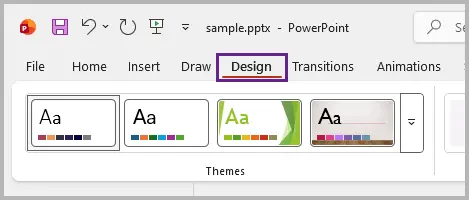
- Allez dans l'onglet Création du ruban.
- Cliquez sur Format de l'arrière-plan à l'extrême droite.
- Choisissez votre type de remplissage préféré :
- Remplissage uni : Choisissez une seule couleur pour un aspect net et professionnel.
- Remplissage dégradé : Mélangez deux ou plusieurs couleurs en douceur pour un effet dynamique.
- Remplissage avec image ou texture : Appliquez une image ou l'une des textures intégrées de PowerPoint.
- Remplissage avec motif : Utilisez des motifs répétitifs comme des rayures ou des points pour des arrière-plans subtils.
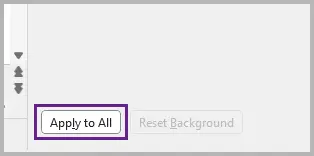
- Cliquez sur Appliquer partout pour utiliser le même arrière-plan sur chaque diapositive, ou laissez la case décochée pour l'appliquer uniquement à la diapositive actuelle.

Conseils :
- Choisissez des couleurs qui contrastent bien avec votre texte et vos visuels. Pour la lisibilité, utilisez des arrière-plans clairs avec du texte sombre ou vice versa.
- Utilisez le Pinceau de reproduction pour copier rapidement un style d'arrière-plan d'une diapositive à une autre.
Quand l'utiliser :
Cette méthode est idéale pour la plupart des utilisateurs qui souhaitent un arrière-plan cohérent et professionnel sans effort. Elle est rapide, intuitive et s'intègre parfaitement aux thèmes intégrés de PowerPoint.
Méthode 2. Utiliser une image d'arrière-plan personnalisée
Bien que le Format de l'arrière-plan prenne en charge les remplissages d'images, l'insertion manuelle d'une image vous donne un contrôle créatif supplémentaire. Utilisez cette approche lorsque vous avez besoin de positionner, recadrer, superposer ou couvrir partiellement la diapositive avec des visuels — par exemple, en plaçant une image principale, en décalant une photo derrière le texte ou en composant plusieurs images et formes.
Guide rapide :
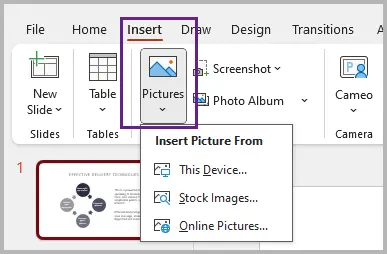
- Allez dans Insertion → Images → Cet appareil (ou source en ligne).
- Choisissez et insérez votre image.
- Redimensionnez-la ou recadrez-la pour l'adapter à votre conception.
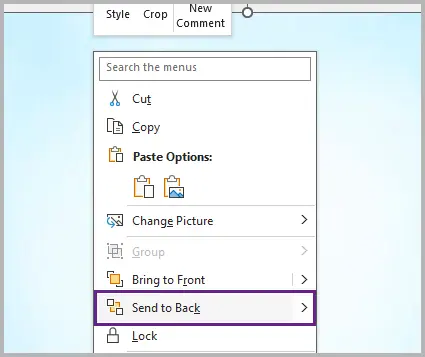
- Faites un clic droit sur l'image → Mettre à l'arrière-plan pour que le texte et les objets apparaissent par-dessus.
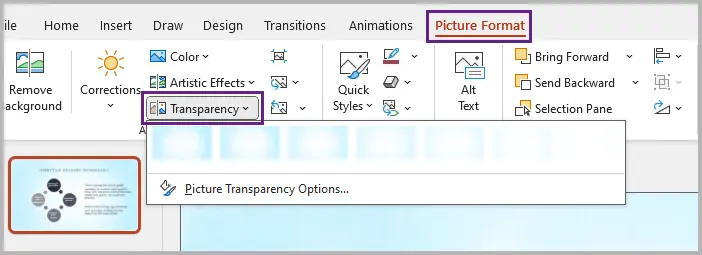
- Ajustez la transparence si nécessaire pour éviter que l'arrière-plan ne submerge le contenu de la diapositive.
Conseils :
- Utilisez cette méthode pour les diapositives qui se démarquent, comme les pages de garde ou les transitions, où vous souhaitez une image distincte du reste de la présentation.
- Gardez la taille des fichiers petite — compressez les grandes images pour éviter un chargement lent de la présentation.
Quand l'utiliser :
Choisissez cette approche lorsque vous avez besoin d'un placement précis, d'une composition unique ou d'effets visuels superposés au-delà de ce que propose le Format de l'arrière-plan.
Méthode 3. Appliquer l'arrière-plan à toutes les diapositives via le Masque des diapositives
Si vous souhaitez appliquer un arrière-plan de manière cohérente sur chaque diapositive — y compris celles que vous ajouterez à l'avenir — le Masque des diapositives est la meilleure solution. Cette méthode garantit que votre présentation conserve une image de marque uniforme et vous fait gagner du temps lors de la modification de grandes présentations.
Étape par étape :
- Allez dans Affichage → Masque des diapositives .
- Sélectionnez le masque de diapositive principal dans le volet de gauche.
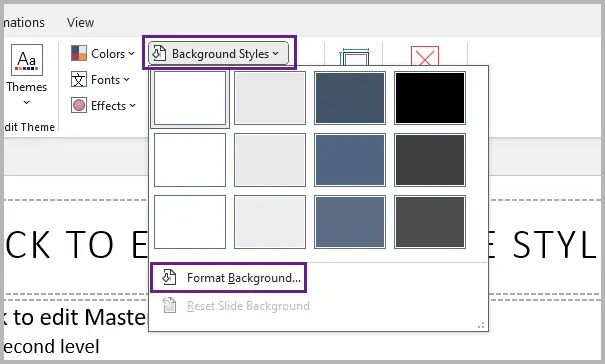
- Cliquez sur Styles d'arrière-plan → Format de l'arrière-plan et choisissez l'arrière-plan souhaité (couleur, dégradé, image ou motif).
- Fermez la vue Masque des diapositives pour revenir à l'éditeur de diapositives normal.

Conseils :
- Créez plusieurs mises en page de Masque des diapositives, chacune avec un arrière-plan différent, pour séparer visuellement les sections de la présentation.
- Verrouillez les éléments clés (logos, formes d'arrière-plan) dans le masque pour éviter les modifications accidentelles.
Quand l'utiliser :
Utilisez le Masque des diapositives lors de la création de modèles, de présentations d'entreprise ou de supports pédagogiques qui nécessitent un arrière-plan cohérent sur toutes les diapositives et mises en page.
Méthode 4. Changer l'arrière-plan avec une macro VBA
Pour les utilisateurs expérimentés à l'aise avec les scripts, VBA (Visual Basic pour Applications) offre un moyen d'automatiser les changements d'arrière-plan directement dans PowerPoint. C'est utile lorsque vous devez mettre à jour rapidement plusieurs diapositives ou présentations avec les mêmes paramètres.
Exemple de script VBA :
Sub SetSlideBackgroundColor()
    Dim sld As Slide
    For Each sld In ActivePresentation.Slides
        sld.FollowMasterBackground = False
        sld.Background.Fill.ForeColor.RGB = RGB(100, 149, 237) 'Bleu ciel
    Next sld
End Sub
Voici comment faire :
- Appuyez sur Alt + F11 pour ouvrir l'éditeur VBA dans PowerPoint.
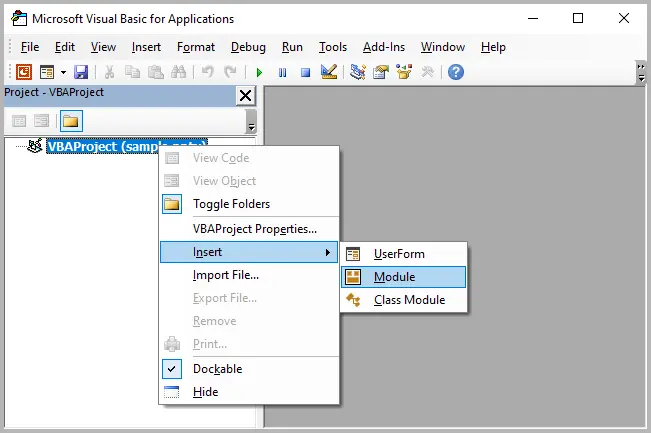
- Faites un clic droit sur le nom du projet et sélectionnez Insertion → Module .
- Copiez et collez le code VBA fourni dans le module.
- Appuyez sur F5 pour exécuter la macro, ce qui changera l'arrière-plan de toutes les diapositives.
Quand l'utiliser :
VBA est idéal pour les utilisateurs qui travaillent déjà dans PowerPoint et ont besoin d'une automatisation rapide et reproductible — par exemple, pour les mises à jour de modèles d'entreprise ou les tâches de formatage en masse.
Méthode 5. Changer l'arrière-plan par programmation avec Python
Pour les développeurs ou les analystes qui souhaitent générer des présentations de manière dynamique, Spire.Presentation for Python offre un moyen puissant de manipuler les fichiers PowerPoint, y compris de changer les arrière-plans des diapositives, sans ouvrir PowerPoint.
Installation :
pip install spire.presentation
Voici un exemple de la manière d'appliquer une couleur d'arrière-plan unie à toutes les diapositives, en utilisant Spire.Presentation for Python :
from spire.presentation import *

# Créer un objet Presentation
presentation = Presentation()
# Charger le fichier PowerPoint
presentation.LoadFromFile("Input.pptx")

# Parcourir toutes les diapositives
for slide in presentation.Slides:
    # Accéder et personnaliser l'arrière-plan
    background = slide.SlideBackground
    background.Type = BackgroundType.Custom
    background.Fill.FillType = FillFormatType.Solid
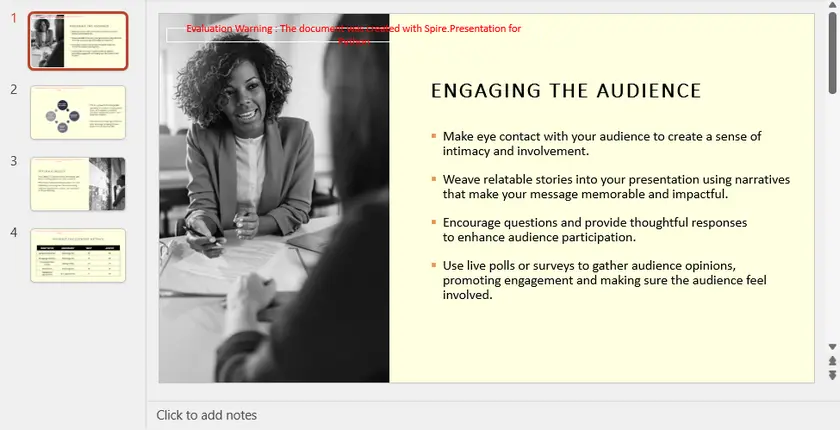
    background.Fill.SolidColor.Color = Color.get_LightYellow()

# Enregistrer la présentation modifiée
presentation.SaveToFile("AllSlidesBackground.pptx", FileFormat.Pptx2013)
presentation.Dispose()
Étapes principales expliquées :
- Charge un fichier PowerPoint existant.
- Parcourt toutes les diapositives.
- Définit une couleur unie personnalisée comme arrière-plan.
- Enregistre la présentation modifiée.
Lire la suite : Définir la couleur ou l'image d'arrière-plan pour les diapositives PowerPoint en Python
Sortie :
Pourquoi utiliser Spire.Presentation :
- Fonctionne sur plusieurs plateformes (Windows, macOS, Linux).
- Permet l'automatisation en masse (appliquer des arrière-plans à des centaines de diapositives).
- Peut s'intégrer à des sources de données (Excel, XML, bases de données) pour la création dynamique de diapositives.
Tableau comparatif : Quelle méthode choisir ?
| Méthode | Niveau de compétence | Idéal pour | Portée | Flexibilité |
|---|---|---|---|---|
| Format de l'arrière-plan | Débutant | Modifications rapides par diapositive | Une seule ou toutes les diapositives | Modérée – offre plusieurs options de remplissage |
| Image d'arrière-plan personnalisée | Débutant–Intermédiaire | Conceptions créatives et mises en page uniques | Par diapositive | Élevée – permet le recadrage, la superposition et les effets |
| Masque des diapositives | Intermédiaire | Conception cohérente pour des présentations ou des modèles entiers | Toutes les diapositives (actuelles & futures) | Élevée – contrôle la mise en page et le thème ensemble |
| Macro VBA | Intermédiaire–Avancé | Mises à jour en masse dans PowerPoint | Toutes les diapositives ou plusieurs présentations | Moyenne – limitée par l'environnement VBA de PowerPoint |
| Python (Spire.Presentation) | Avancé | Automatisation, génération par lots ou intégration avec des pipelines de données | Plusieurs diapositives ou fichiers | Très élevée – contrôle programmatique complet |
Résumé
Changer l'arrière-plan d'une diapositive PowerPoint peut être simple ou hautement automatisé, selon vos besoins. Pour les utilisateurs quotidiens , le Format de l'arrière-plan de PowerPoint, les images personnalisées et le Masque des diapositives offrent des options flexibles pour les diapositives uniques et les présentations entières. Pour les utilisateurs avancés ou les développeurs , l'automatisation via VBA ou Python (Spire.Presentation) facilite l'application d'arrière-plans par programmation, ce qui permet de gagner du temps et d'assurer la cohérence sur des présentations volumineuses ou multiples.
En comprenant ces méthodes, vous pouvez choisir la bonne approche pour votre flux de travail — qu'il s'agisse d'une modification manuelle rapide pour une diapositive, d'un modèle d'entreprise de marque ou de mises à jour d'arrière-plan entièrement automatisées pour des centaines de diapositives.
FAQ sur le changement d'arrière-plan des diapositives
Q1. Comment puis-je réinitialiser l'arrière-plan d'une diapositive ?
Utilisez Format de l'arrière-plan → Réinitialiser l'arrière-plan pour rétablir le style par défaut du thème de la diapositive.
Q2. Puis-je appliquer des arrière-plans différents à des diapositives différentes ?
Oui, soit manuellement via le Format de l'arrière-plan, soit en créant plusieurs mises en page dans le Masque des diapositives.
Q3. Quelle est la meilleure résolution d'image pour les arrière-plans de diapositives ?
Utilisez au moins 1920×1080 pixels pour les diapositives Full HD. Une résolution plus élevée est recommandée pour les grands écrans ou les projecteurs.
Q4. Puis-je utiliser Python pour appliquer des arrière-plans en dégradé ou avec des images ?
Oui, Spire.Presentation for Python prend en charge les couleurs unies, les dégradés et les remplissages d'images par programmation.
Q5. VBA est-il plus sûr que Python pour l'automatisation ?
VBA s'exécute à l'intérieur de PowerPoint et est plus facile pour les non-développeurs, mais ne fonctionne que sur Windows. Python est multiplateforme et plus flexible pour l'automatisation à grande échelle.
Voir aussi
- Supprimer les arrière-plans d'une diapositive PowerPoint ou des masques de diapositives en Python
- Comment créer des documents PowerPoint en Python
- 5 façons simples d'exporter des diapositives PPT en tant qu'images (PNG, JPG, TIFF)
- Convertir PowerPoint en HTML : Méthodes simples pour chaque utilisateur
Cómo cambiar los fondos de las diapositivas de PowerPoint — 5 métodos
Tabla de Contenidos
- Método 1. Cambiar el Fondo Usando "Formato de Fondo"
- Método 2. Usar una Imagen de Fondo Personalizada
- Método 3. Aplicar Fondo a Todas las Diapositivas a través del Patrón de Diapositivas
- Método 4. Cambiar el Fondo con una Macro de VBA
- Método 5. Cambiar el Fondo Programáticamente con Python
- Tabla Comparativa: ¿Qué Método Deberías Elegir?
- Resumen
- Preguntas Frecuentes Sobre Cómo Cambiar el Fondo de las Diapositivas
PowerPoint es ampliamente utilizado para presentar ideas, informes y contenido de marketing. El fondo de una diapositiva hace más que decorar: establece el tono, mejora la legibilidad y refuerza la marca. Elegir el fondo adecuado puede hacer que cualquier presentación sea más profesional y visualmente atractiva.
Los fondos de las diapositivas se pueden personalizar manualmente utilizando herramientas integradas como colores sólidos, degradados, patrones o imágenes. Para usuarios avanzados, la automatización con VBA o Python (Spire.Presentation) ayuda a ahorrar tiempo en múltiples diapositivas o presentaciones. Este artículo cubre cinco métodos prácticos para cambiar los fondos de las diapositivas, desde ediciones manuales hasta soluciones programáticas.
Resumen de Métodos
- Método 1. Cambiar el Fondo Usando "Formato de Fondo"
- Método 2. Usar una Imagen de Fondo Personalizada
- Método 3. Aplicar Fondo a Todas las Diapositivas a través del Patrón de Diapositivas
- Método 4. Cambiar el Fondo con una Macro de VBA
- Método 5. Cambiar el Fondo Programáticamente con Python
Método 1. Cambiar el Fondo Usando "Formato de Fondo"
Una de las formas más fáciles de cambiar el fondo de una diapositiva es a través de la función Formato de Fondo de PowerPoint. Ofrece varias opciones de relleno (Sólido, Degradado, Imagen o Textura y Trama) todas accesibles desde un único panel.
Cómo hacerlo:
- Abre tu presentación de PowerPoint.
- Selecciona la diapositiva que deseas modificar.
- Ve a la pestaña Diseño en la cinta de opciones.
- Haz clic en Formato de Fondo en el extremo derecho.
- Elige tu tipo de relleno preferido:
- Relleno sólido: Elige un solo color para un aspecto limpio y profesional.
- Relleno degradado: Mezcla dos o más colores suavemente para un efecto dinámico.
- Relleno con imagen o textura: Aplica una imagen o una de las texturas integradas de PowerPoint.
- Relleno de trama: Usa diseños repetitivos como rayas o puntos para fondos sutiles.
- Haz clic en Aplicar a todo para usar el mismo fondo en todas las diapositivas, o déjalo sin marcar para aplicarlo solo a la diapositiva actual.
Consejos:
- Elige colores que contrasten bien con tu texto y elementos visuales. Para mayor legibilidad, usa fondos claros con texto oscuro o viceversa.
- Usa Copiar formato para copiar rápidamente un estilo de fondo de una diapositiva a otra.
Cuándo usarlo:
Este método es ideal para la mayoría de los usuarios que desean un fondo consistente y profesional sin ningún esfuerzo. Es rápido, intuitivo y se integra perfectamente con los temas integrados de PowerPoint.
Método 2. Usar una Imagen de Fondo Personalizada
Aunque Formato de Fondo admite rellenos de imagen, insertar una imagen manualmente te da un control creativo adicional. Usa este enfoque cuando necesites posicionar, recortar, superponer o cubrir parcialmente la diapositiva con elementos visuales, por ejemplo, colocando una imagen principal, desplazando una foto detrás del texto o componiendo múltiples imágenes y formas.
Guía rápida:
- Ve a Insertar → Imágenes → Este dispositivo (o fuente en línea).
- Elige e inserta tu imagen.
- Redimensiona o recórtala para que se ajuste a tu diseño.
- Haz clic derecho en la imagen → Enviar al fondo para que el texto y los objetos aparezcan encima.
- Ajusta la transparencia si es necesario para evitar que el fondo abrume el contenido de la diapositiva.
Consejos:
- Usa este método para diapositivas destacadas, como portadas o transiciones, donde desees una imagen distinta al resto de la presentación.
- Mantén los tamaños de archivo pequeños: comprime las imágenes grandes para evitar que la presentación se cargue lentamente.
Cuándo usarlo:
Elige este enfoque cuando necesites una colocación precisa, una composición única o efectos visuales en capas más allá de lo que ofrece Formato de Fondo.
Método 3. Aplicar Fondo a Todas las Diapositivas a través del Patrón de Diapositivas
Si deseas aplicar un fondo de manera consistente en todas las diapositivas, incluidas las futuras que agregarás, el Patrón de diapositivas es la mejor solución. Este método garantiza que tu presentación mantenga una marca uniforme y ahorra tiempo al editar presentaciones grandes.
Paso a paso:
- Ve a Vista → Patrón de diapositivas .
- Selecciona la diapositiva maestra superior en el panel izquierdo.
- Haz clic en Estilos de fondo → Formato de fondo y elige el fondo que desees (color, degradado, imagen o trama).
- Cierra la vista Patrón de diapositivas para volver al editor de diapositivas normal.
Consejos:
- Crea múltiples diseños de Patrón de diapositivas, cada uno con un fondo diferente, para separar visualmente las secciones de la presentación.
- Bloquea los elementos clave (logotipos, formas de fondo) en el patrón para evitar ediciones accidentales.
Cuándo usarlo:
Usa el Patrón de diapositivas al crear plantillas, presentaciones corporativas o mazos educativos que requieran un fondo consistente en todas las diapositivas y diseños.
Método 4. Cambiar el Fondo con una Macro de VBA
Para los usuarios avanzados que se sienten cómodos con los scripts, VBA (Visual Basic para Aplicaciones) proporciona una forma de automatizar los cambios de fondo directamente en PowerPoint. Es útil cuando necesitas actualizar rápidamente varias diapositivas o presentaciones con la misma configuración.
Ejemplo de script de VBA:
Sub SetSlideBackgroundColor()
    Dim sld As Slide
    For Each sld In ActivePresentation.Slides
        sld.FollowMasterBackground = False
        sld.Background.Fill.ForeColor.RGB = RGB(100, 149, 237) 'Sky blue
    Next sld
End Sub
A continuación, te explicamos cómo hacerlo:
- Presiona Alt + F11 para abrir el editor de VBA en PowerPoint.
- Haz clic con el botón derecho en el nombre del proyecto y selecciona Insertar → Módulo .
- Copia y pega el código VBA proporcionado en el módulo.
- Presiona F5 para ejecutar la macro, que cambiará el fondo de todas las diapositivas.
Cuándo usarlo:
VBA es ideal para usuarios que ya trabajan en PowerPoint y necesitan una automatización rápida y repetible, por ejemplo, para actualizaciones de plantillas corporativas o tareas de formato masivo.
Método 5. Cambiar el Fondo Programáticamente con Python
Para desarrolladores o analistas que desean generar presentaciones dinámicamente, Spire.Presentation para Python proporciona una forma poderosa de manipular archivos de PowerPoint, incluido el cambio de fondos de diapositivas, sin abrir PowerPoint.
Instalación:
pip install spire.presentation
Aquí hay un ejemplo de cómo aplicar un color de fondo sólido a todas las diapositivas, usando Spire.Presentation para Python:
from spire.presentation import *

# Create a Presentation object
presentation = Presentation()
# Load the PowerPoint file
presentation.LoadFromFile("Input.pptx")

# Loop through all slides
for slide in presentation.Slides:
    # Access and customize background
    background = slide.SlideBackground
    background.Type = BackgroundType.Custom
    background.Fill.FillType = FillFormatType.Solid
    background.Fill.SolidColor.Color = Color.get_LightYellow()

# Save the modified presentation
presentation.SaveToFile("AllSlidesBackground.pptx", FileFormat.Pptx2013)
presentation.Dispose()
Pasos principales explicados:
- Carga un archivo de PowerPoint existente.
- Itera a través de todas las diapositivas.
- Establece un color sólido personalizado como fondo.
- Guarda la presentación modificada.
Leer más: Establecer color de fondo o imagen para diapositivas de PowerPoint en Python
Salida:
Por qué usar Spire.Presentation:
- Funciona en todas las plataformas (Windows, macOS, Linux).
- Permite la automatización masiva (aplicar fondos a cientos de diapositivas).
- Se puede integrar con fuentes de datos (Excel, XML, bases de datos) para la creación dinámica de diapositivas.
Tabla Comparativa: ¿Qué Método Deberías Elegir?
| Método | Nivel de Habilidad | Ideal Para | Alcance | Flexibilidad |
|---|---|---|---|---|
| Formato de Fondo | Principiante | Ediciones rápidas por diapositiva | Diapositiva única o todas | Moderada: ofrece múltiples opciones de relleno |
| Imagen de Fondo Personalizada | Principiante–Intermedio | Diseños creativos y diseños únicos | Por diapositiva | Alta: permite recortar, superponer y aplicar efectos |
| Patrón de Diapositivas | Intermedio | Diseño consistente para presentaciones o plantillas completas | Todas las diapositivas (actuales y futuras) | Alta: controla el diseño y el tema juntos |
| Macro VBA | Intermedio–Avanzado | Actualizaciones masivas dentro de PowerPoint | Todas las diapositivas o múltiples presentaciones | Media: limitada por el entorno VBA de PowerPoint |
| Python (Spire.Presentation) | Avanzado | Automatización, generación por lotes o integración con canalizaciones de datos | Múltiples diapositivas o archivos | Muy alta: control programático total |
Resumen
Cambiar el fondo de una diapositiva de PowerPoint puede ser simple o altamente automatizado, dependiendo de tus necesidades. Para los usuarios cotidianos, el Formato de Fondo de PowerPoint, las imágenes personalizadas y el Patrón de Diapositivas ofrecen opciones flexibles tanto para diapositivas individuales como para presentaciones completas. Para usuarios avanzados o desarrolladores, la automatización a través de VBA o Python (Spire.Presentation) facilita la aplicación de fondos mediante programación, ahorrando tiempo y garantizando la coherencia en presentaciones grandes o múltiples.
Al comprender estos métodos, puedes elegir el enfoque adecuado para tu flujo de trabajo, ya sea un ajuste manual rápido para una diapositiva, una plantilla corporativa de marca o actualizaciones de fondo totalmente automatizadas para cientos de diapositivas.
Preguntas Frecuentes Sobre Cómo Cambiar el Fondo de las Diapositivas
P1. ¿Cómo puedo restablecer el fondo de una diapositiva?
Usa Formato de Fondo → Restablecer Fondo para revertir la diapositiva al estilo predeterminado del tema.
P2. ¿Puedo aplicar diferentes fondos a diferentes diapositivas?
Sí, ya sea manualmente a través de Formato de Fondo o creando múltiples diseños en el Patrón de Diapositivas.
P3. ¿Qué resolución de imagen es mejor para los fondos de las diapositivas?
Usa al menos 1920 × 1080 píxeles para diapositivas Full HD. Se recomienda una resolución más alta para pantallas grandes o proyectores.
P4. ¿Puedo usar Python para aplicar fondos de degradado o de imagen?
Sí, Spire.Presentation para Python admite colores sólidos, degradados y rellenos de imagen mediante programación.
P5. ¿Es VBA más seguro que Python para la automatización?
VBA se ejecuta dentro de PowerPoint y es más fácil para los no desarrolladores, pero solo funciona en Windows. Python es multiplataforma y más flexible para la automatización a gran escala.
Ver También
Wie man PowerPoint-Folienhintergründe ändert – 5 Methoden
Inhaltsverzeichnis
- Methode 1. Hintergrund ändern mit „Hintergrund formatieren“
- Methode 2. Ein benutzerdefiniertes Hintergrundbild verwenden
- Methode 3. Hintergrund über den Folienmaster auf alle Folien anwenden
- Methode 4. Hintergrund mit einem VBA-Makro ändern
- Methode 5. Hintergrund programmgesteuert mit Python ändern
- Vergleichstabelle: Welche Methode sollten Sie wählen?
- Zusammenfassung
- FAQs zum Ändern des Folienhintergrunds
PowerPoint wird häufig verwendet, um Ideen, Berichte und Marketinginhalte zu präsentieren. Der Hintergrund einer Folie ist mehr als nur Dekoration – er gibt den Ton an, verbessert die Lesbarkeit und stärkt das Branding. Die Wahl des richtigen Hintergrunds kann jede Präsentation professioneller und optisch ansprechender machen.
Folienhintergründe können manuell mit integrierten Werkzeugen wie Volltonfarben, Farbverläufen, Mustern oder Bildern angepasst werden. Für fortgeschrittene Benutzer hilft die Automatisierung mit VBA oder Python (Spire.Presentation), Zeit bei mehreren Folien oder Präsentationen zu sparen. Dieser Artikel behandelt fünf praktische Methoden zum Ändern von Folienhintergründen, von manuellen Bearbeitungen bis hin zu programmgesteuerten Lösungen.
Methodenübersicht
- Methode 1. Hintergrund ändern mit „Hintergrund formatieren“
- Methode 2. Ein benutzerdefiniertes Hintergrundbild verwenden
- Methode 3. Hintergrund über den Folienmaster auf alle Folien anwenden
- Methode 4. Hintergrund mit einem VBA-Makro ändern
- Methode 5. Hintergrund programmgesteuert mit Python ändern
Methode 1. Hintergrund ändern mit „Hintergrund formatieren“
Eine der einfachsten Möglichkeiten, den Hintergrund einer Folie zu ändern, ist die Funktion Hintergrund formatieren von PowerPoint. Sie bietet mehrere Fülloptionen – Einfarbige Füllung, Farbverlauf, Bild- oder Texturfüllung und Musterfüllung – alle über einen einzigen Bereich zugänglich.
So wird's gemacht:
- Öffnen Sie Ihre PowerPoint-Präsentation.
- Wählen Sie die Folie aus, die Sie ändern möchten.
- Gehen Sie zur Registerkarte Entwurf im Menüband.
- Klicken Sie ganz rechts auf Hintergrund formatieren.
- Wählen Sie Ihre bevorzugte Füllart:
- Einfarbige Füllung: Wählen Sie eine einzelne Farbe für ein sauberes und professionelles Aussehen.
- Farbverlauf: Mischen Sie zwei oder mehr Farben sanft für einen dynamischen Effekt.
- Bild- oder Texturfüllung: Wenden Sie ein Bild oder eine der integrierten Texturen von PowerPoint an.
- Musterfüllung: Verwenden Sie wiederholende Designs wie Streifen oder Punkte für dezente Hintergründe.
- Klicken Sie auf Für alle übernehmen, um denselben Hintergrund auf jeder Folie zu verwenden, oder lassen Sie das Kontrollkästchen deaktiviert, um ihn nur auf die aktuelle Folie anzuwenden.
Tipps:
- Wählen Sie Farben, die gut mit Ihrem Text und Ihren visuellen Elementen kontrastieren. Verwenden Sie für eine gute Lesbarkeit helle Hintergründe mit dunklem Text oder umgekehrt.
- Verwenden Sie den Format übertragen-Pinsel, um einen Hintergrundstil schnell von einer Folie auf eine andere zu kopieren.
Wann man es benutzt:
Diese Methode ist ideal für die meisten Benutzer, die ohne großen Aufwand einen konsistenten, professionellen Hintergrund wünschen. Sie ist schnell, intuitiv und lässt sich nahtlos in die integrierten Designs von PowerPoint integrieren.
Methode 2. Ein benutzerdefiniertes Hintergrundbild verwenden
Obwohl „Hintergrund formatieren“ Bildfüllungen unterstützt, gibt Ihnen das manuelle Einfügen eines Bildes zusätzliche kreative Kontrolle. Verwenden Sie diesen Ansatz, wenn Sie visuelle Elemente positionieren, zuschneiden, überlagern oder die Folie teilweise damit bedecken müssen – zum Beispiel, um ein Heldenbild zu platzieren, ein Foto hinter Text zu versetzen oder mehrere Bilder und Formen zu komponieren.
Kurzanleitung:
- Gehen Sie zu Einfügen → Bilder → Dieses Gerät (oder Online-Quelle).
- Wählen Sie Ihr Bild aus und fügen Sie es ein.
- Passen Sie die Größe an oder schneiden Sie es zu, damit es zu Ihrem Design passt.
- Klicken Sie mit der rechten Maustaste auf das Bild → In den Hintergrund, damit Text und Objekte darüber erscheinen.
- Passen Sie bei Bedarf die Transparenz an, um zu verhindern, dass der Hintergrund den Folieninhalt überdeckt.
Tipps:
- Verwenden Sie diese Methode für herausragende Folien, wie Titelseiten oder Übergänge, bei denen Sie ein unverwechselbares Bild wünschen, das sich vom Rest des Decks abhebt.
- Halten Sie die Dateigrößen klein – komprimieren Sie große Bilder, um ein langsames Laden der Präsentation zu verhindern.
Wann man es benutzt:
Wählen Sie diesen Ansatz, wenn Sie eine präzise Platzierung, eine einzigartige Komposition oder überlagerte visuelle Effekte benötigen, die über das hinausgehen, was „Hintergrund formatieren“ bietet.
Methode 3. Hintergrund über den Folienmaster auf alle Folien anwenden
Wenn Sie einen Hintergrund konsistent auf jede Folie anwenden möchten – einschließlich zukünftiger, die Sie hinzufügen werden – ist der Folienmaster die beste Lösung. Diese Methode stellt sicher, dass Ihre Präsentation ein einheitliches Branding beibehält und spart Zeit bei der Bearbeitung großer Decks.
Schritt für Schritt:
- Gehen Sie zu Ansicht → Folienmaster .
- Wählen Sie die oberste Masterfolie im linken Bereich aus.
- Klicken Sie auf Hintergrundformate → Hintergrund formatieren und wählen Sie Ihren gewünschten Hintergrund (Farbe, Farbverlauf, Bild oder Muster).
- Schließen Sie die Folienmaster-Ansicht, um zum normalen Folieneditor zurückzukehren.
Tipps:
- Erstellen Sie mehrere Folienmaster-Layouts, jedes mit einem anderen Hintergrund, um Präsentationsabschnitte visuell zu trennen.
- Sperren Sie Schlüsselelemente (Logos, Hintergrundformen) im Master, um versehentliche Bearbeitungen zu verhindern.
Wann man es benutzt:
Verwenden Sie den Folienmaster beim Erstellen von Vorlagen, Unternehmenspräsentationen oder Schulungsdecks, die einen konsistenten Hintergrund über alle Folien und Layouts hinweg erfordern.
Methode 4. Hintergrund mit einem VBA-Makro ändern
Für Power-User, die mit Skripting vertraut sind, bietet VBA (Visual Basic for Applications) eine Möglichkeit, Hintergrundänderungen direkt in PowerPoint zu automatisieren. Dies ist nützlich, wenn Sie mehrere Folien oder Präsentationen schnell mit denselben Einstellungen aktualisieren müssen.
Beispiel-VBA-Skript:
Sub SetSlideBackgroundColor()
    Dim sld As Slide
    For Each sld In ActivePresentation.Slides
        sld.FollowMasterBackground = False
        sld.Background.Fill.ForeColor.RGB = RGB(100, 149, 237) 'Sky blue
    Next sld
End Sub
So wird's gemacht:
- Drücken Sie Alt + F11, um den VBA-Editor in PowerPoint zu öffnen.
- Klicken Sie mit der rechten Maustaste auf den Projektnamen und wählen Sie Einfügen → Modul .
- Kopieren Sie den bereitgestellten VBA-Code und fügen Sie ihn in das Modul ein.
- Drücken Sie F5, um das Makro auszuführen, das den Hintergrund aller Folien ändert.
Wann man es benutzt:
VBA eignet sich am besten für Benutzer, die bereits in PowerPoint arbeiten und eine schnelle, wiederholbare Automatisierung benötigen – zum Beispiel für die Aktualisierung von Unternehmensvorlagen oder für Massenformatierungsaufgaben.
Methode 5. Hintergrund programmgesteuert mit Python ändern
Für Entwickler oder Analysten, die Präsentationen dynamisch erstellen möchten, bietet Spire.Presentation for Python eine leistungsstarke Möglichkeit, PowerPoint-Dateien zu bearbeiten, einschließlich des Änderns von Folienhintergründen, ohne PowerPoint zu öffnen.
Installation:
pip install spire.presentation
Hier ist ein Beispiel, wie man mit Spire.Presentation for Python eine einfarbige Hintergrundfarbe auf alle Folien anwendet:
from spire.presentation import *

# Create a Presentation object
presentation = Presentation()
# Load the PowerPoint file
presentation.LoadFromFile("Input.pptx")

# Loop through all slides
for slide in presentation.Slides:
    # Access and customize background
    background = slide.SlideBackground
    background.Type = BackgroundType.Custom
    background.Fill.FillType = FillFormatType.Solid
    background.Fill.SolidColor.Color = Color.get_LightYellow()

# Save the modified presentation
presentation.SaveToFile("AllSlidesBackground.pptx", FileFormat.Pptx2013)
presentation.Dispose()
Kernschritte erklärt:
- Lädt eine vorhandene PowerPoint-Datei.
- Durchläuft alle Folien.
- Legt eine benutzerdefinierte Volltonfarbe als Hintergrund fest.
- Speichert die geänderte Präsentation.
Weiterlesen: Hintergrundfarbe oder -bild für PowerPoint-Folien in Python festlegen
Ausgabe:
Warum Spire.Presentation verwenden:
- Funktioniert plattformübergreifend (Windows, macOS, Linux).
- Ermöglicht die Massenautomatisierung (Anwenden von Hintergründen auf Hunderte von Folien).
- Kann zur dynamischen Folienerstellung in Datenquellen (Excel, XML, Datenbanken) integriert werden.
Vergleichstabelle: Welche Methode sollten Sie wählen?
| Methode | Fähigkeitslevel | Am besten für | Umfang | Flexibilität |
|---|---|---|---|---|
| Hintergrund formatieren | Anfänger | Schnelle Bearbeitungen pro Folie | Einzelne oder alle Folien | Mittel – bietet mehrere Fülloptionen |
| Benutzerdefiniertes Hintergrundbild | Anfänger–Mittel | Kreative Designs und einzigartige Layouts | Pro Folie | Hoch – ermöglicht Zuschneiden, Überlagern und Effekte |
| Folienmaster | Mittel | Konsistentes Design für ganze Decks oder Vorlagen | Alle Folien (aktuell & zukünftig) | Hoch – steuert Layout und Thema zusammen |
| VBA-Makro | Mittel–Fortgeschritten | Massenaktualisierungen in PowerPoint | Alle Folien oder mehrere Präsentationen | Mittel – durch die VBA-Umgebung von PowerPoint eingeschränkt |
| Python (Spire.Presentation) | Fortgeschritten | Automatisierung, Stapelverarbeitung oder Integration mit Datenpipelines | Mehrere Folien oder Dateien | Sehr hoch – volle programmgesteuerte Kontrolle |
Zusammenfassung
Das Ändern des Hintergrunds einer PowerPoint-Folie kann einfach oder hochautomatisiert sein, je nach Ihren Bedürfnissen. Für alltägliche Benutzer bieten die Optionen Hintergrund formatieren, benutzerdefinierte Bilder und der Folienmaster von PowerPoint flexible Möglichkeiten für sowohl einzelne Folien als auch ganze Präsentationen. Für fortgeschrittene Benutzer oder Entwickler erleichtert die Automatisierung über VBA oder Python (Spire.Presentation) das programmgesteuerte Anwenden von Hintergründen, was Zeit spart und die Konsistenz über große oder mehrere Präsentationen hinweg sicherstellt.
Indem Sie diese Methoden verstehen, können Sie den richtigen Ansatz für Ihren Arbeitsablauf wählen – sei es eine schnelle manuelle Anpassung für eine Folie, eine gebrandete Unternehmensvorlage oder vollständig automatisierte Hintergrundaktualisierungen für Hunderte von Folien.
FAQs zum Ändern des Folienhintergrunds
F1. Wie kann ich den Hintergrund einer Folie zurücksetzen?
Verwenden Sie „Hintergrund formatieren“ → „Hintergrund zurücksetzen“, um die Folie auf den Standardstil des Designs zurückzusetzen.
F2. Kann ich verschiedene Hintergründe auf verschiedene Folien anwenden?
Ja, entweder manuell über „Hintergrund formatieren“ oder durch Erstellen mehrerer Layouts im Folienmaster.
F3. Welche Bildauflösung ist am besten für Folienhintergründe geeignet?
Verwenden Sie mindestens 1920×1080 Pixel für Full-HD-Folien. Eine höhere Auflösung wird für große Bildschirme oder Projektoren empfohlen.
F4. Kann ich Python verwenden, um Farbverlaufs- oder Bildhintergründe anzuwenden?
Ja, Spire.Presentation for Python unterstützt einfarbige Farben, Farbverläufe und Bildfüllungen programmgesteuert.
F5. Ist VBA sicherer als Python für die Automatisierung?
VBA läuft innerhalb von PowerPoint und ist für Nicht-Entwickler einfacher, funktioniert aber nur unter Windows. Python ist plattformübergreifend und flexibler für die groß angelegte Automatisierung.
Siehe auch
Как изменить фон слайдов PowerPoint — 5 способов
Содержание
- Способ 1. Изменение фона с помощью «Формата фона»
- Способ 2. Использование пользовательского фонового изображения
- Способ 3. Применение фона ко всем слайдам через «Образец слайдов»
- Способ 4. Изменение фона с помощью макроса VBA
- Способ 5. Программное изменение фона с помощью Python
- Сравнительная таблица: какой метод выбрать?
- Итог
- Часто задаваемые вопросы об изменении фона слайдов
PowerPoint широко используется для представления идей, отчетов и маркетингового контента. Фон слайда не просто украшает — он задает тон, улучшает читаемость и укрепляет брендинг. Правильно подобранный фон может сделать любую презентацию более профессиональной и визуально привлекательной.
Фоны слайдов можно настраивать вручную с помощью встроенных инструментов, таких как сплошные цвета, градиенты, узоры или изображения. Для продвинутых пользователей автоматизация с помощью VBA или Python (Spire.Presentation) помогает сэкономить время при работе с несколькими слайдами или презентациями. В этой статье рассматриваются пять практических методов изменения фона слайдов, от ручного редактирования до программных решений.
Обзор методов
- Способ 1. Изменение фона с помощью «Формата фона»
- Способ 2. Использование пользовательского фонового изображения
- Способ 3. Применение фона ко всем слайдам через «Образец слайдов»
- Способ 4. Изменение фона с помощью макроса VBA
- Способ 5. Программное изменение фона с помощью Python
Способ 1. Изменение фона с помощью «Формата фона»
Один из самых простых способов изменить фон слайда — это функция PowerPoint «Формат фона». Она предлагает несколько вариантов заливки — сплошная, градиентная, рисунок или текстура, и узор — все они доступны из одной панели.
Как это сделать:
- Откройте вашу презентацию PowerPoint.
- Выберите слайд, который хотите изменить.
- Перейдите на вкладку «Дизайн» на ленте.
- Нажмите «Формат фона» справа.
- Выберите предпочитаемый тип заливки:
- Сплошная заливка: выберите один цвет для чистого и профессионального вида.
- Градиентная заливка: плавно смешайте два или более цветов для динамичного эффекта.
- Заливка рисунком или текстурой: примените изображение или одну из встроенных текстур PowerPoint.
- Узорная заливка: используйте повторяющиеся узоры, такие как полосы или точки, для создания утонченных фонов.
- Нажмите «Применить ко всем», чтобы использовать тот же фон на каждом слайде, или оставьте флажок снятым, чтобы применить только к текущему слайду.
Советы:
- Выбирайте цвета, которые хорошо контрастируют с вашим текстом и визуальными элементами. Для лучшей читаемости используйте светлые фоны с темным текстом или наоборот.
- Используйте «Формат по образцу», чтобы быстро скопировать стиль фона с одного слайда на другой.
Когда использовать:
Этот метод идеально подходит для большинства пользователей, которые хотят получить единообразный, профессиональный фон без лишних усилий. Он быстрый, интуитивно понятный и легко интегрируется со встроенными темами PowerPoint.
Способ 2. Использование пользовательского фонового изображения
Хотя «Формат фона» поддерживает заливку изображением, ручная вставка изображения дает вам дополнительный творческий контроль. Используйте этот подход, когда вам нужно расположить, обрезать, наслоить или частично покрыть слайд визуальными элементами — например, разместить главное изображение, сместить фотографию за текстом или составить композицию из нескольких изображений и фигур.
Краткое руководство:
- Перейдите в Вставка → Изображения → Это устройство (или онлайн-источник).
- Выберите и вставьте ваше изображение.
- Измените размер или обрежьте его, чтобы оно соответствовало вашему дизайну.
- Щелкните правой кнопкой мыши по изображению → На задний план, чтобы текст и объекты отображались поверх него.
- При необходимости отрегулируйте прозрачность, чтобы фон не перекрывал содержимое слайда.
Советы:
- Используйте этот метод для выделяющихся слайдов, таких как титульные страницы или переходы, где вы хотите использовать отдельное изображение, отличное от остальной части презентации.
- Сохраняйте небольшие размеры файлов — сжимайте большие изображения, чтобы предотвратить медленную загрузку презентации.
Когда использовать:
Выбирайте этот подход, когда вам требуется точное размещение, уникальная композиция или многослойные визуальные эффекты, выходящие за рамки возможностей «Формата фона».
Способ 3. Применение фона ко всем слайдам через «Образец слайдов»
Если вы хотите применить фон единообразно ко всем слайдам — включая те, которые вы добавите в будущем — лучшим решением является «Образец слайдов». Этот метод гарантирует, что ваша презентация будет поддерживать единый брендинг и сэкономит время при редактировании больших колод.
Пошаговая инструкция:
- Перейдите в Вид → Образец слайдов.
- Выберите самый верхний образец слайда в левой панели.
- Нажмите Стили фона → Формат фона и выберите желаемый фон (цвет, градиент, изображение или узор).
- Закройте режим «Образец слайдов», чтобы вернуться к обычному редактору слайдов.
Советы:
- Создайте несколько макетов «Образца слайдов», каждый с разным фоном, чтобы визуально разделить разделы презентации.
- Заблокируйте ключевые элементы (логотипы, фоновые фигуры) в образце, чтобы предотвратить случайные изменения.
Когда использовать:
Используйте «Образец слайдов» при создании шаблонов, корпоративных презентаций или учебных материалов, которые требуют единообразного фона на всех слайдах и макетах.
Способ 4. Изменение фона с помощью макроса VBA
Для опытных пользователей, знакомых со скриптами, VBA (Visual Basic for Applications) предоставляет способ автоматизировать изменение фона непосредственно в PowerPoint. Это полезно, когда вам нужно быстро обновить несколько слайдов или презентаций с одинаковыми настройками.
Пример скрипта VBA:
Sub SetSlideBackgroundColor()
    Dim sld As Slide
    For Each sld In ActivePresentation.Slides
        sld.FollowMasterBackground = False
        sld.Background.Fill.ForeColor.RGB = RGB(100, 149, 237) 'Sky blue
    Next sld
End Sub
Как это сделать:
- Нажмите Alt + F11, чтобы открыть редактор VBA в PowerPoint.
- Щелкните правой кнопкой мыши по имени проекта и выберите Insert → Module.
- Скопируйте и вставьте предоставленный код VBA в модуль.
- Нажмите F5, чтобы выполнить макрос, который изменит фон всех слайдов.
Когда использовать:
VBA лучше всего подходит для пользователей, которые уже работают в PowerPoint и нуждаются в быстрой, повторяемой автоматизации — например, для обновления корпоративных шаблонов или массовых задач форматирования.
Способ 5. Программное изменение фона с помощью Python
Для разработчиков или аналитиков, которые хотят динамически создавать презентации, Spire.Presentation for Python предоставляет мощный способ манипулирования файлами PowerPoint, включая изменение фона слайдов, без открытия PowerPoint.
Установка:
pip install spire.presentation
Вот пример того, как применить сплошной цвет фона ко всем слайдам, используя Spire.Presentation for Python:
from spire.presentation import *

# Create a Presentation object
presentation = Presentation()
# Load the PowerPoint file
presentation.LoadFromFile("Input.pptx")

# Loop through all slides
for slide in presentation.Slides:
    # Access and customize background
    background = slide.SlideBackground
    background.Type = BackgroundType.Custom
    background.Fill.FillType = FillFormatType.Solid
    background.Fill.SolidColor.Color = Color.get_LightYellow()

# Save the modified presentation
presentation.SaveToFile("AllSlidesBackground.pptx", FileFormat.Pptx2013)
presentation.Dispose()
Объяснение основных шагов:
- Загружает существующий файл PowerPoint.
- Проходит по всем слайдам.
- Устанавливает пользовательский сплошной цвет в качестве фона.
- Сохраняет измененную презентацию.
Читать далее: Установка цвета фона или изображения для слайдов PowerPoint на Python
Результат:
Зачем использовать Spire.Presentation:
- Работает на разных платформах (Windows, macOS, Linux).
- Позволяет массовую автоматизацию (применение фонов к сотням слайдов).
- Может интегрироваться с источниками данных (Excel, XML, базы данных) для динамического создания слайдов.
Сравнительная таблица: какой метод выбрать?
| Метод | Уровень навыков | Лучше всего подходит для | Область применения | Гибкость |
|---|---|---|---|---|
| Формат фона | Начинающий | Быстрые правки для каждого слайда | Один или все слайды | Умеренная – предлагает несколько вариантов заливки |
| Пользовательское фоновое изображение | Начинающий–Средний | Креативные дизайны и уникальные макеты | Для каждого слайда | Высокая – позволяет обрезать, накладывать слои и применять эффекты |
| Образец слайдов | Средний | Единообразный дизайн для всей презентации или шаблонов | Все слайды (текущие и будущие) | Высокая – управляет макетом и темой вместе |
| Макрос VBA | Средний–Продвинутый | Массовые обновления в PowerPoint | Все слайды или несколько презентаций | Средняя – ограничена средой VBA в PowerPoint |
| Python (Spire.Presentation) | Продвинутый | Автоматизация, пакетная генерация или интеграция с конвейерами данных | Несколько слайдов или файлов | Очень высокая – полный программный контроль |
Итог
Изменение фона слайда PowerPoint может быть как простым, так и высокоавтоматизированным, в зависимости от ваших потребностей. Для обычных пользователей встроенные инструменты PowerPoint, такие как «Формат фона», пользовательские изображения и «Образец слайдов», предоставляют гибкие возможности как для отдельных слайдов, так и для целых презентаций. Для продвинутых пользователей или разработчиков автоматизация с помощью VBA или Python (Spire.Presentation) позволяет легко применять фоны программно, экономя время и обеспечивая единообразие в больших или нескольких презентациях.
Понимая эти методы, вы можете выбрать правильный подход для вашего рабочего процесса — будь то быстрая ручная настройка одного слайда, фирменный корпоративный шаблон или полностью автоматизированное обновление фонов для сотен слайдов.
Часто задаваемые вопросы об изменении фона слайдов
В1. Как сбросить фон слайда?
Используйте «Формат фона» → «Сбросить фон», чтобы вернуть слайд к стилю темы по умолчанию.
В2. Можно ли применять разные фоны к разным слайдам?
Да, либо вручную через «Формат фона», либо создав несколько макетов в «Образце слайдов».
В3. Какое разрешение изображения лучше всего подходит для фонов слайдов?
Используйте разрешение не менее 1920×1080 пикселей для слайдов Full HD. Для больших экранов или проекторов рекомендуется более высокое разрешение.
В4. Могу ли я использовать Python для применения градиентных или графических фонов?
Да, Spire.Presentation for Python поддерживает программное применение сплошных цветов, градиентов и заливок изображениями.
В5. Безопаснее ли VBA, чем Python для автоматизации?
VBA работает внутри PowerPoint и проще для не-разработчиков, но работает только на Windows. Python является кроссплатформенным и более гибким для крупномасштабной автоматизации.
Смотрите также
Convertire RTF in Word: 3 metodi semplici (Online, Word, Python)

La conversione da RTF a Word è essenziale per migliorare la compatibilità con i moderni elaboratori di testi e sbloccare le opzioni di formattazione avanzate di Word. Mentre i file RTF sono comunemente usati per la formattazione di base del testo, i documenti di Word offrono funzionalità aggiuntive come modelli, strumenti di formattazione migliori e progettazione di documenti professionali. In questa guida, ti mostreremo tre semplici metodi per convertire RTF in Word: utilizzando Microsoft Word, strumenti online gratuiti e l'automazione Python, adatti sia ai principianti che agli utenti avanzati.
Cosa imparerai
- Perché convertire RTF in Word?
- Come convertire RTF in Word?
- Migliori pratiche e suggerimenti per evitare problemi di formattazione durante la conversione di RTF in Word
Perché convertire RTF in Word?
La conversione da RTF a Word può migliorare il tuo flusso di lavoro rendendo il documento più facile da gestire e modificare. Di seguito sono riportati alcuni motivi principali per cui potresti voler convertire un file RTF in un documento di Word:
- Formattazione e stile migliorati: Word offre strumenti di formattazione più sofisticati, inclusi stili di testo avanzati, intestazioni, piè di pagina, numeri di pagina e sommari, che non sono completamente supportati in RTF.
- Collaborazione: I documenti di Word sono più comunemente usati in ambienti collaborativi in cui più persone modificano il documento contemporaneamente.
- Sicurezza e compatibilità: I file di Word sono compatibili con una varietà di applicazioni e piattaforme e offrono opzioni più robuste per la protezione e la crittografia dei documenti.
- Funzionalità avanzate: I file di Word ti consentono di aggiungere funzionalità come commenti, tenere traccia delle modifiche e altro, il che semplifica la gestione dei documenti.
Come convertire RTF in Word?
Ora che conosciamo i motivi per convertire RTF in Word, vediamo come farlo. Esploreremo tre metodi: utilizzando Microsoft Word, strumenti online gratuiti e l'automazione Python.
Converti RTF in Word usando Microsoft Word
Microsoft Word è uno degli strumenti più utilizzati per lavorare con i documenti di Word. Fornisce inoltre un modo semplice e affidabile per aprire e salvare file RTF come documenti di Word.
Passaggi per convertire RTF in Word utilizzando Microsoft Word:
-
Apri Microsoft Word: Avvia Microsoft Word sul tuo computer.
-
Apri il file RTF: Vai su File > Apri, quindi seleziona il file RTF che desideri convertire. Word aprirà automaticamente il file RTF.
-
Salva come documento Word: Una volta aperto il file RTF, vai su File > Salva con nome. Dal menu a discesa Salva come, seleziona Documento di Word (*.docx) o Documento di Word 97-2003 (*.doc).

-
Scegli una posizione di salvataggio: Seleziona la posizione in cui desideri salvare il documento di Word e fai clic su Salva. Il tuo file RTF è ora convertito in un documento di Word.
Vantaggi:
- Veloce e semplice: Il processo è veloce e facile.
- Pieno controllo sulla formattazione: Puoi regolare manualmente l'aspetto del documento secondo necessità.
- Nessuno strumento di terze parti necessario: Utilizza Microsoft Word, che è uno strumento ampiamente utilizzato.
Svantaggi:
- Non ideale per conversioni batch: La conversione manuale non è efficiente per più file.
- Richiede Microsoft Word: Devi avere Microsoft Word installato sul tuo sistema.
Converti RTF in Word usando strumenti online gratuiti
Se non hai Microsoft Word o preferisci una soluzione rapida e senza software, strumenti online come Zamzar e convertio sono un'ottima scelta. Carica semplicemente il tuo file RTF, seleziona il formato Word e scarica il tuo documento convertito. Questo approccio è veloce, gratuito e accessibile da qualsiasi dispositivo con una connessione Internet.
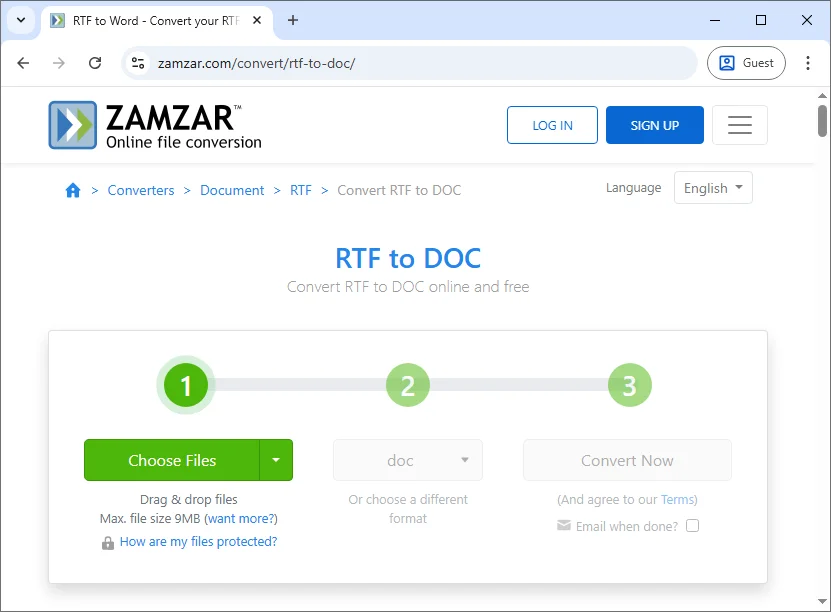
Passaggi per convertire RTF in Word online gratuitamente (usando Zamzar come esempio):
- Vai su Zamzar: Visita il convertitore online gratuito da RTF a Word di Zamzar.
- Carica il tuo file RTF: Fai clic sul pulsante Scegli file per caricare il tuo file RTF dal tuo computer o trascina e rilascia il file nell'area designata.
- Seleziona formato di output: Scegli doc o docx come formato di output.
- Converti il file: Fai clic sul pulsante Converti ora. Lo strumento elaborerà il file e genererà il documento Word convertito.
- Scarica il file Word: Una volta completata la conversione, scarica il documento Word convertito.
Vantaggi:
- Nessuna installazione richiesta: Accessibile da qualsiasi dispositivo con accesso a Internet.
- Gratuito e facile da usare: Ideale per conversioni rapide e una tantum.
- Supporta più formati: Molti strumenti online supportano vari tipi di file oltre a RTF in Word.
Svantaggi:
- Preoccupazioni sulla privacy: Il caricamento di file su siti Web di terze parti potrebbe esporre dati sensibili.
- Limitazioni delle dimensioni dei file: Alcuni strumenti impongono limiti alle dimensioni dei file per le conversioni gratuite.
- Dipendente dalla connessione Internet: Richiede una connessione Internet stabile per accedere e utilizzare lo strumento.
Converti in batch RTF in Word usando l'automazione Python
Per gli utenti che necessitano di convertire in batch RTF in Word frequentemente o preferiscono l'automazione for più file, Python fornisce una soluzione efficiente e scalabile. Utilizzando librerie come Spire.Doc for Python, puoi convertire facilmente file RTF in documenti Word senza la necessità di installare Microsoft Word.
Caratteristiche principali
- Crea e modifica documenti: Crea, modifica e gestisci documenti Word senza sforzo direttamente da Python.
- Converti tra formati: Converti senza problemi tra vari formati di documenti, inclusi RTF in DOCX, DOC in PDF e altro ancora.
- Conserva la struttura del documento: Mantieni l'integrità della formattazione del documento, inclusi stili di testo, tabelle, paragrafi e intestazioni.
- Opzioni di formattazione avanzate: Applica la formattazione personalizzata a testo, tabelle e paragrafi, come la regolazione di margini, stili di carattere e allineamento.
- Conversione batch: Automatizza la conversione di più file RTF in Word in un'unica operazione per un'elaborazione di massa efficiente.
Utilizzando Spire.Doc for Python, puoi automatizzare le conversioni da RTF a Word, garantendo risultati coerenti su grandi set di file eliminando l'intervento manuale.

Passaggi per convertire RTF in Word usando Python:
-
Installa la libreria Python richiesta:
Installa la libreria Spire.Doc da PyPI usando pip:
pip install spire-doc -
Aggiungi lo script Python per convertire RTF in Word:
Una volta installata la libreria, aggiungi il seguente codice per convertire un file RTF in un documento Word in Python:
from spire.doc import * # Create a Document object document = Document() # Load the RTF file document.LoadFromFile("Test.rtf") # Option 1: Save as .docx (Word 2016 format) document.SaveToFile("Test_output.docx", FileFormat.Docx2016) # Option 2: Save as .doc (Word 97-2003 format) # document.SaveToFile("Test_output.doc", FileFormat.Doc) # Close the document document.Close() -
Esegui lo script:
Lo script caricherà il file RTF in un oggetto Documento Spire.Doc e lo salverà in un documento Word DOCX o DOC.
Se desideri convertire in batch più file RTF in una cartella in documenti di Word, puoi modificare il codice come segue:
from spire.doc import *
import os

# Path to the folder containing the RTF files
input_folder = "path_to_rtf_folder"
output_folder = "path_to_output_folder"

# Loop through all files in the folder
for filename in os.listdir(input_folder):
    if filename.endswith(".rtf"):
        # Create a Document object
        document = Document()

        # Load the RTF file
        rtf_path = os.path.join(input_folder, filename)
        document.LoadFromFile(rtf_path)

        # Define the output file path (same name, but with .docx extension)
        output_path = os.path.join(output_folder, f"{os.path.splitext(filename)[0]}.docx")

        # Save as .docx (Word 2016 format)
        document.SaveToFile(output_path, FileFormat.Docx2016)

        # Optionally, save as .doc (Word 97-2003 format)
        # document.SaveToFile(output_path.replace(".docx", ".doc"), FileFormat.Doc)

        # Close the document
        document.Close()

print("Conversione completata per tutti i file RTF.")
Vantaggi:
- Ideale per l'elaborazione batch: Converti facilmente più file RTF contemporaneamente.
- Non è necessario Microsoft Word: La conversione è gestita interamente da Python, senza richiedere Microsoft Word.
- Personalizzabile: Aggiungi funzionalità come la gestione degli errori, la registrazione o la manipolazione dei documenti prima di salvare.
Svantaggi:
- Richiede conoscenza di Python: Non adatto a utenti senza esperienza di programmazione.
- Configurazione richiesta: È necessario installare Python, la libreria necessaria e gestire l'ambiente.
Per maggiori dettagli, consulta la guida completa ufficiale: Python: Converti Word in RTF e viceversa.
Migliori pratiche e suggerimenti per evitare problemi di formattazione durante la conversione di RTF in Word
Durante la conversione di file RTF in Word, seguire alcune best practice può aiutarti a garantire la qualità e l'accuratezza della conversione:
- Controlla la formattazione: Rivedi sempre il documento Word convertito per errori di formattazione. I file RTF a volte perdono la formattazione originale durante la conversione.
- Conversione batch: Se devi convertire molti file RTF, considera l'utilizzo dell'automazione Python o di strumenti di elaborazione batch per risparmiare tempo.
- Salva backup: Conserva i backup dei tuoi file RTF originali, soprattutto se stai utilizzando uno strumento online o uno script automatizzato, per prevenire la perdita di dati.
- Convalida compatibilità: Assicurati che il file Word convertito sia compatibile con la versione di Microsoft Word che stai utilizzando.
Suggerimenti per prevenire problemi di formattazione
-
Controlla immagini e tabelle: Questi elementi sono soggetti a rotture durante la conversione.
-
Usa caratteri comuni: Attieniti a caratteri web-safe come Arial o Times New Roman.
-
Usa Microsoft Word per file complessi: Il convertitore nativo di Word gestisce la formattazione complessa meglio degli strumenti online.
Conclusione
La conversione da RTF a Word è un passaggio semplice ma essenziale per migliorare la formattazione e la compatibilità dei documenti. Che tu preferisca l'affidabilità di Microsoft Word, la comodità degli strumenti online per conversioni rapide o l'efficienza dell'automazione Python per attività di massa, c'è una soluzione per ogni esigenza.
Seleziona il metodo che meglio si adatta alle tue esigenze e inizia a trasformare i tuoi file RTF in documenti Word professionali oggi stesso!
Domande frequenti: conversione da RTF a Word
D1: Posso convertire RTF in Word senza Microsoft Word?
R1: Sì, gli strumenti online e le librerie Python ti consentono di convertire RTF in Word senza che sia installato Microsoft Word.
D2: La conversione da RTF a Word influisce sulla formattazione del documento?
R2: A volte, la conversione da RTF a Word può causare problemi di formattazione minori. Controlla sempre il documento convertito e regola la formattazione secondo necessità.
D3: Posso automatizzare la conversione da RTF a Word per più file?
R3: Sì, Python e la libreria Spire.Doc for Python ti consentono di automatizzare il processo e convertire molti file RTF in Word contemporaneamente, rendendolo efficiente per le attività di conversione di massa.
Vedi anche
Converter RTF para Word: 3 métodos fáceis (Online, Word, Python)
A conversão de RTF para Word é essencial para melhorar a compatibilidade com processadores de texto modernos e desbloquear as opções avançadas de formatação do Word. Embora os arquivos RTF sejam comumente usados para formatação básica de texto, os documentos do Word oferecem recursos adicionais, como modelos, melhores ferramentas de formatação e design de documentos profissional. Neste guia, mostraremos três métodos fáceis para converter RTF para Word: usando o Microsoft Word, ferramentas online gratuitas e automação com Python - adequado tanto para iniciantes quanto para usuários avançados.
O que você vai aprender
- Por que converter RTF para Word?
- Como converter RTF para Word?
- Melhores práticas e dicas para evitar problemas de formatação ao converter RTF para Word
Por que converter RTF para Word?
A conversão de RTF para Word pode melhorar seu fluxo de trabalho, tornando o documento mais fácil de gerenciar e editar. Abaixo estão alguns dos principais motivos pelos quais você pode querer converter um arquivo RTF para um documento do Word:
- Formatação e Estilização Aprimoradas: O Word oferece ferramentas de formatação mais sofisticadas, incluindo estilos de texto avançados, cabeçalhos, rodapés, números de página e sumários, que não são totalmente suportados em RTF.
- Colaboração: Os documentos do Word são mais comumente usados em ambientes colaborativos, onde várias pessoas editam o documento ao mesmo tempo.
- Segurança e Compatibilidade: Os arquivos do Word são compatíveis com uma variedade de aplicativos e plataformas e oferecem opções mais robustas para proteção e criptografia de documentos.
- Recursos Avançados: Os arquivos do Word permitem adicionar recursos como comentários, controle de alterações e muito mais, o que facilita o gerenciamento de documentos.
Como converter RTF para Word?
Agora que conhecemos os motivos para converter RTF para Word, vamos ver como fazê-lo. Exploraremos três métodos: usando o Microsoft Word, ferramentas online gratuitas e automação com Python.
Converter RTF para Word usando o Microsoft Word
O Microsoft Word é uma das ferramentas mais utilizadas para trabalhar com documentos do Word. Ele também fornece uma maneira fácil e confiável de abrir e salvar arquivos RTF como documentos do Word.
Passos para converter RTF para Word usando o Microsoft Word:
-
Abra o Microsoft Word: Inicie o Microsoft Word no seu computador.
-
Abra o arquivo RTF: Vá para Arquivo > Abrir e selecione o arquivo RTF que deseja converter. O Word abrirá automaticamente o arquivo RTF.
-
Salvar como documento do Word: Com o arquivo RTF aberto, vá para Arquivo > Salvar como. No menu suspenso Salvar como tipo, selecione Documento do Word (*.docx) ou Documento do Word 97-2003 (*.doc).
-
Escolha um local para salvar: Selecione o local onde deseja salvar o documento do Word e clique em Salvar. Seu arquivo RTF agora está convertido em um documento do Word.
Prós:
- Rápido e Simples: O processo é rápido e fácil.
- Controle total sobre a formatação: Você pode ajustar manualmente a aparência do documento conforme necessário.
- Não são necessárias ferramentas de terceiros: Utiliza o Microsoft Word, que é uma ferramenta amplamente utilizada.
Contras:
- Não é ideal para conversões em lote: A conversão manual não é eficiente para vários arquivos.
- Requer o Microsoft Word: Você deve ter o Microsoft Word instalado em seu sistema.
Converter RTF para Word usando ferramentas online gratuitas
Se você não tem o Microsoft Word ou prefere uma solução rápida e sem software, ferramentas online como Zamzar e convertio são uma ótima escolha. Basta enviar seu arquivo RTF, selecionar o formato do Word e baixar o documento convertido. Essa abordagem é rápida, gratuita e acessível de qualquer dispositivo com conexão à internet.
Passos para converter RTF para Word online gratuitamente (usando o Zamzar como exemplo):
- Acesse o Zamzar: Visite o conversor online gratuito de RTF para Word do Zamzar.
- Envie seu arquivo RTF: Clique no botão Escolher arquivos para enviar seu arquivo RTF do seu computador ou arraste e solte o arquivo na área designada.
- Selecione o formato de saída: Escolha doc ou docx como formato de saída.
- Converta o arquivo: Clique no botão Converter agora. A ferramenta processará o arquivo e gerará o documento do Word convertido.
- Baixe o arquivo do Word: Quando a conversão estiver concluída, baixe o documento do Word convertido.
Prós:
- Nenhuma instalação necessária: Acessível de qualquer dispositivo com acesso à internet.
- Gratuito e fácil de usar: Ideal para conversões rápidas e únicas.
- Suporta vários formatos: Muitas ferramentas online suportam vários tipos de arquivo além de RTF para Word.
Contras:
- Preocupações com a privacidade: O envio de arquivos para sites de terceiros pode expor dados confidenciais.
- Limitações de tamanho de arquivo: Algumas ferramentas impõem limites de tamanho de arquivo para conversões gratuitas.
- Dependente da conexão com a Internet: Requer uma conexão estável com a internet para acessar e usar a ferramenta.
Converter em lote RTF para Word usando automação com Python
Para usuários que precisam converter RTF para Word em lote com frequência ou preferem automação para vários arquivos, o Python oferece uma solução eficiente e escalável. Usando bibliotecas como Spire.Doc for Python, você pode converter facilmente arquivos RTF em documentos do Word sem a necessidade de instalar o Microsoft Word.
Principais recursos
- Crie e edite documentos: Crie, edite e gerencie documentos do Word sem esforço diretamente do Python.
- Converter entre formatos: Converta perfeitamente entre vários formatos de documento, incluindo RTF para DOCX, DOC para PDF e muito mais.
- Preservar a estrutura do documento: Mantenha a integridade da formatação do documento, incluindo estilos de texto, tabelas, parágrafos e cabeçalhos.
- Opções avançadas de formatação: Aplique formatação personalizada a texto, tabelas e parágrafos, como ajuste de margens, estilos de fonte e alinhamento.
- Conversão em lote: Automatize a conversão de vários arquivos RTF para o Word em uma única operação para processamento em massa eficiente.
Ao usar o Spire.Doc for Python, você pode automatizar as conversões de RTF para Word, garantindo resultados consistentes em grandes conjuntos de arquivos e eliminando a intervenção manual.
Passos para converter RTF para Word usando Python:
-
Instale a biblioteca Python necessária:
Instale a biblioteca Spire.Doc do PyPI usando pip:
pip install spire-doc -
Adicione o script Python para converter RTF para Word:
Depois que a biblioteca estiver instalada, adicione o seguinte código para converter um arquivo RTF em um documento do Word em Python:
from spire.doc import * # Create a Document object document = Document() # Load the RTF file document.LoadFromFile("Test.rtf") # Option 1: Save as .docx (Word 2016 format) document.SaveToFile("Test_output.docx", FileFormat.Docx2016) # Option 2: Save as .doc (Word 97-2003 format) # document.SaveToFile("Test_output.doc", FileFormat.Doc) # Close the document document.Close() -
Execute o script:
O script carregará o arquivo RTF em um objeto Document do Spire.Doc e o salvará em um documento Word DOCX ou DOC.
Se você deseja converter em lote vários arquivos RTF em uma pasta para documentos do Word, pode modificar o código da seguinte maneira:
from spire.doc import *
import os

# Path to the folder containing the RTF files
input_folder = "path_to_rtf_folder"
output_folder = "path_to_output_folder"

# Loop through all files in the folder
for filename in os.listdir(input_folder):
    if filename.endswith(".rtf"):
        # Create a Document object
        document = Document()

        # Load the RTF file
        rtf_path = os.path.join(input_folder, filename)
        document.LoadFromFile(rtf_path)

        # Define the output file path (same name, but with .docx extension)
        output_path = os.path.join(output_folder, f"{os.path.splitext(filename)[0]}.docx")

        # Save as .docx (Word 2016 format)
        document.SaveToFile(output_path, FileFormat.Docx2016)

        # Optionally, save as .doc (Word 97-2003 format)
        # document.SaveToFile(output_path.replace(".docx", ".doc"), FileFormat.Doc)

        # Close the document
        document.Close()

print("Conversão concluída para todos os arquivos RTF.")
Prós:
- Ideal para processamento em lote: Converta facilmente vários arquivos RTF de uma vez.
- Não há necessidade do Microsoft Word: A conversão é tratada inteiramente pelo Python, sem a necessidade do Microsoft Word.
- Personalizável: Adicione recursos como tratamento de erros, registro ou manipulação de documentos antes de salvar.
Contras:
- Requer conhecimento de Python: Não é adequado para usuários sem experiência em programação.
- Configuração necessária: Você precisa instalar o Python, a biblioteca necessária e gerenciar o ambiente.
Para mais detalhes, consulte o guia oficial completo: Python: Converter Word para RTF e vice-versa.
Melhores práticas e dicas para evitar problemas de formatação ao converter RTF para Word
Ao converter arquivos RTF para Word, seguir algumas práticas recomendadas pode ajudá-lo a garantir a qualidade e a precisão da sua conversão:
- Verificar formatação: Sempre revise o documento do Word convertido em busca de erros de formatação. Os arquivos RTF às vezes perdem sua formatação original durante a conversão.
- Conversão em lote: Se você precisar converter muitos arquivos RTF, considere usar automação com Python ou ferramentas de processamento em lote para economizar tempo.
- Salvar backups: Mantenha backups de seus arquivos RTF originais, especialmente se estiver usando uma ferramenta online ou um script automatizado, para evitar a perda de dados.
- Validar compatibilidade: Certifique-se de que o arquivo do Word convertido seja compatível com a versão do Microsoft Word que você está usando.
Dicas para evitar problemas de formatação
-
Verifique imagens e tabelas: Esses elementos são propensos a quebrar durante a conversão.
-
Use fontes comuns: Use fontes seguras para a web, como Arial ou Times New Roman.
-
Use o Microsoft Word para arquivos complexos: O conversor nativo do Word lida com formatação complexa melhor do que as ferramentas online.
Conclusão
A conversão de RTF para Word é uma etapa simples, mas essencial, para aprimorar a formatação e a compatibilidade do documento. Se você prefere a confiabilidade do Microsoft Word, a conveniência de ferramentas online para conversões rápidas ou a eficiência da automação com Python para tarefas em massa, existe uma solução para cada necessidade.
Selecione o método que melhor se adapta às suas necessidades e comece a transformar seus arquivos RTF em documentos profissionais do Word hoje mesmo!
Perguntas frequentes: conversão de RTF para Word
P1: Posso converter RTF para Word sem o Microsoft Word?
R1: Sim, ferramentas online e bibliotecas Python permitem converter RTF para Word sem a necessidade de ter o Microsoft Word instalado.
P2: A conversão de RTF para Word afeta a formatação do documento?
R2: Às vezes, a conversão de RTF para Word pode causar pequenos problemas de formatação. Sempre verifique o documento convertido e ajuste a formatação conforme necessário.
P3: Posso automatizar a conversão de RTF para Word para vários arquivos?
R3: Sim, o Python e a biblioteca Spire.Doc for Python permitem automatizar o processo e converter muitos arquivos RTF para o Word de uma vez, tornando-o eficiente para tarefas de conversão em massa.
Veja também
RTF를 Word로 변환하는 3가지 쉬운 방법 (온라인, Word, Python)
RTF를 Word로 변환하는 것은 최신 워드 프로세서와의 호환성을 개선하고 Word의 고급 서식 옵션을 활용하는 데 필수적입니다. RTF 파일은 일반적으로 기본 텍스트 서식에 사용되지만 Word 문서는 템플릿, 더 나은 서식 도구 및 전문적인 문서 디자인과 같은 추가 기능을 제공합니다. 이 가이드에서는 초보자와 고급 사용자 모두에게 적합한 Microsoft Word, 무료 온라인 도구 및 Python 자동화를 사용하는 세 가지 쉬운 RTF를 Word로 변환하는 방법을 보여줍니다.
학습 내용
RTF를 Word로 변환해야 하는 이유
RTF를 Word로 변환하면 문서를 더 쉽게 관리하고 편집할 수 있어 작업 흐름을 개선할 수 있습니다. 다음은 RTF 파일을 Word 문서로 변환하려는 몇 가지 주요 이유입니다.
- 향상된 서식 및 스타일링: Word는 고급 텍스트 스타일, 머리글, 바닥글, 페이지 번호 및 목차를 포함하여 RTF에서 완전히 지원되지 않는 더 정교한 서식 도구를 제공합니다.
- 공동 작업: Word 문서는 여러 사람이 동시에 문서를 편집하는 공동 작업 환경에서 더 일반적으로 사용됩니다.
- 보안 및 호환성: Word 파일은 다양한 응용 프로그램 및 플랫폼과 호환되며 문서 보호 및 암호화를 위한 더 강력한 옵션을 제공합니다.
- 고급 기능: Word 파일을 사용하면 메모, 변경 내용 추적 등과 같은 기능을 추가할 수 있어 문서 관리가 더 쉬워집니다.
RTF를 Word로 변환하는 방법
이제 RTF를 Word로 변환해야 하는 이유를 알았으니 어떻게 하는지 살펴보겠습니다. Microsoft Word, 무료 온라인 도구 및 Python 자동화의 세 가지 방법을 살펴보겠습니다.
Microsoft Word를 사용하여 RTF를 Word로 변환
Microsoft Word는 Word 문서 작업을 위해 가장 널리 사용되는 도구 중 하나입니다. 또한 RTF 파일을 Word 문서로 열고 저장하는 쉽고 안정적인 방법을 제공합니다.
Microsoft Word를 사용하여 RTF를 Word로 변환하는 단계:
-
Microsoft Word 열기: 컴퓨터에서 Microsoft Word를 시작합니다.
-
RTF 파일 열기: 파일 > 열기로 이동한 다음 변환하려는 RTF 파일을 선택합니다. Word가 자동으로 RTF 파일을 엽니다.
-
Word 문서로 저장: RTF 파일이 열리면 파일 > 다른 이름으로 저장으로 이동합니다. 다른 이름으로 저장 유형 드롭다운 메뉴에서 Word 문서 (*.docx) 또는 Word 97-2003 문서 (*.doc)를 선택합니다.
-
저장 위치 선택: Word 문서를 저장할 위치를 선택하고 저장을 클릭합니다. 이제 RTF 파일이 Word 문서로 변환되었습니다.
장점:
- 빠르고 간단함: 프로세스가 빠르고 쉽습니다.
- 서식에 대한 전체 제어: 필요에 따라 문서의 모양을 수동으로 조정할 수 있습니다.
- 타사 도구 필요 없음: 널리 사용되는 도구인 Microsoft Word를 활용합니다.
단점:
- 일괄 변환에 이상적이지 않음: 수동 변환은 여러 파일에 효율적이지 않습니다.
- Microsoft Word 필요: 시스템에 Microsoft Word가 설치되어 있어야 합니다.
무료 온라인 도구를 사용하여 RTF를 Word로 변환
Microsoft Word가 없거나 빠르고 소프트웨어가 필요 없는 솔루션을 선호하는 경우 Zamzar 및 convertio와 같은 온라인 도구가 훌륭한 선택입니다. RTF 파일을 업로드하고 Word 형식을 선택한 다음 변환된 문서를 다운로드하기만 하면 됩니다. 이 접근 방식은 빠르고 무료이며 인터넷에 연결된 모든 장치에서 액세스할 수 있습니다.
온라인에서 무료로 RTF를 Word로 변환하는 단계(Zamzar 예시):
- Zamzar로 이동: Zamzar의 무료 온라인 RTF to Word 변환기를 방문하세요.
- RTF 파일 업로드: 파일 선택 버튼을 클릭하여 컴퓨터에서 RTF 파일을 업로드하거나 지정된 영역으로 파일을 끌어다 놓습니다.
- 출력 형식 선택: 출력 형식으로 doc 또는 docx를 선택합니다.
- 파일 변환: 지금 변환 버튼을 클릭합니다. 도구가 파일을 처리하고 변환된 Word 문서를 생성합니다.
- Word 파일 다운로드: 변환이 완료되면 변환된 Word 문서를 다운로드합니다.
장점:
- 설치 필요 없음: 인터넷에 액세스할 수 있는 모든 장치에서 액세스할 수 있습니다.
- 무료이며 사용하기 쉬움: 빠른 일회성 변환에 이상적입니다.
- 다중 형식 지원: 많은 온라인 도구는 RTF to Word 이외의 다양한 파일 형식을 지원합니다.
단점:
- 개인 정보 보호 문제: 타사 웹사이트에 파일을 업로드하면 민감한 데이터가 노출될 수 있습니다.
- 파일 크기 제한: 일부 도구는 무료 변환에 대한 파일 크기 제한을 부과합니다.
- 인터넷 연결에 의존: 도구에 액세스하고 사용하려면 안정적인 인터넷 연결이 필요합니다.
Python 자동화를 사용하여 RTF를 Word로 일괄 변환
RTF를 Word로 자주 일괄 변환해야 하거나 여러 파일에 대한 자동화를 선호하는 사용자를 위해 Python은 효율적이고 확장 가능한 솔루션을 제공합니다. Spire.Doc for Python과 같은 라이브러리를 사용하면 Microsoft Word를 설치할 필요 없이 RTF 파일을 Word 문서로 쉽게 변환할 수 있습니다.
주요 특징
- 문서 생성 및 편집: Python에서 직접 Word 문서를 손쉽게 생성, 편집 및 관리합니다.
- 형식 간 변환: RTF에서 DOCX, DOC에서 PDF 등으로 다양한 문서 형식 간에 원활하게 변환합니다.
- 문서 구조 보존: 텍스트 스타일, 표, 단락 및 머리글을 포함한 문서 서식의 무결성을 유지합니다.
- 고급 서식 옵션: 여백, 글꼴 스타일 및 정렬 조정과 같은 사용자 지정 서식을 텍스트, 표 및 단락에 적용합니다.
- 일괄 변환: 여러 RTF 파일을 Word로 변환하는 작업을 단일 작업으로 자동화하여 효율적인 대량 처리를 수행합니다.
Spire.Doc for Python을 사용하면 RTF to Word 변환을 자동화하여 수동 개입을 제거하면서 대규모 파일 세트에서 일관된 결과를 보장할 수 있습니다.
Python을 사용하여 RTF를 Word로 변환하는 단계:
-
필요한 Python 라이브러리 설치:
pip를 사용하여 PyPI에서 Spire.Doc 라이브러리를 설치합니다.
pip install spire-doc -
RTF를 Word로 변환하는 Python 스크립트 추가:
라이브러리가 설치되면 다음 코드를 추가하여 Python에서 RTF 파일을 Word 문서로 변환합니다.
from spire.doc import * # Document 객체 생성 document = Document() # RTF 파일 로드 document.LoadFromFile("Test.rtf") # 옵션 1: .docx로 저장 (Word 2016 형식) document.SaveToFile("Test_output.docx", FileFormat.Docx2016) # 옵션 2: .doc로 저장 (Word 97-2003 형식) # document.SaveToFile("Test_output.doc", FileFormat.Doc) # 문서 닫기 document.Close() -
스크립트 실행:
스크립트는 RTF 파일을 Spire.Doc 문서 개체에 로드하고 Word DOCX 또는 DOC 문서에 저장합니다.
폴더에 있는 여러 RTF 파일을 Word 문서로 일괄 변환하려면 다음과 같이 코드를 수정할 수 있습니다.
from spire.doc import *
import os

# RTF 파일이 포함된 폴더 경로
input_folder = "path_to_rtf_folder"
output_folder = "path_to_output_folder"

# 폴더의 모든 파일을 반복
for filename in os.listdir(input_folder):
    if filename.endswith(".rtf"):
        # Document 객체 생성
        document = Document()

        # RTF 파일 로드
        rtf_path = os.path.join(input_folder, filename)
        document.LoadFromFile(rtf_path)

        # 출력 파일 경로 정의 (같은 이름, 하지만 .docx 확장자)
        output_path = os.path.join(output_folder, f"{os.path.splitext(filename)[0]}.docx")

        # .docx로 저장 (Word 2016 형식)
        document.SaveToFile(output_path, FileFormat.Docx2016)

        # 선택적으로 .doc로 저장 (Word 97-2003 형식)
        # document.SaveToFile(output_path.replace(".docx", ".doc"), FileFormat.Doc)

        # 문서 닫기
        document.Close()

print("모든 RTF 파일에 대한 변환이 완료되었습니다.")
장점:
- 일괄 처리에 이상적: 여러 RTF 파일을 한 번에 쉽게 변환합니다.
- Microsoft Word 필요 없음: 변환은 Microsoft Word 없이 Python에서 전적으로 처리됩니다.
- 사용자 정의 가능: 저장하기 전에 오류 처리, 로깅 또는 문서 조작과 같은 기능을 추가합니다.
단점:
- Python 지식 필요: 프로그래밍 경험이 없는 사용자에게는 적합하지 않습니다.
- 설정 필요: Python, 필요한 라이브러리를 설치하고 환경을 관리해야 합니다.
자세한 내용은 공식 전체 가이드를 확인하세요: Python: Word를 RTF로 변환 및 그 반대.
RTF를 Word로 변환할 때 서식 문제를 피하기 위한 모범 사례 및 팁
RTF 파일을 Word로 변환할 때 몇 가지 모범 사례를 따르면 변환의 품질과 정확성을 보장하는 데 도움이 될 수 있습니다.
- 서식 확인: 변환된 Word 문서에 서식 오류가 있는지 항상 검토하십시오. RTF 파일은 변환 중에 원래 서식을 잃는 경우가 있습니다.
- 일괄 변환: 많은 RTF 파일을 변환해야 하는 경우 시간을 절약하기 위해 Python 자동화 또는 일괄 처리 도구를 사용하는 것을 고려하십시오.
- 백업 저장: 데이터 손실을 방지하기 위해 특히 온라인 도구나 자동화된 스크립트를 사용하는 경우 원본 RTF 파일의 백업을 보관하십시오.
- 호환성 확인: 변환된 Word 파일이 사용 중인 Microsoft Word 버전과 호환되는지 확인하십시오.
서식 문제 방지를 위한 팁
-
이미지 및 표 확인: 이러한 요소는 변환 중에 깨지기 쉽습니다.
-
일반적인 글꼴 사용: Arial 또는 Times New Roman과 같은 웹 안전 글꼴을 사용하십시오.
-
복잡한 파일에 Microsoft Word 사용: 기본 Word 변환기는 온라인 도구보다 복잡한 서식을 더 잘 처리합니다.
결론
RTF를 Word로 변환하는 것은 문서 서식과 호환성을 향상시키기 위한 간단하면서도 필수적인 단계입니다. Microsoft Word의 신뢰성, 빠른 변환을 위한 온라인 도구의 편리함, 대량 작업을 위한 Python 자동화의 효율성 중 무엇을 선호하든 모든 요구에 맞는 솔루션이 있습니다.
요구 사항에 가장 적합한 방법을 선택하고 오늘부터 RTF 파일을 전문적인 Word 문서로 변환하십시오!
FAQ: RTF to Word 변환
Q1: Microsoft Word 없이 RTF를 Word로 변환할 수 있습니까?
A1: 예, 온라인 도구 및 Python 라이브러리를 사용하면 Microsoft Word를 설치할 필요 없이 RTF를 Word로 변환할 수 있습니다.
Q2: RTF를 Word로 변환하면 문서 서식에 영향을 줍니까?
A2: 경우에 따라 RTF를 Word로 변환하면 사소한 서식 문제가 발생할 수 있습니다. 항상 변환된 문서를 확인하고 필요에 따라 서식을 조정하십시오.
Q3: 여러 파일에 대해 RTF to Word 변환을 자동화할 수 있습니까?
A3: 예, Python 및 Spire.Doc for Python 라이브러리를 사용하면 프로세스를 자동화하고 많은 RTF 파일을 한 번에 Word로 변환하여 대량 변환 작업에 효율적입니다.
참고 항목
Convertir RTF en Word : 3 méthodes faciles (en ligne, Word, Python)
La conversion de RTF en Word est essentielle pour améliorer la compatibilité avec les traitements de texte modernes et débloquer les options de formatage avancées de Word. Tandis que les fichiers RTF sont couramment utilisés pour la mise en forme de texte de base, les documents Word offrent des fonctionnalités supplémentaires telles que des modèles, de meilleurs outils de mise en forme et une conception de documents professionnelle. Dans ce guide, nous vous présenterons trois méthodes simples pour convertir RTF en Word : en utilisant Microsoft Word, des outils en ligne gratuits et l'automatisation avec Python, adaptées aussi bien aux débutants qu'aux utilisateurs avancés.
Ce que vous apprendrez
- Pourquoi convertir RTF en Word ?
- Comment convertir RTF en Word ?
- Meilleures pratiques et conseils pour éviter les problèmes de formatage lors de la conversion de RTF en Word
Pourquoi convertir RTF en Word ?
La conversion de RTF en Word peut améliorer votre flux de travail en rendant le document plus facile à gérer et à modifier. Voici quelques raisons clés pour lesquelles vous pourriez vouloir convertir un fichier RTF en document Word :
- Mise en forme et style améliorés : Word offre des outils de mise en forme plus sophistiqués, notamment des styles de texte avancés, des en-têtes, des pieds de page, des numéros de page et une table des matières, qui ne sont pas entièrement pris en charge en RTF.
- Collaboration : Les documents Word sont plus couramment utilisés dans les environnements collaboratifs où plusieurs personnes modifient le document en même temps.
- Sécurité et compatibilité : Les fichiers Word sont compatibles avec une variété d'applications et de plateformes, et ils offrent des options plus robustes pour la protection et le chiffrement des documents.
- Fonctionnalités avancées : Les fichiers Word vous permettent d'ajouter des fonctionnalités telles que des commentaires, le suivi des modifications, etc., ce qui facilite la gestion des documents.
Comment convertir RTF en Word ?
Maintenant que nous connaissons les raisons de convertir RTF en Word, voyons comment le faire. Nous explorerons trois méthodes : en utilisant Microsoft Word, des outils en ligne gratuits et l'automatisation avec Python.
Convertir RTF en Word avec Microsoft Word
Microsoft Word est l'un des outils les plus utilisés pour travailler avec des documents Word. Il offre également un moyen simple et fiable d'ouvrir et d'enregistrer des fichiers RTF en tant que documents Word.
Étapes pour convertir RTF en Word avec Microsoft Word :
-
Ouvrir Microsoft Word : Lancez Microsoft Word sur votre ordinateur.
-
Ouvrir le fichier RTF : Allez dans Fichier > Ouvrir, puis sélectionnez le fichier RTF que vous souhaitez convertir. Word ouvrira automatiquement le fichier RTF.
-
Enregistrer en tant que document Word : Une fois le fichier RTF ouvert, allez dans Fichier > Enregistrer sous. Dans le menu déroulant Type de fichier, sélectionnez Document Word (*.docx) ou Document Word 97-2003 (*.doc).
-
Choisir un emplacement de sauvegarde : Sélectionnez l'emplacement où vous souhaitez enregistrer le document Word et cliquez sur Enregistrer. Votre fichier RTF est maintenant converti en document Word.
Avantages :
- Rapide et simple : Le processus est rapide et facile.
- Contrôle total sur la mise en forme : Vous pouvez ajuster manuellement l'apparence du document selon vos besoins.
- Aucun outil tiers nécessaire : Utilise Microsoft Word, qui est un outil largement utilisé.
Inconvénients :
- Pas idéal pour les conversions par lots : La conversion manuelle n'est pas efficace pour plusieurs fichiers.
- Nécessite Microsoft Word : Vous devez avoir Microsoft Word installé sur votre système.
Convertir RTF en Word avec des outils en ligne gratuits
Si vous n'avez pas Microsoft Word ou si vous préférez une solution rapide et sans logiciel, les outils en ligne comme Zamzar et convertio sont un excellent choix. Téléchargez simplement votre fichier RTF, sélectionnez le format Word et téléchargez votre document converti. Cette approche est rapide, gratuite et accessible depuis n'importe quel appareil disposant d'une connexion Internet.
Étapes pour convertir RTF en Word en ligne gratuitement (en utilisant Zamzar comme exemple) :
- Aller sur Zamzar : Visitez le convertisseur RTF en Word en ligne gratuit de Zamzar.
- Télécharger votre fichier RTF : Cliquez sur le bouton Choisir les fichiers pour télécharger votre fichier RTF depuis votre ordinateur, ou faites glisser et déposez le fichier dans la zone désignée.
- Sélectionner le format de sortie : Choisissez doc ou docx comme format de sortie.
- Convertir le fichier : Cliquez sur le bouton Convertir maintenant. L'outil traitera le fichier et générera le document Word converti.
- Télécharger le fichier Word : Une fois la conversion terminée, téléchargez le document Word converti.
Avantages :
- Aucune installation requise : Accessible depuis n'importe quel appareil avec un accès Internet.
- Gratuit et facile à utiliser : Idéal pour les conversions rapides et ponctuelles.
- Prend en charge plusieurs formats : De nombreux outils en ligne prennent en charge divers types de fichiers au-delà du RTF vers Word.
Inconvénients :
- Problèmes de confidentialité : Le téléchargement de fichiers sur des sites Web tiers peut exposer des données sensibles.
- Limitations de taille de fichier : Certains outils imposent des limites de taille de fichier pour les conversions gratuites.
- Dépendant de la connexion Internet : Nécessite une connexion Internet stable pour accéder et utiliser l'outil.
Convertir par lots RTF en Word avec l'automatisation Python
Pour les utilisateurs qui ont besoin de convertir fréquemment des RTF en Word par lots ou qui préfèrent l'automatisation pour plusieurs fichiers, Python offre une solution efficace et évolutive. En utilisant des bibliothèques comme Spire.Doc for Python, vous pouvez facilement convertir des fichiers RTF en documents Word sans avoir besoin d'installer Microsoft Word.
Caractéristiques principales
- Créer et modifier des documents : Créez, modifiez et gérez sans effort des documents Word directement depuis Python.
- Convertir entre les formats : Convertissez en toute transparence entre différents formats de documents, y compris RTF en DOCX, DOC en PDF, et plus encore.
- Préserver la structure du document : Maintenez l'intégrité de la mise en forme du document, y compris les styles de texte, les tableaux, les paragraphes et les en-têtes.
- Options de mise en forme avancées : Appliquez une mise en forme personnalisée au texte, aux tableaux et aux paragraphes, comme l'ajustement des marges, des styles de police et de l'alignement.
- Conversion par lots : Automatisez la conversion de plusieurs fichiers RTF en Word en une seule opération pour un traitement en masse efficace.
En utilisant Spire.Doc for Python, vous pouvez automatiser les conversions de RTF en Word, garantissant des résultats cohérents sur de grands ensembles de fichiers tout en éliminant l'intervention manuelle.
Étapes pour convertir RTF en Word avec Python :
-
Installer la bibliothèque Python requise :
Installez la bibliothèque Spire.Doc depuis PyPI en utilisant pip :
pip install spire-doc -
Ajouter le script Python pour convertir RTF en Word :
Une fois la bibliothèque installée, ajoutez le code suivant pour convertir un fichier RTF en document Word en Python :
from spire.doc import * # Créer un objet Document document = Document() # Charger le fichier RTF document.LoadFromFile("Test.rtf") # Option 1 : Enregistrer en .docx (format Word 2016) document.SaveToFile("Test_output.docx", FileFormat.Docx2016) # Option 2 : Enregistrer en .doc (format Word 97-2003) # document.SaveToFile("Test_output.doc", FileFormat.Doc) # Fermer le document document.Close() -
Exécuter le script :
Le script chargera le fichier RTF dans un objet Document de Spire.Doc et l'enregistrera dans un document Word DOCX ou DOC.
Si vous souhaitez convertir par lots plusieurs fichiers RTF d'un dossier en documents Word, vous pouvez modifier le code comme suit :
from spire.doc import *
import os

# Chemin vers le dossier contenant les fichiers RTF
input_folder = "chemin_vers_le_dossier_rtf"
output_folder = "chemin_vers_le_dossier_de_sortie"

# Parcourir tous les fichiers du dossier
for filename in os.listdir(input_folder):
    if filename.endswith(".rtf"):
        # Créer un objet Document
        document = Document()

        # Charger le fichier RTF
        rtf_path = os.path.join(input_folder, filename)
        document.LoadFromFile(rtf_path)

        # Définir le chemin du fichier de sortie (même nom, mais avec l'extension .docx)
        output_path = os.path.join(output_folder, f"{os.path.splitext(filename)[0]}.docx")

        # Enregistrer en .docx (format Word 2016)
        document.SaveToFile(output_path, FileFormat.Docx2016)

        # Optionnellement, enregistrer en .doc (format Word 97-2003)
        # document.SaveToFile(output_path.replace(".docx", ".doc"), FileFormat.Doc)

        # Fermer le document
        document.Close()

print("Conversion terminée pour tous les fichiers RTF.")
Avantages :
- Idéal pour le traitement par lots : Convertissez facilement plusieurs fichiers RTF à la fois.
- Pas besoin de Microsoft Word : La conversion est entièrement gérée by Python, sans nécessiter Microsoft Word.
- Personnalisable : Ajoutez des fonctionnalités telles que la gestion des erreurs, la journalisation ou la manipulation de documents avant d'enregistrer.
Inconvénients :
- Nécessite des connaissances en Python : Ne convient pas aux utilisateurs sans expérience en programmation.
- Configuration requise : Vous devez installer Python, la bibliothèque nécessaire et gérer l'environnement.
Pour plus de détails, consultez le guide complet officiel : Python : Convertir Word en RTF et vice versa.
Meilleures pratiques et conseils pour éviter les problèmes de formatage lors de la conversion de RTF en Word
Lors de la conversion de fichiers RTF en Word, le respect de certaines bonnes pratiques peut vous aider à garantir la qualité et l'exactitude de votre conversion :
- Vérifier la mise en forme : Examinez toujours le document Word converti pour détecter les erreurs de mise en forme. Les fichiers RTF perdent parfois leur mise en forme d'origine lors de la conversion.
- Conversion par lots : Si vous devez convertir de nombreux fichiers RTF, envisagez d'utiliser l'automatisation Python ou des outils de traitement par lots pour gagner du temps.
- Enregistrer des sauvegardes : Conservez des sauvegardes de vos fichiers RTF d'origine, en particulier si vous utilisez un outil en ligne ou un script automatisé, pour éviter la perte de données.
- Valider la compatibilité : Assurez-vous que le fichier Word converti est compatible avec la version de Microsoft Word que vous utilisez.
Conseils pour éviter les problèmes de mise en forme
-
Vérifier les images et les tableaux : Ces éléments sont susceptibles de se casser lors de la conversion.
-
Utiliser des polices courantes : Tenez-vous-en à des polices sécurisées pour le Web comme Arial ou Times New Roman.
-
Utiliser Microsoft Word pour les fichiers complexes : Le convertisseur natif de Word gère mieux la mise en forme complexe que les outils en ligne.
Conclusion
La conversion de RTF en Word est une étape simple mais essentielle pour améliorer la mise en forme et la compatibilité des documents. Que vous préfériez la fiabilité de Microsoft Word, la commodité des outils en ligne pour des conversions rapides ou l'efficacité de l'automatisation Python pour les tâches en masse, il existe une solution pour chaque besoin.
Sélectionnez la méthode qui correspond le mieux à vos besoins et commencez à transformer vos fichiers RTF en documents Word professionnels dès aujourd'hui !
FAQ : Conversion de RTF en Word
Q1 : Puis-je convertir RTF en Word sans Microsoft Word ?
R1 : Oui, les outils en ligne et les bibliothèques Python vous permettent de convertir RTF en Word sans avoir besoin d'installer Microsoft Word.
Q2 : La conversion de RTF en Word affecte-t-elle la mise en forme du document ?
R2 : Parfois, la conversion de RTF en Word peut entraîner des problèmes de mise en forme mineurs. Vérifiez toujours le document converti et ajustez la mise en forme si nécessaire.
Q3 : Puis-je automatiser la conversion de RTF en Word pour plusieurs fichiers ?
R3 : Oui, Python et la bibliothèque Spire.Doc for Python vous permettent d'automatiser le processus et de convertir de nombreux fichiers RTF en Word à la fois, ce qui le rend efficace pour les tâches de conversion en masse.
Voir également
Convertir RTF a Word: 3 métodos fáciles (en línea, Word, Python)
Tabla de Contenidos
Convertir RTF a Word es esencial para mejorar la compatibilidad con los procesadores de texto modernos y desbloquear las opciones de formato avanzadas de Word. Aunque los archivos RTF se utilizan comúnmente para el formato de texto básico, los documentos de Word ofrecen características adicionales como plantillas, mejores herramientas de formato y diseño de documentos profesionales. En esta guía, le mostraremos tres métodos sencillos para convertir RTF a Word: usando Microsoft Word, herramientas gratuitas en línea y automatización con Python, adecuados tanto para principiantes como para usuarios avanzados.
Lo Que Aprenderá
- ¿Por Qué Convertir RTF a Word?
- ¿Cómo Convertir RTF a Word?
- Mejores Prácticas y Consejos para Evitar Problemas de Formato al Convertir RTF a Word
¿Por Qué Convertir RTF a Word?
Convertir RTF a Word puede mejorar su flujo de trabajo al hacer que el documento sea más fácil de administrar y editar. A continuación se presentan algunas razones clave por las que podría querer convertir un archivo RTF a un documento de Word:
- Formato y Estilo Mejorados: Word ofrece herramientas de formato más sofisticadas, incluyendo estilos de texto avanzados, encabezados, pies de página, números de página y tablas de contenido, que no son totalmente compatibles con RTF.
- Colaboración: Los documentos de Word se utilizan más comúnmente en entornos de colaboración donde varias personas editan el documento al mismo tiempo.
- Seguridad y Compatibilidad: Los archivos de Word son compatibles con una variedad de aplicaciones y plataformas, y ofrecen opciones más robustas para la protección y el cifrado de documentos.
- Características Avanzadas: Los archivos de Word le permiten agregar características como comentarios, control de cambios y más, lo que facilita la gestión de documentos.
¿Cómo Convertir RTF a Word?
Ahora que conocemos las razones para convertir RTF a Word, veamos cómo hacerlo. Exploraremos tres métodos: usando Microsoft Word, herramientas gratuitas en línea y automatización con Python.
Convertir RTF a Word Usando Microsoft Word
Microsoft Word es una de las herramientas más utilizadas para trabajar con documentos de Word. También proporciona una forma fácil y confiable de abrir y guardar archivos RTF como documentos de Word.
Pasos para Convertir RTF a Word Usando Microsoft Word:
-
Abrir Microsoft Word: Inicie Microsoft Word en su computadora.
-
Abrir el Archivo RTF: Vaya a Archivo > Abrir, luego seleccione el archivo RTF que desea convertir. Word abrirá automáticamente el archivo RTF.
-
Guardar como Documento de Word: Una vez que el archivo RTF esté abierto, vaya a Archivo > Guardar como. En el menú desplegable Guardar como tipo, seleccione Documento de Word (*.docx) o Documento de Word 97-2003 (*.doc).
-
Elija una Ubicación para Guardar: Seleccione la ubicación donde desea guardar el documento de Word y haga clic en Guardar. Su archivo RTF ahora está convertido en un documento de Word.
Ventajas:
- Rápido y Sencillo: El proceso es rápido y fácil.
- Control Total sobre el Formato: Puede ajustar manualmente la apariencia del documento según sea necesario.
- No se Necesitan Herramientas de Terceros: Utiliza Microsoft Word, que es una herramienta muy utilizada.
Desventajas:
- No es Ideal para Conversiones por Lotes: La conversión manual no es eficiente para múltiples archivos.
- Requiere Microsoft Word: Debe tener Microsoft Word instalado en su sistema.
Convertir RTF a Word Usando Herramientas Gratuitas en Línea
Si no tiene Microsoft Word o prefiere una solución rápida y sin software, las herramientas en línea como Zamzar y convertio son una excelente opción. Simplemente cargue su archivo RTF, seleccione el formato de Word y descargue su documento convertido. Este enfoque es rápido, gratuito y accesible desde cualquier dispositivo con conexión a Internet.
Pasos para Convertir RTF a Word en Línea Gratis (usando Zamzar como ejemplo):
- Ir a Zamzar: Visite el convertidor gratuito en línea de RTF a Word de Zamzar.
- Subir su Archivo RTF: Haga clic en el botón Elegir Archivos para subir su archivo RTF desde su computadora, o arrastre y suelte el archivo en el área designada.
- Seleccionar Formato de Salida: Elija doc o docx como formato de salida.
- Convertir el Archivo: Haga clic en el botón Convertir Ahora. La herramienta procesará el archivo y generará el documento de Word convertido.
- Descargar el Archivo de Word: Una vez que se complete la conversión, descargue el documento de Word convertido.
Ventajas:
- No se Requiere Instalación: Accesible desde cualquier dispositivo con acceso a Internet.
- Gratis y Fácil de Usar: Ideal para conversiones rápidas y únicas.
- Admite Múltiples Formatos: Muchas herramientas en línea admiten varios tipos de archivos además de RTF a Word.
Desventajas:
- Preocupaciones de Privacidad: Subir archivos a sitios web de terceros puede exponer datos confidenciales.
- Limitaciones de Tamaño de Archivo: Algunas herramientas imponen límites en el tamaño del archivo para las conversiones gratuitas.
- Dependiente de la Conexión a Internet: Requiere una conexión a Internet estable para acceder y usar la herramienta.
Convertir por Lotes RTF a Word Usando Automatización con Python
Para los usuarios que necesitan convertir por lotes RTF a Word con frecuencia o prefieren la automatización para múltiples archivos, Python proporciona una solución eficiente y escalable. Usando bibliotecas como Spire.Doc for Python, puede convertir fácilmente archivos RTF a documentos de Word sin necesidad de tener Microsoft Word instalado.
Características Clave
- Crear y Editar Documentos: Cree, edite y administre documentos de Word sin esfuerzo directamente desde Python.
- Convertir Entre Formatos: Convierta sin problemas entre varios formatos de documentos, incluidos RTF a DOCX, DOC a PDF y más.
- Preservar la Estructura del Documento: Mantenga la integridad del formato del documento, incluidos los estilos de texto, tablas, párrafos y encabezados.
- Opciones de Formato Avanzadas: Aplique formato personalizado a texto, tablas y párrafos, como ajustar márgenes, estilos de fuente y alineación.
- Conversión por Lotes: Automatice la conversión de múltiples archivos RTF a Word en una sola operación para un procesamiento masivo eficiente.
Al usar Spire.Doc for Python, puede automatizar las conversiones de RTF a Word, asegurando resultados consistentes en grandes conjuntos de archivos y eliminando la intervención manual.
Pasos para Convertir RTF a Word Usando Python:
-
Instale la Biblioteca de Python Requerida:
Instale la biblioteca Spire.Doc desde PyPI usando pip:
pip install spire-doc -
Agregue el Script de Python para Convertir RTF a Word:
Una vez instalada la biblioteca, agregue el siguiente código para convertir un archivo RTF a un documento de Word en Python:
from spire.doc import * # Create a Document object document = Document() # Load the RTF file document.LoadFromFile("Test.rtf") # Option 1: Save as .docx (Word 2016 format) document.SaveToFile("Test_output.docx", FileFormat.Docx2016) # Option 2: Save as .doc (Word 97-2003 format) # document.SaveToFile("Test_output.doc", FileFormat.Doc) # Close the document document.Close() -
Ejecute el Script:
El script cargará el archivo RTF en un objeto Document de Spire.Doc y lo guardará en un documento DOCX o DOC de Word.
Si desea convertir por lotes múltiples archivos RTF en una carpeta a documentos de Word, puede modificar el código de la siguiente manera:
from spire.doc import *
import os

# Path to the folder containing the RTF files
input_folder = "path_to_rtf_folder"
output_folder = "path_to_output_folder"

# Loop through all files in the folder
for filename in os.listdir(input_folder):
    if filename.endswith(".rtf"):
        # Create a Document object
        document = Document()

        # Load the RTF file
        rtf_path = os.path.join(input_folder, filename)
        document.LoadFromFile(rtf_path)

        # Define the output file path (same name, but with .docx extension)
        output_path = os.path.join(output_folder, f"{os.path.splitext(filename)[0]}.docx")

        # Save as .docx (Word 2016 format)
        document.SaveToFile(output_path, FileFormat.Docx2016)

        # Optionally, save as .doc (Word 97-2003 format)
        # document.SaveToFile(output_path.replace(".docx", ".doc"), FileFormat.Doc)

        # Close the document
        document.Close()

print("Conversion completed for all RTF files.")
Ventajas:
- Ideal para Procesamiento por Lotes: Convierta fácilmente múltiples archivos RTF a la vez.
- No se Necesita Microsoft Word: La conversión se maneja completamente con Python, sin requerir Microsoft Word.
- Personalizable: Agregue características como manejo de errores, registro o manipulación de documentos antes de guardar.
Desventajas:
- Requiere Conocimientos de Python: No es adecuado para usuarios sin experiencia en programación.
- Se Requiere Configuración: Necesita instalar Python, la biblioteca necesaria y administrar el entorno.
Para más detalles, consulte la guía oficial completa: Python: Convertir Word a RTF y Viceversa.
Mejores Prácticas y Consejos para Evitar Problemas de Formato al Convertir RTF a Word
Al convertir archivos RTF a Word, seguir algunas de las mejores prácticas puede ayudarlo a garantizar la calidad y precisión de su conversión:
- Verificar Formato: Siempre revise el documento de Word convertido en busca de errores de formato. Los archivos RTF a veces pierden su formato original durante la conversión.
- Conversión por Lotes: Si necesita convertir muchos archivos RTF, considere usar la automatización de Python o herramientas de procesamiento por lotes para ahorrar tiempo.
- Guardar Copias de Seguridad: Mantenga copias de seguridad de sus archivos RTF originales, especialmente si está utilizando una herramienta en línea o un script automatizado, para evitar la pérdida de datos.
- Validar Compatibilidad: Asegúrese de que el archivo de Word convertido sea compatible con la versión de Microsoft Word que está utilizando.
Consejos para Prevenir Problemas de Formato
-
Verificar Imágenes y Tablas: Estos elementos son propensos a romperse durante la conversión.
-
Usar Fuentes Comunes: Cíñase a fuentes seguras para la web como Arial o Times New Roman.
-
Usar Microsoft Word para Archivos Complejos: El convertidor nativo de Word maneja el formato complejo mejor que las herramientas en línea.
Conclusión
Convertir RTF a Word es un paso sencillo pero esencial para mejorar el formato y la compatibilidad de los documentos. Ya sea que prefiera la confiabilidad de Microsoft Word, la conveniencia de las herramientas en línea para conversiones rápidas o la eficiencia de la automatización de Python para tareas masivas, hay una solución para cada necesidad.
¡Seleccione el método que mejor se adapte a sus requisitos y comience a transformar sus archivos RTF en documentos de Word profesionales hoy mismo!
Preguntas Frecuentes: Conversión de RTF a Word
P1: ¿Puedo convertir RTF a Word sin Microsoft Word?
R1: Sí, las herramientas en línea y las bibliotecas de Python le permiten convertir RTF a Word sin necesidad de tener Microsoft Word instalado.
P2: ¿La conversión de RTF a Word afecta el formato del documento?
R2: A veces, la conversión de RTF a Word puede causar problemas menores de formato. Siempre verifique el documento convertido y ajuste el formato según sea necesario.
P3: ¿Puedo automatizar la conversión de RTF a Word para múltiples archivos?
R3: Sí, Python y la biblioteca Spire.Doc for Python le permiten automatizar el proceso y convertir muchos archivos RTF a Word a la vez, lo que lo hace eficiente para tareas de conversión masiva.
Ver También
RTF in Word umwandeln: 3 einfache Methoden (Online, Word, Python)
Das Konvertieren von RTF in Word ist unerlässlich, um die Kompatibilität mit modernen Textverarbeitungsprogrammen zu verbessern und die erweiterten Formatierungsoptionen von Word freizuschalten. Während RTF-Dateien häufig für grundlegende Textformatierungen verwendet werden, bieten Word-Dokumente zusätzliche Funktionen wie Vorlagen, bessere Formatierungswerkzeuge und professionelles Dokumentendesign. In dieser Anleitung zeigen wir Ihnen drei einfache Methoden zum Konvertieren von RTF in Word: mit Microsoft Word, kostenlosen Online-Tools und Python-Automatisierung – geeignet für Anfänger und fortgeschrittene Benutzer.
Was Sie lernen werden
- Warum RTF in Word konvertieren?
- Wie konvertiert man RTF in Word?
- Best Practices und Tipps zur Vermeidung von Formatierungsproblemen beim Konvertieren von RTF in Word
Warum RTF in Word konvertieren?
Das Konvertieren von RTF in Word kann Ihren Arbeitsablauf verbessern, indem das Dokument einfacher zu verwalten und zu bearbeiten ist. Im Folgenden sind einige Hauptgründe aufgeführt, warum Sie eine RTF-Datei in ein Word-Dokument konvertieren sollten:
- Erweiterte Formatierung und Gestaltung: Word bietet anspruchsvollere Formatierungswerkzeuge, einschließlich erweiterter Textstile, Kopf- und Fußzeilen, Seitenzahlen und Inhaltsverzeichnisse, die in RTF nicht vollständig unterstützt werden.
- Zusammenarbeit: Word-Dokumente werden häufiger in kollaborativen Umgebungen verwendet, in denen mehrere Personen gleichzeitig das Dokument bearbeiten.
- Sicherheit und Kompatibilität: Word-Dateien sind mit einer Vielzahl von Anwendungen und Plattformen kompatibel und bieten robustere Optionen für den Dokumentschutz und die Verschlüsselung.
- Erweiterte Funktionen: Word-Dateien ermöglichen das Hinzufügen von Funktionen wie Kommentaren, Nachverfolgen von Änderungen und mehr, was die Dokumentenverwaltung erleichtert.
Wie konvertiert man RTF in Word?
Nachdem wir die Gründe für die Konvertierung von RTF in Word kennen, schauen wir uns an, wie man es macht. Wir werden drei Methoden untersuchen: die Verwendung von Microsoft Word, kostenlosen Online-Tools und Python-Automatisierung.
RTF in Word mit Microsoft Word konvertieren
Microsoft Word ist eines der am weitesten verbreiteten Werkzeuge für die Arbeit mit Word-Dokumenten. Es bietet auch eine einfache und zuverlässige Möglichkeit, RTF-Dateien als Word-Dokumente zu öffnen und zu speichern.
Schritte zum Konvertieren von RTF in Word mit Microsoft Word:
-
Öffnen Sie Microsoft Word: Starten Sie Microsoft Word auf Ihrem Computer.
-
Öffnen Sie die RTF-Datei: Gehen Sie zu Datei > Öffnen und wählen Sie dann die RTF-Datei aus, die Sie konvertieren möchten. Word öffnet die RTF-Datei automatisch.
-
Als Word-Dokument speichern: Sobald die RTF-Datei geöffnet ist, gehen Sie zu Datei > Speichern unter. Wählen Sie im Dropdown-Menü Dateityp entweder Word-Dokument (*.docx) oder Word 97-2003-Dokument (*.doc) aus.
-
Wählen Sie einen Speicherort: Wählen Sie den Speicherort, an dem Sie das Word-Dokument speichern möchten, und klicken Sie auf Speichern. Ihre RTF-Datei wird nun in ein Word-Dokument konvertiert.
Vorteile:
- Schnell und einfach: Der Vorgang ist schnell und einfach.
- Volle Kontrolle über die Formatierung: Sie können das Erscheinungsbild des Dokuments bei Bedarf manuell anpassen.
- Keine Tools von Drittanbietern erforderlich: Verwendet Microsoft Word, ein weit verbreitetes Werkzeug.
Nachteile:
- Nicht ideal für Stapelkonvertierungen: Die manuelle Konvertierung ist für mehrere Dateien nicht effizient.
- Erfordert Microsoft Word: Sie müssen Microsoft Word auf Ihrem System installiert haben.
RTF in Word mit kostenlosen Online-Tools konvertieren
Wenn Sie kein Microsoft Word haben oder eine schnelle, softwarefreie Lösung bevorzugen, sind Online-Tools wie Zamzar und convertio eine gute Wahl. Laden Sie einfach Ihre RTF-Datei hoch, wählen Sie das Word-Format aus und laden Sie Ihr konvertiertes Dokument herunter. Dieser Ansatz ist schnell, kostenlos und von jedem Gerät mit Internetverbindung aus zugänglich.
Schritte zum kostenlosen Online-Konvertieren von RTF in Word (am Beispiel von Zamzar):
- Gehen Sie zu Zamzar: Besuchen Sie Zamzars kostenlosen Online-RTF-zu-Word-Konverter.
- Laden Sie Ihre RTF-Datei hoch: Klicken Sie auf die Schaltfläche Dateien auswählen, um Ihre RTF-Datei von Ihrem Computer hochzuladen, oder ziehen Sie die Datei per Drag & Drop in den dafür vorgesehenen Bereich.
- Ausgabeformat auswählen: Wählen Sie doc oder docx als Ausgabeformat.
- Datei konvertieren: Klicken Sie auf die Schaltfläche Jetzt konvertieren. Das Tool verarbeitet die Datei und generiert das konvertierte Word-Dokument.
- Laden Sie die Word-Datei herunter: Sobald die Konvertierung abgeschlossen ist, laden Sie das konvertierte Word-Dokument herunter.
Vorteile:
- Keine Installation erforderlich: Von jedem Gerät mit Internetzugang aus zugänglich.
- Kostenlos und einfach zu bedienen: Ideal für schnelle, einmalige Konvertierungen.
- Unterstützt mehrere Formate: Viele Online-Tools unterstützen verschiedene Dateitypen über RTF zu Word hinaus.
Nachteile:
- Datenschutzbedenken: Das Hochladen von Dateien auf Websites von Drittanbietern kann sensible Daten preisgeben.
- Dateigrößenbeschränkungen: Einige Tools begrenzen die Dateigröße für kostenlose Konvertierungen.
- Abhängig von der Internetverbindung: Erfordert eine stabile Internetverbindung, um auf das Tool zuzugreifen und es zu verwenden.
Stapelkonvertierung von RTF in Word mit Python-Automatisierung
Für Benutzer, die häufig RTF-Dateien stapelweise in Word konvertieren müssen oder die Automatisierung für mehrere Dateien bevorzugen, bietet Python eine effiziente und skalierbare Lösung. Mit Bibliotheken wie Spire.Doc for Python können Sie RTF-Dateien einfach in Word-Dokumente konvertieren, ohne dass Microsoft Word installiert sein muss.
Hauptmerkmale
- Dokumente erstellen und bearbeiten: Erstellen, bearbeiten und verwalten Sie Word-Dokumente mühelos direkt von Python aus mit create, edit, and manage Word documents.
- Zwischen Formaten konvertieren: Konvertieren Sie nahtlos zwischen verschiedenen Dokumentformaten, einschließlich RTF zu DOCX, DOC zu PDF und mehr.
- Dokumentstruktur beibehalten: Behalten Sie die Integrität der Dokumentformatierung bei, einschließlich Textstilen, Tabellen, Absätzen und Kopfzeilen.
- Erweiterte Formatierungsoptionen: Wenden Sie benutzerdefinierte Formatierungen auf Text, Tabellen und Absätze an, z. B. das Anpassen von Rändern, Schriftstilen und Ausrichtung.
- Stapelkonvertierung: Automatisieren Sie die Konvertierung mehrerer RTF-Dateien in Word in einem einzigen Vorgang für eine effiziente Massenverarbeitung.
Durch die Verwendung von Spire.Doc for Python können Sie die Konvertierung von RTF in Word automatisieren und so konsistente Ergebnisse bei großen Dateisätzen gewährleisten, während manuelle Eingriffe entfallen.
Schritte zum Konvertieren von RTF in Word mit Python:
-
Installieren Sie die erforderliche Python-Bibliothek:
Installieren Sie die Spire.Doc-Bibliothek von PyPI mit pip:
pip install spire-doc -
Fügen Sie das Python-Skript zum Konvertieren von RTF in Word hinzu:
Sobald die Bibliothek installiert ist, fügen Sie den folgenden Code hinzu, um eine RTF-Datei in ein Word-Dokument in Python zu konvertieren:
from spire.doc import * # Erstellen Sie ein Document-Objekt document = Document() # Laden Sie die RTF-Datei document.LoadFromFile("Test.rtf") # Option 1: Speichern als .docx (Word 2016-Format) document.SaveToFile("Test_output.docx", FileFormat.Docx2016) # Option 2: Speichern als .doc (Word 97-2003-Format) # document.SaveToFile("Test_output.doc", FileFormat.Doc) # Schließen Sie das Dokument document.Close() -
Führen Sie das Skript aus:
Das Skript lädt die RTF-Datei in ein Spire.Doc Document-Objekt und speichert sie als Word-DOCX- oder DOC-Dokument.
Wenn Sie mehrere RTF-Dateien in einem Ordner stapelweise in Word-Dokumente konvertieren möchten, können Sie den Code wie folgt ändern:
from spire.doc import *
import os

# Pfad zum Ordner mit den RTF-Dateien
input_folder = "path_to_rtf_folder"
output_folder = "path_to_output_folder"

# Durchlaufen Sie alle Dateien im Ordner
for filename in os.listdir(input_folder):
    if filename.endswith(".rtf"):
        # Erstellen Sie ein Document-Objekt
        document = Document()

        # Laden Sie die RTF-Datei
        rtf_path = os.path.join(input_folder, filename)
        document.LoadFromFile(rtf_path)

        # Definieren Sie den Ausgabedateipfad (gleicher Name, aber mit .docx-Erweiterung)
        output_path = os.path.join(output_folder, f"{os.path.splitext(filename)[0]}.docx")

        # Speichern als .docx (Word 2016-Format)
        document.SaveToFile(output_path, FileFormat.Docx2016)

        # Optional als .doc speichern (Word 97-2003-Format)
        # document.SaveToFile(output_path.replace(".docx", ".doc"), FileFormat.Doc)

        # Schließen Sie das Dokument
        document.Close()

print("Konvertierung für alle RTF-Dateien abgeschlossen.")
Vorteile:
- Ideal für die Stapelverarbeitung: Konvertieren Sie einfach mehrere RTF-Dateien auf einmal.
- Kein Microsoft Word erforderlich: Die Konvertierung wird vollständig von Python übernommen, ohne dass Microsoft Word erforderlich ist.
- Anpassbar: Fügen Sie Funktionen wie Fehlerbehandlung, Protokollierung oder Dokumentenbearbeitung vor dem Speichern hinzu.
Nachteile:
- Erfordert Python-Kenntnisse: Nicht für Benutzer ohne Programmiererfahrung geeignet.
- Einrichtung erforderlich: Sie müssen Python, die erforderliche Bibliothek installieren und die Umgebung verwalten.
Weitere Details finden Sie in der offiziellen vollständigen Anleitung: Python: Word in RTF konvertieren und umgekehrt.
Best Practices und Tipps zur Vermeidung von Formatierungsproblemen beim Konvertieren von RTF in Word
Beim Konvertieren von RTF-Dateien in Word können Sie durch Befolgen einiger Best Practices die Qualität und Genauigkeit Ihrer Konvertierung sicherstellen:
- Formatierung überprüfen: Überprüfen Sie das konvertierte Word-Dokument immer auf Formatierungsfehler. RTF-Dateien verlieren manchmal während der Konvertierung ihre ursprüngliche Formatierung.
- Stapelkonvertierung: Wenn Sie viele RTF-Dateien konvertieren müssen, sollten Sie die Verwendung von Python-Automatisierung oder Stapelverarbeitungstools in Betracht ziehen, um Zeit zu sparen.
- Backups speichern: Bewahren Sie Backups Ihrer ursprünglichen RTF-Dateien auf, insbesondere wenn Sie ein Online-Tool oder ein automatisiertes Skript verwenden, um Datenverlust zu vermeiden.
- Kompatibilität überprüfen: Stellen Sie sicher, dass die konvertierte Word-Datei mit der von Ihnen verwendeten Version von Microsoft Word kompatibel ist.
Tipps zur Vermeidung von Formatierungsproblemen
-
Bilder und Tabellen überprüfen: Diese Elemente können bei der Konvertierung leicht beschädigt werden.
-
Verwenden Sie gängige Schriftarten: Halten Sie sich an websichere Schriftarten wie Arial oder Times New Roman.
-
Verwenden Sie Microsoft Word für komplexe Dateien: Der native Word-Konverter verarbeitet komplexe Formatierungen besser als Online-Tools.
Fazit
Das Konvertieren von RTF in Word ist ein unkomplizierter, aber wesentlicher Schritt zur Verbesserung der Dokumentformatierung und -kompatibilität. Ob Sie die Zuverlässigkeit von Microsoft Word, die Bequemlichkeit von Online-Tools für schnelle Konvertierungen oder die Effizienz der Python-Automatisierung für Massenaufgaben bevorzugen, es gibt für jeden Bedarf eine passende Lösung.
Wählen Sie die Methode, die Ihren Anforderungen am besten entspricht, und beginnen Sie noch heute damit, Ihre RTF-Dateien in professionelle Word-Dokumente umzuwandeln!
FAQs: RTF-zu-Word-Konvertierung
F1: Kann ich RTF ohne Microsoft Word in Word konvertieren?
A1: Ja, Online-Tools und Python-Bibliotheken ermöglichen es Ihnen, RTF in Word zu konvertieren, ohne dass Microsoft Word installiert sein muss.
F2: Beeinträchtigt die Konvertierung von RTF in Word die Formatierung des Dokuments?
A2: Manchmal kann die Konvertierung von RTF in Word zu geringfügigen Formatierungsproblemen führen. Überprüfen Sie immer das konvertierte Dokument und passen Sie die Formatierung bei Bedarf an.
F3: Kann ich die Konvertierung von RTF in Word für mehrere Dateien automatisieren?
A3: Ja, Python und die Spire.Doc for Python-Bibliothek ermöglichen es Ihnen, den Prozess zu automatisieren und viele RTF-Dateien auf einmal in Word zu konvertieren, was es für Massenkonvertierungsaufgaben effizient macht.
Siehe auch
- So hängen Sie Dateien an ein Word-Dokument an (5 effektive Möglichkeiten)
- 5 einfache Möglichkeiten, eine Word-Datei schreibgeschützt zu machen
- Einfache Möglichkeiten, die Kopfzeile in Word-Dokumenten zu entfernen
- So fügen Sie Wasserzeichen in Word hinzu (Anleitung für manuelle und C#-Automatisierung)