Создание выпадающего списка в Excel: Руководство по ручным методам и автоматизации с помощью кода

Создание выпадающего списка в Excel — это простой способ упростить ввод данных и уменьшить количество ошибок. Когда пользователи вводят информацию вручную, несоответствия в написании или форматировании могут затруднить фильтрацию или анализ данных. Выпадающий список решает эту проблему, позволяя пользователям выбирать из предопределенных вариантов, обеспечивая согласованность и экономя время.
В этом руководстве вы узнаете, как эффективно создавать выпадающие списки в Excel. Мы рассмотрим ручные методы с использованием встроенных функций Excel и программные методы с использованием C#, Java и Python.
- Создание выпадающих списков в Excel вручную
- Создание выпадающего списка в Excel программно с использованием кода: Руководство для разработчиков
- Заключение
- Часто задаваемые вопросы: Создание выпадающего списка в Excel
Создание выпадающих списков в Excel вручную
Создание выпадающего списка вручную — это простой процесс, идеально подходящий для небольших наборов данных или одноразовых форм. Чтобы создать выпадающий список вручную, вы можете использовать функцию "Проверка данных" в Excel. Следуйте приведенным ниже шагам:
-
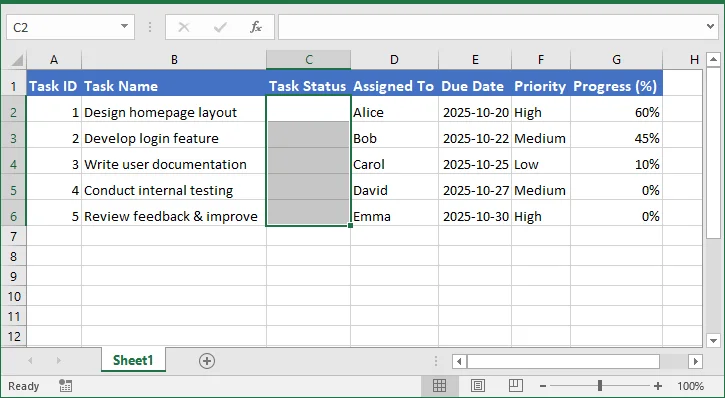
Откройте ваш файл Excel и выберите ячейку или диапазон, где вы хотите разместить выпадающий список, например, ячейки C2:C6 для статуса задачи.
-
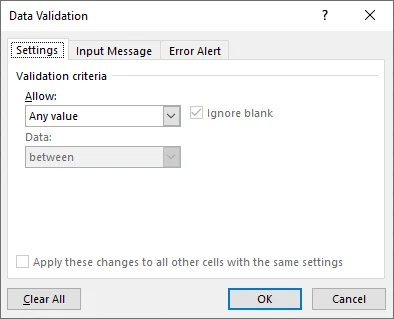
Перейдите на вкладку "Данные" на ленте Excel, нажмите "Проверка данных", затем "Проверка данных…", и откроется следующее диалоговое окно, позволяющее настроить выпадающий список.
-
На вкладке "Параметры" диалогового окна выберите "Список" из выпадающего меню "Тип данных". В поле "Источник" вы можете либо ввести элементы списка напрямую, разделяя их запятыми (например: Ожидание, В процессе, Завершено), либо выбрать диапазон ячеек (например, J1:J3) на вашем листе, который содержит эти значения. Если вы используете диапазон ячеек, выпадающий список будет автоматически обновляться при изменении исходных данных.

-
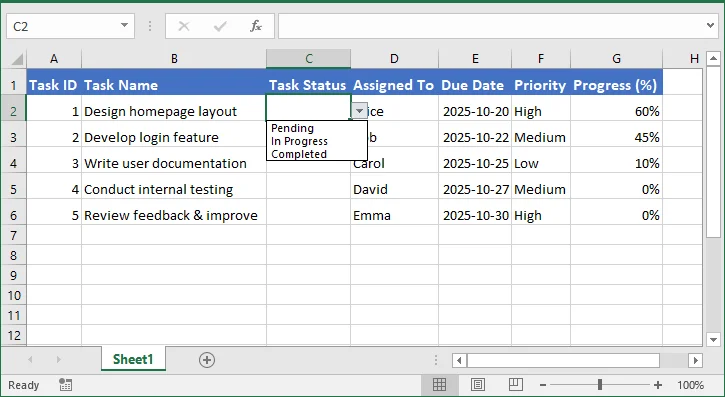
Нажмите "OK", чтобы применить выпадающий список. В выбранных ячейках теперь появится стрелка выпадающего списка, позволяющая выбирать из предопределенного списка. Вы можете скопировать выпадающий список в другие ячейки или использовать именованные диапазоны для удобного управления большими наборами данных.
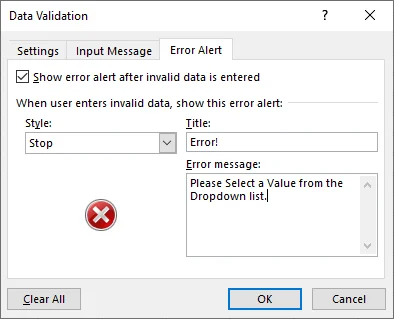
Вы также можете настроить параметры, чтобы игнорировать пустые ячейки, показывать стрелку выпадающего списка, отображать сообщение для ввода или устанавливать оповещение об ошибке для неверных записей.
Создание выпадающего списка в Excel программно с использованием кода: Руководство для разработчиков
Для разработчиков, которым нужна автоматизация, программное создание выпадающих списков является более эффективным. Spire.XLS — это мощная библиотека для работы с Excel, которая позволяет разработчикам полностью управлять файлами Excel с помощью кода, не требуя установки Microsoft Excel.
Она поддерживает широкий спектр операций, таких как создание листов, форматирование ячеек, создание таблиц и добавление выпадающих списков. Используя Spire.XLS, разработчики могут автоматизировать проверку данных в Excel, обеспечивать согласованность между несколькими файлами и оптимизировать повторяющиеся задачи.
Создание выпадающего списка в Excel с использованием C#
Чтобы вставить выпадающий список в Excel с помощью C# и Spire.XLS for .NET, выполните следующие шаги:
-
Скачайте Spire.XLS for .NET с официального сайта или установите его напрямую через NuGet, используя следующий код:
PM> Install-Package Spire.XLS -
Используйте следующий код, чтобы добавить выпадающий список в файл Excel на C#.
using Spire.Xls;

namespace AddDropdownList
{
    internal class Program
    {
        static void Main(string[] args)
        {
            // Load the existing Excel file
            Workbook workbook = new Workbook();
            workbook.LoadFromFile("Employee_Info.xlsx");

            // Get the first worksheet
            Worksheet worksheet = workbook.Worksheets[0];

            // Define dropdown list items
            string[] statusList = new string[] { "Pending", "In Progress", "Completed" };

            // Apply data validation to the range C2:C6
            CellRange range = worksheet.Range["C2:C6"];
            range.DataValidation.Values = statusList;

            // Save the modified file
            workbook.SaveToFile("Employee_Info_Dropdown.xlsx", ExcelVersion.Version2016);

            // Release resources
            workbook.Dispose();
        }
    }
}
Прочитайте полное руководство по C#: C#: Создание выпадающих списков в документе Excel.
Вставка выпадающего списка в Excel с использованием Java
Пожалуйста, следуйте этим шагам, чтобы добавить выпадающий список в Excel с помощью Spire.XLS for Java:
-
Скачайте Spire.XLS for Java с официального сайта или установите его из репозитория Maven, используя следующие конфигурации:
<repositories> <repository> <id>com.e-iceblue</id> <name>e-iceblue</name> <url>https://repo.e-iceblue.com/nexus/content/groups/public/</url> </repository> </repositories> <dependencies> <dependency> <groupId>e-iceblue</groupId> <artifactId>spire.xls</artifactId> <version>16.8.4</version> </dependency> </dependencies> -
Добавьте следующий код, чтобы вставить выпадающий список в файл Excel на Java.
import com.spire.xls.*;

public class AddDropdownList {
    public static void main(String[] args) {
        // Load the existing Excel file
        Workbook workbook = new Workbook();
        workbook.loadFromFile("Employee_Info.xlsx");

        // Get the first worksheet
        Worksheet sheet = workbook.getWorksheets().get(0);

        // Define dropdown list items
        String[] items = new String[] { "Pending", "In Progress", "Completed" };

        // Apply data validation to range C2:C6
        CellRange range = sheet.getRange().get("C2:C6");
        range.getDataValidation().setValues(items);

        // Save the modified workbook
        workbook.saveToFile("Employee_Info_Dropdown.xlsx", ExcelVersion.Version2016);

        // Dispose resources
        workbook.dispose();
    }
}
Прочитайте полное руководство по Java: Java: Создание выпадающего списка в Excel.
Создание выпадающего списка Excel с использованием Python
Вот как создать выпадающий список в Excel с помощью Spire.XLS for Python:
-
Скачайте Spire.XLS for Python или установите его из PyPI с помощью команды pip:
pip install spire.xls -
Используйте следующий код, чтобы создать выпадающий список в файле Excel на Python.
from spire.xls import *

# Load the existing Excel file
workbook = Workbook()
workbook.LoadFromFile("Employee_Info.xlsx")

# Get the first worksheet
worksheet = workbook.Worksheets[0]

# Define dropdown list items
values = ["Pending", "In Progress", "Completed"]

# Apply data validation to the range C2:C6
range = worksheet.Range["C2:C6"]
range.DataValidation.Values = values

# Save the modified workbook
workbook.SaveToFile("Employee_Info_Dropdown.xlsx", ExcelVersion.Version2016)

# Dispose of resources
workbook.Dispose()
Прочитайте полное руководство по Python: Python: Создание выпадающих списков на листах Excel.
Заключение
Создание выпадающих списков в Excel — это простой, но мощный способ стандартизировать ввод данных и минимизировать ошибки. Для обычных пользователей функция "Проверка данных" в Excel предоставляет простой ручной способ добавления выпадающих списков. Для разработчиков и команд, работающих с несколькими файлами Excel, использование Spire.XLS на C#, Java или Python позволяет программно создавать выпадающие списки, автоматизировать повторяющиеся задачи и обеспечивать согласованность данных. Используя эти методы, пользователи Excel могут повысить производительность, улучшить целостность данных и упростить анализ данных.
Часто задаваемые вопросы: Создание выпадающего списка в Excel
В1: Могу ли я редактировать выпадающий список после его создания?
О1: Да. Вы можете изменить настройки "Проверки данных" вручную в Excel или обновить элементы списка программно с помощью Spire.XLS на C#, Java или Python.
В2: Могут ли выпадающие списки ссылаться на диапазон на другом листе?
О2: Да. В настройках "Проверки данных" вы можете выбрать диапазон с другого листа в качестве источника для вашего выпадающего списка.
В3: Могут ли пользователи вводить значения, которых нет в выпадающем списке?*
О3: Да. В Excel снимите флажок "Показывать оповещение об ошибке после ввода неверных данных" в настройках "Проверки данных", чтобы разрешить пользовательские записи.
В4: Совместимы ли программно созданные выпадающие списки со всеми версиями Excel?
О4: Да. Spire.XLS поддерживает большинство современных форматов Excel, включая .xlsx, .xls и .xlsm.
В5: Как создавать динамические выпадающие списки, которые автоматически обновляются при изменении исходных данных?
О5: Используйте именованный диапазон или таблицу Excel для исходного списка. Когда таблица или диапазон обновляются, выпадающий список автоматически отражает изменения.
В6: Как удалить или очистить выпадающий список, не удаляя существующие данные?
О6: Перейдите в "Проверку данных", затем "Очистить все". Это удалит выпадающий список, но сохранит значения в ячейках.
Смотрите также
Create Dropdown List in Excel: Manual & Code Automation Guide
Table of Contents
Creating a dropdown list in Excel is an easy way to simplify data entry and reduce errors. When users type information manually, inconsistencies in spelling or formatting can make data harder to filter or analyze. A dropdown list solves this problem by letting users choose from predefined options, ensuring consistency and saving time.
In this guide, you will learn how to create dropdown list in Excel efficiently. We will cover manual methods using Excel's built-in features and programmatic methods using C#, Java, and Python.
- Create Dropdown Lists in Excel Manually
- Create Dropdown List in Excel Programmatically Using Code: Developer Guide
- Conclusion
- FAQs: Create Excel Dropdown List
Create Dropdown Lists in Excel Manually
Creating a dropdown list manually is straightforward and ideal for small datasets or one-off forms. To manually create a dropdown list, you can use the Data Validation feature in Excel. Follow the steps below:
-
Open your Excel file and select the cell or range where you want the dropdown list to appear, such as cell C2:C6 for task status.
-
Go to the Data tab on the Excel ribbon, click Data Validation, then Data Validation…, and the following dialog box will open to let you configure the dropdown list.
-
In the Settings tab of the dialog box, select List from the Allow dropdown. In the Source box, you can either type the list items directly, separated by commas (for example: Pending, In Progress, Completed), or select a range of cells (e.g., J1:J3) in your worksheet that contains these values. If you use a cell range, the dropdown list will update automatically whenever the source data changes.
-
Click OK to apply the dropdown. The selected cells will now show a dropdown arrow, allowing you to pick from the predefined list. You can copy the dropdown to other cells or use named ranges to manage larger datasets easily.
You can also configure options to ignore blank cells, show the dropdown arrow, display an input message, or set an error alert for invalid entries.
Create Dropdown List in Excel Programmatically Using Code: Developer Guide
For developers who need automation, creating dropdown lists programmatically is more efficient. Spire.XLS is a powerful Excel library that enables developers to manipulate Excel files entirely through code, without requiring Microsoft Excel to be installed.
It supports a wide range of operations such as creating worksheets, formatting cells, creating tables, and adding dropdown lists. Using Spire.XLS, developers can automate Excel data validation, ensure consistency across multiple files, and streamline repetitive tasks.
Create a Dropdown List in Excel using C#
To insert a dropdown list in Excel using C# with Spire.XLS for .NET, follow these steps:
-
Download Spire.XLS for .NET from the official website or install it directly through NuGet using the following code:
PM> Install-Package Spire.XLS -
Use the following code to add a dropdown list to an Excel file in C#.
using Spire.Xls;

namespace AddDropdownList
{
    internal class Program
    {
        static void Main(string[] args)
        {
            // Load the existing Excel file
            Workbook workbook = new Workbook();
            workbook.LoadFromFile("Employee_Info.xlsx");

            // Get the first worksheet
            Worksheet worksheet = workbook.Worksheets[0];

            // Define dropdown list items
            string[] statusList = new string[] { "Pending", "In Progress", "Completed" };

            // Apply data validation to the range C2:C6
            CellRange range = worksheet.Range["C2:C6"];
            range.DataValidation.Values = statusList;

            // Save the modified file
            workbook.SaveToFile("Employee_Info_Dropdown.xlsx", ExcelVersion.Version2016);

            // Release resources
            workbook.Dispose();
        }
    }
}
Read the full C# tutorial: C#: Create Dropdown Lists in an Excel Document.
Insert a Dropdown List in Excel using Java
Please refer to the following steps to add a dropdown list to Excel using Spire.XLS for Java:
-
Download Spire.XLS for Java from the official website or install it from the Maven Repository using the following configurations:
<repositories> <repository> <id>com.e-iceblue</id> <name>e-iceblue</name> <url>https://repo.e-iceblue.com/nexus/content/groups/public/</url> </repository> </repositories> <dependencies> <dependency> <groupId>e-iceblue</groupId> <artifactId>spire.xls</artifactId> <version>16.8.4</version> </dependency> </dependencies> -
Add the following code to insert a dropdown list into an Excel file in Java.
import com.spire.xls.*;

public class AddDropdownList {
    public static void main(String[] args) {
        // Load the existing Excel file
        Workbook workbook = new Workbook();
        workbook.loadFromFile("Employee_Info.xlsx");

        // Get the first worksheet
        Worksheet sheet = workbook.getWorksheets().get(0);

        // Define dropdown list items
        String[] items = new String[] { "Pending", "In Progress", "Completed" };

        // Apply data validation to range C2:C6
        CellRange range = sheet.getRange().get("C2:C6");
        range.getDataValidation().setValues(items);

        // Save the modified workbook
        workbook.saveToFile("Employee_Info_Dropdown.xlsx", ExcelVersion.Version2016);

        // Dispose resources
        workbook.dispose();
    }
}
Read the full Java tutorial: Java: Create a Drop-Down List in Excel.
Create Excel Dropdown List using Python
Here is how to create Excel dropdown list using Spire.XLS for Python:
-
Download Spire.XLS for Python or install it from PyPI using the pip command:
pip install spire.xls -
Use the following code to create a dropdown list in an Excel file in Python.
from spire.xls import *

# Load the existing Excel file
workbook = Workbook()
workbook.LoadFromFile("Employee_Info.xlsx")

# Get the first worksheet
worksheet = workbook.Worksheets[0]

# Define dropdown list items
values = ["Pending", "In Progress", "Completed"]

# Apply data validation to the range C2:C6
range = worksheet.Range["C2:C6"]
range.DataValidation.Values = values

# Save the modified workbook
workbook.SaveToFile("Employee_Info_Dropdown.xlsx", ExcelVersion.Version2016)

# Dispose of resources
workbook.Dispose()
Read the full Python tutorial: Python: Create Drop-Down Lists in Excel Worksheets.
Conclusion
Creating dropdown lists in Excel is a simple yet powerful way to standardize data entry and minimize errors. For casual users, Excel's Data Validation feature provides an easy, manual approach to add dropdowns. For developers and teams handling multiple Excel files, using Spire.XLS in C#, Java, or Python enables programmatic creation of dropdown lists, automates repetitive tasks, and ensures data consistency. By leveraging these techniques, Excel users can improve productivity, enhance data integrity, and make data analysis smoother.
FAQs: Create Excel Dropdown List
Q1: Can I edit a dropdown list after creating it?
A1: Yes. You can modify the Data Validation settings manually in Excel or update the list items programmatically using Spire.XLS in C#, Java, or Python.
Q2: Can dropdown lists reference a range in another worksheet?
A2: Yes. In the Data Validation settings, you can select a range from another worksheet as the source for your dropdown list.
Q3: Can users enter values not in the dropdown list?*
A3: Yes. In Excel, uncheck "Show error alert after invalid data is entered" in the Data Validation settings to allow custom entries.
Q4: Are programmatic dropdown lists compatible with all Excel versions?
A4: Yes. Spire.XLS supports most modern Excel formats, including .xlsx, .xls, and .xlsm.
Q5: How to create dynamic dropdown lists that update automatically when source data changes?
A5: Use a named range or Excel table for the source list. When the table or range updates, the dropdown list reflects changes automatically.
Q6: How to remove or clear a dropdown list without deleting existing data?
A6: Go to Data Validation, then Clear All. This removes the dropdown but keeps the cell values intact.
See Also
Generate PDFs from Templates in Java (HTML-to-PDF Explained)
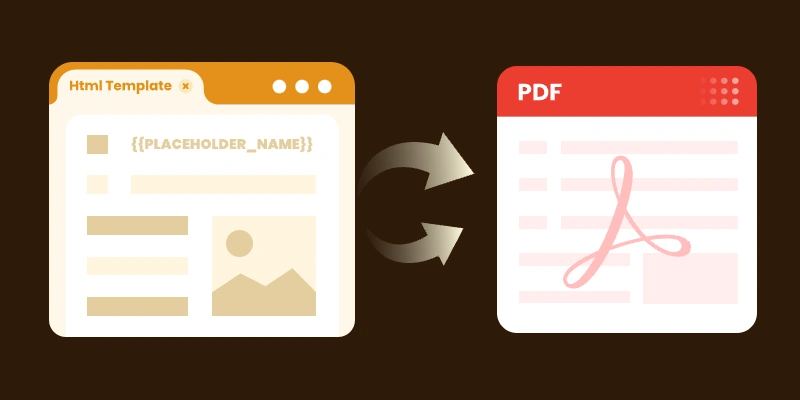
In many Java applications, you’ll need to generate PDF documents dynamically — for example, invoices, reports, or certificates. Creating PDFs from scratch can be time-consuming and error-prone, especially with complex layouts or changing content. Using templates with placeholders that are replaced at runtime is a more maintainable and flexible approach, ensuring consistent styling while separating layout from data.
In this article, we’ll explore how to generate PDFs from templates in Java using Spire.PDF for Java, including practical examples for both HTML and PDF templates. We’ll also highlight best practices, common challenges, and tips for creating professional, data-driven PDFs efficiently.
Table of Contents
- Why Use Templates for PDF Generation
- Choosing the Right Template Format (HTML, PDF, or Word)
- Setting Up the Environment
- Generating PDFs from Templates in Java
- Best Practices for Template-Based PDF Generation
- Final Thoughts
- FAQs
Why Use Templates for PDF Generation
- Maintainability : Designers or non-developers can edit templates (HTML, PDF, or Word) without touching code.
- Separation of concerns : Your business logic is decoupled from document layout.
- Consistency : Templates enforce consistent styling, branding, and layout across all generated documents.
- Flexibility : You can switch or update templates without major code changes.
Choosing the Right Template Format (HTML, PDF, or Word)
Each template format has strengths and trade-offs. Understanding them helps you pick the best one for your use case.
| Template Format | Pros | Cons / Considerations | Ideal Use Cases |
|---|---|---|---|
| HTML | Full control over layout via CSS, tables, responsive design; easy to iterate | Needs an HTML-to-PDF conversion engine (e.g. Qt WebEngine, headless Chrome) | Invoices, reports, documents with variable-length content, tables, images |
| You can take an existing branded PDF and replace placeholders | Only supports simple inline text replacements (no reflow for multiline content) | Templates with fixed layout and limited dynamic fields (e.g. contracts, certificates) | |
| Word (DOCX) | Familiar to non-developers; supports rich editing | Requires library (like Spire.Doc) to replace placeholders and convert to PDF | Organizations with existing Word-based templates or documents maintained by non-technical staff |
In practice, for documents with rich layout and dynamic content, HTML templates are often the best choice. For documents where layout must be rigid and placeholders are few, PDF templates can suffice. And if your stakeholders prefer Word-based templates, converting from Word to PDF may be the most comfortable workflow.
Setting Up the Environment
Before you begin coding, set up your project for Spire.PDF (and possibly Spire.Doc) usage:
- Download / add dependency
- (If using HTML templates) Install HTML-to-PDF engine / plugin
Spire.PDF needs an external engine or plugin (e.g. Qt WebEngine or a headless Chrome /Chromium) to render HTML + CSS to PDF.
- Download the appropriate plugin for your platform (Windows x86, Windows x64, Linux, macOS).
- Unzip to a local folder and locate the plugins directory, e.g.: C:\plugins-windows-x64\plugins
- Configure the plugin path in code:
- Prepare your templates
To get started, download Spire.PDF for Java from our website and add the JAR files to your project's build path. If you’re using Maven, include the following dependency in your pom.xml.
<repositories>
    <repository>
        <id>com.e-iceblue</id>
        <name>e-iceblue</name>
        <url>https://repo.e-iceblue.com/nexus/content/groups/public/</url>
    </repository>
</repositories>
<dependencies>
    <dependency>
        <groupId>e-iceblue</groupId>
        <artifactId>spire.pdf</artifactId>
        <version>12.9.0</version>
    </dependency>
</dependencies>
HtmlConverter.setPluginPath("C:\\plugins-windows-x64\\plugins");
- For HTML: define placeholders (e.g. {{PLACEHOLDER}}) in your template HTML / CSS.
- For PDF: build or procure a base PDF that includes placeholder text (e.g. {PROJECT_NAME}) in the spots you want replaced.
Generating PDFs from Templates in Java
From an HTML Template
Here’s how you can use Spire.PDF to convert an HTML template into a PDF document, replacing placeholders with actual data.
Sample Code (HTML → PDF)
import com.spire.pdf.graphics.PdfMargins;
import com.spire.pdf.htmlconverter.LoadHtmlType;
import com.spire.pdf.htmlconverter.qt.HtmlConverter;
import com.spire.pdf.htmlconverter.qt.Size;

import java.nio.file.Files;
import java.nio.file.Paths;
import java.util.HashMap;
import java.util.Map;

public class GeneratePdfFromHtmlTemplate {

    public static void main(String[] args) throws Exception {

        // Path to the HTML template file
        String htmlFilePath = "template/invoice_template.html";

        // Read HTML content from file
        String htmlTemplate = new String(Files.readAllBytes(Paths.get(htmlFilePath)));

        // Sample data for invoice
        Map invoiceData = new HashMap<>();
        invoiceData.put("INVOICE_NUMBER", "12345");
        invoiceData.put("INVOICE_DATE", "2025-08-25");
        invoiceData.put("BILLER_NAME", "John Doe");
        invoiceData.put("BILLER_ADDRESS", "123 Main St, Anytown, USA");
        invoiceData.put("BILLER_EMAIL", "johndoe@example.com");
        invoiceData.put("ITEM_DESCRIPTION", "Consulting Services");
        invoiceData.put("ITEM_QUANTITY", "10");
        invoiceData.put("ITEM_UNIT_PRICE", "$100");
        invoiceData.put("ITEM_TOTAL", "$1000");
        invoiceData.put("SUBTOTAL", "$1000");
        invoiceData.put("TAX_RATE", "5");
        invoiceData.put("TAX", "$50");
        invoiceData.put("TOTAL", "$1050");

        // Replace placeholders with actual values
        String populatedHtml = populateTemplate(htmlTemplate, invoiceData);

        // Output PDF file
        String outputFile = "output/Invoice.pdf";

        // Set the QT plugin path for HTML conversion
        HtmlConverter.setPluginPath("C:\\plugins-windows-x64\\plugins");

        // Convert HTML string to PDF
        HtmlConverter.convert(
                populatedHtml,
                outputFile,
                true,                       // Enable JavaScript
                100000,                     // Timeout (ms)
                new Size(595, 842),         // A4 size
                new PdfMargins(20),         // Margins
                LoadHtmlType.Source_Code    // Load HTML from string
        );

        System.out.println("PDF generated successfully: " + outputFile);
    }

    /**
     * Replace placeholders in HTML template with actual values.
     */
    private static String populateTemplate(String template, Map data) {
        String result = template;
        for (Map.Entry entry : data.entrySet()) {
            result = result.replace("{{" + entry.getKey() + "}}", entry.getValue());
        }
        return result;
    }
}
How it work:
- Design an HTML file using CSS, tables, images, etc., with placeholders (e.g. {{NAME}}).
- Store data values in a Map<String, String>.
- Replace placeholders with actual values at runtime.
- Use HtmlConverter.convert to generate a styled PDF.
This approach works well when your content may grow or shrink (tables, paragraphs), because HTML rendering handles flow and wrapping.
Output:

From a PDF Template
If you already have a branded PDF template with placeholder text, you can open it and replace inline text within.
Sample Code (PDF placeholder replacement)
import com.spire.pdf.PdfDocument;
import com.spire.pdf.PdfPageBase;
import com.spire.pdf.texts.PdfTextReplaceOptions;
import com.spire.pdf.texts.PdfTextReplacer;
import com.spire.pdf.texts.ReplaceActionType;

import java.util.EnumSet;
import java.util.HashMap;
import java.util.Map;

public class GeneratePdfFromPdfTemplate {

    public static void main(String[] args) {

        // Create a PdfDocument object
        PdfDocument doc = new PdfDocument();

        // Load a PDF file
        doc.loadFromFile("C:\\Users\\Administrator\\Desktop\\Template.pdf");

        // Create a PdfTextReplaceOptions object and specify the options
        PdfTextReplaceOptions textReplaceOptions = new PdfTextReplaceOptions();
        textReplaceOptions.setReplaceType(EnumSet.of(ReplaceActionType.WholeWord));

        // Get a specific page
        PdfPageBase page = doc.getPages().get(0);

        // Create a PdfTextReplacer object based on the page
        PdfTextReplacer textReplacer = new PdfTextReplacer(page);
        textReplacer.setOptions(textReplaceOptions);

        // Dictionary for old and new strings
        Map<String, String> replacements = new HashMap<>();
        replacements.put("{PROJECT_NAME}", "New Website Development");
        replacements.put("{PROJECT_NO}", "2023-001");
        replacements.put("{PROJECT MANAGER}", "Alice Johnson");
        replacements.put("{PERIOD}", "Q3 2023");
        replacements.put("{PERIOD}", "Q3 2023");
        replacements.put("{START_DATE}", "Jul 1, 2023");
        replacements.put("{END_DATE}", "Sep 30, 2023");

        // Loop through the dictionary to replace text
        for (Map.Entry<String, String> pair : replacements.entrySet()) {
            textReplacer.replaceText(pair.getKey(), pair.getValue());
        }

        // Save the document to a different PDF file
        doc.saveToFile("output/FromPdfTemplate.pdf");
        doc.dispose();
    }
}
How it works:
- Load an existing PDF template .
- Use PdfTextReplacer to find and replace placeholder text.
- Save the updated file as a new PDF.
This method works only for inline, simple text replacement . It does not reflow or adjust layout if the replacement text is longer or shorter.
Output:

Best Practices for Template-Based PDF Generation
Here are some tips and guidelines to ensure reliability, maintainability, and quality of your generated PDFs:
- Use HTML templates for rich content : If your document includes tables, variable-length sections, images, or requires responsive layouts, HTML templates offer more flexibility.
- Use PDF templates for stable, fixed layouts : When your document layout is tightly controlled and only a few placeholders change, PDF templates can save you the effort of converting HTML.
- Support Word templates if your team relies on them : If your design team uses Word, use Spire.Doc for Java to replace placeholders in DOCX and export to PDF.
- Unique placeholder markers : Use distinct delimiters (e.g. {FIELD_NAME}, or {FIELD_DATE}) to avoid accidental partial replacements.
- Keep templates external and versioned : Don’t embed template strings in code. Store them in resource files or external directories.
- Test with real data sets : Use realistic data to validate layout — e.g. long names, large tables, multilingual text.
Final Thoughts
Generating PDFs from templates is a powerful, maintainable approach — especially in Java applications. Depending on your needs:
- Use HTML templates when you require dynamic layout, variable-length content, and rich styling.
- Use PDF templates when your layout is fixed and you only need to swap a few fields.
- Leverage Word templates (via Spire.Doc) if your team already operates in that environment.
By combining a clean template system with Spire.PDF (and optionally Spire.Doc), you can produce high-quality, data-driven PDFs in a maintainable, scalable way.
FAQs
Q1. Can I use Word templates (DOCX) in Java for PDF generation?
Yes. Use Spire.Doc for Java to load a Word document, replace placeholders, and export to PDF. This workflow is convenient if your organization already maintains templates in Word.
Q2. Can I insert images or charts into templates?
Yes. Whether you generate PDFs from HTML templates or modify PDF templates, you can embed images, charts, shapes, etc. Just ensure your placeholders or template structure allow space for them.
Q3. Why do I need Qt WebEngine or Chrome for HTML-to-PDF conversion?
The HTML-to-PDF conversion must render CSS, fonts, and layout precisely. Spire.PDF delegates the heavy lifting to an external engine (e.g. Qt WebEngine or Chrome). Without a plugin, styles may not render correctly.
Q4. Does Spire.PDF support multiple languages / international text in templates?
Yes. Spire.PDF supports Unicode and can render multilingual content (English, Chinese, Arabic, etc.) without losing formatting.
Get a Free License
To fully experience the capabilities of Spire.PDF for Java without any evaluation limitations, you can request a free 30-day trial license.
Converti XLS/XLSX in HTML facilmente — Mantieni intatta la formattazione di Excel
Indice
Installa con Nuget
PM> Install-Package Spire.XLS
Link correlati
I fogli di calcolo sono uno dei modi più comuni per organizzare e analizzare i dati, ma quando si tratta di condividere tali informazioni online, i file Excel (XLS o XLSX) non sono sempre la scelta più pratica. La maggior parte dei siti Web e delle intranet non può visualizzare direttamente i file Excel: gli utenti devono prima scaricarli, aprirli in Excel e spesso perdono il layout o la formattazione nel processo. Ecco perché molti professionisti scelgono di convertire i file Excel in HTML.
La conversione della tua cartella di lavoro o del tuo foglio di calcolo Excel in una tabella HTML consente a chiunque di visualizzare il contenuto direttamente nel proprio browser, senza download e senza software Excel. Che tu voglia incorporare un listino prezzi, un catalogo prodotti, un elenco presenze o un report finanziario, la conversione di file XLS o XLSX in HTML garantisce che i tuoi dati siano accessibili e visivamente coerenti su tutti i dispositivi.
Esistono diversi modi per eseguire questa conversione. Puoi fare clic sui link sottostanti per passare direttamente alla sezione del metodo:
- Usa la funzionalità di esportazione integrata di Excel per trasformare rapidamente un foglio in una pagina Web HTML.
- Prova un convertitore online da XLS a HTML per una soluzione veloce basata su browser.
- Oppure, usa C# per convertire più file programmaticamente se devi automatizzare il processo in blocco.
Questa guida copre tutti e tre gli approcci in dettaglio, aiutandoti a scegliere quello migliore a seconda delle tue esigenze, del tuo background tecnico e del tuo flusso di lavoro.
Perché convertire Excel in HTML?
La pubblicazione di dati in formato HTML presenta molti vantaggi. Rende il contenuto del tuo foglio di calcolo facile da accedere e visualizzare su qualsiasi browser o dispositivo, senza richiedere agli utenti di scaricare file Excel. Le tabelle HTML mantengono anche gli stili essenziali, come colori, bordi e celle unite, per preservare la chiarezza visiva del tuo foglio di calcolo.
Quando converti Excel in HTML, puoi:
- Condividere report, orari o dati sui prezzi direttamente sul Web
- Incorporare fogli di calcolo in piattaforme CMS o dashboard interni
- Controllare il layout e lo stile per un risultato professionale e leggibile
Vediamo ora come puoi raggiungere questo obiettivo, iniziando con la funzione integrata di Excel "Salva come pagina Web", seguita da strumenti online e metodi automatizzati.
Metodo 1: Convertire file XLS/XLSX in HTML utilizzando MS Excel
Microsoft Excel fornisce una semplice funzione "Salva come pagina Web" che consente di convertire file .xls o .xlsx in formato .html.
Passaggi:
- Apri il tuo file Excel in Microsoft Excel.
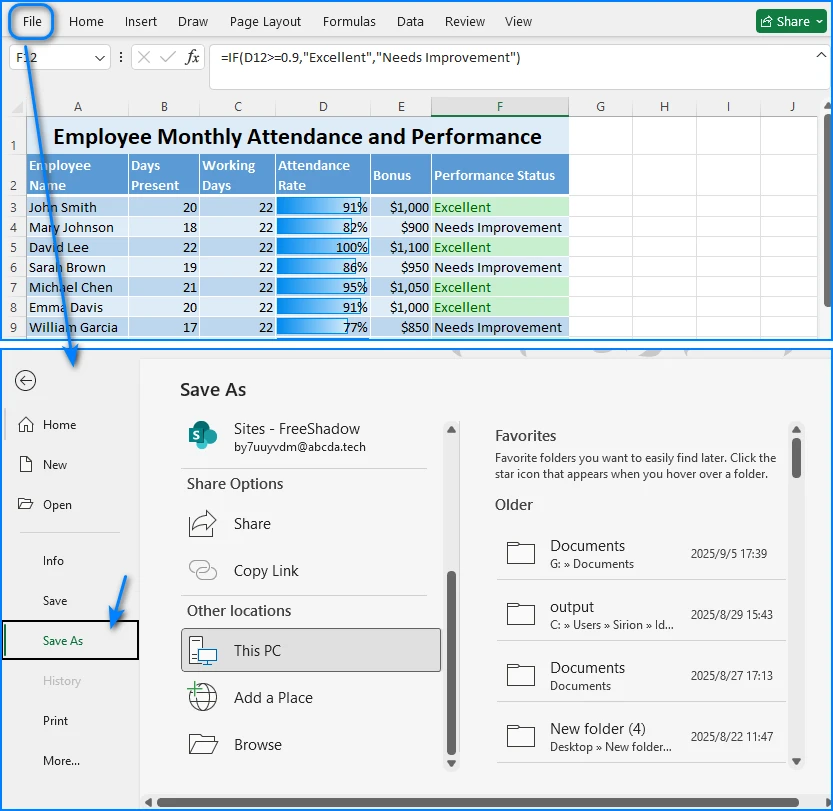
- Fai clic su File > Salva con nome.
- Scegli una cartella di destinazione.
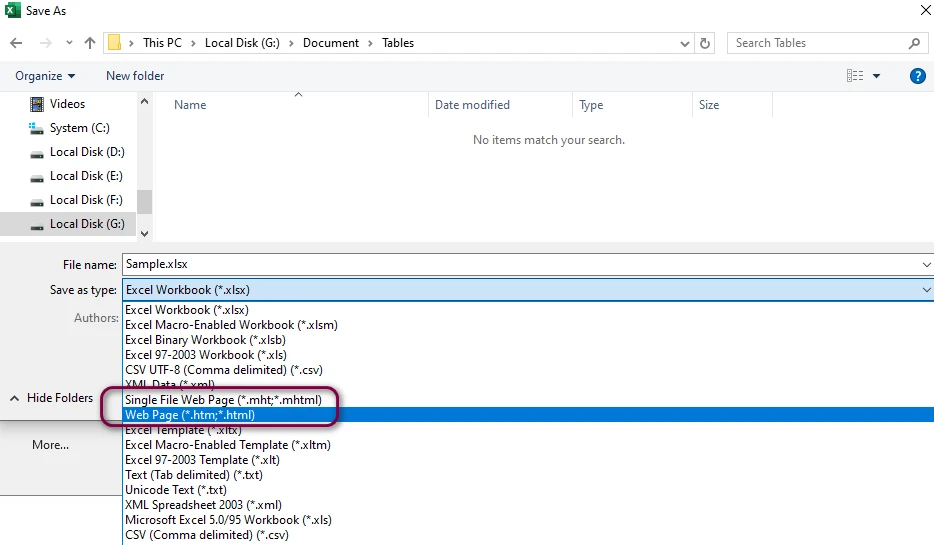
- Da "Salva come", seleziona *Pagina Web (.htm, *.html)**.
- Fai clic su Salva. Puoi scegliere Intera cartella di lavoro (tutti i fogli) o Selezione (solo celle specifiche).
Il risultato è un file HTML che mantiene il layout del tuo foglio di calcolo. Puoi caricarlo direttamente sul tuo sito Web o aprirlo in qualsiasi browser. Ecco un esempio di una semplice tabella HTML generata da un foglio di Excel:
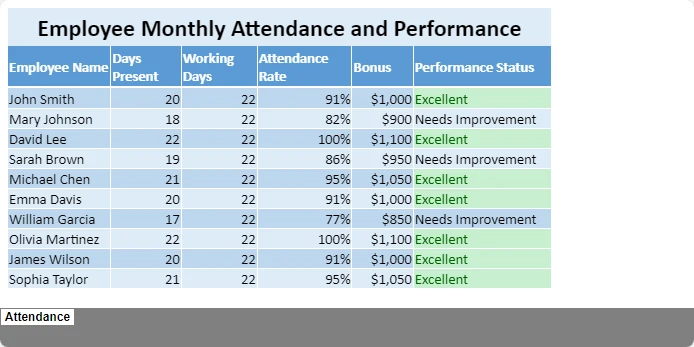
Pro e contro
| Pro | Contro |
|---|---|
| Integrato e gratuito | L'output HTML include molti stili in linea |
| Mantiene la formattazione | File di grandi dimensioni, non ideale per il Web moderno |
| Nessuna connessione Internet richiesta | Non adatto per la conversione in batch |
Questo metodo è perfetto per conversioni rapide una tantum, ma se hai bisogno di un HTML più pulito o di conversioni ricorrenti, potresti preferire le opzioni successive.
Metodo 2: Convertire Excel in HTML utilizzando strumenti online gratuiti
Se desideri convertire Excel in HTML senza installare software aggiuntivo, esistono molti convertitori online gratuiti in grado di eseguire l'attività direttamente nel tuo browser. Questi strumenti sono utili quando è necessario esportare un foglio di calcolo come pagina Web solo una volta o gestire rapidamente un file di piccole dimensioni.
Qui usiamo Convertitore da Excel a HTML su CLOUDXDOCS come esempio per illustrare come funzionano tali strumenti.
Come usare CLOUDXDOCS
- Visita Convertitore da Excel a HTML di CLOUDXDOCS.
- Carica il tuo file Excel (in formato .xls o .xlsx).
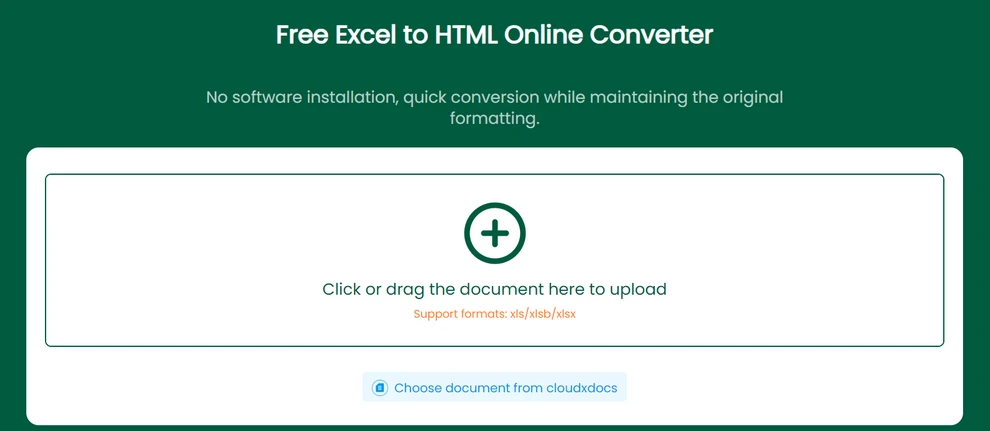
- Il sito Web convertirà automaticamente il tuo foglio di calcolo Excel in HTML.
- Una volta completato il processo, scarica il file HTML risultante sul tuo computer.
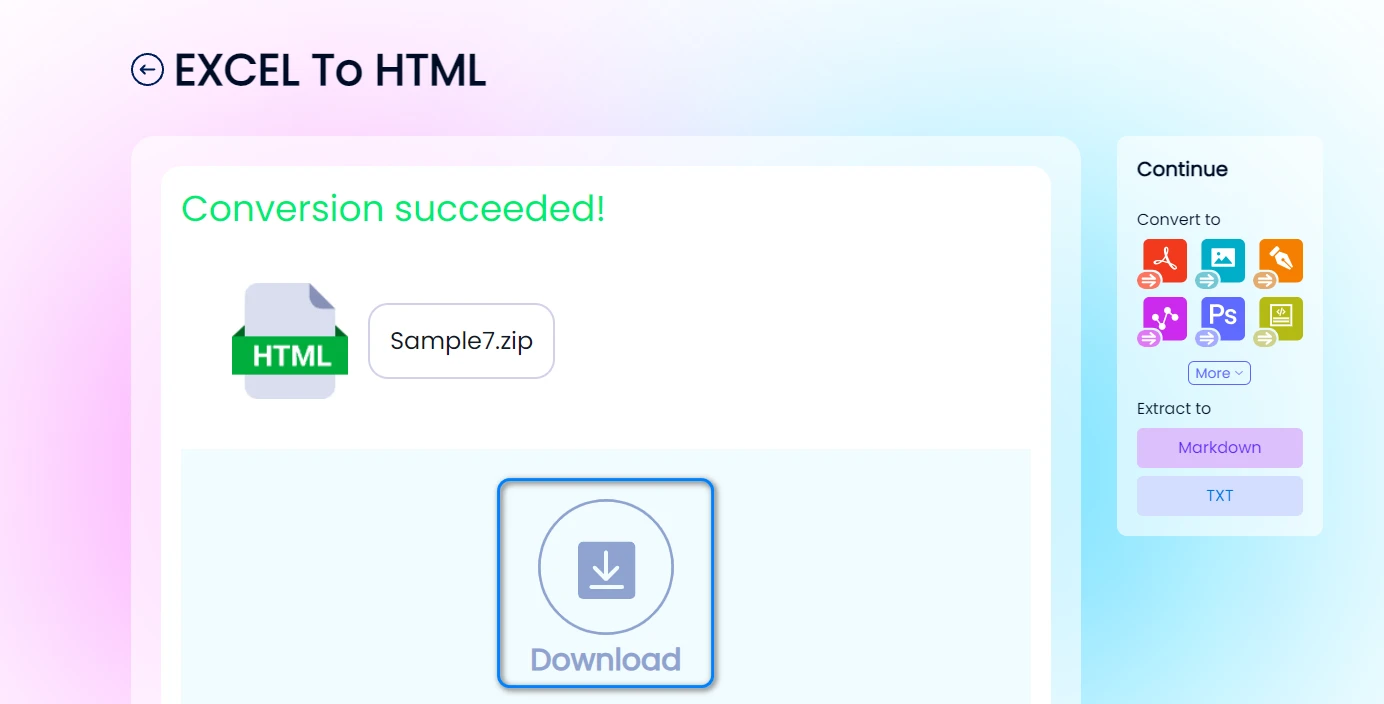
Ogni foglio di lavoro nella cartella di lavoro di Excel verrà salvato come un file HTML separato, mantenendo la maggior parte della formattazione originale, inclusi i bordi delle celle, i colori e l'allineamento del testo. Questo approccio è particolarmente comodo per gli utenti che desiderano condividere i dati dei fogli di calcolo online o incorporare il contenuto delle tabelle direttamente nelle pagine Web senza codifica.
Di seguito è riportato un esempio di un output HTML convertito, che preserva la struttura e il layout del foglio Excel originale.
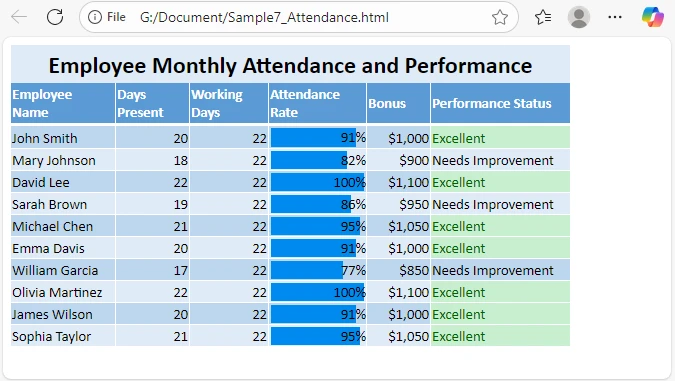
Sebbene i convertitori online da Excel a HTML siano ideali per conversioni rapide e occasionali, sono più adatti per fogli di calcolo relativamente piccoli o situazioni in cui la praticità è la priorità principale.
Per gli sviluppatori o gli utenti che necessitano di convertire file Excel in HTML in blocco o di automatizzare il processo a livello di codice, il metodo successivo dimostra come ottenere questo risultato utilizzando C#.
Metodo 3: Convertire Excel in HTML automaticamente con C#
Per gli sviluppatori o i team che gestiscono più file, l'automazione è fondamentale. Utilizzando Spire.XLS for .NET, è possibile convertire programmaticamente i file Excel in HTML, preservando tutta la formattazione e il layout ed evitando lo sforzo manuale.
Esempio: Convertire Excel in HTML in C#
using Spire.Xls;

namespace ExcelToHtmlDemo
{
    class Program
    {
        static void Main(string[] args)
        {
            // Load Excel workbook
            Workbook workbook = new Workbook();
            workbook.LoadFromFile("Report.xlsx");

            // Convert first sheet to HTML
            Worksheet sheet = workbook.Worksheets[0];
            sheet.SaveToHtml("Report.html");

            // Optionally export the whole workbook
            // workbook.SaveToHtml("AllSheets.html");
        }
    }
}
Spiegazione
- LoadFromFile() carica il file Excel in memoria.
- SaveToHtml() genera un file HTML dal foglio di lavoro o dall'intera cartella di lavoro.
- L'output mantiene colori, bordi e celle unite esattamente come in Excel.
Ecco un'anteprima del risultato della conversione:
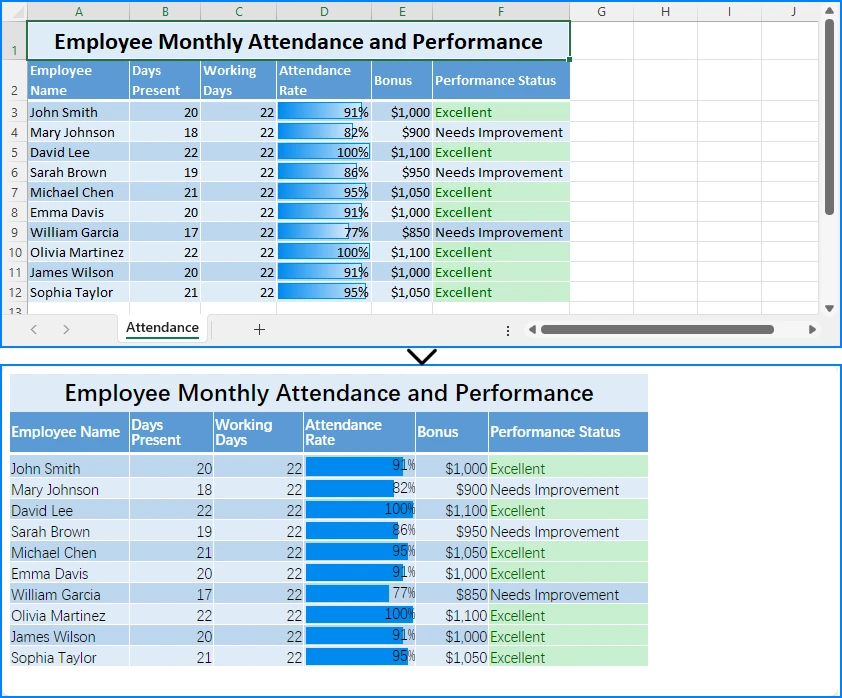
Aggiungi percorso di esportazione personalizzato o gestione degli errori
try
{
    Workbook wb = new Workbook();
    wb.LoadFromFile( @"C:\data\sales.xlsx");
    wb.Worksheets[0].SaveToHtml( @"C:\output\sales_table.html");
}
catch (Exception ex)
{
    Console.WriteLine("Conversion failed: " + ex.Message);
}
Quando utilizzare questo approccio:
- Converti in batch i report di Excel per la pubblicazione sul Web
- Integra la conversione da Excel a HTML nelle app Web .NET
- Pianifica conversioni automatiche per dashboard o sistemi di reporting
Questo metodo è scalabile, accurato e non richiede interazione manuale, rendendolo ideale per l'automazione aziendale.
Per ulteriori esempi, consulta il tutorial sulla conversione da Excel a HTML in C#.
Suggerimenti per un output HTML pulito e leggibile
Indipendentemente dal metodo utilizzato, segui queste best practice per ottenere risultati Web migliori:
- Semplifica la formattazione di Excel prima della conversione (evita colori o stili non necessari).
- Rimuovi righe/colonne nascoste — potrebbero apparire in HTML inaspettatamente.
- Comprimi immagini di grandi dimensioni incorporate in Excel.
- Post-elabora l'HTML se necessario per regolare la larghezza o l'allineamento della tabella.
Se stai pubblicando l'HTML su un sito Web, puoi anche applicare il tuo CSS per definire lo stile delle tabelle in modo coerente tra le pagine.
Domande comuni sulla conversione di Excel in HTML
D1: Posso convertire Excel in HTML gratuitamente?
Sì. Puoi usare Excel stesso o strumenti gratuiti come CLOUDXDOCS.
D2: Le formule o i grafici verranno conservati in HTML?
No. Vengono esportati solo i valori calcolati, non le formule. I grafici possono apparire come immagini se si utilizza la funzione di esportazione di Excel.
D3: Come posso convertire Excel in HTML reattivo?
Puoi racchiudere la <table> esportata in un <div> con CSS come:
div { overflow-x: auto; }
Ciò abilita lo scorrimento orizzontale sui dispositivi mobili.
D4: Come posso automatizzare le conversioni giornaliere?
Puoi pianificare una semplice app console C# utilizzando Utilità di pianificazione di Windows che esegue il tuo script Spire.XLS ogni giorno.
Conclusione
La conversione di file Excel in HTML rende i tuoi dati più accessibili, condivisibili e pronti per il Web. Che tu voglia condividere rapidamente un foglio di calcolo, integrarlo in un sito Web o automatizzare la generazione di HTML su larga scala, esistono strumenti e metodi adatti alle tue esigenze.
Per gli sviluppatori che desiderano automatizzare il processo, Free Spire.XLS for .NET fornisce anche un modo semplice e potente per convertire i file Excel in HTML a livello di codice.
Vedi anche
Converta XLS/XLSX para HTML facilmente — Mantenha a formatação do Excel intacta
Índice
Instalar com Nuget
PM> Install-Package Spire.XLS
Links Relacionados
As planilhas são uma das maneiras mais comuns de organizar e analisar dados, mas quando se trata de compartilhar essas informações online, os arquivos do Excel (XLS ou XLSX) nem sempre são a escolha mais prática. A maioria dos sites e intranets não consegue exibir arquivos do Excel diretamente — os usuários precisam baixá-los primeiro, abri-los no Excel e, muitas vezes, perdem o layout ou a formatação no processo. É por isso que muitos profissionais optam por converter arquivos do Excel para HTML.
Converter sua pasta de trabalho ou planilha do Excel para uma tabela HTML permite que qualquer pessoa visualize o conteúdo diretamente em seu navegador — sem necessidade de downloads ou do software Excel. Se você deseja incorporar uma planilha de preços, catálogo de produtos, lista de presença ou relatório financeiro, converter arquivos XLS ou XLSX para HTML garante que seus dados sejam acessíveis e visualmente consistentes em todos os dispositivos.
Existem várias maneiras de realizar essa conversão. Você pode clicar nos links abaixo para ir diretamente para a seção do método:
- Use o recurso de exportação integrado do Excel para transformar rapidamente uma planilha em uma página da web HTML.
- Experimente um conversor online de XLS para HTML para uma solução rápida baseada em navegador.
- Ou, use C# para converter vários arquivos programaticamente se precisar automatizar o processo em massa.
Este guia aborda todas as três abordagens em detalhes — ajudando você a escolher a melhor dependendo de suas necessidades, conhecimento técnico e fluxo de trabalho.
Por que Converter Excel para HTML?
Publicar dados em formato HTML tem muitas vantagens. Torna o conteúdo da sua planilha fácil de acessar e visualizar em qualquer navegador ou dispositivo, sem exigir que os usuários baixem arquivos do Excel. As tabelas HTML também mantêm estilos essenciais — como cores, bordas e células mescladas — para preservar a clareza visual da sua planilha.
Quando você converte Excel para HTML, você pode:
- Compartilhar relatórios, horários ou dados de preços diretamente na web
- Incorporar planilhas em plataformas de CMS ou painéis internos
- Controlar o layout e o estilo para um resultado profissional e legível
Vamos agora ver como você pode conseguir isso — começando com o recurso integrado do Excel “Salvar como Página da Web”, seguido por ferramentas online e métodos automatizados.
Método 1: Converter Arquivos XLS/XLSX para HTML Usando o MS Excel
O Microsoft Excel oferece um recurso simples de “Salvar como Página da Web” que permite converter arquivos .xls ou .xlsx para o formato .html.
Passos:
- Abra seu arquivo do Excel no Microsoft Excel.
- Clique em Arquivo > Salvar Como.
- Escolha uma pasta de destino.
- Em “Salvar como tipo,” selecione *Página da Web (.htm, *.html)**.
- Clique em Salvar. Você pode escolher Pasta de Trabalho Inteira (todas as planilhas) ou Seleção (apenas células específicas).
O resultado é um arquivo HTML que mantém o layout da sua planilha. Você pode enviá-lo diretamente para o seu site ou abri-lo em qualquer navegador. Aqui está um exemplo de uma tabela HTML simples gerada a partir de uma planilha do Excel:
Prós e Contras
| Prós | Contras |
|---|---|
| Integrado e gratuito | A saída HTML inclui muitos estilos embutidos |
| Mantém a formatação | Tamanho de arquivo grande, não ideal para a web moderna |
| Não requer internet | Não é adequado para conversão em lote |
Este método é perfeito para conversões rápidas e únicas, mas se você precisar de um HTML mais limpo ou de conversões recorrentes, pode preferir as próximas opções.
Método 2: Converter Excel para HTML Usando Ferramentas Online Gratuitas
Se você deseja converter Excel para HTML sem instalar software adicional, existem muitos conversores online gratuitos que podem realizar a tarefa diretamente no seu navegador. Essas ferramentas são úteis quando você só precisa exportar uma planilha como página da web uma vez ou lidar com um arquivo pequeno rapidamente.
Aqui usamos o Conversor de Excel para HTML no CLOUDXDOCS como exemplo para ilustrar como essas ferramentas funcionam.
Como Usar o CLOUDXDOCS
- Visite o Conversor de Excel para HTML do CLOUDXDOCS.
- Envie seu arquivo do Excel (formato .xls ou .xlsx).
- O site converterá automaticamente sua planilha do Excel para HTML.
- Quando o processo estiver concluído, baixe o arquivo HTML resultante para o seu computador.
Cada planilha na pasta de trabalho do Excel será salva como um arquivo HTML separado, mantendo a maior parte da formatação original, incluindo bordas de células, cores e alinhamento de texto. Essa abordagem é especialmente conveniente para usuários que desejam compartilhar dados de planilhas online ou incorporar o conteúdo da tabela diretamente em páginas da web sem codificação.
Abaixo está um exemplo de uma saída HTML convertida, que preserva a estrutura e o layout da planilha original do Excel.
Embora os conversores online de Excel para HTML sejam ideais para conversões rápidas e ocasionais, eles são mais adequados para planilhas relativamente pequenas ou situações em que a conveniência é a principal prioridade.
Para desenvolvedores ou usuários que precisam converter arquivos do Excel para HTML em massa ou automatizar o processo programaticamente, o próximo método demonstra como fazer isso usando C#.
Método 3: Converter Excel para HTML Automaticamente com C#
Para desenvolvedores ou equipes que gerenciam vários arquivos, a automação é fundamental. Usando o Spire.XLS for .NET, você pode converter programaticamente arquivos do Excel para HTML, preservando toda a formatação e layout, evitando o esforço manual.
Exemplo: Converter Excel para HTML em C#
using Spire.Xls;

namespace ExcelToHtmlDemo
{
    class Program
    {
        static void Main(string[] args)
        {
            // Load Excel workbook
            Workbook workbook = new Workbook();
            workbook.LoadFromFile("Report.xlsx");

            // Convert first sheet to HTML
            Worksheet sheet = workbook.Worksheets[0];
            sheet.SaveToHtml("Report.html");

            // Optionally export the whole workbook
            // workbook.SaveToHtml("AllSheets.html");
        }
    }
}
Explicação
- LoadFromFile() carrega o arquivo do Excel na memória.
- SaveToHtml() gera um arquivo HTML a partir da planilha ou de toda a pasta de trabalho.
- A saída mantém cores, bordas e células mescladas exatamente como no Excel.
Aqui está uma prévia do resultado da conversão:
Adicionar Caminho de Exportação Personalizado ou Tratamento de Erros
try
{
    Workbook wb = new Workbook();
    wb.LoadFromFile( @"C:\data\sales.xlsx");
    wb.Worksheets[0].SaveToHtml( @"C:\output\sales_table.html");
}
catch (Exception ex)
{
    Console.WriteLine("A conversão falhou: " + ex.Message);
}
Quando usar esta abordagem:
- Converter relatórios do Excel em lote para publicação na web
- Integrar conversão de Excel para HTML em aplicativos web .NET
- Agendar conversões automatizadas para painéis ou sistemas de relatórios
Este método é escalável, preciso e não requer interação manual, tornando-o ideal para automação empresarial.
Para mais exemplos, consulte o tutorial de conversão de Excel para HTML em C#.
Dicas para uma Saída HTML Limpa e Legível
Independentemente do método que você usar, siga estas práticas recomendadas para obter melhores resultados na web:
- Simplifique a formatação do Excel antes da conversão (evite cores ou estilos desnecessários).
- Remova linhas/colunas ocultas — elas podem aparecer inesperadamente no HTML.
- Comprima imagens grandes incorporadas no Excel.
- Pós-processe o HTML se necessário para ajustar a largura ou o alinhamento da tabela.
Se você estiver publicando o HTML em um site, também pode aplicar seu próprio CSS para estilizar as tabelas de forma consistente em todas as páginas.
Perguntas Frequentes Sobre a Conversão de Excel para HTML
P1: Posso converter Excel para HTML gratuitamente?
Sim. Você pode usar o próprio Excel ou ferramentas gratuitas como o CLOUDXDOCS.
P2: As fórmulas ou gráficos serão preservados em HTML?
Não. Apenas os valores calculados são exportados, não as fórmulas. Os gráficos podem aparecer como imagens se você usar o recurso de exportação do Excel.
P3: Como posso converter Excel para HTML responsivo?
Você pode envolver a <table> exportada em uma <div> com CSS como:
div { overflow-x: auto; }
Isso habilita a rolagem horizontal em dispositivos móveis.
P4: Como automatizo as conversões diariamente?
Você pode agendar um aplicativo de console C# simples usando o Agendador de Tarefas do Windows que executa seu script Spire.XLS todos os dias.
Conclusão
Converter arquivos do Excel para HTML torna seus dados mais acessíveis, compartilháveis e prontos para a web. Se você deseja compartilhar rapidamente uma planilha, integrá-la a um site ou automatizar a geração de HTML em escala, existem ferramentas e métodos para atender às suas necessidades.
Para desenvolvedores que procuram automatizar o processo, o Free Spire.XLS for .NET também oferece uma maneira simples e poderosa de converter arquivos do Excel para HTML programaticamente.
Veja Também
XLS/XLSX를 HTML로 쉽게 변환하기 — Excel 서식 그대로 유지
Nuget으로 설치
PM> Install-Package Spire.XLS
관련 링크
스프레드시트는 데이터를 구성하고 분석하는 가장 일반적인 방법 중 하나이지만, 온라인에서 해당 정보를 공유할 때 Excel 파일(XLS 또는 XLSX)이 항상 가장 실용적인 선택은 아닙니다. 대부분의 웹사이트와 인트라넷은 Excel 파일을 직접 표시할 수 없으므로 사용자는 먼저 파일을 다운로드하여 Excel에서 열어야 하며, 이 과정에서 레이아웃이나 서식이 손실되는 경우가 많습니다. 이것이 바로 많은 전문가들이 Excel 파일을 HTML로 변환하기로 선택하는 이유입니다.
Excel 워크북이나 스프레드시트를 HTML 테이블로 변환하면 누구나 다운로드나 Excel 소프트웨어 없이 브라우저에서 직접 콘텐츠를 볼 수 있습니다. 가격표, 제품 카탈로그, 출석 목록 또는 재무 보고서를 포함하려는 경우 XLS 또는 XLSX 파일을 HTML로 변환하면 모든 장치에서 데이터에 액세스할 수 있고 시각적으로 일관성을 유지할 수 있습니다.
이 변환을 수행하는 방법에는 여러 가지가 있습니다. 아래 링크를 클릭하여 해당 방법 섹션으로 바로 이동할 수 있습니다.
- Excel의 내장 내보내기 기능을 사용하여 시트를 HTML 웹페이지로 빠르게 변환할 수 있습니다.
- 빠른 브라우저 기반 솔루션을 위해 온라인 XLS to HTML 변환기를 사용해 보세요.
- 또는 대량으로 프로세스를 자동화해야 하는 경우 C#을 사용하여 여러 파일을 프로그래밍 방식으로 변환할 수 있습니다.
이 가이드는 세 가지 접근 방식을 모두 자세히 다루므로 필요, 기술 배경 및 워크플로에 따라 가장 적합한 방법을 선택하는 데 도움이 됩니다.
Excel을 HTML로 변환하는 이유는 무엇입니까?
HTML 형식으로 데이터를 게시하면 많은 이점이 있습니다. 사용자가 Excel 파일을 다운로드할 필요 없이 모든 브라우저나 장치에서 스프레드시트 콘텐츠에 쉽게 액세스하고 볼 수 있습니다. HTML 테이블은 또한 색상, 테두리, 병합된 셀과 같은 필수 스타일을 유지하여 스프레드시트의 시각적 명확성을 보존합니다.
Excel을 HTML로 변환하면 다음을 수행할 수 있습니다.
- 웹에서 직접 보고서, 시간표 또는 가격 데이터를 공유
- CMS 플랫폼 또는 내부 대시보드에 스프레드시트 포함
- 전문적이고 읽기 쉬운 결과를 위해 레이아웃 및 스타일 제어
이제 Excel의 내장된 "웹 페이지로 저장" 기능부터 시작하여 온라인 도구 및 자동화된 방법을 통해 이를 달성하는 방법을 살펴보겠습니다.
방법 1: MS Excel을 사용하여 XLS/XLSX 파일을 HTML로 변환
Microsoft Excel은 .xls 또는 .xlsx 파일을 .html 형식으로 변환할 수 있는 간단한 "웹 페이지로 저장" 기능을 제공합니다.
단계:
- Microsoft Excel에서 Excel 파일을 엽니다.
- 파일 > 다른 이름으로 저장을 클릭합니다.
- 대상 폴더를 선택합니다.
- "파일 형식"에서 *웹 페이지(.htm, *.html)**를 선택합니다.
- 저장을 클릭합니다. 전체 통합 문서(모든 시트) 또는 선택 영역(특정 셀만)을 선택할 수 있습니다.
결과는 스프레드시트 레이아웃을 유지하는 HTML 파일입니다. 웹사이트에 직접 업로드하거나 모든 브라우저에서 열 수 있습니다. 다음은 Excel 시트에서 생성된 간단한 HTML 테이블의 예입니다.
장단점
| 장점 | 단점 |
|---|---|
| 내장 및 무료 | HTML 출력에는 많은 인라인 스타일이 포함됩니다. |
| 서식 유지 | 파일 크기가 커서 최신 웹에 적합하지 않음 |
| 인터넷 필요 없음 | 일괄 변환에 적합하지 않음 |
이 방법은 빠른 일회성 변환에 적합하지만 더 깨끗한 HTML이나 반복적인 변환이 필요한 경우 다음 옵션을 선호할 수 있습니다.
방법 2: 무료 온라인 도구를 사용하여 Excel을 HTML로 변환
추가 소프트웨어를 설치하지 않고 Excel을 HTML로 변환하려는 경우 브라우저에서 직접 작업을 수행할 수 있는 많은 무료 온라인 변환기가 있습니다. 이러한 도구는 스프레드시트를 웹 페이지로 한 번만 내보내거나 작은 파일을 신속하게 처리해야 할 때 유용합니다.
여기서는 CLOUDXDOCS의 Excel to HTML Converter를 예로 들어 이러한 도구의 작동 방식을 설명합니다.
CLOUDXDOCS 사용 방법
- CLOUDXDOCS Excel to HTML 변환기를 방문하세요.
- Excel 파일(.xls 또는 .xlsx 형식)을 업로드합니다.
- 웹사이트가 자동으로 Excel 스프레드시트를 HTML로 변환합니다.
- 프로세스가 완료되면 결과 HTML 파일을 컴퓨터에 다운로드합니다.
Excel 통합 문서의 각 워크시트는 별도의 HTML 파일로 저장되며 셀 테두리, 색상 및 텍스트 정렬을 포함한 대부분의 원본 서식을 유지합니다. 이 접근 방식은 코딩 없이 온라인으로 스프레드시트 데이터를 공유하거나 웹 페이지에 직접 테이블 콘텐츠를 포함하려는 사용자에게 특히 편리합니다.
아래는 원본 Excel 시트의 구조와 레이아웃을 보존하는 변환된 HTML 출력의 예입니다.
온라인 Excel to HTML 변환기는 빠르고 가끔씩 변환하는 데 이상적이지만, 비교적 작은 스프레드시트나 편의성이 최우선인 상황에 가장 적합합니다.
대량으로 Excel 파일을 HTML로 변환하거나 프로그래밍 방식으로 프로세스를 자동화해야 하는 개발자나 사용자를 위해 다음 방법은 C#을 사용하여 이를 달성하는 방법을 보여줍니다.
방법 3: C#으로 Excel을 HTML로 자동 변환
여러 파일을 관리하는 개발자나 팀에게는 자동화가 핵심입니다. Spire.XLS for .NET을 사용하면 수동 작업 없이 모든 서식과 레이아웃을 유지하면서 프로그래밍 방식으로 Excel 파일을 HTML로 변환할 수 있습니다.
예: C#에서 Excel을 HTML로 변환
using Spire.Xls;

namespace ExcelToHtmlDemo
{
    class Program
    {
        static void Main(string[] args)
        {
            // Load Excel workbook
            Workbook workbook = new Workbook();
            workbook.LoadFromFile("Report.xlsx");

            // Convert first sheet to HTML
            Worksheet sheet = workbook.Worksheets[0];
            sheet.SaveToHtml("Report.html");

            // Optionally export the whole workbook
            // workbook.SaveToHtml("AllSheets.html");
        }
    }
}
설명
- LoadFromFile()은 Excel 파일을 메모리로 로드합니다.
- SaveToHtml()은 워크시트 또는 전체 통합 문서에서 HTML 파일을 생성합니다.
- 출력은 Excel에서와 똑같이 색상, 테두리 및 병합된 셀을 유지합니다.
다음은 변환 결과 미리보기입니다.
사용자 지정 내보내기 경로 또는 오류 처리 추가
try
{
    Workbook wb = new Workbook();
    wb.LoadFromFile( @"C:\data\sales.xlsx");
    wb.Worksheets[0].SaveToHtml( @"C:\output\sales_table.html");
}
catch (Exception ex)
{
    Console.WriteLine("Conversion failed: " + ex.Message);
}
이 접근 방식을 사용해야 하는 경우:
- 웹 게시를 위해 Excel 보고서 일괄 변환
- .NET 웹 앱에 Excel-to-HTML 통합
- 대시보드 또는 보고 시스템에 대한 자동 변환 예약
이 방법은 확장 가능하고 정확하며 수동 상호 작용이 필요하지 않으므로 엔터프라이즈 자동화에 이상적입니다.
더 많은 예제는 C# Excel to HTML 변환 자습서를 참조하세요.
깨끗하고 읽기 쉬운 HTML 출력을 위한 팁
사용하는 방법에 관계없이 더 나은 웹 결과를 위해 다음 모범 사례를 따르십시오.
- 변환 전에 Excel 서식을 단순화합니다(불필요한 색상이나 스타일 방지).
- 숨겨진 행/열 제거 — HTML에 예기치 않게 나타날 수 있습니다.
- Excel에 포함된 큰 이미지 압축.
- 너비나 테이블 정렬을 조정해야 하는 경우 HTML 후처리.
웹사이트에 HTML을 게시하는 경우 자신만의 CSS를 적용하여 페이지 전체에서 일관되게 테이블 스타일을 지정할 수도 있습니다.
Excel을 HTML로 변환하는 것에 대한 일반적인 질문
Q1: Excel을 HTML로 무료로 변환할 수 있나요?
네. Excel 자체 또는 CLOUDXDOCS와 같은 무료 도구를 사용할 수 있습니다.
Q2: 수식이나 차트가 HTML에 보존되나요?
아니요. 계산된 값만 내보내고 수식은 내보내지 않습니다. Excel의 내보내기 기능을 사용하면 차트가 이미지로 나타날 수 있습니다.
Q3: Excel을 반응형 HTML로 어떻게 변환할 수 있나요?
내보낸 <table>을 다음과 같은 CSS를 사용하여 <div>로 래핑할 수 있습니다.
div { overflow-x: auto; }
이렇게 하면 모바일 장치에서 가로 스크롤이 가능합니다.
Q4: 매일 변환을 자동화하려면 어떻게 해야 하나요?
Windows 작업 스케줄러를 사용하여 매일 Spire.XLS 스크립트를 실행하는 간단한 C# 콘솔 앱을 예약할 수 있습니다.
결론
Excel 파일을 HTML로 변환하면 데이터를 더 쉽게 액세스하고 공유하며 웹에 바로 사용할 수 있습니다. 스프레드시트를 빠르게 공유하거나, 웹사이트에 통합하거나, 대규모로 HTML 생성을 자동화하려는 경우 필요에 맞는 도구와 방법이 있습니다.
프로세스를 자동화하려는 개발자를 위해 Free Spire.XLS for .NET은 프로그래밍 방식으로 Excel 파일을 HTML로 변환하는 간단하고 강력한 방법도 제공합니다.
참고 항목
Convertissez facilement XLS/XLSX en HTML — Conservez la mise en forme d'Excel
Table des matières
Installer avec Nuget
PM> Install-Package Spire.XLS
Liens connexes
Les feuilles de calcul sont l'un des moyens les plus courants d'organiser et d'analyser des données, mais lorsqu'il s'agit de partager ces informations en ligne, les fichiers Excel (XLS ou XLSX) ne sont pas toujours le choix le plus pratique. La plupart des sites web et des intranets ne peuvent pas afficher directement les fichiers Excel — les utilisateurs doivent d'abord les télécharger, les ouvrir dans Excel, et perdent souvent la mise en page ou le formatage au cours du processus. C'est pourquoi de nombreux professionnels choisissent de convertir les fichiers Excel en HTML.
La conversion de votre classeur ou feuille de calcul Excel en tableau HTML permet à quiconque de visualiser le contenu directement dans son navigateur — aucun téléchargement, aucun logiciel Excel requis. Que vous souhaitiez intégrer une grille de tarifs, un catalogue de produits, une liste de présence ou un rapport financier, la conversion de fichiers XLS ou XLSX en HTML garantit que vos données sont accessibles et visuellement cohérentes sur tous les appareils.
Il existe plusieurs façons d'effectuer cette conversion. Vous pouvez cliquer sur les liens ci-dessous pour accéder directement à la section de la méthode :
- Utilisez la fonction d'exportation intégrée d'Excel pour transformer rapidement une feuille en page web HTML.
- Essayez un convertisseur XLS en HTML en ligne pour une solution rapide basée sur le navigateur.
- Ou, utilisez C# pour convertir plusieurs fichiers par programmation si vous avez besoin d'automatiser le processus en masse.
Ce guide couvre les trois approches en détail — vous aidant à choisir la meilleure en fonction de vos besoins, de votre bagage technique et de votre flux de travail.
Pourquoi convertir Excel en HTML ?
La publication de données au format HTML présente de nombreux avantages. Elle rend le contenu de votre feuille de calcul facile d'accès et de visualisation sur n'importe quel navigateur ou appareil, sans obliger les utilisateurs à télécharger des fichiers Excel. Les tableaux HTML conservent également les styles essentiels — tels que les couleurs, les bordures et les cellules fusionnées — pour préserver la clarté visuelle de votre feuille de calcul.
Lorsque vous convertissez Excel en HTML, vous pouvez :
- Partager des rapports, des horaires ou des données de tarification directement sur le web
- Intégrer des feuilles de calcul dans des plateformes CMS ou des tableaux de bord internes
- Contrôler la mise en page et le style pour un résultat professionnel et lisible
Voyons maintenant comment y parvenir — en commençant par la fonction intégrée d'Excel « Enregistrer en tant que page Web », suivie des outils en ligne et des méthodes automatisées.
Méthode 1 : Convertir des fichiers XLS/XLSX en HTML à l'aide de MS Excel
Microsoft Excel fournit une fonction simple « Enregistrer en tant que page Web » qui vous permet de convertir des fichiers .xls ou .xlsx au format .html.
Étapes :
- Ouvrez votre fichier Excel dans Microsoft Excel.
- Cliquez sur Fichier > Enregistrer sous.
- Choisissez un dossier de destination.
- Dans « Type de fichier », sélectionnez *Page Web (*.htm, *.html)*.
- Cliquez sur Enregistrer. Vous pouvez choisir Classeur entier (toutes les feuilles) ou Sélection (cellules spécifiques uniquement).
Le résultat est un fichier HTML qui conserve la mise en page de votre feuille de calcul. Vous pouvez le télécharger directement sur votre site web ou l'ouvrir dans n'importe quel navigateur. Voici un exemple d'un tableau HTML simple généré à partir d'une feuille Excel :
Avantages et inconvénients
| Avantages | Inconvénients |
|---|---|
| Intégré et gratuit | La sortie HTML inclut beaucoup de styles en ligne |
| Conserve le formatage | Taille de fichier importante, pas idéale pour le web moderne |
| Aucune connexion Internet requise | Ne convient pas à la conversion par lots |
Cette méthode est parfaite pour les conversions rapides et uniques, mais si vous avez besoin d'un HTML plus propre ou de conversions récurrentes, vous préférerez peut-être les options suivantes.
Méthode 2 : Convertir Excel en HTML à l'aide d'outils en ligne gratuits
Si vous souhaitez convertir Excel en HTML sans installer de logiciel supplémentaire, il existe de nombreux convertisseurs en ligne gratuits qui peuvent effectuer la tâche directement dans votre navigateur. Ces outils sont utiles lorsque vous n'avez besoin d'exporter une feuille de calcul en tant que page web qu'une seule fois ou de traiter rapidement un petit fichier.
Nous utilisons ici le convertisseur Excel vers HTML sur CLOUDXDOCS comme exemple pour illustrer le fonctionnement de ces outils.
Comment utiliser CLOUDXDOCS
- Visitez le convertisseur Excel vers HTML de CLOUDXDOCS.
- Téléchargez votre fichier Excel (format .xls ou .xlsx).
- Le site web convertira automatiquement votre feuille de calcul Excel en HTML.
- Une fois le processus terminé, téléchargez le fichier HTML résultant sur votre ordinateur.
Chaque feuille de calcul du classeur Excel sera enregistrée en tant que fichier HTML distinct, en conservant la plupart du formatage d'origine, y compris les bordures de cellule, les couleurs et l'alignement du texte. Cette approche est particulièrement pratique pour les utilisateurs qui souhaitent partager des données de feuille de calcul en ligne ou intégrer du contenu de tableau directement dans des pages web sans codage.
Vous trouverez ci-dessous un exemple de sortie HTML convertie, qui préserve la structure et la mise en page de la feuille Excel d'origine.
Bien que les convertisseurs Excel vers HTML en ligne soient idéaux pour les conversions rapides et occasionnelles, ils conviennent mieux aux feuilles de calcul relativement petites ou aux situations où la commodité est la principale priorité.
Pour les développeurs ou les utilisateurs qui ont besoin de convertir des fichiers Excel en HTML en masse ou d'automatiser le processus par programmation, la méthode suivante montre comment y parvenir en utilisant C#.
Méthode 3 : Convertir Excel en HTML automatiquement avec C#
Pour les développeurs ou les équipes gérant plusieurs fichiers, l'automatisation est essentielle. En utilisant Spire.XLS for .NET, vous pouvez convertir par programmation des fichiers Excel en HTML, en préservant tout le formatage et la mise en page tout en évitant les efforts manuels.
Exemple : Convertir Excel en HTML en C#
using Spire.Xls;

namespace ExcelToHtmlDemo
{
    class Program
    {
        static void Main(string[] args)
        {
            // Load Excel workbook
            Workbook workbook = new Workbook();
            workbook.LoadFromFile("Report.xlsx");

            // Convert first sheet to HTML
            Worksheet sheet = workbook.Worksheets[0];
            sheet.SaveToHtml("Report.html");

            // Optionally export the whole workbook
            // workbook.SaveToHtml("AllSheets.html");
        }
    }
}
Explication
- LoadFromFile() charge le fichier Excel en mémoire.
- SaveToHtml() génère un fichier HTML à partir de la feuille de calcul ou du classeur entier.
- La sortie conserve les couleurs, les bordures et les cellules fusionnées exactement comme dans Excel.
Voici un aperçu du résultat de la conversion :
Ajouter un chemin d'exportation personnalisé ou une gestion des erreurs
try
{
    Workbook wb = new Workbook();
    wb.LoadFromFile( @"C:\data\sales.xlsx");
    wb.Worksheets[0].SaveToHtml( @"C:\output\sales_table.html");
}
catch (Exception ex)
{
    Console.WriteLine("Conversion failed: " + ex.Message);
}
Quand utiliser cette approche :
- Convertir par lots des rapports Excel pour la publication web
- Intégrer la conversion Excel vers HTML dans les applications web .NET
- Planifier des conversions automatisées pour les tableaux de bord ou les systèmes de reporting
Cette méthode est évolutive, précise et ne nécessite aucune interaction manuelle, ce qui la rend idéale pour l'automatisation d'entreprise.
Pour plus d'exemples, consultez le tutoriel de conversion C# Excel vers HTML.
Conseils pour une sortie HTML propre et lisible
Quelle que soit la méthode que vous utilisez, suivez ces meilleures pratiques pour de meilleurs résultats web :
- Simplifiez le formatage Excel avant la conversion (évitez les couleurs ou les styles inutiles).
- Supprimez les lignes/colonnes masquées — elles peuvent apparaître de manière inattendue en HTML.
- Compressez les grandes images intégrées dans Excel.
- Post-traitez le HTML si nécessaire pour ajuster la largeur ou l'alignement du tableau.
Si vous publiez le HTML sur un site web, vous pouvez également appliquer votre propre CSS pour styliser les tableaux de manière cohérente sur toutes les pages.
Questions fréquentes sur la conversion d'Excel en HTML
Q1 : Puis-je convertir Excel en HTML gratuitement ?
Oui. Vous pouvez utiliser Excel lui-même ou des outils gratuits comme CLOUDXDOCS.
Q2 : Les formules ou les graphiques seront-ils conservés en HTML ?
Non. Seules les valeurs calculées sont exportées, pas les formules. Les graphiques peuvent apparaître sous forme d'images si vous utilisez la fonction d'exportation d'Excel.
Q3 : Comment puis-je convertir Excel en HTML responsive ?
Vous pouvez envelopper le <table> exporté dans un <div> avec du CSS comme :
div { overflow-x: auto; }
Cela active le défilement horizontal sur les appareils mobiles.
Q4 : Comment puis-je automatiser les conversions quotidiennement ?
Vous pouvez planifier une simple application console C# à l'aide du Planificateur de tâches Windows qui exécute votre script Spire.XLS tous les jours.
Conclusion
La conversion de fichiers Excel en HTML rend vos données plus accessibles, partageables et prêtes pour le web. Que vous souhaitiez partager rapidement une feuille de calcul, l'intégrer à un site web ou automatiser la génération de HTML à grande échelle, il existe des outils et des méthodes adaptés à vos besoins.
Pour les développeurs cherchant à automatiser le processus, Free Spire.XLS for .NET offre également un moyen simple et puissant de convertir des fichiers Excel en HTML par programmation.
Voir aussi
Convierta XLS/XLSX a HTML fácilmente — Mantenga intacto el formato de Excel
Tabla de Contenidos
Instalar con Nuget
PM> Install-Package Spire.XLS
Enlaces Relacionados
Las hojas de cálculo son una de las formas más comunes de organizar y analizar datos, pero cuando se trata de compartir esa información en línea, los archivos de Excel (XLS o XLSX) no siempre son la opción más práctica. La mayoría de los sitios web e intranets no pueden mostrar directamente los archivos de Excel; los usuarios necesitan descargarlos primero, abrirlos en Excel y, a menudo, pierden el diseño o el formato en el proceso. Es por eso que muchos profesionales eligen convertir archivos de Excel a HTML.
Convertir su libro de trabajo u hoja de cálculo de Excel a una tabla HTML permite que cualquiera vea el contenido directamente en su navegador, sin necesidad de descargas ni de software de Excel. Ya sea que desee incrustar una hoja de precios, un catálogo de productos, una lista de asistencia o un informe financiero, convertir archivos XLS o XLSX a HTML garantiza que sus datos sean accesibles y visualmente consistentes en todos los dispositivos.
Hay varias formas de realizar esta conversión. Puede hacer clic en los enlaces a continuación para ir directamente a la sección del método:
- Use la función de exportación integrada de Excel para convertir rápidamente una hoja en una página web HTML.
- Pruebe un convertidor de XLS a HTML en línea para una solución rápida basada en el navegador.
- O, use C# para convertir múltiples archivos programáticamente si necesita automatizar el proceso en masa.
Esta guía cubre los tres enfoques en detalle, ayudándole a elegir el mejor según sus necesidades, conocimientos técnicos y flujo de trabajo.
¿Por qué convertir Excel a HTML?
Publicar datos en formato HTML tiene muchas ventajas. Hace que el contenido de su hoja de cálculo sea fácil de acceder y ver en cualquier navegador o dispositivo, sin requerir que los usuarios descarguen archivos de Excel. Las tablas HTML también mantienen estilos esenciales, como colores, bordes y celdas combinadas, para preservar la claridad visual de su hoja de cálculo.
Cuando convierte Excel a HTML, puede:
- Compartir informes, horarios o datos de precios directamente en la web
- Incrustar hojas de cálculo en plataformas CMS o paneles internos
- Controlar el diseño y el estilo para un resultado profesional y legible
Veamos ahora cómo puede lograr esto, comenzando con la función integrada de Excel "Guardar como página web", seguida de herramientas en línea y métodos automatizados.
Método 1: Convertir archivos XLS/XLSX a HTML usando MS Excel
Microsoft Excel proporciona una sencilla función "Guardar como página web" que le permite convertir archivos .xls o .xlsx a formato .html.
Pasos:
- Abra su archivo de Excel en Microsoft Excel.
- Haga clic en Archivo > Guardar como.
- Elija una carpeta de destino.
- En "Guardar como tipo", seleccione *Página web (.htm, *.html)**.
- Haga clic en Guardar. Puede elegir Libro completo (todas las hojas) o Selección (solo celdas específicas).
El resultado es un archivo HTML que conserva el diseño de su hoja de cálculo. Puede subirlo directamente a su sitio web o abrirlo en cualquier navegador. Aquí hay un ejemplo de una tabla HTML simple generada a partir de una hoja de Excel:
Pros y Contras
| Pros | Contras |
|---|---|
| Integrado y gratuito | El resultado HTML incluye muchos estilos en línea |
| Conserva el formato | Tamaño de archivo grande, no ideal para la web moderna |
| No se requiere internet | No es adecuado para la conversión por lotes |
Este método es perfecto para conversiones rápidas de una sola vez, pero si necesita un HTML más limpio o conversiones recurrentes, puede preferir las siguientes opciones.
Método 2: Convertir Excel a HTML usando herramientas gratuitas en línea
Si desea convertir Excel a HTML sin instalar software adicional, existen muchos convertidores en línea gratuitos que pueden realizar la tarea directamente en su navegador. Estas herramientas son útiles cuando solo necesita exportar una hoja de cálculo como página web una vez o manejar un archivo pequeño rápidamente.
Aquí usamos el Convertidor de Excel a HTML en CLOUDXDOCS como ejemplo para ilustrar cómo funcionan dichas herramientas.
Cómo usar CLOUDXDOCS
- Visite el Convertidor de Excel a HTML de CLOUDXDOCS.
- Suba su archivo de Excel (en formato .xls o .xlsx).
- El sitio web convertirá automáticamente su hoja de cálculo de Excel a HTML.
- Una vez que el proceso esté completo, descargue el archivo HTML resultante a su computadora.
Cada hoja de trabajo en el libro de Excel se guardará como un archivo HTML separado, manteniendo la mayor parte del formato original, incluidos los bordes de las celdas, los colores y la alineación del texto. Este enfoque es especialmente conveniente para los usuarios que desean compartir datos de hojas de cálculo en línea o incrustar contenido de tablas directamente en páginas web sin necesidad de codificar.
A continuación se muestra un ejemplo de una salida HTML convertida, que conserva la estructura y el diseño de la hoja de Excel original.
Aunque los convertidores de Excel a HTML en línea son ideales para conversiones rápidas y ocasionales, son más adecuados para hojas de cálculo relativamente pequeñas o situaciones donde la conveniencia es la principal prioridad.
Para los desarrolladores o usuarios que necesitan convertir archivos de Excel a HTML en masa o automatizar el proceso programáticamente, el siguiente método demuestra cómo lograrlo usando C#.
Método 3: Convertir Excel a HTML automáticamente con C#
Para los desarrolladores o equipos que gestionan múltiples archivos, la automatización es clave. Usando Spire.XLS for .NET, puede convertir programáticamente archivos de Excel a HTML, conservando todo el formato y el diseño mientras evita el esfuerzo manual.
Ejemplo: Convertir Excel a HTML en C#
using Spire.Xls;

namespace ExcelToHtmlDemo
{
    class Program
    {
        static void Main(string[] args)
        {
            // Load Excel workbook
            Workbook workbook = new Workbook();
            workbook.LoadFromFile("Report.xlsx");

            // Convert first sheet to HTML
            Worksheet sheet = workbook.Worksheets[0];
            sheet.SaveToHtml("Report.html");

            // Optionally export the whole workbook
            // workbook.SaveToHtml("AllSheets.html");
        }
    }
}
Explicación
- LoadFromFile() carga el archivo de Excel en la memoria.
- SaveToHtml() genera un archivo HTML a partir de la hoja de trabajo o del libro completo.
- El resultado mantiene los colores, bordes y celdas combinadas exactamente como en Excel.
Aquí hay una vista previa del resultado de la conversión:
Agregar ruta de exportación personalizada o manejo de errores
try
{
    Workbook wb = new Workbook();
    wb.LoadFromFile( @"C:\data\sales.xlsx");
    wb.Worksheets[0].SaveToHtml( @"C:\output\sales_table.html");
}
catch (Exception ex)
{
    Console.WriteLine("Conversion failed: " + ex.Message);
}
Cuándo usar este enfoque:
- Convertir por lotes informes de Excel para su publicación en la web
- Integrar la conversión de Excel a HTML en aplicaciones web .NET
- Programar conversiones automatizadas para paneles o sistemas de informes
Este método es escalable, preciso y no requiere interacción manual, lo que lo hace ideal para la automatización empresarial.
Para más ejemplos, consulte el tutorial de conversión de Excel a HTML en C#.
Consejos para un resultado HTML limpio y legible
Independientemente del método que utilice, siga estas mejores prácticas para obtener mejores resultados en la web:
- Simplifique el formato de Excel antes de la conversión (evite colores o estilos innecesarios).
- Elimine filas/columnas ocultas — pueden aparecer en HTML inesperadamente.
- Comprima imágenes grandes incrustadas en Excel.
- Post-procese el HTML si es necesario para ajustar el ancho o la alineación de la tabla.
Si está publicando el HTML en un sitio web, también puede aplicar su propio CSS para dar estilo a las tablas de manera consistente en todas las páginas.
Preguntas comunes sobre la conversión de Excel a HTML
P1: ¿Puedo convertir Excel a HTML de forma gratuita?
Sí. Puede usar el propio Excel o herramientas gratuitas como CLOUDXDOCS.
P2: ¿Se conservarán las fórmulas o los gráficos en HTML?
No. Solo se exportan los valores calculados, no las fórmulas. Los gráficos pueden aparecer como imágenes si utiliza la función de exportación de Excel.
P3: ¿Cómo puedo convertir Excel a HTML responsivo?
Puede envolver la <table> exportada en un <div> con CSS como:
div { overflow-x: auto; }
Esto habilita el desplazamiento horizontal en dispositivos móviles.
P4: ¿Cómo automatizo las conversiones diarias?
Puede programar una aplicación de consola C# simple usando el Programador de tareas de Windows que ejecute su script de Spire.XLS todos los días.
Conclusión
Convertir archivos de Excel a HTML hace que sus datos sean más accesibles, compartibles y listos para la web. Ya sea que desee compartir rápidamente una hoja de cálculo, integrarla en un sitio web o automatizar la generación de HTML a gran escala, existen herramientas y métodos que se adaptan a sus necesidades.
Para los desarrolladores que buscan automatizar el proceso, Free Spire.XLS for .NET también proporciona una forma simple y potente de convertir archivos de Excel a HTML programáticamente.
Ver También
XLS/XLSX einfach in HTML umwandeln — Excel-Formatierung beibehalten
Inhaltsverzeichnis
Mit Nuget installieren
PM> Install-Package Spire.XLS
Verwandte Links
Tabellenkalkulationen sind eine der gebräuchlichsten Methoden zur Organisation und Analyse von Daten, aber wenn es darum geht, diese Informationen online zu teilen, sind Excel-Dateien (XLS oder XLSX) nicht immer die praktischste Wahl. Die meisten Websites und Intranets können Excel-Dateien nicht direkt anzeigen – Benutzer müssen sie zuerst herunterladen, in Excel öffnen und verlieren dabei oft das Layout oder die Formatierung. Aus diesem Grund entscheiden sich viele Fachleute dafür, Excel-Dateien in HTML zu konvertieren.
Die Konvertierung Ihrer Excel-Arbeitsmappe oder -Tabelle in eine HTML-Tabelle ermöglicht es jedem, den Inhalt direkt in seinem Browser anzuzeigen – keine Downloads, keine Excel-Software erforderlich. Ob Sie eine Preisliste, einen Produktkatalog, eine Anwesenheitsliste oder einen Finanzbericht einbetten möchten, die Konvertierung von XLS- oder XLSX-Dateien in HTML stellt sicher, dass Ihre Daten auf allen Geräten zugänglich und visuell einheitlich sind.
Es gibt mehrere Möglichkeiten, diese Konvertierung durchzuführen. Sie können auf die folgenden Links klicken, um direkt zum Abschnitt der jeweiligen Methode zu gelangen:
- Verwenden Sie die integrierte Exportfunktion von Excel, um ein Blatt schnell in eine HTML-Webseite umzuwandeln.
- Probieren Sie einen Online-XLS-zu-HTML-Konverter für eine schnelle, browserbasierte Lösung.
- Oder verwenden Sie C#, um mehrere Dateien programmgesteuert zu konvertieren, wenn Sie den Prozess in großen Mengen automatisieren müssen.
Dieser Leitfaden behandelt alle drei Ansätze im Detail – und hilft Ihnen bei der Auswahl des besten Ansatzes je nach Ihren Bedürfnissen, Ihrem technischen Hintergrund und Ihrem Arbeitsablauf.
Warum Excel in HTML konvertieren?
Die Veröffentlichung von Daten im HTML-Format hat viele Vorteile. Es macht Ihre Tabelleninhalte leicht zugänglich und über jeden Browser oder jedes Gerät anzeigbar, ohne dass Benutzer Excel-Dateien herunterladen müssen. HTML-Tabellen behalten auch wesentliche Stile bei – wie Farben, Ränder und verbundene Zellen – um die visuelle Klarheit Ihrer Tabelle zu bewahren.
Wenn Sie Excel in HTML konvertieren, können Sie:
- Berichte, Zeitpläne oder Preisdaten direkt im Web teilen
- Tabellenkalkulationen in CMS-Plattformen oder interne Dashboards einbetten
- Layout und Stil für ein professionelles, lesbares Ergebnis steuern
Schauen wir uns nun an, wie Sie dies erreichen können – beginnend mit der integrierten Funktion „Als Webseite speichern“ von Excel, gefolgt von Online-Tools und automatisierten Methoden.
Methode 1: XLS/XLSX-Dateien mit MS Excel in HTML konvertieren
Microsoft Excel bietet eine einfache Funktion „Als Webseite speichern“, mit der Sie .xls- oder .xlsx-Dateien in das .html-Format konvertieren können.
Schritte:
- Öffnen Sie Ihre Excel-Datei in Microsoft Excel.
- Klicken Sie auf Datei > Speichern unter.
- Wählen Sie einen Zielordner.
- Wählen Sie unter „Dateityp“ *Webseite (*.htm, *.html)* aus.
- Klicken Sie auf Speichern. Sie können Ganze Arbeitsmappe (alle Blätter) oder Auswahl (nur bestimmte Zellen) wählen.
Das Ergebnis ist eine HTML-Datei, die Ihr Tabellenlayout beibehält. Sie können sie direkt auf Ihre Website hochladen oder in einem beliebigen Browser öffnen. Hier ist ein Beispiel für eine einfache HTML-Tabelle, die aus einem Excel-Blatt generiert wurde:
Vor- und Nachteile
| Vorteile | Nachteile |
|---|---|
| Eingebaut und kostenlos | HTML-Ausgabe enthält viele Inline-Stile |
| Behält die Formatierung bei | Große Dateigröße, nicht ideal für das moderne Web |
| Kein Internet erforderlich | Nicht für die Stapelkonvertierung geeignet |
Diese Methode ist perfekt für schnelle einmalige Konvertierungen, aber wenn Sie saubereren HTML-Code oder wiederkehrende Konvertierungen benötigen, bevorzugen Sie möglicherweise die nächsten Optionen.
Methode 2: Excel mit kostenlosen Online-Tools in HTML konvertieren
Wenn Sie Excel in HTML konvertieren möchten, ohne zusätzliche Software zu installieren, gibt es viele kostenlose Online-Konverter, die die Aufgabe direkt in Ihrem Browser ausführen können. Diese Tools sind nützlich, wenn Sie nur einmal eine Tabelle als Webseite exportieren oder eine kleine Datei schnell bearbeiten müssen.
Hier verwenden wir als Beispiel den Excel to HTML Converter auf CLOUDXDOCS, um zu veranschaulichen, wie solche Tools funktionieren.
Wie man CLOUDXDOCS verwendet
- Besuchen Sie den CLOUDXDOCS Excel to HTML Converter.
- Laden Sie Ihre Excel-Datei hoch (entweder im .xls- oder .xlsx-Format).
- Die Website konvertiert Ihre Excel-Tabelle automatisch in HTML.
- Sobald der Vorgang abgeschlossen ist, laden Sie die resultierende HTML-Datei auf Ihren Computer herunter.
Jedes Arbeitsblatt in der Excel-Arbeitsmappe wird als separate HTML-Datei gespeichert, wobei der größte Teil der ursprünglichen Formatierung, einschließlich Zellrändern, Farben und Textausrichtung, erhalten bleibt. Dieser Ansatz ist besonders praktisch für Benutzer, die Tabellendaten online teilen oder Tabelleninhalte ohne Programmierung direkt in Webseiten einbetten möchten.
Unten sehen Sie ein Beispiel für eine konvertierte HTML-Ausgabe, die die Struktur und das Layout des ursprünglichen Excel-Blatts beibehält.
Obwohl Online-Excel-zu-HTML-Konverter ideal für schnelle und gelegentliche Konvertierungen sind, eignen sie sich am besten für relativ kleine Tabellenkalkulationen oder Situationen, in denen die Bequemlichkeit im Vordergrund steht.
Für Entwickler oder Benutzer, die Excel-Dateien in großen Mengen in HTML konvertieren oder den Prozess programmgesteuert automatisieren müssen, zeigt die nächste Methode, wie dies mit C# erreicht werden kann.
Methode 3: Excel mit C# automatisch in HTML konvertieren
Für Entwickler oder Teams, die mehrere Dateien verwalten, ist Automatisierung der Schlüssel. Mit Spire.XLS for .NET können Sie Excel-Dateien programmgesteuert in HTML konvertieren, wobei die gesamte Formatierung und das Layout erhalten bleiben und manueller Aufwand vermieden wird.
Beispiel: Excel in C# in HTML konvertieren
using Spire.Xls;

namespace ExcelToHtmlDemo
{
    class Program
    {
        static void Main(string[] args)
        {
            // Load Excel workbook
            Workbook workbook = new Workbook();
            workbook.LoadFromFile("Report.xlsx");

            // Convert first sheet to HTML
            Worksheet sheet = workbook.Worksheets[0];
            sheet.SaveToHtml("Report.html");

            // Optionally export the whole workbook
            // workbook.SaveToHtml("AllSheets.html");
        }
    }
}
Erläuterung
- LoadFromFile() lädt die Excel-Datei in den Speicher.
- SaveToHtml() generiert eine HTML-Datei aus dem Arbeitsblatt oder der gesamten Arbeitsmappe.
- Die Ausgabe behält Farben, Ränder und verbundene Zellen genau wie in Excel bei.
Hier ist eine Vorschau des Konvertierungsergebnisses:
Benutzerdefinierten Exportpfad oder Fehlerbehandlung hinzufügen
try
{
    Workbook wb = new Workbook();
    wb.LoadFromFile( @"C:\data\sales.xlsx");
    wb.Worksheets[0].SaveToHtml( @"C:\output\sales_table.html");
}
catch (Exception ex)
{
    Console.WriteLine("Konvertierung fehlgeschlagen: " + ex.Message);
}
Wann dieser Ansatz zu verwenden ist:
- Stapelkonvertierung von Excel-Berichten für die Web-Veröffentlichung
- Excel-zu-HTML in .NET-Webanwendungen integrieren
- Automatisierte Konvertierungen für Dashboards oder Berichtssysteme planen
Diese Methode ist skalierbar, genau und erfordert keine manuelle Interaktion, was sie ideal für die Unternehmensautomatisierung macht.
Weitere Beispiele finden Sie im C# Excel-zu-HTML-Konvertierungs-Tutorial.
Tipps für eine saubere und lesbare HTML-Ausgabe
Unabhängig von der verwendeten Methode sollten Sie diese bewährten Verfahren für bessere Webergebnisse befolgen:
- Vereinfachen Sie die Excel-Formatierung vor der Konvertierung (vermeiden Sie unnötige Farben oder Stile).
- Entfernen Sie ausgeblendete Zeilen/Spalten – sie können unerwartet in HTML erscheinen.
- Komprimieren Sie große Bilder, die in Excel eingebettet sind.
- Nachbearbeiten Sie HTML bei Bedarf, um die Breite oder die Tabellenausrichtung anzupassen.
Wenn Sie das HTML auf einer Website veröffentlichen, können Sie auch Ihr eigenes CSS anwenden, um Tabellen auf allen Seiten einheitlich zu gestalten.
Häufig gestellte Fragen zur Konvertierung von Excel in HTML
F1: Kann ich Excel kostenlos in HTML konvertieren?
Ja. Sie können Excel selbst oder kostenlose Tools wie CLOUDXDOCS verwenden.
F2: Bleiben Formeln oder Diagramme in HTML erhalten?
Nein. Nur berechnete Werte werden exportiert, keine Formeln. Diagramme können als Bilder erscheinen, wenn Sie die Exportfunktion von Excel verwenden.
F3: Wie kann ich Excel in responsives HTML konvertieren?
Sie können die exportierte <table> in ein <div> mit CSS wie folgt einpacken:
div { overflow-x: auto; }
Dies ermöglicht horizontales Scrollen auf mobilen Geräten.
F4: Wie automatisiere ich tägliche Konvertierungen?
Sie können eine einfache C#-Konsolen-App mit dem Windows Task-Planer planen, der Ihr Spire.XLS-Skript jeden Tag ausführt.
Fazit
Die Konvertierung von Excel-Dateien in HTML macht Ihre Daten zugänglicher, teilbarer und web-ready. Ob Sie eine Tabelle schnell teilen, in eine Website integrieren oder die HTML-Generierung im großen Stil automatisieren möchten, es gibt Tools und Methoden, die Ihren Anforderungen entsprechen.
Für Entwickler, die den Prozess automatisieren möchten, bietet Free Spire.XLS for .NET auch eine einfache und leistungsstarke Möglichkeit, Excel-Dateien programmgesteuert in HTML zu konvertieren.
Siehe auch
Легко конвертируйте XLS/XLSX в HTML — сохраняя форматирование Excel
Содержание
Установить с помощью Nuget
PM> Install-Package Spire.XLS
Похожие ссылки
Электронные таблицы — один из самых распространенных способов организации и анализа данных, но когда дело доходит до обмена этой информацией в Интернете, файлы Excel (XLS или XLSX) не всегда являются самым практичным выбором. Большинство веб-сайтов и интрасетей не могут напрямую отображать файлы Excel — пользователям необходимо сначала загрузить их, открыть в Excel, и при этом часто теряется макет или форматирование. Вот почему многие профессионалы предпочитают конвертировать файлы Excel в HTML.
Преобразование вашей рабочей книги или электронной таблицы Excel в HTML-таблицу позволяет любому просматривать содержимое прямо в браузере — не требуется никаких загрузок и программного обеспечения Excel. Независимо от того, хотите ли вы встроить прайс-лист, каталог продукции, список посещаемости или финансовый отчет, преобразование файлов XLS или XLSX в HTML гарантирует, что ваши данные будут доступны и визуально согласованы на всех устройствах.
Существует несколько способов выполнить это преобразование. Вы можете нажать на ссылки ниже, чтобы перейти непосредственно к разделу с нужным методом:
- Используйте встроенную функцию экспорта Excel, чтобы быстро превратить лист в веб-страницу HTML.
- Попробуйте онлайн-конвертер XLS в HTML для быстрого решения в браузере.
- Или используйте C# для программного преобразования нескольких файлов, если вам нужно автоматизировать процесс в пакетном режиме.
Это руководство подробно рассматривает все три подхода, помогая вам выбрать лучший в зависимости от ваших потребностей, технических знаний и рабочего процесса.
Зачем конвертировать Excel в HTML?
Публикация данных в формате HTML имеет много преимуществ. Это делает содержимое вашей электронной таблицы легкодоступным для просмотра в любом браузере или на любом устройстве, не требуя от пользователей загрузки файлов Excel. HTML-таблицы также сохраняют основные стили — такие как цвета, границы и объединенные ячейки — для сохранения визуальной четкости вашей электронной таблицы.
Когда вы конвертируете Excel в HTML, вы можете:
- Делиться отчетами, расписаниями или данными о ценах прямо в Интернете
- Встраивать электронные таблицы в платформы CMS или внутренние панели мониторинга
- Контролировать макет и стиль для профессионального, читаемого результата
Теперь давайте посмотрим, как вы можете этого достичь — начиная со встроенной функции Excel «Сохранить как веб-страницу», а затем перейдем к онлайн-инструментам и автоматизированным методам.
Метод 1: Конвертация файлов XLS/XLSX в HTML с помощью MS Excel
Microsoft Excel предоставляет простую функцию «Сохранить как веб-страницу», которая позволяет конвертировать файлы .xls или .xlsx в формат .html.
Шаги:
- Откройте ваш файл Excel в Microsoft Excel.
- Нажмите Файл > Сохранить как.
- Выберите папку назначения.
- В поле «Тип файла» выберите *Веб-страница (.htm, *.html)**.
- Нажмите Сохранить. Вы можете выбрать Всю книгу (все листы) или Выделение (только определенные ячейки).
В результате получается HTML-файл, который сохраняет макет вашей электронной таблицы. Вы можете загрузить его прямо на свой веб-сайт или открыть в любом браузере. Вот пример простой HTML-таблицы, созданной из листа Excel:
Плюсы и минусы
| Плюсы | Минусы |
|---|---|
| Встроенный и бесплатный | HTML-код содержит много встроенных стилей |
| Сохраняет форматирование | Большой размер файла, не идеален для современного веба |
| Не требуется подключение к Интернету | Не подходит для пакетного преобразования |
Этот метод идеально подходит для быстрых одноразовых преобразований, но если вам нужен более чистый HTML или регулярные преобразования, вы можете предпочесть следующие варианты.
Метод 2: Конвертация Excel в HTML с помощью бесплатных онлайн-инструментов
Если вы хотите конвертировать Excel в HTML без установки дополнительного программного обеспечения, существует множество бесплатных онлайн-конвертеров, которые могут выполнить эту задачу прямо в вашем браузере. Эти инструменты полезны, когда вам нужно всего лишь один раз экспортировать электронную таблицу в виде веб-страницы или быстро обработать небольшой файл.
Здесь мы используем Excel to HTML Converter на CLOUDXDOCS в качестве примера, чтобы проиллюстрировать, как работают такие инструменты.
Как использовать CLOUDXDOCS
- Посетите CLOUDXDOCS Excel to HTML Converter.
- Загрузите ваш файл Excel (в формате .xls или .xlsx).
- Веб-сайт автоматически преобразует вашу электронную таблицу Excel в HTML.
- После завершения процесса загрузите полученный HTML-файл на свой компьютер.
Каждый рабочий лист в книге Excel будет сохранен как отдельный HTML-файл, сохраняя большую часть исходного форматирования, включая границы ячеек, цвета и выравнивание текста. Этот подход особенно удобен для пользователей, которые хотят делиться данными электронных таблиц в Интернете или встраивать содержимое таблиц непосредственно в веб-страницы без программирования.
Ниже приведен пример преобразованного HTML-кода, который сохраняет структуру и макет исходного листа Excel.
Хотя онлайн-конвертеры Excel в HTML идеально подходят для быстрых и редких преобразований, они лучше всего подходят для относительно небольших электронных таблиц или ситуаций, когда удобство является главным приоритетом.
Для разработчиков или пользователей, которым необходимо конвертировать файлы Excel в HTML в пакетном режиме или автоматизировать процесс программно, следующий метод демонстрирует, как это сделать с помощью C#.
Метод 3: Автоматическое преобразование Excel в HTML с помощью C#
Для разработчиков или команд, управляющих несколькими файлами, автоматизация является ключевым фактором. Используя Spire.XLS for .NET, вы можете программно конвертировать файлы Excel в HTML, сохраняя все форматирование и макет, избегая при этом ручных усилий.
Пример: Конвертация Excel в HTML на C#
using Spire.Xls;

namespace ExcelToHtmlDemo
{
    class Program
    {
        static void Main(string[] args)
        {
            // Загрузить рабочую книгу Excel
            Workbook workbook = new Workbook();
            workbook.LoadFromFile("Report.xlsx");

            // Конвертировать первый лист в HTML
            Worksheet sheet = workbook.Worksheets[0];
            sheet.SaveToHtml("Report.html");

            // Опционально экспортировать всю рабочую книгу
            // workbook.SaveToHtml("AllSheets.html");
        }
    }
}
Объяснение
- LoadFromFile() загружает файл Excel в память.
- SaveToHtml() генерирует HTML-файл из рабочего листа или всей рабочей книги.
- Результат сохраняет цвета, границы и объединенные ячейки точно так же, как в Excel.
Вот предварительный просмотр результата преобразования:
Добавление пользовательского пути экспорта или обработки ошибок
try
{
    Workbook wb = new Workbook();
    wb.LoadFromFile( @"C:\data\sales.xlsx");
    wb.Worksheets[0].SaveToHtml( @"C:\output\sales_table.html");
}
catch (Exception ex)
{
    Console.WriteLine("Conversion failed: " + ex.Message);
}
Когда использовать этот подход:
- Пакетное преобразование отчетов Excel для публикации в Интернете
- Интеграция преобразования Excel в HTML в веб-приложения .NET
- Планирование автоматических преобразований для панелей мониторинга или систем отчетности
Этот метод масштабируемый, точный и не требует ручного вмешательства, что делает его идеальным для автоматизации на предприятии.
Для получения дополнительных примеров см. руководство по преобразованию C# Excel в HTML.
Советы по созданию чистого и читаемого HTML-кода
Независимо от используемого метода, следуйте этим рекомендациям для лучших результатов в вебе:
- Упростите форматирование Excel перед преобразованием (избегайте ненужных цветов или стилей).
- Удалите скрытые строки/столбцы — они могут неожиданно появиться в HTML.
- Сжимайте большие изображения, встроенные в Excel.
- Постобработайте HTML при необходимости, чтобы настроить ширину или выравнивание таблицы.
Если вы публикуете HTML на веб-сайте, вы также можете применить свой собственный CSS для единообразного стиля таблиц на всех страницах.
Часто задаваемые вопросы о преобразовании Excel в HTML
В1: Могу ли я бесплатно конвертировать Excel в HTML?
Да. Вы можете использовать сам Excel или бесплатные инструменты, такие как CLOUDXDOCS.
В2: Сохранятся ли формулы или диаграммы в HTML?
Нет. Экспортируются только вычисленные значения, а не формулы. Диаграммы могут отображаться как изображения, если вы используете функцию экспорта Excel.
В3: Как я могу конвертировать Excel в адаптивный HTML?
Вы можете обернуть экспортированную таблицу <table> в <div> с таким CSS:
div { overflow-x: auto; }
Это включает горизонтальную прокрутку на мобильных устройствах.
В4: Как автоматизировать ежедневные преобразования?
Вы можете запланировать простое консольное приложение C# с помощью Планировщика заданий Windows, которое будет запускать ваш скрипт Spire.XLS каждый день.
Заключение
Преобразование файлов Excel в HTML делает ваши данные более доступными, удобными для обмена и готовыми к использованию в Интернете. Независимо от того, хотите ли вы быстро поделиться электронной таблицей, интегрировать ее в веб-сайт или автоматизировать создание HTML в большом масштабе, существуют инструменты и методы, соответствующие вашим потребностям.
Для разработчиков, желающих автоматизировать процесс, Free Spire.XLS for .NET также предоставляет простой и мощный способ программного преобразования файлов Excel в HTML.