7 лучших бесплатных инструментов для поворота PDF в 2026 году: сравнение и рейтинг
Оглавление
- Сравнение: 7 инструментов
- На что мы обращали внимание
- Быстрое разовое исправление
- AI-поворот
- Конфиденциальные файлы: локальная обработка
- Поворот одной страницы (Windows)
- Mac: Просмотр (Preview)
- Распространенные ошибки
- Пакетный поворот и разработка
- Как повернуть PDF на любом устройстве
- Часто задаваемые вопросы
- Поворот в коде
Отсканировали документ вверх ногами? Получили PDF, где альбомные страницы перемешаны с книжными? Телефон сохранил чек боком? Исправление должно занимать около 10 секунд, но выбор неподходящего инструмента может отнять у вас весь день.
Мы сравнили 7 бесплатных инструментов для поворота PDF — онлайн-сервисы, ИИ-агента, браузеры, десктопные приложения и библиотеку Python, — чтобы вы могли выбрать подходящий вариант меньше чем за минуту. Ниже представлена полная сравнительная таблица, за которой следуют подробные обзоры, организованные по вашим задачам.
Краткий ответ: Нужно сделать за 10 секунд? → Бесплатные онлайн-инструменты. Не хотите разбираться в интерфейсе? → CloudXDocs Agent. Файл конфиденциальный? → Ваш браузер или Adobe Reader. Нужно повернуть 100+ файлов? → Spire.PDF for Python.
Сравнение: 7 инструментов для поворота PDF
| # | Инструмент | Лучшее применение | Одна страница | Пакетно | Локально | Нужен аккаунт | Платформа |
|---|---|---|---|---|---|---|---|
| 1 | Бесплатные онлайн-инструменты (PDF24, iLovePDF, Smallpdf) | Быстрое разовое исправление | Да | Да | Нет | Разное | Web |
| 2 | CloudXDocs Agent | Поворот с помощью ИИ | Да | Да | Нет | Да (бесплатно) | Web |
| 3 | Edge / Chrome | Офлайн, без установки | Нет | Нет | Да | Нет | Встроено |
| 4 | macOS Preview | Встроено в Mac | Да | Нет | Да | Нет | Только Mac |
| 5 | Adobe Acrobat Reader | Корпоративный стандарт | Нет | Нет | Да | Нет | Windows, Mac |
| 6 | PDF-XChange Editor | Контроль страниц (Windows) | Да | Да | Да | Нет | Windows |
| 7 | Spire.PDF for Python | Разработчики, пакеты | Да | Да | Да | Нет | Python |
Примечание: Большинство инструментов здесь требуют нажатия кнопок. Если вы предпочитаете описать действие словами или применить его к множеству файлов, CloudXDocs Agent позволит вам просто ввести инструкцию.
На что мы обращали внимание
Не каждый «бесплатный» инструмент одинаково полезен. Вот что отличает хороший инструмент от неудобного:
- Сохраняется ли результат? Во многих бесплатных просмотрщиках (включая Chrome и Adobe Reader) поворот может быть только визуальным, пока вы не сохраните новую копию PDF.
- Одна страница или все? Большинство инструментов поворачивают весь документ. Если боком лежит только 3-я страница, вам нужен инструмент с поддержкой отдельных страниц.
- Загрузка или локально? Онлайн-инструменты отправляют файл на сервер. Это нормально для чека, но рискованно для контракта.
- Бесплатные лимиты. «Бесплатно» может означать 2 задачи в день, ограничение по размеру файла или полную свободу. Мы указываем на это для каждого случая.
Для быстрого разового исправления
У вас 1–2 PDF-файла, они не конфиденциальны, и вы хотите быстро закончить.
Здесь лучше всего подходят бесплатные онлайн-инструменты. Никакой установки, (обычно) никакого аккаунта, загрузили и готово. Три надежных варианта:
| PDF24 | iLovePDF | Smallpdf | |
|---|---|---|---|
| Бесплатный лимит | Без ограничений | Ограниченные задачи | 2 задачи/день |
| Поворот страницы | Да | Да | Да |
| Пакетный поворот | Да | Да | Да |
| Макс. размер файла | Не указан | 100 МБ (бесплатно) | ~100 МБ (бесплатно) |
| Нужен аккаунт | Нет | Нет | Нет (базово) |
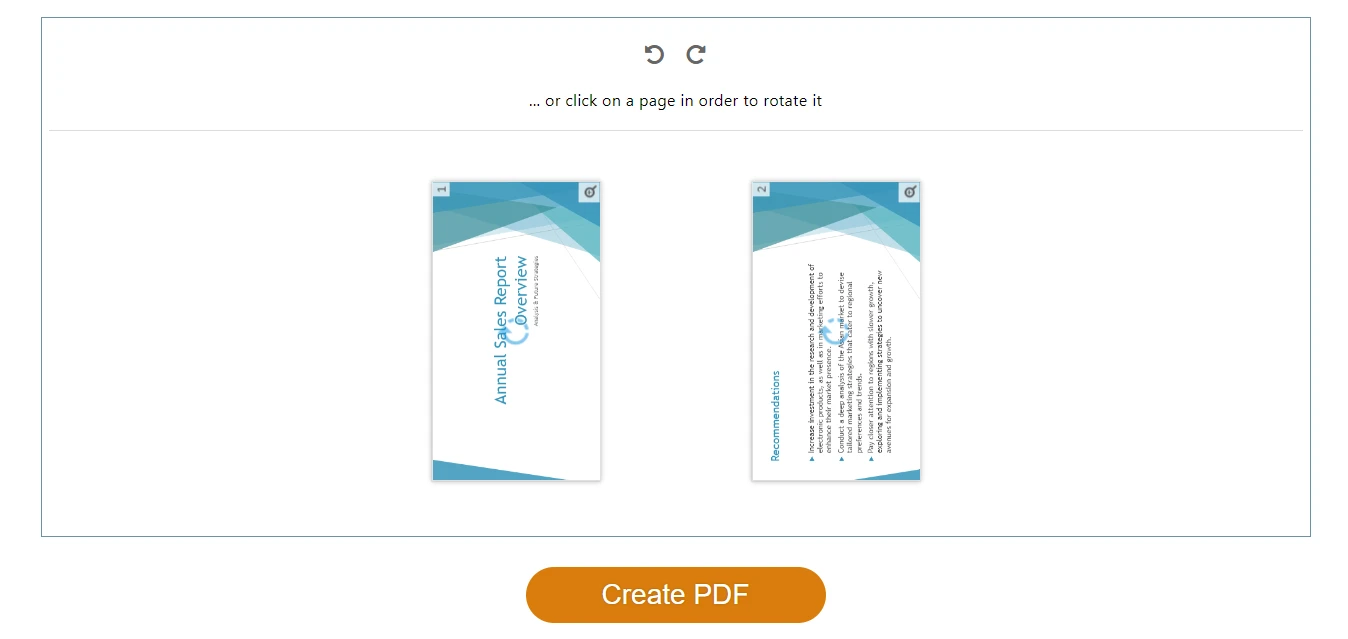
Как это работает (одинаково для всех трех):
- Откройте инструмент в браузере.
- Загрузите PDF.
- Нажмите Повернуть — на 90° по часовой или против — для отдельных страниц или всех сразу.
- Скачайте готовый файл. Готово.
Общий процесс поворота PDF через онлайн-инструмент: загрузка, поворот, скачивание.
Наш выбор: PDF24, если вам нужно действительно безлимитное использование. iLovePDF, если вы на мобильном устройстве (их приложение лучше). Smallpdf, если нужно повернуть один файл и вам нравится чистый интерфейс.
Для поворота с помощью ИИ
Вы предпочитаете описать задачу словами, а не кликать по интерфейсу.
CloudXDocs Agent использует иной подход: вместо кнопок вы описываете желаемое действие на естественном языке, и ИИ-агент выполняет его. Работает с текстовыми, отсканированными и насыщенными изображениями PDF-файлами.
В чем преимущество ИИ:
- Поворот множества страниц по описанию (например, «поверни все альбомные страницы в книжные»).
- Поворот как часть сложной задачи (например, «поверни 3-ю страницу, а затем объедини с другим PDF»).
- Когда не хочется изучать интерфейс — просто напишите, что нужно.
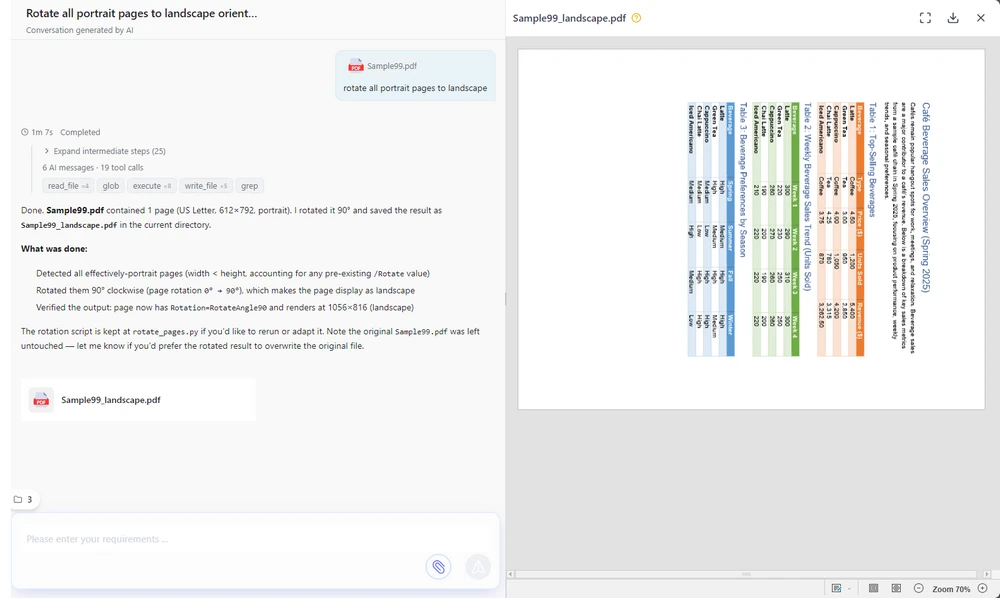
Как это работает:
- Откройте CloudXDocs Agent и войдите в бесплатный аккаунт.
- Загрузите PDF (или вставьте ссылку).
- Введите команду для поворота.
- Просмотрите результат и скачайте.
Интерфейс CloudXDocs Agent с введенной командой и готовым к скачиванию превью.
Бесплатное использование: Бесплатный аккаунт включает 600 кредитов, плюс 50 каждый день при входе. Типичный поворот PDF стоит около 15 кредитов, так что этого хватит на множество повседневных задач.
Плюсы: Поворот через естественный язык — не нужно учить интерфейс; работа с отдельными страницами или пакетами; выполнение многошаговых задач; работает в браузере. Минусы: Облачный сервис (файлы обрабатываются на сервере — для полной приватности используйте Edge/Chrome или Adobe Reader); требуется регистрация.
Для конфиденциальных файлов: локальная обработка
Контракты, медицинские записи, финансовые отчеты — все, что вы не стали бы загружать на случайный сайт.
Онлайн-инструменты загружают файл на свой сервер. Для чека это не страшно, но для NDA или налоговой декларации лучше оставить файл на своем компьютере. Два хороших варианта:
Ваш браузер (без установки, без аккаунта)
В вашем компьютере уже есть просмотрщик PDF с функцией поворота — это самый простой офлайн-вариант.
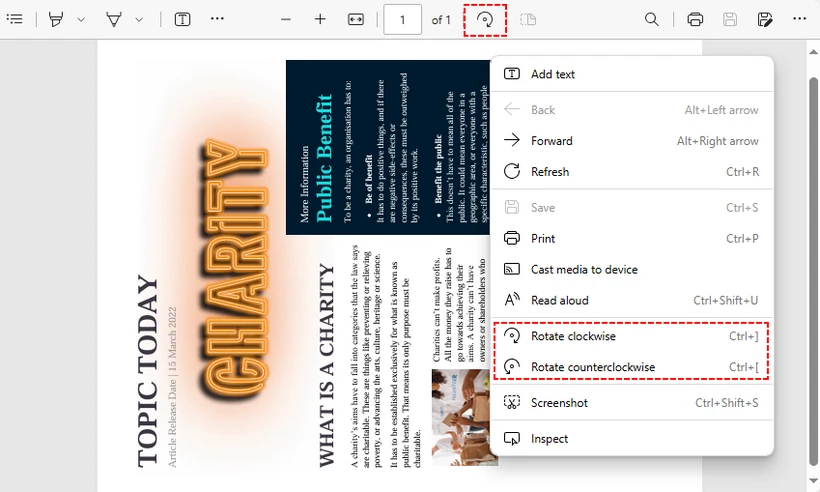
Microsoft Edge:
- Нажмите правой кнопкой на PDF → Открыть с помощью → Microsoft Edge.
- Нажмите кнопку Повернуть (круговая стрелка) на панели инструментов.
- Нажмите Сохранить как, чтобы сохранить повернутый PDF.
Поворот PDF через встроенный просмотрщик Microsoft Edge — установка не требуется.
Chrome / Firefox: Они поворачивают только отображение. Чтобы сохранить изменения: поверните → Ctrl + P → выберите «Сохранить как PDF» в качестве принтера → Печать.
Adobe Acrobat Reader (корпоративный стандарт)
Если в вашей компании установлен Adobe Reader, поворот там встроен:
- Откройте PDF в Adobe Acrobat Reader DC (бесплатно).
- Вид → Поворот вида → По часовой / Против часовой.
- Файл → Печать → выберите «Microsoft Print to PDF» → Печать для сохранения повернутой версии.
⚠️ Распространенная ошибка: И Chrome, и бесплатный Adobe Reader поворачивают только вид. Если вы закроете файл без сохранения, поворот исчезнет. Обходной путь «Печать → Сохранить как PDF» — это способ сделать изменения постоянными бесплатно.
Плюсы: Оба варианта хранят файлы на вашем устройстве; Adobe часто уже установлен на рабочих ПК. Минусы: Оба поворачивают все страницы сразу в бесплатных версиях; «сохранение» — это обходной путь, а не кнопка. Для поворота одной страницы в Windows см. PDF-XChange Editor ниже.
Для поворота одной страницы в Windows
Вам нужно повернуть конкретные страницы, а не весь документ.
PDF-XChange Editor (бесплатная версия) — один из немногих бесплатных десктопных инструментов, позволяющих поворачивать отдельные страницы или диапазон страниц.
- Скачайте и установите PDF-XChange Editor (выберите «Free Version» при установке).
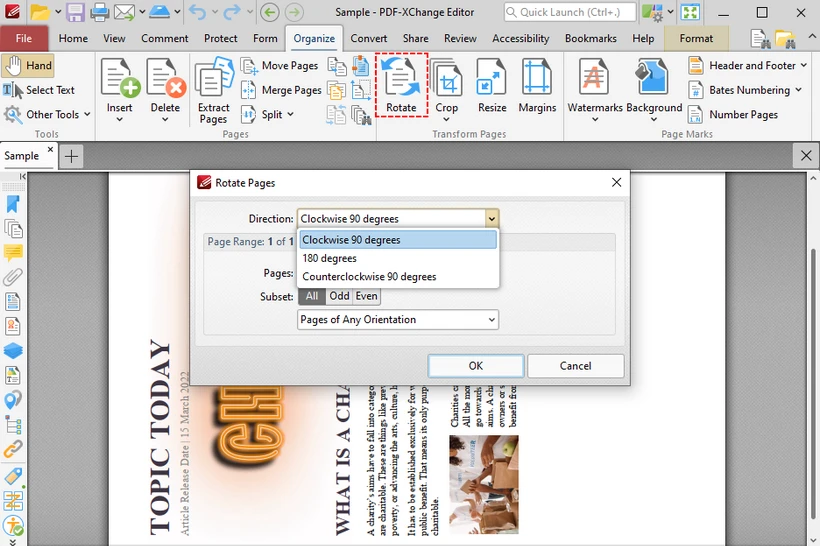
- Откройте PDF → вкладка Организация → Повернуть.
- В диалоговом окне: выберите направление, затем выберите Текущая страница, Все страницы или диапазон (например,
1,3,5-8). - Нажмите ОК → Файл → Сохранить как.
Поворот конкретных страниц PDF через PDF-XChange Editor — диалоговое окно выбора страниц.
Плюсы: Бесплатно; поворот конкретных страниц (редкость для бесплатных инструментов); полностью офлайн; постоянное сохранение. Минусы: Только Windows; требует установки.
Mac: Просмотр (Preview)
Если у вас macOS, вам не нужно ничего из вышеперечисленного. Просмотр (Preview) поддерживает поворот нативно и — в отличие от Chrome или Adobe Reader — сохраняет изменения автоматически при закрытии файла.
- Дважды кликните по PDF (откроется в Preview по умолчанию).
- Вид → Миниатюры → выберите страницу(ы) для поворота.
- Инструменты → Повернуть влево или Повернуть вправо (
Cmd + L/Cmd + R). - Закройте файл — готово. Preview сохранит изменения сам.
Важно: Поскольку Preview сохраняет изменения автоматически, сначала создайте копию файла (Файл → Дублировать), если хотите сохранить оригинальную ориентацию.
Плюсы: Встроено в macOS; офлайн; постоянное сохранение; поддержка поворота отдельных страниц. Минусы: Только Mac.
Распространенные ошибки при повороте PDF
Три вещи, на которых часто спотыкаются:
1. «Я повернул, но все вернулось обратно». Вы повернули вид, а не файл. Во многих просмотрщиках поворот меняет только отображение. Используйте «Сохранить как» (Edge), Печать → Сохранить как PDF или инструменты, сохраняющие изменения (CloudXDocs Agent, PDF24, Preview, PDF-XChange Editor).
2. «Я не могу повернуть только одну страницу». Большинство бесплатных инструментов поворачивают все сразу. Для одной страницы используйте CloudXDocs Agent (введите «поверни 3-ю страницу»), iLovePDF (клик по миниатюрам), macOS Preview (выбор страниц в боковой панели), PDF-XChange Editor (диапазон страниц) или Spire.PDF (код).
3. «Повернутый файл стал размытым». Сам поворот никогда не снижает качество — это изменение метаданных. Если результат размыт, скорее всего, вы перепечатали файл через некачественный PDF-принтер. Используйте «Сохранить как» вместо «Печать» или скачивайте файл напрямую из онлайн-инструмента.
Для пакетного поворота и разработчиков
Вам нужно повернуть 50, 500 или 5 000 PDF-файлов. Онлайн-инструменты здесь не помогут.
Spire.PDF for Python — это бесплатная библиотека, которая поворачивает PDF программно — без загрузок, браузеров и кликов.
Установка:
pip install Spire.Pdf.Free
Поворот одной страницы:
from spire.pdf.common import *
from spire.pdf import *

# Создаем объект PdfDocument
pdf = PdfDocument()

# Загружаем PDF
pdf.LoadFromFile("Sample.pdf")

# Получаем первую страницу
page = pdf.Pages.get_Item(0)

# Получаем текущий угол поворота
rotation = int(page.Rotation.value)

# Поворачиваем на 90 градусов по часовой
rotation += int(PdfPageRotateAngle.RotateAngle90.value)
page.Rotation = PdfPageRotateAngle(rotation)

# Сохраняем результат
pdf.SaveToFile("RotatePDFPage.pdf")
pdf.Close()
Чтобы повернуть все страницы в пакете, используйте цикл:
for i in range(pdf.Pages.Count):
    page = pdf.Pages.get_Item(i)
    rotation = int(page.Rotation.value)
    rotation += int(PdfPageRotateAngle.RotateAngle90.value)
    page.Rotation = PdfPageRotateAngle(rotation)
Полное руководство по повороту страниц в Spire.PDF для Python содержит больше примеров, включая работу с диапазонами и совмещение поворота с другими операциями.
Вам также может быть интересно: Конвертация PDF в HTML или Извлечение текста из PDF.
Плюсы: Поворот конкретных или всех страниц; пакетная обработка любого количества файлов; без загрузки (полностью локально); бесплатно для коммерческого использования. Минусы: Требует базовых знаний Python; бесплатная версия ограничена 10 страницами на PDF.
Как повернуть PDF на любом устройстве
В Windows
- Быстрее всего: Бесплатные онлайн-инструменты (PDF24, iLovePDF) — загрузил, повернул, скачал.
- Без загрузки: Встроенный просмотрщик Edge — правая кнопка → Открыть с помощью Edge → Повернуть → Сохранить как.
- Контроль страниц: PDF-XChange Editor (бесплатная установка).
- Корпоративный: Adobe Acrobat Reader.
На Mac
- Встроено: Просмотр (Preview) → Инструменты → Повернуть. Автосохранение. Установка не нужна.
- Онлайн: Те же веб-инструменты, что и в Windows, или CloudXDocs Agent для ИИ-помощи.
На iPhone / Android
- Проще всего: Загрузите в CloudXDocs Agent в мобильном браузере и опишите действие — не нужно устанавливать приложения, а ИИ справится лучше, чем мелкие кнопки.
- Альтернатива: Мобильное приложение iLovePDF или Smallpdf через браузер.
Часто задаваемые вопросы
Можно ли повернуть PDF бесплатно? Да. Все инструменты в этом руководстве бесплатны: PDF24, iLovePDF, Smallpdf (онлайн); Edge/Chrome (встроено); macOS Preview; Adobe Reader (офлайн); PDF-XChange Editor (Windows); CloudXDocs Agent (ИИ); Spire.PDF (библиотека Python).
Можно ли повернуть PDF без Adobe? Безусловно. Онлайн-инструменты, браузеры, macOS Preview, CloudXDocs Agent, PDF-XChange Editor и Python-скрипты делают это без какого-либо ПО от Adobe.
Как повернуть PDF навсегда? Инструменты, сохраняющие изменения: CloudXDocs Agent, PDF24, iLovePDF, macOS Preview, Edge («Сохранить как»), PDF-XChange Editor. В Chrome и Firefox используйте Печать → Сохранить как PDF. Бесплатная версия Adobe Reader поворачивает только вид — используйте обходной путь с печатью.
Как лучше всего повернуть несколько страниц? Для небольшого количества: CloudXDocs Agent (опишите словами) или iLovePDF. Для сотен или тысяч: Spire.PDF для Python с циклом.
Снизится ли качество PDF после поворота? Нет. Поворот — это изменение метаданных, текст и изображения остаются прежними.
Какой бесплатный инструмент лучший в 2026 году? PDF24 для безлимитного онлайн-использования; CloudXDocs Agent для ИИ-помощи без кликов; Edge/Chrome для удобства без установки; macOS Preview для пользователей Mac.
Можно ли повернуть только одну страницу? Да. CloudXDocs Agent, iLovePDF, macOS Preview, PDF-XChange Editor и Spire.PDF поддерживают это. Adobe Reader и Edge/Chrome поворачивают только весь документ целиком.
Поворот PDF в коде (для разработчиков)
Если вы создаете рабочий процесс обработки документов, серверная обработка надежнее онлайн-инструментов для повторяющихся задач:
- Пакетная обработка — поворот тысяч файлов по расписанию.
- Автоматические отчеты — исправление ориентации автоматически созданных выписок.
- Конвейеры документов — поворот как шаг в цепочке конвертации/объединения/извлечения.
- Корпоративные приложения — встраивание функции поворота в ваш продукт.
Spire.PDF поддерживает программный поворот в C#, Java, Python и других языках. См. руководство по повороту в Spire.PDF для примеров кода.
Смотрите также
How to Download a Webpage as a PDF: Beginner's Guide
Sometimes you come across a webpage you want to keep, but copying or saving it directly isn’t allowed. In such cases, saving the webpage as a PDF is a great solution. It lets you access the page offline anytime and even edit or highlight the content later. In this guide, you’ll explore three easy ways to download a webpage as a PDF — using built-in browser features, online tools, and code-based methods.
- Download Webpage as PDF with the Built-in Feature
- How to Download a Webpage as a PDF with Online Tools
- How to Download a Webpage as a PDF with Code
- The Conclusion
Download Webpage as PDF with the Built-in Feature
When you need to save a webpage as a PDF, most people’s first instinct is to use the browser’s built-in download feature. It’s the quickest and most convenient way to get the job done. However, the steps can vary slightly depending on your operating system. Let’s take a look at how to download a webpage as a PDF on the two most common platforms — Windows and macOS.
Download a Webpage as a PDF on Windows
- Press Ctrl + P to open the print dialog.
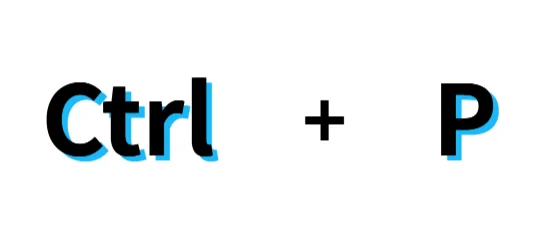
- In the Printer drop-down list, select Microsoft Print to PDF or Save as PDF (the name may differ depending on your browser).
- Click Print to continue.
- When the file dialog appears, choose a destination folder and click Save.
- If your Windows version doesn’t include Microsoft Print to PDF, you can still use Chrome’s built-in Save as PDF option to download the webpage as a PDF.
Download a Webpage as a PDF on macOS
- Press Command + P to open the print window.

- At the lower-left corner, click the PDF drop-down menu and select Save as PDF.
- In Chrome, you can also choose Open PDF in Preview to view it before saving.
- When prompted, select a location to save the file and confirm.
How to Download a Webpage as a PDF with Online Tools
Besides the built-in shortcut keys on your computer, you can also use online tools to save a webpage as a PDF. These tools are convenient because they don’t require installation, work on any device (computers, laptops, and mobile phones), and can quickly process different types of web content. The steps are simple — just search for “HTML to PDF” or “Download webpage as PDF” in your browser. In the example below, we’ll use iLovePDF, one of the most popular tools for this purpose.
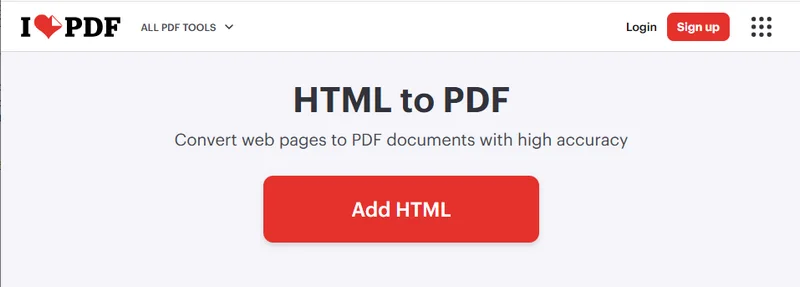
- Go to the official iLovePDF website and find the HTML to PDF tool.
- Click the Add HTML button, then enter the URL of the webpage you want to save in the pop-up window. After confirming that everything is correct, click the red Add button at the bottom right.
- Next, adjust the settings in the right-hand panel as needed, then click Convert to PDF. Once the conversion is complete, you can download the PDF file to your computer.
How to Download a Webpage as a PDF with Code
In addition to the two common methods mentioned above, you can also perform this task using code — a more flexible option designed for developers. This approach offers several advantages that the previous methods don’t, such as batch downloading, full offline operation, and better automation for large-scale tasks.
In this tutorial, we’ll use Spire.Doc for Python to demonstrate how to download a webpage as a PDF. As a professional Python library, it allows developers to handle everything from simple document format conversions to advanced tasks like content editing and encryption.
Steps to download an entire webpage as a PDF in Python:
-
Install Spire.Doc using the command
pip install spire.doc. You’ll also need to install requests, a library used for fetching webpage content. -
Import the required modules:
from spire.doc import *
from spire.doc.common import *
import requests
- Specify the webpage URL and fetch content from HTML:
# Get HTML content from the webpage
url = "/Tutorials/Python/Spire.Doc-for-Python/Program-Guide/Conversion/Python-Convert-HTML-to-PDF.html"
html = requests.get(url).text
- Write the HTML content into a Word document:
# Write HTML to a Word document
doc = Document()
section = doc.AddSection()
paragraph = section.AddParagraph()
paragraph.AppendHTML(html)
- Finally, save the document as a PDF file:
# Save the document as a PDF
doc.SaveToFile("E:/Administrator/Python1/webpage_to_pdf11.pdf", FileFormat.PDF)
Here's the complete code example:
from spire.doc import *
from spire.doc.common import *
import requests

#  HTML Get HTML from web
url = "/Tutorials/Python/Spire.Doc-for-Python/Program-Guide/Conversion/Python-Convert-HTML-to-PDF.html"
html = requests.get(url).text

# Write HTML to document
doc = Document()
section = doc.AddSection()
paragraph = section.AddParagraph()
paragraph.AppendHTML(html)

# Save the document to PDF file
doc.SaveToFile("E:/Administrator/Python1/webpage_to_pdf11.pdf", FileFormat.PDF)
doc.Close()
Below is a preview of the resulting PDF file: 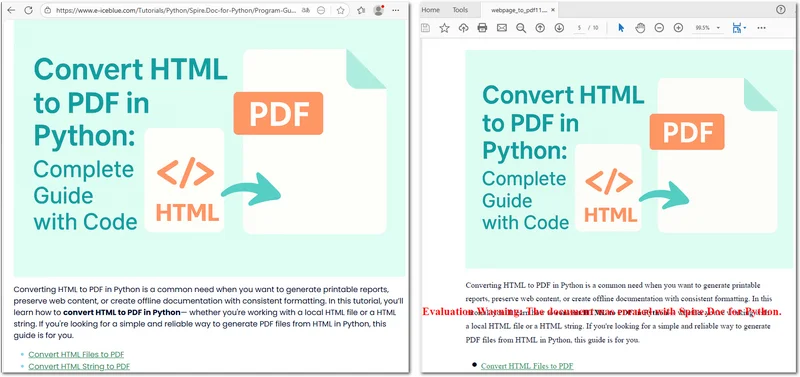
If you save a webpage in HTML format, Spire.Doc can also easily convert it to a PDF using the Document.SaveToFile() method.
The Conclusion
This article introduced three different ways to download a webpage as a PDF. Depending on your needs, you can choose the method that works best for you — whether it’s using built-in features, online tools, or the Spire.Doc Python library. If you want to explore more advanced PDF features, consider trying Spire.Doc’s 30-day free license to experience its full potential.
ALSO READ
Converter PowerPoint para HTML: Métodos simples para cada usuário
O PowerPoint é amplamente reconhecido como uma das ferramentas mais populares para criar apresentações visualmente atraentes. No entanto, quando você deseja compartilhar uma apresentação online — seja para sites, plataformas de aprendizado ou documentação interna — muitas vezes é melhor converter o PowerPoint para HTML, para que os slides possam ser visualizados diretamente em qualquer navegador, sem a necessidade do PowerPoint ou de plugins adicionais.
Existem várias maneiras de realizar a conversão de PPT para HTML ou PPTX para HTML. Você pode usar ferramentas online para resultados rápidos baseados no navegador, contar com o Microsoft Office (via Word) para um fluxo de trabalho offline totalmente da Microsoft, ou automatizar o processo com Python para conversões em grande escala ou repetíveis. Cada abordagem tem suas vantagens e limitações.
Neste artigo, exploraremos esses métodos passo a passo para que você possa escolher a melhor maneira de converter seus arquivos — seja para uma conversão rápida e única ou para um fluxo de trabalho escalável de PowerPoint para HTML.
Visão Geral dos Métodos:
- Método 1 – Converter PowerPoint para HTML Usando Ferramentas Online Gratuitas
- Método 2 – Converter PowerPoint para HTML Usando o Microsoft Office
- Método 3 – Automatizar a Conversão de PowerPoint para HTML com Python
Por que Converter PowerPoint para HTML?
Converter PowerPoint para HTML oferece várias vantagens tanto para indivíduos quanto para organizações:
-
Acessibilidade Universal
Arquivos HTML podem ser abertos em qualquer navegador moderno, em qualquer dispositivo — desktop, tablet ou smartphone — sem a necessidade do PowerPoint ou do Microsoft Office. -
Fácil Incorporação e Compartilhamento
Apresentações em HTML podem ser incorporadas em sites, blogs e portais de intranet, permitindo uma integração suave em ambientes online. -
Compatibilidade e Portabilidade
Compartilhar HTML elimina conflitos de versão e garante um layout consistente em todas as plataformas.
No entanto, nem todos os recursos do PowerPoint são traduzidos perfeitamente para HTML. Embora texto, imagens e layouts sejam geralmente preservados, animações complexas, vídeos incorporados e transições podem não aparecer exatamente como na apresentação original.
Ainda assim, para a maioria das apresentações estáticas ou semi-interativas, exportar o PowerPoint para HTML oferece um excelente equilíbrio entre fidelidade visual e acessibilidade na web.
Método 1 – Converter PowerPoint para HTML Usando Ferramentas Online Gratuitas (Nenhuma Instalação Necessária)
Se você não tem o PowerPoint instalado ou deseja uma solução rápida baseada no navegador, os conversores online de PowerPoint para HTML são uma escolha conveniente. Muitas plataformas gratuitas permitem que você envie seu arquivo .ppt ou .pptx e o converta para HTML automaticamente, sem instalar nenhum software.
Algumas opções populares e confiáveis incluem:
- CLOUDXDOCS
- Zamzar
- OnlineConvertFree
- Convertio
Aqui, usaremos o Conversor de PowerPoint para HTML da CLOUDXDOCS como exemplo.
Processo típico:
- Visite a página do Conversor de PowerPoint para HTML da CLOUDXDOCS.
- Envie seu arquivo do PowerPoint (.ppt ou .pptx).
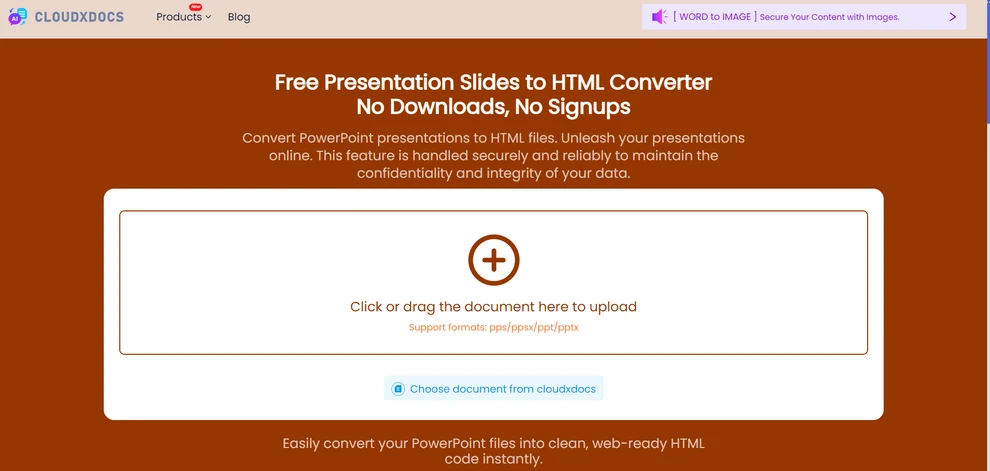
- Aguarde alguns segundos para a conversão ser concluída.
- Baixe o pacote HTML resultante para o seu computador ou processe-o conforme necessário.
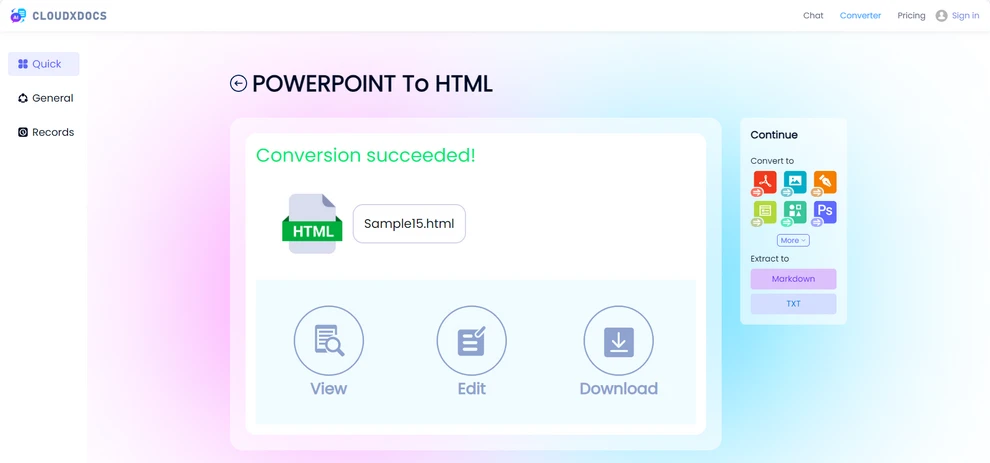
Abaixo está uma prévia do resultado da conversão.
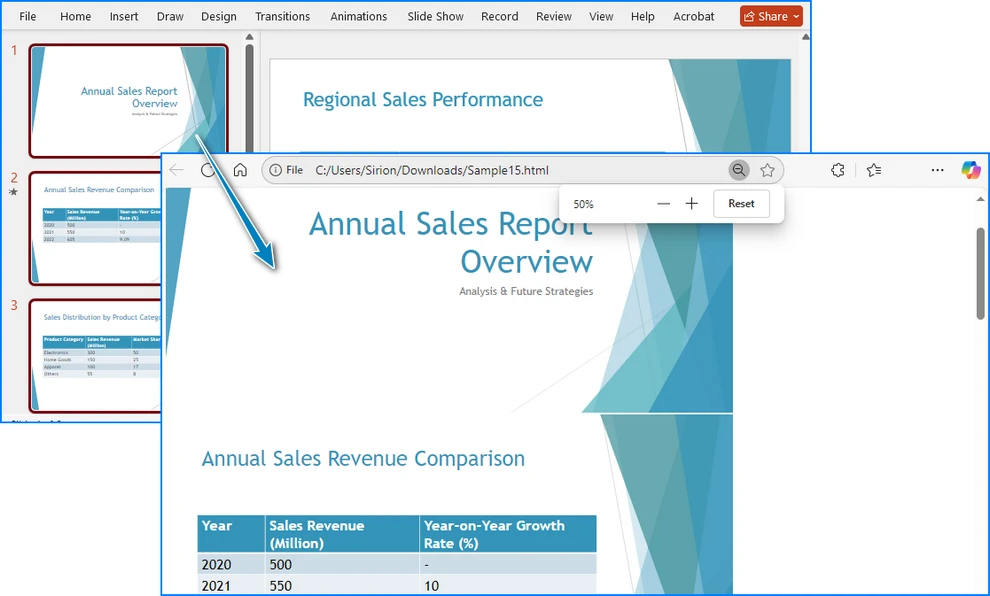
Vantagens:
- Nenhuma instalação de software necessária.
- Funciona em qualquer dispositivo com conexão à internet.
- Rápido e simples para conversões únicas.
Considerações:
- Algumas ferramentas online podem ter limites de tamanho de arquivo para usuários gratuitos.
- A velocidade de conversão e a precisão do layout podem variar dependendo da plataforma.
- Alguns usuários podem ter preocupações com a privacidade ao enviar arquivos para conversores online.
Conversores online como o CLOUDXDOCS são ideais para conversões rápidas e sem complicações de PPT para HTML ou PPTX para HTML.
Método 2 – Converter PowerPoint para HTML Usando o Microsoft Office
As versões modernas do Microsoft PowerPoint não incluem mais a antiga opção “Salvar como Página da Web (.htm; .html)” que existia no PowerPoint 2007 e anteriores.
Se você ainda prefere concluir a conversão de PowerPoint para HTML dentro do Microsoft Office, pode usar o PowerPoint junto com o Word para alcançar o mesmo resultado.
Este método é mais manual, mas útil para usuários que preferem permanecer no ecossistema do Office e não querem depender de ferramentas externas ou código.
Passos para converter PowerPoint para HTML usando o Microsoft Office:
- Abra sua apresentação do PowerPoint.
- Vá para Arquivo > Exportar, e escolha Criar Folhetos.
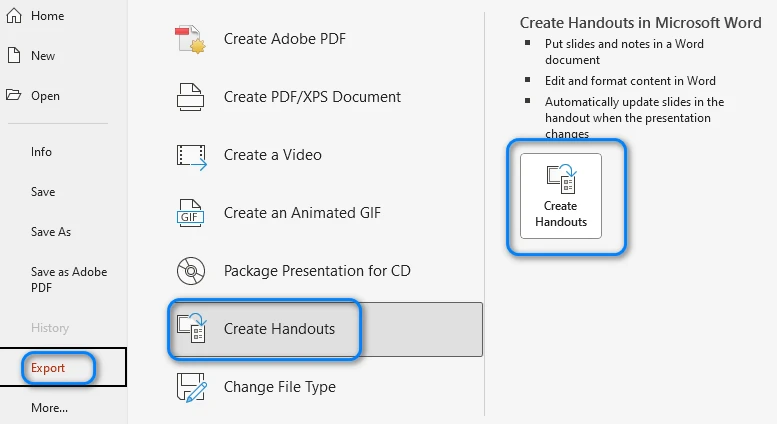
- Selecione um layout no menu pop-up e clique em OK. O PowerPoint exportará seus slides e os enviará para um novo documento do Word.
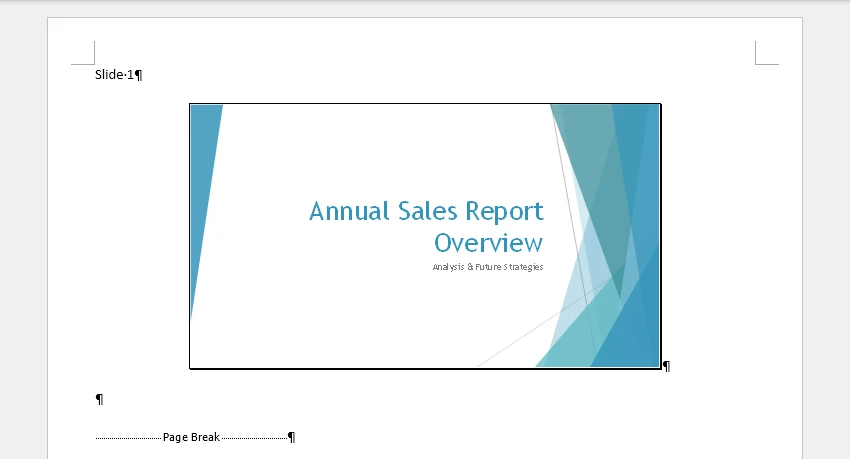
- No Word, vá para Arquivo > Salvar Como e escolha um local. Você também pode ajustar o tamanho da página, as margens ou remover conteúdo desnecessário para que o layout do slide se ajuste melhor às suas necessidades antes de salvar.
- Na lista suspensa “Salvar como tipo”, escolha *Página da Web (.htm; .html)* e clique em Salvar.
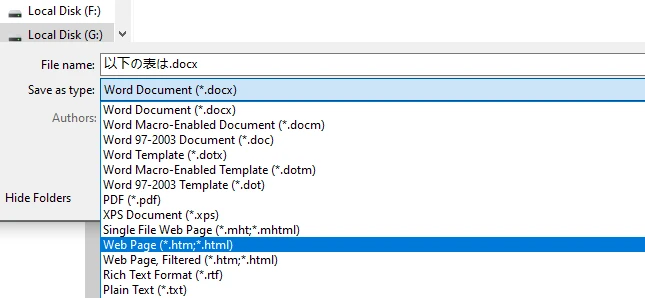
O Word gerará um arquivo HTML junto com uma pasta contendo recursos relacionados (imagens, estilos, etc.). Cada slide será exibido como uma imagem com texto ou notas opcionais, dependendo do layout escolhido. Abaixo está uma prévia do arquivo HTML gerado:
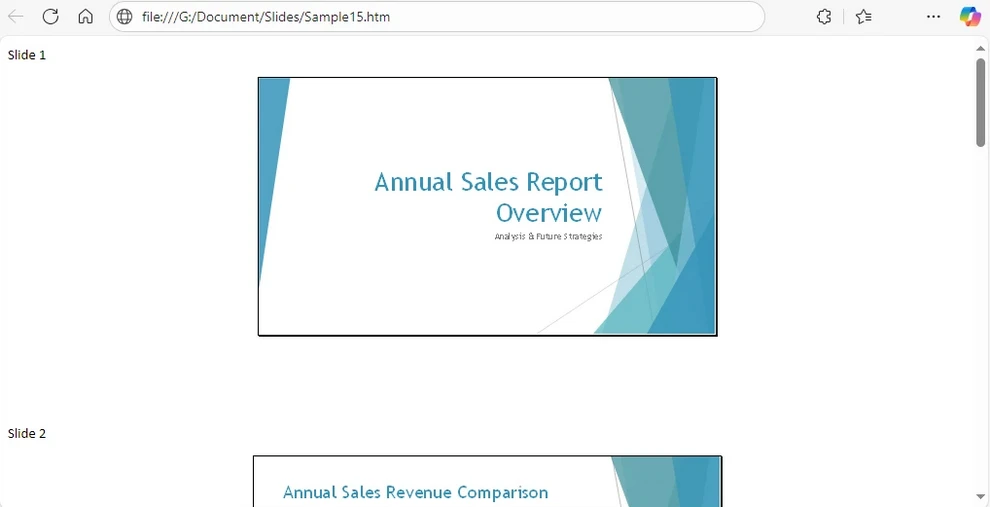
Se preferir, você também pode copiar manualmente seus slides do PowerPoint, colá-los no Word, ajustar a formatação conforme necessário e, em seguida, salvar o documento como HTML.
Vantagens:
- Solução 100% Microsoft Office — não são necessárias ferramentas externas.
- Preserva o conteúdo dos slides, notas e layout como imagens e texto.
- Permite ajustes manuais e formatação no Word antes de exportar.
Limitações:
- O processo é manual e demorado para apresentações grandes.
- A saída HTML pode incluir marcação desnecessária.
- Animações e transições não são preservadas.
Esta abordagem é adequada quando você deseja permanecer totalmente no pacote Office, mas para conversões em maior escala ou repetidas, os métodos automatizados são muito mais eficientes.
Para uma opção de exibição estática, os slides também podem ser convertidos em imagens e incorporados em HTML. Saiba mais em nosso guia sobre exportar slides do PowerPoint como imagens.
Método 3 – Converter PowerPoint para HTML Programaticamente (Automação com Python)
Para desenvolvedores ou equipes que exigem conversão automatizada ou em grande escala, usar Python oferece uma opção poderosa e flexível. Ao escrever um script curto, você pode converter em lote vários arquivos do PowerPoint em HTML sem trabalho manual.
Aqui está um exemplo usando o Spire.Presentation for Python, uma biblioteca que suporta a leitura, edição e exportação de arquivos do PowerPoint em vários formatos:
Instale a biblioteca usando pip:
pip install Spire.Presentation
Exemplo em Python - Converter PowerPoint para HTML:
from spire.presentation import Presentation, FileFormat

# Carregue o arquivo do PowerPoint
presentation = Presentation()
presentation.LoadFromFile("Sample.pptx")

# Salve como HTML
presentation.SaveToFile("output/PowerPointHTML.html", FileFormat.Html)
presentation.Dispose()
Como funciona: O código carrega um arquivo do PowerPoint usando a classe Presentation e, em seguida, o exporta para um arquivo HTML usando o método SaveToFile.
Você pode ver um exemplo da saída HTML resultante na captura de tela abaixo:
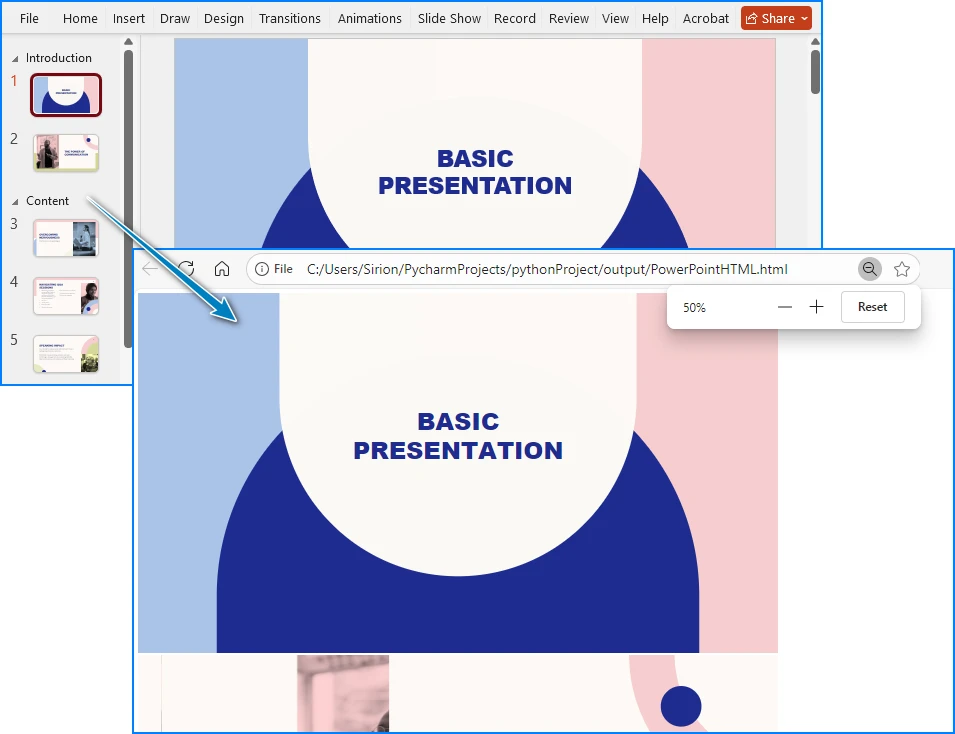
Vantagens:
- Totalmente automatizado — ideal para conversões em lote ou agendadas.
- Pode ser integrado a serviços da web ou sistemas de processamento de documentos.
- Mantém texto, imagens e a estrutura básica do slide.
Limitações:
- Requer conhecimento básico de Python.
- Animação e multimídia incorporada podem não ser exportadas.
Se você gerencia um pipeline de automação de documentos ou precisa converter regularmente apresentações do PowerPoint em HTML, a abordagem com Python oferece flexibilidade e escalabilidade incomparáveis.
Para mais detalhes sobre como usar Python para converter arquivos do PowerPoint para HTML, consulte nosso guia de conversão passo a passo em Python.
Dicas para Obter os Melhores Resultados
Não importa qual método você escolha, siga estas dicas de otimização para melhorar a qualidade e o desempenho da saída:
-
Otimize Imagens Comprima imagens grandes antes de exportar para reduzir o tamanho do arquivo e melhorar os tempos de carregamento.
-
Use Fontes Amigáveis para a Web Use fontes padrão (por exemplo, Arial, Verdana, Roboto) para garantir uma exibição consistente em todos os navegadores.
-
Mantenha os Caminhos dos Arquivos Intactos Mantenha a estrutura correta entre seu arquivo HTML e suas pastas de recursos (como /images ou /media).
-
Verifique a Compatibilidade do Navegador Teste seu HTML exportado em vários navegadores (Chrome, Edge, Firefox, Safari) para obter resultados consistentes.
-
Evite Animações Complexas Simplifique as transições ou remova efeitos pesados que podem não ser convertidos corretamente.
Seguir essas práticas recomendadas garante que suas apresentações em HTML permaneçam leves, visualmente consistentes e fáceis de compartilhar.
Conclusão
Converter arquivos PPT/PPTX do PowerPoint para HTML facilita a visualização e o compartilhamento em diferentes dispositivos e plataformas. Se você precisa de uma exportação rápida e única, uma solução offline ou um fluxo de trabalho que possa ser automatizado, existem abordagens que atendem a todas as necessidades.
Compreender seus objetivos e fluxo de trabalho ajudará você a escolher o método mais adequado e a tornar o processo de conversão suave e eficiente.
Perguntas Frequentes sobre a Conversão de PowerPoint para HTML
Aqui estão algumas das perguntas mais comuns que os usuários têm ao converter apresentações do PowerPoint para HTML.
P1: O PowerPoint ainda pode salvar diretamente como HTML?
Não nas versões recentes. A opção “Salvar como Página da Web” foi removida após o PowerPoint 2007. Você pode exportar slides para o Word e salvar o documento do Word como HTML, usar conversores online ou automatizar o processo com Python.
P2: Como transformo um PowerPoint em HTML ou em uma página da web?
Você pode usar ferramentas online, o Microsoft Office (via Word), software de conversão de terceiros ou scripts em Python. O método certo depende do seu fluxo de trabalho, do tamanho do arquivo e se você deseja controle manual ou automação.
P3: Qual é a melhor maneira de exibir um PPT em uma página HTML?
Uma vez convertido para HTML, seus slides podem ser incorporados diretamente em uma página da web. Para apresentações interativas, alguns conversores preservam os controles de navegação, enquanto as exportações estáticas exibem os slides como imagens com texto de acompanhamento.
P4: Qual é o melhor conversor de PowerPoint para HTML?
A melhor ferramenta depende das suas necessidades. As ferramentas online são rápidas e convenientes para conversões únicas, os métodos baseados no Office são totalmente offline e a automação com Python com Spire.Presentation é ideal para conversões em grande escala ou repetidas.
Veja Também:
Convertire PowerPoint in HTML: Metodi semplici per ogni utente
PowerPoint è ampiamente riconosciuto come uno degli strumenti più popolari per creare presentazioni visivamente accattivanti. Tuttavia, quando si desidera condividere una presentazione online, che sia per siti web, piattaforme di apprendimento o documentazione interna, è spesso meglio convertire PowerPoint in HTML, in modo che le diapositive possano essere visualizzate direttamente in qualsiasi browser senza bisogno di PowerPoint o di plugin aggiuntivi.
Esistono diversi modi per eseguire la conversione da PPT a HTML o da PPTX a HTML. È possibile utilizzare strumenti online per risultati rapidi basati su browser, affidarsi a Microsoft Office (tramite Word) per un flusso di lavoro offline interamente Microsoft, oppure automatizzare il processo con Python per conversioni su larga scala o ripetibili. Ogni approccio ha i suoi vantaggi e limiti.
In questo articolo, esploreremo questi metodi passo dopo passo in modo che tu possa scegliere il modo migliore per convertire i tuoi file, sia che tu abbia bisogno di una conversione rapida una tantum o di un flusso di lavoro scalabile da PowerPoint a HTML.
Panoramica dei metodi:
- Metodo 1 – Convertire PowerPoint in HTML utilizzando strumenti online gratuiti
- Metodo 2 – Convertire PowerPoint in HTML utilizzando Microsoft Office
- Metodo 3 – Automatizzare la conversione da PowerPoint a HTML con Python
Perché convertire PowerPoint in HTML?
La conversione di PowerPoint in HTML offre diversi vantaggi sia per i singoli che per le organizzazioni:
-
Accessibilità universale
I file HTML possono essere aperti in qualsiasi browser web moderno, su qualsiasi dispositivo (desktop, tablet o smartphone) senza richiedere PowerPoint o Microsoft Office. -
Facilità di incorporamento e condivisione
Le presentazioni HTML possono essere incorporate in siti web, blog e portali intranet, consentendo una fluida integrazione negli ambienti online. -
Compatibilità e portabilità
La condivisione di HTML elimina i conflitti di versione e garantisce un layout coerente su tutte le piattaforme.
Tuttavia, non tutte le funzionalità di PowerPoint si traducono perfettamente in HTML. Sebbene testo, immagini e layout vengano generalmente conservati, animazioni complesse, video incorporati e transizioni potrebbero non apparire esattamente come nella presentazione originale.
Tuttavia, per la maggior parte delle presentazioni statiche o semi-interattive, l'esportazione di PowerPoint in HTML offre un eccellente equilibrio tra fedeltà visiva e accessibilità web.
Metodo 1 – Convertire PowerPoint in HTML utilizzando strumenti online gratuiti (nessuna installazione richiesta)
Se non hai PowerPoint installato o desideri una soluzione rapida basata su browser, i convertitori online da PowerPoint a HTML sono una scelta conveniente. Molte piattaforme gratuite ti consentono di caricare il tuo file .ppt o .pptx e convertirlo automaticamente in HTML senza installare alcun software.
Alcune opzioni popolari e affidabili includono:
- CLOUDXDOCS
- Zamzar
- OnlineConvertFree
- Convertio
Qui, prenderemo come esempio il convertitore da PowerPoint a HTML di CLOUDXDOCS.
Processo tipico:
- Visita la pagina del convertitore da PowerPoint a HTML di CLOUDXDOCS.
- Carica il tuo file PowerPoint (.ppt o .pptx).
- Attendi qualche secondo per il completamento della conversione.
- Scarica il pacchetto HTML risultante sul tuo computer o esegui ulteriori elaborazioni secondo necessità.
Di seguito è riportata un'anteprima del risultato della conversione.
Vantaggi:
- Nessuna installazione di software richiesta.
- Funziona su qualsiasi dispositivo con una connessione Internet.
- Veloce e semplice per conversioni una tantum.
Considerazioni:
- Alcuni strumenti online potrebbero avere limiti sulla dimensione dei file per gli utenti gratuiti.
- La velocità di conversione e la precisione del layout possono variare a seconda della piattaforma.
- Alcuni utenti potrebbero avere preoccupazioni sulla privacy durante il caricamento di file su convertitori online.
I convertitori online come CLOUDXDOCS sono ideali per conversioni rapide e senza problemi da PPT a HTML o da PPTX a HTML.
Metodo 2 – Convertire PowerPoint in HTML utilizzando Microsoft Office
Le versioni moderne di Microsoft PowerPoint non includono più la vecchia opzione "Salva come pagina Web (.htm; .html)" che esisteva in PowerPoint 2007 e versioni precedenti.
Se preferisci comunque completare la conversione da PowerPoint a HTML all'interno di Microsoft Office, puoi utilizzare PowerPoint insieme a Word per ottenere lo stesso risultato.
Questo metodo è più manuale ma utile per gli utenti che preferiscono rimanere all'interno dell'ecosistema di Office e non vogliono fare affidamento su strumenti o codice esterni.
Passaggi per convertire PowerPoint in HTML utilizzando Microsoft Office:
- Apri la tua presentazione di PowerPoint.
- Vai su File > Esporta e scegli Crea stampati.
- Seleziona un layout nel menu a comparsa e fai clic su OK. PowerPoint esporterà le tue diapositive e le invierà a un nuovo documento di Word.
- In Word, vai su File > Salva con nome e scegli una posizione. Puoi anche regolare le dimensioni della pagina, i margini o rimuovere i contenuti non necessari per adattare meglio il layout della diapositiva alle tue esigenze prima di salvare.
- Nel menu a discesa "Salva come", scegli *Pagina Web (.htm; .html)* e fai clic su Salva.
Word genererà un file HTML insieme a una cartella contenente le risorse correlate (immagini, stili, ecc.). Ogni diapositiva verrà visualizzata come un'immagine con testo o note opzionali, a seconda del layout scelto. Di seguito è riportata un'anteprima del file HTML generato:
Se preferisci, puoi anche copiare manualmente le tue diapositive da PowerPoint, incollarle in Word, regolare la formattazione secondo necessità e quindi salvare il documento come HTML.
Vantaggi:
- Soluzione 100% Microsoft Office — non sono richiesti strumenti esterni.
- Conserva il contenuto delle diapositive, le note e il layout come immagini e testo.
- Consente regolazioni manuali e formattazione in Word prima dell'esportazione.
Limitazioni:
- Il processo è manuale e richiede molto tempo per presentazioni di grandi dimensioni.
- L'output HTML potrebbe includere markup non necessario.
- Animazioni e transizioni non vengono conservate.
Questo approccio è adatto quando si desidera rimanere completamente all'interno della suite di Office, ma per conversioni su larga scala o ripetute, i metodi automatizzati sono molto più efficienti.
Per un'opzione di visualizzazione statica, le diapositive possono anche essere convertite in immagini e incorporate in HTML. Scopri di più nella nostra guida su esportazione di diapositive di PowerPoint come immagini.
Metodo 3 – Convertire PowerPoint in HTML programmaticamente (automazione Python)
Per sviluppatori o team che richiedono una conversione automatizzata o su larga scala, l'uso di Python offre un'opzione potente e flessibile. Scrivendo un breve script, è possibile convertire in batch più file di PowerPoint in HTML senza lavoro manuale.
Ecco un esempio che utilizza Spire.Presentation for Python, una libreria che supporta la lettura, la modifica e l'esportazione di file PowerPoint in vari formati:
Installa la libreria usando pip:
pip install Spire.Presentation
Esempio Python - Convertire PowerPoint in HTML:
from spire.presentation import Presentation, FileFormat

# Load the PowerPoint file
presentation = Presentation()
presentation.LoadFromFile("Sample.pptx")

# Save as HTML
presentation.SaveToFile("output/PowerPointHTML.html", FileFormat.Html)
presentation.Dispose()
Come funziona: Il codice carica un file PowerPoint utilizzando la classe Presentation, quindi lo esporta in un file HTML utilizzando il metodo SaveToFile.
Puoi vedere un esempio dell'output HTML risultante nello screenshot qui sotto:
Vantaggi:
- Completamente automatizzato, ideale per conversioni batch o pianificate.
- Può essere integrato in servizi web o sistemi di elaborazione dei documenti.
- Mantiene testo, immagini e struttura di base delle diapositive.
Limitazioni:
- Richiede una conoscenza di base di Python.
- Animazioni e contenuti multimediali incorporati potrebbero non essere esportati.
Se gestisci una pipeline di automazione dei documenti o hai bisogno di convertire regolarmente presentazioni PowerPoint in HTML, l'approccio Python offre flessibilità e scalabilità senza pari.
Per maggiori dettagli sull'utilizzo di Python per convertire file PowerPoint in HTML, consulta la nostra guida passo passo alla conversione con Python.
Suggerimenti per ottenere i migliori risultati
Indipendentemente dal metodo scelto, segui questi suggerimenti di ottimizzazione per migliorare la qualità e le prestazioni dell'output:
-
Ottimizza le immagini Comprimi le immagini di grandi dimensioni prima dell'esportazione per ridurre le dimensioni del file e migliorare i tempi di caricamento.
-
Usa caratteri web-friendly Attieniti a caratteri standard (ad es. Arial, Verdana, Roboto) per garantire una visualizzazione coerente su tutti i browser.
-
Mantieni intatti i percorsi dei file Mantieni la struttura corretta tra il tuo file HTML e le sue cartelle di risorse (come /images o /media).
-
Verifica la compatibilità del browser Testa il tuo HTML esportato in più browser (Chrome, Edge, Firefox, Safari) per risultati coerenti.
-
Evita animazioni complesse Semplifica le transizioni o rimuovi gli effetti pesanti che potrebbero non essere convertiti correttamente.
Seguire queste best practice garantisce che le tue presentazioni HTML rimangano leggere, visivamente coerenti e facili da condividere.
Conclusione
La conversione di file PowerPoint PPT/PPTX in HTML li rende facili da visualizzare e condividere su diversi dispositivi e piattaforme. Che tu abbia bisogno di un'esportazione rapida una tantum, di una soluzione offline o di un flusso di lavoro che possa essere automatizzato, esistono approcci adatti a ogni esigenza.
Comprendere i tuoi obiettivi e il tuo flusso di lavoro ti aiuterà a scegliere il metodo più adatto e a rendere il processo di conversione fluido ed efficiente.
Domande frequenti sulla conversione da PowerPoint a HTML
Ecco alcune delle domande più comuni che gli utenti si pongono durante la conversione di presentazioni PowerPoint in HTML.
D1: PowerPoint può ancora salvare direttamente come HTML?
Non nelle versioni recenti. L'opzione "Salva come pagina Web" è stata rimossa dopo PowerPoint 2007. È possibile esportare le diapositive in Word e salvare il documento di Word come HTML, utilizzare convertitori online o automatizzare il processo con Python.
D2: Come trasformo un PowerPoint in HTML o in una pagina web?
Puoi utilizzare strumenti online, Microsoft Office (tramite Word), software di conversione di terze parti o script Python. Il metodo giusto dipende dal tuo flusso di lavoro, dalle dimensioni del file e dal fatto che tu voglia il controllo manuale o l'automazione.
D3: Qual è il modo migliore per visualizzare un PPT su una pagina HTML?
Una volta convertite in HTML, le diapositive possono essere incorporate direttamente in una pagina web. Per le presentazioni interattive, alcuni convertitori conservano i controlli di navigazione, mentre le esportazioni statiche visualizzano le diapositive come immagini con testo di accompagnamento.
D4: Qual è il miglior convertitore da PowerPoint a HTML?
Lo strumento migliore dipende dalle tue esigenze. Gli strumenti online sono veloci e convenienti per conversioni una tantum, i metodi basati su Office sono completamente offline e l'automazione Python con Spire.Presentation è ideale per conversioni su larga scala o ripetute.
Vedi anche:
PowerPoint를 HTML로 변환하기: 모든 사용자를 위한 간단한 방법
PowerPoint는 시각적으로 매력적인 프레젠테이션을 만드는 가장 인기 있는 도구 중 하나로 널리 알려져 있습니다. 그러나 웹사이트, 학습 플랫폼 또는 내부 문서를 위해 프레젠테이션을 온라인으로 공유하려는 경우 PowerPoint나 추가 플러그인 없이 모든 브라우저에서 슬라이드를 직접 볼 수 있도록 PowerPoint를 HTML로 변환하는 것이 더 좋습니다.
PPT를 HTML로 또는 PPTX를 HTML로 변환하는 방법에는 여러 가지가 있습니다. 빠른 브라우저 기반 결과를 위해 온라인 도구를 사용하거나, 모든 Microsoft 오프라인 워크플로를 위해 Microsoft Office(Word를 통해)에 의존하거나, 대규모 또는 반복 가능한 변환을 위해 Python으로 프로세스를 자동화할 수 있습니다. 각 접근 방식에는 장점과 한계가 있습니다.
이 기사에서는 빠른 일회성 변환이 필요하든 확장 가능한 PowerPoint-HTML 워크플로가 필요하든 파일을 변환하는 가장 좋은 방법을 선택할 수 있도록 이러한 방법을 단계별로 살펴보겠습니다.
방법 개요:
- 방법 1 – 무료 온라인 도구를 사용하여 PowerPoint를 HTML로 변환
- 방법 2 – Microsoft Office를 사용하여 PowerPoint를 HTML로 변환
- 방법 3 – Python으로 PowerPoint를 HTML로 변환 자동화
PowerPoint를 HTML로 변환하는 이유는 무엇입니까?
PowerPoint를 HTML로 변환하면 개인과 조직 모두에게 여러 가지 이점을 제공합니다.
-
보편적인 접근성
HTML 파일은 PowerPoint나 Microsoft Office 없이 데스크톱, 태블릿, 스마트폰 등 모든 장치의 최신 웹 브라우저에서 열 수 있습니다. -
쉬운 포함 및 공유
HTML 프레젠테이션은 웹사이트, 블로그 및 인트라넷 포털에 포함될 수 있어 온라인 환경에 원활하게 통합할 수 있습니다. -
호환성 및 이식성
HTML을 공유하면 버전 충돌이 제거되고 플랫폼 전반에 걸쳐 일관된 레이아웃이 보장됩니다.
그러나 모든 PowerPoint 기능이 HTML로 완벽하게 변환되는 것은 아닙니다. 텍스트, 이미지 및 레이아웃은 일반적으로 유지되지만 복잡한 애니메이션, 포함된 비디오 및 전환은 원본 프레젠테이션과 똑같이 나타나지 않을 수 있습니다.
그럼에도 불구하고 대부분의 정적 또는 반 대화형 프레젠테이션의 경우 PowerPoint를 HTML로 내보내면 시각적 충실도와 웹 접근성 간의 탁월한 균형을 제공합니다.
방법 1 – 무료 온라인 도구를 사용하여 PowerPoint를 HTML로 변환(설치 필요 없음)
PowerPoint가 설치되어 있지 않거나 빠른 브라우저 기반 솔루션을 원하는 경우 온라인 PowerPoint to HTML 변환기가 편리한 선택입니다. 많은 무료 플랫폼을 사용하면 소프트웨어를 설치하지 않고도 .ppt 또는 .pptx 파일을 업로드하고 자동으로 HTML로 변환할 수 있습니다.
인기 있고 신뢰할 수 있는 몇 가지 옵션은 다음과 같습니다.
- CLOUDXDOCS
- Zamzar
- OnlineConvertFree
- Convertio
여기서는 CLOUDXDOCS PowerPoint to HTML 변환기를 예로 들어 보겠습니다.
일반적인 프로세스:
- CLOUDXDOCS PowerPoint to HTML 변환기 페이지를 방문하십시오.
- PowerPoint(.ppt 또는 .pptx) 파일을 업로드합니다.
- 변환이 완료될 때까지 몇 초 정도 기다리십시오.
- 결과 HTML 패키지를 컴퓨터에 다운로드하거나 필요에 따라 추가 처리를 수행하십시오.
아래는 변환 결과 미리보기입니다.
장점:
- 소프트웨어 설치가 필요하지 않습니다.
- 인터넷에 연결된 모든 장치에서 작동합니다.
- 일회성 변환에 빠르고 간단합니다.
고려 사항:
- 일부 온라인 도구에는 무료 사용자를 위한 파일 크기 제한이 있을 수 있습니다.
- 변환 속도와 레이아웃 정확도는 플랫폼에 따라 다를 수 있습니다.
- 일부 사용자는 온라인 변환기에 파일을 업로드할 때 개인 정보 보호에 대한 우려를 가질 수 있습니다.
CLOUDXDOCS와 같은 온라인 변환기는 빠르고 번거롭지 않은 PPT to HTML 또는 PPTX to HTML 변환에 이상적입니다.
방법 2 – Microsoft Office를 사용하여 PowerPoint를 HTML로 변환
최신 버전의 Microsoft PowerPoint에는 더 이상 PowerPoint 2007 및 이전 버전에 있었던 이전 “웹 페이지로 저장(.htm; .html)” 옵션이 포함되어 있지 않습니다.
Microsoft Office 내에서 PowerPoint를 HTML로 변환하는 것을 선호하는 경우 PowerPoint를 Word와 함께 사용하여 동일한 결과를 얻을 수 있습니다.
이 방법은 더 수동적이지만 Office 생태계 내에 머물고 외부 도구나 코드에 의존하고 싶지 않은 사용자에게 유용합니다.
Microsoft Office를 사용하여 PowerPoint를 HTML로 변환하는 단계:
- PowerPoint 프레젠테이션을 엽니다.
- 파일 > 내보내기로 이동하여 유인물 만들기를 선택합니다.
- 팝업 메뉴에서 레이아웃을 선택하고 확인을 클릭합니다. PowerPoint는 슬라이드를 내보내고 새 Word 문서로 보냅니다.
- Word에서 파일 > 다른 이름으로 저장으로 이동하여 위치를 선택합니다. 저장하기 전에 페이지 크기, 여백을 조정하거나 불필요한 콘텐츠를 제거하여 슬라이드 레이아웃을 필요에 맞게 더 잘 맞출 수도 있습니다.
- “파일 형식” 드롭다운에서 *웹 페이지 (.htm; .html)*를 선택하고 저장을 클릭합니다.
Word는 관련 리소스(이미지, 스타일 등)가 포함된 폴더와 함께 HTML 파일을 생성합니다. 각 슬라이드는 선택한 레이아웃에 따라 선택적 텍스트나 메모가 있는 이미지로 표시됩니다. 다음은 생성된 HTML 파일의 미리보기입니다.
원하는 경우 PowerPoint에서 슬라이드를 수동으로 복사하여 Word에 붙여넣고, 필요에 따라 서식을 조정한 다음 문서를 HTML로 저장할 수도 있습니다.
장점:
- 100% Microsoft Office 솔루션 — 외부 도구가 필요하지 않습니다.
- 슬라이드 내용, 메모 및 레이아웃을 이미지와 텍스트로 보존합니다.
- 내보내기 전에 Word에서 수동 조정 및 서식을 허용합니다.
제한 사항:
- 이 프로세스는 대규모 프레젠테이션의 경우 수동적이고 시간이 많이 걸립니다.
- HTML 출력에 불필요한 마크업이 포함될 수 있습니다.
- 애니메이션과 전환은 보존되지 않습니다.
이 접근 방식은 Office 제품군 내에 완전히 머물고 싶을 때 적합하지만 대규모 또는 반복 변환의 경우 자동화된 방법이 훨씬 더 효율적입니다.
정적 표시 옵션의 경우 슬라이드를 이미지로 변환하여 HTML에 포함할 수도 있습니다. PowerPoint 슬라이드를 이미지로 내보내기에 대한 가이드에서 자세히 알아보십시오.
방법 3 – 프로그래밍 방식으로 PowerPoint를 HTML로 변환(Python 자동화)
자동화되거나 대규모 변환이 필요한 개발자나 팀의 경우 Python을 사용하면 강력하고 유연한 옵션을 제공합니다. 짧은 스크립트를 작성하여 수동 작업 없이 여러 PowerPoint 파일을 HTML로 일괄 변환할 수 있습니다.
다음은 다양한 형식의 PowerPoint 파일을 읽고, 편집하고, 내보내는 것을 지원하는 라이브러리인 Spire.Presentation for Python을 사용한 예입니다.
pip를 사용하여 라이브러리 설치:
pip install Spire.Presentation
Python 예제-PowerPoint를 HTML로 변환:
from spire.presentation import Presentation, FileFormat

# PowerPoint 파일 로드
presentation = Presentation()
presentation.LoadFromFile("Sample.pptx")

# HTML로 저장
presentation.SaveToFile("output/PowerPointHTML.html", FileFormat.Html)
presentation.Dispose()
작동 방식: 코드는 Presentation 클래스를 사용하여 PowerPoint 파일을 로드한 다음 SaveToFile 메서드를 사용하여 HTML 파일로 내보냅니다.
아래 스크린샷에서 결과 HTML 출력의 예를 볼 수 있습니다.
장점:
- 완전 자동화—일괄 또는 예약된 변환에 이상적입니다.
- 웹 서비스 또는 문서 처리 시스템에 통합할 수 있습니다.
- 텍스트, 이미지 및 기본 슬라이드 구조를 유지합니다.
제한 사항:
- 기본적인 Python 지식이 필요합니다.
- 애니메이션 및 포함된 멀티미디어는 내보내지지 않을 수 있습니다.
문서 자동화 파이프라인을 관리하거나 PowerPoint 프레젠테이션을 정기적으로 HTML로 변환해야 하는 경우 Python 접근 방식은 타의 추종을 불허하는 유연성과 확장성을 제공합니다.
Python을 사용하여 PowerPoint 파일을 HTML로 변환하는 방법에 대한 자세한 내용은 단계별 Python 변환 가이드를 참조하십시오.
최상의 결과를 얻기 위한 팁
어떤 방법을 선택하든 다음 최적화 팁을 따라 출력 품질과 성능을 향상시키십시오.
-
이미지 최적화 내보내기 전에 큰 이미지를 압축하여 파일 크기를 줄이고 로딩 시간을 개선하십시오.
-
웹 친화적인 글꼴 사용 브라우저에서 일관된 표시를 보장하려면 표준 글꼴(예: Arial, Verdana, Roboto)을 사용하십시오.
-
파일 경로를 그대로 유지 HTML 파일과 해당 리소스 폴더(예: /images 또는 /media) 간의 올바른 구조를 유지하십시오.
-
브라우저 호환성 확인 일관된 결과를 위해 내보낸 HTML을 여러 브라우저(Chrome, Edge, Firefox, Safari)에서 테스트하십시오.
-
복잡한 애니메이션 피하기 전환을 단순화하거나 제대로 변환되지 않을 수 있는 무거운 효과를 제거하십시오.
이러한 모범 사례를 따르면 HTML 프레젠테이션을 가볍고 시각적으로 일관되며 쉽게 공유할 수 있습니다.
결론
PowerPoint PPT/PPTX 파일을 HTML로 변환하면 여러 장치와 플랫폼에서 쉽게 보고 공유할 수 있습니다. 빠른 일회성 내보내기, 오프라인 솔루션 또는 자동화할 수 있는 워크플로가 필요한 경우 모든 요구에 맞는 접근 방식이 있습니다.
목표와 워크플로를 이해하면 가장 적합한 방법을 선택하고 변환 프로세스를 원활하고 효율적으로 만드는 데 도움이 됩니다.
PowerPoint to HTML 변환에 대해 자주 묻는 질문
다음은 사용자가 PowerPoint 프레젠테이션을 HTML로 변환할 때 가장 일반적으로 묻는 몇 가지 질문입니다.
Q1: PowerPoint는 여전히 HTML로 직접 저장할 수 있습니까?
최신 버전에서는 그렇지 않습니다. “웹 페이지로 저장” 옵션은 PowerPoint 2007 이후에 제거되었습니다. 슬라이드를 Word로 내보내고 Word 문서를 HTML로 저장하거나 온라인 변환기를 사용하거나 Python으로 프로세스를 자동화할 수 있습니다.
Q2: PowerPoint를 HTML이나 웹 페이지로 어떻게 바꾸나요?
온라인 도구, Microsoft Office(Word를 통해), 타사 변환기 소프트웨어 또는 Python 스크립팅을 사용할 수 있습니다. 올바른 방법은 워크플로, 파일 크기, 수동 제어 또는 자동화를 원하는지 여부에 따라 다릅니다.
Q3: HTML 페이지에 PPT를 표시하는 가장 좋은 방법은 무엇입니까?
HTML로 변환되면 슬라이드를 웹 페이지에 직접 포함할 수 있습니다. 대화형 프레젠테이션의 경우 일부 변환기는 탐색 컨트롤을 유지하는 반면 정적 내보내기는 슬라이드를 함께 제공되는 텍스트와 함께 이미지로 표시합니다.
Q4: 최고의 PowerPoint to HTML 변환기는 무엇입니까?
최고의 도구는 필요에 따라 다릅니다. 온라인 도구는 일회성 변환에 빠르고 편리하며, Office 기반 방법은 완전히 오프라인이며, Spire.Presentation을 사용한 Python 자동화는 대규모 또는 반복 변환에 이상적입니다.
참고 항목:
Convertir PowerPoint en HTML : Méthodes simples pour chaque utilisateur
PowerPoint est largement reconnu comme l'un des outils les plus populaires pour créer des présentations visuellement attrayantes. Cependant, lorsque vous souhaitez partager une présentation en ligne, que ce soit pour des sites web, des plateformes d'apprentissage ou de la documentation interne, il est souvent préférable de convertir PowerPoint en HTML, afin que les diapositives puissent être visualisées directement dans n'importe quel navigateur sans nécessiter PowerPoint ou des plugins supplémentaires.
Il existe plusieurs façons d'effectuer la conversion de PPT en HTML ou de PPTX en HTML. Vous pouvez utiliser des outils en ligne pour des résultats rapides basés sur le navigateur, vous fier à Microsoft Office (via Word) pour un flux de travail hors ligne entièrement Microsoft, ou automatiser le processus avec Python pour des conversions à grande échelle ou répétables. Chaque approche a ses avantages et ses limites.
Dans cet article, nous explorerons ces méthodes étape par étape afin que vous puissiez choisir la meilleure façon de convertir vos fichiers, que vous ayez besoin d'une conversion unique rapide ou d'un flux de travail PowerPoint-vers-HTML évolutif.
Aperçu des méthodes :
- Méthode 1 – Convertir PowerPoint en HTML en utilisant des outils en ligne gratuits
- Méthode 2 – Convertir PowerPoint en HTML en utilisant Microsoft Office
- Méthode 3 – Automatiser la conversion de PowerPoint en HTML avec Python
Pourquoi convertir PowerPoint en HTML ?
La conversion de PowerPoint en HTML offre plusieurs avantages tant pour les particuliers que pour les organisations :
-
Accessibilité universelle
Les fichiers HTML peuvent être ouverts dans n'importe quel navigateur web moderne, sur n'importe quel appareil — ordinateur de bureau, tablette ou smartphone — sans nécessiter PowerPoint ou Microsoft Office. -
Intégration et partage faciles
Les présentations HTML peuvent être intégrées dans des sites web, des blogs et des portails intranet, permettant une intégration fluide dans les environnements en ligne. -
Compatibilité et portabilité
Le partage de HTML élimine les conflits de version et assure une mise en page cohérente sur toutes les plateformes.
Cependant, toutes les fonctionnalités de PowerPoint ne se traduisent pas parfaitement en HTML. Bien que le texte, les images et les mises en page soient généralement préservés, les animations complexes, les vidéos intégrées et les transitions peuvent ne pas apparaître exactement comme dans la présentation originale.
Néanmoins, pour la plupart des présentations statiques ou semi-interactives, l'exportation de PowerPoint en HTML offre un excellent équilibre entre fidélité visuelle et accessibilité web.
Méthode 1 – Convertir PowerPoint en HTML en utilisant des outils en ligne gratuits (aucune installation requise)
Si vous n'avez pas PowerPoint d'installé ou si vous souhaitez une solution rapide basée sur un navigateur, les convertisseurs en ligne de PowerPoint en HTML sont un choix pratique. De nombreuses plateformes gratuites vous permettent de télécharger votre fichier .ppt ou .pptx et de le convertir automatiquement en HTML sans installer de logiciel.
Parmi les options populaires et fiables, on trouve :
- CLOUDXDOCS
- Zamzar
- OnlineConvertFree
- Convertio
Ici, nous prendrons comme exemple le convertisseur PowerPoint en HTML de CLOUDXDOCS.
Processus typique :
- Visitez la page du convertisseur PowerPoint en HTML de CLOUDXDOCS.
- Téléchargez votre fichier PowerPoint (.ppt ou .pptx).
- Attendez quelques secondes que la conversion se termine.
- Téléchargez le package HTML résultant sur votre ordinateur ou effectuez un traitement supplémentaire si nécessaire.
Voici un aperçu du résultat de la conversion.
Avantages :
- Aucune installation de logiciel requise.
- Fonctionne sur n'importe quel appareil avec une connexion Internet.
- Rapide et simple pour les conversions uniques.
Considérations :
- Certains outils en ligne peuvent avoir des limites de taille de fichier pour les utilisateurs gratuits.
- La vitesse de conversion et la précision de la mise en page peuvent varier en fonction de la plateforme.
- Certains utilisateurs peuvent avoir des préoccupations concernant la confidentialité lors du téléchargement de fichiers sur des convertisseurs en ligne.
Les convertisseurs en ligne comme CLOUDXDOCS sont idéaux pour des conversions rapides et sans tracas de PPT en HTML ou de PPTX en HTML.
Convertir PowerPoint a HTML: métodos sencillos para cada usuario
Tabla de Contenidos
PowerPoint es ampliamente reconocido como una de las herramientas más populares para crear presentaciones visualmente atractivas. Sin embargo, cuando deseas compartir una presentación en línea, ya sea para sitios web, plataformas de aprendizaje o documentación interna, a menudo es mejor convertir PowerPoint a HTML, para que las diapositivas se puedan ver directamente en cualquier navegador sin necesidad de PowerPoint o complementos adicionales.
Existen varias formas de realizar la conversión de PPT a HTML o PPTX a HTML. Puedes usar herramientas en línea para obtener resultados rápidos basados en el navegador, confiar en Microsoft Office (a través de Word) para un flujo de trabajo sin conexión totalmente de Microsoft, o automatizar el proceso con Python para conversiones a gran escala o repetibles. Cada enfoque tiene sus ventajas y limitaciones.
En este artículo, exploraremos estos métodos paso a paso para que puedas elegir la mejor manera de convertir tus archivos, ya sea que necesites una conversión rápida y única o un flujo de trabajo escalable de PowerPoint a HTML.
Resumen de Métodos:
- Método 1 – Convertir PowerPoint a HTML Usando Herramientas Gratuitas en Línea
- Método 2 – Convertir PowerPoint a HTML Usando Microsoft Office
- Método 3 – Automatizar la Conversión de PowerPoint a HTML con Python
¿Por Qué Convertir PowerPoint a HTML?
Convertir PowerPoint a HTML ofrece varias ventajas tanto para individuos como para organizaciones:
-
Accesibilidad Universal
Los archivos HTML se pueden abrir en cualquier navegador web moderno, en cualquier dispositivo (computadora de escritorio, tableta o teléfono inteligente) sin necesidad de PowerPoint o Microsoft Office. -
Fácil Inserción y Uso Compartido
Las presentaciones HTML se pueden incrustar en sitios web, blogs y portales de intranet, lo que permite una integración fluida en entornos en línea. -
Compatibilidad y Portabilidad
Compartir HTML elimina conflictos de versión y garantiza un diseño coherente en todas las plataformas.
Sin embargo, no todas las características de PowerPoint se traducen perfectamente a HTML. Aunque el texto, las imágenes y los diseños generalmente se conservan, las animaciones complejas, los videos incrustados y las transiciones pueden no aparecer exactamente como en la presentación original.
Aun así, para la mayoría de las presentaciones estáticas o semi-interactivas, exportar PowerPoint a HTML proporciona un excelente equilibrio entre fidelidad visual y accesibilidad web.
Método 1 – Convertir PowerPoint a HTML Usando Herramientas Gratuitas en Línea (No se necesita instalación)
Si no tienes PowerPoint instalado o deseas una solución rápida basada en el navegador, los convertidores de PowerPoint a HTML en línea son una opción conveniente. Muchas plataformas gratuitas te permiten cargar tu archivo .ppt o .pptx y convertirlo a HTML automáticamente sin instalar ningún software.
Algunas opciones populares y confiables incluyen:
- CLOUDXDOCS
- Zamzar
- OnlineConvertFree
- Convertio
Aquí, tomaremos como ejemplo el Convertidor de PowerPoint a HTML de CLOUDXDOCS.
Proceso típico:
- Visita la página del Convertidor de PowerPoint a HTML de CLOUDXDOCS.
- Sube tu archivo de PowerPoint (.ppt o .pptx).
- Espera unos segundos a que se complete la conversión.
- Descarga el paquete HTML resultante a tu computadora o realiza un procesamiento adicional según sea necesario.
A continuación se muestra una vista previa del resultado de la conversión.
Ventajas:
- No se requiere instalación de software.
- Funciona en cualquier dispositivo con conexión a internet.
- Rápido y sencillo para conversiones únicas.
Consideraciones:
- Algunas herramientas en línea pueden tener límites de tamaño de archivo para usuarios gratuitos.
- La velocidad de conversión y la precisión del diseño pueden variar según la plataforma.
- Algunos usuarios pueden tener preocupaciones de privacidad al cargar archivos en convertidores en línea.
Los convertidores en línea como CLOUDXDOCS son ideales para conversiones rápidas y sin complicaciones de PPT a HTML o PPTX a HTML.
Método 2 – Convertir PowerPoint a HTML Usando Microsoft Office
Las versiones modernas de Microsoft PowerPoint ya no incluyen la antigua opción “Guardar como página web (.htm; .html)” que existía en PowerPoint 2007 y versiones anteriores.
Si aún prefieres completar la conversión de PowerPoint a HTML dentro de Microsoft Office, puedes usar PowerPoint junto con Word para lograr el mismo resultado.
Este método es más manual pero útil para los usuarios que prefieren permanecer dentro del ecosistema de Office y no quieren depender de herramientas o código externos.
Pasos para convertir PowerPoint a HTML usando Microsoft Office:
- Abre tu presentación de PowerPoint.
- Ve a Archivo > Exportar y elige Crear Documentos.
- Selecciona un diseño en el menú emergente y haz clic en Aceptar. PowerPoint exportará tus diapositivas y las enviará a un nuevo documento de Word.
- En Word, ve a Archivo > Guardar como y elige una ubicación. También puedes ajustar el tamaño de la página, los márgenes o eliminar contenido innecesario para que el diseño de la diapositiva se ajuste mejor a tus necesidades antes de guardar.
- En el menú desplegable “Guardar como tipo”, elige *Página web (.htm; .html)* y haz clic en Guardar.
Word generará un archivo HTML junto con una carpeta que contiene recursos relacionados (imágenes, estilos, etc.). Cada diapositiva se mostrará como una imagen con texto o notas opcionales, según el diseño elegido. A continuación se muestra una vista previa del archivo HTML generado:
Si lo prefieres, también puedes copiar manualmente tus diapositivas de PowerPoint, pegarlas en Word, ajustar el formato según sea necesario y luego guardar el documento como HTML.
Ventajas:
- Solución 100% de Microsoft Office — no se requieren herramientas externas.
- Conserva el contenido de las diapositivas, las notas y el diseño como imágenes y texto.
- Permite ajustes manuales y formato en Word antes de exportar.
Limitaciones:
- El proceso es manual y requiere mucho tiempo para presentaciones grandes.
- La salida HTML puede incluir marcado innecesario.
- Las animaciones y transiciones no se conservan.
Este enfoque es adecuado cuando deseas permanecer completamente dentro de la suite de Office, pero para conversiones a mayor escala o repetidas, los métodos automatizados son mucho más eficientes.
Para una opción de visualización estática, las diapositivas también se pueden convertir a imágenes e incrustar en HTML. Obtén más información en nuestra guía sobre exportar diapositivas de PowerPoint como imágenes.
Método 3 – Convertir PowerPoint a HTML Programáticamente (Automatización con Python)
Para desarrolladores o equipos que requieren conversión automatizada o a gran escala, usar Python proporciona una opción potente y flexible. Al escribir un script corto, puedes convertir por lotes múltiples archivos de PowerPoint a HTML sin trabajo manual.
Aquí hay un ejemplo usando Spire.Presentation para Python, una biblioteca que admite la lectura, edición y exportación de archivos de PowerPoint en varios formatos:
Instala la biblioteca usando pip:
pip install Spire.Presentation
Ejemplo de Python-Convertir PowerPoint a HTML:
from spire.presentation import Presentation, FileFormat

# Load the PowerPoint file
presentation = Presentation()
presentation.LoadFromFile("Sample.pptx")

# Save as HTML
presentation.SaveToFile("output/PowerPointHTML.html", FileFormat.Html)
presentation.Dispose()
Cómo funciona: El código carga un archivo de PowerPoint usando la clase Presentation, luego lo exporta a un archivo HTML usando el método SaveToFile.
Puedes ver un ejemplo de la salida HTML resultante en la captura de pantalla a continuación:
Ventajas:
- Totalmente automatizado—ideal para conversiones por lotes o programadas.
- Se puede integrar en servicios web o sistemas de procesamiento de documentos.
- Mantiene el texto, las imágenes y la estructura básica de las diapositivas.
Limitaciones:
- Requiere conocimientos básicos de Python.
- La animación y los multimedia incrustados pueden no exportarse.
Si gestionas una canalización de automatización de documentos o necesitas convertir regularmente presentaciones de PowerPoint a HTML, el enfoque de Python ofrece una flexibilidad y escalabilidad inigualables.
Para obtener más detalles sobre el uso de Python para convertir archivos de PowerPoint a HTML, consulta nuestra guía de conversión paso a paso de Python.
Consejos para Obtener los Mejores Resultados
No importa qué método elijas, sigue estos consejos de optimización para mejorar la calidad y el rendimiento de la salida:
-
Optimizar Imágenes Comprime las imágenes grandes antes de exportar para reducir el tamaño del archivo y mejorar los tiempos de carga.
-
Usar Fuentes Aptas para la Web Utiliza fuentes estándar (por ejemplo, Arial, Verdana, Roboto) para garantizar una visualización coherente en todos los navegadores.
-
Mantener Intactas las Rutas de los Archivos Mantén la estructura correcta entre tu archivo HTML y sus carpetas de recursos (como /images o /media).
-
Verificar la Compatibilidad del Navegador Prueba tu HTML exportado en múltiples navegadores (Chrome, Edge, Firefox, Safari) para obtener resultados consistentes.
-
Evitar Animaciones Complejas Simplifica las transiciones o elimina los efectos pesados que pueden no convertirse correctamente.
Seguir estas mejores prácticas garantiza que tus presentaciones HTML sigan siendo ligeras, visualmente consistentes y fáciles de compartir.
Conclusión
Convertir archivos PPT/PPTX de PowerPoint a HTML facilita su visualización y uso compartido en diferentes dispositivos y plataformas. Ya sea que necesites una exportación rápida y única, una solución sin conexión o un flujo de trabajo que se pueda automatizar, existen enfoques que se adaptan a cada necesidad.
Comprender tus objetivos y flujo de trabajo te ayudará a elegir el método más adecuado y a hacer que el proceso de conversión sea fluido y eficiente.
Preguntas Frecuentes sobre la Conversión de PowerPoint a HTML
Aquí están algunas de las preguntas más comunes que los usuarios tienen al convertir presentaciones de PowerPoint a HTML.
P1: ¿Puede PowerPoint todavía guardar directamente como HTML?
No en las versiones recientes. La opción “Guardar como página web” se eliminó después de PowerPoint 2007. Puedes exportar diapositivas a Word y guardar el documento de Word como HTML, usar convertidores en línea o automatizar el proceso con Python.
P2: ¿Cómo convierto un PowerPoint en HTML o en una página web?
Puedes usar herramientas en línea, Microsoft Office (a través de Word), software de conversión de terceros o scripting de Python. El método correcto depende de tu flujo de trabajo, el tamaño del archivo y si deseas control manual o automatización.
P3: ¿Cuál es la mejor manera de mostrar un PPT en una página HTML?
Una vez convertido a HTML, tus diapositivas se pueden incrustar directamente en una página web. Para presentaciones interactivas, algunos convertidores conservan los controles de navegación, mientras que las exportaciones estáticas muestran las diapositivas como imágenes con texto de acompañamiento.
P4: ¿Cuál es el mejor convertidor de PowerPoint a HTML?
La mejor herramienta depende de tus necesidades. Las herramientas en línea son rápidas y convenientes para conversiones únicas, los métodos basados en Office son completamente sin conexión, y la automatización con Python con Spire.Presentation es ideal para conversiones a gran escala o repetidas.
Ver También:
PowerPoint in HTML umwandeln: Einfache Methoden für jeden Benutzer
PowerPoint ist weithin als eines der beliebtesten Werkzeuge zur Erstellung visuell ansprechender Präsentationen bekannt. Wenn Sie jedoch eine Präsentation online teilen möchten – sei es für Websites, Lernplattformen oder interne Dokumentationen – ist es oft besser, PowerPoint in HTML zu konvertieren, damit die Folien direkt in jedem Browser angezeigt werden können, ohne dass PowerPoint oder zusätzliche Plugins erforderlich sind.
Es gibt mehrere Möglichkeiten, die Konvertierung von PPT in HTML oder PPTX in HTML durchzuführen. Sie können Online-Tools für schnelle browserbasierte Ergebnisse verwenden, sich auf Microsoft Office (über Word) für einen reinen Microsoft-Offline-Workflow verlassen oder den Prozess mit Python für groß angelegte oder wiederholbare Konvertierungen automatisieren. Jeder Ansatz hat seine Vor- und Nachteile.
In diesem Artikel werden wir diese Methoden Schritt für Schritt untersuchen, damit Sie den besten Weg zur Konvertierung Ihrer Dateien wählen können – egal, ob Sie eine schnelle einmalige Konvertierung oder einen skalierbaren PowerPoint-zu-HTML-Workflow benötigen.
Methodenübersicht:
- Methode 1 – PowerPoint mit kostenlosen Online-Tools in HTML konvertieren
- Methode 2 – PowerPoint mit Microsoft Office in HTML konvertieren
- Methode 3 – PowerPoint-zu-HTML-Konvertierung mit Python automatisieren
Warum PowerPoint in HTML konvertieren?
Die Konvertierung von PowerPoint in HTML bietet sowohl für Einzelpersonen als auch für Organisationen mehrere Vorteile:
-
Universelle Zugänglichkeit
HTML-Dateien können in jedem modernen Webbrowser auf jedem Gerät – Desktop, Tablet oder Smartphone – geöffnet werden, ohne dass PowerPoint oder Microsoft Office erforderlich ist. -
Einfaches Einbetten und Teilen
HTML-Präsentationen können in Websites, Blogs und Intranet-Portale eingebettet werden, was eine reibungslose Integration in Online-Umgebungen ermöglicht. -
Kompatibilität und Portabilität
Das Teilen von HTML eliminiert Versionskonflikte und gewährleistet ein einheitliches Layout auf allen Plattformen.
Allerdings lassen sich nicht alle PowerPoint-Funktionen perfekt in HTML übersetzen. Während Text, Bilder und Layouts in der Regel erhalten bleiben, werden komplexe Animationen, eingebettete Videos und Übergänge möglicherweise nicht genau wie in der ursprünglichen Präsentation angezeigt.
Dennoch bietet der Export von PowerPoint nach HTML für die meisten statischen oder semi-interaktiven Präsentationen eine hervorragende Balance zwischen visueller Wiedergabetreue und Web-Zugänglichkeit.
Methode 1 – PowerPoint mit kostenlosen Online-Tools in HTML konvertieren (keine Installation erforderlich)
Wenn Sie PowerPoint nicht installiert haben oder eine schnelle browserbasierte Lösung wünschen, sind Online-Konverter von PowerPoint zu HTML eine praktische Wahl. Viele kostenlose Plattformen ermöglichen es Ihnen, Ihre .ppt- oder .pptx-Datei hochzuladen und sie automatisch in HTML zu konvertieren, ohne Software installieren zu müssen.
Einige beliebte und zuverlässige Optionen sind:
- CLOUDXDOCS
- Zamzar
- OnlineConvertFree
- Convertio
Hier nehmen wir den CLOUDXDOCS PowerPoint to HTML Converter als Beispiel.
Typischer Prozess:
- Besuchen Sie die Seite des CLOUDXDOCS PowerPoint to HTML Converter.
- Laden Sie Ihre PowerPoint-Datei (.ppt oder .pptx) hoch.
- Warten Sie einige Sekunden, bis die Konvertierung abgeschlossen ist.
- Laden Sie das resultierende HTML-Paket auf Ihren Computer herunter oder führen Sie bei Bedarf weitere Bearbeitungen durch.
Unten sehen Sie eine Vorschau des Konvertierungsergebnisses.
Vorteile:
- Keine Softwareinstallation erforderlich.
- Funktioniert auf jedem Gerät mit Internetverbindung.
- Schnell und einfach für einmalige Konvertierungen.
Überlegungen:
- Einige Online-Tools haben möglicherweise Dateigrößenbeschränkungen für kostenlose Benutzer.
- Die Konvertierungsgeschwindigkeit und die Layoutgenauigkeit können je nach Plattform variieren.
- Einige Benutzer haben möglicherweise Datenschutzbedenken beim Hochladen von Dateien auf Online-Konverter.
Online-Konverter wie CLOUDXDOCS sind ideal für schnelle und problemlose Konvertierungen von PPT in HTML oder PPTX in HTML.
Methode 2 – PowerPoint mit Microsoft Office in HTML konvertieren
Moderne Versionen von Microsoft PowerPoint enthalten nicht mehr die alte Option „Als Webseite speichern (.htm; .html)“, die in PowerPoint 2007 und früher existierte.
Wenn Sie die Konvertierung von PowerPoint in HTML dennoch innerhalb von Microsoft Office durchführen möchten, können Sie PowerPoint zusammen mit Word verwenden, um dasselbe Ergebnis zu erzielen.
Diese Methode ist manueller, aber nützlich für Benutzer, die lieber im Office-Ökosystem bleiben und sich nicht auf externe Tools oder Code verlassen möchten.
Schritte zur Konvertierung von PowerPoint in HTML mit Microsoft Office:
- Öffnen Sie Ihre PowerPoint-Präsentation.
- Gehen Sie zu Datei > Exportieren und wählen Sie Handzettel erstellen.
- Wählen Sie ein Layout im Popup-Menü und klicken Sie auf OK. PowerPoint exportiert Ihre Folien und sendet sie an ein neues Word-Dokument.
- Gehen Sie in Word zu Datei > Speichern unter und wählen Sie einen Speicherort. Sie können auch die Seitengröße und die Ränder anpassen oder unnötige Inhalte entfernen, damit das Folienlayout vor dem Speichern besser Ihren Bedürfnissen entspricht.
- Wählen Sie im Dropdown-Menü „Dateityp“ die Option *Webseite (.htm; .html)* und klicken Sie auf Speichern.
Word generiert eine HTML-Datei zusammen mit einem Ordner, der zugehörige Ressourcen (Bilder, Stile usw.) enthält. Jede Folie wird als Bild mit optionalem Text oder Notizen angezeigt, abhängig vom gewählten Layout. Unten sehen Sie eine Vorschau der generierten HTML-Datei:
Wenn Sie es vorziehen, können Sie Ihre Folien auch manuell aus PowerPoint kopieren, in Word einfügen, die Formatierung nach Bedarf anpassen und das Dokument dann als HTML speichern.
Vorteile:
- 100% Microsoft Office-Lösung – keine externen Tools erforderlich.
- Behält Folieninhalte, Notizen und Layout als Bilder und Text bei.
- Ermöglicht manuelle Anpassungen und Formatierungen in Word vor dem Exportieren.
Einschränkungen:
- Der Prozess ist manuell und zeitaufwändig für große Präsentationen.
- Die HTML-Ausgabe kann unnötiges Markup enthalten.
- Animationen und Übergänge bleiben nicht erhalten.
Dieser Ansatz eignet sich, wenn Sie vollständig in der Office-Suite bleiben möchten, aber für größere oder wiederholte Konvertierungen sind automatisierte Methoden weitaus effizienter.
Für eine statische Anzeigeoption können Folien auch in Bilder konvertiert und in HTML eingebettet werden. Erfahren Sie mehr in unserer Anleitung zum Exportieren von PowerPoint-Folien als Bilder.
Methode 3 – PowerPoint programmgesteuert in HTML konvertieren (Python-Automatisierung)
Für Entwickler oder Teams, die eine automatisierte oder groß angelegte Konvertierung benötigen, bietet die Verwendung von Python eine leistungsstarke und flexible Option. Durch das Schreiben eines kurzen Skripts können Sie mehrere PowerPoint-Dateien stapelweise in HTML konvertieren, ohne manuelle Arbeit.
Hier ist ein Beispiel mit Spire.Presentation for Python, einer Bibliothek, die das Lesen, Bearbeiten und Exportieren von PowerPoint-Dateien in verschiedenen Formaten unterstützt:
Installieren Sie die Bibliothek mit pip:
pip install Spire.Presentation
Python-Beispiel – PowerPoint in HTML konvertieren:
from spire.presentation import Presentation, FileFormat

# Load the PowerPoint file
presentation = Presentation()
presentation.LoadFromFile("Sample.pptx")

# Save as HTML
presentation.SaveToFile("output/PowerPointHTML.html", FileFormat.Html)
presentation.Dispose()
So funktioniert es: Der Code lädt eine PowerPoint-Datei mit der Presentation-Klasse und exportiert sie dann mit der SaveToFile-Methode in eine HTML-Datei.
Ein Beispiel für die resultierende HTML-Ausgabe sehen Sie im folgenden Screenshot:
Vorteile:
- Vollautomatisch – ideal für Stapel- oder geplante Konvertierungen.
- Kann in Webdienste oder Dokumentenverarbeitungssysteme integriert werden.
- Behält Text, Bilder und grundlegende Folienstruktur bei.
Einschränkungen:
- Erfordert grundlegende Python-Kenntnisse.
- Animationen und eingebettete Multimedia-Inhalte werden möglicherweise nicht exportiert.
Wenn Sie eine Pipeline zur Dokumentenautomatisierung verwalten oder regelmäßig PowerPoint-Präsentationen in HTML konvertieren müssen, bietet der Python-Ansatz unübertroffene Flexibilität und Skalierbarkeit.
Weitere Details zur Verwendung von Python zum Konvertieren von PowerPoint-Dateien in HTML finden Sie in unserer Schritt-für-Schritt-Anleitung zur Python-Konvertierung.
Tipps für die besten Ergebnisse
Unabhängig davon, für welche Methode Sie sich entscheiden, befolgen Sie diese Optimierungstipps, um die Ausgabequalität und -leistung zu verbessern:
-
Bilder optimieren Komprimieren Sie große Bilder vor dem Export, um die Dateigröße zu reduzieren und die Ladezeiten zu verbessern.
-
Web-freundliche Schriftarten verwenden Halten Sie sich an Standardschriftarten (z. B. Arial, Verdana, Roboto), um eine konsistente Anzeige in allen Browsern zu gewährleisten.
-
Dateipfade intakt lassen Behalten Sie die korrekte Struktur zwischen Ihrer HTML-Datei und ihren Ressourcenordnern (wie /images oder /media) bei.
-
Browserkompatibilität prüfen Testen Sie Ihr exportiertes HTML in mehreren Browsern (Chrome, Edge, Firefox, Safari), um konsistente Ergebnisse zu erzielen.
-
Komplexe Animationen vermeiden Vereinfachen Sie Übergänge oder entfernen Sie aufwändige Effekte, die möglicherweise nicht richtig konvertiert werden.
Die Befolgung dieser Best Practices stellt sicher, dass Ihre HTML-Präsentationen leichtgewichtig, visuell konsistent und einfach zu teilen bleiben.
Fazit
Die Konvertierung von PowerPoint-PPT/PPTX-Dateien in HTML erleichtert das Anzeigen und Teilen auf verschiedenen Geräten und Plattformen. Ob Sie einen schnellen einmaligen Export, eine Offline-Lösung oder einen automatisierbaren Workflow benötigen, es gibt Ansätze für jeden Bedarf.
Das Verständnis Ihrer Ziele und Ihres Workflows hilft Ihnen bei der Auswahl der am besten geeigneten Methode und gestaltet den Konvertierungsprozess reibungslos und effizient.
Häufig gestellte Fragen zur Konvertierung von PowerPoint in HTML
Hier sind einige der häufigsten Fragen, die Benutzer bei der Konvertierung von PowerPoint-Präsentationen in HTML haben.
F1: Kann PowerPoint immer noch direkt als HTML speichern?
Nicht in den neueren Versionen. Die Option „Als Webseite speichern“ wurde nach PowerPoint 2007 entfernt. Sie können Folien nach Word exportieren und das Word-Dokument als HTML speichern, Online-Konverter verwenden oder den Prozess mit Python automatisieren.
F2: Wie verwandle ich ein PowerPoint in HTML oder eine Webseite?
Sie können Online-Tools, Microsoft Office (über Word), Konverter-Software von Drittanbietern oder Python-Skripting verwenden. Die richtige Methode hängt von Ihrem Workflow, der Dateigröße und davon ab, ob Sie manuelle Kontrolle oder Automatisierung wünschen.
F3: Was ist der beste Weg, um eine PPT auf einer HTML-Seite anzuzeigen?
Nach der Konvertierung in HTML können Ihre Folien direkt in eine Webseite eingebettet werden. Bei interaktiven Präsentationen behalten einige Konverter die Navigationssteuerelemente bei, während statische Exporte die Folien als Bilder mit Begleittext anzeigen.
F4: Welcher ist der beste PowerPoint-zu-HTML-Konverter?
Das beste Werkzeug hängt von Ihren Bedürfnissen ab. Online-Tools sind schnell und praktisch für einmalige Konvertierungen, Office-basierte Methoden sind vollständig offline, und die Python-Automatisierung mit Spire.Presentation ist ideal für groß angelegte oder wiederholte Konvertierungen.
Siehe auch:
Конвертировать PowerPoint в HTML: простые методы для каждого пользователя
PowerPoint широко известен как один из самых популярных инструментов для создания визуально привлекательных презентаций. Однако, когда вы хотите поделиться презентацией в Интернете — будь то для веб-сайтов, учебных платформ или внутренней документации — часто лучше преобразовать PowerPoint в HTML, чтобы слайды можно было просматривать прямо в любом браузере без необходимости в PowerPoint или дополнительных плагинах.
Существует несколько способов выполнить преобразование PPT в HTML или PPTX в HTML. Вы можете использовать онлайн-инструменты для быстрых результатов в браузere, положиться на Microsoft Office (через Word) для полностью автономного рабочего процесса Microsoft или автоматизировать процесс с помощью Python для крупномасштабных или повторяемых преобразований. У каждого подхода есть свои преимущества и ограничения.
В этой статье мы подробно рассмотрим эти методы, чтобы вы могли выбрать лучший способ преобразования ваших файлов — будь то быстрое одноразовое преобразование или масштабируемый рабочий процесс преобразования PowerPoint в HTML.
Обзор методов:
- Метод 1 – Преобразование PowerPoint в HTML с использованием бесплатных онлайн-инструментов
- Метод 2 – Преобразование PowerPoint в HTML с использованием Microsoft Office
- Метод 3 – Автоматизация преобразования PowerPoint в HTML с помощью Python
Зачем конвертировать PowerPoint в HTML?
Преобразование PowerPoint в HTML дает несколько преимуществ как для отдельных лиц, так и для организаций:
-
Универсальная доступность
HTML-файлы можно открывать в любом современном веб-браузере на любом устройстве — настольном компьютере, планшете или смартфоне — без необходимости установки PowerPoint или Microsoft Office. -
Простота встраивания и обмена
HTML-презентации можно встраивать в веб-сайты, блоги и внутренние порталы, что обеспечивает плавную интеграцию в онлайн-среду. -
Совместимость и переносимость
Обмен HTML устраняет конфликты версий и обеспечивает единообразный макет на разных платформах.
Однако не все функции PowerPoint идеально переносятся в HTML. Хотя текст, изображения и макеты обычно сохраняются, сложные анимации, встроенные видео и переходы могут выглядеть не совсем так, как в исходной презентации.
Тем не менее, для большинства статических или полуинтерактивных презентаций экспорт PowerPoint в HTML обеспечивает отличный баланс визуальной точности и веб-доступности.
Метод 1 – Преобразование PowerPoint в HTML с использованием бесплатных онлайн-инструментов (установка не требуется)
Если у вас не установлен PowerPoint или вам нужно быстрое решение на основе браузера, онлайн-конвертеры PowerPoint в HTML — удобный выбор. Многие бесплатные платформы позволяют загружать файлы .ppt или .pptx и автоматически преобразовывать их в HTML без установки какого-либо программного обеспечения.
Некоторые популярные и надежные варианты включают:
- CLOUDXDOCS
- Zamzar
- OnlineConvertFree
- Convertio
Здесь мы возьмем в качестве примера CLOUDXDOCS PowerPoint to HTML Converter.
Типичный процесс:
- Посетите страницу CLOUDXDOCS PowerPoint to HTML Converter.
- Загрузите свой файл PowerPoint (.ppt или .pptx).
- Подождите несколько секунд, пока завершится преобразование.
- Загрузите полученный HTML-пакет на свой компьютер или выполните дальнейшую обработку по мере необходимости.
Ниже приведен предварительный просмотр результата преобразования.
Преимущества:
- Не требуется установка программного обеспечения.
- Работает на любом устройстве с подключением к Интернету.
- Быстро и просто для одноразовых преобразований.
Соображения:
- Некоторые онлайн-инструменты могут иметь ограничения на размер файла для бесплатных пользователей.
- Скорость преобразования и точность макета могут различаться в зависимости от платформы.
- У некоторых пользователей могут возникнуть проблемы с конфиденциальностью при загрузке файлов в онлайн-конвертеры.
Онлайн-конвертеры, такие как CLOUDXDOCS, идеально подходят для быстрого и простого преобразования PPT в HTML или PPTX в HTML.
Метод 2 – Преобразование PowerPoint в HTML с использованием Microsoft Office
Современные версии Microsoft PowerPoint больше не включают старую опцию “Сохранить как веб-страницу (.htm; .html)”, которая существовала в PowerPoint 2007 и более ранних версиях.
Если вы все же предпочитаете выполнять преобразование PowerPoint в HTML в Microsoft Office, вы можете использовать PowerPoint вместе с Word для достижения того же результата.
Этот метод более ручной, но полезен для пользователей, которые предпочитают оставаться в экосистеме Office и не хотят полагаться на внешние инструменты или код.
Шаги по преобразованию PowerPoint в HTML с помощью Microsoft Office:
- Откройте свою презентацию PowerPoint.
- Перейдите в Файл > Экспорт и выберите Создать раздаточные материалы.
- Выберите макет во всплывающем меню и нажмите ОК. PowerPoint экспортирует ваши слайды и отправит их в новый документ Word.
- В Word перейдите в Файл > Сохранить как и выберите местоположение. Вы также можете настроить размер страницы, поля или удалить ненужное содержимое, чтобы макет слайда лучше соответствовал вашим потребностям перед сохранением.
- В раскрывающемся списке “Тип файла” выберите *Веб-страница (*.htm; *.html)* и нажмите Сохранить.
Word создаст HTML-файл вместе с папкой, содержащей связанные ресурсы (изображения, стили и т. д.). Каждый слайд будет отображаться как изображение с необязательным текстом или примечаниями, в зависимости от выбранного макета. Ниже приведен предварительный просмотр созданного HTML-файла:
При желании вы также можете вручную скопировать слайды из PowerPoint, вставить их в Word, при необходимости настроить форматирование, а затем сохранить документ как HTML.
Преимущества:
- 100% решение Microsoft Office — не требуются внешние инструменты.
- Сохраняет содержимое слайдов, примечания и макет в виде изображений и текста.
- Позволяет выполнять ручные настройки и форматирование в Word перед экспортом.
Ограничения:
- Процесс является ручным и трудоемким для больших презентаций.
- Вывод HTML может содержать ненужную разметку.
- Анимации и переходы не сохраняются.
Этот подход подходит, когда вы хотите полностью оставаться в пакете Office, но для крупномасштабных или повторных преобразований автоматизированные методы гораздо эффективнее.
Для статического отображения слайды также можно преобразовать в изображения и встроить в HTML. Узнайте больше в нашем руководстве по экспорту слайдов PowerPoint в виде изображений.
Метод 3 – Программное преобразование PowerPoint в HTML (автоматизация с помощью Python)
Для разработчиков или команд, которым требуется автоматизированное или крупномасштабное преобразование, использование Python предоставляет мощный и гибкий вариант. Написав короткий скрипт, вы можете пакетно преобразовывать несколько файлов PowerPoint в HTML без ручной работы.
Вот пример использования Spire.Presentation для Python, библиотеки, которая поддерживает чтение, редактирование и экспорт файлов PowerPoint в различных форматах:
Установите библиотеку с помощью pip:
pip install Spire.Presentation
Пример на Python — преобразование PowerPoint в HTML:
from spire.presentation import Presentation, FileFormat

# Загрузить файл PowerPoint
presentation = Presentation()
presentation.LoadFromFile("Sample.pptx")

# Сохранить как HTML
presentation.SaveToFile("output/PowerPointHTML.html", FileFormat.Html)
presentation.Dispose()
Как это работает: Код загружает файл PowerPoint с помощью класса Presentation, а затем экспортирует его в HTML-файл с помощью метода SaveToFile.
Вы можете увидеть пример полученного HTML-вывода на скриншоте ниже:
Преимущества:
- Полностью автоматизирован — идеально подходит для пакетных или запланированных преобразований.
- Может быть интегрирован в веб-сервисы или системы обработки документов.
- Сохраняет текст, изображения и базовую структуру слайдов.
Ограничения:
- Требуются базовые знания Python.
- Анимация и встроенные мультимедиа могут не экспортироваться.
Если вы управляете конвейером автоматизации документов или вам необходимо регулярно преобразовывать презентации PowerPoint в HTML, подход с использованием Python предлагает непревзойденную гибкость и масштабируемость.
Для получения более подробной информации об использовании Python для преобразования файлов PowerPoint в HTML см. наше пошаговое руководство по преобразованию на Python.
Советы для получения наилучших результатов
Независимо от того, какой метод вы выберете, следуйте этим советам по оптимизации, чтобы улучшить качество и производительность вывода:
-
Оптимизируйте изображения Сжимайте большие изображения перед экспортом, чтобы уменьшить размер файла и сократить время загрузки.
-
Используйте веб-шрифты Придерживайтесь стандартных шрифтов (например, Arial, Verdana, Roboto), чтобы обеспечить единообразное отображение в разных браузерах.
-
Сохраняйте пути к файлам нетронутыми Поддерживайте правильную структуру между вашим HTML-файлом и его папками с ресурсами (например, /images или /media).
-
Проверьте совместимость с браузерами Протестируйте экспортированный HTML в нескольких браузерах (Chrome, Edge, Firefox, Safari) для получения согласованных результатов.
-
Избегайте сложных анимаций Упростите переходы или удалите тяжелые эффекты, которые могут неправильно конвертироваться.
Соблюдение этих рекомендаций гарантирует, что ваши HTML-презентации останутся легкими, визуально согласованными и простыми для обмена.
Заключение
Преобразование файлов PowerPoint PPT/PPTX в HTML упрощает их просмотр и обмен на разных устройствах и платформах. Независимо от того, нужен ли вам быстрый одноразовый экспорт, автономное решение или рабочий процесс, который можно автоматизировать, существуют подходы, которые подходят для любых нужд.
Понимание ваших целей и рабочего процесса поможет вам выбрать наиболее подходящий метод и сделать процесс преобразования плавным и эффективным.
Часто задаваемые вопросы о преобразовании PowerPoint в HTML
Вот некоторые из наиболее распространенных вопросов, которые возникают у пользователей при преобразовании презентаций PowerPoint в HTML.
В1: Может ли PowerPoint по-прежнему сохранять напрямую в HTML?
Не в последних версиях. Опция «Сохранить как веб-страницу» была удалена после PowerPoint 2007. Вы можете экспортировать слайды в Word и сохранить документ Word как HTML, использовать онлайн-конвертеры или автоматизировать процесс с помощью Python.
В2: Как превратить PowerPoint в HTML или веб-страницу?
Вы можете использовать онлайн-инструменты, Microsoft Office (через Word), стороннее программное обеспечение для конвертации или сценарии Python. Правильный метод зависит от вашего рабочего процесса, размера файла и того, хотите ли вы ручного управления или автоматизации.
В3: Как лучше всего отобразить PPT на HTML-странице?
После преобразования в HTML ваши слайды можно встроить прямо в веб-страницу. Для интерактивных презентаций некоторые конвертеры сохраняют элементы управления навигацией, в то время как статические экспорты отображают слайды в виде изображений с сопроводительным текстом.
В4: Какой конвертер PowerPoint в HTML лучший?
Лучший инструмент зависит от ваших потребностей. Онлайн-инструменты быстры и удобны для одноразовых преобразований, методы на основе Office полностью автономны, а автоматизация с помощью Python и Spire.Presentation идеально подходит для крупномасштабных или повторных преобразований.
Смотрите также:
Convert PowerPoint to HTML: Simple Methods for Every User
Table of Contents
PowerPoint is widely recognized as one of the most popular tools for creating visually appealing presentations. However, when you want to share a presentation online—whether for websites, learning platforms, or internal documentation—it’s often better to convert PowerPoint to HTML, so slides can be viewed directly in any browser without needing PowerPoint or additional plugins.
There are several ways to perform PPT to HTML or PPTX to HTML conversion. You can use online tools for quick browser-based results, rely on Microsoft Office (via Word) for an all-Microsoft offline workflow, or automate the process with Python for large-scale or repeatable conversions. Each approach has its advantages and limitations.
In this article, we’ll explore these methods step-by-step so you can choose the best way to convert your files—whether you need a fast one-off conversion or a scalable PowerPoint-to-HTML workflow.
Methods Overview:
- Method 1 – Convert PowerPoint to HTML Using Free Online Tools
- Method 2 – Convert PowerPoint to HTML Using Microsoft Office
- Method 3 – Automate PowerPoint to HTML Conversion with Python
Why Convert PowerPoint to HTML?
Converting PowerPoint to HTML offers several advantages for both individuals and organizations:
-
Universal Accessibility
HTML files can be opened in any modern web browser, on any device—desktop, tablet, or smartphone—without requiring PowerPoint or Microsoft Office. -
Easy Embedding and Sharing
HTML presentations can be embedded into websites, blogs, and intranet portals, allowing for smooth integration into online environments. -
Compatibility and Portability
Sharing HTML eliminates version conflicts and ensures a consistent layout across platforms.
However, not all PowerPoint features translate perfectly into HTML. While text, images, and layouts are typically preserved, complex animations, embedded videos, and transitions may not appear exactly as in the original presentation.
Still, for most static or semi-interactive presentations, exporting PowerPoint to HTML provides an excellent balance of visual fidelity and web accessibility.
Method 1 – Convert PowerPoint to HTML Using Free Online Tools (No Installation Needed)
If you don’t have PowerPoint installed or want a quick browser-based solution, online PowerPoint to HTML converters are a convenient choice. Many free platforms allow you to upload your .ppt or .pptx file and convert it to HTML automatically without installing any software.
Some popular and reliable options include:
- CLOUDXDOCS
- Zamzar
- OnlineConvertFree
- Convertio
Here, we’ll take CLOUDXDOCS PowerPoint to HTML Converter as an example.
Typical process:
- Visit the CLOUDXDOCS PowerPoint to HTML Converter page.
- Upload your PowerPoint (.ppt or .pptx) file.
- Wait a few seconds for the conversion to complete.
- Download the resulting HTML package to your computer or do further processing as needed.
Below is a preview of the conversion result.
Advantages:
- No software installation required.
- Works on any device with an internet connection.
- Fast and simple for one-time conversions.
Considerations:
- Some online tools may have file size limits for free users.
- Conversion speed and layout accuracy can vary depending on the platform.
- Some users may have privacy concerns when uploading files to online converters.
Online converters like CLOUDXDOCS are ideal for quick and hassle-free PPT to HTML or PPTX to HTML conversions.
Method 2 – Convert PowerPoint to HTML Using Microsoft Office
Modern versions of Microsoft PowerPoint no longer include the old “Save as Web Page (.htm; .html)” option that existed in PowerPoint 2007 and earlier.
If you still prefer to complete the PowerPoint to HTML conversion within Microsoft Office, you can use PowerPoint together with Word to achieve the same result.
This method is more manual but useful for users who prefer to stay within the Office ecosystem and don’t want to rely on external tools or code.
Steps to convert PowerPoint to HTML using Microsoft Office:
- Open your PowerPoint presentation.
- Go to File > Export, and choose Create Handouts.
- Select a layout in the pop-up menu and click OK. PowerPoint will export your slides and send them to a new Word document.
- In Word, go to File > Save As and choose a location. You can also adjust the page size, margins, or remove unnecessary content to make the slide layout better fit your needs before saving.
- In the “Save as type” dropdown, choose *Web Page (.htm; .html)* and click Save.
Word will generate an HTML file along with a folder containing related resources (images, styles, etc.). Each slide will be displayed as an image with optional text or notes, depending on the chosen layout. Below is a preview of the generated HTML file:
If you prefer, you can also manually copy your slides from PowerPoint, paste them into Word, adjust formatting as needed, and then save the document as HTML.
Advantages:
- 100% Microsoft Office solution — no external tools required.
- Preserves slide content, notes, and layout as images and text.
- Allows manual adjustments and formatting in Word before exporting.
Limitations:
- The process is manual and time-consuming for large presentations.
- The HTML output may include unnecessary markup.
- Animations and transitions are not preserved.
This approach is suitable when you want to stay fully within the Office suite, but for larger-scale or repeat conversions, automated methods are far more efficient.
For a static display option, slides can also be converted to images and embedded into HTML. Learn more in our guide on exporting PowerPoint slides as images.
Method 3 – Convert PowerPoint to HTML Programmatically (Python Automation)
For developers or teams that require automated or large-scale conversion, using Python provides a powerful and flexible option. By writing a short script, you can batch convert multiple PowerPoint files into HTML without manual work.
Here’s an example using Spire.Presentation for Python, a library that supports reading, editing, and exporting PowerPoint files in various formats:
Install the library using pip:
pip install Spire.Presentation
Python Example-Convert PowerPoint to HTML:
from spire.presentation import Presentation, FileFormat

# Load the PowerPoint file
presentation = Presentation()
presentation.LoadFromFile("Sample.pptx")

# Save as HTML
presentation.SaveToFile("output/PowerPointHTML.html", FileFormat.Html)
presentation.Dispose()
How it works: The code loads a PowerPoint file using the Presentation class, then exports it to an HTML file using the SaveToFile method.
You can see an example of the resulting HTML output in the screenshot below:
Advantages:
- Fully automated—ideal for batch or scheduled conversions.
- Can be integrated into web services or document processing systems.
- Maintains text, images, and basic slide structure.
Limitations:
- Requires basic Python knowledge.
- Animation and embedded multimedia may not be exported.
If you manage a document automation pipeline or need to regularly convert PowerPoint presentations into HTML, the Python approach offers unmatched flexibility and scalability.
For more details on using Python to convert PowerPoint files to HTML, see our step-by-step Python conversion guide.
Tips for Getting the Best Results
No matter which method you choose, follow these optimization tips to improve output quality and performance:
-
Optimize Images Compress large images before export to reduce file size and improve loading times.
-
Use Web-Friendly Fonts Stick to standard fonts (e.g., Arial, Verdana, Roboto) to ensure consistent display across browsers.
-
Keep File Paths Intact Maintain the correct structure between your HTML file and its resource folders (like /images or /media).
-
Check Browser Compatibility Test your exported HTML in multiple browsers (Chrome, Edge, Firefox, Safari) for consistent results.
-
Avoid Complex Animations Simplify transitions or remove heavy effects that may not convert properly.
Following these best practices ensures your HTML presentations remain lightweight, visually consistent, and easy to share.
Conclusion
Converting PowerPoint PPT/PPTX files to HTML makes them easy to view and share across different devices and platforms. Whether you need a quick one-time export, an offline solution, or a workflow that can be automated, there are approaches that fit every need.
Understanding your goals and workflow will help you choose the most suitable method and make the conversion process smooth and efficient.
Frequently Asked Questions about PowerPoint to HTML Conversion
Here are some of the most common questions users have when converting PowerPoint presentations to HTML.
Q1: Can PowerPoint still save directly as HTML?
Not in recent versions. The “Save as Web Page” option was removed after PowerPoint 2007. You can export slides to Word and save the Word document as HTML, use online converters, or automate the process with Python.
Q2: How do I turn a PowerPoint into HTML or a web page?
You can use online tools, Microsoft Office (via Word), third-party converter software, or Python scripting. The right method depends on your workflow, file size, and whether you want manual control or automation.
Q3: What is the best way to display a PPT on an HTML page?
Once converted to HTML, your slides can be embedded directly in a webpage. For interactive presentations, some converters preserve navigation controls, while static exports display slides as images with accompanying text.
Q4: Which is the best PowerPoint to HTML converter?
The best tool depends on your needs. Online tools are fast and convenient for one-time conversions, Office-based methods are fully offline, and Python automation with Spire.Presentation is ideal for large-scale or repeated conversions.
See Also: