Rimuovere una tabella in Excel (Converti in intervallo, Cancella formattazione, VBA e Python)
Indice
- Comprendere cosa succede quando si rimuove una tabella in Excel
- Come rimuovere una tabella in Excel convertendola in un intervallo
- Come rimuovere la formattazione della tabella in Excel
- Come rimuovere completamente una tabella in Excel
- Come rimuovere più tabelle in Excel contemporaneamente utilizzando VBA
- Come rimuovere tabelle in Excel utilizzando l'automazione Python
- Suggerimenti professionali per la rimozione di una tabella in Excel
- Conclusione
- Domande frequenti: Rimuovere una tabella in Excel

La rimozione di una tabella in Excel è un'operazione semplice ma essenziale per semplificare i dati. Sebbene le tabelle siano utili per organizzare e gestire le informazioni, ci sono momenti in cui potresti volerle rimuovere, sia per snellire la formattazione, esportare dati grezzi o smettere di usare funzionalità strutturate.
In questa guida, esploreremo vari metodi per rimuovere una tabella in Excel, inclusa la conversione in un intervallo, la cancellazione della formattazione e l'eliminazione completa. Inoltre, dimostreremo come automatizzare il processo utilizzando VBA e Python, aiutandoti a risparmiare tempo quando lavori con più tabelle.
Panoramica dei contenuti
- Comprendere cosa succede quando si rimuove una tabella in Excel
- Come rimuovere una tabella in Excel convertendola in un intervallo
- Come rimuovere la formattazione della tabella in Excel
- Come rimuovere completamente una tabella in Excel
- Come rimuovere più tabelle in Excel contemporaneamente utilizzando VBA
- Come rimuovere tabelle in Excel utilizzando l'automazione Python
- Suggerimenti professionali per la rimozione di una tabella in Excel
- Conclusione
- Domande frequenti: Rimuovere una tabella in Excel
Comprendere cosa succede quando si rimuove una tabella in Excel
La rimozione di una tabella in Excel può avere risultati diversi a seconda del metodo scelto:
- Converti in intervallo: Mantiene tutti i dati e qualsiasi formattazione applicata alla tabella come formattazione statica delle celle, ma rimuove le funzionalità della tabella come filtri e riferimenti strutturati.
- Cancella formattazione tabella: Mantiene i dati ma rimuove tutti i colori, i bordi e gli stili della tabella.
- Elimina intera tabella: Rimuove permanentemente sia la tabella che i suoi dati.
Esploriamo queste opzioni in dettaglio e vediamo come influenzano i tuoi dati di Excel.
Come rimuovere una tabella in Excel convertendola in un intervallo?
Il metodo più semplice e affidabile per rimuovere una tabella in Excel è convertirla in un intervallo regolare, che mantiene intatti i dati e la formattazione. Puoi scegliere tra due opzioni principali per questa conversione: utilizzando la barra multifunzione di Excel o il menu contestuale.
Opzione 1. Utilizzando la barra multifunzione di Excel
Segui i passaggi seguenti per convertire una tabella in un intervallo tramite la barra multifunzione di Excel:
-
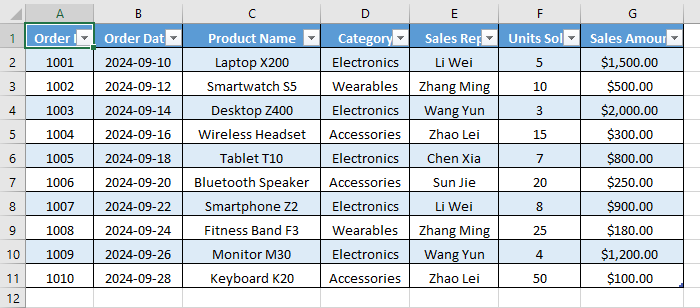
Seleziona una cella qualsiasi all'interno della tabella: Fai clic su una cella qualsiasi (come "A1") all'interno della tabella che desideri rimuovere. Non è necessario selezionare l'intera tabella.
-
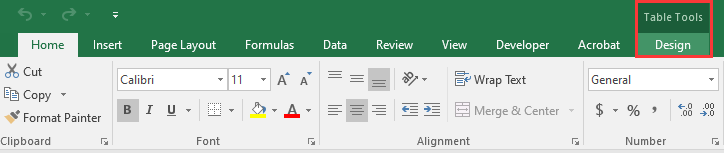
Vai alla scheda Progettazione: Non appena selezioni una cella della tabella, la scheda contestuale Progettazione apparirà sulla barra multifunzione di Excel, sotto Strumenti tabella. Fai clic su di essa.
-
Fai clic su "Converti in intervallo": Nel gruppo Strumenti all'estrema sinistra, troverai il pulsante "Converti in intervallo". Fai clic su di esso.

-
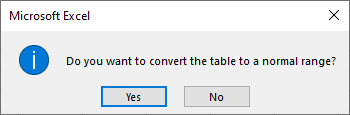
Conferma l'azione: Excel mostrerà una finestra di dialogo che chiede: "Convertire la tabella in un intervallo normale?" Fai clic su Sì.
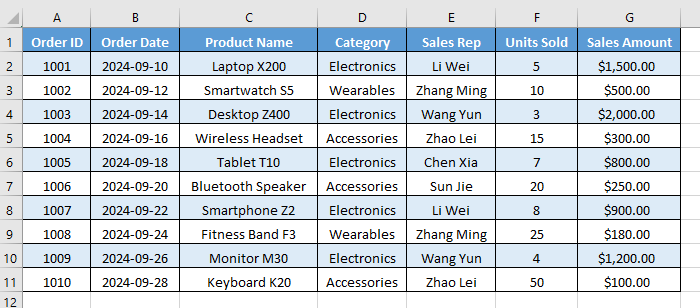
Dopo la conversione, la struttura della tabella viene rimossa e i filtri non sono più disponibili. Tuttavia, qualsiasi formattazione della tabella (come righe alternate e stili di intestazione) rimane, ma l'intervallo diventa statico anziché dinamico.
Opzione 2. Utilizzando il menu contestuale
Per coloro che preferiscono i menu contestuali, l'utilizzo del menu contestuale è altrettanto efficace e un po' più veloce:
-
Seleziona una cella qualsiasi all'interno della tabella: Proprio come nel primo metodo, fai clic in un punto qualsiasi all'interno dei dati della tabella.
-
Fai clic con il pulsante destro del mouse per aprire il menu contestuale: Fai clic con il pulsante destro del mouse sulla cella selezionata.
-
Naviga nel menu: Nel menu contestuale, passa il mouse sopra (o fai clic su) Tabella.
-
Seleziona "Converti in intervallo": Dal sottomenu che appare, seleziona Converti in intervallo.
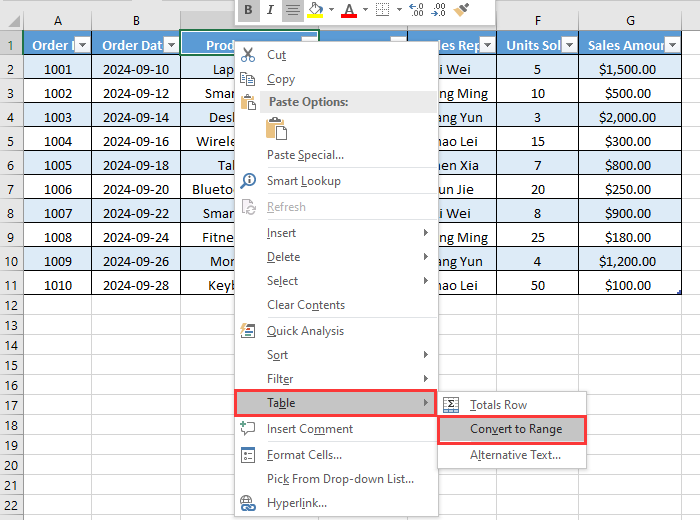
-
Conferma l'azione: Fai clic su Sì nella finestra di dialogo di conferma.
Questo metodo produce lo stesso risultato dell'utilizzo della barra multifunzione ma offre un approccio più rapido e basato sul mouse.
Come rimuovere la formattazione della tabella in Excel?
In alcuni casi, potresti voler rimuovere la formattazione della tabella in Excel, inclusi elementi come filtri, colori e bordi. Segui i passaggi seguenti per cancellare la formattazione e riportare i dati a un layout più semplice:
-
Converti la tabella in un intervallo: Innanzitutto, converti la tabella in un intervallo normale utilizzando la barra multifunzione di Excel o il menu contestuale descritto sopra.
-
Cancella la formattazione della tabella
Ora che i dati sono un semplice intervallo, puoi rimuovere la formattazione residua.-
Seleziona l'intero intervallo di dati: Fai clic e trascina per selezionare tutte le celle che facevano parte della tabella originale, inclusa l'intestazione.
-
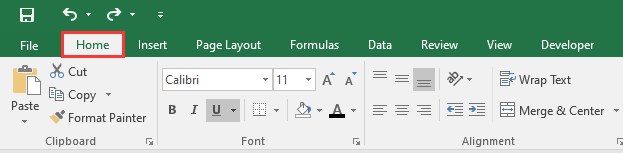
Vai alla scheda Home: Sulla barra multifunzione di Excel, vai alla scheda Home.
-
Cancella i formati:
-
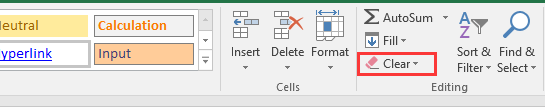
Nel gruppo Modifica, fai clic sul pulsante Cancella (sembra una gomma rosa).
-
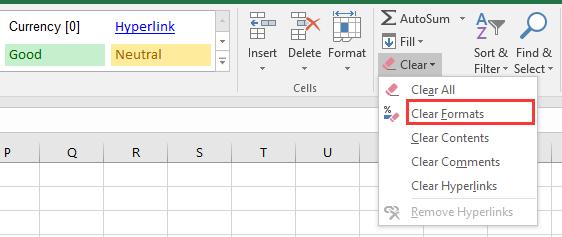
Dal menu a discesa, seleziona Cancella formati.
-
-
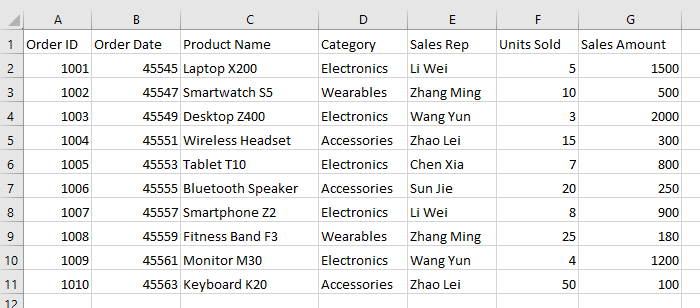
Ora, tutta la formattazione specifica della tabella viene rimossa, ma i dati rimangono intatti. Le celle tornano al carattere, al colore e ai bordi predefiniti di Excel, offrendoti un blocco di dati pulito e non formattato, pronto per una nuova formattazione o analisi.
Come rimuovere completamente una tabella in Excel
Se devi rimuovere sia la tabella che tutti i dati che contiene, questo metodo ti aiuterà. Assicurati di essere certo di non aver più bisogno delle informazioni prima di procedere. Per eliminare completamente una tabella, segui questi passaggi:
-
Seleziona l'intera tabella: Fai clic in un punto qualsiasi all'interno della tabella e premi Ctrl + A (Windows) o Cmd + A (Mac) per selezionare l'intera tabella, inclusa l'intestazione e le righe totali.
-
Cancella tutti i dati e la formattazione: Vai alla scheda Home e trova il gruppo Modifica. Fai clic su Cancella, quindi seleziona Cancella tutto dal menu a discesa.
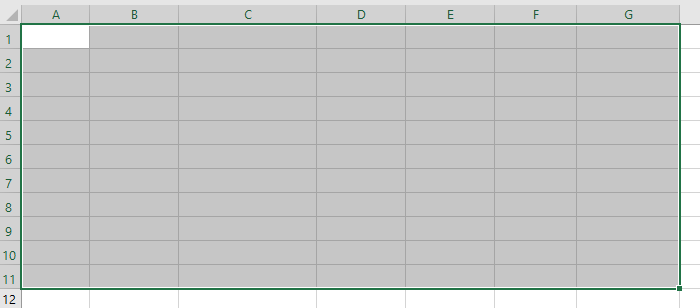
Questa azione rimuove permanentemente tutti i dati, la formattazione e la struttura della tabella. Le celle verranno cancellate, senza lasciare traccia della tabella originale.
Come rimuovere più tabelle in Excel contemporaneamente utilizzando VBA
Se il tuo file Excel contiene più tabelle, rimuoverle manualmente una per una può richiedere molto tempo. Puoi utilizzare VBA (Visual Basic for Applications) per automatizzare il processo.
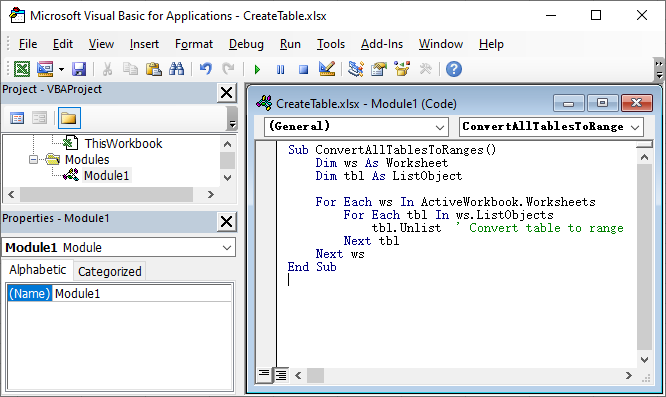
Ecco come rimuovere tutte le tabelle in un file Excel mantenendo i dati utilizzando uno script VBA:
-
Premi Alt + F11 per aprire l'editor VBA.
-
Fai clic su Inserisci → Modulo.
-
Copia e incolla il seguente codice VBA:
Sub ConvertAllTablesToRanges() Dim ws As Worksheet Dim tbl As ListObject For Each ws In ActiveWorkbook.Worksheets For Each tbl In ws.ListObjects tbl.Unlist ' Converti tabella in intervallo Next tbl Next ws End Sub -
Premi F5 per eseguire la macro.
Questa macro scorre ogni foglio di lavoro nel file Excel, trova tutti i ListObjects (tabelle) e li converte in intervalli normali, preservando i dati ma rimuovendo la funzionalità della tabella.
Per maggiori dettagli sul metodo Unlist utilizzato in questo script VBA, consulta la documentazione ufficiale di Microsoft: Metodo Excel ListObject.Unlist.
Come rimuovere tabelle in Excel utilizzando l'automazione Python?
Se lavori con Python per l'elaborazione dei dati, la creazione di report automatizzati o applicazioni backend, puoi rimuovere tabelle in Excel utilizzando una libreria come Spire.XLS for Python.
Spire.XLS for Python è una popolare libreria Excel che consente agli sviluppatori di creare, leggere e manipolare file Excel direttamente tramite codice senza richiedere Microsoft Excel. Oltre a rimuovere le tabelle, ti consente di leggere e scrivere valori e formule di celle, applicare o cancellare la formattazione, gestire fogli di lavoro, inserire grafici o immagini e persino convertire file Excel in PDF o altri formati.
Ecco come puoi rimuovere tabelle in Excel utilizzando Python con Spire.XLS for Python:
-
Installa Spire.XLS for Python: Esegui il seguente comando nel tuo terminale per installarlo direttamente tramite PyPI:
pip install Spire.XLS -
Rimuovi tabelle con codice Python: Una volta installata la libreria, aggiungi il seguente codice per rimuovere le tabelle nel tuo file Excel utilizzando Python:
from spire.xls import *

# Carica la cartella di lavoro
workbook = Workbook()
workbook.LoadFromFile("CreateTable.xlsx")

# Scansiona tutti i fogli di lavoro per indice
for ws_index in range(len(workbook.Worksheets)):
  sheet = workbook.Worksheets[ws_index]
  # Scansiona dall'ultima tabella alla prima per rimuovere in sicurezza per indice
  for tbl_index in range(len(sheet.ListObjects) - 1, -1, -1):
      sheet.ListObjects.RemoveAt(tbl_index)

# Salva la cartella di lavoro
workbook.SaveToFile("DeleteAllTables.xlsx", ExcelVersion.Version2016)
workbook.Dispose()
Questo codice rimuove tutte le tabelle nel file Excel, mantenendo i dati intatti e pronti per ulteriori elaborazioni.
Leggi la guida ufficiale completa: Aggiungere o rimuovere tabelle in Excel in Python.
Suggerimenti professionali per la rimozione di una tabella in Excel
Quando si rimuove una tabella in Excel, i seguenti suggerimenti possono aiutarti a evitare problemi comuni e a mantenere l'integrità dei dati:
- Esegui sempre il backup della cartella di lavoro prima di eseguire script VBA o di automazione.
- Controlla due volte le formule per riferimenti interrotti dopo la conversione.
- Riapplica i filtri manualmente se necessario dopo la conversione in un intervallo.
- Mantieni un formato coerente applicando stili di cella personalizzati dopo aver rimosso la formattazione della tabella.
- Usa intervalli denominati invece delle tabelle se hai solo bisogno di riferimenti fissi senza comportamento strutturato.
Conclusione
La rimozione di una tabella in Excel non deve essere complicata. Seguendo questa guida su come rimuovere una tabella in Excel, puoi mantenere in sicurezza i tuoi dati e la formattazione intatti. Che tu preferisca i passaggi manuali, l'automazione VBA o lo scripting Python con Spire.XLS, questi metodi rendono la rimozione della tabella rapida, affidabile e senza stress. Provali oggi per ripulire i tuoi fogli di calcolo e snellire il tuo flusso di lavoro!
Domande frequenti: Rimuovere una tabella in Excel
D1: Come convertire una tabella in un intervallo normale in Excel ma mantenere i dati?
R1: Seleziona una cella qualsiasi nella tabella → Fai clic con il pulsante destro del mouse su Tabella → Converti in intervallo o vai a Progettazione → Converti in intervallo → Fai clic su Sì. I tuoi dati rimangono, ma le funzionalità della tabella vengono rimosse.
D2: Come rimuovo solo la formattazione della tabella in Excel?
R2: Innanzitutto, converti la tabella in un intervallo normale. Quindi seleziona tutte le celle → vai a Home → fai clic su Cancella → Cancella formati.
D3: Posso rimuovere più tabelle in Excel contemporaneamente?
R3: Sì. Usa una macro VBA per convertire tutte le tabelle in intervalli.
D4: Posso rimuovere una tabella in Excel usando Python?
R4: Sì. Puoi utilizzare librerie come Spire.XLS for Python per rimuovere tabelle in Excel con Python.
Leggi anche
Remover uma tabela no Excel (Converter em intervalo, Limpar formatação, VBA e Python)
Índice
- Entendendo o Que Acontece Quando Você Remove uma Tabela no Excel
- Como Remover uma Tabela no Excel Convertendo-a para um Intervalo
- Como Remover a Formatação de Tabela no Excel
- Como Remover uma Tabela no Excel Completamente
- Como Remover Tabelas no Excel de uma Vez Usando VBA
- Como Remover Tabelas no Excel usando Automação com Python
- Dicas Profissionais para Remover uma Tabela no Excel
- Conclusão
- Perguntas Frequentes: Remover Tabela no Excel
Remover uma tabela no Excel é uma tarefa simples, mas essencial para simplificar seus dados. Embora as tabelas sejam úteis para organizar e gerenciar informações, há momentos em que você pode querer removê-las - seja para otimizar a formatação, exportar dados brutos ou parar de usar recursos estruturados.
Neste guia, exploraremos vários métodos para remover uma tabela no Excel, incluindo convertê-la para um intervalo, limpar sua formatação e excluí-la completamente. Além disso, demonstraremos como automatizar o processo usando VBA e Python, ajudando você a economizar tempo ao trabalhar com várias tabelas.
Visão Geral do Conteúdo
- Entendendo o Que Acontece Quando Você Remove uma Tabela no Excel
- Como Remover uma Tabela no Excel Convertendo-a para um Intervalo
- Como Remover a Formatação de Tabela no Excel
- Como Remover uma Tabela no Excel Completamente
- Como Remover Tabelas no Excel de uma Vez Usando VBA
- Como Remover Tabelas no Excel usando Automação com Python
- Dicas Profissionais para Remover uma Tabela no Excel
- Conclusão
- Perguntas Frequentes: Remover Tabela no Excel
Entendendo o Que Acontece Quando Você Remove uma Tabela no Excel
Remover uma tabela no Excel pode ter resultados diferentes dependendo do método que você escolher:
- Converter para Intervalo: Mantém todos os seus dados e qualquer formatação aplicada à tabela como formatação de célula estática, mas remove recursos da tabela como filtros e referências estruturadas.
- Limpar Formatação da Tabela: Mantém os dados, mas remove todas as cores, bordas e estilos da tabela.
- Excluir Tabela Inteira: Remove permanentemente tanto a tabela quanto seus dados.
Vamos explorar essas opções em detalhes e ver como elas afetam seus dados no Excel.
Como Remover uma Tabela no Excel Convertendo-a para um Intervalo?
O método mais simples e confiável para remover uma tabela no Excel é convertê-la para um intervalo regular, o que mantém seus dados e formatação intactos. Você pode escolher entre duas opções principais para essa conversão: usar a faixa de opções do Excel ou o menu de clique com o botão direito.
Opção 1. Usando a Faixa de Opções do Excel
Siga os passos abaixo para converter uma tabela em um intervalo através da faixa de opções do Excel:
-
Selecione Qualquer Célula Dentro da Sua Tabela: Clique em qualquer célula (como "A1") dentro da tabela que você deseja remover. Você não precisa selecionar a tabela inteira.
-
Navegue até a Aba Design: Assim que você selecionar uma célula da tabela, a aba contextual Design aparecerá na faixa de opções do Excel, em Ferramentas de Tabela. Clique nela.
-
Clique em "Converter em Intervalo": No grupo Ferramentas, na extrema esquerda, você encontrará o botão "Converter em Intervalo". Clique nele.
-
Confirme a Ação: O Excel exibirá uma caixa de diálogo perguntando: "Deseja converter a tabela em um intervalo normal?" Clique em Sim.
Após a conversão, a estrutura da tabela é removida e os filtros não estão mais disponíveis. No entanto, qualquer formatação da tabela (como linhas em tiras e estilos de cabeçalho) permanece, mas o intervalo se torna estático em vez de dinâmico.
Opção 2. Usando o Menu de Clique com o Botão Direito
Para aqueles que preferem menus de contexto, usar o menu de clique com o botão direito é igualmente eficaz e um pouco mais rápido:
-
Selecione Qualquer Célula Dentro da Tabela: Assim como no primeiro método, clique em qualquer lugar dentro dos dados da sua tabela.
-
Clique com o Botão Direito para Abrir o Menu de Contexto: Clique com o botão direito na célula selecionada.
-
Navegue no Menu: No menu de clique com o botão direito, passe o mouse sobre (ou clique em) Tabela.
-
Selecione "Converter em Intervalo": No submenu que aparece, selecione Converter em Intervalo.
-
Confirme a Ação: Clique em Sim na caixa de diálogo de confirmação.
Este método produz o mesmo resultado que usar a faixa de opções, mas oferece uma abordagem mais rápida e orientada pelo mouse.
Como Remover a Formatação de Tabela no Excel?
Em alguns casos, você pode querer remover a formatação da tabela no Excel, incluindo elementos como filtros, cores e bordas. Siga os passos abaixo para limpar a formatação e retornar seus dados a um layout mais simples:
-
Converta a Tabela para um Intervalo: Primeiro, converta a tabela para um intervalo normal usando a faixa de opções do Excel ou o menu de clique com o botão direito descrito acima.
-
Limpe a Formatação da Tabela
Agora que os dados são um intervalo simples, você pode remover a formatação restante.-
Selecione Todo o Intervalo de Dados: Clique e arraste para selecionar todas as células que faziam parte da tabela original, incluindo o cabeçalho.
-
Vá para a Aba Página Inicial: Na faixa de opções do Excel, navegue até a aba Página Inicial.
-
Limpe os Formatos:
-
No grupo Edição, clique no botão Limpar (parece uma borracha rosa).
-
No menu suspenso, selecione Limpar Formatos.
-
-
Agora, toda a formatação específica da tabela foi removida, mas seus dados permanecem intactos. As células revertem para a fonte, cor e bordas padrão do Excel, fornecendo um bloco de dados limpo e não formatado, pronto para nova formatação ou análise.
Como Remover uma Tabela no Excel Completamente
Se você precisa remover tanto a tabela quanto todos os dados que ela contém, este método ajudará. Certifique-se de que não precisa mais das informações antes de prosseguir. Para excluir completamente uma tabela, siga estes passos:
-
Selecione a Tabela Inteira: Clique em qualquer lugar dentro da tabela e pressione Ctrl + A (Windows) ou Cmd + A (Mac) para selecionar a tabela inteira, incluindo o cabeçalho e as linhas de totais.
-
Limpar Todos os Dados e Formatação: Vá para a aba Página Inicial e encontre o grupo Edição. Clique em Limpar, depois selecione Limpar Tudo no menu suspenso.
Esta ação remove permanentemente todos os dados, formatação e a estrutura da tabela. As células serão limpas, não deixando vestígios da tabela original.
Como Remover Tabelas no Excel de uma Vez Usando VBA
Se o seu arquivo Excel contém várias tabelas, remover cada uma manualmente pode ser demorado. Você pode usar o VBA (Visual Basic for Applications) para automatizar o processo.
Veja como remover todas as tabelas em um arquivo Excel, mantendo os dados, usando um Script VBA:
-
Pressione Alt + F11 para abrir o Editor do VBA.
-
Clique em Inserir → Módulo.
-
Copie e cole o seguinte código VBA:
Sub ConvertAllTablesToRanges() Dim ws As Worksheet Dim tbl As ListObject For Each ws In ActiveWorkbook.Worksheets For Each tbl In ws.ListObjects tbl.Unlist ' Converte tabela em intervalo Next tbl Next ws End Sub -
Pressione F5 para executar a macro.
Esta macro percorre cada planilha no arquivo Excel, encontra todos os ListObjects (tabelas) e os converte em intervalos normais - preservando os dados, mas removendo a funcionalidade da tabela.
Para mais detalhes sobre o método Unlist usado neste script VBA, consulte a documentação oficial da Microsoft: Método Excel ListObject.Unlist.
Como Remover Tabelas no Excel usando Automação com Python?
Se você está trabalhando com Python para processamento de dados, relatórios automatizados ou aplicativos de backend, pode remover tabelas no Excel usando uma biblioteca como o Spire.XLS for Python.
O Spire.XLS for Python é uma biblioteca popular para Excel que permite aos desenvolvedores criar, ler e manipular arquivos Excel diretamente através de código, sem a necessidade do Microsoft Excel. Além de remover tabelas, ele permite ler e escrever valores e fórmulas de células, aplicar ou limpar formatação, gerenciar planilhas, inserir gráficos ou imagens e até mesmo converter arquivos Excel para PDF ou outros formatos.
Veja como você pode remover tabelas no Excel usando Python com o Spire.XLS for Python:
-
Instale o Spire.XLS for Python: Execute o seguinte comando no seu terminal para instalá-lo diretamente via PyPI:
pip install Spire.XLS -
Remova Tabelas com Código Python: Uma vez que a biblioteca esteja instalada, adicione o seguinte código para remover tabelas no seu arquivo Excel usando Python:
from spire.xls import *

# Carregue a pasta de trabalho
workbook = Workbook()
workbook.LoadFromFile("CreateTable.xlsx")

# Percorra todas as planilhas pelo índice
for ws_index in range(len(workbook.Worksheets)):
  sheet = workbook.Worksheets[ws_index]
  # Percorra da última tabela para a primeira para remover com segurança pelo índice
  for tbl_index in range(len(sheet.ListObjects) - 1, -1, -1):
      sheet.ListObjects.RemoveAt(tbl_index)

# Salve a pasta de trabalho
workbook.SaveToFile("DeleteAllTables.xlsx", ExcelVersion.Version2016)
workbook.Dispose()
Este código remove todas as tabelas do arquivo Excel, mantendo seus dados intactos e prontos para processamento posterior.
Leia o guia oficial completo: Adicionar ou Remover Tabelas no Excel em Python.
Dicas Profissionais para Remover uma Tabela no Excel
Ao remover uma tabela no Excel, as dicas a seguir podem ajudá-lo a evitar problemas comuns e a manter a integridade dos dados:
- Sempre faça backup da sua pasta de trabalho antes de executar scripts de VBA ou automação.
- Verifique novamente as fórmulas em busca de referências quebradas após a conversão.
- Reaplique os filtros manualmente, se necessário, após converter para um intervalo.
- Mantenha um formato consistente aplicando estilos de célula personalizados após remover a formatação da tabela.
- Use intervalos nomeados em vez de tabelas se você precisar apenas de referências fixas sem comportamento estruturado.
Conclusão
Remover uma tabela no Excel não precisa ser complicado. Seguindo este guia sobre como remover uma tabela no Excel, você pode manter seus dados e formatação intactos com segurança. Quer você prefira passos manuais, automação com VBA ou scripts em Python com Spire.XLS, esses métodos tornam a remoção de tabelas rápida, confiável e sem estresse. Experimente-os hoje para limpar suas planilhas e otimizar seu fluxo de trabalho!
Perguntas Frequentes: Remover Tabela no Excel
P1: Como converter uma tabela para um intervalo normal no Excel, mas manter os dados?
R1: Selecione qualquer célula na tabela → Clique com o botão direito em Tabela → Converter em Intervalo ou vá para Design → Converter em Intervalo → Clique em Sim. Seus dados permanecem, mas os recursos da tabela são removidos.
P2: Como removo apenas a formatação da tabela no Excel?
R2: Primeiro, converta a tabela para um intervalo normal. Em seguida, selecione todas as células → vá para Página Inicial → clique em Limpar → Limpar Formatos.
P3: Posso remover várias tabelas no Excel de uma vez?
R3: Sim. Use uma macro VBA para converter todas as tabelas em intervalos.
P4: Posso remover uma tabela no Excel usando Python?
R4: Sim. Você pode utilizar bibliotecas como o Spire.XLS for Python para remover tabelas no Excel com Python.
Leia Também
Excel에서 표 제거 (범위로 변환, 서식 지우기, VBA & Python)
Excel에서 표를 제거하는 것은 데이터를 단순화하는 간단하면서도 필수적인 작업입니다. 표는 정보를 구성하고 관리하는 데 유용하지만, 서식을 간소화하거나 원시 데이터를 내보내거나 구조화된 기능 사용을 중단하려는 등 여러 이유로 표를 제거하고 싶을 때가 있습니다.
이 가이드에서는 Excel에서 표를 제거하는 다양한 방법을 살펴보겠습니다. 여기에는 표를 범위로 변환하거나, 서식을 지우거나, 완전히 삭제하는 방법이 포함됩니다. 또한 VBA와 Python을 사용하여 프로세스를 자동화하는 방법을 시연하여 여러 표로 작업할 때 시간을 절약할 수 있도록 도와드립니다.
콘텐츠 개요
- Excel에서 표를 제거할 때 발생하는 일 이해하기
- Excel에서 표를 범위로 변환하여 제거하는 방법
- Excel에서 표 서식을 제거하는 방법
- Excel에서 표를 완전히 제거하는 방법
- VBA를 사용하여 Excel에서 한 번에 표를 제거하는 방법
- Python 자동화를 사용하여 Excel에서 표를 제거하는 방법
- Excel에서 표를 제거하기 위한 전문가 팁
- 결론
- 자주 묻는 질문: Excel에서 표 제거
Excel에서 표를 제거할 때 발생하는 일 이해하기
Excel에서 표를 제거하면 선택한 방법에 따라 다른 결과가 나타날 수 있습니다.
- 범위로 변환: 모든 데이터와 표에 적용된 서식을 정적 셀 서식으로 유지하지만 필터 및 구조적 참조와 같은 표 기능은 제거합니다.
- 표 서식 지우기: 데이터는 유지하지만 모든 표 색상, 테두리 및 스타일을 제거합니다.
- 전체 표 삭제: 표와 해당 데이터를 영구적으로 제거합니다.
이러한 옵션을 자세히 살펴보고 Excel 데이터에 어떤 영향을 미치는지 알아보겠습니다.
Excel에서 표를 범위로 변환하여 제거하는 방법은?
Excel에서 표를 제거하는 가장 간단하고 신뢰할 수 있는 방법은 데이터와 서식을 그대로 유지하는 일반 범위로 변환하는 것입니다. 이 변환에는 Excel 리본을 사용하거나 마우스 오른쪽 클릭 메뉴를 사용하는 두 가지 주요 옵션 중에서 선택할 수 있습니다.
옵션 1. Excel 리본 사용
아래 단계에 따라 Excel 리본을 통해 표를 범위로 변환합니다.
-
표 안의 아무 셀이나 선택: 제거하려는 표 안의 아무 셀("A1" 등)이나 클릭합니다. 전체 표를 선택할 필요는 없습니다.
-
디자인 탭으로 이동: 표 셀을 선택하자마자 Excel 리본의 표 도구 아래에 상황별 디자인 탭이 나타납니다. 클릭합니다.
-
"범위로 변환" 클릭: 맨 왼쪽에 있는 도구 그룹에서 "범위로 변환" 버튼을 찾을 수 있습니다. 클릭합니다.
-
작업 확인: Excel에서 "표를 일반 범위로 변환하시겠습니까?"라는 대화 상자가 나타납니다. 예를 클릭합니다.
변환 후에는 표 구조가 제거되고 필터를 더 이상 사용할 수 없습니다. 그러나 줄무늬 행 및 머리글 스타일과 같은 모든 표 서식은 유지되지만 범위는 동적이 아닌 정적이 됩니다.
옵션 2. 마우스 오른쪽 클릭 메뉴 사용
상황에 맞는 메뉴를 선호하는 사람들에게는 마우스 오른쪽 클릭 메뉴를 사용하는 것이 똑같이 효과적이고 조금 더 빠릅니다.
-
표 안의 아무 셀이나 선택: 첫 번째 방법과 마찬가지로 표 데이터 안의 아무 곳이나 클릭합니다.
-
마우스 오른쪽 클릭하여 상황에 맞는 메뉴 열기: 선택한 셀을 마우스 오른쪽 버튼으로 클릭합니다.
-
메뉴 탐색: 마우스 오른쪽 클릭 메뉴에서 표 위로 마우스를 가져가거나 클릭합니다.
-
"범위로 변환" 선택: 나타나는 하위 메뉴에서 범위로 변환을 선택합니다.
-
작업 확인: 확인 대화 상자에서 예를 클릭합니다.
이 방법은 리본을 사용하는 것과 동일한 결과를 생성하지만 더 빠르고 마우스 중심적인 접근 방식을 제공합니다.
Excel에서 표 서식을 제거하는 방법은?
경우에 따라 필터, 색상 및 테두리와 같은 요소를 포함하여 Excel에서 표 서식을 제거하고 싶을 수 있습니다. 아래 단계에 따라 서식을 지우고 데이터를 더 간단한 레이아웃으로 되돌립니다.
-
표를 범위로 변환: 먼저 위에서 설명한 Excel 리본 또는 마우스 오른쪽 클릭 메뉴를 사용하여 표를 일반 범위로 변환합니다.
-
표 서식 지우기
이제 데이터가 간단한 범위이므로 남은 서식을 제거할 수 있습니다.-
전체 데이터 범위 선택: 머리글을 포함하여 원래 표의 일부였던 모든 셀을 클릭하고 드래그하여 선택합니다.
-
홈 탭으로 이동: Excel 리본에서 홈 탭으로 이동합니다.
-
서식 지우기:
-
편집 그룹에서 지우기 버튼(분홍색 지우개 모양)을 클릭합니다.
-
드롭다운 메뉴에서 서식 지우기를 선택합니다.
-
-
이제 모든 표 관련 서식이 제거되었지만 데이터는 그대로 유지됩니다. 셀은 Excel의 기본 글꼴, 색상 및 테두리로 되돌아가 새 서식이나 분석을 위해 준비된 깨끗하고 서식이 지정되지 않은 데이터 블록을 제공합니다.
Excel에서 표를 완전히 제거하는 방법
표와 표에 포함된 모든 데이터를 모두 제거해야 하는 경우 이 방법이 도움이 됩니다. 계속하기 전에 정보가 더 이상 필요하지 않은지 확인하십시오. 표를 완전히 삭제하려면 다음 단계를 따르십시오.
-
전체 표 선택: 표 안의 아무 곳이나 클릭하고 Ctrl + A(Windows) 또는 Cmd + A(Mac)를 눌러 머리글 및 합계 행을 포함한 전체 표를 선택합니다.
-
모든 데이터 및 서식 지우기: 홈 탭으로 이동하여 편집 그룹을 찾습니다. 지우기를 클릭한 다음 드롭다운 메뉴에서 모두 지우기를 선택합니다.
이 작업은 모든 데이터, 서식 및 표 구조를 영구적으로 제거합니다. 셀이 지워져 원래 표의 흔적이 남지 않습니다.
VBA를 사용하여 Excel에서 한 번에 표를 제거하는 방법
Excel 파일에 여러 표가 포함된 경우 각 표를 수동으로 제거하는 것은 시간이 많이 걸릴 수 있습니다. VBA(Visual Basic for Applications)를 사용하여 프로세스를 자동화할 수 있습니다.
VBA 스크립트를 사용하여 데이터를 유지하면서 Excel 파일의 모든 표를 제거하는 방법은 다음과 같습니다.
-
Alt + F11을 눌러 VBA 편집기를 엽니다.
-
삽입 → 모듈을 클릭합니다.
-
다음 VBA 코드를 복사하여 붙여넣습니다.
Sub ConvertAllTablesToRanges() Dim ws As Worksheet Dim tbl As ListObject For Each ws In ActiveWorkbook.Worksheets For Each tbl In ws.ListObjects tbl.Unlist ' 표를 범위로 변환 Next tbl Next ws End Sub -
F5를 눌러 매크로를 실행합니다.
이 매크로는 Excel 파일의 모든 워크시트를 반복하고 모든 ListObjects(표)를 찾아 일반 범위로 변환하여 데이터는 보존하지만 표 기능은 제거합니다.
이 VBA 스크립트에서 사용된 Unlist 메서드에 대한 자세한 내용은 공식 Microsoft 설명서를 참조하십시오. Excel ListObject.Unlist 메서드.
Python 자동화를 사용하여 Excel에서 표를 제거하는 방법은?
데이터 처리, 자동화된 보고 또는 백엔드 애플리케이션을 위해 Python으로 작업하는 경우 Spire.XLS for Python과 같은 라이브러리를 사용하여 Excel에서 표를 제거할 수 있습니다.
Spire.XLS for Python은 개발자가 Microsoft Excel 없이 코드를 통해 직접 Excel 파일을 생성, 읽기 및 조작할 수 있게 해주는 인기 있는 Excel 라이브러리입니다. 표 제거 외에도 셀 값 및 수식 읽기 및 쓰기, 서식 적용 또는 지우기, 워크시트 관리, 차트 또는 이미지 삽입, 심지어 Excel 파일을 PDF로 변환 또는 다른 형식으로 변환할 수 있습니다.
Spire.XLS for Python을 사용하여 Python으로 Excel에서 표를 제거하는 방법은 다음과 같습니다.
-
Spire.XLS for Python 설치: 터미널에서 다음 명령을 실행하여 PyPI를 통해 직접 설치합니다.
pip install Spire.XLS -
Python 코드로 표 제거: 라이브러리가 설치되면 다음 코드를 추가하여 Python을 사용하여 Excel 파일에서 표를 제거합니다.
from spire.xls import *

# 통합 문서 로드
workbook = Workbook()
workbook.LoadFromFile("CreateTable.xlsx")

# 인덱스로 모든 워크시트 반복
for ws_index in range(len(workbook.Worksheets)):
  sheet = workbook.Worksheets[ws_index]
  # 인덱스로 안전하게 제거하기 위해 마지막 표부터 첫 번째 표까지 반복
  for tbl_index in range(len(sheet.ListObjects) - 1, -1, -1):
      sheet.ListObjects.RemoveAt(tbl_index)

# 통합 문서 저장
workbook.SaveToFile("DeleteAllTables.xlsx", ExcelVersion.Version2016)
workbook.Dispose()
이 코드는 Excel 파일의 모든 표를 제거하여 데이터를 그대로 유지하고 추가 처리를 위해 준비합니다.
전체 공식 가이드 읽기: Python에서 Excel에 표 추가 또는 제거.
Excel에서 표를 제거하기 위한 전문가 팁
Excel에서 표를 제거할 때 다음 팁을 따르면 일반적인 문제를 피하고 데이터 무결성을 유지하는 데 도움이 될 수 있습니다.
- VBA 또는 자동화 스크립트를 실행하기 전에 항상 통합 문서를 백업하십시오.
- 변환 후 깨진 참조가 있는지 수식을 다시 확인하십시오.
- 범위로 변환한 후 필요한 경우 필터를 수동으로 다시 적용하십시오.
- 표 서식을 제거한 후 사용자 지정 셀 스타일을 적용하여 일관된 형식을 유지하십시오.
- 구조화된 동작 없이 고정된 참조만 필요한 경우 표 대신 명명된 범위를 사용하십시오.
결론
Excel에서 표를 제거하는 것이 복잡할 필요는 없습니다. Excel에서 표를 제거하는 방법에 대한 이 가이드를 따르면 데이터와 서식을 안전하게 유지할 수 있습니다. 수동 단계, VBA 자동화 또는 Spire.XLS를 사용한 Python 스크립팅을 선호하든 이러한 방법을 사용하면 표 제거를 빠르고 안정적이며 스트레스 없이 수행할 수 있습니다. 오늘 시도하여 스프레드시트를 정리하고 워크플로를 간소화하십시오!
자주 묻는 질문: Excel에서 표 제거
Q1: Excel에서 표를 일반 범위로 변환하되 데이터는 유지하는 방법은 무엇입니까?
A1: 표의 아무 셀이나 선택 → 마우스 오른쪽 클릭 표 → 범위로 변환 또는 디자인 → 범위로 변환 → 예를 클릭합니다. 데이터는 유지되지만 표 기능은 제거됩니다.
Q2: Excel에서 표 서식만 제거하려면 어떻게 해야 합니까?
A2: 먼저 표를 일반 범위로 변환합니다. 그런 다음 모든 셀을 선택 → 홈 → 지우기 클릭 → 서식 지우기.
Q3: Excel에서 여러 표를 한 번에 제거할 수 있습니까?
A3: 예. VBA 매크로를 사용하여 모든 표를 범위로 변환합니다.
Q4: Python을 사용하여 Excel에서 표를 제거할 수 있습니까?
A4: 예. Spire.XLS for Python과 같은 라이브러리를 활용하여 Python으로 Excel에서 표를 제거할 수 있습니다.
또한 읽기
Supprimer un tableau dans Excel (Convertir en plage, Effacer la mise en forme, VBA et Python)
Table des matières
- Comprendre ce qui se passe lorsque vous supprimez un tableau dans Excel
- Comment supprimer un tableau dans Excel en le convertissant en plage
- Comment supprimer la mise en forme d'un tableau dans Excel
- Comment supprimer complètement un tableau dans Excel
- Comment supprimer plusieurs tableaux dans Excel à la fois en utilisant VBA
- Comment supprimer des tableaux dans Excel en utilisant l'automatisation Python
- Conseils de pro pour supprimer un tableau dans Excel
- Conclusion
- FAQ : Supprimer un tableau dans Excel
La suppression d'un tableau dans Excel est une tâche simple mais essentielle pour simplifier vos données. Bien que les tableaux soient utiles pour organiser et gérer les informations, il peut arriver que vous souhaitiez les supprimer, que ce soit pour rationaliser la mise en forme, exporter des données brutes ou cesser d'utiliser des fonctionnalités structurées.
Dans ce guide, nous explorerons différentes méthodes pour supprimer un tableau dans Excel, notamment en le convertissant en plage, en effaçant sa mise en forme et en le supprimant complètement. De plus, nous montrerons comment automatiser le processus à l'aide de VBA et de Python, ce qui vous aidera à gagner du temps lorsque vous travaillez avec plusieurs tableaux.
Aperçu du contenu
- Comprendre ce qui se passe lorsque vous supprimez un tableau dans Excel
- Comment supprimer un tableau dans Excel en le convertissant en plage
- Comment supprimer la mise en forme d'un tableau dans Excel
- Comment supprimer complètement un tableau dans Excel
- Comment supprimer plusieurs tableaux dans Excel à la fois en utilisant VBA
- Comment supprimer des tableaux dans Excel en utilisant l'automatisation Python
- Conseils de pro pour supprimer un tableau dans Excel
- Conclusion
- FAQ : Supprimer un tableau dans Excel
Comprendre ce qui se passe lorsque vous supprimez un tableau dans Excel
La suppression d'un tableau dans Excel peut avoir des résultats différents selon la méthode que vous choisissez :
- Convertir en plage : Conserve toutes vos données et toute la mise en forme appliquée au tableau en tant que mise en forme de cellule statique, mais supprime les fonctionnalités du tableau telles que les filtres et les références structurées.
- Effacer la mise en forme du tableau : Conserve les données mais supprime toutes les couleurs, bordures et styles du tableau.
- Supprimer le tableau entier : Supprime définitivement le tableau et ses données.
Explorons ces options en détail et voyons comment elles affectent vos données Excel.
Comment supprimer un tableau dans Excel en le convertissant en plage ?
La méthode la plus simple et la plus fiable pour supprimer un tableau dans Excel consiste à le convertir en une plage normale, ce qui préserve vos données et votre mise en forme. Vous pouvez choisir parmi deux options principales pour cette conversion : utiliser le ruban Excel ou le menu contextuel.
Option 1. Utilisation du ruban Excel
Suivez les étapes ci-dessous pour convertir un tableau en plage via le ruban Excel :
-
Sélectionnez n'importe quelle cellule à l'intérieur de votre tableau : Cliquez sur n'importe quelle cellule (telle que "A1") dans le tableau que vous souhaitez supprimer. Vous n'avez pas besoin de sélectionner tout le tableau.
-
Accédez à l'onglet Création : Dès que vous sélectionnez une cellule de tableau, l'onglet contextuel Création apparaît sur le ruban Excel, sous Outils de tableau. Cliquez dessus.
-
Cliquez sur "Convertir en plage" : Dans le groupe Outils à l'extrême gauche, vous trouverez le bouton "Convertir en plage". Cliquez dessus.
-
Confirmez l'action : Excel affichera une boîte de dialogue vous demandant : "Voulez-vous convertir le tableau en une plage normale ?" Cliquez sur Oui.
Après la conversion, la structure du tableau est supprimée et les filtres ne sont plus disponibles. Cependant, toute mise en forme du tableau (comme les lignes à bandes et les styles d'en-tête) est conservée, mais la plage devient statique au lieu de dynamique.
Option 2. Utilisation du menu contextuel
Pour ceux qui préfèrent les menus contextuels, l'utilisation du menu contextuel est tout aussi efficace et un peu plus rapide :
-
Sélectionnez n'importe quelle cellule à l'intérieur du tableau : Tout comme dans la première méthode, cliquez n'importe où à l'intérieur des données de votre tableau.
-
Faites un clic droit pour ouvrir le menu contextuel : Faites un clic droit sur la cellule sélectionnée.
-
Naviguez dans le menu : Dans le menu contextuel, survolez (ou cliquez sur) Tableau.
-
Sélectionnez "Convertir en plage" : Dans le sous-menu qui apparaît, sélectionnez Convertir en plage.
-
Confirmez l'action : Cliquez sur Oui dans la boîte de dialogue de confirmation.
Cette méthode produit le même résultat que l'utilisation du ruban mais offre une approche plus rapide, pilotée par la souris.
Comment supprimer la mise en forme d'un tableau dans Excel ?
Dans certains cas, vous souhaiterez peut-être supprimer la mise en forme du tableau dans Excel, y compris des éléments tels que les filtres, les couleurs et les bordures. Suivez les étapes ci-dessous pour effacer la mise en forme et redonner à vos données une disposition plus simple :
-
Convertir le tableau en plage : Tout d'abord, convertissez le tableau en une plage normale en utilisant soit le ruban Excel, soit le menu contextuel décrit ci-dessus.
-
Effacer la mise en forme du tableau
Maintenant que les données sont une simple plage, vous pouvez supprimer la mise en forme restante.-
Sélectionnez toute la plage de données : Cliquez et faites glisser pour sélectionner toutes les cellules qui faisaient partie du tableau d'origine, y compris l'en-tête.
-
Allez à l'onglet Accueil : Sur le ruban Excel, accédez à l'onglet Accueil.
-
Effacer les formats :
-
Dans le groupe Édition, cliquez sur le bouton Effacer (il ressemble à une gomme rose).
-
Dans le menu déroulant, sélectionnez Effacer les formats.
-
-
Désormais, toute la mise en forme spécifique au tableau est supprimée, mais vos données restent intactes. Les cellules retrouvent la police, la couleur et les bordures par défaut d'Excel, vous offrant un bloc de données propre et non formaté, prêt pour une nouvelle mise en forme ou une nouvelle analyse.
Comment supprimer complètement un tableau dans Excel
Si vous devez supprimer à la fois le tableau et toutes les données qu'il contient, cette méthode vous aidera. Assurez-vous d'être certain de ne plus avoir besoin des informations avant de continuer. Pour supprimer complètement un tableau, suivez ces étapes :
-
Sélectionnez le tableau entier: Cliquez n'importe où à l'intérieur du tableau et appuyez sur Ctrl + A (Windows) ou Cmd + A (Mac) pour sélectionner le tableau entier, y compris l'en-tête et les lignes de total.
-
Effacer toutes les données et la mise en forme: Allez à l'onglet Accueil et trouvez le groupe Édition. Cliquez sur Effacer, puis sélectionnez Effacer tout dans le menu déroulant.
Cette action supprime définitivement toutes les données, la mise en forme et la structure du tableau. Les cellules seront effacées, ne laissant aucune trace du tableau d'origine.
Comment supprimer plusieurs tableaux dans Excel à la fois en utilisant VBA
Si votre fichier Excel contient plusieurs tableaux, la suppression manuelle de chacun d'entre eux peut prendre beaucoup de temps. Vous pouvez utiliser VBA (Visual Basic for Applications) pour automatiser le processus.
Voici comment supprimer tous les tableaux d'un fichier Excel tout en conservant les données à l'aide d'un script VBA :
-
Appuyez sur Alt + F11 pour ouvrir l'éditeur VBA.
-
Cliquez sur Insertion → Module.
-
Copiez et collez le code VBA suivant :
Sub ConvertAllTablesToRanges() Dim ws As Worksheet Dim tbl As ListObject For Each ws In ActiveWorkbook.Worksheets For Each tbl In ws.ListObjects tbl.Unlist ' Convert table to range Next tbl Next ws End Sub -
Appuyez sur F5 pour exécuter la macro.
Cette macro parcourt chaque feuille de calcul du fichier Excel, trouve tous les ListObjects (tableaux) et les convertit en plages normales, préservant ainsi les données mais supprimant les fonctionnalités du tableau.
Pour plus de détails sur la méthode Unlist utilisée dans ce script VBA, consultez la documentation officielle de Microsoft : Méthode Excel ListObject.Unlist.
Comment supprimer des tableaux dans Excel en utilisant l'automatisation Python ?
Si vous travaillez avec Python pour le traitement de données, les rapports automatisés ou les applications backend, vous pouvez supprimer des tableaux dans Excel à l'aide d'une bibliothèque comme Spire.XLS for Python.
Spire.XLS for Python est une bibliothèque Excel populaire qui permet aux développeurs de créer, lire et manipuler des fichiers Excel directement via le code sans nécessiter Microsoft Excel. En plus de la suppression de tableaux, il vous permet de lire et d'écrire des valeurs et des formules de cellules, d'appliquer ou d'effacer la mise en forme, de gérer des feuilles de calcul, d'insérer des graphiques ou des images, et même de convertir des fichiers Excel en PDF ou d'autres formats.
Voici comment vous pouvez supprimer des tableaux dans Excel en utilisant Python avec Spire.XLS for Python :
-
Installez Spire.XLS for Python: Exécutez la commande suivante dans votre terminal pour l'installer directement via PyPI :
pip install Spire.XLS -
Supprimer des tableaux avec du code Python: Une fois la bibliothèque installée, ajoutez le code suivant pour supprimer des tableaux dans votre fichier Excel à l'aide de Python :
from spire.xls import *

# Load the workbook
workbook = Workbook()
workbook.LoadFromFile("CreateTable.xlsx")

# Loop through all worksheets by index
for ws_index in range(len(workbook.Worksheets)):
  sheet = workbook.Worksheets[ws_index]
  # Loop from last table to first to safely remove by index
  for tbl_index in range(len(sheet.ListObjects) - 1, -1, -1):
      sheet.ListObjects.RemoveAt(tbl_index)

# Save the workbook
workbook.SaveToFile("DeleteAllTables.xlsx", ExcelVersion.Version2016)
workbook.Dispose()
Ce code supprime tous les tableaux du fichier Excel, en gardant vos données intactes et prêtes pour un traitement ultérieur.
Lisez le guide officiel complet : Ajouter ou supprimer des tableaux dans Excel en Python.
Conseils de pro pour supprimer un tableau dans Excel
Lors de la suppression d'un tableau dans Excel, les conseils suivants peuvent vous aider à éviter les problèmes courants et à maintenir l'intégrité des données :
- Sauvegardez toujours votre classeur avant d'exécuter des scripts VBA ou d'automatisation.
- Vérifiez les formules pour les références rompues après la conversion.
- Réappliquez les filtres manuellement si nécessaire après la conversion en plage.
- Conservez un format cohérent en appliquant des styles de cellule personnalisés après avoir supprimé la mise en forme du tableau.
- Utilisez des plages nommées au lieu de tableaux si vous n'avez besoin que de références fixes sans comportement structuré.
Conclusion
La suppression d'un tableau dans Excel n'a pas à être compliquée. En suivant ce guide sur la façon de supprimer un tableau dans Excel, vous pouvez conserver en toute sécurité vos données et votre mise en forme. Que vous préfériez les étapes manuelles, l'automatisation VBA ou les scripts Python avec Spire.XLS, ces méthodes rendent la suppression de tableau rapide, fiable et sans stress. Essayez-les dès aujourd'hui pour nettoyer vos feuilles de calcul et rationaliser votre flux de travail !
FAQ : Supprimer un tableau dans Excel
Q1 : Comment convertir un tableau en une plage normale dans Excel tout en conservant les données ?
R1 : Sélectionnez n'importe quelle cellule du tableau → Clic droit sur Tableau → Convertir en plage ou allez dans Création → Convertir en plage → Cliquez sur Oui. Vos données sont conservées, mais les fonctionnalités du tableau sont supprimées.
Q2 : Comment supprimer uniquement la mise en forme du tableau dans Excel ?
R2 : Tout d'abord, convertissez le tableau en une plage normale. Ensuite, sélectionnez toutes les cellules → allez dans Accueil → cliquez sur Effacer → Effacer les formats.
Q3 : Puis-je supprimer plusieurs tableaux dans Excel à la fois ?
R3 : Oui. Utilisez une macro VBA pour convertir tous les tableaux en plages.
Q4 : Puis-je supprimer un tableau dans Excel en utilisant Python ?
R4 : Oui. Vous pouvez utiliser des bibliothèques comme Spire.XLS for Python pour supprimer des tableaux dans Excel avec Python.
À lire également
Quitar una tabla en Excel (Convertir a rango, Borrar formato, VBA y Python)
Tabla de Contenidos
- Entender lo que Sucede al Eliminar una Tabla en Excel
- Cómo Eliminar una Tabla en Excel Convirtiéndola en un Rango
- Cómo Eliminar el Formato de Tabla en Excel
- Cómo Eliminar una Tabla en Excel por Completo
- Cómo Eliminar Varias Tablas en Excel a la Vez Usando VBA
- Cómo Eliminar Tablas en Excel usando Automatización con Python
- Consejos Profesionales para Eliminar una Tabla en Excel
- Conclusión
- Preguntas Frecuentes: Eliminar Tabla en Excel
Eliminar una tabla en Excel es una tarea sencilla pero esencial para simplificar tus datos. Aunque las tablas son útiles para organizar y gestionar información, hay momentos en los que es posible que desees eliminarlas, ya sea para optimizar el formato, exportar datos sin procesar o dejar de usar funciones estructuradas.
En esta guía, exploraremos varios métodos para eliminar una tabla en Excel, incluyendo convertirla en un rango, borrar su formato y eliminarla por completo. Además, demostraremos cómo automatizar el proceso usando VBA y Python, ayudándote a ahorrar tiempo al trabajar con múltiples tablas.
Resumen de Contenidos
- Entender lo que Sucede al Eliminar una Tabla en Excel
- Cómo Eliminar una Tabla en Excel Convirtiéndola en un Rango
- Cómo Eliminar el Formato de Tabla en Excel
- Cómo Eliminar una Tabla en Excel por Completo
- Cómo Eliminar Varias Tablas en Excel a la Vez Usando VBA
- Cómo Eliminar Tablas en Excel usando Automatización con Python
- Consejos Profesionales para Eliminar una Tabla en Excel
- Conclusión
- Preguntas Frecuentes: Eliminar Tabla en Excel
Entender lo que Sucede al Eliminar una Tabla en Excel
Eliminar una tabla en Excel puede tener diferentes resultados dependiendo del método que elijas:
- Convertir a Rango: Mantiene todos tus datos y cualquier formato aplicado por la tabla como formato de celda estático, pero elimina las características de la tabla como filtros y referencias estructuradas.
- Borrar Formato de Tabla: Mantiene los datos pero elimina todos los colores, bordes y estilos de la tabla.
- Eliminar Tabla Completa: Elimina permanentemente tanto la tabla como sus datos.
Exploremos estas opciones en detalle y veamos cómo afectan tus datos de Excel.
¿Cómo Eliminar una Tabla en Excel Convirtiéndola en un Rango?
El método más simple y fiable para eliminar una tabla en Excel es convertirla en un rango normal, lo que mantiene tus datos y formato intactos. Puedes elegir entre dos opciones principales para esta conversión: usar la cinta de opciones de Excel o el menú contextual.
Opción 1. Usando la Cinta de Opciones de Excel
Sigue los pasos a continuación para convertir una tabla en un rango a través de la cinta de opciones de Excel:
-
Selecciona Cualquier Celda Dentro de tu Tabla: Haz clic en cualquier celda (como "A1") dentro de la tabla que deseas eliminar. No necesitas seleccionar toda la tabla.
-
Ve a la Pestaña de Diseño: Tan pronto como selecciones una celda de la tabla, aparecerá la pestaña contextual de Diseño en la cinta de opciones de Excel, bajo Herramientas de tabla. Haz clic en ella.
-
Haz clic en "Convertir en Rango": En el grupo Herramientas en el extremo izquierdo, encontrarás el botón "Convertir en Rango". Haz clic en él.
-
Confirma la Acción: Excel mostrará un cuadro de diálogo preguntando, "¿Desea convertir la tabla en un rango normal?" Haz clic en Sí.
Después de la conversión, la estructura de la tabla se elimina y los filtros ya no están disponibles. Sin embargo, cualquier formato de tabla (como filas con bandas y estilos de encabezado) permanece, pero el rango se vuelve estático en lugar de dinámico.
Opción 2. Usando el Menú Contextual
Para aquellos que prefieren los menús contextuales, usar el menú contextual es igual de efectivo y un poco más rápido:
-
Selecciona Cualquier Celda Dentro de la Tabla: Al igual que en el primer método, haz clic en cualquier parte dentro de los datos de tu tabla.
-
Haz Clic Derecho para Abrir el Menú Contextual: Haz clic derecho en la celda seleccionada.
-
Navega por el Menú: En el menú contextual, pasa el cursor sobre (o haz clic en) Tabla.
-
Selecciona "Convertir en Rango": En el submenú que aparece, selecciona Convertir en Rango.
-
Confirma la Acción: Haz clic en Sí en el cuadro de diálogo de confirmación.
Este método produce el mismo resultado que usar la cinta de opciones, pero ofrece un enfoque más rápido y manejado por el ratón.
¿Cómo Eliminar el Formato de Tabla en Excel?
En algunos casos, es posible que desees eliminar el formato de la tabla en Excel, incluyendo elementos como filtros, colores y bordes. Sigue los pasos a continuación para borrar el formato y devolver tus datos a un diseño más simple:
-
Convierte la Tabla en un Rango: Primero, convierte la tabla en un rango normal usando la cinta de opciones de Excel o el menú contextual descrito anteriormente.
-
Borra el Formato de la Tabla
Ahora que los datos son un rango simple, puedes eliminar el formato restante.-
Selecciona Todo el Rango de Datos: Haz clic y arrastra para seleccionar todas las celdas que formaban parte de la tabla original, incluido el encabezado.
-
Ve a la Pestaña de Inicio: En la cinta de opciones de Excel, ve a la pestaña Inicio.
-
Borra los Formatos:
-
En el grupo Edición, haz clic en el botón Borrar (parece una goma de borrar rosa).
-
En el menú desplegable, selecciona Borrar Formatos.
-
-
Ahora, todo el formato específico de la tabla se ha eliminado, pero tus datos permanecen intactos. Las celdas vuelven a la fuente, color y bordes predeterminados de Excel, dejándote un bloque de datos limpio y sin formato, listo para un nuevo formato o análisis.
Cómo Eliminar una Tabla en Excel por Completo
Si necesitas eliminar tanto la tabla como todos los datos que contiene, este método te ayudará. Asegúrate de que ya no necesitas la información antes de proceder. Para eliminar una tabla por completo, sigue estos pasos:
-
Selecciona la Tabla Completa: Haz clic en cualquier lugar dentro de la tabla y presiona Ctrl + A (Windows) o Cmd + A (Mac) para seleccionar toda la tabla, incluyendo el encabezado y las filas de totales.
-
Borrar Todos los Datos y Formato: Ve a la pestaña Inicio y busca el grupo Edición. Haz clic en Borrar, luego selecciona Borrar todo en el menú desplegable.
Esta acción elimina permanentemente todos los datos, el formato y la estructura de la tabla. Las celdas se borrarán, sin dejar rastro de la tabla original.
Cómo Eliminar Varias Tablas en Excel a la Vez Usando VBA
Si tu archivo de Excel contiene varias tablas, eliminarlas una por una manualmente puede llevar mucho tiempo. Puedes usar VBA (Visual Basic para Aplicaciones) para automatizar el proceso.
A continuación se explica cómo eliminar todas las tablas de un archivo de Excel manteniendo los datos mediante un Script de VBA:
-
Presiona Alt + F11 para abrir el Editor de VBA.
-
Haz clic en Insertar → Módulo.
-
Copia y pega el siguiente código VBA:
Sub ConvertAllTablesToRanges() Dim ws As Worksheet Dim tbl As ListObject For Each ws In ActiveWorkbook.Worksheets For Each tbl In ws.ListObjects tbl.Unlist ' Convert table to range Next tbl Next ws End Sub -
Presiona F5 para ejecutar la macro.
Esta macro recorre cada hoja de cálculo en el archivo de Excel, encuentra todos los ListObjects (tablas) y los convierte en rangos normales, conservando los datos pero eliminando la funcionalidad de la tabla.
Para obtener más detalles sobre el método Unlist utilizado en este script de VBA, consulta la documentación oficial de Microsoft: Método ListObject.Unlist de Excel.
¿Cómo Eliminar Tablas en Excel usando Automatización con Python?
Si trabajas con Python para el procesamiento de datos, informes automatizados o aplicaciones de backend, puedes eliminar tablas en Excel utilizando una biblioteca como Spire.XLS para Python.
Spire.XLS para Python es una popular biblioteca de Excel que permite a los desarrolladores crear, leer y manipular archivos de Excel directamente a través del código sin necesidad de Microsoft Excel. Además de eliminar tablas, te permite leer y escribir valores y fórmulas de celdas, aplicar o borrar formato, gestionar hojas de cálculo, insertar gráficos o imágenes, e incluso convertir archivos de Excel a PDF u otros formatos.
A continuación se explica cómo puedes eliminar tablas en Excel usando Python con Spire.XLS para Python:
-
Instala Spire.XLS para Python: Ejecuta el siguiente comando en tu terminal para instalarlo directamente a través de PyPI:
pip install Spire.XLS -
Elimina Tablas con Código Python: Una vez instalada la biblioteca, añade el siguiente código para eliminar tablas en tu archivo de Excel usando Python:
from spire.xls import *

# Load the workbook
workbook = Workbook()
workbook.LoadFromFile("CreateTable.xlsx")

# Loop through all worksheets by index
for ws_index in range(len(workbook.Worksheets)):
  sheet = workbook.Worksheets[ws_index]
  # Loop from last table to first to safely remove by index
  for tbl_index in range(len(sheet.ListObjects) - 1, -1, -1):
      sheet.ListObjects.RemoveAt(tbl_index)

# Save the workbook
workbook.SaveToFile("DeleteAllTables.xlsx", ExcelVersion.Version2016)
workbook.Dispose()
Este código elimina todas las tablas del archivo de Excel, manteniendo tus datos intactos y listos para su posterior procesamiento.
Lee la guía oficial completa: Añadir o Eliminar Tablas en Excel en Python.
Consejos Profesionales para Eliminar una Tabla en Excel
Al eliminar una tabla en Excel, los siguientes consejos pueden ayudarte a evitar problemas comunes y a mantener la integridad de los datos:
- Haz siempre una copia de seguridad de tu libro de trabajo antes de ejecutar scripts de VBA o de automatización.
- Verifica dos veces las fórmulas en busca de referencias rotas después de la conversión.
- Vuelve a aplicar los filtros manualmente si es necesario después de convertir a un rango.
- Mantén un formato coherente aplicando estilos de celda personalizados después de eliminar el formato de la tabla.
- Usa rangos con nombre en lugar de tablas si solo necesitas referencias fijas sin comportamiento estructurado.
Conclusión
Eliminar una tabla en Excel no tiene por qué ser complicado. Siguiendo esta guía sobre cómo eliminar una tabla en Excel, puedes mantener tus datos y formato intactos de forma segura. Ya sea que prefieras los pasos manuales, la automatización con VBA o los scripts de Python con Spire.XLS, estos métodos hacen que la eliminación de tablas sea rápida, fiable y sin estrés. ¡Pruébalos hoy para limpiar tus hojas de cálculo y optimizar tu flujo de trabajo!
Preguntas Frecuentes: Eliminar Tabla en Excel
P1: ¿Cómo convertir una tabla a un rango normal en Excel pero mantener los datos?
R1: Selecciona cualquier celda de la tabla → Haz clic derecho en Tabla → Convertir en Rango o ve a Diseño → Convertir en Rango → Haz clic en Sí. Tus datos permanecen, pero las características de la tabla se eliminan.
P2: ¿Cómo elimino solo el formato de la tabla en Excel?
R2: Primero, convierte la tabla en un rango normal. Luego selecciona todas las celdas → ve a Inicio → haz clic en Borrar → Borrar Formatos.
P3: ¿Puedo eliminar varias tablas en Excel a la vez?
R3: Sí. Usa una macro de VBA para convertir todas las tablas en rangos.
P4: ¿Puedo eliminar una tabla en Excel usando Python?
R4: Sí. Puedes utilizar bibliotecas como Spire.XLS para Python para eliminar tablas en Excel con Python.
También Leer
Tabelle in Excel entfernen (In Bereich umwandeln, Formatierung löschen, VBA & Python)
Inhaltsverzeichnis
- Verstehen, was passiert, wenn Sie eine Tabelle in Excel entfernen
- So entfernen Sie eine Tabelle in Excel, indem Sie sie in einen Bereich umwandeln
- So entfernen Sie die Tabellenformatierung in Excel
- So entfernen Sie eine Tabelle in Excel vollständig
- So entfernen Sie Tabellen in Excel auf einmal mit VBA
- So entfernen Sie Tabellen in Excel mit Python-Automatisierung
- Profi-Tipps zum Entfernen einer Tabelle in Excel
- Fazit
- FAQs: Tabelle in Excel entfernen
Das Entfernen einer Tabelle in Excel ist eine einfache, aber wesentliche Aufgabe zur Vereinfachung Ihrer Daten. Obwohl Tabellen nützlich sind, um Informationen zu organisieren und zu verwalten, gibt es Zeiten, in denen Sie sie möglicherweise entfernen möchten – sei es, um die Formatierung zu optimieren, Rohdaten zu exportieren oder die Verwendung strukturierter Funktionen einzustellen.
In diesem Leitfaden werden wir verschiedene Methoden zum Entfernen einer Tabelle in Excel untersuchen, einschließlich der Umwandlung in einen Bereich, dem Löschen der Formatierung und dem vollständigen Löschen. Zusätzlich zeigen wir, wie Sie den Prozess mit VBA und Python automatisieren können, um Zeit bei der Arbeit mit mehreren Tabellen zu sparen.
Inhaltsübersicht
- Verstehen, was passiert, wenn Sie eine Tabelle in Excel entfernen
- So entfernen Sie eine Tabelle in Excel, indem Sie sie in einen Bereich umwandeln
- So entfernen Sie die Tabellenformatierung in Excel
- So entfernen Sie eine Tabelle in Excel vollständig
- So entfernen Sie Tabellen in Excel auf einmal mit VBA
- So entfernen Sie Tabellen in Excel mit Python-Automatisierung
- Profi-Tipps zum Entfernen einer Tabelle in Excel
- Fazit
- FAQs: Tabelle in Excel entfernen
Verstehen, was passiert, wenn Sie eine Tabelle in Excel entfernen
Das Entfernen einer Tabelle in Excel kann je nach gewählter Methode unterschiedliche Ergebnisse haben:
- In Bereich umwandeln: Behält alle Ihre Daten und jede auf die Tabelle angewendete Formatierung als statische Zellformatierung bei, entfernt jedoch Tabellenfunktionen wie Filter und strukturierte Verweise.
- Tabellenformatierung löschen: Behält die Daten bei, entfernt jedoch alle Tabellenfarben, Rahmen und Stile.
- Ganze Tabelle löschen: Entfernt dauerhaft sowohl die Tabelle als auch ihre Daten.
Lassen Sie uns diese Optionen im Detail untersuchen und sehen, wie sie sich auf Ihre Excel-Daten auswirken.
So entfernen Sie eine Tabelle in Excel, indem Sie sie in einen Bereich umwandeln?
Die einfachste und zuverlässigste Methode zum Entfernen einer Tabelle in Excel besteht darin, sie in einen regulären Bereich umzuwandeln, wodurch Ihre Daten und Formatierungen erhalten bleiben. Sie können für diese Konvertierung aus zwei Hauptoptionen wählen: die Verwendung des Excel-Menübands oder des Kontextmenüs.
Option 1. Verwendung des Excel-Menübands
Befolgen Sie die nachstehenden Schritte, um eine Tabelle über das Excel-Menüband in einen Bereich umzuwandeln:
-
Wählen Sie eine beliebige Zelle in Ihrer Tabelle aus: Klicken Sie auf eine beliebige Zelle (z. B. "A1") innerhalb der Tabelle, die Sie entfernen möchten. Sie müssen nicht die gesamte Tabelle auswählen.
-
Navigieren Sie zum Tab „Entwurf“: Sobald Sie eine Tabellenzelle auswählen, wird der kontextbezogene Tab Entwurf im Excel-Menüband unter Tabellentools angezeigt. Klicken Sie darauf.
-
Klicken Sie auf „In Bereich konvertieren“: In der Gruppe Tools ganz links finden Sie die Schaltfläche „In Bereich konvertieren“. Klicken Sie darauf.
-
Bestätigen Sie die Aktion: Excel zeigt ein Dialogfeld mit der Frage an: „Möchten Sie die Tabelle in einen normalen Bereich konvertieren?“ Klicken Sie auf Ja.
Nach der Konvertierung wird die Tabellenstruktur entfernt und Filter sind nicht mehr verfügbar. Jede Tabellenformatierung (wie gebänderte Zeilen und Kopfzeilenstile) bleibt jedoch erhalten, aber der Bereich wird statisch anstatt dynamisch.
Option 2. Verwendung des Kontextmenüs
Für diejenigen, die Kontextmenüs bevorzugen, ist die Verwendung des Kontextmenüs genauso effektiv und etwas schneller:
-
Wählen Sie eine beliebige Zelle in der Tabelle aus: Klicken Sie wie bei der ersten Methode einfach irgendwo in die Daten Ihrer Tabelle.
-
Klicken Sie mit der rechten Maustaste, um das Kontextmenü zu öffnen: Klicken Sie mit der rechten Maustaste auf die ausgewählte Zelle.
-
Navigieren Sie im Menü: Bewegen Sie den Mauszeiger im Kontextmenü über Tabelle (oder klicken Sie darauf).
-
Wählen Sie „In Bereich konvertieren“: Wählen Sie im angezeigten Untermenü In Bereich konvertieren aus.
-
Bestätigen Sie die Aktion: Klicken Sie im Bestätigungsdialogfeld auf Ja.
Diese Methode führt zum gleichen Ergebnis wie die Verwendung des Menübands, bietet jedoch einen schnelleren, mausgesteuerten Ansatz.
So entfernen Sie die Tabellenformatierung in Excel?
In einigen Fällen möchten Sie möglicherweise die Tabellenformatierung in Excel entfernen, einschließlich Elementen wie Filtern, Farben und Rahmen. Befolgen Sie die nachstehenden Schritte, um die Formatierung zu löschen und Ihre Daten in ein einfacheres Layout zurückzuversetzen:
-
Wandeln Sie die Tabelle in einen Bereich um: Wandeln Sie die Tabelle zunächst mit dem oben beschriebenen Excel-Menüband oder dem Kontextmenü in einen normalen Bereich um.
-
Löschen Sie die Tabellenformatierung
Da die Daten nun ein einfacher Bereich sind, können Sie die verbleibende Formatierung entfernen.-
Wählen Sie den gesamten Datenbereich aus: Klicken und ziehen Sie, um alle Zellen auszuwählen, die Teil der ursprünglichen Tabelle waren, einschließlich der Kopfzeile.
-
Gehen Sie zum Start-Tab: Navigieren Sie im Excel-Menüband zum Start-Tab.
-
Löschen Sie die Formate:
-
Klicken Sie in der Gruppe Bearbeiten auf die Schaltfläche Löschen (sie sieht aus wie ein rosa Radiergummi).
-
Wählen Sie im Dropdown-Menü Formate löschen aus.
-
-
Jetzt wird die gesamte tabellenspezifische Formatierung entfernt, aber Ihre Daten bleiben erhalten. Die Zellen kehren zur Standardschriftart, -farbe und -umrandung von Excel zurück und geben Ihnen einen sauberen, unformatierten Datenblock, der für neue Formatierungen oder Analysen bereit ist.
So entfernen Sie eine Tabelle in Excel vollständig
Wenn Sie sowohl die Tabelle als auch alle darin enthaltenen Daten entfernen müssen, hilft Ihnen diese Methode. Stellen Sie sicher, dass Sie die Informationen nicht mehr benötigen, bevor Sie fortfahren. Um eine Tabelle vollständig zu löschen, führen Sie die folgenden Schritte aus:
-
Wählen Sie die gesamte Tabelle aus: Klicken Sie irgendwo in die Tabelle und drücken Sie Strg + A (Windows) oder Cmd + A (Mac), um die gesamte Tabelle auszuwählen, einschließlich der Kopf- und Summenzeilen.
-
Alle Daten und Formatierungen löschen: Gehen Sie zum Start-Tab und suchen Sie die Gruppe Bearbeiten. Klicken Sie auf Löschen und wählen Sie dann im Dropdown-Menü Alles löschen aus.
Diese Aktion entfernt dauerhaft alle Daten, Formatierungen und die Tabellenstruktur. Die Zellen werden geleert und hinterlassen keine Spuren der ursprünglichen Tabelle.
So entfernen Sie Tabellen in Excel auf einmal mit VBA
Wenn Ihre Excel-Datei mehrere Tabellen enthält, kann das manuelle Entfernen jeder einzelnen zeitaufwändig sein. Sie können VBA (Visual Basic for Applications) verwenden, um den Prozess zu automatisieren.
So entfernen Sie alle Tabellen in einer Excel-Datei und behalten die Daten mit einem VBA-Skript bei:
-
Drücken Sie Alt + F11, um den VBA-Editor zu öffnen.
-
Klicken Sie auf Einfügen → Modul.
-
Kopieren Sie den folgenden VBA-Code und fügen Sie ihn ein:
Sub ConvertAllTablesToRanges() Dim ws As Worksheet Dim tbl As ListObject For Each ws In ActiveWorkbook.Worksheets For Each tbl In ws.ListObjects tbl.Unlist ' Tabelle in Bereich umwandeln Next tbl Next ws End Sub -
Drücken Sie F5, um das Makro auszuführen.
Dieses Makro durchläuft jedes Arbeitsblatt in der Excel-Datei, findet alle ListObjects (Tabellen) und wandelt sie in normale Bereiche um – wobei die Daten erhalten bleiben, aber die Tabellenfunktionalität entfernt wird.
Weitere Einzelheiten zur in diesem VBA-Skript verwendeten Unlist-Methode finden Sie in der offiziellen Microsoft-Dokumentation: Excel ListObject.Unlist-Methode.
So entfernen Sie Tabellen in Excel mit Python-Automatisierung?
Wenn Sie mit Python für die Datenverarbeitung, automatisierte Berichterstellung oder Backend-Anwendungen arbeiten, können Sie Tabellen in Excel mit einer Bibliothek wie Spire.XLS for Python entfernen.
Spire.XLS for Python ist eine beliebte Excel-Bibliothek, mit der Entwickler Excel-Dateien direkt per Code erstellen, lesen und bearbeiten können, ohne dass Microsoft Excel erforderlich ist. Neben dem Entfernen von Tabellen können Sie damit Zellwerte und Formeln lesen und schreiben, Formatierungen anwenden oder löschen, Arbeitsblätter verwalten, Diagramme oder Bilder einfügen und sogar Excel-Dateien in PDF oder andere Formate konvertieren.
So entfernen Sie Tabellen in Excel mit Python und Spire.XLS for Python:
-
Installieren Sie Spire.XLS for Python: Führen Sie den folgenden Befehl in Ihrem Terminal aus, um es direkt über PyPI zu installieren:
pip install Spire.XLS -
Tabellen mit Python-Code entfernen: Sobald die Bibliothek installiert ist, fügen Sie den folgenden Code hinzu, um Tabellen in Ihrer Excel-Datei mit Python zu entfernen:
from spire.xls import *

# Laden Sie die Arbeitsmappe
workbook = Workbook()
workbook.LoadFromFile("CreateTable.xlsx")

# Durchlaufen Sie alle Arbeitsblätter nach Index
for ws_index in range(len(workbook.Worksheets)):
  sheet = workbook.Worksheets[ws_index]
  # Schleife von der letzten zur ersten Tabelle, um sicher nach Index zu entfernen
  for tbl_index in range(len(sheet.ListObjects) - 1, -1, -1):
      sheet.ListObjects.RemoveAt(tbl_index)

# Speichern Sie die Arbeitsmappe
workbook.SaveToFile("DeleteAllTables.xlsx", ExcelVersion.Version2016)
workbook.Dispose()
Dieser Code entfernt alle Tabellen in der Excel-Datei, wobei Ihre Daten intakt und für die weitere Verarbeitung bereit bleiben.
Lesen Sie die vollständige offizielle Anleitung: Tabellen in Excel in Python hinzufügen oder entfernen.
Profi-Tipps zum Entfernen einer Tabelle in Excel
Beim Entfernen einer Tabelle in Excel können Ihnen die folgenden Tipps helfen, häufige Probleme zu vermeiden und die Datenintegrität zu wahren:
- Sichern Sie immer Ihre Arbeitsmappe, bevor Sie VBA- oder Automatisierungsskripte ausführen.
- Überprüfen Sie Formeln nach der Konvertierung auf fehlerhafte Verweise.
- Wenden Sie Filter bei Bedarf nach der Konvertierung in einen Bereich manuell erneut an.
- Behalten Sie ein einheitliches Format bei, indem Sie nach dem Entfernen der Tabellenformatierung benutzerdefinierte Zellstile anwenden.
- Verwenden Sie benannte Bereiche anstelle von Tabellen, wenn Sie nur feste Verweise ohne strukturiertes Verhalten benötigen.
Fazit
Das Entfernen einer Tabelle in Excel muss nicht kompliziert sein. Indem Sie dieser Anleitung zum Entfernen einer Tabelle in Excel folgen, können Sie Ihre Daten und Formatierungen sicher beibehalten. Ob Sie manuelle Schritte, VBA-Automatisierung oder Python-Skripting mit Spire.XLS bevorzugen, diese Methoden machen das Entfernen von Tabellen schnell, zuverlässig und stressfrei. Probieren Sie sie noch heute aus, um Ihre Tabellenkalkulationen zu bereinigen und Ihren Arbeitsablauf zu optimieren!
FAQs: Tabelle in Excel entfernen
F1: Wie konvertiert man eine Tabelle in einen normalen Bereich in Excel, behält aber die Daten?
A1: Wählen Sie eine beliebige Zelle in der Tabelle aus → Klicken Sie mit der rechten Maustaste auf Tabelle → In Bereich konvertieren oder gehen Sie zu Entwurf → In Bereich konvertieren → Klicken Sie auf Ja. Ihre Daten bleiben erhalten, aber die Tabellenfunktionen werden entfernt.
F2: Wie entferne ich nur die Tabellenformatierung in Excel?
A2: Wandeln Sie zuerst die Tabelle in einen normalen Bereich um. Wählen Sie dann alle Zellen aus → gehen Sie zu Start → klicken Sie auf Löschen → Formate löschen.
F3: Kann ich mehrere Tabellen in Excel auf einmal entfernen?
A3: Ja. Verwenden Sie ein VBA-Makro, um alle Tabellen in Bereiche umzuwandeln.
F4: Kann ich eine Tabelle in Excel mit Python entfernen?
A4: Ja. Sie können Bibliotheken wie Spire.XLS for Python verwenden, um Tabellen in Excel mit Python zu entfernen.
Lesen Sie auch
Удаление таблицы в Excel (преобразование в диапазон, очистка форматирования, VBA и Python)
Содержание
- Что происходит при удалении таблицы в Excel
- Как удалить таблицу в Excel, преобразовав ее в диапазон
- Как удалить форматирование таблицы в Excel
- Как полностью удалить таблицу в Excel
- Как удалить все таблицы в Excel сразу с помощью VBA
- Как удалить таблицы в Excel с помощью автоматизации на Python
- Профессиональные советы по удалению таблиц в Excel
- Заключение
- Часто задаваемые вопросы: удаление таблиц в Excel
Удаление таблицы в Excel — простая, но важная задача для упрощения ваших данных. Хотя таблицы полезны для организации и управления информацией, бывают случаи, когда вы можете захотеть их удалить — будь то для оптимизации форматирования, экспорта необработанных данных или прекращения использования структурированных функций.
В этом руководстве мы рассмотрим различные методы удаления таблицы в Excel, включая преобразование ее в диапазон, очистку ее форматирования и полное удаление. Кроме того, мы продемонстрируем, как автоматизировать этот процесс с помощью VBA и Python, что поможет вам сэкономить время при работе с несколькими таблицами.
Обзор содержимого
- Что происходит при удалении таблицы в Excel
- Как удалить таблицу в Excel, преобразовав ее в диапазон
- Как удалить форматирование таблицы в Excel
- Как полностью удалить таблицу в Excel
- Как удалить все таблицы в Excel сразу с помощью VBA
- Как удалить таблицы в Excel с помощью автоматизации на Python
- Профессиональные советы по удалению таблиц в Excel
- Заключение
- Часто задаваемые вопросы: удаление таблиц в Excel
Что происходит при удалении таблицы в Excel
Удаление таблицы в Excel может иметь разные результаты в зависимости от выбранного вами метода:
- Преобразовать в диапазон: сохраняет все ваши данные и любое форматирование, примененное к таблице, как статическое форматирование ячеек, но удаляет функции таблицы, такие как фильтры и структурированные ссылки.
- Очистить форматирование таблицы: сохраняет данные, но удаляет все цвета, границы и стили таблицы.
- Удалить всю таблицу: навсегда удаляет как таблицу, так и ее данные.
Давайте подробно рассмотрим эти варианты и посмотрим, как они влияют на ваши данные в Excel.
Как удалить таблицу в Excel, преобразовав ее в диапазон?
Самый простой и надежный способ удалить таблицу в Excel — это преобразовать ее в обычный диапазон, что сохранит ваши данные и форматирование. Вы можете выбрать один из двух основных вариантов этого преобразования: с помощью ленты Excel или контекстного меню.
Вариант 1. Использование ленты Excel
Выполните следующие шаги, чтобы преобразовать таблицу в диапазон с помощью ленты Excel:
-
Выберите любую ячейку внутри вашей таблицы: щелкните любую ячейку (например, «A1») в таблице, которую вы хотите удалить. Вам не нужно выделять всю таблицу.
-
Перейдите на вкладку «Конструктор»: как только вы выберете ячейку таблицы, на ленте Excel в разделе Работа с таблицами появится контекстная вкладка Конструктор. Нажмите на нее.
-
Нажмите «Преобразовать в диапазон»: в группе Сервис слева вы найдете кнопку «Преобразовать в диапазон». Нажмите ее.
-
Подтвердите действие: Excel отобразит диалоговое окно с вопросом: «Вы хотите преобразовать таблицу в обычный диапазон?» Нажмите Да.
После преобразования структура таблицы удаляется, и фильтры больше не доступны. Однако любое форматирование таблицы (например, чередующиеся строки и стили заголовков) остается, но диапазон становится статическим, а не динамическим.
Вариант 2. Использование контекстного меню
Для тех, кто предпочитает контекстные меню, использование контекстного меню так же эффективно и немного быстрее:
-
Выберите любую ячейку внутри таблицы: как и в первом методе, щелкните в любом месте данных вашей таблицы.
-
Щелкните правой кнопкой мыши, чтобы открыть контекстное меню: щелкните правой кнопкой мыши по выделенной ячейке.
-
Перемещайтесь по меню: в контекстном меню наведите указатель мыши на (или щелкните) Таблица.
-
Выберите «Преобразовать в диапазон»: в появившемся подменю выберите Преобразовать в диапазон.
-
Подтвердите действие: нажмите Да в диалоговом окне подтверждения.
Этот метод дает тот же результат, что и использование ленты, но предлагает более быстрый подход с помощью мыши.
Как удалить форматирование таблицы в Excel?
В некоторых случаях вам может потребоваться удалить форматирование таблицы в Excel, включая такие элементы, как фильтры, цвета и границы. Выполните следующие шаги, чтобы очистить форматирование и вернуть данные к более простому макету:
-
Преобразуйте таблицу в диапазон: сначала преобразуйте таблицу в обычный диапазон, используя либо ленту Excel, либо контекстное меню, описанное выше.
-
Очистить форматирование таблицы
Теперь, когда данные представляют собой простой диапазон, вы можете удалить оставшееся форматирование.-
Выделите весь диапазон данных: щелкните и перетащите, чтобы выделить все ячейки, которые были частью исходной таблицы, включая заголовок.
-
Перейдите на вкладку «Главная»: на ленте Excel перейдите на вкладку Главная.
-
Очистить форматы:
-
В группе Редактирование нажмите кнопку Очистить (она выглядит как розовый ластик).
-
В раскрывающемся меню выберите Очистить форматы.
-
-
Теперь все форматирование, специфичное для таблицы, удалено, но ваши данные остаются нетронутыми. Ячейки возвращаются к шрифту, цвету и границам Excel по умолчанию, предоставляя вам чистый, неформатированный блок данных, готовый к новому форматированию или анализу.
Как полностью удалить таблицу в Excel
Если вам нужно удалить как таблицу, так и все содержащиеся в ней данные, этот метод поможет. Прежде чем продолжить, убедитесь, что вам больше не нужна эта информация. Чтобы полностью удалить таблицу, выполните следующие действия:
-
Выделите всю таблицу: щелкните в любом месте таблицы и нажмите Ctrl + A (Windows) или Cmd + A (Mac), чтобы выделить всю таблицу, включая заголовок и строки итогов.
-
Очистить все данные и форматирование: перейдите на вкладку Главная и найдите группу Редактирование. Нажмите Очистить, затем выберите Очистить все в раскрывающемся меню.
Это действие навсегда удаляет все данные, форматирование и структуру таблицы. Ячейки будут очищены, не оставив и следа от исходной таблицы.
Как удалить все таблицы в Excel сразу с помощью VBA
Если ваш файл Excel содержит несколько таблиц, удаление каждой из них вручную может занять много времени. Вы можете использовать VBA (Visual Basic для приложений) для автоматизации этого процесса.
Вот как удалить все таблицы в файле Excel, сохранив данные, с помощью скрипта VBA:
-
Нажмите Alt + F11, чтобы открыть редактор VBA.
-
Нажмите Вставка → Модуль.
-
Скопируйте и вставьте следующий код VBA:
Sub ConvertAllTablesToRanges() Dim ws As Worksheet Dim tbl As ListObject For Each ws In ActiveWorkbook.Worksheets For Each tbl In ws.ListObjects tbl.Unlist ' Convert table to range Next tbl Next ws End Sub -
Нажмите F5, чтобы запустить макрос.
Этот макрос просматривает каждый лист в файле Excel, находит все ListObjects (таблицы) и преобразует их в обычные диапазоны, сохраняя данные, но удаляя функциональность таблицы.
Для получения более подробной информации о методе Unlist, используемом в этом скрипте VBA, см. официальную документацию Microsoft: Метод Excel ListObject.Unlist.
Как удалить таблицы в Excel с помощью автоматизации на Python?
Если вы работаете с Python для обработки данных, автоматизированной отчетности или серверных приложений, вы можете удалять таблицы в Excel с помощью такой библиотеки, как Spire.XLS для Python.
Spire.XLS для Python — это популярная библиотека Excel, которая позволяет разработчикам создавать, читать и управлять файлами Excel непосредственно через код, не требуя Microsoft Excel. Помимо удаления таблиц, она позволяет читать и записывать значения и формулы ячеек, применять или очищать форматирование, управлять листами, вставлять диаграммы или изображения и даже преобразовывать файлы Excel в PDF или другие форматы.
Вот как вы можете удалить таблицы в Excel с помощью Python с Spire.XLS для Python:
-
Установите Spire.XLS для Python: выполните следующую команду в своем терминале, чтобы установить его непосредственно через PyPI:
pip install Spire.XLS -
Удалите таблицы с помощью кода Python: после установки библиотеки добавьте следующий код для удаления таблиц в вашем файле Excel с помощью Python:
from spire.xls import *

# Load the workbook
workbook = Workbook()
workbook.LoadFromFile("CreateTable.xlsx")

# Loop through all worksheets by index
for ws_index in range(len(workbook.Worksheets)):
  sheet = workbook.Worksheets[ws_index]
  # Loop from last table to first to safely remove by index
  for tbl_index in range(len(sheet.ListObjects) - 1, -1, -1):
      sheet.ListObjects.RemoveAt(tbl_index)

# Save the workbook
workbook.SaveToFile("DeleteAllTables.xlsx", ExcelVersion.Version2016)
workbook.Dispose()
Этот код удаляет все таблицы в файле Excel, сохраняя ваши данные нетронутыми и готовыми к дальнейшей обработке.
Прочтите полное официальное руководство: Добавление или удаление таблиц в Excel на Python.
Профессиональные советы по удалению таблиц в Excel
При удалении таблицы в Excel следующие советы помогут вам избежать распространенных проблем и сохранить целостность данных:
- Всегда создавайте резервную копию своей книги перед запуском сценариев VBA или автоматизации.
- Дважды проверьте формулы на наличие неработающих ссылок после преобразования.
- При необходимости повторно примените фильтры вручную после преобразования в диапазон.
- Сохраняйте единообразный формат, применяя настраиваемые стили ячеек после удаления форматирования таблицы.
- Используйте именованные диапазоны вместо таблиц, если вам нужны только фиксированные ссылки без структурированного поведения.
Заключение
Удаление таблицы в Excel не должно быть сложным. Следуя этому руководству о том, как удалить таблицу в Excel, вы можете безопасно сохранить свои данные и форматирование. Независимо от того, предпочитаете ли вы ручные шаги, автоматизацию VBA или написание сценариев на Python с помощью Spire.XLS, эти методы делают удаление таблиц быстрым, надежным и без лишних хлопот. Попробуйте их сегодня, чтобы навести порядок в своих электронных таблицах и оптимизировать свой рабочий процесс!
Часто задаваемые вопросы: удаление таблиц в Excel
В1: Как преобразовать таблицу в обычный диапазон в Excel, но сохранить данные?
О1: Выберите любую ячейку в таблице → Щелкните правой кнопкой мыши Таблица → Преобразовать в диапазон или перейдите в Конструктор → Преобразовать в диапазон → Нажмите Да. Ваши данные остаются, но функции таблицы удаляются.
В2: Как удалить только форматирование таблицы в Excel?
О2: Сначала преобразуйте таблицу в обычный диапазон. Затем выделите все ячейки → перейдите на вкладку Главная → нажмите Очистить → Очистить форматы.
В3: Могу ли я удалить несколько таблиц в Excel одновременно?
О3: Да. Используйте макрос VBA для преобразования всех таблиц в диапазоны.
В4: Могу ли я удалить таблицу в Excel с помощью Python?
О4: Да. Вы можете использовать библиотеки, такие как Spire.XLS для Python, для удаления таблиц в Excel с помощью Python.
Также читайте
Como baixar uma página da web como PDF: Guia para iniciantes

Às vezes, você encontra uma página da web que deseja guardar, mas não é permitido copiá-la ou salvá-la diretamente. Nesses casos, salvar a página como PDF é uma ótima solução. Isso permite que você acesse a página offline a qualquer momento e até mesmo edite ou destaque o conteúdo posteriormente. Neste guia, você explorará três maneiras fáceis de baixar uma página da web como PDF — usando os recursos integrados do navegador, ferramentas online e métodos baseados em código.
- Baixar Página da Web como PDF com o Recurso Integrado
- Como Baixar uma Página da Web como PDF com Ferramentas Online
- Como Baixar uma Página da Web como PDF com Código
- A Conclusão
Baixar Página da Web como PDF com o Recurso Integrado
Quando você precisa salvar uma página da web como PDF, o primeiro instinto da maioria das pessoas é usar o recurso de download integrado do navegador. É a maneira mais rápida e conveniente de fazer o trabalho. No entanto, os passos podem variar um pouco dependendo do seu sistema operacional. Vamos ver como baixar uma página da web como PDF nas duas plataformas mais comuns — Windows e macOS.
Baixar uma Página da Web como PDF no Windows
- Pressione Ctrl + P para abrir a caixa de diálogo de impressão.

- Na lista suspensa Impressora, selecione Microsoft Print to PDF ou Salvar como PDF (o nome pode variar dependendo do seu navegador).
- Clique em Imprimir para continuar.
- Quando a caixa de diálogo de arquivo aparecer, escolha uma pasta de destino e clique em Salvar.
- Se a sua versão do Windows não incluir o Microsoft Print to PDF, você ainda pode usar a opção integrada do Chrome Salvar como PDF para baixar a página da web como PDF.
Baixar uma Página da Web como PDF no macOS
- Pressione Command + P para abrir a janela de impressão.

- No canto inferior esquerdo, clique no menu suspenso PDF e selecione Salvar como PDF.
- No Chrome, você também pode escolher Abrir PDF no Preview para visualizá-lo antes de salvar.
- Quando solicitado, selecione um local para salvar o arquivo e confirme.
Como Baixar uma Página da Web como PDF com Ferramentas Online
Além das teclas de atalho integradas no seu computador, você também pode usar ferramentas online para salvar uma página da web como PDF. Essas ferramentas são convenientes porque não exigem instalação, funcionam em qualquer dispositivo (computadores, laptops e celulares) e podem processar rapidamente diferentes tipos de conteúdo da web. Os passos são simples — basta pesquisar por “HTML para PDF” ou “Baixar página da web como PDF” no seu navegador. No exemplo abaixo, usaremos o iLovePDF, uma das ferramentas mais populares para esse fim.
- Acesse o site oficial do iLovePDF e encontre a ferramenta HTML para PDF.
- Clique no botão Adicionar HTML e, em seguida, insira a URL da página da web que você deseja salvar na janela pop-up. Depois de confirmar que tudo está correto, clique no botão vermelho Adicionar no canto inferior direito.

- Em seguida, ajuste as configurações no painel direito conforme necessário e clique em Converter para PDF. Assim que a conversão for concluída, você poderá baixar o arquivo PDF para o seu computador.
Como Baixar uma Página da Web como PDF com Código
Além dos dois métodos comuns mencionados acima, você também pode realizar esta tarefa usando código — uma opção mais flexível projetada para desenvolvedores. Essa abordagem oferece várias vantagens que os métodos anteriores não oferecem, como download em lote, operação totalmente offline e melhor automação para tarefas em grande escala.
Neste tutorial, usaremos o Spire.Doc for Python para demonstrar como baixar uma página da web como PDF. Como uma biblioteca Python profissional, ela permite que os desenvolvedores lidem com tudo, desde conversões simples de formato de documento até tarefas avançadas, como edição de conteúdo e criptografia.
Passos para baixar uma página da web inteira como PDF em Python:
-
Instale o Spire.Doc usando o comando
pip install spire.doc. Você também precisará instalar o requests, uma biblioteca usada para buscar o conteúdo da página da web. -
Importe os módulos necessários:
from spire.doc import *
from spire.doc.common import *
import requests
- Especifique a URL da página da web e busque o conteúdo do HTML:
# Obtenha o conteúdo HTML da página da web
url = "/Tutorials/Python/Spire.Doc-for-Python/Program-Guide/Conversion/Python-Convert-HTML-to-PDF.html"
html = requests.get(url).text
- Escreva o conteúdo HTML em um documento do Word:
# Escreva o HTML em um documento do Word
doc = Document()
section = doc.AddSection()
paragraph = section.AddParagraph()
paragraph.AppendHTML(html)
- Finalmente, salve o documento como um arquivo PDF:
# Salve o documento como PDF
doc.SaveToFile("E:/Administrator/Python1/webpage_to_pdf11.pdf", FileFormat.PDF)
Aqui está o exemplo de código completo:
from spire.doc import *
from spire.doc.common import *
import requests

#  HTML Obtenha HTML da web
url = "/Tutorials/Python/Spire.Doc-for-Python/Program-Guide/Conversion/Python-Convert-HTML-to-PDF.html"
html = requests.get(url).text

# Escreva HTML no documento
doc = Document()
section = doc.AddSection()
paragraph = section.AddParagraph()
paragraph.AppendHTML(html)

# Salve o documento em um arquivo PDF
doc.SaveToFile("E:/Administrator/Python1/webpage_to_pdf11.pdf", FileFormat.PDF)
doc.Close()
Abaixo está uma pré-visualização do arquivo PDF resultante: 
Se você salvar uma página da web no formato HTML, o Spire.Doc também pode convertê-la facilmente para PDF usando o método Document.SaveToFile().
A Conclusão
Este artigo apresentou três maneiras diferentes de baixar uma página da web como PDF. Dependendo de suas necessidades, você pode escolher o método que funciona melhor para você — seja usando recursos integrados, ferramentas online ou a biblioteca Spire.Doc Python. Se você deseja explorar recursos de PDF mais avançados, considere experimentar a licença gratuita de 30 dias do Spire.Doc para experimentar todo o seu potencial.
LEIA TAMBÉM
Come scaricare una pagina web in formato PDF: Guida per principianti
A volte ti imbatti in una pagina web che vuoi conservare, ma copiarla o salvarla direttamente non è consentito. In questi casi, salvare la pagina web come PDF è un'ottima soluzione. Ti consente di accedere alla pagina offline in qualsiasi momento e persino di modificare o evidenziare il contenuto in un secondo momento. In questa guida, esplorerai tre modi semplici per scaricare una pagina web come PDF: utilizzando le funzionalità integrate del browser, strumenti online e metodi basati sul codice.
- Scaricare una Pagina Web come PDF con la Funzionalità Integrata
- Come Scaricare una Pagina Web come PDF con Strumenti Online
- Come Scaricare una Pagina Web come PDF con il Codice
- La Conclusione
Scaricare una Pagina Web come PDF con la Funzionalità Integrata
Quando è necessario salvare una pagina web come PDF, il primo istinto della maggior parte delle persone è utilizzare la funzione di download integrata del browser. È il modo più rapido e conveniente per portare a termine il lavoro. Tuttavia, i passaggi possono variare leggermente a seconda del sistema operativo. Diamo un'occhiata a come scaricare una pagina web come PDF sulle due piattaforme più comuni: Windows e macOS.
Scaricare una Pagina Web come PDF su Windows
- Premi Ctrl + P per aprire la finestra di dialogo di stampa.
- Nell'elenco a discesa Stampante, seleziona Microsoft Print to PDF o Salva come PDF (il nome potrebbe variare a seconda del browser).
- Fai clic su Stampa per continuare.
- Quando viene visualizzata la finestra di dialogo del file, scegli una cartella di destinazione e fai clic su Salva.
- Se la tua versione di Windows non include Microsoft Print to PDF, puoi comunque utilizzare l'opzione integrata di Chrome Salva come PDF per scaricare la pagina web come PDF.
Scaricare una Pagina Web come PDF su macOS
- Premi Comando + P per aprire la finestra di stampa.
- Nell'angolo in basso a sinistra, fai clic sul menu a discesa PDF e seleziona Salva come PDF.
- In Chrome, puoi anche scegliere Apri PDF in Anteprima per visualizzarlo prima di salvarlo.
- Quando richiesto, seleziona una posizione per salvare il file e conferma.
Come Scaricare una Pagina Web come PDF con Strumenti Online
Oltre ai tasti di scelta rapida integrati nel tuo computer, puoi anche utilizzare strumenti online per salvare una pagina web come PDF. Questi strumenti sono convenienti perché non richiedono installazione, funzionano su qualsiasi dispositivo (computer, laptop e telefoni cellulari) e possono elaborare rapidamente diversi tipi di contenuti web. I passaggi sono semplici: basta cercare "HTML in PDF" o "Scarica pagina web come PDF" nel tuo browser. Nell'esempio seguente, utilizzeremo iLovePDF, uno degli strumenti più popolari per questo scopo.
- Vai al sito ufficiale di iLovePDF e trova lo strumento HTML in PDF.
- Fai clic sul pulsante Aggiungi HTML, quindi inserisci l'URL della pagina web che desideri salvare nella finestra pop-up. Dopo aver confermato che tutto è corretto, fai clic sul pulsante rosso Aggiungi in basso a destra.
- Successivamente, regola le impostazioni nel pannello di destra secondo necessità, quindi fai clic su Converti in PDF. Una volta completata la conversione, puoi scaricare il file PDF sul tuo computer.
Come Scaricare una Pagina Web come PDF con il Codice
Oltre ai due metodi comuni menzionati sopra, puoi anche eseguire questa attività utilizzando il codice, un'opzione più flessibile progettata per gli sviluppatori. Questo approccio offre diversi vantaggi che i metodi precedenti non hanno, come il download in batch, il funzionamento completamente offline e una migliore automazione per attività su larga scala.
In questo tutorial, utilizzeremo Spire.Doc for Python per dimostrare come scaricare una pagina web come PDF. In quanto libreria Python professionale, consente agli sviluppatori di gestire tutto, dalle semplici conversioni di formato di documenti ad attività avanzate come la modifica e la crittografia dei contenuti.
Passaggi per scaricare un'intera pagina web come PDF in Python:
-
Installa Spire.Doc usando il comando
pip install spire.doc. Dovrai anche installare requests, una libreria utilizzata per recuperare il contenuto della pagina web. -
Importa i moduli richiesti:
from spire.doc import *
from spire.doc.common import *
import requests
- Specifica l'URL della pagina web e recupera il contenuto dall'HTML:
# Ottieni il contenuto HTML dalla pagina web
url = "/Tutorials/Python/Spire.Doc-for-Python/Program-Guide/Conversion/Python-Convert-HTML-to-PDF.html"
html = requests.get(url).text
- Scrivi il contenuto HTML in un documento Word:
# Scrivi HTML in un documento Word
doc = Document()
section = doc.AddSection()
paragraph = section.AddParagraph()
paragraph.AppendHTML(html)
- Infine, salva il documento come file PDF:
# Salva il documento come PDF
doc.SaveToFile("E:/Administrator/Python1/webpage_to_pdf11.pdf", FileFormat.PDF)
Ecco l'esempio di codice completo:
from spire.doc import *
from spire.doc.common import *
import requests

# HTML Ottieni HTML dal web
url = "/Tutorials/Python/Spire.Doc-for-Python/Program-Guide/Conversion/Python-Convert-HTML-to-PDF.html"
html = requests.get(url).text

# Scrivi HTML nel documento
doc = Document()
section = doc.AddSection()
paragraph = section.AddParagraph()
paragraph.AppendHTML(html)

# Salva il documento in un file PDF
doc.SaveToFile("E:/Administrator/Python1/webpage_to_pdf11.pdf", FileFormat.PDF)
doc.Close()
Di seguito è riportata un'anteprima del file PDF risultante:
Se salvi una pagina web in formato HTML, Spire.Doc può anche convertirla facilmente in PDF utilizzando il metodo Document.SaveToFile().
La Conclusione
Questo articolo ha introdotto tre modi diversi per scaricare una pagina web come PDF. A seconda delle tue esigenze, puoi scegliere il metodo che funziona meglio per te, sia che si tratti di utilizzare funzionalità integrate, strumenti online o la libreria Python Spire.Doc. Se desideri esplorare funzionalità PDF più avanzate, considera di provare la licenza gratuita di 30 giorni di Spire.Doc per sperimentarne tutto il potenziale.
LEGGI ANCHE
웹페이지를 PDF로 다운로드하는 방법: 초보자 가이드
보관하고 싶은 웹페이지를 발견했지만 직접 복사하거나 저장하는 것이 허용되지 않는 경우가 있습니다. 이러한 경우 웹페이지를 PDF로 저장하는 것이 좋은 해결책입니다. 언제든지 오프라인으로 페이지에 액세스하고 나중에 콘텐츠를 편집하거나 강조 표시할 수도 있습니다. 이 가이드에서는 내장된 브라우저 기능, 온라인 도구 및 코드 기반 방법을 사용하여 웹페이지를 PDF로 다운로드하는 세 가지 쉬운 방법을 살펴봅니다.
기본 제공 기능으로 웹페이지를 PDF로 다운로드
웹페이지를 PDF로 저장해야 할 때 대부분의 사람들은 가장 먼저 브라우저의 내장 다운로드 기능을 사용합니다. 이것이 작업을 완료하는 가장 빠르고 편리한 방법입니다. 그러나 운영 체제에 따라 단계가 약간 다를 수 있습니다. 가장 일반적인 두 플랫폼인 Windows와 macOS에서 웹페이지를 PDF로 다운로드하는 방법을 살펴보겠습니다.
Windows에서 웹페이지를 PDF로 다운로드
- Ctrl + P를 눌러 인쇄 대화상자를 엽니다.
- 프린터 드롭다운 목록에서 Microsoft Print to PDF 또는 PDF로 저장을 선택합니다(이름은 브라우저에 따라 다를 수 있음).
- 인쇄를 클릭하여 계속합니다.
- 파일 대화상자가 나타나면 대상 폴더를 선택하고 저장을 클릭합니다.
- Windows 버전에 Microsoft Print to PDF가 포함되어 있지 않은 경우에도 Chrome의 내장 PDF로 저장 옵션을 사용하여 웹페이지를 PDF로 다운로드할 수 있습니다.
macOS에서 웹페이지를 PDF로 다운로드
- Command + P를 눌러 인쇄 창을 엽니다.
- 왼쪽 하단에서 PDF 드롭다운 메뉴를 클릭하고 PDF로 저장을 선택합니다.
- Chrome에서는 저장하기 전에 미리보기에서 PDF 열기를 선택하여 볼 수도 있습니다.
- 메시지가 표시되면 파일을 저장할 위치를 선택하고 확인합니다.
온라인 도구를 사용하여 웹페이지를 PDF로 다운로드하는 방법
컴퓨터의 내장 단축키 외에도 온라인 도구를 사용하여 웹페이지를 PDF로 저장할 수도 있습니다. 이러한 도구는 설치가 필요 없고 모든 장치(컴퓨터, 노트북, 휴대폰)에서 작동하며 다양한 유형의 웹 콘텐츠를 빠르게 처리할 수 있어 편리합니다. 단계는 간단합니다. 브라우저에서 "HTML to PDF" 또는 "웹페이지를 PDF로 다운로드"를 검색하기만 하면 됩니다. 아래 예에서는 이 목적을 위해 가장 널리 사용되는 도구 중 하나인 iLovePDF를 사용하겠습니다.
- iLovePDF 공식 웹사이트로 이동하여 HTML to PDF 도구를 찾으십시오.
- HTML 추가 버튼을 클릭한 다음 팝업 창에 저장하려는 웹페이지의 URL을 입력합니다. 모든 것이 올바른지 확인한 후 오른쪽 하단의 빨간색 추가 버튼을 클릭합니다.
- 다음으로, 필요에 따라 오른쪽 패널에서 설정을 조정한 다음 PDF로 변환을 클릭합니다. 변환이 완료되면 PDF 파일을 컴퓨터에 다운로드할 수 있습니다.
코드를 사용하여 웹페이지를 PDF로 다운로드하는 방법
위에서 언급한 두 가지 일반적인 방법 외에도 코드를 사용하여 이 작업을 수행할 수도 있습니다. 이는 개발자를 위해 설계된 보다 유연한 옵션입니다. 이 접근 방식은 일괄 다운로드, 전체 오프라인 작업, 대규모 작업을 위한 더 나은 자동화와 같이 이전 방법에서는 제공하지 않았던 몇 가지 이점을 제공합니다.
이 튜토리얼에서는 Spire.Doc for Python을 사용하여 웹페이지를 PDF로 다운로드하는 방법을 보여줍니다. 전문적인 Python 라이브러리로서 개발자는 간단한 문서 형식 변환부터 내용 편집 및 암호화와 같은 고급 작업까지 모든 것을 처리할 수 있습니다.
Python에서 전체 웹페이지를 PDF로 다운로드하는 단계:
-
pip install spire.doc명령을 사용하여 Spire.Doc을 설치합니다. 웹페이지 콘텐츠를 가져오는 데 사용되는 라이브러리인 requests도 설치해야 합니다. -
필요한 모듈 가져오기:
from spire.doc import *
from spire.doc.common import *
import requests
- 웹페이지 URL을 지정하고 HTML에서 콘텐츠 가져오기:
# 웹페이지에서 HTML 콘텐츠 가져오기
url = "/Tutorials/Python/Spire.Doc-for-Python/Program-Guide/Conversion/Python-Convert-HTML-to-PDF.html"
html = requests.get(url).text
- HTML 콘텐츠를 Word 문서에 쓰기:
# HTML을 Word 문서에 쓰기
doc = Document()
section = doc.AddSection()
paragraph = section.AddParagraph()
paragraph.AppendHTML(html)
- 마지막으로 문서를 PDF 파일로 저장합니다:
# 문서를 PDF로 저장
doc.SaveToFile("E:/Administrator/Python1/webpage_to_pdf11.pdf", FileFormat.PDF)
다음은 전체 코드 예제입니다:
from spire.doc import *
from spire.doc.common import *
import requests

#  웹에서 HTML 가져오기
url = "/Tutorials/Python/Spire.Doc-for-Python/Program-Guide/Conversion/Python-Convert-HTML-to-PDF.html"
html = requests.get(url).text

# 문서를 HTML로 쓰기
doc = Document()
section = doc.AddSection()
paragraph = section.AddParagraph()
paragraph.AppendHTML(html)

# 문서를 PDF 파일로 저장
doc.SaveToFile("E:/Administrator/Python1/webpage_to_pdf11.pdf", FileFormat.PDF)
doc.Close()
다음은 결과 PDF 파일의 미리보기입니다:
웹페이지를 HTML 형식으로 저장하는 경우 Spire.Doc은 Document.SaveToFile() 메서드를 사용하여 쉽게 PDF로 변환할 수도 있습니다.
결론
이 기사에서는 웹페이지를 PDF로 다운로드하는 세 가지 다른 방법을 소개했습니다. 필요에 따라 내장 기능, 온라인 도구 또는 Spire.Doc Python 라이브러리 사용 등 자신에게 가장 적합한 방법을 선택할 수 있습니다. 더 많은 고급 PDF 기능을 탐색하고 싶다면 Spire.Doc의 30일 무료 라이선스를 사용하여 잠재력을 최대한 경험해 보십시오.
함께 읽기