Comment télécharger une page web en PDF : Guide du débutant
Parfois, vous tombez sur une page Web que vous souhaitez conserver, mais la copie ou l'enregistrement direct n'est pas autorisé. Dans de tels cas, enregistrer la page Web en PDF est une excellente solution. Cela vous permet d'accéder à la page hors ligne à tout moment et même de modifier ou de surligner le contenu plus tard. Dans ce guide, vous explorerez trois façons simples de télécharger une page Web en PDF — en utilisant les fonctionnalités intégrées du navigateur, des outils en ligne et des méthodes basées sur le code.
- Télécharger une page Web en PDF avec la fonctionnalité intégrée
- Comment télécharger une page Web en PDF avec des outils en ligne
- Comment télécharger une page Web en PDF avec du code
- La conclusion
Télécharger une page Web en PDF avec la fonctionnalité intégrée
Lorsque vous devez enregistrer une page Web en PDF, le premier réflexe de la plupart des gens est d'utiliser la fonction de téléchargement intégrée du navigateur. C'est le moyen le plus rapide et le plus pratique de le faire. Cependant, les étapes peuvent varier légèrement en fonction de votre système d'exploitation. Voyons comment télécharger une page Web en PDF sur les deux plateformes les plus courantes — Windows et macOS.
Télécharger une page Web en PDF sous Windows
- Appuyez sur Ctrl + P pour ouvrir la boîte de dialogue d'impression.

- Dans la liste déroulante Imprimante, sélectionnez Microsoft Print to PDF ou Enregistrer en PDF (le nom peut différer selon votre navigateur).
- Cliquez sur Imprimer pour continuer.
- Lorsque la boîte de dialogue de fichier apparaît, choisissez un dossier de destination et cliquez sur Enregistrer.
- Si votre version de Windows n'inclut pas Microsoft Print to PDF, vous pouvez toujours utiliser l'option intégrée de Chrome Enregistrer en PDF pour télécharger la page Web en PDF.
Télécharger une page Web en PDF sous macOS
- Appuyez sur Commande + P pour ouvrir la fenêtre d'impression.

- Dans le coin inférieur gauche, cliquez sur le menu déroulant PDF et sélectionnez Enregistrer en PDF.
- Dans Chrome, vous pouvez également choisir Ouvrir le PDF dans Aperçu pour le visualiser avant de l'enregistrer.
- Lorsque vous y êtes invité, sélectionnez un emplacement pour enregistrer le fichier et confirmez.
Comment télécharger une page Web en PDF avec des outils en ligne
Outre les touches de raccourci intégrées sur votre ordinateur, vous pouvez également utiliser des outils en ligne pour enregistrer une page Web en PDF. Ces outils sont pratiques car ils ne nécessitent aucune installation, fonctionnent sur n'importe quel appareil (ordinateurs, ordinateurs portables et téléphones mobiles) et peuvent traiter rapidement différents types de contenu Web. Les étapes sont simples — il suffit de rechercher « HTML en PDF » ou « Télécharger une page Web en PDF » dans votre navigateur. Dans l'exemple ci-dessous, nous utiliserons iLovePDF, l'un des outils les plus populaires à cet effet.
- Allez sur le site officiel d'iLovePDF et trouvez l'outil HTML en PDF.
- Cliquez sur le bouton Ajouter HTML, puis entrez l'URL de la page Web que vous souhaitez enregistrer dans la fenêtre contextuelle. Après avoir confirmé que tout est correct, cliquez sur le bouton rouge Ajouter en bas à droite.
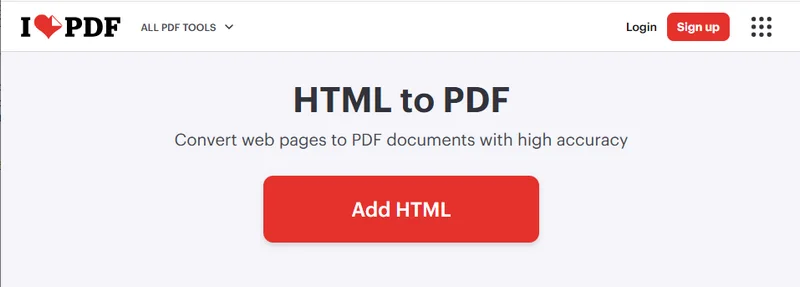
- Ensuite, ajustez les paramètres dans le panneau de droite selon vos besoins, puis cliquez sur Convertir en PDF. Une fois la conversion terminée, vous pouvez télécharger le fichier PDF sur votre ordinateur.
Comment télécharger une page Web en PDF avec du code
En plus des deux méthodes courantes mentionnées ci-dessus, vous pouvez également effectuer cette tâche en utilisant du code — une option plus flexible conçue pour les développeurs. Cette approche offre plusieurs avantages que les méthodes précédentes n'ont pas, tels que le téléchargement par lots, le fonctionnement entièrement hors ligne et une meilleure automatisation pour les tâches à grande échelle.
Dans ce tutoriel, nous utiliserons Spire.Doc for Python pour démontrer comment télécharger une page Web en PDF. En tant que bibliothèque Python professionnelle, elle permet aux développeurs de tout gérer, des conversions de format de document simples aux tâches avancées comme l'édition de contenu et le chiffrement.
Étapes pour télécharger une page Web entière en PDF en Python :
-
Installez Spire.Doc en utilisant la commande
pip install spire.doc. Vous devrez également installer requests, une bibliothèque utilisée pour récupérer le contenu des pages Web. -
Importez les modules requis :
from spire.doc import *
from spire.doc.common import *
import requests
- Spécifiez l'URL de la page Web et récupérez le contenu du HTML:
# Obtenir le contenu HTML de la page Web
url = "/Tutorials/Python/Spire.Doc-for-Python/Program-Guide/Conversion/Python-Convert-HTML-to-PDF.html"
html = requests.get(url).text
- Écrivez le contenu HTML dans un document Word :
# Écrire le HTML dans un document Word
doc = Document()
section = doc.AddSection()
paragraph = section.AddParagraph()
paragraph.AppendHTML(html)
- Enfin, enregistrez le document en tant que fichier PDF :
# Enregistrer le document en PDF
doc.SaveToFile("E:/Administrator/Python1/webpage_to_pdf11.pdf", FileFormat.PDF)
Voici l'exemple de code complet :
from spire.doc import *
from spire.doc.common import *
import requests

# HTML Obtenir le HTML du web
url = "/Tutorials/Python/Spire.Doc-for-Python/Program-Guide/Conversion/Python-Convert-HTML-to-PDF.html"
html = requests.get(url).text

# Écrire le HTML dans le document
doc = Document()
section = doc.AddSection()
paragraph = section.AddParagraph()
paragraph.AppendHTML(html)

# Enregistrer le document en fichier PDF
doc.SaveToFile("E:/Administrator/Python1/webpage_to_pdf11.pdf", FileFormat.PDF)
doc.Close()
Ci-dessous un aperçu du fichier PDF résultant : 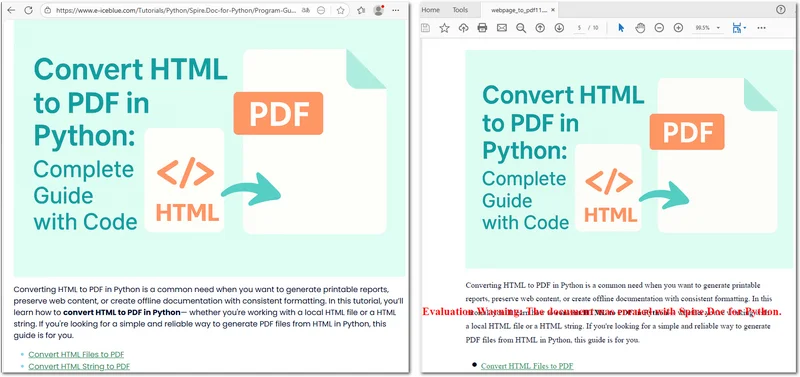
Si vous enregistrez une page Web au format HTML, Spire.Doc peut également facilement la convertir en PDF en utilisant la méthode Document.SaveToFile().
La conclusion
Cet article a présenté trois manières différentes de télécharger une page Web en PDF. En fonction de vos besoins, vous pouvez choisir la méthode qui vous convient le mieux — que ce soit en utilisant les fonctionnalités intégrées, des outils en ligne ou la bibliothèque Python Spire.Doc. Si vous souhaitez explorer des fonctionnalités PDF plus avancées, envisagez d'essayer la licence gratuite de 30 jours de Spire.Doc pour découvrir tout son potentiel.
LIRE AUSSI
Cómo descargar una página web como PDF: Guía para principiantes
A veces te encuentras con una página web que quieres conservar, pero no está permitido copiarla o guardarla directamente. En tales casos, guardar la página web como PDF es una gran solución. Te permite acceder a la página sin conexión en cualquier momento e incluso editar o resaltar el contenido más tarde. En esta guía, explorarás tres formas sencillas de descargar una página web como PDF: utilizando las funciones integradas del navegador, herramientas en línea y métodos basados en código.
- Descargar Página Web como PDF con la Función Incorporada
- Cómo Descargar una Página Web como PDF con Herramientas en Línea
- Cómo Descargar una Página Web como PDF con Código
- La Conclusión
Descargar Página Web como PDF con la Función Incorporada
Cuando necesitas guardar una página web como PDF, el primer instinto de la mayoría de las personas es usar la función de descarga incorporada del navegador. Es la forma más rápida y conveniente de hacerlo. Sin embargo, los pasos pueden variar ligeramente según tu sistema operativo. Veamos cómo descargar una página web como PDF en las dos plataformas más comunes: Windows y macOS.
Descargar una Página Web como PDF en Windows
- Presiona Ctrl + P para abrir el diálogo de impresión.
- En la lista desplegable Impresora, selecciona Microsoft Print to PDF o Guardar como PDF (el nombre puede variar según tu navegador).
- Haz clic en Imprimir para continuar.
- Cuando aparezca el diálogo de archivo, elige una carpeta de destino y haz clic en Guardar.
- Si tu versión de Windows no incluye Microsoft Print to PDF, aún puedes usar la opción incorporada de Chrome Guardar como PDF para descargar la página web como PDF.
Descargar una Página Web como PDF en macOS
- Presiona Command + P para abrir la ventana de impresión.
- En la esquina inferior izquierda, haz clic en el menú desplegable PDF y selecciona Guardar como PDF.
- En Chrome, también puedes elegir Abrir PDF en Vista Previa para verlo antes de guardarlo.
- Cuando se te solicite, selecciona una ubicación para guardar el archivo y confirma.
Cómo Descargar una Página Web como PDF con Herramientas en Línea
Además de las teclas de acceso directo incorporadas en tu computadora, también puedes usar herramientas en línea para guardar una página web como PDF. Estas herramientas son convenientes porque no requieren instalación, funcionan en cualquier dispositivo (computadoras, portátiles y teléfonos móviles) y pueden procesar rápidamente diferentes tipos de contenido web. Los pasos son simples: solo busca "HTML a PDF" o "Descargar página web como PDF" en tu navegador. En el ejemplo a continuación, usaremos iLovePDF, una de las herramientas más populares para este propósito.
- Ve al sitio web oficial de iLovePDF y busca la herramienta HTML a PDF.
- Haz clic en el botón Añadir HTML, luego ingresa la URL de la página web que deseas guardar en la ventana emergente. Después de confirmar que todo es correcto, haz clic en el botón rojo Añadir en la parte inferior derecha.
- A continuación, ajusta la configuración en el panel derecho según sea necesario, luego haz clic en Convertir a PDF. Una vez que se completa la conversión, puedes descargar el archivo PDF a tu computadora.
Cómo Descargar una Página Web como PDF con Código
Además de los dos métodos comunes mencionados anteriormente, también puedes realizar esta tarea usando código, una opción más flexible diseñada para desarrolladores. Este enfoque ofrece varias ventajas que los métodos anteriores no tienen, como la descarga por lotes, la operación completa sin conexión y una mejor automatización para tareas a gran escala.
En este tutorial, usaremos Spire.Doc for Python para demostrar cómo descargar una página web como PDF. Como una biblioteca profesional de Python, permite a los desarrolladores manejar todo, desde conversiones simples de formato de documentos hasta tareas avanzadas como la edición de contenido y el cifrado.
Pasos para descargar una página web completa como PDF en Python:
-
Instala Spire.Doc usando el comando
pip install spire.doc. También necesitarás instalar requests, una biblioteca utilizada para obtener el contenido de la página web. -
Importa los módulos requeridos:
from spire.doc import *
from spire.doc.common import *
import requests
- Especifica la URL de la página web y obtén el contenido de HTML:
# Obtener contenido HTML de la página web
url = "/Tutorials/Python/Spire.Doc-for-Python/Program-Guide/Conversion/Python-Convert-HTML-to-PDF.html"
html = requests.get(url).text
- Escribe el contenido HTML en un documento de Word:
# Escribir HTML en un documento de Word
doc = Document()
section = doc.AddSection()
paragraph = section.AddParagraph()
paragraph.AppendHTML(html)
- Finalmente, guarda el documento como un archivo PDF:
# Guardar el documento como PDF
doc.SaveToFile("E:/Administrator/Python1/webpage_to_pdf11.pdf", FileFormat.PDF)
Aquí está el ejemplo de código completo:
from spire.doc import *
from spire.doc.common import *
import requests

#  HTML Obtener HTML de la web
url = "/Tutorials/Python/Spire.Doc-for-Python/Program-Guide/Conversion/Python-Convert-HTML-to-PDF.html"
html = requests.get(url).text

# Escribir HTML en el documento
doc = Document()
section = doc.AddSection()
paragraph = section.AddParagraph()
paragraph.AppendHTML(html)

# Guardar el documento en un archivo PDF
doc.SaveToFile("E:/Administrator/Python1/webpage_to_pdf11.pdf", FileFormat.PDF)
doc.Close()
A continuación se muestra una vista previa del archivo PDF resultante:
Si guardas una página web en formato HTML, Spire.Doc también puede convertirla fácilmente a PDF usando el método Document.SaveToFile().
La Conclusión
Este artículo presentó tres formas diferentes de descargar una página web como PDF. Dependiendo de tus necesidades, puedes elegir el método que mejor se adapte a ti, ya sea utilizando funciones integradas, herramientas en línea o la biblioteca Spire.Doc para Python. Si deseas explorar funciones de PDF más avanzadas, considera probar la licencia gratuita de 30 días de Spire.Doc para experimentar todo su potencial.
TAMBIÉN LEA
Wie man eine Webseite als PDF herunterlädt: Anleitung für Anfänger
Manchmal stoßen Sie auf eine Webseite, die Sie behalten möchten, aber das direkte Kopieren oder Speichern ist nicht erlaubt. In solchen Fällen ist das Speichern der Webseite als PDF eine großartige Lösung. So können Sie jederzeit offline auf die Seite zugreifen und den Inhalt später sogar bearbeiten oder hervorheben. In dieser Anleitung erfahren Sie drei einfache Möglichkeiten, eine Webseite als PDF herunterzuladen – mit integrierten Browserfunktionen, Online-Tools und codebasierten Methoden.
- Webseite als PDF mit der integrierten Funktion herunterladen
- So laden Sie eine Webseite als PDF mit Online-Tools herunter
- So laden Sie eine Webseite als PDF mit Code herunter
- Fazit
Webseite als PDF mit der integrierten Funktion herunterladen
Wenn Sie eine Webseite als PDF speichern müssen, ist der erste Instinkt der meisten Menschen, die integrierte Download-Funktion des Browsers zu verwenden. Das ist der schnellste und bequemste Weg, um die Aufgabe zu erledigen. Die Schritte können jedoch je nach Betriebssystem leicht variieren. Sehen wir uns an, wie man eine Webseite auf den beiden gängigsten Plattformen – Windows und macOS – als PDF herunterlädt.
Eine Webseite als PDF unter Windows herunterladen
- Drücken Sie Strg + P, um den Druckdialog zu öffnen.
- Wählen Sie in der Dropdown-Liste Drucker die Option Microsoft Print to PDF oder Als PDF speichern aus (der Name kann je nach Browser unterschiedlich sein).
- Klicken Sie auf Drucken, um fortzufahren.
- Wenn das Dateidialogfeld angezeigt wird, wählen Sie einen Zielordner aus und klicken Sie auf Speichern.
- Wenn Ihre Windows-Version Microsoft Print to PDF nicht enthält, können Sie dennoch die integrierte Option Als PDF speichern von Chrome verwenden, um die Webseite als PDF herunterzuladen.
Eine Webseite als PDF unter macOS herunterladen
- Drücken Sie Befehl + P, um das Druckfenster zu öffnen.
- Klicken Sie in der unteren linken Ecke auf das Dropdown-Menü PDF und wählen Sie Als PDF speichern.
- In Chrome können Sie auch PDF in der Vorschau öffnen wählen, um es vor dem Speichern anzuzeigen.
- Wenn Sie dazu aufgefordert werden, wählen Sie einen Speicherort für die Datei aus und bestätigen Sie.
So laden Sie eine Webseite als PDF mit Online-Tools herunter
Neben den integrierten Tastenkombinationen auf Ihrem Computer können Sie auch Online-Tools verwenden, um eine Webseite als PDF zu speichern. Diese Tools sind praktisch, da sie keine Installation erfordern, auf jedem Gerät (Computer, Laptops und Mobiltelefone) funktionieren und verschiedene Arten von Webinhalten schnell verarbeiten können. Die Schritte sind einfach – suchen Sie einfach in Ihrem Browser nach „HTML in PDF“ oder „Webseite als PDF herunterladen“. Im folgenden Beispiel verwenden wir iLovePDF, eines der beliebtesten Tools für diesen Zweck.
- Gehen Sie zur offiziellen iLovePDF-Website und suchen Sie das HTML in PDF-Tool.
- Klicken Sie auf die Schaltfläche HTML hinzufügen und geben Sie dann die URL der Webseite, die Sie speichern möchten, in das Popup-Fenster ein. Nachdem Sie bestätigt haben, dass alles korrekt ist, klicken Sie unten rechts auf die rote Schaltfläche Hinzufügen.
- Passen Sie als Nächstes die Einstellungen im rechten Bereich nach Bedarf an und klicken Sie dann auf In PDF konvertieren. Sobald die Konvertierung abgeschlossen ist, können Sie die PDF-Datei auf Ihren Computer herunterladen.
So laden Sie eine Webseite als PDF mit Code herunter
Zusätzlich zu den beiden oben genannten gängigen Methoden können Sie diese Aufgabe auch mit Code ausführen – eine flexiblere Option, die für Entwickler entwickelt wurde. Dieser Ansatz bietet mehrere Vorteile, die die vorherigen Methoden nicht bieten, wie z. B. Stapel-Downloads, vollständiger Offline-Betrieb und eine bessere Automatisierung für umfangreiche Aufgaben.
In diesem Tutorial verwenden wir Spire.Doc for Python, um zu demonstrieren, wie man eine Webseite als PDF herunterlädt. Als professionelle Python-Bibliothek ermöglicht sie Entwicklern, alles von einfachen Dokumentformatkonvertierungen bis hin zu fortgeschrittenen Aufgaben wie Inhaltsbearbeitung und Verschlüsselung zu bewältigen.
Schritte zum Herunterladen einer gesamten Webseite als PDF in Python:
-
Installieren Sie Spire.Doc mit dem Befehl
pip install spire.doc. Sie müssen auch requests installieren, eine Bibliothek, die zum Abrufen von Webinhalten verwendet wird. -
Importieren Sie die erforderlichen Module:
from spire.doc import *
from spire.doc.common import *
import requests
- Geben Sie die URL der Webseite an und rufen Sie den Inhalt aus HTML ab:
# Get HTML content from the webpage
url = "/Tutorials/Python/Spire.Doc-for-Python/Program-Guide/Conversion/Python-Convert-HTML-to-PDF.html"
html = requests.get(url).text
- Schreiben Sie den HTML-Inhalt in ein Word-Dokument:
# Write HTML to a Word document
doc = Document()
section = doc.AddSection()
paragraph = section.AddParagraph()
paragraph.AppendHTML(html)
- Speichern Sie das Dokument abschließend als PDF-Datei:
# Save the document as a PDF
doc.SaveToFile("E:/Administrator/Python1/webpage_to_pdf11.pdf", FileFormat.PDF)
Hier ist das vollständige Codebeispiel:
from spire.doc import *
from spire.doc.common import *
import requests

#  HTML Get HTML from web
url = "/Tutorials/Python/Spire.Doc-for-Python/Program-Guide/Conversion/Python-Convert-HTML-to-PDF.html"
html = requests.get(url).text

# Write HTML to document
doc = Document()
section = doc.AddSection()
paragraph = section.AddParagraph()
paragraph.AppendHTML(html)

# Save the document to PDF file
doc.SaveToFile("E:/Administrator/Python1/webpage_to_pdf11.pdf", FileFormat.PDF)
doc.Close()
Unten sehen Sie eine Vorschau der resultierenden PDF-Datei:
Wenn Sie eine Webseite im HTML-Format speichern, kann Spire.Doc sie auch einfach mit der Methode Document.SaveToFile() in ein PDF konvertieren.
Fazit
Dieser Artikel hat drei verschiedene Möglichkeiten vorgestellt, eine Webseite als PDF herunterzuladen. Je nach Ihren Bedürfnissen können Sie die Methode wählen, die für Sie am besten geeignet ist – sei es die Verwendung integrierter Funktionen, Online-Tools oder der Spire.Doc Python-Bibliothek. Wenn Sie erweiterte PDF-Funktionen erkunden möchten, sollten Sie die 30-tägige kostenlose Lizenz von Spire.Doc ausprobieren, um das volle Potenzial zu erleben.
LESEN SIE AUCH
Как скачать веб-страницу в формате PDF: Руководство для начинающих
Иногда вы натыкаетесь на веб-страницу, которую хотите сохранить, но прямое копирование или сохранение не разрешено. В таких случаях сохранение веб-страницы в формате PDF — отличное решение. Это позволяет вам получать доступ к странице в автономном режиме в любое время и даже редактировать или выделять содержимое позже. В этом руководстве вы изучите три простых способа скачать веб-страницу в формате PDF — с помощью встроенных функций браузера, онлайн-инструментов и методов на основе кода.
- Скачать веб-страницу в формате PDF с помощью встроенной функции
- Как скачать веб-страницу в формате PDF с помощью онлайн-инструментов
- Как скачать веб-страницу в формате PDF с помощью кода
- Заключение
Скачать веб-страницу в формате PDF с помощью встроенной функции
Когда вам нужно сохранить веб-страницу в формате PDF, большинство людей инстинктивно используют встроенную функцию загрузки браузера. Это самый быстрый и удобный способ выполнить работу. Однако шаги могут незначительно отличаться в зависимости от вашей операционной системы. Давайте посмотрим, как скачать веб-страницу в формате PDF на двух самых распространенных платформах — Windows и macOS.
Скачать веб-страницу в формате PDF в Windows
- Нажмите Ctrl + P, чтобы открыть диалоговое окно печати.
- В раскрывающемся списке Принтер выберите Microsoft Print to PDF или Сохранить как PDF (название может отличаться в зависимости от вашего браузера).
- Нажмите Печать, чтобы продолжить.
- Когда появится диалоговое окно файла, выберите папку назначения и нажмите Сохранить.
- Если ваша версия Windows не включает Microsoft Print to PDF, вы все равно можете использовать встроенную опцию Chrome Сохранить как PDF, чтобы скачать веб-страницу в формате PDF.
Скачать веб-страницу в формате PDF в macOS
- Нажмите Command + P, чтобы открыть окно печати.
- В левом нижнем углу щелкните раскрывающееся меню PDF и выберите Сохранить как PDF.
- В Chrome вы также можете выбрать Открыть PDF в Preview, чтобы просмотреть его перед сохранением.
- Когда будет предложено, выберите место для сохранения файла и подтвердите.
Как скачать веб-страницу в формате PDF с помощью онлайн-инструментов
Помимо встроенных сочетаний клавиш на вашем компьютере, вы также можете использовать онлайн-инструменты для сохранения веб-страницы в формате PDF. Эти инструменты удобны, потому что они не требуют установки, работают на любом устройстве (компьютеры, ноутбуки и мобильные телефоны) и могут быстро обрабатывать различные типы веб-контента. Шаги просты — просто найдите «HTML в PDF» или «Скачать веб-страницу в PDF» в вашем браузере. В приведенном ниже примере мы будем использовать iLovePDF, один из самых популярных инструментов для этой цели.
- Перейдите на официальный сайт iLovePDF и найдите инструмент HTML в PDF.
- Нажмите кнопку Добавить HTML, затем введите URL-адрес веб-страницы, которую вы хотите сохранить, во всплывающем окне. После подтверждения того, что все правильно, нажмите красную кнопку Добавить в правом нижнем углу.
- Затем при необходимости настройте параметры на правой панели и нажмите Конвертировать в PDF. После завершения преобразования вы можете скачать PDF-файл на свой компьютер.
Как скачать веб-страницу в формате PDF с помощью кода
В дополнение к двум распространенным методам, упомянутым выше, вы также можете выполнить эту задачу с помощью кода — более гибкий вариант, предназначенный для разработчиков. Этот подход предлагает несколько преимуществ, которых нет у предыдущих методов, таких как пакетная загрузка, полная автономная работа и лучшая автоматизация для крупномасштабных задач.
В этом руководстве мы будем использовать Spire.Doc for Python, чтобы продемонстрировать, как скачать веб-страницу в формате PDF. Как профессиональная библиотека Python, она позволяет разработчикам выполнять все: от простого преобразования форматов документов до сложных задач, таких как редактирование контента и шифрование.
Шаги по скачиванию всей веб-страницы в формате PDF на Python:
-
Установите Spire.Doc с помощью команды
pip install spire.doc. Вам также потребуется установить requests, библиотеку, используемую для получения содержимого веб-страницы. -
Импортируйте необходимые модули:
from spire.doc import *
from spire.doc.common import *
import requests
- Укажите URL-адрес веб-страницы и получите содержимое из HTML:
# Получить HTML-содержимое с веб-страницы
url = "/Tutorials/Python/Spire.Doc-for-Python/Program-Guide/Conversion/Python-Convert-HTML-to-PDF.html"
html = requests.get(url).text
- Запишите HTML-содержимое в документ Word:
# Записать HTML в документ Word
doc = Document()
section = doc.AddSection()
paragraph = section.AddParagraph()
paragraph.AppendHTML(html)
- Наконец, сохраните документ в виде файла PDF:
# Сохранить документ в формате PDF
doc.SaveToFile("E:/Administrator/Python1/webpage_to_pdf11.pdf", FileFormat.PDF)
Вот полный пример кода:
from spire.doc import *
from spire.doc.common import *
import requests

#  HTML Get HTML from web
url = "/Tutorials/Python/Spire.Doc-for-Python/Program-Guide/Conversion/Python-Convert-HTML-to-PDF.html"
html = requests.get(url).text

# Write HTML to document
doc = Document()
section = doc.AddSection()
paragraph = section.AddParagraph()
paragraph.AppendHTML(html)

# Save the document to PDF file
doc.SaveToFile("E:/Administrator/Python1/webpage_to_pdf11.pdf", FileFormat.PDF)
doc.Close()
Ниже приведен предварительный просмотр полученного файла PDF:
Если вы сохраните веб-страницу в формате HTML, Spire.Doc также может легко преобразовать ее в PDF с помощью метода Document.SaveToFile().
Заключение
В этой статье были представлены три различных способа скачивания веб-страницы в формате PDF. В зависимости от ваших потребностей вы можете выбрать метод, который подходит вам лучше всего — будь то использование встроенных функций, онлайн-инструментов или библиотеки Spire.Doc для Python. Если вы хотите изучить более продвинутые функции PDF, рассмотрите возможность попробовать 30-дневную бесплатную лицензию Spire.Doc, чтобы ощутить весь ее потенциал.
ТАКЖЕ ЧИТАЙТЕ
I 7 migliori strumenti gratuiti per ruotare PDF nel 2026: confronto e classifica
Indice
Hai scansionato un documento sottosopra. Hai un PDF in formato orizzontale misto a pagine verticali. Il tuo telefono ha salvato una ricevuta di lato. Sistemarlo dovrebbe richiedere circa 10 secondi, ma scegliere lo strumento sbagliato può farti perdere tutto il pomeriggio.
Abbiamo confrontato 7 strumenti gratuiti per ruotare PDF — rotatori online, un agente IA, il tuo browser, app desktop e una libreria Python — così puoi scegliere quello giusto in meno di un minuto. Di seguito trovi la tabella di confronto completa, seguita da recensioni dettagliate organizzate in base a ciò che devi effettivamente fare.
Risposta rapida: Ti serve in 10 secondi? → Strumenti online gratuiti. Non vuoi imparare un'interfaccia? → CloudXDocs Agent. Il file è riservato? → Il tuo browser o Adobe Reader. Devi ruotare più di 100 file? → Spire.PDF per Python.
Confronto: 7 strumenti per ruotare PDF a colpo d'occhio
| # | Strumento | Ideale per | Pagina singola | Batch | Locale | Account richiesto | Piattaforma |
|---|---|---|---|---|---|---|---|
| 1 | Strumenti online gratuiti (PDF24, iLovePDF, Smallpdf) | Correzione rapida | Sì | Sì | No | Variabile | Web |
| 2 | CloudXDocs Agent | Rotazione assistita da IA | Sì | Sì | No | Sì (gratuito) | Web |
| 3 | Edge / Chrome | Offline senza installazione | No | No | Sì | No | Integrato |
| 4 | Anteprima macOS | Integrato Mac | Sì | No | Sì | No | Solo Mac |
| 5 | Adobe Acrobat Reader | Standard aziendale | No | No | Sì | No | Windows, Mac |
| 6 | PDF-XChange Editor | Controllo pagina singola (Windows) | Sì | Sì | Sì | No | Windows |
| 7 | Spire.PDF per Python | Sviluppatori, batch | Sì | Sì | Sì | No | Python |
Nota: La maggior parte degli strumenti qui ruota cliccando su pulsanti o usando un'interfaccia. Quando preferisci descrivere la rotazione a parole — o applicarla su molti file — CloudXDocs Agent ti permette di digitare l'istruzione invece di navigare in un editor.
Cosa abbiamo analizzato
Non tutti i rotatori PDF "gratuiti" sono uguali. Prima di iniziare, ecco cosa distingue un buon strumento di rotazione da uno frustrante:
- Salva in modo permanente? In molti visualizzatori PDF gratuiti, inclusi Chrome e Adobe Reader, la rotazione potrebbe influenzare solo la visualizzazione a meno che non si salvi una nuova copia del PDF.
- Pagina singola o tutte le pagine? La maggior parte degli strumenti gratuiti ruota l'intero documento. Se solo la pagina 3 è storta, ne serve uno che gestisca le singole pagine.
- Upload o locale? Gli strumenti online inviano il file a un server. Va bene per una ricevuta, rischioso per un contratto.
- Limiti gratuiti. "Gratuito" può significare 2 operazioni al giorno, un limite di 100 MB o illimitato. Abbiamo specificato ogni caso.
Per una correzione rapida
Hai 1-2 PDF, non sono sensibili e vuoi chiudere la pratica in fretta.
È qui che brillano i rotatori PDF online gratuiti. Nessuna installazione, nessun account (di solito), carica e vai. Tre ottime opzioni:
| PDF24 | iLovePDF | Smallpdf | |
|---|---|---|---|
| Limite gratuito | Utilizzo illimitato | Operazioni limitate | 2 operazioni/giorno |
| Rotazione singola pagina | Sì | Sì | Sì |
| Rotazione batch | Sì | Sì | Sì |
| Dimensione max file | Nessun limite dichiarato | 100 MB (gratis) | ~100 MB (gratis) |
| Account richiesto | No | No | No per uso base |
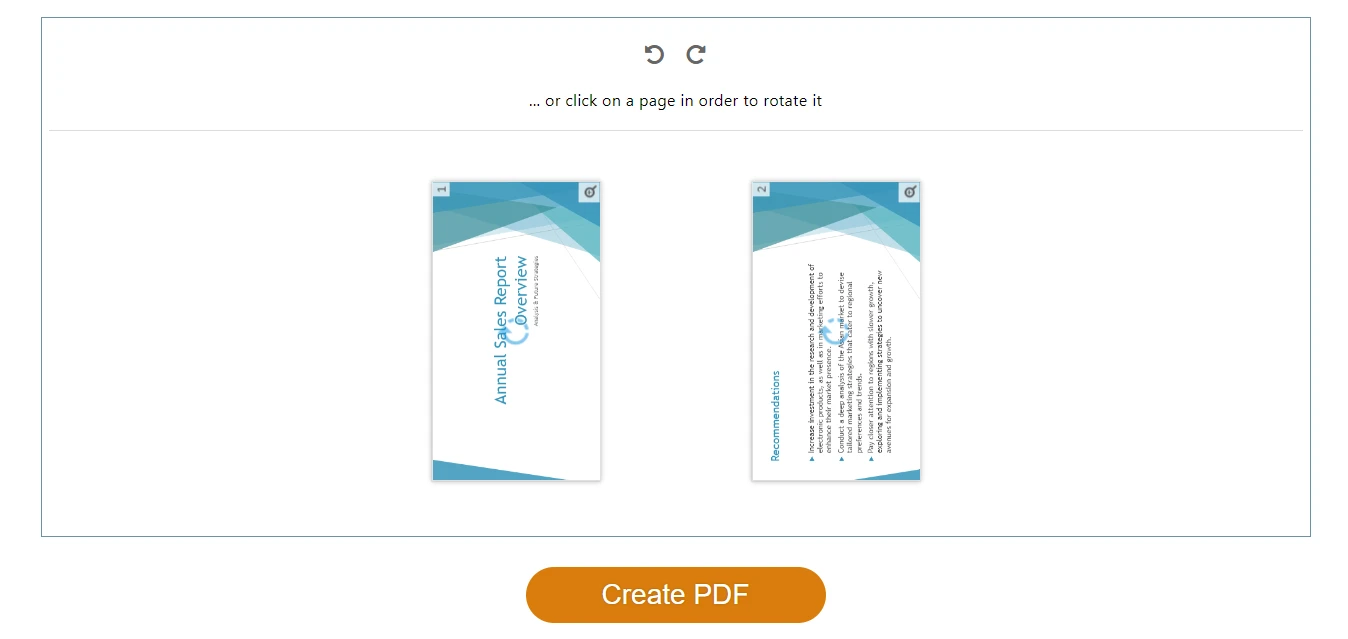
Come funziona (stesso flusso per tutti e tre):
- Apri lo strumento nel browser.
- Carica il tuo PDF.
- Clicca su Ruota — 90° in senso orario o antiorario — sulle singole pagine o su tutte contemporaneamente.
- Scarica il file ruotato. Fatto.
Il flusso di lavoro generale per ruotare un PDF usando uno strumento online gratuito: carica, ruota e scarica.
La nostra scelta: PDF24 se vuoi un uso gratuito veramente illimitato. iLovePDF se sei su mobile (la loro app è migliore). Smallpdf se devi ruotare solo un file oggi e apprezzi l'interfaccia più pulita.
Per la rotazione tramite IA
Preferisci descrivere ciò che vuoi piuttosto che cliccare su un'interfaccia.
CloudXDocs Agent adotta un approccio diverso dai classici rotatori PDF: invece di cliccare su un'interfaccia, descrivi ciò che vuoi in linguaggio naturale e l'agente IA lo applica. Gestisce PDF basati su testo, scansionati e ricchi di immagini.
Dove la rotazione IA si rivela utile:
- Ruotare molte pagine tramite descrizione (es. "ruota tutte le pagine orizzontali in verticale").
- Rotazione come passaggio di un'operazione più complessa (es. "ruota la pagina 3, poi uniscila con un altro PDF").
- Quando non vuoi imparare l'interfaccia di uno strumento — digita semplicemente ciò che ti serve.
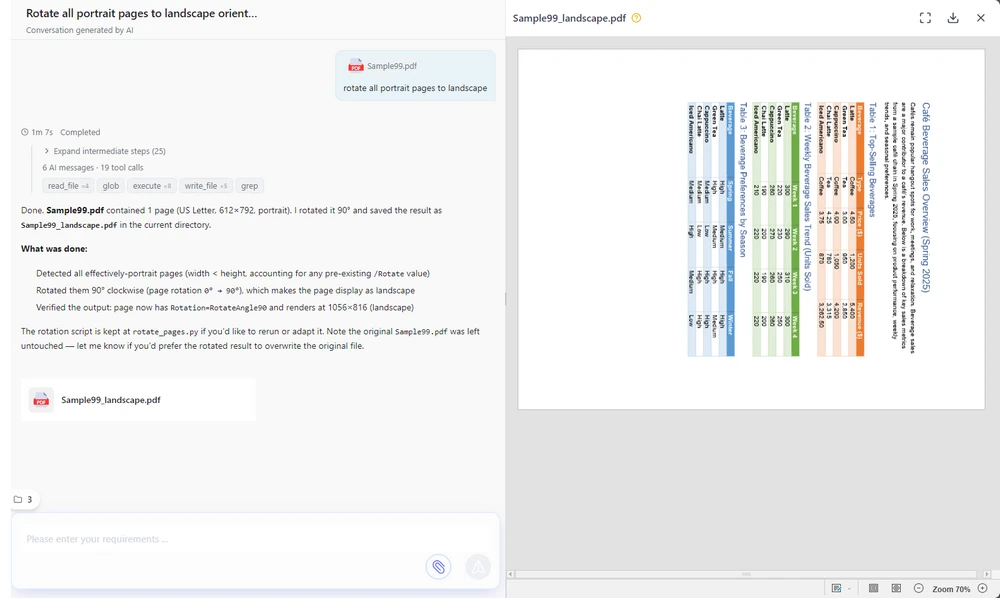
Come funziona:
- Apri CloudXDocs Agent e accedi con un account gratuito.
- Carica il tuo PDF (o incolla un link).
- Digita il tuo comando di rotazione.
- Controlla l'anteprima e scarica.
Ecco l'interfaccia di CloudXDocs Agent con un comando di rotazione digitato e l'anteprima pronta per il download.
Gratuito da usare: Un account gratuito include 600 crediti, con 50 aggiuntivi ogni giorno in cui effettui l'accesso. Una tipica rotazione PDF consuma circa 15 crediti, quindi la dotazione gratuita copre molte operazioni quotidiane.
Pro: Rotazione in linguaggio naturale — nessuna interfaccia da imparare; pagina singola o batch tramite descrizione; gestisce operazioni documentali multi-passaggio; basato su browser. Contro: Basato su cloud (i file vengono elaborati sul server — per la massima privacy offline usa Edge/Chrome o Adobe Reader); richiede un login gratuito.
Per file sensibili: mantieni in locale
Contratti, cartelle cliniche, estratti conto — tutto ciò che non caricheresti su un sito web casuale.
I rotatori PDF online caricano il tuo file sul loro server. Per una ricevuta, nessun problema. Per un NDA o una dichiarazione dei redditi, vuoi che il file rimanga sul tuo computer. Due buone opzioni:
Il tuo browser (zero installazione, zero account)
Il tuo computer ha già un visualizzatore PDF con rotazione integrata — l'opzione offline con il minor attrito possibile.
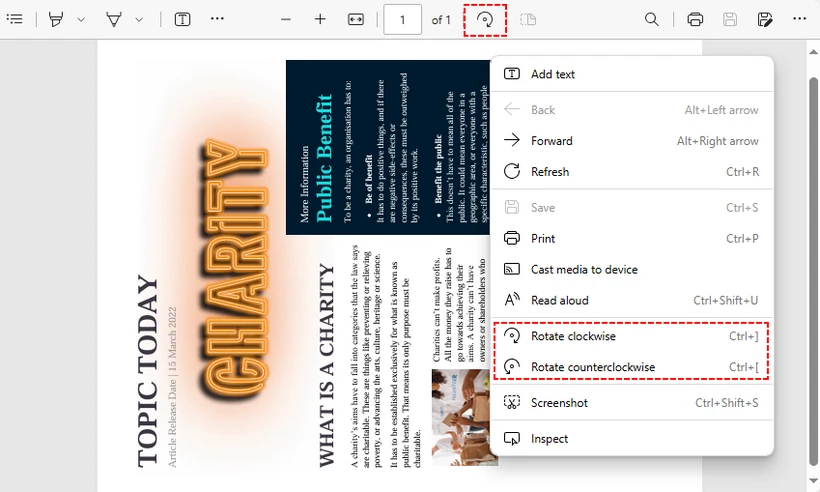
Microsoft Edge:
- Fai clic destro sul tuo PDF → Apri con → Microsoft Edge.
- Clicca sul pulsante Ruota (freccia circolare) nella barra degli strumenti.
- Clicca su Salva con nome per salvare il PDF ruotato.
Ruotare un PDF usando il visualizzatore integrato di Microsoft Edge — nessuna installazione richiesta.
Chrome / Firefox: Questi ruotano solo la visualizzazione. Per salvare in modo permanente: ruota → Ctrl + P → scegli "Salva come PDF" come stampante → Stampa.
Adobe Acrobat Reader (lo standard aziendale)
Se la tua azienda ha già Adobe Reader su ogni macchina, la rotazione è integrata:
- Apri il tuo PDF in Adobe Acrobat Reader DC (gratuito).
- Visualizza → Ruota vista → In senso orario / antiorario.
- File → Stampa → seleziona "Microsoft Print to PDF" → Stampa per salvare la versione ruotata.
⚠️ Errore comune: Sia Chrome che Adobe Reader gratuito ruotano la visualizzazione temporaneamente. Se chiudi il file senza salvare, la rotazione scompare. Il trucco Stampa → Salva come PDF è il modo per renderla permanente gratuitamente.
Pro: Entrambi mantengono i file sul tuo computer; Adobe è preinstallato su molti PC aziendali. Contro: Entrambi ruotano tutte le pagine contemporaneamente nelle versioni gratuite; il passaggio "salva permanentemente" è un workaround, non un salvataggio con un clic. Per la rotazione di singole pagine su Windows, vedi PDF-XChange Editor qui sotto.
Per la rotazione di singole pagine su Windows
Devi ruotare pagine specifiche, non l'intero documento.
PDF-XChange Editor (versione gratuita) è uno dei pochi strumenti desktop gratuiti che ti permette di ruotare singole pagine o un intervallo di pagine personalizzato — una funzione che manca alla maggior parte dei rotatori gratuiti.
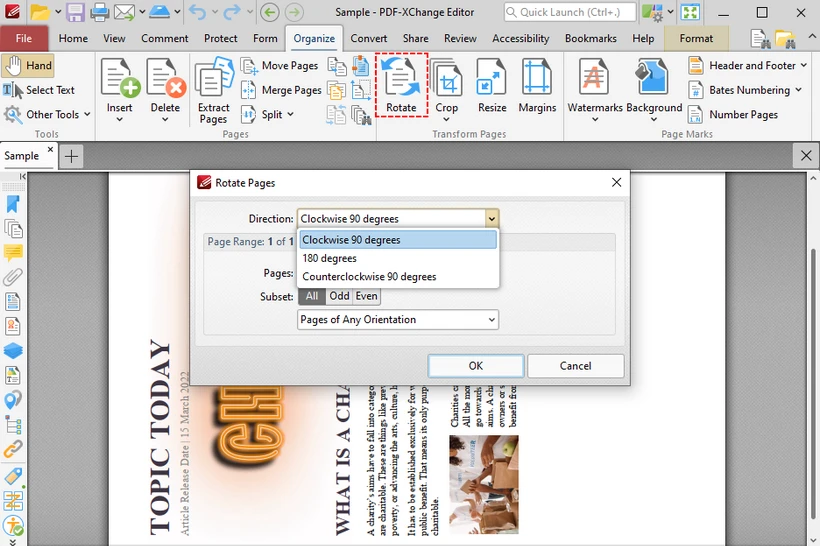
- Scarica e installa PDF-XChange Editor (seleziona la "Versione Gratuita" durante l'installazione).
- Apri il tuo PDF → scheda Organizza → Ruota.
- Nella finestra di dialogo: scegli la direzione, poi seleziona Pagina corrente, Tutte le pagine o un intervallo personalizzato (es.
1,3,5-8). - Clicca su OK → File → Salva con nome.
Ruotare pagine PDF specifiche usando il gratuito PDF-XChange Editor — la finestra di dialogo Ruota pagine con selezione dell'intervallo.
Pro: Gratuito; rotazione specifica per pagina (raro negli strumenti gratuiti); completamente offline; salva permanentemente. Contro: Solo Windows; richiede installazione.
Utenti Mac: Anteprima è la soluzione
Se sei su macOS, non hai bisogno di nulla di tutto ciò. Anteprima gestisce la rotazione nativamente e — a differenza di Chrome o Adobe Reader gratuito — salva permanentemente quando chiudi il file.
- Fai doppio clic sul PDF (si apre in Anteprima di default).
- Vista → Miniature → seleziona la/le pagina/e da ruotare.
- Strumenti → Ruota a sinistra o Ruota a destra (
Cmd + L/Cmd + R). - Chiudi il file — fatto. Anteprima salva automaticamente.
Attenzione: Poiché Anteprima salva automaticamente, duplica prima il file (File → Duplica) se vuoi mantenere l'orientamento originale.
Pro: Integrato in macOS; offline; salva permanentemente; supporta la rotazione di singole pagine. Contro: Solo Mac.
Errori comuni quando si ruotano i PDF
Tre cose che spesso traggono in inganno:
1. "L'ho ruotato ma è tornato normale." Hai ruotato la visualizzazione, non il file. In molti visualizzatori PDF gratuiti, inclusi Chrome, Firefox e Adobe Reader, la rotazione cambia solo la visualizzazione. Usa "Salva con nome" (Edge), Stampa → Salva come PDF, o uno strumento che salva permanentemente (CloudXDocs Agent, PDF24, Anteprima, PDF-XChange Editor).
2. "Non riesco a ruotare solo una pagina." La maggior parte degli strumenti gratuiti ruota tutte le pagine insieme. Per la rotazione di singole pagine, usa CloudXDocs Agent (digita "ruota pagina 3"), iLovePDF (clicca sulle singole miniature), Anteprima di macOS (seleziona le pagine nella barra laterale), PDF-XChange Editor (intervallo personalizzato) o Spire.PDF (codice).
3. "Il file ruotato è sfocato." La rotazione in sé non riduce mai la qualità — è una modifica dei metadati. Se il risultato sembra sfocato, probabilmente hai ristampato tramite una stampante PDF con perdita di dati. Usa "Salva con nome" invece di "Stampa" quando possibile, o scarica direttamente dallo strumento online.
Per rotazione in batch e sviluppatori
Devi ruotare 50, 500 o 5.000 PDF. Gli strumenti online non bastano.
Spire.PDF per Python è una libreria gratuita che ruota i PDF programmaticamente — nessun upload, nessun browser, nessun clic.
Installa:
pip install Spire.Pdf.Free
Ruota una singola pagina:
from spire.pdf.common import *
from spire.pdf import *

# Crea un oggetto PdfDocument
pdf = PdfDocument()

# Carica un documento PDF
pdf.LoadFromFile("Sample.pdf")

# Ottieni la prima pagina
page = pdf.Pages.get_Item(0)

# Ottieni l'angolo di rotazione originale
rotation = int(page.Rotation.value)

# Ruota di 90 gradi in senso orario
rotation += int(PdfPageRotateAngle.RotateAngle90.value)
page.Rotation = PdfPageRotateAngle(rotation)

# Salva il risultato
pdf.SaveToFile("RotatePDFPage.pdf")
pdf.Close()
Per ruotare tutte le pagine in batch, cicla attraverso ogni pagina:
for i in range(pdf.Pages.Count):
    page = pdf.Pages.get_Item(i)
    rotation = int(page.Rotation.value)
    rotation += int(PdfPageRotateAngle.RotateAngle90.value)
    page.Rotation = PdfPageRotateAngle(rotation)
Vedi il tutorial completo sulla rotazione con Spire.PDF Python per altri esempi, inclusa la rotazione di tutte le pagine, intervalli specifici e la combinazione della rotazione con altre operazioni PDF.
Potrebbe interessarti anche: Convertire PDF in HTML o Estrarre testo da PDF dopo la rotazione.
Pro: Ruota pagine specifiche o tutte; batch di qualsiasi numero di PDF con un ciclo; nessun upload (completamente locale); gratuito per uso commerciale. Contro: Richiede conoscenze base di Python; versione gratuita limitata a 10 pagine per PDF.
Come ruotare un PDF su qualsiasi dispositivo
Su Windows
- Più rapido: Rotatori PDF online gratuiti (PDF24, iLovePDF) — carica, ruota, scarica.
- Nessun upload: Visualizzatore integrato Edge — clic destro → Apri con Edge → Ruota → Salva con nome.
- Controllo pagina singola: PDF-XChange Editor (installazione gratuita).
- Aziendale: Adobe Acrobat Reader.
Su Mac
- Integrato: Anteprima → Strumenti → Ruota. Salva automaticamente. Nessuna installazione necessaria.
- Online: Stessi strumenti web di Windows, o CloudXDocs Agent per la rotazione assistita da IA.
Su iPhone / Android
- Più semplice: Carica su CloudXDocs Agent nel tuo browser mobile e descrivi la rotazione — nessuna app da installare, e la gestione tramite IA batte i complicati controlli touch.
- Alternativa: App mobile iLovePDF o Smallpdf dal browser.
FAQ
Posso ruotare un PDF gratuitamente? Sì. Ogni strumento in questa guida è gratuito: PDF24, iLovePDF, Smallpdf (online); Edge/Chrome (integrato); Anteprima macOS; Adobe Reader (offline); PDF-XChange Editor (Windows); CloudXDocs Agent (IA, crediti gratuiti); Spire.PDF (libreria Python).
Posso ruotare un PDF senza Adobe? Certamente. Strumenti online, visualizzatori browser, Anteprima macOS, CloudXDocs Agent, PDF-XChange Editor e script Python ruotano i PDF senza alcun software Adobe.
Come ruoto un PDF in modo permanente? Strumenti che salvano permanentemente: CloudXDocs Agent, PDF24, iLovePDF, Anteprima macOS, Edge ("Salva con nome"), PDF-XChange Editor. Chrome e Firefox richiedono Stampa → Salva come PDF. La versione gratuita di Adobe Reader ruota solo la visualizzazione — usa il trucco della stampa per un file permanente.
Qual è il modo migliore per ruotare più pagine PDF? Per poche pagine: CloudXDocs Agent (descrivi a parole) o iLovePDF. Per centinaia o migliaia: Spire.PDF per Python con un ciclo batch.
Ruotare un PDF ne riduce la qualità? No. La rotazione è una modifica dei soli metadati — testo, immagini e formattazione rimangono esattamente gli stessi.
Qual è il miglior rotatore PDF gratuito nel 2026? PDF24 per uso online illimitato; CloudXDocs Agent per la rotazione assistita da IA senza clic manuali; Edge/Chrome per la comodità senza installazione; Anteprima macOS per utenti Mac.
Posso ruotare solo una pagina di un PDF? Sì. CloudXDocs Agent, iLovePDF, Anteprima macOS, PDF-XChange Editor e Spire.PDF supportano tutti la rotazione di singole pagine. Adobe Reader e Edge/Chrome ruotano solo tutte le pagine insieme.
Correlato: ruotare PDF via codice (sviluppatori)
Se stai costruendo un flusso di lavoro documentale, l'elaborazione PDF lato server è più affidabile degli strumenti online per lavori ripetitivi o ad alto volume:
- Elaborazione PDF batch — ruota migliaia di file in base a una pianificazione.
- Report automatizzati — correggi l'orientamento di estratti conto generati automaticamente.
- Pipeline documentali — ruota come passaggio in un flusso più ampio di conversione/unione/estrazione.
- Applicazioni aziendali — incorpora la rotazione nel tuo prodotto o servizio.
Spire.PDF supporta la rotazione programmatica in C#, Java, Python e altro. Vedi la guida alla rotazione di Spire.PDF per esempi di codice.
Vedi anche
As 7 melhores ferramentas gratuitas para girar PDF em 2026: comparadas e classificadas
Sumário
- Comparação: 7 ferramentas
- O que analisamos
- Correção rápida
- Rotação por IA
- Arquivos sensíveis: mantenha local
- Rotação de página única (Windows)
- Mac: Pré-visualização (Preview)
- Erros comuns ao girar PDFs
- Rotação em lote e desenvolvedores
- Como girar em qualquer dispositivo
- Perguntas frequentes
- Relacionado: girar via código
Digitalizou um documento de cabeça para baixo? Recebeu um PDF em paisagem misturado com páginas em retrato? Seu celular salvou um recibo de lado? Corrigir isso deveria levar 10 segundos — mas escolher a ferramenta errada pode consumir toda a sua tarde.
Comparamos 7 ferramentas gratuitas para girar PDF — rotadores online, um agente de IA, seu navegador, aplicativos de desktop e uma biblioteca Python — para que você possa escolher a certa em menos de um minuto. Abaixo está a tabela de comparação completa, seguida por análises detalhadas organizadas pelo que você realmente precisa fazer.
Resposta rápida: Precisa resolver em 10 segundos? → Ferramentas online gratuitas. Não quer aprender uma interface? → CloudXDocs Agent. O arquivo é confidencial? → Seu navegador ou Adobe Reader. Girando mais de 100 arquivos? → Spire.PDF para Python.
Comparação: 7 ferramentas para girar PDF em um relance
| # | Ferramenta | Melhor para | Página única | Lote | Mantém local | Conta necessária | Plataforma |
|---|---|---|---|---|---|---|---|
| 1 | Ferramentas online gratuitas (PDF24, iLovePDF, Smallpdf) | Correção rápida | Sim | Sim | Não | Varia | Web |
| 2 | CloudXDocs Agent | Rotação assistida por IA | Sim | Sim | Não | Sim (gratuito) | Web |
| 3 | Edge / Chrome | Offline sem instalação | Não | Não | Sim | Não | Nativo |
| 4 | macOS Preview | Nativo do Mac | Sim | Não | Sim | Não | Apenas Mac |
| 5 | Adobe Acrobat Reader | Confiança corporativa | Não | Não | Sim | Não | Windows, Mac |
| 6 | PDF-XChange Editor | Controle de página única (Windows) | Sim | Sim | Sim | Não | Windows |
| 7 | Spire.PDF para Python | Desenvolvedores, lote | Sim | Sim | Sim | Não | Python |
Nota: A maioria das ferramentas aqui gira clicando em botões ou usando uma interface. Quando você preferir descrever a rotação em linguagem simples — ou aplicá-la em vários arquivos — o CloudXDocs Agent permite que você digite a instrução em vez de clicar em um editor.
O que analisamos
Nem todo rotador de PDF "gratuito" é igualmente gratuito. Antes de começar, aqui está o que separa uma boa ferramenta de rotação de uma frustrante:
- Salva permanentemente? Em muitos visualizadores de PDF gratuitos, incluindo Chrome e Adobe Reader, a rotação pode afetar apenas a visualização, a menos que você salve uma nova cópia.
- Página única ou todas? A maioria das ferramentas gira o documento inteiro. Se apenas a página 3 estiver de lado, você precisa de uma que lide com páginas individuais.
- Upload ou local? Ferramentas online enviam seu arquivo para um servidor. Tudo bem para um recibo, arriscado para um contrato.
- Limites gratuitos. "Gratuito" pode significar 2 tarefas/dia, limite de 100 MB ou verdadeiramente ilimitado. Indicamos cada caso.
Para uma correção rápida
Você tem 1 ou 2 PDFs, eles não são confidenciais e você quer resolver isso logo.
É aqui que os rotadores de PDF online gratuitos brilham. Sem instalação, sem conta (geralmente), envie e pronto. Três opções sólidas:
| PDF24 | iLovePDF | Smallpdf | |
|---|---|---|---|
| Limite gratuito | Uso ilimitado | Tarefas limitadas | 2 tarefas/dia |
| Girar página única | Sim | Sim | Sim |
| Girar em lote | Sim | Sim | Sim |
| Tamanho máx. | Sem limite declarado | 100 MB (grátis) | ~100 MB (grátis) |
| Conta necessária | Não | Não | Não (uso básico) |
Como funciona (o fluxo é o mesmo para os três):
- Abra a ferramenta no seu navegador.
- Envie seu PDF.
- Clique em Girar — 90° no sentido horário ou anti-horário — em páginas individuais ou em todas de uma vez.
- Baixe o arquivo girado. Pronto.
O fluxo geral de girar um PDF usando uma ferramenta online gratuita — enviar, girar e baixar.
Nossa escolha: PDF24 se você quer uso gratuito verdadeiramente ilimitado. iLovePDF se estiver no celular (o aplicativo deles é melhor). Smallpdf se você só precisa girar um arquivo hoje e aprecia a interface mais limpa.
Para rotação por IA
Você prefere descrever o que quer do que clicar em uma interface.
O CloudXDocs Agent adota uma abordagem diferente dos rotadores tradicionais: em vez de clicar em uma interface, você descreve o que deseja em linguagem natural e o agente de IA aplica a mudança. Ele lida com PDFs baseados em texto, digitalizados e com muitas imagens.
Onde a rotação por IA se destaca:
- Girar várias páginas por descrição (ex: "gire todas as páginas em paisagem para retrato").
- Rotação como uma etapa de uma tarefa maior (ex: "gire a página 3 e depois mescle com outro PDF").
- Quando você não quer aprender a interface de uma ferramenta — apenas digite o que precisa.
Como funciona:
- Abra o CloudXDocs Agent e entre com uma conta gratuita.
- Envie seu PDF (ou cole um link).
- Digite seu comando de rotação.
- Revise a pré-visualização e baixe.
Aqui está a interface do CloudXDocs Agent com um comando de rotação digitado e a pré-visualização pronta para download.
Uso gratuito: Uma conta gratuita inclui 600 créditos, com 50 a mais a cada dia que você acessar. Uma rotação de PDF típica usa cerca de 15 créditos, então a cota gratuita cobre muitas tarefas diárias.
Prós: Rotação em linguagem natural — sem interface para aprender; página única ou lote via descrição; lida com tarefas de várias etapas; baseado em navegador. Contras: Baseado na nuvem (arquivos processados no servidor — para privacidade total offline, use Edge/Chrome ou Adobe Reader); requer login gratuito.
Para arquivos sensíveis: mantenha local
Contratos, registros médicos, extratos financeiros — qualquer coisa que você não enviaria para um site aleatório.
Rotadores de PDF online enviam seu arquivo para o servidor deles. Para um recibo, sem problemas. Para um NDA ou declaração de imposto, você quer que o arquivo permaneça na sua máquina. Duas boas opções:
Seu navegador (zero instalação, zero conta)
Seu computador já possui um visualizador de PDF com rotação integrada — a opção offline de menor atrito.
Microsoft Edge:
- Clique com o botão direito no seu PDF → Abrir com → Microsoft Edge.
- Clique no botão Girar (seta circular) na barra de ferramentas.
- Clique em Salvar como para salvar o PDF girado.
Girar um PDF usando o visualizador nativo do Microsoft Edge — sem necessidade de instalação.
Chrome / Firefox: Estes giram apenas a visualização. Para salvar permanentemente: gire → Ctrl + P → escolha "Salvar como PDF" como impressora → Imprimir.
Adobe Acrobat Reader (o padrão corporativo)
Se sua empresa já possui o Adobe Reader em todas as máquinas, a rotação está integrada:
- Abra seu PDF no Adobe Acrobat Reader DC (gratuito).
- Visualizar → Girar Visualização → Horário / Anti-horário.
- Arquivo → Imprimir → selecione "Microsoft Print to PDF" → Imprimir para salvar a versão girada.
⚠️ Erro comum: Tanto o Chrome quanto o Adobe Reader gratuito giram a visualização temporariamente. Se você fechar o arquivo sem salvar, a rotação desaparece. O truque de Imprimir → Salvar como PDF é como você torna a alteração permanente de graça.
Prós: Ambos mantêm os arquivos na sua máquina; Adobe é pré-instalado em muitas máquinas de trabalho. Contras: Ambos giram todas as páginas de uma vez nas versões gratuitas; o passo de "salvar permanentemente" é um paliativo, não um salvamento com um clique. Para rotação de página única no Windows, veja o PDF-XChange Editor abaixo.
Para rotação de página única no Windows
Você precisa girar páginas específicas, não o documento inteiro.
O PDF-XChange Editor (versão gratuita) é uma das poucas ferramentas de desktop gratuitas que permite girar páginas individuais ou um intervalo personalizado — um recurso que falta na maioria dos rotadores gratuitos.
- Baixe e instale o PDF-XChange Editor (selecione a "Versão Gratuita" durante a instalação).
- Abra seu PDF → aba Organizar → Girar.
- Na caixa de diálogo: escolha a direção, depois selecione Página atual, Todas as páginas ou um intervalo personalizado (ex:
1,3,5-8). - Clique em OK → Arquivo → Salvar Como.
Girar páginas específicas de PDF usando o PDF-XChange Editor gratuito — a caixa de diálogo Girar Páginas com seleção de intervalo.
Prós: Gratuito; rotação por página (raro em ferramentas gratuitas); totalmente offline; salva permanentemente. Contras: Apenas Windows; requer instalação.
Usuários de Mac: Pré-visualização (Preview)
Se você está no macOS, não precisa de nada disso. O Preview lida com a rotação nativamente e — ao contrário do Chrome ou Adobe Reader — salva permanentemente ao fechar o arquivo.
- Clique duas vezes no PDF (abre no Preview por padrão).
- Visualizar → Miniaturas → selecione a(s) página(s) para girar.
- Ferramentas → Girar para a Esquerda ou Girar para a Direita (
Cmd + L/Cmd + R). - Feche o arquivo — pronto. O Preview salva automaticamente.
Atenção: Como o Preview salva automaticamente, duplique o arquivo primeiro (Arquivo → Duplicar) se quiser manter a orientação original.
Prós: Nativo do macOS; offline; salva permanentemente; suporta rotação de página única. Contras: Apenas Mac.
Erros comuns ao girar PDFs
Três coisas que confundem as pessoas:
1. "Eu girei, mas voltou ao normal." Você girou a visualização, não o arquivo. Em muitos visualizadores gratuitos, a rotação altera apenas a exibição. Use "Salvar como" (Edge), Imprimir → Salvar como PDF, ou uma ferramenta que salva permanentemente (CloudXDocs Agent, PDF24, Preview, PDF-XChange Editor).
2. "Não consigo girar apenas uma página." A maioria das ferramentas gratuitas gira todas as páginas de uma vez. Para rotação de página única, use CloudXDocs Agent (digite "gire a página 3"), iLovePDF (clique nas miniaturas individuais), macOS Preview (selecione páginas na barra lateral), PDF-XChange Editor (intervalo personalizado) ou Spire.PDF (código).
3. "O arquivo girado está embaçado." A rotação em si nunca reduz a qualidade — é uma alteração de metadados. Se o resultado parece embaçado, você provavelmente reimprimiu através de uma impressora PDF de baixa qualidade. Use "Salvar como" em vez de "Imprimir" sempre que possível, ou baixe diretamente da ferramenta online.
Para rotação em lote e desenvolvedores
Você precisa girar 50, 500 ou 5.000 PDFs. Ferramentas online não darão conta.
O Spire.PDF para Python é uma biblioteca gratuita que gira PDFs programaticamente — sem upload, sem navegador, sem cliques.
Instalação:
pip install Spire.Pdf.Free
Girar uma página única:
from spire.pdf.common import *
from spire.pdf import *

# Criar objeto PdfDocument
pdf = PdfDocument()

# Carregar documento PDF
pdf.LoadFromFile("Sample.pdf")

# Obter a primeira página
page = pdf.Pages.get_Item(0)

# Obter ângulo de rotação original
rotation = int(page.Rotation.value)

# Girar 90 graus no sentido horário
rotation += int(PdfPageRotateAngle.RotateAngle90.value)
page.Rotation = PdfPageRotateAngle(rotation)

# Salvar resultado
pdf.SaveToFile("RotatePDFPage.pdf")
pdf.Close()
Para girar todas as páginas em lote, faça um loop por cada página:
for i in range(pdf.Pages.Count):
    page = pdf.Pages.get_Item(i)
    rotation = int(page.Rotation.value)
    rotation += int(PdfPageRotateAngle.RotateAngle90.value)
    page.Rotation = PdfPageRotateAngle(rotation)
Veja o tutorial completo de rotação com Spire.PDF Python para mais exemplos, incluindo girar todas as páginas, intervalos específicos e combinar rotação com outras operações.
Você também pode se interessar por: Converter PDF para HTML ou Extrair texto de um PDF após a rotação.
Prós: Gira páginas específicas ou todas; lote de qualquer número de PDFs com um loop; sem upload (totalmente local); gratuito para uso comercial. Contras: Requer conhecimento básico de Python; versão gratuita limitada a 10 páginas por PDF.
Como girar um PDF em qualquer dispositivo
No Windows
- Mais rápido: Rotadores online (PDF24, iLovePDF) — envie, gire, baixe.
- Sem upload: Visualizador nativo do Edge — botão direito → Abrir com Edge → Girar → Salvar como.
- Controle de página única: PDF-XChange Editor (instalação gratuita).
- Corporativo: Adobe Acrobat Reader.
No Mac
- Nativo: Preview → Ferramentas → Girar. Salva automaticamente. Sem instalação.
- Online: Mesmas ferramentas web do Windows, ou CloudXDocs Agent para rotação assistida por IA.
No iPhone / Android
- Mais fácil: Envie para o CloudXDocs Agent no navegador do celular e descreva a rotação — sem instalar apps, e a IA supera os controles de toque imprecisos.
- Alternativa: Aplicativo móvel iLovePDF ou Smallpdf pelo navegador.
Perguntas frequentes
Posso girar um PDF de graça? Sim. Todas as ferramentas neste guia são gratuitas: PDF24, iLovePDF, Smallpdf (online); Edge/Chrome (nativo); macOS Preview; Adobe Reader (offline); PDF-XChange Editor (Windows); CloudXDocs Agent (IA, créditos grátis); Spire.PDF (biblioteca Python).
Posso girar um PDF sem o Adobe? Com certeza. Ferramentas online, visualizadores de navegador, macOS Preview, CloudXDocs Agent, PDF-XChange Editor e scripts Python giram PDFs sem qualquer software Adobe.
Como girar um PDF permanentemente? Ferramentas que salvam permanentemente: CloudXDocs Agent, PDF24, iLovePDF, macOS Preview, Edge ("Salvar como"), PDF-XChange Editor. Chrome e Firefox precisam de Imprimir → Salvar como PDF. A versão gratuita do Adobe Reader apenas gira a visualização — use o truque de Imprimir para um arquivo permanente.
Qual a melhor forma de girar várias páginas de PDF? Para algumas: CloudXDocs Agent (descreva em palavras) ou iLovePDF. Para centenas ou milhares: Spire.PDF para Python com um loop de lote.
Girar um PDF reduz sua qualidade? Não. A rotação é uma alteração apenas de metadados — texto, imagens e formatação permanecem exatamente iguais.
Qual o melhor rotador de PDF gratuito em 2026? PDF24 para uso online ilimitado; CloudXDocs Agent para rotação assistida por IA sem cliques manuais; Edge/Chrome para conveniência sem instalação; macOS Preview para usuários de Mac.
Posso girar apenas uma página de um PDF? Sim. CloudXDocs Agent, iLovePDF, macOS Preview, PDF-XChange Editor e Spire.PDF suportam rotação de página única. Adobe Reader e Edge/Chrome giram todas as páginas de uma vez.
Relacionado: girar PDFs via código (desenvolvedores)
Se você está criando um fluxo de trabalho documental, o processamento de PDF no lado do servidor é mais confiável do que ferramentas online para trabalhos repetitivos ou de alto volume:
- Processamento em lote — gire milhares de arquivos agendados.
- Relatórios automatizados — corrija a orientação de extratos gerados automaticamente.
- Pipelines de documentos — gire como uma etapa em um fluxo maior de conversão/mesclagem/extração.
- Aplicações corporativas — incorpore a rotação em seu próprio produto ou serviço.
O Spire.PDF suporta rotação programática em C#, Java, Python e mais. Veja o guia de rotação do Spire.PDF para exemplos de código.
Veja Também
2026년 최고의 무료 PDF 회전 도구 7선: 비교 및 순위
스캔한 문서가 거꾸로 되어 있거나, 가로형 PDF에 세로 페이지가 섞여 있거나, 휴대폰으로 저장한 영수증이 옆으로 누워 있는 경우가 있습니다. 이를 수정하는 데는 10초면 충분하지만, 잘못된 도구를 선택하면 소중한 시간을 낭비할 수 있습니다.
7가지 무료 PDF 회전 도구(온라인 회전 도구, AI 에이전트, 브라우저, 데스크톱 앱, Python 라이브러리)를 비교하여 1분 안에 적합한 도구를 선택할 수 있도록 정리했습니다. 아래는 전체 비교표이며, 이어서 필요한 작업 유형별 상세 리뷰가 이어집니다.
빠른 답변: 10초 안에 끝내야 한다면? → 무료 온라인 도구. UI를 배우기 싫다면? → CloudXDocs 에이전트. 파일이 기밀이라면? → 브라우저 또는 Adobe Reader. 100개 이상의 파일을 회전해야 한다면? → Spire.PDF for Python.
비교: 7가지 PDF 회전 도구 한눈에 보기
| # | 도구 | 용도 | 단일 페이지 | 일괄 처리 | 로컬 유지 | 계정 필요 | 플랫폼 |
|---|---|---|---|---|---|---|---|
| 1 | 무료 온라인 도구 (PDF24, iLovePDF, Smallpdf) | 빠른 일회성 수정 | 예 | 예 | 아니오 | 다름 | 웹 |
| 2 | CloudXDocs 에이전트 | AI 지원 회전 | 예 | 예 | 아니오 | 예 (무료) | 웹 |
| 3 | Edge / Chrome | 설치 없는 오프라인 | 아니오 | 아니오 | 예 | 아니오 | 내장 |
| 4 | macOS 미리보기 | Mac 내장 도구 | 예 | 아니오 | 예 | 아니오 | Mac 전용 |
| 5 | Adobe Acrobat Reader | 기업용 신뢰성 | 아니오 | 아니오 | 예 | 아니오 | Windows, Mac |
| 6 | PDF-XChange Editor | 단일 페이지 제어 (Windows) | 예 | 예 | 예 | 아니오 | Windows |
| 7 | Spire.PDF for Python | 개발자, 일괄 처리 | 예 | 예 | 예 | 아니오 | Python |
참고: 여기 나열된 대부분의 도구는 버튼 클릭이나 UI를 사용하여 회전합니다. 일반 언어로 회전 명령을 내리거나 여러 파일에 적용하고 싶다면 CloudXDocs 에이전트를 통해 편집기를 클릭하는 대신 명령어를 입력할 수 있습니다.
평가 기준
모든 "무료" PDF 회전 도구가 똑같이 무료인 것은 아닙니다. 본격적으로 살펴보기 전에, 좋은 회전 도구와 그렇지 않은 도구를 구분하는 기준은 다음과 같습니다:
- 영구적으로 저장되는가? Chrome이나 무료 Adobe Reader를 포함한 많은 무료 PDF 뷰어에서는 새 PDF 사본을 저장하지 않으면 회전이 화면상에서만 적용됩니다.
- 단일 페이지인가, 전체 페이지인가? 대부분의 무료 도구는 문서 전체를 회전합니다. 3페이지만 옆으로 누워 있다면 개별 페이지를 처리할 수 있는 도구가 필요합니다.
- 업로드 방식인가, 로컬 방식인가? 온라인 도구는 파일을 서버로 전송합니다. 영수증에는 괜찮지만, 계약서에는 위험할 수 있습니다.
- 무료 제한. "무료"는 하루 2회 작업 제한, 100MB 파일 크기 제한, 또는 완전 무제한을 의미할 수 있습니다. 각 도구의 제한 사항을 명시했습니다.
빠른 일회성 수정
PDF가 1~2개이고 민감한 내용이 아니며, 빨리 끝내고 싶을 때.
이럴 때는 무료 온라인 PDF 회전 도구가 최고입니다. 설치도, 계정 생성(대부분)도 필요 없이 업로드하고 바로 처리할 수 있습니다. 추천하는 세 가지 옵션:
| PDF24 | iLovePDF | Smallpdf | |
|---|---|---|---|
| 무료 제한 | 사용 무제한 | 무료 작업 제한 | 하루 2회 작업 |
| 단일 페이지 회전 | 예 | 예 | 예 |
| 일괄 회전 | 예 | 예 | 예 |
| 최대 파일 크기 | 제한 없음 | 100 MB (무료) | 약 100 MB (무료) |
| 계정 필요 | 아니오 | 아니오 | 기본 사용 시 아니오 |
작동 방식 (세 도구 모두 동일):
- 브라우저에서 도구를 엽니다.
- PDF를 업로드합니다.
- 회전 버튼(시계 방향 또는 반시계 방향 90도)을 클릭하여 개별 페이지나 전체 페이지를 회전합니다.
- 회전된 파일을 다운로드합니다. 끝입니다.
무료 온라인 도구를 사용하여 PDF를 회전하는 일반적인 워크플로우(업로드, 회전, 다운로드).
추천: 완전 무제한 무료 사용을 원한다면 PDF24를, 모바일 환경이라면 iLovePDF(앱이 더 우수함)를, 오늘 딱 한 파일만 회전하면 되고 깔끔한 인터페이스를 선호한다면 Smallpdf를 추천합니다.
AI를 활용한 자동 회전
UI를 클릭하는 것보다 원하는 바를 설명하는 것이 더 편할 때.
CloudXDocs 에이전트는 기존 PDF 회전 도구와는 다른 접근 방식을 취합니다. 회전 UI를 클릭하는 대신, 자연어로 원하는 바를 설명하면 AI 에이전트가 이를 적용합니다. 텍스트 기반, 스캔본, 이미지 위주의 PDF 모두 처리 가능합니다.
AI 회전이 유용한 경우:
- 설명으로 여러 페이지 회전 (예: "모든 가로 페이지를 세로로 회전해줘").
- 더 큰 작업의 일부로서의 회전 (예: "3페이지를 회전한 다음 다른 PDF와 병합해줘").
- 도구의 UI를 배우기 싫을 때 — 필요한 내용을 입력하기만 하면 됩니다.
작동 방식:
- CloudXDocs 에이전트를 열고 무료 계정으로 로그인합니다.
- PDF를 업로드(또는 링크 붙여넣기)합니다.
- 회전 명령을 입력합니다.
- 미리보기를 확인하고 다운로드합니다.
회전 명령이 입력되고 다운로드할 미리보기가 준비된 CloudXDocs 에이전트 인터페이스.
무료 사용: 무료 계정에는 600 크레딧이 포함되어 있으며, 매일 접속 시 50 크레딧이 추가됩니다. 일반적인 PDF 회전은 약 15 크레딧을 사용하므로, 무료 제공량으로도 일상적인 작업을 충분히 처리할 수 있습니다.
장점: 자연어 회전(UI 학습 불필요), 설명 기반 단일/일괄 페이지 회전, 다단계 문서 작업 처리, 브라우저 기반. 단점: 클라우드 기반(파일이 서버에서 처리됨 — 완벽한 오프라인 개인정보 보호를 원하면 Edge/Chrome 또는 Adobe Reader 사용), 무료 로그인 필요.
민감한 파일: 로컬 유지
계약서, 의료 기록, 재무제표 등 임의의 웹사이트에 업로드하고 싶지 않은 모든 파일.
온라인 PDF 회전 도구는 파일을 서버로 업로드합니다. 영수증은 괜찮지만, NDA(비밀유지계약서)나 세금 신고서라면 파일이 내 컴퓨터에 머물러야 합니다. 두 가지 좋은 옵션이 있습니다:
브라우저 사용 (설치 없음, 계정 없음)
컴퓨터에는 이미 회전 기능이 내장된 PDF 뷰어가 있습니다. 가장 마찰이 적은 오프라인 옵션입니다.
Microsoft Edge:
- PDF 우클릭 → 연결 프로그램 → Microsoft Edge.
- 도구 모음에서 회전 버튼(원형 화살표)을 클릭합니다.
- 다른 이름으로 저장을 클릭하여 회전된 PDF를 저장합니다.
Microsoft Edge의 내장 PDF 뷰어를 사용하여 PDF 회전하기(설치 불필요).
Chrome / Firefox: 이 브라우저들은 보기만 회전합니다. 영구적으로 저장하려면: 회전 → Ctrl + P → 프린터로 "PDF로 저장" 선택 → 인쇄.
Adobe Acrobat Reader (기업 표준)
회사 컴퓨터에 이미 Adobe Reader가 설치되어 있다면 회전 기능이 내장되어 있습니다:
- Adobe Acrobat Reader DC(무료)에서 PDF를 엽니다.
- 보기 → 보기 회전 → 시계 방향 / 반시계 방향.
- 파일 → 인쇄 → "Microsoft Print to PDF" 선택 → 인쇄하여 회전된 버전 저장.
⚠️ 흔한 실수: Chrome과 무료 Adobe Reader 모두 보기만 일시적으로 회전합니다. 저장하지 않고 파일을 닫으면 회전이 사라집니다. '인쇄 → PDF로 저장' 방식이 무료로 영구 저장하는 방법입니다.
장점: 둘 다 파일을 컴퓨터에 유지함, Adobe는 많은 업무용 PC에 사전 설치됨. 단점: 무료 버전에서는 모든 페이지를 한꺼번에 회전함, '영구 저장' 단계가 번거로움. Windows에서 단일 페이지 회전은 아래의 PDF-XChange Editor를 참조하세요.
Windows에서 단일 페이지 회전
문서 전체가 아니라 특정 페이지만 회전해야 할 때.
PDF-XChange Editor(무료 버전)는 개별 페이지나 사용자 지정 페이지 범위를 회전할 수 있는 몇 안 되는 무료 데스크톱 도구 중 하나입니다.
- PDF-XChange Editor를 다운로드 및 설치합니다(설치 중 "무료 버전" 선택).
- PDF 열기 → 구성(Organize) 탭 → 회전(Rotate).
- 대화 상자에서 방향을 선택하고 현재 페이지, 전체 페이지 또는 사용자 지정 범위(예:
1,3,5-8)를 선택합니다. - 확인 클릭 → 파일 → 다른 이름으로 저장.
무료 PDF-XChange Editor를 사용하여 특정 PDF 페이지 회전하기(페이지 범위 선택이 가능한 회전 대화 상자).
장점: 무료, 페이지별 회전 가능(무료 도구에서 드묾), 완전 오프라인, 영구 저장. 단점: Windows 전용, 설치 필요.
Mac 사용자: 미리보기(Preview) 활용
macOS를 사용 중이라면 위의 도구들이 필요 없습니다. 미리보기(Preview)는 기본적으로 회전을 지원하며, Chrome이나 무료 Adobe Reader와 달리 파일을 닫을 때 영구적으로 저장됩니다.
- PDF를 더블 클릭합니다(기본적으로 미리보기로 열림).
- 보기 → 축소판(Thumbnails) → 회전할 페이지 선택.
- 도구 → 왼쪽으로 회전 또는 오른쪽으로 회전 (
Cmd + L/Cmd + R). - 파일을 닫으면 완료됩니다. 미리보기가 자동으로 저장합니다.
주의: 미리보기는 자동 저장되므로, 원본 방향을 유지하려면 먼저 파일을 복제(파일 → 복제)하세요.
장점: macOS 내장, 오프라인, 영구 저장, 단일 페이지 회전 지원. 단점: Mac 전용.
PDF 회전 시 흔한 실수
사람들이 자주 겪는 세 가지 문제:
1. "회전했는데 다시 원래대로 돌아왔어요." 파일이 아니라 보기만 회전한 것입니다. Chrome, Firefox, 무료 Adobe Reader 등 많은 무료 PDF 뷰어에서 회전은 화면 표시만 변경합니다. "다른 이름으로 저장"(Edge), '인쇄 → PDF로 저장'을 사용하거나 영구적으로 저장되는 도구(CloudXDocs 에이전트, PDF24, 미리보기, PDF-XChange Editor)를 사용하세요.
2. "한 페이지만 회전할 수 없어요." 대부분의 무료 도구는 모든 페이지를 한꺼번에 회전합니다. 단일 페이지 회전이 필요하면 CloudXDocs 에이전트("3페이지 회전" 입력), iLovePDF(개별 축소판 클릭), macOS 미리보기(사이드바에서 페이지 선택), PDF-XChange Editor(사용자 지정 페이지 범위), 또는 Spire.PDF(코드)를 사용하세요.
3. "회전된 파일이 흐릿해요." 회전 자체는 품질을 저하시키지 않습니다(메타데이터 변경일 뿐). 결과물이 흐릿하다면 손실이 발생하는 PDF 프린터를 통해 다시 인쇄했을 가능성이 큽니다. 가능하면 "인쇄" 대신 "다른 이름으로 저장"을 사용하거나 온라인 도구에서 직접 다운로드하세요.
일괄 회전 및 개발자용
50개, 500개, 5,000개의 PDF를 회전해야 할 때. 온라인 도구로는 불가능합니다.
Spire.PDF for Python은 업로드, 브라우저, 클릭 없이 프로그래밍 방식으로 PDF를 회전하는 무료 라이브러리입니다.
설치:
pip install Spire.Pdf.Free
단일 페이지 회전:
from spire.pdf.common import *
from spire.pdf import *

# PdfDocument 객체 생성
pdf = PdfDocument()

# PDF 문서 로드
pdf.LoadFromFile("Sample.pdf")

# 첫 번째 페이지 가져오기
page = pdf.Pages.get_Item(0)

# 원래 회전 각도 가져오기
rotation = int(page.Rotation.value)

# 시계 방향으로 90도 회전
rotation += int(PdfPageRotateAngle.RotateAngle90.value)
page.Rotation = PdfPageRotateAngle(rotation)

# 결과 저장
pdf.SaveToFile("RotatePDFPage.pdf")
pdf.Close()
일괄적으로 모든 페이지를 회전하려면 각 페이지를 루프 처리합니다:
for i in range(pdf.Pages.Count):
    page = pdf.Pages.get_Item(i)
    rotation = int(page.Rotation.value)
    rotation += int(PdfPageRotateAngle.RotateAngle90.value)
    page.Rotation = PdfPageRotateAngle(rotation)
모든 페이지 회전, 특정 범위 회전, 회전과 다른 PDF 작업을 결합하는 등 더 많은 예제는 Spire.PDF Python 회전 튜토리얼을 참조하세요.
회전 후 PDF를 HTML로 변환하거나 PDF에서 텍스트 추출하는 작업에도 관심이 있으실 수 있습니다.
장점: 특정 페이지 또는 전체 페이지 회전, 루프를 통한 대량 PDF 일괄 처리, 업로드 없음(완전 로컬), 상업적 사용 무료. 단점: 기본적인 Python 지식 필요, 무료 버전은 PDF당 10페이지로 제한.
모든 기기에서 PDF 회전하는 방법
Windows에서
- 가장 빠름: 무료 온라인 PDF 회전 도구(PDF24, iLovePDF) — 업로드, 회전, 다운로드.
- 업로드 없음: Edge 내장 뷰어 — 우클릭 → Edge로 열기 → 회전 → 다른 이름으로 저장.
- 단일 페이지 제어: PDF-XChange Editor(무료 설치).
- 기업용: Adobe Acrobat Reader.
Mac에서
- 내장 도구: 미리보기(Preview) → 도구 → 회전. 자동 저장. 설치 불필요.
- 온라인: Windows와 동일한 웹 도구, 또는 AI 지원 회전을 위한 CloudXDocs 에이전트.
iPhone / Android에서
- 가장 쉬움: 모바일 브라우저에서 CloudXDocs 에이전트에 업로드하고 회전 명령을 설명하세요. 앱 설치가 필요 없으며 AI가 터치 컨트롤보다 훨씬 편리합니다.
- 대안: iLovePDF 모바일 앱 또는 브라우저에서 Smallpdf 사용.
자주 묻는 질문(FAQ)
PDF를 무료로 회전할 수 있나요? 네. 이 가이드의 모든 도구는 무료입니다: PDF24, iLovePDF, Smallpdf(온라인); Edge/Chrome(내장); macOS 미리보기; Adobe Reader(오프라인); PDF-XChange Editor(Windows); CloudXDocs 에이전트(AI, 무료 크레딧); Spire.PDF(Python 라이브러리).
Adobe 없이 PDF를 회전할 수 있나요? 물론입니다. 온라인 도구, 브라우저 뷰어, macOS 미리보기, CloudXDocs 에이전트, PDF-XChange Editor, Python 스크립트 모두 Adobe 소프트웨어 없이 PDF를 회전합니다.
PDF를 영구적으로 회전하려면 어떻게 하나요? 영구적으로 저장되는 도구: CloudXDocs 에이전트, PDF24, iLovePDF, macOS 미리보기, Edge("다른 이름으로 저장"), PDF-XChange Editor. Chrome과 Firefox는 '인쇄 → PDF로 저장'을 사용해야 합니다. Adobe Reader 무료 버전은 보기만 회전하므로 인쇄 우회 방법을 사용하세요.
여러 PDF 페이지를 회전하는 가장 좋은 방법은 무엇인가요? 소량의 경우: CloudXDocs 에이전트(말로 설명) 또는 iLovePDF. 수백~수천 개의 경우: 루프를 사용하는 Spire.PDF for Python.
PDF를 회전하면 품질이 떨어지나요? 아니요. 회전은 메타데이터 변경일 뿐이므로 텍스트, 이미지, 서식은 그대로 유지됩니다.
2026년 최고의 무료 PDF 회전 도구는 무엇인가요? 무제한 온라인 사용은 PDF24, 수동 클릭 없는 AI 지원 회전은 CloudXDocs 에이전트, 설치 없는 편리함은 Edge/Chrome, Mac 사용자는 미리보기(Preview)를 추천합니다.
PDF의 한 페이지만 회전할 수 있나요? 네. CloudXDocs 에이전트, iLovePDF, macOS 미리보기, PDF-XChange Editor, Spire.PDF 모두 단일 페이지 회전을 지원합니다. Adobe Reader와 Edge/Chrome은 전체 페이지 회전만 가능합니다.
관련: 코드로 PDF 회전하기 (개발자용)
문서 워크플로우를 구축 중이라면, 반복적이거나 대량 작업에는 온라인 도구보다 서버 측 PDF 처리가 더 안정적입니다:
- 일괄 PDF 처리 — 일정에 따라 수천 개의 파일 회전.
- 자동 보고서 — 자동 생성된 명세서의 방향 수정.
- 문서 파이프라인 — 변환/병합/추출 흐름의 한 단계로 회전 포함.
- 기업용 애플리케이션 — 자체 제품이나 서비스에 회전 기능 내장.
Spire.PDF는 C#, Java, Python 등에서 프로그래밍 방식의 회전을 지원합니다. 코드 샘플은 Spire.PDF 회전 가이드를 참조하세요.
더 보기
Les 7 meilleurs outils gratuits pour faire pivoter des PDF en 2026 : comparatif et classement
Table des matières
- Comparaison : 7 outils
- Ce que nous avons examiné
- Correction rapide ponctuelle
- Rotation par IA
- Fichiers sensibles : rester local
- Rotation d'une seule page (Windows)
- Mac : Aperçu (Preview)
- Erreurs courantes
- Rotation par lots et développeurs
- Comment faire sur n'importe quel appareil
- FAQ
- Connexe : rotation par code
Vous avez scanné un document à l'envers ? Vous avez un PDF en mode paysage mélangé à des pages en mode portrait ? Votre téléphone a enregistré un reçu de côté ? La correction devrait prendre environ 10 secondes, mais choisir le mauvais outil peut vous faire perdre tout votre après-midi.
Nous avons comparé 7 outils gratuits de rotation PDF — outils en ligne, agent IA, votre navigateur, applications de bureau et une bibliothèque Python — afin que vous puissiez choisir le bon en moins d'une minute. Vous trouverez ci-dessous le tableau comparatif complet, suivi d'évaluations détaillées organisées selon ce que vous devez réellement faire.
Réponse rapide : Besoin d'une solution en 10 secondes ? → Outils en ligne gratuits. Vous ne voulez pas apprendre une interface ? → CloudXDocs Agent. Fichier confidentiel ? → Votre navigateur ou Adobe Reader. Rotation de plus de 100 fichiers ? → Spire.PDF pour Python.
Comparaison : 7 outils de rotation PDF en un coup d'œil
| # | Outil | Idéal pour | Page unique | Par lots | Local | Compte requis | Plateforme |
|---|---|---|---|---|---|---|---|
| 1 | Outils en ligne gratuits (PDF24, iLovePDF, Smallpdf) | Correction rapide | Oui | Oui | Non | Variable | Web |
| 2 | CloudXDocs Agent | Rotation assistée par IA | Oui | Oui | Non | Oui (gratuit) | Web |
| 3 | Edge / Chrome | Hors ligne sans installation | Non | Non | Oui | Non | Intégré |
| 4 | macOS Aperçu | Intégré Mac | Oui | Non | Oui | Non | Mac seulement |
| 5 | Adobe Acrobat Reader | Confiance entreprise | Non | Non | Oui | Non | Windows, Mac |
| 6 | PDF-XChange Editor | Contrôle page unique (Windows) | Oui | Oui | Oui | Non | Windows |
| 7 | Spire.PDF pour Python | Développeurs, lots | Oui | Oui | Oui | Non | Python |
Note : La plupart des outils ici effectuent la rotation en cliquant sur des boutons ou via une interface. Lorsque vous préférez décrire la rotation en langage naturel — ou l'appliquer à de nombreux fichiers — CloudXDocs Agent vous permet de taper l'instruction au lieu de naviguer dans un éditeur.
Ce que nous avons examiné
Tous les rotateurs PDF "gratuits" ne se valent pas. Voici ce qui différencie un bon outil d'un outil frustrant :
- Enregistre-t-il de façon permanente ? Dans de nombreuses visionneuses gratuites, y compris Chrome et Adobe Reader, la rotation peut n'affecter que l'affichage à moins d'enregistrer une nouvelle copie.
- Page unique ou toutes les pages ? La plupart des outils gratuits font pivoter tout le document. Si seule la page 3 est de côté, vous en avez besoin d'un qui gère les pages individuelles.
- Téléchargement ou local ? Les outils en ligne envoient votre fichier sur un serveur. Très bien pour un reçu, risqué pour un contrat.
- Limites gratuites. "Gratuit" peut signifier 2 tâches/jour, une limite de 100 Mo, ou vraiment illimité. Nous précisons chaque cas.
Pour une correction rapide ponctuelle
Vous avez 1 ou 2 PDF, ils ne sont pas sensibles et vous voulez en finir rapidement.
C'est là que les rotateurs PDF en ligne gratuits excellent. Pas d'installation, pas de compte (généralement), téléchargez et c'est parti. Trois options solides :
| PDF24 | iLovePDF | Smallpdf | |
|---|---|---|---|
| Limite gratuite | Utilisation illimitée | Tâches gratuites limitées | 2 tâches/jour |
| Rotation page unique | Oui | Oui | Oui |
| Rotation par lots | Oui | Oui | Oui |
| Taille max fichier | Aucune limite déclarée | 100 Mo (gratuit) | ~100 Mo (gratuit) |
| Compte requis | Non | Non | Non pour usage basique |
Comment ça fonctionne (même flux pour les trois) :
- Ouvrez l'outil dans votre navigateur.
- Téléchargez votre PDF.
- Cliquez sur Rotation — 90° dans le sens horaire ou anti-horaire — sur des pages individuelles ou toutes les pages à la fois.
- Téléchargez le fichier pivoté. C'est fait.
Le flux de travail général pour faire pivoter un PDF à l'aide d'un outil en ligne gratuit : télécharger, faire pivoter et télécharger.
Notre choix : PDF24 si vous voulez une utilisation gratuite vraiment illimitée. iLovePDF si vous êtes sur mobile (leur application est meilleure). Smallpdf si vous n'avez besoin de faire pivoter qu'un seul fichier aujourd'hui et que vous appréciez l'interface la plus propre.
Pour une rotation par IA
Vous préférez décrire ce que vous voulez plutôt que de cliquer dans une interface.
CloudXDocs Agent adopte une approche différente des rotateurs PDF traditionnels : au lieu de cliquer dans une interface, vous décrivez ce que vous voulez en langage naturel et l'agent IA l'applique. Il gère les PDF textuels, scannés et riches en images.
Où la rotation par IA se révèle utile :
- Faire pivoter de nombreuses pages par description (ex. : "faire pivoter toutes les pages paysage en portrait").
- La rotation comme étape d'une tâche plus large (ex. : "faire pivoter la page 3, puis fusionner avec un autre PDF").
- Quand vous ne voulez pas apprendre l'interface d'un outil — tapez simplement ce dont vous avez besoin.
Comment ça fonctionne :
- Ouvrez CloudXDocs Agent et connectez-vous avec un compte gratuit.
- Téléchargez votre PDF (ou collez un lien).
- Tapez votre commande de rotation.
- Vérifiez l'aperçu et téléchargez.
Voici l'interface de CloudXDocs Agent avec une commande de rotation saisie et l'aperçu prêt à être téléchargé.
Gratuit : Un compte gratuit inclut 600 crédits, avec 50 de plus chaque jour où vous vous connectez. Une rotation PDF typique utilise environ 15 crédits, donc l'allocation gratuite couvre de nombreuses tâches quotidiennes.
Avantages : Rotation en langage naturel — pas d'interface à apprendre ; page unique ou par lots via description ; gère les tâches documentaires multi-étapes ; basé sur navigateur. Inconvénients : Basé sur le cloud (fichiers traités côté serveur — pour une confidentialité totale hors ligne, utilisez Edge/Chrome ou Adobe Reader) ; nécessite une connexion gratuite.
Pour les fichiers sensibles : restez local
Contrats, dossiers médicaux, relevés financiers — tout ce que vous ne téléchargeriez pas sur un site web aléatoire.
Les rotateurs PDF en ligne téléchargent votre fichier sur leur serveur. Pour un reçu, pas de problème. Pour un accord de confidentialité ou une déclaration d'impôts, vous voulez que le fichier reste sur votre machine. Deux bonnes options :
Votre navigateur (zéro installation, zéro compte)
Votre ordinateur possède déjà une visionneuse PDF avec rotation intégrée — l'option hors ligne la plus simple.
Microsoft Edge :
- Clic droit sur votre PDF → Ouvrir avec → Microsoft Edge.
- Cliquez sur le bouton Rotation (flèche circulaire) dans la barre d'outils.
- Cliquez sur Enregistrer sous pour sauvegarder le PDF pivoté.
Faire pivoter un PDF en utilisant la visionneuse intégrée de Microsoft Edge — aucune installation requise.
Chrome / Firefox : Ils ne font pivoter que l'affichage. Pour enregistrer de façon permanente : rotation → Ctrl + P → choisissez "Enregistrer au format PDF" comme imprimante → Imprimer.
Adobe Acrobat Reader (la référence entreprise)
Si votre entreprise possède déjà Adobe Reader sur chaque machine, la rotation est intégrée :
- Ouvrez votre PDF dans Adobe Acrobat Reader DC (gratuit).
- Affichage → Rotation de l'affichage → Sens horaire / Anti-horaire.
- Fichier → Imprimer → sélectionnez "Microsoft Print to PDF" → Imprimer pour enregistrer la version pivotée.
⚠️ Erreur courante : Chrome et Adobe Reader gratuit font pivoter l'affichage temporairement. Si vous fermez le fichier sans enregistrer, la rotation disparaît. L'astuce Imprimer → Enregistrer au format PDF est le moyen de le rendre permanent gratuitement.
Avantages : Les deux gardent les fichiers sur votre machine ; Adobe est préinstallé sur de nombreuses machines de travail. Inconvénients : Les deux font pivoter toutes les pages à la fois dans leurs versions gratuites ; l'étape "enregistrer de façon permanente" est une astuce, pas un enregistrement en un clic. Pour la rotation d'une seule page sur Windows, voir PDF-XChange Editor ci-dessous.
Pour la rotation d'une seule page sur Windows
Vous devez faire pivoter des pages spécifiques, pas tout le document.
PDF-XChange Editor (version gratuite) est l'un des rares outils de bureau gratuits qui permet de faire pivoter des pages individuelles ou une plage de pages personnalisée — une fonctionnalité qui manque à la plupart des rotateurs gratuits.
- Téléchargez et installez PDF-XChange Editor (sélectionnez la "Version gratuite" lors de l'installation).
- Ouvrez votre PDF → onglet Organiser → Rotation.
- Dans la boîte de dialogue : choisissez la direction, puis sélectionnez Page actuelle, Toutes les pages, ou une plage personnalisée (ex. :
1,3,5-8). - Cliquez sur OK → Fichier → Enregistrer sous.
Faire pivoter des pages PDF spécifiques à l'aide de PDF-XChange Editor gratuit — la boîte de dialogue Rotation des pages avec sélection de plage.
Avantages : Gratuit ; rotation spécifique à une page (rare dans les outils gratuits) ; totalement hors ligne ; enregistre de façon permanente. Inconvénients : Windows uniquement ; nécessite une installation.
Utilisateurs Mac : Aperçu est là pour vous
Si vous êtes sur macOS, vous n'avez besoin d'aucun des outils ci-dessus. Aperçu gère la rotation nativement et — contrairement à Chrome ou Adobe Reader gratuit — enregistre de façon permanente lorsque vous fermez le fichier.
- Double-cliquez sur le PDF (s'ouvre dans Aperçu par défaut).
- Présentation → Vignettes → sélectionnez la ou les pages à faire pivoter.
- Outils → Rotation à gauche ou Rotation à droite (
Cmd + L/Cmd + R). - Fermez le fichier — c'est fait. Aperçu enregistre automatiquement.
Attention : Comme Aperçu enregistre automatiquement, dupliquez d'abord le fichier (Fichier → Dupliquer) si vous souhaitez conserver l'orientation originale.
Avantages : Intégré à macOS ; hors ligne ; enregistre de façon permanente ; prend en charge la rotation d'une seule page. Inconvénients : Mac uniquement.
Erreurs courantes lors de la rotation de PDF
Trois choses qui piègent les gens :
1. "Je l'ai fait pivoter mais c'est revenu à la normale." Vous avez fait pivoter l'affichage, pas le fichier. Dans de nombreuses visionneuses PDF gratuites, la rotation ne modifie que l'affichage. Utilisez "Enregistrer sous" (Edge), Imprimer → Enregistrer au format PDF, ou un outil qui enregistre de façon permanente (CloudXDocs Agent, PDF24, Aperçu, PDF-XChange Editor).
2. "Je ne peux pas faire pivoter juste une page." La plupart des outils gratuits font pivoter toutes les pages à la fois. Pour la rotation d'une seule page, utilisez CloudXDocs Agent (tapez "faire pivoter la page 3"), iLovePDF (cliquez sur les vignettes individuelles), Aperçu macOS (sélectionnez les pages dans la barre latérale), PDF-XChange Editor (plage personnalisée), ou Spire.PDF (code).
3. "Le fichier pivoté est flou." La rotation elle-même ne réduit jamais la qualité — c'est un changement de métadonnées. Si votre résultat semble flou, vous avez probablement réimprimé via une imprimante PDF avec perte. Utilisez "Enregistrer sous" au lieu de "Imprimer" lorsque possible, ou téléchargez directement depuis l'outil en ligne.
Pour la rotation par lots et les développeurs
Vous devez faire pivoter 50, 500 ou 5 000 PDF. Les outils en ligne ne suffiront pas.
Spire.PDF pour Python est une bibliothèque gratuite qui fait pivoter les PDF par programmation — pas de téléchargement, pas de navigateur, pas de clics.
Installation :
pip install Spire.Pdf.Free
Faire pivoter une seule page :
from spire.pdf.common import *
from spire.pdf import *

# Créer un objet PdfDocument
pdf = PdfDocument()

# Charger un document PDF
pdf.LoadFromFile("Sample.pdf")

# Obtenir la première page
page = pdf.Pages.get_Item(0)

# Obtenir l'angle de rotation original
rotation = int(page.Rotation.value)

# Faire pivoter de 90 degrés dans le sens horaire
rotation += int(PdfPageRotateAngle.RotateAngle90.value)
page.Rotation = PdfPageRotateAngle(rotation)

# Enregistrer le résultat
pdf.SaveToFile("RotatePDFPage.pdf")
pdf.Close()
Pour faire pivoter toutes les pages par lots, bouclez sur chaque page :
for i in range(pdf.Pages.Count):
    page = pdf.Pages.get_Item(i)
    rotation = int(page.Rotation.value)
    rotation += int(PdfPageRotateAngle.RotateAngle90.value)
    page.Rotation = PdfPageRotateAngle(rotation)
Consultez le tutoriel de rotation Spire.PDF Python complet pour plus d'exemples, y compris la rotation de toutes les pages, de plages spécifiques et la combinaison de la rotation avec d'autres opérations PDF.
Vous pourriez également être intéressé par : Convertir PDF en HTML ou Extraire du texte d'un PDF après rotation.
Avantages : Rotation de pages spécifiques ou de toutes les pages ; par lots pour n'importe quel nombre de PDF avec une boucle ; pas de téléchargement (totalement local) ; gratuit pour un usage commercial. Inconvénients : Nécessite des connaissances de base en Python ; version gratuite limitée à 10 pages par PDF.
Comment faire pivoter un PDF sur n'importe quel appareil
Sur Windows
- Le plus rapide : Rotateurs PDF en ligne gratuits (PDF24, iLovePDF) — télécharger, pivoter, télécharger.
- Sans téléchargement : Visionneuse intégrée Edge — clic droit → Ouvrir avec Edge → Rotation → Enregistrer sous.
- Contrôle page unique : PDF-XChange Editor (installation gratuite).
- Entreprise : Adobe Acrobat Reader.
Sur Mac
- Intégré : Aperçu → Outils → Rotation. Enregistrement automatique. Aucune installation nécessaire.
- En ligne : Les mêmes outils web que Windows, ou CloudXDocs Agent pour une rotation assistée par IA.
Sur iPhone / Android
- Le plus simple : Téléchargez sur CloudXDocs Agent dans votre navigateur mobile et décrivez la rotation — pas d'installation d'application, et la gestion par IA bat les commandes tactiles imprécises.
- Alternative : Application mobile iLovePDF ou Smallpdf depuis le navigateur.
FAQ
Puis-je faire pivoter un PDF gratuitement ? Oui. Chaque outil de ce guide est gratuit : PDF24, iLovePDF, Smallpdf (en ligne) ; Edge/Chrome (intégré) ; Aperçu macOS ; Adobe Reader (hors ligne) ; PDF-XChange Editor (Windows) ; CloudXDocs Agent (IA, crédits gratuits) ; Spire.PDF (bibliothèque Python).
Puis-je faire pivoter un PDF sans Adobe ? Absolument. Les outils en ligne, les visionneuses de navigateur, Aperçu macOS, CloudXDocs Agent, PDF-XChange Editor et les scripts Python font tous pivoter les PDF sans aucun logiciel Adobe.
Comment faire pivoter un PDF de façon permanente ? Outils qui enregistrent de façon permanente : CloudXDocs Agent, PDF24, iLovePDF, Aperçu macOS, Edge ("Enregistrer sous"), PDF-XChange Editor. Chrome et Firefox nécessitent Imprimer → Enregistrer au format PDF. La version gratuite d'Adobe Reader ne fait pivoter que l'affichage — utilisez l'astuce de l'impression pour un fichier permanent.
Quelle est la meilleure façon de faire pivoter plusieurs pages PDF ? Pour quelques-unes : CloudXDocs Agent (décrire avec des mots) ou iLovePDF. Pour des centaines ou des milliers : Spire.PDF pour Python avec une boucle de traitement par lots.
La rotation d'un PDF réduira-t-elle sa qualité ? Non. La rotation est un changement uniquement au niveau des métadonnées — le texte, les images et la mise en forme restent exactement les mêmes.
Quel est le meilleur rotateur PDF gratuit en 2026 ? PDF24 pour une utilisation en ligne illimitée ; CloudXDocs Agent pour une rotation assistée par IA sans clic manuel ; Edge/Chrome pour la commodité sans installation ; Aperçu macOS pour les utilisateurs Mac.
Puis-je faire pivoter juste une page d'un PDF ? Oui. CloudXDocs Agent, iLovePDF, Aperçu macOS, PDF-XChange Editor et Spire.PDF prennent tous en charge la rotation d'une seule page. Adobe Reader et Edge/Chrome ne font pivoter que toutes les pages à la fois.
Connexe : rotation de PDF par code (développeurs)
Si vous construisez un flux de travail documentaire, le traitement PDF côté serveur est plus fiable que les outils en ligne pour les travaux répétitifs ou à haut volume :
- Traitement PDF par lots — faire pivoter des milliers de fichiers selon un calendrier.
- Rapports automatisés — corriger l'orientation des relevés générés automatiquement.
- Pipelines documentaires — faire pivoter comme une étape dans un flux plus large de conversion/fusion/extraction.
- Applications d'entreprise — intégrer la rotation dans votre propre produit ou service.
Spire.PDF prend en charge la rotation par programmation en C#, Java, Python, et plus encore. Consultez le guide de rotation Spire.PDF pour des exemples de code.
Voir aussi
Las 7 mejores herramientas gratuitas para rotar PDF en 2026: comparadas y clasificadas
Tabla de contenidos
- Comparativa: 7 herramientas
- Qué hemos analizado
- Solución rápida
- Rotación con IA
- Archivos confidenciales: mantener local
- Rotación de una sola página (Windows)
- Mac: Vista Previa
- Errores comunes
- Rotación por lotes y desarrolladores
- Cómo rotar en cualquier dispositivo
- Preguntas frecuentes
- Relacionado: rotar mediante código
Has escaneado un documento al revés. Tienes un PDF en horizontal mezclado con páginas en vertical. Tu teléfono guardó un recibo de lado. Solucionarlo debería llevarte 10 segundos, pero elegir la herramienta equivocada puede hacerte perder toda la tarde.
Hemos comparado 7 herramientas gratuitas para rotar PDF —rotadores online, un agente de IA, tu navegador, aplicaciones de escritorio y una biblioteca de Python— para que puedas elegir la correcta en menos de un minuto. A continuación, encontrarás la tabla comparativa completa, seguida de análisis detallados organizados según lo que realmente necesitas hacer.
Respuesta rápida: ¿Necesitas hacerlo en 10 segundos? → Herramientas online gratuitas. ¿No quieres aprender a usar una interfaz? → CloudXDocs Agent. ¿El archivo es confidencial? → Tu navegador o Adobe Reader. ¿Rotar más de 100 archivos? → Spire.PDF para Python.
Comparativa: 7 herramientas para rotar PDF de un vistazo
| # | Herramienta | Ideal para | Una página | Lotes | Local | Cuenta necesaria | Plataforma |
|---|---|---|---|---|---|---|---|
| 1 | Herramientas online gratuitas (PDF24, iLovePDF, Smallpdf) | Solución rápida | Sí | Sí | No | Varía | Web |
| 2 | CloudXDocs Agent | Rotación asistida por IA | Sí | Sí | No | Sí (gratis) | Web |
| 3 | Edge / Chrome | Sin instalación (offline) | No | No | Sí | No | Integrado |
| 4 | Vista Previa macOS | Integrado en Mac | Sí | No | Sí | No | Solo Mac |
| 5 | Adobe Acrobat Reader | Confianza empresarial | No | No | Sí | No | Windows, Mac |
| 6 | PDF-XChange Editor | Control de página (Windows) | Sí | Sí | Sí | No | Windows |
| 7 | Spire.PDF para Python | Desarrolladores, lotes | Sí | Sí | Sí | No | Python |
Nota: La mayoría de estas herramientas rotan haciendo clic en botones o usando una interfaz. Cuando prefieras describir la rotación en lenguaje natural —o aplicarla a muchos archivos—, CloudXDocs Agent te permite escribir la instrucción en lugar de navegar por un editor.
Qué hemos analizado
No todos los rotadores de PDF "gratuitos" son igual de gratuitos. Antes de empezar, esto es lo que diferencia a una buena herramienta de una frustrante:
- ¿Se guarda permanentemente? En muchos visores de PDF gratuitos, incluidos Chrome y Adobe Reader, la rotación puede afectar solo a la visualización a menos que guardes una nueva copia del PDF.
- ¿Una página o todas? La mayoría de las herramientas gratuitas rotan el documento completo. Si solo la página 3 está de lado, necesitas una que gestione páginas individuales.
- ¿Subida o local? Las herramientas online envían tu archivo a un servidor. Está bien para un recibo, pero es arriesgado para un contrato.
- Límites gratuitos. "Gratis" puede significar 2 tareas al día, un límite de 100 MB o ser realmente ilimitado. Indicamos cada caso.
Para una solución rápida
Tienes 1 o 2 archivos PDF, no son confidenciales y quieres terminar rápido.
Aquí es donde brillan los rotadores de PDF online gratuitos. Sin instalación, sin cuenta (normalmente), subes y listo. Tres opciones sólidas:
| PDF24 | iLovePDF | Smallpdf | |
|---|---|---|---|
| Límite gratuito | Uso ilimitado | Tareas gratuitas limitadas | 2 tareas/día |
| Rotar una página | Sí | Sí | Sí |
| Rotar por lotes | Sí | Sí | Sí |
| Tamaño máx. archivo | Sin límite declarado | 100 MB (gratis) | ~100 MB (gratis) |
| Cuenta necesaria | No | No | No para uso básico |
Cómo funciona (el proceso es igual para los tres):
- Abre la herramienta en tu navegador.
- Sube tu PDF.
- Haz clic en Rotar (90° en sentido horario o antihorario) en páginas individuales o en todas a la vez.
- Descarga el archivo rotado. Listo.
El flujo general para rotar un PDF usando una herramienta online gratuita: subir, rotar y descargar.
Nuestra elección: PDF24 si quieres un uso gratuito realmente ilimitado. iLovePDF si estás en el móvil (su aplicación es mejor). Smallpdf si solo necesitas rotar un archivo hoy y valoras la interfaz más limpia.
Para rotación con IA
Prefieres describir lo que quieres antes que hacer clic en una interfaz.
CloudXDocs Agent adopta un enfoque diferente a los rotadores tradicionales: en lugar de navegar por una interfaz, describes lo que quieres en lenguaje natural y el agente de IA lo aplica. Maneja PDFs de texto, escaneados y con muchas imágenes.
Donde la rotación por IA destaca:
- Rotar muchas páginas mediante descripción (ej. "rota todas las páginas en horizontal a vertical").
- La rotación como un paso en una tarea mayor (ej. "rota la página 3 y luego combínala con otro PDF").
- Cuando no quieres aprender a usar la interfaz de una herramienta: solo escribe lo que necesitas.
Cómo funciona:
- Abre CloudXDocs Agent e inicia sesión con una cuenta gratuita.
- Sube tu PDF (o pega un enlace).
- Escribe tu comando de rotación.
- Revisa la vista previa y descarga.
Aquí tienes la interfaz de CloudXDocs Agent con un comando de rotación escrito y la vista previa lista para descargar.
Uso gratuito: Una cuenta gratuita incluye 600 créditos, con 50 más cada día que inicies sesión. Una rotación de PDF típica consume unos 15 créditos, por lo que la asignación gratuita cubre muchas tareas cotidianas.
Pros: Rotación en lenguaje natural (sin interfaz que aprender); rotación de una página o por lotes mediante descripción; maneja tareas de documentos de varios pasos; basado en navegador. Contras: Basado en la nube (archivos procesados en el servidor; para privacidad total offline usa Edge/Chrome o Adobe Reader); requiere inicio de sesión gratuito.
Para archivos confidenciales: mantener local
Contratos, registros médicos, estados financieros: cualquier cosa que no subirías a un sitio web aleatorio.
Los rotadores de PDF online suben tu archivo a su servidor. Para un recibo, no pasa nada. Para un acuerdo de confidencialidad o una declaración de impuestos, quieres que el archivo permanezca en tu equipo. Dos buenas opciones:
Tu navegador (sin instalación, sin cuenta)
Tu ordenador ya tiene un visor de PDF con rotación integrada: la opción offline de menor fricción.
Microsoft Edge:
- Haz clic derecho en tu PDF → Abrir con → Microsoft Edge.
- Haz clic en el botón Rotar (flecha circular) en la barra de herramientas.
- Haz clic en Guardar como para guardar el PDF rotado.
Rotar un PDF usando el visor integrado de Microsoft Edge: no requiere instalación.
Chrome / Firefox: Estos rotan solo la vista. Para guardar permanentemente: rota → Ctrl + P → elige "Guardar como PDF" como impresora → Imprimir.
Adobe Acrobat Reader (el estándar empresarial)
Si tu empresa ya tiene Adobe Reader en todos los equipos, la rotación está integrada:
- Abre tu PDF en Adobe Acrobat Reader DC (gratuito).
- Ver → Rotar vista → Horario / Antihorario.
- Archivo → Imprimir → selecciona "Microsoft Print to PDF" → Imprimir para guardar la versión rotada.
⚠️ Error común: Tanto Chrome como la versión gratuita de Adobe Reader rotan la vista temporalmente. Si cierras el archivo sin guardar, la rotación desaparece. El truco de Imprimir → Guardar como PDF es cómo hacerlo permanente de forma gratuita.
Pros: Ambos mantienen los archivos en tu equipo; Adobe está preinstalado en muchos equipos de trabajo. Contras: Ambos rotan todas las páginas a la vez en sus versiones gratuitas; el paso de "guardar permanentemente" es un truco, no un guardado de un clic. Para rotación de una sola página en Windows, mira PDF-XChange Editor a continuación.
Para rotación de una sola página en Windows
Necesitas rotar páginas específicas, no todo el documento.
PDF-XChange Editor (versión gratuita) es una de las pocas herramientas de escritorio gratuitas que te permite rotar páginas individuales o un rango personalizado, una función que falta en la mayoría de los rotadores gratuitos.
- Descarga e instala PDF-XChange Editor (selecciona la "Versión Gratuita" durante la configuración).
- Abre tu PDF → pestaña Organizar → Rotar.
- En el cuadro de diálogo: elige la dirección, luego selecciona Página actual, Todas las páginas o un rango personalizado (ej.
1,3,5-8). - Haz clic en Aceptar → Archivo → Guardar como.
Rotar páginas específicas de un PDF usando el editor gratuito PDF-XChange: el cuadro de diálogo Rotar páginas con selección de rango.
Pros: Gratuito; rotación específica por página (poco común en herramientas gratuitas); totalmente offline; guarda permanentemente. Contras: Solo Windows; requiere instalación.
Usuarios de Mac: Vista Previa es suficiente
Si usas macOS, no necesitas nada de lo anterior. Vista Previa gestiona la rotación de forma nativa y, a diferencia de Chrome o Adobe Reader, guarda permanentemente al cerrar el archivo.
- Haz doble clic en el PDF (se abre en Vista Previa por defecto).
- Visualización → Miniaturas → selecciona la(s) página(s) a rotar.
- Herramientas → Rotar a la izquierda o Rotar a la derecha (
Cmd + L/Cmd + R). - Cierra el archivo: listo. Vista Previa guarda automáticamente.
Atención: Como Vista Previa guarda automáticamente, duplica el archivo primero (Archivo → Duplicar) si quieres mantener la orientación original.
Pros: Integrado en macOS; offline; guarda permanentemente; admite rotación de una sola página. Contras: Solo Mac.
Errores comunes al rotar PDFs
Tres cosas que suelen confundir a la gente:
1. "Lo roté pero volvió a la normalidad." Rotaste la vista, no el archivo. En muchos visores de PDF gratuitos, la rotación solo cambia la visualización. Usa "Guardar como" (Edge), Imprimir → Guardar como PDF, o una herramienta que guarde permanentemente (CloudXDocs Agent, PDF24, Vista Previa, PDF-XChange Editor).
2. "No puedo rotar solo una página." La mayoría de las herramientas gratuitas rotan todas las páginas a la vez. Para rotación de una página, usa CloudXDocs Agent (escribe "rota la página 3"), iLovePDF (haz clic en miniaturas individuales), Vista Previa de macOS (selecciona páginas en la barra lateral), PDF-XChange Editor (rango de página personalizado) o Spire.PDF (código).
3. "El archivo rotado se ve borroso." La rotación en sí nunca reduce la calidad: es un cambio de metadatos. Si el resultado se ve borroso, probablemente lo volviste a imprimir a través de una impresora PDF con pérdida de calidad. Usa "Guardar como" en lugar de "Imprimir" cuando sea posible, o descarga directamente desde la herramienta online.
Para rotación por lotes y desarrolladores
Necesitas rotar 50, 500 o 5,000 PDFs. Las herramientas online no son suficientes.
Spire.PDF para Python es una biblioteca gratuita que rota PDFs mediante programación: sin subidas, sin navegador, sin clics.
Instalación:
pip install Spire.Pdf.Free
Rotar una sola página:
from spire.pdf.common import *
from spire.pdf import *

# Crear un objeto PdfDocument
pdf = PdfDocument()

# Cargar un documento PDF
pdf.LoadFromFile("Sample.pdf")

# Obtener la primera página
page = pdf.Pages.get_Item(0)

# Obtener el ángulo de rotación original
rotation = int(page.Rotation.value)

# Rotar 90 grados en sentido horario
rotation += int(PdfPageRotateAngle.RotateAngle90.value)
page.Rotation = PdfPageRotateAngle(rotation)

# Guardar el resultado
pdf.SaveToFile("RotatePDFPage.pdf")
pdf.Close()
Para rotar todas las páginas en un lote, recorre cada página con un bucle:
for i in range(pdf.Pages.Count):
    page = pdf.Pages.get_Item(i)
    rotation = int(page.Rotation.value)
    rotation += int(PdfPageRotateAngle.RotateAngle90.value)
    page.Rotation = PdfPageRotateAngle(rotation)
Consulta el tutorial de rotación de Spire.PDF para Python para ver más ejemplos, incluyendo cómo rotar todas las páginas, rangos específicos y combinar la rotación con otras operaciones PDF.
También te puede interesar: Convertir PDF a HTML o Extraer texto de un PDF tras la rotación.
Pros: Rota páginas específicas o todas; procesa por lotes cualquier número de PDFs con un bucle; sin subidas (totalmente local); gratuito para uso comercial. Contras: Requiere conocimientos básicos de Python; versión gratuita limitada a 10 páginas por PDF.
Cómo rotar un PDF en cualquier dispositivo
En Windows
- Más rápido: Rotadores de PDF online gratuitos (PDF24, iLovePDF): subir, rotar, descargar.
- Sin subidas: Visor integrado de Edge: clic derecho → Abrir con Edge → Rotar → Guardar como.
- Control de página: PDF-XChange Editor (instalación gratuita).
- Empresarial: Adobe Acrobat Reader.
En Mac
- Integrado: Vista Previa → Herramientas → Rotar. Guarda automáticamente. No requiere instalación.
- Online: Las mismas herramientas web que en Windows, o CloudXDocs Agent para rotación asistida por IA.
En iPhone / Android
- Más fácil: Sube a CloudXDocs Agent en tu navegador móvil y describe la rotación: no requiere instalar apps y la IA supera a los controles táctiles incómodos.
- Alternativa: Aplicación móvil de iLovePDF o Smallpdf desde el navegador.
Preguntas frecuentes
¿Puedo rotar un PDF gratis? Sí. Todas las herramientas de esta guía son gratuitas: PDF24, iLovePDF, Smallpdf (online); Edge/Chrome (integrado); Vista Previa de macOS; Adobe Reader (offline); PDF-XChange Editor (Windows); CloudXDocs Agent (IA, créditos gratuitos); Spire.PDF (biblioteca Python).
¿Puedo rotar un PDF sin Adobe? Absolutamente. Herramientas online, visores de navegador, Vista Previa de macOS, CloudXDocs Agent, PDF-XChange Editor y scripts de Python rotan PDFs sin software de Adobe.
¿Cómo roto un PDF permanentemente? Herramientas que guardan permanentemente: CloudXDocs Agent, PDF24, iLovePDF, Vista Previa de macOS, Edge ("Guardar como"), PDF-XChange Editor. Chrome y Firefox necesitan Imprimir → Guardar como PDF. La versión gratuita de Adobe Reader solo rota la vista: usa el truco de Imprimir para obtener un archivo permanente.
¿Cuál es la mejor forma de rotar varias páginas de un PDF? Para unas pocas: CloudXDocs Agent (descripción en palabras) o iLovePDF. Para cientos o miles: Spire.PDF para Python con un bucle de procesamiento por lotes.
¿Rotar un PDF reducirá su calidad? No. La rotación es un cambio solo de metadatos: el texto, las imágenes y el formato permanecen exactamente iguales.
¿Qué rotador de PDF gratuito es el mejor en 2026? PDF24 para uso online ilimitado; CloudXDocs Agent para rotación asistida por IA sin clics manuales; Edge/Chrome para mayor comodidad sin instalación; Vista Previa de macOS para usuarios de Mac.
¿Puedo rotar solo una página de un PDF? Sí. CloudXDocs Agent, iLovePDF, Vista Previa de macOS, PDF-XChange Editor y Spire.PDF admiten la rotación de una sola página. Adobe Reader y Edge/Chrome solo rotan todas las páginas a la vez.
Relacionado: rotar PDFs mediante código (desarrolladores)
Si estás creando un flujo de trabajo documental, el procesamiento de PDF en el lado del servidor es más fiable que las herramientas online para trabajos repetitivos o de gran volumen:
- Procesamiento por lotes: rota miles de archivos de forma programada.
- Informes automatizados: corrige la orientación de estados de cuenta generados automáticamente.
- Flujos de trabajo: rota como un paso dentro de un proceso mayor de conversión, fusión o extracción.
- Aplicaciones empresariales: integra la rotación en tu propio producto o servicio.
Spire.PDF admite la rotación programática en C#, Java, Python y más. Consulta la guía de rotación de Spire.PDF para ver ejemplos de código.
Ver también
Die 7 besten kostenlosen PDF-Rotator-Tools im Jahr 2026: Vergleich und Ranking
Inhaltsverzeichnis
Ein Dokument kopfüber eingescannt? Ein PDF mit einer Mischung aus Quer- und Hochformat-Seiten? Ihr Smartphone hat einen Beleg seitwärts gespeichert? Die Korrektur sollte eigentlich nur 10 Sekunden dauern – doch die Wahl des falschen Tools kann Sie den ganzen Nachmittag kosten.
Wir haben 7 kostenlose PDF-Rotations-Tools verglichen – Online-Rotatoren, einen KI-Agenten, Ihren Browser, Desktop-Apps und eine Python-Bibliothek –, damit Sie in unter einer Minute die richtige Wahl treffen können. Unten finden Sie die vollständige Vergleichstabelle, gefolgt von detaillierten Bewertungen, sortiert danach, was Sie tatsächlich erledigen müssen.
Kurze Antwort: Muss es in 10 Sekunden erledigt sein? → Kostenlose Online-Tools. Sie möchten keine Benutzeroberfläche lernen? → CloudXDocs Agent. Die Datei ist vertraulich? → Ihr Browser oder Adobe Reader. Über 100 Dateien rotieren? → Spire.PDF für Python.
Vergleich: 7 PDF-Rotations-Tools auf einen Blick
| # | Tool | Am besten für | Einzelseite | Stapel | Lokal | Konto nötig | Plattform |
|---|---|---|---|---|---|---|---|
| 1 | Kostenlose Online-Tools (PDF24, iLovePDF, Smallpdf) | Schnellste Einzellösung | Ja | Ja | Nein | Variiert | Web |
| 2 | CloudXDocs Agent | KI-gestützte Rotation | Ja | Ja | Nein | Ja (kostenlos) | Web |
| 3 | Edge / Chrome | Offline ohne Installation | Nein | Nein | Ja | Nein | Integriert |
| 4 | macOS Vorschau | Mac-integriert | Ja | Nein | Ja | Nein | Nur Mac |
| 5 | Adobe Acrobat Reader | Unternehmensstandard | Nein | Nein | Ja | Nein | Windows, Mac |
| 6 | PDF-XChange Editor | Einzelseiten-Kontrolle (Windows) | Ja | Ja | Ja | Nein | Windows |
| 7 | Spire.PDF für Python | Entwickler, Stapel | Ja | Ja | Ja | Nein | Python |
Hinweis: Die meisten Tools hier rotieren durch Klicken auf Schaltflächen oder über eine Benutzeroberfläche. Wenn Sie die Rotation lieber in natürlicher Sprache beschreiben – oder auf viele Dateien anwenden möchten –, können Sie mit dem CloudXDocs Agent Anweisungen eingeben, anstatt sich durch einen Editor zu klicken.
Worauf wir geachtet haben
Nicht jeder "kostenlose" PDF-Rotator ist gleichermaßen kostenlos. Bevor Sie loslegen, hier das, was ein gutes Rotations-Tool von einem frustrierenden unterscheidet:
- Wird dauerhaft gespeichert? In vielen kostenlosen PDF-Viewern, einschließlich Chrome und kostenlosen Adobe Reader-Workflows, wirkt sich die Rotation möglicherweise nur auf die Ansicht aus, es sei denn, Sie speichern eine neue PDF-Kopie.
- Einzelseite oder alle Seiten? Die meisten kostenlosen Tools rotieren das gesamte Dokument. Wenn nur Seite 3 seitwärts steht, benötigen Sie eines, das einzelne Seiten verarbeiten kann.
- Upload oder lokal? Online-Tools senden Ihre Datei an einen Server. In Ordnung für einen Beleg, riskant für einen Vertrag.
- Kostenlose Limits. "Kostenlos" kann bedeuten: 2 Aufgaben/Tag, 100 MB Dateigröße oder wirklich unbegrenzt. Wir weisen bei jedem Tool darauf hin.
Für eine schnelle Einzellösung
Sie haben 1–2 PDFs, sie sind nicht vertraulich und Sie möchten die Sache schnell erledigen.
Hier glänzen kostenlose Online-PDF-Rotatoren. Keine Installation, kein Konto (meistens), hochladen und fertig. Drei solide Optionen:
| PDF24 | iLovePDF | Smallpdf | |
|---|---|---|---|
| Kostenloses Limit | Unbegrenzte Nutzung | Begrenzte kostenlose Aufgaben | 2 Aufgaben/Tag |
| Einzelseiten-Rotation | Ja | Ja | Ja |
| Stapel-Rotation | Ja | Ja | Ja |
| Max. Dateigröße | Kein Limit angegeben | 100 MB (kostenlos) | ~100 MB (kostenlos) |
| Konto erforderlich | Nein | Nein | Nein für Basisnutzung |
So funktioniert es (gleicher Ablauf für alle drei):
- Öffnen Sie das Tool in Ihrem Browser.
- Laden Sie Ihr PDF hoch.
- Klicken Sie auf Rotieren – 90° im oder gegen den Uhrzeigersinn – für einzelne Seiten oder alle Seiten gleichzeitig.
- Laden Sie die rotierte Datei herunter. Fertig.
Der allgemeine Arbeitsablauf beim Rotieren eines PDFs mit einem kostenlosen Online-Tool – hochladen, rotieren und herunterladen.
Unsere Empfehlung: PDF24, wenn Sie eine wirklich unbegrenzte kostenlose Nutzung wünschen. iLovePDF, wenn Sie mobil unterwegs sind (deren App ist besser). Smallpdf, wenn Sie heute nur eine Datei rotieren müssen und die sauberste Benutzeroberfläche schätzen.
Für KI-gestützte Rotation
Sie möchten lieber beschreiben, was Sie wollen, anstatt sich durch eine Benutzeroberfläche zu klicken.
CloudXDocs Agent verfolgt einen anderen Ansatz als herkömmliche PDF-Rotatoren: Anstatt durch eine Rotations-UI zu klicken, beschreiben Sie in natürlicher Sprache, was Sie möchten, und der KI-Agent führt es aus. Er verarbeitet textbasierte, gescannte und bildlastige PDFs.
Wo KI-Rotation besonders nützlich ist:
- Rotation vieler Seiten per Beschreibung (z. B. "rotiere alle Querformat-Seiten ins Hochformat").
- Rotation als ein Schritt in einer größeren Aufgabe (z. B. "rotiere Seite 3, dann mit einem anderen PDF zusammenfügen").
- Wenn Sie die Benutzeroberfläche eines Tools nicht lernen möchten – tippen Sie einfach, was Sie brauchen.
So funktioniert es:
- Öffnen Sie den CloudXDocs Agent und melden Sie sich mit einem kostenlosen Konto an.
- Laden Sie Ihr PDF hoch (oder fügen Sie einen Link ein).
- Geben Sie Ihren Rotationsbefehl ein.
- Überprüfen Sie die Vorschau und laden Sie sie herunter.
Hier ist die Benutzeroberfläche des CloudXDocs Agent mit einem eingegebenen Rotationsbefehl und der zum Download bereiten Vorschau.
Kostenlose Nutzung: Ein kostenloses Konto beinhaltet 600 Credits, mit 50 weiteren jeden Tag, an dem Sie sich einloggen. Eine typische PDF-Rotation verbraucht etwa 15 Credits, sodass das kostenlose Kontingent für viele alltägliche Aufgaben ausreicht.
Vorteile: Rotation in natürlicher Sprache – keine UI zu erlernen; Einzelseiten- oder Stapelverarbeitung per Beschreibung; bewältigt mehrstufige Dokumentenaufgaben; browserbasiert. Nachteile: Cloud-basiert (Dateien werden serverseitig verarbeitet – für vollständige Offline-Privatsphäre nutzen Sie Edge/Chrome oder Adobe Reader); erfordert einen kostenlosen Login.
Für vertrauliche Dateien: lokal bleiben
Verträge, medizinische Unterlagen, Finanzberichte – alles, was Sie nicht auf eine beliebige Website hochladen würden.
Online-PDF-Rotatoren laden Ihre Datei auf ihren Server hoch. Für einen seitwärts gedrehten Beleg kein Problem. Bei einer Geheimhaltungsvereinbarung oder Steuererklärung möchten Sie, dass die Datei auf Ihrem Computer bleibt. Zwei gute Optionen:
Ihr Browser (keine Installation, kein Konto)
Ihr Computer verfügt bereits über einen PDF-Viewer mit integrierter Rotationsfunktion – die absolut reibungsärmste Offline-Option.
Microsoft Edge:
- Rechtsklick auf Ihr PDF → Öffnen mit → Microsoft Edge.
- Klicken Sie auf die Schaltfläche Rotieren (kreisförmiger Pfeil) in der Symbolleiste.
- Klicken Sie auf Speichern unter, um das rotierte PDF zu speichern.
Rotieren eines PDFs mit dem integrierten PDF-Viewer von Microsoft Edge – keine Installation erforderlich.
Chrome / Firefox: Diese rotieren nur die Ansicht. Um dauerhaft zu speichern: rotieren → Strg + P → als Drucker "Als PDF speichern" wählen → Drucken.
Adobe Acrobat Reader (der Unternehmensstandard)
Wenn Ihr Unternehmen bereits Adobe Reader auf jedem Rechner hat, ist die Rotation integriert:
- Öffnen Sie Ihr PDF in Adobe Acrobat Reader DC (kostenlos).
- Ansicht → Ansicht drehen → Im Uhrzeigersinn / Gegen den Uhrzeigersinn.
- Datei → Drucken → wählen Sie "Microsoft Print to PDF" → Drucken, um die rotierte Version zu speichern.
⚠️ Häufiger Fehler: Sowohl Chrome als auch der kostenlose Adobe Reader rotieren nur die Ansicht vorübergehend. Wenn Sie die Datei schließen, ohne zu speichern, verschwindet die Rotation. Der Umweg über Drucken → Als PDF speichern ist der Weg, wie Sie es kostenlos dauerhaft machen.
Vorteile: Beide behalten die Dateien auf Ihrem Rechner; Adobe ist auf vielen Arbeitsrechnern vorinstalliert. Nachteile: Beide rotieren in ihren kostenlosen Versionen alle Seiten gleichzeitig; der Schritt zum "dauerhaften Speichern" ist ein Workaround, kein Ein-Klick-Speichern. Für Einzelseiten-Rotation unter Windows siehe PDF-XChange Editor unten.
Für Einzelseiten-Rotation unter Windows
Sie müssen bestimmte Seiten rotieren, nicht das gesamte Dokument.
PDF-XChange Editor (kostenlose Version) ist eines der wenigen kostenlosen Desktop-Tools, mit denen Sie einzelne Seiten oder einen benutzerdefinierten Seitenbereich rotieren können – eine Funktion, die den meisten kostenlosen Rotatoren fehlt.
- Laden Sie PDF-XChange Editor herunter und installieren Sie ihn (wählen Sie während der Einrichtung die "Free Version").
- Öffnen Sie Ihr PDF → Registerkarte Organisieren → Drehen.
- Im Dialog: Richtung wählen, dann Aktuelle Seite, Alle Seiten oder einen benutzerdefinierten Bereich (z. B.
1,3,5-8) auswählen. - Klicken Sie auf OK → Datei → Speichern unter.
Rotieren spezifischer PDF-Seiten mit dem kostenlosen PDF-XChange Editor – der Dialog "Seiten drehen" mit Auswahl des Seitenbereichs.
Vorteile: Kostenlos; seitenspezifische Rotation (selten bei kostenlosen Tools); vollständig offline; speichert dauerhaft. Nachteile: Nur Windows; erfordert Installation.
Mac-Benutzer: Die Vorschau (Preview) hilft
Wenn Sie macOS verwenden, benötigen Sie keines der oben genannten Tools. Die Vorschau (Preview) beherrscht die Rotation nativ und – im Gegensatz zu Chrome oder dem kostenlosen Adobe Reader – speichert sie dauerhaft, wenn Sie die Datei schließen.
- Doppelklicken Sie auf das PDF (öffnet standardmäßig in der Vorschau).
- Darstellung → Miniaturen → wählen Sie die Seite(n) zum Rotieren aus.
- Werkzeuge → Links drehen oder Rechts drehen (
Cmd + L/Cmd + R). - Schließen Sie die Datei – fertig. Die Vorschau speichert automatisch.
Hinweis: Da die Vorschau automatisch speichert, duplizieren Sie die Datei zuerst (Datei → Duplizieren), wenn Sie die ursprüngliche Ausrichtung beibehalten möchten.
Vorteile: In macOS integriert; offline; speichert dauerhaft; unterstützt Einzelseiten-Rotation. Nachteile: Nur Mac.
Häufige Fehler beim Rotieren von PDFs
Drei Dinge, die oft zu Problemen führen:
1. "Ich habe es rotiert, aber es ist wieder normal." Sie haben die Ansicht rotiert, nicht die Datei. In vielen kostenlosen PDF-Viewern, einschließlich Chrome, Firefox und kostenlosen Adobe Reader-Workflows, ändert die Rotation nur die Anzeige. Verwenden Sie "Speichern unter" (Edge), Drucken → Als PDF speichern oder ein Tool, das dauerhaft speichert (CloudXDocs Agent, PDF24, Vorschau, PDF-XChange Editor).
2. "Ich kann nicht nur eine Seite rotieren." Die meisten kostenlosen Tools rotieren alle Seiten gleichzeitig. Für Einzelseiten-Rotation verwenden Sie CloudXDocs Agent (tippen Sie "rotiere Seite 3"), iLovePDF (klicken Sie auf einzelne Miniaturen), macOS Vorschau (Seiten in der Seitenleiste auswählen), PDF-XChange Editor (benutzerdefinierter Seitenbereich) oder Spire.PDF (Code).
3. "Die rotierte Datei ist unscharf." Rotation an sich verringert niemals die Qualität – es ist eine Metadatenänderung. Wenn Ihr Ergebnis unscharf aussieht, haben Sie wahrscheinlich über einen verlustbehafteten PDF-Drucker neu gedruckt. Verwenden Sie nach Möglichkeit "Speichern unter" anstelle von "Drucken" oder laden Sie direkt vom Online-Tool herunter.
Für Stapelverarbeitung und Entwickler
Sie müssen 50, 500 oder 5.000 PDFs rotieren. Online-Tools reichen hier nicht aus.
Spire.PDF für Python ist eine kostenlose Bibliothek, die PDFs programmgesteuert rotiert – kein Upload, kein Browser, kein Klicken.
Installation:
pip install Spire.Pdf.Free
Eine einzelne Seite rotieren:
from spire.pdf.common import *
from spire.pdf import *

# Erstellen eines PdfDocument-Objekts
pdf = PdfDocument()

# Laden eines PDF-Dokuments
pdf.LoadFromFile("Sample.pdf")

# Die erste Seite abrufen
page = pdf.Pages.get_Item(0)

# Den ursprünglichen Rotationswinkel abrufen
rotation = int(page.Rotation.value)

# 90 Grad im Uhrzeigersinn rotieren
rotation += int(PdfPageRotateAngle.RotateAngle90.value)
page.Rotation = PdfPageRotateAngle(rotation)

# Das Ergebnis speichern
pdf.SaveToFile("RotatePDFPage.pdf")
pdf.Close()
Um alle Seiten in einem Stapel zu rotieren, durchlaufen Sie jede Seite mit einer Schleife:
for i in range(pdf.Pages.Count):
    page = pdf.Pages.get_Item(i)
    rotation = int(page.Rotation.value)
    rotation += int(PdfPageRotateAngle.RotateAngle90.value)
    page.Rotation = PdfPageRotateAngle(rotation)
Siehe das vollständige Spire.PDF Python-Rotations-Tutorial für weitere Beispiele, einschließlich des Rotierens aller Seiten, spezifischer Bereiche und der Kombination von Rotation mit anderen PDF-Operationen.
Vielleicht interessiert Sie auch: PDF in HTML konvertieren oder Text aus PDF extrahieren nach der Rotation.
Vorteile: Spezifische oder alle Seiten rotieren; Stapelverarbeitung beliebig vieler PDFs mit einer Schleife; kein Upload (vollständig lokal); kostenlos für die kommerzielle Nutzung. Nachteile: Erfordert grundlegende Python-Kenntnisse; kostenlose Version auf 10 Seiten pro PDF begrenzt.
So rotieren Sie ein PDF auf jedem Gerät
Unter Windows
- Am schnellsten: Kostenlose Online-PDF-Rotatoren (PDF24, iLovePDF) – hochladen, rotieren, herunterladen.
- Kein Upload: Edge integrierter Viewer – Rechtsklick → Öffnen mit Edge → Rotieren → Speichern unter.
- Einzelseiten-Kontrolle: PDF-XChange Editor (kostenlose Installation).
- Unternehmen: Adobe Acrobat Reader.
Auf dem Mac
- Integriert: Vorschau → Werkzeuge → Rotieren. Speichert automatisch. Keine Installation erforderlich.
- Online: Dieselben Web-Tools wie unter Windows oder CloudXDocs Agent für KI-gestützte Rotation.
Auf iPhone / Android
- Am einfachsten: Laden Sie das PDF in Ihrem mobilen Browser in den CloudXDocs Agent hoch und beschreiben Sie die Rotation – keine App-Installation erforderlich, und die KI-Handhabung ist besser als fummelige Touch-Steuerungen.
- Alternative: iLovePDF mobile App oder Smallpdf über den Browser.
FAQ
Kann ich ein PDF kostenlos rotieren? Ja. Jedes Tool in diesem Leitfaden ist kostenlos: PDF24, iLovePDF, Smallpdf (online); Edge/Chrome (integriert); macOS Vorschau; Adobe Reader (offline); PDF-XChange Editor (Windows); CloudXDocs Agent (KI, kostenlose Credits); Spire.PDF (Python-Bibliothek).
Kann ich ein PDF ohne Adobe rotieren? Absolut. Online-Tools, Browser-Viewer, macOS Vorschau, CloudXDocs Agent, PDF-XChange Editor und Python-Skripte rotieren PDFs alle ohne Adobe-Software.
Wie rotiere ich ein PDF dauerhaft? Tools, die dauerhaft speichern: CloudXDocs Agent, PDF24, iLovePDF, macOS Vorschau, Edge ("Speichern unter"), PDF-XChange Editor. Chrome und Firefox benötigen Drucken → Als PDF speichern. Die kostenlose Version von Adobe Reader rotiert nur die Ansicht – verwenden Sie den Druck-Workaround für eine dauerhafte Datei.
Was ist der beste Weg, mehrere PDF-Seiten zu rotieren? Für einige wenige: CloudXDocs Agent (in Worten beschreiben) oder iLovePDF. Für Hunderte oder Tausende: Spire.PDF für Python mit einer Schleife.
Wird die Qualität durch das Rotieren eines PDFs verringert? Nein. Rotation ist nur eine Änderung der Metadaten – Text, Bilder und Formatierung bleiben exakt gleich.
Welcher kostenlose PDF-Rotator ist 2026 am besten? PDF24 für unbegrenzte Online-Nutzung; CloudXDocs Agent für KI-gestützte Rotation ohne manuelles Klicken; Edge/Chrome für Komfort ohne Installation; macOS Vorschau für Mac-Benutzer.
Kann ich nur eine Seite eines PDFs rotieren? Ja. CloudXDocs Agent, iLovePDF, macOS Vorschau, PDF-XChange Editor und Spire.PDF unterstützen alle die Einzelseiten-Rotation. Adobe Reader und Edge/Chrome rotieren nur alle Seiten gleichzeitig.
Verwandt: PDFs im Code rotieren (Entwickler)
Wenn Sie einen Dokumenten-Workflow aufbauen, ist serverseitige PDF-Verarbeitung zuverlässiger als Online-Tools für repetitive oder hochvolumige Aufgaben:
- Stapel-PDF-Verarbeitung – tausende Dateien nach Zeitplan rotieren.
- Automatisierte Berichte – Ausrichtung automatisch generierter Abrechnungen korrigieren.
- Dokumenten-Pipelines – Rotation als einen Schritt in einem größeren Konvertierungs-/Zusammenführungs-/Extraktionsfluss.
- Unternehmensanwendungen – Rotation in Ihr eigenes Produkt oder Ihren Service einbetten.
Spire.PDF unterstützt programmgesteuerte Rotation in C#, Java, Python und mehr. Siehe den Spire.PDF-Rotationsleitfaden für Codebeispiele.