Les 6 meilleurs outils de recadrage PDF en 2026 : outils gratuits en ligne, IA et hors ligne
Table des matières
- Comment nous avons testé
- Comparaison : 6 outils de rognage PDF en un coup d'œil
- 1. CloudXDocs Agent — Le meilleur outil de rognage PDF par IA
- 2. PDF24 — Le meilleur outil gratuit hors ligne
- 3. Smallpdf — Le meilleur pour les débutants
- 4. iLovePDF — Le meilleur pour les flux de travail en ligne rapides
- 5. Sejda — Le meilleur pour des paramètres de rognage flexibles
- 6. Adobe Acrobat Online — Le meilleur pour des flux de travail PDF fiables
- Comment rogner un PDF sur n'importe quel appareil
- FAQ
- Connexe : rogner des PDF par code (développeurs)
- Voir aussi
Marges blanches sur un contrat numérisé. Une bande d'en-tête gênante sur 40 pages. Une capture d'écran enregistrée en PDF que vous souhaitez simplement ajuster au contenu. Rogner un PDF est l'une de ces tâches qui semblent simples mais qui finissent par vous prendre tout l'après-midi.
Nous avons comparé les options gratuites qui apparaissent réellement lorsque vous recherchez « rogner pdf » — outils en ligne, applications de bureau et un agent IA qui vous permet de décrire le rognage en langage naturel. Voici ci-dessous les 6 meilleurs outils de rognage PDF en 2026, chacun étant désigné comme le meilleur pour une tâche spécifique, ainsi que des méthodes étape par étape pour Windows, Mac et téléphone.
Réponse rapide : Pour un rognage rapide en ligne, des outils comme Smallpdf ou iLovePDF permettent de rogner dans le navigateur en quelques clics. Vous préférez décrire le rognage en langage naturel plutôt que de faire glisser une zone ? CloudXDocs Agent s'en occupe — vous tapez le rognage, il fait le travail. Vous voulez zéro installation et aucun compte ? Utilisez PDF24 (meilleur gratuit hors ligne) ou Aperçu sur Mac. La répartition complète par catégorie se trouve ci-dessous.
Comment nous avons testé
Pour que cela reste une véritable comparaison plutôt qu'une simple liste, nous avons évalué chaque outil sur :
- Précision du rognage — peut-il atteindre une marge ou une mesure exacte ?
- Traitement par lots — peut-il gérer plusieurs pages à la fois ?
- Limites de la version gratuite — que pouvez-vous réellement faire sans payer ?
- Exigence d'inscription — fonctionne-t-il sans compte ?
- Confidentialité — les fichiers sont-ils traités dans votre navigateur/appareil ou téléchargés sur un serveur ?
- Plateformes prises en charge — web, bureau, mobile.
Comparaison : 6 outils de rognage PDF en un coup d'œil
| # | Outil | Idéal pour | Fonctionnement | Gratuit ? | Compte requis ? | Contrôle de précision |
|---|---|---|---|---|---|---|
| 1 | CloudXDocs Agent | Rognage assisté par IA | Commandes en langage naturel | Gratuit (crédits) | Oui (compte gratuit) | Instructions basées sur des mesures |
| 2 | PDF24 | Meilleur gratuit hors ligne | Zone de rognage + paramètres de marge | Bureau gratuit, sans compte | Non | Marges numériques |
| 3 | Smallpdf | Meilleur pour les débutants | Éditeur de rognage visuel | Gratuit (limite quotidienne) | Pour des fonctionnalités supplémentaires | Ajustement de la zone de rognage |
| 4 | iLovePDF | Meilleur pour les flux de travail en ligne rapides | Outil de rognage visuel | Gratuit | Non | Ajustement de la zone de rognage |
| 5 | Sejda | Meilleur pour des paramètres de rognage flexibles | Zone de rognage + préréglages | Gratuit (limite horaire) | Non | Modes multi-pages |
| 6 | Adobe Acrobat Online | Meilleur pour des flux de travail PDF fiables | Outil de rognage en ligne | Gratuit (basique) | Compte Adobe | Contrôles de rognage standard |
Remarque : La plupart des outils ici rognent via une zone de rognage déplaçable et/ou une saisie numérique de marge/mesure. Lorsqu'un rognage est plus facile à décrire avec des mots — ou doit être appliqué sur plusieurs pages par description — CloudXDocs Agent vous permet de le faire en tapant l'instruction au lieu de travailler dans un éditeur.
1. CloudXDocs Agent — Le meilleur outil de rognage PDF par IA
CloudXDocs Agent adopte une approche différente des outils de rognage PDF traditionnels : au lieu d'ajuster manuellement une zone de rognage dans un éditeur, vous décrivez le résultat souhaité en langage naturel, et il applique un rognage précis basé sur des mesures de manière cohérente dans tout votre document. Il gère une large gamme de types de PDF, y compris les fichiers texte, numérisés et riches en images.
Pourquoi le rognage par IA est avantageux :
- Répéter un rognage sur plusieurs pages (par ex. « rogner les pages 2 à 50 sur la zone de contenu + 5 mm de marge »).
- Atteindre une mesure exacte que vous auriez du mal à estimer à l'œil nu (« retirer 2,54 cm / 1 pouce de la marge gauche »).
- Rogner en une seule étape au sein d'une tâche documentaire plus large.
Comment rogner un PDF avec CloudXDocs Agent :
- Ouvrez CloudXDocs Agent et connectez-vous avec un compte gratuit.
- Téléchargez votre PDF (ou collez un lien).
- Tapez une commande, par exemple :
- « Rogner 1,5 cm de la marge inférieure de chaque page. »
- « Supprimer la bande d'en-tête supérieure de 1 pouce (72 pt) de toutes les pages. »
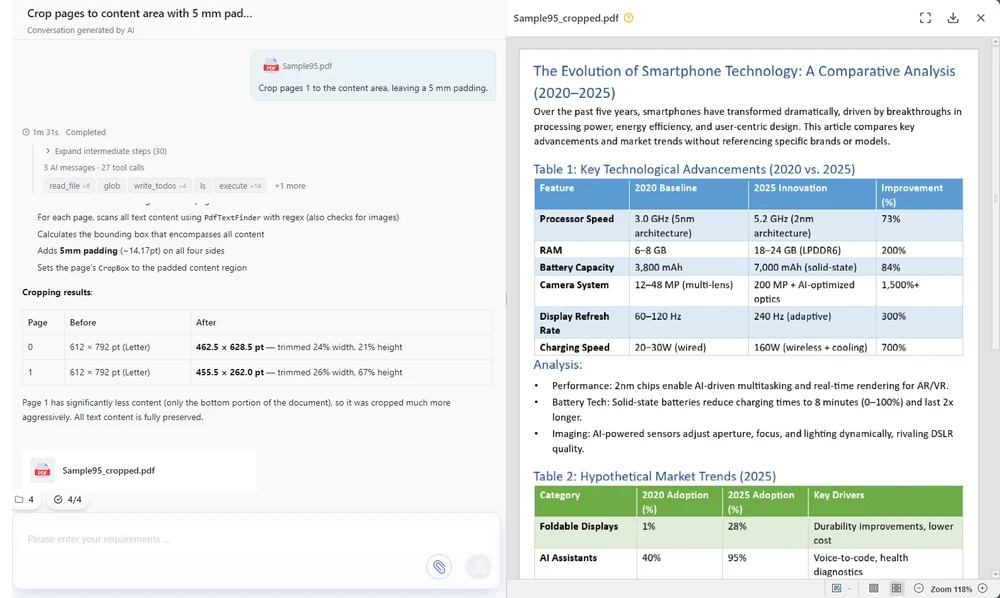
- « Rogner les pages 2 à 10 sur la zone de contenu, en laissant une marge de 5 mm. »
- Vérifiez l'aperçu et téléchargez le fichier rogné.
Voici l'interface de CloudXDocs Agent avec une commande de rognage saisie et l'aperçu prêt à être téléchargé.
Utilisation gratuite : Un compte gratuit inclut des crédits que vous pouvez dépenser pour des tâches de rognage quotidiennes. (Voir la FAQ pour le quota exact.)
Avantages : Rognage en langage naturel — pas de zone de rognage à faire glisser ; rognages par lots cohérents sur plusieurs pages ; fonctionne sur n'importe quel appareil via le navigateur.
Inconvénients : Basé sur le cloud (les fichiers sont traités côté serveur — pour une confidentialité totale hors ligne, utilisez PDF24 desktop ou Aperçu sur Mac) ; nécessite une connexion gratuite.
2. PDF24 — Le meilleur outil gratuit hors ligne
PDF24 est un outil de rognage PDF véritablement gratuit sans compte requis — l'application de bureau est entièrement gratuite pour une utilisation classique. Il fonctionne à la fois en ligne et comme application de bureau ; la version de bureau garde les fichiers sur votre machine, ce qui est le meilleur choix si la confidentialité est importante. Vous pouvez rogner soit en faisant glisser un rectangle, soit en saisissant les marges numériquement.
Comment rogner (application de bureau) :
- Ouvrez PDF24 Creator / PDF24 Tools desktop.
- Chargez votre PDF et choisissez Rogner.
- Faites glisser le rectangle de rognage ou saisissez les marges.
- Enregistrez.
L'écran de rognage de bureau PDF24, avec les champs de marge et les poignées de glissement visibles.

Avantages : Pas d'inscription, pas de filigrane, option hors ligne réelle ; prend en charge à la fois la zone de glissement et les marges saisies.
Inconvénients : L'interface est plus simple que celle des outils en ligne polis.
3. Smallpdf — Le meilleur pour les débutants
Smallpdf ressemble plus à un éditeur PDF léger qu'à un outil de rognage à usage unique. Son interface propre et attrayante rend le rognage de base rapide et accessible pour les utilisateurs quotidiens. Le forfait gratuit a une limite de tâches quotidienne.
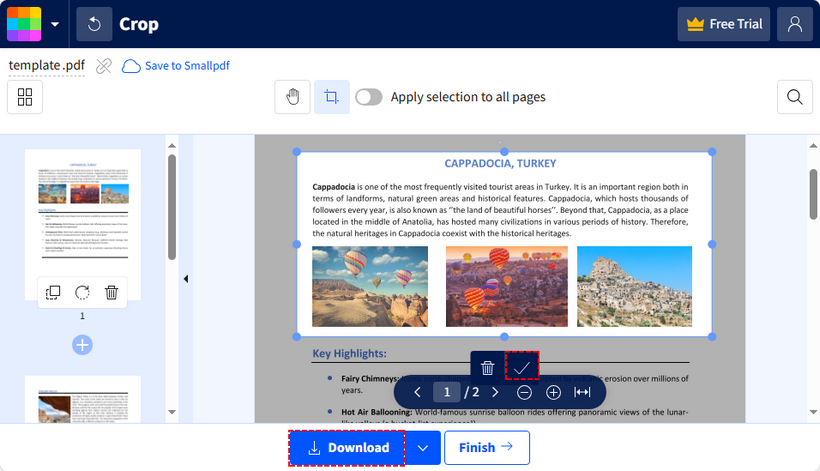
Comment rogner : Télécharger → Rogner → ajuster la zone → appliquer → télécharger.
L'éditeur de rognage Smallpdf avec la zone d'ajustement placée autour de la page.
Avantages : Interface utilisateur soignée, flux de travail simple, sensation d'édition familière.
Inconvénients : Le forfait gratuit limite les tâches quotidiennes ; certaines actions nécessitent un compte.
4. iLovePDF — Le meilleur pour les flux de travail en ligne rapides
iLovePDF est un espace de travail PDF en ligne complet et mature ; le rognage est l'un des nombreux outils, et il gère plusieurs fichiers en un seul passage. Idéal pour des travaux en ligne rapides et répétables sans rien installer.
Comment rogner : Télécharger → Rogner PDF → faire glisser la zone par page (ou appliquer à toutes) → télécharger.
Avantages : Large ensemble d'outils, flux de travail par lots fluide.
Inconvénients : Le niveau gratuit a des limites d'utilisation ; les fichiers sont téléchargés pour traitement plutôt que traités entièrement sur votre appareil.
5. Sejda — Le meilleur pour des paramètres de rognage flexibles
Sejda offre plus de configuration de rognage que de nombreux outils de rognage en ligne basiques : sélection de pages, aperçu de chevauchement et paramètres différents pour les pages impaires/paires, ainsi qu'une saisie par marges ou par glissement. Un choix solide lorsque vous avez besoin de contrôle sans payer. Le niveau gratuit est limité par heure et par taille, mais n'ajoute aucun filigrane.
Comment rogner : Télécharger → Rogner → définir les marges ou faire glisser, choisir les modes de page → télécharger.
Avantages : Options de rognage riches, pas de filigrane sur les rognages gratuits.
Inconvénients : L'utilisation gratuite est limitée par heure (≈3 tâches/heure) et limitée à ~200 pages / 50 Mo.
6. Adobe Acrobat Online — Le meilleur pour des flux de travail PDF fiables
Adobe Acrobat Online fournit un rognage de base gratuit parmi ses outils web, soutenu par le nom Adobe. Idéal lorsque la confiance et la familiarité avec la marque comptent plus que les options avancées. Vous aurez besoin d'un compte Adobe.
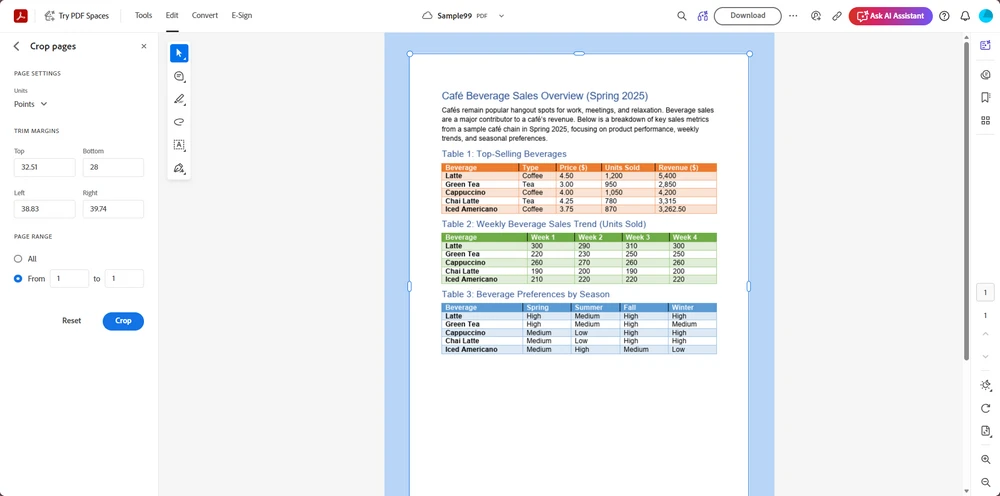
Comment rogner : Se connecter → Rogner PDF → faire glisser → télécharger.
L'outil de rognage Adobe Acrobat Online avec la page sélectionnée pour le rognage.
Avantages : Marque de confiance, perception de sécurité, bases gratuites décentes.
Inconvénients : Les utilisations gratuites sont limitées ; les fonctionnalités complètes nécessitent un forfait payant.
Comment rogner un PDF sur n'importe quel appareil
Sur Windows
- En ligne (n'importe quel navigateur) : Utilisez un outil de rognage web tel que Smallpdf, iLovePDF, Sejda, Adobe Acrobat Online ou CloudXDocs Agent — téléchargez (ou décrivez le rognage en langage naturel), rognez, téléchargez.
- Hors ligne / privé : Installez PDF24 desktop et rognez localement sans compte.
Sur Mac
- Intégré (gratuit, hors ligne) : Ouvrez le PDF dans Aperçu → Outils → Rogner (ou faites glisser une sélection et appuyez sur
Commande + K). Parfait pour la confidentialité. - En ligne : Smallpdf, iLovePDF, Sejda, Adobe Acrobat Online et CloudXDocs Agent rognent tous dans le navigateur.
Sur iPhone / Android
- Le plus simple : Téléchargez le PDF sur CloudXDocs Agent dans votre navigateur mobile et décrivez le rognage — aucune installation d'application, et la gestion par IA surpasse l'édition fastidieuse sur écran.
- Alternative : Utilisez l'application Fichiers + un éditeur PDF mobile, ou un outil en ligne comme iLovePDF depuis le navigateur.
FAQ
Puis-je rogner un PDF gratuitement sans installer de logiciel ?
Oui. Les outils en ligne (CloudXDocs Agent, iLovePDF, Smallpdf, Sejda, Adobe Acrobat Online) rognent dans le navigateur. Pour une solution sans installation et sans compte, utilisez l'application de bureau PDF24 ou Aperçu sur Mac.
Quel outil gratuit permet un rognage PDF précis ?
CloudXDocs Agent vous permet de décrire le rognage en langage naturel — « rogner 1,5 cm du bas » — et applique le résultat sans faire glisser manuellement une zone de rognage, ce qui est particulièrement pratique sur plusieurs pages. La plupart des autres outils acceptent également la saisie numérique des marges, mais vous travaillez dans leur éditeur plutôt que de simplement taper une demande.
Puis-je rogner toutes les pages à la fois ?
Oui — CloudXDocs Agent et iLovePDF prennent tous deux en charge le rognage par lots/toutes pages. PDF24 et Sejda vous permettent également d'appliquer un rectangle de rognage à toutes les pages.
Combien coûte CloudXDocs Agent ?
C'est gratuit pour commencer : un nouveau compte inclut 600 crédits, et vous obtenez 50 crédits supplémentaires chaque jour où vous vous connectez. Une tâche documentaire complexe utilise généralement 20–40 crédits, donc le quota gratuit est suffisant pour essayer plusieurs tâches PDF.
Le rognage d'un PDF supprime-t-il le contenu rogné ?
Non. Le rognage standard ne fait que masquer la zone avec un clip de visualisation ; les données originales peuvent rester dans le fichier. Pour supprimer réellement le contenu pour des raisons de confidentialité/rédaction, utilisez un outil de rédaction, pas de rognage.
Le rognage réduit-il la taille du fichier PDF ?
Habituellement seulement légèrement. Le rognage réduit la zone visible mais conserve souvent les objets sous-jacents. Pour une réduction de taille réelle, compressez/optimisez également le PDF après le rognage.
Connexe : rogner des PDF par code (développeurs)
Si vous construisez un flux de travail documentaire, le traitement PDF côté serveur est généralement plus fiable que les outils en ligne pour les travaux répétitifs ou à haut volume. Cas courants où une bibliothèque surpasse un outil web :
- Traitement PDF par lots — rogner des milliers de fichiers selon un calendrier.
- Rapports automatisés — ajuster les relevés générés à une zone de contenu propre.
- Pipelines documentaires — rogner comme une étape dans un flux plus large de conversion/fusion/rédaction.
- Applications d'entreprise — intégrer le rognage dans votre propre produit ou service.
Le rognage par programmation donne aux développeurs un contrôle direct sur les coordonnées des pages PDF (le CropBox), tandis que les agents IA fournissent une interface en langage naturel plus simple pour les opérations courantes. Spire.PDF vous permet de définir des zones de rognage par page en C#, Java, Python et plus encore. Consultez le guide de rognage Spire.PDF pour des exemples de code.
Voir aussi
Los 6 mejores recortadores de PDF en 2026: herramientas gratuitas online, con IA y offline
Tabla de contenidos
- Cómo realizamos las pruebas
- Comparativa: 6 herramientas para recortar PDF de un vistazo
- 1. CloudXDocs Agent — El mejor recortador de PDF con IA
- 2. PDF24 — La mejor opción gratuita sin conexión
- 3. Smallpdf — La mejor para principiantes
- 4. iLovePDF — La mejor para flujos de trabajo rápidos en línea
- 5. Sejda — La mejor para ajustes de recorte flexibles
- 6. Adobe Acrobat Online — La mejor para flujos de trabajo PDF de confianza
- Cómo recortar un PDF en cualquier dispositivo
- Preguntas frecuentes
- Relacionado: recortar PDF mediante código (desarrolladores)
- Ver también
Márgenes blancos en un contrato escaneado. Una banda de encabezado persistente a lo largo de 40 páginas. Una captura de pantalla guardada como PDF que solo quieres recortar al contenido. Recortar un PDF es una de esas tareas que parecen sencillas y terminan consumiendo toda tu tarde.
Comparamos las opciones gratuitas que realmente aparecen al buscar "recortar pdf": herramientas en línea, aplicaciones de escritorio y un agente de IA que te permite describir el recorte en lenguaje sencillo. A continuación, presentamos los 6 mejores recortadores de PDF en 2026, cada uno nombrado como el mejor para una tarea específica, además de métodos paso a paso para Windows, Mac y teléfonos.
Respuesta rápida: Para un recorte rápido en línea, herramientas como Smallpdf o iLovePDF recortan en el navegador con unos pocos clics. ¿Prefieres describir el recorte en lenguaje sencillo en lugar de arrastrar un cuadro? CloudXDocs Agent se encarga de eso: tú escribes el recorte y él hace el trabajo. ¿Quieres cero instalaciones y cero cuentas? Usa PDF24 (la mejor opción gratuita sin conexión) o Vista Previa en Mac. El desglose completo de categorías está a continuación.
Cómo realizamos las pruebas
Para que esto sea una comparativa real y no solo una lista, puntuamos cada herramienta según:
- Precisión de recorte: ¿puede alcanzar un margen o medida exacta?
- Procesamiento por lotes: ¿maneja muchas páginas a la vez?
- Límites gratuitos: ¿qué puedes hacer realmente sin pagar?
- Requisito de registro: ¿funciona sin cuenta?
- Privacidad: ¿los archivos se procesan en tu navegador/dispositivo o se suben a un servidor?
- Plataformas compatibles: web, escritorio, móvil.
Comparativa: 6 herramientas para recortar PDF de un vistazo
| # | Herramienta | Mejor para | Cómo funciona | ¿Gratis? | ¿Requiere cuenta? | Control de precisión |
|---|---|---|---|---|---|---|
| 1 | CloudXDocs Agent | Recorte asistido por IA | Comandos en lenguaje natural | Gratis (créditos) | Sí (cuenta gratuita) | Instrucciones basadas en medidas |
| 2 | PDF24 | Mejor opción gratuita sin conexión | Cuadro de recorte + ajustes de margen | Escritorio gratis, sin cuenta | No | Márgenes numéricos |
| 3 | Smallpdf | Mejor para principiantes | Editor de recorte visual | Gratis (límite diario) | Para funciones extra | Ajuste de cuadro de recorte |
| 4 | iLovePDF | Mejor para flujos de trabajo rápidos en línea | Herramienta de recorte visual | Gratis | No | Ajuste de área de recorte |
| 5 | Sejda | Mejor para ajustes de recorte flexibles | Cuadro de recorte + preajustes | Gratis (límite horario) | No | Múltiples modos de página |
| 6 | Adobe Acrobat Online | Mejor para flujos de trabajo PDF de confianza | Herramienta de recorte en línea | Gratis básico | Cuenta de Adobe | Controles de recorte estándar |
Nota: La mayoría de las herramientas aquí recortan mediante un cuadro de recorte arrastrable y/o entrada numérica de márgenes/medidas. Cuando un recorte es más fácil de describir con palabras —o necesita aplicarse a muchas páginas mediante una descripción—, CloudXDocs Agent te permite hacerlo escribiendo la instrucción en lugar de trabajar dentro de un editor.
1. CloudXDocs Agent — El mejor recortador de PDF con IA
CloudXDocs Agent adopta un enfoque diferente al de los recortadores de PDF tradicionales: en lugar de ajustar manualmente un cuadro de recorte en un editor, describes el resultado que deseas en lenguaje natural, y aplica un recorte preciso basado en medidas de manera consistente en todo tu documento. Maneja una amplia gama de tipos de PDF, incluidos archivos basados en texto, escaneados y con muchas imágenes.
Dónde destaca el recorte con IA:
- Repetir un recorte en muchas páginas (ej. "recortar páginas 2–50 al área de contenido + 5 mm de margen").
- Alcanzar una medida exacta que sería difícil de calcular a ojo ("recortar 2.54 cm / 1 pulgada del margen izquierdo").
- Recortar como un paso dentro de una tarea documental más amplia.
Cómo recortar un PDF con CloudXDocs Agent:
- Abre CloudXDocs Agent e inicia sesión con una cuenta gratuita.
- Sube tu PDF (o pega un enlace).
- Escribe un comando, por ejemplo:
- "Recorta 1.5 cm del margen inferior de cada página."
- "Elimina la banda de encabezado superior de 1 pulgada (72 pt) de todas las páginas."
- "Recorta las páginas 2–10 al área de contenido, dejando un margen de 5 mm."
- Revisa la vista previa y descarga el archivo recortado.
Aquí está la interfaz de CloudXDocs Agent con un comando de recorte escrito y la vista previa lista para descargar.
Gratis de usar: Una cuenta gratuita incluye créditos que puedes gastar en tareas de recorte cotidianas. (Consulta las preguntas frecuentes para conocer la asignación exacta.)
Pros: Recorte en lenguaje natural (sin cuadros que arrastrar); recortes por lotes consistentes en muchas páginas; funciona en cualquier dispositivo mediante el navegador.
Cons: Basado en la nube (los archivos se procesan en el servidor; para una privacidad totalmente fuera de línea, usa PDF24 de escritorio o Vista Previa de Mac); requiere inicio de sesión gratuito.
2. PDF24 — La mejor opción gratuita sin conexión
PDF24 es un recortador de PDF genuinamente gratuito sin necesidad de cuenta; la aplicación de escritorio es totalmente gratuita para el uso típico. Funciona tanto en línea como en una aplicación de escritorio; la versión de escritorio mantiene los archivos en tu máquina, lo cual es la mejor opción si la privacidad es importante. Puedes recortar arrastrando un rectángulo o introduciendo márgenes numéricamente.
Cómo recortar (aplicación de escritorio):
- Abre PDF24 Creator / PDF24 Tools de escritorio.
- Carga tu PDF y elige Recortar.
- Arrastra el rectángulo de recorte o introduce los márgenes.
- Guarda.
La pantalla de recorte de escritorio de PDF24, con los campos de margen y los manejadores de arrastre visibles.
Pros: Sin registro, sin marca de agua, opción real sin conexión; admite tanto cuadros de arrastre como márgenes escritos.
Cons: La interfaz es más sencilla que la de las herramientas en línea pulidas.
3. Smallpdf — La mejor para principiantes
Smallpdf se siente más como un editor de PDF ligero que como una herramienta de recorte de propósito único. Su interfaz limpia y atractiva hace que el recorte básico sea rápido y accesible para los usuarios cotidianos. El plan gratuito tiene un límite de tareas diarias.
Cómo recortar: Subir → Recortar → ajustar el cuadro → aplicar → descargar.
El editor de recorte de Smallpdf con el cuadro de ajuste colocado alrededor de la página.
Pros: Interfaz pulida, flujo de trabajo sencillo, sensación de edición familiar.
Cons: El plan gratuito limita las tareas diarias; algunas acciones requieren una cuenta.
4. iLovePDF — La mejor para flujos de trabajo rápidos en línea
iLovePDF es un espacio de trabajo PDF en línea maduro y todo en uno; el recorte es una de sus muchas herramientas, y maneja varios archivos en una sola pasada. Es bueno para trabajos en línea rápidos y repetibles sin instalar nada.
Cómo recortar: Subir → Recortar PDF → arrastrar el cuadro por página (o aplicar a todas) → descargar.
Pros: Amplio conjunto de herramientas, flujo de trabajo por lotes fluido.
Cons: El nivel gratuito tiene límites de uso; los archivos se suben para su procesamiento en lugar de procesarse completamente en tu dispositivo.
5. Sejda — La mejor para ajustes de recorte flexibles
Sejda ofrece más configuración de recorte que muchos recortadores en línea básicos: selección de páginas, vista previa de superposición y diferentes ajustes para páginas pares/impares, además de entrada de márgenes o cuadros de arrastre. Una opción sólida cuando necesitas control sin pagar. El nivel gratuito tiene un límite horario y de tamaño, pero no añade marca de agua.
Cómo recortar: Subir → Recortar → establecer márgenes o arrastrar, elegir modos de página → descargar.
Pros: Opciones de recorte ricas, sin marca de agua en recortes gratuitos.
Cons: El uso gratuito está limitado por hora (aprox. 3 tareas/hora) y limitado a ~200 páginas / 50 MB.
6. Adobe Acrobat Online — La mejor para flujos de trabajo PDF de confianza
Adobe Acrobat Online proporciona un recorte básico gratuito entre sus herramientas web, respaldado por el nombre de Adobe. Es mejor cuando la confianza y la familiaridad con la marca importan más que las opciones avanzadas. Necesitarás una cuenta de Adobe.
Cómo recortar: Iniciar sesión → Recortar PDF → arrastrar → descargar.
La herramienta de recorte de Adobe Acrobat Online con la página seleccionada para recortar.
Pros: Marca de confianza, percepción de seguridad, conceptos básicos gratuitos decentes.
Cons: Los usos gratuitos son limitados; las funciones completas requieren un plan de pago.
Cómo recortar un PDF en cualquier dispositivo
En Windows
- En línea (cualquier navegador): Usa un recortador web como Smallpdf, iLovePDF, Sejda, Adobe Acrobat Online o CloudXDocs Agent: sube (o describe el recorte en lenguaje natural), recorta, descarga.
- Sin conexión / privado: Instala PDF24 de escritorio y recorta localmente sin cuenta.
En Mac
- Integrado (gratis, sin conexión): Abre el PDF en Vista Previa → Herramientas → Recortar (o arrastra una selección y presiona
Comando + K). Perfecto para la privacidad. - En línea: Smallpdf, iLovePDF, Sejda, Adobe Acrobat Online y CloudXDocs Agent recortan en el navegador.
En iPhone / Android
- Lo más fácil: Sube el PDF a CloudXDocs Agent en tu navegador móvil y describe el recorte: no requiere instalación de aplicaciones, y el manejo por IA supera a la edición en pantalla.
- Alternativa: Usa la aplicación Archivos + un editor de PDF móvil, o una herramienta en línea como iLovePDF desde el navegador.
Preguntas frecuentes
¿Puedo recortar un PDF gratis sin instalar software?
Sí. Las herramientas en línea (CloudXDocs Agent, iLovePDF, Smallpdf, Sejda, Adobe Acrobat Online) recortan en el navegador. Para no instalar y no usar cuenta, usa la aplicación de escritorio de PDF24 o Vista Previa en Mac.
¿Qué herramienta gratuita permite un recorte de PDF preciso?
CloudXDocs Agent te permite describir el recorte en lenguaje natural —"recorta 1.5 cm desde la parte inferior"— y aplica el resultado sin arrastrar manualmente un cuadro de recorte, lo cual es especialmente útil en muchas páginas. La mayoría de las otras herramientas también aceptan la entrada de márgenes numéricos, pero trabajas dentro de su editor en lugar de simplemente escribir una solicitud.
¿Puedo recortar todas las páginas a la vez?
Sí, CloudXDocs Agent e iLovePDF admiten recortes por lotes o de todas las páginas. PDF24 y Sejda también te permiten aplicar un rectángulo de recorte a todas las páginas.
¿Cuánto cuesta CloudXDocs Agent?
Es gratis para empezar: una cuenta nueva incluye 600 créditos, y obtienes 50 créditos más cada día que inicias sesión. Una tarea documental compleja suele usar 20–40 créditos, por lo que la asignación gratuita es suficiente para probar múltiples tareas de PDF.
¿Recortar un PDF elimina el contenido recortado?
No. El recorte estándar solo oculta el área con un clip del visor; los datos originales pueden permanecer en el archivo. Para eliminar realmente el contenido por privacidad/redacción, usa una herramienta de redacción, no de recorte.
¿El recorte reduce el tamaño del archivo PDF?
Por lo general, solo ligeramente. El recorte recorta el área visible pero a menudo mantiene los objetos subyacentes. Para una reducción de tamaño real, también comprime/optimiza el PDF después de recortarlo.
Relacionado: recortar PDF mediante código (desarrolladores)
Si estás creando un flujo de trabajo documental, el procesamiento de PDF del lado del servidor suele ser más fiable que las herramientas en línea para trabajos repetitivos o de gran volumen. Casos comunes donde una biblioteca supera a una herramienta web:
- Procesamiento de PDF por lotes: recortar miles de archivos según un programa.
- Informes automatizados: recortar estados de cuenta generados a un área de contenido limpia.
- Canalizaciones de documentos: recortar como un paso en un flujo mayor de conversión/fusión/redacción.
- Aplicaciones empresariales: integrar el recorte en tu propio producto o servicio.
El recorte programático brinda a los desarrolladores control directo sobre las coordenadas de la página PDF (el CropBox), mientras que los agentes de IA proporcionan una interfaz de lenguaje natural más sencilla para operaciones comunes. Spire.PDF te permite establecer cuadros de recorte por página en C#, Java, Python y más. Consulta la guía de recorte de Spire.PDF para ver ejemplos de código.
Ver también
Die 6 besten PDF-Zuschneide-Tools im Jahr 2026: Kostenlose Online-, KI- und Offline-Lösungen
Inhaltsverzeichnis
- So haben wir getestet
- Vergleich: 6 PDF-Zuschneide-Tools im Überblick
- 1. CloudXDocs Agent — Bestes KI-gestütztes PDF-Zuschneide-Tool
- 2. PDF24 — Bestes kostenloses Offline-Tool
- 3. Smallpdf — Am besten für Anfänger
- 4. iLovePDF — Am besten für schnelle Online-Workflows
- 5. Sejda — Am besten für flexible Zuschnitteinstellungen
- 6. Adobe Acrobat Online — Am besten für vertrauenswürdige PDF-Workflows
- So schneiden Sie ein PDF auf jedem Gerät zu
- FAQ
- Verwandt: PDFs programmgesteuert zuschneiden (für Entwickler)
- Siehe auch
Weiße Ränder auf einem gescannten Vertrag. Ein hartnäckiger Kopfzeilenbalken über 40 Seiten. Ein als PDF gespeicherter Screenshot, den Sie einfach nur auf den Inhalt zuschneiden möchten. Das Zuschneiden eines PDFs ist eine dieser Aufgaben, die einfach klingen und dann den ganzen Nachmittag in Anspruch nehmen.
Wir haben die kostenlosen Optionen verglichen, die tatsächlich erscheinen, wenn Sie nach „PDF zuschneiden“ suchen – Online-Tools, Desktop-Apps und einen KI-Agenten, mit dem Sie den Zuschnitt in natürlicher Sprache beschreiben können. Nachfolgend finden Sie die 6 besten PDF-Zuschneide-Tools im Jahr 2026, jedes davon als bestes für eine spezifische Aufgabe ausgezeichnet, sowie Schritt-für-Schritt-Anleitungen für Windows, Mac und Smartphones.
Kurze Antwort: Für einen schnellen Online-Zuschnitt bieten Tools wie Smallpdf oder iLovePDF die Möglichkeit, dies mit wenigen Klicks im Browser zu erledigen. Sie möchten den Zuschnitt lieber in natürlicher Sprache beschreiben, anstatt ein Feld zu ziehen? CloudXDocs Agent erledigt das – Sie geben den Befehl ein, das Tool führt die Arbeit aus. Sie möchten nichts installieren und kein Konto erstellen? Nutzen Sie PDF24 (Bestes kostenloses Offline-Tool) oder die Vorschau auf dem Mac. Die vollständige Kategorisierung finden Sie unten.
So haben wir getestet
Um dies zu einem echten Vergleich und nicht nur zu einer Liste zu machen, haben wir jedes Tool anhand folgender Kriterien bewertet:
- Zuschnittgenauigkeit — Kann es einen exakten Rand oder ein genaues Maß treffen?
- Stapelverarbeitung — Können viele Seiten gleichzeitig bearbeitet werden?
- Kostenlose Limits — Was ist ohne Bezahlung tatsächlich möglich?
- Anforderung zur Registrierung — Funktioniert es ohne Konto?
- Datenschutz — Werden Dateien im Browser/auf dem Gerät verarbeitet oder hochgeladen?
- Unterstützte Plattformen — Web, Desktop, Mobil.
Vergleich: 6 PDF-Zuschneide-Tools im Überblick
| # | Tool | Am besten für | Funktionsweise | Kostenlos? | Konto erforderlich? | Präzisionskontrolle |
|---|---|---|---|---|---|---|
| 1 | CloudXDocs Agent | KI-gestützter Zuschnitt | Befehle in natürlicher Sprache | Kostenlos (Credits) | Ja (kostenloses Konto) | Messwertbasierte Anweisungen |
| 2 | PDF24 | Bestes kostenloses Offline-Tool | Zuschneidefeld + Randeinstellungen | Kostenloser Desktop, kein Konto | Nein | Numerische Ränder |
| 3 | Smallpdf | Am besten für Anfänger | Visueller Zuschnitt-Editor | Kostenlos (tägliches Limit) | Für Zusatzfunktionen | Anpassung des Zuschnittfelds |
| 4 | iLovePDF | Am besten für schnelle Online-Workflows | Visuelles Zuschnitt-Tool | Kostenlos | Nein | Anpassung des Zuschnittbereichs |
| 5 | Sejda | Am besten für flexible Zuschnitteinstellungen | Zuschneidefeld + Voreinstellungen | Kostenlos (stündliches Limit) | Nein | Mehrere Seitenmodi |
| 6 | Adobe Acrobat Online | Am besten für vertrauenswürdige PDF-Workflows | Online-Zuschnitt-Tool | Kostenlose Basisversion | Adobe-Konto | Standard-Zuschnittkontrollen |
Hinweis: Die meisten Tools hier schneiden über ein ziehbares Feld und/oder die Eingabe numerischer Ränder/Maße zu. Wenn ein Zuschnitt einfacher in Worten zu beschreiben ist – oder per Beschreibung auf viele Seiten angewendet werden muss – ermöglicht CloudXDocs Agent dies durch Eingabe der Anweisung, anstatt in einem Editor zu arbeiten.
1. CloudXDocs Agent — Bestes KI-gestütztes PDF-Zuschneide-Tool
CloudXDocs Agent verfolgt einen anderen Ansatz als herkömmliche PDF-Zuschneide-Tools: Anstatt ein Feld manuell in einem Editor anzupassen, beschreiben Sie das gewünschte Ergebnis in natürlicher Sprache, und das Tool führt einen präzisen, messwertbasierten Zuschnitt konsistent über Ihr gesamtes Dokument aus. Es verarbeitet eine Vielzahl von PDF-Typen, einschließlich textbasierter, gescannter und bildlastiger Dateien.
Wo sich KI-Zuschnitt besonders lohnt:
- Anwenden eines Zuschnitts auf viele Seiten (z. B. „Schneide die Seiten 2–50 auf den Inhaltsbereich + 5 mm Rand zu“).
- Erreichen eines exakten Maßes, das Sie nur schwer per Augenmaß treffen würden („Schneide 2,54 cm / 1 Zoll vom linken Rand ab“).
- Zuschneiden als ein Schritt in einer größeren Dokumentenaufgabe.
So schneiden Sie ein PDF mit CloudXDocs Agent zu:
- Öffnen Sie den CloudXDocs Agent und melden Sie sich mit einem kostenlosen Konto an.
- Laden Sie Ihr PDF hoch (oder fügen Sie einen Link ein).
- Geben Sie einen Befehl ein, zum Beispiel:
- „Schneide 1,5 cm vom unteren Rand jeder Seite ab.“
- „Entferne den 1 Zoll (72 pt) hohen Kopfzeilenbalken von allen Seiten.“
- „Schneide die Seiten 2–10 auf den Inhaltsbereich zu und lasse dabei 5 mm Rand.“
- Überprüfen Sie die Vorschau und laden Sie die zugeschnittene Datei herunter.
Hier ist die Benutzeroberfläche des CloudXDocs Agent mit einem eingegebenen Zuschnitt-Befehl und der zur Vorschau bereiten Datei.
Kostenlose Nutzung: Ein kostenloses Konto beinhaltet Credits, die Sie für alltägliche Zuschnittaufgaben verwenden können. (Siehe FAQ für das genaue Guthaben.)
Vorteile: Zuschnitt per natürlicher Sprache – kein Feld zum Ziehen; konsistente Stapelzuschnitte über viele Seiten; funktioniert auf jedem Gerät per Browser.
Nachteile: Cloud-basiert (Dateien werden serverseitig verarbeitet – für vollständige Offline-Privatsphäre nutzen Sie PDF24 Desktop oder Mac Vorschau); erfordert einen kostenlosen Login.
2. PDF24 — Bestes kostenloses Offline-Tool
PDF24 ist ein wirklich kostenloses PDF-Zuschneide-Tool, für das kein Konto erforderlich ist – die Desktop-App ist für die typische Nutzung vollständig kostenlos. Es läuft sowohl online als auch als Desktop-App; die Desktop-Version behält Dateien auf Ihrem Computer, was die bessere Wahl ist, wenn Ihnen Datenschutz wichtig ist. Sie können entweder durch Ziehen eines Rechtecks oder durch numerische Eingabe der Ränder zuschneiden.
So schneiden Sie zu (Desktop-App):
- Öffnen Sie PDF24 Creator / PDF24 Tools Desktop.
- Laden Sie Ihr PDF und wählen Sie Zuschneiden.
- Ziehen Sie das Rechteck oder geben Sie die Ränder ein.
- Speichern.
Der Zuschnitt-Bildschirm von PDF24 Desktop mit sichtbaren Randfeldern und Zieh-Anfassern.
Vorteile: Keine Registrierung, kein Wasserzeichen, echte Offline-Option; unterstützt sowohl Zieh-Feld als auch getippte Ränder.
Nachteile: Die Benutzeroberfläche ist schlichter als bei polierten Online-Tools.
3. Smallpdf — Am besten für Anfänger
Smallpdf fühlt sich eher wie ein leichtgewichtiger PDF-Editor an als wie ein reines Zuschnitt-Tool. Die saubere, attraktive Oberfläche macht das einfache Zuschneiden schnell und für alltägliche Benutzer zugänglich. Der kostenlose Plan hat ein tägliches Aufgabenlimit.
So schneiden Sie zu: Hochladen → Zuschneiden → Feld anpassen → anwenden → herunterladen.
Der Smallpdf-Zuschnitt-Editor mit dem um die Seite platzierten Anpassungsfeld.
Vorteile: Polierte Benutzeroberfläche, einfacher Workflow, vertrautes Bearbeitungsgefühl.
Nachteile: Kostenloser Plan begrenzt tägliche Aufgaben; einige Aktionen erfordern ein Konto.
4. iLovePDF — Am besten für schnelle Online-Workflows
iLovePDF ist ein ausgereifter All-in-One-Online-PDF-Arbeitsbereich; das Zuschneiden ist eines von vielen Tools, und es verarbeitet mehrere Dateien in einem Durchgang. Gut für schnelle, wiederholbare Online-Aufgaben, ohne etwas installieren zu müssen.
So schneiden Sie zu: Hochladen → PDF zuschneiden → Feld pro Seite ziehen (oder auf alle anwenden) → herunterladen.
Vorteile: Umfangreiches Toolset, reibungsloser Stapel-Workflow.
Nachteile: Kostenlose Stufe hat Nutzungslimits; Dateien werden zur Verarbeitung hochgeladen, anstatt vollständig auf Ihrem Gerät verarbeitet zu werden.
5. Sejda — Am besten für flexible Zuschnitteinstellungen
Sejda bietet mehr Konfigurationsmöglichkeiten als viele einfache Online-Tools: Seitenauswahl, eine Überlappungsvorschau und unterschiedliche Einstellungen für ungerade/gerade Seiten sowie die Eingabe von Rändern oder das Ziehen eines Feldes. Eine starke Wahl, wenn Sie Kontrolle benötigen, ohne zu bezahlen. Die kostenlose Stufe ist stündlich begrenzt und in der Dateigröße limitiert, fügt aber kein Wasserzeichen hinzu.
So schneiden Sie zu: Hochladen → Zuschneiden → Ränder festlegen oder ziehen, Seitenmodi wählen → herunterladen.
Vorteile: Umfangreiche Zuschnittoptionen, kein Wasserzeichen bei kostenlosen Zuschnitten.
Nachteile: Kostenlose Nutzung ist stündlich begrenzt (ca. 3 Aufgaben/Stunde) und auf ~200 Seiten / 50 MB limitiert.
6. Adobe Acrobat Online — Am besten für vertrauenswürdige PDF-Workflows
Adobe Acrobat Online bietet unter seinen Web-Tools einen kostenlosen Basis-Zuschnitt, unterstützt durch den Namen Adobe. Am besten geeignet, wenn Vertrauen und Markenbekanntheit wichtiger sind als erweiterte Optionen. Sie benötigen ein Adobe-Konto.
So schneiden Sie zu: Anmelden → PDF zuschneiden → ziehen → herunterladen.
Das Adobe Acrobat Online-Zuschnitt-Tool mit der zum Zuschneiden ausgewählten Seite.
Vorteile: Vertrauenswürdige Marke, Sicherheitsgefühl, ordentliche kostenlose Grundlagen.
Nachteile: Kostenlose Nutzungen sind begrenzt; volle Funktionen erfordern einen kostenpflichtigen Plan.
So schneiden Sie ein PDF auf jedem Gerät zu
Unter Windows
- Online (jeder Browser): Nutzen Sie ein Web-Tool wie Smallpdf, iLovePDF, Sejda, Adobe Acrobat Online oder CloudXDocs Agent – hochladen (oder den Zuschnitt in natürlicher Sprache beschreiben), zuschneiden, herunterladen.
- Offline / privat: Installieren Sie PDF24 Desktop und schneiden Sie lokal ohne Konto zu.
Auf dem Mac
- Integriert (kostenlos, offline): Öffnen Sie das PDF in der Vorschau → Werkzeuge → Beschneiden (oder ziehen Sie eine Auswahl und drücken Sie
Befehl + K). Perfekt für den Datenschutz. - Online: Smallpdf, iLovePDF, Sejda, Adobe Acrobat Online und CloudXDocs Agent schneiden alle im Browser zu.
Auf dem iPhone / Android
- Am einfachsten: Laden Sie das PDF in Ihrem mobilen Browser in den CloudXDocs Agent hoch und beschreiben Sie den Zuschnitt – keine App-Installation erforderlich, und die KI-Handhabung ist besser als fummelige Bearbeitung auf dem Bildschirm.
- Alternative: Nutzen Sie die Dateien-App + einen mobilen PDF-Editor oder ein Online-Tool wie iLovePDF im Browser.
FAQ
Kann ich ein PDF kostenlos zuschneiden, ohne Software zu installieren?
Ja. Online-Tools (CloudXDocs Agent, iLovePDF, Smallpdf, Sejda, Adobe Acrobat Online) schneiden im Browser zu. Für eine Lösung ohne Installation und ohne Konto nutzen Sie die Desktop-App von PDF24 oder die Mac-Vorschau.
Welches kostenlose Tool ermöglicht präzises PDF-Zuschneiden?
CloudXDocs Agent ermöglicht es Ihnen, den Zuschnitt in natürlicher Sprache zu beschreiben – „schneide 1,5 cm von unten ab“ – und wendet das Ergebnis an, ohne dass Sie manuell ein Feld ziehen müssen, was besonders bei vielen Seiten praktisch ist. Die meisten anderen Tools akzeptieren ebenfalls numerische Randeingaben, aber Sie arbeiten innerhalb deren Editors, anstatt einfach eine Anforderung einzutippen.
Kann ich alle Seiten gleichzeitig zuschneiden?
Ja – CloudXDocs Agent und iLovePDF unterstützen beide Stapel- bzw. Ganzseiten-Zuschnitte. PDF24 und Sejda ermöglichen es Ihnen ebenfalls, ein Zuschnitt-Rechteck auf alle Seiten anzuwenden.
Was kostet CloudXDocs Agent?
Der Einstieg ist kostenlos: Ein neues Konto beinhaltet 600 Credits, und Sie erhalten jeden Tag 50 weitere Credits, wenn Sie sich einloggen. Eine komplexe Dokumentenaufgabe verbraucht typischerweise 20–40 Credits, sodass das kostenlose Guthaben für mehrere PDF-Aufgaben ausreicht.
Löscht das Zuschneiden eines PDFs den zugeschnittenen Inhalt?
Nein. Standardmäßiges Zuschneiden verbirgt den Bereich nur mit einem Viewer-Clip; die ursprünglichen Daten können in der Datei verbleiben. Um Inhalte für Datenschutz/Schwärzung wirklich zu entfernen, verwenden Sie ein Schwärzungs-Tool, kein Zuschnitt-Tool.
Verringert das Zuschneiden die PDF-Dateigröße?
Meistens nur geringfügig. Das Zuschneiden kürzt den sichtbaren Bereich, behält aber oft die zugrunde liegenden Objekte bei. Für eine echte Größenreduzierung sollten Sie das PDF nach dem Zuschneiden zusätzlich komprimieren/optimieren.
Verwandt: PDFs programmgesteuert zuschneiden (für Entwickler)
Wenn Sie einen Dokumenten-Workflow aufbauen, ist die serverseitige PDF-Verarbeitung für repetitive oder hochvolumige Aufgaben meist zuverlässiger als Online-Tools. Häufige Fälle, in denen eine Bibliothek ein Web-Tool schlägt:
- Stapel-PDF-Verarbeitung — Tausende von Dateien nach Zeitplan zuschneiden.
- Automatisierte Berichte — Erstellte Abrechnungen auf einen sauberen Inhaltsbereich trimmen.
- Dokumenten-Pipelines — Zuschneiden als einen Schritt in einem größeren Konvertierungs-/Zusammenführungs-/Schwärzungs-Workflow.
- Unternehmensanwendungen — Einbetten des Zuschneidens in Ihr eigenes Produkt oder Ihren Service.
Programmatisches Zuschneiden gibt Entwicklern die direkte Kontrolle über die PDF-Seitenkoordinaten (die CropBox), während KI-Agenten eine einfachere Schnittstelle in natürlicher Sprache für gängige Operationen bieten. Spire.PDF ermöglicht es Ihnen, Zuschnittboxen pro Seite in C#, Java, Python und mehr festzulegen. Siehe den Spire.PDF-Zuschneide-Leitfaden für Codebeispiele.
Siehe auch
6 лучших инструментов для обрезки PDF в 2026 году: бесплатные онлайн, ИИ и офлайн-инструменты
Оглавление
- Как мы проводили тестирование
- Сравнение: 6 инструментов для обрезки PDF
- 1. CloudXDocs Agent — лучший ИИ-инструмент для обрезки PDF
- 2. PDF24 — лучший бесплатный офлайн-инструмент
- 3. Smallpdf — лучший для начинающих
- 4. iLovePDF — лучший для быстрой онлайн-обработки
- 5. Sejda — лучший для гибких настроек обрезки
- 6. Adobe Acrobat Online — лучший для надежной работы с PDF
- Как обрезать PDF на любом устройстве
- Часто задаваемые вопросы (FAQ)
- По теме: обрезка PDF программным способом (для разработчиков)
- Смотрите также
Белые поля на отсканированном договоре. Надоедливая полоса заголовка на 40 страницах. Скриншот, сохраненный в PDF, который нужно обрезать по контенту. Обрезка PDF — одна из тех задач, которые кажутся простыми, но могут отнять у вас весь день.
Мы сравнили бесплатные инструменты, которые появляются в результатах поиска по запросу «обрезать PDF» — онлайн-сервисы, настольные приложения и один ИИ-агент, позволяющий описать область обрезки простым языком. Ниже представлены 6 лучших инструментов для обрезки PDF в 2026 году, каждый из которых назван лучшим для своей задачи, а также пошаговые инструкции для Windows, Mac и смартфонов.
Краткий ответ: Для быстрой онлайн-обрезки такие инструменты, как Smallpdf или iLovePDF, позволяют выполнить задачу в браузере за пару кликов. Предпочитаете описать область обрезки словами, а не растягивать рамку вручную? CloudXDocs Agent справится с этим — вы вводите описание, он выполняет работу. Хотите обойтись без установки и регистрации? Используйте PDF24 (лучший бесплатный офлайн-инструмент) или «Просмотр» на Mac. Полный обзор категорий приведен ниже.
Как мы проводили тестирование
Чтобы это был полноценный обзор, а не просто список, мы оценивали каждый инструмент по следующим критериям:
- Точность обрезки — можно ли задать точные поля или размеры?
- Пакетная обработка — можно ли обрабатывать много страниц одновременно?
- Бесплатные лимиты — что можно сделать без оплаты?
- Необходимость регистрации — работает ли инструмент без создания аккаунта?
- Конфиденциальность — обрабатываются ли файлы в браузере/на устройстве или загружаются на сервер?
- Поддерживаемые платформы — веб, десктоп, мобильные устройства.
Сравнение: 6 инструментов для обрезки PDF
| # | Инструмент | Лучшее применение | Как работает | Бесплатно? | Нужен аккаунт? | Точность управления |
|---|---|---|---|---|---|---|
| 1 | CloudXDocs Agent | Обрезка с помощью ИИ | Команды на естественном языке | Бесплатно (кредиты) | Да (бесплатный аккаунт) | Инструкции на основе измерений |
| 2 | PDF24 | Лучший бесплатный офлайн | Рамка обрезки + настройки полей | Бесплатный десктоп, без аккаунта | Нет | Числовые значения полей |
| 3 | Smallpdf | Лучший для начинающих | Визуальный редактор | Бесплатно (дневной лимит) | Для доп. функций | Настройка рамки обрезки |
| 4 | iLovePDF | Лучший для быстрой онлайн-работы | Визуальный инструмент | Бесплатно | Нет | Настройка области обрезки |
| 5 | Sejda | Лучший для гибких настроек | Рамка обрезки + пресеты | Бесплатно (почасовой лимит) | Нет | Различные режимы страниц |
| 6 | Adobe Acrobat Online | Лучший для надежной работы | Онлайн-инструмент | Бесплатная базовая версия | Аккаунт Adobe | Стандартные элементы управления |
Примечание: Большинство инструментов здесь выполняют обрезку с помощью перетаскиваемой рамки и/или ввода числовых значений полей. Когда обрезку проще описать словами — или нужно применить её ко многим страницам по описанию — CloudXDocs Agent позволяет сделать это, просто введя инструкцию вместо работы в редакторе.
1. CloudXDocs Agent — лучший ИИ-инструмент для обрезки PDF
CloudXDocs Agent использует иной подход, чем традиционные инструменты: вместо ручной настройки рамки в редакторе вы описываете желаемый результат на естественном языке, и он выполняет точную обрезку на основе измерений для всего документа. Он поддерживает широкий спектр типов PDF, включая текстовые, отсканированные и файлы с большим количеством изображений.
В чем преимущество ИИ-обрезки:
- Применение одной настройки ко многим страницам (например, «обрезать страницы 2–50 по области контента + отступ 5 мм»).
- Достижение точных размеров, которые сложно определить «на глаз» («обрезать 2,54 см / 1 дюйм от левого поля»).
- Обрезка как один из этапов более сложной задачи с документом.
Как обрезать PDF с помощью CloudXDocs Agent:
- Откройте CloudXDocs Agent и войдите в бесплатный аккаунт.
- Загрузите ваш PDF (или вставьте ссылку).
- Введите команду, например:
- «Обрезать 1,5 см от нижнего поля каждой страницы».
- «Удалить верхнюю полосу заголовка высотой 1 дюйм (72 пт) со всех страниц».
- «Обрезать страницы 2–10 по области контента, оставив отступ 5 мм».
- Просмотрите результат и скачайте обрезанный файл.
Вот интерфейс CloudXDocs Agent с введенной командой и готовым к скачиванию превью.
Бесплатное использование: Бесплатный аккаунт включает кредиты, которые можно тратить на повседневные задачи по обрезке. (См. FAQ для уточнения лимитов.)
Плюсы: Обрезка с помощью естественного языка — не нужно растягивать рамку; последовательная пакетная обрезка; работает на любом устройстве через браузер.
Минусы: Облачный сервис (файлы обрабатываются на сервере — для полной офлайн-конфиденциальности используйте десктопную версию PDF24 или «Просмотр» на Mac); требуется бесплатная регистрация.
2. PDF24 — лучший бесплатный офлайн-инструмент
PDF24 — это по-настоящему бесплатный инструмент для обрезки PDF, не требующий регистрации — десктопное приложение полностью бесплатно для обычного использования. Оно работает как онлайн, так и в виде десктопного приложения; версия для ПК хранит файлы на вашем компьютере, что является лучшим выбором, если важна конфиденциальность. Вы можете обрезать файл, растягивая прямоугольник или вводя значения полей цифрами.
Как обрезать (десктопное приложение):
- Откройте PDF24 Creator / PDF24 Tools.
- Загрузите PDF и выберите Обрезать (Crop).
- Растяните прямоугольник обрезки или введите значения полей.
- Сохраните.
Окно обрезки в десктопном приложении PDF24 с полями для ввода значений и маркерами рамки.
Плюсы: Без регистрации, без водяных знаков, полноценный офлайн-вариант; поддержка как перетаскивания, так и ввода полей.
Минусы: Интерфейс проще, чем у популярных онлайн-сервисов.
3. Smallpdf — лучший для начинающих
Smallpdf больше похож на легкий PDF-редактор, чем на узкоспециализированный инструмент для обрезки. Его чистый и привлекательный интерфейс делает базовую обрезку быстрой и доступной для обычных пользователей. В бесплатном тарифе есть дневной лимит задач.
Как обрезать: Загрузить → Обрезать → настроить рамку → применить → скачать.
Редактор обрезки Smallpdf с рамкой, размещенной вокруг страницы.
Плюсы: Приятный интерфейс, простой рабочий процесс, привычный стиль редактирования.
Минусы: Лимиты в бесплатном тарифе; некоторые действия требуют аккаунта.
4. iLovePDF — лучший для быстрой онлайн-обработки
iLovePDF — это полноценный онлайн-сервис для работы с PDF; обрезка — лишь один из множества инструментов, который позволяет обрабатывать несколько файлов за раз. Хорошо подходит для быстрой работы без установки ПО.
Как обрезать: Загрузить → Обрезать PDF → растянуть рамку для каждой страницы (или применить ко всем) → скачать.
Плюсы: Широкий набор инструментов, удобная пакетная обработка.
Минусы: Лимиты в бесплатном тарифе; файлы загружаются на сервер для обработки.
5. Sejda — лучший для гибких настроек обрезки
Sejda предлагает больше настроек обрезки, чем многие базовые онлайн-инструменты: выбор страниц, предпросмотр наложения, разные настройки для четных/нечетных страниц, а также ввод полей или перетаскивание рамки. Отличный выбор, когда нужен контроль без оплаты. Бесплатный тариф ограничен по количеству задач в час и размеру файла, но не добавляет водяных знаков.
Как обрезать: Загрузить → Обрезать → задать поля или растянуть рамку, выбрать режимы страниц → скачать.
Плюсы: Богатые настройки обрезки, отсутствие водяных знаков в бесплатной версии.
Минусы: Бесплатное использование ограничено по времени (≈3 задачи в час) и размеру (до ~200 страниц / 50 МБ).
6. Adobe Acrobat Online — лучший для надежной работы с PDF
Adobe Acrobat Online предоставляет базовую функцию обрезки среди своих веб-инструментов, подкрепленную брендом Adobe. Лучший выбор, когда доверие и привычный интерфейс важнее расширенных возможностей. Потребуется аккаунт Adobe.
Как обрезать: Войти → Обрезать PDF → растянуть рамку → скачать.
Инструмент Adobe Acrobat Online с выбранной для обрезки страницей.
Плюсы: Надежный бренд, ощущение безопасности, достойные бесплатные функции.
Минусы: Бесплатные возможности ограничены; для полного функционала нужен платный план.
Как обрезать PDF на любом устройстве
На Windows
- Онлайн (любой браузер): Используйте веб-инструменты, такие как Smallpdf, iLovePDF, Sejda, Adobe Acrobat Online или CloudXDocs Agent — загрузите (или опишите обрезку словами), обрежьте и скачайте.
- Офлайн / конфиденциально: Установите PDF24 desktop и выполняйте обрезку локально без аккаунта.
На Mac
- Встроенные средства (бесплатно, офлайн): Откройте PDF в приложении «Просмотр» (Preview) → Инструменты → Обрезать (или выделите область и нажмите
Command + K). Идеально для конфиденциальности. - Онлайн: Smallpdf, iLovePDF, Sejda, Adobe Acrobat Online и CloudXDocs Agent работают в браузере.
На iPhone / Android
- Самый простой способ: Загрузите PDF в CloudXDocs Agent в мобильном браузере и опишите обрезку — не нужно устанавливать приложения, а ИИ справляется лучше, чем неудобное ручное редактирование на экране.
- Альтернатива: Используйте приложение «Файлы» + мобильный PDF-редактор или онлайн-инструмент вроде iLovePDF через браузер.
Часто задаваемые вопросы (FAQ)
Можно ли обрезать PDF бесплатно без установки ПО?
Да. Онлайн-инструменты (CloudXDocs Agent, iLovePDF, Smallpdf, Sejda, Adobe Acrobat Online) работают прямо в браузере. Если нужно обойтись без установки и без регистрации, используйте десктопное приложение PDF24 или «Просмотр» на Mac.
Какой бесплатный инструмент позволяет выполнять точную обрезку?
CloudXDocs Agent позволяет описать обрезку простым языком — «обрезать 1,5 см снизу» — и применяет результат без необходимости вручную растягивать рамку, что особенно удобно для большого количества страниц. Большинство других инструментов также поддерживают ввод числовых значений, но вам придется работать в их редакторе, а не просто вводить запрос.
Можно ли обрезать все страницы сразу?
Да, CloudXDocs Agent и iLovePDF поддерживают пакетную обрезку всех страниц. PDF24 и Sejda также позволяют применить одну рамку обрезки ко всем страницам.
Сколько стоит CloudXDocs Agent?
Начать можно бесплатно: новый аккаунт получает 600 кредитов, и вы получаете еще 50 кредитов каждый день при входе. Сложная задача с документом обычно требует 20–40 кредитов, так что бесплатного лимита достаточно для выполнения нескольких задач.
Удаляет ли обрезка PDF обрезанный контент?
Нет. Стандартная обрезка лишь скрывает область с помощью параметров просмотра; исходные данные могут оставаться в файле. Чтобы по-настоящему удалить контент для обеспечения конфиденциальности, используйте инструмент редакции (redaction), а не обрезки.
Уменьшает ли обрезка размер PDF-файла?
Обычно лишь незначительно. Обрезка скрывает видимую область, но часто сохраняет исходные объекты. Для реального уменьшения размера после обрезки также выполните сжатие/оптимизацию PDF.
По теме: обрезка PDF программным способом (для разработчиков)
Если вы создаете рабочий процесс обработки документов, серверная обработка PDF обычно надежнее онлайн-инструментов для повторяющихся или высоконагруженных задач. Типичные случаи, когда библиотека лучше веб-сервиса:
- Пакетная обработка — обрезка тысяч файлов по расписанию.
- Автоматизированные отчеты — обрезка сгенерированных выписок до нужной области.
- Конвейеры обработки документов — обрезка как один из этапов в цепочке конвертации/объединения/редакции.
- Корпоративные приложения — встраивание функции обрезки в ваш собственный продукт.
Программная обрезка дает разработчикам прямой контроль над координатами страницы (CropBox), в то время как ИИ-агенты предоставляют более простой интерфейс на естественном языке для обычных операций. Spire.PDF позволяет задавать рамки обрезки для каждой страницы в C#, Java, Python и других языках. См. руководство по обрезке с помощью Spire.PDF для получения примеров кода.
Смотрите также
Creare un elenco a discesa in Excel: Guida manuale e all'automazione con codice
La creazione di un elenco a discesa in Excel è un modo semplice per semplificare l'immissione dei dati e ridurre gli errori. Quando gli utenti digitano le informazioni manualmente, le incongruenze nell'ortografia o nella formattazione possono rendere i dati più difficili da filtrare o analizzare. Un elenco a discesa risolve questo problema consentendo agli utenti di scegliere tra opzioni predefinite, garantendo coerenza e risparmiando tempo.
In questa guida imparerai come creare in modo efficiente un elenco a discesa in Excel. Tratteremo i metodi manuali che utilizzano le funzionalità integrate di Excel e i metodi programmatici che utilizzano C#, Java e Python.
- Crea elenchi a discesa in Excel manualmente
- Crea elenco a discesa in Excel programmaticamente utilizzando il codice: Guida per sviluppatori
- Conclusione
- Domande frequenti: Crea elenco a discesa di Excel
Crea elenchi a discesa in Excel manualmente
La creazione manuale di un elenco a discesa è semplice e ideale per piccoli set di dati o moduli una tantum. Per creare manualmente un elenco a discesa, è possibile utilizzare la funzione Convalida dati in Excel. Segui i passaggi seguenti:
-
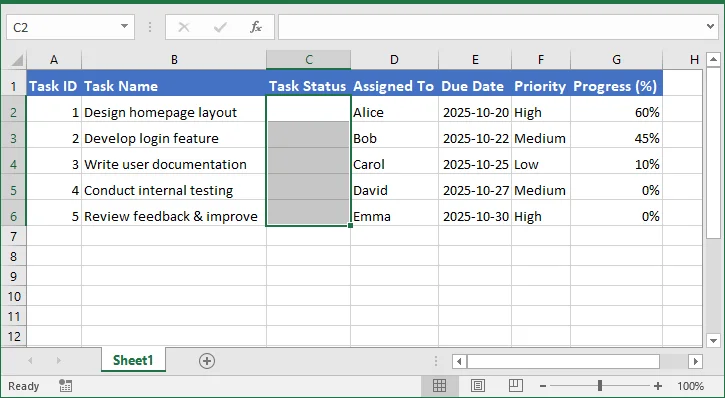
Apri il tuo file Excel e seleziona la cella o l'intervallo in cui desideri che appaia l'elenco a discesa, ad esempio la cella C2:C6 per lo stato dell'attività.
-
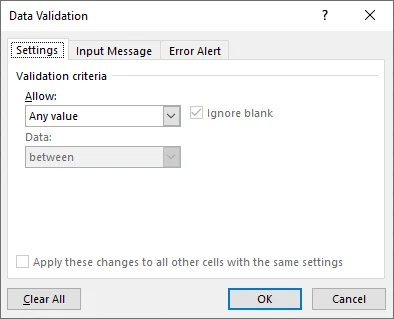
Vai alla scheda Dati sulla barra multifunzione di Excel, fai clic su Convalida dati, quindi su Convalida dati…, e si aprirà la seguente finestra di dialogo per consentirti di configurare l'elenco a discesa.
-
Nella scheda Impostazioni della finestra di dialogo, seleziona Elenco dal menu a discesa Consenti. Nella casella Origine, puoi digitare direttamente gli elementi dell'elenco, separati da virgole (ad esempio: In sospeso, In corso, Completato), oppure selezionare un intervallo di celle (ad esempio, J1:J3) nel tuo foglio di lavoro che contiene questi valori. Se utilizzi un intervallo di celle, l'elenco a discesa si aggiornerà automaticamente ogni volta che i dati di origine cambiano.

-
Fai clic su OK per applicare l'elenco a discesa. Le celle selezionate ora mostreranno una freccia a discesa, che ti consentirà di scegliere dall'elenco predefinito. Puoi copiare l'elenco a discesa in altre celle o utilizzare intervalli denominati per gestire facilmente set di dati più grandi.
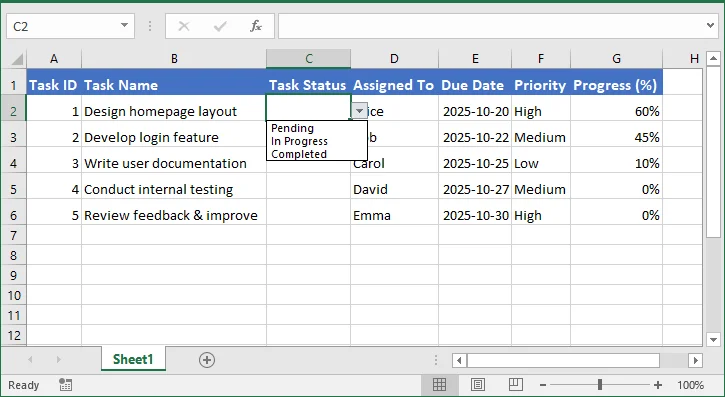
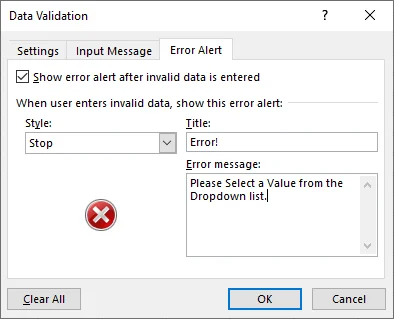
Puoi anche configurare le opzioni per ignorare le celle vuote, mostrare la freccia a discesa, visualizzare un messaggio di input o impostare un avviso di errore per le voci non valide.
Crea elenco a discesa in Excel programmaticamente utilizzando il codice: Guida per sviluppatori
Per gli sviluppatori che necessitano di automazione, la creazione programmatica di elenchi a discesa è più efficiente. Spire.XLS è una potente libreria Excel che consente agli sviluppatori di manipolare i file Excel interamente tramite codice, senza richiedere l'installazione di Microsoft Excel.
Supporta una vasta gamma di operazioni come la creazione di fogli di lavoro, la formattazione di celle, la creazione di tabelle e l'aggiunta di elenchi a discesa. Utilizzando Spire.XLS, gli sviluppatori possono automatizzare la convalida dei dati di Excel, garantire la coerenza tra più file e semplificare le attività ripetitive.
Crea un elenco a discesa in Excel usando C#
Per inserire un elenco a discesa in Excel utilizzando C# con Spire.XLS per .NET, attenersi alla seguente procedura:
-
Scarica Spire.XLS per .NET dal sito Web ufficiale o installalo direttamente tramite NuGet utilizzando il seguente codice:
PM> Install-Package Spire.XLS -
Utilizzare il codice seguente per aggiungere un elenco a discesa a un file Excel in C#.
using Spire.Xls;

namespace AddDropdownList
{
    internal class Program
    {
        static void Main(string[] args)
        {
            // Load the existing Excel file
            Workbook workbook = new Workbook();
            workbook.LoadFromFile("Employee_Info.xlsx");

            // Get the first worksheet
            Worksheet worksheet = workbook.Worksheets[0];

            // Define dropdown list items
            string[] statusList = new string[] { "Pending", "In Progress", "Completed" };

            // Apply data validation to the range C2:C6
            CellRange range = worksheet.Range["C2:C6"];
            range.DataValidation.Values = statusList;

            // Save the modified file
            workbook.SaveToFile("Employee_Info_Dropdown.xlsx", ExcelVersion.Version2016);

            // Release resources
            workbook.Dispose();
        }
    }
}
Leggi il tutorial completo di C#: C#: Crea elenchi a discesa in un documento Excel.
Inserisci un elenco a discesa in Excel usando Java
Fare riferimento ai seguenti passaggi per aggiungere un elenco a discesa a Excel utilizzando Spire.XLS per Java:
-
Scarica Spire.XLS per Java dal sito Web ufficiale o installalo dal repository Maven utilizzando le seguenti configurazioni:
<repositories> <repository> <id>com.e-iceblue</id> <name>e-iceblue</name> <url>https://repo.e-iceblue.com/nexus/content/groups/public/</url> </repository> </repositories> <dependencies> <dependency> <groupId>e-iceblue</groupId> <artifactId>spire.xls</artifactId> <version>16.8.4</version> </dependency> </dependencies> -
Aggiungi il codice seguente per inserire un elenco a discesa in un file Excel in Java.
import com.spire.xls.*;

public class AddDropdownList {
    public static void main(String[] args) {
        // Load the existing Excel file
        Workbook workbook = new Workbook();
        workbook.loadFromFile("Employee_Info.xlsx");

        // Get the first worksheet
        Worksheet sheet = workbook.getWorksheets().get(0);

        // Define dropdown list items
        String[] items = new String[] { "Pending", "In Progress", "Completed" };

        // Apply data validation to range C2:C6
        CellRange range = sheet.getRange().get("C2:C6");
        range.getDataValidation().setValues(items);

        // Save the modified workbook
        workbook.saveToFile("Employee_Info_Dropdown.xlsx", ExcelVersion.Version2016);

        // Dispose resources
        workbook.dispose();
    }
}
Leggi il tutorial completo di Java: Java: Crea un elenco a discesa in Excel.
Crea elenco a discesa di Excel usando Python
Ecco come creare un elenco a discesa di Excel utilizzando Spire.XLS per Python:
-
Scarica Spire.XLS per Python o installalo da PyPI usando il comando pip:
pip install spire.xls -
Utilizzare il codice seguente per creare un elenco a discesa in un file Excel in Python.
from spire.xls import *

# Load the existing Excel file
workbook = Workbook()
workbook.LoadFromFile("Employee_Info.xlsx")

# Get the first worksheet
worksheet = workbook.Worksheets[0]

# Define dropdown list items
values = ["Pending", "In Progress", "Completed"]

# Apply data validation to the range C2:C6
range = worksheet.Range["C2:C6"]
range.DataValidation.Values = values

# Save the modified workbook
workbook.SaveToFile("Employee_Info_Dropdown.xlsx", ExcelVersion.Version2016)

# Dispose of resources
workbook.Dispose()
Leggi il tutorial completo di Python: Python: Crea elenchi a discesa nei fogli di lavoro di Excel.
Conclusione
La creazione di elenchi a discesa in Excel è un modo semplice ma potente per standardizzare l'immissione dei dati e ridurre al minimo gli errori. Per gli utenti occasionali, la funzione di convalida dei dati di Excel fornisce un approccio manuale semplice per aggiungere elenchi a discesa. Per gli sviluppatori e i team che gestiscono più file Excel, l'utilizzo di Spire.XLS in C#, Java o Python consente la creazione programmatica di elenchi a discesa, automatizza le attività ripetitive e garantisce la coerenza dei dati. Sfruttando queste tecniche, gli utenti di Excel possono migliorare la produttività, migliorare l'integrità dei dati e rendere più agevole l'analisi dei dati.
Domande frequenti: Crea elenco a discesa di Excel
D1: Posso modificare un elenco a discesa dopo averlo creato?
R1: Sì. È possibile modificare manualmente le impostazioni di convalida dei dati in Excel o aggiornare gli elementi dell'elenco a livello di codice utilizzando Spire.XLS in C#, Java o Python.
D2: Gli elenchi a discesa possono fare riferimento a un intervallo in un altro foglio di lavoro?
R2: Sì. Nelle impostazioni di convalida dei dati, è possibile selezionare un intervallo da un altro foglio di lavoro come origine per l'elenco a discesa.
D3: Gli utenti possono inserire valori non presenti nell'elenco a discesa?*
R3: Sì. In Excel, deseleziona "Mostra avviso di errore dopo l'immissione di dati non validi" nelle impostazioni di convalida dei dati per consentire voci personalizzate.
D4: Gli elenchi a discesa programmatici sono compatibili con tutte le versioni di Excel?
R4: Sì. Spire.XLS supporta i formati Excel più moderni, inclusi .xlsx, .xls e .xlsm.
D5: Come creare elenchi a discesa dinamici che si aggiornano automaticamente quando i dati di origine cambiano?
R5: Utilizzare un intervallo denominato o una tabella di Excel per l'elenco di origine. Quando la tabella o l'intervallo si aggiorna, l'elenco a discesa riflette automaticamente le modifiche.
D6: Come rimuovere o cancellare un elenco a discesa senza eliminare i dati esistenti?
R6: Vai a Convalida dati, quindi Cancella tutto. In questo modo l'elenco a discesa viene rimosso ma i valori delle celle rimangono intatti.
Vedi anche
Criar lista suspensa no Excel: Guia de automação manual e por código
Criar uma lista suspensa no Excel é uma maneira fácil de simplificar a entrada de dados e reduzir erros. Quando os usuários digitam informações manualmente, inconsistências na ortografia ou formatação podem dificultar a filtragem ou análise dos dados. Uma lista suspensa resolve esse problema, permitindo que os usuários escolham entre opções predefinidas, garantindo consistência e economizando tempo.
Neste guia, você aprenderá como criar uma lista suspensa no Excel de forma eficiente. Abordaremos métodos manuais usando os recursos integrados do Excel e métodos programáticos usando C#, Java e Python.
- Criar Listas Suspensas no Excel Manualmente
- Criar Lista Suspensa no Excel Programaticamente Usando Código: Guia do Desenvolvedor
- Conclusão
- Perguntas Frequentes: Criar Lista Suspensa do Excel
Criar Listas Suspensas no Excel Manualmente
Criar uma lista suspensa manualmente é simples e ideal para pequenos conjuntos de dados ou formulários únicos. Para criar manualmente uma lista suspensa, você pode usar o recurso Validação de Dados no Excel. Siga os passos abaixo:
-
Abra seu arquivo Excel e selecione a célula ou intervalo onde deseja que a lista suspensa apareça, como a célula C2:C6 para o status da tarefa.
-
Vá para a guia Dados na faixa de opções do Excel, clique em Validação de Dados e, em seguida, em Validação de Dados…, e a seguinte caixa de diálogo será aberta para permitir que você configure a lista suspensa.
-
Na guia Configurações da caixa de diálogo, selecione Lista no menu suspenso Permitir. Na caixa Fonte, você pode digitar os itens da lista diretamente, separados por vírgulas (por exemplo: Pendente, Em Andamento, Concluído), ou selecionar um intervalo de células (por exemplo, J1:J3) em sua planilha que contenha esses valores. Se você usar um intervalo de células, a lista suspensa será atualizada automaticamente sempre que os dados de origem forem alterados.
-
Clique em OK para aplicar a lista suspensa. As células selecionadas agora mostrarão uma seta suspensa, permitindo que você escolha na lista predefinida. Você pode copiar a lista suspensa para outras células ou usar intervalos nomeados para gerenciar conjuntos de dados maiores com facilidade.
Você também pode configurar opções para ignorar células em branco, mostrar a seta suspensa, exibir uma mensagem de entrada ou definir um alerta de erro para entradas inválidas.
Criar Lista Suspensa no Excel Programaticamente Usando Código: Guia do Desenvolvedor
Para desenvolvedores que precisam de automação, criar listas suspensas programaticamente é mais eficiente. O Spire.XLS é uma poderosa biblioteca do Excel que permite aos desenvolvedores manipular arquivos do Excel inteiramente por meio de código, sem a necessidade de ter o Microsoft Excel instalado.
Ele suporta uma ampla gama de operações, como criar planilhas, formatar células, criar tabelas e adicionar listas suspensas. Usando o Spire.XLS, os desenvolvedores podem automatizar a validação de dados do Excel, garantir a consistência em vários arquivos e otimizar tarefas repetitivas.
Criar uma Lista Suspensa no Excel usando C#
Para inserir uma lista suspensa no Excel usando C# com o Spire.XLS for .NET, siga estes passos:
-
Baixe o Spire.XLS for .NET no site oficial ou instale-o diretamente através do NuGet usando o seguinte código:
PM> Install-Package Spire.XLS -
Use o seguinte código para adicionar uma lista suspensa a um arquivo Excel em C#.
using Spire.Xls;

namespace AddDropdownList
{
    internal class Program
    {
        static void Main(string[] args)
        {
            // Load the existing Excel file
            Workbook workbook = new Workbook();
            workbook.LoadFromFile("Employee_Info.xlsx");

            // Get the first worksheet
            Worksheet worksheet = workbook.Worksheets[0];

            // Define dropdown list items
            string[] statusList = new string[] { "Pending", "In Progress", "Completed" };

            // Apply data validation to the range C2:C6
            CellRange range = worksheet.Range["C2:C6"];
            range.DataValidation.Values = statusList;

            // Save the modified file
            workbook.SaveToFile("Employee_Info_Dropdown.xlsx", ExcelVersion.Version2016);

            // Release resources
            workbook.Dispose();
        }
    }
}
Leia o tutorial completo de C#: C#: Criar Listas Suspensas em um Documento Excel.
Inserir uma Lista Suspensa no Excel usando Java
Consulte os seguintes passos para adicionar uma lista suspensa ao Excel usando o Spire.XLS for Java:
-
Baixe o Spire.XLS for Java no site oficial ou instale-o a partir do Repositório Maven usando as seguintes configurações:
<repositories> <repository> <id>com.e-iceblue</id> <name>e-iceblue</name> <url>https://repo.e-iceblue.com/nexus/content/groups/public/</url> </repository> </repositories> <dependencies> <dependency> <groupId>e-iceblue</groupId> <artifactId>spire.xls</artifactId> <version>16.8.4</version> </dependency> </dependencies> -
Adicione o seguinte código para inserir uma lista suspensa em um arquivo Excel em Java.
import com.spire.xls.*;

public class AddDropdownList {
    public static void main(String[] args) {
        // Load the existing Excel file
        Workbook workbook = new Workbook();
        workbook.loadFromFile("Employee_Info.xlsx");

        // Get the first worksheet
        Worksheet sheet = workbook.getWorksheets().get(0);

        // Define dropdown list items
        String[] items = new String[] { "Pending", "In Progress", "Completed" };

        // Apply data validation to range C2:C6
        CellRange range = sheet.getRange().get("C2:C6");
        range.getDataValidation().setValues(items);

        // Save the modified workbook
        workbook.saveToFile("Employee_Info_Dropdown.xlsx", ExcelVersion.Version2016);

        // Dispose resources
        workbook.dispose();
    }
}
Leia o tutorial completo de Java: Java: Criar uma Lista Suspensa no Excel.
Criar Lista Suspensa do Excel usando Python
Veja como criar uma lista suspensa no Excel usando o Spire.XLS for Python:
-
Baixe o Spire.XLS for Python ou instale-o a partir do PyPI usando o comando pip:
pip install spire.xls -
Use o seguinte código para criar uma lista suspensa em um arquivo Excel em Python.
from spire.xls import *

# Load the existing Excel file
workbook = Workbook()
workbook.LoadFromFile("Employee_Info.xlsx")

# Get the first worksheet
worksheet = workbook.Worksheets[0]

# Define dropdown list items
values = ["Pending", "In Progress", "Completed"]

# Apply data validation to the range C2:C6
range = worksheet.Range["C2:C6"]
range.DataValidation.Values = values

# Save the modified workbook
workbook.SaveToFile("Employee_Info_Dropdown.xlsx", ExcelVersion.Version2016)

# Dispose of resources
workbook.Dispose()
Leia o tutorial completo de Python: Python: Criar Listas Suspensas em Planilhas do Excel.
Conclusão
Criar listas suspensas no Excel é uma maneira simples, mas poderosa, de padronizar a entrada de dados e minimizar erros. Para usuários casuais, o recurso Validação de Dados do Excel oferece uma abordagem manual e fácil para adicionar listas suspensas. Para desenvolvedores e equipes que lidam com vários arquivos do Excel, o uso do Spire.XLS em C#, Java ou Python permite a criação programática de listas suspensas, automatiza tarefas repetitivas e garante a consistência dos dados. Ao aproveitar essas técnicas, os usuários do Excel podem melhorar a produtividade, aprimorar a integridade dos dados e tornar a análise de dados mais suave.
Perguntas Frequentes: Criar Lista Suspensa do Excel
P1: Posso editar uma lista suspensa depois de criá-la?
R1: Sim. Você pode modificar as configurações de Validação de Dados manualmente no Excel ou atualizar os itens da lista programaticamente usando o Spire.XLS em C#, Java ou Python.
P2: As listas suspensas podem fazer referência a um intervalo em outra planilha?
R2: Sim. Nas configurações de Validação de Dados, você pode selecionar um intervalo de outra planilha como a fonte para sua lista suspensa.
P3: Os usuários podem inserir valores que não estão na lista suspensa?*
R3: Sim. No Excel, desmarque "Mostrar alerta de erro após a inserção de dados inválidos" nas configurações de Validação de Dados para permitir entradas personalizadas.
P4: As listas suspensas programáticas são compatíveis com todas as versões do Excel?
R4: Sim. O Spire.XLS suporta os formatos mais modernos do Excel, incluindo .xlsx, .xls, e .xlsm.
P5: Como criar listas suspensas dinâmicas que se atualizam automaticamente quando os dados de origem mudam?
R5: Use um intervalo nomeado ou uma tabela do Excel para a lista de origem. Quando a tabela ou o intervalo é atualizado, a lista suspensa reflete as alterações automaticamente.
P6: Como remover ou limpar uma lista suspensa sem excluir os dados existentes?
R6: Vá para Validação de Dados e, em seguida, Limpar Tudo. Isso remove a lista suspensa, mas mantém os valores da célula intactos.
Veja Também
Excel에서 드롭다운 목록 만들기: 수동 및 코드 자동화 가이드
Excel에서 드롭다운 목록을 만드는 것은 데이터 입력을 단순화하고 오류를 줄이는 쉬운 방법입니다. 사용자가 정보를 수동으로 입력할 때 철자나 서식의 불일치로 인해 데이터를 필터링하거나 분석하기가 더 어려워질 수 있습니다. 드롭다운 목록은 사용자가 미리 정의된 옵션에서 선택하도록 하여 일관성을 보장하고 시간을 절약함으로써 이 문제를 해결합니다.
이 가이드에서는 Excel에서 드롭다운 목록을 효율적으로 만드는 방법을 배웁니다. Excel의 기본 제공 기능을 사용하는 수동 방법과 C#, Java 및 Python을 사용하는 프로그래밍 방법을 다룰 것입니다.
- Excel에서 수동으로 드롭다운 목록 만들기
- 코드를 사용하여 프로그래밍 방식으로 Excel에서 드롭다운 목록 만들기: 개발자 가이드
- 결론
- 자주 묻는 질문: Excel 드롭다운 목록 만들기
Excel에서 수동으로 드롭다운 목록 만들기
드롭다운 목록을 수동으로 만드는 것은 간단하며 작은 데이터 세트나 일회성 양식에 이상적입니다. 드롭다운 목록을 수동으로 만들려면 Excel의 데이터 유효성 검사 기능을 사용할 수 있습니다. 아래 단계를 따르십시오.
-
Excel 파일을 열고 작업 상태에 대한 셀 C2:C6과 같이 드롭다운 목록이 표시될 셀 또는 범위를 선택합니다.
-
Excel 리본의 데이터 탭으로 이동하여 데이터 유효성 검사를 클릭한 다음 데이터 유효성 검사…를 클릭하면 드롭다운 목록을 구성할 수 있는 다음 대화 상자가 열립니다.
-
대화 상자의 설정 탭에서 허용 드롭다운에서 목록을 선택합니다. 원본 상자에 쉼표로 구분된 목록 항목(예: 보류 중, 진행 중, 완료됨)을 직접 입력하거나 워크시트에서 이러한 값을 포함하는 셀 범위(예: J1:J3)를 선택할 수 있습니다. 셀 범위를 사용하면 원본 데이터가 변경될 때마다 드롭다운 목록이 자동으로 업데이트됩니다.
-
확인을 클릭하여 드롭다운을 적용합니다. 이제 선택한 셀에 드롭다운 화살표가 표시되어 미리 정의된 목록에서 선택할 수 있습니다. 드롭다운을 다른 셀에 복사하거나 명명된 범위를 사용하여 더 큰 데이터 세트를 쉽게 관리할 수 있습니다.
빈 셀을 무시하고, 드롭다운 화살표를 표시하고, 입력 메시지를 표시하거나, 잘못된 항목에 대한 오류 경고를 설정하는 옵션을 구성할 수도 있습니다.
코드를 사용하여 프로그래밍 방식으로 Excel에서 드롭다운 목록 만들기: 개발자 가이드
자동화가 필요한 개발자에게는 프로그래밍 방식으로 드롭다운 목록을 만드는 것이 더 효율적입니다. Spire.XLS는 개발자가 Microsoft Excel을 설치할 필요 없이 코드를 통해 Excel 파일을 완전히 조작할 수 있게 해주는 강력한 Excel 라이브러리입니다.
워크시트 만들기, 셀 서식 지정, 테이블 만들기, 드롭다운 목록 추가와 같은 광범위한 작업을 지원합니다. Spire.XLS를 사용하면 개발자는 Excel 데이터 유효성 검사를 자동화하고 여러 파일에서 일관성을 보장하며 반복적인 작업을 간소화할 수 있습니다.
C#을 사용하여 Excel에서 드롭다운 목록 만들기
.NET용 Spire.XLS와 함께 C#을 사용하여 Excel에 드롭다운 목록을 삽입하려면 다음 단계를 따르십시오.
-
공식 웹사이트에서 .NET용 Spire.XLS를 다운로드하거나 다음 코드를 사용하여 NuGet을 통해 직접 설치하십시오.
PM> Install-Package Spire.XLS -
다음 코드를 사용하여 C#의 Excel 파일에 드롭다운 목록을 추가합니다.
using Spire.Xls;

namespace AddDropdownList
{
    internal class Program
    {
        static void Main(string[] args)
        {
            // Load the existing Excel file
            Workbook workbook = new Workbook();
            workbook.LoadFromFile("Employee_Info.xlsx");

            // Get the first worksheet
            Worksheet worksheet = workbook.Worksheets[0];

            // Define dropdown list items
            string[] statusList = new string[] { "Pending", "In Progress", "Completed" };

            // Apply data validation to the range C2:C6
            CellRange range = worksheet.Range["C2:C6"];
            range.DataValidation.Values = statusList;

            // Save the modified file
            workbook.SaveToFile("Employee_Info_Dropdown.xlsx", ExcelVersion.Version2016);

            // Release resources
            workbook.Dispose();
        }
    }
}
전체 C# 자습서 읽기: C#: Excel 문서에서 드롭다운 목록 만들기.
Java를 사용하여 Excel에 드롭다운 목록 삽입
Java용 Spire.XLS를 사용하여 Excel에 드롭다운 목록을 추가하려면 다음 단계를 참조하십시오.
-
공식 웹사이트에서 Java용 Spire.XLS를 다운로드하거나 다음 구성을 사용하여 Maven 리포지토리에서 설치하십시오.
<repositories> <repository> <id>com.e-iceblue</id> <name>e-iceblue</name> <url>https://repo.e-iceblue.com/nexus/content/groups/public/</url> </repository> </repositories> <dependencies> <dependency> <groupId>e-iceblue</groupId> <artifactId>spire.xls</artifactId> <version>16.8.4</version> </dependency> </dependencies> -
다음 코드를 추가하여 Java의 Excel 파일에 드롭다운 목록을 삽입합니다.
import com.spire.xls.*;

public class AddDropdownList {
    public static void main(String[] args) {
        // Load the existing Excel file
        Workbook workbook = new Workbook();
        workbook.loadFromFile("Employee_Info.xlsx");

        // Get the first worksheet
        Worksheet sheet = workbook.getWorksheets().get(0);

        // Define dropdown list items
        String[] items = new String[] { "Pending", "In Progress", "Completed" };

        // Apply data validation to range C2:C6
        CellRange range = sheet.getRange().get("C2:C6");
        range.getDataValidation().setValues(items);

        // Save the modified workbook
        workbook.saveToFile("Employee_Info_Dropdown.xlsx", ExcelVersion.Version2016);

        // Dispose resources
        workbook.dispose();
    }
}
전체 Java 자습서 읽기: Java: Excel에서 드롭다운 목록 만들기.
Python을 사용하여 Excel 드롭다운 목록 만들기
다음은 Python용 Spire.XLS를 사용하여 Excel 드롭다운 목록을 만드는 방법입니다.
-
Python용 Spire.XLS를 다운로드하거나 pip 명령을 사용하여 PyPI에서 설치하십시오.
pip install spire.xls -
다음 코드를 사용하여 Python의 Excel 파일에 드롭다운 목록을 만듭니다.
from spire.xls import *

# Load the existing Excel file
workbook = Workbook()
workbook.LoadFromFile("Employee_Info.xlsx")

# Get the first worksheet
worksheet = workbook.Worksheets[0]

# Define dropdown list items
values = ["Pending", "In Progress", "Completed"]

# Apply data validation to the range C2:C6
range = worksheet.Range["C2:C6"]
range.DataValidation.Values = values

# Save the modified workbook
workbook.SaveToFile("Employee_Info_Dropdown.xlsx", ExcelVersion.Version2016)

# Dispose of resources
workbook.Dispose()
전체 Python 자습서 읽기: Python: Excel 워크시트에서 드롭다운 목록 만들기.
결론
Excel에서 드롭다운 목록을 만드는 것은 데이터 입력을 표준화하고 오류를 최소화하는 간단하면서도 강력한 방법입니다. 일반 사용자의 경우 Excel의 데이터 유효성 검사 기능은 드롭다운을 추가하는 쉬운 수동 접근 방식을 제공합니다. 여러 Excel 파일을 처리하는 개발자 및 팀의 경우 C#, Java 또는 Python에서 Spire.XLS를 사용하면 드롭다운 목록을 프로그래밍 방식으로 생성하고 반복적인 작업을 자동화하며 데이터 일관성을 보장할 수 있습니다. 이러한 기술을 활용하여 Excel 사용자는 생산성을 향상시키고 데이터 무결성을 높이며 데이터 분석을 더 원활하게 만들 수 있습니다.
자주 묻는 질문: Excel 드롭다운 목록 만들기
Q1: 드롭다운 목록을 만든 후 편집할 수 있습니까?
A1: 예. Excel에서 수동으로 데이터 유효성 검사 설정을 수정하거나 C#, Java 또는 Python에서 Spire.XLS를 사용하여 프로그래밍 방식으로 목록 항목을 업데이트할 수 있습니다.
Q2: 드롭다운 목록이 다른 워크시트의 범위를 참조할 수 있습니까?
A2: 예. 데이터 유효성 검사 설정에서 다른 워크시트의 범위를 드롭다운 목록의 원본으로 선택할 수 있습니다.
Q3: 사용자가 드롭다운 목록에 없는 값을 입력할 수 있습니까?*
A3: 예. Excel의 데이터 유효성 검사 설정에서 "잘못된 데이터가 입력된 후 오류 경고 표시"를 선택 취소하여 사용자 지정 항목을 허용합니다.
Q4: 프로그래밍 방식 드롭다운 목록은 모든 Excel 버전과 호환됩니까?
A4: 예. Spire.XLS는 .xlsx, .xls 및 .xlsm을 포함한 대부분의 최신 Excel 형식을 지원합니다.
Q5: 원본 데이터가 변경될 때 자동으로 업데이트되는 동적 드롭다운 목록을 만드는 방법은 무엇입니까?
A5: 원본 목록에 명명된 범위 또는 Excel 테이블을 사용합니다. 테이블 또는 범위가 업데이트되면 드롭다운 목록에 변경 사항이 자동으로 반영됩니다.
Q6: 기존 데이터를 삭제하지 않고 드롭다운 목록을 제거하거나 지우는 방법은 무엇입니까?
A6: 데이터 유효성 검사로 이동한 다음 모두 지우기를 선택합니다. 이렇게 하면 드롭다운은 제거되지만 셀 값은 그대로 유지됩니다.
참고 항목
Créer une liste déroulante dans Excel : Guide pour la création manuelle et l'automatisation par code
La création d'une liste déroulante dans Excel est un moyen simple de simplifier la saisie de données et de réduire les erreurs. Lorsque les utilisateurs saisissent des informations manuellement, des incohérences dans l'orthographe ou le formatage peuvent rendre les données plus difficiles à filtrer ou à analyser. Une liste déroulante résout ce problème en permettant aux utilisateurs de choisir parmi des options prédéfinies, garantissant ainsi la cohérence et gagnant du temps.
Dans ce guide, vous apprendrez à créer efficacement une liste déroulante dans Excel. Nous aborderons les méthodes manuelles utilisant les fonctionnalités intégrées d'Excel et les méthodes programmatiques utilisant C#, Java et Python.
- Créer des listes déroulantes dans Excel manuellement
- Créer une liste déroulante dans Excel par programmation à l'aide de code : Guide du développeur
- Conclusion
- FAQ : Créer une liste déroulante Excel
Créer des listes déroulantes dans Excel manuellement
La création manuelle d'une liste déroulante est simple et idéale pour les petits ensembles de données ou les formulaires uniques. Pour créer manuellement une liste déroulante, vous pouvez utiliser la fonction de validation des données dans Excel. Suivez les étapes ci-dessous :
-
Ouvrez votre fichier Excel et sélectionnez la cellule ou la plage où vous souhaitez que la liste déroulante apparaisse, comme la cellule C2:C6 pour l'état de la tâche.
-
Allez dans l'onglet Données du ruban Excel, cliquez sur Validation des données, puis sur Validation des données…, et la boîte de dialogue suivante s'ouvrira pour vous permettre de configurer la liste déroulante.
-
Dans l'onglet Options de la boîte de dialogue, sélectionnez Liste dans le menu déroulant Autoriser. Dans la zone Source, vous pouvez soit taper les éléments de la liste directement, séparés par des virgules (par exemple : En attente, En cours, Terminé), soit sélectionner une plage de cellules (par exemple, J1:J3) dans votre feuille de calcul qui contient ces valeurs. Si vous utilisez une plage de cellules, la liste déroulante se mettra à jour automatiquement chaque fois que les données source changeront.
-
Cliquez sur OK pour appliquer la liste déroulante. Les cellules sélectionnées afficheront désormais une flèche déroulante, vous permettant de choisir dans la liste prédéfinie. Vous pouvez copier la liste déroulante dans d'autres cellules ou utiliser des plages nommées pour gérer facilement des ensembles de données plus importants.
Vous pouvez également configurer des options pour ignorer les cellules vides, afficher la flèche déroulante, afficher un message de saisie ou définir une alerte d'erreur pour les entrées non valides.
Créer une liste déroulante dans Excel par programmation à l'aide de code : Guide du développeur
Pour les développeurs qui ont besoin d'automatisation, la création de listes déroulantes par programmation est plus efficace. Spire.XLS est une puissante bibliothèque Excel qui permet aux développeurs de manipuler des fichiers Excel entièrement par le code, sans nécessiter l'installation de Microsoft Excel.
Il prend en charge un large éventail d'opérations telles que la création de feuilles de calcul, la mise en forme de cellules, la création de tableaux et l'ajout de listes déroulantes. En utilisant Spire.XLS, les développeurs peuvent automatiser la validation des données Excel, garantir la cohérence entre plusieurs fichiers et rationaliser les tâches répétitives.
Créer une liste déroulante dans Excel en utilisant C#
Pour insérer une liste déroulante dans Excel en utilisant C# avec Spire.XLS for .NET, suivez ces étapes :
-
Téléchargez Spire.XLS for .NET depuis le site officiel ou installez-le directement via NuGet en utilisant le code suivant :
PM> Install-Package Spire.XLS -
Utilisez le code suivant pour ajouter une liste déroulante à un fichier Excel en C#.
using Spire.Xls;

namespace AddDropdownList
{
    internal class Program
    {
        static void Main(string[] args)
        {
            // Load the existing Excel file
            Workbook workbook = new Workbook();
            workbook.LoadFromFile("Employee_Info.xlsx");

            // Get the first worksheet
            Worksheet worksheet = workbook.Worksheets[0];

            // Define dropdown list items
            string[] statusList = new string[] { "Pending", "In Progress", "Completed" };

            // Apply data validation to the range C2:C6
            CellRange range = worksheet.Range["C2:C6"];
            range.DataValidation.Values = statusList;

            // Save the modified file
            workbook.SaveToFile("Employee_Info_Dropdown.xlsx", ExcelVersion.Version2016);

            // Release resources
            workbook.Dispose();
        }
    }
}
Lisez le tutoriel C# complet : C# : Créer des listes déroulantes dans un document Excel.
Insérer une liste déroulante dans Excel en utilisant Java
Veuillez suivre les étapes suivantes pour ajouter une liste déroulante à Excel en utilisant Spire.XLS for Java :
-
Téléchargez Spire.XLS for Java depuis le site officiel ou installez-le depuis le référentiel Maven en utilisant les configurations suivantes :
<repositories> <repository> <id>com.e-iceblue</id> <name>e-iceblue</name> <url>https://repo.e-iceblue.com/nexus/content/groups/public/</url> </repository> </repositories> <dependencies> <dependency> <groupId>e-iceblue</groupId> <artifactId>spire.xls</artifactId> <version>16.8.4</version> </dependency> </dependencies> -
Ajoutez le code suivant pour insérer une liste déroulante dans un fichier Excel en Java.
import com.spire.xls.*;

public class AddDropdownList {
    public static void main(String[] args) {
        // Load the existing Excel file
        Workbook workbook = new Workbook();
        workbook.loadFromFile("Employee_Info.xlsx");

        // Get the first worksheet
        Worksheet sheet = workbook.getWorksheets().get(0);

        // Define dropdown list items
        String[] items = new String[] { "Pending", "In Progress", "Completed" };

        // Apply data validation to range C2:C6
        CellRange range = sheet.getRange().get("C2:C6");
        range.getDataValidation().setValues(items);

        // Save the modified workbook
        workbook.saveToFile("Employee_Info_Dropdown.xlsx", ExcelVersion.Version2016);

        // Dispose resources
        workbook.dispose();
    }
}
Lisez le tutoriel Java complet : Java : Créer une liste déroulante dans Excel.
Créer une liste déroulante Excel en utilisant Python
Voici comment créer une liste déroulante Excel en utilisant Spire.XLS for Python :
-
Téléchargez Spire.XLS for Python ou installez-le depuis PyPI en utilisant la commande pip :
pip install spire.xls -
Utilisez le code suivant pour créer une liste déroulante dans un fichier Excel en Python.
from spire.xls import *

# Load the existing Excel file
workbook = Workbook()
workbook.LoadFromFile("Employee_Info.xlsx")

# Get the first worksheet
worksheet = workbook.Worksheets[0]

# Define dropdown list items
values = ["Pending", "In Progress", "Completed"]

# Apply data validation to the range C2:C6
range = worksheet.Range["C2:C6"]
range.DataValidation.Values = values

# Save the modified workbook
workbook.SaveToFile("Employee_Info_Dropdown.xlsx", ExcelVersion.Version2016)

# Dispose of resources
workbook.Dispose()
Lisez le tutoriel Python complet : Python : Créer des listes déroulantes dans les feuilles de calcul Excel.
Conclusion
La création de listes déroulantes dans Excel est un moyen simple mais puissant de normaliser la saisie de données et de minimiser les erreurs. Pour les utilisateurs occasionnels, la fonction de validation des données d'Excel offre une approche manuelle simple pour ajouter des listes déroulantes. Pour les développeurs et les équipes qui gèrent plusieurs fichiers Excel, l'utilisation de Spire.XLS en C#, Java ou Python permet la création programmatique de listes déroulantes, automatise les tâches répétitives et garantit la cohérence des données. En tirant parti de ces techniques, les utilisateurs d'Excel peuvent améliorer leur productivité, renforcer l'intégrité des données et faciliter l'analyse des données.
FAQ : Créer une liste déroulante Excel
Q1 : Puis-je modifier une liste déroulante après l'avoir créée ?
R1 : Oui. Vous pouvez modifier manuellement les paramètres de validation des données dans Excel ou mettre à jour les éléments de la liste par programmation en utilisant Spire.XLS en C#, Java ou Python.
Q2 : Les listes déroulantes peuvent-elles faire référence à une plage dans une autre feuille de calcul ?
R2 : Oui. Dans les paramètres de validation des données, vous pouvez sélectionner une plage d'une autre feuille de calcul comme source pour votre liste déroulante.
Q3 : Les utilisateurs peuvent-ils saisir des valeurs qui ne figurent pas dans la liste déroulante ?*
R3 : Oui. Dans Excel, décochez "Afficher une alerte d'erreur après la saisie de données non valides" dans les paramètres de validation des données pour autoriser les entrées personnalisées.
Q4 : Les listes déroulantes programmatiques sont-elles compatibles avec toutes les versions d'Excel ?
R4 : Oui. Spire.XLS prend en charge la plupart des formats Excel modernes, y compris .xlsx, .xls et .xlsm.
Q5 : Comment créer des listes déroulantes dynamiques qui se mettent à jour automatiquement lorsque les données source changent ?
R5 : Utilisez une plage nommée ou un tableau Excel pour la liste source. Lorsque le tableau ou la plage est mis à jour, la liste déroulante reflète automatiquement les modifications.
Q6 : Comment supprimer ou effacer une liste déroulante sans supprimer les données existantes ?
R6 : Allez dans Validation des données, puis Effacer tout. Cela supprime la liste déroulante mais conserve les valeurs des cellules intactes.
Voir aussi
- Comment ajuster automatiquement la largeur des colonnes dans Excel (5 façons)
- Supprimer la validation des données dans Excel : conserver les données, effacer les restrictions
- Comment convertir rapidement des fichiers TXT en feuilles de calcul Excel
- Conversion de XLS en XLSX : méthodes manuelles, en ligne et par lots
Crear una lista desplegable en Excel: Guía manual y de automatización con código
Crear una lista desplegable en Excel es una forma fácil de simplificar la entrada de datos y reducir errores. Cuando los usuarios escriben información manualmente, las inconsistencias en la ortografía o el formato pueden dificultar el filtrado o análisis de los datos. Una lista desplegable resuelve este problema al permitir que los usuarios elijan entre opciones predefinidas, asegurando la consistencia y ahorrando tiempo.
En esta guía, aprenderá cómo crear una lista desplegable en Excel de manera eficiente. Cubriremos métodos manuales utilizando las características integradas de Excel y métodos programáticos utilizando C#, Java y Python.
- Crear Listas Desplegables en Excel Manualmente
- Crear Lista Desplegable en Excel Programáticamente Usando Código: Guía para Desarrolladores
- Conclusión
- Preguntas Frecuentes: Crear Lista Desplegable de Excel
Crear Listas Desplegables en Excel Manualmente
Crear una lista desplegable manualmente es sencillo e ideal para conjuntos de datos pequeños o formularios únicos. Para crear manualmente una lista desplegable, puede usar la función de Validación de Datos en Excel. Siga los pasos a continuación:
-
Abra su archivo de Excel y seleccione la celda o el rango donde desea que aparezca la lista desplegable, como la celda C2:C6 para el estado de la tarea.
-
Vaya a la pestaña Datos en la cinta de opciones de Excel, haga clic en Validación de Datos, luego en Validación de Datos…, y se abrirá el siguiente cuadro de diálogo para permitirle configurar la lista desplegable.
-
En la pestaña Configuración del cuadro de diálogo, seleccione Lista en el menú desplegable Permitir. En el cuadro Origen, puede escribir los elementos de la lista directamente, separados por comas (por ejemplo: Pendiente, En Progreso, Completado), o seleccionar un rango de celdas (p. ej., J1:J3) en su hoja de cálculo que contenga estos valores. Si utiliza un rango de celdas, la lista desplegable se actualizará automáticamente cada vez que cambien los datos de origen.
-
Haga clic en Aceptar para aplicar la lista desplegable. Las celdas seleccionadas ahora mostrarán una flecha desplegable, lo que le permitirá elegir de la lista predefinida. Puede copiar la lista desplegable a otras celdas o usar rangos con nombre para administrar conjuntos de datos más grandes fácilmente.
También puede configurar opciones para ignorar celdas en blanco, mostrar la flecha desplegable, mostrar un mensaje de entrada o establecer una alerta de error para entradas no válidas.
Crear Lista Desplegable en Excel Programáticamente Usando Código: Guía para Desarrolladores
Para los desarrolladores que necesitan automatización, crear listas desplegables mediante programación es más eficiente. Spire.XLS es una potente biblioteca de Excel que permite a los desarrolladores manipular archivos de Excel completamente a través de código, sin necesidad de tener instalado Microsoft Excel.
Admite una amplia gama de operaciones como la creación de hojas de cálculo, el formato de celdas, la creación de tablas y la adición de listas desplegables. Usando Spire.XLS, los desarrolladores pueden automatizar la validación de datos de Excel, garantizar la coherencia en múltiples archivos y agilizar las tareas repetitivas.
Crear una Lista Desplegable en Excel usando C#
Para insertar una lista desplegable en Excel usando C# con Spire.XLS for .NET, siga estos pasos:
-
Descargue Spire.XLS for .NET desde el sitio web oficial o instálelo directamente a través de NuGet usando el siguiente código:
PM> Install-Package Spire.XLS -
Use el siguiente código para agregar una lista desplegable a un archivo de Excel en C#.
using Spire.Xls;

namespace AddDropdownList
{
    internal class Program
    {
        static void Main(string[] args)
        {
            // Load the existing Excel file
            Workbook workbook = new Workbook();
            workbook.LoadFromFile("Employee_Info.xlsx");

            // Get the first worksheet
            Worksheet worksheet = workbook.Worksheets[0];

            // Define dropdown list items
            string[] statusList = new string[] { "Pending", "In Progress", "Completed" };

            // Apply data validation to the range C2:C6
            CellRange range = worksheet.Range["C2:C6"];
            range.DataValidation.Values = statusList;

            // Save the modified file
            workbook.SaveToFile("Employee_Info_Dropdown.xlsx", ExcelVersion.Version2016);

            // Release resources
            workbook.Dispose();
        }
    }
}
Lea el tutorial completo de C#: C#: Crear Listas Desplegables en un Documento de Excel.
Insertar una Lista Desplegable en Excel usando Java
Consulte los siguientes pasos para agregar una lista desplegable a Excel usando Spire.XLS para Java:
-
Descargue Spire.XLS para Java desde el sitio web oficial o instálelo desde el Repositorio de Maven usando las siguientes configuraciones:
<repositories> <repository> <id>com.e-iceblue</id> <name>e-iceblue</name> <url>https://repo.e-iceblue.com/nexus/content/groups/public/</url> </repository> </repositories> <dependencies> <dependency> <groupId>e-iceblue</groupId> <artifactId>spire.xls</artifactId> <version>16.8.4</version> </dependency> </dependencies> -
Agregue el siguiente código para insertar una lista desplegable en un archivo de Excel en Java.
import com.spire.xls.*;

public class AddDropdownList {
    public static void main(String[] args) {
        // Load the existing Excel file
        Workbook workbook = new Workbook();
        workbook.loadFromFile("Employee_Info.xlsx");

        // Get the first worksheet
        Worksheet sheet = workbook.getWorksheets().get(0);

        // Define dropdown list items
        String[] items = new String[] { "Pending", "In Progress", "Completed" };

        // Apply data validation to range C2:C6
        CellRange range = sheet.getRange().get("C2:C6");
        range.getDataValidation().setValues(items);

        // Save the modified workbook
        workbook.saveToFile("Employee_Info_Dropdown.xlsx", ExcelVersion.Version2016);

        // Dispose resources
        workbook.dispose();
    }
}
Lea el tutorial completo de Java: Java: Crear una Lista Desplegable en Excel.
Crear Lista Desplegable de Excel usando Python
A continuación se explica cómo crear una lista desplegable de Excel usando Spire.XLS para Python:
-
Descargue Spire.XLS para Python o instálelo desde PyPI usando el comando pip:
pip install spire.xls -
Use el siguiente código para crear una lista desplegable en un archivo de Excel en Python.
from spire.xls import *

# Load the existing Excel file
workbook = Workbook()
workbook.LoadFromFile("Employee_Info.xlsx")

# Get the first worksheet
worksheet = workbook.Worksheets[0]

# Define dropdown list items
values = ["Pending", "In Progress", "Completed"]

# Apply data validation to the range C2:C6
range = worksheet.Range["C2:C6"]
range.DataValidation.Values = values

# Save the modified workbook
workbook.SaveToFile("Employee_Info_Dropdown.xlsx", ExcelVersion.Version2016)

# Dispose of resources
workbook.Dispose()
Lea el tutorial completo de Python: Python: Crear Listas Desplegables en Hojas de Cálculo de Excel.
Conclusión
Crear listas desplegables en Excel es una forma simple pero poderosa de estandarizar la entrada de datos y minimizar errores. Para los usuarios ocasionales, la función de Validación de Datos de Excel proporciona un enfoque manual y fácil para agregar listas desplegables. Para los desarrolladores y equipos que manejan múltiples archivos de Excel, usar Spire.XLS en C#, Java o Python permite la creación programática de listas desplegables, automatiza tareas repetitivas y garantiza la consistencia de los datos. Al aprovechar estas técnicas, los usuarios de Excel pueden mejorar la productividad, aumentar la integridad de los datos y facilitar el análisis de datos.
Preguntas Frecuentes: Crear Lista Desplegable de Excel
P1: ¿Puedo editar una lista desplegable después de crearla?
R1: Sí. Puede modificar la configuración de Validación de Datos manualmente en Excel o actualizar los elementos de la lista mediante programación utilizando Spire.XLS en C#, Java o Python.
P2: ¿Pueden las listas desplegables hacer referencia a un rango en otra hoja de cálculo?
R2: Sí. En la configuración de Validación de Datos, puede seleccionar un rango de otra hoja de cálculo como origen de su lista desplegable.
P3: ¿Pueden los usuarios ingresar valores que no están en la lista desplegable?*
R3: Sí. En Excel, desmarque "Mostrar alerta de error después de que se ingresen datos no válidos" en la configuración de Validación de Datos para permitir entradas personalizadas.
P4: ¿Son compatibles las listas desplegables programáticas con todas las versiones de Excel?
R4: Sí. Spire.XLS es compatible con la mayoría de los formatos modernos de Excel, incluidos .xlsx, .xls y .xlsm.
P5: ¿Cómo crear listas desplegables dinámicas que se actualicen automáticamente cuando cambien los datos de origen?
R5: Use un rango con nombre o una tabla de Excel para la lista de origen. Cuando la tabla o el rango se actualiza, la lista desplegable refleja los cambios automáticamente.
P6: ¿Cómo eliminar o borrar una lista desplegable sin eliminar los datos existentes?
R6: Vaya a Validación de Datos, luego Borrar Todo. Esto elimina la lista desplegable pero mantiene intactos los valores de la celda.
Ver También
Dropdown-Liste in Excel erstellen: Ein Leitfaden für manuelle und automatisierte Methoden
Das Erstellen einer Dropdown-Liste in Excel ist eine einfache Möglichkeit, die Dateneingabe zu vereinfachen und Fehler zu reduzieren. Wenn Benutzer Informationen manuell eingeben, können Inkonsistenzen in der Rechtschreibung oder Formatierung die Filterung oder Analyse von Daten erschweren. Eine Dropdown-Liste löst dieses Problem, indem sie Benutzern die Auswahl aus vordefinierten Optionen ermöglicht, was die Konsistenz gewährleistet und Zeit spart.
In dieser Anleitung erfahren Sie, wie Sie effizient eine Dropdown-Liste in Excel erstellen. Wir werden manuelle Methoden mit den integrierten Funktionen von Excel und programmgesteuerte Methoden mit C#, Java und Python behandeln.
- Dropdown-Listen in Excel manuell erstellen
- Dropdown-Liste in Excel programmgesteuert mit Code erstellen: Entwicklerhandbuch
- Fazit
- FAQs: Excel-Dropdown-Liste erstellen
Dropdown-Listen in Excel manuell erstellen
Das manuelle Erstellen einer Dropdown-Liste ist unkompliziert und ideal für kleine Datensätze oder einmalige Formulare. Um eine Dropdown-Liste manuell zu erstellen, können Sie die Funktion Datenüberprüfung in Excel verwenden. Führen Sie die folgenden Schritte aus:
-
Öffnen Sie Ihre Excel-Datei und wählen Sie die Zelle oder den Bereich aus, in dem die Dropdown-Liste erscheinen soll, z. B. die Zellen C2:C6 für den Aufgabenstatus.
-
Gehen Sie zur Registerkarte Daten im Excel-Menüband, klicken Sie auf Datenüberprüfung und dann auf Datenüberprüfung…. Daraufhin öffnet sich das folgende Dialogfeld, in dem Sie die Dropdown-Liste konfigurieren können.
-
Wählen Sie auf der Registerkarte Einstellungen des Dialogfelds im Dropdown-Menü Zulassen die Option Liste aus. Im Feld Quelle können Sie entweder die Listenelemente direkt eingeben, getrennt durch Kommas (zum Beispiel: Ausstehend, In Bearbeitung, Abgeschlossen), oder einen Zellbereich (z. B. J1:J3) in Ihrem Arbeitsblatt auswählen, der diese Werte enthält. Wenn Sie einen Zellbereich verwenden, wird die Dropdown-Liste automatisch aktualisiert, sobald sich die Quelldaten ändern.
-
Klicken Sie auf OK, um die Dropdown-Liste zu übernehmen. Die ausgewählten Zellen zeigen nun einen Dropdown-Pfeil an, mit dem Sie aus der vordefinierten Liste auswählen können. Sie können die Dropdown-Liste in andere Zellen kopieren oder benannte Bereiche verwenden, um größere Datensätze einfach zu verwalten.
Sie können auch Optionen konfigurieren, um leere Zellen zu ignorieren, den Dropdown-Pfeil anzuzeigen, eine Eingabemeldung anzuzeigen oder eine Fehlermeldung für ungültige Eingaben festzulegen.
Dropdown-Liste in Excel programmgesteuert mit Code erstellen: Entwicklerhandbuch
Für Entwickler, die Automatisierung benötigen, ist das programmgesteuerte Erstellen von Dropdown-Listen effizienter. Spire.XLS ist eine leistungsstarke Excel-Bibliothek, die es Entwicklern ermöglicht, Excel-Dateien vollständig per Code zu bearbeiten, ohne dass Microsoft Excel installiert sein muss.
Es unterstützt eine Vielzahl von Operationen wie das Erstellen von Arbeitsblättern, das Formatieren von Zellen, das Erstellen von Tabellen und das Hinzufügen von Dropdown-Listen. Mit Spire.XLS können Entwickler die Excel-Datenüberprüfung automatisieren, die Konsistenz über mehrere Dateien hinweg sicherstellen und sich wiederholende Aufgaben rationalisieren.
Eine Dropdown-Liste in Excel mit C# erstellen
Um eine Dropdown-Liste in Excel mit C# und Spire.XLS for .NET einzufügen, führen Sie die folgenden Schritte aus:
-
Laden Sie Spire.XLS for .NET von der offiziellen Website herunter oder installieren Sie es direkt über NuGet mit dem folgenden Code:
PM> Install-Package Spire.XLS -
Verwenden Sie den folgenden Code, um eine Dropdown-Liste zu einer Excel-Datei in C# hinzuzufügen.
using Spire.Xls;

namespace AddDropdownList
{
    internal class Program
    {
        static void Main(string[] args)
        {
            // Die vorhandene Excel-Datei laden
            Workbook workbook = new Workbook();
            workbook.LoadFromFile("Employee_Info.xlsx");

            // Das erste Arbeitsblatt abrufen
            Worksheet worksheet = workbook.Worksheets[0];

            // Elemente der Dropdown-Liste definieren
            string[] statusList = new string[] { "Pending", "In Progress", "Completed" };

            // Datenüberprüfung auf den Bereich C2:C6 anwenden
            CellRange range = worksheet.Range["C2:C6"];
            range.DataValidation.Values = statusList;

            // Die geänderte Datei speichern
            workbook.SaveToFile("Employee_Info_Dropdown.xlsx", ExcelVersion.Version2016);

            // Ressourcen freigeben
            workbook.Dispose();
        }
    }
}
Lesen Sie das vollständige C#-Tutorial: C#: Dropdown-Listen in einem Excel-Dokument erstellen.
Eine Dropdown-Liste in Excel mit Java einfügen
Bitte beachten Sie die folgenden Schritte, um eine Dropdown-Liste mit Spire.XLS for Java zu Excel hinzuzufügen:
-
Laden Sie Spire.XLS for Java von der offiziellen Website herunter oder installieren Sie es aus dem Maven-Repository mit den folgenden Konfigurationen:
<repositories> <repository> <id>com.e-iceblue</id> <name>e-iceblue</name> <url>https://repo.e-iceblue.com/nexus/content/groups/public/</url> </repository> </repositories> <dependencies> <dependency> <groupId>e-iceblue</groupId> <artifactId>spire.xls</artifactId> <version>16.8.4</version> </dependency> </dependencies> -
Fügen Sie den folgenden Code hinzu, um eine Dropdown-Liste in eine Excel-Datei in Java einzufügen.
import com.spire.xls.*;

public class AddDropdownList {
    public static void main(String[] args) {
        // Die vorhandene Excel-Datei laden
        Workbook workbook = new Workbook();
        workbook.loadFromFile("Employee_Info.xlsx");

        // Das erste Arbeitsblatt abrufen
        Worksheet sheet = workbook.getWorksheets().get(0);

        // Elemente der Dropdown-Liste definieren
        String[] items = new String[] { "Pending", "In Progress", "Completed" };

        // Datenüberprüfung auf den Bereich C2:C6 anwenden
        CellRange range = sheet.getRange().get("C2:C6");
        range.getDataValidation().setValues(items);

        // Die geänderte Arbeitsmappe speichern
        workbook.saveToFile("Employee_Info_Dropdown.xlsx", ExcelVersion.Version2016);

        // Ressourcen freigeben
        workbook.dispose();
    }
}
Lesen Sie das vollständige Java-Tutorial: Java: Eine Dropdown-Liste in Excel erstellen.
Excel-Dropdown-Liste mit Python erstellen
So erstellen Sie eine Excel-Dropdown-Liste mit Spire.XLS for Python:
-
Laden Sie Spire.XLS for Python herunter oder installieren Sie es von PyPI mit dem pip-Befehl:
pip install spire.xls -
Verwenden Sie den folgenden Code, um eine Dropdown-Liste in einer Excel-Datei in Python zu erstellen.
from spire.xls import *

# Die vorhandene Excel-Datei laden
workbook = Workbook()
workbook.LoadFromFile("Employee_Info.xlsx")

# Das erste Arbeitsblatt abrufen
worksheet = workbook.Worksheets[0]

# Elemente der Dropdown-Liste definieren
values = ["Pending", "In Progress", "Completed"]

# Datenüberprüfung auf den Bereich C2:C6 anwenden
range = worksheet.Range["C2:C6"]
range.DataValidation.Values = values

# Die geänderte Arbeitsmappe speichern
workbook.SaveToFile("Employee_Info_Dropdown.xlsx", ExcelVersion.Version2016)

# Ressourcen freigeben
workbook.Dispose()
Lesen Sie das vollständige Python-Tutorial: Python: Dropdown-Listen in Excel-Arbeitsblättern erstellen.
Fazit
Das Erstellen von Dropdown-Listen in Excel ist eine einfache, aber leistungsstarke Methode, um die Dateneingabe zu standardisieren und Fehler zu minimieren. Für Gelegenheitsanwender bietet die Datenüberprüfungsfunktion von Excel einen einfachen, manuellen Ansatz zum Hinzufügen von Dropdowns. Für Entwickler und Teams, die mehrere Excel-Dateien verwalten, ermöglicht die Verwendung von Spire.XLS in C#, Java oder Python die programmgesteuerte Erstellung von Dropdown-Listen, automatisiert sich wiederholende Aufgaben und gewährleistet die Datenkonsistenz. Durch die Nutzung dieser Techniken können Excel-Benutzer die Produktivität verbessern, die Datenintegrität erhöhen und die Datenanalyse reibungsloser gestalten.
FAQs: Excel-Dropdown-Liste erstellen
F1: Kann ich eine Dropdown-Liste nach ihrer Erstellung bearbeiten?
A1: Ja. Sie können die Datenüberprüfungseinstellungen manuell in Excel ändern oder die Listenelemente programmgesteuert mit Spire.XLS in C#, Java oder Python aktualisieren.
F2: Können Dropdown-Listen auf einen Bereich in einem anderen Arbeitsblatt verweisen?
A2: Ja. In den Datenüberprüfungseinstellungen können Sie einen Bereich aus einem anderen Arbeitsblatt als Quelle für Ihre Dropdown-Liste auswählen.
F3: Können Benutzer Werte eingeben, die nicht in der Dropdown-Liste enthalten sind?*
A3: Ja. Deaktivieren Sie in Excel in den Datenüberprüfungseinstellungen die Option "Fehlermeldung anzeigen, nachdem ungültige Daten eingegeben wurden", um benutzerdefinierte Eingaben zuzulassen.
F4: Sind programmgesteuerte Dropdown-Listen mit allen Excel-Versionen kompatibel?
A4: Ja. Spire.XLS unterstützt die meisten modernen Excel-Formate, einschließlich .xlsx, .xls und .xlsm.
F5: Wie erstellt man dynamische Dropdown-Listen, die sich automatisch aktualisieren, wenn sich die Quelldaten ändern?
A5: Verwenden Sie einen benannten Bereich oder eine Excel-Tabelle für die Quellliste. Wenn sich die Tabelle oder der Bereich aktualisiert, spiegelt die Dropdown-Liste die Änderungen automatisch wider.
F6: Wie entfernt oder löscht man eine Dropdown-Liste, ohne vorhandene Daten zu löschen?
A6: Gehen Sie zu Datenüberprüfung und dann zu Alle löschen. Dadurch wird die Dropdown-Liste entfernt, die Zellwerte bleiben jedoch erhalten.