Spire.Presentation 6.9.5 fixes some issues occurred in the process of getting objects
We are glad to announce the release of Spire.Presentation 6.9.5. This version fixes the issues occurred in the process of getting the correct text color of the chart legend and the correct height of the table cells. More details are listed below.
Here is a list of changes made in this release
| Category | ID | Description |
| Bug | SPIREPPT-1609 SPIREPPT-1692 |
Fixes the issue that the OLE icon was not displayed when opened with WPS. |
| Bug | SPIREPPT-1690 | Fixes the issue that it failed to get the correct height of the table cells. |
| Bug | SPIREPPT-1691 | Fixes the issue that the application threw the error "Object reference not set to an instance of an object" when loading the PPT file after adding math equations. |
| Bug | SPIREPPT-1693 | Fixes the issue that it failed to get the correct text color of the chart legend. |
Spire.Office 6.10.0 is released
We are excited to announce the release of Spire.Office 6.10.0. In this version, Spire.Doc supports getting the alternative text of shape. Meanwhile, a lot of bugs have been successfully fixed. More details are listed as follow.
In this version, the most recent versions of Spire.Doc, Spire.PDF, Spire.XLS, Spire.Presentation, Spire.Email, Spire.DocViewer, Spire.PDFViewer, Spire.Spreadsheet, Spire.OfficeViewer, Spire.DataExport, Spire.Barcode are included.
DLL Versions:
- Spire.Doc.dll v9.10.0
- Spire.Pdf.dll v7.10.0
- Spire.XLS.dll v11.9.3
- Spire.Email.dll v4.7.0
- Spire.DocViewer.Forms.dll v6.8.0
- Spire.PdfViewer.Forms.dll v6.9.1
- Spire.PdfViewer.Asp.dll v6.9.1
- Spire.Presentation.dll v6.9.5
- Spire.Spreadsheet v5.6.1
- Spire.OfficeViewer.Forms.dll v6.10.0
- Spire.Barcode.dll v5.9.4
- Spire.DataExport.dll v4.1.9
- Spire.DataExport.ResourceMgr.dll v2.1.0
- Spire.License.dll v1.4.0
Here is a list of changes made in this release
Spire.Doc
| Category | ID | Description |
| New feature | SPIREDOC-6561 | Supports getting the alternative text of shape.
string text = shape.AlternativeText; |
| Bug | SPIREDOC-6506 | Fixes the issue that a customXml folder was generated after an operation on a Word document |
| Bug | SPIREDOC-6587 | Fixes the issue that the application threw an error "The given key was not present in the dictionary." when coverting Word to PDF |
| Bug | SPIREDOC-6643 | Fixes the issue that the bookmark hierarchy became chaotic when coverting Word to PDF |
| Bug | SPIREDOC-6673 SPIREDOC-6722 |
Fixes the issue that the application threw an error “Bad state(invalid stored block lengths)”when loading a Word document |
| Bug | SPIREDOC-6674 | Fixes the issue that the application threw System.NullReferenceException error when coverting Word to PDF |
| Bug | SPIREDOC-6711 | Fixes the issue that the application threw an error "System.FormatException: 'Input string was not in a correct format.'" when converting HTML to Word |
Spire.PDF
| Category | ID | Description |
| Bug | SPIREPDF-1108 | Fixes the issue that the application threw the error "NullReferenceException" when finding and extracting text. |
| Bug | SPIREPDF-1268 SPIREPDF-4590 |
Fixes the issue that the application threw the error "NullReferenceException" when converting PDF to images. |
| Bug | SPIREPDF-2749 | Fixes the issue that the text was missing after printing PDF files. |
| Bug | SPIREPDF-4272 | Fixes the issue that the content was incorrect after converting XPS to PDF. |
| Bug | SPIREPDF-4544 | Fixes the issue that the highlight position was incorrect after finding and highlighting text. |
| Bug | SPIREPDF-4553 | Fixes the issue that the content was incorrect after converting PDF to TIFF. |
| Bug | SPIREPDF-4565 | Fixes the issue that the content of the drawn Grid was incomplete. |
| Bug | SPIREPDF-4573 | Fixes the issue that it couldn't create booklets from stream or encrypted files. |
| Bug | SPIREPDF-4574 | Fixes the issue that the XFA form field type was incorrectly recognized. |
| Bug | SPIREPDF-4576 | Fixes the issue that the metadata was changed after updating the custom properties. |
| Bug | SPIREPDF-4615 | Fixes the issue that it failed to find the cross-line text. |
| Bug | SPIREPDF-4619 | Fixes the issue that the bold style was lost after replacing text. |
| Bug | SPIREPDF-1113 | Fixes the issue that the content was not clear after converting PDF to images. |
| Bug | SPIREPDF-3741 | Fixes the issue that the margins of the printout were incorrect. |
| Bug | SPIREPDF-4059 | Fixes the issue that the content of the printout was cut off. |
| Bug | SPIREPDF-4541 | Fixes the issue that the form fields name were changed after merging PDF files. |
| Bug | SPIREPDF-4586 | Fixes the issue that the image position was incorrect after printing the PDF. |
| Bug | SPIREPDF-4614 | Fixes the issue that the application threw the error "An item with the same key has already been added" when using multithreading to find text. |
| Bug | SPIREPDF-4633 | Fixes the issue that the application threw the error "Object reference not set to an instance of an object" when merging PDF files. |
| Bug | SPIREPDF-4642 | Fixes the issue that the result document showed garbled characters when opened in Google Chrome after filling in the form fields. |
| Bug | SPIREPDF-4650 | Fixes the issue that the application threw the error "NullReferenceException" when extracting text from PDF. |
| Bug | SPIREPDF-4665 | Fixes the issue that the method "CreateBooklet" did not support saving file to stream. |
Spire.Presentation
| Category | ID | Description |
| Bug | SPIREPPT-1609 SPIREPPT-1692 |
Fixes the issue that the OLE icon was not displayed when opened with WPS. |
| Bug | SPIREPPT-1690 | Fixes the issue that it failed to get the correct height of the table cells. |
| Bug | SPIREPPT-1691 | Fixes the issue that the application threw the error "Object reference not set to an instance of an object" when loading the PPT file after adding math equations. |
| Bug | SPIREPPT-1693 | Fixes the issue that it failed to get the correct text color of the chart legend. |
Spire.Barcode
| Category | ID | Description |
| Bug | SPIREBARCODE-202 SPIREBARCODE-203 |
Fixes the issue that the scan results were incorrect. |
| Bug | SPIREBARCODE-206 | Fixes the issue that text and barcode overlapped when setting transparent background. |
Spire.Office for Java 4.9.5 is released
We are glad to announce the release of Spire.Office 4.9.5 for Java. This version brings some new features. For instance, Spire.PDF for Java supports setting padding for grid cells; Spire.Presentation enhances the conversion from PowerPoint to PDF. In addition, a lot of bugs have been successfully fixed. More details are listed as follows.
Here is a list of changes made in this release
Spire.PDF for Java
| Category | ID | Description |
| New feature | SPIREPDF-4568 | Supports setting padding for grid cells.
PdfGridCell pdfGridCell = grid.getRows().get(1).getCells().get(0); pdfGridCell.getStyle().setCellPadding(new PdfPaddings(10,10,10,10)); |
| Bug | SPIREPDF-3855 | Fixes the issue that the content was missing after converting PDF to Word. |
| Bug | SPIREPDF-4548 | Fixes the issue that the stamp was missing after converting PDF to HTML. |
| Bug | SPIREPDF-4554 | Fixes the issue that the images were missing after converting PDF to PDFA1A. |
| Bug | SPIREPDF-4591 | Fixes the issue that the application threw the error "NullPointerException" when loading the file. |
| Bug | SPIREPDF-4605 | Fixes the issue that setting the transparent color did not take effect. |
| Bug | SPIREPDF-4595 | Fixes the issue that the inserted image was not displayed correctly. |
| Bug | SPIREPDF-4608 | Fixes the issue that setting the vertical alignment of grid cell text to center did not take effect. |
| Bug | SPIREPDF-4618 | Fixes the issue that the application threw the error "NullPointerException" when getting the PDF pages. |
| Bug | SPIREPDF-4656 | Fixes the issue that the application threw the error "NullPointerException" when setting the JavaScript action of the PDF. |
Spire.Presentation for Java
| Category | ID | Description |
| Bug | SPIREPPT-1650 | Fixes the issue that it failed to load PPT files with password. |
| Bug | SPIREPPT-1655 | Optimizes the time for converting the PPT file to the PDF. |
| Bug | SPIREPPT-1664 | Fixes the issue that the shape of the insert image was changed after replacing placeholders with a picture. |
| Bug | SPIREPPT-1669 | Fixes the issue that the background picture of the generated file disappeared after converting PPT to PDF. |
| Bug | SPIREPPT-1670 | Fixes the issue that the paragraph space was changed after converting PPT to PDF. |
| Bug | SPIREPPT-1672 | Fixes the issue that the generated chart was wrong after converting PPT to PDF. |
Spire.PDF for Java 4.9.5 supports setting padding for grid cells
Spire.PDF for Java 4.9.5 is released. This version supports setting padding for grid cells, enhances the conversions from PDF to Word/HTML/PDFA1A and also fixes the issue occurred in the process of loading PDF files. More details are listed below.
Here is a list of changes made in this release
| Category | ID | Description |
| New feature | SPIREPDF-4568 | Supports setting padding for grid cells.
PdfGridCell pdfGridCell = grid.getRows().get(1).getCells().get(0); pdfGridCell.getStyle().setCellPadding(new PdfPaddings(10,10,10,10)); |
| Bug | SPIREPDF-3855 | Fixes the issue that the content was missing after converting PDF to Word. |
| Bug | SPIREPDF-4548 | Fixes the issue that the stamp was missing after converting PDF to HTML. |
| Bug | SPIREPDF-4554 | Fixes the issue that the images were missing after converting PDF to PDFA1A. |
| Bug | SPIREPDF-4591 | Fixes the issue that the application threw the error "NullPointerException" when loading the file. |
| Bug | SPIREPDF-4605 | Fixes the issue that setting the transparent color did not take effect. |
| Bug | SPIREPDF-4595 | Fixes the issue that the inserted image was not displayed correctly. |
| Bug | SPIREPDF-4608 | Fixes the issue that setting the vertical alignment of grid cell text to center did not take effect. |
| Bug | SPIREPDF-4618 | Fixes the issue that the application threw the error "NullPointerException" when getting the PDF pages. |
| Bug | SPIREPDF-4656 | Fixes the issue that the application threw the error "NullPointerException" when setting the JavaScript action of the PDF. |
Spire.PDF 7.10.0 enhances the conversion from PDF to images
We are happy to announce the release of Spire.PDF 7.10.0. This version enhances the conversion from PDF to images and also fixes the issue occurred in the process of printing PDF files. More details are listed below.
Here is a list of changes made in this release
| Category | ID | Description |
| Bug | SPIREPDF-1113 | Fixes the issue that the content was not clear after converting PDF to images. |
| Bug | SPIREPDF-3741 | Fixes the issue that the margins of the printout were incorrect. |
| Bug | SPIREPDF-4059 | Fixes the issue that the content of the printout was cut off. |
| Bug | SPIREPDF-4541 | Fixes the issue that the form fields name were changed after merging PDF files. |
| Bug | SPIREPDF-4586 | Fixes the issue that the image position was incorrect after printing the PDF. |
| Bug | SPIREPDF-4614 | Fixes the issue that the application threw the error "An item with the same key has already been added" when using multithreading to find text. |
| Bug | SPIREPDF-4633 | Fixes the issue that the application threw the error "Object reference not set to an instance of an object" when merging PDF files. |
| Bug | SPIREPDF-4642 | Fixes the issue that the result document showed garbled characters when opened in Google Chrome after filling in the form fields. |
| Bug | SPIREPDF-4650 | Fixes the issue that the application threw the error "NullReferenceException" when extracting text from PDF. |
| Bug | SPIREPDF-4665 | Fixes the issue that the method "CreateBooklet" did not support saving file to stream. |
Spire.PDF 7.10.4 supports setting document properties when converting PDF to Doc/Docx
We are glad to announce the release of Spire.PDF 7.10.4. This version brings some new features. For instance, it supports setting document properties when converting PDF to Doc/Docx, supports creating poly line annotations and extracting table. In addition, it also enhances the conversion from PDF to SVG and fixes issues occurred that the content was incorrect when adding SVG to PDF. More details are listed below.
Here is a list of changes made in this release
| Category | ID | Description |
| New feature | SPIREPDF-4564 | Supports setting document properties when converting PDF to Doc/Docx.
Spire.Pdf.Conversion.PdfToDocConverter doc = new Spire.Pdf.Conversion.PdfToDocConverter(inputFile); doc.DocxOptions.Title = "PDFTODOCX"; doc.DocxOptions.Subject = "Set document properties."; doc.DocxOptions.Tags = "Test Tags"; doc.DocxOptions.Categories = "PDF"; doc.DocxOptions.Commments = "This document just for testing the properties"; doc.DocxOptions.Authors = "TEST"; doc.DocxOptions.LastSavedBy = "/E-iceblue"; doc.DocxOptions.Revision = (int)7.9; doc.DocxOptions.Version = "csharp V4.0"; doc.DocxOptions.ProgramName = "Spire.Pdf for .NET"; doc.DocxOptions.Company = "E-iceblue"; doc.DocxOptions.Manager = "Test"; doc.SaveToDocx(outputFile); |
| New feature | SPIREPDF-4662 | Supports creating poly line annotations.
PdfDocument pdf = new PdfDocument();
PdfPageBase page = pdf.Pages.Add();
PdfPolyLineAnnotation polyline = new PdfPolyLineAnnotation(page, new PointF[] { new PointF(0, 60),
new PointF(30, 45), new PointF(60, 90), new PointF(90, 80) });
polyline.Color = Color.PaleVioletRed;
polyline.Text = "This is a polygon annotation";
polyline.Author = "E-ICEBLUE";
polyline.Subject = "polygon annotation demo";
polyline.Name = "Summer";
polyline.Border = new PdfAnnotationBorder(1f);
polyline.ModifiedDate = DateTime.Now;
page.AnnotationsWidget.Add(polyline);
pdf.SaveToFile(output);
|
| New feature | SPIREPDF-914 | Supports extracting table.
PdfDocument pdf = new PdfDocument();
pdf.LoadFromFile(inputPath);
StringBuilder builder = new StringBuilder();
PdfTableExtractor extractor = new PdfTableExtractor(pdf);
PdfTable[] tableLists = null;
for (int pageIndex = 0; pageIndex  0)
    {
        foreach (PdfTable table in tableLists)
        {
            int row = table.GetRowCount();
            int column = table.GetColumnCount();
            for (int i = 0; i < row; i++)
            {
                for (int j = 0; j < column; j++)
                {
                    string text = table.GetText(i, j);
                    builder.Append(text + " ");
                }
                builder.Append("\r\n");
            }
        }
    }
}
File.WriteAllText(outputFile, builder.ToString());
|
| Bug | SPIREPDF-4085 | Fixes the issue that finding the specific text failed. |
| Bug | SPIREPDF-4566 | Fixes the issue that the content was incorrect when adding SVG to PDF(.NET Core3.0 platform). |
| Bug | SPIREPDF-4657 | Fixes the issue that the application threw an error "Parameter is invalid" when printing PDF. |
| Bug | SPIREPDF-4664 | Fixes the issue that the content was incorrect when converting PDF to SVG. |
| Bug | SPIREPDF-4668 | Fixes the issue that the size of file increased after adding and deleting layers. |
| Bug | SPIREPDF-4689 | Fixes the issue that the content was incorrect when printing PDF. |
| Bug | SPIREPDF-4692 | Fixes the issue that some columns were hidden when converting PDF to Excel and the system's regional culture is Portuguese. |
| Bug | SPIREPDF-4693 SPIREPDF-4705 |
Fixes the issue that the application threw NullReferenceException when filling form fields. |
Spire.PDF for Java 4.10.2 supports extracting tables from PDF files
We are happy to announce the release of Spire.PDF for Java 4.10.2. This version supports extracting tables from PDF files, as well as enhances the conversions from PDF to Excel/PDFA2A. In addition, it also fixes the issue occurred in the course of deleting the value of the "keyword" property. More details are listed below.
Here is a list of changes made in this release
| Category | ID | Description |
| New feature | - | Supports extracting tables from PDF files.
PdfDocument pdf = new PdfDocument(); pdf.loadFromFile(inputFile); StringBuilder builder = new StringBuilder(); //Extract the table PdfTableExtractor extractor = new PdfTableExtractor(pdf); PdfTable[] tableLists = null; for (int pageIndex = 0; pageIndex < pdf.getPages().getCount(); pageIndex++) { tableLists = extractor.extractTable(pageIndex); if (tableLists != null && tableLists.length > 0) { for (PdfTable table : tableLists) { int row = table.getRowCount(); int column = table.getColumnCount(); for (int i = 0; i < row; i++) { for (int j = 0; j < column; j++) { if (j == 0) { builder.append(table.getText(i, j)); } else { String text = table.getText(i, j); builder.append(text + " "); } } builder.append("\r\n"); } } } } FileWriter fileWriter = new FileWriter(outputFile); fileWriter.write(builder.toString()); fileWriter.flush(); fileWriter.close(); |
| Bug | SPIREPDF-3952 | Fixes the issue that the font size was changed after converting PDF to Excel. |
| Bug | SPIREPDF-4653 | Fixes the issue that the content was incorrect after converting PDF to PDFA2A. |
| Bug | SPIREPDF-4681 | Fixes the issue that the value of the "keyword" property could not be deleted. |
| Bug | SPIREPDF-4691 | Fixes the issue that setColorSpace method could not set parameters. |
Java set zoom factor on Excel worksheet
The excel zoom factor could help us to display the data on Excel worksheet clearly or completely. This article will demonstrate how to set the zoom factor on Excel work sheet in Java application by Spire.XLS for Java.
import com.spire.xls.*;

public class ZoomFactor{
    public static void main(String[] args) {

        //Create a workbook and load a file
        Workbook workbook = new Workbook();
        workbook.loadFromFile("Sample.xlsx");

        //Get the first worksheet
        Worksheet sheet = workbook.getWorksheets().get(0);

        //Set the zoom factor of the sheet to 150
        sheet.setZoom(150);

        //Save the Excel file
        workbook.saveToFile("Zoomfactor.xlsx", ExcelVersion.Version2010);
    }
}
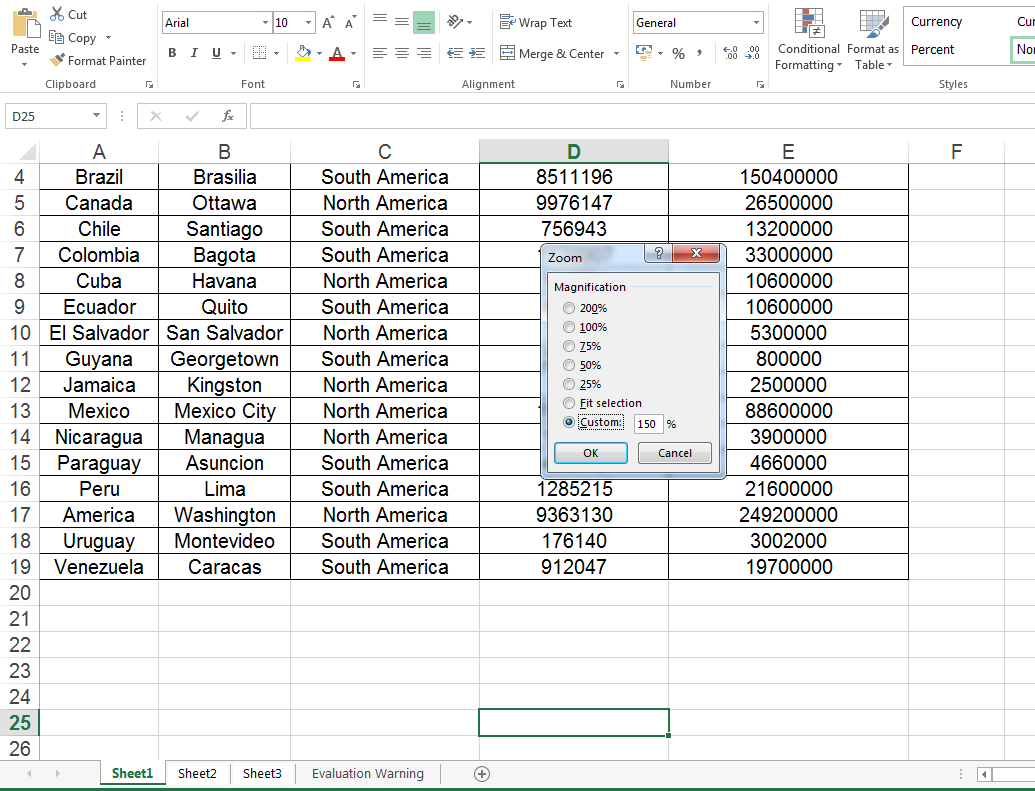
Effective screenshot after setting the zoom factor of the sheet to 150.
Create Chart with Non-Contiguous Data in Excel in Java
This article demonstrates how to create chart with non-contiguous data in Excel using Spire.XLS for Java.
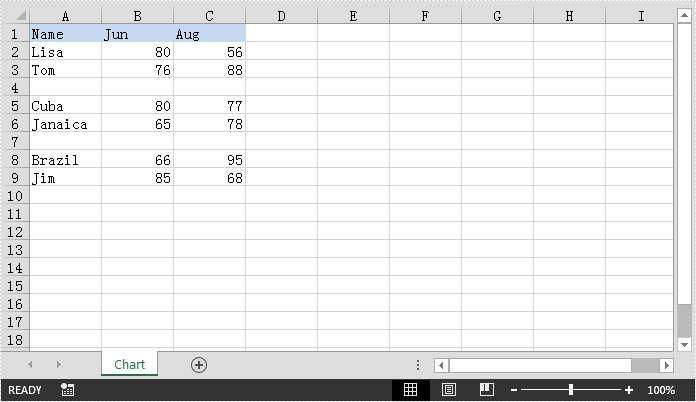
The example Excel file:
import com.spire.xls.*;
import com.spire.xls.charts.ChartSerie;

import java.awt.*;

public class ChartWithNonContiguousData {
    public static void main(String[] args){
        //Create a Workbook instance
        Workbook workbook = new Workbook();
        //Load the Excel file
        workbook.loadFromFile("NonContiguousData.xlsx");

        //Get the first worksheet
        Worksheet sheet = workbook.getWorksheets().get(0);

        //Add a clustered column chart to the worksheet
        Chart chart = sheet.getCharts().add(ExcelChartType.ColumnClustered);
        chart.setSeriesDataFromRange(false);
        //Set chart position
        chart.setLeftColumn(1);
        chart.setTopRow(10);
        chart.setRightColumn(10);
        chart.setBottomRow(24);

        //Add a series to the chart
        ChartSerie cs1 = (ChartSerie)chart.getSeries().add();
        //Set series name
        cs1.setName(sheet.getCellRange("B1").getValue());
        //Set category labels for the series using non-contiguous data
        cs1.setCategoryLabels(sheet.getCellRange("A2:A3").addCombinedRange(sheet.getCellRange("A5:A6"))
.addCombinedRange(sheet.getCellRange("A8:A9")));
        //Set values for the series using non-contiguous data
        cs1.setValues(sheet.getCellRange("B2:B3").addCombinedRange(sheet.getCellRange("B5:B6"))
.addCombinedRange(sheet.getCellRange("B8:B9")));
        //Specify the series type
        cs1.setSerieType(ExcelChartType.ColumnClustered);

        //Add a series to the chart
        ChartSerie cs2 = (ChartSerie)chart.getSeries().add();
        //Set series name
        cs2.setName(sheet.getCellRange("C1").getValue());
        //Set category labels for the series using non-contiguous data
        cs2.setCategoryLabels(sheet.getCellRange("A2:A3").addCombinedRange(sheet.getCellRange("A5:A6"))
.addCombinedRange(sheet.getCellRange("A8:A9")));
        //Set values for the series using non-contiguous data
        cs2.setValues(sheet.getCellRange("C2:C3").addCombinedRange(sheet.getCellRange("C5:C6"))
.addCombinedRange(sheet.getCellRange("C8:C9")));
        //Specify the series type
        cs2.setSerieType(ExcelChartType.ColumnClustered);

        //Set chart title
        chart.setChartTitle("Chart");
        chart.getChartTitleArea().getFont().setSize(20);
        chart.getChartTitleArea().setColor(Color.black);

        chart.getPrimaryValueAxis().hasMajorGridLines(false);

        //Save the result file
        workbook.saveToFile("Chart.xlsx", ExcelVersion.Version2013);
    }
}
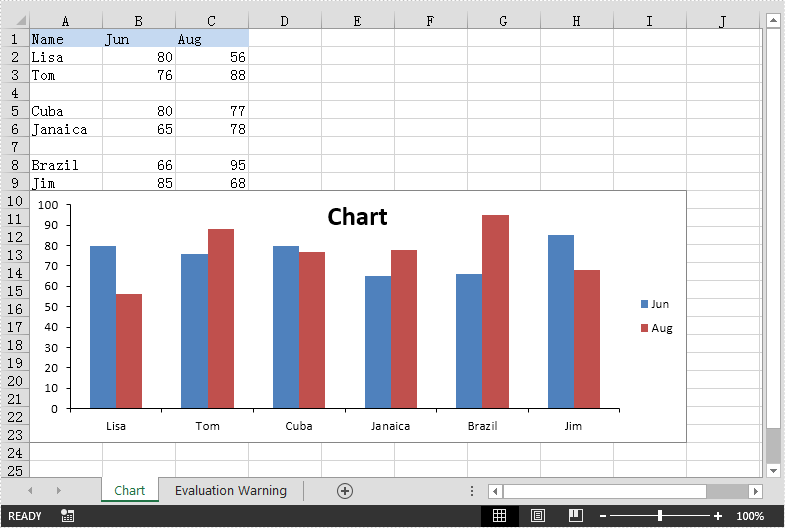
Output:
Freeze or Unfreeze Excel Rows and Columns in Java
This article demonstrates how to freeze or unfreeze rows and columns in Excel using Spire.XLS for Java.
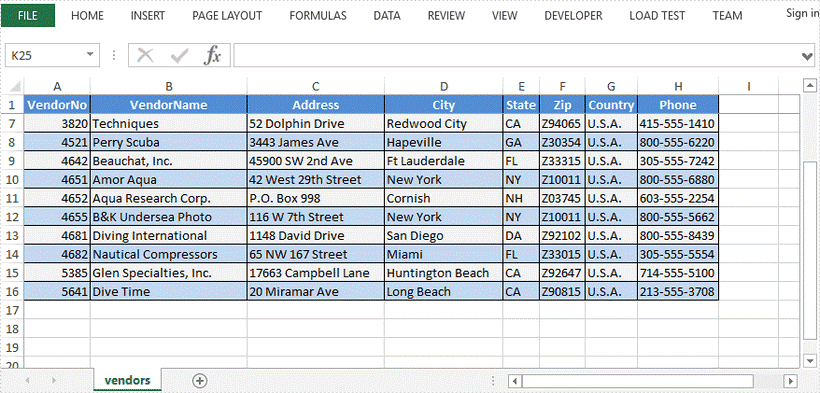
Freeze top row
//Create a Workbook instance
Workbook workbook = new Workbook();

//Load a sample Excel file
workbook.loadFromFile("C:\\Users\\Administrator\\Desktop\\sample.xlsx");

//Get the first worksheet
Worksheet sheet = workbook.getWorksheets().get(0);

//Freeze top row
sheet.freezePanes(2,1);

//Save to file
workbook.saveToFile("FreezeTopRow.xlsx", ExcelVersion.Version2016);
Freeze fisrt column
//Create a Workbook instance
Workbook workbook = new Workbook();

//Load a sample Excel file
workbook.loadFromFile("C:\\Users\\Administrator\\Desktop\\sample.xlsx");

//Get the first worksheet
Worksheet sheet = workbook.getWorksheets().get(0);

//Freeze frist column
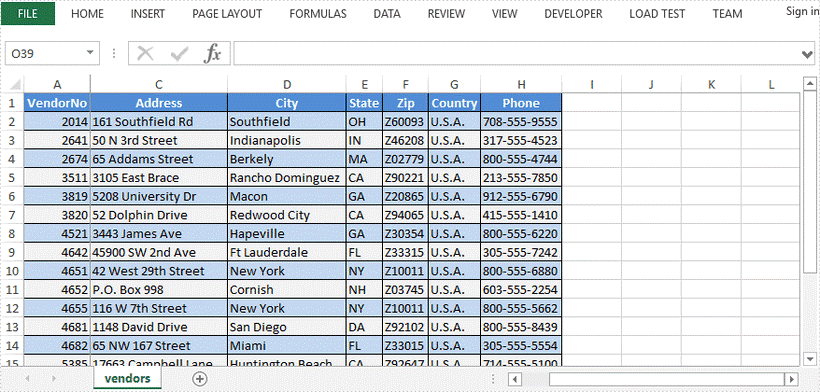
sheet.freezePanes(1,2);

//Save to file
workbook.saveToFile("FreezeFirstColumn.xlsx", ExcelVersion.Version2016);
Freeze few rows and columns
//Create a Workbook instance
Workbook workbook = new Workbook();

//Load a sample Excel file
workbook.loadFromFile("C:\\Users\\Administrator\\Desktop\\sample.xlsx");

//Get the first worksheet
Worksheet sheet = workbook.getWorksheets().get(0);

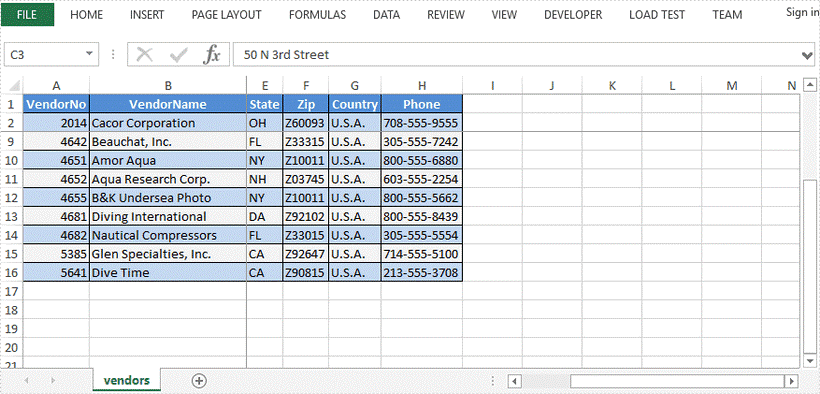
//Freeze the second row and the second column
sheet.freezePanes(3,3);

//Save to file
workbook.saveToFile("FreezeFewRowsAndColumns.xlsx", ExcelVersion.Version2016);
Unfreeze panes
//Create a Workbook instance
Workbook workbook = new Workbook();

//Load a sample Excel file
workbook.loadFromFile("C:\\Users\\Administrator\\Desktop\\FreezeSample.xlsx");

//Get the first worksheet
Worksheet sheet = workbook.getWorksheets().get(0);

//Unfreeze panes
sheet.removePanes();

//Save to file
workbook.saveToFile("UnfreezePanes.xlsx", ExcelVersion.Version2016);