Add text watermark and image watermark to word document in C#
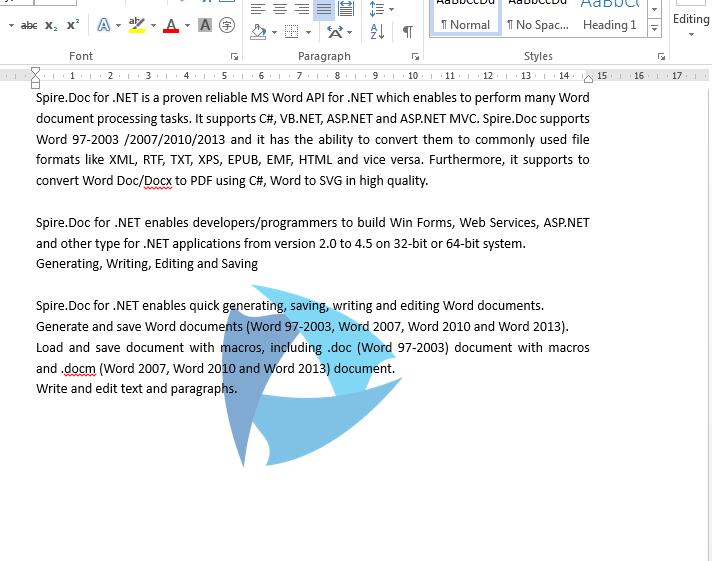
Text watermark and image watermark are two kinds of watermarks in Word document. The text watermark always shows some additional but related information to the word context. While image watermark is used to make the Word document be more attractive. This section will demonstrate how to use Spire.Doc to add text watermark and image watermark to Word document in C#.
Add Image Watermark in C#:
using Spire.Doc;
namespace SetImageWatermark
{
    class Program
    {
        static void Main(string[] args)
        {
            {
                //create a new instance of Document and load the document from file.
                Document doc = new Document();
                doc.LoadFromFile("Sample.docx", FileFormat.Docx2013);

                //create a new instance of the PictureWatermark and load the picture from file.
                PictureWatermark picture = new PictureWatermark();
                picture.Picture = System.Drawing.Image.FromFile("logo.png");

                //set the image watermark scaling and Washout property
                picture.Scaling = 20;
                picture.IsWashout = false;

                //add the picture watermark
                doc.Watermark = picture;

                //save the document to file
                doc.SaveToFile("ImageWatermark.docx", FileFormat.Docx2013);

            }
        }
    }
}
Add Text Watermark in C#::
using Spire.Doc;
using Spire.Doc.Documents;
using System.Drawing;
namespace SetTextWatermark
{
    class Program
    {
        static void Main(string[] args)
        {
            {
                //create a new instance of Document and load the document from file.
                Document doc = new Document();
                doc.LoadFromFile("Sample.docx", FileFormat.Docx2013);

                //create a new instance of the TextWatermark
                TextWatermark txtWatermark = new TextWatermark();

                //set the text watermark with text string, font, color and layout.
                txtWatermark.Text = "Confidential";
                txtWatermark.FontSize = 45;
                txtWatermark.Color = Color.Green;
                txtWatermark.Layout = WatermarkLayout.Diagonal;

                //add the text watermark
                doc.Watermark = txtWatermark;

                //save the file.
                doc.SaveToFile("TextWatermark.docx", FileFormat.Docx2013);

            }
        }
    }
}

Conditionally Format Dates in Excel with C#
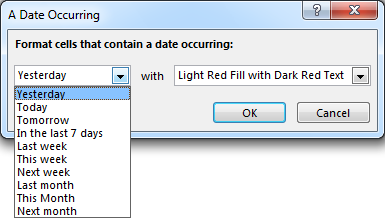
Microsoft Excel provides 10 date options, ranging from yesterday to next month (see below image) to format selected cells based on the current date. Spire.XLS supports all of these options, in this article, we’re going to show you how to conditionally format dates in Excel using Spire.XLS. If you want to highlight cells based on a date in another cell, or create rules for other dates (i.e., more than a month from the current date), you will have to create your own conditional formatting rule based on a formula.
Detail steps:
Step 1: Initialize an object of Workbook class and load the Excel file.
Workbook workbook = new Workbook();
workbook.LoadFromFile("Input.xlsx");
Step 2: Get the first worksheet.
Worksheet sheet = workbook.Worksheets[0];
Step 3: Add a condition to the used range in the worksheet.
XlsConditionalFormats xcfs1 = sheet.ConditionalFormats.Add();
xcfs1.AddRange(sheet.AllocatedRange);
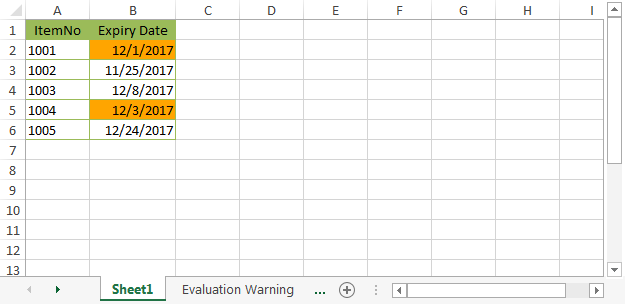
Step 4: Specify the format type of the condition as time period and set the time period as last 7 days.
IConditionalFormat format1 = xcfs1.AddTimePeriodCondition(TimePeriodType.Last7Days);
Step 5:Set the highlight color.
conditionalFormat.BackColor = Color.Orange;
Step 6:Save the file.
workbook.SaveToFile("ConditionallyFormatDates.xlsx", ExcelVersion.Version2013);
Screenshot::
Full Code:
using Spire.Xls;
using Spire.Xls.Core;
using Spire.Xls.Core.Spreadsheet.Collections;
using Spire.Xls.Core.Spreadsheet.ConditionalFormatting;
using System.Drawing;

namespace ConditionallyFormatDates
{
    class Program
    {
        static void Main(string[] args)
        {
            //Initialize an object of Workbook class
            Workbook workbook = new Workbook();

            //Load the Excel file
            workbook.LoadFromFile("Input.xlsx");

            //Get the first worksheet
            Worksheet sheet = workbook.Worksheets[0];

            //Highlight cells that contain a date occurring in the last 7 days
            XlsConditionalFormats xcfs1 = sheet.ConditionalFormats.Add();
            xcfs1.AddRange(sheet.AllocatedRange);

            IConditionalFormat conditionalFormat = xcfs1.AddTimePeriodCondition(TimePeriodType.Last7Days);
            conditionalFormat.BackColor = Color.Orange;

            //Save the file
            workbook.SaveToFile("ConditionallyFormatDates.xlsx", ExcelVersion.Version2013);
        }
    }
}
Apply Transparency to Text in PowerPoint in C#, VB.NET
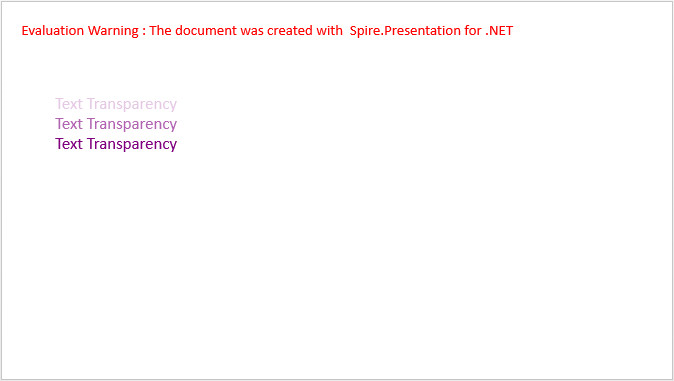
It is possible to add text transparency to any text shape in PowerPoint. In order to make the text transparent, we’d need to apply the transparency level to the text shape. This article will show you how to set the transparency level of text using Spire.Presentation.
Step 1: Create a Presentation instance.
Presentation ppt = new Presentation();
Step 2: Add a shape to the first slide.
IAutoShape textboxShape = ppt.Slides[0].Shapes.AppendShape(ShapeType.Rectangle, new RectangleF(50, 70,300, 120));
textboxShape.ShapeStyle.LineColor.Color = Color.Transparent;
textboxShape.Fill.FillType = FillFormatType.None;
Step 3: Add text to shape.
textboxShape.TextFrame.Text = "Text Transparency";
Step 4: Set the fill type of TextRange to solid, and fill the TextRange using the color created with specified alpha value.
textboxShape.TextFrame.TextRange.Fill.FillType = FillFormatType.Solid;
int alpha = 55;
textboxShape.TextFrame.TextRange.Fill.SolidColor.Color = Color.FromArgb(alpha, Color.Purple);
Step 5:Save the file.
ppt.SaveToFile("result.pptx", FileFormat.Pptx2013);
Output:
Full Code:
using Spire.Presentation;
using Spire.Presentation.Drawing;
using System.Drawing;
namespace ApplyTransparency
{
    class Program
    {
        static void Main(string[] args)
        {

            //create a PowerPoint document
            Presentation ppt = new Presentation();
            ppt.SlideSize.Type = SlideSizeType.Screen16x9;

            //add a shape
            IAutoShape textboxShape = ppt.Slides[0].Shapes.AppendShape(ShapeType.Rectangle, new RectangleF(50, 70, 300, 120));
            textboxShape.ShapeStyle.LineColor.Color = Color.Transparent;
            textboxShape.Fill.FillType = FillFormatType.None;

            //remove default blank paragraphs
            textboxShape.TextFrame.Paragraphs.Clear();

            //add three paragraphs, apply color with different alpha values to text
            int alpha = 55;
            for (int i = 0; i < 3; i++)
            {
                textboxShape.TextFrame.Paragraphs.Append(new TextParagraph());
                textboxShape.TextFrame.Paragraphs[i].TextRanges.Append(new TextRange("Text Transparency"));
                textboxShape.TextFrame.Paragraphs[i].TextRanges[0].Fill.FillType = FillFormatType.Solid;
                textboxShape.TextFrame.Paragraphs[i].TextRanges[0].Fill.SolidColor.Color = Color.FromArgb(alpha, Color.Purple);
                alpha += 100;
            }

            //save to file
            ppt.SaveToFile("result.pptx", FileFormat.Pptx2013);

        }
    }
}
Imports Spire.Presentation
Imports Spire.Presentation.Drawing
Imports System.Drawing
Namespace ApplyTransparency
	Class Program
		Private Shared Sub Main(args As String())

			'create a PowerPoint document
			Dim ppt As New Presentation()
			ppt.SlideSize.Type = SlideSizeType.Screen16x9

			'add a shape
			Dim textboxShape As IAutoShape = ppt.Slides(0).Shapes.AppendShape(ShapeType.Rectangle, New RectangleF(50, 70, 300, 120))
			textboxShape.ShapeStyle.LineColor.Color = Color.Transparent
			textboxShape.Fill.FillType = FillFormatType.None

			'remove default blank paragraphs
			textboxShape.TextFrame.Paragraphs.Clear()

			'add three paragraphs, apply color with different alpha values to text
			Dim alpha As Integer = 55
			For i As Integer = 0 To 2
				textboxShape.TextFrame.Paragraphs.Append(New TextParagraph())
				textboxShape.TextFrame.Paragraphs(i).TextRanges.Append(New TextRange("Text Transparency"))
				textboxShape.TextFrame.Paragraphs(i).TextRanges(0).Fill.FillType = FillFormatType.Solid
				textboxShape.TextFrame.Paragraphs(i).TextRanges(0).Fill.SolidColor.Color = Color.FromArgb(alpha, Color.Purple)
				alpha += 100
			Next

			'save to file
			ppt.SaveToFile("result.pptx", FileFormat.Pptx2013)

		End Sub
	End Class
End Namespace
Set text style in word document
using NPOI.XWPF.UserModel;
using System;
using System.Collections.Generic;
using System.IO;
using System.Linq;
using System.Text;
using System.Threading.Tasks;

namespace NPOI
{
    class Program
    {
        static void Main(string[] args)
        {
            //Create document
            XWPFDocument doc = new XWPFDocument();

            //Create paragraph
            XWPFParagraph para1 = doc.CreateParagraph();
            para1.Alignment = ParagraphAlignment.CENTER;

            //Set style of the paragraph text
            XWPFRun run1 = para1.CreateRun();
            run1.SetColor("Blue");
            run1.FontSize = 18;
            run1.SetText("This is the first paragraph");
            run1.SetBold(true);

            XWPFParagraph para2 = doc.CreateParagraph();
            para2.Alignment = ParagraphAlignment.LEFT;
            para2.BorderTop = Borders.WAVE;

            XWPFRun run2 = para2.CreateRun();
            run2.Subscript = VerticalAlign.BASELINE;
            run2.SetColor("Red");
            run2.IsItalic = true;
            run2.SetUnderline(UnderlinePatterns.Dash);
            run2.SetText("This is the second paragraph");

            //Save the file
            using (FileStream file = File.Create("TextStyle.docx"))
            {
                doc.Write(file);
            }

            //Launch
            System.Diagnostics.Process.Start("TextStyle.docx");
        }
    }
}
Insert image in word document
using NPOI.XWPF.UserModel;
using System;
using System.Collections.Generic;
using System.IO;
using System.Linq;
using System.Text;
using System.Threading.Tasks;

namespace NPOI
{
    class Program
    {
        static void Main(string[] args)
        {
            //Create document
            XWPFDocument doc = new XWPFDocument();
            XWPFParagraph para = doc.CreateParagraph();
            XWPFRun run = para.CreateRun();

            //Insert image and set its size
            using (FileStream picFile = new FileStream("../../../Data/image.jpg", FileMode.Open,FileAccess.Read))
            {
                run.AddPicture(picFile, (int)PictureType.PNG, "image", 300 * 12857, 168 * 12857);
            }

            //Save the file
            using (FileStream file = File.Create("Image.docx"))
            {
                doc.Write(file);
            }

            //Launch
            System.Diagnostics.Process.Start("Image.docx");
        }
    }
}
Create table in word document
using System;
using System.Collections.Generic;
using System.Linq;
using System.Text;
using System.Threading.Tasks;
using NPOI.XWPF.UserModel;
using System.IO;

namespace NPOI
{
    class Program
    {
        static void Main(string[] args)
        {
            //Create document
            XWPFDocument doc = new XWPFDocument();

            //Create table
            int row = 3;
            int col = 2;
            XWPFTable table = doc.CreateTable(row, col);

            //Set table width
            table.Width = 4000;

            //Loop through the table
            for (int i = 0; i < row; i++)
            {
                for (int j = 0; j < col; j++)
                {
                    XWPFTableCell cell = table.GetRow(i).GetCell(j);

                    //Set style of the table
                    XWPFParagraph para=cell.AddParagraph();
                    XWPFRun run=para.CreateRun();
                    run.SetBold(true);
                    run.FontFamily = "NSimSun";
                    run.SetText("Row" + i + " " + "Col" + j);
                    table.GetRow(i).SetHeight(800);
                    para.Alignment = ParagraphAlignment.CENTER;
                    cell.SetVerticalAlignment(XWPFTableCell.XWPFVertAlign.CENTER);
                }
            }

            //Save the file
            FileStream file = new FileStream("Table.docx", FileMode.Create);
            doc.Write(file);
            file.Close();

            //Launch
            System.Diagnostics.Process.Start("Table.docx");
        }
    }
}
Create multi-level list numbering in word document
using NPOI.OpenXmlFormats.Wordprocessing;
using NPOI.XWPF.UserModel;
using System;
using System.Collections.Generic;
using System.IO;
using System.Linq;
using System.Text;
using System.Threading.Tasks;

namespace NPOI
{
    class Program
    {
        static void Main(string[] args)
        {
            //Create document
            XWPFDocument doc = new XWPFDocument();

            //Create numbering
            XWPFNumbering numbering = doc.CreateNumbering();
            string abstractNumId = numbering.AddAbstractNum();
            string numId = numbering.AddNum(abstractNumId);

            //Create paragragh and set its list level
            XWPFParagraph para1 = doc.CreateParagraph();
            XWPFRun run1 = para1.CreateRun();
            run1.SetText("The first paragraph");
            para1.SetNumID(numId, "0");

            //Create paragragh and set the list level
            XWPFParagraph para2 = doc.CreateParagraph();
            XWPFRun run2 = para2.CreateRun();
            run2.SetText("The second paragraph");
            para2.SetNumID(numId, "0");

            //Create paragragh and apply multi level list
            XWPFParagraph para3 = doc.CreateParagraph();
            XWPFRun run3 = para3.CreateRun();
            run3.SetText("The third paragraph");
            para3.SetNumID(numId, "0");
            para3 = doc.CreateParagraph();
            run3 = para3.CreateRun();
            run3.SetText("The first sub-item");
            para3.SetNumID(numId, "1");
            para3 = doc.CreateParagraph();
            run3 = para3.CreateRun();
            run3.SetText("The second sub-item");
            para3.SetNumID(numId, "1");
            para3 = doc.CreateParagraph();
            run3 = para3.CreateRun();
            run3.SetText("The sub-sub-item");
            para3.SetNumID(numId, "2");

            //Save the file and Launch
            using (FileStream sw = new FileStream("ListNumbering.doc", FileMode.Create))
            {
                doc.Write(sw);
            }
            System.Diagnostics.Process.Start("ListNumbering.doc");
        }
    }
}
Create bookmark in word document
using NPOI.OpenXmlFormats.Wordprocessing;
using NPOI.XWPF.UserModel;
using System;
using System.Collections.Generic;
using System.IO;
using System.Linq;
using System.Text;
using System.Threading.Tasks;

namespace NOPI
{
    class Program
    {
        static void Main(string[] args)
        {
            //Creat document
            XWPFDocument doc = new XWPFDocument();
            CT_P para = doc.Document.body.AddNewP();

            //Bookmark start
            CT_Bookmark bookmark = new CT_Bookmark();
            bookmark.name = "MyBookmak";
            para.Items.Add(bookmark);
            int idCount = para.Items.Count;
            bookmark.id = idCount.ToString();
            para.ItemsElementName.Add(ParagraphItemsChoiceType.bookmarkStart);
            para.AddNewR().AddNewT().Value = "This is the bookmark";

            //Bookmark end
            bookmark = new CT_Bookmark();
            bookmark.id = idCount.ToString();
            para.Items.Add(bookmark);
            para.ItemsElementName.Add(ParagraphItemsChoiceType.bookmarkEnd);

            //Save the file
            using (FileStream file = File.Create("Bookmark.docx"))
            {
                doc.Write(file);
            }

            //Launch
            System.Diagnostics.Process.Start("Bookmark.docx");
        }
    }
}
Convert document to other formats in word document
using System;
using System.Collections.Generic;
using System.Linq;
using System.Text;
using System.Threading.Tasks;
using NPOI.XWPF.UserModel;
using System.IO;

namespace NPOI
{
    class Program
    {
        static void Main(string[] args)
        {
            //Load document
            XWPFDocument doc = new XWPFDocument(new FileStream("../../../Data/Sample.doc", FileMode.Open));

            //Save the file
            using (FileStream sw = File.Create("ConvertedFile.docx"))
            {
                doc.Write(sw);
            }
        }
    }
}
Add header and footer in word document
using NPOI.OpenXmlFormats.Wordprocessing;
using NPOI.XWPF.UserModel;
using System;
using System.Collections.Generic;
using System.IO;
using System.Linq;
using System.Text;
using System.Threading.Tasks;

namespace NPOI
{
    class Program
    {
        static void Main(string[] args)
        {
            //Create document
            XWPFDocument doc = new XWPFDocument();
            XWPFParagraph para=doc.CreateParagraph();
            XWPFRun run = para.CreateRun();
            run.SetText("Spire.Doc for .NET");

            doc.Document.body.sectPr = new CT_SectPr();
            CT_SectPr secPr = doc.Document.body.sectPr;

            //Create header and set its text
            CT_Hdr header = new CT_Hdr();
            header.AddNewP().AddNewR().AddNewT().Value = "This is Header";

            //Create footer and set its text
            CT_Ftr footer = new CT_Ftr();
            footer.AddNewP().AddNewR().AddNewT().Value = "This is Footer";

            //Create the relation of header
            XWPFRelation relation1 = XWPFRelation.HEADER;
            XWPFHeader myHeader = (XWPFHeader)doc.CreateRelationship(relation1, XWPFFactory.GetInstance(), doc.HeaderList.Count + 1);

            //Create the relation of footer
            XWPFRelation relation2 = XWPFRelation.FOOTER;
            XWPFFooter myFooter = (XWPFFooter)doc.CreateRelationship(relation2, XWPFFactory.GetInstance(), doc.FooterList.Count + 1);

            //Set the header
            myHeader.SetHeaderFooter(header);
            CT_HdrFtrRef myHeaderRef = secPr.AddNewHeaderReference();
            myHeaderRef.type = ST_HdrFtr.@default;
            myHeaderRef.id = myHeader.GetPackageRelationship().Id;

            //Set the footer
            myFooter.SetHeaderFooter(footer);
            CT_HdrFtrRef myFooterRef = secPr.AddNewFooterReference();
            myFooterRef.type = ST_HdrFtr.@default;
            myFooterRef.id = myFooter.GetPackageRelationship().Id;

            //Save the file
            using (FileStream stream = File.Create("HeaderAndFooter.docx"))
            {
                doc.Write(stream);
            }

            //Launch
            System.Diagnostics.Process.Start("HeaderAndFooter.docx");
        }
    }
}