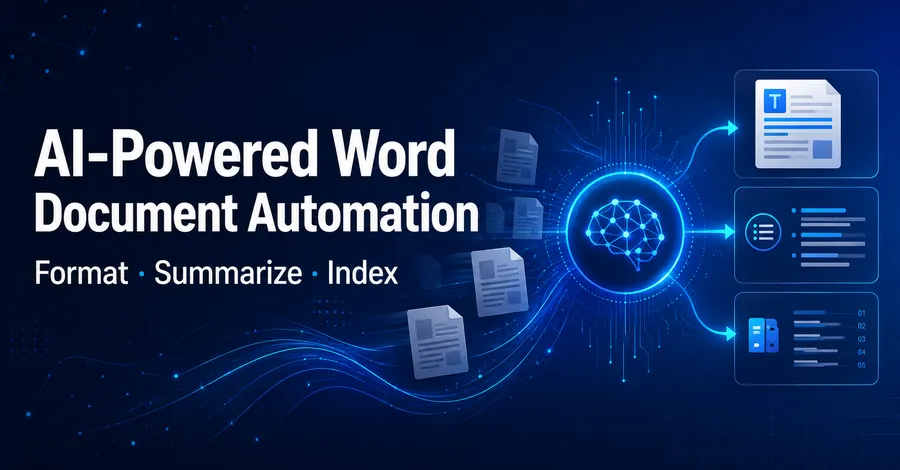
Organizations often accumulate hundreds or even thousands of Word documents over time. These files may come from different departments, employees, vendors, or legacy systems, resulting in inconsistent fonts, heading structures, numbering, spacing, headers, and other formatting.
Preparing such documents for publishing, migration, or archiving is more than a simple formatting task. In many cases, organizations also need to identify what each document is about, extract key metadata, create concise summaries, and organize the results into a searchable document index.
Traditional Word automation can handle fixed formatting rules well, but it becomes difficult when document structures vary. An AI-powered approach can first understand the logical role of content — such as titles, headings, body text, dates, and document types — and then apply the appropriate document operations.
In this article, we will use Spire.Agent.Office for .NET to build a three-stage Word processing workflow in C#:
Word documents → Formatting standardization → Metadata and summary extraction → Document index
Why AI-Powered Word Document Standardization Matters
Standardizing a collection of Word documents is not always as simple as setting every paragraph to the same font.
A typical organization may have documents such as:
Input/
├── Employee_Travel_Policy.docx
├── Vendor_Onboarding_Guide.docx
├── Security_Incident_Report.docx
└── Remote_Work_Policy.docx
Even when these documents cover similar business processes, their internal structure may differ considerably.
For example, one document may use a real Word Heading 1 style for section titles, while another simply uses bold 16-point text. Some documents may use numbered sections such as:
1. Purpose
2. Scope
3. Responsibilities
while others may use inconsistent numbering such as:
I. Purpose
Section 2 - Scope
3) Responsibilities
Traditional document automation usually requires developers to inspect paragraph positions, styles, or text patterns and write rules for each variation.
AI-assisted document processing changes the approach. Instead of specifying that "paragraph 3 should be a heading," developers can describe the desired result:
Identify the document title and heading hierarchy, normalize the heading styles and numbering, and preserve the original content.
The AI layer interprets the document structure, while the underlying Word document engine performs the actual document processing.
This makes the approach particularly useful for collections of semi-structured business documents where the content is different but the desired output standard is consistent.
What This Example Will Automate
Our sample workflow contains three processing stages.
Stage 1: Standardize Word Formatting
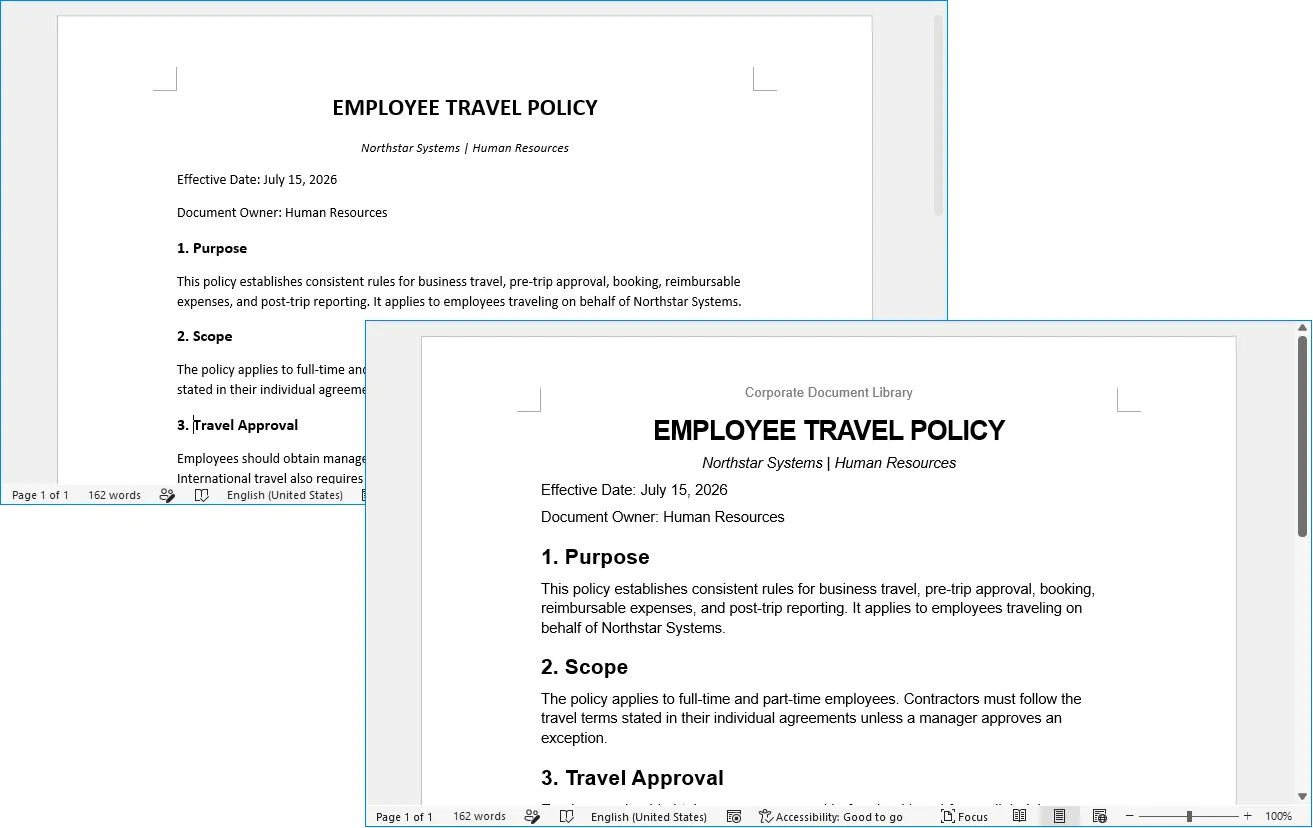
Each source document is analyzed and reformatted according to a shared corporate style. The processing includes:
- Normalizing fonts and font sizes
- Identifying document titles
- Applying consistent heading levels
- Normalizing heading numbering
- Standardizing paragraph spacing
- Adding a common header
- Adding page numbers to the footer
- Preserving the original text, tables, images, and hyperlinks
The result is a standardized version of every input document.
Stage 2: Extract Metadata and Summaries
The standardized documents are then analyzed individually to extract information such as:
- Document title
- Department
- Document type
- Effective or issue date
- Keywords
- Summary
Each result is saved as a small structured Word metadata document.
Stage 3: Build a Document Index
Finally, the metadata files are combined and converted into a single Word document index.
The finished index can contain information similar to:
| No. | Title | Department | Type | Date | Summary |
|---|---|---|---|---|---|
| 1 | Employee Travel Policy | Human Resources | Policy | July 15, 2026 | Defines travel approval and reimbursement requirements. |
| 2 | Vendor Onboarding Guide | Procurement | Procedure | June 3, 2026 | Describes the process for registering and approving new vendors. |
| 3 | Security Incident Report | IT | Report | August 8, 2026 | Summarizes a security incident and the actions taken in response. |
This produces not only cleaner Word files but also a useful overview of the entire document collection.
Set Up Spire.Agent.Office for C#
First, create a .NET project and install Spire.Agent.Office through NuGet.
You can install the package from Visual Studio's NuGet Package Manager, or use the .NET CLI:
dotnet add package Spire.Agent.Office
Then import the required namespaces:
using System;
using System.IO;
using Spire.Agent.Office.AI;
using Spire.Agent.Office.Extensions;
using Spire.Doc;
AI document processing follows a simple pattern.
First, configure an AIOptions instance with a SpireToken:
AIOptions options = new AIOptions();
options.SpireToken = "your SpireToken";
You can request a temporary SpireToken for testing from the Spire temporary license page. After obtaining the token, assign it to the SpireToken property before calling the AI processing APIs.
Next, load a Word document and create an AIDocumentProcessor:
using (Document doc = new Document())
{
    doc.LoadFromFile("input.docx");

    AIDocumentProcessor processor = doc.AI(options);

    processor.ExecuteInstruction(
        doc,
        "Your natural-language instruction",
        "output.docx"
    );
}
The important part is the instruction. Instead of manually writing a long sequence of Word API calls, we describe what the document should look like and let the agent perform the corresponding operations.
In the following sections, we will apply this approach to an entire directory of Word files.
Standardize Word Formatting with AI
Suppose documents collected from different departments use inconsistent fonts, headings, numbering, and page layouts.
We want all of them to follow the same corporate document style:
- Arial for all text
- 11 pt body text
- 20 pt bold document title
- 16 pt bold Heading 1
- 13 pt bold Heading 2
- Consistent multilevel numbering
- 1.15 line spacing
- A corporate header
- Centered page numbers
- No changes to the original wording
The following code processes every .docx file in an input directory and saves standardized versions to a new directory.
using System;
using System.IO;
using Spire.Agent.Office.AI;
using Spire.Agent.Office.Extensions;
using Spire.Doc;

string inputFolder = @"E:\Documents\Input";
string outputFolder = @"E:\Documents\Standardized";
string spireToken = "your SpireToken";
Directory.CreateDirectory(outputFolder);

string aiRule = """
Analyze the structure of this Word document and standardize its formatting according to the following corporate document rules:

1. Preserve all original wording. Do not rewrite, summarize, shorten, or remove any document content.
2. Use Arial as the default font and 11 pt for normal body text.
3. Identify the main document title and format it as 20 pt bold.
4. Identify the logical heading hierarchy and apply proper Word heading styles. Use 16 pt bold for Heading 1 and 13 pt bold for Heading 2.
5. Normalize section numbering into a consistent hierarchy such as 1, 1.1, and 1.1.1 where appropriate.
6. Use 1.15 line spacing for normal body paragraphs and keep paragraph spacing visually consistent.
7. Add 'Corporate Document Library' to the document header.
8. Add centered page numbers to the footer.
9. Preserve all existing tables, images, hyperlinks, and other document objects.
10. Keep the overall document structure and original meaning unchanged.
""";

var aiOpts = new AIOptions { SpireToken = spireToken };

foreach (var file in Directory.GetFiles(inputFolder, "*.docx"))
{
    var fileName = Path.GetFileName(file);
    var savePath = Path.Combine(outputFolder, fileName);

    using var doc = new Document();
    doc.LoadFromFile(file);

    var res = doc.AI(aiOpts).ExecuteInstruction(doc, aiRule, savePath);
    Console.WriteLine(res.Success ? $"Processed: {fileName}" : $"Failed: {fileName} - {res.ErrorMessage}");
}
One important detail in the instruction is the requirement to identify the logical heading hierarchy .
This is different from simply changing the font of every bold paragraph. The agent can analyze what a paragraph represents and determine whether it functions as a document title, major section heading, subsection, or normal body text.
For document management workflows, proper heading styles are especially useful because they can improve navigation, automatic table-of-contents generation, PDF bookmarks, accessibility, and later document parsing.
Another important rule is:
Preserve all original wording.
Formatting and content rewriting should normally be treated as separate tasks. When the purpose of this stage is document standardization, the AI should not simultaneously rewrite or summarize the source text.
After execution, the output directory contains standardized copies:
Standardized/
├── Employee_Travel_Policy.docx
├── Vendor_Onboarding_Guide.docx
├── Security_Incident_Report.docx
└── Remote_Work_Policy.docx
The following example shows how an inconsistently formatted Word document looks before and after AI-powered standardization.
Extract Metadata and Generate Document Summaries
Once the formatting has been standardized, the next step is understanding what each document contains.
Manually opening hundreds of files and recording their titles, departments, dates, categories, and summaries is time-consuming. This is a task where AI document understanding is particularly useful.
For this example, we will extract six fields from every document:
- Title
- Department
- Document Type
- Date
- Keywords
- Summary
Instead of returning free-form prose, the instruction requires a predictable structure. This makes the results easier to process later.
using System;
using System.IO;
using Spire.Agent.Office.AI;
using Spire.Agent.Office.Extensions;
using Spire.Doc;

string inputFolder = @"E:\Documents\Standardized";
string outputFolder = @"E:\Documents\Metadata";
string spireToken = "your SpireToken";

Directory.CreateDirectory(outputFolder);

string aiRule = """
Analyze this Word document and create a concise metadata report.

Extract the following information from the actual document content:
- Title
- Department or responsible business function
- Document Type, such as Policy, Procedure, Report, Guide, or Memo
- Effective Date or Issue Date
- 3 to 5 Keywords
- Summary of approximately 80 to 120 words

Create a new concise document containing only these fields.
Use exactly the following labels:

Title:
Department:
Document Type:
Date:
Keywords:
Summary:

Do not invent information that cannot reasonably be determined from the source. If a specific date or
department is not available, use 'Not specified'. Keep the summary factual and based only on the source document.
""";

var aiOpts = new AIOptions { SpireToken = spireToken };

foreach (var file in Directory.GetFiles(inputFolder, "*.docx"))
{
    var fileName = Path.GetFileNameWithoutExtension(file);
    var savePath = Path.Combine(outputFolder, $"{fileName}_Metadata.docx");

    using var doc = new Document();
    doc.LoadFromFile(file);

    var res = doc.AI(aiOpts).ExecuteInstruction(doc, aiRule, savePath);
    Console.WriteLine(res.Success ? $"Metadata extracted: {fileName}" : $"Failed: {fileName} - {res.ErrorMessage}");
}
A generated metadata document looks like this:
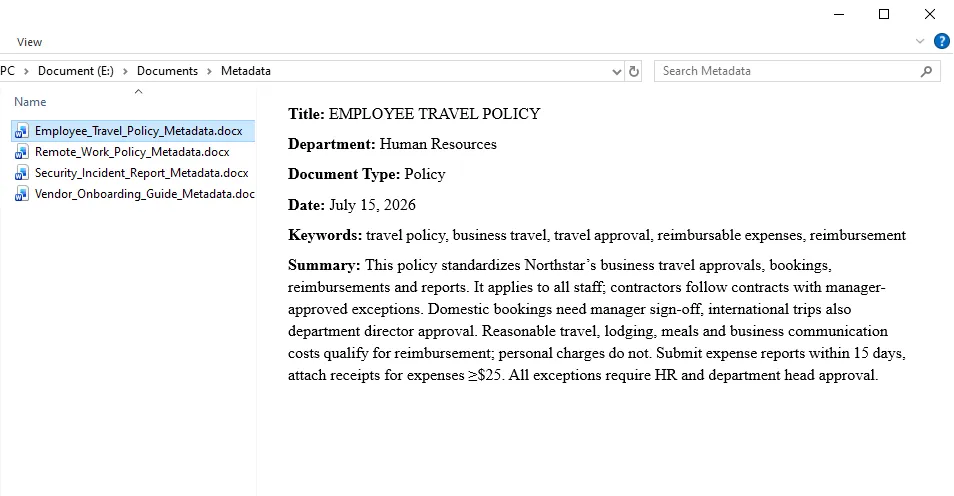
The requirement to use fixed labels is important.
If the prompt simply says "summarize the document," different documents may produce substantially different output structures. Requiring consistent fields makes the intermediate files much easier to combine into a final index.
The instruction also explicitly tells the agent not to invent missing metadata. For business records, "Not specified" is generally more useful than guessing a department or date that the document never states.
Build a Document Index from Multiple Word Files
At this point, we have one metadata file for every processed document:
Metadata/
├── Employee_Travel_Policy_Metadata.docx
├── Vendor_Onboarding_Guide_Metadata.docx
├── Security_Incident_Report_Metadata.docx
└── Remote_Work_Policy_Metadata.docx
The final step is to consolidate these individual metadata files into a single Word-based document index.
Instead of manually opening each metadata document, extracting its text, and merging the results in C#, we can pass all metadata files directly to Spire.Agent.Office through the attachments parameter. The AI agent reads the attached documents, extracts the labeled fields from each one, and creates a new Word document containing a consolidated index.
The attachments parameter is useful when the AI task depends on multiple supporting files rather than a single primary input document. In this example, there is no existing Word document that needs to be modified. We therefore create an empty Document object and use the metadata files as the information sources for generating the final index.
using System;
using System.IO;
using Spire.Agent.Office.AI;
using Spire.Agent.Office.Extensions;
using Spire.Doc;

string metadataFolder = @"E:\Documents\Metadata";
string outputPath = @"E:\Documents\Document_Index.docx";
string spireToken = "your SpireToken";
var attachments = Directory.GetFiles(metadataFolder, "*_Metadata.docx");

string aiRule = """
Read all metadata documents provided in the attachments and create a consolidated Word document index.

Create the title 'Document Index' at the top of the document.

Create a table with the following columns:
No. | Title | Department | Document Type | Date | Keywords | Summary

Requirements:
1. Create one row for each metadata document.
2. Number the records sequentially starting from 1.
3. Extract the values from the labeled fields in each attachment.
4. Preserve the extracted information and do not invent missing data.
5. Use 'Not specified' when a field is unavailable.
6. Make the table header bold.
7. Give the Summary column more width than the other columns.
8. Use a clean professional style suitable for an internal document register.
9. Produce a standalone Word document containing only the final document index.
""";

var aiOpts = new AIOptions { SpireToken = spireToken };

using var doc = new Document();
var res = doc.AI(aiOpts).ExecuteInstruction(doc, aiRule, outputPath, attachments);

Console.WriteLine(res.Success
    ? $"Document index created: {outputPath}"
    : $"Failed to create document index: {res.ErrorMessage}");
The final output is saved as:
Document_Index.docx
Instead of opening every original document individually, employees can now use one consolidated index to quickly understand what documents are available and what each file contains.
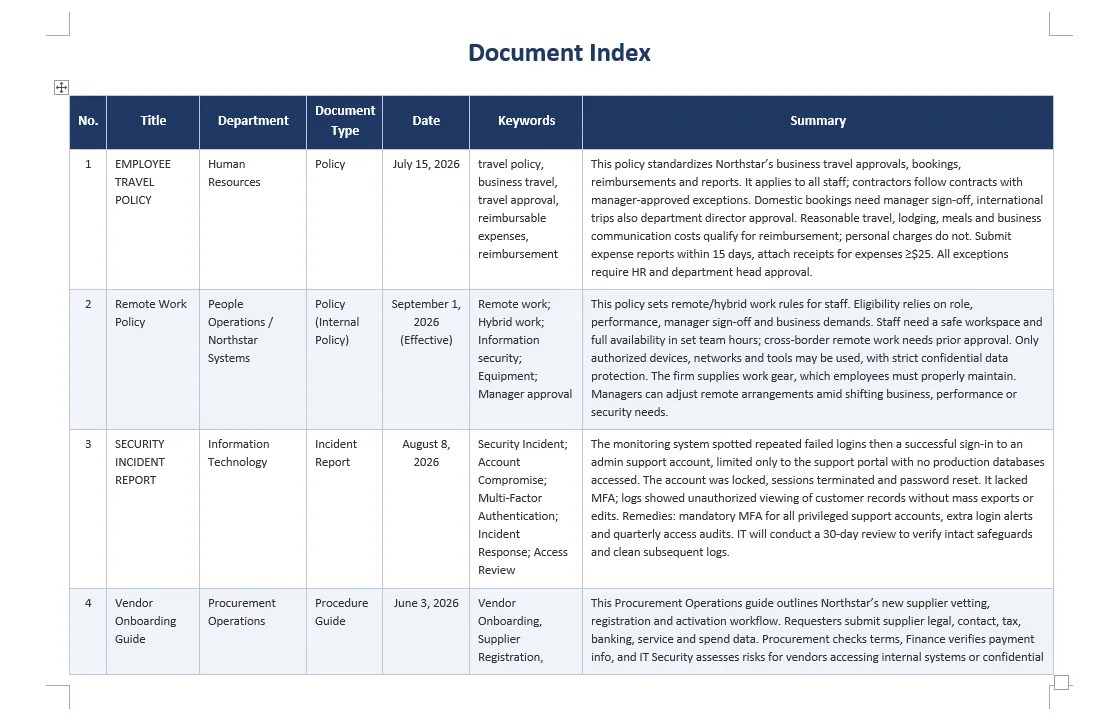
This type of index can be particularly useful before migrating files into a document management system, preparing an internal knowledge base, reviewing legacy document collections, or organizing records for long-term retention.
Best Practices for Reliable AI Document Processing
AI makes semi-structured document processing more flexible, but reliable results still depend heavily on how the task is designed.
Separate Formatting from Content Analysis
Avoid asking the agent to standardize formatting, rewrite text, summarize the document, and extract metadata in one large instruction.
These are different operations with different goals.
A safer workflow is:
Original document
        ↓
Formatting standardization
        ↓
Standardized document
        ↓
Metadata extraction
        ↓
Structured metadata
        ↓
Document index
This also makes problems easier to identify and debug.
Define Formatting Rules Explicitly
Instructions such as:
Make the document look professional.
leave too much room for interpretation.
Whenever consistency matters, specify the actual corporate rules:
Arial, 11 pt body text
20 pt document title
16 pt Heading 1
13 pt Heading 2
1.15 line spacing
1 / 1.1 / 1.1.1 numbering
The same principle applies to headers, footers, table formatting, and page layout.
Protect the Original Content
For formatting tasks, explicitly include requirements such as:
Preserve all original wording.
and:
Do not rewrite, summarize, shorten, or delete the document content.
The source files should also be retained rather than overwritten during automated batch processing.
A practical folder structure is:
Documents/
├── Input/
├── Standardized/
├── Metadata/
└── Document_Index.docx
Request Structured Metadata
When extracted information will be reused programmatically, predictable output is more valuable than creative output.
Instead of:
Tell me what this document is about.
use a fixed schema:
Title:
Department:
Document Type:
Date:
Keywords:
Summary:
This makes downstream processing considerably easier.
Handle Missing Information Explicitly
Not every document contains a department name, effective date, document number, or owner.
Tell the AI what to do when information is missing:
Use "Not specified" instead of guessing.
This is especially important for document management, legal, financial, compliance, and other record-sensitive workflows.
Review High-Importance Outputs
AI-generated metadata and summaries should not automatically be treated as authoritative records in high-stakes workflows.
For ordinary internal document organization, automated results may be sufficient. For regulated archives, legal records, compliance documents, or official retention systems, extracted fields and classifications should still be validated according to the organization's review requirements.
Conclusion
Batch Word processing often involves two different problems.
The first is document automation : changing fonts, applying styles, creating headers and footers, managing numbering, and generating Word files.
The second is document understanding : determining what content represents, identifying document types, finding dates and departments, extracting keywords, and producing summaries.
Traditional Word APIs are highly effective when developers already know exactly what content to modify. AI-assisted processing becomes particularly useful when documents are inconsistent and the software must first understand their structure before deciding how to process them.
Using Spire.Agent.Office in C#, these two capabilities can be combined into one workflow:
Analyze → Standardize → Extract → Organize
In the example above, a folder containing inconsistent Word documents is transformed into a standardized document collection, a set of structured metadata records, and finally a centralized Word document index.
The same architecture can be extended to other enterprise workflows, such as policy libraries, procedure manuals, compliance documentation, project archives, HR records, vendor documentation, and legacy document migration.
Instead of manually reviewing and organizing files one by one, developers can define the required document rules and information structure in natural language and automate the repetitive parts of the workflow while still producing real, editable Word documents.