CSV files are widely used for storing and exchanging tabular data, but they aren't always the best format for sharing information. When you need to include spreadsheet data in a report, proposal, project document, or client deliverable, converting a CSV file to a Word document often provides better presentation and formatting options.
There are several ways to convert CSV to Word, ranging from simple manual techniques to dedicated CSV-to-Word converters and automated solutions. The best method depends on your workflow, the size of your data, and how often you need to perform the conversion.
In this guide, you'll learn four practical ways to convert CSV to Word documents, including manual methods, online CSV-to-Word converters, and a Python-based approach for converting CSV data into DOCX documents automatically. Whether you need a quick one-time conversion or a scalable solution for recurring tasks, you'll find an option that fits your needs.
Quick Navigation
- Why Convert CSV to Word?
- Method 1 – Copy and Paste CSV Data into Word
- Method 2 – Convert CSV to a Word Table Using Text-to-Table
- Method 3 – Use an Online CSV to Word Converter
- Limitations of Manual and Online CSV-to-Word Conversion
- Method 4 – Convert CSV to Word Automatically with Python
- Complete CSV to Word Python Example
- Why Use Spire.Doc for CSV-to-Word Conversion?
- CSV to Word Conversion Methods Compared
- FAQ
1. Why Convert CSV to Word?
You might wonder: why not just use Excel? After all, CSV files open natively in spreadsheet applications. While Excel is great for data analysis and calculations, Word documents serve different purposes. Word provides superior formatting for narrative reports, client deliverables, and print-ready documents where data needs to appear alongside explanatory text, headers, and styled layouts.
Common Use Cases
| Use Case | Why Word Over Excel |
|---|---|
| Business reports | Combine data tables with narrative analysis and executive summaries |
| Project documentation | Embed data within structured documents that include instructions and context |
| Client deliverables | Present data in branded, professionally formatted documents |
| Academic papers | Follow specific formatting guidelines (APA, MLA) with data integrated into the text |
| Mail merge preparation | Use CSV data as the source for personalized letters and labels in Word |
When you need to convert a CSV file to a Word document, the right method depends on how often you do it and how much formatting control you need.
2. Method 1 – Copy and Paste CSV Data into Word
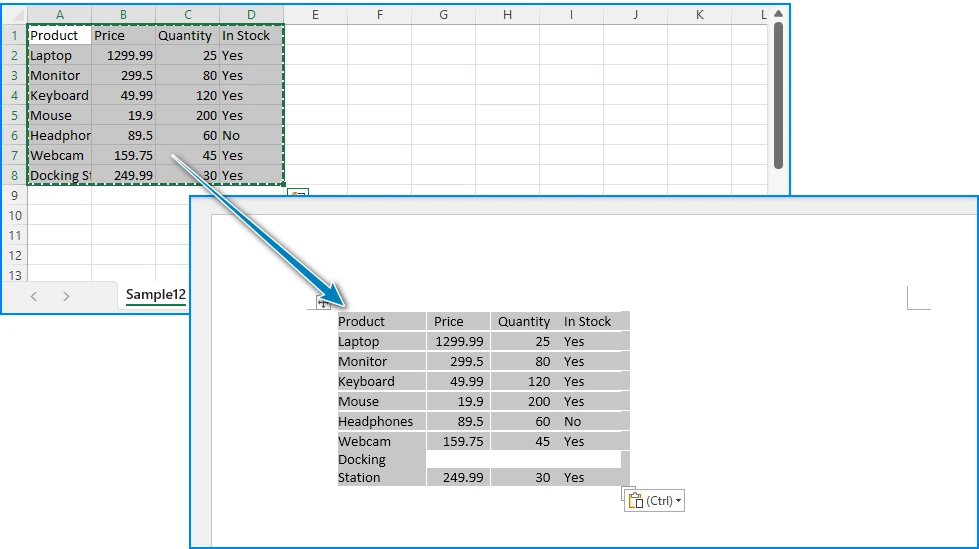
The simplest way to bring CSV data into Word is to copy it from a spreadsheet and paste it directly. This method works well for small datasets and one-time tasks.
Step 1: Open the CSV File in Excel
Double-click your .csv file, or open Excel and use File > Open to load the CSV. Excel will automatically parse the comma-separated values into columns.
Step 2: Select the Data
Highlight the cells you want to include in your Word document. You can select the entire sheet by pressing Ctrl + A, or select a specific range.
Step 3: Paste into Word
Open Microsoft Word, place your cursor where you want the data, and press Ctrl + V. Word will automatically convert the tabular data into a Word table.
Step 4: Apply Table Formatting
Use Word's Table Design tab to apply a style, adjust column widths, and format headers.
Pros and Cons
| Aspect | Evaluation |
|---|---|
| Ease of use | Very easy — no special tools required |
| Speed | Fast for small datasets |
| Formatting control | Limited — formatting may break with large data |
| Scalability | Not suitable for files with hundreds or thousands of rows |
| Reproducibility | Manual process — hard to repeat consistently |
If you're also working with spreadsheet workflows, you may find our guide on converting CSV files to Excel helpful.
3. Method 2 – Convert CSV to a Word Table Using Text-to-Table
Word has a built-in feature that can convert delimited text directly into a table — no Excel required. This method is particularly relevant if you're searching for how to convert CSV to a Word table, since it uses Word's native Text-to-Table conversion.
Step 1: Open the CSV File in a Text Editor
Open your .csv file in Notepad, Notepad++, or any plain text editor. You'll see the raw comma-separated values.
Step 2: Copy the CSV Content
Select all the text (Ctrl + A) and copy it (Ctrl + C).
Step 3: Paste into Word as Plain Text
In Word, paste the content. It will appear as plain text with commas separating the values.
Step 4: Use Text-to-Table Conversion
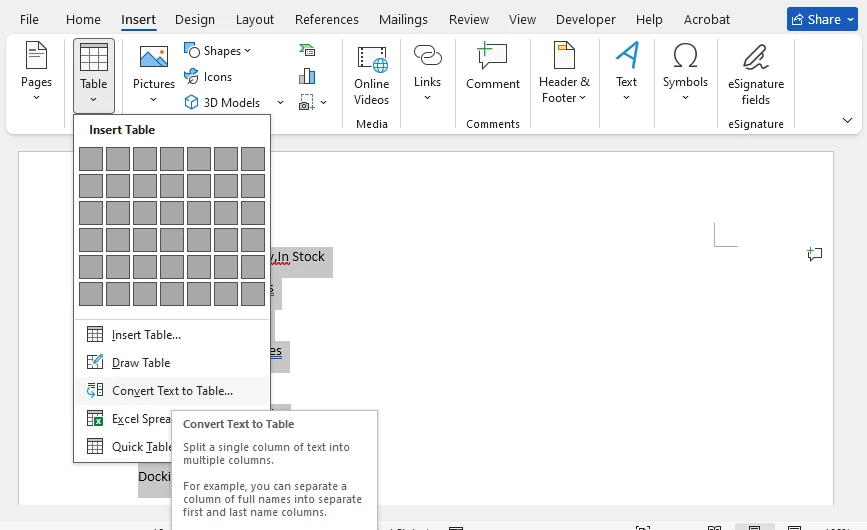
Select the pasted text, then go to Insert > Table > Convert Text to Table. In the dialog box:
- Set Separate text at to Commas
- Adjust the number of columns if needed
- Click OK
Word will convert the comma-separated text into a properly structured table.
Step 5: Format the Table
Apply a table style from the Table Design tab, format the header row, and adjust column widths as needed.
Pros and Cons
| Aspect | Evaluation |
|---|---|
| Ease of use | Easy — no Excel needed, works entirely within Word |
| Formatting control | Medium — Word handles the table structure automatically |
| Scalability | Works for moderate-sized files; very large files may be slow |
| Accuracy | Good — Word correctly parses comma delimiters in most cases |
| Limitation | May misinterpret commas inside quoted fields (e.g., "Smith, John") |
If your data is already stored in Excel workbooks rather than CSV files, see our guide on converting Excel sheets to Word documents.
4. Method 3 – Use an Online CSV to Word Converter
If you don't have Excel or Word installed, or you just need a quick one-off conversion, an online CSV to Word converter can get the job done in seconds. Several free tools allow you to upload a CSV file and download a Word document.
How It Works
- Search for "CSV to Word converter online" in your browser
- Upload your
.csvfile to the converter website - Wait for the conversion to complete
- Download the generated
.docxfile
What to Look for in an Online Converter
When choosing an online CSV-to-Word converter, consider:
- File size limits
- Supported output formats (DOC vs DOCX)
- Data privacy policies
- Table formatting quality
- Batch conversion support
Pros and Cons
| Aspect | Evaluation |
|---|---|
| Ease of use | Very easy — no software installation required |
| Speed | Fast for small to medium files |
| Formatting control | Low — you get what the tool produces |
| Privacy | Concern — your data is uploaded to a third-party server |
| File size limits | Most tools impose upload size restrictions |
| Batch processing | Not supported — one file at a time |
When to Use an Online Converter
Online converters are a reasonable choice when you have a single, non-sensitive CSV file and just need a quick conversion. However, if your data contains personal information, financial records, or business-critical content, uploading it to a third-party service may not be appropriate.
If you need repeatable or large-scale conversions, automation is usually a better long-term solution.
5. Limitations of Manual and Online CSV-to-Word Conversion
Manual methods and online tools work for occasional use, but they break down when you need to process CSV files regularly or at scale. Here are the common challenges:
Common Challenges
- Repetitive work — If you convert CSV to Word every week or every day, manual copy-paste becomes tedious and error-prone.
- Large datasets — Word struggles to handle tables with thousands of rows pasted from Excel. Performance degrades and formatting breaks.
- Batch processing — When you need to convert multiple CSV files to Word documents, doing them one by one is impractical.
- Formatting consistency — Manual formatting varies each time. Headers, fonts, and table styles may look different across documents.
- Privacy concerns — Online converters require uploading your data to external servers, which may not be acceptable for sensitive information.
- Automated report generation — If reports need to be generated on a schedule (daily, weekly), manual conversion cannot keep up.
For these situations, Python automation provides a practical path forward — and the next section shows exactly how to implement it.
6. Method 4 – Convert CSV to Word Automatically with Python
Python is a natural choice for automating CSV-to-Word conversion. It has a built-in csv module for reading data, and with Spire.Doc for Python, you can create and format Word documents without requiring Microsoft Word to be installed.
This section walks through the complete implementation: installing the library, reading CSV data, building a Word table, and saving the result as DOCX.
Install Spire.Doc for Python
Install the library via pip:
pip install spire.doc
Import the required classes in your Python script:
from spire.doc import *
from spire.doc.common import *
Step 1: Read CSV Data
Python's built-in csv module reads CSV files into a list of rows:
import csv

csv_data = []
with open("sales_data.csv", "r", encoding="utf-8-sig") as file:
    reader = csv.reader(file)
    for row in reader:
        csv_data.append(row)
The first row typically contains column headers, and subsequent rows contain the data.
Step 2: Create a Word Document and Table
Create a new Word document, add a section, and initialize a table with the dimensions of your CSV data:
document = Document()
section = document.AddSection()

num_rows = len(csv_data)
num_cols = len(csv_data[0]) if csv_data else 0

table = section.AddTable(True)
table.ResetCells(num_rows, num_cols)
table.PreferredWidth = PreferredWidth(WidthType.Percentage, 100)
Step 3: Populate the Table with CSV Data
Iterate through the CSV rows and write each value into the corresponding cell. Format the header row with a distinct style:
for r in range(num_rows):
    row = table.Rows[r]
    row.Height = 22
    row.HeightType = TableRowHeightType.Exactly

    for c in range(num_cols):
        cell = row.Cells[c]
        paragraph = cell.AddParagraph()
        text_range = paragraph.AppendText(csv_data[r][c])
        cell.CellFormat.VerticalAlignment = VerticalAlignment.Middle

        if r == 0:
            row.IsHeader = True
            cell.CellFormat.Shading.BackgroundPatternColor = Color.get_DarkBlue()
            text_range.CharacterFormat.Bold = True
            text_range.CharacterFormat.TextColor = Color.get_White()
            text_range.CharacterFormat.FontSize = 11
            paragraph.Format.HorizontalAlignment = HorizontalAlignment.Center
        else:
            text_range.CharacterFormat.FontSize = 10
            if r % 2 == 0:
                cell.CellFormat.Shading.BackgroundPatternColor = Color.get_LightGray()
            else:
                cell.CellFormat.Shading.BackgroundPatternColor = Color.Empty()
This code formats the first row as a header with a dark blue background and white bold text, and applies alternating row colors for readability.
Step 4: Save as DOCX
Save the generated Word document:
document.SaveToFile("SalesReport.docx", FileFormat.Docx)
document.Close()
Below is a preview of the CSV data and the generated Word document:
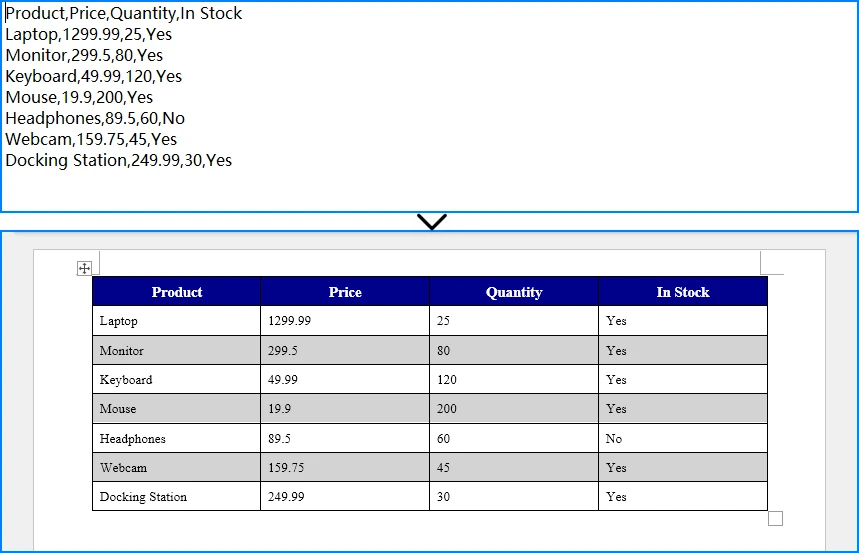
The output is a properly formatted .docx file containing your CSV data in a Word table.
For more advanced table customization options, check out our guide on creating and formatting Word tables with Python.
7. Complete CSV to Word Python Example
Here is the complete, runnable script that reads a CSV file and converts it to a Word document with a title, formatted table, alternating row colors, and table borders.
import csv
from spire.doc import *
from spire.doc.common import *

def csv_to_word(csv_path, output_path, title="Data Report"):
    csv_data = []
    with open(csv_path, "r", encoding="utf-8-sig") as file:
        reader = csv.reader(file)
        for row in reader:
            csv_data.append(row)

    if not csv_data:
        print("CSV file is empty.")
        return

    num_rows = len(csv_data)
    num_cols = len(csv_data[0])

    document = Document()
    section = document.AddSection()

    title_para = section.AddParagraph()
    title_range = title_para.AppendText(title)
    title_range.CharacterFormat.FontSize = 18
    title_range.CharacterFormat.Bold = True
    title_para.Format.HorizontalAlignment = HorizontalAlignment.Center
    title_para.Format.AfterSpacing = 12

    table = section.AddTable(True)
    table.ResetCells(num_rows, num_cols)
    table.PreferredWidth = PreferredWidth(WidthType.Percentage, 100)

    for r in range(num_rows):
        row = table.Rows[r]
        row.Height = 22
        row.HeightType = TableRowHeightType.Exactly

        for c in range(num_cols):
            cell = row.Cells[c]
            paragraph = cell.AddParagraph()
            text_range = paragraph.AppendText(csv_data[r][c])
            cell.CellFormat.VerticalAlignment = VerticalAlignment.Middle

            if r == 0:
                row.IsHeader = True
                cell.CellFormat.Shading.BackgroundPatternColor = Color.get_DarkBlue()
                text_range.CharacterFormat.Bold = True
                text_range.CharacterFormat.TextColor = Color.get_White()
                text_range.CharacterFormat.FontSize = 11
                paragraph.Format.HorizontalAlignment = HorizontalAlignment.Center
            else:
                text_range.CharacterFormat.FontSize = 10
                if r % 2 == 0:
                    cell.CellFormat.Shading.BackgroundPatternColor = Color.get_LightGray()
                else:
                    cell.CellFormat.Shading.BackgroundPatternColor = Color.Empty()

    table.Format.Borders.Vertical.BorderType = BorderStyle.Single
    table.Format.Borders.Vertical.LineWidth = 0.5
    table.Format.Borders.Horizontal.BorderType = BorderStyle.Single
    table.Format.Borders.Horizontal.LineWidth = 0.5

    document.SaveToFile(output_path, FileFormat.Docx)
    document.Close()
    print(f"Word document saved to: {output_path}")

csv_to_word("sales_data.csv", "SalesReport.docx", "Q4 Sales Report")
How It Works
-
csv.readerreads the CSV file row by row, handling different encodings viautf-8-sig(which handles BOM markers). -
Document()creates a blank Word document.AddSection()adds a section (page) to the document. -
AddTable(True)creates a new table with auto-fit enabled.ResetCells()sets the exact dimensions. -
AppendText()writes each CSV value into the corresponding cell as a text range. - Header formatting applies a dark blue background, white bold text, and center alignment to the first row.
- Alternating row colors use light gray for even rows and no fill for odd rows, improving readability.
-
SaveToFile()exports the document as a.docxfile.
8. Why Use Spire.Doc for CSV-to-Word Conversion?
Spire.Doc for Python offers several technical advantages for developers who need to generate Word documents from CSV data programmatically.
Advantages
| Advantage | Details |
|---|---|
| No Microsoft Word dependency | Create and manipulate DOCX files without installing Microsoft Word on the server or machine |
| Comprehensive table formatting | Control cell shading, borders, alignment, row heights, column widths, and table styles |
| Automated report generation | Build scripts that convert CSV to Word on a schedule, integrating with data pipelines |
| Batch document processing | Process multiple CSV files in a loop, generating separate Word documents for each |
| Python integration | Works seamlessly with Python's standard csv module and other data processing libraries |
| Full DOCX support | Generate documents compatible with Microsoft Word, LibreOffice, and Google Docs |
Key API Classes
-
Document— Represents a Word document. Use it to create new documents or load existing ones. -
Section— Represents a section (page) within a document. Contains paragraphs, tables, and other content. -
Table— Represents a table in a Word document. Supports row/column manipulation, styling, and borders. -
TableRow/TableCell— Provide access to individual rows and cells for formatting and content insertion. -
Paragraph/TextRange— Handle text content within cells, including font, size, color, and alignment.
9. CSV to Word Conversion Methods Compared
| Method | Ease of Use | Batch Processing | Formatting Control | Privacy | Best For |
|---|---|---|---|---|---|
| Copy & Paste | ★★★★★ | ✗ | Low | ✓ | One-time, small datasets |
| Text-to-Table | ★★★★☆ | ✗ | Medium | ✓ | No-Excel workflows, moderate data |
| Online Converter | ★★★★★ | ✗ | Low | ✗ | Quick one-off conversions |
| Python + Spire.Doc | ★★★☆☆ | ✓ | High | ✓ | Recurring tasks, batch processing, automation |
Summary: Manual methods and online tools are quick and accessible but don't scale. Python automation with Spire.Doc requires a small setup investment but pays off when you need consistent, repeatable, or batch CSV-to-Word conversion.
10. FAQ
How do I convert a CSV file to a Word document?
You can convert a CSV file to a Word document using several methods: (1) Open the CSV in Excel, copy the data, and paste it into Word; (2) Use Word's Text-to-Table feature to convert comma-separated text directly into a table; (3) Use an online CSV to Word converter for a quick one-off conversion; (4) Use Python with Spire.Doc for Python to automate the conversion programmatically. The Python approach is best for recurring tasks or batch processing.
Can I convert CSV to DOCX automatically?
Yes. You can automate CSV-to-DOCX conversion using Python. Read the CSV data with Python's built-in csv module, then use Spire.Doc for Python to create a Word document, populate a table with the CSV data, and save it as a .docx file. This approach works without Microsoft Word installed and can be scheduled to run automatically.
How do I insert CSV data into a Word table?
To insert CSV data into a Word table manually, you can use Word's Insert > Table > Convert Text to Table feature — paste the CSV text, then convert it using commas as the delimiter. For programmatic insertion, use Python: read the CSV with the csv module, create a table in a Word document using Spire.Doc for Python, and iterate through the CSV rows to populate each cell.
Is there a free CSV to Word converter online?
Yes, several websites offer free CSV-to-Word conversion. However, online converters have limitations: file size restrictions, limited formatting control, and privacy concerns since your data is uploaded to a third-party server. For sensitive data or recurring conversions, a local Python solution with Spire.Doc for Python is a more reliable and private alternative.
Can Python convert CSV files to Word documents?
Yes, Python can convert CSV files to Word documents. Using Spire.Doc for Python, you can read CSV data with the standard csv module, create a Word document, add a formatted table, populate it with the CSV content, and save the result as a DOCX file. This works without Microsoft Word and supports batch processing of multiple CSV files.
Does Spire.Doc for Python require Microsoft Word to be installed?
No. Spire.Doc for Python is a standalone library that creates and manipulates Word documents independently. It does not require Microsoft Word or any Office component to be installed on your system. This makes it suitable for server environments and automated workflows.
Conclusion
Converting CSV to Word is a common task with multiple approaches. Manual methods — copy-and-paste and Word's Text-to-Table feature — work well for occasional use with small datasets. Online converters offer convenience for quick, one-off tasks but raise privacy concerns and lack formatting control. None of these options scale to batch processing, scheduled report generation, or scenarios requiring consistent formatting across many documents.
Python automation with Spire.Doc for Python provides a reliable solution for converting CSV to DOCX programmatically. It reads CSV data, creates formatted Word tables, and generates professional documents without requiring Microsoft Word — making it ideal for automated workflows, batch processing, and server-side document generation.
You can apply for a 30-day free license to evaluate all features of Spire.Doc for Python.