Markdown is the gold standard for drafting engineering docs and web content. However, there are many scenarios—such as preparing plain-text emails, generating reports, or integrating content into legacy systems—that require plain text. Converting Markdown to text ensures your content remains readable, accessible, and versatile across platforms.
In this guide, we’ll explore 4 straightforward methods that writers and developers can use to transform Markdown (.md) into clean, plain text (.txt) without losing structure or clarity.
Quick Summary: Best Markdown to Text Methods
Markdown can be converted to text in multiple ways, depending on your technical comfort level, document complexity, and file volume. Here is a quick breakdown of the top 4 methods:
| Method & Tools | Key Advantage | Best For |
|---|---|---|
| Online tools (MDToText, Picotoolkit) | Instant browser conversion, no installation required | One-off, non-sensitive conversion |
| Desktop editors (VS Code, Obsidian) | Works offline and gives you more control over privacy | Regular editing and confidential files |
| Pandoc CLI | Preserves structure better for lists, links, and complex Markdown | Accurate conversion and batch processing |
| Python scripts (Spire.Doc) | Programmable and easy to integrate into automated workflows | Large file sets, AI pipelines, and recurring tasks |
Click any method above to jump directly to the section, or continue reading for the full step-by-step guide.
Method 1: Use Online Markdown to Text Converters
When you just need a quick, one-off conversion, downloading heavy desktop software is overkill. Free online Markdown-to-text converters offer the fastest, browser-based workflow for content creators. You can strip formatting and get copy-ready plain text in seconds with zero installation.
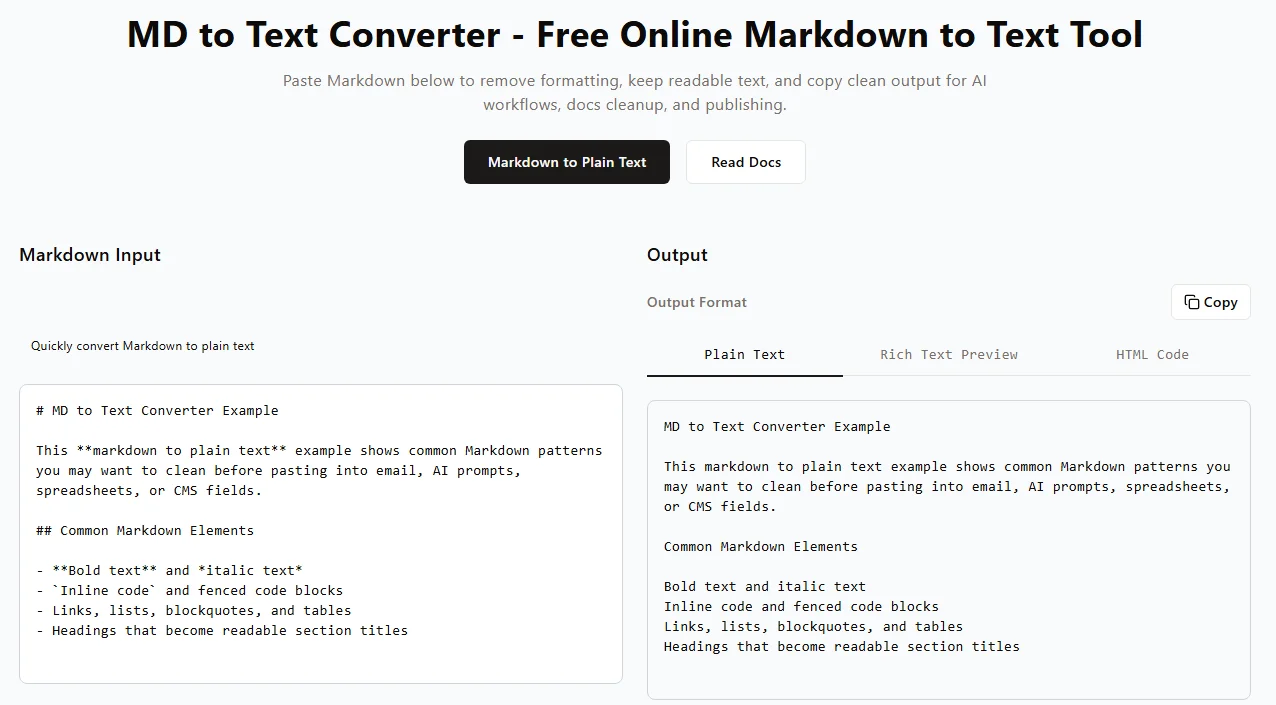
How to Convert Markdown to Text Online (Step-by-Step)
- Select a tool – Open a trusted, browser-based Markdown converter, such as mdtotext.com or Picotoolkit MD to TXT Converter.
- Paste your content – Copy the Markdown text and paste it directly into the tool's input box (or upload your .md file).
-
Strip formatting – The tool automatically removes markdown symbols like
#,**, and link brackets in real-time. - Copy or download the output – Review the cleaned, unformatted text in the output pane, then copy it to your clipboard or download the file.
⚠️ Important Considerations:
- Data Privacy and Security – Avoid pasting sensitive company data, API keys, or proprietary source code into public online converters. Always use offline methods for confidential files.
- Formatting Limitations – Advanced elements like nested tables, blockquotes, or task lists may not convert perfectly. Always proofread the final output before publishing.
✅ Pros: Instant, zero setup, works on any device.
❌ Cons: Not suitable for bulk files, requires internet.
Method 2: Export Markdown to Text via Desktop Editors
If you handle confidential Markdown files or prefer working offline, using a desktop Markdown editor is the best choice. Popular apps like VS Code and Obsidian allow you to convert Markdown files locally, giving you complete control over your data privacy.
Using VS Code
-
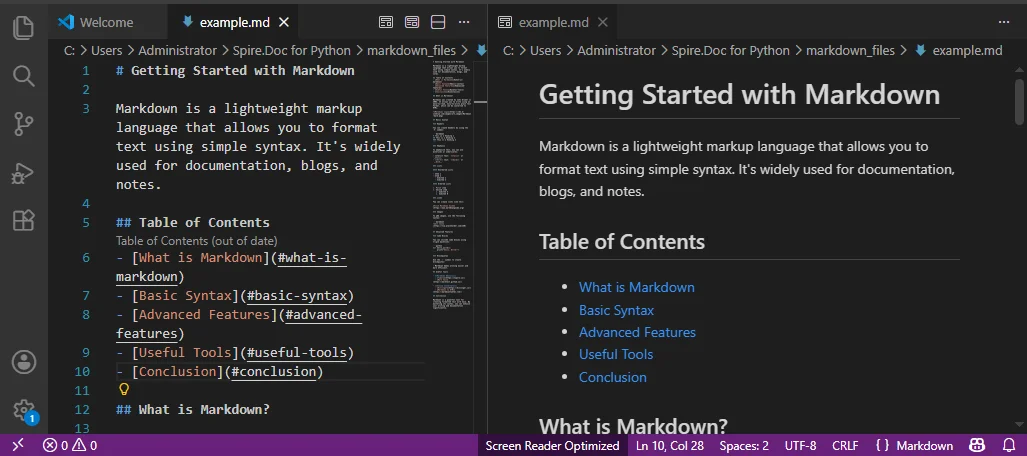
Open your .md file in VS Code by dragging and dropping or clicking File → Open.
-
Press Ctrl + Shift + V (Windows) or Cmd + Shift + V (Mac) to open the Markdown preview pane.
-
Select all text in the preview window (Ctrl + A or Cmd + A) and copy it.
-
Paste the cleaned text into a new .txt file.
Using Obsidian
- Open your Markdown file in Obsidian.
- Switch to Reading View (Preview mode).
- Select all text, copy and paste it into your standard text editor.
Quick Tips:
- Scroll in Preview mode to verify how content looks before exporting.
✅ Pros: Works offline, secure, supports complex Markdown.
❌ Cons: Manual copy-paste, not ideal for multiple files.
Method 3: Convert Markdown to Text Using Pandoc CLI
For technical writers, developers, and system administrators, Pandoc is the best choice when precision is critical. It accurately converts complex Markdown elements—tables, lists, links—into clean plain text. It also supports automation and batch processing.
1. Install Pandoc
-
Mac (via Homebrew):
brew install pandoc -
Windows (via Winget):
winget install pandoc
Note: Ensure Pandoc is added to your system PATH so it can run from any terminal.
2. Convert a Single Markdown File to Text
Navigate to the folder containing your Markdown file, then run the following command:
pandoc input.md -t plain -o output.txt
-
-t plain: Instructs Pandoc to output clean, readable plain text. -
-o output.txt: Specifies the name of the resulting plain text file.
3. Batch Convert Multiple MD Files to TXT
If you need to process many files at once, use these shell loops:
Mac/Linux:
for file in *.md; do
  pandoc "$file" -t plain -o "${file%.md}.txt"
done
Windows PowerShell:
Get-ChildItem *.md | ForEach-Object { pandoc $_.FullName -t plain -o "$($_.DirectoryName)\$($_.BaseName).txt" }
Tips:
- Test with a single file first before running batch operations.
- Keep your original Markdown files backed up.
- Combine with shell scripts or automation for recurring bulk conversions.
✅ Pros: High fidelity, batch processing, accurate for complex Markdown.
❌ Cons: Requires CLI knowledge, PATH setup may be tricky.
Method 4: Automate Markdown Files to Text Conversion with Python
For developers integrating Markdown conversion into automated workflows or pipelines, Python is ideal. Using libraries like Spire.Doc for Python, you can parse Markdown programmatically, clean text, and feed it into custom pipelines, AI models, or batch processing scripts.
While basic open-source libraries can strip text, using Spire.Doc ensures that complex elements like nested word tables, text alignments, and headers are properly managed without writing complex regex blocks. This makes it a robust solution for enterprise-level data preprocessing.
Step 1: Install Required Packages
Open your terminal and install the Spire.Doc for Python library:
pip install Spire.Doc
Step 2: Automate Markdown to TXT Conversion with Python
You can use the following script to handle single files or easily adapt it into a loop to scan an entire directory:
from spire.doc import *

# Create an object of the Document class
document = Document()

# Load a Markdown file
document.LoadFromFile("input.md")

# Save the Markdown file to a .txt file
document.SaveToFile("output.txt", FileFormat.Txt)

document.Close()
✅ Pros: Programmable, supports batch processing, integrates with pipelines and AI workflows.
❌ Cons: Requires Python knowledge and third-party dependencies.
Looking for rich text? If you need to preserve styling in a professional document format instead of stripping it entirely, check out our guide on converting Markdown to Word and Markdown to PDF via Python.
Pro Tips for Better Markdown to TXT Conversion
When stripping Markdown, some structural elements require a bit of strategic oversight to ensure your plain text doesn't lose its context.
-
Hyperlinks:
[Text](URL)may become just Text when stripping Markdown. Use Pandoc-t plainto keep URLs. - Tables: Complex tables can break in plain text. For tabular data, consider exporting Markdown to Excel or CSV instead.
- Code Blocks: Triple-backtick code may merge with text. Review manually or add indentation/markers to preserve readability.
- Preview and Backup: Always preview output and keep a backup of your original Markdown.
Conclusion: Which Method Should You Choose?
Converting Markdown to plain text is a core workflow for developers, technical writers, and AI data engineers. The best method depends entirely on your file volume, data privacy needs, and automation requirements:
- Use Online Tools for fast, one-off, low-stakes text conversions where privacy isn't a concern.
- Use Desktop Editors for secure, manual, offline work with sensitive data.
- Use Pandoc CLI when structural accuracy (like nested lists) matters most or for bulk conversions.
- Use Python Automation for deep integration into AI prompt pipelines, LLM data preprocessing, or recurring developer workflows.
By choosing the right approach for your project, you can efficiently strip Markdown syntax while keeping your plain text clean, readable, and ready for any platform.
FAQs
Q1: How can I convert multiple Markdown files to text at once?
A1: The most efficient way is using Pandoc CLI with a shell loop or writing a Python automation script to batch-process entire directories.
Q2: Will links and images be kept when converting Markdown to text?
A2: The visible anchor text and alt text will remain, but the raw image paths and URLs are typically stripped. Use Pandoc if you want to keep the URLs written out next to the text.
Q3: Is it safe to use online Markdown to text converters for private files?
A3: No. Public online converters process your data on third-party servers. For confidential data, financial records, or internal code, always stick to offline methods like VS Code, Pandoc, or Python.
Q4: What’s the easiest way to convert a single Markdown file to text?
A4: For a quick, non-sensitive single file, online tools like mdtotext.com are the easiest since they require zero setup or installation.