
In today’s data-driven professional landscape, the ability to seamlessly transfer information between Microsoft Office applications is an essential skill. Whether you're compiling a quarterly business report, integrating financial data into a client proposal, or preparing a research document, manual data re-entry is a tedious and error-prone process. Converting Excel to Word effectively can save hours of work, preserve critical formatting, and streamline your entire document workflow.
This comprehensive guide will walk you through 5 proven methods to convert Excel sheets to Word. We’ve organized these methods from the simplest to the most advanced, ensuring there’s a perfect solution for every user—from the occasional Office user to the IT professional automating batch reports.
- Method 1: Manual Copy-Paste (Quickest for Simple Data)
- Method 2: Insert Excel as an Object (For Linked, Editable Data)
- Method 3: Online Excel to Word Converter (For Quick, One-Time Use)
- Method 4: Automate with VBA Macros (For Advanced Users)
- Method 5: Batch Convert Excel to Word via Python (For Multiple Files)
- Best Practices for a Flawless Conversion
- Which Excel to Word Method Should You Choose?
- Frequently Asked Questions (FAQs)
Method 1: Manual Copy-Paste (Quickest for Simple Data)
If you only need to convert a small table or range of data, the copy-paste method is fast and straightforward. It works for both Windows and Mac and requires no extra tools.
How to convert Excel to Word:
- Open your Excel file and select the data you want to convert.
- Copy the data: Right-click and select “Copy”, or use the shortcut "Ctrl+C" (Windows) / "Cmd+C" (Mac).
- Open a new or existing Word document and place your cursor where you want the data to appear.
-
Paste with formatting control (right-click to choose):
- Keep Source Formatting: Preserves Excel’s fonts, colors, and cell borders.
- Use Destination Styles: Adapts Excel data to your Word document’s style.
- Link & Keep Source Formatting: Creates a dynamic link to the Excel file.
- Picture: Pastes the selection as a static, non-editable image.
- Keep Text Only: Pastes data as plain text, often tab-separated.
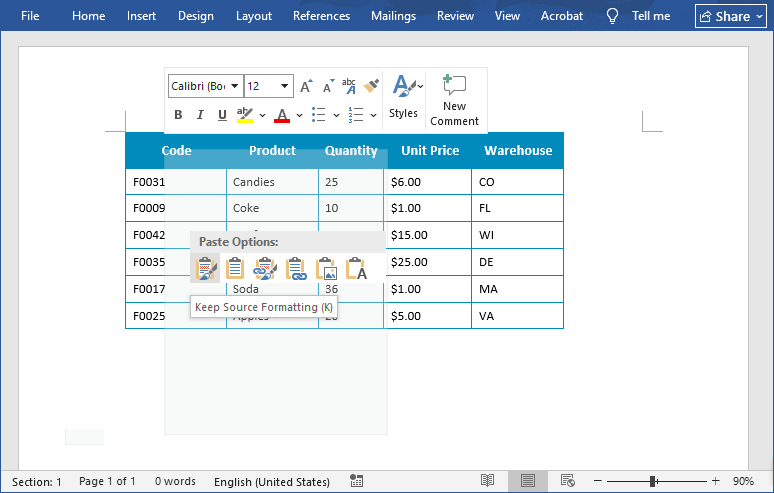
Pro Tip: For wide tables, use Word’s AutoFit to Window option to prevent columns from being cut off.
Method 2: Insert Excel as an Object (For Linked, Editable Data)
This method goes beyond a simple table; it embeds a miniature, functional version of the entire Excel worksheet inside your Word document. It's the best choice when the data needs to remain fully editable and calculable within the Word file itself.
Steps to embed Excel in Word:
- Open your Word document and go to the “Insert” tab.
- Click “Object” in the “Text” group.
- In the Object dialog box, go to the “Create from File” tab.
- Click “Browse” to select your Excel file, then check the box for “Link to file” (optional: links the Word document to the original Excel file, so updates in Excel auto-sync to Word).
- Click “OK” and your Excel data will appear in Word as an editable object.
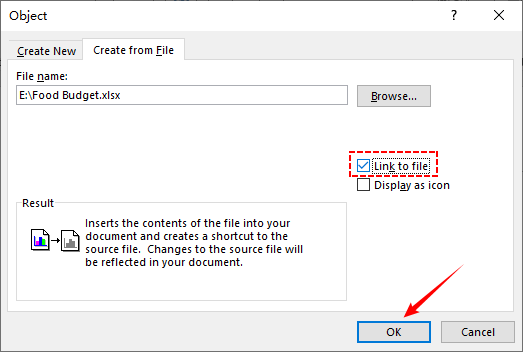
Best For: Reports that need frequent data updates (e.g., project trackers, monthly sales dashboards).
You may also be interested in: Convert PDF Table to Word – Accurate & Reliable Methods
Method 3: Online Excel to Word Converter (For Quick, One-Time Use)
When you need a quick conversion on a computer where you can't install software, free online converters are a viable option.
Top 3 Free Online Tools:
- Zamzar: Supports 1200+ formats, including Excel to Word. No sign-up required for small files.
- OnlineConvertFree: Simple interface with drag-and-drop support. Converts files in 30 seconds or less.
- Converter365: Supports batch conversion and works on all browsers. Preserves charts and formulas.
General Steps to convert Excel to Word online:
- Go to your chosen converter (e.g., Zamzar.com).
- Select “Choose Files” to upload your Excel file.
- Pick “Doc” or “Docx” as the output format.
- Click the “Convert” button and download your Word file.

Important Security Note: Never use online converters for sensitive or confidential data, as you upload files to a third-party server.
Method 4: Automate with VBA Macros (For Advanced Users)
If you frequently convert Excel tables to Word (e.g., daily reports), use a VBA macro to automate the process.
Step-by-Step:
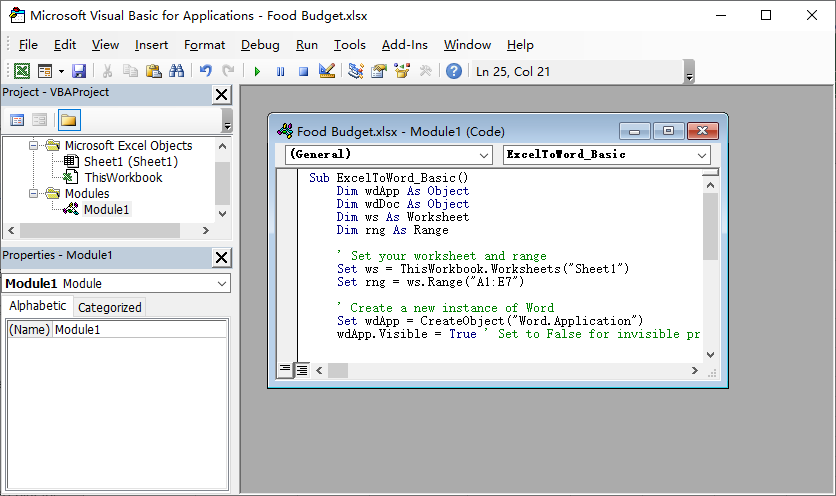
- Open your Excel file and press Alt+F11 to open the VBA Editor.
- Click “Insert” → “Module” to create a new module.
- Paste the following macro code (customize the range and save path as needed):
Sub ExcelToWord_Basic()
    Dim wdApp As Object
    Dim wdDoc As Object
    Dim ws As Worksheet
    Dim rng As Range

    ' Set your worksheet and range
    Set ws = ThisWorkbook.Worksheets("Sheet1")
    Set rng = ws.Range("A1:E7")

    ' Create a new instance of Word
    Set wdApp = CreateObject("Word.Application")
    wdApp.Visible = True ' Set to False for invisible processing

    ' Create a new document
    Set wdDoc = wdApp.Documents.Add

    ' Copy the range from Excel
    rng.Copy

    ' Paste into Word
    wdApp.Selection.Paste

    ' Save the document
    wdDoc.SaveAs2 "F:\Report.docx"

    ' Clean up
    Set wdDoc = Nothing
    Set wdApp = Nothing
    MsgBox "Conversion complete!"
End Sub
- Run the macro (press F5) to convert an Excel file to Word.
Cleaning Excel data is the foundation of a smooth conversion. To avoid blank rows/columns from creating unnecessary gaps in Word tables, follow the guide to remove them efficiently: How to Delete Blank Rows in Excel: 5 Easy Methods
Method 5: Batch Convert Excel to Word via Python (For Multiple Files)
For processing dozens or hundreds of files, or for integrating Excel to Word Doc or Docx conversion into a larger automated data pipeline, Python is the industry-standard solution. Below are the steps to perform the conversion using Free Spire.Office for Python library:
- Loads the Excel workbook via LoadFromFile().
- Reads data and formatting (fonts, colors, alignments, merged cells) from specified worksheets.
- Creates a new Word document and builds a table within it via AddTable().
- Maps the Excel data cell-by-cell into the Word table via AppendText().
- Applies the captured formatting styles to the Word table cells via custom method MergeCells() and CopyStyle().
- Saves the final Word document and clean up resources.
Python code to convert Excel data to Word Table
from spire.xls import *
from spire.doc import *

def MergeCells(sheet, table):
    """Merge cells in the Word table based on merged cells in the Excel sheet."""
    if sheet.HasMergedCells:
        ranges = sheet.MergedCells
        for i in range(len(ranges)):
            startRow = ranges[i].Row
            startColumn = ranges[i].Column
            rowCount = ranges[i].RowCount
            columnCount = ranges[i].ColumnCount

            if rowCount > 1 and columnCount > 1:
                for j in range(startRow, startRow + rowCount):
                    table.ApplyHorizontalMerge(j - 1, startColumn - 1, startColumn - 1 + columnCount - 1)
                table.ApplyVerticalMerge(startColumn - 1, startRow - 1, startRow - 1 + rowCount - 1)

            if rowCount > 1 and columnCount == 1:
                table.ApplyVerticalMerge(startColumn - 1, startRow - 1, startRow - 1 + rowCount - 1)

            if columnCount > 1 and rowCount == 1:
                table.ApplyHorizontalMerge(startRow - 1, startColumn - 1, startColumn - 1 + columnCount - 1)

def CopyStyle(wTextRange, xCell, wCell):
    """Copy cell styling from Excel to Word."""
    # Copy font style
    wTextRange.CharacterFormat.TextColor = Color.FromRgb(xCell.Style.Font.Color.R, xCell.Style.Font.Color.G, xCell.Style.Font.Color.B)
    wTextRange.CharacterFormat.FontSize = float(xCell.Style.Font.Size)
    wTextRange.CharacterFormat.FontName = xCell.Style.Font.FontName
    wTextRange.CharacterFormat.Bold = xCell.Style.Font.IsBold
    wTextRange.CharacterFormat.Italic = xCell.Style.Font.IsItalic

    # Copy background color
    if xCell.Style.FillPattern is not ExcelPatternType.none:
        wCell.CellFormat.BackColor = Color.FromRgb(xCell.Style.Color.R, xCell.Style.Color.G, xCell.Style.Color.B)

    # Copy horizontal alignment
    if xCell.HorizontalAlignment == HorizontalAlignType.Left:
        wTextRange.OwnerParagraph.Format.HorizontalAlignment = HorizontalAlignment.Left
    elif xCell.HorizontalAlignment == HorizontalAlignType.Center:
        wTextRange.OwnerParagraph.Format.HorizontalAlignment = HorizontalAlignment.Center
    elif xCell.HorizontalAlignment == HorizontalAlignType.Right:
        wTextRange.OwnerParagraph.Format.HorizontalAlignment = HorizontalAlignment.Right

    # Copy vertical alignment
    if xCell.VerticalAlignment == VerticalAlignType.Bottom:
        wCell.CellFormat.VerticalAlignment = VerticalAlignment.Bottom
    elif xCell.VerticalAlignment == VerticalAlignType.Center:
        wCell.CellFormat.VerticalAlignment = VerticalAlignment.Middle
    elif xCell.VerticalAlignment == VerticalAlignType.Top:
        wCell.CellFormat.VerticalAlignment = VerticalAlignment.Top

# Load an Excel file
workbook = Workbook()
workbook.LoadFromFile("sample.xlsx")

# Get the first worksheet
sheet = workbook.Worksheets[0]

# Create a Word document
doc = Document()
section = doc.AddSection()
section.PageSetup.Orientation = PageOrientation.Landscape

# Add a table
table = section.AddTable(True)
table.ResetCells(sheet.LastRow, sheet.LastColumn)

# Merge cells
MergeCells(sheet, table)

# Export data and styles from Excel to Word table
for r in range(1, sheet.LastRow + 1):
    table.Rows[r - 1].Height = float(sheet.Rows[r - 1].RowHeight)

    for c in range(1, sheet.LastColumn + 1):
        xCell = sheet.Range[r, c]
        wCell = table.Rows[r - 1].Cells[c - 1]

        # Add text from Excel to Word table cell
        textRange = wCell.AddParagraph().AppendText(xCell.NumberText)

        # Copy font and cell style
        CopyStyle(textRange, xCell, wCell)

# Save the document to a Word file
doc.SaveToFile("ExcelToWordTable.docx", FileFormat.Docx)
doc.Dispose()
Conversion result:
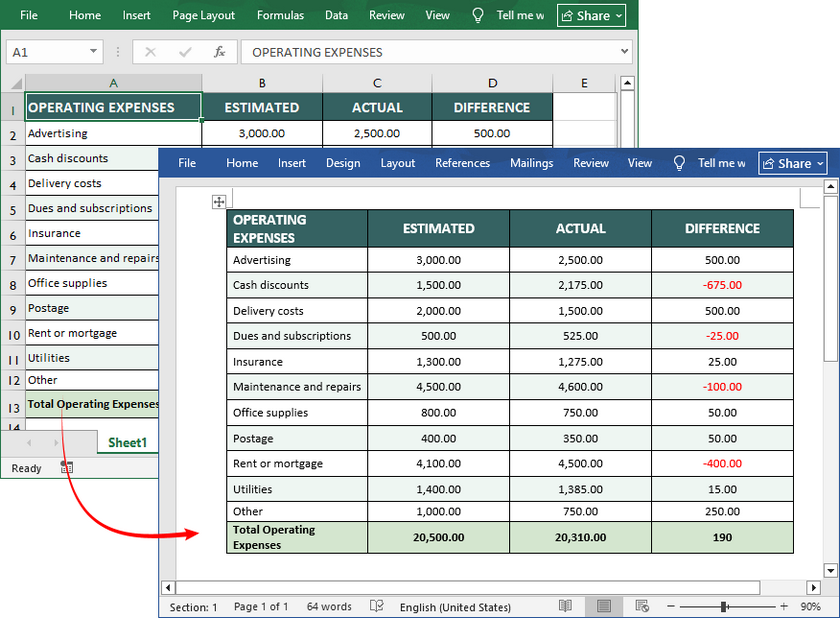
If you need to export Word table data into an Excel sheet, check this: Convert Word to Excel in Python.
Best Practices for a Flawless Conversion
- Clean Your Data First: Remove blank rows/columns, ensure consistent formatting, and check for errors in Excel before converting.
- Mind the Formatting: Excel tables are often wider than Word's page margins. Use Word's AutoFit options to resize.
- Maintain Links Carefully: If you use linking (method 2), sending the Word file to others will break the link unless you also send the Excel file and maintain the folder path. Consider breaking the link before finalizing.
- Check Page Layout: Always review the converted document in Word's Print Layout view to ensure tables and charts display correctly on the page.
Which Excel to Word Method Should You Choose?
Here’s a quick cheat sheet to pick the right method:
| Scenario | Best Method | Pros | Cons |
|---|---|---|---|
| Small table, quick conversion | Copy-Paste (Method 1) | Fast, no tools | Limited formatting control for large data |
| Editable data, auto-updates | Insert Object (Method 2) | Syncs with Excel, editable | Requires Excel installed |
| No-install, one-time use | Online Tools (Method 3) | Convenient, free | Risks data exposure; poor for complex data |
| Frequent automated conversion | VBA Macro (Method 4) | Saves time, customizable | Requires VBA knowledge |
| Complex formatting/batch files | Python Script (Method 5) | Customizable, integrates into workflows | Requires coding skills |
Conclusion
Mastering the transfer of data from Excel to Word is a fundamental competency in the modern office. With the 5 tailored methods outlined here, there’s a solution for every user, skill level, and scenario. Whether you’re a beginner needing a quick copy-paste for a small table, a professional requiring editable, auto-updating data, or a tech-savvy user automating batch conversions with VBA or Python, these approaches eliminate tedious manual effort and preserve the integrity of your data.
Frequently Asked Questions (FAQs)
Q1: Can I convert an Excel file to Word without losing formatting?
A: Yes, using "Keep Source Formatting" during paste or embedding the worksheet as an object preserves most formatting.
Q2: How do I convert Excel to Word for free?
A: All native Microsoft Office methods (copy/paste, insert object) are free. Several reputable online converters also offer free tiers. For high-quality batch conversion, the Python scripting method is powerful if you have the technical skill.
Q3: Can I convert Excel to Word and keep the formulas?
A: Formulas don't translate directly. When pasted as a table, only the results appear. The exception is Method 2 (Insert Object). If you double-click the embedded Excel object within Word, you can see and edit the live formulas in the embedded Excel interface, and they will calculate there.
Q4: How do I convert multiple Excel sheets to one Word document?
A: Copy and paste each sheet individually, or use the "Insert Object" method for each. For automation, a VBA macro or Python script can be programmed to loop through all sheets in a workbook and compile them sequentially into one Word file.