Whether you’re a data analyst, student, small business owner, or someone who works with plain text data regularly, you’ve probably encountered a scenario where you need to convert TXT to CSV. Text files are universal but unstructured—making them hard to import into spreadsheets (Excel, Google Sheets), databases, or programming tools (Python, R). CSV (Comma-Separated Values) files, by contrast, are the industry standard for tabular data: they’re supported by every data tool, easy to sort/filter, and free of formatting headaches.
In this guide, we will walk you through 5 simple methods to convert text to CSV, including free online tools, spreadsheet software, and Python scripts for batch/automated conversions.
What you’ll learn in this comprehensive TXT to CSV conversion guide:
- Prerequisites Before Converting Text File to CSV
- Method 1: Manually TXT to CSV Conversion Using MS Excel
- Method 2: Convert Text to CSV Using Free Online Tools
- Method 3: Batch Convert TXT to CSV Using Python
- FAQs About Converting TXT to CSV
Prerequisites Before Converting Text File to CSV
Before you start converting, take 2 minutes to prepare your TXT file to prevent common errors like misaligned columns or garbled text:
- Check the Delimiter: A delimiter is the character that separates values in your TXT file. Most TXT files use commas or tabs, and you can open your text file in Notepad (Windows) or TextEdit (Mac) to confirm.
-
Ensure Consistent Formatting: Make sure every row in your TXT file has the same number of delimiters. For example, if your first row is
Name,Age,City, every subsequent row should have 2 commas (e.g.,John,28,New York). - Check Encoding: To avoid garbled text, save your TXT file with UTF-8 encoding (the standard for data files). In Notepad, click “File → Save As” and select “UTF-8” from the “Encoding” dropdown.
Method 1: Manually TXT to CSV Conversion Using MS Excel
If you only need to convert 1-2 small TXT files (under 100 rows), manual conversion via spreadsheet software is a reliable method. Microsoft Excel is the most popular tool that can be used to convert text into CSV. Follow these step-by-step instructions to proceed:
- Open Excel and create a new workbook.
- Navigate to Data → Get Data → From File → From Text/CSV.
- In the file explorer, select your TXT file and click Import.
- Excel's import wizard will detect delimiters automatically.
-
Preview your TXT data and adjust settings if needed:
- File origin/encoding (UTF-8, ASCII, etc.)
- Delimiter (comma, tab, semicolon, space)
- Data type detection
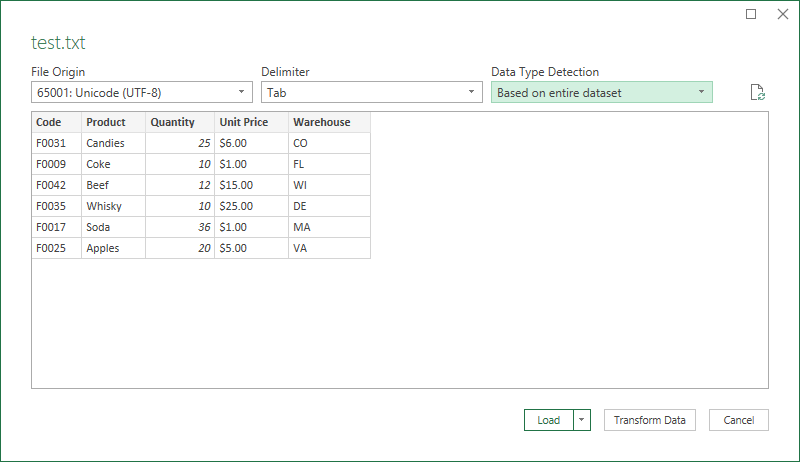
- Click Load to import the TXT data into an Excel spreadsheet.
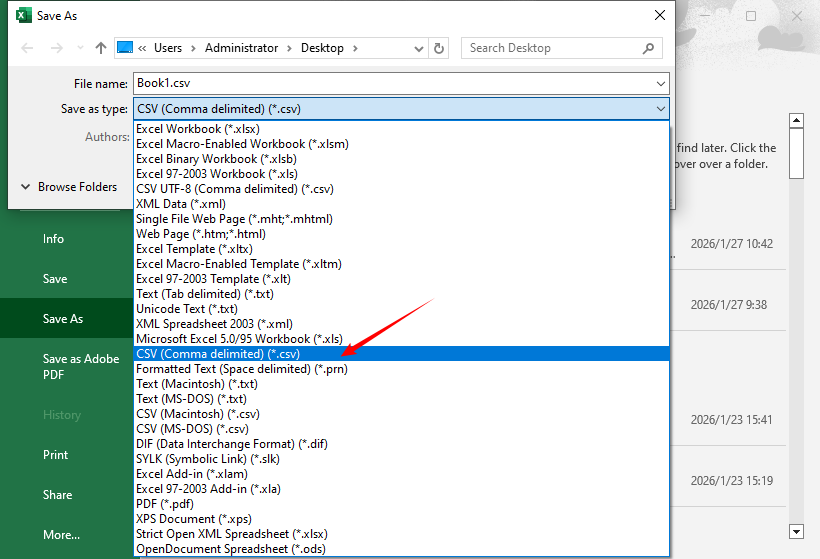
- Save the file as a CSV: Go to File → Save As, select CSV (Comma delimited) (*.csv) from the “Save as type” dropdown, choose a save location, and click Save.
Alternative: For users who want to avoid Microsoft products, LibreOffice Calc is a free, open-source spreasheet alternative that supports importing text files and saving them in CSV format.
Want to convert a CSV file back to a TXT file? Here’s a guide for you: Convert CSV to TXT: 4 Easy Methods for All Users
Method 2: Convert Text to CSV Using Free Online Tools
1. Free Online TXT to CSV Converter
Online converter are quick, require no downloads, and work in any browser. Convertio and Zamzar are two reliable text-to-CSV converters; both offer batch processing capabilities.
How to convert text to CSV online:
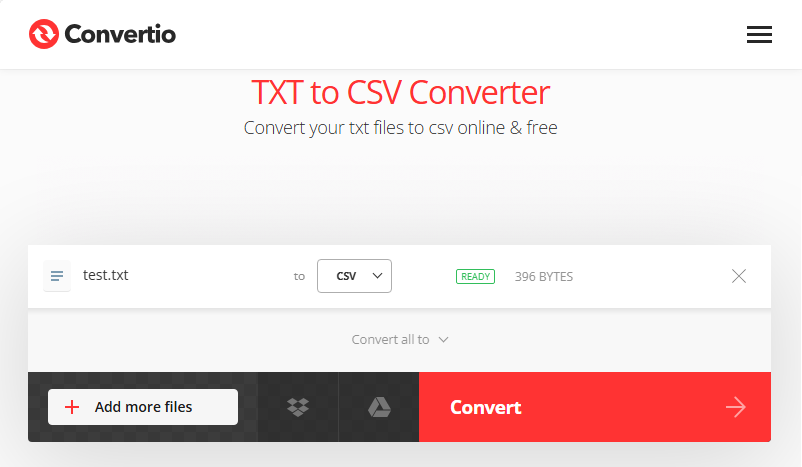
- Go to your chosen converter (e.g., Convertio TXT to CSV Converter).
- Click Choose Files and select your TXT file (or drag and drop it).
- Ensure the input format is “TXT” and the output format is “CSV.”
- Click Convert—the process takes 1-2 seconds for small files.
- Click Download to save your CSV file to your computer.
✔ Best for: Quick one-time conversions, users without spreadsheet software, and small files.
2. Google Sheets (Free, Cloud-Based)
Google Sheets is a free, privacy-friendly alternative to third-party online conveters—no sensitive data leaves your Google Drive, and you maintain full control over your files. Here’s how to change TXT to CSV:
- Open Google Sheets in your browser and create a new spreadsheet.
- Go to File → Import → Upload → Select your .txt file.
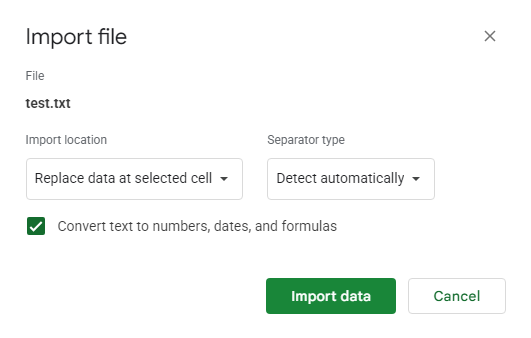
- In the import window, choose import settings, and click Import data.
- Import location: select your preferred option (e.g., Replace data at selected cell)
- Separator type: Detect automatically or specify
- Convert text to numbers/dates if applicable
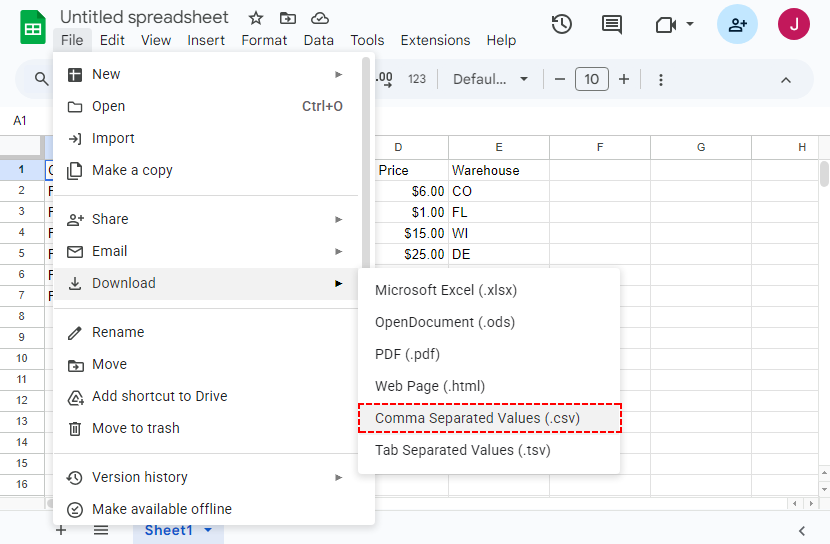
- Save as CSV: Go to File → Download → Comma-separated values (.csv).
✔ Best for: Collaborative work, cloud-based workflows, Mac/Linux users.
You may also like: Convert JSON to CSV: Free Online Tools, Excel & Python Scripts
Method 3: Batch Convert TXT to CSV Using Python
If you need to convert hundreds of TXT files to CSV or automate the conversion process, Python is the most efficient method. We’ll use the Spire.XLS for Python library to convert (no Excel required).
Step 1: Install Spire.XLS
pip install spire.Xls
Step 2: Use this script to convert TXT to CSV in Python:
from spire.xls import *

# Read the txt file
with open("Test.txt", "r", encoding="utf-8") as file:
    lines = file.readlines()

# Process each line by splitting based on delimiter
processed_data = [line.strip().split() for line in lines]

# Create an Excel workbook
workbook = Workbook()
# Get the first worksheet
sheet = workbook.Worksheets[0]

# Write data from the processed list to the worksheet
for row_num, row_data in enumerate(processed_data):
    for col_num, cell_data in enumerate(row_data):
        # Write data into cells
        sheet.Range[row_num + 1, col_num + 1].Value = cell_data

# Save the sheet as a CSV file (UTF-8 encoded)
sheet.SaveToFile("TxtToCsv.csv", ",", Encoding.get_UTF8())
# Dispose workbook to release resources
workbook.Dispose()
The code converts text document to CSV by:
- Read all content from the TXT file into a list of lines.
- Clean and split TXT line into structured data via strip() + split().
- Create a blank Excel workbook and get its first worksheet.
- Write data from the 2D list to Excel cells via Range[row, col].Value.
- Save the worksheet as a CSV file via SaveToFile().
- Release system resources occupied by the Excel workbook.
Conversion result:
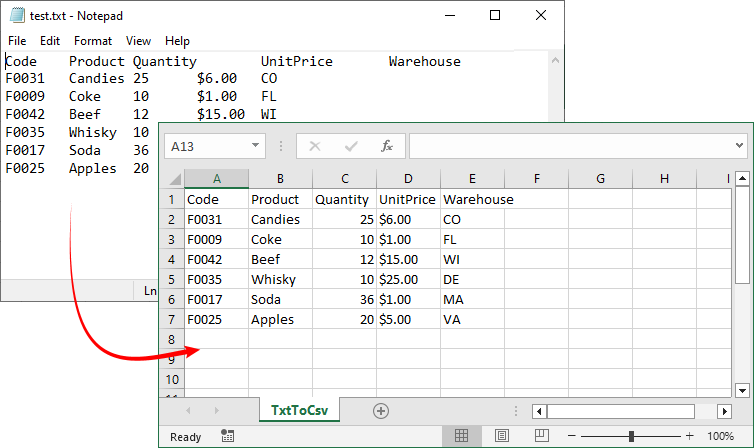
CSV files don't store formatting. If you want to apply formatting (bold, colors), consider converting TXT to Excel using Spire.XLS for Python.
Final Thoughts
Converting TXT to CSV might seem trivial, but doing it correctly requires understanding your data structure, choosing appropriate tools, and validating results. For occasional conversions, spreadsheet software or online converters provide the simplest solution. For repetitive tasks, scripting with Python offers the most control and automation capabilities.
Mastering TXT to CSV conversion eliminates a common data bottleneck, enabling smoother analysis, reporting, and data sharing in your workflow.
FAQs About Converting TXT to CSV
Q1: Can I convert TXT to CSV without Excel?
A: Yes. You can use Google Sheets (free, cloud-based), LibreOffice Calc (free, open-source), online tools like Convertio, or Python with Spire.XLS.
Q2: Is it possible to batch convert multiple TXT to CSV?
A: Yes. Use online converters such as Zamzar/Convertio (batch upload). To convert multiple text files to CSV in Python, add a loop to the code:
import os

# Folder path with TXT files (replace with your folder)
txt_folder = "path/to/your/txt/files"
output_folder = "path/to/save/csv/files"

# Create output folder if it doesn't exist
os.makedirs(output_folder, exist_ok=True)

# Loop through all TXT files
for filename in os.listdir(txt_folder):
    if filename.endswith(".txt"):
        txt_path = os.path.join(txt_folder, filename)
        csv_filename = os.path.splitext(filename)[0] + ".csv"
        csv_path = os.path.join(output_folder, csv_filename)
# txt to csv conversion script
Q3: What if my TXT file has a custom delimiter (e.g., pipe |)?
A: All methods support custom delimiters:
- Excel Spreadsheet: Select the delimiter in the import wizard.
- Python: Replace split(" ") with split("|") in the script.
- Online tools: Most converters detect automatically.
Q4: Why is my CSV file showing garbled text?
A: This is usually due to incorrect encoding. Save your TXT file with UTF-8 encoding before converting, and ensure your conversion tool uses UTF-8.