CSV (Comma-Separated Values) files are the universal standard for data exchange—lightweight, human-readable, and compatible with Microsoft Excel, Google Sheets, and programming languages like Python. Whether you’re organizing customer data, exporting reports, migrating information, or building ML datasets, knowing how to generate a CSV file is a foundational skill.
This guide walks you through 4 simple, actionable methods to create a CSV file, from quick no‑code methods to automated scripts. You'll also get tips for handling special characters and converting data from JSON, PDF, and Excel to CSV.
- Method 1: Manually Create with a Text Editor
- Method 2: Generate CSV with Microsoft Excel
- Method 3: Create CSV with Google Sheets (Free)
- Method 4: Create a CSV File in Python
- Bonus: Generate CSV File from Different Data Sources
Why Should You Use CSV Files?
A CSV file stores tabular data in plain text. Each line represents a data record, and each record contains fields separated by commas.
Core advantages of CSVs:
- Universal compatibility – Works with most spreadsheet tools, CRMs, databases, and programming languages.
- Lightweight – No proprietary formatting, small file size.
- Ideal for data exchange – Fast to import/export between different systems.
- Free & open standard – Free to create and use without paid tools.
Common use cases:
- Uploading product lists to an e‑commerce platform
- Import leads/contacts into CRMs
- Data backup or migration
- Feeding data into Python (pandas), R, or SQL databases
Method 1: Manually Create with a Text Editor
For small, simple datasets (e.g., a short list of names and emails), you can make a CSV file manually using a text editor like Notepad (Windows).
Note: This method is error‑prone for large data – use only for quick, tiny lists.
Steps for manually CSV file creation:
- Open your text editor.
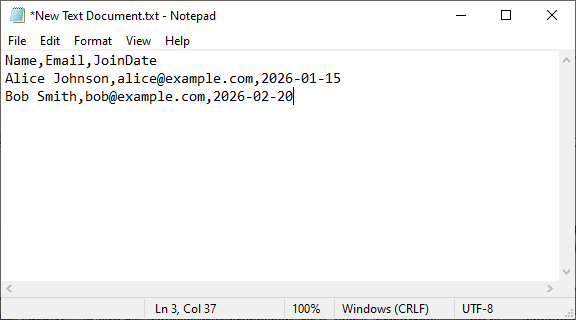
- Type each row on a new line. Separate values with commas. For example:
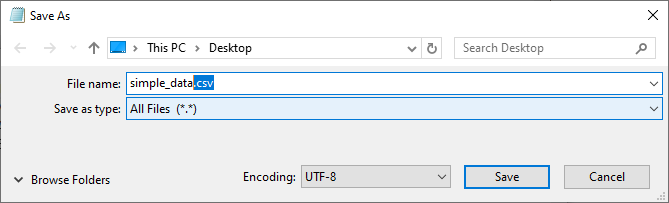
- Click “File” → “Save As.”
- Name the file with a .csv extension (e.g., simple_data.csv) and change “Save as type” to “All Files” → Save.
Handling tricky data
If a field contains a comma or line break, enclose it in double quotes. Example:
"Smith, John",john@example.com,"Hello\nworld!"
You can also open an existing text file and follow steps 3-4 to save it as a CSV file. For more conversion methods, refer to: 3 Best Ways to Convert TXT to CSV (Fast & Error-Free)
Method 2: Generate CSV with Microsoft Excel
Excel is the most common tool for creating CSV files, especially if you already work with spreadsheets. Follow these step-by-step instructions to avoid formatting errors and ensure your CSV is usable.
Step 1: Prepare Your Data in Excel
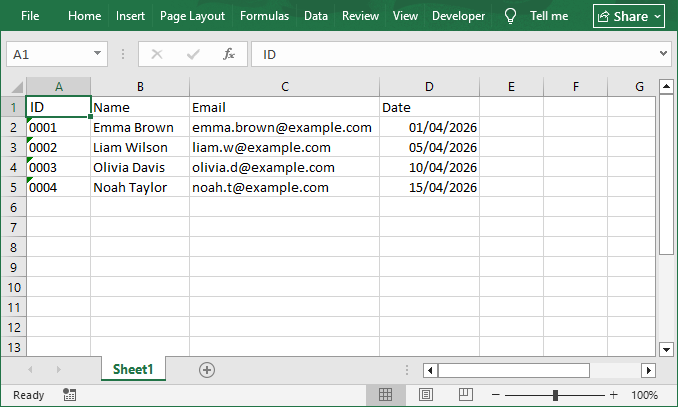
Open Excel and organize your data into rows and columns. Each column should have a clear header (e.g., “ID”, “Name,” “Email,” “Date”), and each row should represent a single entry.
Important tips for CSV compatibility:
- Remove merged cells, filters, or conditional formatting (CSV files can’t retain these).
- Convert formulas to values.
- Format columns with leading zeros as “Text” to preserve zeros.
Example Data:
Step 2: Save the File as CSV
Click “File” → “Save As” → choose a location. In the “Save as type” dropdown, select:
- CSV UTF‑8 (Comma delimited) (*.csv): best for non‑English characters
- CSV (Comma delimited) (*.csv): standard but may break special characters
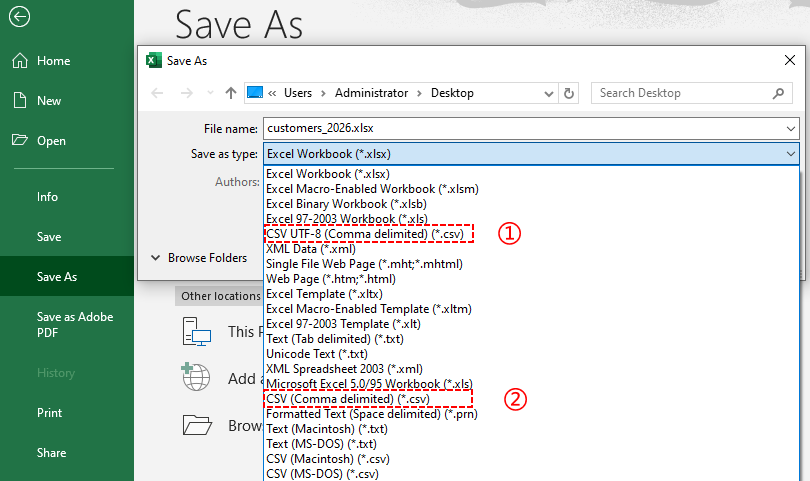
Step 3: Name Your File and Save
Give your file a descriptive name and click “Save”. Excel will display a warning that some features (like formatting) will be lost - just click “Yes”.
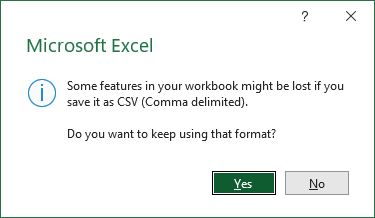
Pro Tip: For European systems that use semicolons as delimiters, change your Windows regional settings first, then save as CSV.
Method 3: Create CSV with Google Sheets (Free)
If you don’t have Excel or prefer cloud-based tools (no software installation required), Google Sheets is a free alternative. It works in any browser and makes collaboration easy.
Here’s how to create a CSV file in Google Sheets:
-
Open Google Sheets: Go to sheets.google.com, log in with your Google account, and create a new blank spreadsheet.
-
Enter Your Data: Just like Excel, enter your structured data into the cells.
-
Download as CSV: Click on the “File” menu, hover over “Download,” and select “Comma-separated values (.csv)” from the dropdown menu.(Note that Google Sheets only exports the current active sheet. Make sure you’re on the correct tab before downloading.)
-
Save the File: Your browser will automatically download the CSV file to your computer’s “Downloads” folder. You can then move it to your desired location.
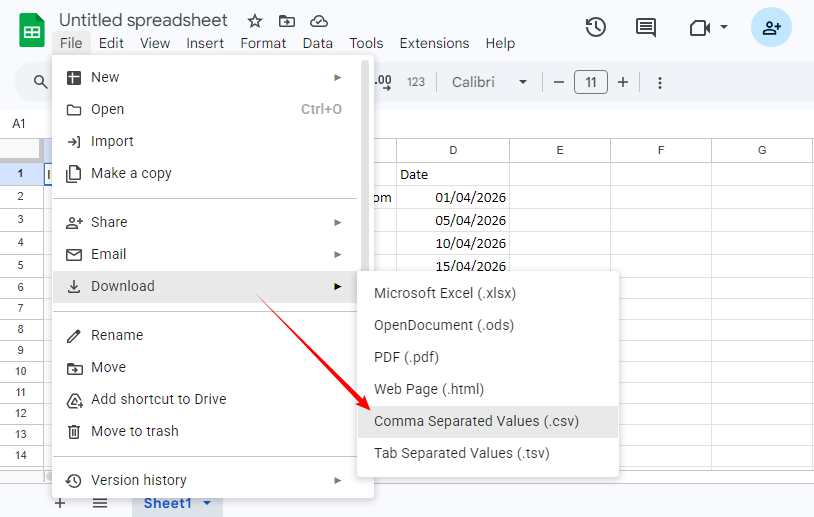
Advantage: Google Sheets automatically handles UTF‑8 encoding, so emojis and international characters are preserved.
Method 4: Create a CSV File in Python
When working with large datasets or needing to automate CSV generation (e.g., batch processing), Python is a powerful tool. We’ll use the Free Spire.XLS for Python library for full control over encoding and delimiters.
Step 1: Install the Free Python Library
Before starting, open your command prompt or terminal and run:
pip install Spire.XLS.Free
Step 2: Write Python Code to Generate CSV
Create a new Python file and add the following code. This example creates a CSV file from scratch with static data:
from spire.xls import *
from spire.xls.common import *

# 1. Create a new workbook
workbook = Workbook()

# 2. Get the first worksheet
worksheet = workbook.Worksheets[0]

# 3. Populate data into cells
# Header row
worksheet.Range["A1"].Text = "Product"
worksheet.Range["B1"].Text = "Price"
worksheet.Range["C1"].Text = "Quantity"

worksheet.Range["A2"].Text = "Wireless Headphones"
worksheet.Range["B2"].NumberValue = 79.99
worksheet.Range["C2"].NumberValue = 250

worksheet.Range["A3"].Text = "Bluetooth Speaker"
worksheet.Range["B3"].NumberValue = 49.99
worksheet.Range["C3"].NumberValue = 180

# 4. Save the worksheet to CSV
worksheet.SaveToFile("BasicReport.csv", ",", Encoding.get_UTF8())
workbook.Dispose()
Open the generated CSV in Excel:
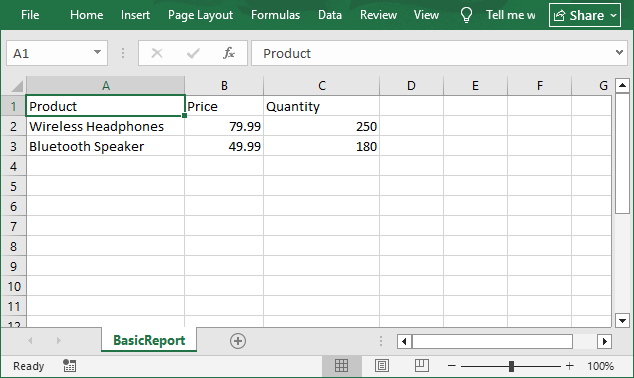
Advanced Examples with Free Spire.XLS
Specifying a custom delimiter and encoding
# Save with semicolon delimiters (for European systems)
worksheet.SaveToFile("output.csv", ";", Encoding.get_UTF8())

# Save with tab delimiters
worksheet.SaveToFile("output.csv", "\t", Encoding.get_UTF8())

# Save with Unicode encoding
worksheet.SaveToFile("output.csv", ",", Encoding.get_Unicode())
Exporting an existing Excel file to CSV:
from spire.xls import *

workbook = Workbook()
workbook.LoadFromFile("input.xlsx")
worksheet = workbook.Worksheets[0]
worksheet.SaveToFile("output.csv", ",", Encoding.get_UTF8())
workbook.Dispose()
For C# developers: Learn How to Create a CSV File in C# (From Scratch, List, or Excel)
Bonus: Generate CSV File from Different Data Sources
CSV files can be created from virtually any data source. Below are the most common scenarios.
From Excel to CSV
- Method A: Open Excel file in Excel → Save As → CSV (as in Method 2).
- Method B: Use Free Spire.XLS for Python as shown in Method 4 – load the Excel file and call SaveToFile.
From JSON to CSV
JSON is the standard format for web APIs. Converting it to CSV allows you to analyze the data in spreadsheets or databases.
- Full tutorial: Convert JSON to CSV – includes Python examples, using MS Excel and online converters.
From PDF Tables to CSV
PDFs are great for printing but terrible for structured data. To extract tables into CSV, use one of these approaches:
- Adobe Acrobat Pro: Open PDF → Export → Spreadsheet → Save as CSV.
- Online converters: Upload PDF and then download as CSV.
- Python library (Spire.PDF): Automatically extract tables from all PDF pages and export to CSV.
For a full guide, see: Convert PDF Tables to CSV: Manual, Online & Automated
Conclusion
No matter your skill level or the tools you have on hand, generating a CSV file is straightforward. You don’t need to be a developer or own expensive software. A few clicks in Excel or Google Sheets, a few lines of Python, or even a plain text editor can get the job done.
To help you pick the right approach at a glance, here’s a quick recap:
| Method | Best for | Difficulty |
|---|---|---|
| Text editor | Tiny, simple data | ★ Beginner |
| Excel | Existing spreadsheets, occasional use | ★ Beginner |
| Google Sheets | Free, cloud‑based, no install | ★ Beginner |
| Python with Free Spire.XLS | Large data, automation, cross‑platform | ★★ Intermediate |
The best method is the one that fits your immediate needs: data size, skill level, or automation. Whichever you choose, the result is the same: a clean, universal CSV file that works seamlessly across any platform.
FAQs About Generating CSV Files
Q: What’s the difference between CSV and Excel files?
A: CSV files are plain text with comma-separated values (no formatting/formulas), while Excel files are binary and can store formatting, charts, and formulas. CSV files are smaller and more compatible, while Excel is better for complex data analysis.
Q: Can I have multiple sheets in a CSV file?
A: No. CSV is a single-sheet format. You need separate CSV files for each sheet, or convert to Excel (XLSX).
Q: Can I use a custom delimiter (semicolon, tab) instead of commas?
A: Yes. In Excel/Google Sheets, select the delimited format when saving. In Python, set the delimiter in the SaveToFile method.
Q: Can I create CSV file online for free?
A: Yes, use the online CSV generator tools like ConvertCSV and TableConvert. However, avoid uploading sensitive data.