ODT files (OpenDocument Text) are widely used for creating and editing documents in LibreOffice or Apache OpenOffice. However, sharing or distributing ODT files can be inconvenient, as not all devices or platforms support this format. Converting ODT files to PDF ensures that your document layout, fonts, and formatting remain intact, making it easier to share, print, or archive reliably.
This article guides you through practical methods to convert ODT to PDF, covering online tools, desktop software, and Python-based automation for both occasional and large-scale conversions.
Quick Navigation
- What Is an ODT File and Why Convert It to PDF?
- Convert ODT to PDF Online (Free and Web-Based Tools)
- Convert ODT to PDF Using Desktop Software
- Convert ODT to PDF Programmatically with Python
- Choosing the Right Method for Your Needs
- FAQ
What Is an ODT File and Why Convert It to PDF?
An ODT file is a word processing document based on the OpenDocument standard. It is commonly used in environments that prioritize open formats and cross-platform compatibility. ODT files support rich text, images, tables, and styles, making them suitable for everyday document creation.
However, ODT is not universally supported outside office applications. When documents need to be shared with a wider audience, submitted formally, or archived for long-term use, PDF becomes the more practical choice.
Converting ODT to PDF helps address several common needs:
- Consistent layout: PDFs display the same way on all devices and operating systems.
- Improved compatibility: PDF readers are widely available and require no editing software.
- Document integrity: PDFs reduce the risk of accidental content changes.
- Professional distribution: PDFs are often preferred for reports, contracts, and official documents.
Convert ODT to PDF Online (Free and Web-Based Tools)
Online converters are often the fastest way to convert an ODT file to PDF, especially for users who only need occasional conversions and do not want to install additional software.
Step-by-Step: Convert ODT to PDF Online
- Open a web-based ODT to PDF conversion service in your browser (for example, CloudXDocs ODT to PDF Converter).
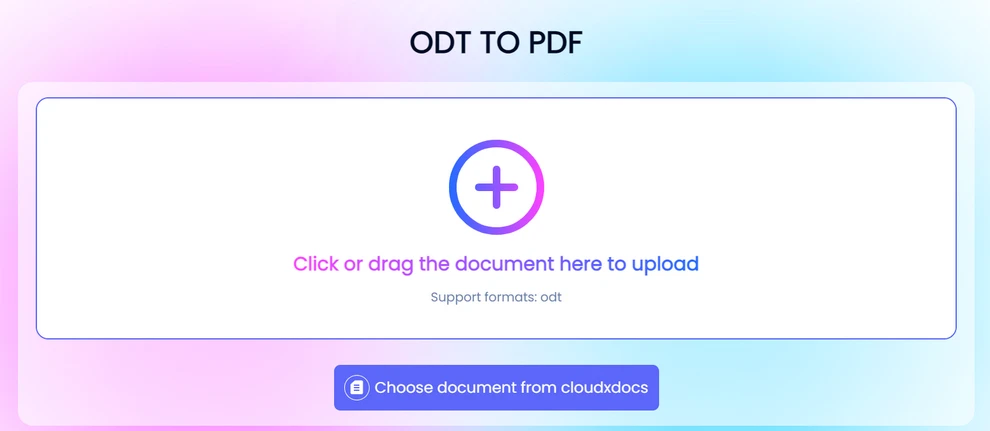
- Upload the ODT file from your local device or supported cloud storage.
- Wait while the file is processed and converted on the server.
- Download the resulting PDF file to your computer.
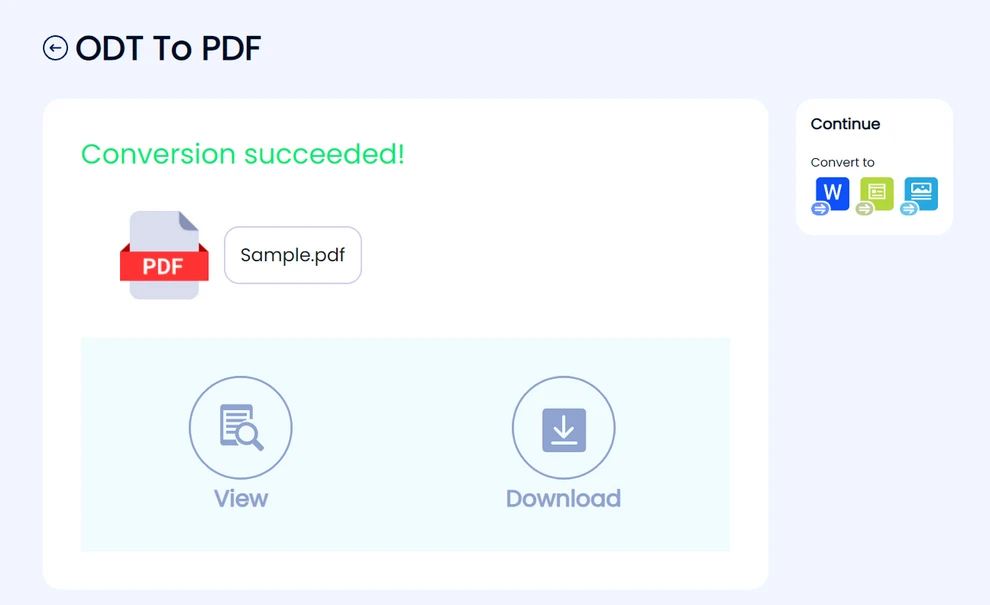
Most online tools follow this simple workflow, making them accessible even to non-technical users.
Advantages of Online Conversion
- No installation or setup required
- Accessible from any modern browser
- Suitable for quick, one-time conversions
- Often available for free with basic usage
Limitations of Online Converters
Online tools typically impose file size limits or daily conversion caps. Uploading documents to third-party servers may also be unsuitable for confidential or sensitive files. In addition, complex formatting—such as custom fonts or advanced layouts—may not always be preserved accurately, and batch conversion is rarely supported.
In cases where editing and collaboration are required, converting ODT files to Word format can be a more practical option than PDF.
Convert ODT to PDF Using Desktop Software
Desktop office applications provide a more controlled environment for converting ODT files to PDF. LibreOffice and Apache OpenOffice both include built-in PDF export functionality.
Step-by-Step: Convert ODT to PDF with LibreOffice or OpenOffice
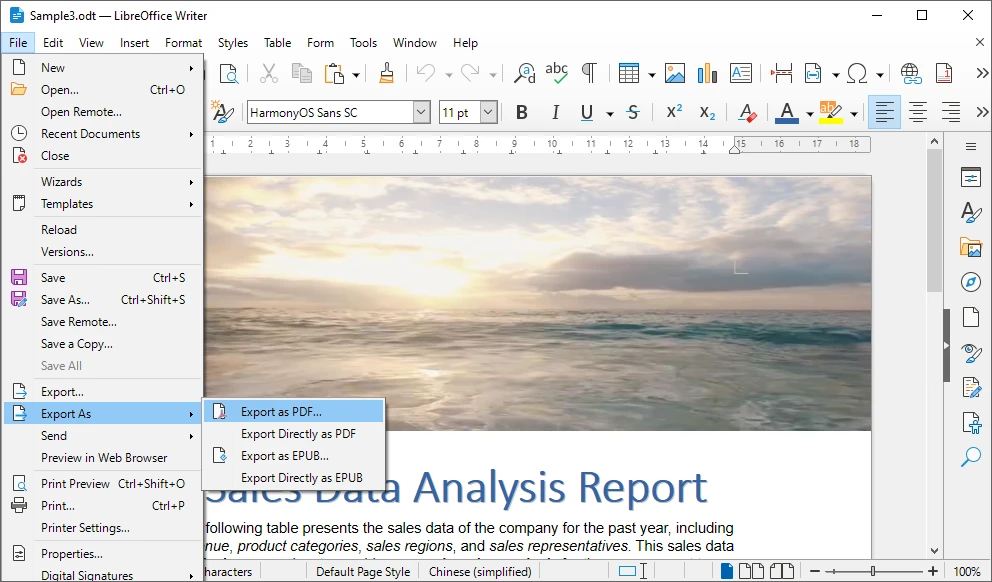
- Open the ODT file in LibreOffice Writer (or Apache OpenOffice Writer).
- Review the document to ensure formatting and layout are correct.
- Click File and select Export As PDF.
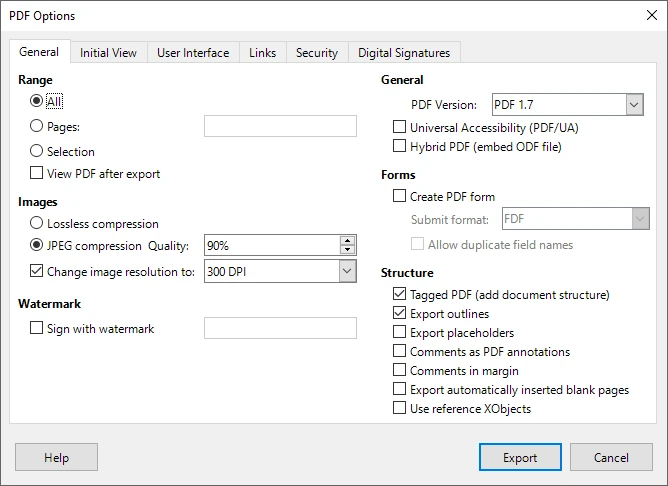
- Configure export options such as image quality, font embedding, or page range.
- Save the exported PDF file to your local system.
This approach gives users greater confidence in the final output, particularly for visually complex documents.
Advantages of Desktop-Based Conversion
- Better preservation of formatting and layout
- No need to upload files to external servers
- Greater control over PDF export settings
- Reliable for documents with tables, images, and styles
Limitations of Manual Conversion
Manual conversion requires user interaction for each document, making it inefficient for high-volume workflows. It is also difficult to automate and unsuitable for server-side or headless environments where no graphical interface is available.
When Online and Manual Methods Are Not Enough
There are many scenarios where online tools and desktop software no longer meet practical requirements. As document volume increases or workflows become more complex, manual conversion quickly turns into a bottleneck.
Typical situations where traditional methods fall short include:
- Converting large numbers of ODT files on a regular basis
- Running conversions automatically on a server or backend system
- Integrating document conversion into an existing application or service
- Ensuring consistent output without user intervention
- Operating in environments without a graphical interface
In these cases, a programmatic approach provides greater reliability, scalability, and control.
Convert ODT to PDF Programmatically with Python
Python is widely used for automation, data processing, and backend development. Using Python to convert ODT files to PDF allows the process to be fully automated and integrated into larger systems.
Why Use Python for ODT to PDF Conversion?
Python enables batch processing, repeatable workflows, and seamless integration with existing applications. Once implemented, conversions can run unattended, ensuring consistent results while reducing manual effort.
Using Spire.Doc for Python
Spire.Doc for Python is a document processing library that supports OpenDocument formats and enables direct conversion from ODT to PDF. It preserves text, images, and layout without relying on Microsoft Word or LibreOffice, making it suitable for server-side and enterprise use.
Installation
Spire.Doc for Python can be installed via pip:
pip install spire-doc
Example: Convert ODT to PDF with Python
from spire.doc import Document, FileFormat

# Create a Document object and load the ODT file
doc = Document()
doc.LoadFromFile("Sample.odt", FileFormat.Odt)

# Save the ODT document as a PDF file
doc.SaveToFile("output/ODTToPDF.pdf", FileFormat.PDF)
doc.Close()
Below is a preview of the PDF file converted from ODT using Python:
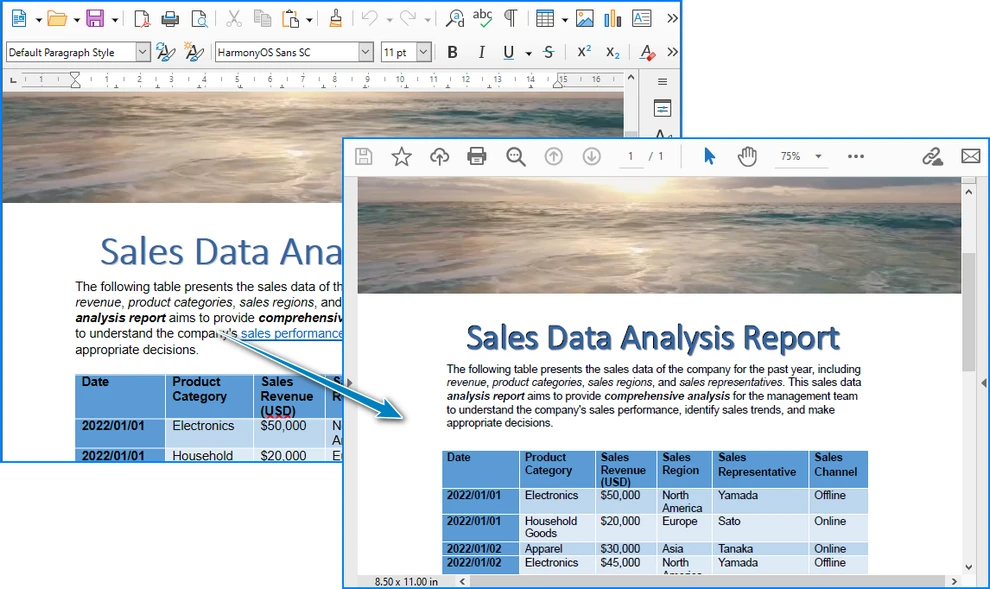
This approach can easily be extended to handle batch conversions or integrated into automated workflows.
After converting the ODT file to PDF, you can further edit the generated PDF using Python, such as adding watermarks, setting metadata, or applying additional security options.
Save ODT as PDF to a Stream (Optional)
In backend or web-based applications, you may want to generate a PDF file in memory without writing it to disk. Spire.Doc for Python allows saving the converted document to a stream.
from spire.doc import Document, FileFormat, Stream

doc = Document()
doc.LoadFromFile("Sample.odt", FileFormat.Odt)

# Save the ODT document to a PDF stream
pdf_stream = Stream()
doc.SaveToStream(pdf_stream, FileFormat.PDF)
doc.Close()

# Get PDF bytes from the stream
pdf_bytes = bytes(pdf_stream.ToArray())
This approach is useful for returning PDF files in web APIs, uploading to cloud storage, or processing documents in memory.
If your workflow requires further processing of PDF files in memory—such as merging documents, adding watermarks, or applying security settings—you may find it helpful to explore techniques for working with PDF documents directly in streams.
Choosing the Right Method for Your Needs
The best way to convert ODT to PDF depends on how often you perform the task and the level of control required.
- Online tools are ideal for quick, occasional conversions when convenience is the priority.
- Desktop software works well for users who need better formatting control and convert files manually.
- Python-based automation is the most suitable option for large-scale processing, backend systems, and enterprise workflows.
Understanding your usage scenario helps ensure you choose a method that balances efficiency, reliability, and maintainability.
FAQs About Converting ODT to PDF
Is it safe to convert ODT to PDF online?
Online converters can be convenient for non-sensitive documents, but they may not be suitable for sensitive documents due to privacy concerns.
Will the document formatting change after conversion?
Simple documents usually convert accurately, while complex layouts may benefit from desktop or programmatic methods.
Can multiple ODT files be converted at once?
Batch conversion is rarely supported by online tools and is inefficient manually. Programmatic solutions handle this more effectively.
Do Python-based conversions require office software?
No. Libraries such as Spire.Doc for Python operate independently of office applications.
Conclusion
Converting ODT files to PDF can be accomplished in several ways, each suited to different needs. Online tools and desktop applications are effective for everyday use, while Python-based automation provides a scalable solution for advanced and high-volume scenarios. By selecting the appropriate method, you can ensure accurate, efficient, and reliable document conversion.