Word (.docx and .doc) is perfect for creating documents and business reports, but it is not optimized for the web. Copying Word content directly can cause broken tables, misaligned text, or missing images. Converting Word to HTML ensures your text, tables, images, and formatting display correctly across all browsers and devices.
In this guide, we'll show four practical ways to convert Word to HTML - from quick manual steps to developer-friendly automated solutions - so you can produce web-ready HTML content efficiently, whether for a single document or multiple files.
- Why Convert Word to HTML
- Method 1: Save Word as HTML Using Microsoft Word (Quick and Simple)
- Method 2: Copy Word Content and Paste into an HTML Editor (Clean HTML Code)
- Method 3: Use Online Word to HTML Converters (Fast and Accessible)
- Method 4: Batch Convert Word to HTML Using C# (Automated Process)
- Comparison: Which Word to HTML Conversion Method Should You Choose
- Practical Tips for Word to HTML Conversion
- Common Issues and Solutions
Why Convert Word to HTML?
Converting Word documents to HTML is essential for:
- Web Compatibility: HTML files are universally supported in all web browsers, while Word files are not natively rendered.
- Preserve Formatting: HTML preserves headings, paragraphs, tables, lists, images, and links, keeping your content structured and readable.
- Responsive Design: HTML adapts seamlessly across desktop, tablet, and mobile devices.
- CMS Integration: WordPress, Joomla, and other platforms require HTML for formatting and content consistency.
- SEO Optimization: Semantic HTML tags, headings, meta descriptions, and links improve search engine discoverability.
Common Use Cases
- Publishing reports, manuals, or guides online.
- Converting blog drafts or articles into CMS-ready HTML content.
- Creating email templates with consistent formatting.
- Integrating documentation or content into web-based applications.
Method 1: Save Word as HTML Using Microsoft Word (Quick and Simple)
Microsoft Word's built-in Save As feature is the easiest way to convert a Word document to HTML. It requires no extra tools and works well for single documents.
Step-by-Step Guide:
-
Open your Word document in Microsoft Word.
-
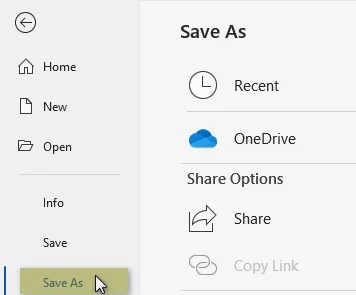
Click File > Save As.
-
Choose the folder where you want the HTML file saved.
-
In the Save as type dropdown, select either:
- Web Page (.htm, .html) - preserves most formatting but includes extra Word-specific tags.
- Web Page, Filtered (.htm, .html) - produces cleaner HTML with minimal unnecessary tags (recommended).
-
Click Save. Word will create an HTML file along with a folder containing any embedded images, CSS, and scripts.
Pros & Cons:
- Pros: Very easy and fast; preserves layout and images.
- Cons: Generates extra Word-specific markup; Filtered HTML is cleaner but still verbose.
Best For: Quick, single-file conversions where you don't need clean HTML.
You may also be interested in: How to Convert HTML to Word
Method 2: Copy Word Content and Paste into an HTML Editor (Clean HTML Code)
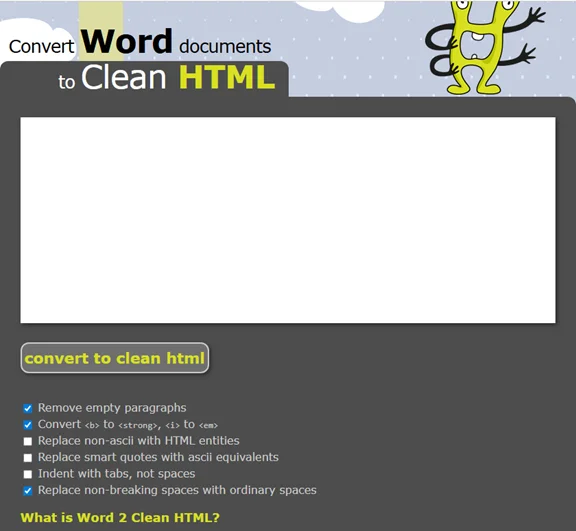
If you want clean, web-ready HTML or only need to convert part of a Word document, copying the content into an HTML editor like Word2CleanHTML is a practical solution.
Step-by-Step Guide:
- Open your Word document and select the content you want to convert.
- Press Ctrl + C (Windows) or Cmd + C (Mac) to copy.
- Open the Word2CleanHTML HTML editor.
- Press Ctrl + V (Windows) or Cmd + V (Mac) to paste the content into the editor.
- Click the convert to clean HTML button. The converter will process and generate clean HTML code from your Word content.
- Copy and save the HTML code as an .html file.
Important Note:
- This method works best for text and basic formatting. Images will not be transferred. You will need to manually re-insert them into your final HTML page using
tags.
Pros & Cons:
- Pros: Produces cleaner, more maintainable HTML; ideal for partial documents or custom formatting.
- Cons: Manual process; may take longer for full documents or multiple files.
When to Use: Best for selective content conversion or projects requiring clean, web-ready HTML with precise control over formatting.
Method 3: Use Online Word to HTML Converters (Fast and Accessible)
If you don't have Word installed or prefer a web-based solution, free online converters provide a quick and convenient solution to turn Word documents into HTML.
Recommended Online Word to HTML Converters:
- Convertio: A user-friendly tool for converting DOC/DOCX to HTML.
- FreeConvert: Simple and popular service that converts Word documents to HTML.
Steps to Convert Word to HTML Online:
-
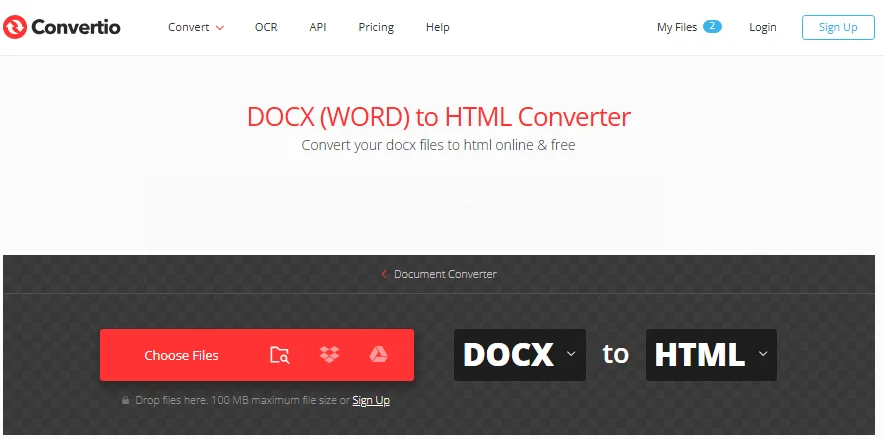
Go to the website of the chosen online converter (e.g. Convertio).
-
Upload your Word document.
-
Click the Convert button and wait for the conversion process to complete.
-
Download the converted HTML file to your device.
Security Warning:
- Public online converters may store your data in third-party servers. For sensitive documents, always use offline methods.
Pros & Cons:
- Pros: Fast, convenient, no software installation needed; works from any device.
- Cons: Not suitable for confidential or large documents.
When to Use: Best for quick conversions of non-sensitive data, or when you need a fast web solution without software installation.
Method 4: Batch Convert Word to HTML Using C# (Automated Process)
For developers or teams handling multiple Word documents, C# automation provides an efficient way to convert DOC/DOCX files to HTML in batch. This method is ideal for repetitive tasks, large projects, or integrating Word-to-HTML conversion into workflows.
What You Need:
- A C# development environment (Visual Studio or similar).
- Spire.Doc for .NET: a .NET library that supports Word file manipulation and conversion, including Word to HTML, PDF and more.
Installation Requirements:
Before proceeding, install Spire.Doc for .NET via NuGet or download it from the official website:
Install-Package Spire.Doc
Code Example:
Once the library is installed, add the following code to your C# project to batch convert Word files to HTML files:
using Spire.Doc;
using System;
using System.IO;

namespace WordToHTMLBatch
{
    class Program
    {
        static void Main(string[] args)
        {
            // Specify the folder path containing Word files
            string folderPath = @"C:\WordFiles\";

            // Get all .docx files from the folder
            string[] wordFiles = Directory.GetFiles(folderPath, "*.docx");

            // Loop through each Word file
            foreach (var file in wordFiles)
            {
                // Create a Document object to load the Word file
                Document doc = new Document();
                // Load the Word document from the file
                doc.LoadFromFile(file);

                // Build the output HTML file path based on the original file name
                string outputFile = Path.Combine(
                    folderPath,
                    Path.GetFileNameWithoutExtension(file) + ".html"
                );

                // Save the Word document as an HTML file
                doc.SaveToFile(outputFile, FileFormat.Html);
            }
        }
    }
}
This code iterates through multiple Word files in the specified folder and saves each file as an HTML file. The output files are saved with the same name as the original Word file but with an .html extension.

Customization Options:
-
Handling .doc Files:
If you need to process .doc files instead of .docx, simply modify the file extension filter:
string[] wordFiles = Directory.GetFiles(folderPath, "*.doc"); -
Advanced Export Options:
You can configure HTML export settings using the HtmlExportOptions class to control styles, images, headers, and more:
HtmlExportOptions htmlExportOptions = doc.HtmlExportOptions;

// Export document styles
htmlExportOptions.IsExportDocumentStyles = true;

// Embed images directly in the HTML
htmlExportOptions.ImageEmbedded = true;

// Choose CSS style sheet type (Internal, External, or Inline)
htmlExportOptions.CssStyleSheetType = CssStyleSheetType.Internal;

// Include headers and footers in the HTML output
htmlExportOptions.HasHeadersFooters = true;

// Export form fields as text or keep as input fields
htmlExportOptions.IsTextInputFormFieldAsText = false;

// Save the document as an HTML file with custom settings
doc.SaveToFile("AdvancedWordToHtmlConversion.html", FileFormat.Html);
Pros & Cons:
- Pros: Efficient for multiple files; fully automated; consistent output.
- Cons: Requires programming skills; setup takes time.
When to Use: Best for developers, teams, or enterprises that need to convert multiple Word files to HTML reliably and automatically.
Comparison: Which Word to HTML Conversion Method Should You Choose
Choosing the right Word to HTML conversion method depends on your needs, the size of your project, and your technical skills. The table below summarizes the main options:
| Method | Ease of Use | Batch Support | Security | Technical Skill Requirements |
|---|---|---|---|---|
| Word Save As HTML | Very Easy | No | High | Low |
| Copy & Paste to HTML Editor | Easy | No | Moderate | Low |
| Online Converters | Easy | No | Low | Low |
| C# Automation | Moderate | Yes | High | Advanced |
Quick Selection Guide:
- Quick one-off conversions → Word Save As HTML
- Clean, semantic HTML → Copy & Paste into HTML Editor
- Mobile or web-based conversion → Online Converters
- Multiple files or automation → C# Automation
Practical Tips for Word to HTML Conversion
- Back up your Word files before conversion.
- Use styles in Word to make headings and lists more structured.
- Check images and links after conversion to ensure paths are correct.
- Clean code for SEO: remove unnecessary tags, add meta descriptions, and use semantic HTML.
- Test on multiple browsers to confirm rendering consistency.
Common Issues and Solutions
- Messy HTML with too many tags → Use Word Save As and Choose "Web Page, Filtered" or copy and paste the content into an HTML editor for clean HTML code.
- Images not displaying → Ensure the images folder is kept alongside HTML files and update paths.
- Lost formatting → Some complex layouts may need manual adjustment in HTML.
- Tables or headers misaligned → Reformat using CSS for responsive design.
- Multiple documents not processed → Use batch automation via C#.
FAQs about Word to HTML
Q1: Can I convert multiple Word files to HTML at once?
A1: Yes, but you'll need C# automation or batch processing tools to handle multiple documents efficiently.
Q2: Which method produces the cleanest HTML?
A2: Copying Word content into an HTML editor or using Word Save As "Web Page, Filtered" generates cleaner, more semantic HTML.
Q3: Are online Word to HTML converters safe for confidential documents?
A3: For sensitive data, avoid public online converters. Use local solutions like Word Save As, HTML editors, or C# automation.
Q4: Will my converted HTML work on mobile devices?
A4: HTML output is generally compatible, but you may need CSS adjustments for fully responsive layouts.