DOCX is the default file format used by modern versions of Microsoft Word. However, many organizations and legacy systems still rely on the older DOC format for compatibility reasons. As a result, users sometimes need to convert DOCX to DOC to ensure that documents can be opened and edited in older versions of Word or integrated with existing workflows.
Whether you need to convert a single document or process large numbers of files, there are several practical solutions available. In this guide, you will learn how to convert DOCX files to DOC using Microsoft Word, free online tools, and automated Python solutions for batch processing.
1. Why Convert DOCX to DOC?
Although DOCX has been the default Word format since Microsoft Word 2007, the DOC format remains widely used in certain environments. Converting a DOCX file to DOC may be necessary in several scenarios.
1.1 Compatibility with Older Word Versions
Older versions of Microsoft Word—especially Word 2003 and earlier—cannot open DOCX files without compatibility packs. If a recipient uses an older version of Word, saving a document in DOC format ensures it can be opened without additional software.
1.2 Legacy Enterprise Systems
Some enterprise systems, document management platforms, and legacy applications still rely on DOC files. These systems were designed before DOCX became the standard and may only support the older binary format.
1.3 Cross-Organization Compatibility
When sharing documents across different organizations, using DOC format may improve compatibility and reduce formatting issues in older software environments.
For these reasons, many users look for a reliable DOCX to DOC converter or a simple way to perform the conversion manually or automatically.
2. Method 1: Convert DOCX to DOC in Microsoft Word (Most Reliable)
The simplest and most reliable way to convert a DOCX document is to use Microsoft Word itself. Word includes built-in compatibility features that allow you to save DOCX as DOC in just a few steps.
2.1 Step-by-Step Process
Step 1: Open the DOCX File
Launch Microsoft Word and open the DOCX file you want to convert.
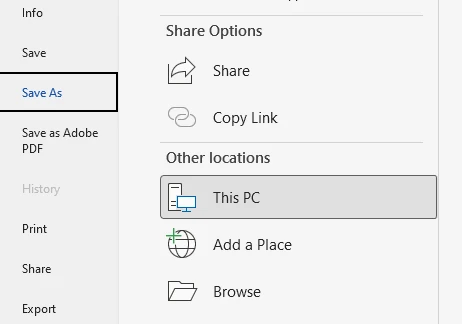
Step 2: Click "File" → "Save As"
In the menu, select File, then choose Save As. This option allows you to export the document in a different format.
Step 3: Select the DOC Format
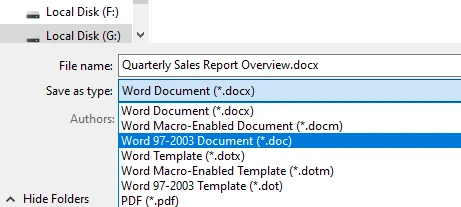
In the "Save as type" dropdown list, select:
Word 97–2003 Document (*.doc)
This format corresponds to the legacy DOC file type.
Step 4: Save the File
Choose the location where you want to store the file and click Save. Word will convert the document and create a new DOC version.
2.2 Pros
- Highest conversion accuracy
- Preserves layout, fonts, and formatting
- No internet connection required
- No file size limitations
- Complete privacy (files stay local)
2.3 Cons
- Requires Microsoft Word installation
- Manual process for each file
- Not suitable for batch processing
- Time-consuming for multiple documents
This method is ideal when you only need to convert a few documents and have Microsoft Word installed. Because the conversion happens inside Word, it generally preserves layout, fonts, and formatting with the highest accuracy.
If you need to perform the reverse conversion, you can also learn how to convert DOC files to DOCX files.
3. Method 2: Convert DOCX to DOC Online for Free (Fastest & Easiest)
Another convenient option is to use an online conversion tool. Many websites allow users to change DOCX to DOC online without installing additional software.
3.1 Typical Workflow
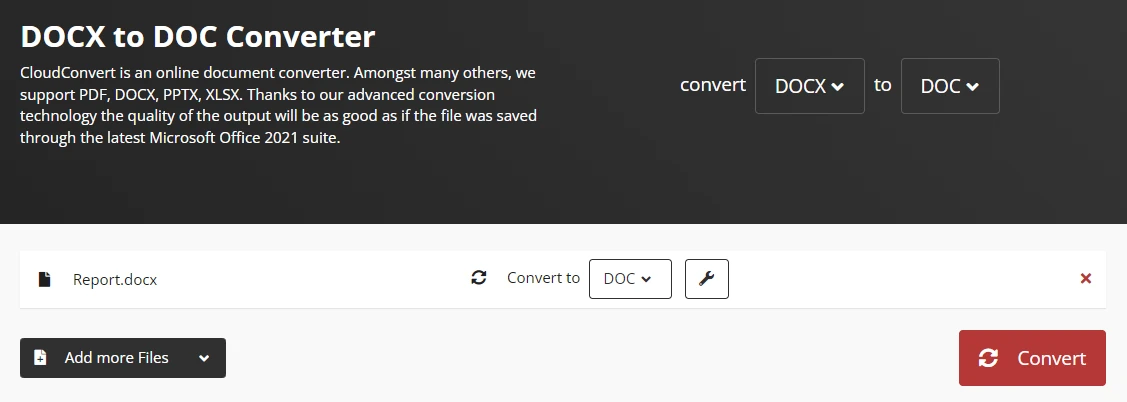
Here is a workflow example for converting a DOCX file to DOC online with CloudConvert:
-
Open the CloudConvert DOCX to DOC converter
-
Select or drag-and-drop to upload your DOCX file
-
Start the conversion process
-
Download the converted file
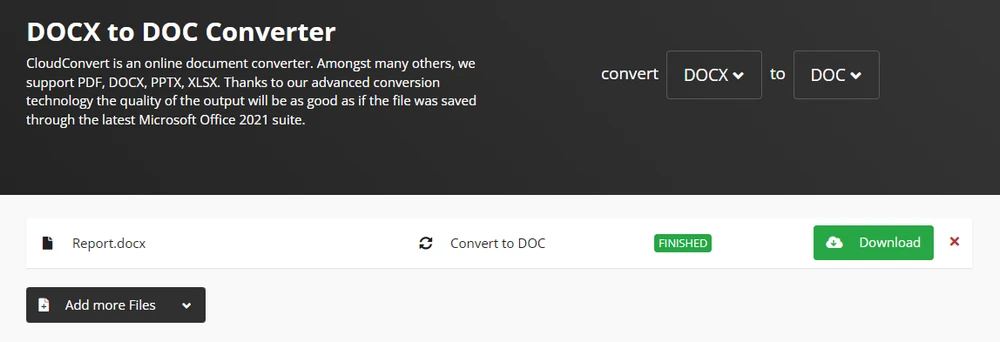
Many platforms allow you to convert DOCX to DOC free, making them useful for quick and occasional conversions.
3.2 Pros
- No installation required
- Works on any device with internet access
- Very fast conversion
- No software cost
3.3 Cons
- Privacy concerns (files uploaded to cloud)
- File size limits may apply
- Batch conversion often restricted
- Internet connection required
- Sensitive documents may pose security risks
Online converters are particularly helpful if you do not have Microsoft Word installed or if you need to perform a quick format change from a mobile device. However, for these reasons, online tools are best suited for small files or non-confidential documents.
If you need to preserve the visual appearance of a document for sharing or presentation, you can also convert Word documents to images.
4. Method 3: Batch Convert DOCX to DOC Using Python (Bulk Processing)
If you need to convert large numbers of documents, manual methods quickly become impractical. In such cases, automation can significantly improve efficiency.
4.1 Why Use Python for Conversion?
Developers and IT teams often automate document processing workflows using Python. With a Python library such as Spire.Doc for Python, it is possible to programmatically convert Word documents between formats, including DOCX and DOC.
This approach is particularly useful for:
- Batch document processing
- Automated document pipelines
- Server-side document conversion
- Enterprise document management systems
- Integration with existing workflows
4.2 Installing the Required Library
Install Spire.Doc for Python using pip:
pip install spire.doc
4.3 Example: Convert Single DOCX to DOC
The following example demonstrates how to convert a DOCX file into a DOC file using Python.
from spire.doc import *

# Create a document object
document = Document()

# Load the DOCX file
document.LoadFromFile("Quarterly Sales Report Overview.docx")

# Save the document as DOC
document.SaveToFile("output.doc", FileFormat.Doc)

# Close the document
document.Close()
In this example:
- A Document object is created
- The DOCX file is loaded using the LoadFromFile method
- The document is saved in DOC format using the SaveToFile method
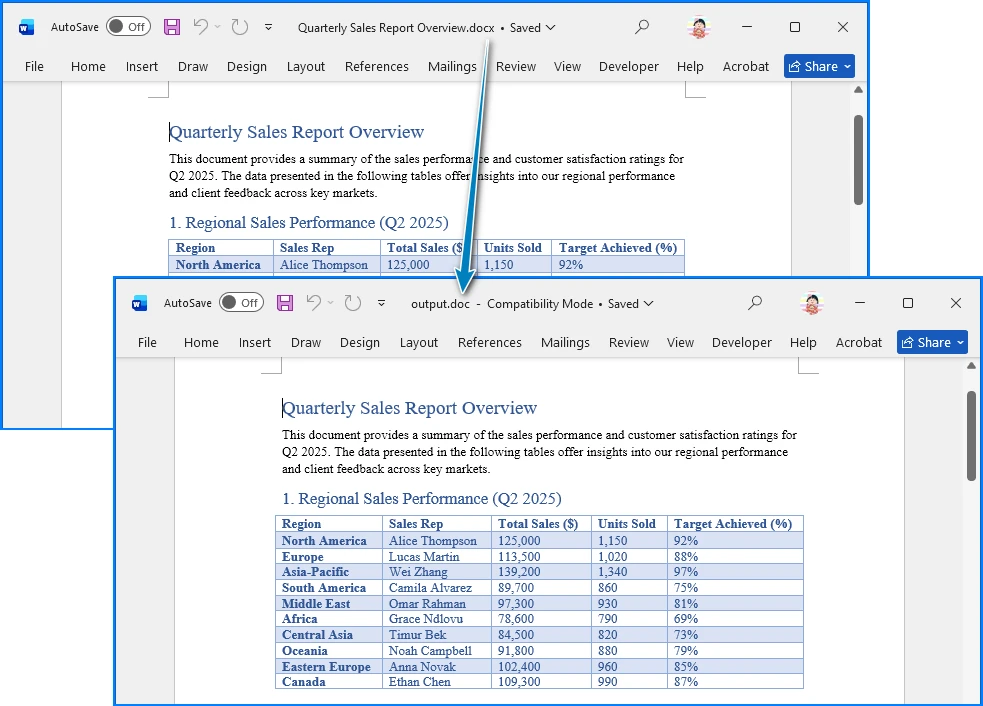
This script converts a single DOCX file into a DOC file while preserving the document structure and formatting. The following image shows the Word document before and after conversion:
4.4 Example: Batch Conversion Script
You can also convert multiple files automatically by scanning a directory and processing each DOCX document in a loop.
from spire.doc import *
import os

# Set input and output directories
input_dir = "input_docs/"
output_dir = "output_docs/"

# Create output directory if it doesn't exist
if not os.path.exists(output_dir):
    os.makedirs(output_dir)

# Loop through all files in input directory
for filename in os.listdir(input_dir):
    if filename.endswith(".docx"):
        # Create document object
        document = Document()

        # Load DOCX file
        input_path = os.path.join(input_dir, filename)
        document.LoadFromFile(input_path)

        # Generate output filename
        output_filename = filename.replace(".docx", ".doc")
        output_path = os.path.join(output_dir, output_filename)

        # Save as DOC
        document.SaveToFile(output_path, FileFormat.Doc)

        # Close document
        document.Close()

        print(f"Converted: {filename} → {output_filename}")
This batch script can:
- Locate all DOCX files in a folder
- Convert each file to DOC
- Save the results to a separate directory
- Provide progress feedback
4.5 Pros
- Automated batch processing
- No manual intervention required
- Consistent conversion quality
- Integrates with existing workflows
- Scalable for large document repositories
4.6 Cons
- Requires Python programming knowledge
- Initial setup time
- May need error handling for edge cases
- Requires library installation
This automation approach is ideal for organizations that regularly process large numbers of documents and need a reliable, scalable solution.
If your goal is consistent formatting across different devices, you can also consider using Python to convert Word documents to PDF.
5. How to Convert DOCX to DOC Without Losing Formatting
One common concern when converting document formats is whether the layout will remain intact. Users often want to convert DOCX to DOC without losing format, especially when documents contain complex elements such as tables, images, or custom fonts.
5.1 Understanding Format Differences
DOCX and DOC use different internal structures. DOCX is based on XML and uses a modern document architecture, while DOC relies on an older binary format. Because of this difference, certain formatting features may behave slightly differently after conversion.
5.2 Tips for Preserving Formatting
To minimize formatting issues, consider the following best practices:
- Use Microsoft Word's built-in Save As feature rather than third-party converters when possible
- Ensure the same fonts are installed on the system performing the conversion
- Check tables, charts, and images after conversion
- Avoid advanced formatting features that are not supported in older Word versions
- Test the conversion with a sample document before processing important files
5.3 When Formatting Issues Occur
If you encounter formatting problems:
- Reopen the DOCX file in Microsoft Word
- Use the native Save As feature instead of online converters
- Verify that all required fonts are installed
- Check for compatibility warnings in Word
- Consider simplifying complex layouts before conversion
In most cases, standard documents convert correctly with little or no visible change when using Microsoft Word's native conversion.
6. Comparison of All Methods
| Method | Accuracy | Speed | Privacy | Batch Support | Best For |
|---|---|---|---|---|---|
| Microsoft Word | ★★★★★ | ★★★★☆ | ★★★★★ | ★☆☆☆☆ | High-quality single file conversion |
| Online Converters | ★★★★☆ | ★★★★★ | ★★☆☆☆ | ★★☆☆☆ | Quick, one-time conversions |
| Python Batch Conversion | ★★★★★ | ★★★★★ | ★★★★★ | ★★★★★ | Large-scale automated workflows |
7. Best Practices for DOCX to DOC Conversion
To ensure the best conversion results, follow these guidelines:
7.1 Before Conversion
- Backup original DOCX files
- Test conversion with a sample document first
- Verify that required fonts are installed
- Check document complexity (tables, images, formatting)
7.2 During Conversion
- Use Microsoft Word's native Save As for highest accuracy
- Avoid online converters for sensitive documents
- Monitor batch conversion processes for errors
- Validate output files after conversion
7.3 After Conversion
- Review converted documents for formatting issues
- Test files in target systems or applications
- Archive original DOCX files if needed
- Document the conversion process for future reference
7.4 Security Considerations
- Never upload confidential documents to online converters
- Use local conversion methods for sensitive content
- Ensure proper access controls on converted files
- Consider encryption for documents containing personal data
8. Frequently Asked Questions
1. Can I convert DOCX to DOC for free?
Yes. You can convert DOCX files to DOC using Microsoft Word's built-in Save As feature or by using free online conversion tools. Many websites allow users to convert DOCX to DOC free, although file size or privacy limitations may apply.
2. Will converting DOCX to DOC affect formatting?
In most cases formatting remains consistent, but some advanced layout features may change slightly because DOC and DOCX use different internal formats. If you need to convert DOCX to DOC without losing format, using Microsoft Word's native conversion feature usually produces the most reliable results.
3. How can I convert multiple DOCX files to DOC at once?
For bulk conversions, automated tools or scripts are often the best option. Python libraries designed for document processing allow developers to convert many files in batch, making them suitable for large document repositories or automated workflows.
4. Which method is best for converting confidential documents?
For confidential or sensitive documents, always use local conversion methods such as Microsoft Word or Python scripts. Avoid online converters that require uploading files to external servers, as this poses privacy and security risks.
5. Can I convert DOCX to DOC without Microsoft Word?
Yes, you can use online converters or Python libraries like Spire.Doc to convert DOCX files to DOC without having Microsoft Word installed. However, using Microsoft Word typically provides the highest conversion accuracy and formatting preservation.
6. What should I do if formatting is lost after conversion?
If formatting is lost after conversion, try the following:
- Reopen the original DOCX file in Microsoft Word
- Use Word's native Save As feature instead of online converters
- Ensure all required fonts are installed
- Simplify complex layouts before conversion
- Check for compatibility warnings in Word before saving
9. Conclusion
Converting DOCX to DOC may be necessary for legacy systems, older Word versions, or compatibility-sensitive environments. Several methods exist depending on your needs.
Microsoft Word provides a reliable manual solution for occasional conversions. Online tools allow quick conversion when installing software isn’t an option, though privacy should be considered. For large-scale or automated workflows, Python-based solutions offer superior efficiency and scalability.
By choosing the method that suits your workflow, you can easily convert DOCX to DOC while maintaining document quality and compatibility—whether for a one-time task or robust batch processing.