When preparing reports, contracts, academic papers, or technical documentation, you may need to include a PDF file inside a Microsoft Word document. However, “inserting” a PDF can mean different things depending on your goal.
Do you want to:
- Attach the original PDF without modifying it?
- Preserve the exact visual layout?
- Convert the PDF into editable Word content?
Each objective requires a different method. Choosing the wrong approach can lead to formatting issues, missing pages, layout distortion, or unnecessary file size growth.
This guide explains how to insert a PDF into Word using three reliable approaches — embedding it as an object, converting it to images, or converting it into an editable DOCX file. It covers both manual methods in Microsoft Word and programmatic automation using Python.
Quick Navigation
- Understanding How Word Handles PDF Files
- Method 1: Insert a PDF as an Object (Attach Without Editing)
- Method 2: Convert the PDF to Images (Preserve Exact Layout)
- Method 3: Convert the PDF to Word (Make It Editable)
- Common Mistakes When Inserting PDFs into Word
- Automating the Process Programmatically (For Developers)
- Choosing the Right Method
- Frequently Asked Questions
Understanding How Word Handles PDF Files
Microsoft Word documents (DOCX) are flow-based and stored as zipped XML packages. In contrast, PDF files use fixed positioning to ensure layout consistency across devices.
Because of this structural difference:
- Embedding a PDF attaches it as a binary OLE object.
- Converting a PDF reconstructs layout into editable elements.
- Inserting as images preserves appearance but removes editability.
Word uses Object Linking and Embedding (OLE) technology when inserting external files as objects. Understanding this behavior helps explain why only the first page preview appears and why embedded PDFs increase document size.
Method 1: Insert a PDF as an Object (Attach Without Editing)
Best for: Attaching a PDF file while preserving its original structure.
If you need to attach a PDF to a Word document — such as a contract appendix or supporting material — inserting it as an object is the most appropriate solution.
When inserted this way, the PDF becomes an embedded OLE object. The entire file is stored inside the Word document and can be opened separately by double-clicking it.
Typical Use Cases
- Contracts and agreements
- Technical documentation
- Academic appendices
- Supporting reference materials
Steps: Insert a PDF as an Object
- Open your Word document.
- Place the cursor where the PDF should appear.
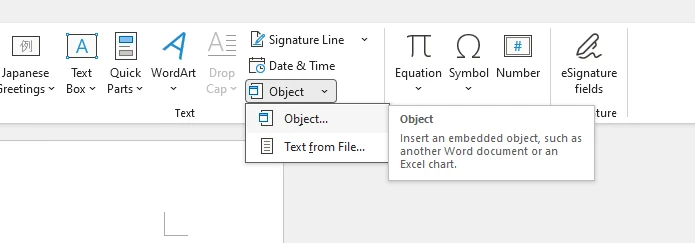
- Go to the Insert tab.
- Click Object (in the Text group).
- Select Create from File.
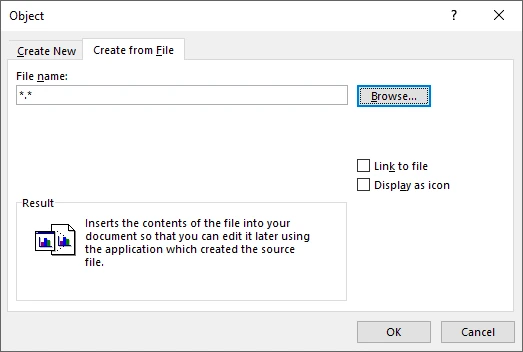
- Click Browse and choose the PDF file.
- Select one of the following options:
- Display as icon – shows a clickable PDF icon.
- Link to file – links externally instead of embedding.
- Leave both unchecked – embeds the file and displays a preview (typically the first page).
- Click OK.
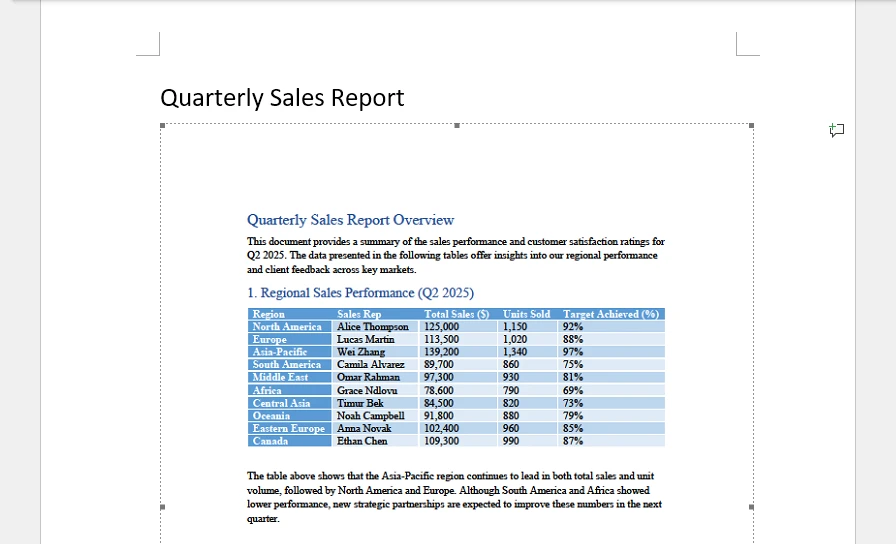
The PDF is now embedded in the Word document. Below is an example of the inserted PDF object:
Important Technical Notes
- Word embeds the entire PDF as a single OLE object.
- Only the first page is displayed as a preview.
- The content cannot be edited directly inside Word.
- The embedded file increases the overall DOCX size.
- Preview rendering may depend on whether a PDF handler (such as Adobe Acrobat) is installed.
Why Does Only the First Page Appear?
Word treats the PDF as one embedded object rather than separate pages. The preview is only a visual representation of the first page, while the complete PDF remains attached internally.
If you want to insert other types of files (such as Excel sheets or PowerPoint presentations) as OLE objects in Word, refer to our detailed guide on inserting attachments into Word documents.
Method 2: Convert the PDF to Images (Preserve Exact Layout)
Best for: Maintaining precise visual fidelity.
If layout accuracy is critical — for example in marketing brochures, certificates, scanned files, or design-sensitive documents — converting each PDF page into an image before inserting it into Word is often the safest approach.
Since images are static, Word does not attempt to reconstruct text, spacing, or positioning. This avoids layout reflow issues that can occur during PDF-to-Word conversion.
How This Method Works
- Convert each PDF page into an image file (PNG or JPEG).
- Insert the images into Word in sequence.
- Add page breaks between images if necessary.
Because Word treats the content as images rather than editable text, the visual result remains identical to the source PDF.
Common PDF-to-image conversion tools include:
- Adobe Acrobat
- Microsoft Word
- Online converters
If you prefer an online solution, you can use an online PDF-to-image converter to generate high-resolution page images before inserting them into Word.
Recommended Image Settings
To maintain clarity and print quality:
- Use 200–300 DPI for print documents.
- Prefer PNG for text-heavy pages.
- Use JPEG only when file size reduction is a priority.
Advantages
- Exact visual consistency
- No font substitution
- No layout distortion
- Consistent rendering across Word versions
Limitations
- Content is not editable
- Document size may increase significantly
- Large or high-resolution images may impact performance
This method is recommended when visual fidelity is more important than editability.
Method 3: Convert the PDF to Word (Make It Editable)
Best for: Editing or reusing PDF content.
If your objective is to modify the content rather than attach it, converting the PDF into an editable Word document is necessary.
Many users search for how to import a PDF into Word, but technically Word performs a conversion process rather than a direct import.
Option 1: Open the PDF Directly in Word
Modern versions of Word (2013 and later, including Microsoft 365) support built-in PDF conversion.
Steps:
- Open Word.
- Click File → Open.
- Select the PDF file.
- Confirm the conversion prompt.
Word reconstructs the PDF layout into editable content.
What Happens During Conversion
Because PDFs use fixed positioning and Word uses flow-based layout, reconstruction may result in:
- Font substitutions
- Spacing differences
- Table restructuring
- Paragraph reflow
- Minor alignment shifts
Complex layouts may require manual correction after conversion.
Option 2: Use a Dedicated PDF-to-Word Converter
You may also use an online or offline PDF-to-Word conversion tool to generate a DOCX file before inserting it into your document.
If you prefer a browser-based solution, an online PDF-to-Word converter can simplify occasional or lightweight conversion tasks.
For a step-by-step guide, see our complete tutorial on PDF to Word conversion.
Common Mistakes When Inserting PDFs into Word
Many formatting issues occur due to misunderstanding how Word handles PDFs:
-
Expecting multi-page previews when embedding – Word displays only the first page of an embedded PDF as a preview. If you need all pages visible, convert the PDF to images or to an editable Word document instead.
-
Attempting to edit embedded PDFs directly – Embedded PDFs remain separate file objects and cannot be edited inside Word. To modify content, convert the PDF to Word format before inserting it.
-
Using low-resolution images for printing – Converting pages at low DPI can result in blurry output. Use 200–300 DPI for print-quality results.
-
Ignoring file size growth after embedding large PDFs – Embedding stores the entire file inside the DOCX, which can significantly increase document size. Consider linking to the PDF if file size is a concern.
-
Assuming PDF conversion will preserve layout perfectly – Complex formatting, fonts, and graphics may shift during conversion. Use image-based insertion if exact visual fidelity is required.
Understanding the differences between embedding, imaging, and converting helps you choose the most appropriate method and avoid unnecessary formatting corrections.
Automating the Process Programmatically (For Developers)
In enterprise reporting systems or batch processing workflows, manual insertion is impractical.
Using Python libraries such as Spire.Doc for Python and Spire.PDF for Python, you can automate:
- Embedding PDFs as OLE objects
- Converting PDF pages to images
- Converting PDFs to editable DOCX files
Installation
To automate PDF insertion or image conversion in Word using Python, you need to install the required libraries. In this example, we use Spire.Doc for Word document processing and Spire.PDF for handling PDF files.
Make sure Python 3.7 or later is installed in your environment. Then run the following commands:
pip install Spire.Doc
pip install Spire.PDF
After installation, you can import the libraries in your Python script and begin automating document processing tasks.
1. Embed a PDF as an OLE Object
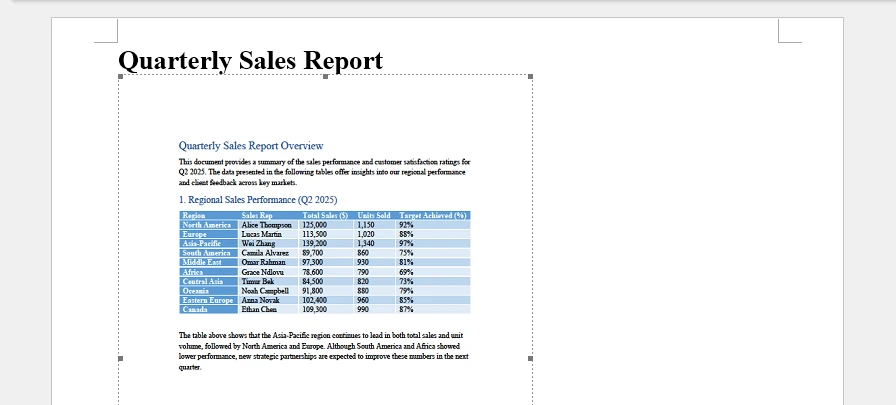
This method embeds the PDF file directly into a Word document as an OLE object. The entire PDF is stored inside the DOCX file, while a preview image is displayed in the document interface. The preview image is generated from the first page of the PDF and used as the visual representation of the embedded object.
from spire.doc import Document, Stream, DocPicture, FileFormat, OleObjectType
from spire.pdf import PdfDocument

document = Document()
section = document.AddSection()

pdf = PdfDocument()
pdf.LoadFromFile("Sample.pdf")

# Convert first page to image for preview
image_stream = pdf.SaveAsImage(0, 300, 300)  # pageIndex, dpiX, dpiY
image_bytes = image_stream.ToArray()

image = DocPicture(document)
image.LoadImage(Stream(image_bytes))

pdf_object = section.AddParagraph().AppendOleObject(
    "Sample.pdf",
    image,
    OleObjectType.AdobeAcrobatDocument
)

pdf_object.Width = 200
pdf_object.Height = 400
pdf_object.DisplayAsIcon = False

document.SaveToFile("Embed_PDF.docx", FileFormat.Docx)
document.Close()
pdf.Close()
Key Technical Points:
- AppendOleObject() embeds the full PDF file into the Word document.
- OleObjectType.AdobeAcrobatDocument specifies the object type.
- SaveAsImage(pageIndex, dpiX, dpiY) generates the preview image displayed in Word.
Higher DPI values produce sharper previews but increase file size.
Below is a preview of the generated Word document:
For a more detailed guide on embedding OLE objects into Word using Python, refer to Embed OLE Objects in Word with Python.
2. Convert PDF Pages to Images and Insert
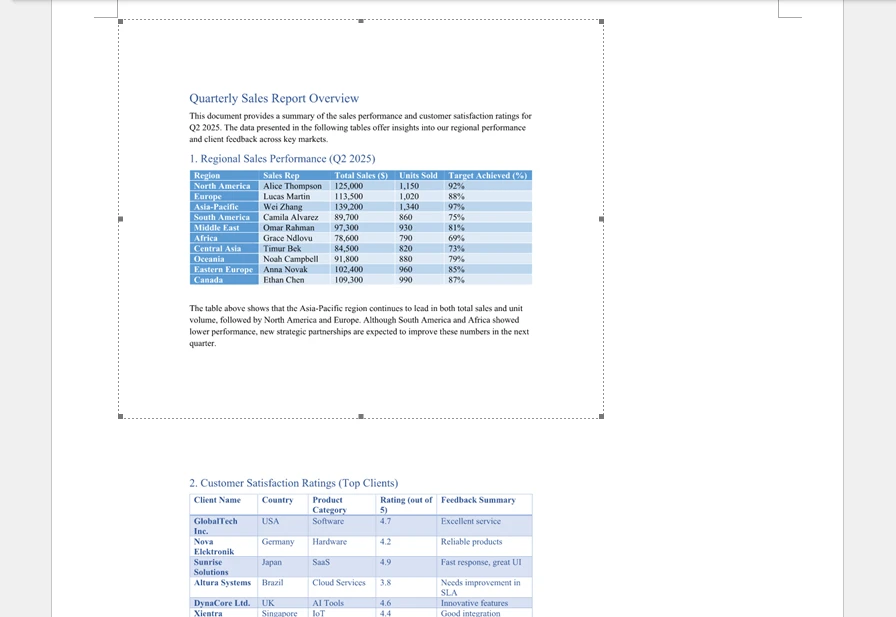
This approach converts each PDF page into an image and inserts the images into the Word document sequentially. Unlike OLE embedding, the PDF file itself is not stored as an attachment — only static images are inserted.
from spire.pdf import PdfDocument
from spire.doc import Document, Stream, FileFormat

pdf = PdfDocument()
pdf.LoadFromFile("Sample.pdf")

document = Document()
section = document.AddSection()

for i in range(pdf.Pages.Count):
    image_stream = pdf.SaveAsImage(i, 300, 300)
    paragraph = section.AddParagraph()
    paragraph.AppendPicture(Stream(image_stream.ToArray()))

document.SaveToFile("PDF_As_Images.docx", FileFormat.Docx)
document.Close()
pdf.Close()
Technical Notes:
- Each page is converted using SaveAsImage().
- Images are inserted using AppendPicture().
- The resulting Word file contains only images, not the original PDF file.
- DPI settings directly affect clarity and document size.
Below is an example of the generated Word document:
3. Convert PDF to Editable Word
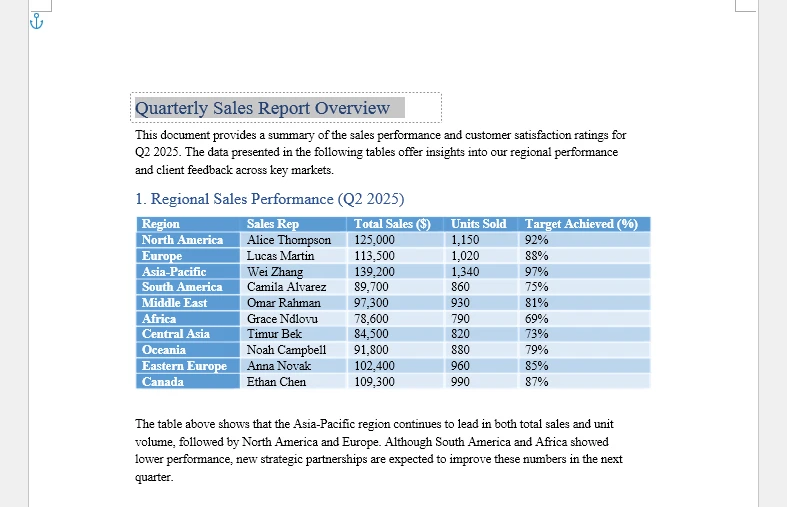
This method converts the PDF into an editable Word document format (DOCX). Instead of embedding or inserting images, the PDF content is reconstructed into Word-native elements such as paragraphs, tables, and images.
from spire.pdf import *

pdf = PdfDocument()
pdf.LoadFromFile("Sample.pdf")

pdf.ConvertOptions.SetPdfToDocOptions(True, False)

pdf.SaveToFile("Converted.docx", FileFormat.DOCX)
pdf.Close()
Technical Notes:
-
SetPdfToDocOptions(usePsMode, useFlowMode) controls layout reconstruction:
- usePsMode=True – enables PS Mode, which preserves fixed-page positioning more accurately.
- useFlowRecognitionMode=False – disables Flow Recognition Mode, meaning Word will not attempt to flow text dynamically; content layout stays closer to the original PDF.
-
The output file is a fully editable DOCX document.
-
Complex layouts, fonts, or graphics may still require minor manual adjustments after conversion.
Below is a preview of the conversion result:
The resulting DOCX file can then be opened, edited, or merged into another Word document.
For more details on PDF conversion to Word using Python, refer to How to Convert PDF to Word with Python.
Choosing the Right Method
| Objective | Recommended Method | Key Considerations |
|---|---|---|
| Attach without editing | Insert as Object | Embeds the PDF as an OLE object; content remains uneditable; only a preview is displayed. |
| Preserve exact layout | Convert to Images | Inserts static images of each page; visual fidelity is preserved; file size may increase. |
| Edit content | Convert to Word | Converts PDF to editable DOCX; allows modifications; complex layouts may require adjustments. |
Selecting the correct method based on your goal ensures efficient document handling, prevents formatting issues, and aligns with your workflow requirements.
Frequently Asked Questions
Can I insert a multi-page PDF into Word?
Yes. When embedding as an object, the entire file is attached as one item. When converting to images or Word format, each page appears separately.
Why does formatting change after converting a PDF?
PDF files store content using fixed coordinates. During conversion, Word reconstructs the layout into a flow-based editable structure, which may alter spacing or alignment.
How do I attach a PDF to a Word document without editing it?
Use Insert → Object → Create from File to embed the file directly.
Conclusion
There are multiple ways to insert a PDF into Word, and the best method depends entirely on your intended outcome.
Embedding works best when you need to attach the original file. Converting to images guarantees visual fidelity. Converting to Word enables editing and content reuse.
By understanding how Word processes PDF files internally and selecting the appropriate technique, you can avoid formatting surprises, control document size, and build more reliable document workflows.