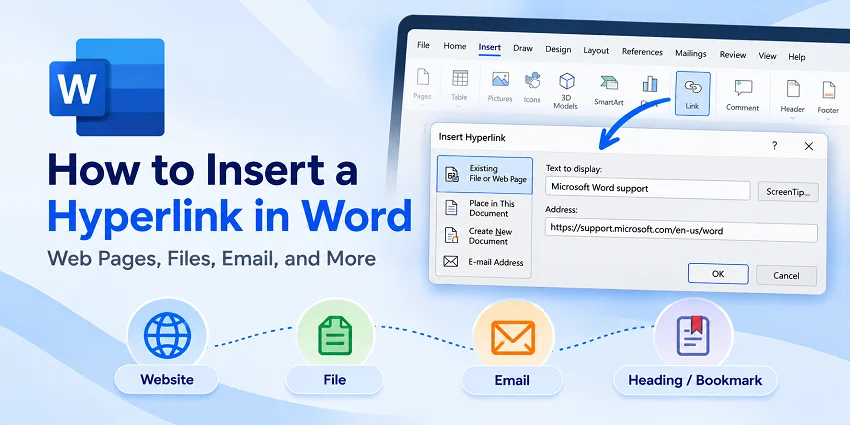
A hyperlink in a Word document can send readers to a website, open a related file, start an email, or jump to a section of the same document. This is especially useful in reports, manuals, proposals, and other documents that refer to supporting information.
To insert a hyperlink in Word quickly, select the text you want to make clickable, press Ctrl + K (Windows) or Command + K (Mac), enter the destination address, and click OK. The steps below explain how to create different types of hyperlinks, edit or remove existing links, and insert hyperlinks programmatically with Python.
Insert a Hyperlink to a Website in Microsoft Word
The most common type of hyperlink in Word points to a website. Instead of displaying a long URL, you can turn a descriptive phrase, such as Microsoft Word support, into a clickable link.
Step-by-Step Guide
The following steps use Microsoft Word for Windows. The interface may differ slightly on Mac, but the process is similar.
-
Select the text or image.
Highlight the words you want to make clickable, or select an image in your document. -
Open the hyperlink dialog.
Go to the Insert tab and click Link (or Hyperlink in some versions). Alternatively, right-click the selected text or image and choose Link, or press Ctrl + K. -
Enter the website address.
In the Insert Hyperlink dialog, select Existing File or Web Page, then paste the full URL into the Address field, such ashttps://support.microsoft.com/en-us/word. -
Check the display text (for text links).
If you selected text, the Text to display field shows the words readers will see. You can change this wording without changing the destination URL. This field is unavailable when linking an image.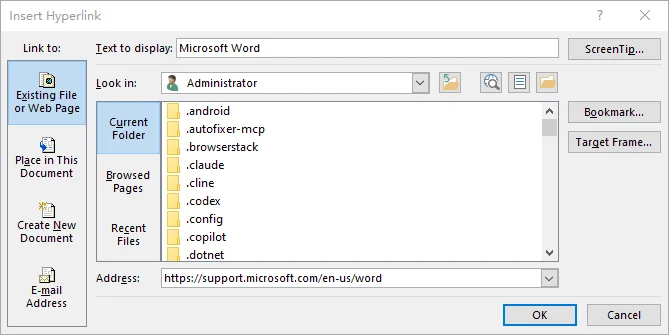
-
Insert the hyperlink.
Click OK to apply the link, then test it to make sure it opens the correct page.
If you're on a Mac, press Command + K or go to Insert > Link. In the Insert Hyperlink dialog, select Web Page or File and enter the website address.
Tips:
-
To customize the text that appears when you hover over a hyperlink, click ScreenTip in the Insert Hyperlink dialog and enter your preferred text. If you don't specify a ScreenTip, Word typically displays the link's address or file path.
-
Word can automatically turn website addresses into hyperlinks. Type a URL and press Space or Enter. This is convenient for quick editing, but descriptive link text is usually easier to read and understand.
If you also work with PDFs, you can add hyperlinks to a PDF to link to websites, files, or other pages within the document.
Link to a Heading or Bookmark in the Same Word Document
Internal hyperlinks help readers navigate long Word documents without scrolling through multiple pages. For example, you can link the phrase See the recommendations section directly to that section of a report.
Word supports two common destinations for internal hyperlinks: headings and bookmarks.
Link to an Existing Heading
If your document uses built-in heading styles, you can link directly to those headings without creating separate bookmarks.
- Select the destination heading and apply a built-in style such as Heading 1 or Heading 2 under Home > Styles, if it does not already have one.
- Select the text you want to turn into a hyperlink, such as Jump to Recommendations.
- Press Ctrl + K and choose Place in This Document under Link to.
- Select the destination heading from the list.
- Click OK and test the hyperlink.
Link to a Bookmark
A bookmark is useful when you want to link to a specific paragraph, table, or location that does not have a suitable heading.
- Select the destination text or place the cursor where you want the link to lead.
- Go to Insert > Bookmark.
- Enter a bookmark name, such as
PricingDetails, and click Add. Bookmark names must begin with a letter and cannot contain spaces. You can use underscores to separate words. - Select the text that will serve as the hyperlink and press Ctrl + K.
- Choose Place in This Document, select your destination bookmark, and click OK.
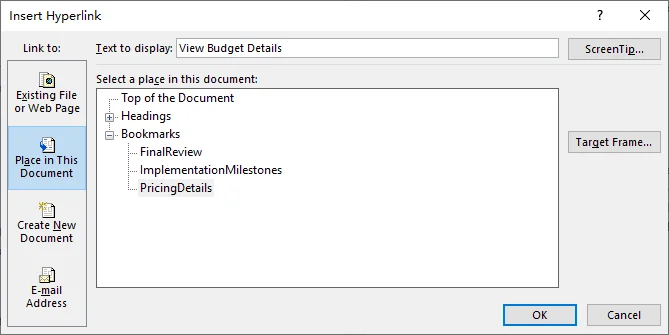
Word hyperlinks can point to headings or bookmarks rather than fixed page numbers. This is useful because the destination remains associated with the content even when editing changes the document's pagination, provided the heading or bookmark is preserved.
Create Hyperlinks to Files or Email Addresses
Hyperlinks in Word are not limited to websites. You can also link to another document or create a link that opens a new email message.
Link to an Existing File
You can create hyperlinks to Word documents, Excel spreadsheets, PDFs, and other files stored on your computer or in an accessible shared location.
- Select the text you want readers to click, such as Open the budget spreadsheet.
- Go to Insert > Link.
- Under Link to, select Existing File or Web Page.
- Browse to the file you want to link to and select it.
- Click OK.
Important: A hyperlink only points to a file; it does not include the file itself in your Word document. If you want the file to travel with the document, you can attach or embed the file in Word. If you move a linked file or share the document with someone who cannot access its location, the hyperlink may stop working.
For documents shared with colleagues, consider linking to a file on an accessible shared network drive or using a shareable link from a cloud storage service. Make sure recipients have permission to access the file.
Create an Email Hyperlink
An email hyperlink allows readers to start a message to a specified recipient directly from a Word document.
- Select text such as Contact the project team.
- Open Insert > Link.
- Under Link to, choose E-mail Address.
- Enter the recipient's address in the E-mail address field.
- Optionally, enter a Subject to prefill the email subject line.
- Click OK.
When a reader activates the hyperlink, Word attempts to open the default email application with a new message addressed to the specified recipient.
This behavior depends on the reader's email application and device settings. Some email clients may not recognize a predefined subject line.
Add a Hyperlink in Word for the Web
If you use Word in a browser, you can also insert hyperlinks in Word for the web without installing the desktop application.
To link to a website in Word for the web:
-
Select the text you want to turn into a hyperlink.
-
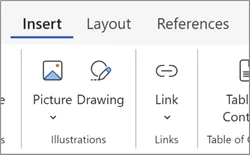
Go to Insert > Link.
-
Enter or paste the destination URL in the Enter Link box under Address.
-
Check the display text and insert the hyperlink.
To link to a heading or bookmark in the same document, select the text and go to Insert > Link > Insert Link. Choose Headings and Bookmarks on the right side of the opened dialog, then select the destination.
You can also create email links by entering an address beginning with mailto:, such as mailto:team@example.com, in the Enter Link box.
The browser interface differs from the desktop Insert Hyperlink dialog, so some controls may have different names or locations. For linking to local files or working with more advanced hyperlink options, desktop Word is generally more practical.
Insert Hyperlinks into Word Documents with Python
The methods above work well for adding hyperlinks manually in Word. However, if you frequently generate reports or update documents with new reference links, Python can help automate the process.
The example below uses Spire.Doc for Python, which supports adding links to websites, files, email addresses, and bookmarks without requiring Microsoft Word to be installed.
Install Spire.Doc for Python
Before running the script, install the library using pip:
pip install Spire.Doc
Add Hyperlinks to an Existing Word Document
The following example opens an existing Word document named report.docx, adds a resources paragraph at the end, and inserts two hyperlinks: one to a website and another to an email address.
from spire.doc import Document, FileFormat, HyperlinkType

# Open the existing Word document
doc = Document()
doc.LoadFromFile("report.docx")

try:
    # Add a paragraph to the last section
    section = doc.Sections.get_Item(doc.Sections.Count - 1)
    paragraph = section.AddParagraph()
    paragraph.AppendText("Useful resources: ")

    # Insert a website hyperlink
    paragraph.AppendHyperlink(
        "https://support.microsoft.com/en-us/word",
        "Microsoft Word help",
        HyperlinkType.WebLink
    )

    paragraph.AppendText(" | ")

    # Insert an email hyperlink
    paragraph.AppendHyperlink(
        "mailto:team@example.com",
        "Email the project team",
        HyperlinkType.EMailLink
    )

    # Save the modified document
    doc.SaveToFile("report_with_links.docx", FileFormat.Docx)

finally:
    doc.Close()
When adding a text hyperlink, the AppendHyperlink() method accepts three arguments:
- Destination: The URL, file path, email address, or bookmark name.
- Display text: The clickable text shown in the Word document.
-
Hyperlink type: A value such as
HyperlinkType.WebLinkorHyperlinkType.EMailLink.
Note: This example appends new hyperlinks to the document. It does not search for existing text and convert that text into a hyperlink.
Add File Links or Bookmark Links with Python
The same method can be used for other hyperlink destinations.
For example, to link to an Excel workbook stored on your computer:
# Link to an existing Excel file
paragraph.AppendHyperlink(
    r"C:\Reports\budget.xlsx",
    "Open the budget workbook",
    HyperlinkType.FileLink
)
To create a hyperlink to a bookmark already defined in the Word document:
# Link to an existing bookmark
paragraph.AppendHyperlink(
    "PricingDetails",
    "Jump to pricing details",
    HyperlinkType.Bookmark
)
You can use these snippets in the main example's try block, before doc.SaveToFile(), to replace or supplement the existing hyperlink calls. For bookmark links, the destination bookmark must already exist in the Word document. File hyperlinks also depend on the referenced file remaining accessible to the reader.
The library also supports hyperlinks on images. You can add an image to a paragraph using AppendPicture(), then pass the resulting image object to AppendHyperlink() instead of display text. For a complete example, see how to add hyperlinks to text and images in Word with Python.
Evaluation note: The trial version of Spire.Doc for Python may add evaluation notices or impose functional limitations. You can request a temporary license to evaluate document generation without these restrictions.
Edit, Remove, or Fix Hyperlinks in Word
After inserting hyperlinks, you may need to update their destinations, change their appearance, or fix links that no longer work.
- Edit a hyperlink: Right-click the linked text and select Edit Hyperlink. Change the URL in Address or update Text to display, then click OK.
- Remove a hyperlink: Right-click the linked text and select Remove Hyperlink. Word removes the link while keeping the visible text. To remove all hyperlinks at once or clean up multiple documents, see our guide on how to remove hyperlinks in Word.
- Change hyperlink formatting: Modify the text formatting or Word's Hyperlink style to change how links appear. As explained in Microsoft's Word accessibility guidelines, links should remain distinguishable from surrounding text without relying on color alone.
- Follow a hyperlink: In desktop Word for Windows, the default behavior usually requires Ctrl + Click while editing. If clicking a link only places the cursor in the text, the hyperlink may still be working correctly.
- Fix a broken hyperlink: Check the URL for errors, confirm that the linked heading or bookmark still exists, and verify that any referenced file has not been moved or deleted. For email links, make sure a compatible email application is configured.
Stop Word from Automatically Creating Hyperlinks
If Word automatically converts web addresses into clickable links and you want to disable this behavior:
- Go to File > Options > Proofing.
- Click AutoCorrect Options.
- Open the AutoFormat As You Type tab.
- Clear Internet and network paths with hyperlinks.
- Click OK to save the change.
These steps apply to desktop Word for Windows. The setting's location may differ on Mac or in other versions of Word.
Final Tips
Whether you're linking to a website, another file, an email address, or a location within the document, make sure the link text is clear and the destination works as expected. For shared documents, check that recipients can access any linked files.
Word's built-in tools are sufficient for everyday editing, while Python is useful when hyperlinks need to be added automatically during document generation.