Handling large Word documents can be challenging. Files with hundreds of pages often slow down Word, complicate collaboration, and make sharing via email cumbersome. Knowing how to split a Word document efficiently can save time, reduce file size, and improve workflow.
In this guide, we'll walk you through 5 practical ways to split Word documents, from simple manual methods like Copy & Paste, to automated solutions using Python. Whether you're a beginner managing a single file or a power user processing hundreds of documents, this article will help you choose the method that fits your needs best.
Methods Overview
- Method 1 - Split a Word Document via Copy & Paste
- Method 2 - Split Word Document by Headings
- Method 3 - Split Word Documents via PDF Conversion
- Method 4 - Split Pages in Word Online for Free
- Method 5 - Automate Word Document Splitting with Python
Why You May Need to Split a Word Document?
Splitting a Word document isn't just a technical task-it can make your work more organized and easier to work with. Here are some common reasons to divide Word documents:
- Enhanced Collaboration: Easily send specific chapters or sections to different editors or stakeholders without sharing the entire document.
- Optimized File Size: Reduce the bulk of massive, image-heavy documents for faster emailing and smoother cloud uploads.
- Better Organization: Break down a complex, multi-project report into individual, searchable files.
- Seamless Conversion: Prepare specific segments for conversion to PDF, Markdown, or HTML.
Method 1 - Split a Word Document via Copy & Paste
Best for: Extracting specific sections, one-off edits, or beginners.
The Copy and Paste method is the most intuitive way to manually split a Word document. It requires no extra software or technical expertise and works seamlessly across all versions of Microsoft Word, including Word for Microsoft 365, Word 2024, 2021, 2019, and 2016. This approach is ideal for users who need full granular control over the specific content they wish to isolate.
Step-by-Step Instructions:
-
Open Your Document
Launch Word and open the file you want to split. -
Select the Target Content
Highlight the section or chapter to extract.- ⚡ Tip: Use Ctrl + Shift + End (Windows) or Cmd + Shift + End (Mac) to select everything from your cursor to the end of the document quickly.
-
Copy the Content
Press Ctrl + C (Windows) or Cmd + C (Mac) on your keyboard, or right-click the highlighted area and select Copy.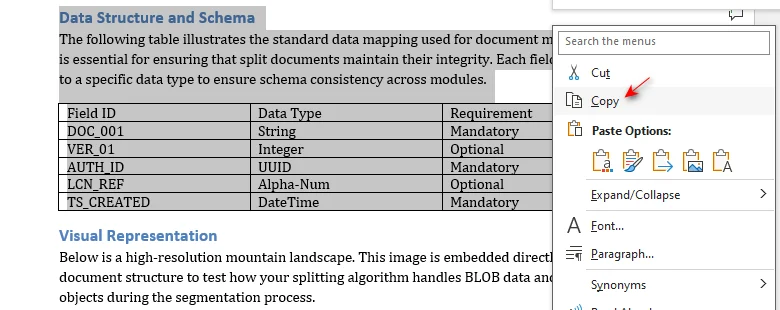
-
Create a New File
Press Ctrl + N to instantly open a fresh, blank document. -
Paste the Content
Press Ctrl + V (Windows) or Cmd + V (Mac) to paste. To preserve the source formatting, click the Paste Options icon at the end of the pasted text (or press Ctrl) and select Keep Source Formatting (K).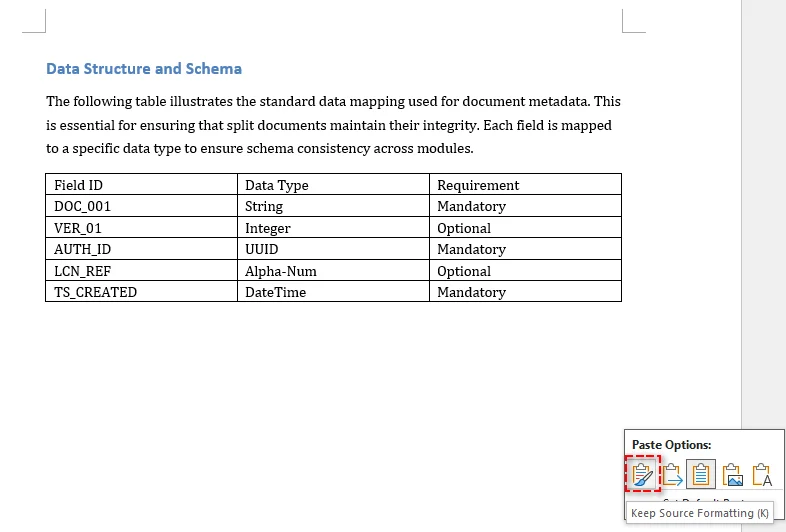
-
Save the New File
Press F12 to open the Save As dialog. Enter a descriptive file name, choose your destination folder, and click Save.
Strengths and Limitations:
| ✅ Strengths | ❌ Limitations |
|---|---|
| Zero learning curve | Inefficient for bulk tasks |
| Precise control over content selection | Complex formatting may require manual adjustment |
Extra Tips: Avoiding Formatting Shifts
Manual copying is fast but can break complex layouts. Follow these tips:
- Landscape Pages: If your source has landscape pages, insert a Section Break (Layout > Breaks > Next Page) in the new file before pasting to ensure the horizontal layout is preserved.
- Headers & Footers: These background elements (including page numbers and watermarks) do not transfer. You must reapply them manually in the new file.
- Style Consistency: To prevent font or spacing changes, always use Keep Source Formatting when pasting.
- Broken Links: Be aware that internal hyperlinks (Table of Contents) often break; press F9 in the new file to refresh all fields.
Need to convert these split files? Check out our guide on Converting Word to Markdown for high-speed documentation.
Method 2 - Split Word Document by Headings
Best for: Splitting long, multi-chapter documents (e.g., 50+ pages) that already use Word's Heading Styles.
If your document is well organized with Heading Styles (Heading 1, 2, etc.), Microsoft Word's built-in Outline View feature is more efficient. This method automates the segmentation process, ensuring each section is exported as an individual linked file while eliminating the manual highlighting errors and 'broken formatting' common with copy-pasting.
Step-by-Step Instructions:
-
Enter Outline View
Navigate to the View tab and click Outline.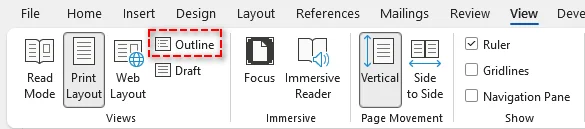
-
Show Headings
In the Outlining tab, set Show Level to the heading level you want to split by (e.g., Level 2). This collapses all body text, showing only your main headings.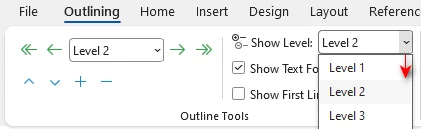
-
Select Headings
Highlight all the headings you want to split. -
Create Subdocuments
Click the Show Document button, then click Create. You will see thin gray boxes (Subdocuments) appear around your selected headings.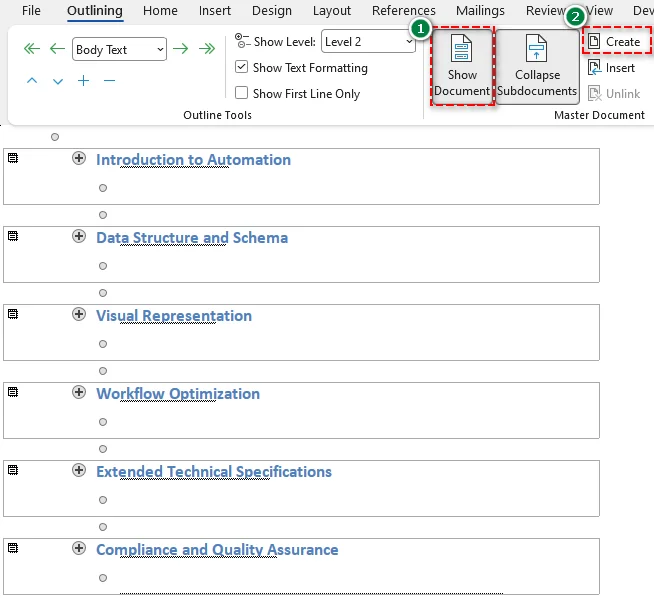
-
Save the Subdocuments
Press F12, choose a destination folder, and click Save to save the subdocuments.
Result: Word will instantly generate separate files for every heading you selected within that folder.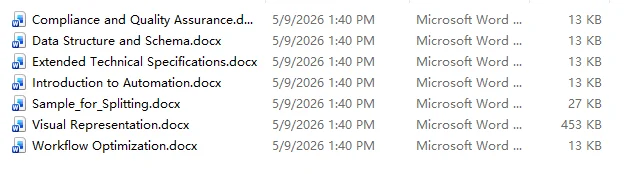
Strengths and Limitations:
| ✅ Strengths | ❌ Limitations |
|---|---|
| No Manual Dragging | Only works if the document uses consistent Heading Styles |
| Filenames are automatically assigned | Creates complex sub-document links that can be fragile if files are moved individually |
Extra Tips:
- New Folder Rule: Always create a new folder before saving the subdocuments. Word will use your heading text as filenames; without a folder, it will clutter your directory instantly.
- Test Navigation First: Before splitting, go to the Navigation Pane (Ctrl + F > Headings). If it is empty, Word doesn't recognize your structure. You'll need to apply Heading Styles to your titles first.
Method 3 - Split Word Documents via PDF Conversion
Best for: Sharing specific chapters that don't require further editing and must look identical on any device.
If your goal is to distribute a polished segment of your work, splitting via PDF conversion is the most reliable way to ensure cross-platform compatibility. PDF locks your layout, fonts, and images, preventing the recipient's Word settings from messing up your hard work.
Step-by-Step Instructions:
-
Convert to PDF
Open your file in Word, then go to File > Save As and select PDF (*.pdf). -
Define Range
In the dialog, click the Options... button. Under the Page range section, select Page(s), enter your target range (e.g., 5-10) and click OK.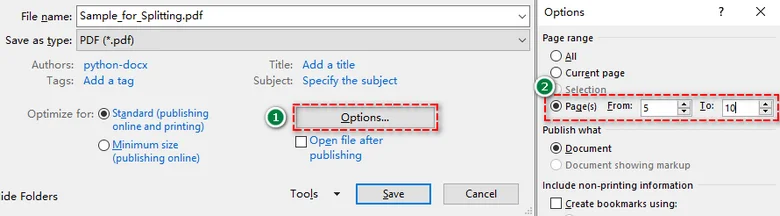
-
Save the file
Click Save and repeat for other page ranges.
Strengths and Limitations:
| ✅ Strengths | ❌ Limitations |
|---|---|
| Layout and formatting remain 100% static | Harder to edit after splitting |
Extra Tip:
- Re-Editing: Need to change something? Right-click the split PDF and select Open with > Word. Word will attempt to rebuild the text for you, though complex layouts may shift slightly.
Method 4 - Split Pages in Word Online for Free
Best for: Users without a desktop Microsoft Word installed or anyone working on mobile devices.
If you don't have access to the Microsoft Word desktop app, or if you need a "one-click" solution while on the go, an online Word document splitter like Zamzar is the most convenient choice. This cloud-based tool handles the heavy lifting on its servers, allowing you to split Word documents by every X pages without any manual formatting.
How to Split Pages in Word Online:
-
Upload Your File
Go to the Zamzar Word document splitter website and click Choose Files (or drag and drop your document).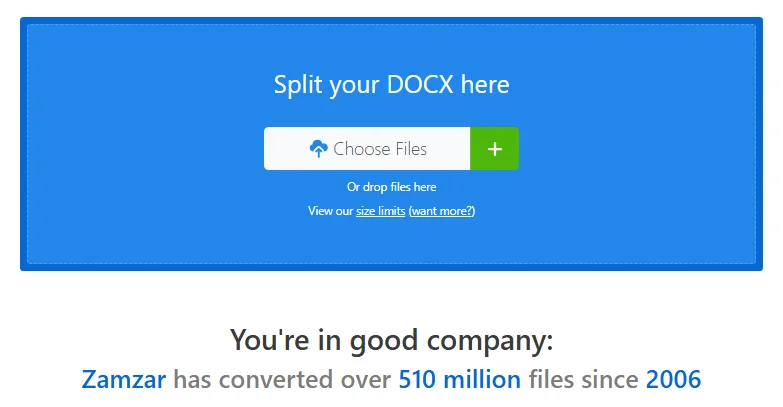
-
Set Your Split Logic
Specify the interval for splitting (e.g., split every 1 page).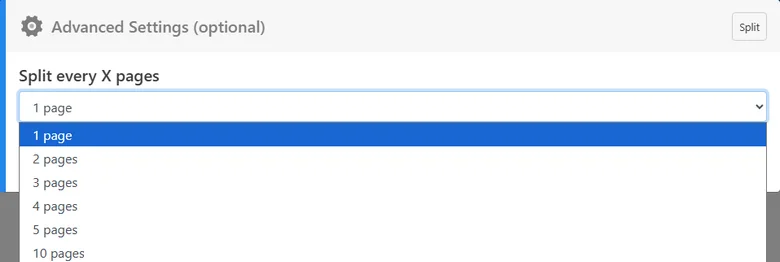
-
Split & Download
Click Split Now. Once the process is complete, download your split documents directly to your device.
Strengths and Limitations:
| ✅ Strengths | ❌ Limitations |
|---|---|
| Quick and simple | Requires uploading your document to a third-party server |
| Works across any device (mobiles, tablets, and more) | Free versions often limit the total file size (e.g., 50MB) |
Security Warning:
While online splitters are incredibly convenient, never use them for sensitive documents (like legal contracts, bank statements, or medical records). For private data, always stick to the offline methods (Method 1, 2, 3 or 5).
Method 5 - Automate Word Document Splitting with Python
Best for: Developers and power users who need to process massive volumes of documents or automate recurring monthly reports.
If you are facing a "mountain" of files-such as splitting 500 individual contracts into separate files-manual clicking is no longer an option. Python automation allows you to create a single script that handles the entire process in seconds, ensuring 100% accuracy without human intervention.
Step-by-Step Instructions:
-
Environment Setup
To automate Word document splitting, we will use the Spire.Doc for Python library. Unlike some open-source libraries like python-docx that struggle with complex Word layouts, Spire.Doc maintains high fidelity during the page extraction process.Before proceeding, install it by running the following command in your terminal:
pip install Spire.Doc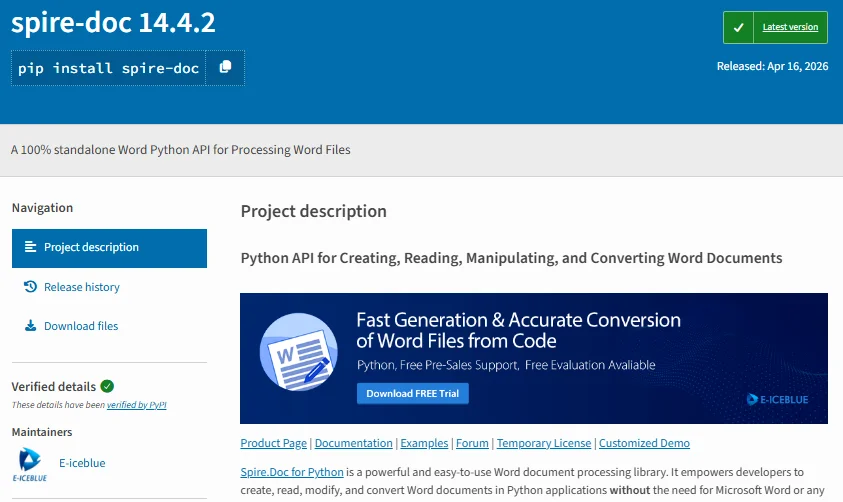
-
Write the Automation Script
This script scans an Input folder, finds every .docx file, and extracts each page into a separate document automatically:import os from spire.doc import * # Define folder paths input_folder = "Source_Documents/" output_folder = "Split_Results/" # Create output folder if it doesn't exist if not os.path.exists(output_folder): os.makedirs(output_folder) # Loop through all files in the input folder for filename in os.listdir(input_folder): if filename.endswith(".docx"): file_path = os.path.join(input_folder, filename) # Load the document doc = Document() doc.LoadFromFile(file_path) # Split the current document by page for i in range(doc.PageCount): single_page_doc = doc.ExtractPages(i, 1) # Save with a name like "ContractA_Page_1.docx" base_name = os.path.splitext(filename)[0] save_path = f"{output_folder}{base_name}_Page_{i + 1}.docx" single_page_doc.SaveToFile(save_path, FileFormat.Docx) single_page_doc.Dispose() doc.Dispose() print(f"Processed: {filename}") print("All documents have been successfully split!")
| ✅ Strengths | ❌ Limitations |
|---|---|
| Batch Split thousands of documents with high efficiency | Requires a Python environment and library installation |
| Fully customizable logic (split by page, page range, or section) | Requires basic Python knowledge |
Pro Tip:
- Beyond Pages: If your document uses Section Breaks, Spire.Doc can split by sections automatically, which is perfect for documents with varying chapter lengths.
Need to combine multiple Word files back together? Check out our guide on How to Merge Word Documents in Python.
Quick Comparison of All Word Document Splitting Methods
| Method | Best Use Case | Skill Level | Formatting Preservation |
|---|---|---|---|
| Copy & Paste | One-off small edits (1-5 pages) | Beginner | Partial |
| Heading Styles | Long, structured reports | Intermediate | High |
| PDF Conversion | Final versions for sharing | Beginner | Very High |
| Online Splitters | Mobile users or non-Word users | Beginner | Medium |
| Python Script | Batch processing (100+ files) | Advanced | High |
Tips for Splitting Word Documents Efficiently
- Backup First: Always create a backup copy of your master document before splitting. This protects you from accidental deletions or formatting errors.
- Preserve Formatting: Use Keep Source Formatting or consistent templates to ensure headings and layouts remain identical across all split files.
- Smart File Naming: Use a clear naming convention like ProjectName_Part01.docx. For Python users, you can automate this by pulling unique IDs or titles from the text.
- Final Review: Always check headers, footers, and page numbers after splitting. Word often resets these elements when content is moved to a new file.
Conclusion
There are several ways to split a Word document, the best method depends on your file size, structure, and workflow:
- Small files or occasional edits: Manual Copy & Paste or online splitters work perfectly.
- Sharing segments with fixed formatting: PDF conversion ensures consistent layout across all devices.
- Large-scale documents: Python automation delivers the ultimate speed and precision for batch processing.
Ready to start? Choose the method that fits your needs and take control of your document management today!
FAQs
Q1: Can I split a Word document without installing any software?
A1: Yes. You can use reliable online splitters like Zamzar to split Word documents without needing a desktop installation.
Q2: Why does my formatting change after splitting manually?
A2: This usually happens when the new document has different style settings. To fix this, always select Keep Source Formatting when pasting content into a new file.
Q3: How do I split a document by specific page ranges?
A3: The easiest way is using PDF Conversion. In the Save As options, you can specify a custom range (e.g., pages 5-10) to extract just those pages.
Q4: Is it safe to split confidential documents online?
A4: For sensitive data, we recommend offline methods like Copy & Paste or Python automation. This ensures your data never leaves your local computer.
Q5: How can developers automate Word splitting in Python?
A5: Developers can use libraries like Spire.Doc for Python. It allows you to programmatically detect pages and extract specific ranges or sections into new files with just a few lines of code.