
You build a document list for a client, and the client asks: "can I see the pages before downloading?" Just like that, you own a rendering feature you did not plan for. The same request shows up everywhere — a thumbnail strip under an inbox, a preview card pasted into a chat, a slide pulled from a deck and posted to social. In every case a PDF cannot be shown inline, but a picture of its pages can.
Once that switch is made, four decisions decide whether the work is usable: which pages, which format, how sharp, and how the files reach the user. Most PDF-to-image samples answer only the first one and leave you to discover the rest in production.
Spire.PDF for JavaScript renders pages in the browser through WebAssembly and hands you each page as an image stream. All four of those decisions are yours to make, and each one is a single argument or a changed file extension. Files move in and out through a virtual file system (VFS), so nothing is uploaded anywhere.
In this article you will learn how to:
- Render every page of a PDF to PNG and download the set as a ZIP
- Limit conversion to a single page or a range of pages
- Switch between PNG, JPEG, and BMP depending on what the image is for
- Trade sharpness against file size using DPI
- Deliver the result as a download, as individual files, or straight into your React UI
- Fix garbled or blank text caused by missing fonts
Prerequisites
This walkthrough assumes a React project with Spire.PDF for JavaScript installed and the WASM module initialized. For setup, see Integrating Spire.PDF for JavaScript in a React Project.
You will need:
- A PDF loaded into the VFS
- The WASM module reachable at
window.wasmModule.spirepdf - The
jszippackage, if you want to bundle multiple pages into one download (npm install jszip)
Convert every page to PNG
The full-document case is the one you will reach for most often: open the PDF, walk every page, render each to a stream, write each stream to a folder in the VFS, then zip that folder and hand it to the browser as a download.
import JSZip from "jszip";

function App() {
  const convertToImage = async () => {
    // Get the Spire.PDF WASM module
    const pdfModule = window.wasmModule?.spirepdf;

    // Check if the WASM module is ready
    if (!pdfModule) {
      alert('Spire.PDF is not ready yet');
      return;
    }

    // Load the PDF file and fonts into VFS
    await window.spire.FetchFileToVFS('ARIAL.TTF', '/Library/Fonts/', `${process.env.PUBLIC_URL}/font/`);
    const inputFileName = 'Flowers.pdf';
    await window.spire.FetchFileToVFS(inputFileName, "", `${process.env.PUBLIC_URL}/data/`);

    // Create PdfDocument object and load the PDF document
    let doc = new pdfModule.PdfDocument();
    doc.LoadFromFile(inputFileName);

    // Create an output directory to hold the converted images
    let outputDirectoryName = "ImagesFolders/";
    window.dotnetRuntime.Module.FS.mkdirTree(outputDirectoryName);

    // Loop through each page and save it as an image
    for (let i = 0; i < doc.Pages.Count; i++) {
      const outputFileName = outputDirectoryName + "ConvertedImages_" + i + ".png";
      let stream = doc.SaveAsImage({ pageIndex: i });
      stream.Save(outputFileName);
      stream.Dispose();
    }

    doc.Dispose();

    // Read the converted files from VFS and trigger download
    const zip = new JSZip();
    let items = await window.dotnetRuntime.Module.FS.readdir(outputDirectoryName);
    items = items.filter((item) => item !== "." && item !== "..");
    for (const item of items) {
      const itemPath = `${outputDirectoryName}/${item}`;
      const fileData = await window.dotnetRuntime.Module.FS.readFile(itemPath);
      zip.file(item, fileData);
    }

    // Convert the ZIP to a Blob and trigger the browser download
    const zipBlob = await zip.generateAsync({ type: "blob" });
    const url = URL.createObjectURL(zipBlob);
    const a = document.createElement('a');
    a.href = url;
    a.download = 'ImagesFolders';
    a.click();
    URL.revokeObjectURL(url);
  };

  return (
    <div style={{ textAlign: 'center', height: '300px' }}>
      <h1>Convert PDF To Image</h1>
      <button onClick={convertToImage}>
        Generate
      </button>
    </div>
  );
}

export default App;
Each page of the PDF exported as a PNG image via SaveAsImage and bundled into a ZIP file for download
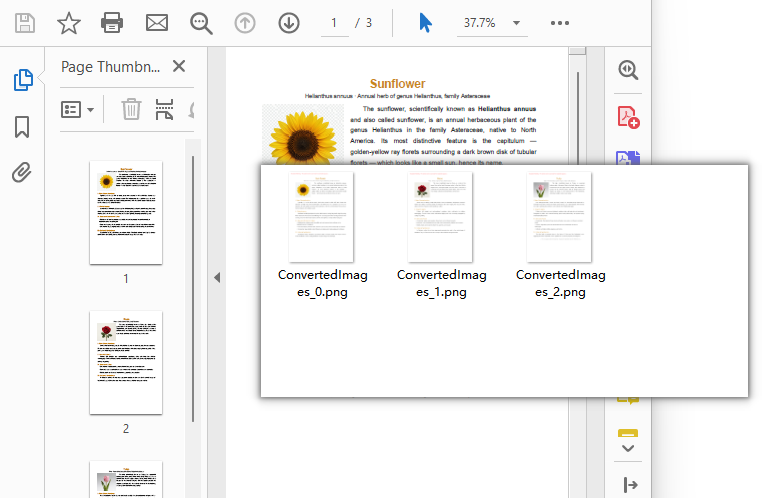
What the code does:
-
doc.SaveAsImage({ pageIndex: i })renders one page and returns an image stream. Page indexes are zero-based, sopageIndex: 0is the first page. -
stream.Save(outputFileName)writes that stream into the VFS. The extension you pass here sets the format — more on that below. -
stream.Dispose()releases the stream before the next page is rendered. Skipping it on a long document wastes memory for no benefit. - The
FS.mkdirTree→FS.readdir→FS.readFilesequence exists because the WASM module writes to its own file system, not to the browser's download folder. JSZip is what turns that folder into something the user can save. - Rendering is read-only. The source PDF is opened, read, and disposed; it is never modified.
Note: This produces a picture of each page, which is what you want for previews, thumbnails, and sharing. If you instead want the original image files embedded inside the PDF — the actual chart or photo at its native resolution, not a screenshot of the page it sits on — that is a different operation: see Extract Images from a PDF in JavaScript (React).
Convert specific pages only
Rendering a 200-page document to produce three thumbnails is wasted work. Since the page walk is just a for loop over doc.Pages.Count, narrowing it is a matter of changing the bounds.
A single page — the cover or a specific exhibit:
// Render only the first page
const outputFileName = outputDirectoryName + "cover.png";
let stream = doc.SaveAsImage({ pageIndex: 0 });
stream.Save(outputFileName);
stream.Dispose();
A contiguous range — pages 3 through 5, using zero-based indexes 2 through 4:
const startPage = 2;
const endPage = 4;

for (let i = startPage; i <= endPage && i < doc.Pages.Count; i++) {
  let stream = doc.SaveAsImage({ pageIndex: i });
  stream.Save(outputDirectoryName + "page_" + (i + 1) + ".png");
  stream.Dispose();
}
A hand-picked set — pages that are not next to each other:
const pagesToRender = [0, 7, 12];

for (const pageIndex of pagesToRender) {
  if (pageIndex >= doc.Pages.Count) continue;
  let stream = doc.SaveAsImage({ pageIndex });
  stream.Save(outputDirectoryName + "page_" + (pageIndex + 1) + ".png");
  stream.Dispose();
}
The i < doc.Pages.Count guard matters when the page list comes from user input rather than a hardcoded constant — an out-of-range index is a runtime error you would rather not ship.
Note the (i + 1) in the filenames. Zero-based indexes are right for the API and wrong for humans; naming files after the page number the user sees avoids a class of support tickets later.
Recommended article: When you need the original image objects out of the PDF rather than a rendered page — the embedded chart or photo at its native resolution — see Extract Images from a PDF in JavaScript (React).
Choose an output format
The format is decided entirely by the extension you pass to stream.Save. Nothing else in the pipeline changes.
stream.Save(outputDirectoryName + "page_1.png");  // PNG
stream.Save(outputDirectoryName + "page_1.jpg");  // JPEG
stream.Save(outputDirectoryName + "page_1.bmp");  // BMP
| Format | Extension | What you get | Reach for it when |
|---|---|---|---|
| PNG | .png |
Lossless. Text edges and thin lines stay crisp. Larger files. | Document pages, UI previews, anything with text or diagrams |
| JPEG | .jpg |
Lossy. Much smaller. No transparency, and compression artifacts show around small text. | Photographic or scanned pages, email attachments, size-constrained delivery |
| BMP | .bmp |
Uncompressed. Very large. | Legacy pipelines that specifically require uncompressed bitmaps |
The practical rule: if the page is mostly text, use PNG. JPEG's compression is tuned for photographic content, and on a text-heavy page it produces visible smudging around glyph edges that no amount of quality setting fully removes. If the page is a scanned photo, JPEG will cut the file size dramatically with little visible cost.
Set the resolution (DPI)
SaveAsImage renders at 96 DPI by default, which matches a typical screen. That is the right setting for thumbnails and on-screen previews. It is not enough when someone zooms in, prints the page, or feeds the image into OCR.
Pass dpiX and dpiY to change it:
// Export each page as an image at 150 DPI
for (let i = 0; i < doc.Pages.Count; i++) {
  let stream = doc.SaveAsImage({ pageIndex: i, dpiX: 150, dpiY: 150 });
  stream.Save(outputDirectoryName + "highres_" + i + ".png");
  stream.Dispose();
}
Resolution is not a free upgrade — pixel count scales with the square of the DPI, so the cost climbs quickly:
| DPI | Relative pixel count vs. 96 DPI | Comparable to | Reasonable for |
|---|---|---|---|
| 96 (default) | 1× | Standard screen | Thumbnails, inline previews, gallery strips |
| 150 | ~2.4× | Retina display, light zoom | Email attachments, previews users may zoom, draft printing |
| 300 | ~9.8× | Print quality | Print output, OCR input, archival masters |
Two things follow from that table. First, going from 96 to 300 multiplies the work and the storage by roughly ten, so don't reach for 300 on a 200-page document unless someone is actually going to print it. Second, dpiX and dpiY are separate arguments for a reason — they are normally set to the same value, and setting them differently will stretch the page.
Package or preview the images
Rendering the pages is half the job; the other half is getting them to the user. Three patterns cover nearly everything.
Bundle everything into one ZIP — the approach in the first example. Best when the user wants a folder of files, and the only option that scales to dozens of pages without hammering the browser with download prompts.
Download a single image directly — no JSZip needed when there is only one file:
const outputFileName = 'cover.png';
let stream = doc.SaveAsImage({ pageIndex: 0 });
stream.Save(outputFileName);
stream.Dispose();

const fileArray = window.dotnetRuntime.Module.FS.readFile(outputFileName);
const blob = new Blob([fileArray], { type: 'image/png' });
const url = URL.createObjectURL(blob);
const a = document.createElement('a');
a.href = url;
a.download = outputFileName;
a.click();
URL.revokeObjectURL(url);
Keep the images inside your React UI — no download at all. This is the right choice for preview panes and thumbnail strips, where the images are temporary and a download folder full of page_1.png files would just be clutter:
const renderPreviewStrip = async () => {
  const pdfModule = window.wasmModule?.spirepdf;
  if (!pdfModule) return;

  await window.spire.FetchFileToVFS('Flowers.pdf', "", `${process.env.PUBLIC_URL}/data/`);

  let doc = new pdfModule.PdfDocument();
  doc.LoadFromFile('Flowers.pdf');

  const previewUrls = [];

  for (let i = 0; i < doc.Pages.Count; i++) {
    const tempName = `preview_${i}.png`;
    let stream = doc.SaveAsImage({ pageIndex: i, dpiX: 72, dpiY: 72 });
    stream.Save(tempName);
    stream.Dispose();

    const fileArray = window.dotnetRuntime.Module.FS.readFile(tempName);
    const blob = new Blob([fileArray], { type: 'image/png' });
    previewUrls.push(URL.createObjectURL(blob));
  }

  doc.Dispose();

  // previewUrls can now be rendered as <img src={url} /> in a thumbnail strip
  return previewUrls;
};
Note the dpiX: 72 in the preview case: thumbnails don't need full resolution, and rendering them smaller keeps the strip responsive. Remember to call URL.revokeObjectURL(url) for each URL when the component unmounts, or you will leak memory on every re-render.
You may also like: Working from a set of images rather than a PDF — assembling scans or photos into a single document? That is Converting Images to PDF in JavaScript (React).
Fix garbled text: load fonts
A PDF usually embeds the fonts it uses, but not always — and when it doesn't, the renderer has to substitute something. In the browser there is no operating system font library to fall back on, so a missing font turns into blank space or boxes.
The fix is to put the font file where the WASM runtime expects to find it before you render:
// Load a TrueType font into the VFS font directory before converting
await window.spire.FetchFileToVFS('ARIAL.TTF', '/Library/Fonts/', `${process.env.PUBLIC_URL}/font/`);
ARIALUNI.TTF is worth knowing about: it covers common CJK characters as well as Latin, which makes it the safer default when your users upload documents in languages you haven't enumerated. If you only ever handle English documents, a smaller font keeps the download lighter.
Because this runs before any page is rendered, one missing-font check at the start of your conversion function is enough — you don't need to reload fonts per page.
FAQ
Does converting a PDF to images change the original PDF?
No. SaveAsImage renders pages and returns new image data; the source document is opened read-only and disposed afterward. Your original PDF is untouched.
How do I convert just the first page?
Call SaveAsImage once with pageIndex: 0 instead of looping. See Convert specific pages only.
Why is my output bigger than the original PDF?
Because a rendered page stores pixels, while a PDF stores drawing instructions. A text-heavy PDF page is often a few kilobytes; a 300 DPI PNG of that same page can be megabytes. Drop to 96–150 DPI or switch to JPEG if size matters more than fidelity.
Can I show the images in my app instead of downloading them?
Yes — build object URLs from the image data and use them as <img> sources. See Package or preview the images. Just remember to revoke the URLs when you're done.
Will a very long document cause problems?
Pages are rendered one at a time inside the loop, so the WASM module holds roughly one page image at a time rather than the whole document. For extremely long files, convert in chunks and append to the archive as you go rather than holding every image in an array.
What's the difference between converting a page to an image and extracting images from a PDF?
Converting renders the whole page — text, layout, images, backgrounds — as one flat picture. Extracting pulls out the original image objects embedded in the document at their native resolution. Use conversion for previews and sharing; use extraction when you need the source artwork itself.
Where do the converted files actually go?
Into the WASM virtual file system, not your server and not the user's disk. Nothing leaves the browser — the only way files reach the user is the download or object-URL step you write yourself.
See Also
Looking for the reverse direction — turning images back into a PDF? That is Converting Images to PDF in JavaScript (React). The rest of the PDF page pipeline in React: